
South Asian Saree Prompt Card
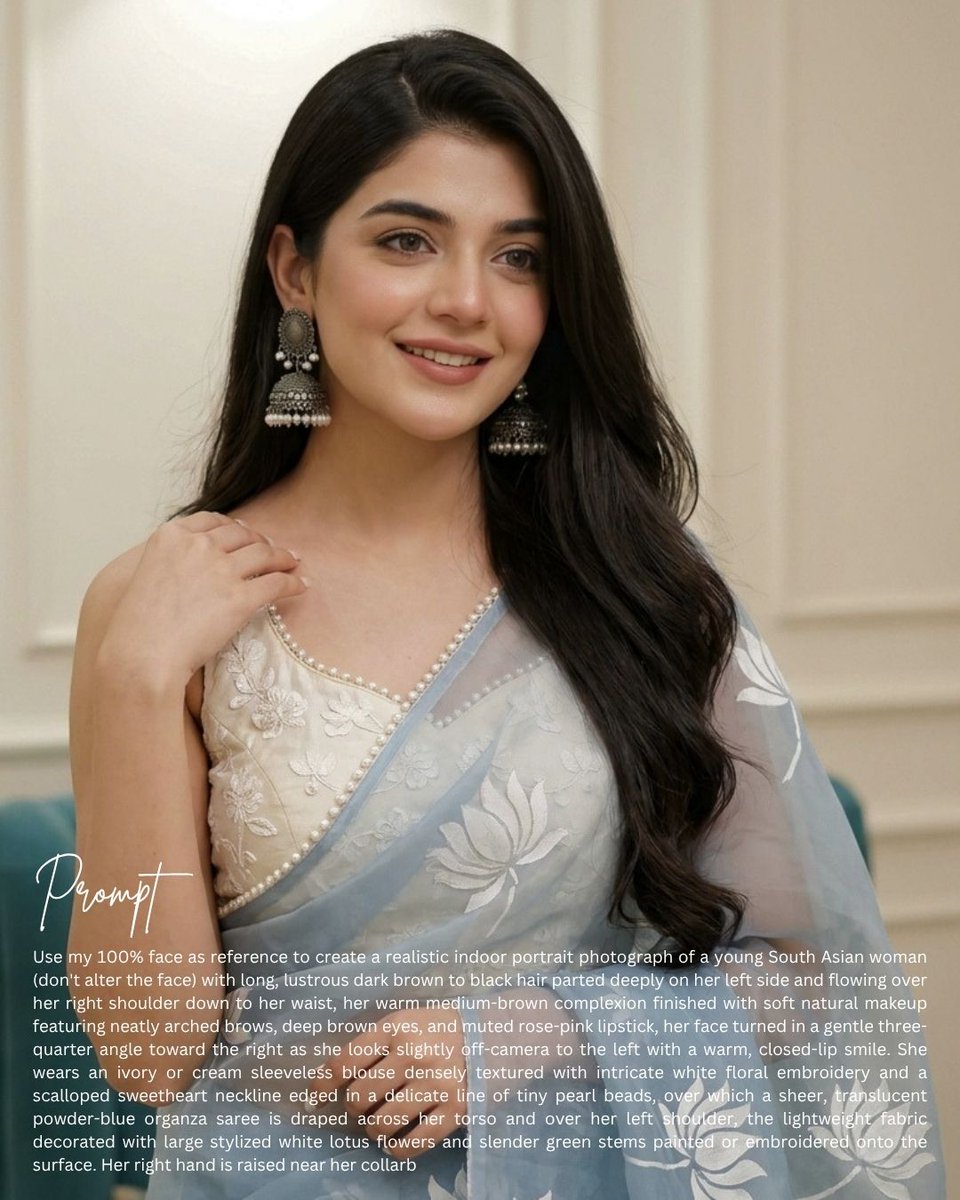
Generates a realistic portrait-style prompt card of a South Asian woman in an embroidered saree with a face censor block and bottom instructional text overlay.
- Prompt included
- Model and format preset
- Free template
The prompt behind this image
Copy the exact prompt behind South Asian Saree Prompt Card, or open it in the studio and make it yours.
Create a vertical 4:5 social-media prompt card featuring a realistic indoor portrait photograph of a {argument name="subject" default="young South Asian woman"}. The woman is shown from upper torso to head, seated or standing in front of a soft cream-beige paneled wall with shallow depth of field and warm indoor lighting. Her face must be intentionally hidden by one centered opaque square censor block in a medium brown skin-tone color, covering the full face from forehead to chin. She has long, lustrous {argument name="hair color" default="dark brown to black"} hair, parted deeply on her left side and flowing in loose waves over her right shoulder down toward her waist. Her head is turned three-quarter toward the right while her body faces forward; her left shoulder is draped in fabric and her right hand is raised near her collarbone with relaxed fingers. She wears exactly 2 large traditional oxidized-silver jhumka earrings, one on each ear, with pearl-like dangling tiers. Outfit: exactly 2 visible garment layers, an ivory or cream sleeveless blouse with intricate white floral embroidery and a scalloped sweetheart neckline edged with tiny pearl beads, plus a sheer translucent powder-blue organza saree draped across the torso and over the left shoulder, decorated with large stylized white lotus flowers and slender green stems. The mood is elegant, bridal, soft, and realistic, with natural skin texture, gentle highlights, and a teal upholstered chair barely visible at the lower left edge. Add a text overlay in the bottom third: exactly 2 text elements. Text element 1 is a large white handwritten script title reading {argument name="title text" default="Prompt"}, positioned at lower left. Text element 2 is a small white sans-serif paragraph beneath and to the right of the title, spanning nearly the full width, reading: {argument name="paragraph text" default="Use my 100% face as reference to create a realistic indoor portrait photograph of a young South Asian woman (don't alter the face) with long, lustrous dark brown to black hair parted deeply on her left side and flowing over her right shoulder down to her waist, her warm medium-brown complexion finished with soft natural makeup featuring neatly arched brows, deep brown eyes, and muted rose-pink lipstick, her face turned in a gentle three-quarter angle toward the right as she looks slightly off-camera to the left with a warm, closed-lip smile. She wears an ivory or cream sleeveless blouse densely textured with intricate white floral embroidery and a scalloped sweetheart neckline edged in a delicate line of tiny pearl beads, over which a sheer, translucent powder-blue organza saree is draped across her torso and over her left shoulder, the lightweight fabric decorated with large stylized white lotus flowers and slender green stems painted or embroidered onto the surface. Her right hand is raised near her collarb"}. Use soft vignette-like contrast so the white text remains readable, no logo or watermark, photorealistic editorial portrait style.
How to use South Asian Saree Prompt Card in 3 steps
- 1Upload ImagePNG, JPG or paste
Add your photo
Upload the photo the template builds on. The prompt, model and format are already set.
- 2…a portrait of your subject in softgolden-hour light, 85mm…
Personalize
Edit the subject and creative details for your destination.
- 3Generate
Generate
Press Generate — your image is created in PicX Studio, so you can compare it with the original and refine one variable at a time.
More like this
Templates with the same subject, style or setup. Open one to see its prompt.
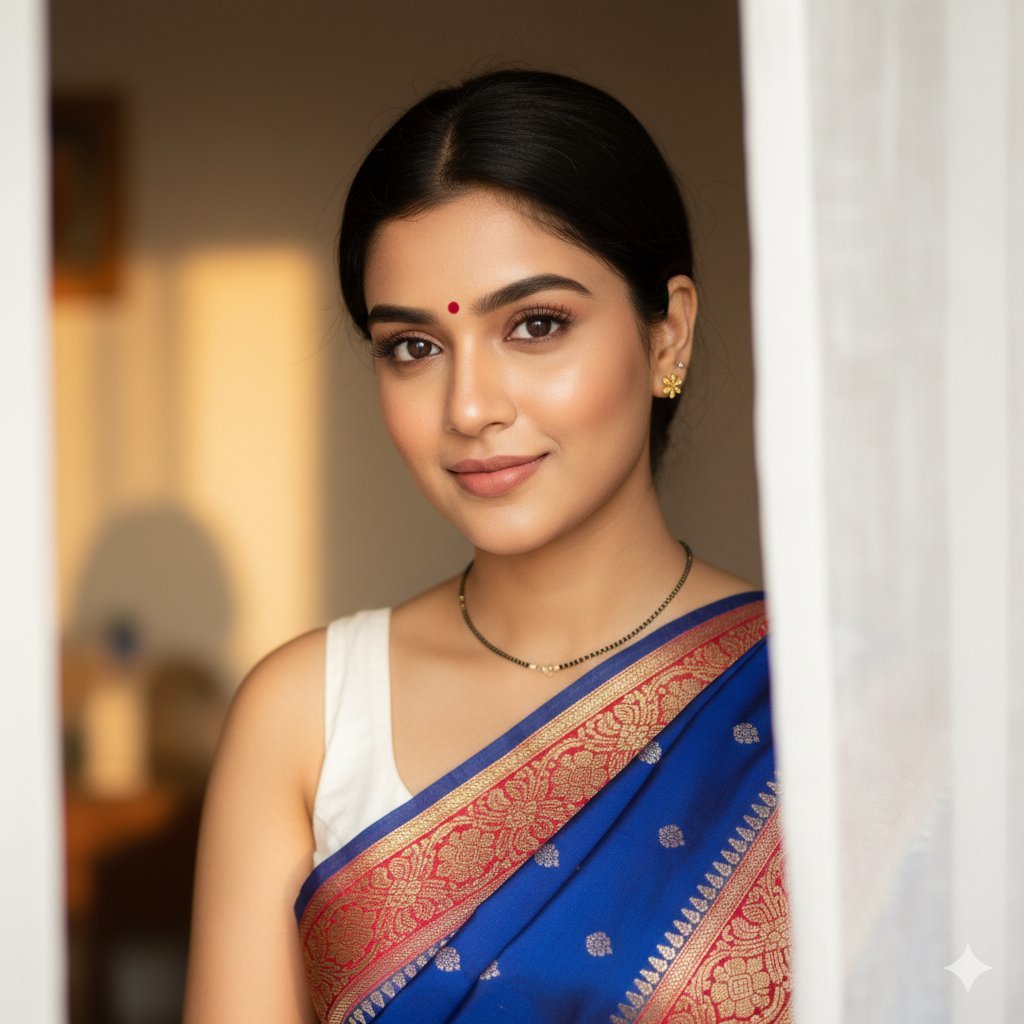
South Asian Woman Portrait with Saree and Sheer Curtains
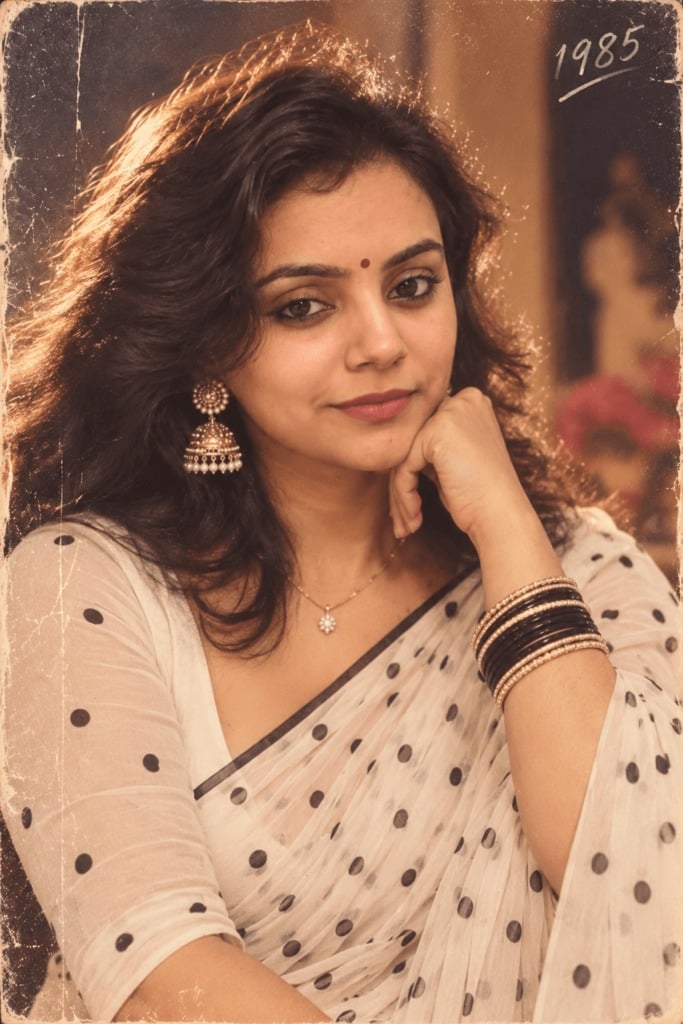
80s Polka Dot Saree
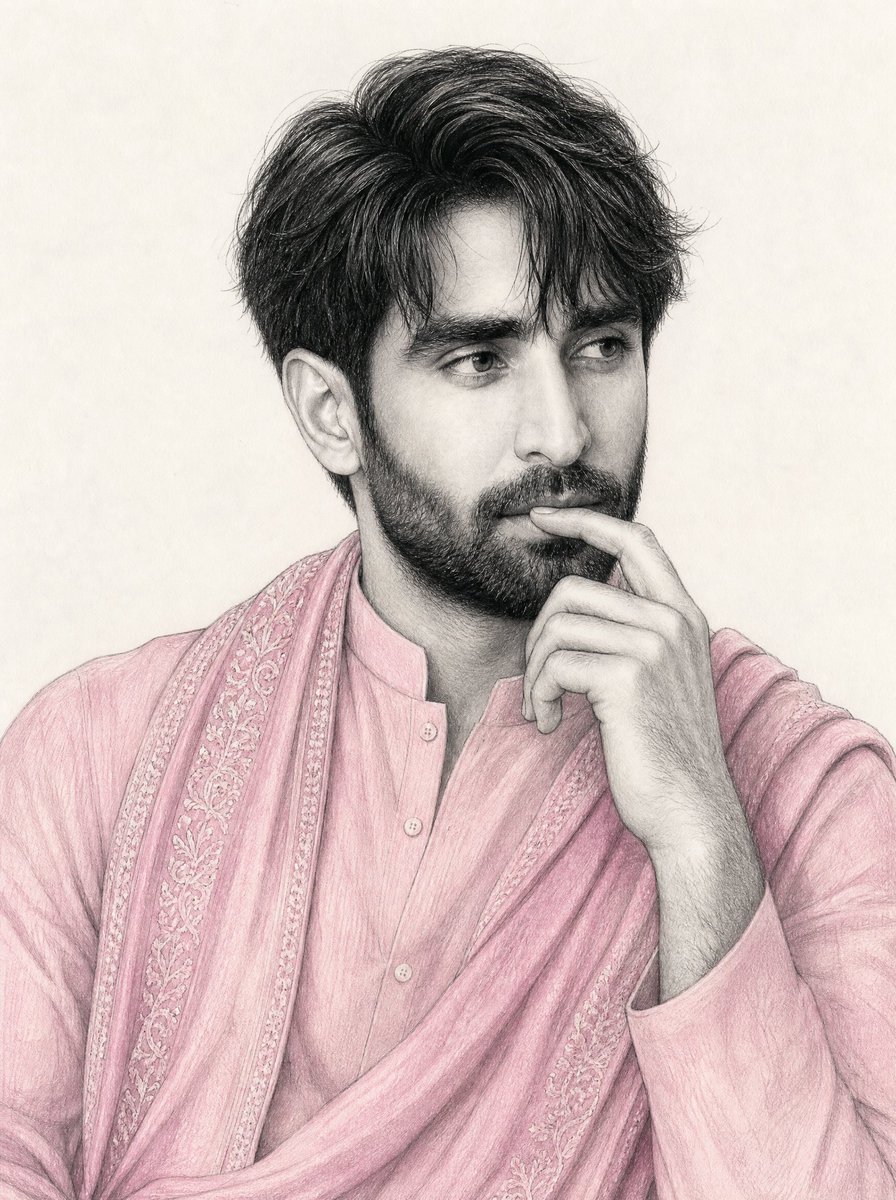
South Asian Man Graphite Drawing
South Asian Woman in Floral Traditional Attire
Watercolor South Asian Groom Portrait
Cinematic South Asian Lotus Portrait
South Asian Woman in Garden Portrait
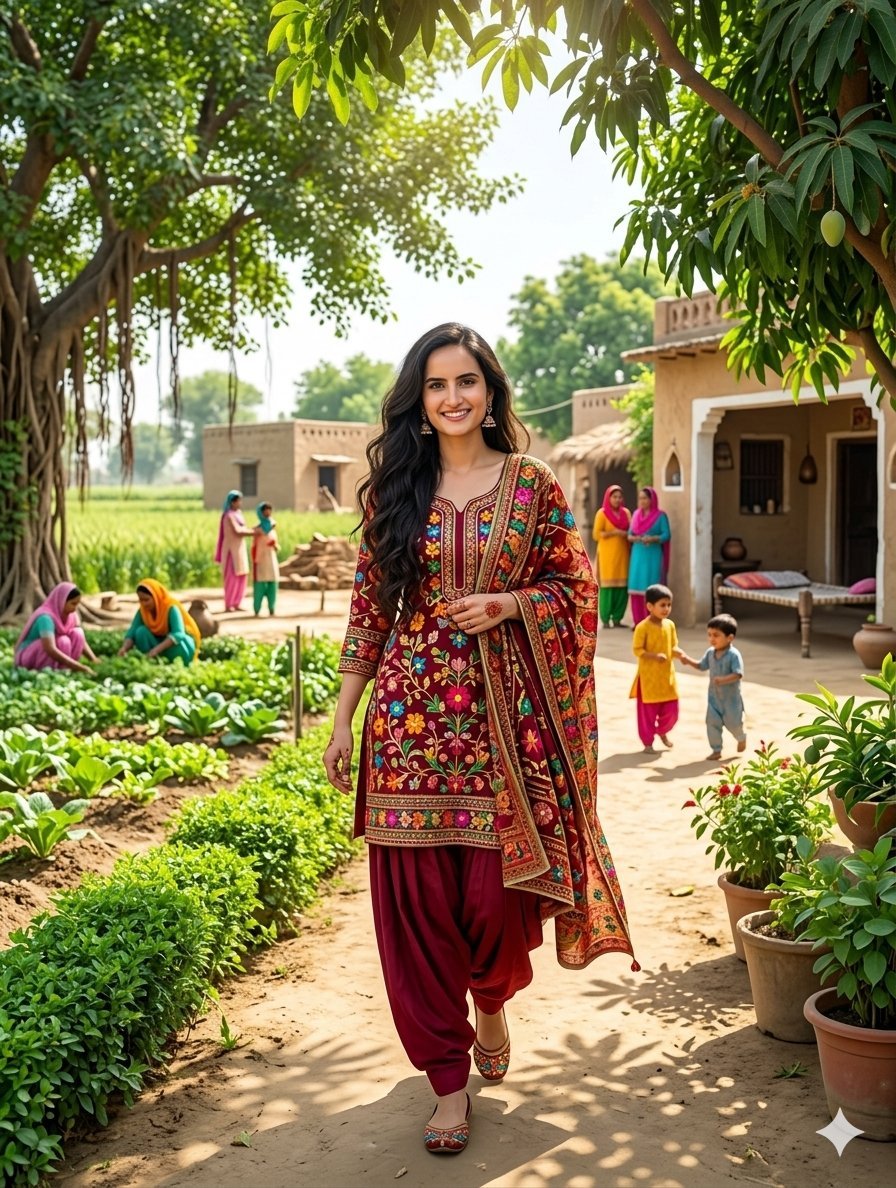
South Asian Woman in Rural Punjab
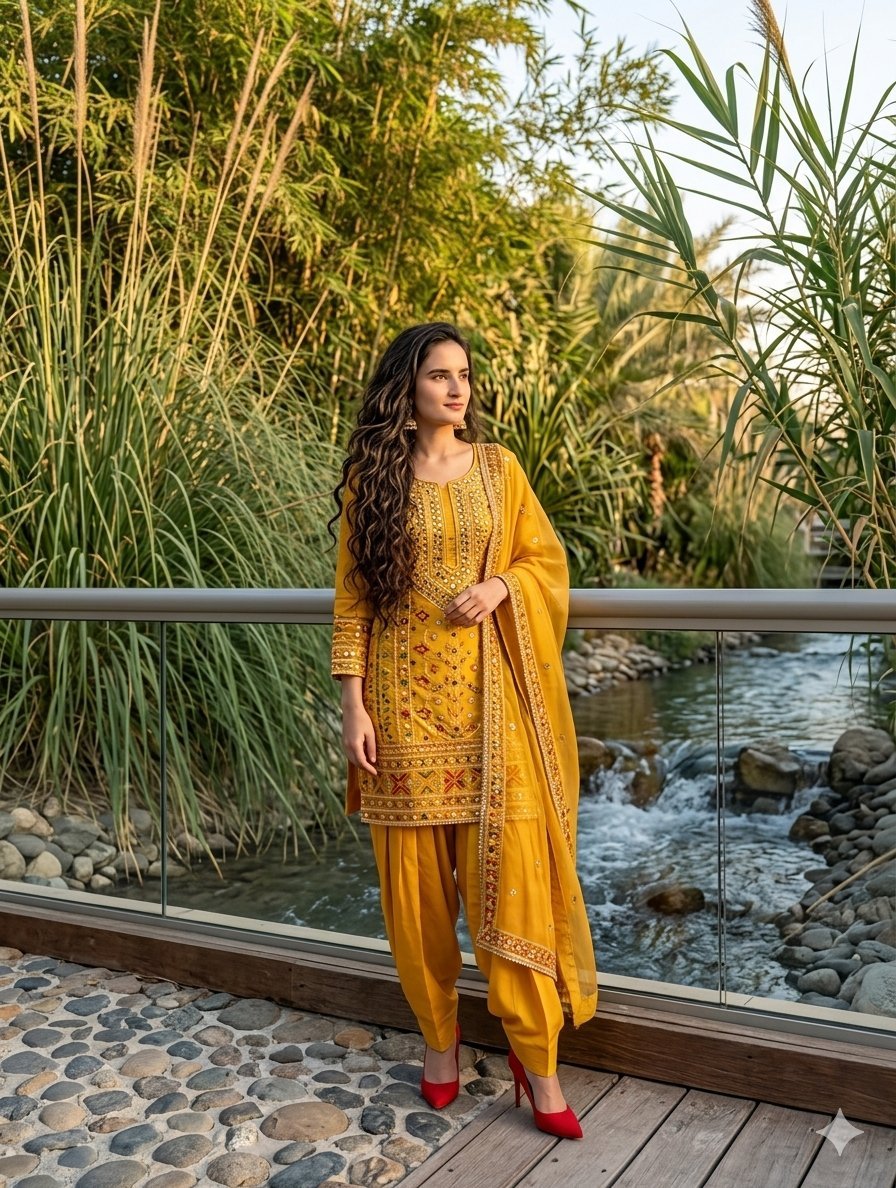
South Asian Woman in Anarkali Dress
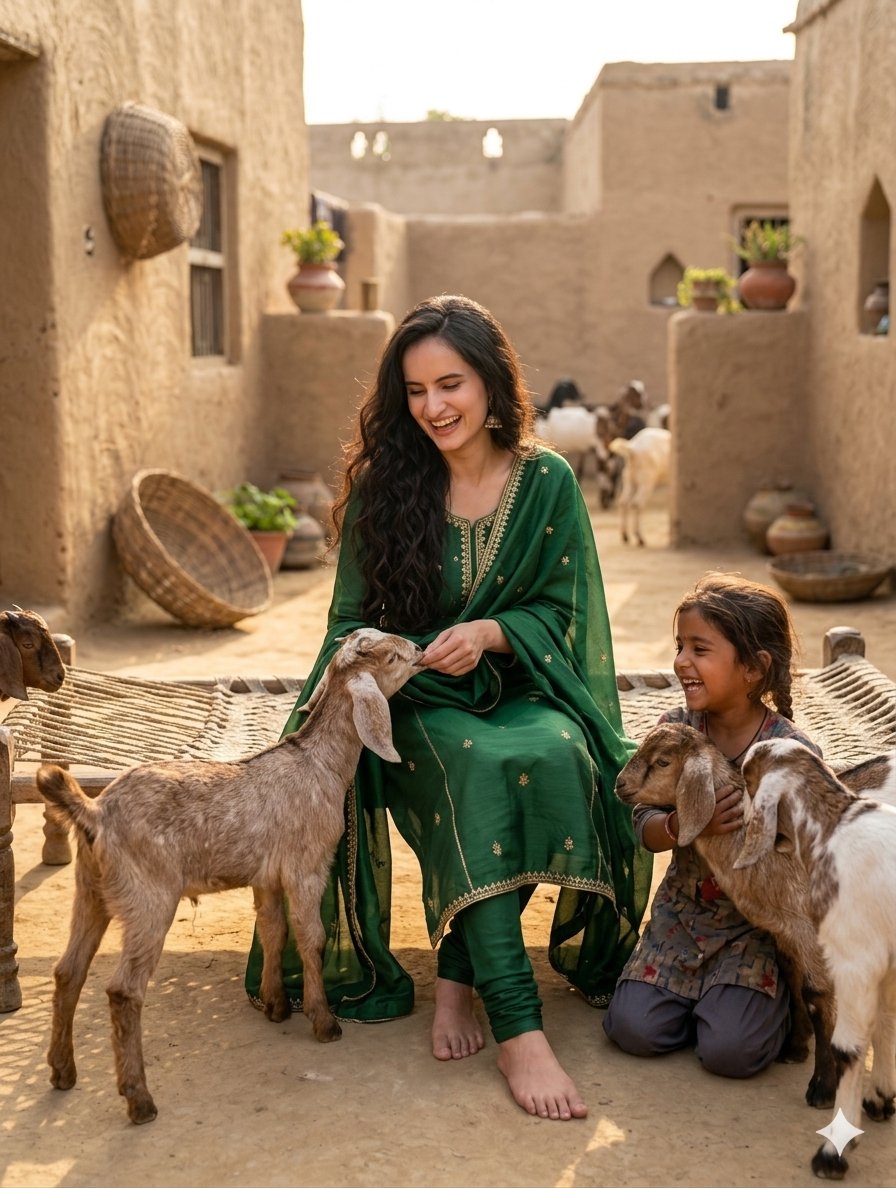
Joyful South Asian Village Scene
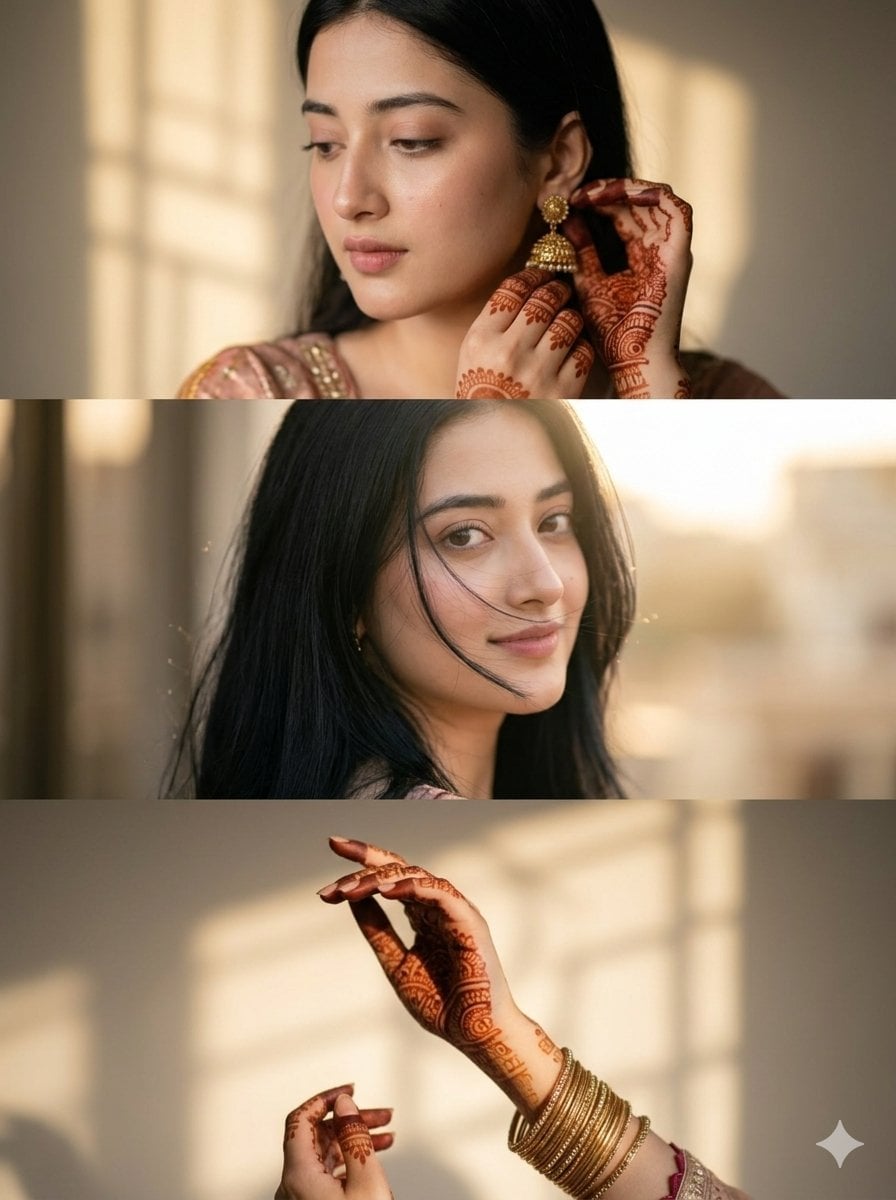
Cinematic South Asian Woman Portrait Collage
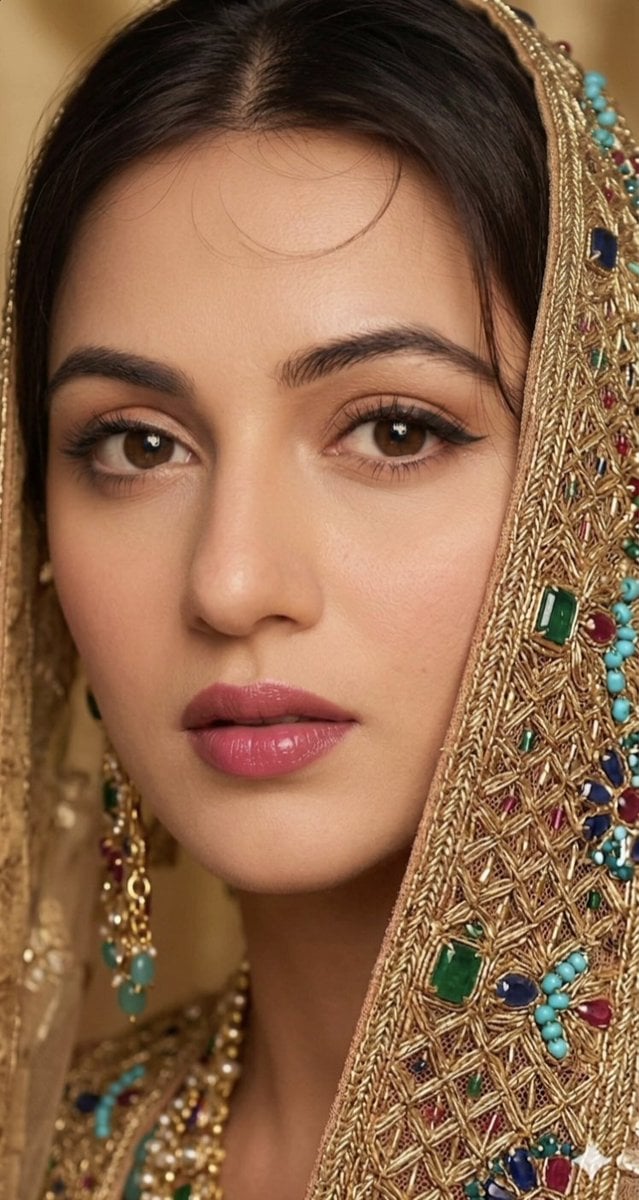
South Asian Bridal Elegance
Make it yours
South Asian Saree Prompt Card works as-is. These are the safest ways to change it without losing the look.
Change one field
Copy a single group, rewrite it, and generate again so you can see what that field is doing.
Keep the frame, change the subject
Hold the composition and light of South Asian Saree Prompt Card, then swap wardrobe, props or the person for a new take.
| If the result… | Why | Fix |
|---|---|---|
| The result drifts from the preview | Too many fields changed at once. | Reuse South Asian Saree Prompt Card as-is first, then change one group — subject, light, or setting. |
| The model over-stylizes the scene | The prose prompt leaves finish and camera underspecified. | Add one camera or lighting sentence and stay on GPT Image 2. |
More GPT Image 2 templates
Other prompts made for GPT Image 2.

Six VTuber Japanese Logo Sheet

Realistic Portrait of Woman and Deer

The Vista Modular Condo Poster

AI Model Routing Comparison Infographic

2.5D Anime Art Board

Isometric Productivity Desk Scene

New York Double Exposure Poster

Four-Panel AI Landscape Comparison

Japanese Tatami Lifestyle Magazine Cover

NESCAFÉ Coffee Map Poster
More image prompts
Fresh picks from across the catalog.
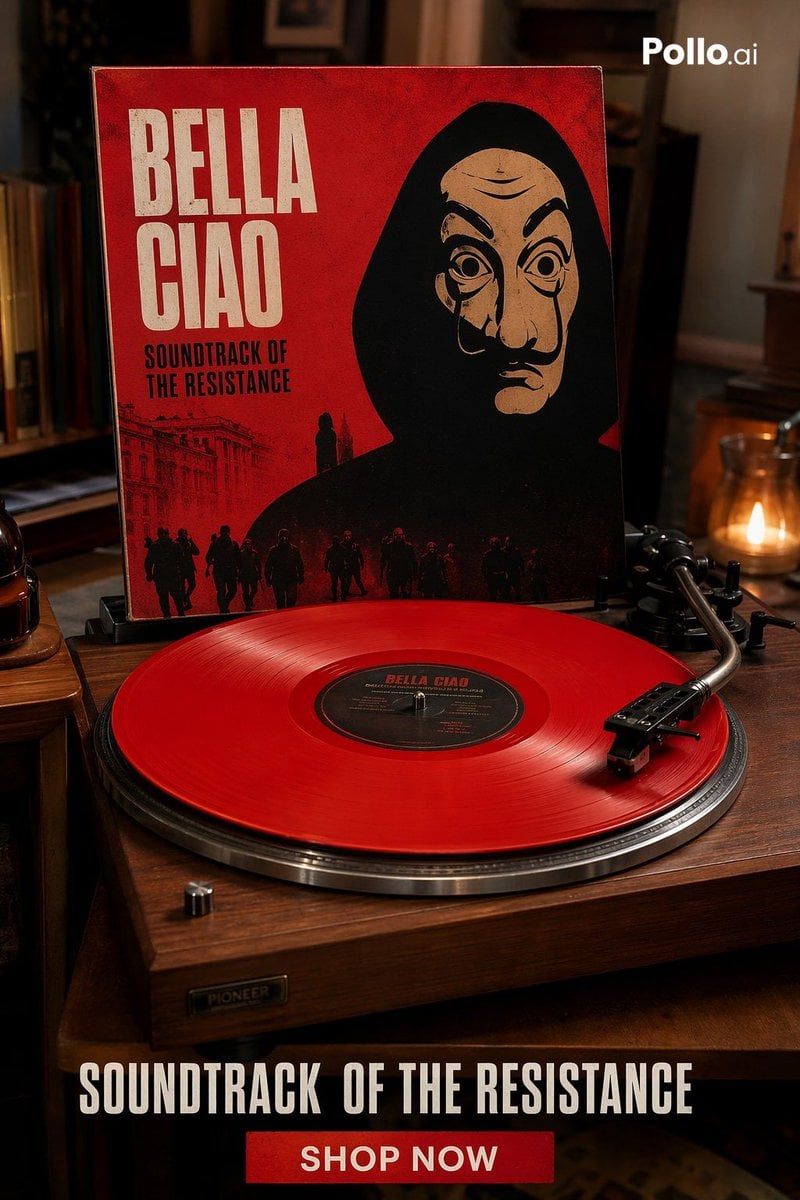
Red Vinyl Soundtrack Ad

First-Person AR Shopping Interface Overlay
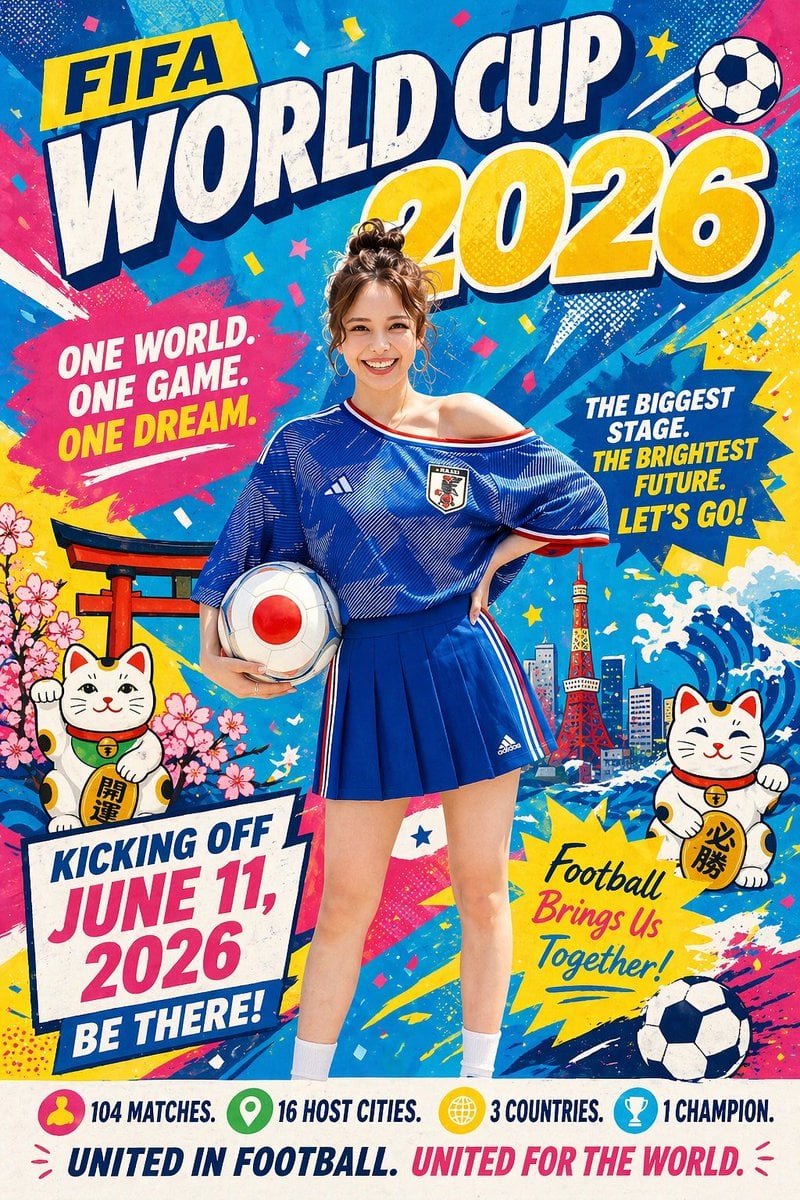
Minimalist World Cup poster
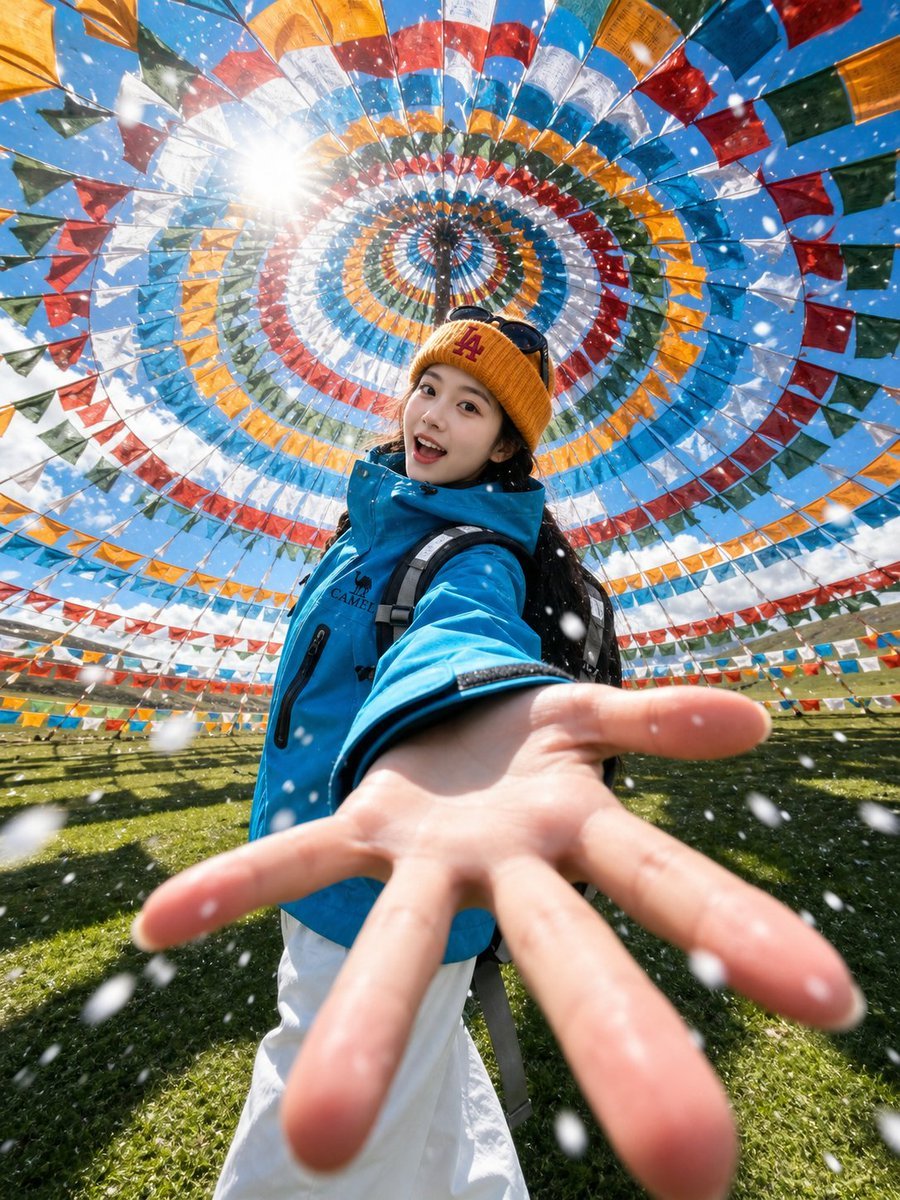
Tibetan Prayer Flag Highland Selfie
Elf Queen Stock Market Loss Panic
High-Contrast Beach Snapshot with Strict Identity and Sharp Focus
Shanghai Shikumen Rooftop Night Portrait
Realistic Photography of a Woman at a Fairytale Castle
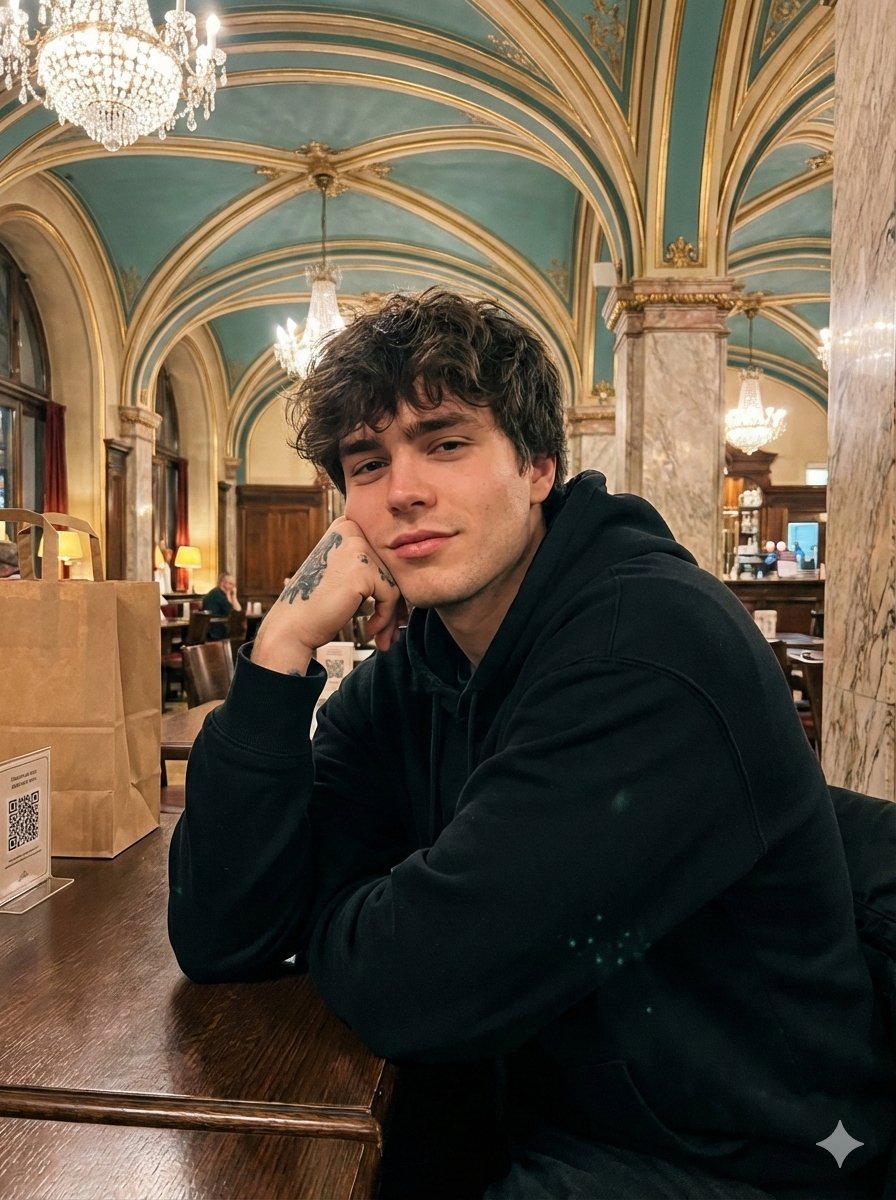
Opulent Café Portrait with Voluminous Hair

Minimalist Sports Poster Campaign
Browse template categories
South Asian Saree Prompt Card questions
How do I use the South Asian Saree Prompt Card template?
Add your photo if the template asks for one, edit the prompt if you like — the template's model and format are already selected — and press Generate. Your version opens in PicX Studio.
Can I customize the South Asian Saree Prompt Card template?
Yes. You can change the subject, setting, lighting, mood, format, and available model controls before creating your image.
Is the South Asian Saree Prompt Card template free?
Opening and editing this template is free. Generating uses credits, shown on the Generate button when you are signed in.
Which AI model should I use?
Start with GPT Image 2, which is the model associated with this template. You can compare another compatible model for a different finish.
Looking for something else? Browse all templates.

Your photo, any look
Thousands of ready templates for every top image and video model, from one credit balance.