
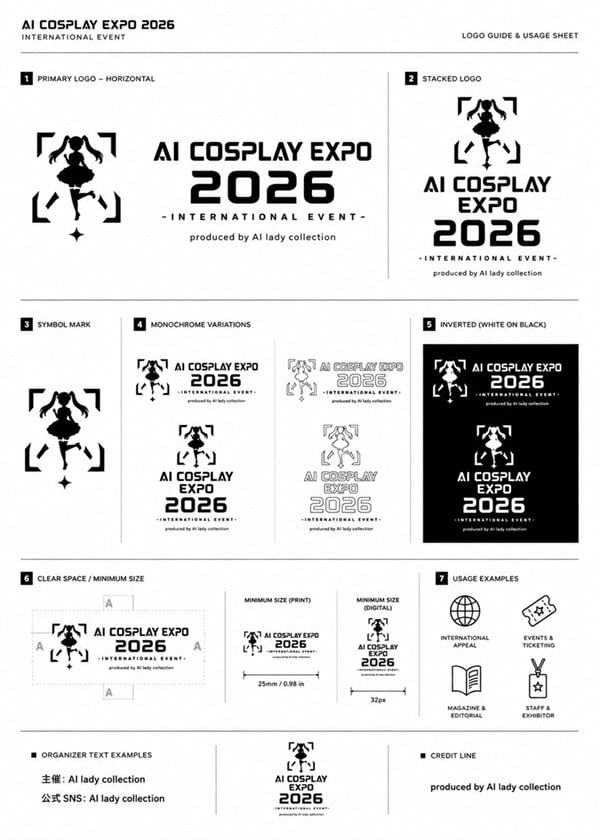
AI Cosplay Expo Logo Guide Sheet
A monochrome brand identity usage sheet for a fictional AI cosplay expo logo, suitable for event branding mockups and style guide presentations.
- Prompt included
- Model and format preset
- Free template
The prompt behind this image
Copy the exact prompt behind AI Cosplay Expo Logo Guide Sheet, or open it in the studio and make it yours.
Goal: Create a clean black-and-white logo guide and usage sheet for {argument name="event name" default="AI COSPLAY EXPO 2026"}, presented as a professional brand identity document. Canvas: Portrait A4-style page, white background, thin light-gray divider lines, generous margins, crisp monochrome vector look. Use bold futuristic techno sans-serif typography, all caps, high contrast black ink. Header: Top-left title reads “AI COSPLAY EXPO 2026” with small subtitle “INTERNATIONAL EVENT” underneath. Top-right small label reads “LOGO GUIDE & USAGE SHEET”. A thin horizontal rule separates the header from the main content. Core logo design: The symbol is a black silhouette of a cute anime-style twin-tail cosplay girl standing inside four broken corner brackets, with a small diamond sparkle below. Combine it with bold text “AI COSPLAY EXPO” and large stacked numerals “2026”, plus the small tagline “- INTERNATIONAL EVENT -” and credit line “produced by {argument name="producer name" default="AI lady collection"}”. Layout: Divide the page into exactly 7 numbered brand-guide sections using small black square number badges and thin gray rules. Sections: 1. “PRIMARY LOGO – HORIZONTAL”: large horizontal lockup. Symbol on the left, text on the right: “AI COSPLAY EXPO” above huge “2026”, tagline “- INTERNATIONAL EVENT -”, and credit “produced by AI lady collection”. 2. “STACKED LOGO”: vertical centered lockup. Symbol on top, “AI COSPLAY EXPO” stacked in three lines, large “2026”, tagline, and producer credit below. 3. “SYMBOL MARK”: standalone large silhouette symbol only. 4. “MONOCHROME VARIATIONS”: show exactly 4 logo variations: black horizontal logo, gray/outline horizontal logo, black stacked logo, gray/outline stacked logo. 5. “INVERTED (WHITE ON BLACK)”: black rectangle containing exactly 2 white reversed logos: one horizontal logo at top and one stacked logo below. 6. “CLEAR SPACE / MINIMUM SIZE”: left side shows the horizontal logo inside a dotted clear-space box with “A” spacing markers on the top, left, right, and bottom; right side shows exactly 2 minimum-size examples: “MINIMUM SIZE (PRINT)” with width label “25mm / 0.98 in”, and “MINIMUM SIZE (DIGITAL)” with width label “32px”. 7. “USAGE EXAMPLES”: show exactly 4 simple outline icons with labels: globe icon labeled “INTERNATIONAL APPAREL”, ticket icon labeled “EVENTS & TICKETING”, open book icon labeled “MAGAZINE & EDITORIAL”, and medal badge icon labeled “STAFF & EXHIBITOR”. Footer: Bottom strip divided into three columns. Left column title “ORGANIZER TEXT EXAMPLES” with two Japanese-style text lines: “主催: AI lady collection” and “公式 SNS: AI lady collection”. Center column contains a small stacked version of the logo. Right column title “CREDIT LINE” with the line “produced by AI lady collection”. Visual style: Minimal Swiss grid meets Japanese event-brand manual, precise alignment, thin gray separators, no color except black, white, and light gray. Make all text legible, sharp, and print-ready. Avoid extra sections, extra icons, watermarks, gradients, shadows, or decorative backgrounds.
How to use AI Cosplay Expo Logo Guide Sheet in 3 steps
- 1Upload ImagePNG, JPG or paste
Add your photo
Upload the photo the template builds on. The prompt, model and format are already set.
- 2…a portrait of your subject in softgolden-hour light, 85mm…
Personalize
Edit the subject and creative details for your destination.
- 3Generate
Generate
Press Generate — your image is created in PicX Studio, so you can compare it with the original and refine one variable at a time.
More like this
Templates with the same subject, style or setup. Open one to see its prompt.

Six VTuber Japanese Logo Sheet
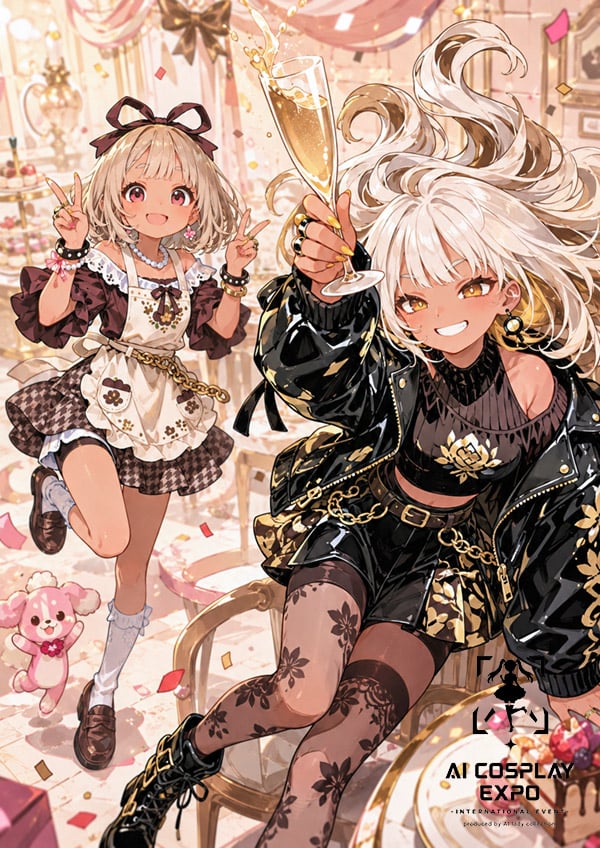
Faceless Anime Cosplay Expo Duo
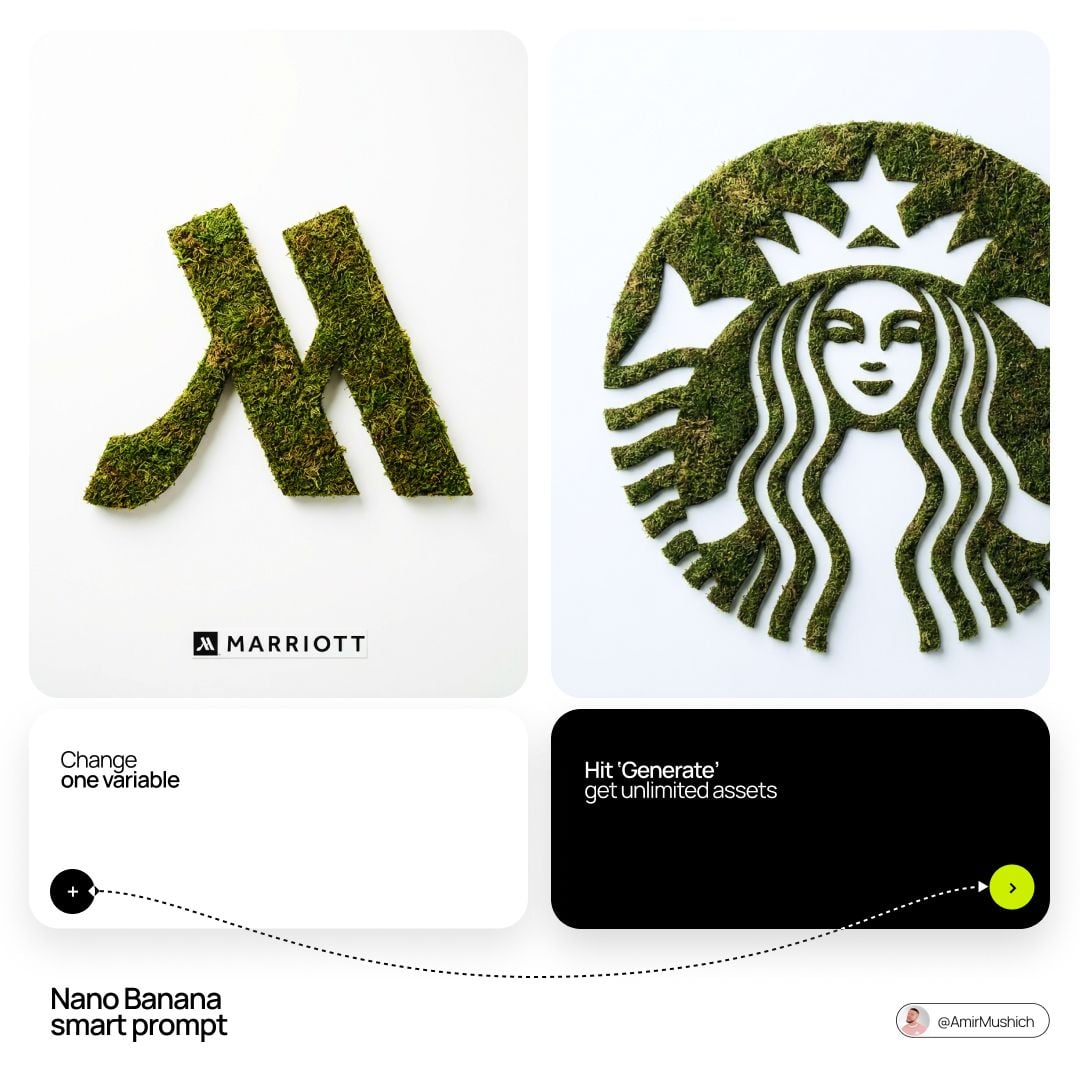
Moss Logo Minimalist Brand Flat Lay
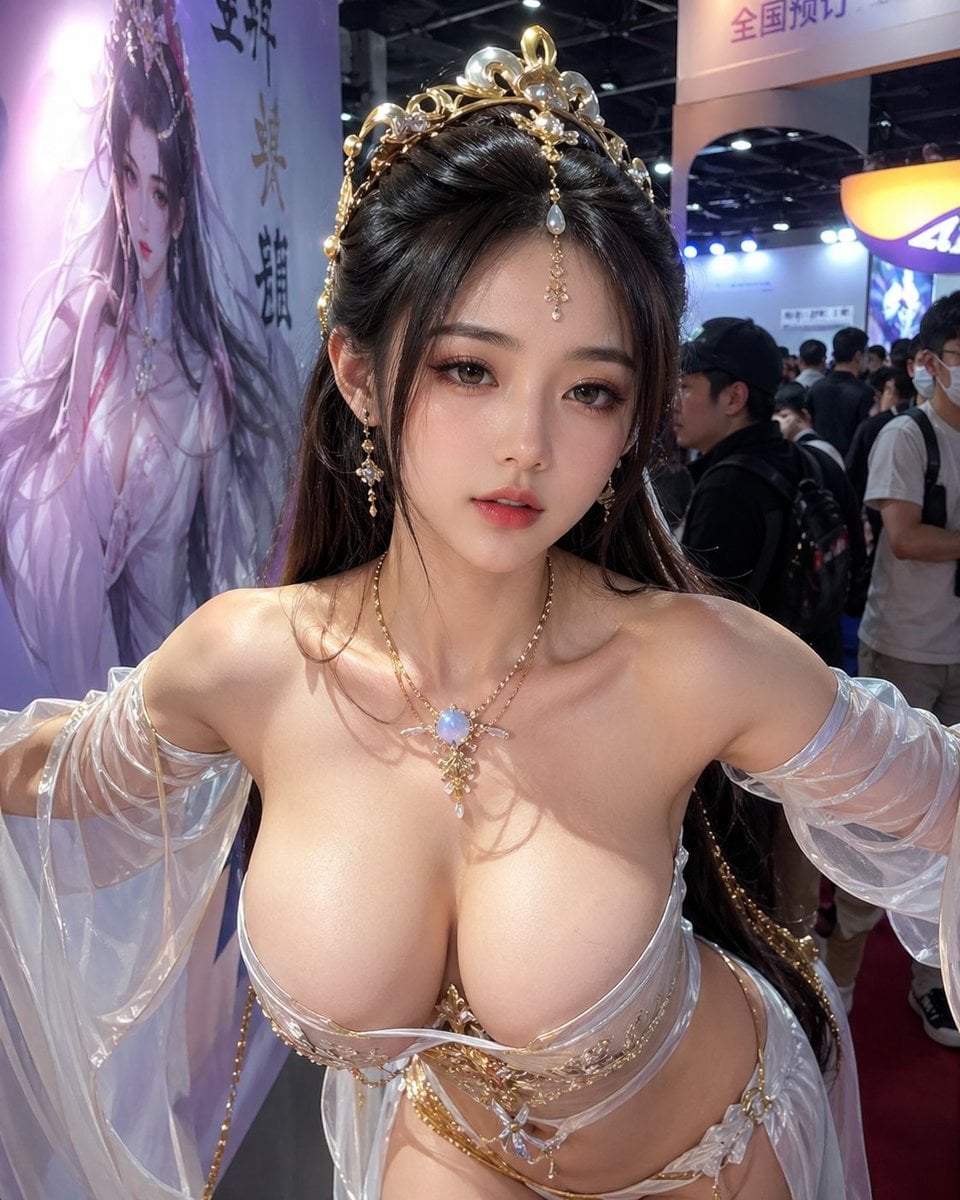
Censored Fantasy Cosplayer at Expo
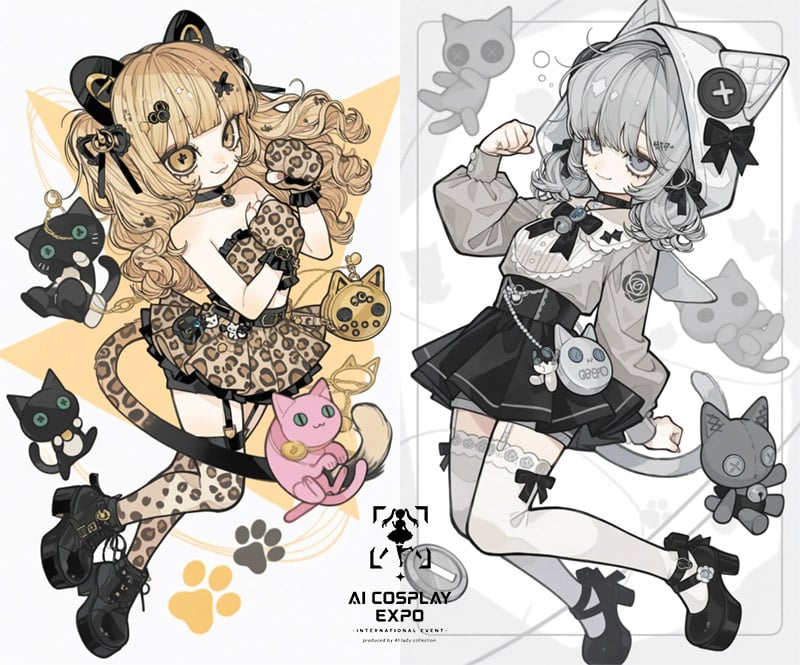
AI Cosplay Expo Cat Girls
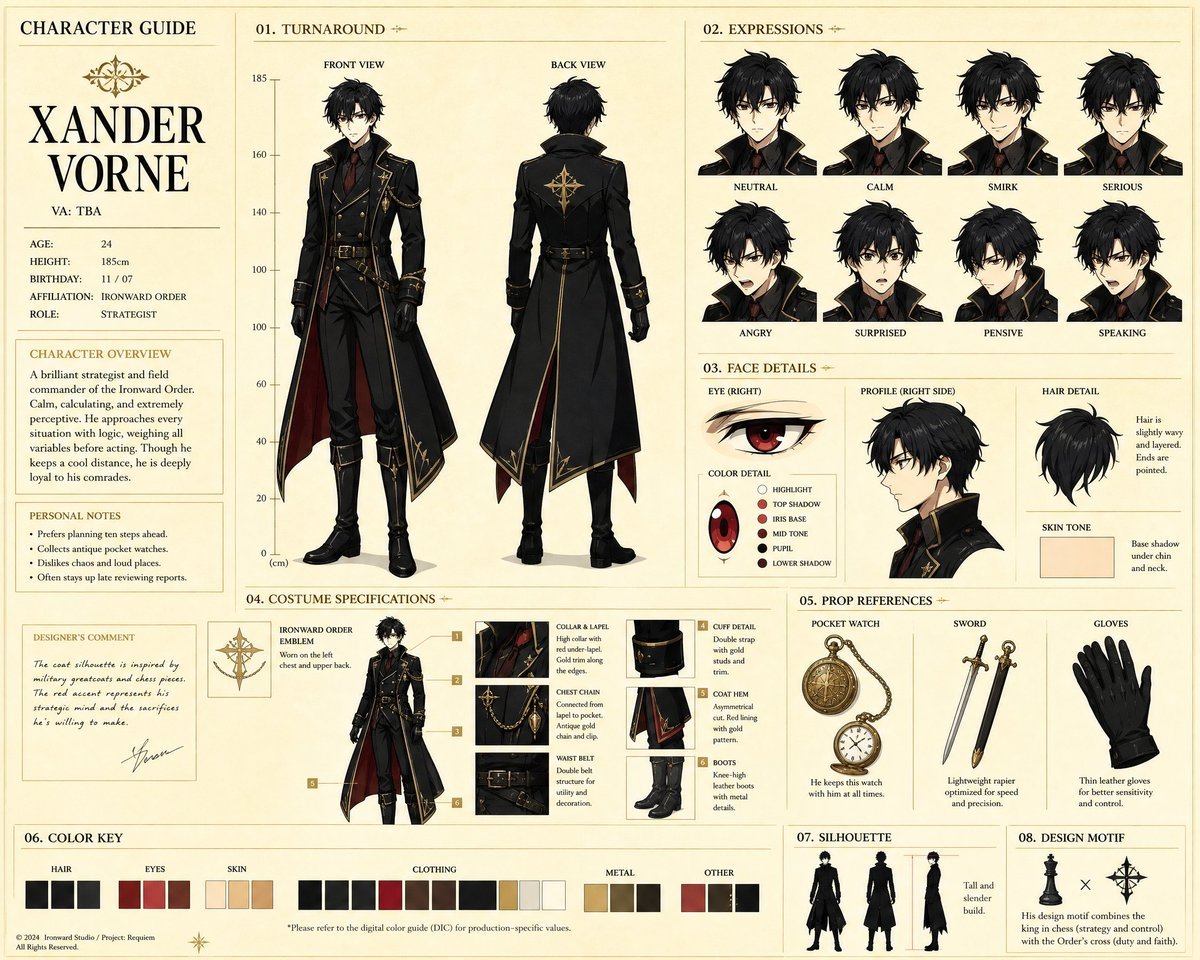
Anime Character Production Guide Sheet
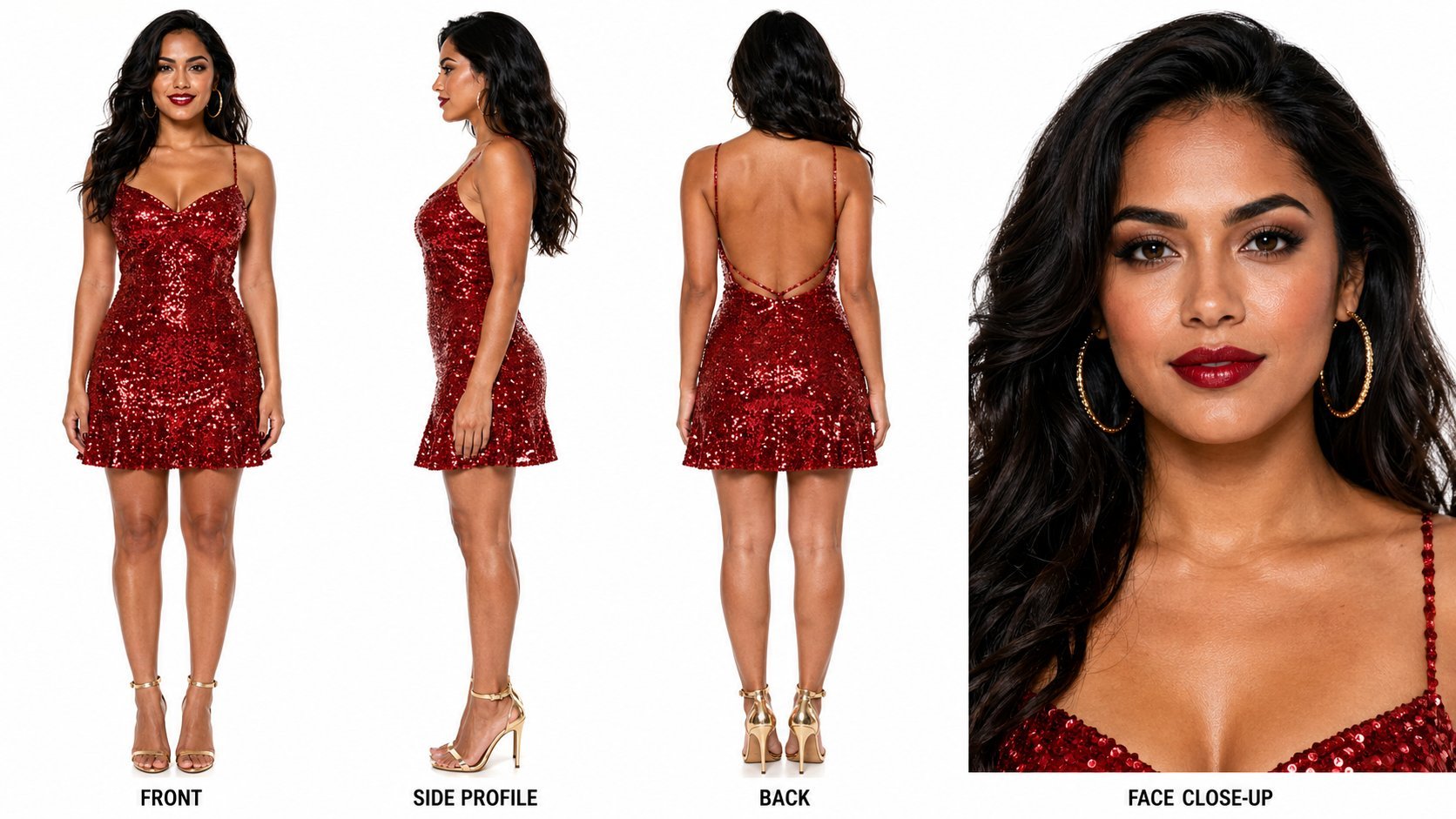
Dancer Character - Four View Reference Sheet
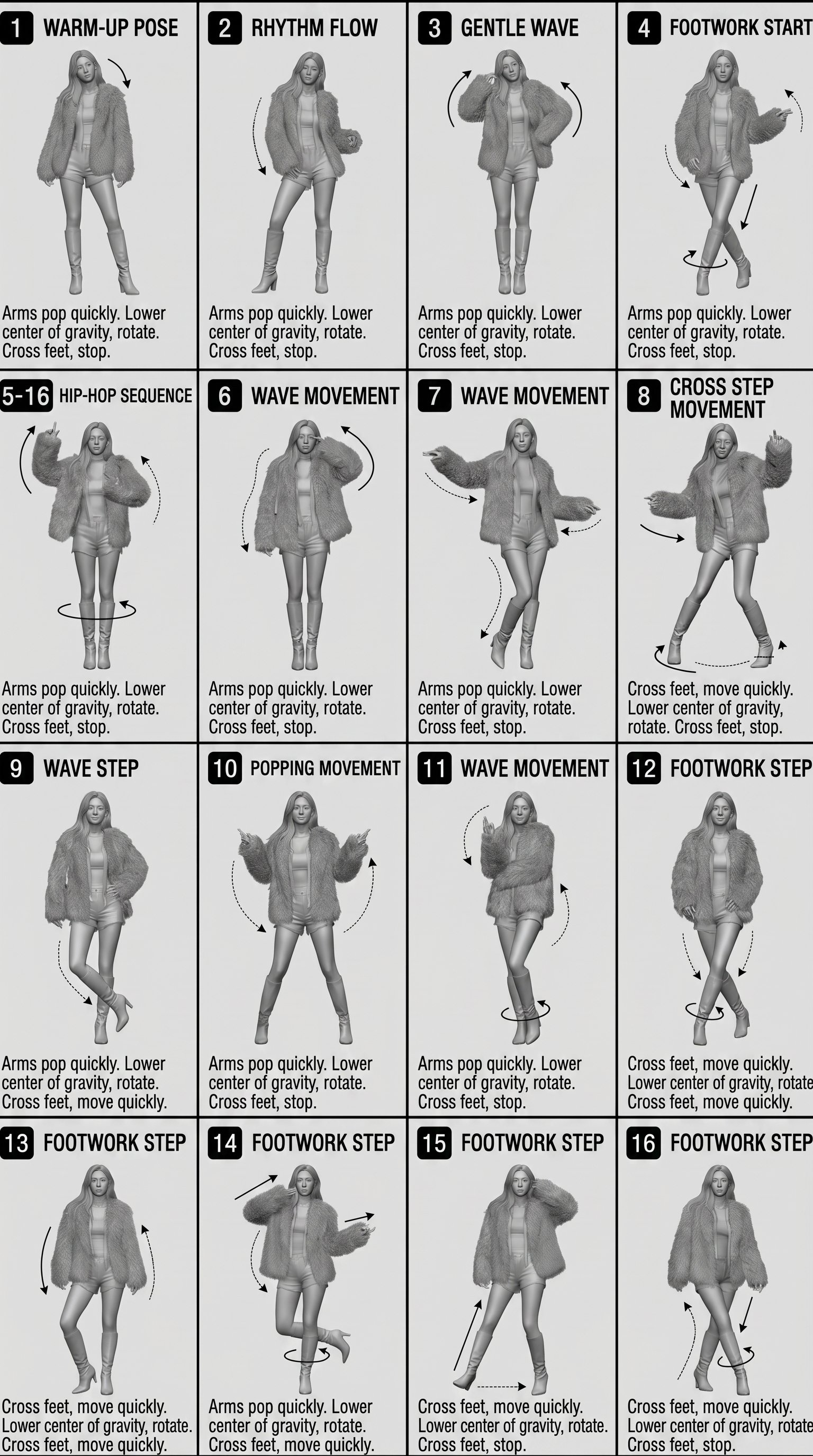
Movement Sheet - Dance Reference (Seedance 2.0)
Anime Cosplayer Convention Photography
Photography Scheme Reference Guide
Cosplay Girl with Manga Graffiti Shadow
Overhead Fantasy Hanfu Cosplay Duo
Make it yours
AI Cosplay Expo Logo Guide Sheet works as-is. These are the safest ways to change it without losing the look.
Change one field
Copy a single group, rewrite it, and generate again so you can see what that field is doing.
Keep the frame, change the subject
Hold the composition and light of AI Cosplay Expo Logo Guide Sheet, then swap wardrobe, props or the person for a new take.
| If the result… | Why | Fix |
|---|---|---|
| The result drifts from the preview | Too many fields changed at once. | Reuse AI Cosplay Expo Logo Guide Sheet as-is first, then change one group — subject, light, or setting. |
| The model over-stylizes the scene | The prose prompt leaves finish and camera underspecified. | Add one camera or lighting sentence and stay on GPT Image 2. |
More GPT Image 2 templates
Other prompts made for GPT Image 2.

Realistic Portrait of Woman and Deer

The Vista Modular Condo Poster

AI Model Routing Comparison Infographic

2.5D Anime Art Board

Isometric Productivity Desk Scene

Four-Panel AI Landscape Comparison

Japanese Tatami Lifestyle Magazine Cover

NESCAFÉ Coffee Map Poster

Brutalist Cogito Chinese Typography Poster
Cinematic Luxury Terrace Portrait
More image prompts
Fresh picks from across the catalog.

Ultra-Realistic 3D Automotive Brand Render
Luxury Fitness Editorial Layout
Language Learning Infographic Poster
Minimal Spring Fashion Editorial Board
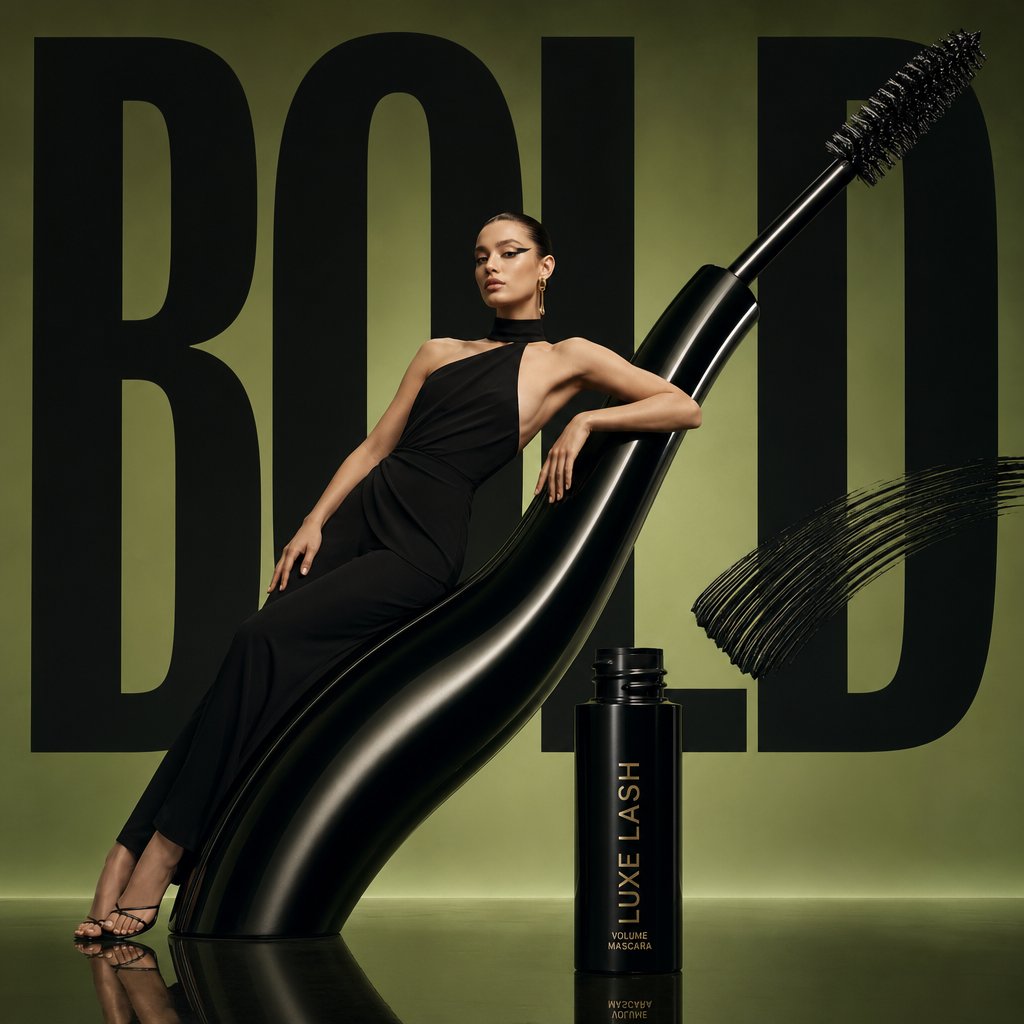
Avant-Garde Beauty Ad
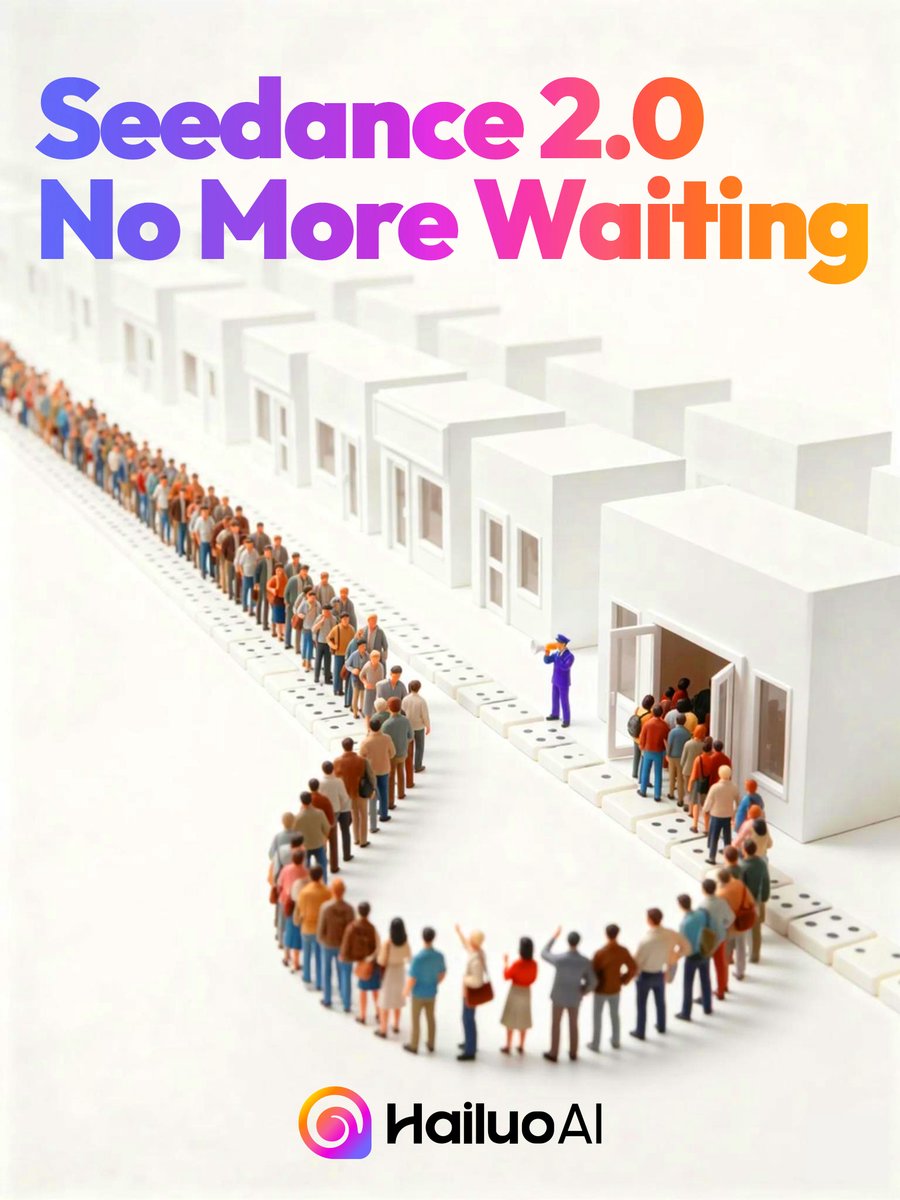
Seedance 2.0 Waiting Queue Poster
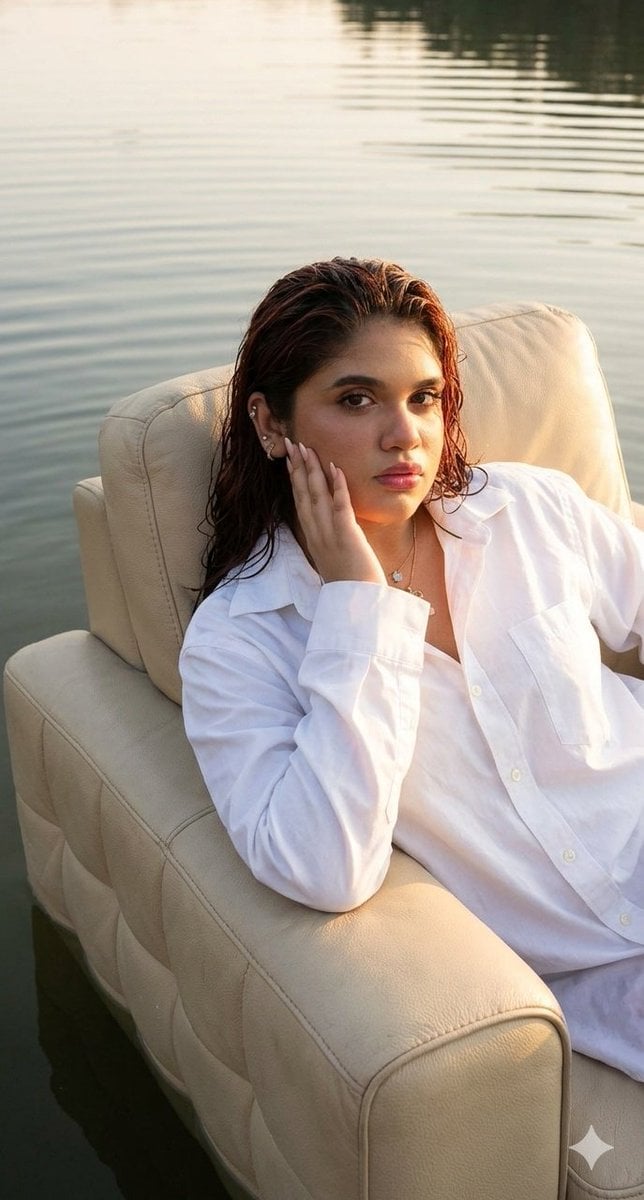
Editorial chair on lake
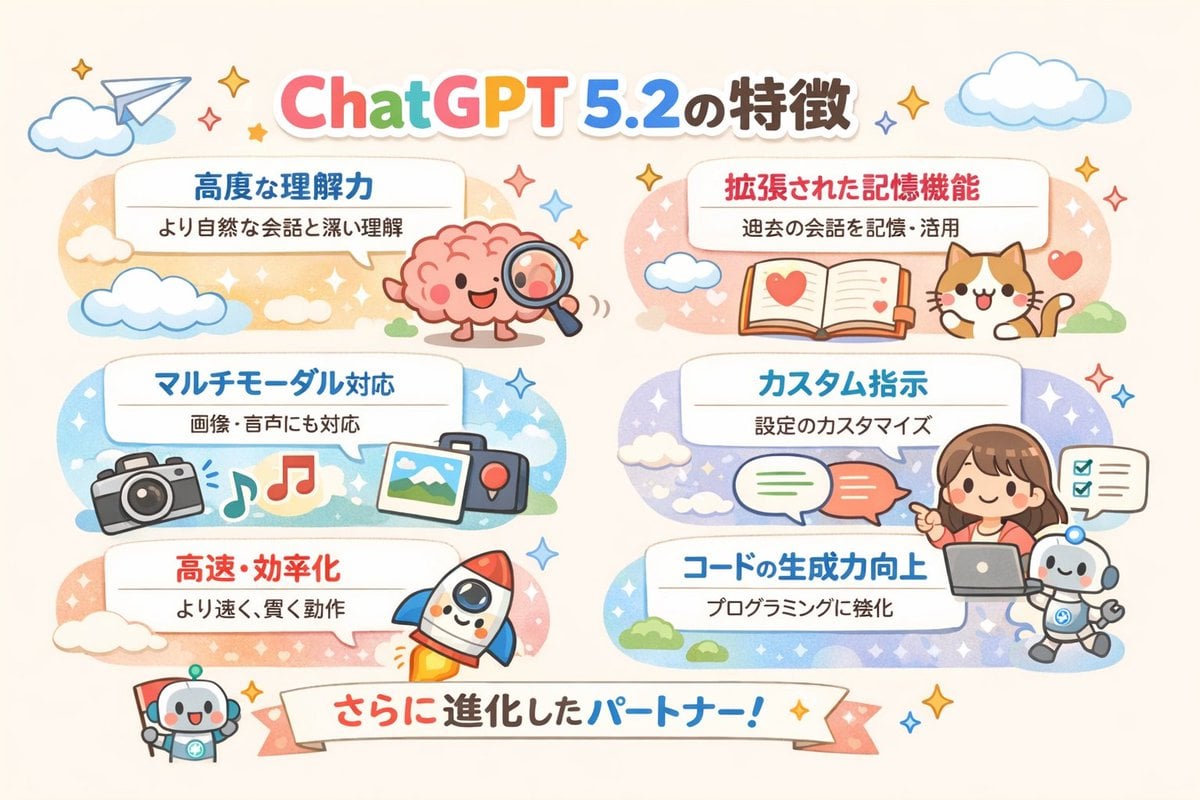
Diagram of ChatGPT 5.2 Features with Japanese Text
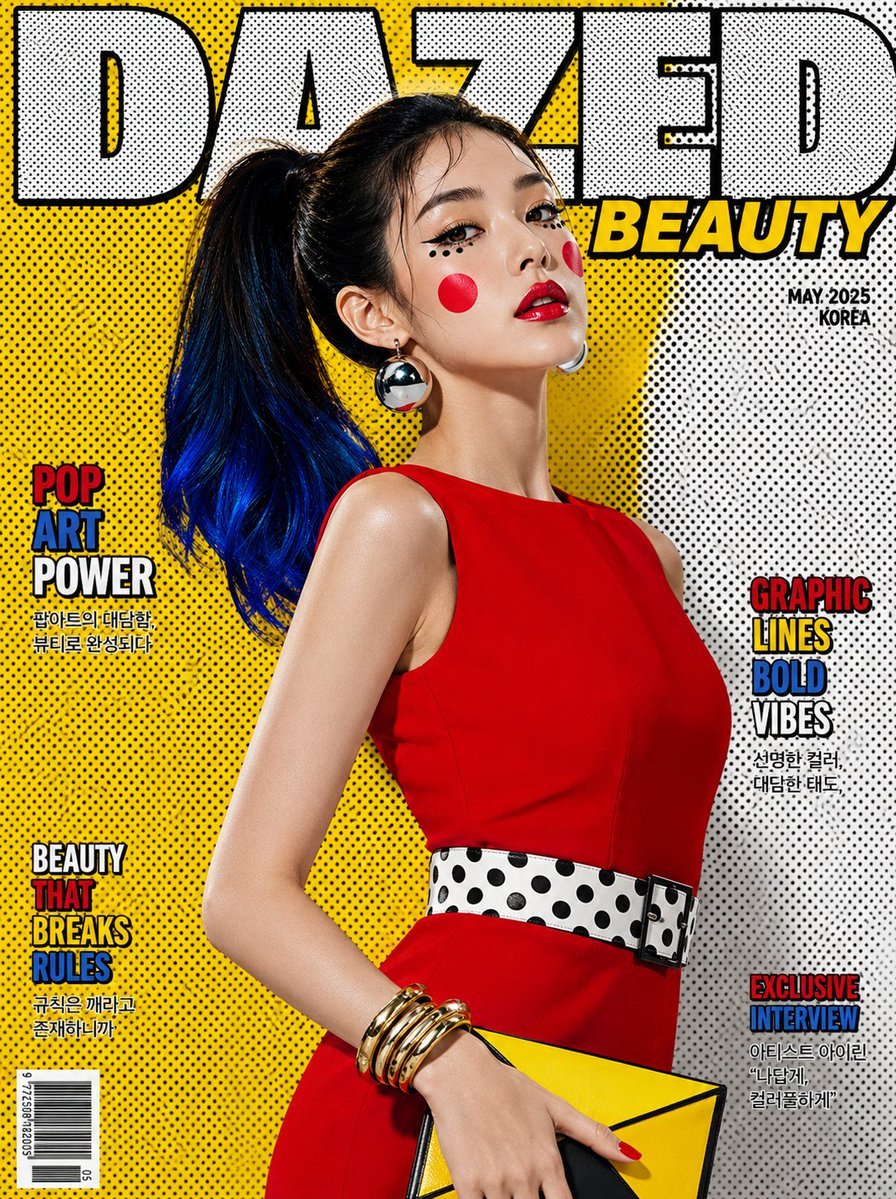
Luxury Pop-Art Beauty Magazine Cover
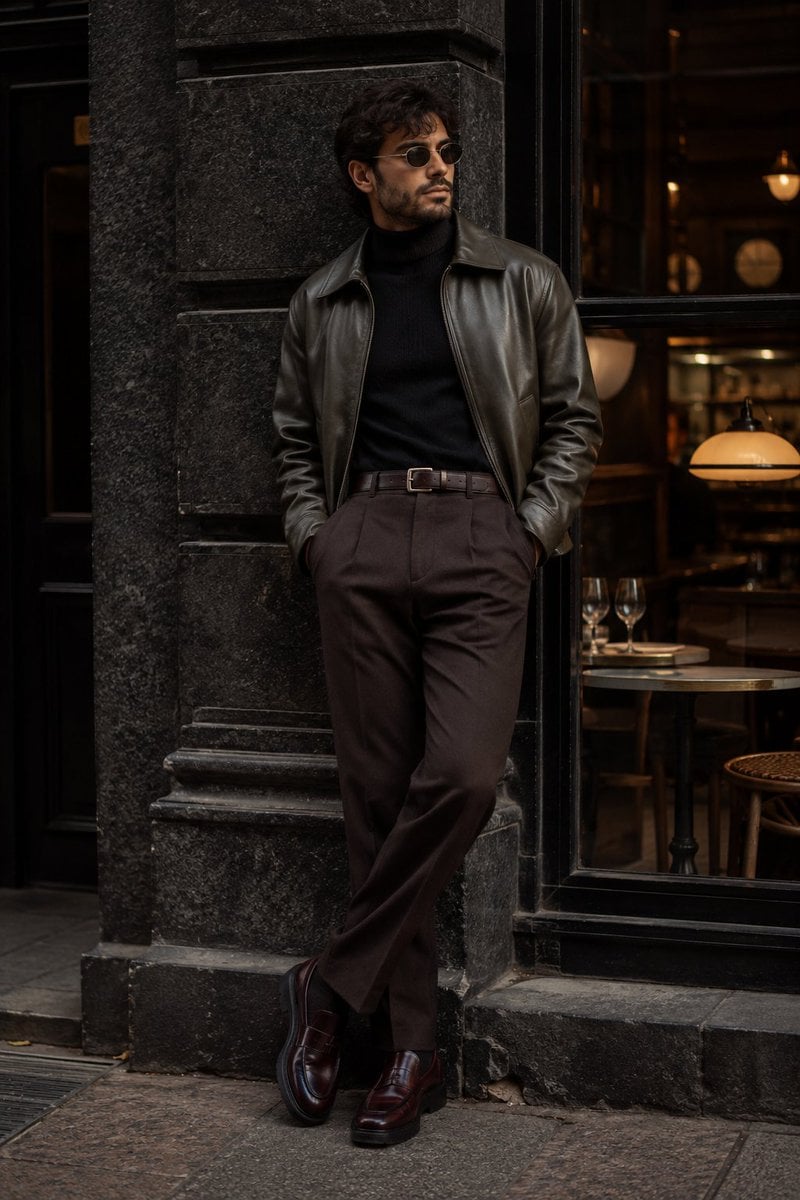
Cinematic Urban Menswear Portrait
Browse template categories
AI Cosplay Expo Logo Guide Sheet questions
How do I use the AI Cosplay Expo Logo Guide Sheet template?
Add your photo if the template asks for one, edit the prompt if you like — the template's model and format are already selected — and press Generate. Your version opens in PicX Studio.
Can I customize the AI Cosplay Expo Logo Guide Sheet template?
Yes. You can change the subject, setting, lighting, mood, format, and available model controls before creating your image.
Is the AI Cosplay Expo Logo Guide Sheet template free?
Opening and editing this template is free. Generating uses credits, shown on the Generate button when you are signed in.
Which AI model should I use?
Start with GPT Image 2, which is the model associated with this template. You can compare another compatible model for a different finish.
Looking for something else? Browse all templates.

Your photo, any look
Thousands of ready templates for every top image and video model, from one credit balance.