
AI News Newsletter Page Layout
Generates a structured digital newsletter page featuring 5 distinct news sections with accompanying thematic illustrations and text blocks.
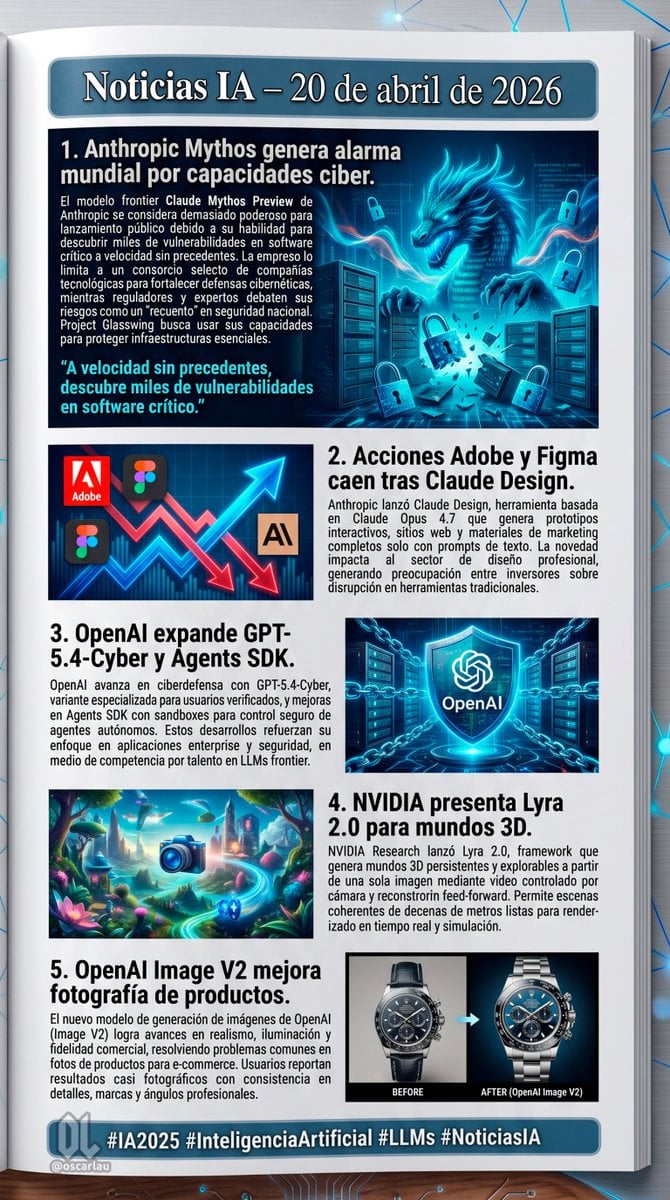
- Prompt included
- Model and format preset
- Free template
The prompt behind this image
Copy the exact prompt behind AI News Newsletter Page Layout, or open it in the studio and make it yours.
- Type
- digital newsletter page layout
- Background
- white page resting on a dark surface with glowing blue digital nodes and connecting lines
- Header › Text
- {argument name="main headline" default="Noticias IA – 20 de abril de 2026"}
- Header › Style
- white text on a dark blue banner with a light blue border
- Layout › Sections › 0 › Id
- 1
- Layout › Sections › 0 › Title
- {argument name="news item 1 title" default="1. Anthropic Mythos genera alarma mundial por capacidades ciber."}
- Layout › Sections › 0 › Image Description
- A glowing blue cyber dragon emerging from servers, surrounded by floating digital padlocks.
- Layout › Sections › 0 › Layout Style
- Image on the right, title and text on the left, with a cyan pull quote at the bottom left.
- Layout › Sections › 1 › Id
- 2
- Layout › Sections › 1 › Title
- {argument name="news item 2 title" default="2. Acciones Adobe y Figma caen tras Claude Design."}
- Layout › Sections › 1 › Image Description
- A stylized stock chart showing jagged red arrows pointing down and a glowing blue arrow pointing up, featuring logos for Adobe, Figma, and an 'AI' icon.
- Layout › Sections › 1 › Layout Style
- Image on the left, title and text on the right.
- Layout › Sections › 2 › Id
- 3
- Layout › Sections › 2 › Title
- {argument name="news item 3 title" default="3. OpenAI expande GPT-5.4-Cyber y Agents SDK."}
- Layout › Sections › 2 › Image Description
- A glowing blue holographic shield with the OpenAI logo in the center, surrounded by digital chains and a server background.
- Layout › Sections › 2 › Layout Style
- Title and text on the left, image on the right.
- Layout › Sections › 3 › Id
- 4
- Layout › Sections › 3 › Title
- 4. NVIDIA presenta Lyra 2.0 para mundos 3D.
- Layout › Sections › 3 › Image Description
- A vibrant, surreal 3D fantasy landscape with glowing flora, floating islands, and a glowing blue camera icon in the foreground.
- Layout › Sections › 3 › Layout Style
- Image on the left, title and text on the right.
- Layout › Sections › 4 › Id
- 5
- Layout › Sections › 4 › Title
- 5. OpenAI Image V2 mejora fotografía de productos.
- Layout › Sections › 4 › Image Description
- A side-by-side comparison of a luxury chronograph watch. The left side is labeled 'BEFORE' (darker, less detailed), and the right side is labeled 'AFTER (OpenAI Image V2)' (bright, highly detailed, professional lighting).
- Layout › Sections › 4 › Layout Style
- Title and text on the left, image on the right.
Raw JSON
{
  "type": "digital newsletter page layout",
  "background": "white page resting on a dark surface with glowing blue digital nodes and connecting lines",
  "header": {
    "text": "{argument name=\"main headline\" default=\"Noticias IA – 20 de abril de 2026\"}",
    "style": "white text on a dark blue banner with a light blue border"
  },
  "layout": {
    "sections": [
      {
        "id": 1,
        "title": "{argument name=\"news item 1 title\" default=\"1. Anthropic Mythos genera alarma mundial por capacidades ciber.\"}",
        "image_description": "A glowing blue cyber dragon emerging from servers, surrounded by floating digital padlocks.",
        "layout_style": "Image on the right, title and text on the left, with a cyan pull quote at the bottom left."
      },
      {
        "id": 2,
        "title": "{argument name=\"news item 2 title\" default=\"2. Acciones Adobe y Figma caen tras Claude Design.\"}",
        "image_description": "A stylized stock chart showing jagged red arrows pointing down and a glowing blue arrow pointing up, featuring logos for Adobe, Figma, and an 'AI' icon.",
        "layout_style": "Image on the left, title and text on the right."
      },
      {
        "id": 3,
        "title": "{argument name=\"news item 3 title\" default=\"3. OpenAI expande GPT-5.4-Cyber y Agents SDK.\"}",
        "image_description": "A glowing blue holographic shield with the OpenAI logo in the center, surrounded by digital chains and a server background.",
        "layout_style": "Title and text on the left, image on the right."
      },
      {
        "id": 4,
        "title": "4. NVIDIA presenta Lyra 2.0 para mundos 3D.",
        "image_description": "A vibrant, surreal 3D fantasy landscape with glowing flora, floating islands, and a glowing blue camera icon in the foreground.",
        "layout_style": "Image on the left, title and text on the right."
      },
      {
        "id": 5,
        "title": "5. OpenAI Image V2 mejora fotografía de productos.",
        "image_description": "A side-by-side comparison of a luxury chronograph watch. The left side is labeled 'BEFORE' (darker, less detailed), and the right side is labeled 'AFTER (OpenAI Image V2)' (bright, highly detailed, professional lighting).",
        "layout_style": "Title and text on the left, image on the right."
      }
    ],
    "count": 5
  },
  "footer": {
    "text": "{argument name=\"footer hashtags\" default=\"#IA2025 #InteligenciaArtificial #LLMs #NoticiasIA\"}",
    "logo": "OL logo with '@oscarlau'",
    "style": "white text on a dark blue banner at the bottom"
  }
}How to use AI News Newsletter Page Layout in 3 steps
- 1Upload ImagePNG, JPG or paste
Add your photo
Upload the photo the template builds on. The prompt, model and format are already set.
- 2…a portrait of your subject in softgolden-hour light, 85mm…
Personalize
Edit the subject and creative details for your destination.
- 3Generate
Generate
Press Generate — your image is created in PicX Studio, so you can compare it with the original and refine one variable at a time.
More like this
Templates with the same subject, style or setup. Open one to see its prompt.
Japanese Newspaper Cat Hero Front Page
Open Magazine Luxury Fashion Editorial Layout
Premium Fashion Editorial Cover Layout System
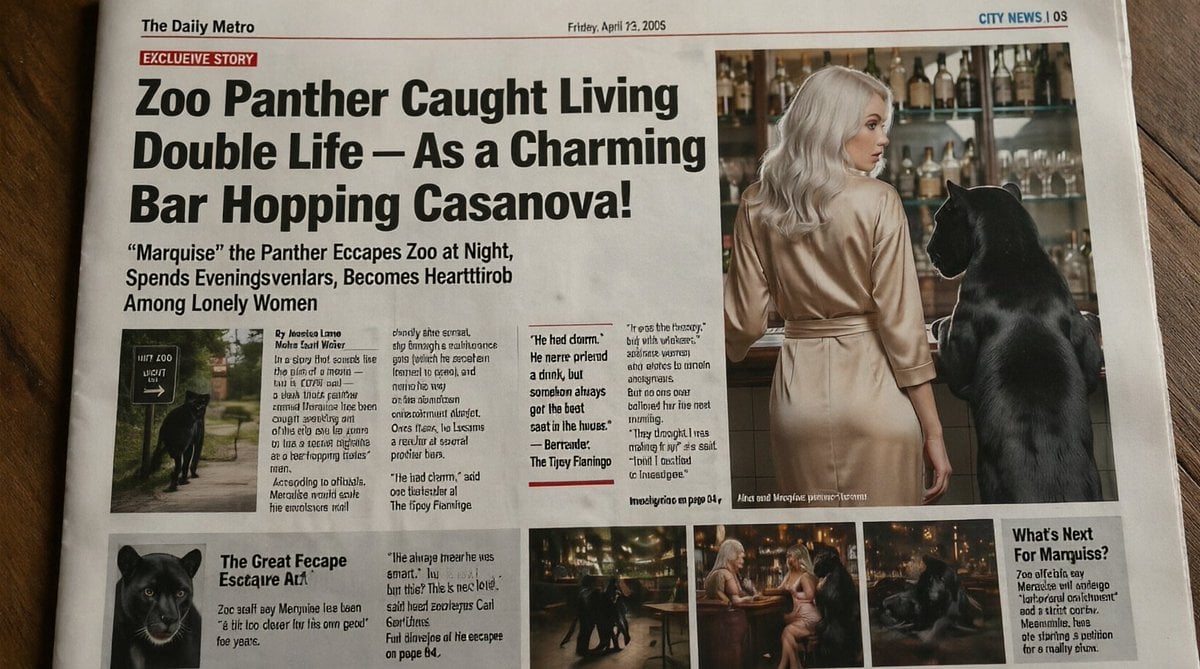
Absurd Tabloid Panther Newspaper Front Page
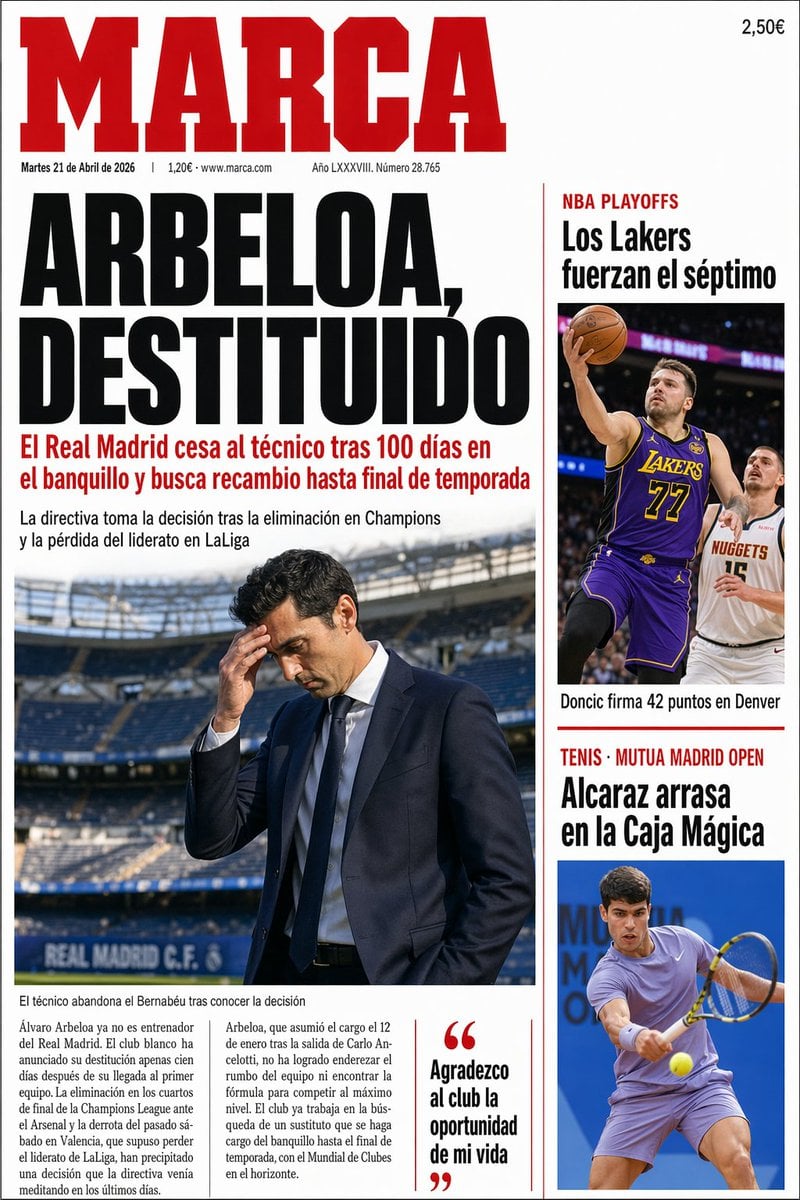
Spanish Sports Newspaper Front Page
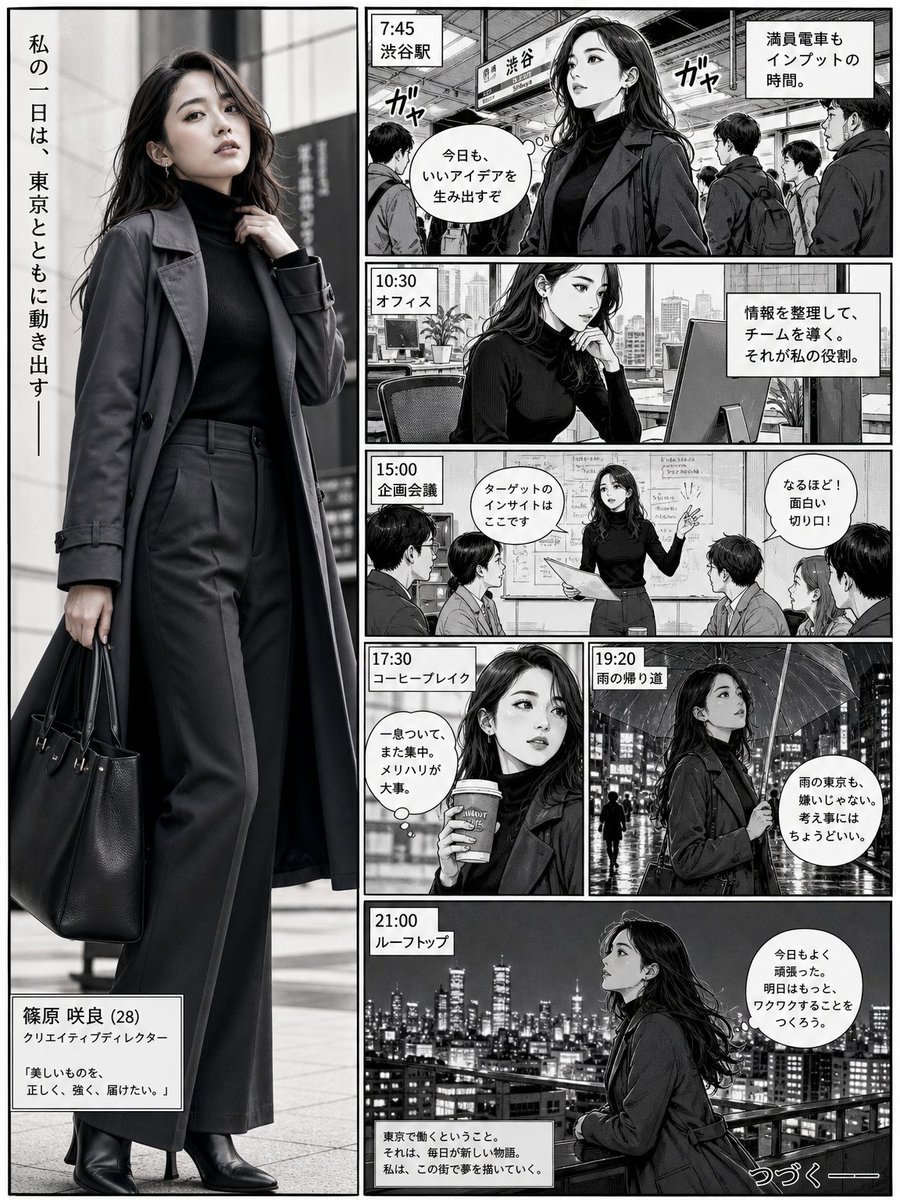
Realistic Professional Woman in Manga Page Layout
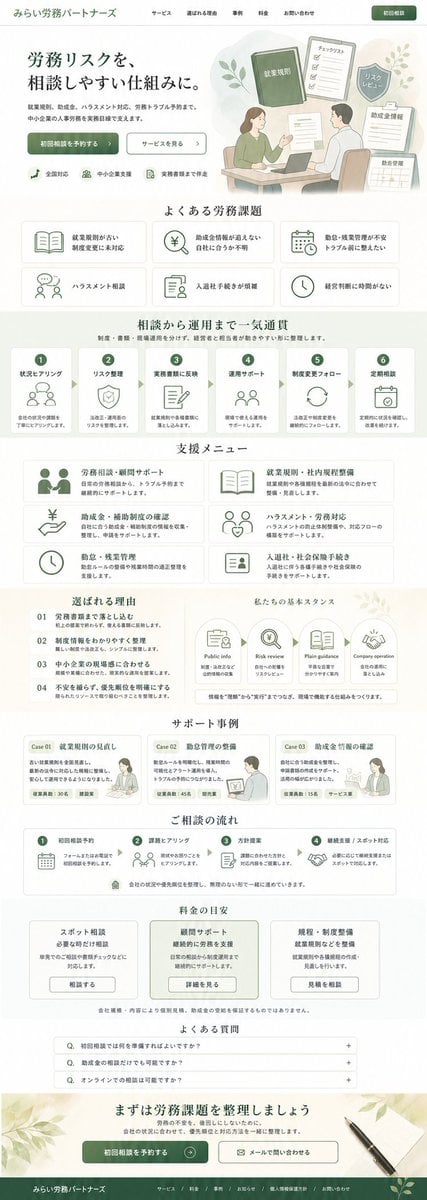
ASCII Layout Landing Page Generator
Chinese Game News Daily Front Page
Game News Daily Front Page
Retro Sci-Fi Newspaper Front Page
Fashion Scrapbook Page Layout Generation
Quiet Hamster Manga Page
Make it yours
AI News Newsletter Page Layout works as-is. These are the safest ways to change it without losing the look.
Swap the setting
Keep the rest of the prompt and replace the location block. The current setting is “white page resting on a dark surface with glowing blue digital nodes and connect”.
Change one field
Copy a single group, rewrite it, and generate again so you can see what that field is doing.
Keep the frame, change the subject
Hold the composition and light of AI News Newsletter Page Layout, then swap wardrobe, props or the person for a new take.
| If the result… | Why | Fix |
|---|---|---|
| The result drifts from the preview | Too many fields changed at once. | Reuse AI News Newsletter Page Layout as-is first, then change one group — subject, light, or setting. |
| GPT Image 2 ignores part of the JSON | Some models flatten or skip nested keys. | Keep the same values and paste them as a short paragraph instead. |
More GPT Image 2 templates
Other prompts made for GPT Image 2.

Six VTuber Japanese Logo Sheet

Realistic Portrait of Woman and Deer

The Vista Modular Condo Poster

AI Model Routing Comparison Infographic

2.5D Anime Art Board

Isometric Productivity Desk Scene

New York Double Exposure Poster

Four-Panel AI Landscape Comparison

Japanese Tatami Lifestyle Magazine Cover

NESCAFÉ Coffee Map Poster
More image prompts
Fresh picks from across the catalog.
Cat Maid Diary Reference Sheet
Neon Coca-Cola Street Portrait
Industrial Blueprint Generation Prompt
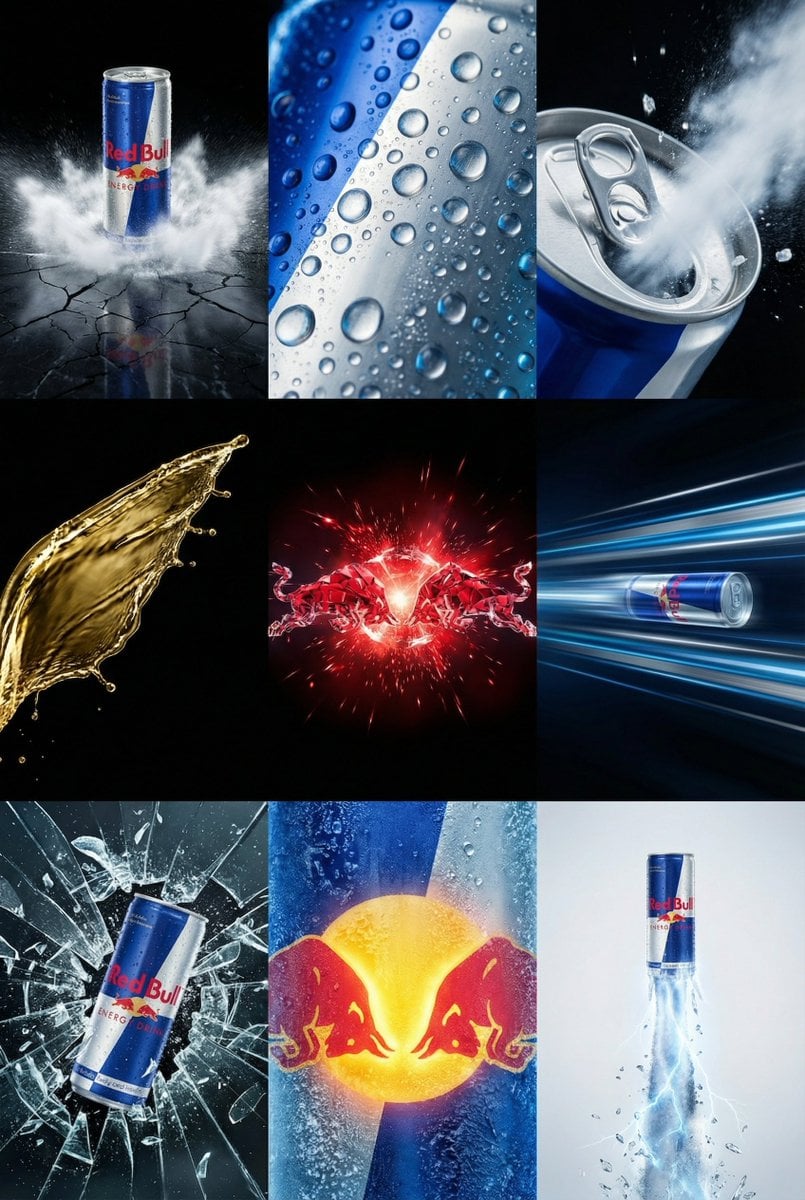
Red Bull Commercial Grid Collage Prompt (JSON)
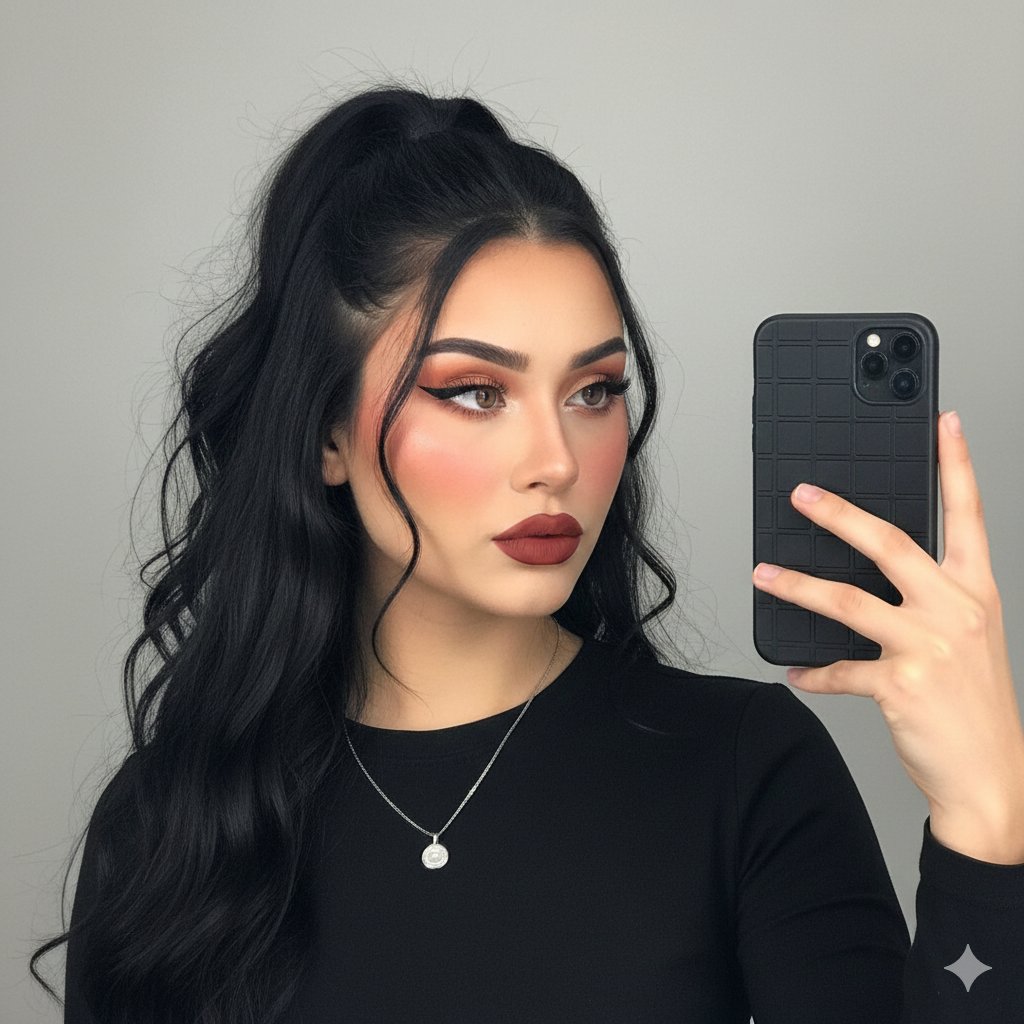
Modern Glam Mirror Selfie Portrait

Candid Morning Coffee Scene
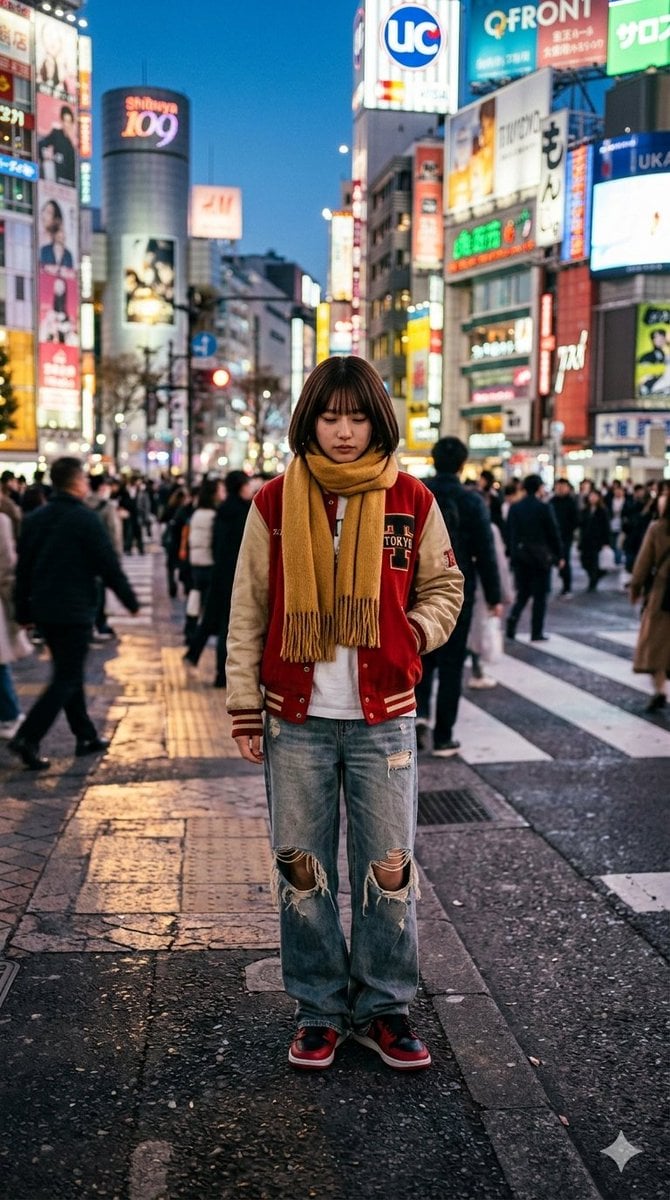
Photorealistic Street Photo Prompt: Vintage Fashion Girl in Shibuya
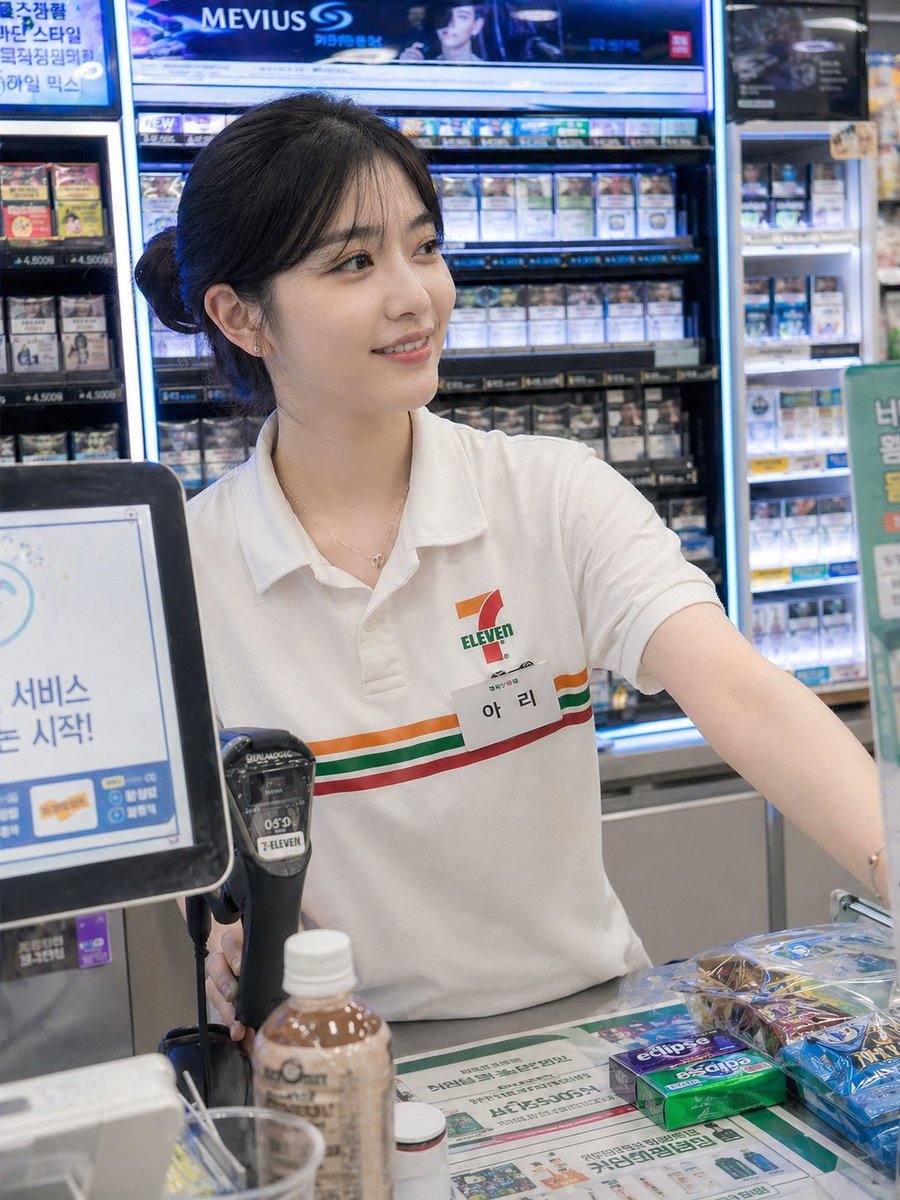
Candid Convenience Store Cashier
Japanese Horror Game Inventory Screen
Vertical Tilt-Shift Miniature City Cross-Section
Browse template categories
AI News Newsletter Page Layout questions
How do I use the AI News Newsletter Page Layout template?
Add your photo if the template asks for one, edit the prompt if you like — the template's model and format are already selected — and press Generate. Your version opens in PicX Studio.
Can I customize the AI News Newsletter Page Layout template?
Yes. You can change the subject, setting, lighting, mood, format, and available model controls before creating your image.
Is the AI News Newsletter Page Layout template free?
Opening and editing this template is free. Generating uses credits, shown on the Generate button when you are signed in.
Which AI model should I use?
Start with GPT Image 2, which is the model associated with this template. You can compare another compatible model for a different finish.
Looking for something else? Browse all templates.

Your photo, any look
Thousands of ready templates for every top image and video model, from one credit balance.