
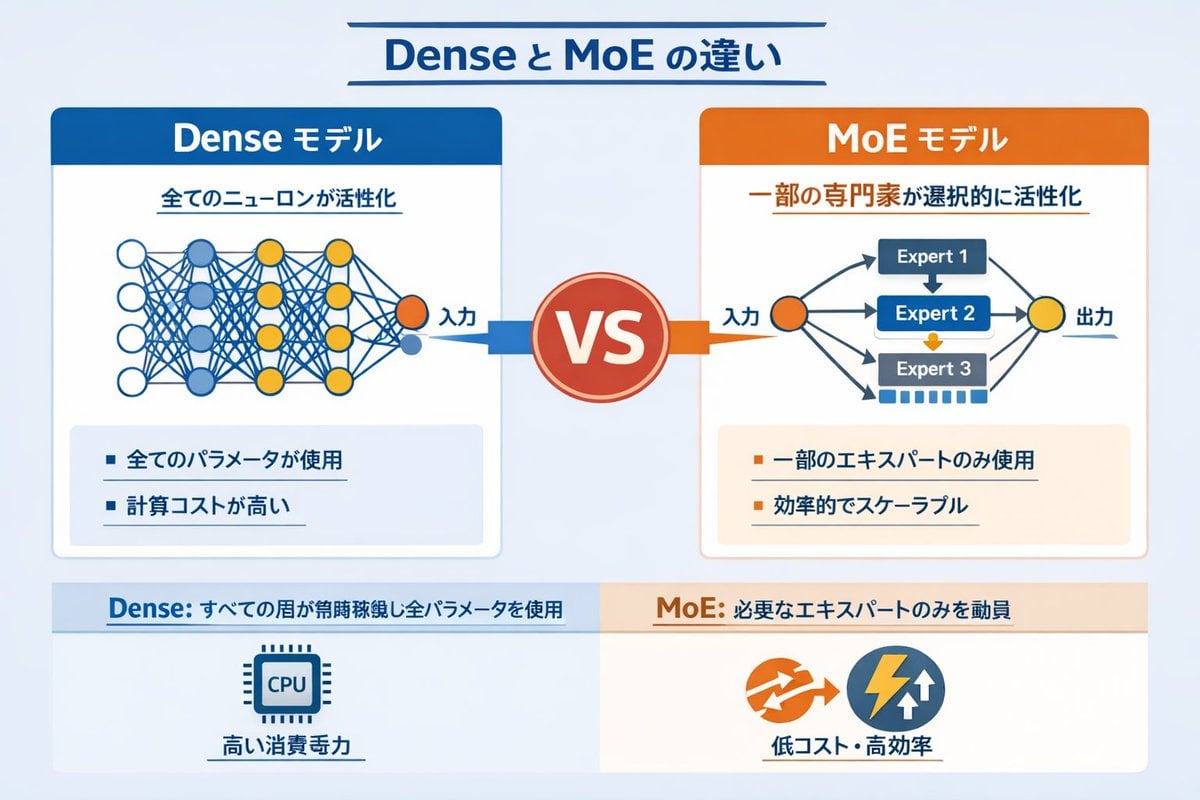
Dense vs MoE Neural Network Infographic
A technical infographic comparing Dense and Mixture of Experts (MoE) AI models with network diagrams and bullet points.
- Prompt included
- Model and format preset
- Free template
The prompt behind this image
Copy the exact prompt behind Dense vs MoE Neural Network Infographic, or open it in the studio and make it yours.
- Type
- infographic comparison diagram
- Header › Title
- {argument name="main title" default="Dense と MoE の違い"}
- Layout › Structure
- two main columns separated by a central VS badge, with a split footer at the bottom
- Layout › Sections › 0 › Position
- left column
- Layout › Sections › 0 › Theme Color
- blue
- Layout › Sections › 0 › Header
- {argument name="left model name" default="Dense モデル"}
- Layout › Sections › 0 › Subtitle
- 全てのニューロンが活性化
- Layout › Sections › 0 › Diagram › Type
- fully connected neural network
- Layout › Sections › 0 › Diagram › Elements
- 1 orange input node labeled 入力, 4 hidden layers with 4, 5, 4, and 2 nodes respectively, nodes colored white, blue, and yellow, dense intersecting connection lines between all adjacent nodes
- Layout › Sections › 0 › Bullet Points › Count
- 2
- Layout › Sections › 0 › Bullet Points › Items
- {argument name="left bullet point" default="全てのパラメータが使用"}, 計算コストが高い
- Layout › Sections › 1 › Position
- right column
- Layout › Sections › 1 › Theme Color
- orange
- Layout › Sections › 1 › Header
- {argument name="right model name" default="MoE モデル"}
- Layout › Sections › 1 › Subtitle
- 一部の専門家が選択的に活性化
- Layout › Sections › 1 › Diagram › Type
- mixture of experts network
- Layout › Sections › 1 › Diagram › Elements
- 1 orange input node labeled 入力, 3 rectangular blocks labeled Expert 1, Expert 2, Expert 3, 1 yellow output node labeled 出力, branching arrows connecting input to experts, and experts to output
- Layout › Sections › 1 › Bullet Points › Count
- 2
- Layout › Sections › 1 › Bullet Points › Items
- {argument name="right bullet point" default="一部のエキスパートのみ使用"}, 効率的でスケーラブル
- Layout › Sections › 2 › Position
- center
- Layout › Sections › 2 › Element
- red circular badge with text VS
- Layout › Sections › 2 › Connections
- blue arrow pointing left, orange arrow pointing right
- Layout › Sections › 3 › Position
- footer left
- Layout › Sections › 3 › Background
- light blue
Raw JSON
{
  "type": "infographic comparison diagram",
  "header": {
    "title": "{argument name=\"main title\" default=\"Dense と MoE の違い\"}"
  },
  "layout": {
    "structure": "two main columns separated by a central VS badge, with a split footer at the bottom",
    "sections": [
      {
        "position": "left column",
        "theme_color": "blue",
        "header": "{argument name=\"left model name\" default=\"Dense モデル\"}",
        "subtitle": "全てのニューロンが活性化",
        "diagram": {
          "type": "fully connected neural network",
          "elements": [
            "1 orange input node labeled 入力",
            "4 hidden layers with 4, 5, 4, and 2 nodes respectively",
            "nodes colored white, blue, and yellow",
            "dense intersecting connection lines between all adjacent nodes"
          ]
        },
        "bullet_points": {
          "count": 2,
          "items": [
            "{argument name=\"left bullet point\" default=\"全てのパラメータが使用\"}",
            "計算コストが高い"
          ]
        }
      },
      {
        "position": "right column",
        "theme_color": "orange",
        "header": "{argument name=\"right model name\" default=\"MoE モデル\"}",
        "subtitle": "一部の専門家が選択的に活性化",
        "diagram": {
          "type": "mixture of experts network",
          "elements": [
            "1 orange input node labeled 入力",
            "3 rectangular blocks labeled Expert 1, Expert 2, Expert 3",
            "1 yellow output node labeled 出力",
            "branching arrows connecting input to experts, and experts to output"
          ]
        },
        "bullet_points": {
          "count": 2,
          "items": [
            "{argument name=\"right bullet point\" default=\"一部のエキスパートのみ使用\"}",
            "効率的でスケーラブル"
          ]
        }
      },
      {
        "position": "center",
        "element": "red circular badge with text VS",
        "connections": "blue arrow pointing left, orange arrow pointing right"
      },
      {
        "position": "footer left",
        "background": "light blue",
        "text": "Dense: すべての層が常時稼働し全パラメータを使用",
        "icon": "1 CPU chip graphic",
        "label": "高い消費電力"
      },
      {
        "position": "footer right",
        "background": "light orange",
        "text": "MoE: 必要なエキスパートのみを動員",
        "icons": "2 circular graphics (orange arrows, blue lightning bolt)",
        "label": "低コスト・高効率"
      }
    ]
  }
}Reference images included
Dense vs MoE Neural Network Infographic needs input media to work. They load alongside the prompt when you open it in the studio.
How to use Dense vs MoE Neural Network Infographic in 3 steps
- 1Upload ImagePNG, JPG or paste
Add your photo
Upload the photo the template builds on. The prompt, model and format are already set.
- 2…a portrait of your subject in softgolden-hour light, 85mm…
Personalize
Edit the subject and creative details for your destination.
- 3Generate
Generate
Press Generate — your image is created in PicX Studio, so you can compare it with the original and refine one variable at a time.
More like this
Templates with the same subject, style or setup. Open one to see its prompt.

Japan Travel Brochure Poster

Isometric Process Educational Diorama

Isometric Vehicle Teardown Infographic Template
Neural Network Architecture Diagram
Two-layer neural network diagram in Stephen Biesty style

Gpt2 E Commerce Main Image Earbuds E Commerce Infographic
Gpt2 Infographic Edu Visual Alishan One Day Travel Poster

Gpt2 Infographic Edu Visual Ethnographic Plate for Tibetan Ceremonial Hat
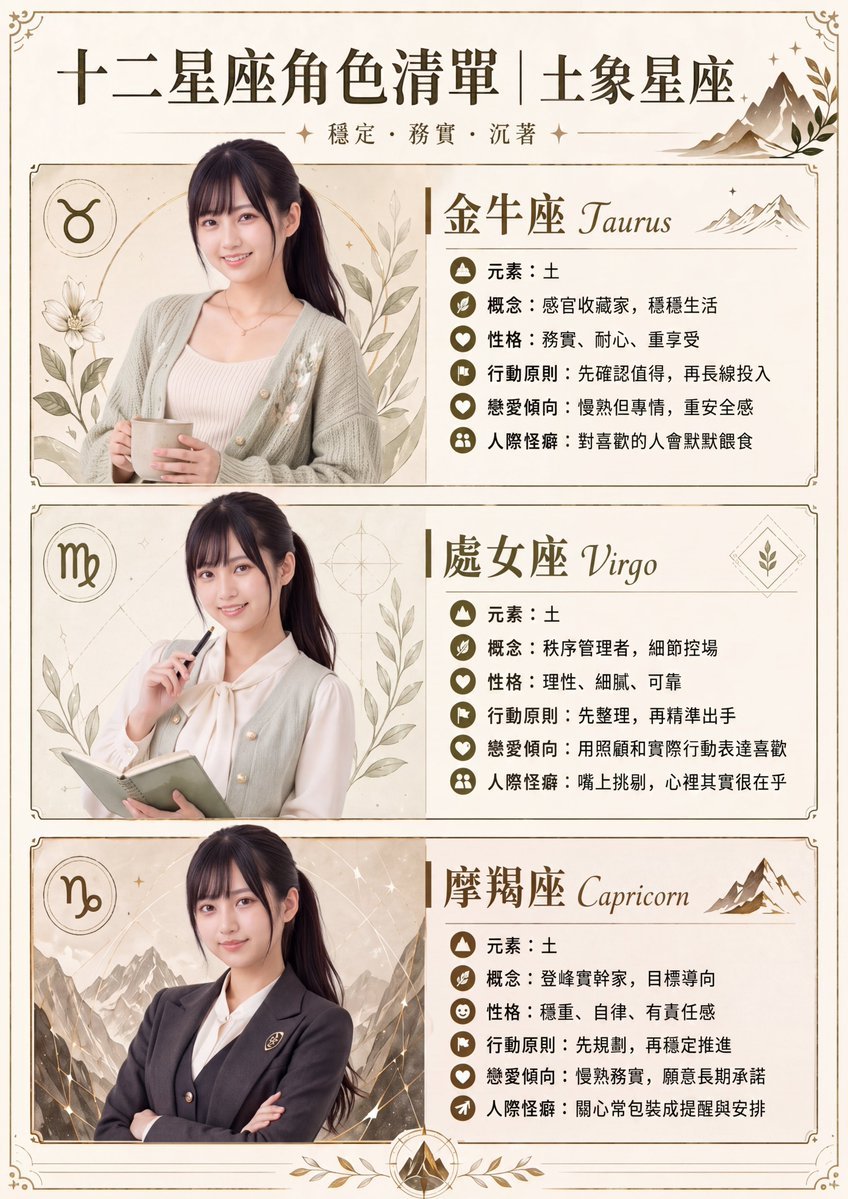
Gpt2 Infographic Edu Visual Earth Signs Zodiac Character Poster
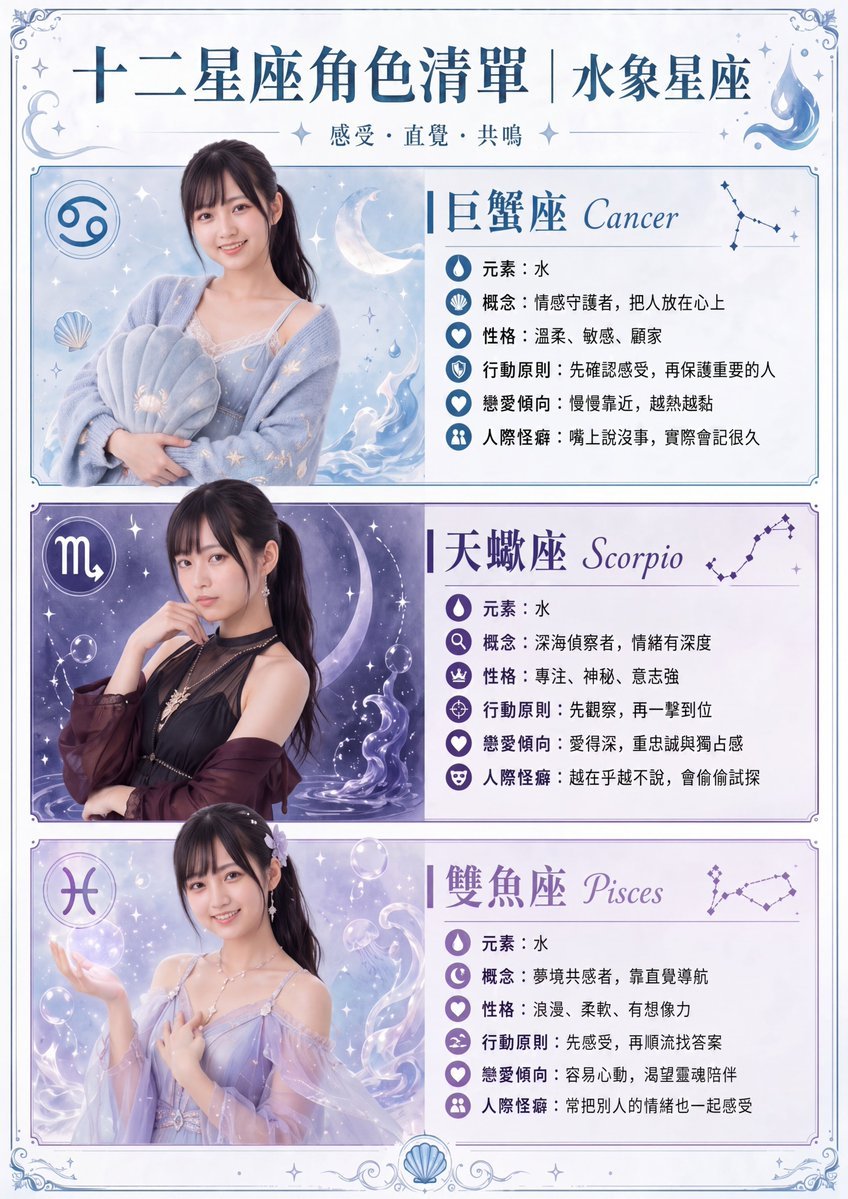
Gpt2 Infographic Edu Visual Water Signs Zodiac Character Poster
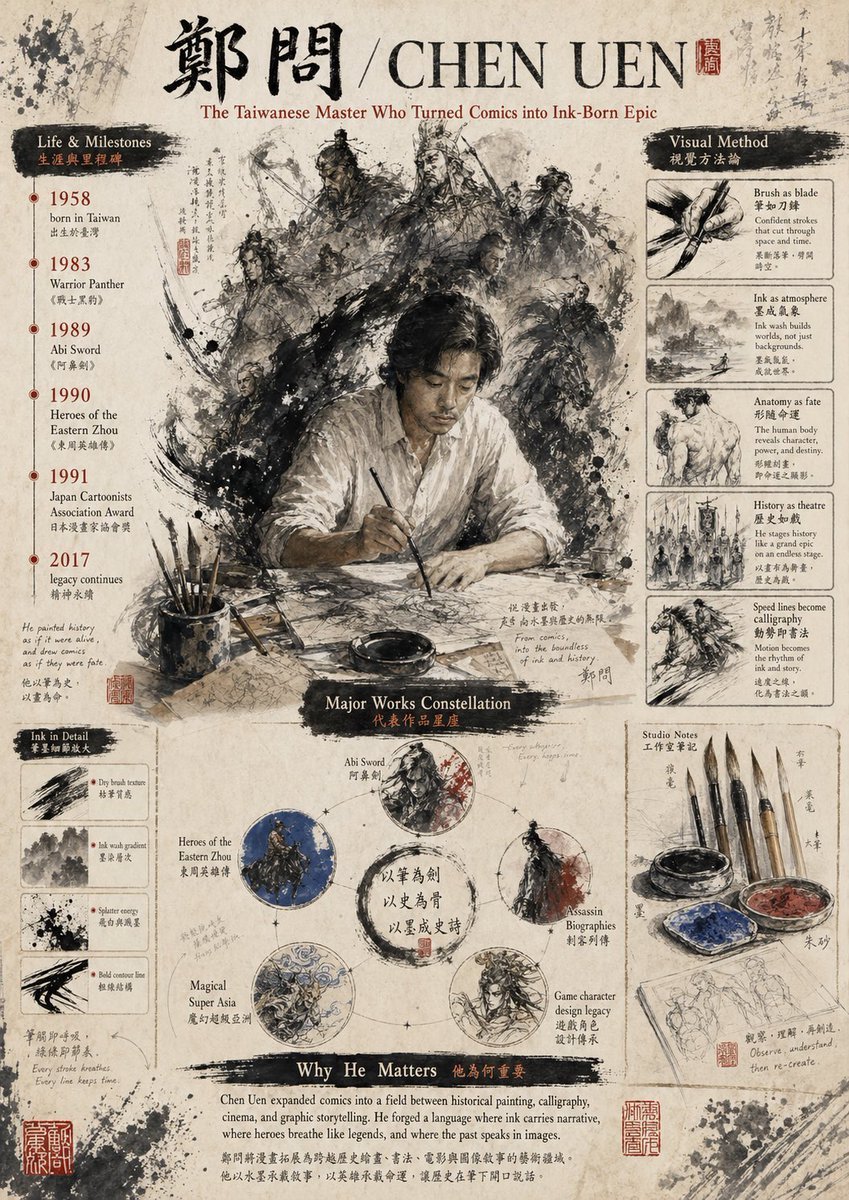
Gpt2 Infographic Edu Visual Ink Wash Tribute Poster for Chen Uen
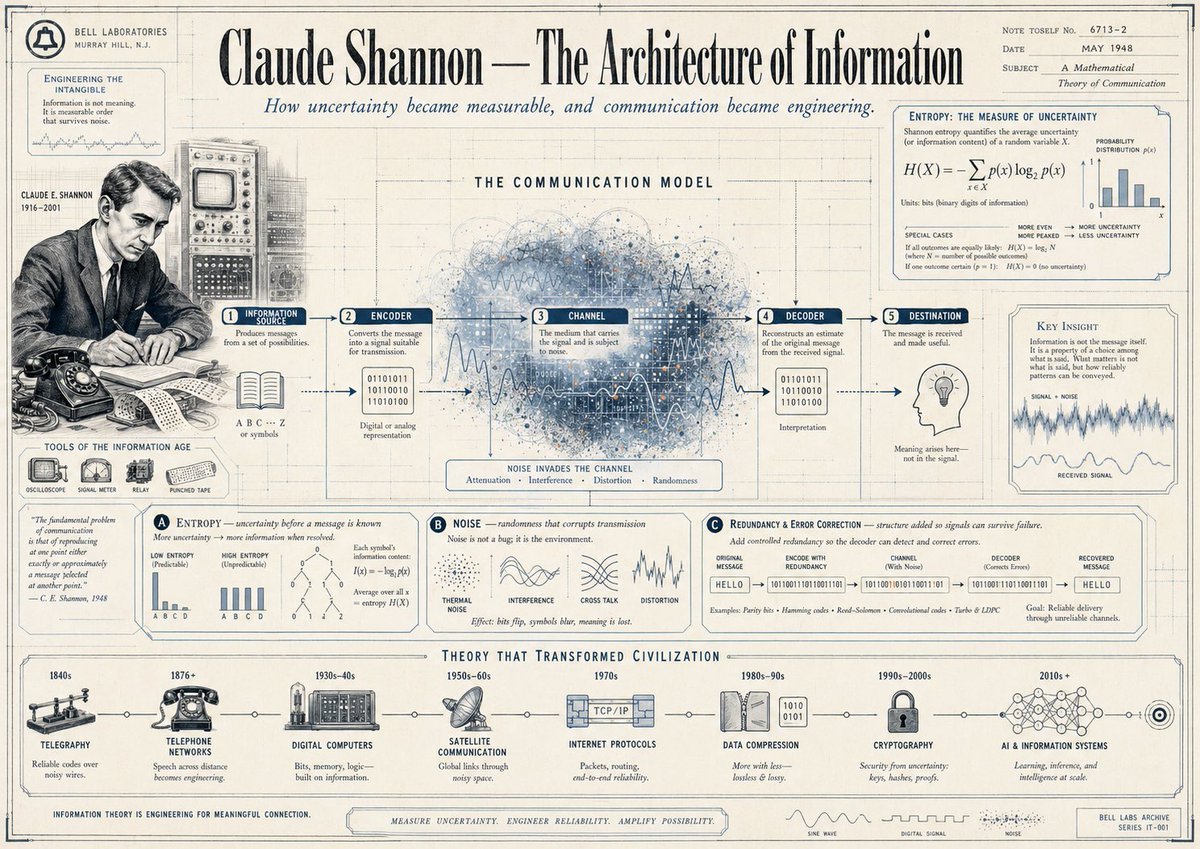
Gpt2 Infographic Edu Visual Vintage Claude Shannon Infographic Poster
Make it yours
Dense vs MoE Neural Network Infographic works as-is. These are the safest ways to change it without losing the look.
Swap the setting
Keep the rest of the prompt and replace the location block. The current setting is “light blue”.
Change one field
Copy a single group, rewrite it, and generate again so you can see what that field is doing.
Keep the frame, change the subject
Hold the composition and light of Dense vs MoE Neural Network Infographic, then swap wardrobe, props or the person for a new take.
| If the result… | Why | Fix |
|---|---|---|
| The result drifts from the preview | Too many fields changed at once. | Reuse Dense vs MoE Neural Network Infographic as-is first, then change one group — subject, light, or setting. |
| GPT Image 2 ignores part of the JSON | Some models flatten or skip nested keys. | Keep the same values and paste them as a short paragraph instead. |
More GPT Image 2 templates
Other prompts made for GPT Image 2.

Six VTuber Japanese Logo Sheet

Realistic Portrait of Woman and Deer

The Vista Modular Condo Poster

AI Model Routing Comparison Infographic

2.5D Anime Art Board

Isometric Productivity Desk Scene

New York Double Exposure Poster

Four-Panel AI Landscape Comparison

Japanese Tatami Lifestyle Magazine Cover

NESCAFÉ Coffee Map Poster
More image prompts
Fresh picks from across the catalog.

Sunlit Streetwear Jacket Portrait
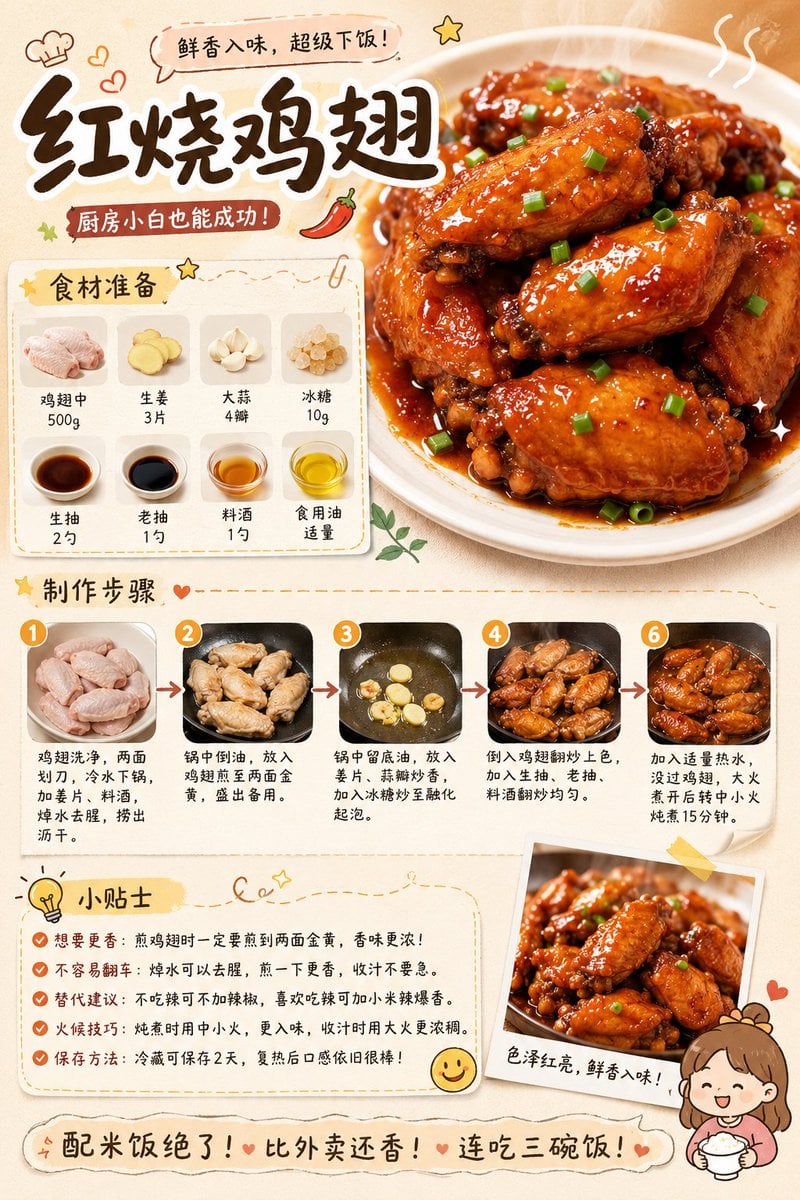
Gourmet Recipe Visual Note Poster
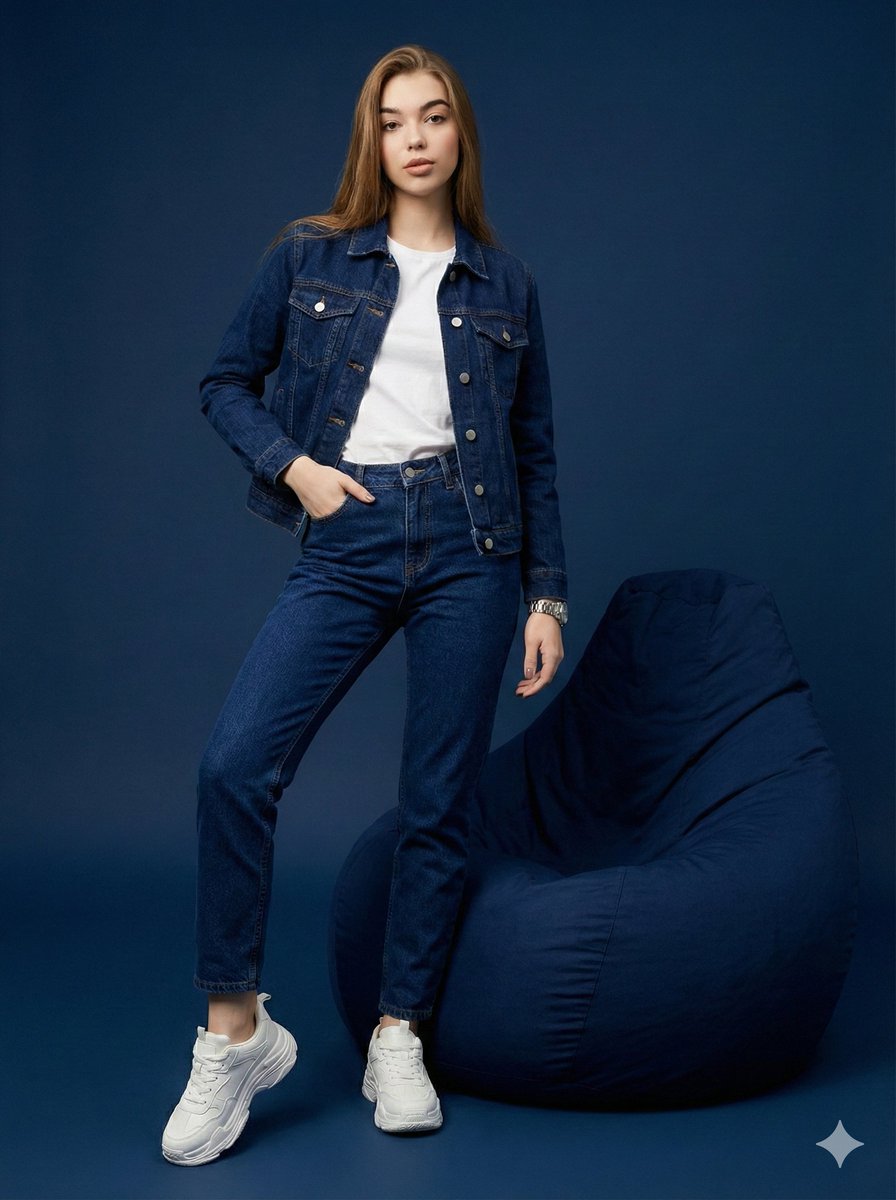
Hyper-Realistic Navy Fashion Photoshoot
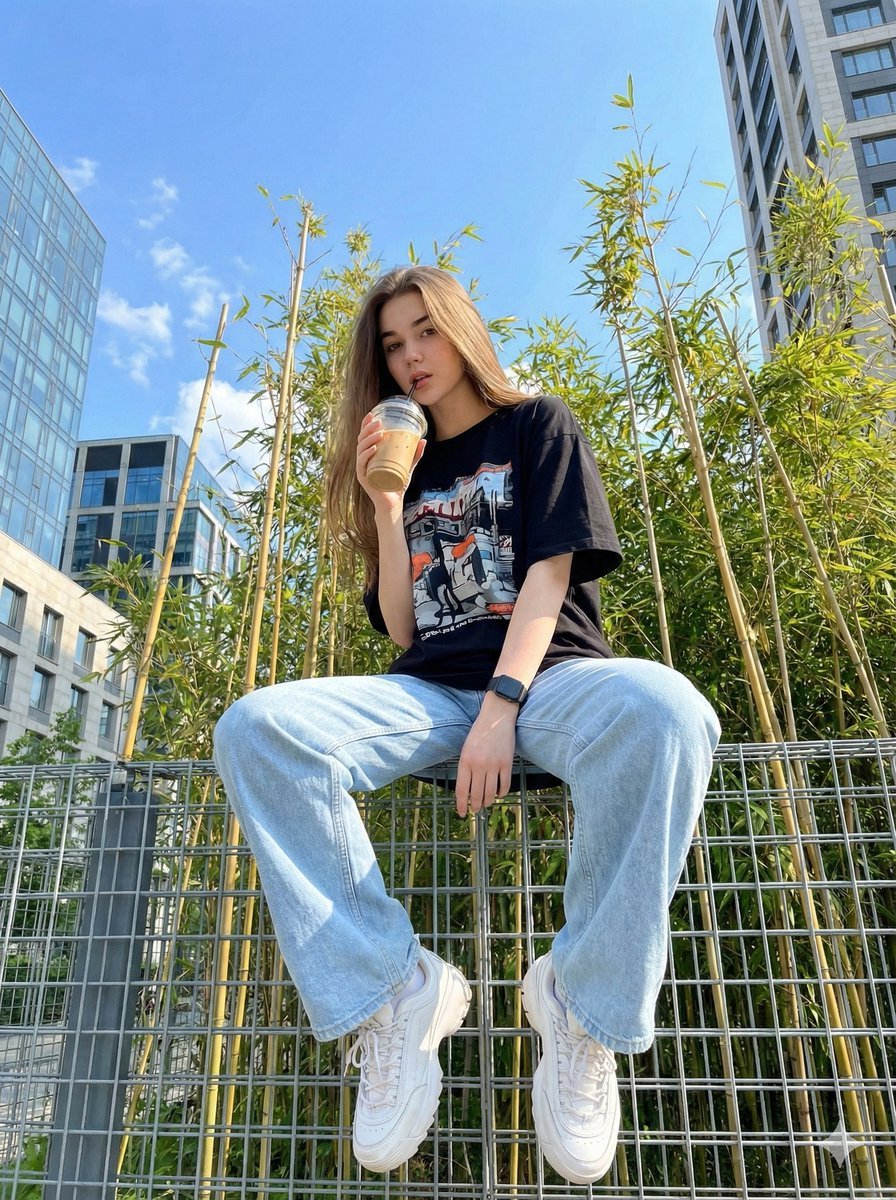
Structured JSON prompt for a stylish streetwear portrait of a young woman

Minimalist Fashion Runway Illustration

Transform a Comic Character Into an Ultr
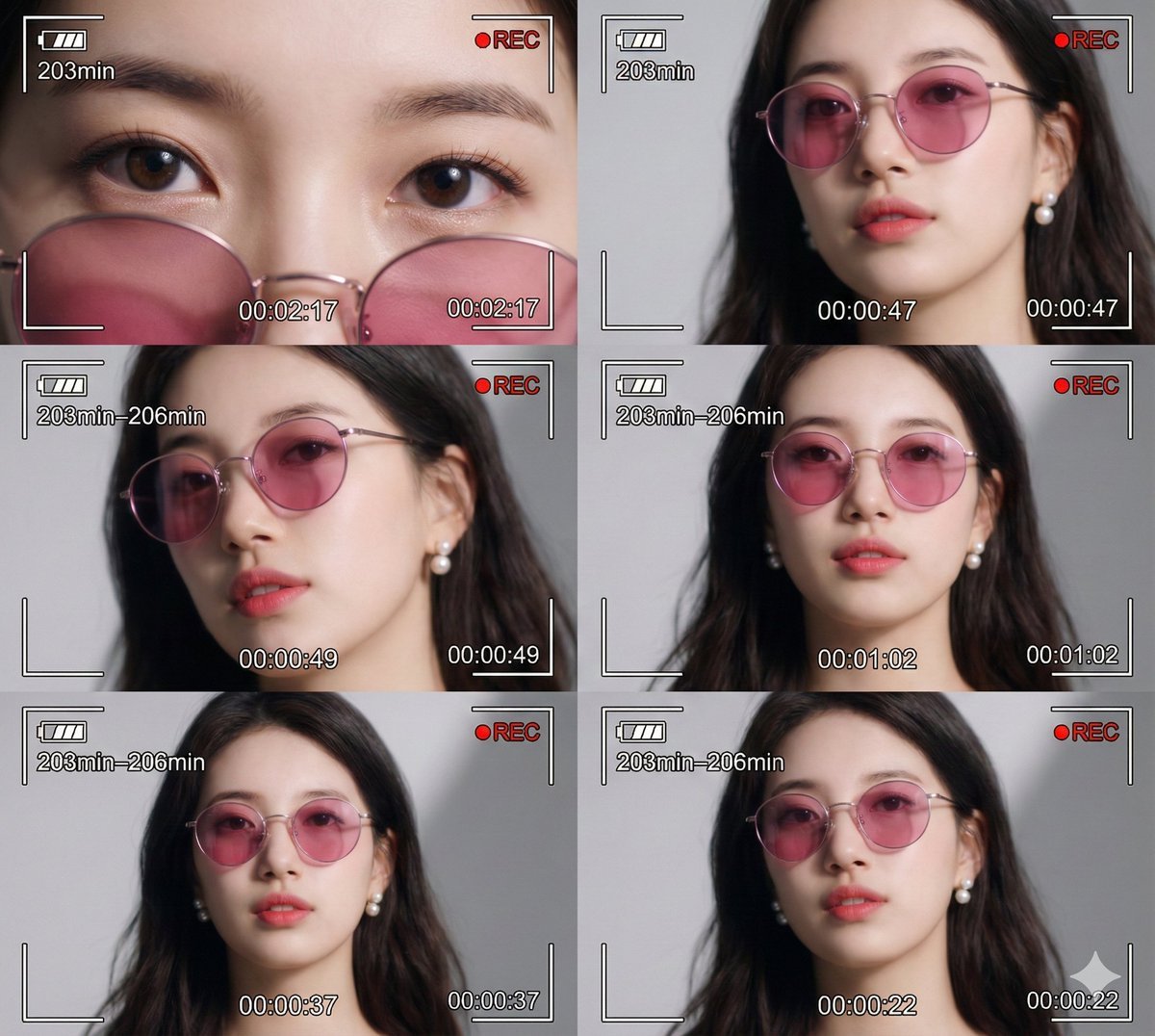
Ultra-Photorealistic 6-Panel Collage Prompt for Nano Banana Pro

Fashion Editorial Watercolor Portrait

Chasing Inner Light

Diagram Generation from Text
Browse template categories
Dense vs MoE Neural Network Infographic questions
How do I use the Dense vs MoE Neural Network Infographic template?
Add your photo if the template asks for one, edit the prompt if you like — the template's model and format are already selected — and press Generate. Your version opens in PicX Studio.
Can I customize the Dense vs MoE Neural Network Infographic template?
Yes. You can change the subject, setting, lighting, mood, format, and available model controls before creating your image.
Is the Dense vs MoE Neural Network Infographic template free?
Opening and editing this template is free. Generating uses credits, shown on the Generate button when you are signed in.
Which AI model should I use?
Start with GPT Image 2, which is the model associated with this template. You can compare another compatible model for a different finish.
Looking for something else? Browse all templates.

Your photo, any look
Thousands of ready templates for every top image and video model, from one credit balance.