
Minecraft Speedrun Screenshot
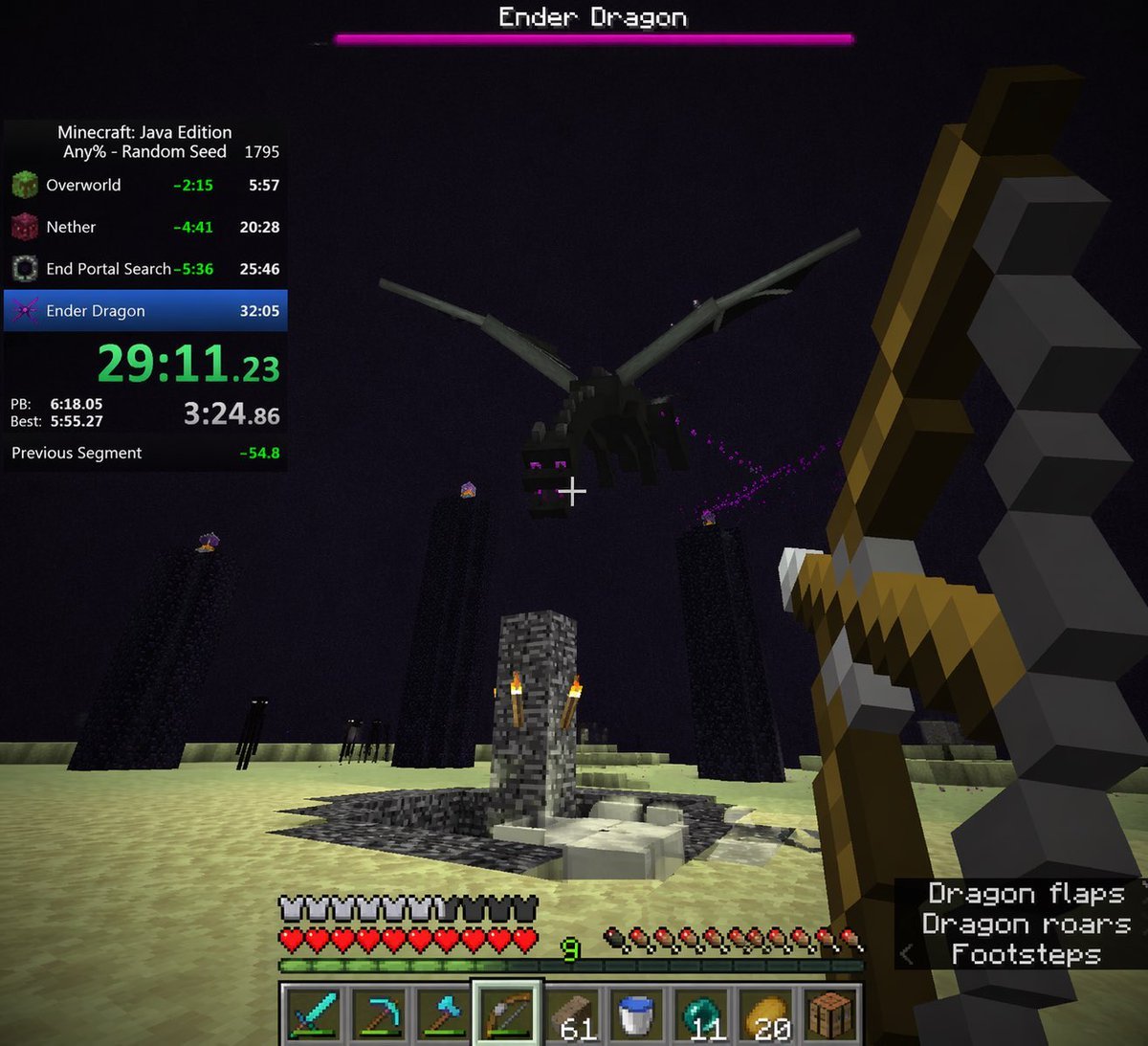
Generates a first-person view of a Minecraft boss fight complete with speedrun timer overlays and detailed HUD elements.
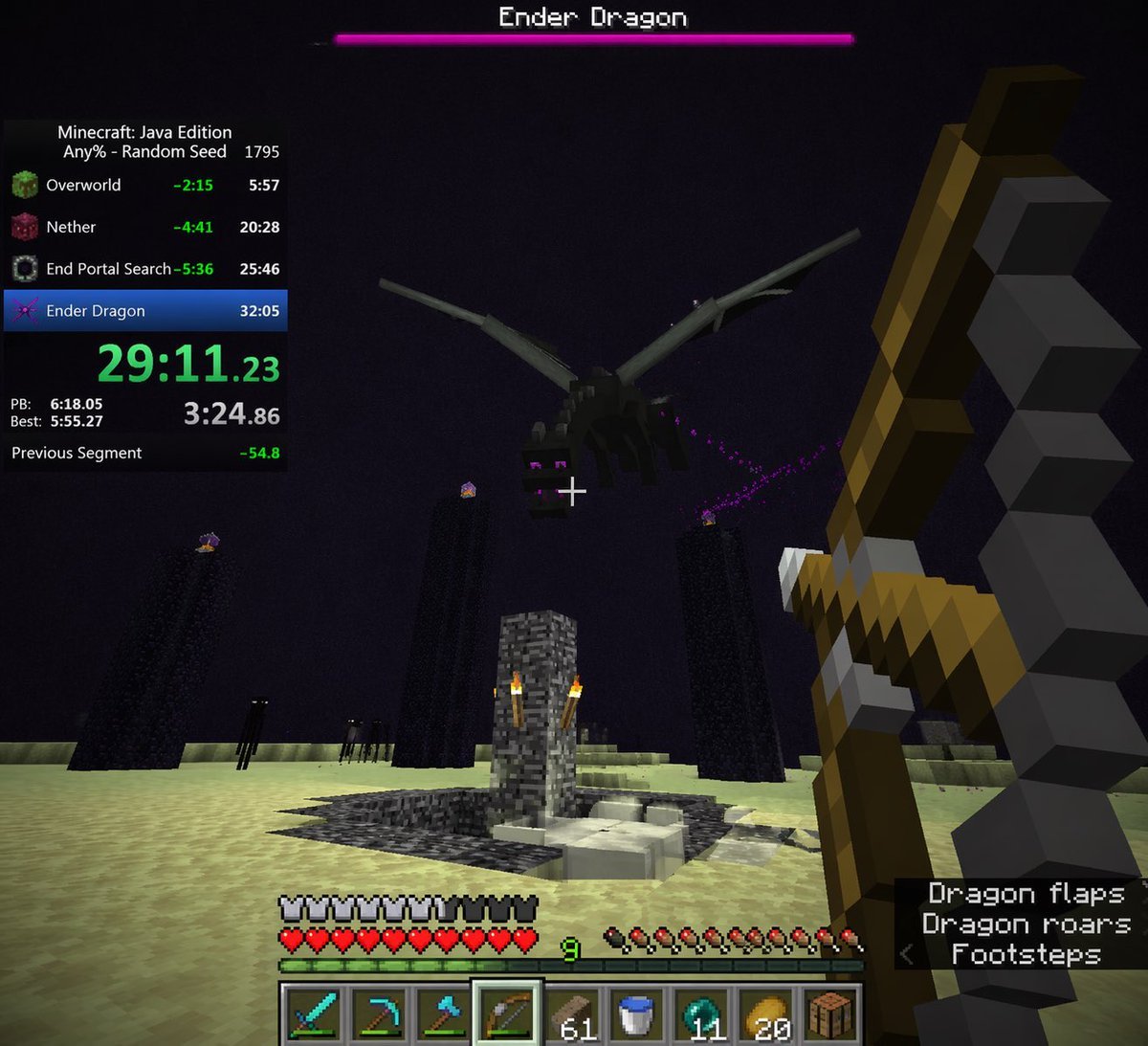
- Prompt included
- Model and format preset
- Free template
The prompt behind this image
Copy the exact prompt behind Minecraft Speedrun Screenshot, or open it in the studio and make it yours.
- Type
- first-person video game screenshot
- Setting
- The End dimension in Minecraft
- Scene › Environment
- pale yellow end stone ground, dark purple sky, tall obsidian pillars with end crystals on top, central bedrock exit portal structure with torches, dark endermen figures in the background
- Scene › Subject
- a large black dragon flying overhead
- Scene › Player View
- first-person perspective, holding a {argument name="held weapon" default="drawn bow"} in the right hand, white crosshair in the center
- Ui Overlay › Top › Boss Bar
- pink health bar with text '{argument name="boss name" default="Ender Dragon"}'
- Ui Overlay › Left › Speedrun Timer › Header
- Minecraft: Java Edition, {argument name="speedrun category" default="Any% - Random Seed"} 1795
- Ui Overlay › Left › Speedrun Timer › Splits Count
- 4
- Ui Overlay › Left › Speedrun Timer › Splits Labels
- Overworld, Nether, End Portal Search, Ender Dragon
- Ui Overlay › Left › Speedrun Timer › Main Time
- {argument name="current time" default="29:11.23"} in bright green
- Ui Overlay › Left › Speedrun Timer › Stats
- PB, Best, and Previous Segment times
- Ui Overlay › Bottom › Status Bars
- full armor bar, full heart health bar, green experience bar at level {argument name="experience level" default="9"}, full hunger bar
- Ui Overlay › Bottom › Hotbar › Slots Count
- 9
- Ui Overlay › Bottom › Hotbar › Items
- diamond sword, diamond pickaxe, diamond axe, bow (highlighted), 61 wood planks, water bucket, 11 ender pearls, 20 golden apples, crafting table
- Ui Overlay › Bottom Right › Subtitles › Lines Count
- 3
- Ui Overlay › Bottom Right › Subtitles › Text
- Dragon flaps, Dragon roars, < Footsteps
Raw JSON
{
  "type": "first-person video game screenshot",
  "setting": "The End dimension in Minecraft",
  "scene": {
    "environment": "pale yellow end stone ground, dark purple sky, tall obsidian pillars with end crystals on top, central bedrock exit portal structure with torches, dark endermen figures in the background",
    "subject": "a large black dragon flying overhead",
    "player_view": "first-person perspective, holding a {argument name=\"held weapon\" default=\"drawn bow\"} in the right hand, white crosshair in the center"
  },
  "ui_overlay": {
    "top": {
      "boss_bar": "pink health bar with text '{argument name=\"boss name\" default=\"Ender Dragon\"}'"
    },
    "left": {
      "speedrun_timer": {
        "header": "Minecraft: Java Edition, {argument name=\"speedrun category\" default=\"Any% - Random Seed\"} 1795",
        "splits_count": 4,
        "splits_labels": ["Overworld", "Nether", "End Portal Search", "Ender Dragon"],
        "main_time": "{argument name=\"current time\" default=\"29:11.23\"} in bright green",
        "stats": "PB, Best, and Previous Segment times"
      }
    },
    "bottom": {
      "status_bars": "full armor bar, full heart health bar, green experience bar at level {argument name=\"experience level\" default=\"9\"}, full hunger bar",
      "hotbar": {
        "slots_count": 9,
        "items": ["diamond sword", "diamond pickaxe", "diamond axe", "bow (highlighted)", "61 wood planks", "water bucket", "11 ender pearls", "20 golden apples", "crafting table"]
      }
    },
    "bottom_right": {
      "subtitles": {
        "lines_count": 3,
        "text": ["Dragon flaps", "Dragon roars", "< Footsteps"]
      }
    }
  }
}Reference images included
Minecraft Speedrun Screenshot needs input media to work. They load alongside the prompt when you open it in the studio.
How to use Minecraft Speedrun Screenshot in 3 steps
- 1Upload ImagePNG, JPG or paste
Add your photo
Upload the photo the template builds on. The prompt, model and format are already set.
- 2…a portrait of your subject in softgolden-hour light, 85mm…
Personalize
Edit the subject and creative details for your destination.
- 3Generate
Generate
Press Generate — your image is created in PicX Studio, so you can compare it with the original and refine one variable at a time.
More like this
Templates with the same subject, style or setup. Open one to see its prompt.

Minecraft Next-Gen Voxel World Screenshot
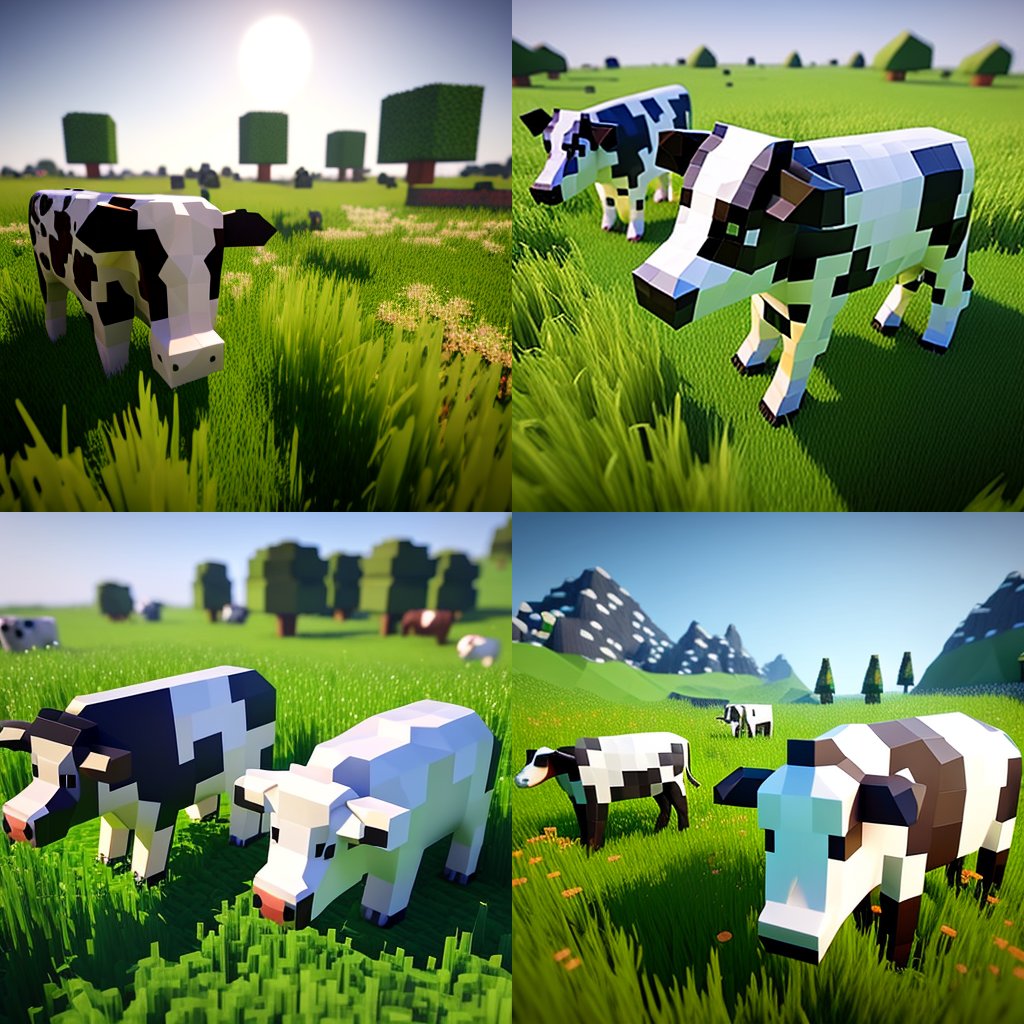
Hyper-Realistic Minecraft Cows Grazing

Hyper-Realistic Minecraft POV Portrait
Minecraft Homage Illustrious Style
Minecraft Voxel Pixel Art Aesthetic System

Minecraft Japanese Research Lab Exploration
Photoreal Village Lanterns Minecraft Scene
Photoreal Snow Biome Name Tag UI
Minecraft You Died Winter Death Screen
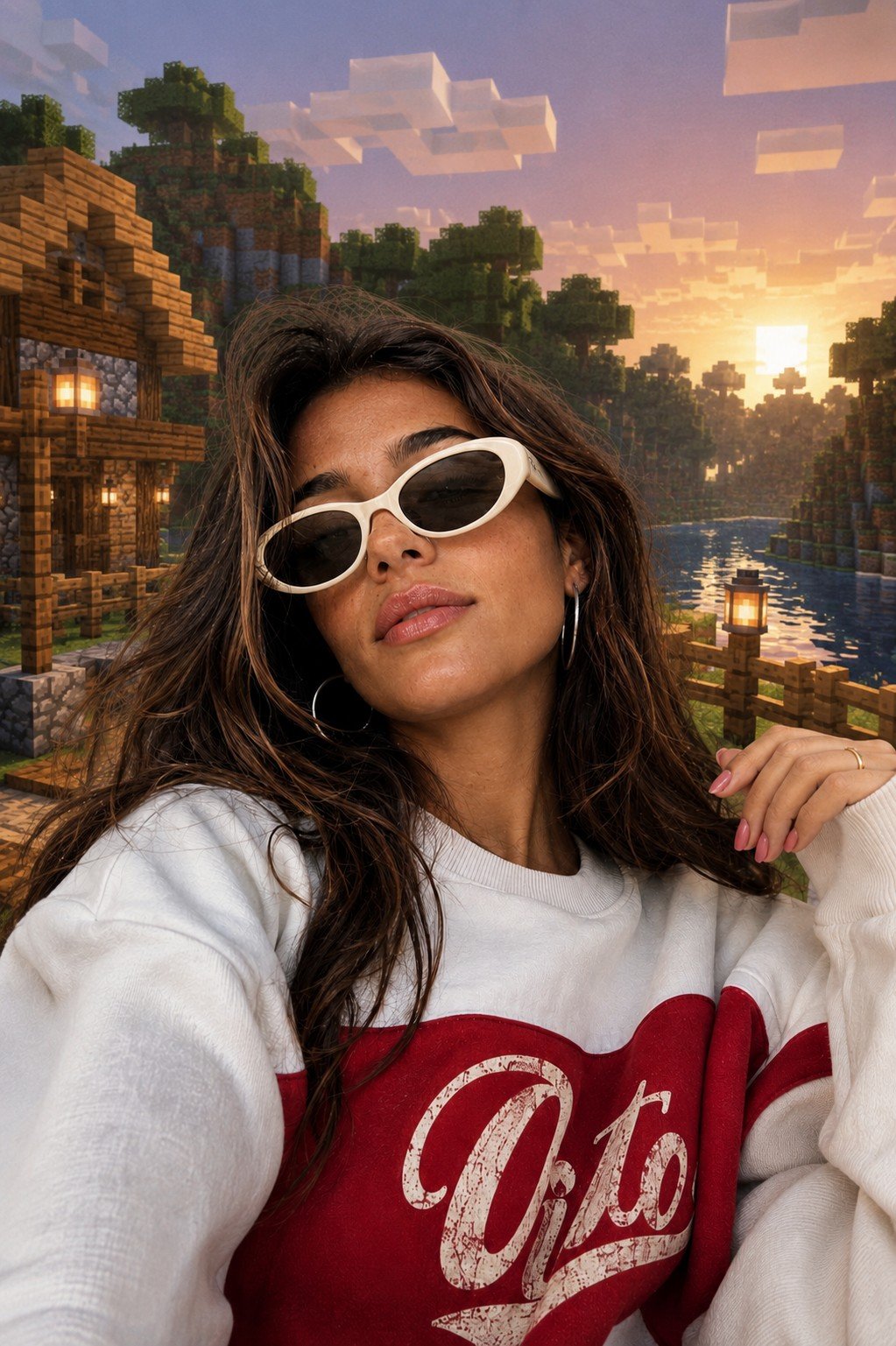
Photoreal Selfie Minecraft Block World
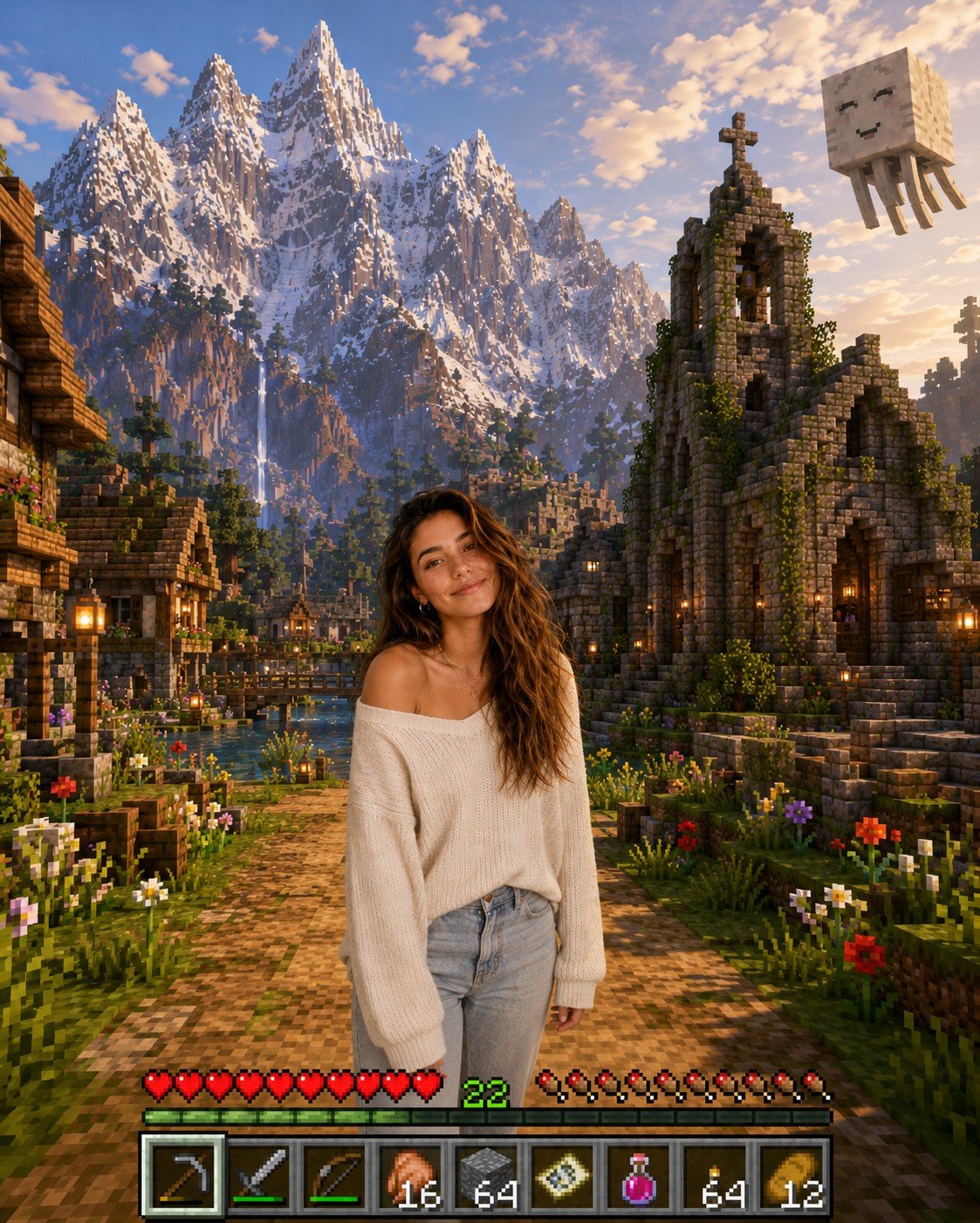
Photoreal Selfie Minecraft Village Ghast UI
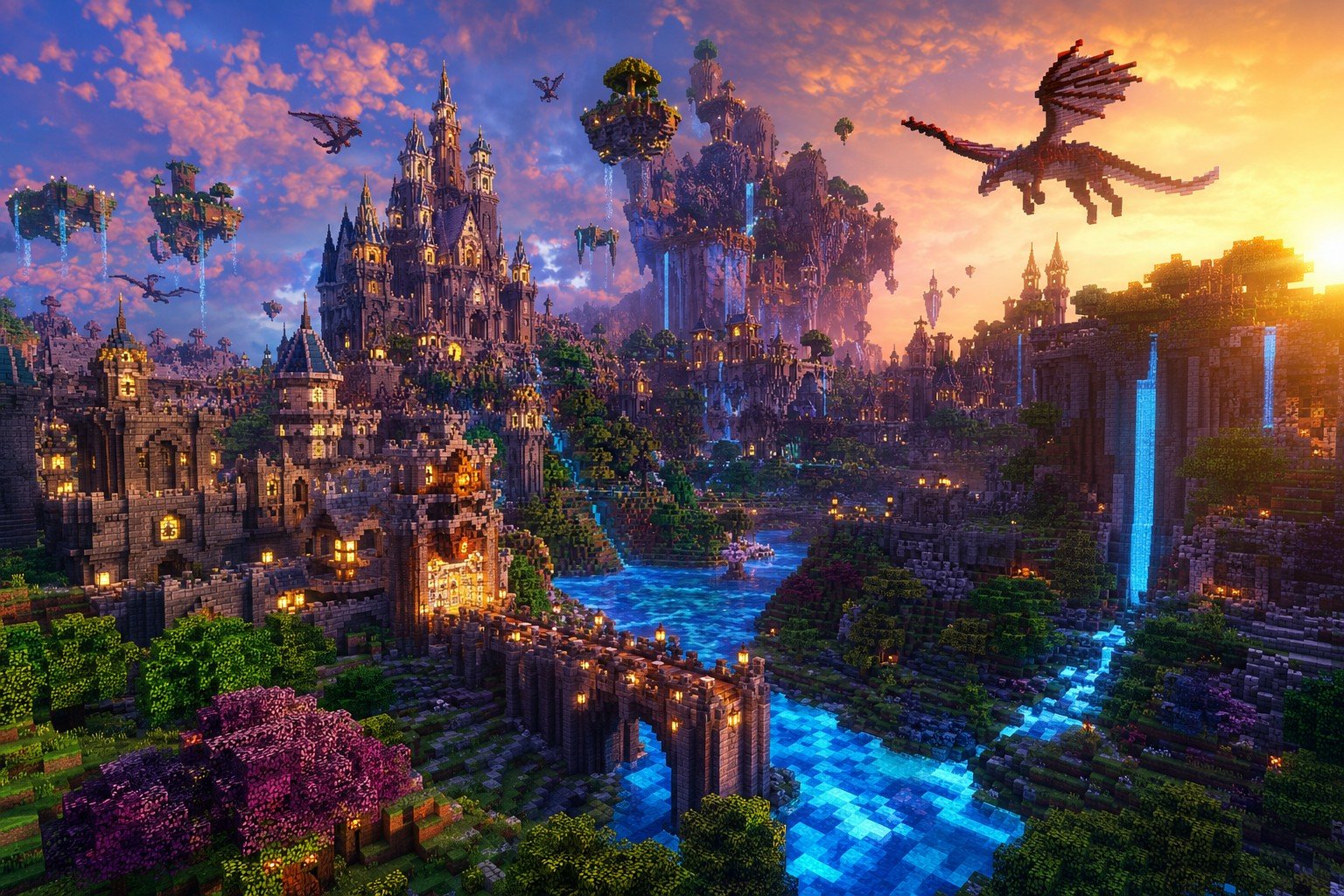
Minecraft Fantasy Kingdom Voxel Landscape
Make it yours
Minecraft Speedrun Screenshot works as-is. These are the safest ways to change it without losing the look.
Swap the setting
Keep the rest of the prompt and replace the location block. The current setting is “The End dimension in Minecraft”.
Change one field
Copy a single group, rewrite it, and generate again so you can see what that field is doing.
Keep the frame, change the subject
Hold the composition and light of Minecraft Speedrun Screenshot, then swap wardrobe, props or the person for a new take.
| If the result… | Why | Fix |
|---|---|---|
| The result drifts from the preview | Too many fields changed at once. | Reuse Minecraft Speedrun Screenshot as-is first, then change one group — subject, light, or setting. |
| GPT Image 2 ignores part of the JSON | Some models flatten or skip nested keys. | Keep the same values and paste them as a short paragraph instead. |
More GPT Image 2 templates
Other prompts made for GPT Image 2.

Six VTuber Japanese Logo Sheet

Realistic Portrait of Woman and Deer

The Vista Modular Condo Poster

AI Model Routing Comparison Infographic

2.5D Anime Art Board

Isometric Productivity Desk Scene

New York Double Exposure Poster

Four-Panel AI Landscape Comparison

Japanese Tatami Lifestyle Magazine Cover

NESCAFÉ Coffee Map Poster
More image prompts
Fresh picks from across the catalog.
Instagram Profile Grid Aesthetic
Doodle Beer Selfie Portrait
Bold KFC Food Ad Poster
Playful 3D Toy Kinkajou Prompt
Neon Multi-Panel Fashion Collage
Outfit combinations using Sergey Brin as model
High-Fashion Perfume Campaign Prompt with Side Lighting
Nostalgic Memory Narrative Grid Prompt

3d Miniature City Models with Kling Ai
Cyber Elf Girl Reference Sheet
Browse template categories
Minecraft Speedrun Screenshot questions
How do I use the Minecraft Speedrun Screenshot template?
Add your photo if the template asks for one, edit the prompt if you like — the template's model and format are already selected — and press Generate. Your version opens in PicX Studio.
Can I customize the Minecraft Speedrun Screenshot template?
Yes. You can change the subject, setting, lighting, mood, format, and available model controls before creating your image.
Is the Minecraft Speedrun Screenshot template free?
Opening and editing this template is free. Generating uses credits, shown on the Generate button when you are signed in.
Which AI model should I use?
Start with GPT Image 2, which is the model associated with this template. You can compare another compatible model for a different finish.
Looking for something else? Browse all templates.

Your photo, any look
Thousands of ready templates for every top image and video model, from one credit balance.