
Early 2000s Party Photo UI
Generates a nostalgic flash-party snapshot with censored faces and an AI prompt input bar for social media or app-demo visuals.
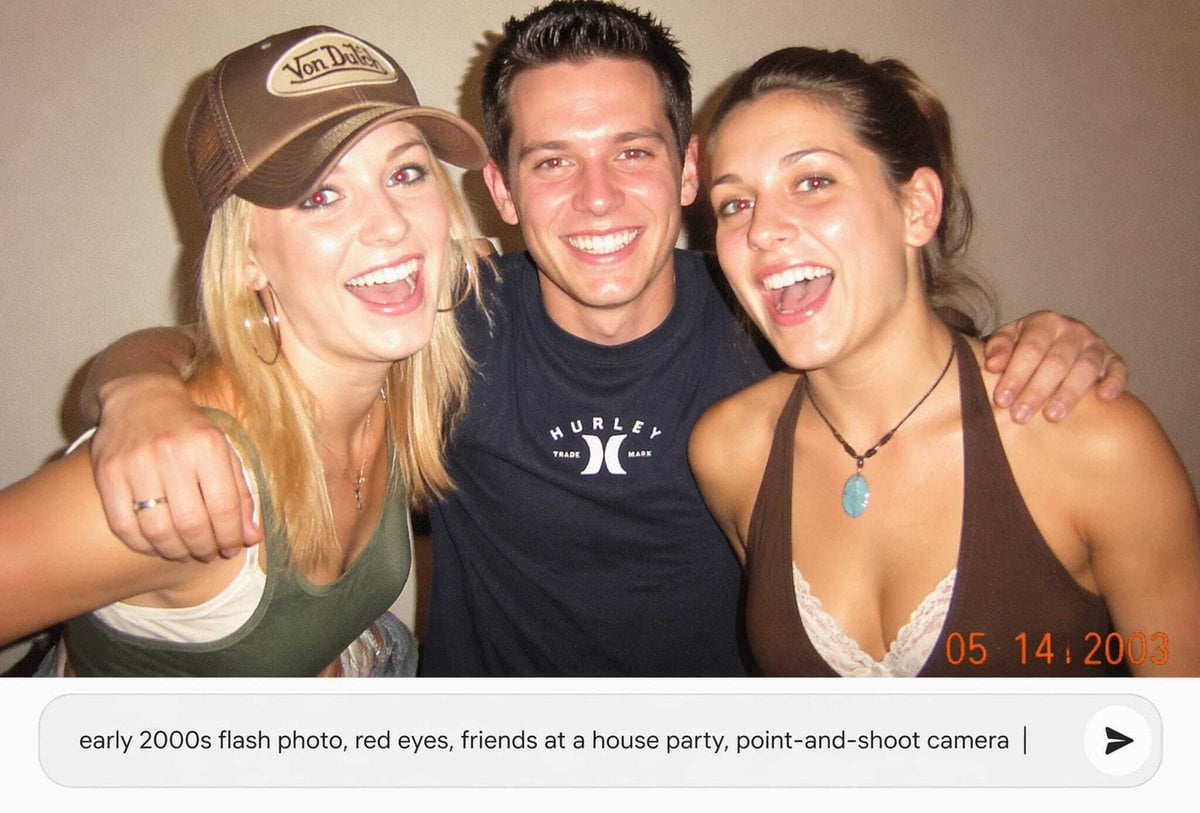
- Prompt included
- Model and format preset
- Premium template
The prompt behind this image
Copy the exact prompt behind Early 2000s Party Photo UI, or open it in the studio and make it yours.
Create a nostalgic early-2000s candid point-and-shoot flash photograph of {argument name="number of friends" default="three friends"} posing close together at a casual house party against a plain beige wall. The photo should look like a low-resolution disposable-camera snapshot with harsh direct flash, warm indoor color cast, slight grain, soft focus, mild overexposure on skin, and a dark vignette. Show one blonde woman on the left wearing a brown trucker cap with a small vintage logo patch, a green tank top over a white underlayer, and jewelry; one man in the center with short spiky dark hair wearing a black Hurley-style T-shirt, arms around both friends; and one brunette woman on the right wearing a brown halter top over white lace and a turquoise pendant necklace. Obscure each face with a flat rectangular skin-tone censor block, exactly 3 censor rectangles total. Add an orange digital camera date stamp in the bottom-right reading {argument name="date stamp" default="05 14 2003"}. Below the photo, include a modern rounded white prompt input bar as if in an AI image app, containing the text {argument name="input prompt text" default="early 2000s flash photo, red eyes, friends at a house party, point-and-shoot camera"}, with a vertical cursor at the end and a circular send button on the right containing a black arrow icon. Use a landscape 16:9 composition with the photo occupying the upper portion and the UI prompt bar occupying the lower portion.
How to use Early 2000s Party Photo UI in 3 steps
- 1Upload ImagePNG, JPG or paste
Add your photo
Upload the photo the template builds on. The prompt, model and format are already set.
- 2…a portrait of your subject in softgolden-hour light, 85mm…
Personalize
Edit the subject and creative details for your destination.
- 3Generate
Generate
Press Generate — your image is created in PicX Studio, so you can compare it with the original and refine one variable at a time.
More like this
Templates with the same subject, style or setup. Open one to see its prompt.
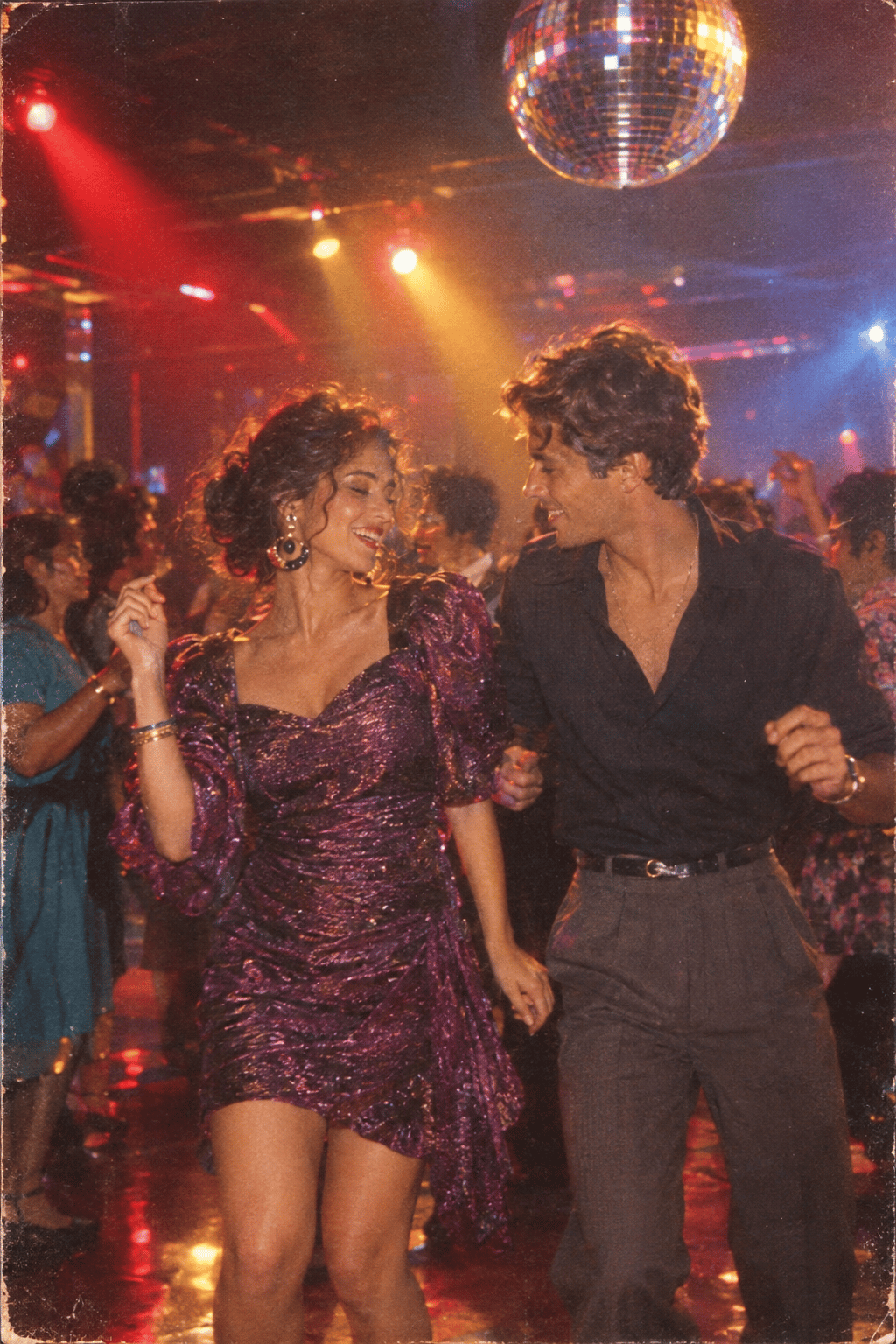
One Dance Before Midnight
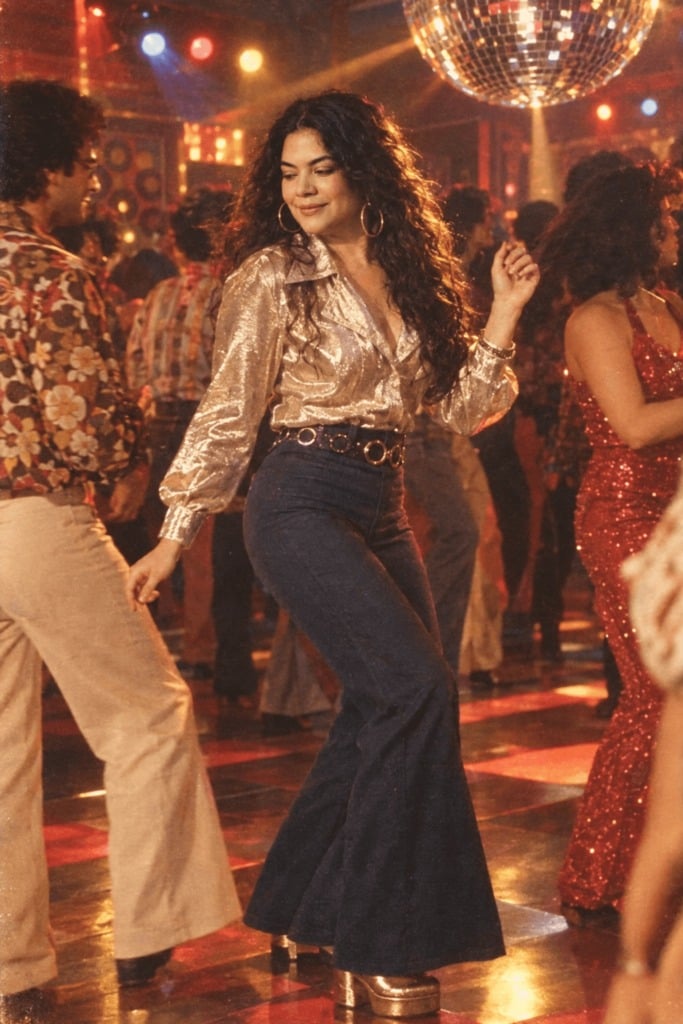
80s Disco Dancefloor
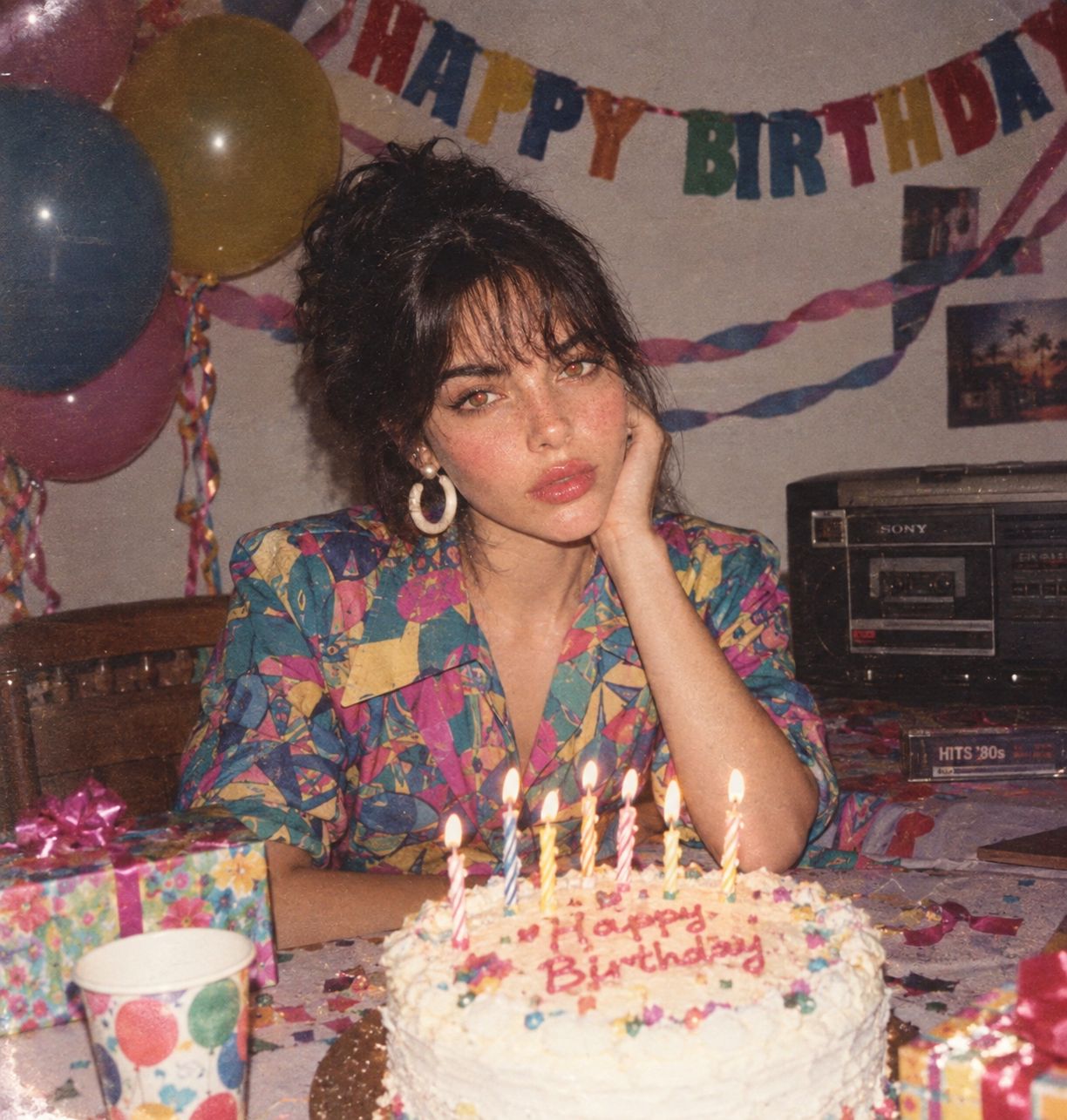
80s Birthday Party
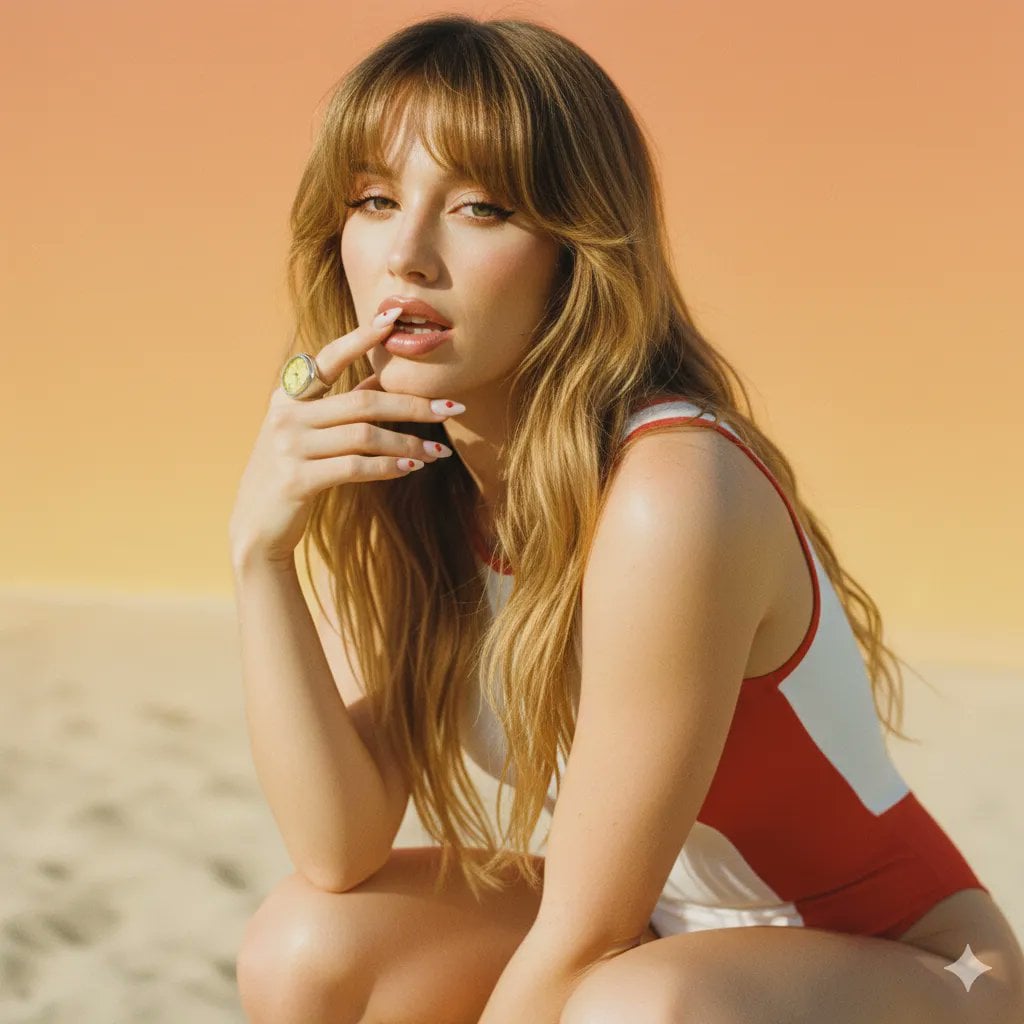
2000s Retro-Pop Fashion Cinematic Editorial Portrait
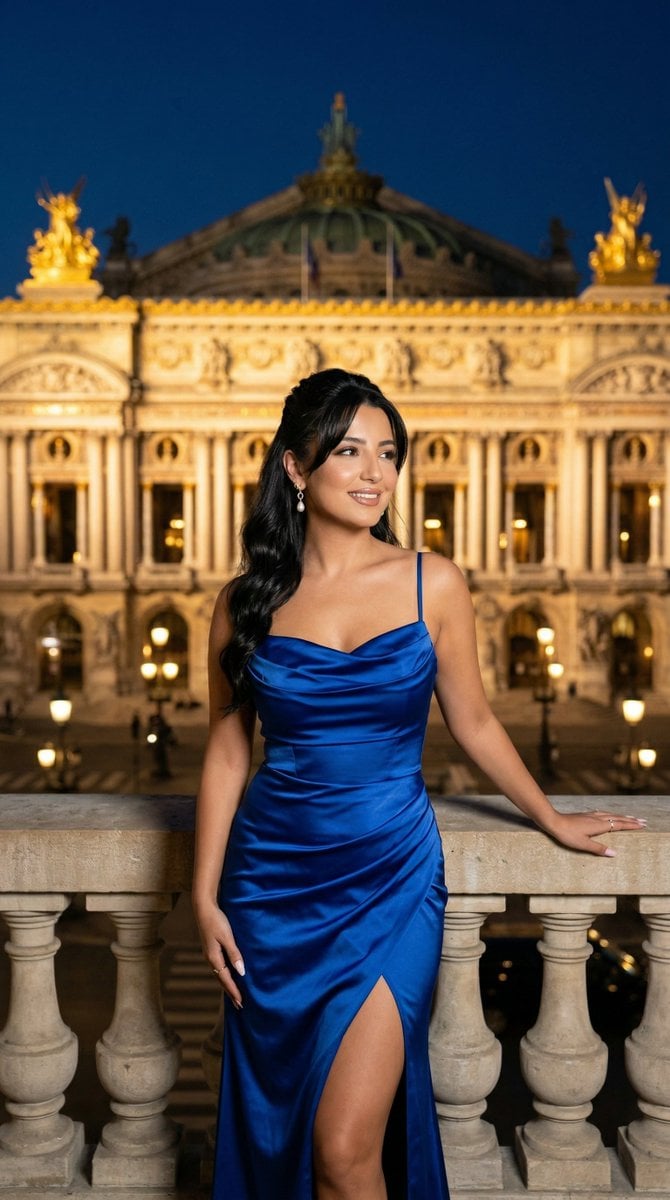
Nano Banana - Paris Night Party Dancing
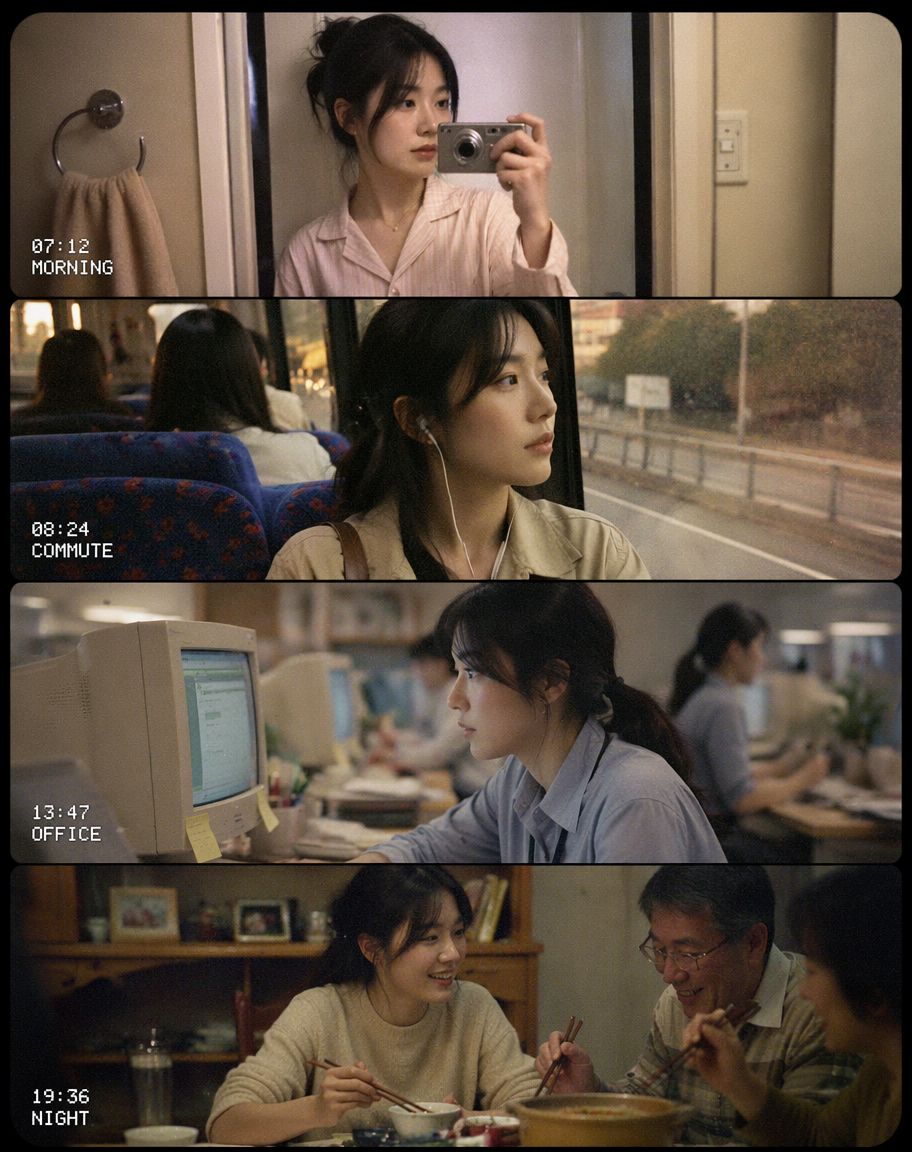
Early 2000s CCD Video Diary Storyboard
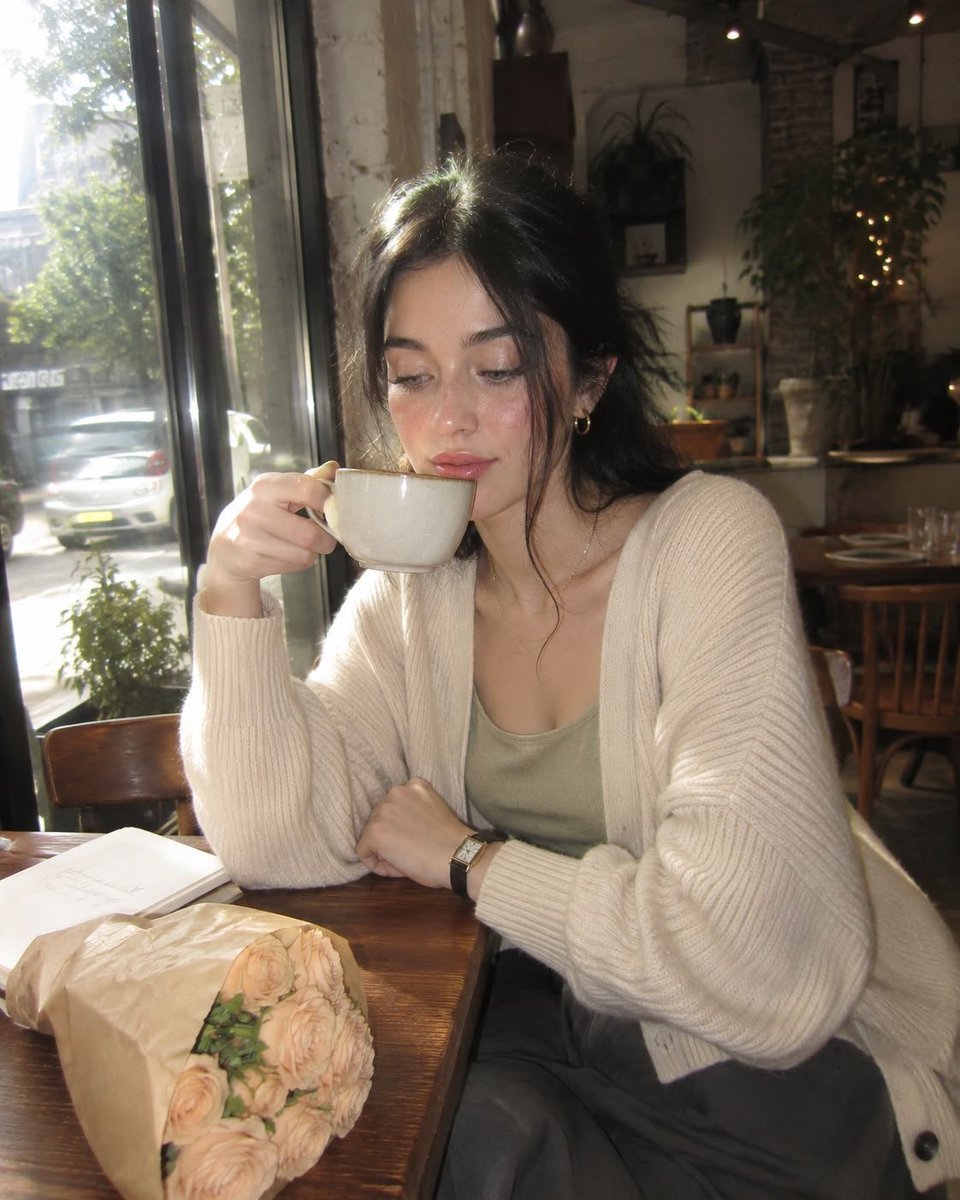
Nostalgic Early-2000s Cafe Snapshot
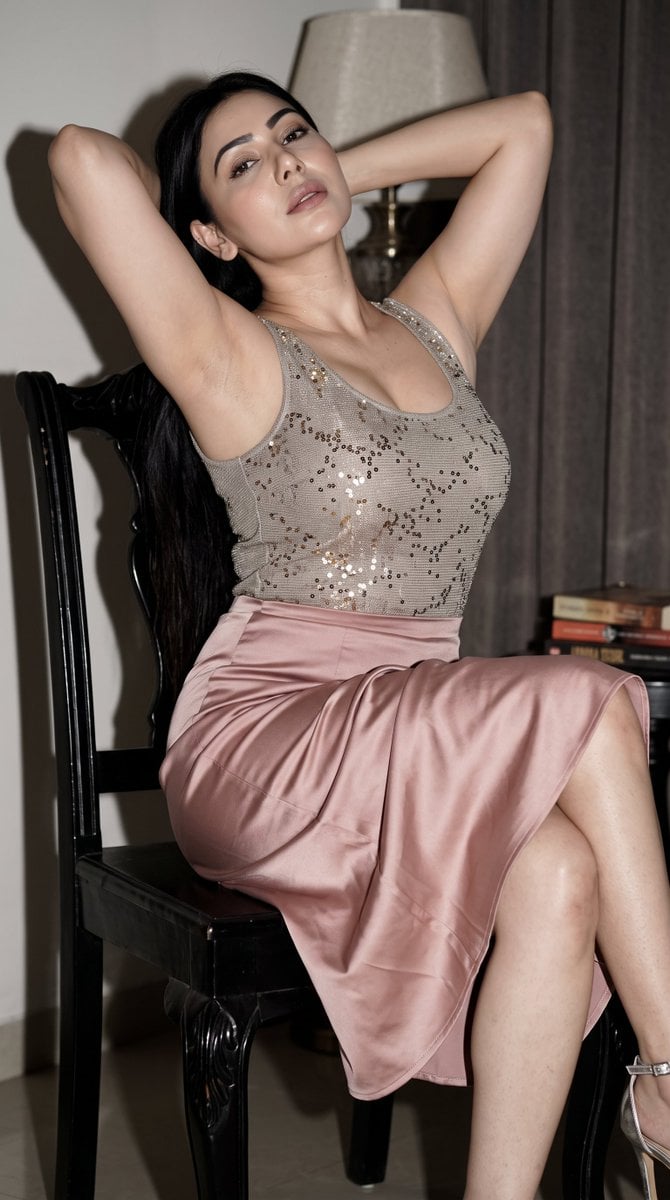
Early 2000s Nightlife Flash Portrait
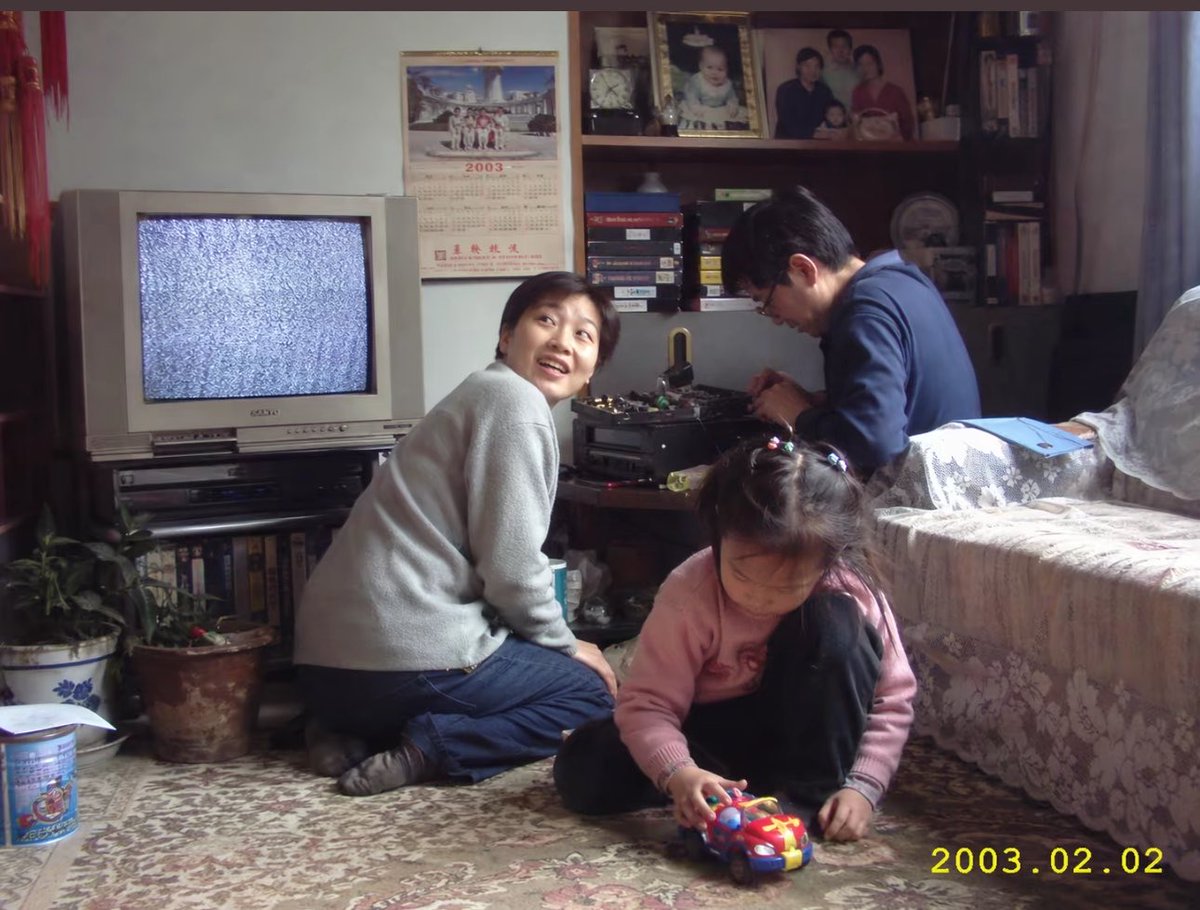
Early 2000s Family Living Room Photo
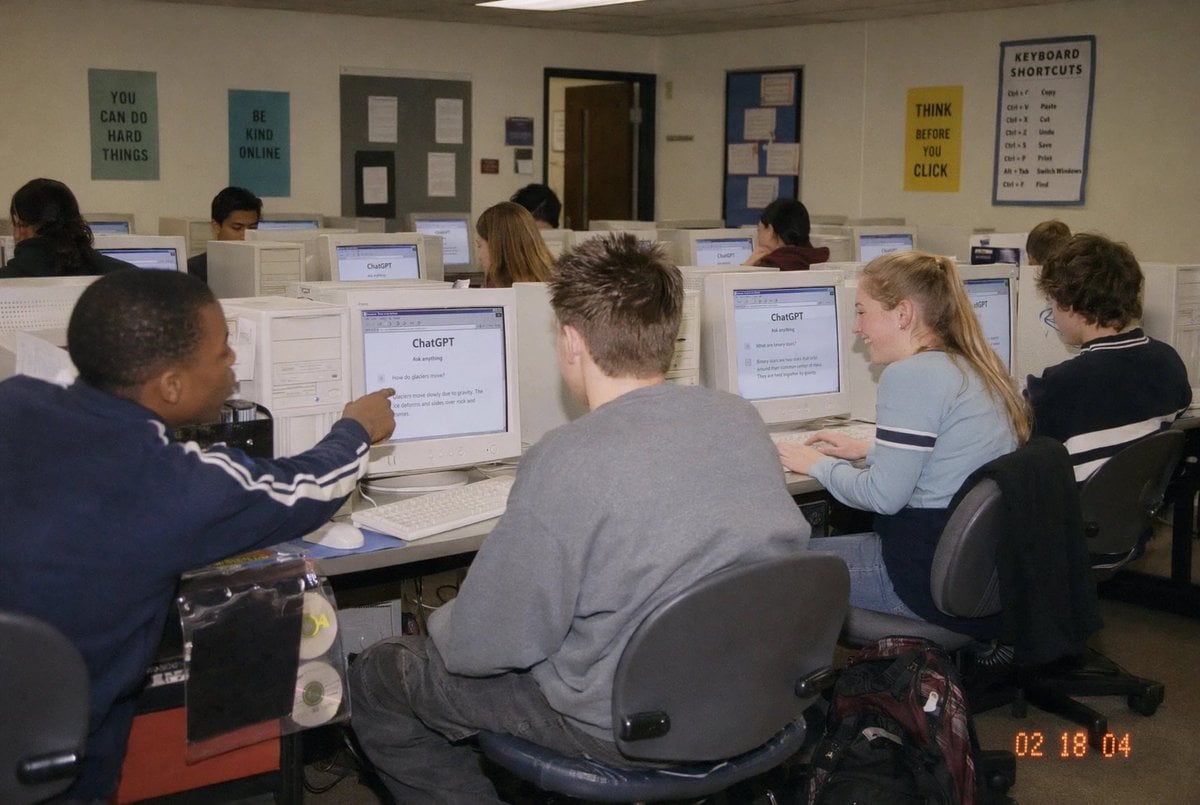
Early 2000s Computer Lab With ChatGPT
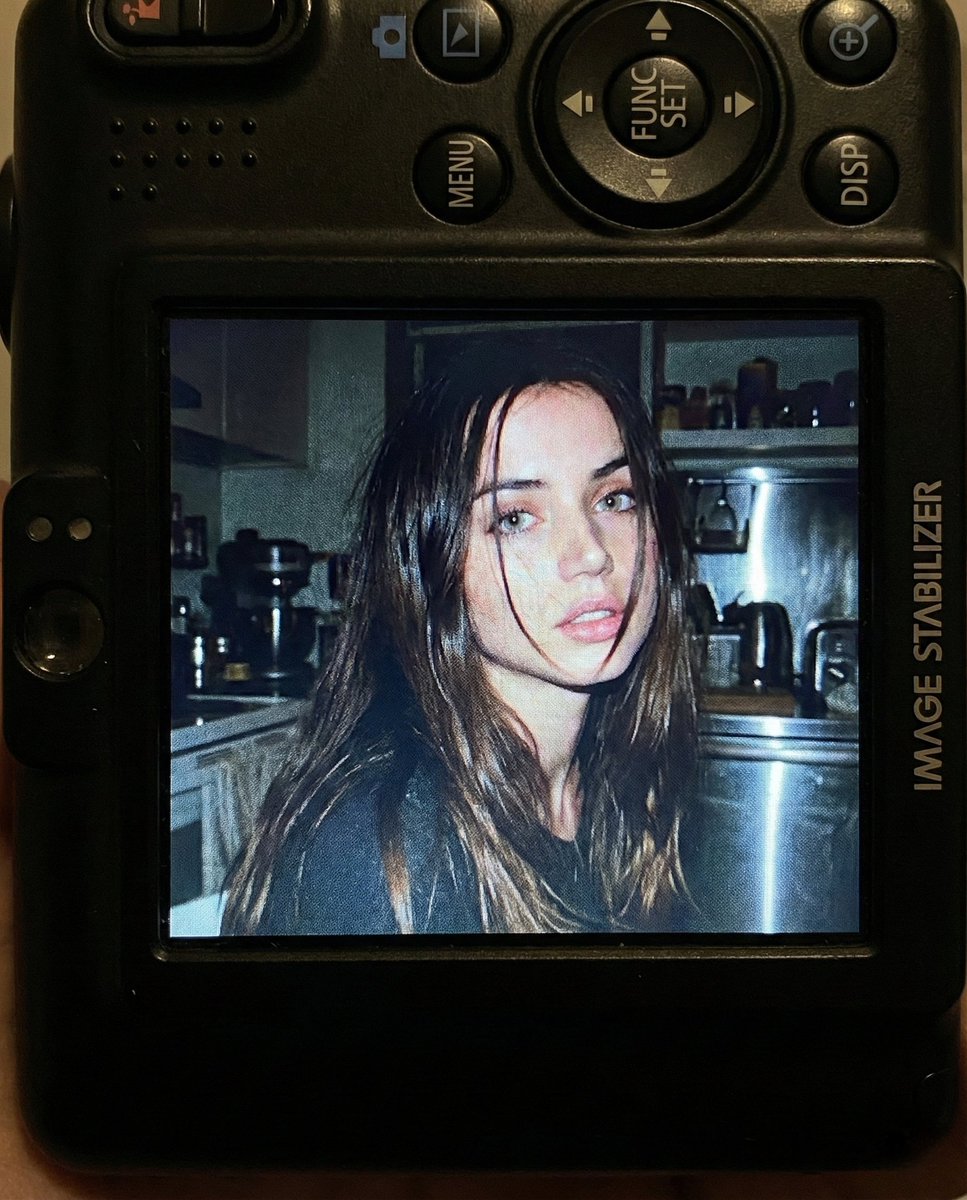
Nostalgic Early 2000s Digital Camera Portrait Prompt
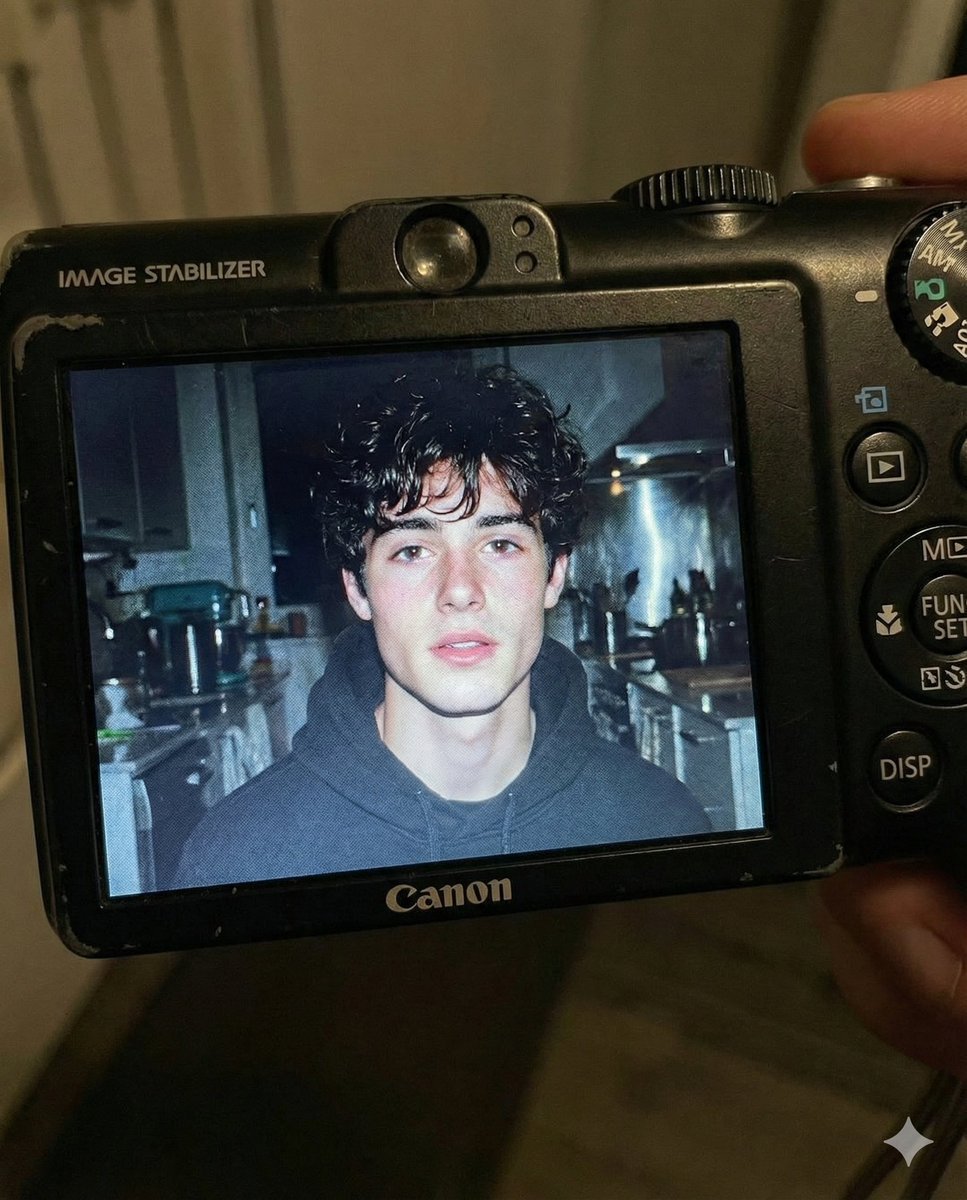
Early 2000s Digital Camera Flash Portrait Prompt
Make it yours
Early 2000s Party Photo UI works as-is. These are the safest ways to change it without losing the look.
Change one field
Copy a single group, rewrite it, and generate again so you can see what that field is doing.
Keep the frame, change the subject
Hold the composition and light of Early 2000s Party Photo UI, then swap wardrobe, props or the person for a new take.
| If the result… | Why | Fix |
|---|---|---|
| The result drifts from the preview | Too many fields changed at once. | Reuse Early 2000s Party Photo UI as-is first, then change one group — subject, light, or setting. |
| The model over-stylizes the scene | The prose prompt leaves finish and camera underspecified. | Add one camera or lighting sentence and stay on GPT Image 2. |
More GPT Image 2 templates
Other prompts made for GPT Image 2.

Six VTuber Japanese Logo Sheet

Realistic Portrait of Woman and Deer

The Vista Modular Condo Poster

AI Model Routing Comparison Infographic

2.5D Anime Art Board

Isometric Productivity Desk Scene

New York Double Exposure Poster

Four-Panel AI Landscape Comparison

Japanese Tatami Lifestyle Magazine Cover

NESCAFÉ Coffee Map Poster
More image prompts
Fresh picks from across the catalog.
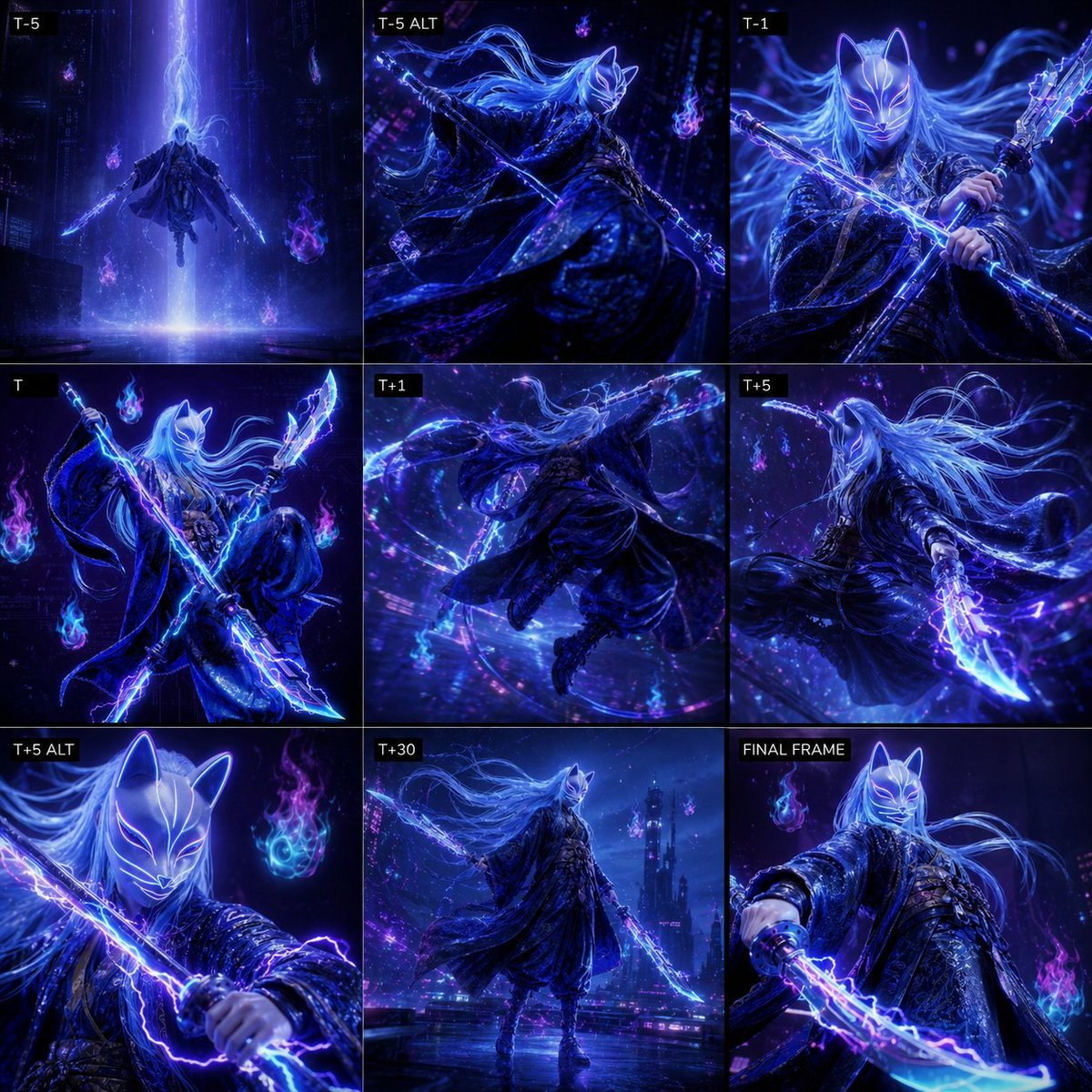
Cyber Kitsune Warrior Storyboard
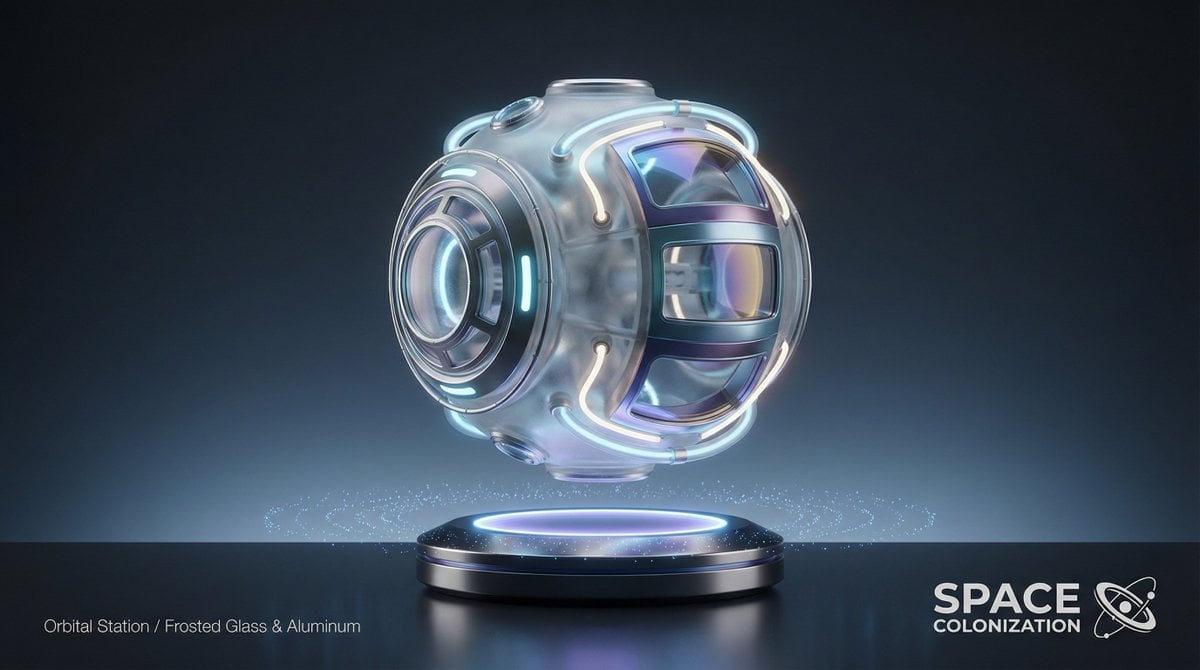
Futuristic Sci-Fi Still Life Photography Template
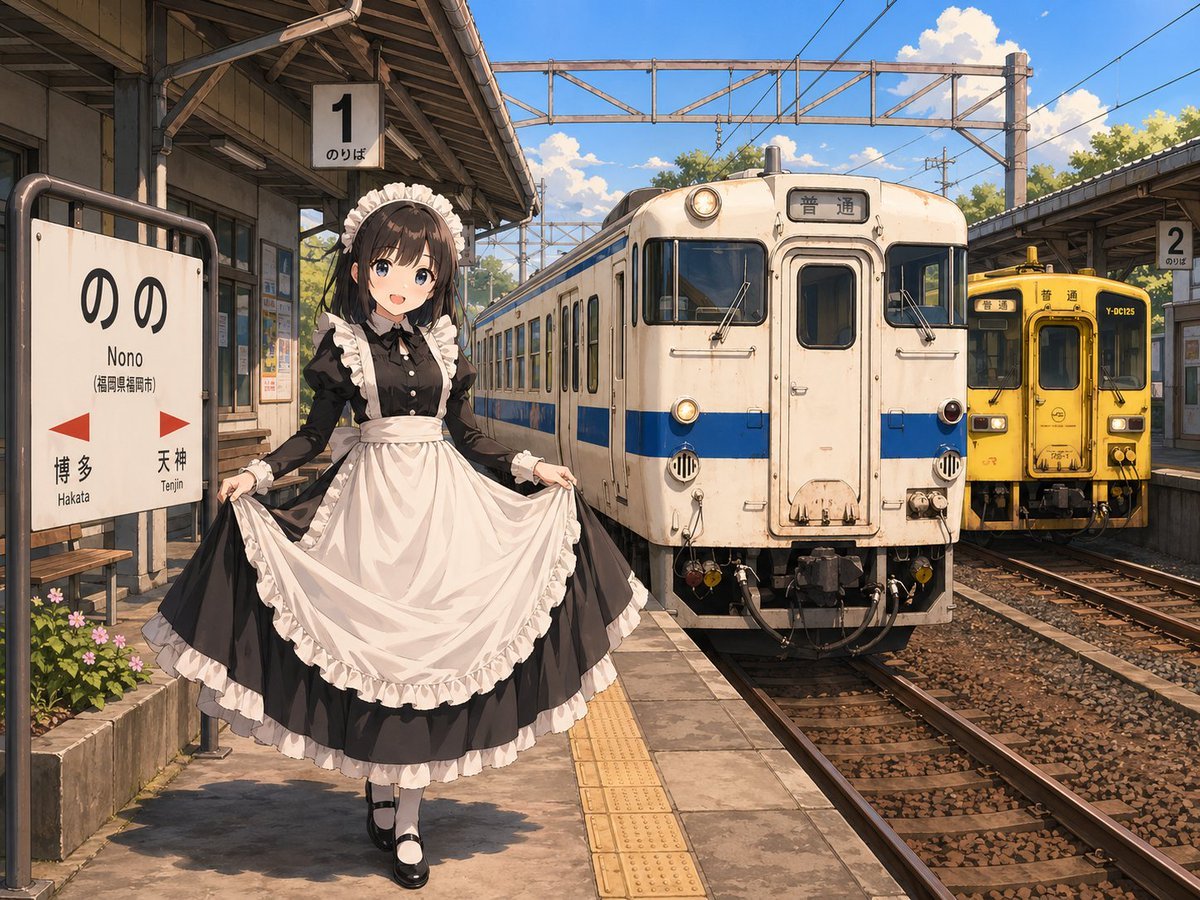
Anime Maid at Rural Train Station
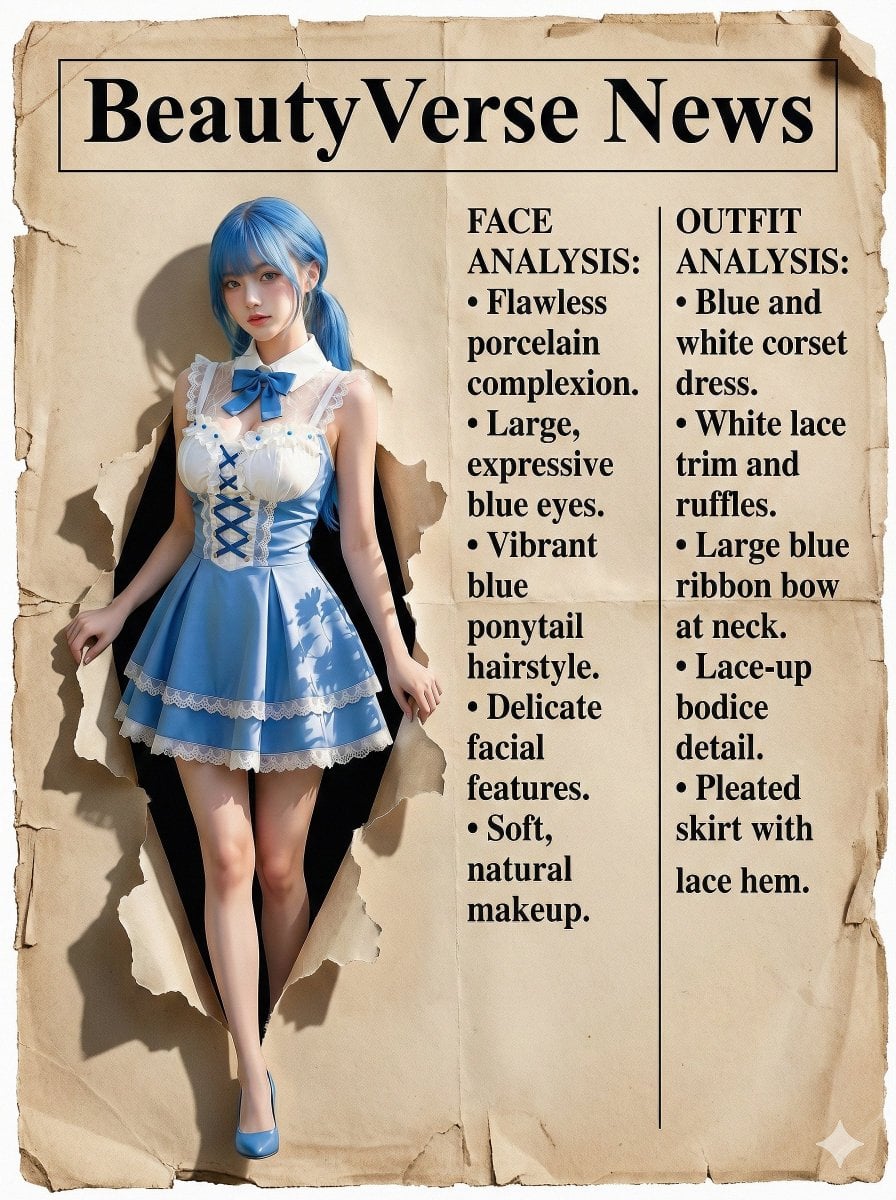
Character Analysis Newspaper Rip-Through Effect
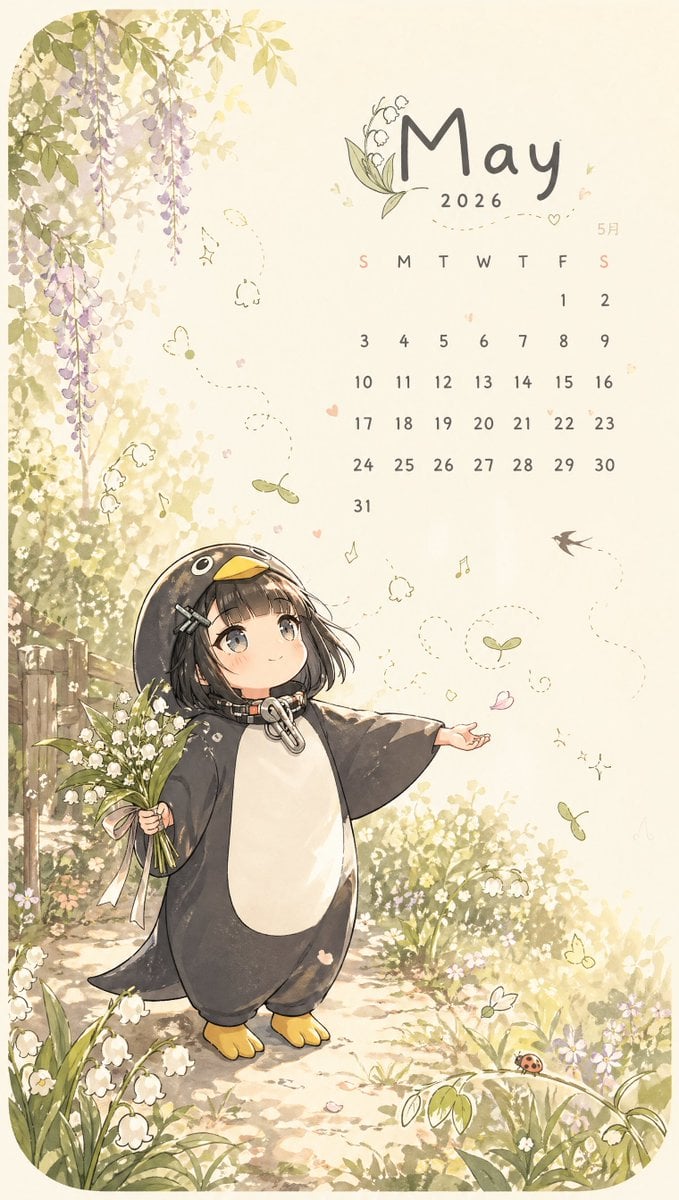
Whimsical May Spring Calendar
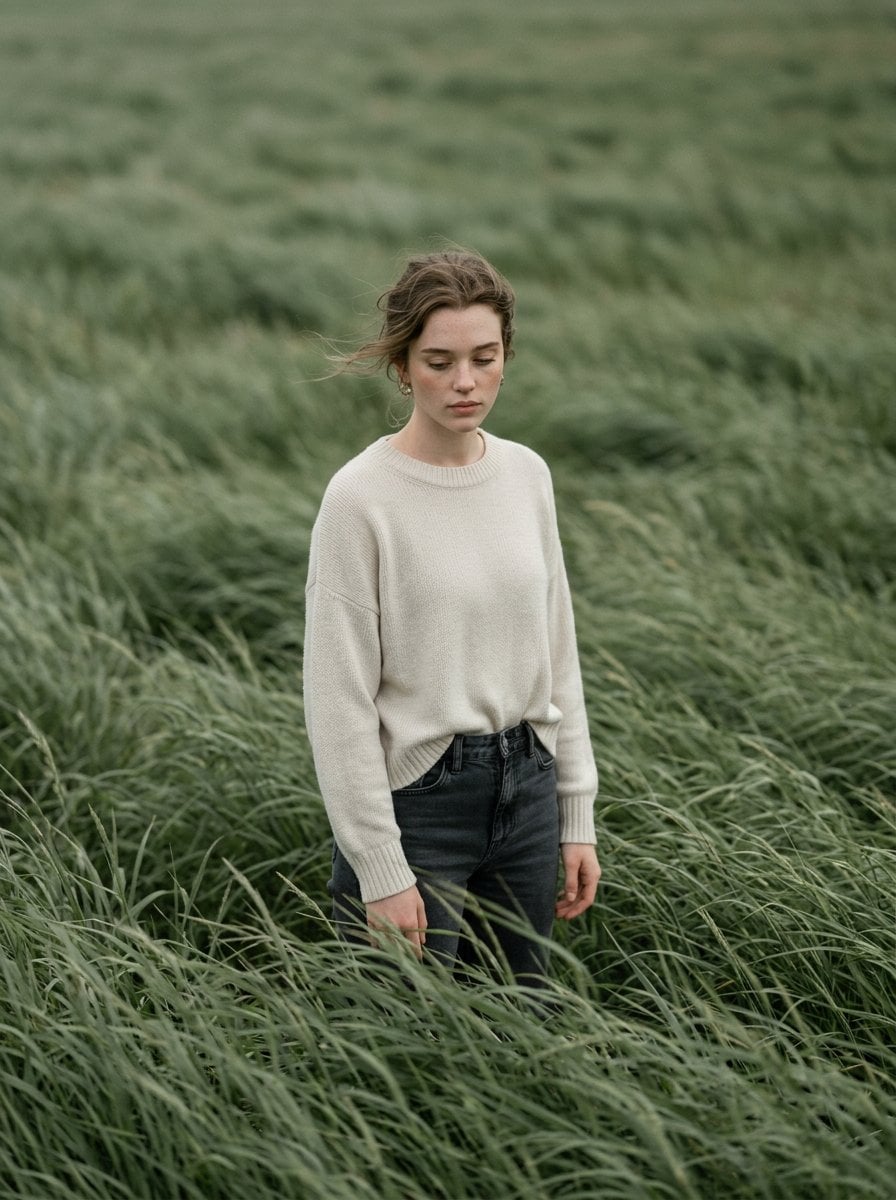
Cinematic Portrait in Sage-Green Grass Field
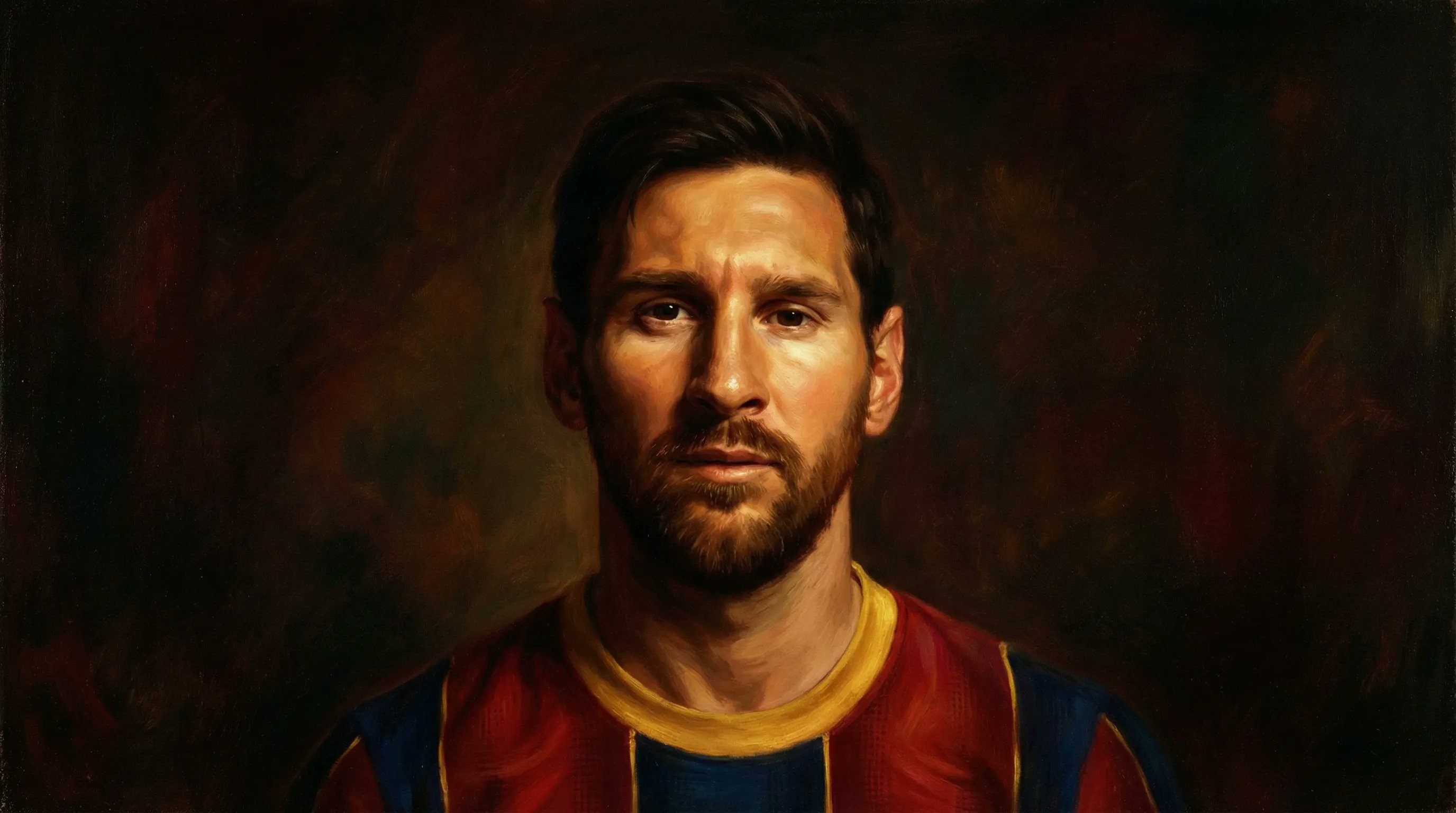
Bullet Time Businessman Seedance 2 0
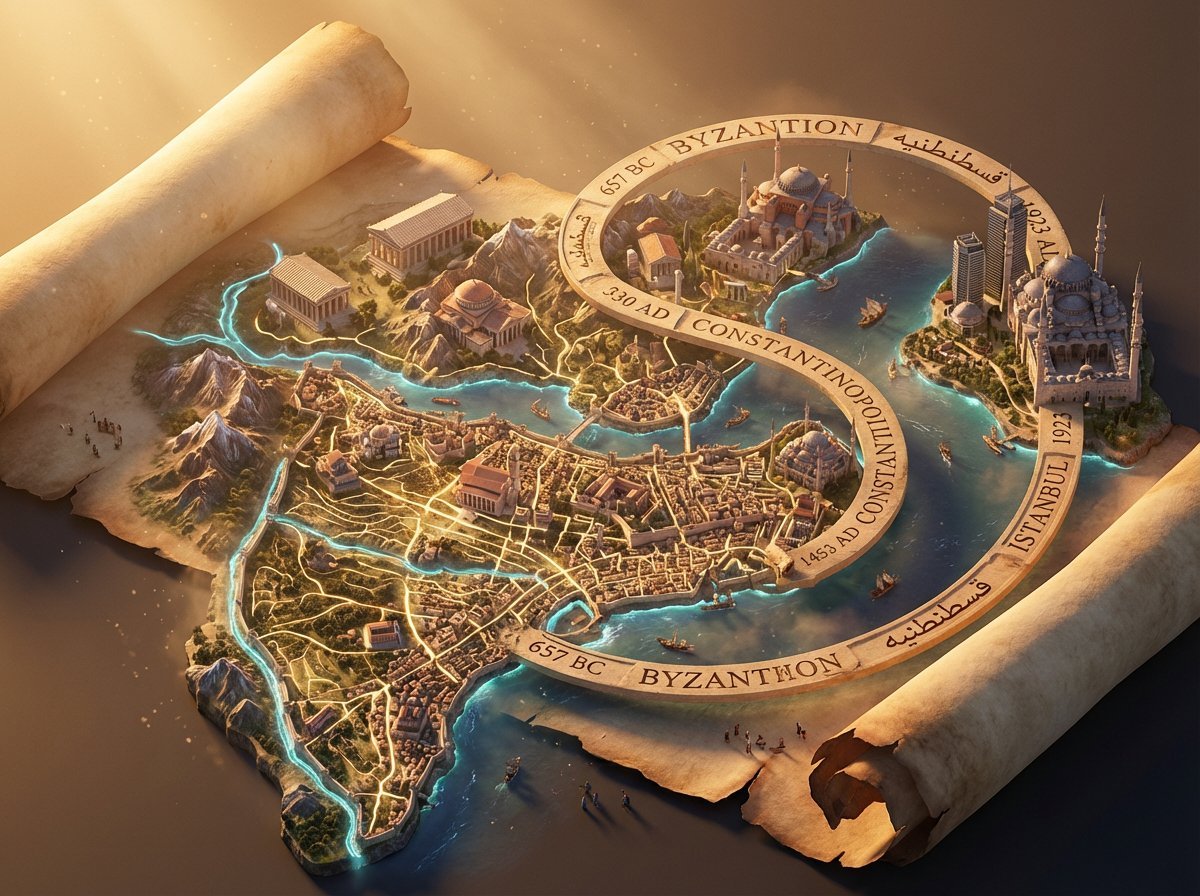
3D Isometric Atlas Scene in Firefly Style
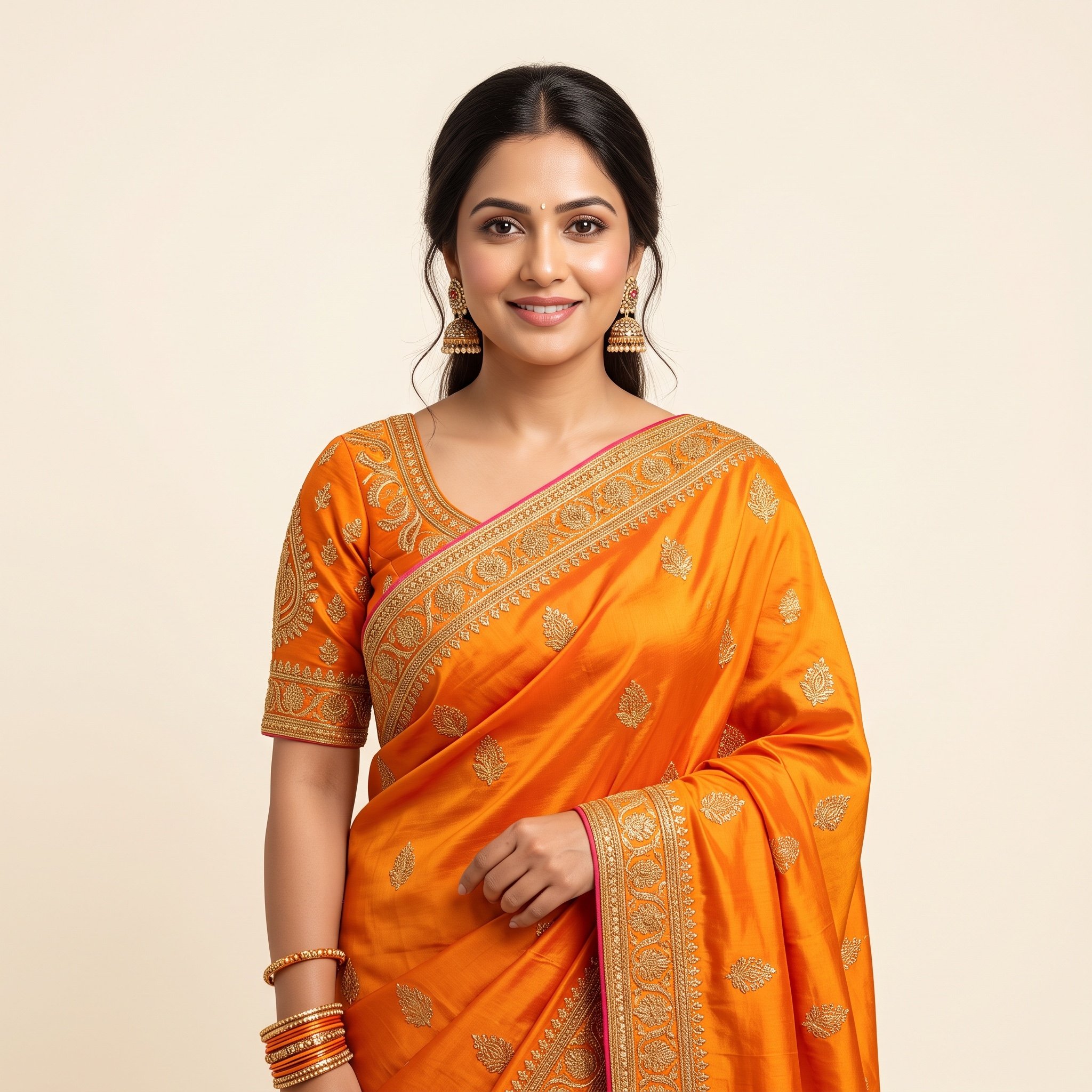
Photorealistic Traditional Indian Saree Portrait
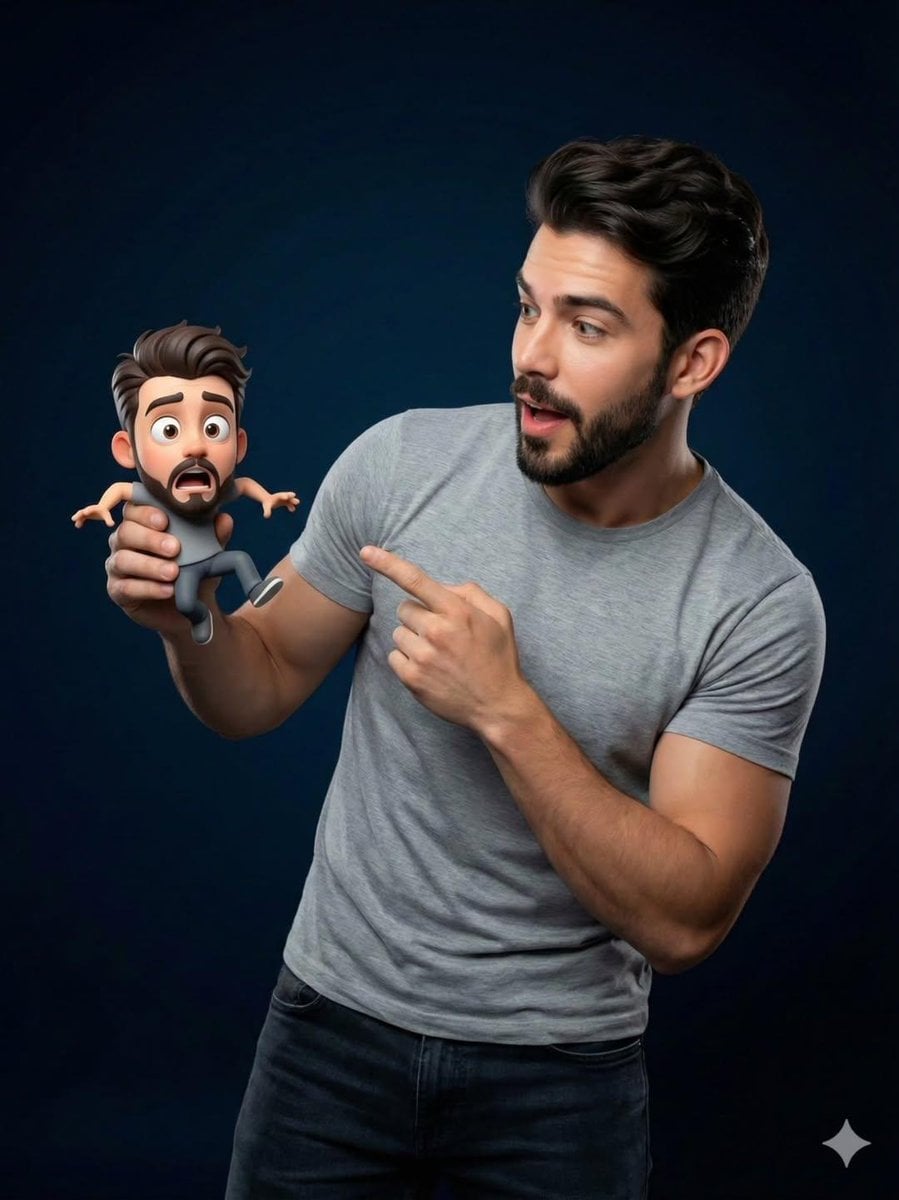
Pixar-Style Miniature Interaction Portrait
Browse template categories
Early 2000s Party Photo UI questions
How do I use the Early 2000s Party Photo UI template?
Add your photo if the template asks for one, edit the prompt if you like — the template's model and format are already selected — and press Generate. Your version opens in PicX Studio.
Can I customize the Early 2000s Party Photo UI template?
Yes. You can change the subject, setting, lighting, mood, format, and available model controls before creating your image.
Is the Early 2000s Party Photo UI template free?
Opening and editing this template is free. Generating uses credits, shown on the Generate button when you are signed in.
Which AI model should I use?
Start with GPT Image 2, which is the model associated with this template. You can compare another compatible model for a different finish.
Looking for something else? Browse all templates.

Your photo, any look
Thousands of ready templates for every top image and video model, from one credit balance.