How do I use the Spanish UPS outlet wiring infographic template?
Choose the primary action to open PicX Studio with the available template settings. Review the model and format, personalize the creative direction, and generate when ready.
This prompt turns a reference photo of a UPS into a labeled Spanish instructional diagram showing which sockets to use for critical equipment and where to move the switch. Change the subject, setting, or lighting one variable at a time.
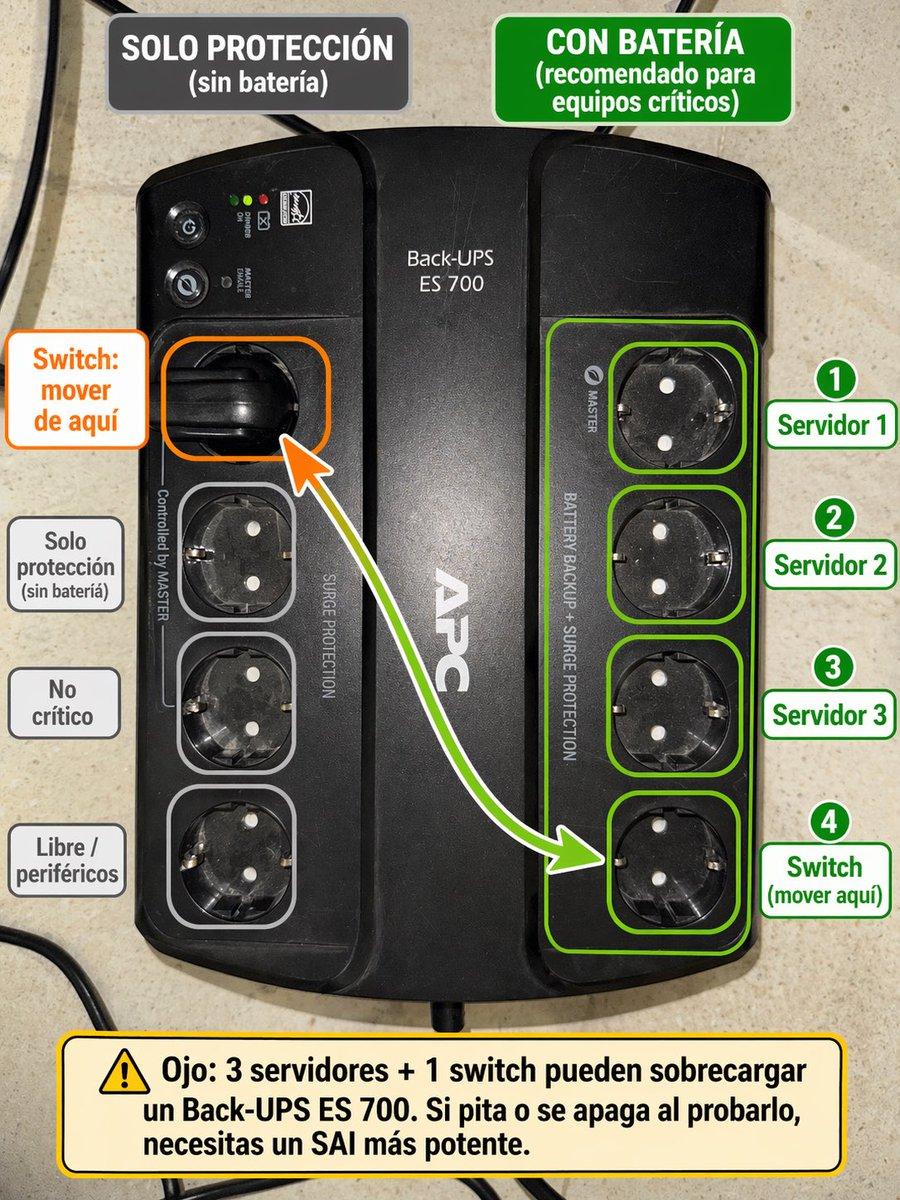
Using the provided reference image of the APC Back-UPS, turn it into a clear Spanish annotated setup guide overlaid directly on the photo. Keep the UPS photo realistic and unchanged as the base, but add color-coded callouts showing which outlets are battery-backed versus surge-only. At the top, add 2 header boxes: on the left a dark gray box reading "SOLO PROTECCIÓN (sin batería)", and on the right a green box reading "CON BATERÍA (recomendado para equipos críticos)". Highlight the 4 right-side outlets with a green outline group and individual green outlines, and place 4 numbered green labels on the right: "1 Servidor 1", "2 Servidor 2", "3 Servidor 3", "4 Switch (mover aquí)". On the left, highlight the currently used upper-left outlet with an orange outline and add an orange callout box reading "Switch: mover de aquí", plus a curved arrow from that outlet to the bottom outlet of the right-side green group. Also outline the 3 lower-left outlets in light gray and add 3 gray labels on the left aligned to them: "Solo protección (sin batería)", "No crítico", and "Libre / periféricos". At the bottom, add a large yellow warning box with a caution icon and this text: "Ojo: 3 servidores + 1 switch pueden sobrecargar un Back-UPS ES 700. Si pita o se apaga al probarlo, necesitas un SAI más potente." Clean infographic style, readable bold typography, neat rounded rectangles, high contrast, and practical IT-diagram presentation.
Spanish UPS outlet wiring infographic needs input media to work. Open it in the studio and these load alongside the prompt — pick whichever ones your chosen model can take.
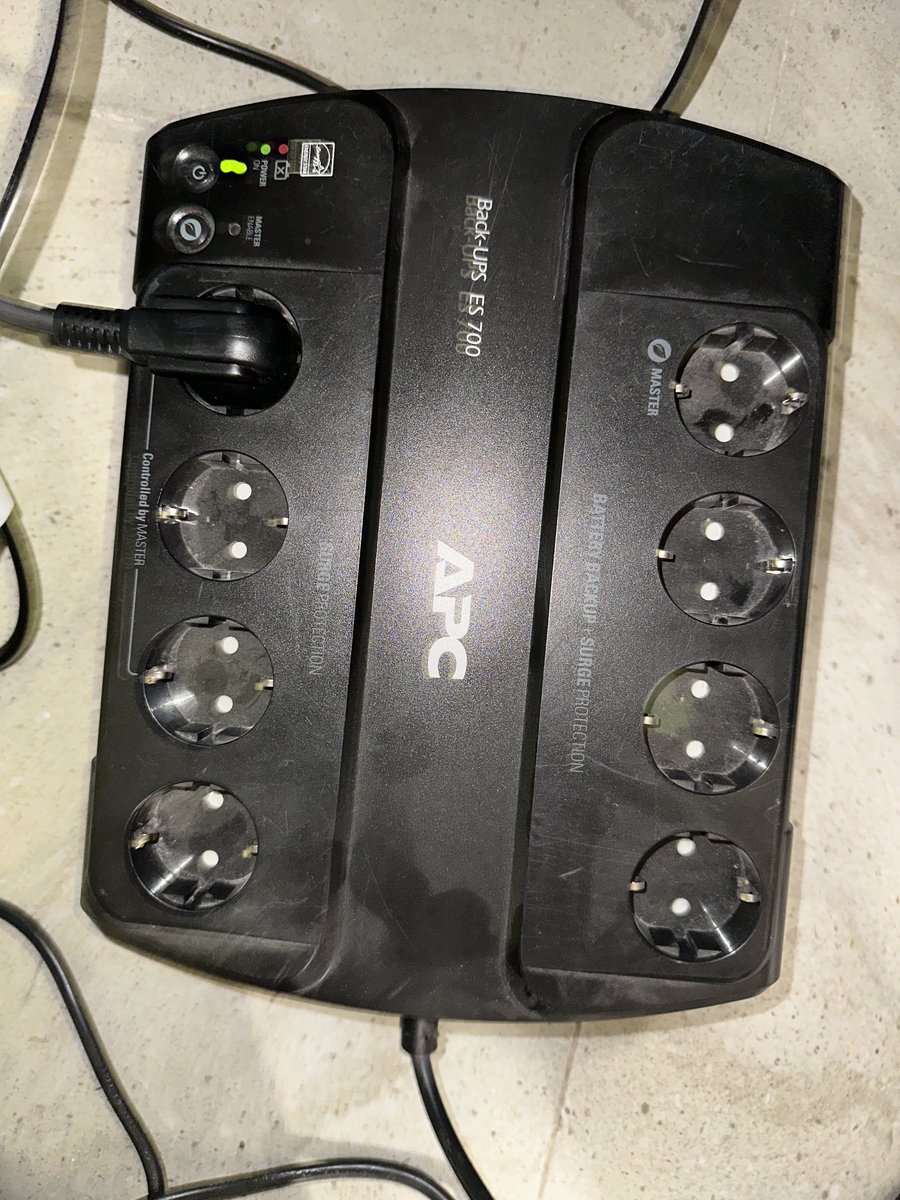
Choose the primary action to open PicX Studio with the available template settings. Review the model and format, personalize the creative direction, and generate when ready.
Yes. You can change the subject, setting, lighting, mood, format, and available model controls before creating your image.
This template is free to open and customize. Generation usage is shown in PicX Studio before you create.
Start with GPT Image 2, which is the model associated with this template. You can compare another compatible model for a different finish.
© 2026 PicX Studio. All rights reserved.

Follow a topic to a crawlable collection of related PicX Studio templates.
43,474 public templates available. Verified via the PicX Studio public templates API; refreshed hourly.
![Japan Travel Brochure Poster — Create a vertical vintage travel-brochure infographic poster titled “[COUNTRY/DESTINATION]: [TAGLINE]”, using a warm parchment-pa](/_next/image?url=https%3A%2F%2Fcdn.picxstudio.com%2Fuploads%2Fp0_982bf820-bb34-4c43-8a6d-42d799d7282b.jpg&w=828&q=100)

![gpt2-infographic-edu-visual-dance-movement-reference-sheet — [STYLE]
monochromatic grayscale illustration, 3D rendered character, clean instructional reference](/_next/image?url=https%3A%2F%2Fcdn.picxstudio.com%2Fuploads%2Fp53_2bb2c20d_4a8a521c-3b90-453c-9df1-6e66a07a8380.jpg&w=828&q=100)







![Isometric Vehicle Teardown Infographic Template — Create a technical infographic of [VEHICLE] with a 45-degree isometric 3D perspective showing the device sligh](/_next/image?url=https%3A%2F%2Fcdn.picxstudio.com%2Fuploads%2Fmeigen_aecaabc87fba_8dcefeb1-b8c3-4cae-8a57-853d0433c54e.jpg&w=828&q=100)



![Minimalist Flat Vector Travel Poster — Premium minimalist flat-vector travel poster for {argument name="city name" default="[CITY_NAME]"}, 3:4 vertical format.](https://cms-assets.youmind.com/media/1787917359711_3ug846_HQX205cbMAA6F6S-300x400.jpg)