
AI Supercar Poster Comparison
A social-media style side-by-side comparison image showing two different AI-generated racing poster designs above a Chinese prompt box, useful for benchmarking image models.
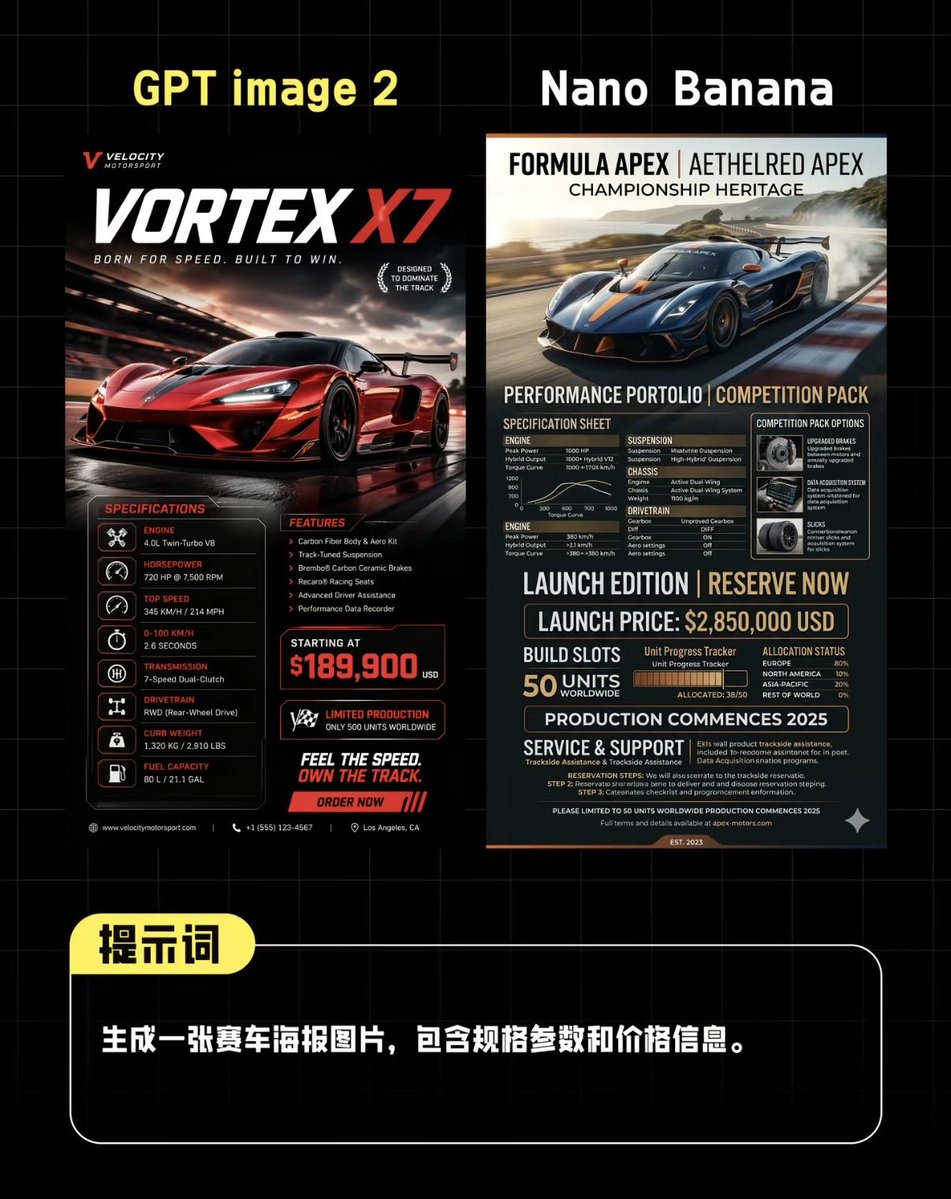
- Prompt included
- Model and format preset
- Free template
The prompt behind this image
Copy the exact prompt behind AI Supercar Poster Comparison, or open it in the studio and make it yours.
Create a side-by-side comparison graphic on a black background with a faint gray grid, styled like a Chinese social media benchmark post comparing two AI-generated supercar posters. At the very top, place 2 large headings: on the left in bold yellow text, “GPT image 2”, and on the right in bold white text, “Nano Banana”. Centered beneath them, show 2 distinct vertical racing poster designs placed next to each other with a narrow gap. The left poster should look like a dramatic high-end motorsport advertisement in black, red, and white, featuring a glossy red hypercar speeding on a wet racetrack at dusk with cinematic reflections, motion blur, and aggressive lighting. Include a small brand mark at top left, a giant title “VORTEX X7” with “X7” in bright red, and a subtitle like “BORN FOR SPEED. BUILT TO WIN.” Add 2 laurel-like badges on the right of the title area. In the lower half, include 3 content blocks: a left “SPECIFICATIONS” column with exactly 7 listed rows with icon bullets and labels for engine, horsepower, top speed, acceleration, transmission, drivetrain, curb weight, plus fuel capacity if needed as a compact final row; a middle “FEATURES” column with exactly 5 bullet points; and a bold pricing block with “STARTING AT” and a large red price of {argument name="price" default="$189,900"}. Add 1 limited-production badge, 1 slogan block reading “FEEL THE SPEED. OWN THE TRACK.”, and 1 red call-to-action strip reading “ORDER NOW”. Use tiny footer details and contact-style microtext along the bottom edge. The right poster should look more editorial and technical, in navy blue, charcoal, beige, and orange accents, featuring a dark blue hypercar drifting on a racetrack with smoke and landscape in the background. At the top, use a premium magazine-style header with 3 stacked title lines: “FORMULA APEX | AETHELRED APEX”, “CHAMPIONSHIP HERITAGE”, and a performance subtitle. In the lower portion, create a dense spec-sheet layout with exactly 8 major sections: “SPECIFICATION SHEET”, “COMPETITION PACK OPTIONS”, “ENGINE”, “SUSPENSION”, “CHASSIS”, “DRIVETRAIN”, “LAUNCH EDITION | RESERVE NOW”, and “SERVICE & SUPPORT”. Include a small performance graph, a boxed options panel with 3 icon cards, a launch price line showing {argument name="launch price" default="$2,850,000 USD"}, a build-slots area showing exactly 50 units worldwide, an allocation or progress tracker with segmented bars, a line stating production begins in {argument name="production year" default="2025"}, and dense fine-print technical copy. Beneath both posters, add a rounded rectangular black prompt box outlined in white, spanning most of the width. Attach a yellow rounded label overlapping its top-left corner containing the Chinese text “提示词”. Inside the box, place one line of bold white Chinese text: {argument name="prompt text" default="生成一张赛车海报图片,包含规格参数和价格信息。"}. The whole composition should feel like a polished AI image comparison screenshot for social media, with sharp typography, high contrast, clean alignment, and realistic poster mockup proportions.
How to use AI Supercar Poster Comparison in 3 steps
- 1Upload ImagePNG, JPG or paste
Add your photo
Upload the photo the template builds on. The prompt, model and format are already set.
- 2…a portrait of your subject in softgolden-hour light, 85mm…
Personalize
Edit the subject and creative details for your destination.
- 3Generate
Generate
Press Generate — your image is created in PicX Studio, so you can compare it with the original and refine one variable at a time.
More like this
Templates with the same subject, style or setup. Open one to see its prompt.
Japan Travel Brochure Poster
Cartoon TV Show Poster Pack
Trendy Cafe Drink Promo Poster
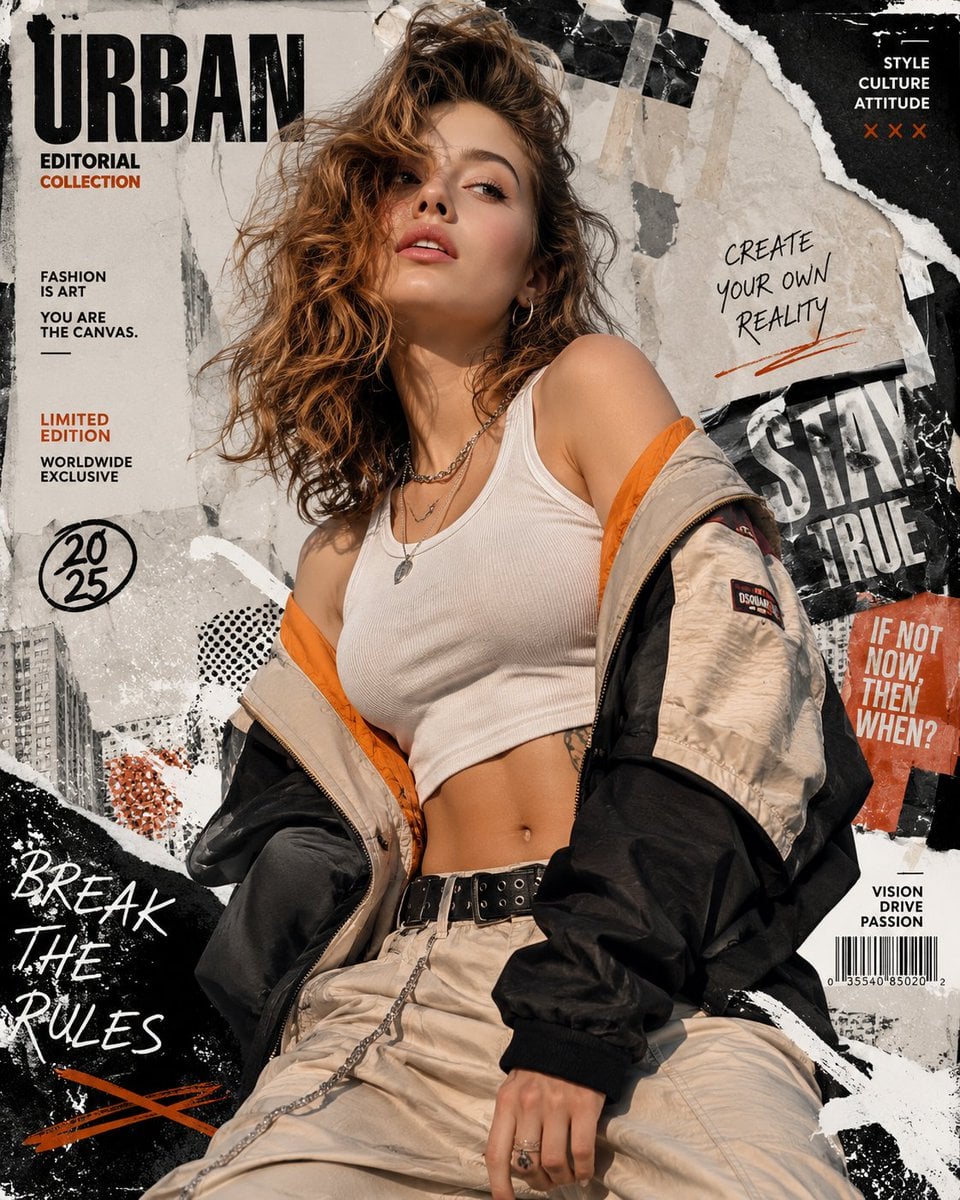
Urban Fashion Editorial Collage Streetwear Poster
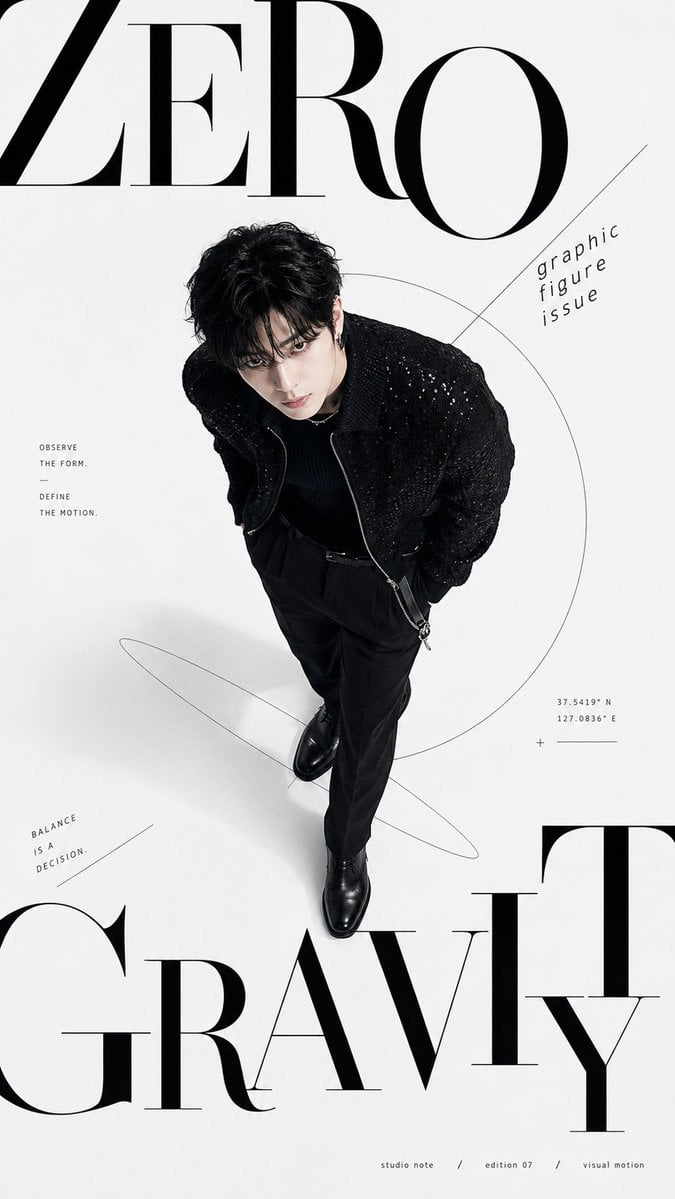
Premium Fashion Editorial Cover Layout System
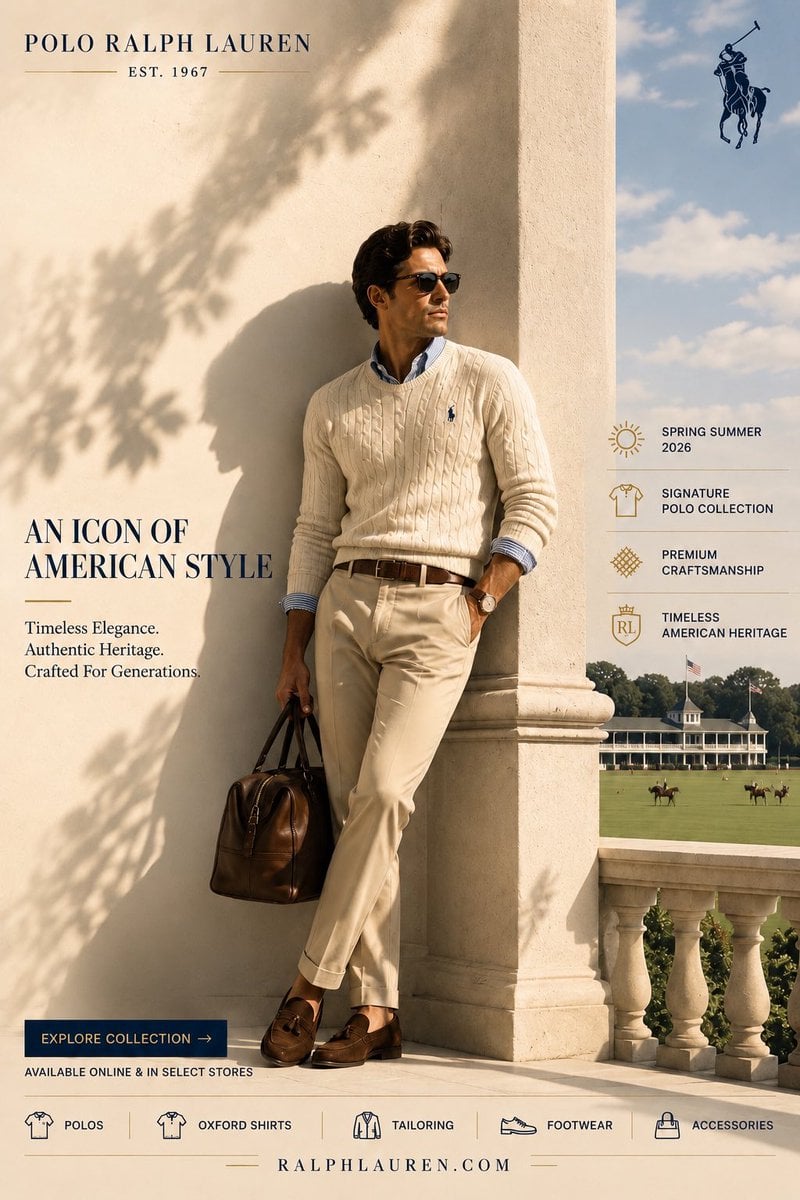
Polo Ralph Lauren Luxury American Heritage Fashion Campaign
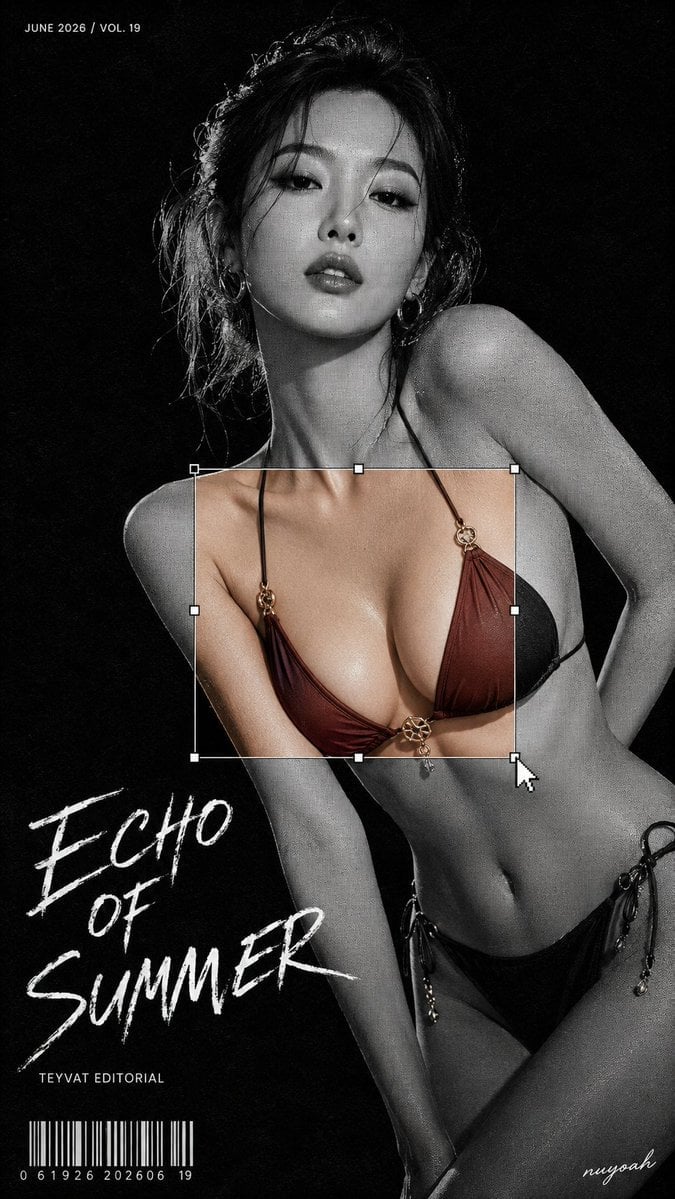
Monochrome Halftone Editorial Fashion Poster
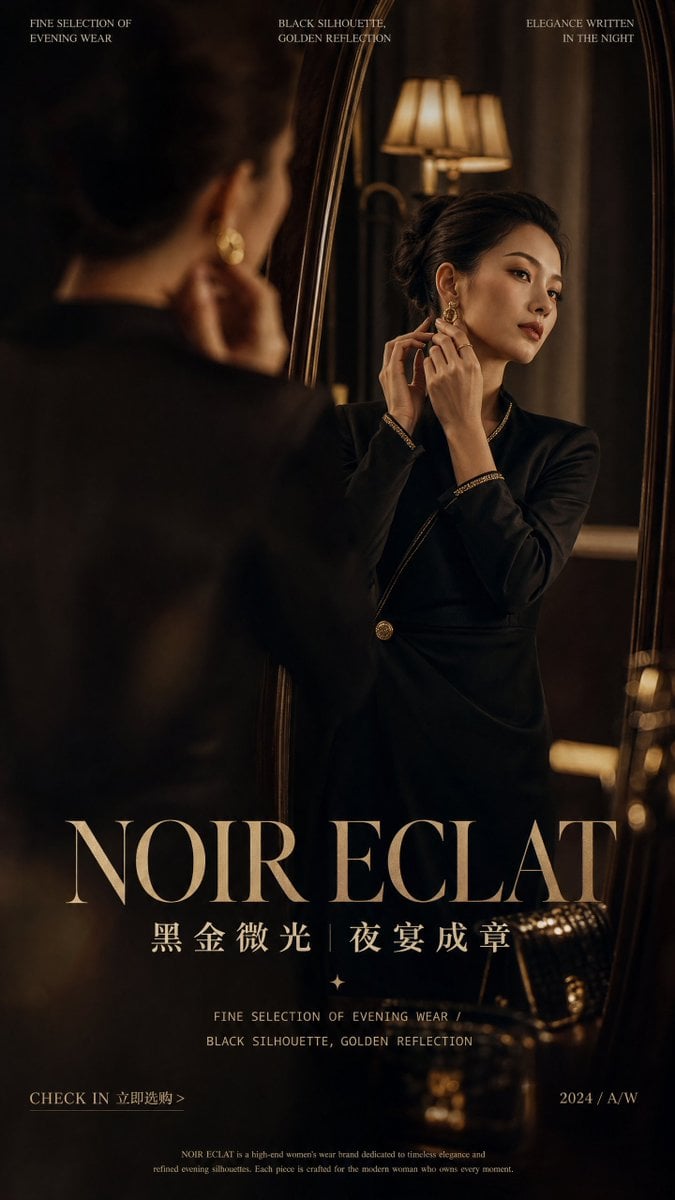
Retro Mirror Luxury Fashion Campaign Poster
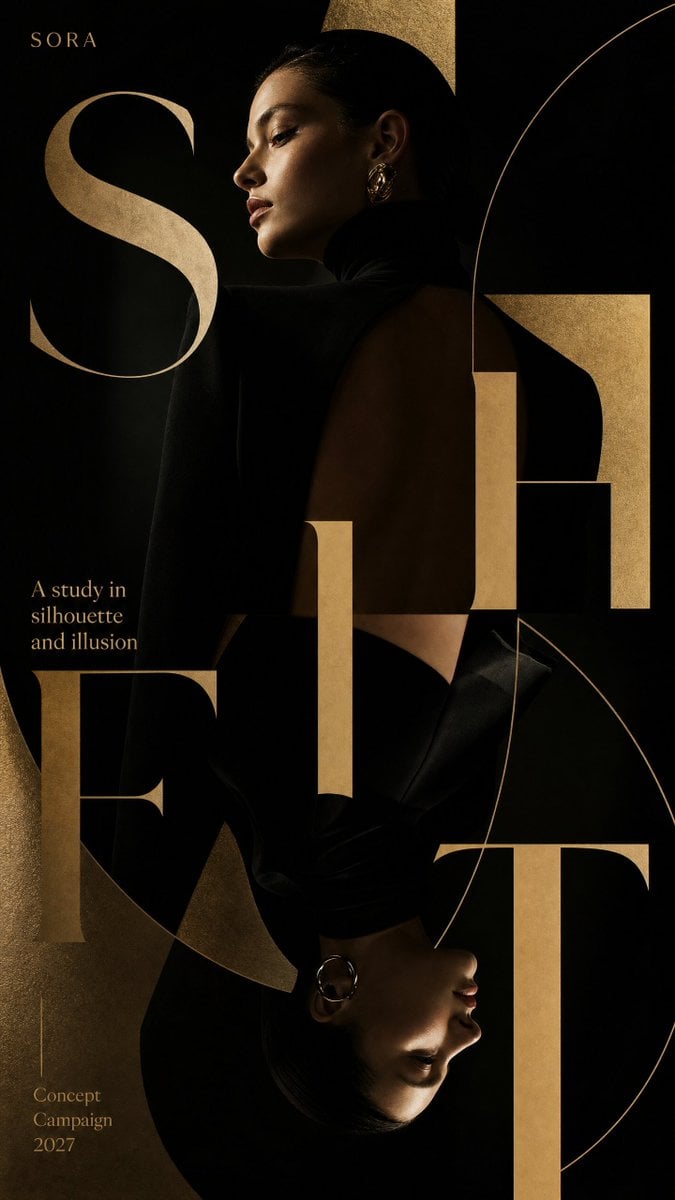
Luxury Fashion Campaign Typography Poster System
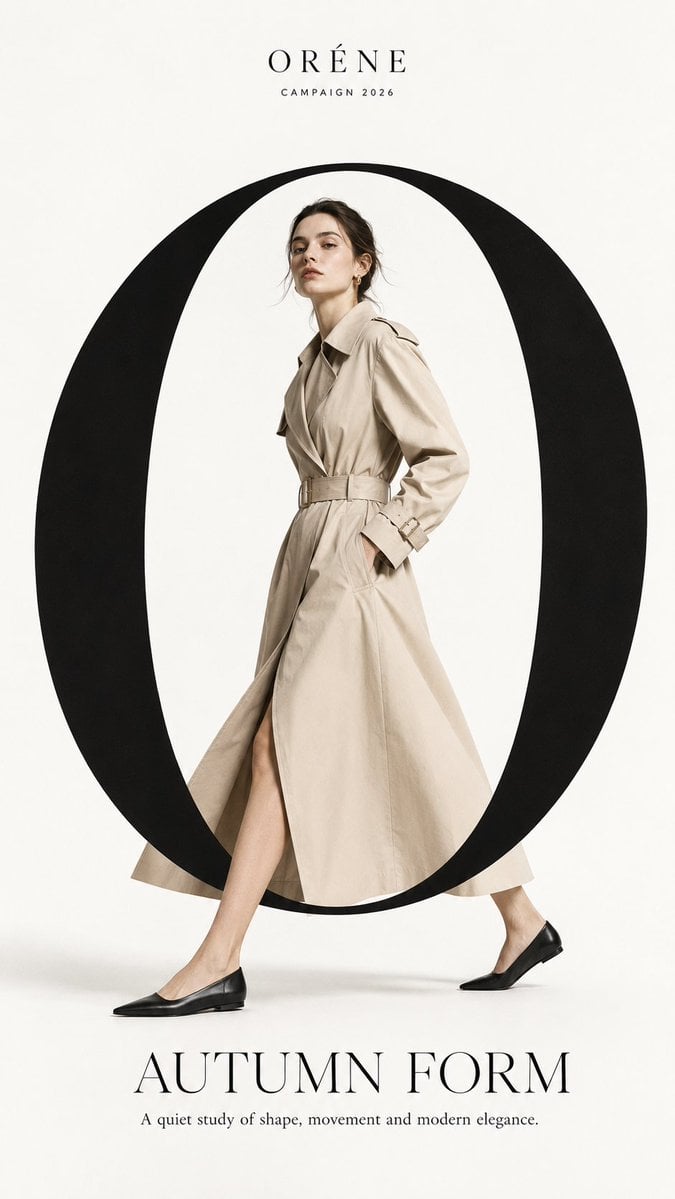
Premium Fashion Editorial Campaign Poster System
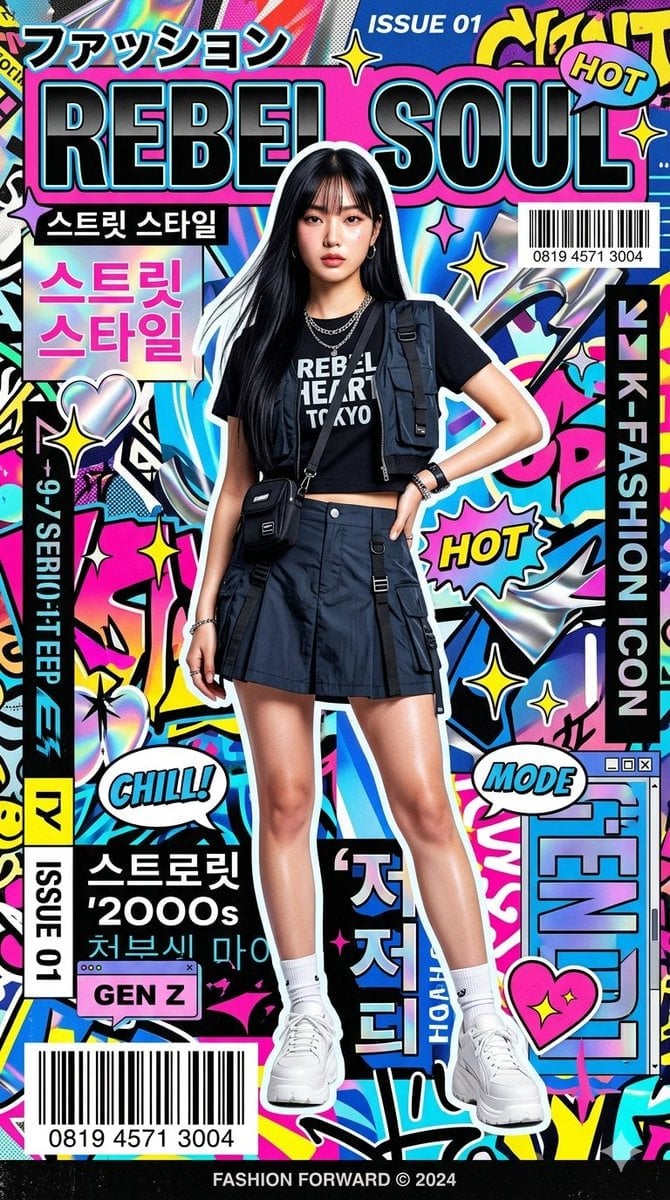
Ultra-Stylized High-Fashion Streetwear Poster
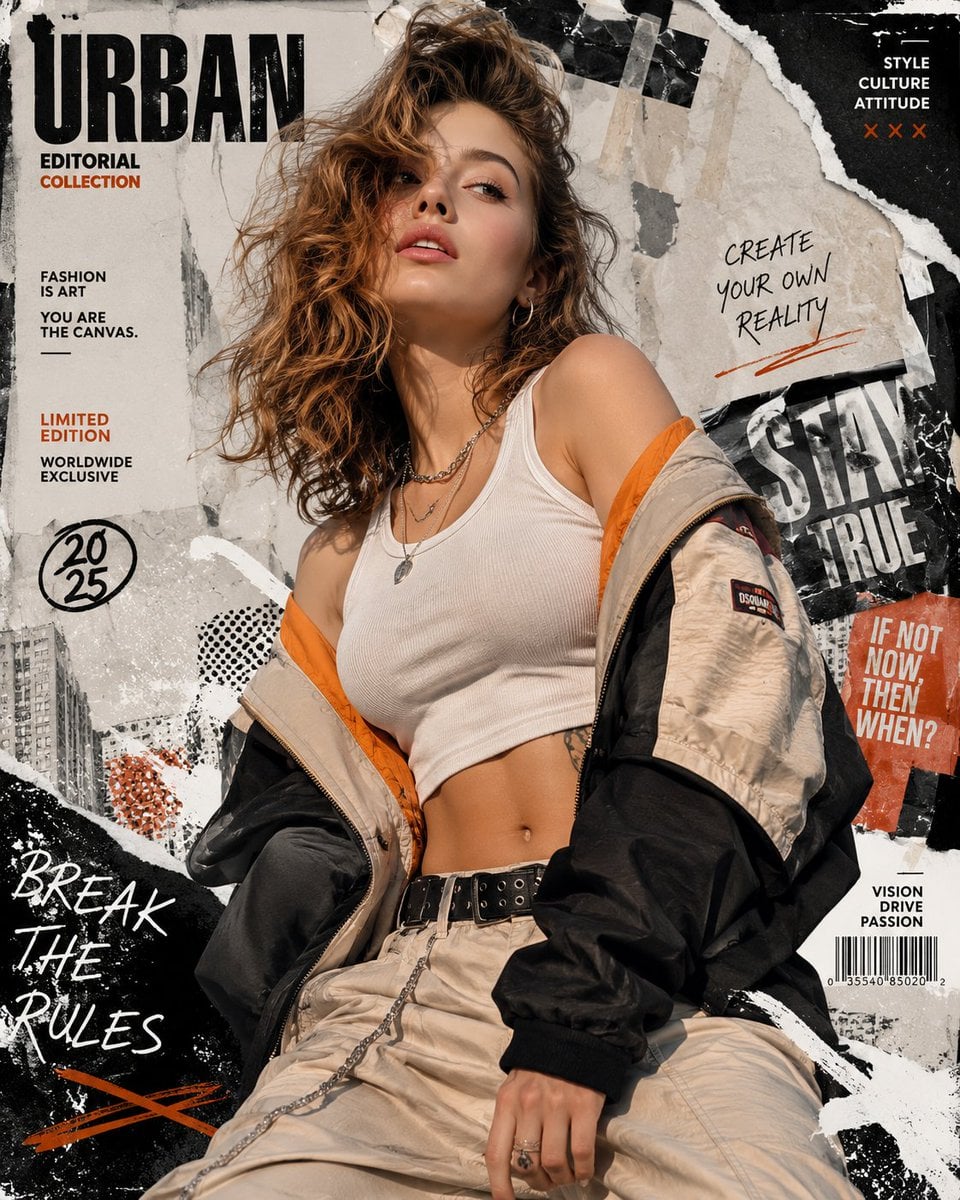
Urban Fashion Editorial Collage Poster
Make it yours
AI Supercar Poster Comparison works as-is. These are the safest ways to change it without losing the look.
Change one field
Copy a single group, rewrite it, and generate again so you can see what that field is doing.
Keep the frame, change the subject
Hold the composition and light of AI Supercar Poster Comparison, then swap wardrobe, props or the person for a new take.
| If the result… | Why | Fix |
|---|---|---|
| The result drifts from the preview | Too many fields changed at once. | Reuse AI Supercar Poster Comparison as-is first, then change one group — subject, light, or setting. |
| The model over-stylizes the scene | The prose prompt leaves finish and camera underspecified. | Add one camera or lighting sentence and stay on GPT Image 2. |
More GPT Image 2 templates
Other prompts made for GPT Image 2.

Six VTuber Japanese Logo Sheet

Realistic Portrait of Woman and Deer

The Vista Modular Condo Poster

AI Model Routing Comparison Infographic

2.5D Anime Art Board

Isometric Productivity Desk Scene

New York Double Exposure Poster

Four-Panel AI Landscape Comparison

Japanese Tatami Lifestyle Magazine Cover

NESCAFÉ Coffee Map Poster
More image prompts
Fresh picks from across the catalog.
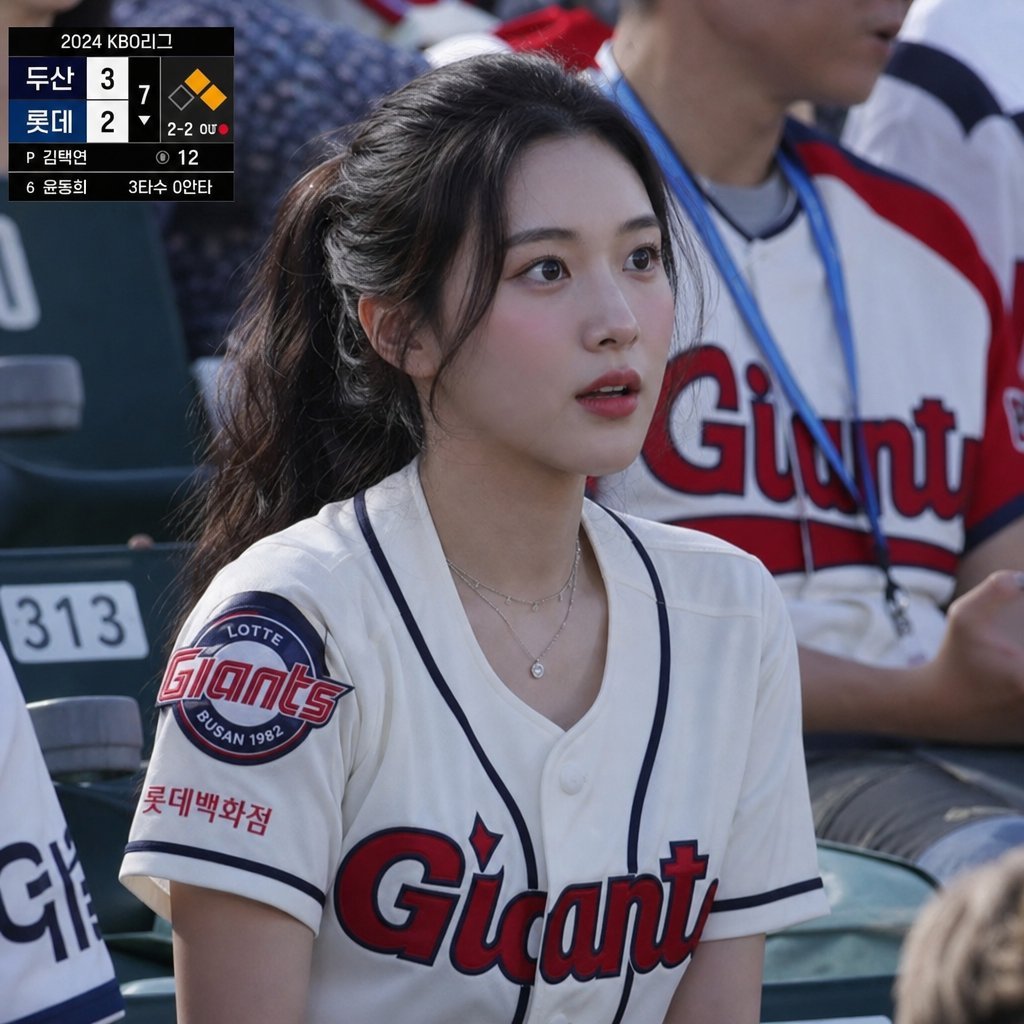
KBO Lotte Giants Broadcast Fan Shot
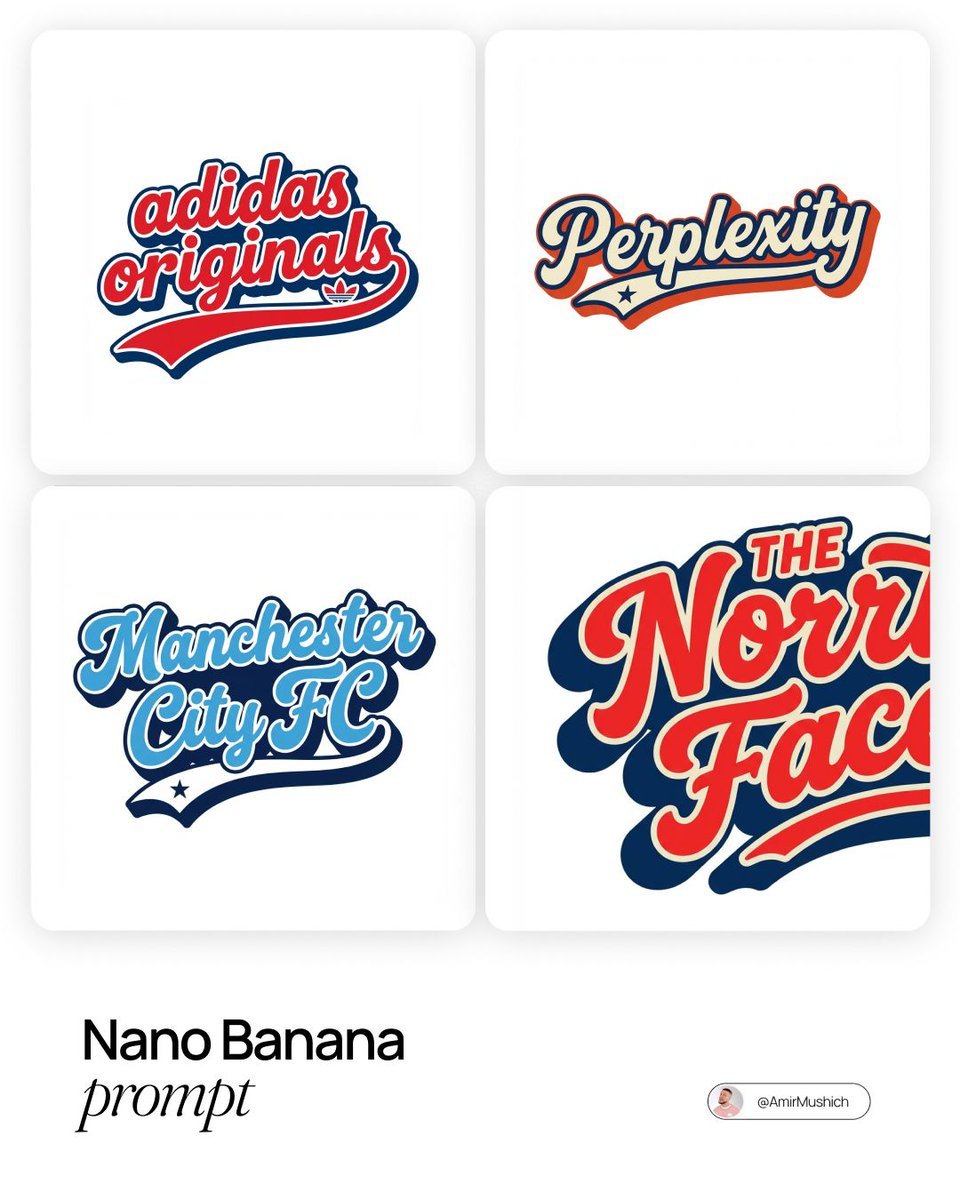
Brands in American Retro-Lettering
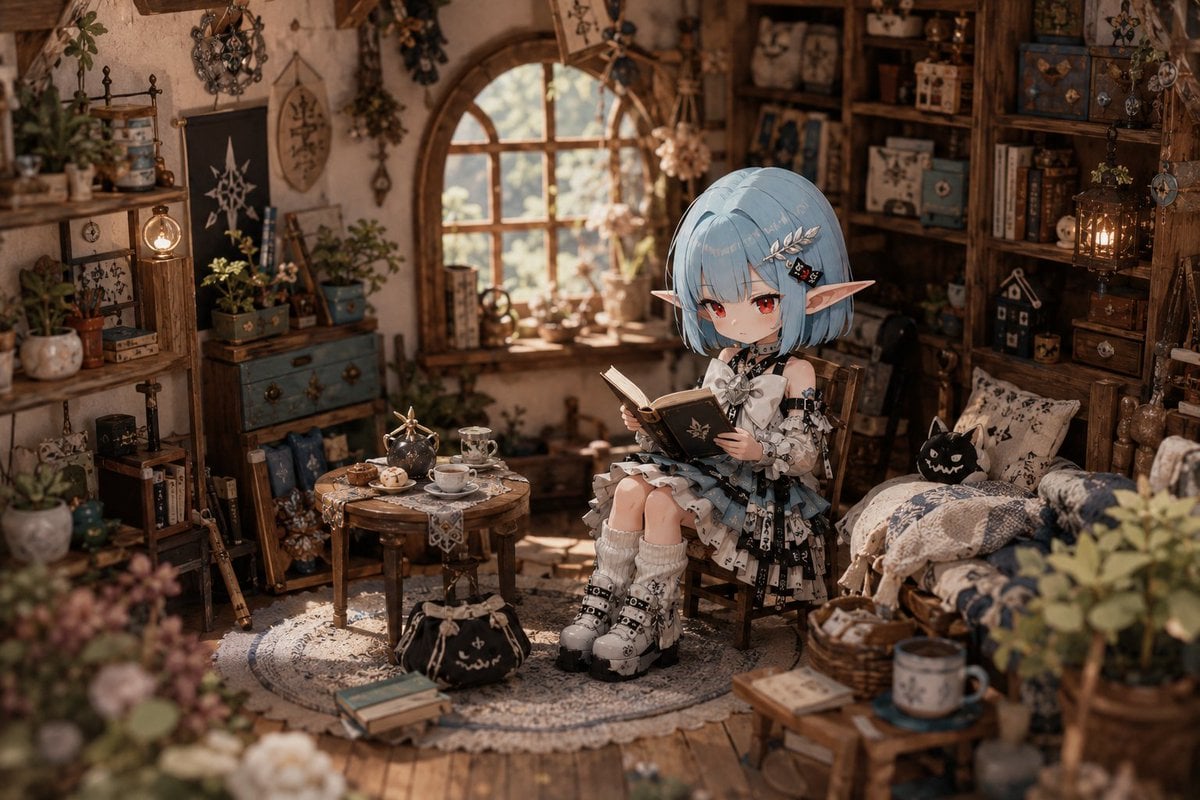
Deformed Miniature Character World

Botanical Realism: Cityscape Etched into a Single Leaf
Rainy Night Event Street Fashion
Multi-Concept AI Evolution Prompt

Old Photo Restoration
Elegant Graphic Design Birthday Collage
Suzhou Classic Travel Infographic
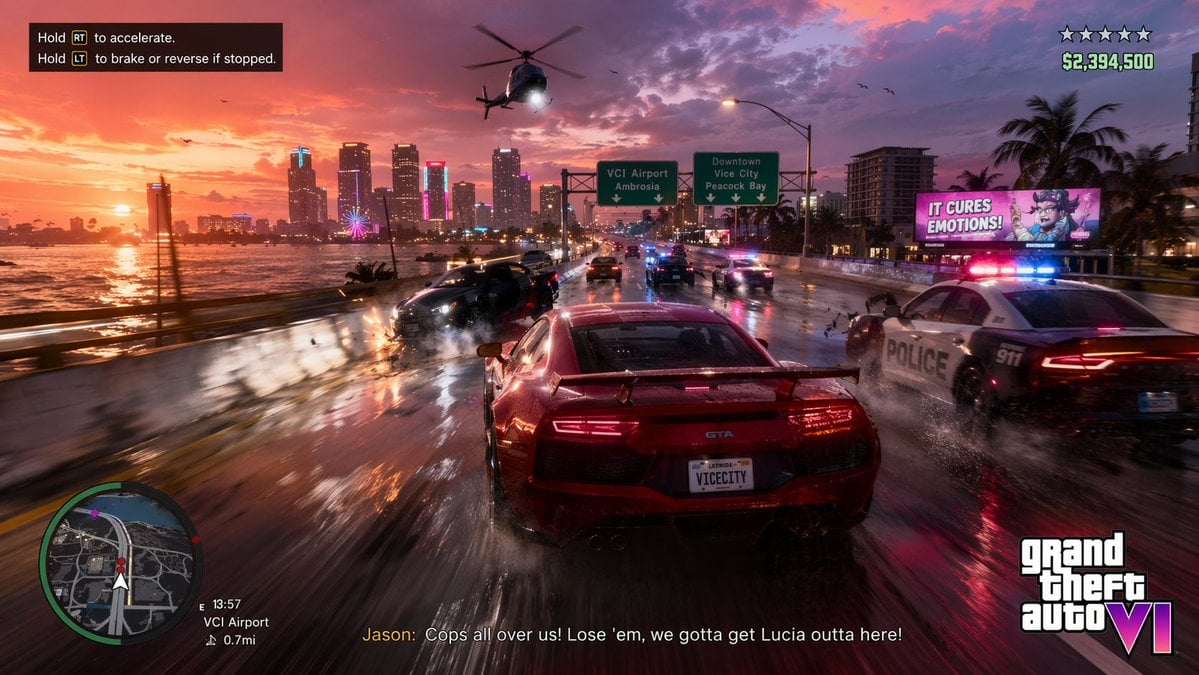
Open-World Action Game HUD Screenshot
Browse template categories
AI Supercar Poster Comparison questions
How do I use the AI Supercar Poster Comparison template?
Add your photo if the template asks for one, edit the prompt if you like — the template's model and format are already selected — and press Generate. Your version opens in PicX Studio.
Can I customize the AI Supercar Poster Comparison template?
Yes. You can change the subject, setting, lighting, mood, format, and available model controls before creating your image.
Is the AI Supercar Poster Comparison template free?
Opening and editing this template is free. Generating uses credits, shown on the Generate button when you are signed in.
Which AI model should I use?
Start with GPT Image 2, which is the model associated with this template. You can compare another compatible model for a different finish.
Looking for something else? Browse all templates.

Your photo, any look
Thousands of ready templates for every top image and video model, from one credit balance.