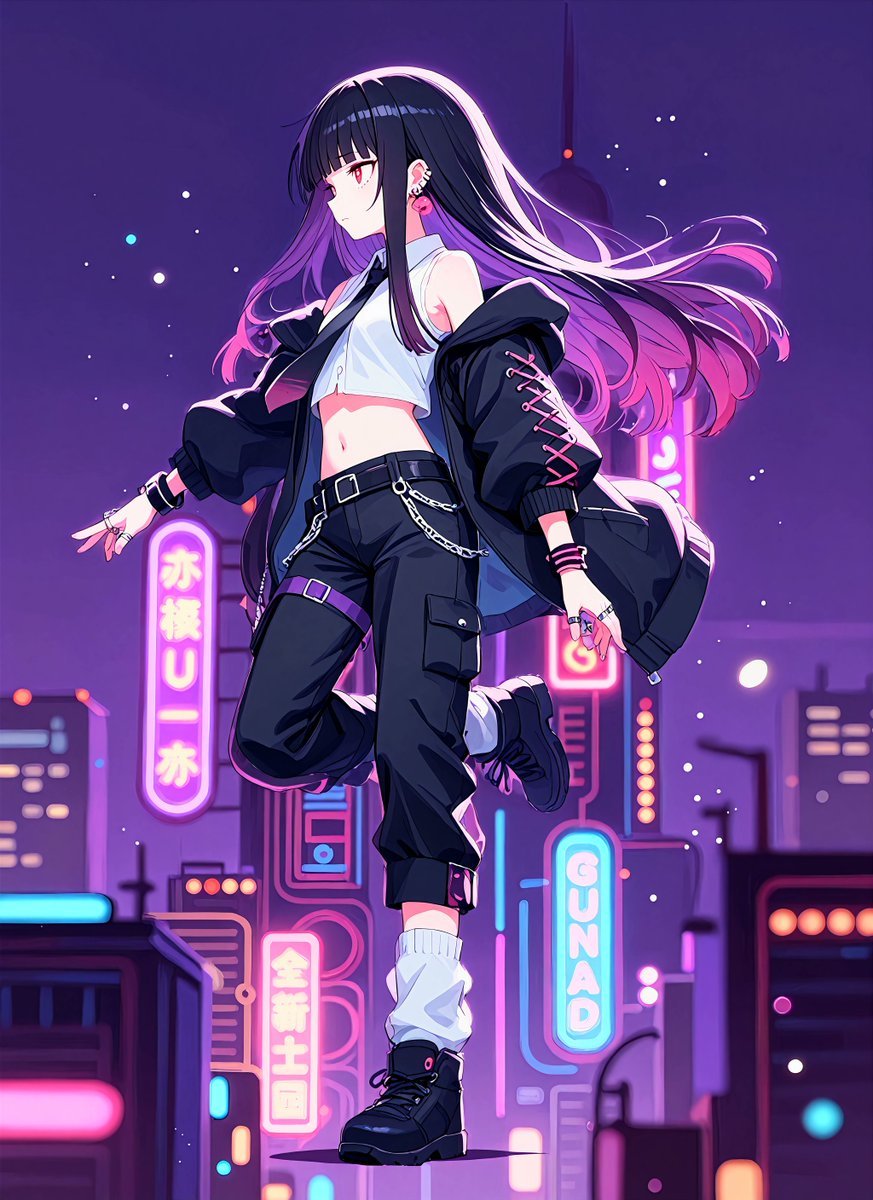
How do I use the Neon Anime Streetwear Portrait template?
Edit the prompt in the box under the preview — the template's model and format are already selected — and press Generate. Your version appears right on this page.
A cinematic anime portrait prompt for generating a faceless streetwear character in a neon Japanese nightlife scene.

This template uses your photo — add one with the + button.
Create a cinematic anime-style night street portrait of a young adult male urban character in a neon-lit Japanese city district. The subject is centered slightly right in a medium shot from waist to head, leaning toward the camera with a confident streetwear attitude, one hand in his jacket pocket and the other extended toward the viewer in a finger-gun gesture. Give him messy layered {argument name="hair color" default="dark brown"} hair with detailed strands, visible ear piercings, and a deliberately obscured face covered by a plain square blur/censor block in a soft skin-tone gradient. Dress him in an all-black layered outfit: an oversized high-collar technical jacket with zippers, straps, snaps, sleeve patches, and glossy folds; a black hoodie underneath; a graphic dark T-shirt; and multiple silver chain necklaces. The background is a rainy, bustling Tokyo-like nightlife street with wet reflective pavement, metal guardrails along the sidewalk, blurred pedestrians, storefronts, streetlights, and many vertical glowing signs with indistinct Japanese-style lettering in cyan, pink, orange, yellow, and white. Use shallow depth of field with the background softly blurred, strong neon rim lighting on the character, high-contrast cel-shaded anime rendering, crisp line art, rich highlights, and a moody cyberpunk color palette. Horizontal 16:9 composition, no readable brand names, no watermark, keep the face censor block perfectly square and centered over the facial features.
Create a cinematic anime-style night street portrait of a young adult male urban character in a neon-lit Japanese city district. The subject is centered slightly right in a medium shot from waist to head, leaning toward the camera with a confident streetwear attitude, one hand in his jacket pocket and the other extended toward the viewer in a finger-gun gesture. Give him messy layered {argument name="hair color" default="dark brown"} hair with detailed strands, visible ear piercings, and a deliberately obscured face covered by a plain square blur/censor block in a soft skin-tone gradient. Dress him in an all-black layered outfit: an oversized high-collar technical jacket with zippers, straps, snaps, sleeve patches, and glossy folds; a black hoodie underneath; a graphic dark T-shirt; and multiple silver chain necklaces. The background is a rainy, bustling Tokyo-like nightlife street with wet reflective pavement, metal guardrails along the sidewalk, blurred pedestrians, storefronts, streetlights, and many vertical glowing signs with indistinct Japanese-style lettering in cyan, pink, orange, yellow, and white. Use shallow depth of field with the background softly blurred, strong neon rim lighting on the character, high-contrast cel-shaded anime rendering, crisp line art, rich highlights, and a moody cyberpunk color palette. Horizontal 16:9 composition, no readable brand names, no watermark, keep the face censor block perfectly square and centered over the facial features.
Edit the prompt in the box under the preview — the template's model and format are already selected — and press Generate. Your version appears right on this page.
Yes. You can change the subject, setting, lighting, mood, format, and available model controls before creating your image.
Opening and editing this template is free. Generating uses credits, shown on the Generate button when you are signed in.
Start with GPT Image 2, which is the model associated with this template. You can compare another compatible model for a different finish.
Follow a topic to a crawlable collection of related PicX Studio templates.