
Rainy Dragon Comparison Sheet
Creates a square storybook-style comparison layout featuring rainy children-and-dragon scenes in warm red and hydrangea-blue palettes.
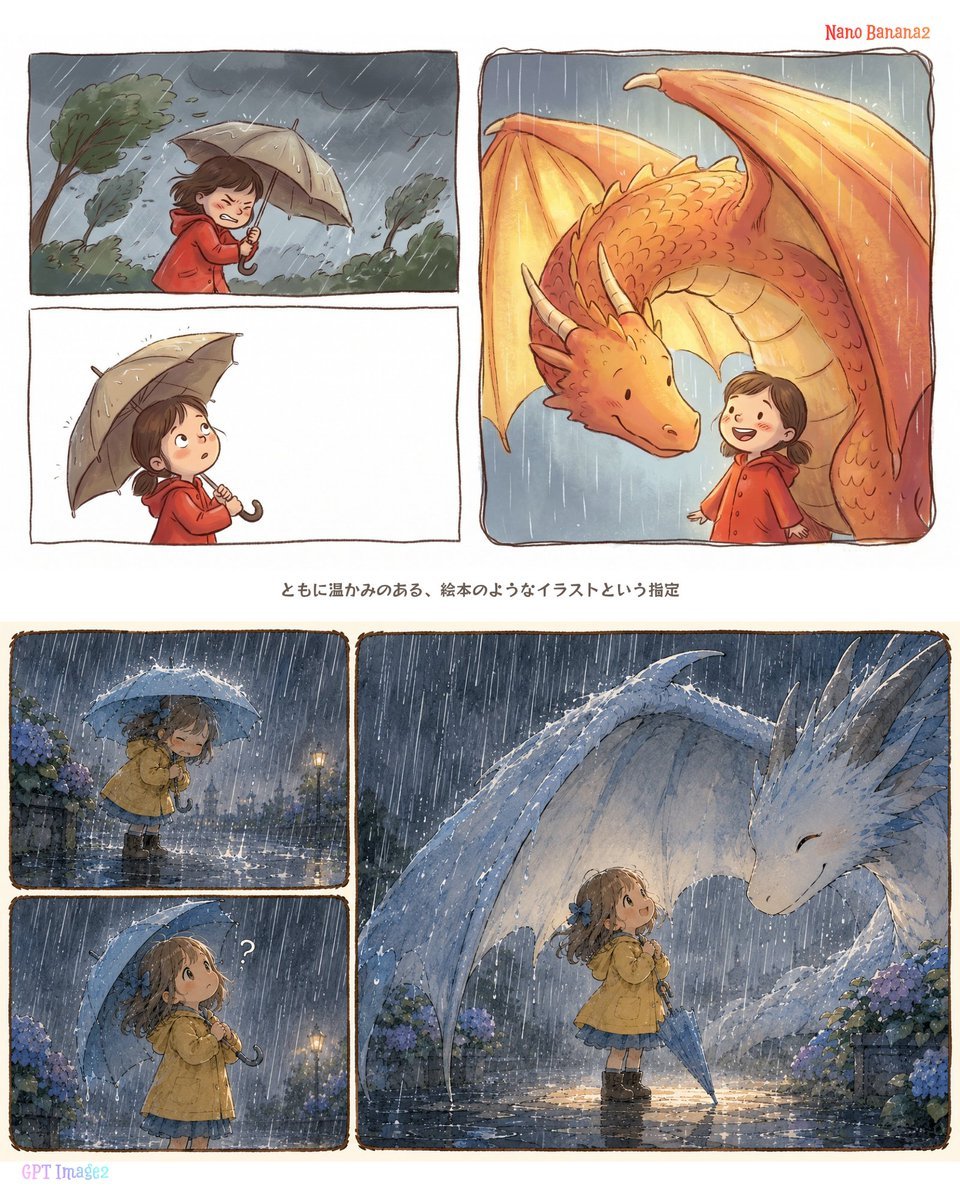
- Prompt included
- Model and format preset
- Free template
The prompt behind this image
Copy the exact prompt behind Rainy Dragon Comparison Sheet, or open it in the studio and make it yours.
Goal: Create a square comparison sheet showing two different storybook-style image generations from the same rainy dragon prompt, with the top half labeled as a warm red-raincoat version and the bottom half as a hydrangea-blue rainy version. Canvas: Square 1:1 white background, like a clean social media comparison post. Divide the canvas into two horizontal halves separated by a centered Japanese caption line. Use hand-drawn panel borders with slightly uneven ink lines and softly rounded corners. Top section: Label the upper-right corner in small red handwritten text: “Nano Banana2”. Arrange exactly 3 panels: 1 wide rectangular panel at upper left showing a child in a red raincoat struggling with a beige umbrella in heavy wind and rain, with dark storm clouds and bent trees; 1 wide rectangular panel below it showing a side-profile child in the same red raincoat holding the umbrella against a mostly blank white background; 1 large tall rounded rectangular panel on the right showing a friendly orange dragon bending down under the rain toward the child in a red hooded raincoat, the dragon’s wings forming a warm shelter-like shape. The child’s face may be softly blurred or simplified. Use warm orange, red, and ochre as the dominant colors. Center caption: Add one centered line of small Japanese text between the halves: “ともに温かみのある、絵本のようなイラストという指定”. Bottom section: Label the lower-left corner in small pastel purple handwritten text: “GPT Image2”. Arrange exactly 3 panels: 1 small panel at bottom-left top showing a little girl in a yellow raincoat standing in heavy rain under a blue umbrella, surrounded by wet pavement, streetlamp glow, and purple-blue hydrangeas; 1 small panel directly beneath it showing the same girl looking upward with a small white question mark near her head; 1 large wide panel on the right showing the girl smiling up at a gentle white-blue dragon in the rain, with the dragon lowering its head toward her and spreading a translucent wing, hydrangeas blooming on both sides, reflections on the wet ground, and a magical blue twilight atmosphere. Subject details: The main child is {argument name="main character" default="a young child or little girl"}; the top outfit is {argument name="top outfit color" default="red hooded raincoat"}; the bottom outfit is {argument name="bottom outfit color" default="yellow raincoat with blue skirt"}; the dragon theme is {argument name="dragon colors" default="orange dragon above and white-blue dragon below"}; the weather theme is {argument name="weather mood" default="heavy rain during the rainy season with hydrangeas"}. Visual style: Warm children’s picture book illustration, watercolor and colored pencil texture, soft ink outlines, visible brush granulation, gentle expressions, cinematic rain streaks, cozy emotional storytelling. Top half feels windy, warm, and orange-red; bottom half feels moist, luminous, blue-purple, and hydrangea-themed. Constraints: Use exactly 6 illustrated panels total, exactly 2 model labels, and exactly 1 centered Japanese caption line. Do not add extra UI, logos, watermarks, or additional text. Keep the composition readable as a side-by-side model comparison sheet.
How to use Rainy Dragon Comparison Sheet in 3 steps
- 1Upload ImagePNG, JPG or paste
Add your photo
Upload the photo the template builds on. The prompt, model and format are already set.
- 2…a portrait of your subject in softgolden-hour light, 85mm…
Personalize
Edit the subject and creative details for your destination.
- 3Generate
Generate
Press Generate — your image is created in PicX Studio, so you can compare it with the original and refine one variable at a time.
More like this
Templates with the same subject, style or setup. Open one to see its prompt.
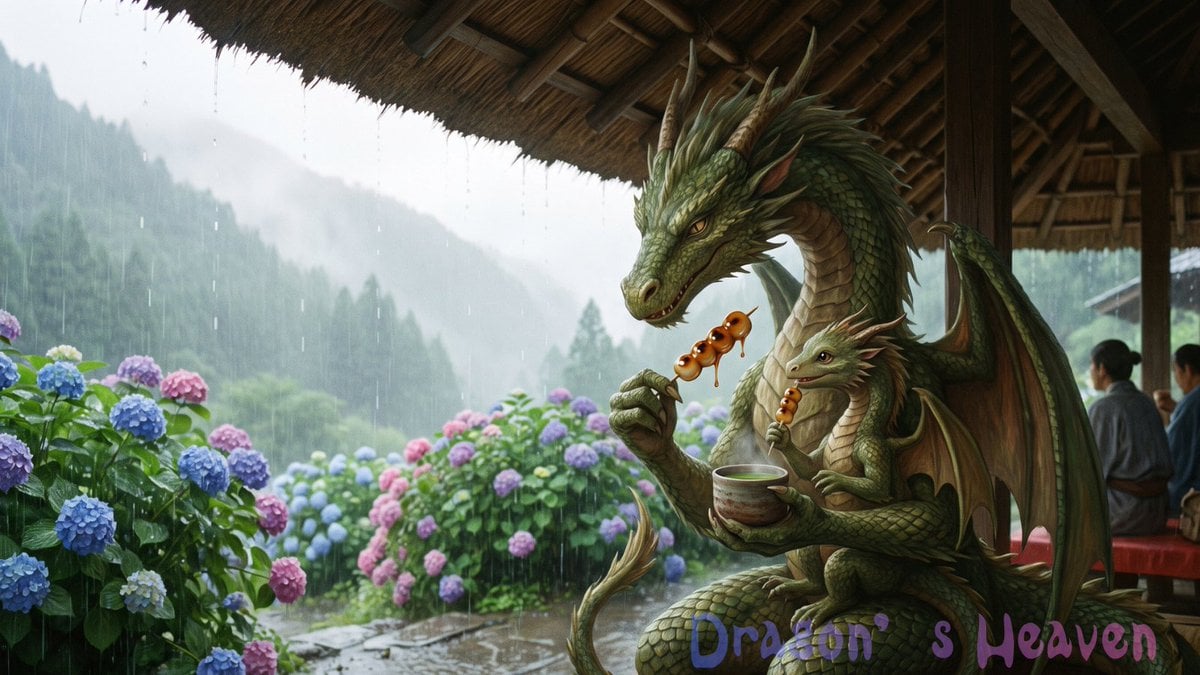
Rainy Dragon Family Eating Dango
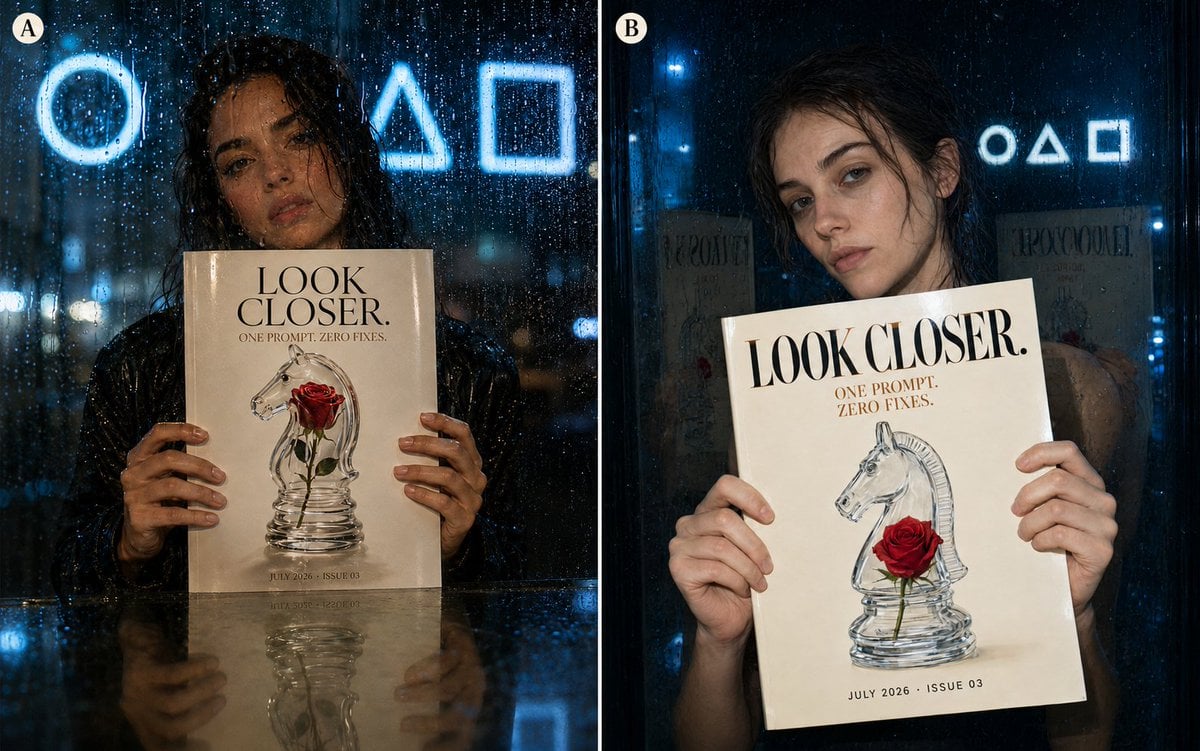
Rainy Night Fashion Comparison
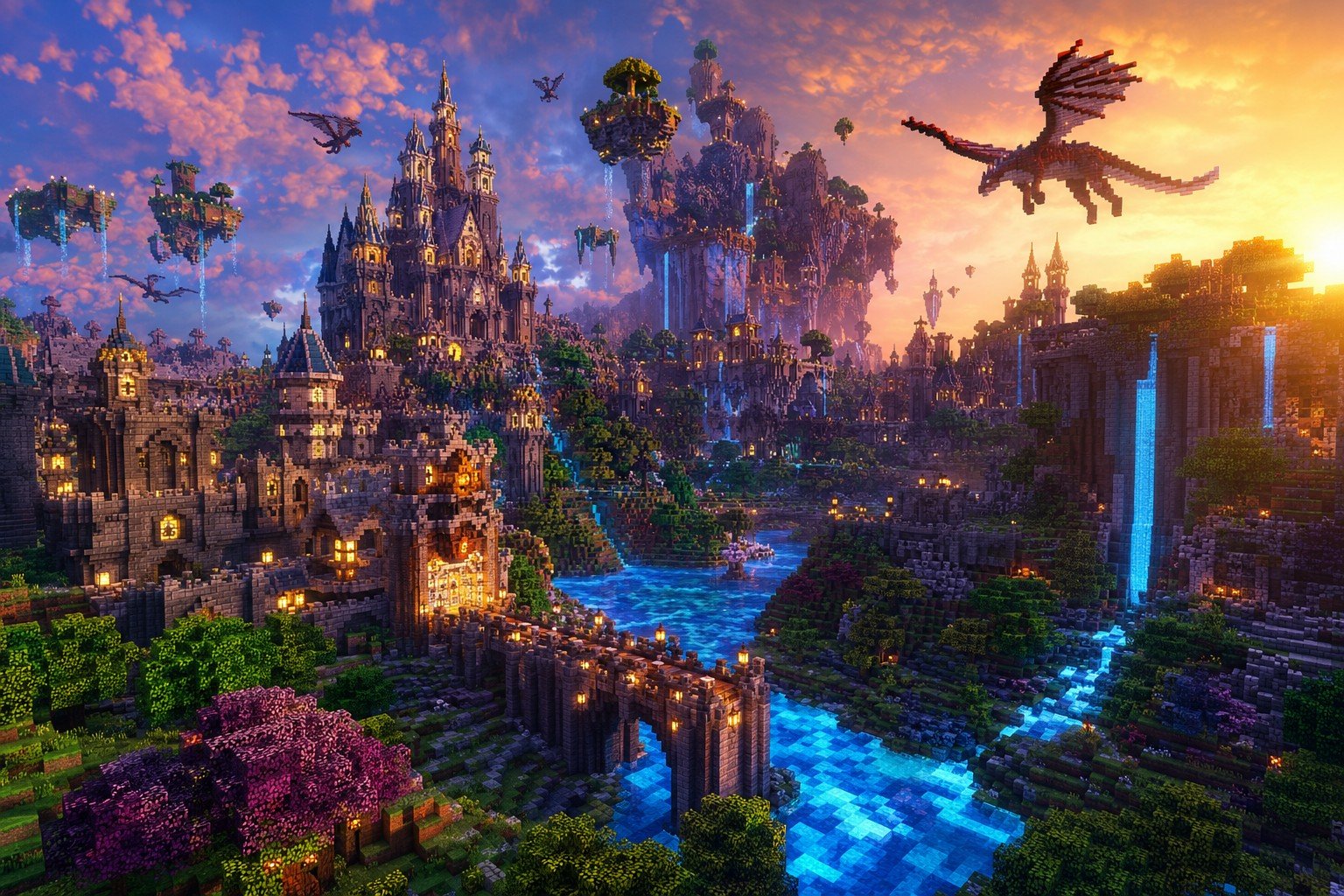
Minecraft Fantasy Kingdom Voxel Landscape
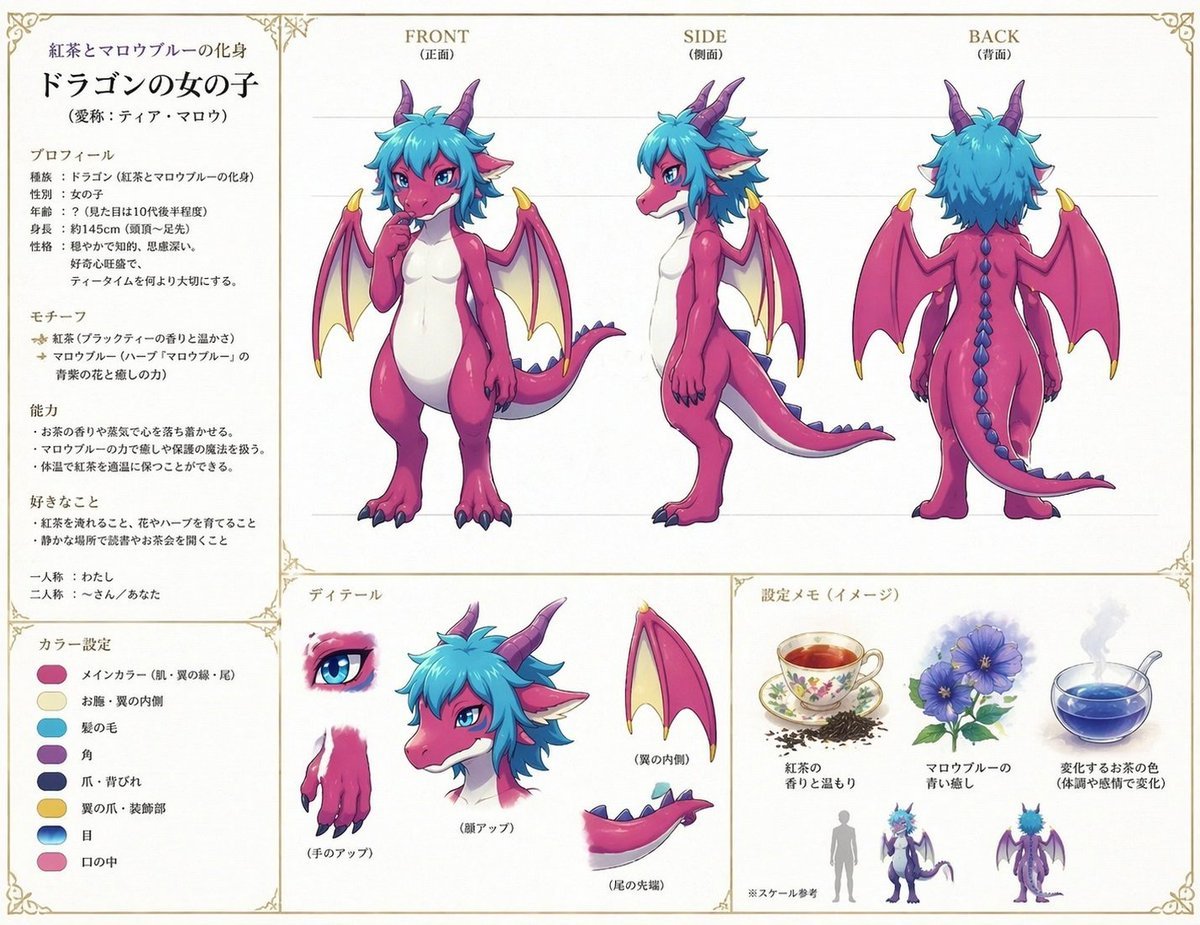
Anime Dragon Girl Reference Sheet
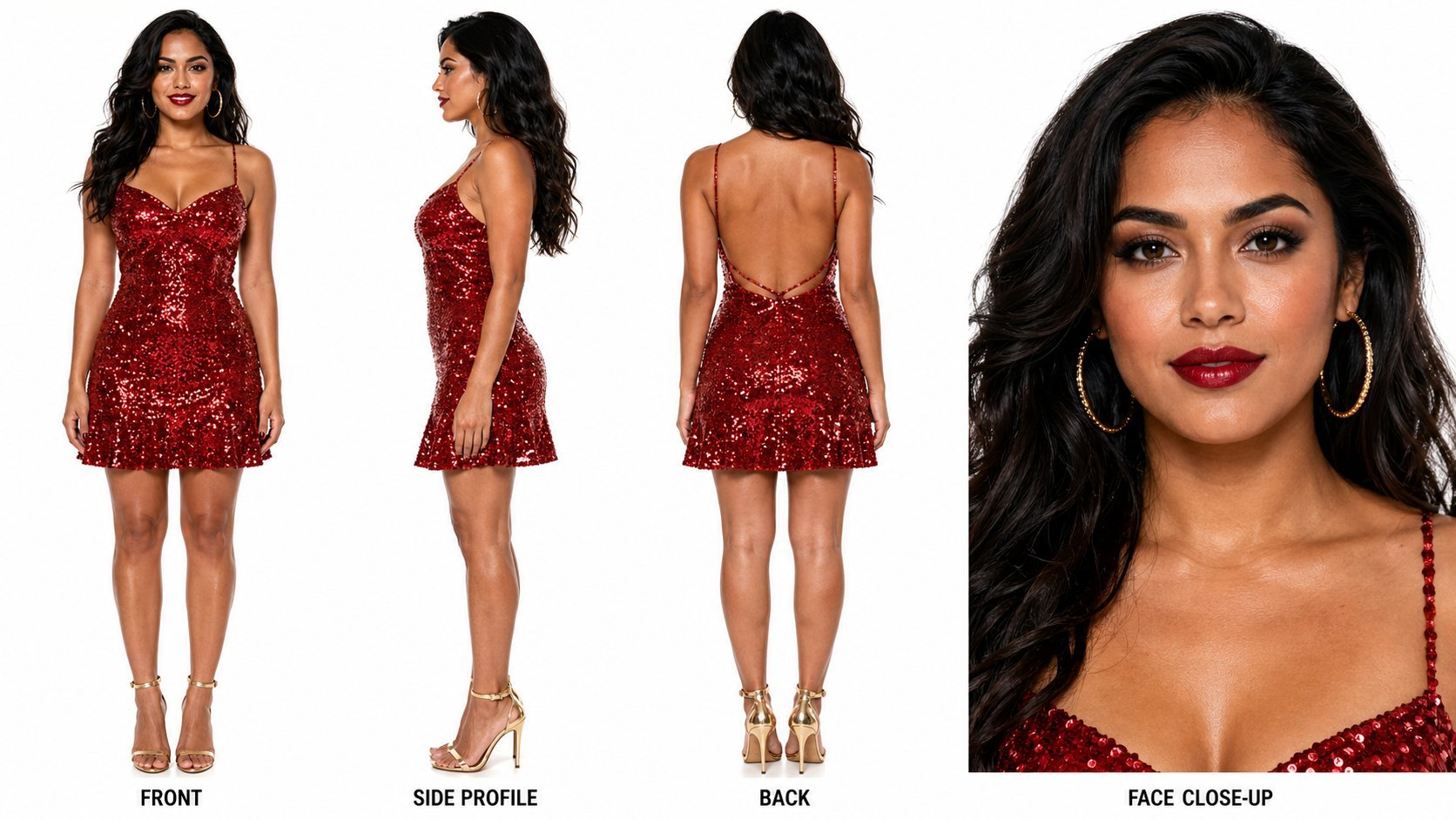
Dancer Character - Four View Reference Sheet
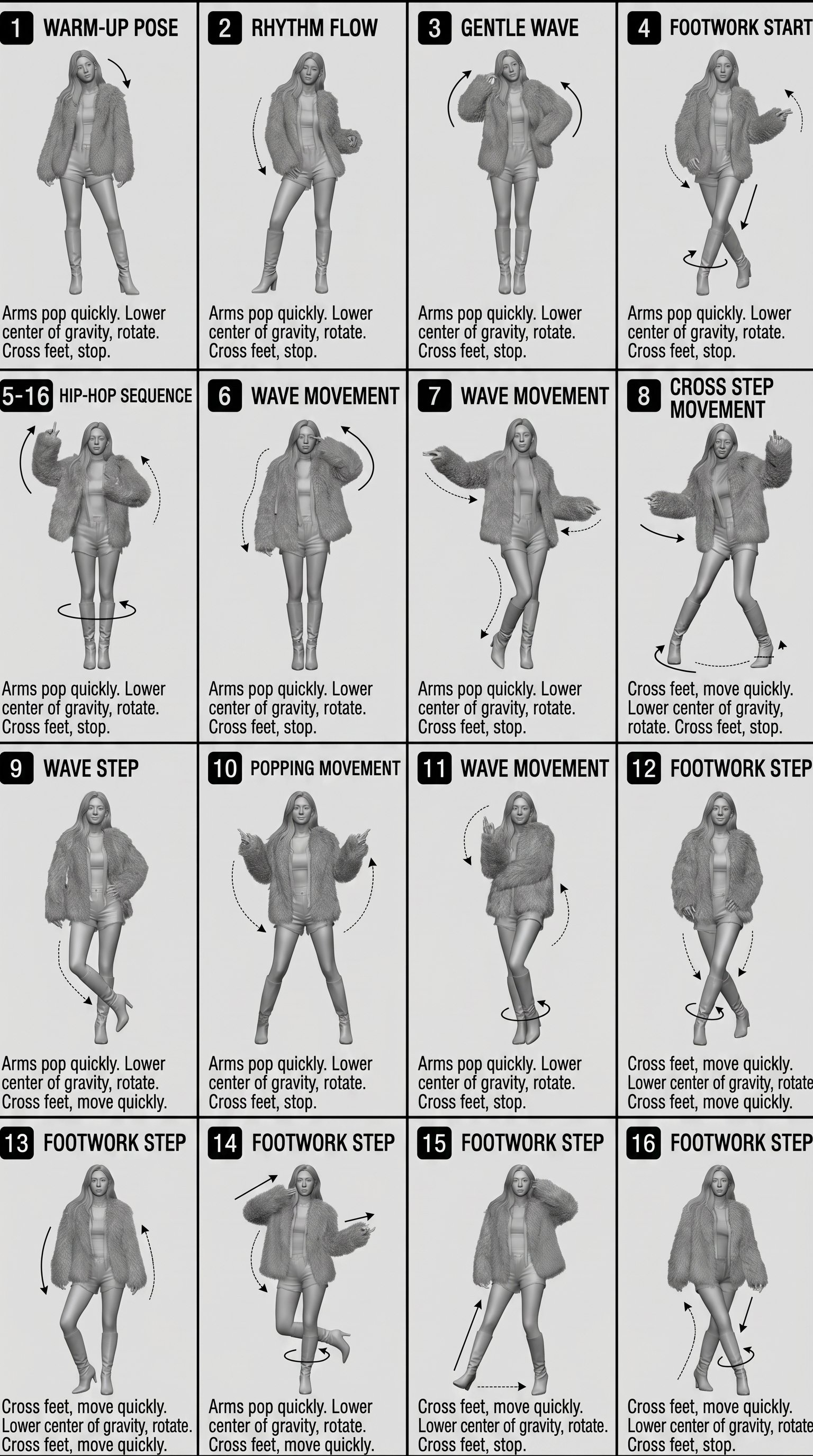
Movement Sheet - Dance Reference (Seedance 2.0)
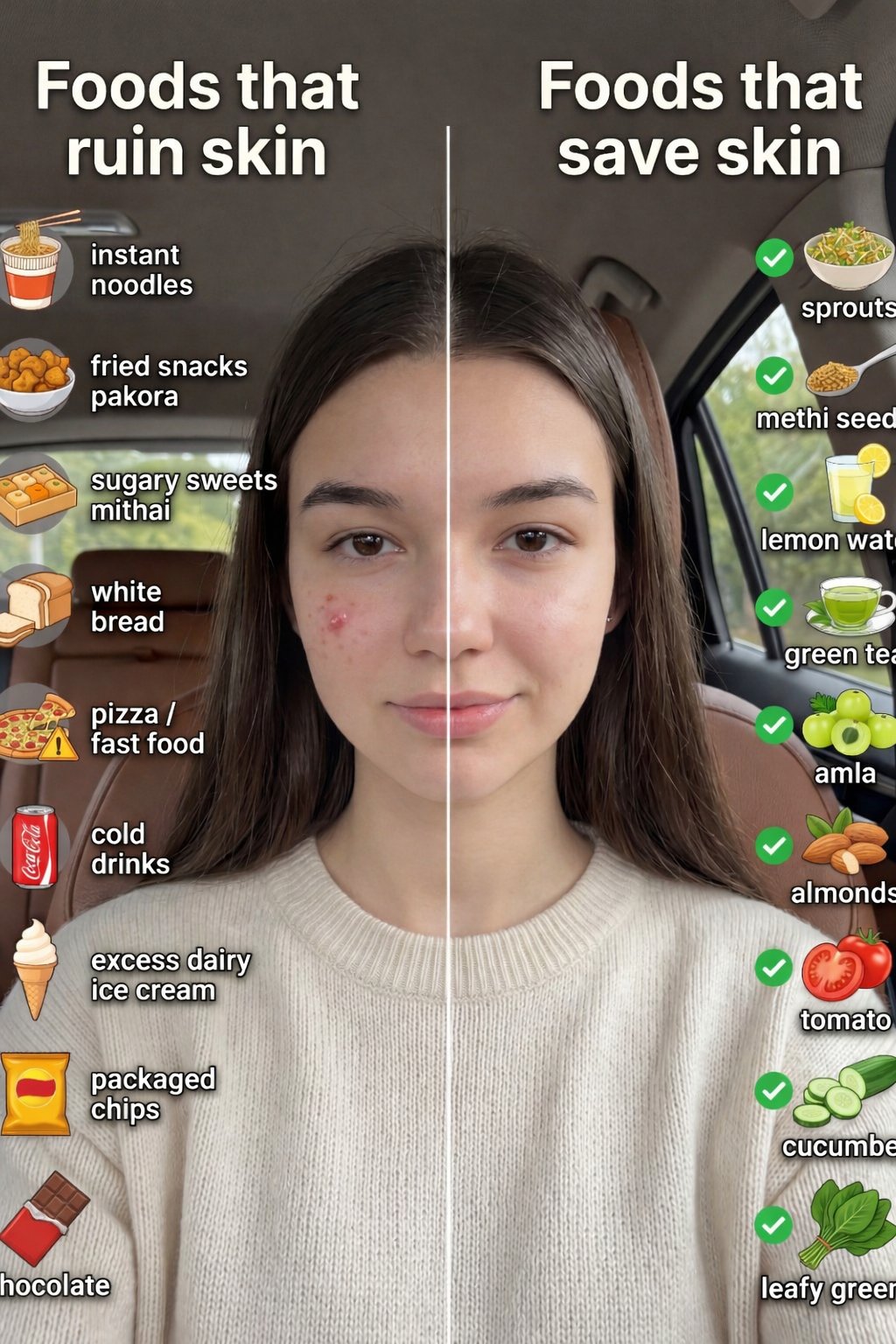
Skin Comparison Portrait — Nano Banana Pro
Seedance - Dragon vs Python Battle
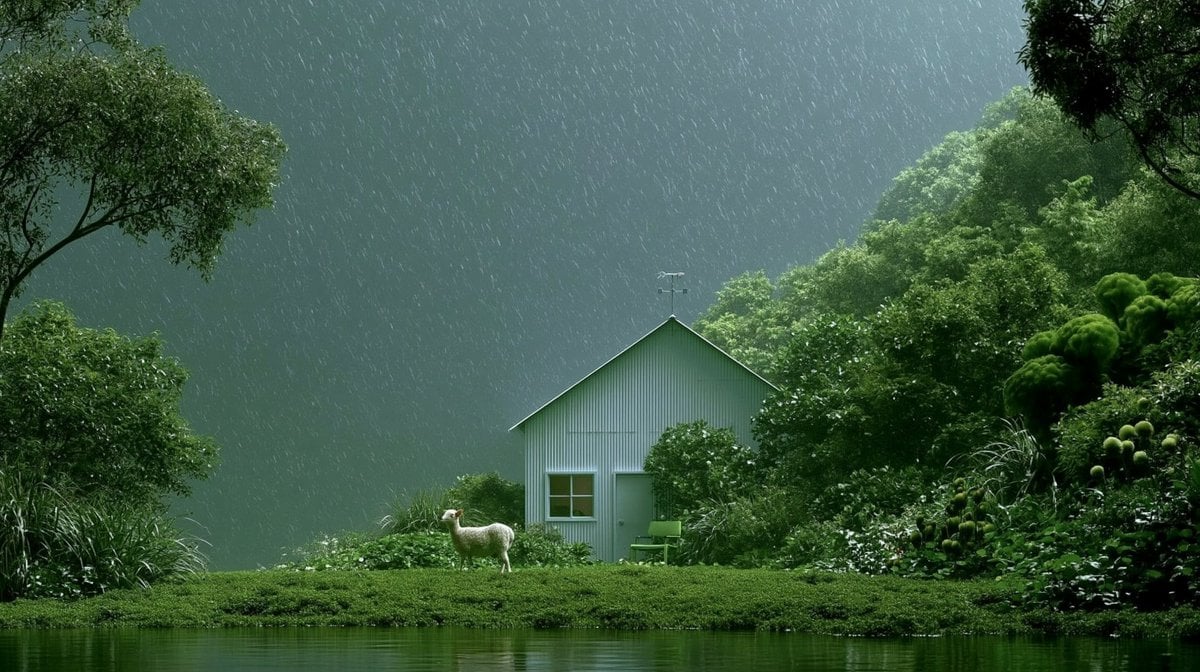
Rainy Cottage Garden With Sheep
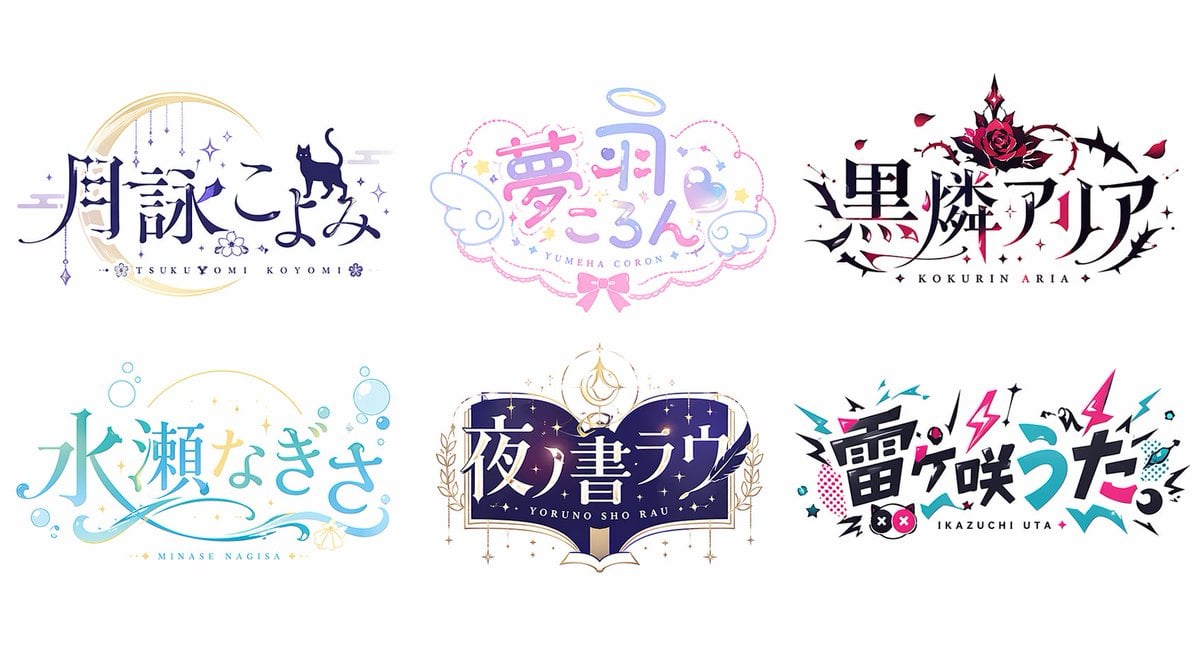
Six VTuber Japanese Logo Sheet
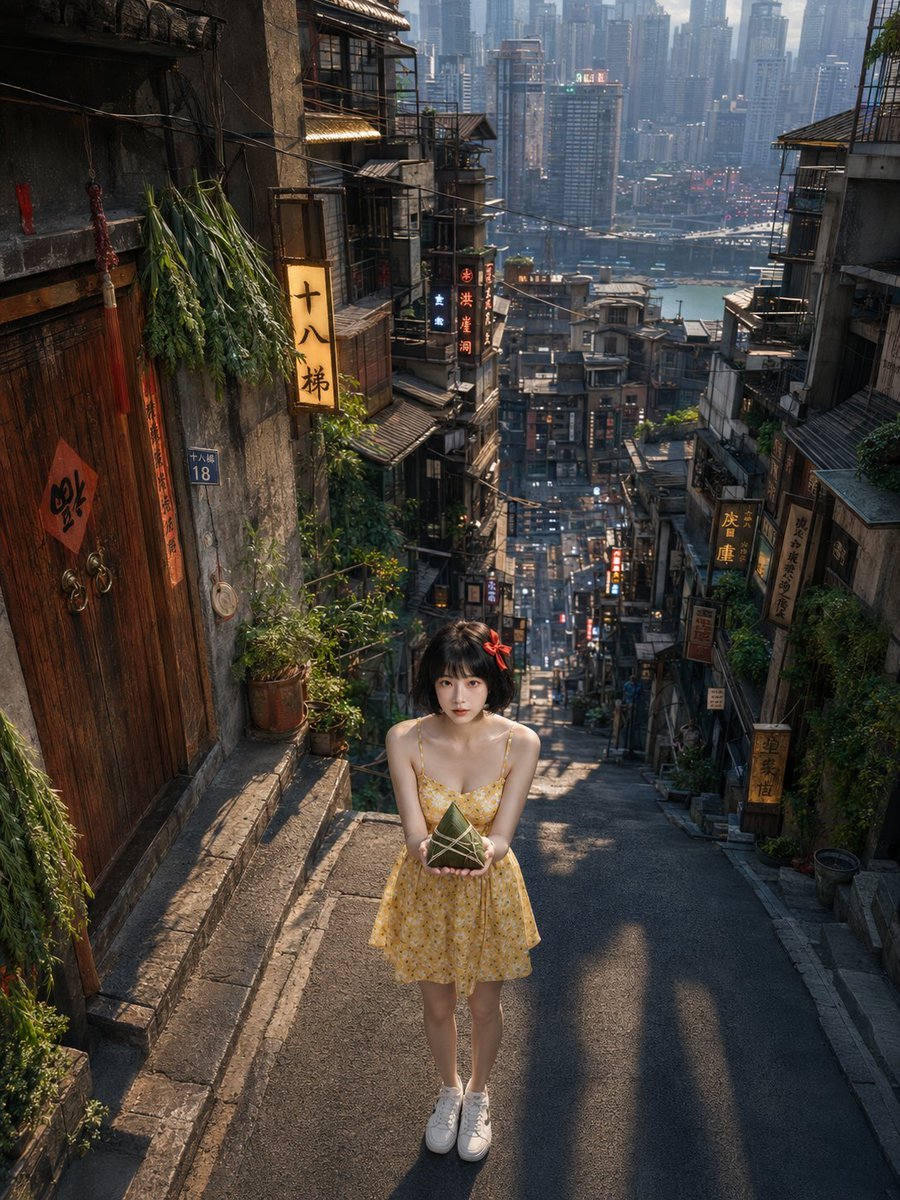
Dragon Boat Festival Chongqing Street Portrait
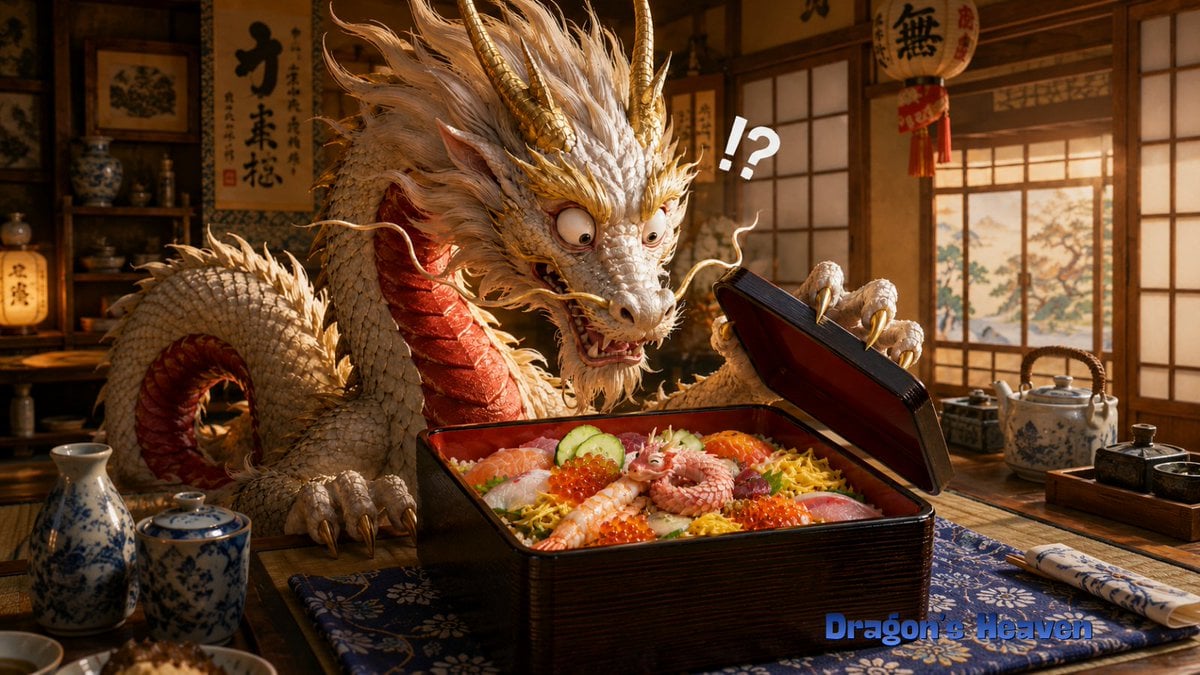
Shocked Dragon Opens Chirashi Sushi
Make it yours
Rainy Dragon Comparison Sheet works as-is. These are the safest ways to change it without losing the look.
Change one field
Copy a single group, rewrite it, and generate again so you can see what that field is doing.
Keep the frame, change the subject
Hold the composition and light of Rainy Dragon Comparison Sheet, then swap wardrobe, props or the person for a new take.
| If the result… | Why | Fix |
|---|---|---|
| The result drifts from the preview | Too many fields changed at once. | Reuse Rainy Dragon Comparison Sheet as-is first, then change one group — subject, light, or setting. |
| The model over-stylizes the scene | The prose prompt leaves finish and camera underspecified. | Add one camera or lighting sentence and stay on GPT Image 2. |
More GPT Image 2 templates
Other prompts made for GPT Image 2.
Realistic Portrait of Woman and Deer
The Vista Modular Condo Poster
2.5D Anime Art Board

Isometric Productivity Desk Scene
New York Double Exposure Poster
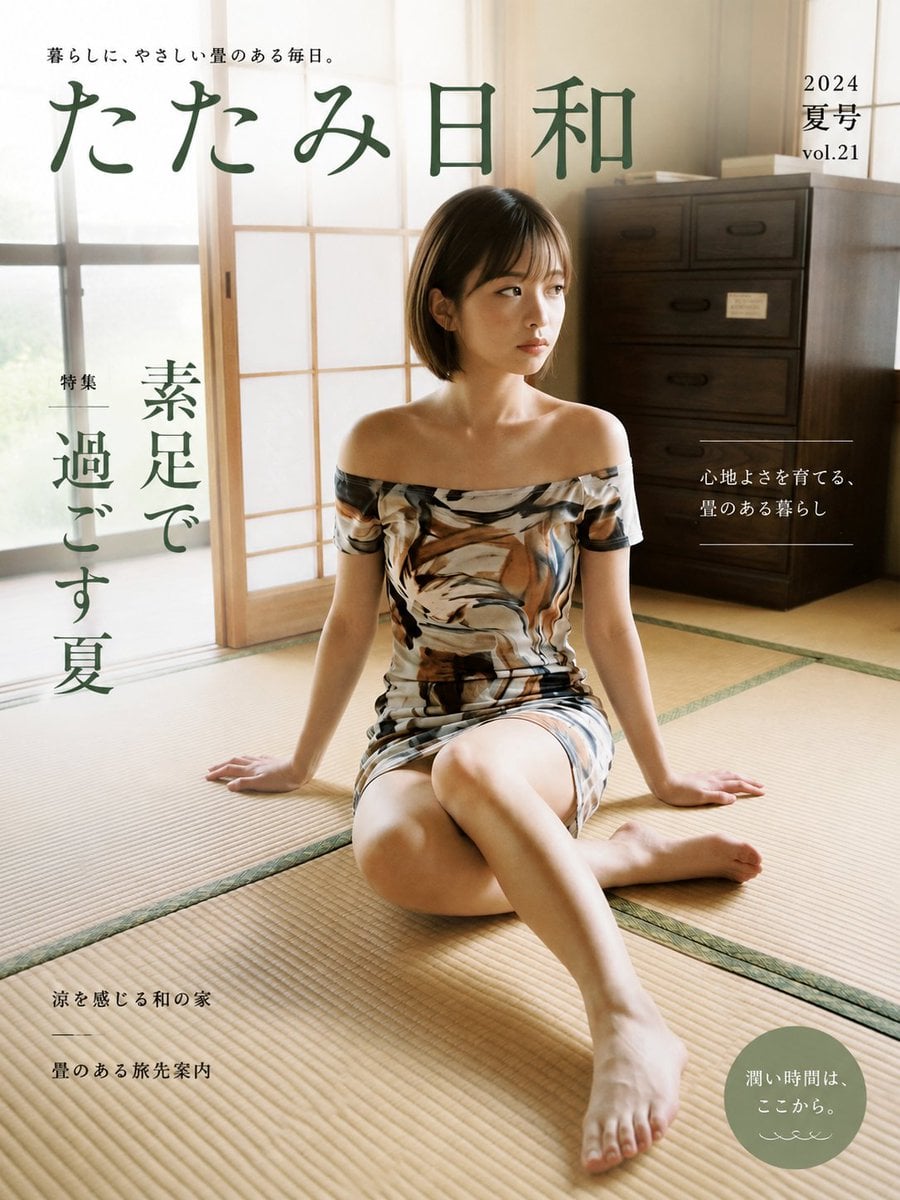
Japanese Tatami Lifestyle Magazine Cover

NESCAFÉ Coffee Map Poster
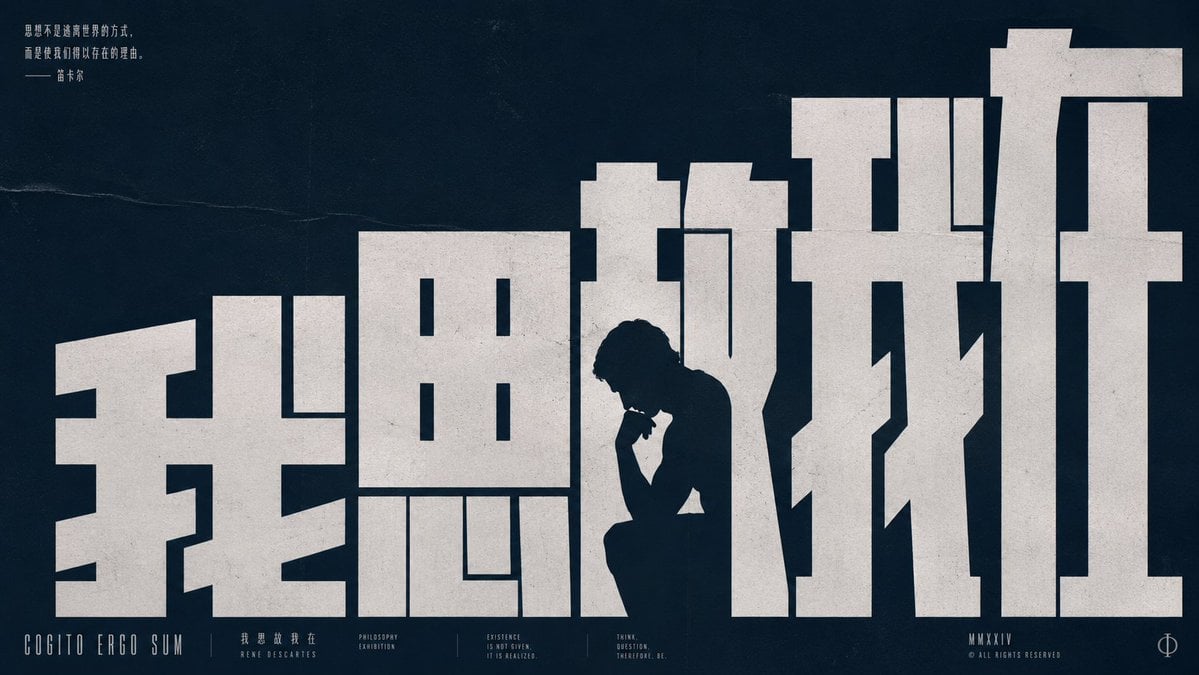
Brutalist Cogito Chinese Typography Poster

Cinematic Luxury Terrace Portrait
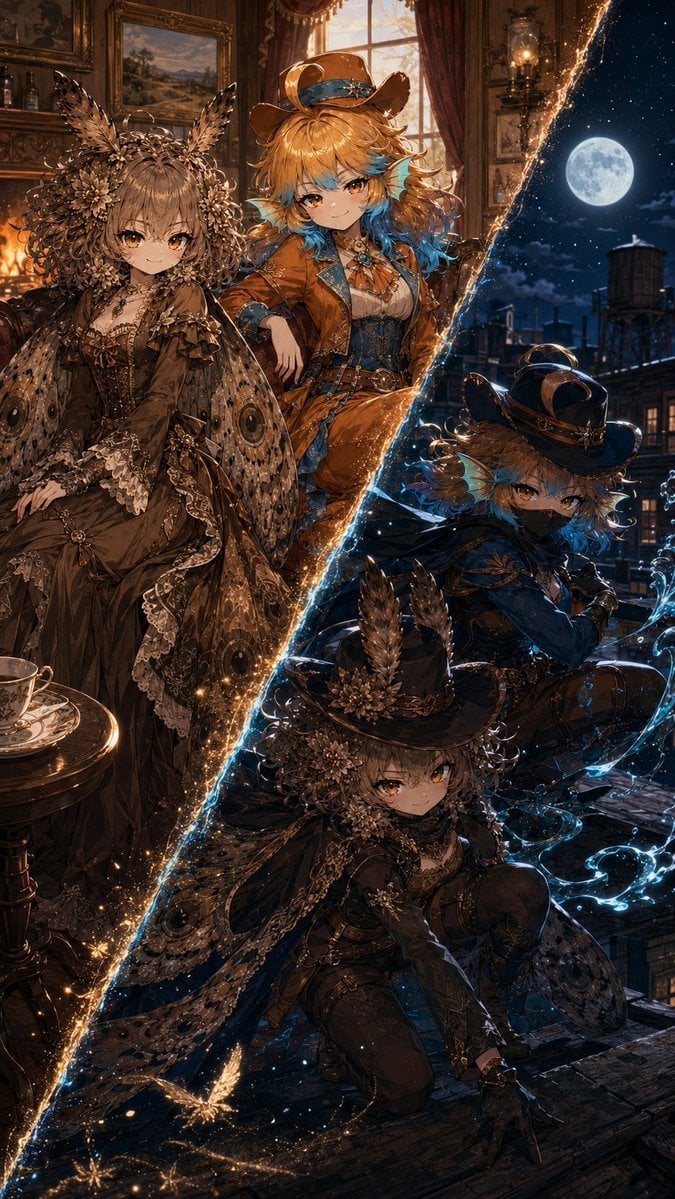
Superhero Era Transformation Split Portrait
More image prompts
Fresh picks from across the catalog.

Industrial Streetwear Editorial
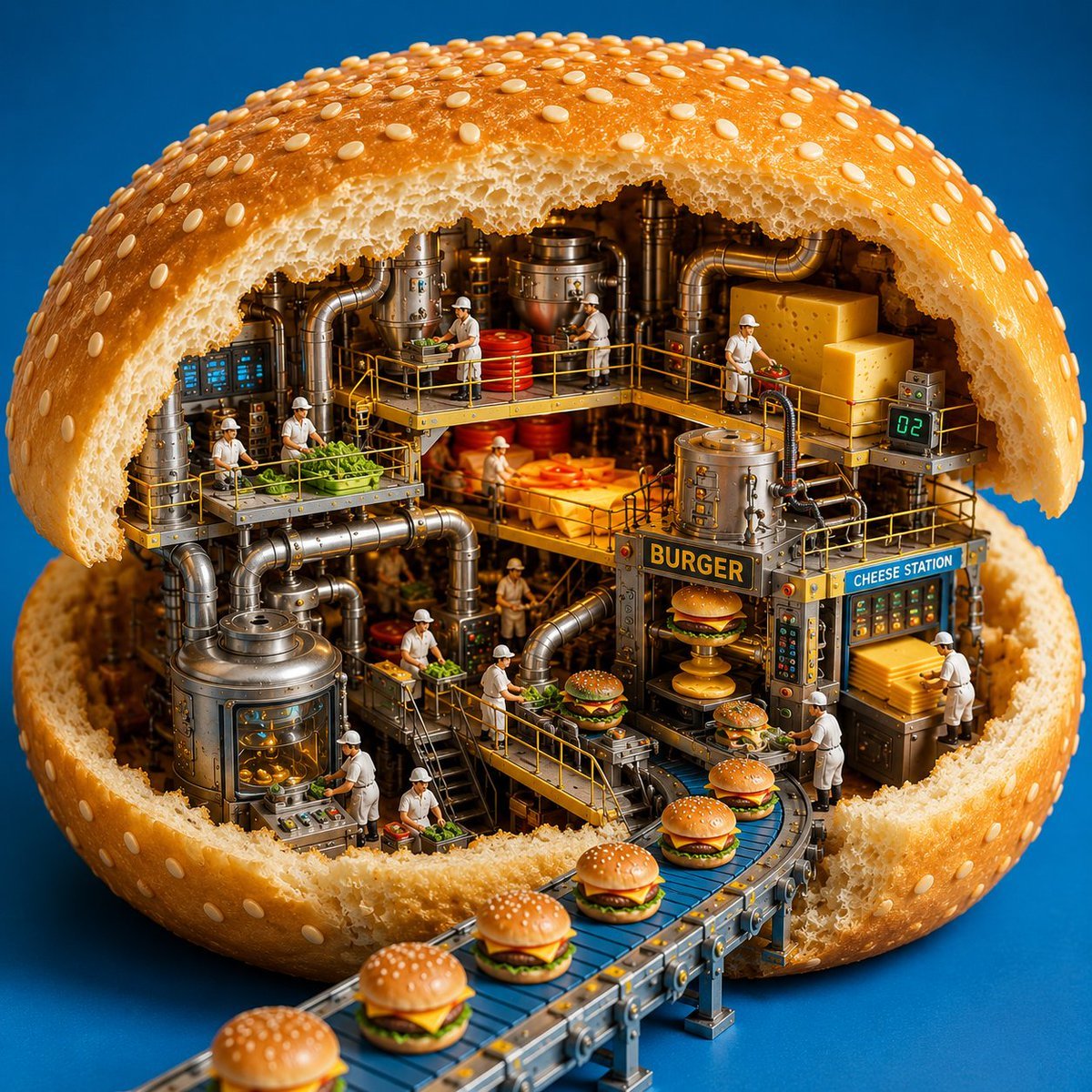
Miniature Burger Factory Render
Digital Oil-Painted Bust Portrait
PixVerse v6 - Cinematic Fire Scene
Maximalist Kawaii Angel Sticker Collage
Anime Football Legend Poster
untitled

Mugshot Portrait with Custom Slate Text Prompt
Multiplication Domino Classroom Activity
Kawaii Cat Sticker Sheet
Browse template categories
Rainy Dragon Comparison Sheet questions
How do I use the Rainy Dragon Comparison Sheet template?
Add your photo if the template asks for one, edit the prompt if you like — the template's model and format are already selected — and press Generate. Your version opens in PicX Studio.
Can I customize the Rainy Dragon Comparison Sheet template?
Yes. You can change the subject, setting, lighting, mood, format, and available model controls before creating your image.
Is the Rainy Dragon Comparison Sheet template free?
Opening and editing this template is free. Generating uses credits, shown on the Generate button when you are signed in.
Which AI model should I use?
Start with GPT Image 2, which is the model associated with this template. You can compare another compatible model for a different finish.
Looking for something else? Browse all templates.

Your photo, any look
Thousands of ready templates for every top image and video model, from one credit balance.