How do I use the Anime GPT-Image-2 Update Banner template?
Choose the primary action to open PicX Studio with the available template settings. Review the model and format, personalize the creative direction, and generate when ready.
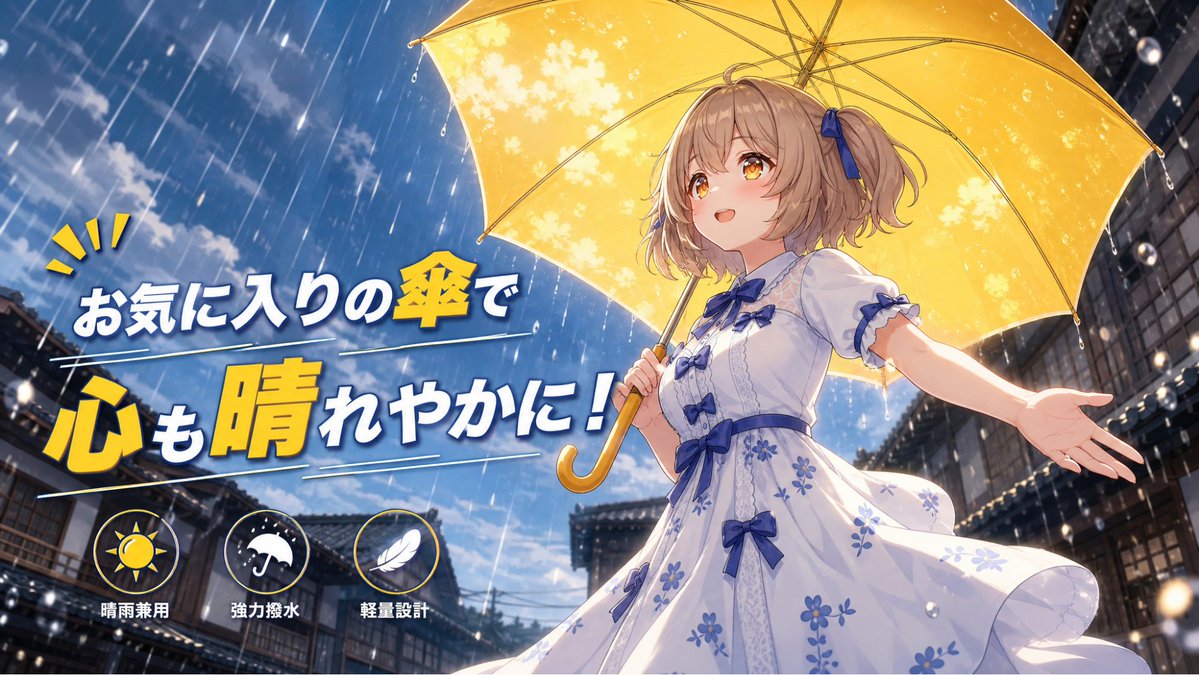
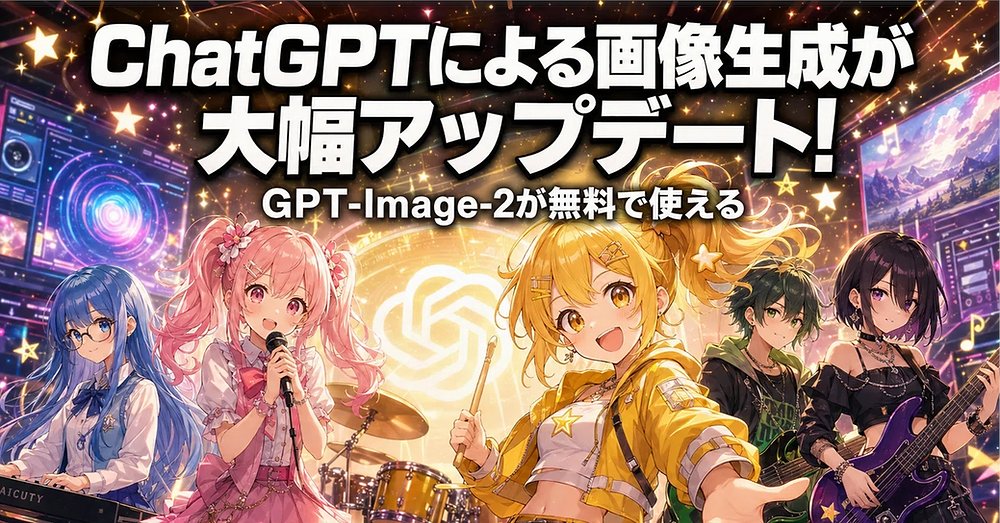
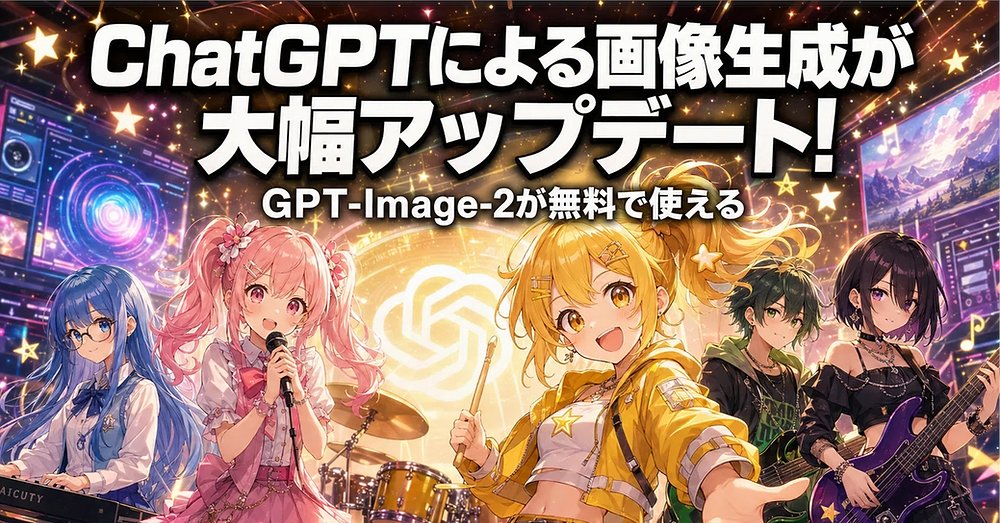
A vibrant Japanese anime concert-style banner announcing a major ChatGPT image generation update for social media promotion.
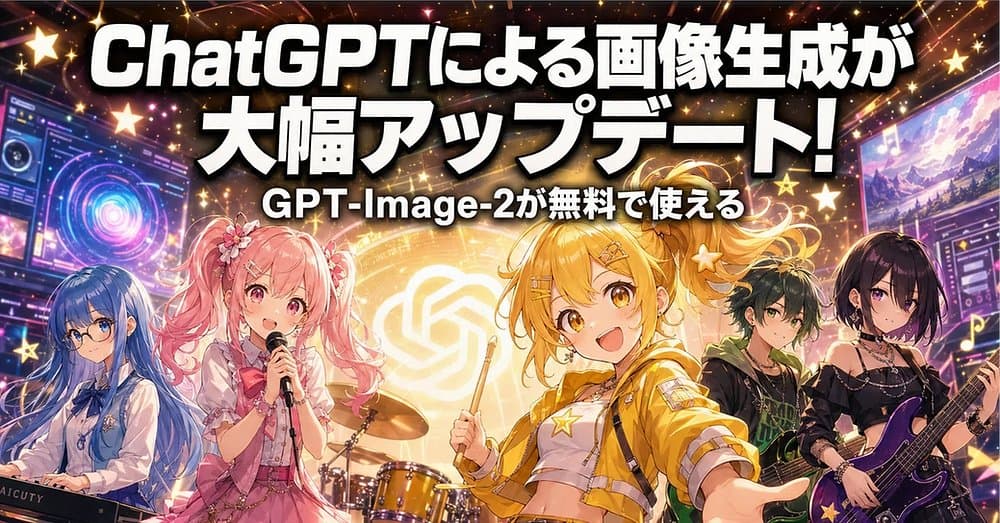
Goal: Create a high-energy Japanese social media announcement banner for a major ChatGPT image-generation update, styled like a glossy anime idol-band concert poster. Canvas: Wide horizontal 2:1 banner, approximately 1000×500 px, packed with dramatic lighting, sparkles, star shapes, neon effects, and a celebratory stage atmosphere. Main text: Huge bold white Japanese headline across the top with thick black drop shadow and slightly rounded sans-serif lettering: 「{argument name="headline text" default="ChatGPTによる画像生成が大幅アップデート!"}」. Place a smaller centered subheadline below it in white with black outline: 「{argument name="subheadline text" default="GPT-Image-2が無料で使える"}」. Layout: Five anime band members stand across the lower half in front of a glowing gold circular OpenAI-style emblem at center. Count exactly 5 visible characters: 1 blue-haired keyboard player on the far left, 1 pink twin-tail vocalist holding a microphone left of center, 1 cheerful blonde drummer/idol in the center foreground holding drumsticks, 1 dark green-haired bass/guitar player right of center, and 1 black/purple-haired electric guitarist on the far right. Add rectangular blurred face masks over the far-left character, the right-of-center character, and the far-right character; leave the pink vocalist and blonde center character fully visible. Character details: The central character is the focus: an energetic anime girl with {argument name="center character hair color" default="golden blonde"} twin ponytails, amber eyes, star hair accessories, a yellow cropped jacket, white top, and a joyful open-mouth smile, reaching slightly toward the viewer while holding a drumstick. The pink vocalist has long curly twin tails, pink frilly idol outfit, flower accessories, and holds a black microphone. The blue-haired keyboardist wears a white blouse and plays a keyboard at the bottom left. The two right-side musicians wear darker rock-style outfits; the far-right guitarist holds a purple electric guitar. Background and props: Use a concert-stage setting with exactly 4 main instrument groups visible: keyboard at bottom left, drum kit behind the center character, bass/guitar for the right-of-center musician, and purple electric guitar at far right. Add two tilted futuristic monitor panels in the background: one large neon interface screen on the left with circular UI graphics, and one screen on the right showing a colorful landscape/image-generation interface. Fill the scene with many gold stars, lens flares, light streaks, musical note icons, and confetti-like sparkles. Visual style: Bright polished anime illustration, promotional thumbnail style, saturated pink/yellow/purple palette, cinematic glow, crisp outlines, glossy highlights, dense composition, dynamic perspective, festive and futuristic. Keep the typography dominant and readable, with the headline occupying the top third of the image. Constraints: Preserve the Japanese text exactly as specified, use no English headline text, no watermark, no extra logos besides the abstract glowing OpenAI-like emblem, and keep all five characters visible in the lower half.
Choose the primary action to open PicX Studio with the available template settings. Review the model and format, personalize the creative direction, and generate when ready.
Yes. You can change the subject, setting, lighting, mood, format, and available model controls before creating your image.
This template is free to open and customize. Generation usage is shown in PicX Studio before you create.
Start with GPT Image 2, which is the model associated with this template. You can compare another compatible model for a different finish.
© 2026 PicX Studio. All rights reserved.

Follow a topic to a crawlable collection of related PicX Studio templates.