How do I use the Brand Guide to Ad Concepts UI template?
Edit the prompt in the box under the preview — the template's model and format are already selected — and press Generate. Your version appears right on this page.
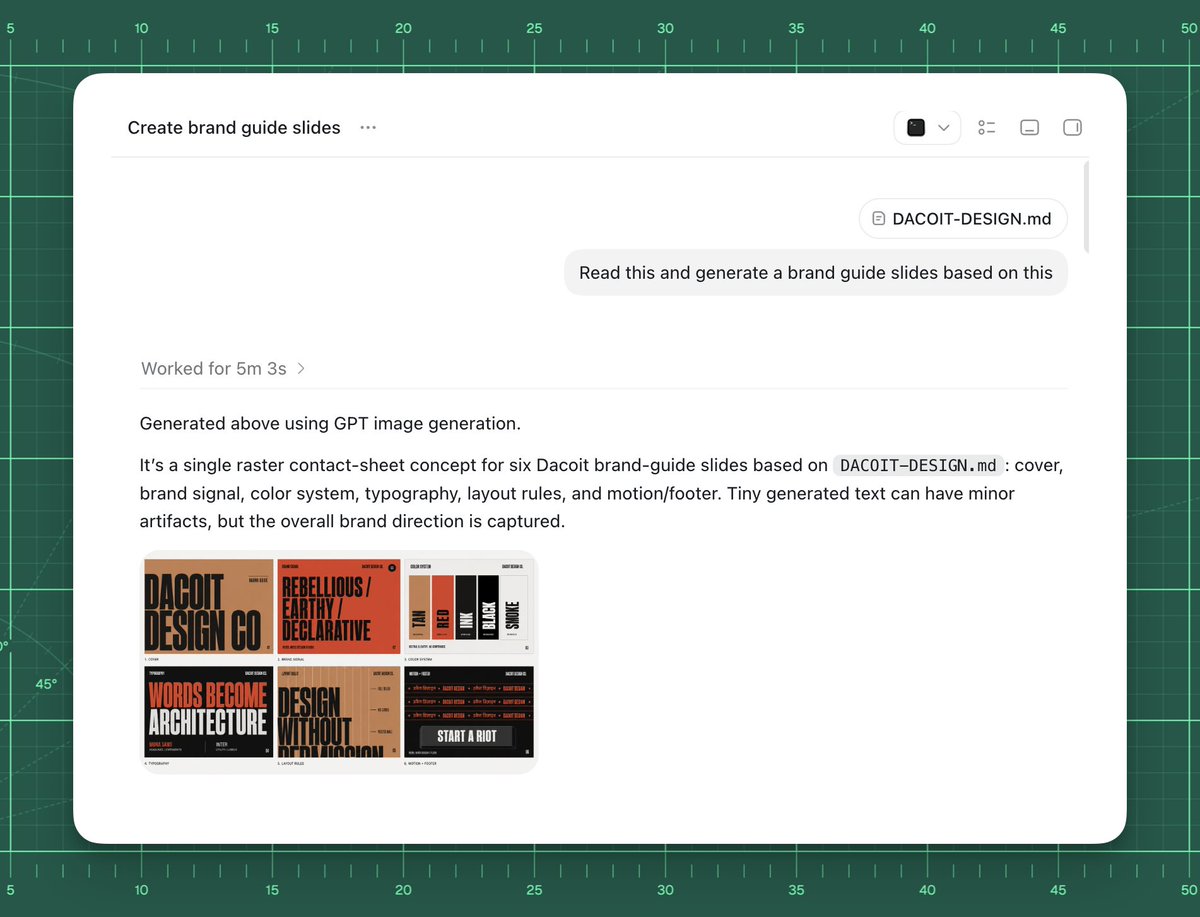
This prompt transforms a brand style reference into a polished AI creative-tool screenshot that showcases four on-brand billboard ad concepts for marketing presentations or product demos.

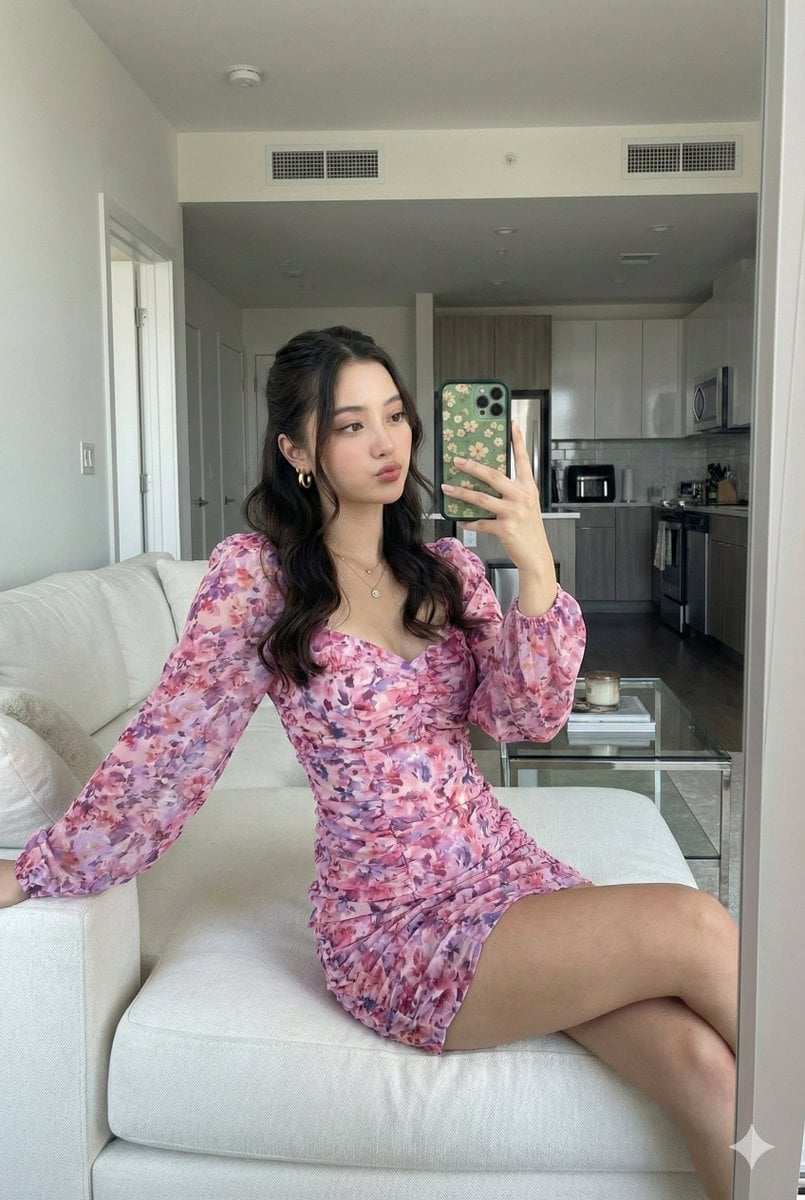
This template uses your photo — add one with the + button.
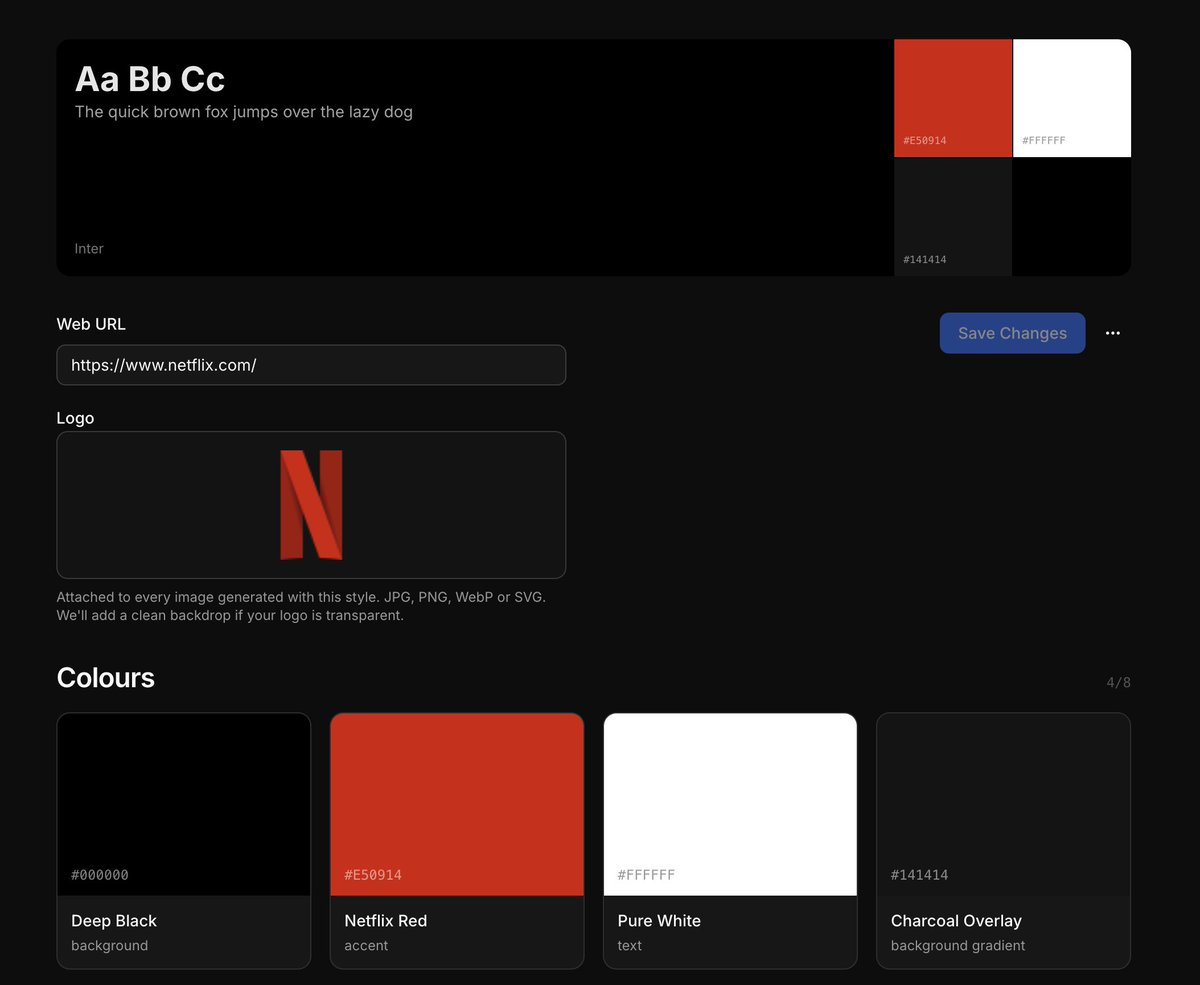
Using the provided reference image as the brand style guide, generate a dark creative-generation app interface showing 4 billboard ad concepts in a 2x2 grid for {argument name="brand name" default="Netflix"}. Apply the exact brand palette and overall visual identity from the reference: deep black background, red accent, white typography, charcoal overlays, and clean modern sans-serif styling. Turn the reference from a static brand settings page into an image-generation results screen with a left sidebar model picker containing 2 model cards, and a main canvas displaying 4 generated concept thumbnails. Each thumbnail should be a cinematic nighttime outdoor billboard mockup with dramatic lighting, glossy reflections, and a person wearing a VR headset. Use bold billboard copy reading {argument name="headline text" default="NETFLIX VR"}, {argument name="subheadline text" default="COMING SOON"}, and {argument name="date text" default="28TH MAY"}. Add small UI chips and labels on the right summarizing the prompt, plus generation-time badges above each of the 4 images. Keep the result looking like a premium creative tool screenshot for branded ad ideation.
Using the provided reference image as the brand style guide, generate a dark creative-generation app interface showing 4 billboard ad concepts in a 2x2 grid for {argument name="brand name" default="Netflix"}. Apply the exact brand palette and overall visual identity from the reference: deep black background, red accent, white typography, charcoal overlays, and clean modern sans-serif styling. Turn the reference from a static brand settings page into an image-generation results screen with a left sidebar model picker containing 2 model cards, and a main canvas displaying 4 generated concept thumbnails. Each thumbnail should be a cinematic nighttime outdoor billboard mockup with dramatic lighting, glossy reflections, and a person wearing a VR headset. Use bold billboard copy reading {argument name="headline text" default="NETFLIX VR"}, {argument name="subheadline text" default="COMING SOON"}, and {argument name="date text" default="28TH MAY"}. Add small UI chips and labels on the right summarizing the prompt, plus generation-time badges above each of the 4 images. Keep the result looking like a premium creative tool screenshot for branded ad ideation.
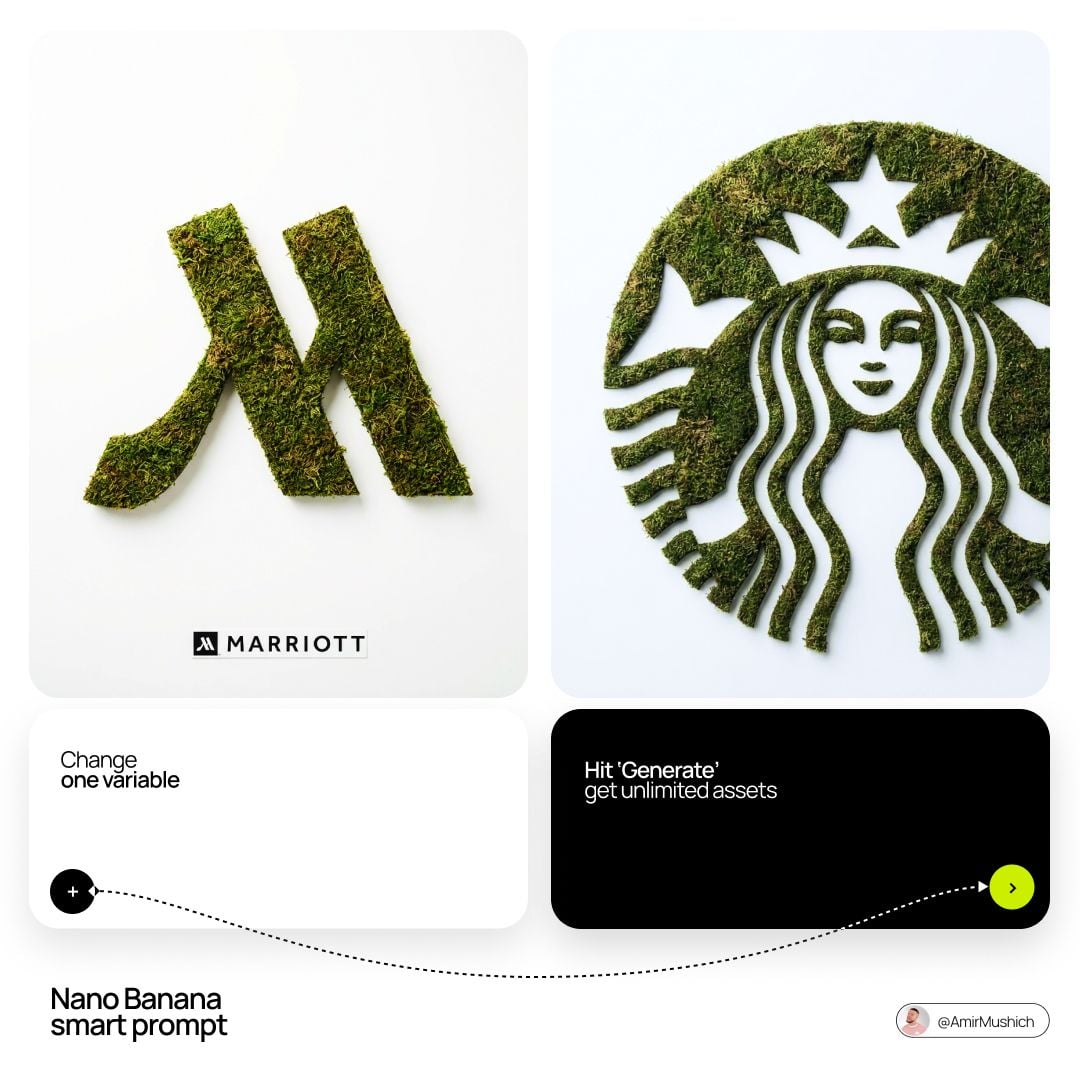
Brand Guide to Ad Concepts UI needs input media to work. Open it in the studio and these load alongside the prompt — pick whichever ones your chosen model can take.
Edit the prompt in the box under the preview — the template's model and format are already selected — and press Generate. Your version appears right on this page.
Yes. You can change the subject, setting, lighting, mood, format, and available model controls before creating your image.
Opening and editing this template is free. Generating uses credits, shown on the Generate button when you are signed in.
Start with GPT Image 2, which is the model associated with this template. You can compare another compatible model for a different finish.
Follow a topic to a crawlable collection of related PicX Studio templates.