
AI Brand Guide Generation UI
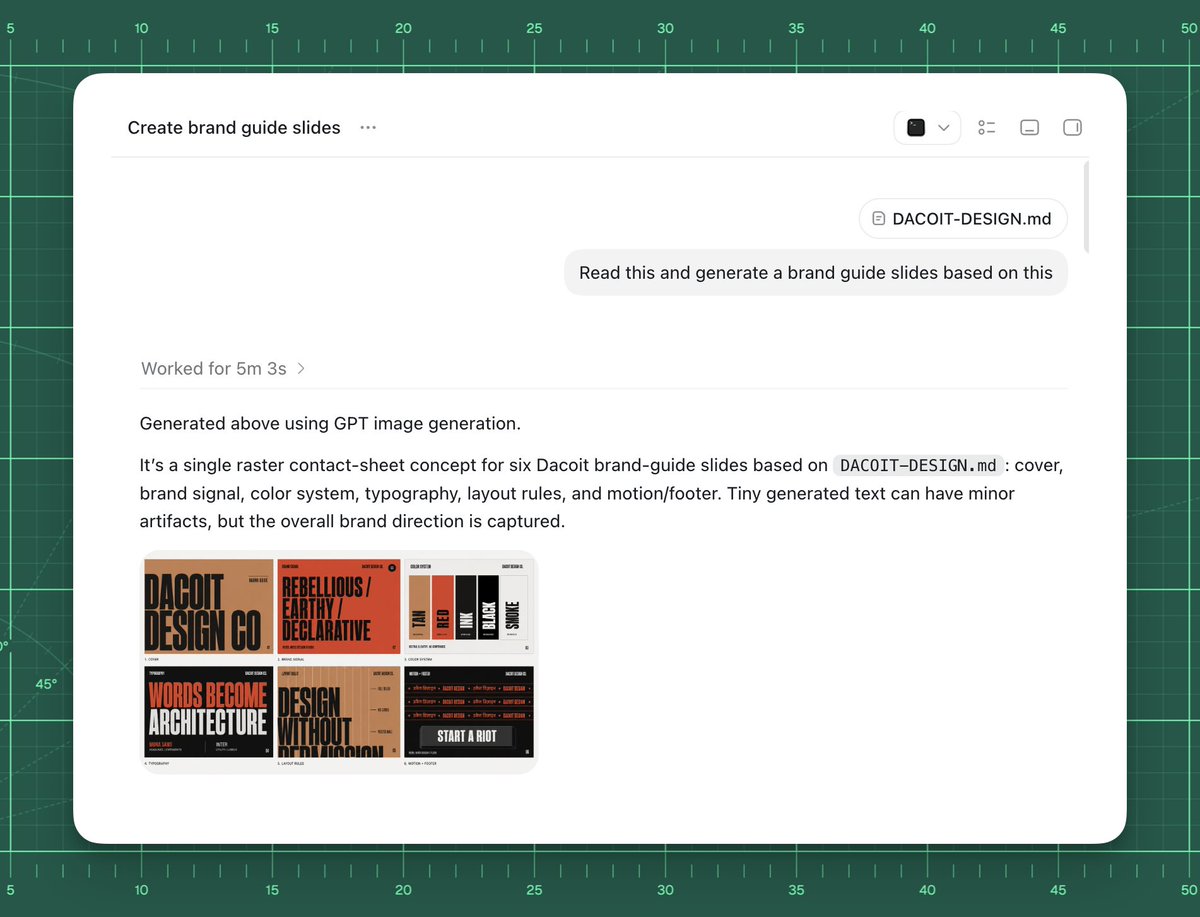
Creates a clean AI workspace screenshot showing a markdown brand file being turned into a six-slide Dacoit-style brand guide contact sheet.
- Prompt included
- Model and format preset
- Free template
The prompt behind this image
Copy the exact prompt behind AI Brand Guide Generation UI, or open it in the studio and make it yours.
Goal: Create a polished screenshot-style UI mockup showing an AI chat or agent workspace successfully generating brand guide slides from a markdown file. Canvas: 4:3 landscape composition, approximately 1024×768. Background is a dark green cutting-mat grid with ruler markings around the top and left edges, thin mint grid lines, measurement numbers from 5 to 50, small tick marks, and a few faint diagonal guide lines. Center a large rounded white app window with a soft shadow, leaving the green grid visible as a border. App window layout: The white panel has rounded corners and a minimal toolbar. At top left, show the title text “Create brand guide slides” followed by a three-dot menu. At top right, include exactly 4 small toolbar icons: a dark square icon with a dropdown chevron, a list/settings icon, a small rectangle icon, and a split-panel icon. A thin horizontal divider runs under the toolbar. Near the upper right of the chat area, show a rounded attachment chip labeled “DACOIT-DESIGN.md”, then below it a light gray user message bubble reading “Read this and generate a brand guide slides based on this”. Add a subtle vertical scrollbar on the far right inside the window. Main response content: In the left-middle area, show a muted status line “Worked for {argument name="processing time" default="5m 3s"} ›”. Below a divider, show the response text: “Generated above using GPT image generation.” Then a paragraph: “It’s a single raster contact-sheet concept for six Dacoit brand-guide slides based on `DACOIT-DESIGN.md`: cover, brand signal, color system, typography, layout rules, and motion/footer. Tiny generated text can have minor artifacts, but the overall brand direction is captured.” Use clean modern sans-serif UI typography, black and gray text, generous spacing. Embedded generated image thumbnail: Under the paragraph, place one rounded-corner thumbnail preview of a six-slide brand-guide contact sheet. It must contain exactly 6 mini slide panels in a 3×2 grid. The style of the mini slides is gritty editorial branding with tan, burnt orange, black, cream, and red. Count and depict the six visible slide topics: 1) cover slide with huge text “DACOIT DESIGN CO”, 2) brand signal slide with “REBELLIOUS / EARTHY / DECLARATIVE”, 3) color system slide with vertical swatches labeled roughly TAN, RED, INK, BLACK, SMOKE, 4) typography slide with large words “WORDS BECOME ARCHITECTURE”, 5) layout rules slide with “DESIGN WITHOUT APOLOGY”, 6) motion/footer slide with dark background and “START A RIOT”. The tiny text may be imperfect but the large labels should be recognizable. Visual style: High-fidelity product screenshot, crisp white interface, subtle shadows, realistic browser/app chrome, minimal monochrome icons, sharp readable text, clean spacing. The background should feel like a design workspace or drafting mat. Customizable source/brand details: Use {argument name="project title" default="Create brand guide slides"} as the window title if changed. Use {argument name="file name" default="DACOIT-DESIGN.md"} for the attachment chip and paragraph reference. Use {argument name="brand name" default="Dacoit"} for the brand guide subject. Use {argument name="user request" default="Read this and generate a brand guide slides based on this"} as the message bubble text. Constraints: Do not add people, hands, browser address bars, extra popups, watermarks, or unrelated UI. Keep exactly one app window, one attachment chip, one user message bubble, one status line, one response paragraph block, and one embedded thumbnail containing exactly six mini slides.
How to use AI Brand Guide Generation UI in 3 steps
- 1Upload ImagePNG, JPG or paste
Add your photo
Upload the photo the template builds on. The prompt, model and format are already set.
- 2…a portrait of your subject in softgolden-hour light, 85mm…
Personalize
Edit the subject and creative details for your destination.
- 3Generate
Generate
Press Generate — your image is created in PicX Studio, so you can compare it with the original and refine one variable at a time.
More like this
Templates with the same subject, style or setup. Open one to see its prompt.
Luxury Fashion Campaign Typography Poster System
Premium Fashion Editorial Campaign Poster System
Isometric Brand Store Diorama
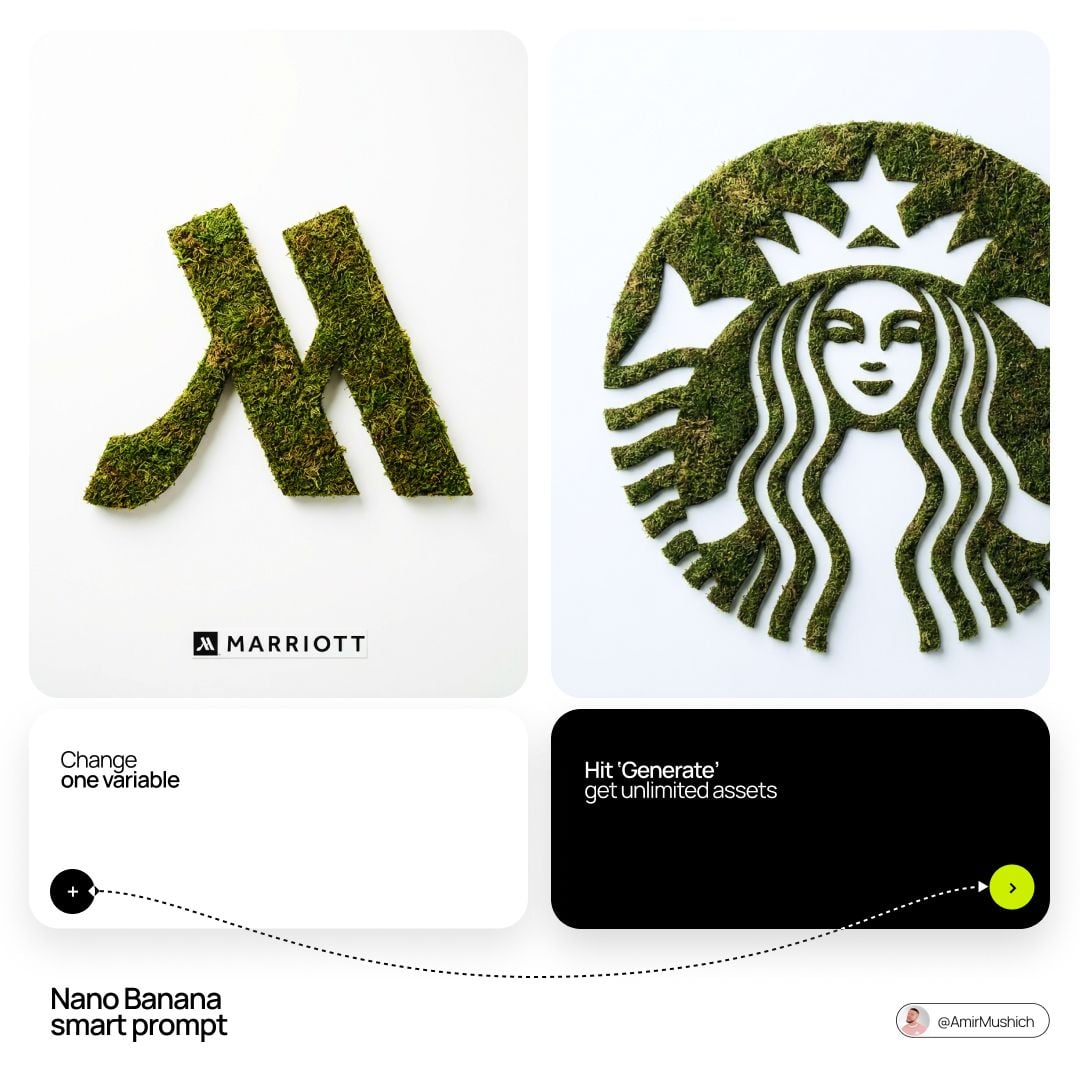
Moss Logo Minimalist Brand Flat Lay
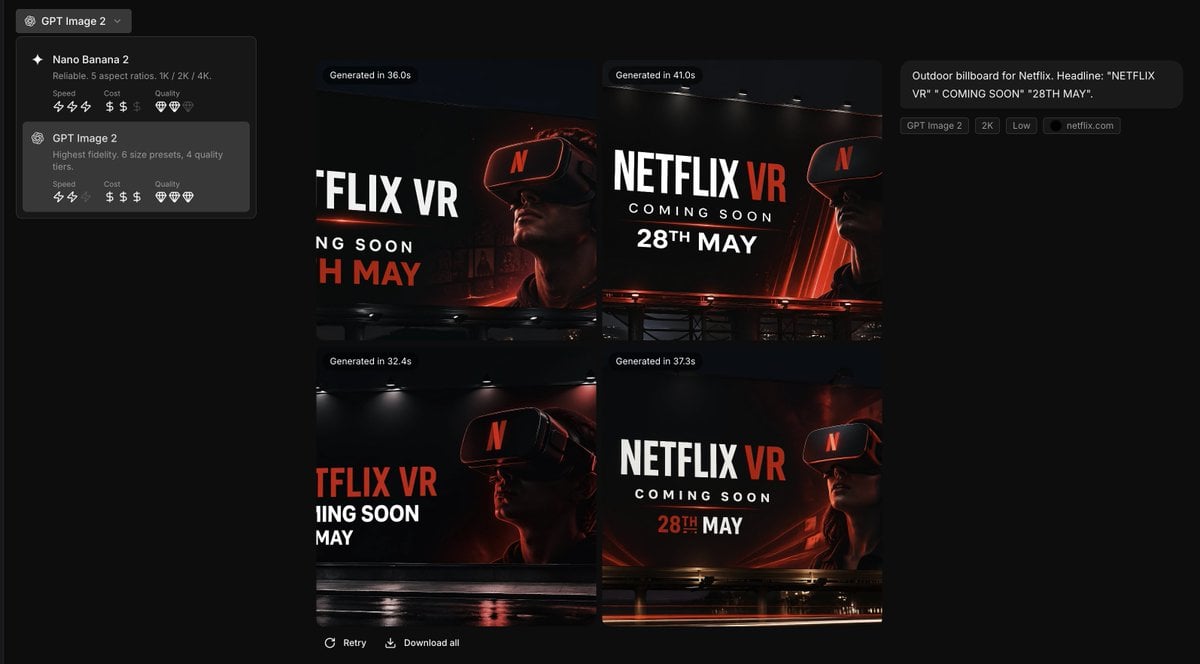
Brand Guide to Ad Concepts UI
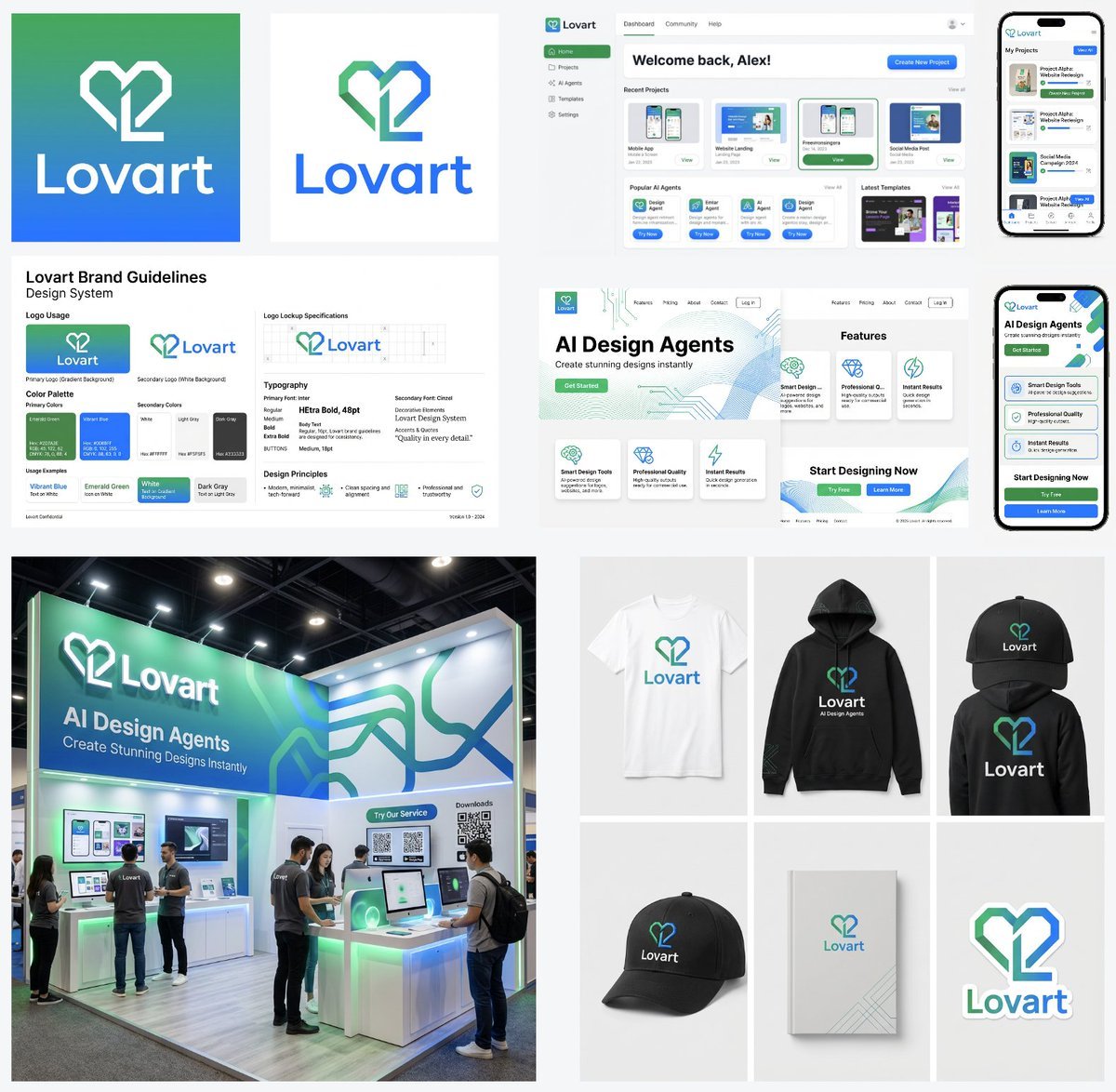
Multi-Step Design Generation Prompts for 'Lovart' Brand
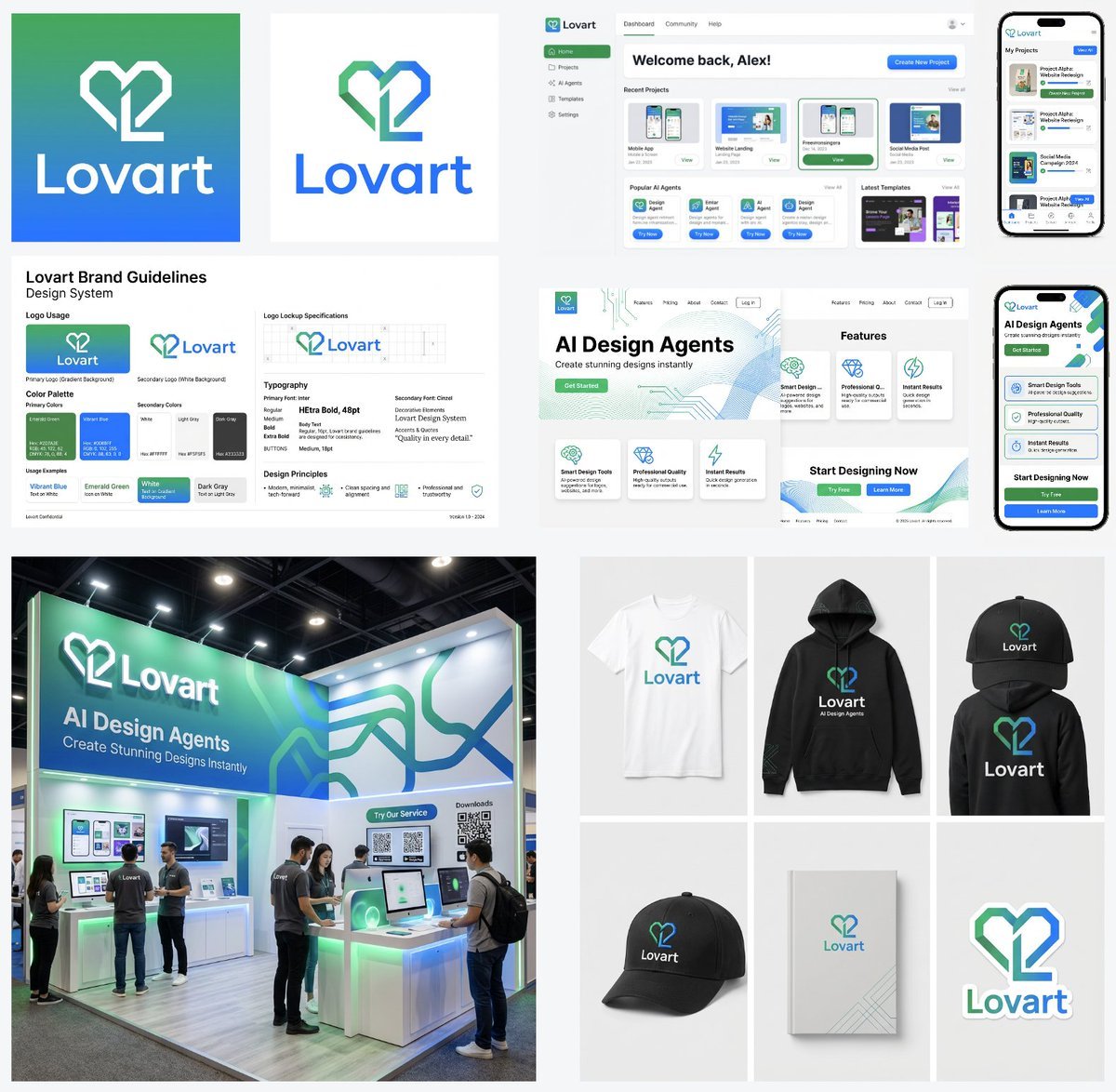
Multi-Step Design Generation for 'Lovart' Brand Identity
Aesthetic Hobby Girl Collage Youtube Thumbnail
Eco Laundry Hack Youtube Thumbnail
Youtube Thumbnail Template
Urban Commuter Portrait Documentary
Sun-Kissed Summer Skincare Beachfront
Make it yours
AI Brand Guide Generation UI works as-is. These are the safest ways to change it without losing the look.
Change one field
Copy a single group, rewrite it, and generate again so you can see what that field is doing.
Keep the frame, change the subject
Hold the composition and light of AI Brand Guide Generation UI, then swap wardrobe, props or the person for a new take.
| If the result… | Why | Fix |
|---|---|---|
| The result drifts from the preview | Too many fields changed at once. | Reuse AI Brand Guide Generation UI as-is first, then change one group — subject, light, or setting. |
| The model over-stylizes the scene | The prose prompt leaves finish and camera underspecified. | Add one camera or lighting sentence and stay on GPT Image 2. |
More GPT Image 2 templates
Other prompts made for GPT Image 2.

Six VTuber Japanese Logo Sheet

Realistic Portrait of Woman and Deer

The Vista Modular Condo Poster

AI Model Routing Comparison Infographic

2.5D Anime Art Board

Isometric Productivity Desk Scene

New York Double Exposure Poster

Four-Panel AI Landscape Comparison

Japanese Tatami Lifestyle Magazine Cover

NESCAFÉ Coffee Map Poster
More image prompts
Fresh picks from across the catalog.
Cosplay Prompt Gallery Screenshot
Messy Room Student Hangout
Luxury Bucket Hat Product Editorial
Ultra-Photorealistic Winter Portrait Macro Focus (Jennifer Lawrence)
Tech CEO Battle Royale Lobby
Low-Angle Urban Street Photography
Atmospheric cold glamor mirror portrait
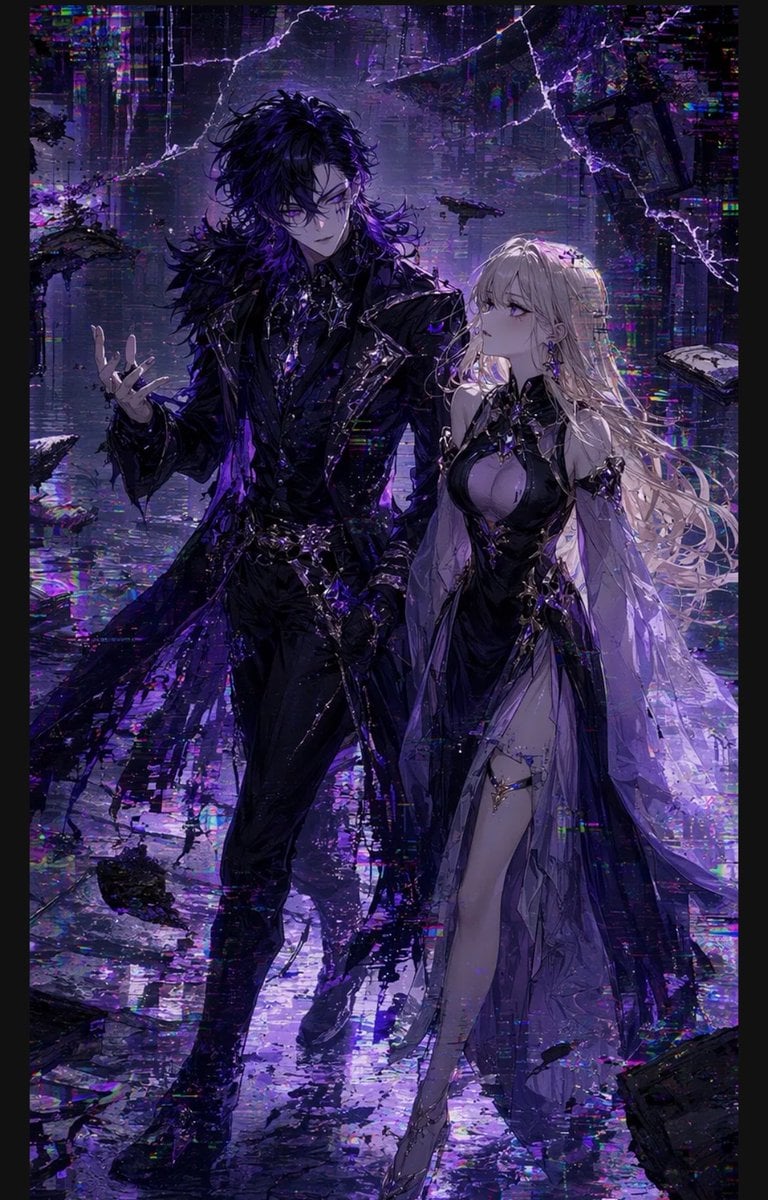
Gothic Cyberpunk Duo in Ruined City
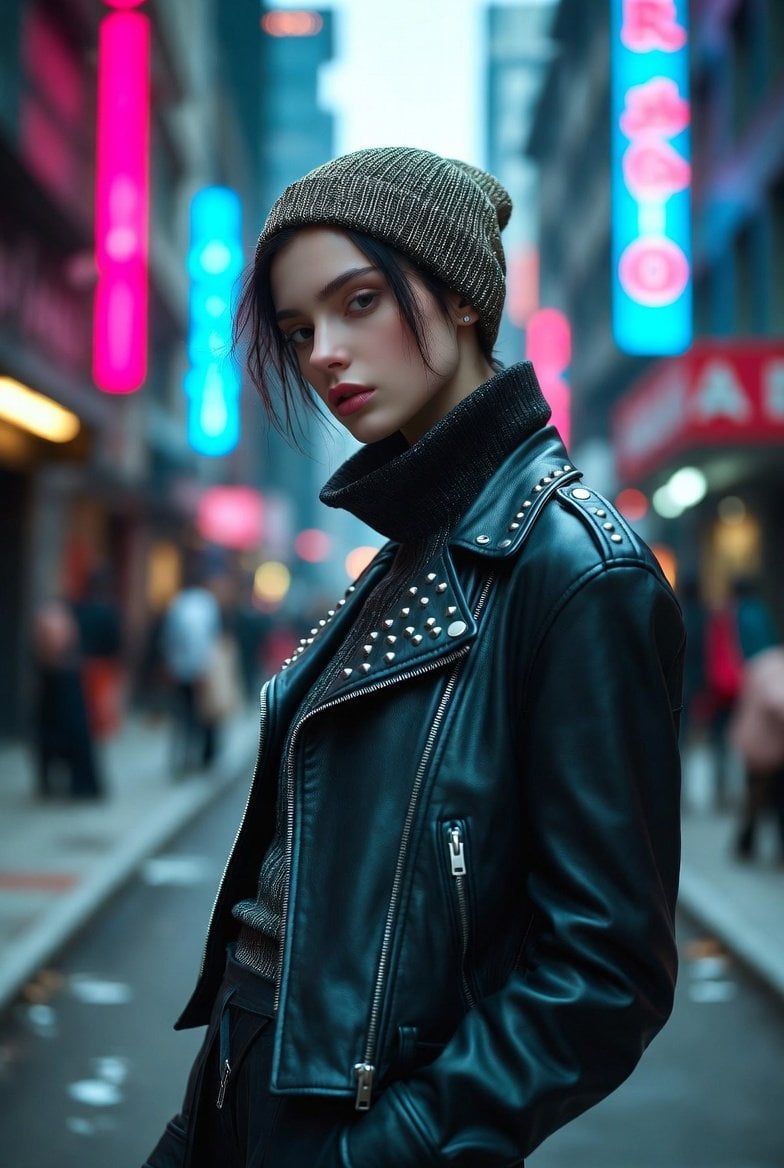
Hyper-realistic portrait of a young woman in street style at night
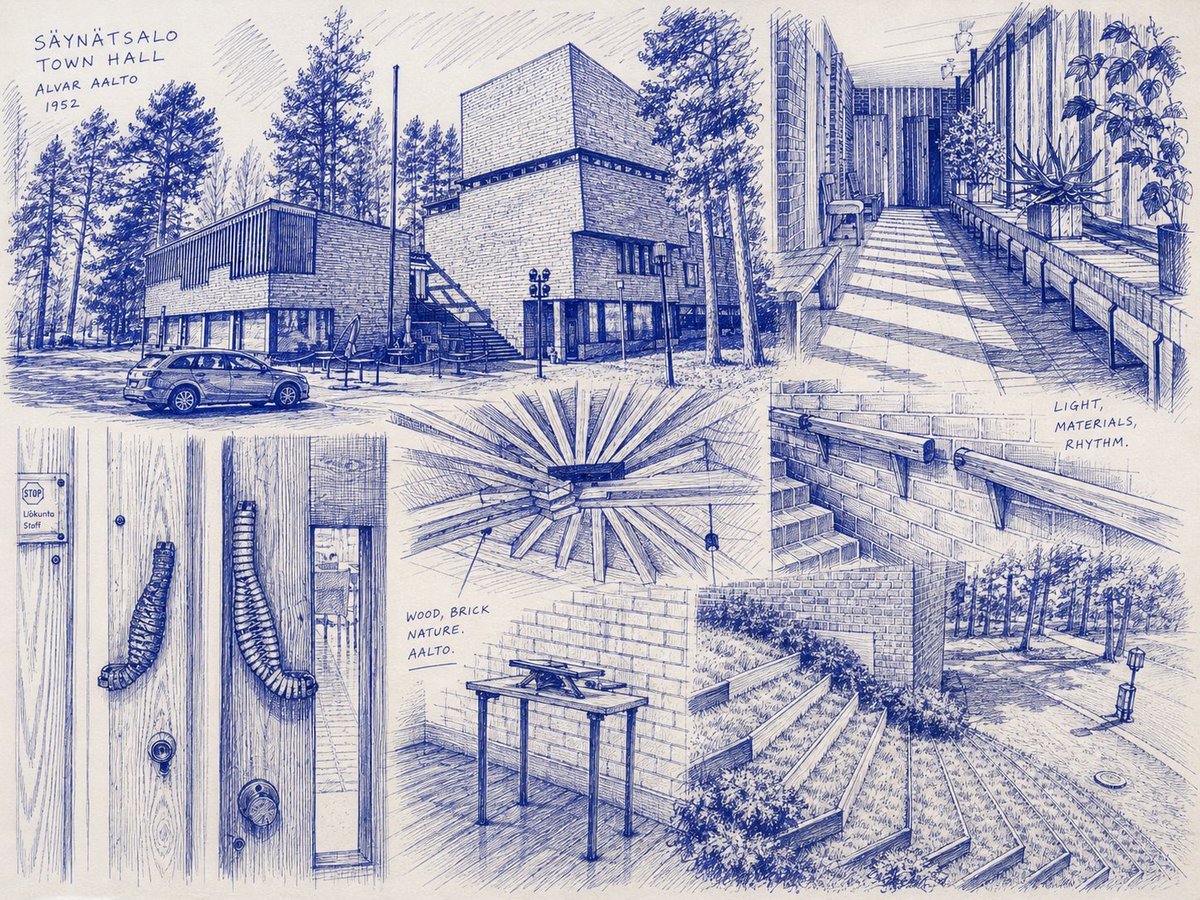
Säynätsalo Town Hall Sketchbook
Browse template categories
AI Brand Guide Generation UI questions
How do I use the AI Brand Guide Generation UI template?
Add your photo if the template asks for one, edit the prompt if you like — the template's model and format are already selected — and press Generate. Your version opens in PicX Studio.
Can I customize the AI Brand Guide Generation UI template?
Yes. You can change the subject, setting, lighting, mood, format, and available model controls before creating your image.
Is the AI Brand Guide Generation UI template free?
Opening and editing this template is free. Generating uses credits, shown on the Generate button when you are signed in.
Which AI model should I use?
Start with GPT Image 2, which is the model associated with this template. You can compare another compatible model for a different finish.
Looking for something else? Browse all templates.

Your photo, any look
Thousands of ready templates for every top image and video model, from one credit balance.