
Cosplay Prompt Gallery Screenshot
Generates a desktop prompt-gallery page featuring an Instagram Story-style cosplay selfie and its GPT Image 2 metadata panel.
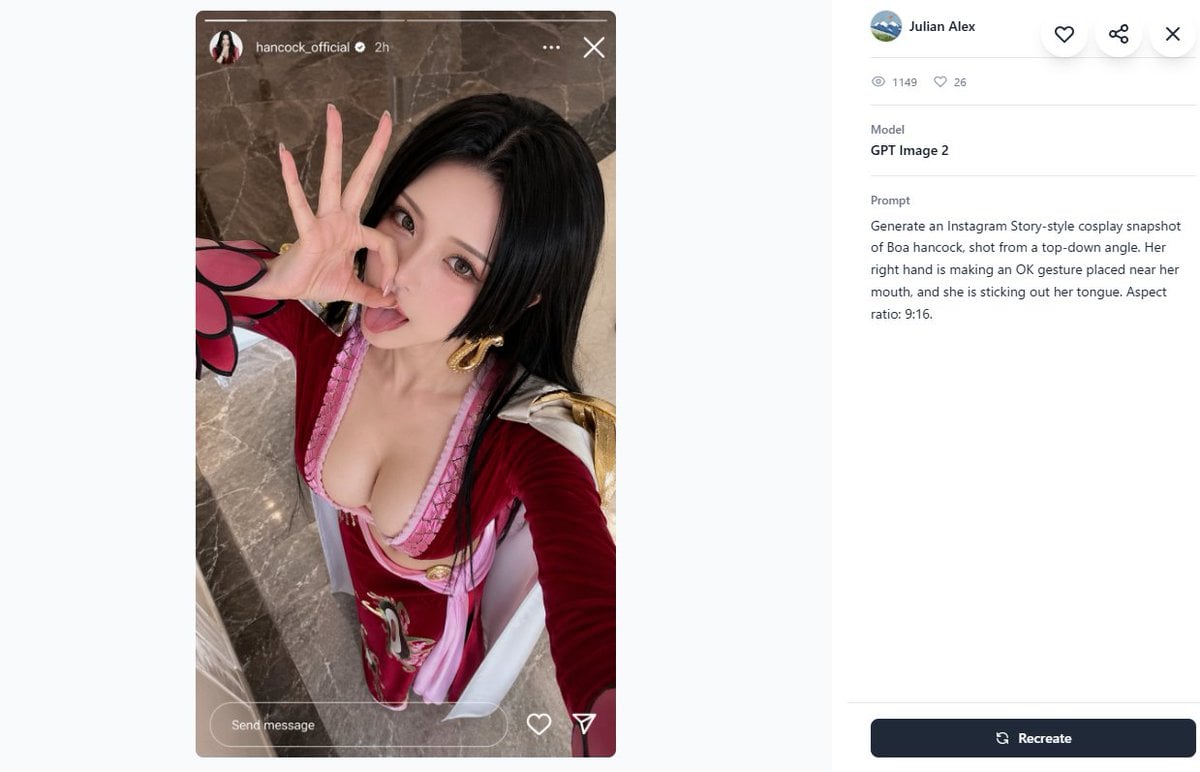
- Prompt included
- Model and format preset
- Free template
The prompt behind this image
Copy the exact prompt behind Cosplay Prompt Gallery Screenshot, or open it in the studio and make it yours.
Create a 16:9 desktop webpage screenshot of a prompt-gallery detail page showing one generated image on the left and its metadata on the right. The left side contains a tall Instagram Story-style cosplay snapshot mockup in a rounded rectangle, aspect ratio 9:16, with a realistic top-down selfie of {argument name="character name" default="Boa Hancock"} cosplay. The cosplayer is an adult woman with long straight {argument name="hair color" default="black"} hair, wearing a red and pink anime-inspired outfit with a low neckline, gold hoop earrings, white shoulder accents, and red sleeves with a pink-and-black petal-like cuff detail. Her face is intentionally obscured by a square blur/pixelated censor block, but her right hand is clearly making an OK gesture near her mouth and she appears to be sticking out her tongue behind the blur. Camera angle is high above, like a phone selfie, with polished gray-brown marble flooring in the background. Add Instagram Story UI overlays: a thin progress bar across the top, a small circular profile photo, username {argument name="Instagram username" default="hancock_official"}, a verified check, “2h”, three-dot menu, and an X close icon; at the bottom include a rounded “Send message” field plus heart and paper-plane icons. The right panel is a clean white gallery interface with a small circular avatar, the name {argument name="creator name" default="Julian Alex"}, floating circular action buttons for heart, share, and close, a stats row with exactly 2 items: an eye icon with “1149” and a heart icon with “26”, a Model section reading “GPT Image 2”, and a Prompt section containing the exact text: {argument name="visible prompt text" default="Generate an Instagram Story-style cosplay snapshot of Boa hancock, shot from a top-down angle. Her right hand is making an OK gesture placed near her mouth, and she is sticking out her tongue. Aspect ratio: 9:16."}. At the bottom right place a dark navy rounded “Recreate” button with a refresh icon. Use lots of white space, soft gray dividers, modern minimal UI styling, and make the screenshot look like a real browser/app capture rather than a polished poster.
How to use Cosplay Prompt Gallery Screenshot in 3 steps
- 1Upload ImagePNG, JPG or paste
Add your photo
Upload the photo the template builds on. The prompt, model and format are already set.
- 2…a portrait of your subject in softgolden-hour light, 85mm…
Personalize
Edit the subject and creative details for your destination.
- 3Generate
Generate
Press Generate — your image is created in PicX Studio, so you can compare it with the original and refine one variable at a time.
More like this
Templates with the same subject, style or setup. Open one to see its prompt.

Minecraft Next-Gen Voxel World Screenshot
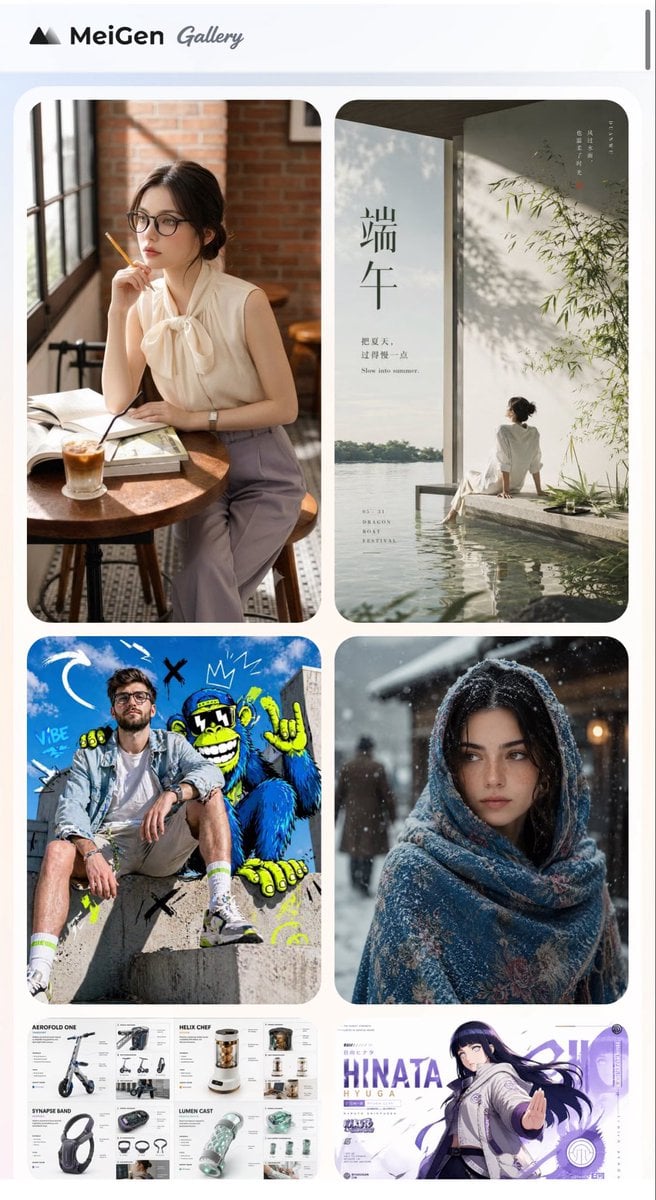
MeiGen AI Gallery Mobile Screenshot
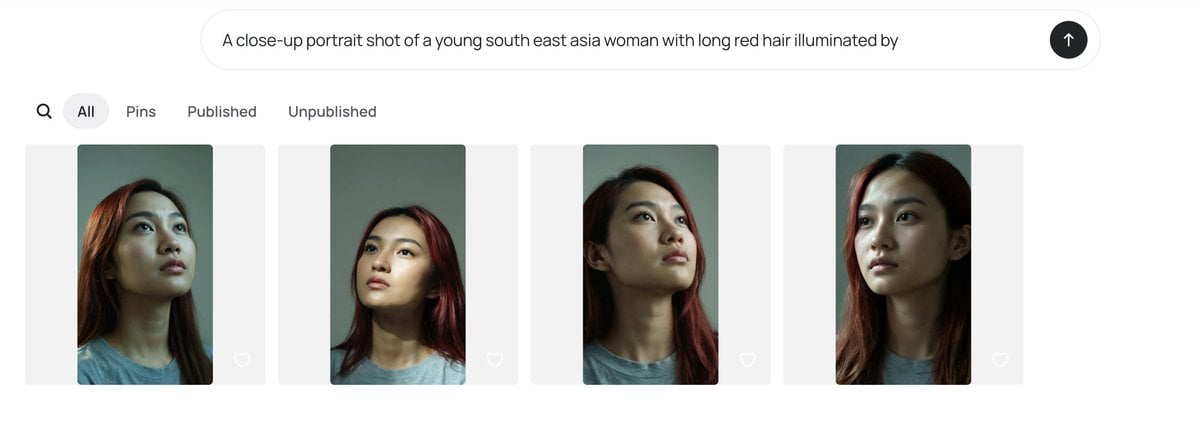
AI Gallery Portrait UI Screenshot
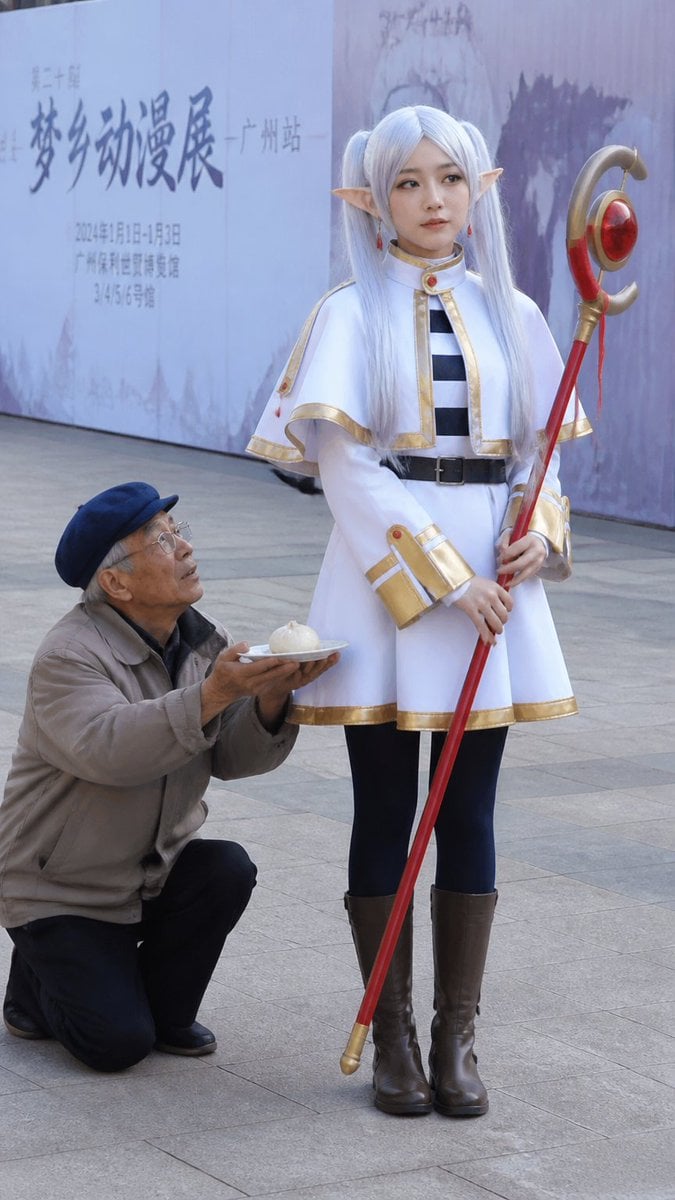
Anime Cosplayer Convention Photography
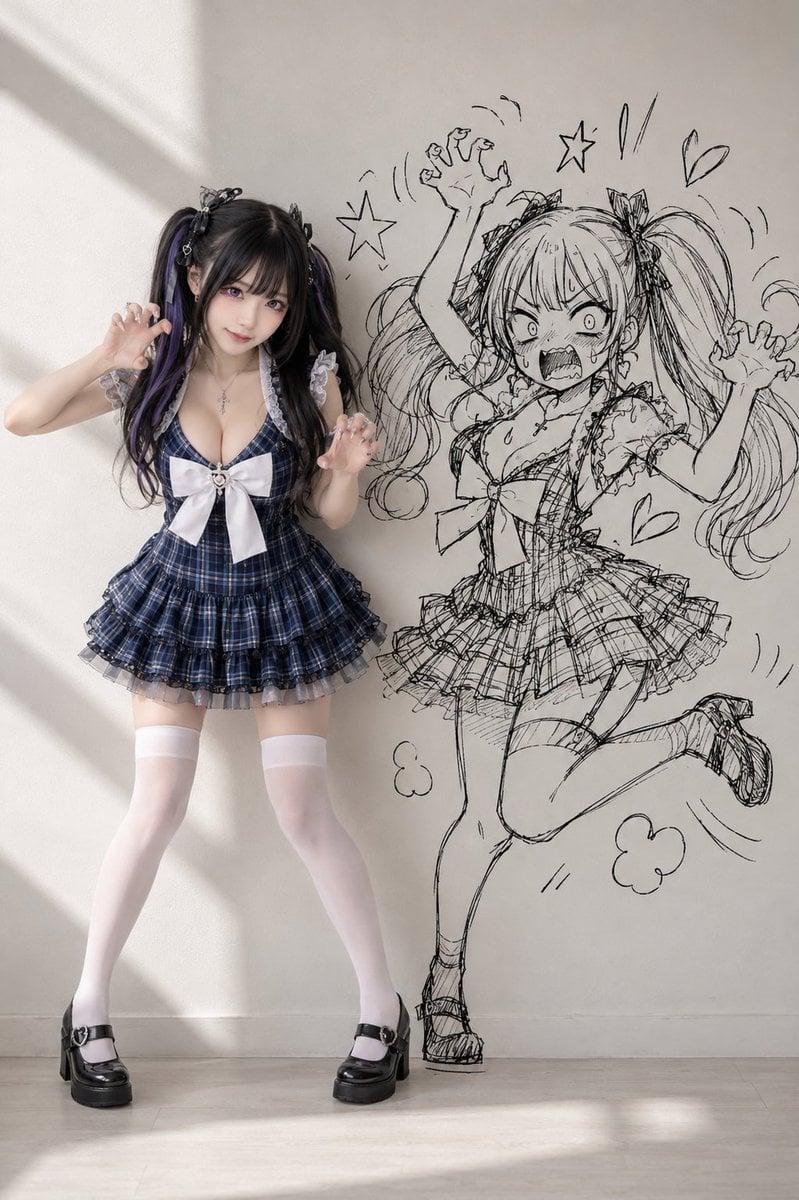
Cosplay Girl with Manga Graffiti Shadow
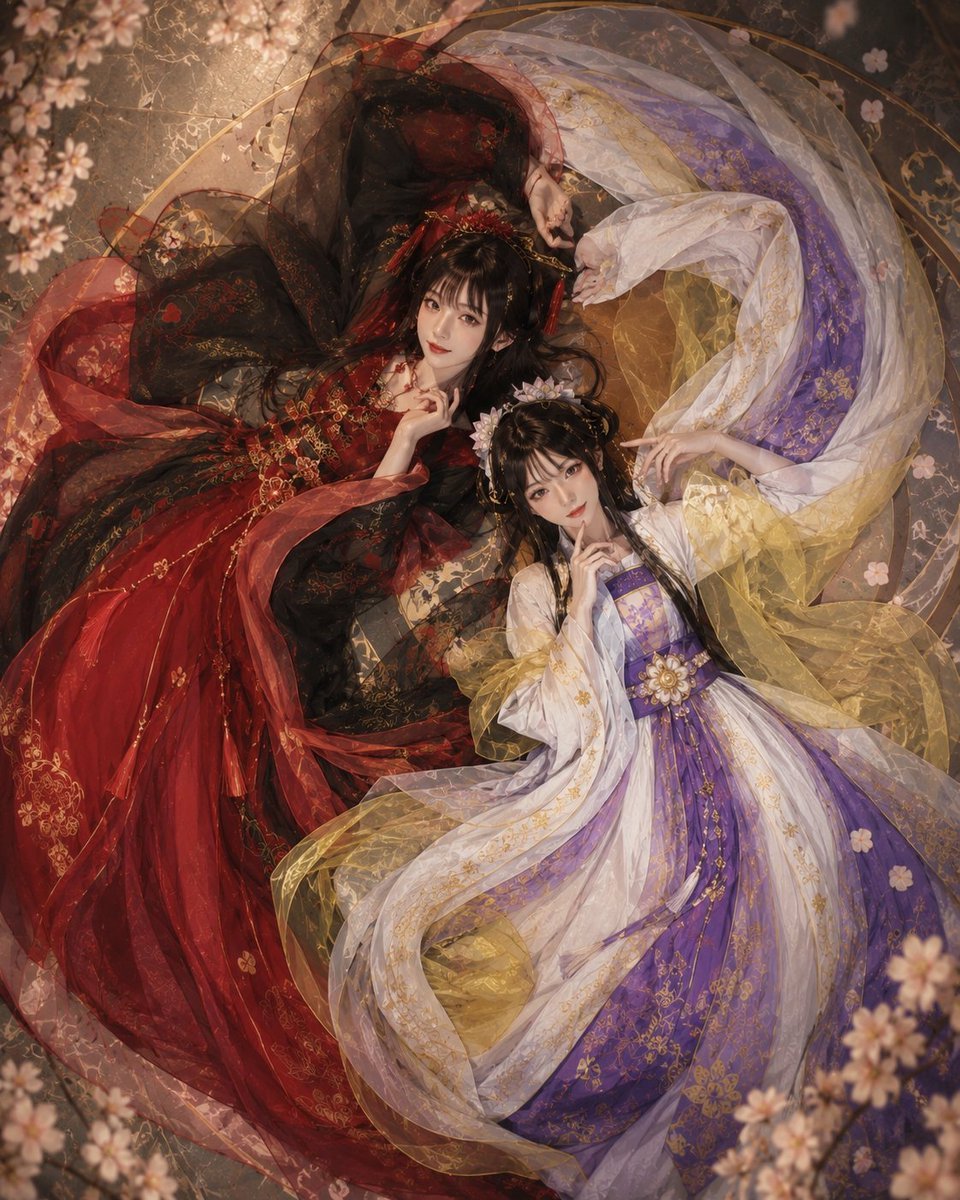
Overhead Fantasy Hanfu Cosplay Duo
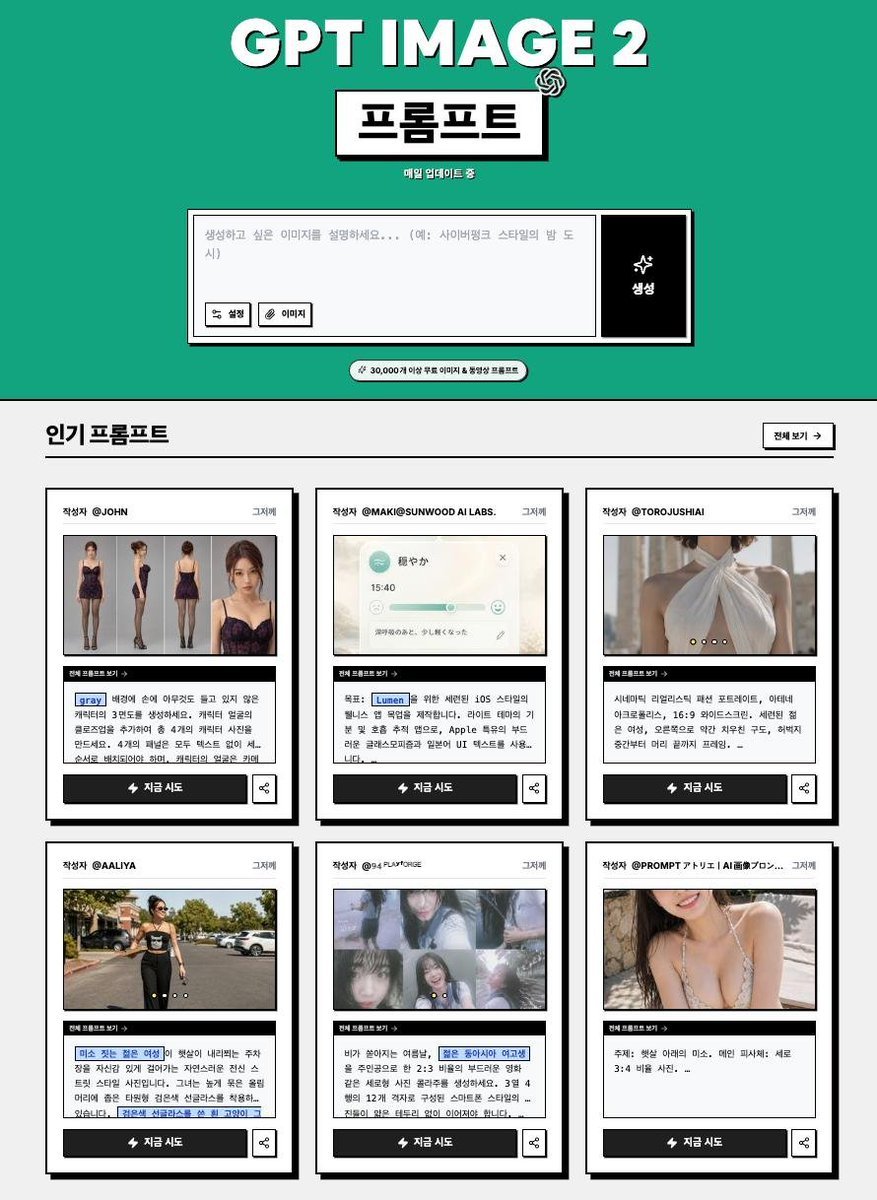
Korean GPT Image Prompt Gallery
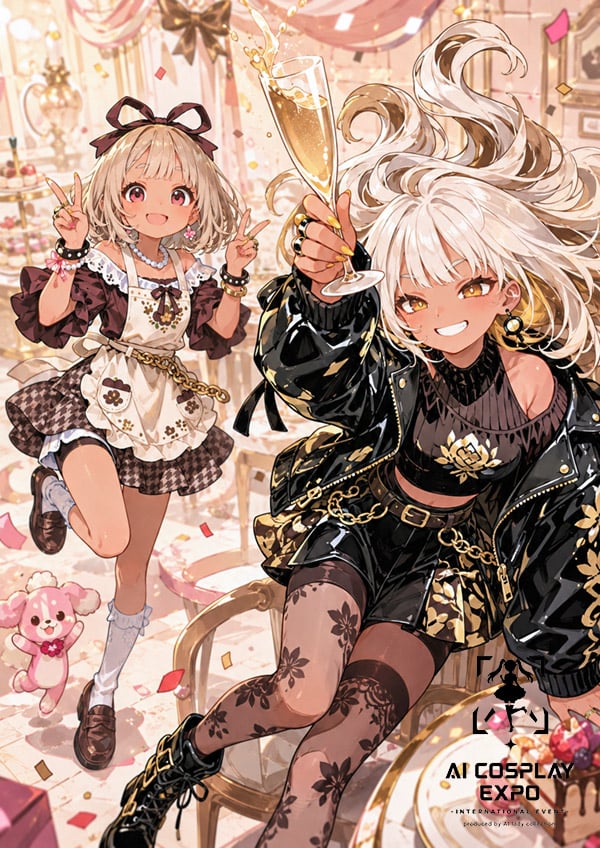
Faceless Anime Cosplay Expo Duo
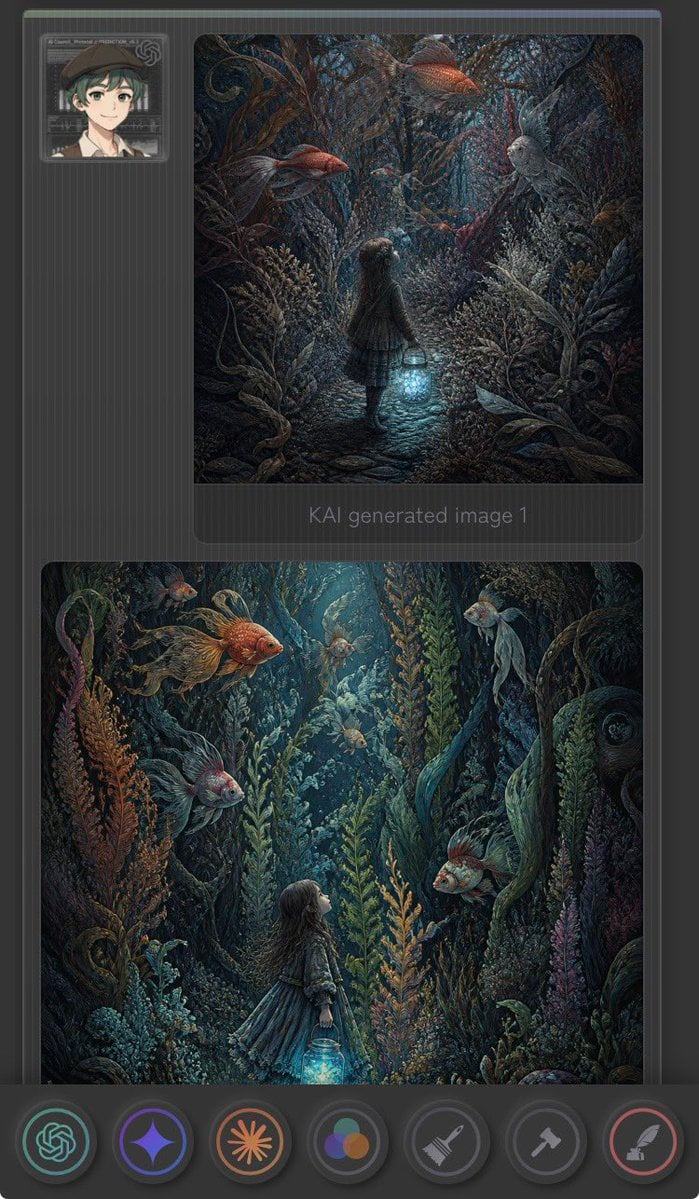
Dark Fantasy AI Gallery UI
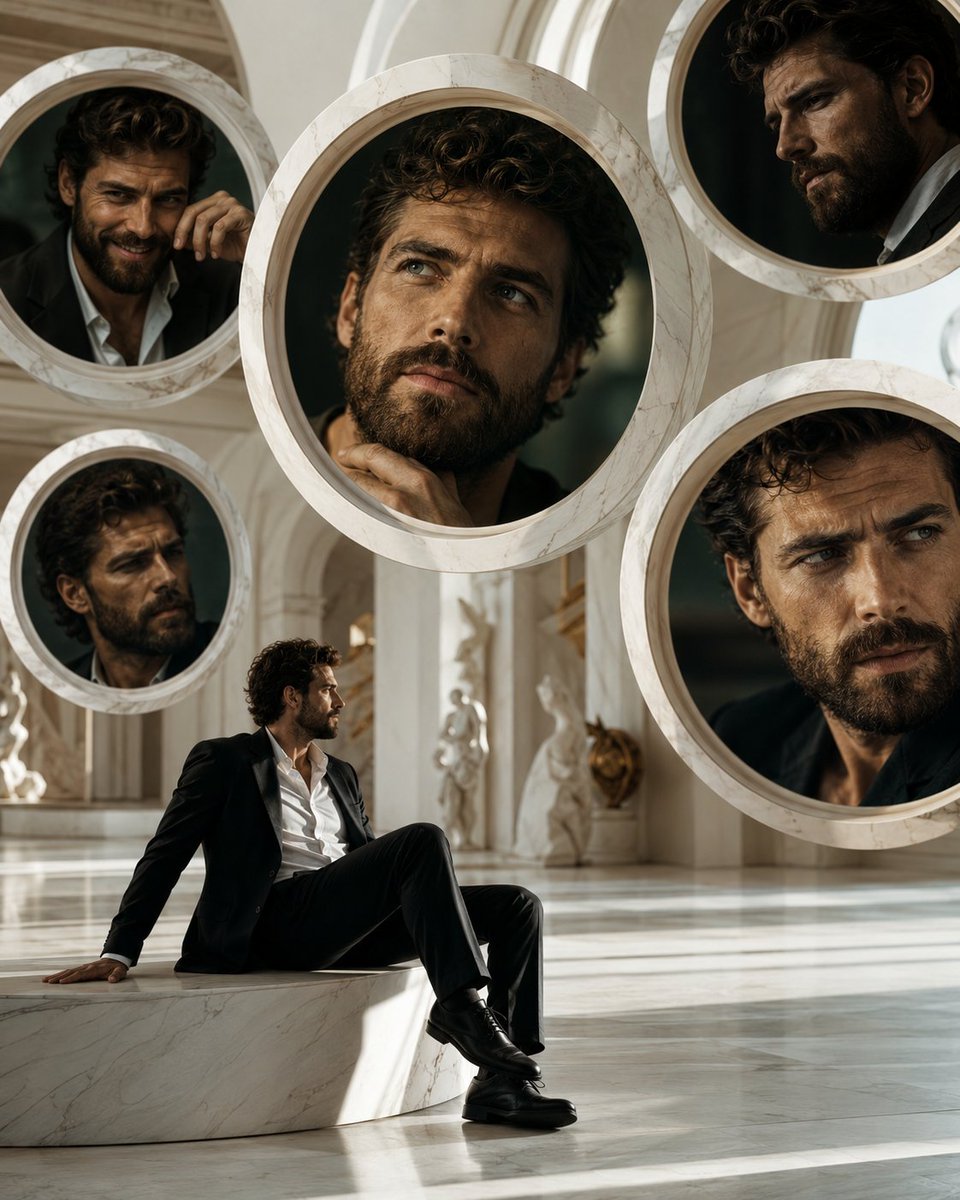
Surreal Marble Gallery Portals
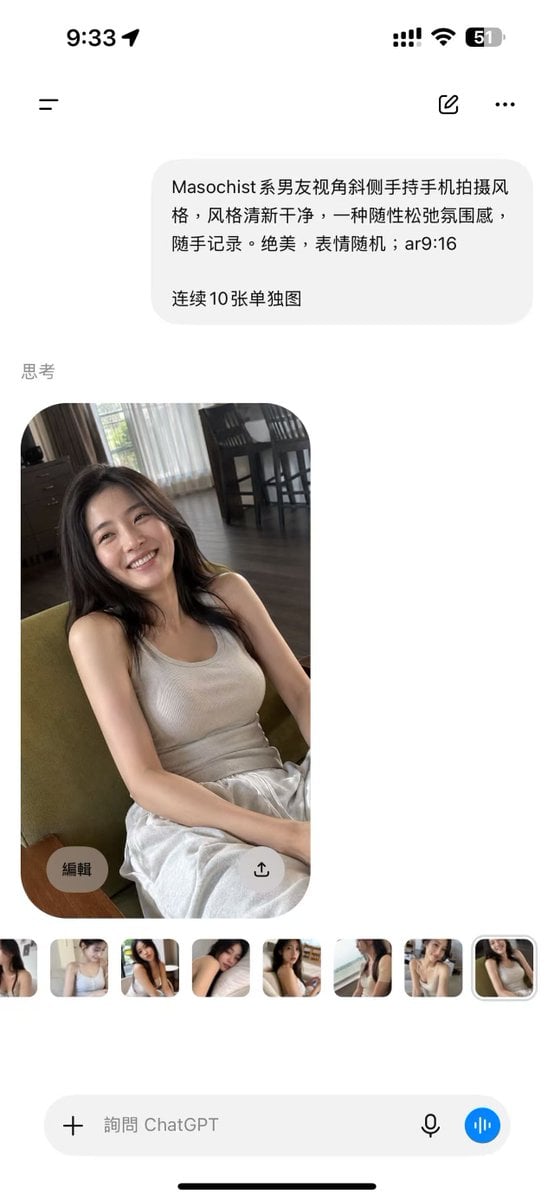
ChatGPT Mobile Photo Carousel Screenshot

ChatGPT Bonus Banner Screenshot
Make it yours
Cosplay Prompt Gallery Screenshot works as-is. These are the safest ways to change it without losing the look.
Change one field
Copy a single group, rewrite it, and generate again so you can see what that field is doing.
Keep the frame, change the subject
Hold the composition and light of Cosplay Prompt Gallery Screenshot, then swap wardrobe, props or the person for a new take.
| If the result… | Why | Fix |
|---|---|---|
| The result drifts from the preview | Too many fields changed at once. | Reuse Cosplay Prompt Gallery Screenshot as-is first, then change one group — subject, light, or setting. |
| The model over-stylizes the scene | The prose prompt leaves finish and camera underspecified. | Add one camera or lighting sentence and stay on GPT Image 2. |
More GPT Image 2 templates
Other prompts made for GPT Image 2.

Six VTuber Japanese Logo Sheet

Realistic Portrait of Woman and Deer

The Vista Modular Condo Poster

AI Model Routing Comparison Infographic

2.5D Anime Art Board

Isometric Productivity Desk Scene

New York Double Exposure Poster

Four-Panel AI Landscape Comparison

Japanese Tatami Lifestyle Magazine Cover

NESCAFÉ Coffee Map Poster
More image prompts
Fresh picks from across the catalog.
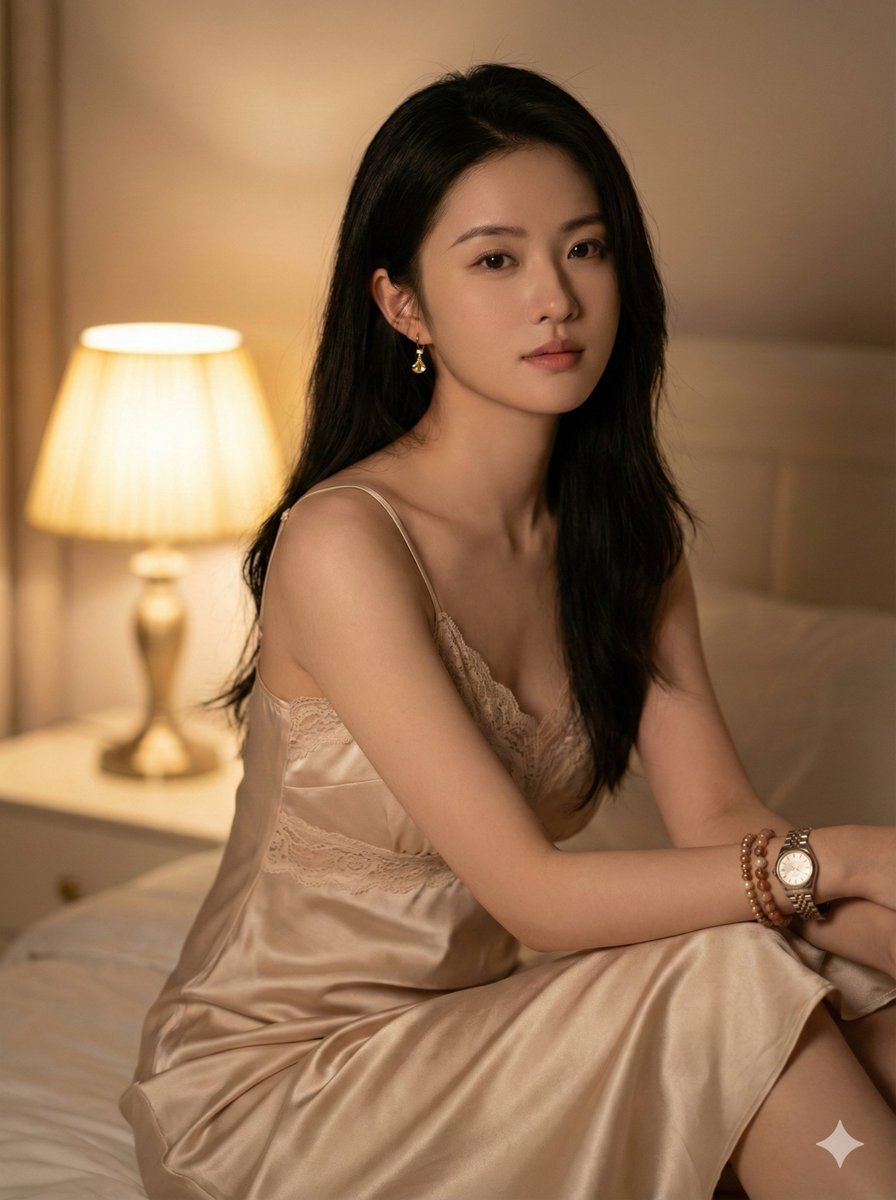
Photorealistic Indoor Portrait with Warm Cinematic Lighting
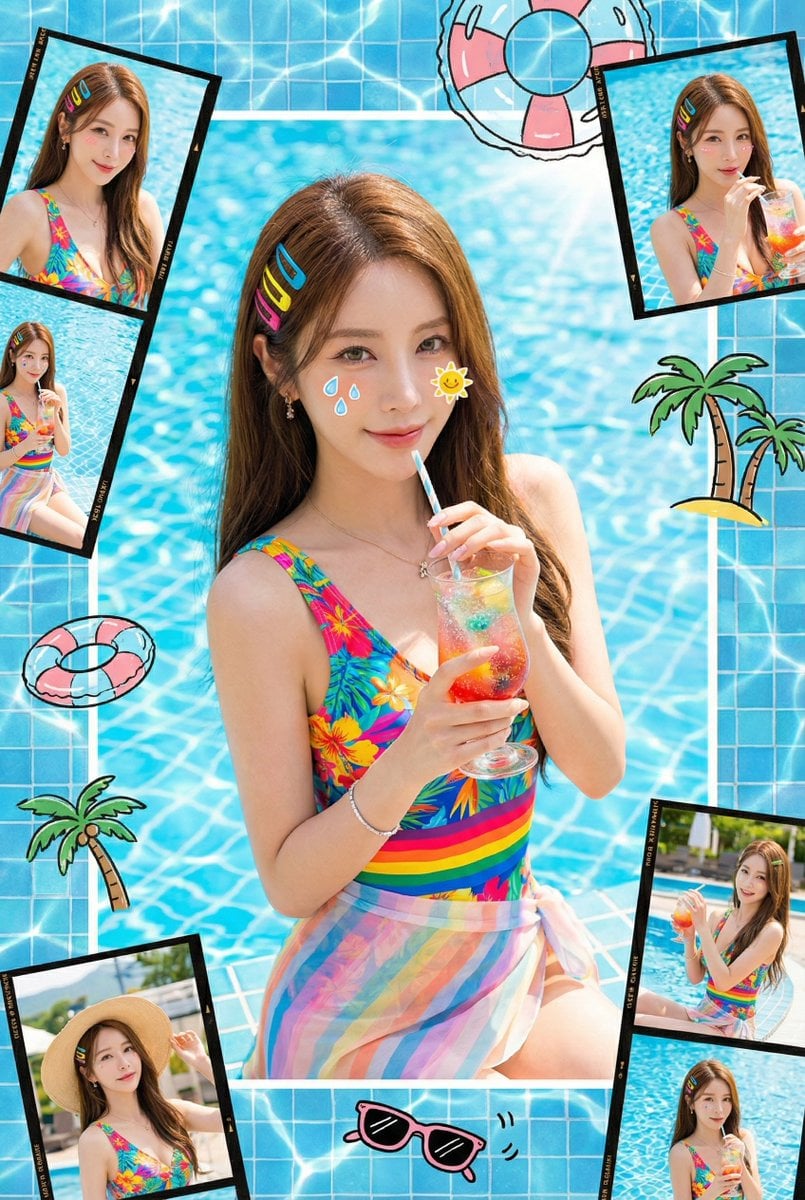
Summer Dopamine Fresh Style Collage Prompt for Nano Banana Pro
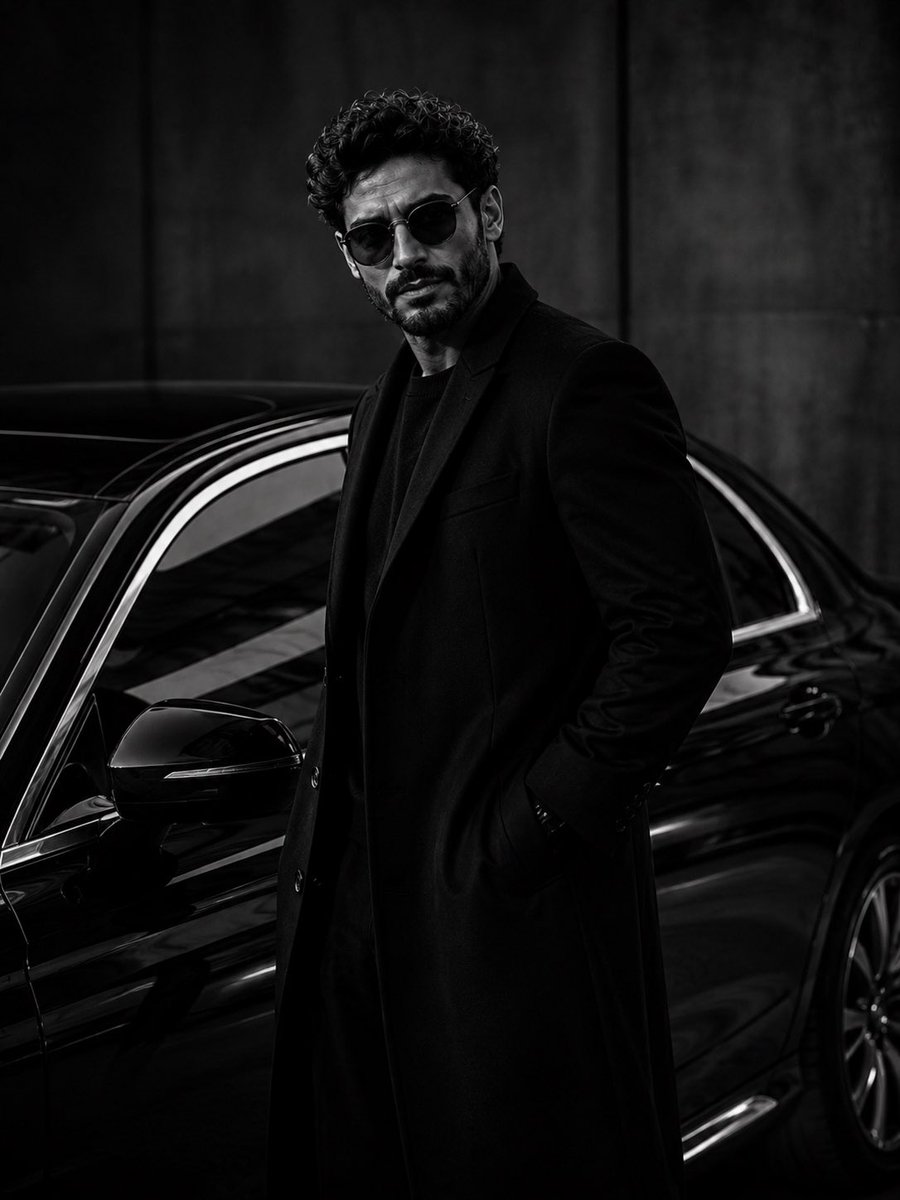
Ultra-Luxury Monochrome Fashion Editorial
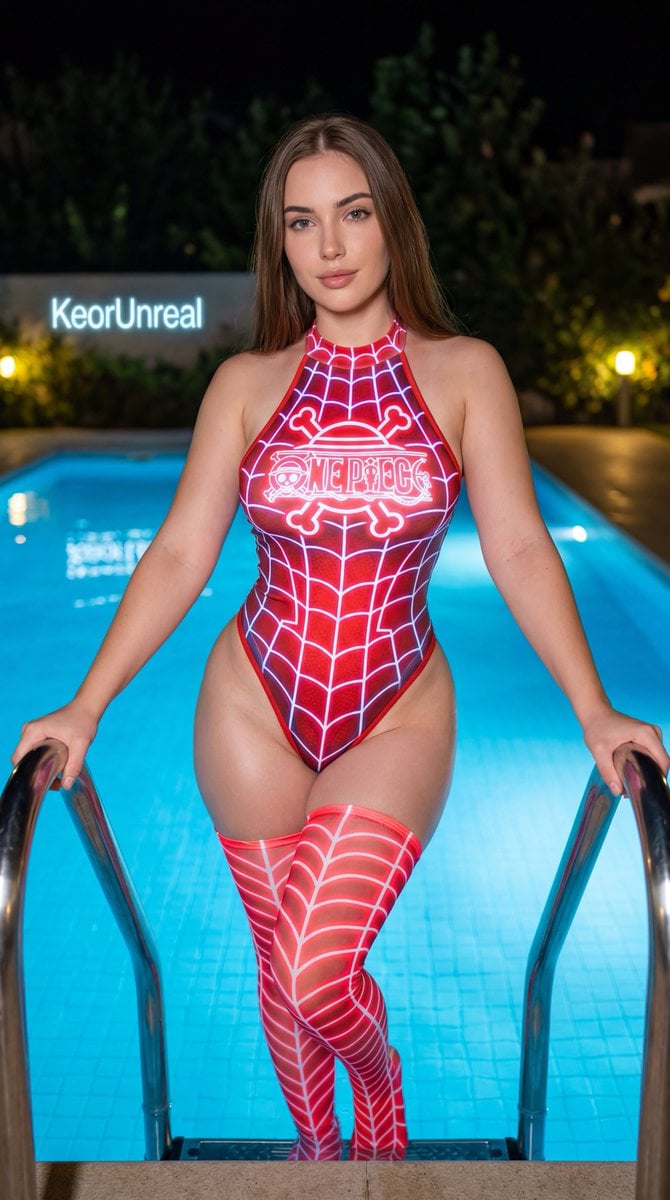
Neon Red One Piece Bodysuit at Night Pool
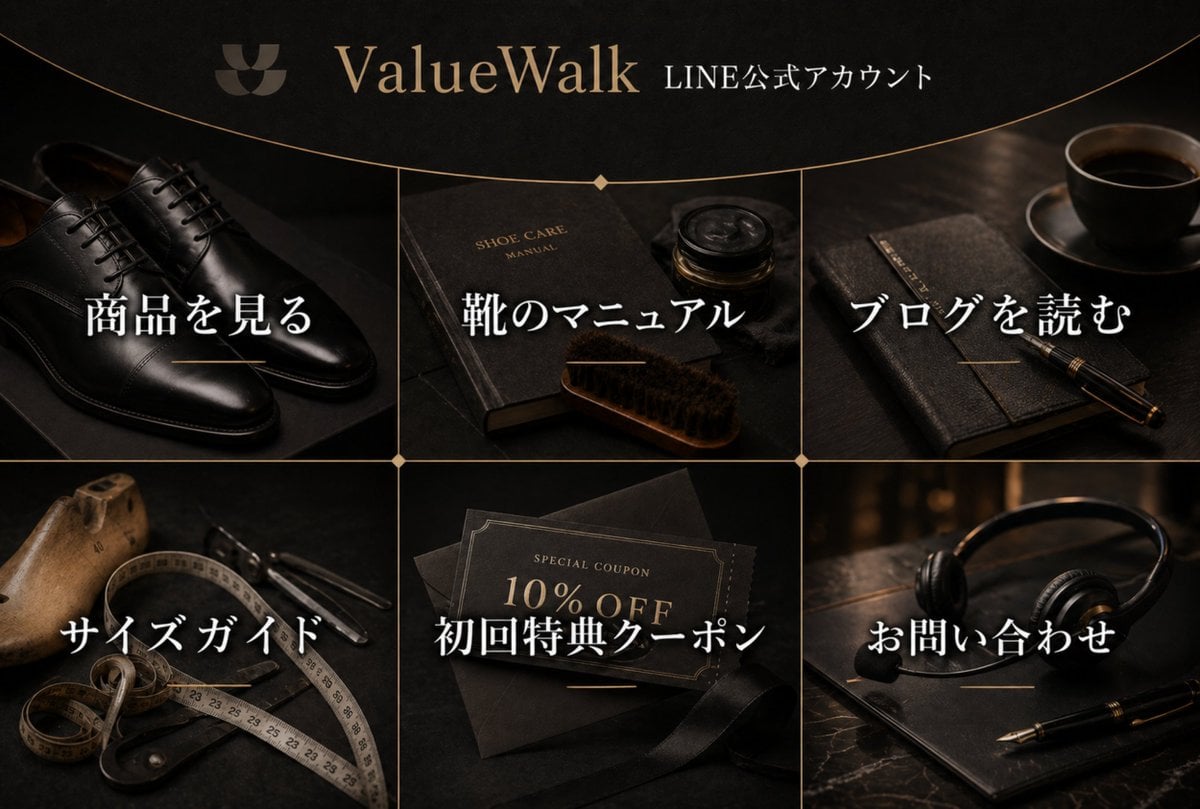
Luxury Shoe Brand LINE Rich Menu
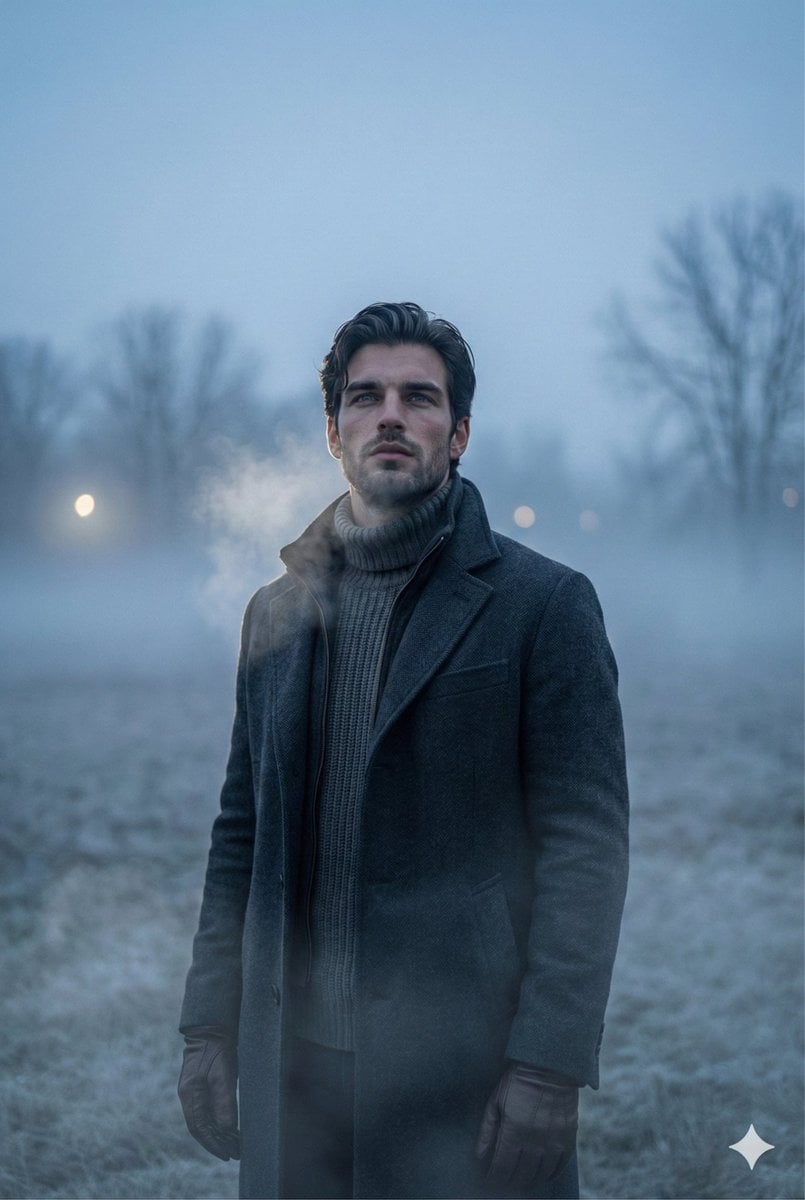
Transform Portrait into 3D Action Figure

Magazine Cover Generation for Kobe Tourism
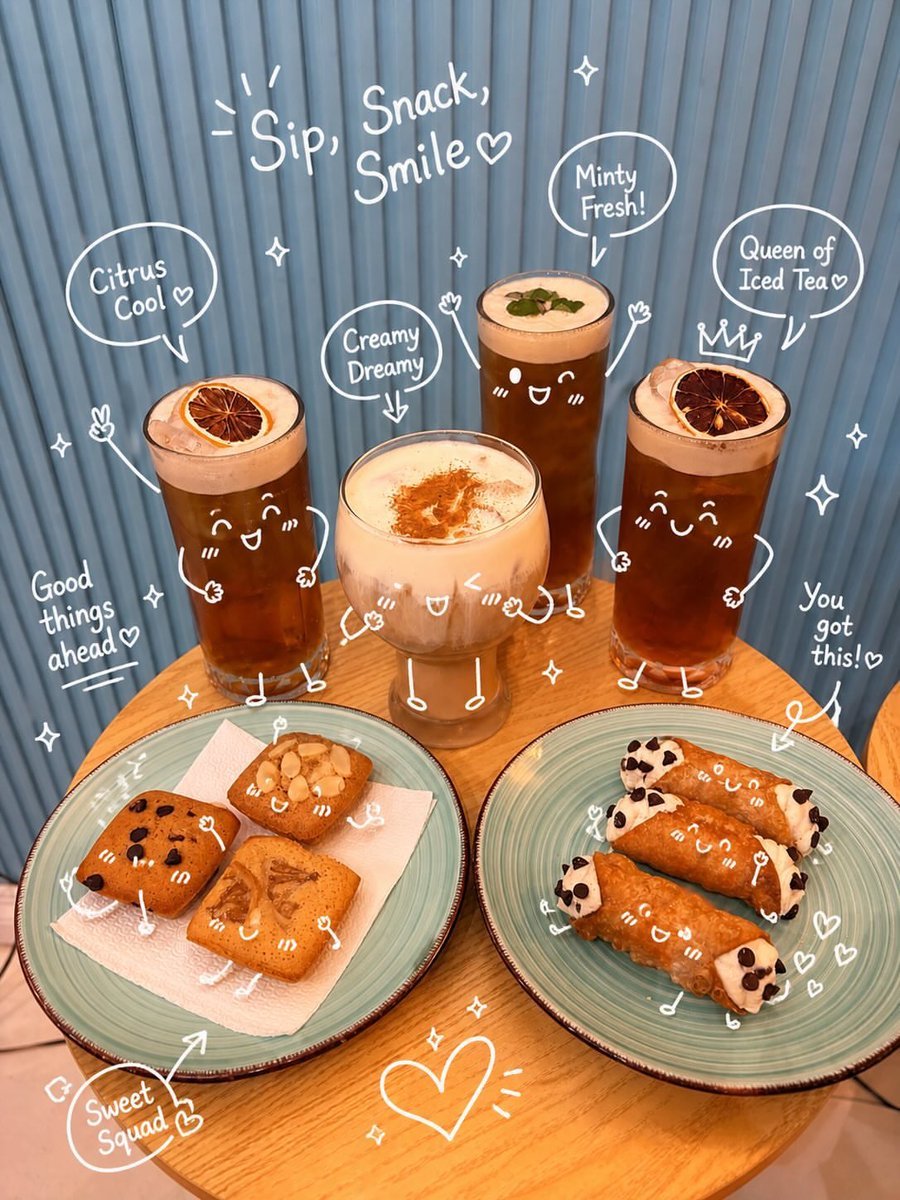
Interactive Hand-Drawn Doodle Overlay
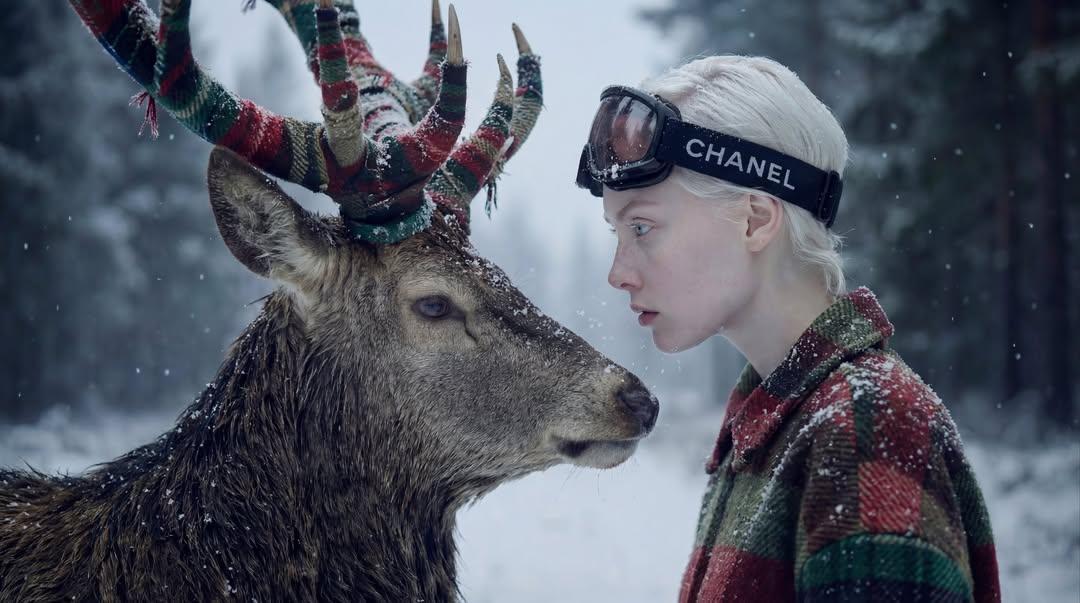
Hyper-Realistic Winter Fantasy Portrait Prompt
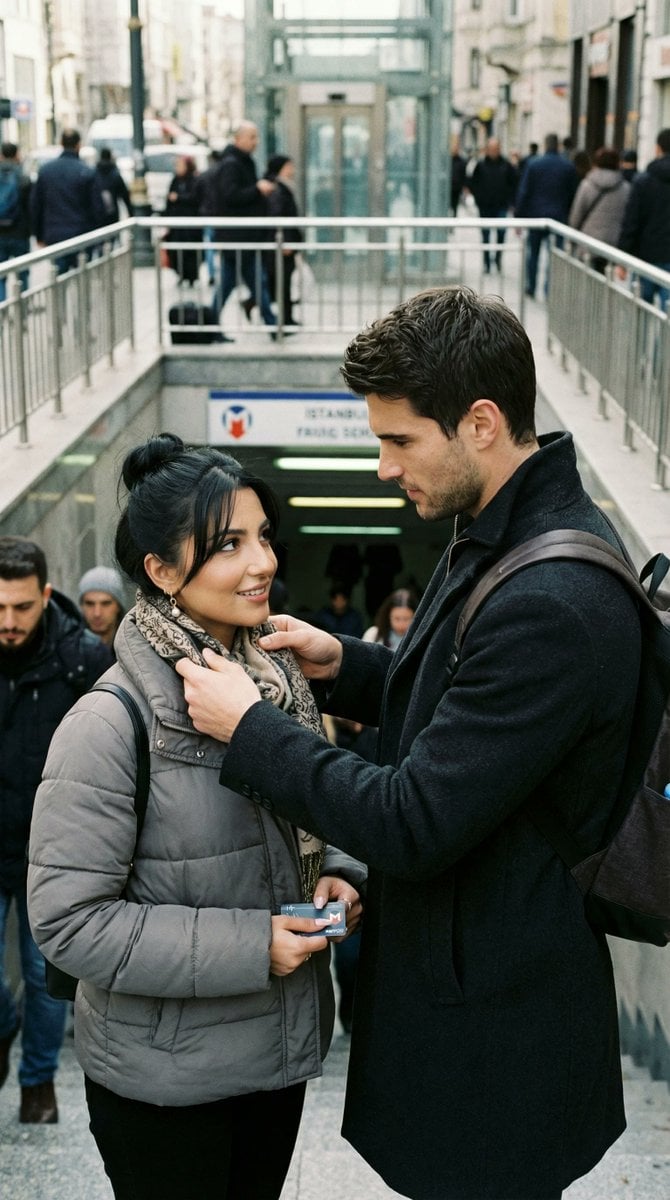
Candid Street Romance Prompt (Istanbul Metro)
Browse template categories
Cosplay Prompt Gallery Screenshot questions
How do I use the Cosplay Prompt Gallery Screenshot template?
Add your photo if the template asks for one, edit the prompt if you like — the template's model and format are already selected — and press Generate. Your version opens in PicX Studio.
Can I customize the Cosplay Prompt Gallery Screenshot template?
Yes. You can change the subject, setting, lighting, mood, format, and available model controls before creating your image.
Is the Cosplay Prompt Gallery Screenshot template free?
Opening and editing this template is free. Generating uses credits, shown on the Generate button when you are signed in.
Which AI model should I use?
Start with GPT Image 2, which is the model associated with this template. You can compare another compatible model for a different finish.
Looking for something else? Browse all templates.

Your photo, any look
Thousands of ready templates for every top image and video model, from one credit balance.