
Dark Fantasy AI Gallery UI
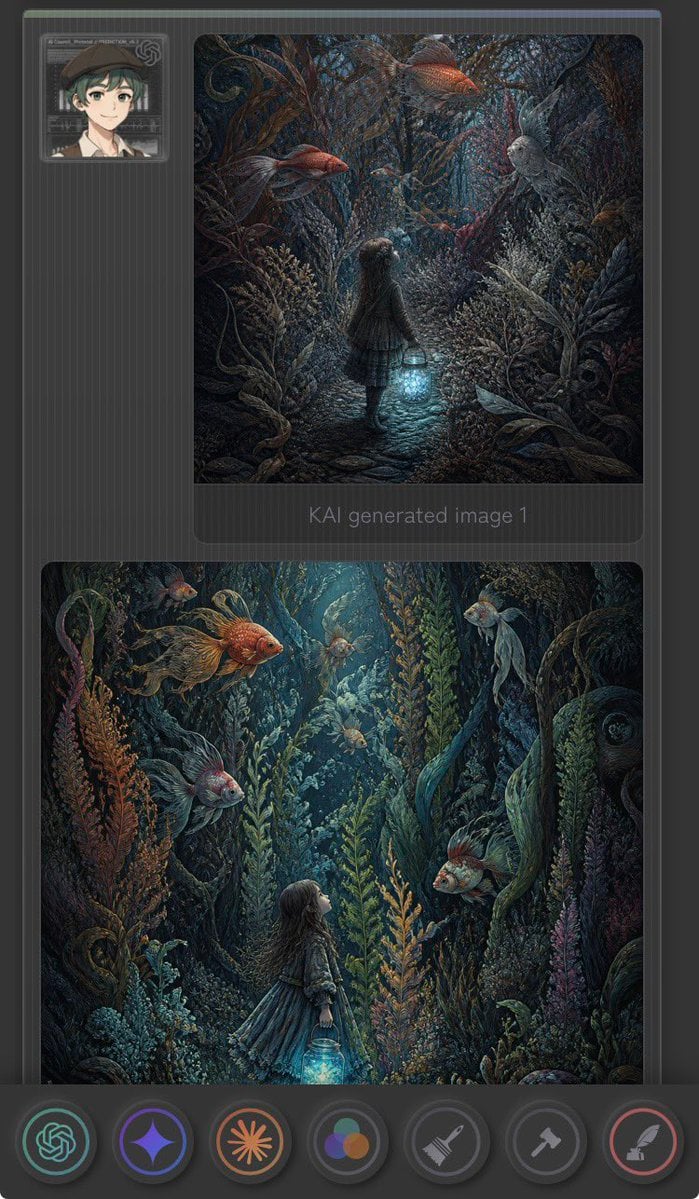
A prompt for creating a vertical mobile gallery interface featuring two enchanted underwater forest illustrations with a lantern girl and goldfish.
- Prompt included
- Model and format preset
- Premium template
The prompt behind this image
Copy the exact prompt behind Dark Fantasy AI Gallery UI, or open it in the studio and make it yours.
Create a vertical dark mobile app-style gallery screenshot showing two fantasy AI-generated images inside a charcoal interface. Canvas is tall 9:16 with rounded corners, dark grey background, subtle vertical pinstripe texture, thin top status-like color strip, and soft UI shadows. At the upper left place one small square user avatar card: an anime-style young person with short dark green hair, beret, light skin, neutral smile, framed by a translucent futuristic ID-card border. Main layout contains exactly 2 large rounded image panels stacked vertically on the right/center: the first smaller square-ish panel near the top, the second larger nearly full-width panel below. Under the first panel include faint grey text reading “KAI generated Image 1”. The artwork in both panels should depict a dark enchanted underwater forest: a little girl in a dress holding a glowing blue lantern, surrounded by dense seaweed, coral-like plants, twisting roots, bubbles, and oversized floating goldfish. Use moody teal, navy, charcoal, copper-orange, and bioluminescent cyan lighting, with highly detailed painterly fantasy illustration style. In the top panel, show the girl from behind walking down a narrow cobblestone path into a tunnel of aquatic plants, holding the lantern low; include exactly 4 prominent fish: 2 orange goldfish near the top, 1 pale grey fish on the right, and 1 small dark fish near the center. In the bottom panel, show a closer vertical underwater scene with the girl in profile looking upward from the lower center-left while holding the glowing lantern; include exactly 6 visible fish: 1 large orange goldfish upper left, 1 small orange fish upper left background, 1 pale fish top center, 1 pale fish upper right, 1 grey fish lower left, and 1 orange-grey fish mid-right. Along the bottom place a floating dark toolbar with exactly 7 circular icon buttons: green OpenAI knot icon, purple sparkle/star icon, orange sunburst icon, multicolor three-circle palette icon, grey broom/brush icon, grey hammer icon, and red feather/quill icon. Make the interface slightly translucent and futuristic, but keep the fantasy images as the visual focus. No extra text, no watermark.
How to use Dark Fantasy AI Gallery UI in 3 steps
- 1Upload ImagePNG, JPG or paste
Add your photo
Upload the photo the template builds on. The prompt, model and format are already set.
- 2…a portrait of your subject in softgolden-hour light, 85mm…
Personalize
Edit the subject and creative details for your destination.
- 3Generate
Generate
Press Generate — your image is created in PicX Studio, so you can compare it with the original and refine one variable at a time.
More like this
Templates with the same subject, style or setup. Open one to see its prompt.
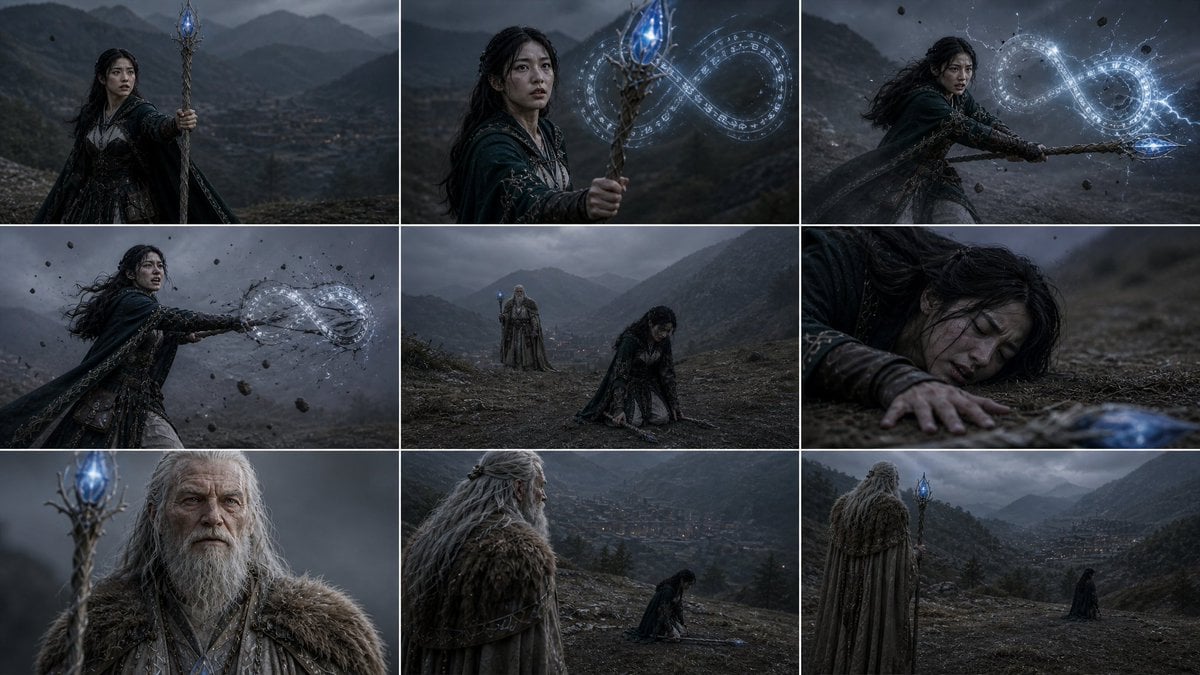
Dark Fantasy Sorceress Storyboard
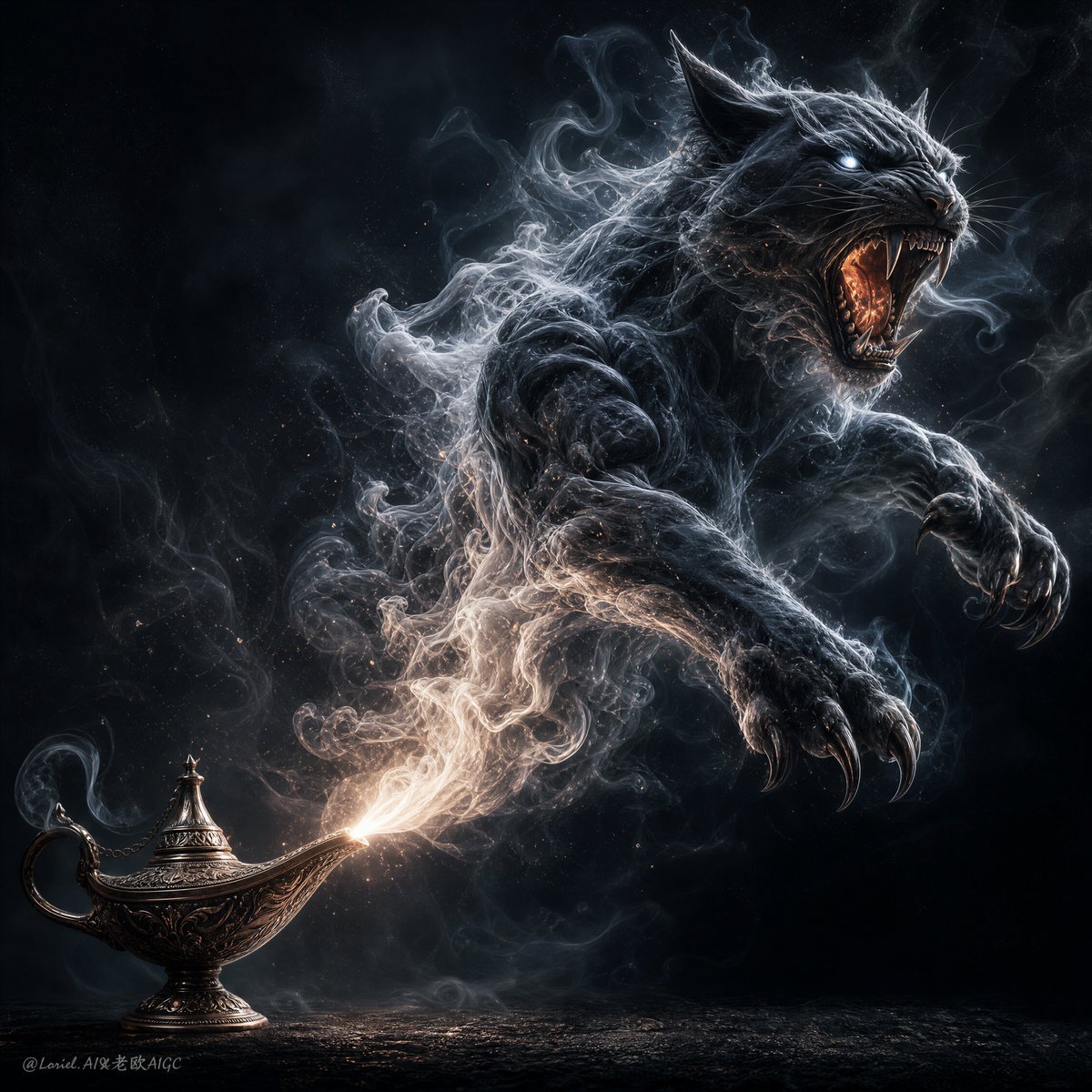
Dark Fantasy Smoke Monster Transformation
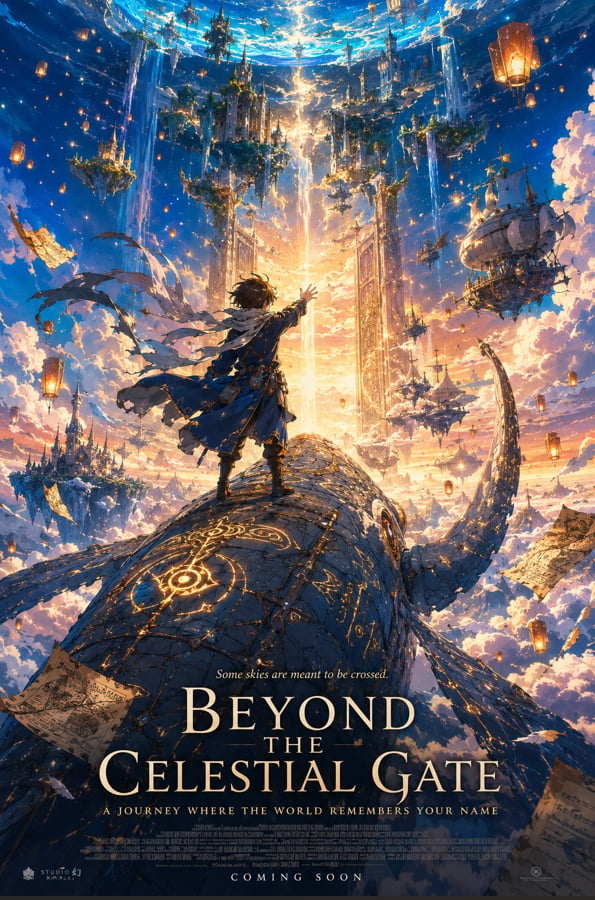
Anime Fantasy Celestial Movie Poster
Anime Fantasy Celestial Movie Poster
Selective Color Monochrome Football Poster
Minecraft Fantasy Kingdom Voxel Landscape
Unfinished Sketch Comes Alive Portrait
Open Travel Journal Overhead Still Life
Tiny Woman Miniature Fantasy Macro Scene
Dark Chinese Fantasy Desire Poster
Dark Fantasy PS5 RPG Cover Art
Dark Eastern Fantasy Zhao Ling'er Poster
Make it yours
Dark Fantasy AI Gallery UI works as-is. These are the safest ways to change it without losing the look.
Change one field
Copy a single group, rewrite it, and generate again so you can see what that field is doing.
Keep the frame, change the subject
Hold the composition and light of Dark Fantasy AI Gallery UI, then swap wardrobe, props or the person for a new take.
| If the result… | Why | Fix |
|---|---|---|
| The result drifts from the preview | Too many fields changed at once. | Reuse Dark Fantasy AI Gallery UI as-is first, then change one group — subject, light, or setting. |
| The model over-stylizes the scene | The prose prompt leaves finish and camera underspecified. | Add one camera or lighting sentence and stay on GPT Image 2. |
More GPT Image 2 templates
Other prompts made for GPT Image 2.
Six VTuber Japanese Logo Sheet
Realistic Portrait of Woman and Deer
The Vista Modular Condo Poster
AI Model Routing Comparison Infographic
2.5D Anime Art Board
Isometric Productivity Desk Scene
New York Double Exposure Poster
Four-Panel AI Landscape Comparison
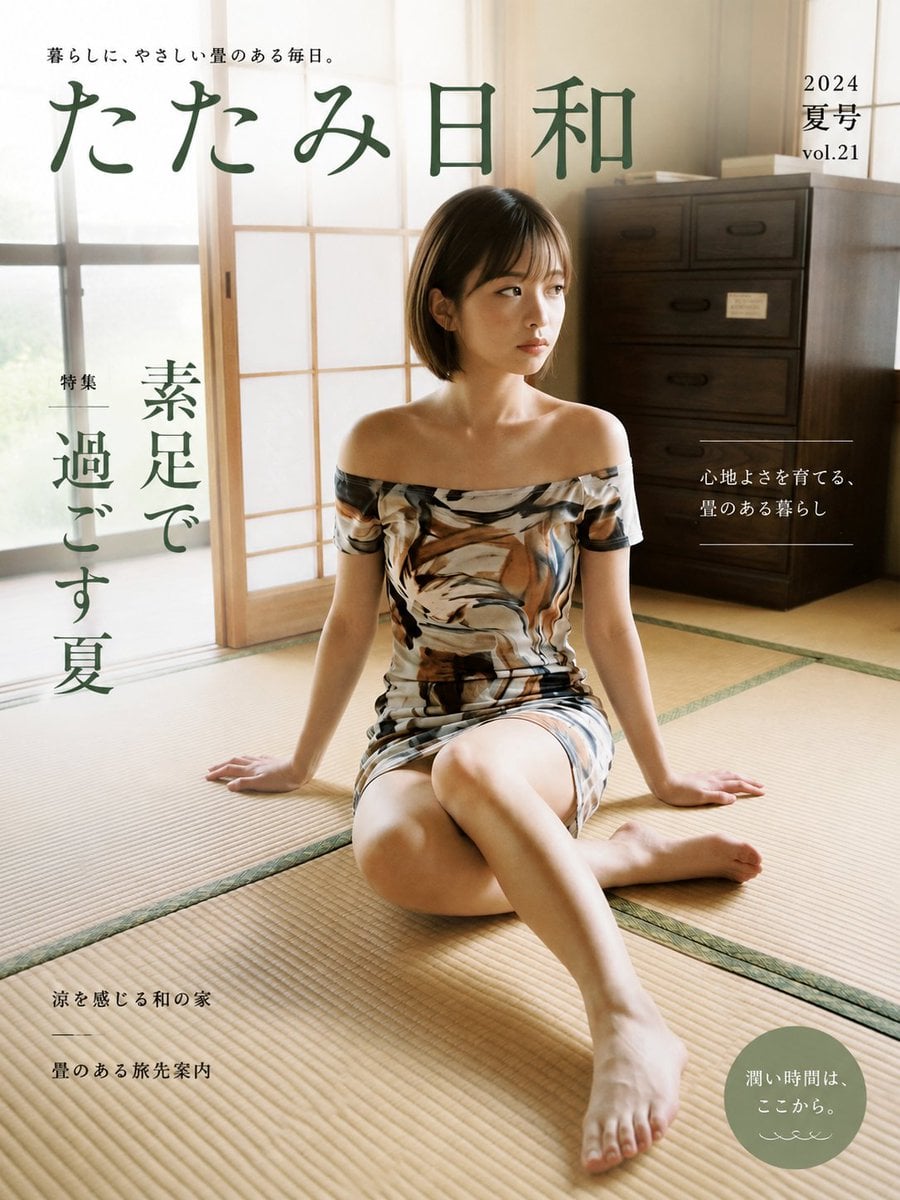
Japanese Tatami Lifestyle Magazine Cover
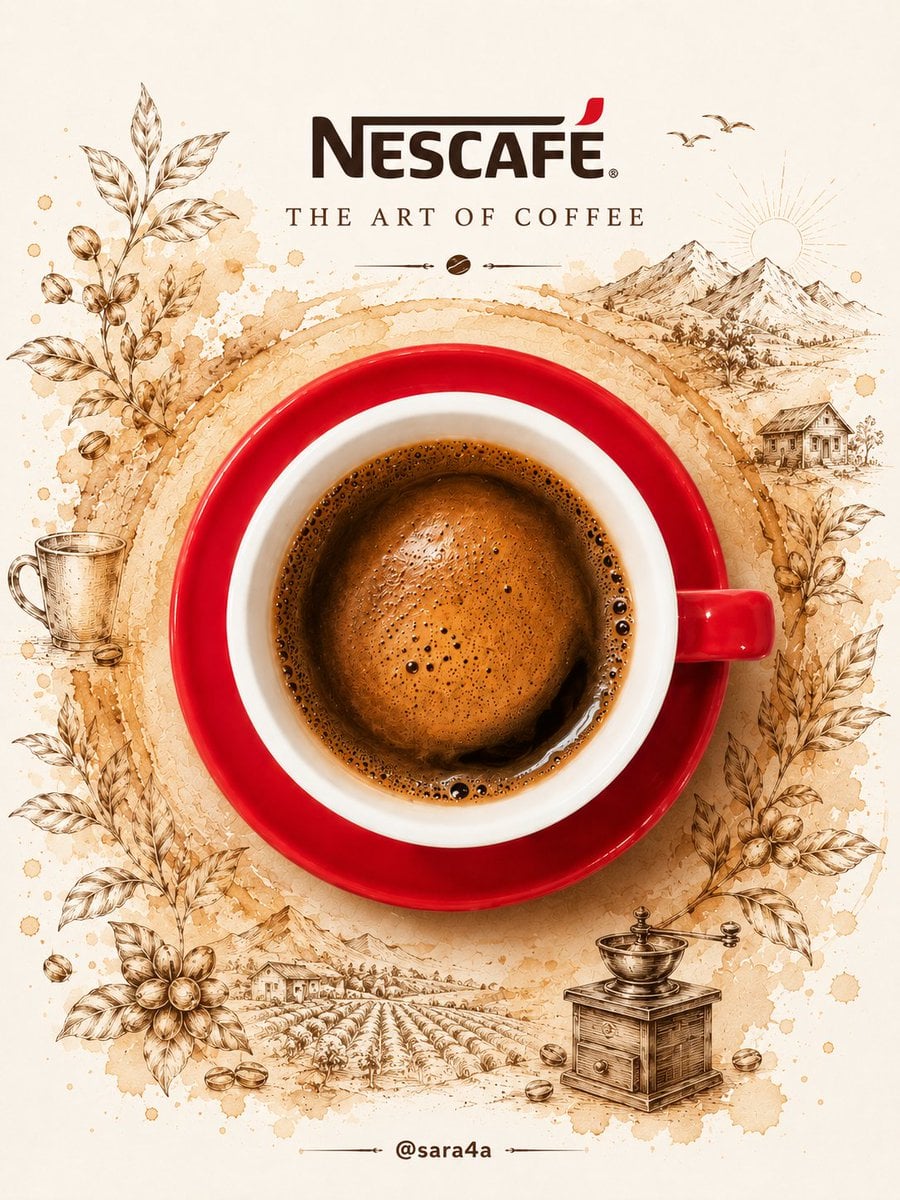
NESCAFÉ Coffee Map Poster
More image prompts
Fresh picks from across the catalog.
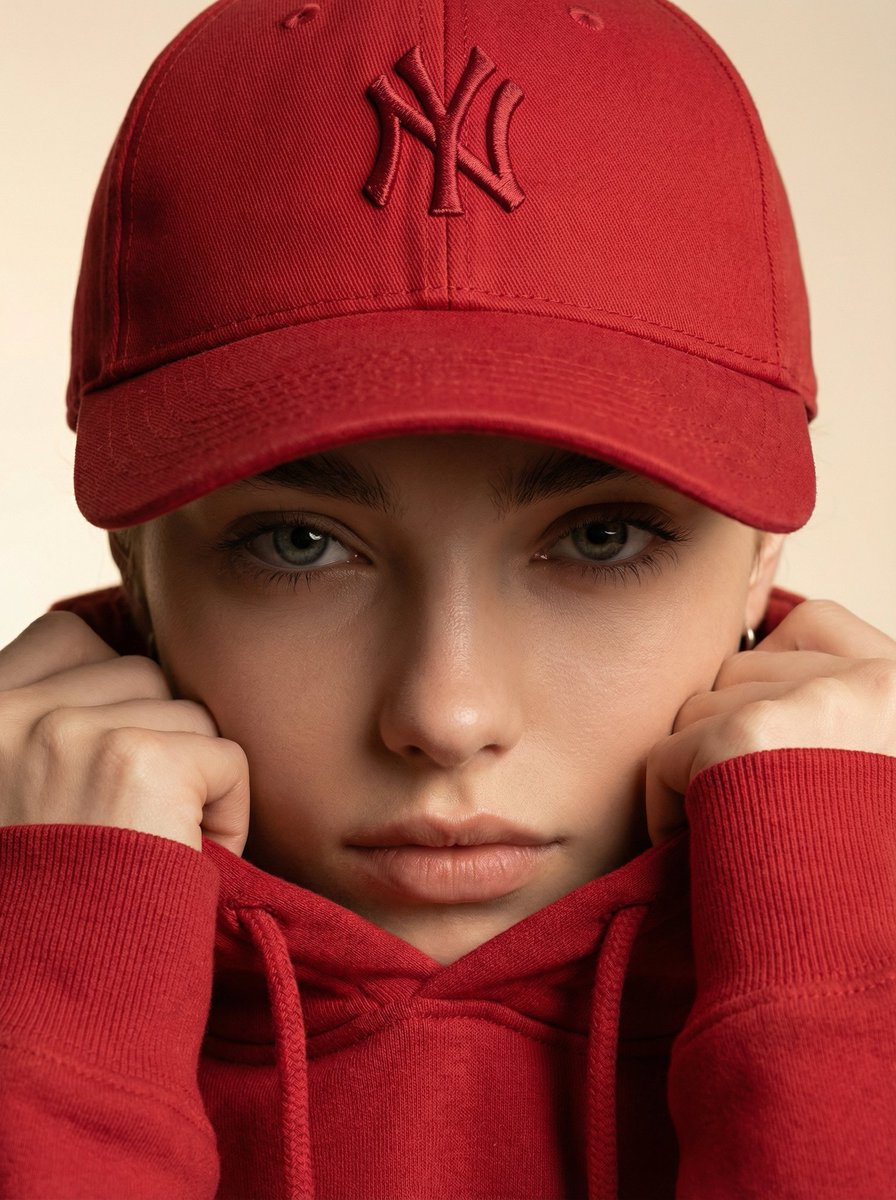
Ultra-Realistic Fashion Beauty Crop
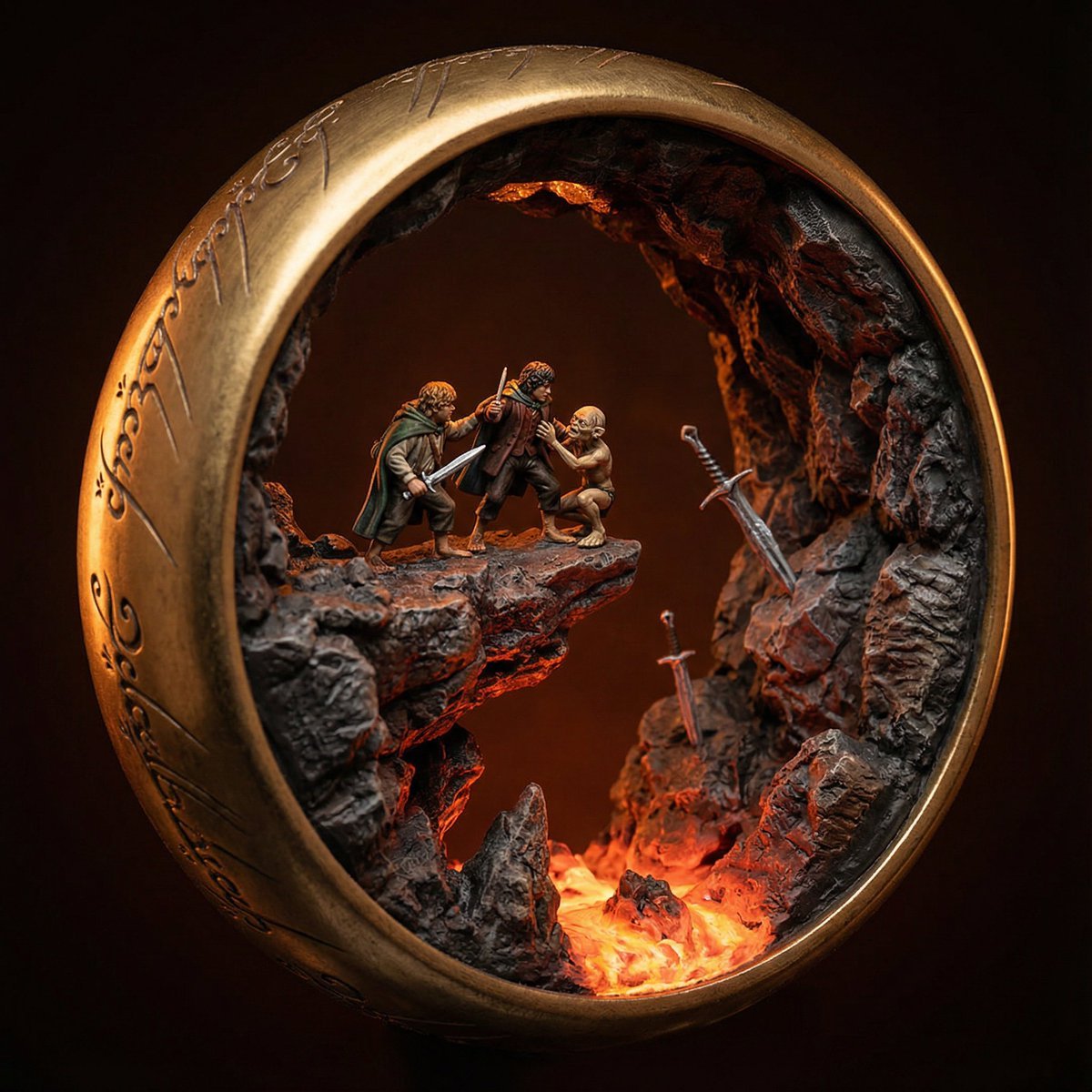
High-Concept 3D Diorama Prompt for Movies and Games
Structured Prompting Guide for Nano Banana Pro
Vertical Street Portrait of a Young Woman
Exploding Food Commercial Photography
Surreal Patio Portrait with Crow and Dog
Cute Underwater Mermaid Puppy Game UI
Vintage Flash Couple Portrait with Identity Lock Prompt
French New Wave Protest Film Poster
Image Editing Prompt for Mirror Seam Removal
Browse template categories
Dark Fantasy AI Gallery UI questions
How do I use the Dark Fantasy AI Gallery UI template?
Add your photo if the template asks for one, edit the prompt if you like — the template's model and format are already selected — and press Generate. Your version opens in PicX Studio.
Can I customize the Dark Fantasy AI Gallery UI template?
Yes. You can change the subject, setting, lighting, mood, format, and available model controls before creating your image.
Is the Dark Fantasy AI Gallery UI template free?
Opening and editing this template is free. Generating uses credits, shown on the Generate button when you are signed in.
Which AI model should I use?
Start with GPT Image 2, which is the model associated with this template. You can compare another compatible model for a different finish.
Looking for something else? Browse all templates.
Your photo, any look
Thousands of ready templates for every top image and video model, from one credit balance.