
Retro Japanese Release Poster Edit
This prompt turns a rough promo layout into a finished retro Japanese music poster with upgraded vintage typography, decorative borders, and aged print styling.
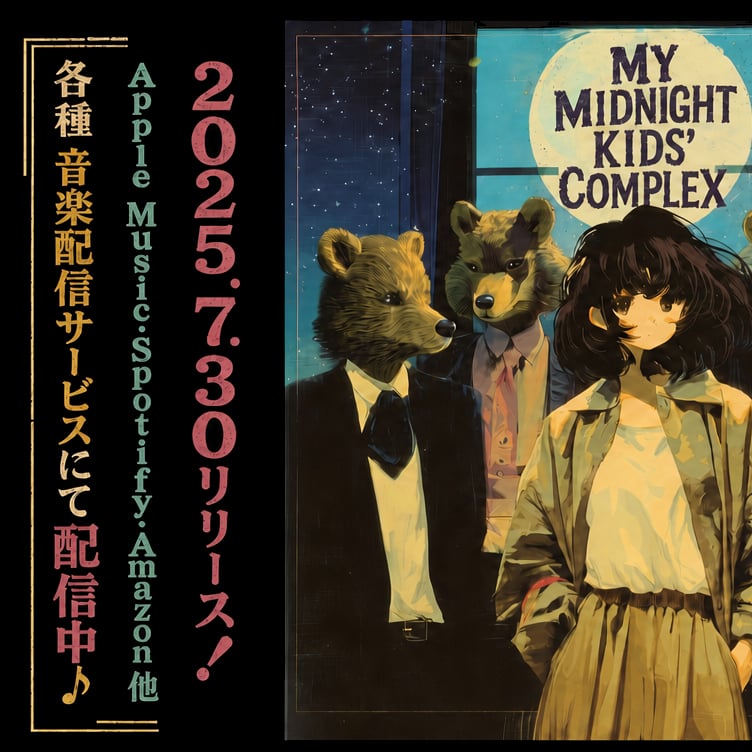
- Prompt included
- Model and format preset
- Free template
The prompt behind this image
Copy the exact prompt behind Retro Japanese Release Poster Edit, or open it in the studio and make it yours.
Using the provided reference image, redesign it as a polished retro Japanese music-release poster while preserving the same split layout, the same illustrated band artwork on the right, and the same overall composition. Upgrade the typography from plain placeholder text into authentic vintage poster styling: add distressed print texture, uneven ink, and a slightly worn screen-printed look. Keep the 3 vertical text columns on the left, but restyle them with stronger hierarchy and color separation: the Japanese service-announcement column in warm gold, the platform list in muted teal, and the date/release column in dusty pink. Change the bottom of the left Japanese column from the original release-start message to 「配信中♪」 and emphasize it in larger pink type with a musical note. Add thin gold decorative border lines and corner ornaments framing the left text block. On the right panel, keep the title text in the moon area but restyle it into bold distressed retro lettering that reads “MY MIDNIGHT KIDS’ COMPLEX.” Apply a cohesive nostalgic poster finish across the whole image: subtle paper grain, faded edges, light scratches, slightly darkened borders, and richer vintage teal/gold/pink color grading.
Reference images included
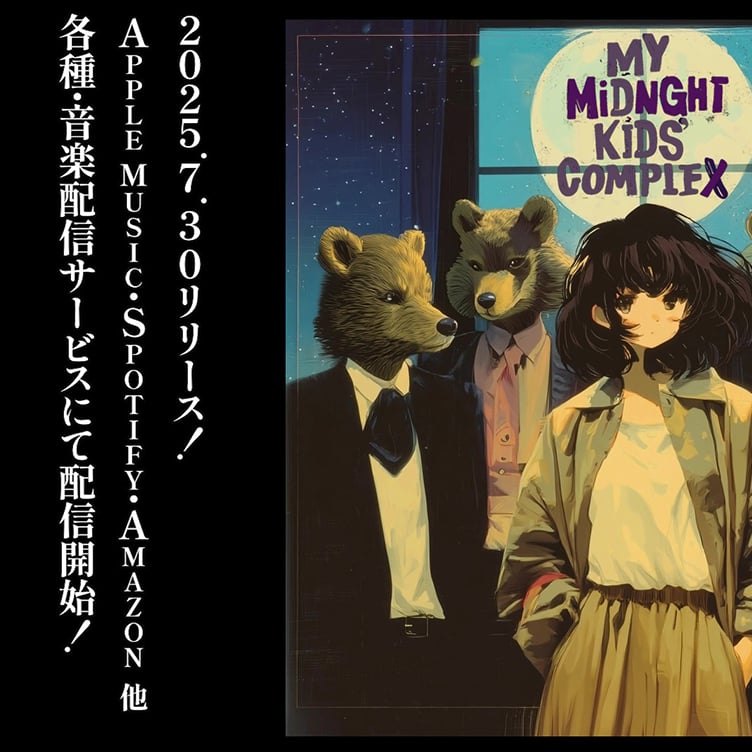
Retro Japanese Release Poster Edit needs input media to work. They load alongside the prompt when you open it in the studio.
How to use Retro Japanese Release Poster Edit in 3 steps
- 1Upload ImagePNG, JPG or paste
Add your photo
Upload the photo the template builds on. The prompt, model and format are already set.
- 2…a portrait of your subject in softgolden-hour light, 85mm…
Personalize
Edit the subject and creative details for your destination.
- 3Generate
Generate
Press Generate — your image is created in PicX Studio, so you can compare it with the original and refine one variable at a time.
More like this
Templates with the same subject, style or setup. Open one to see its prompt.
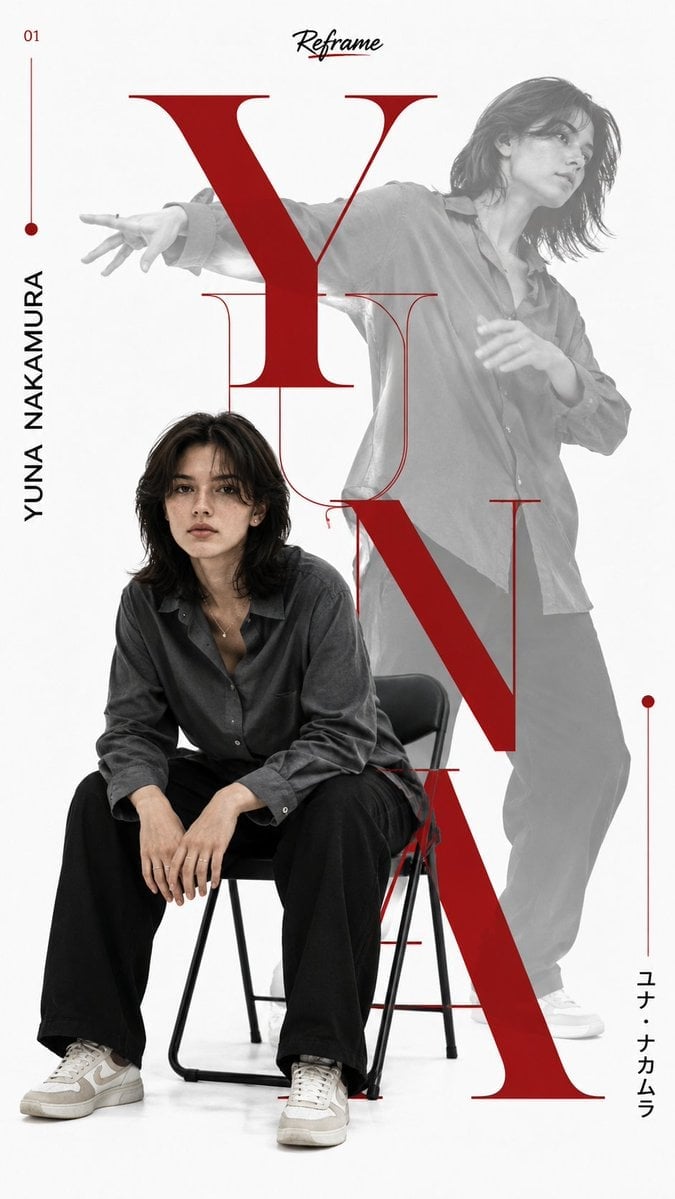
Japanese Minimalist Editorial Fashion Poster
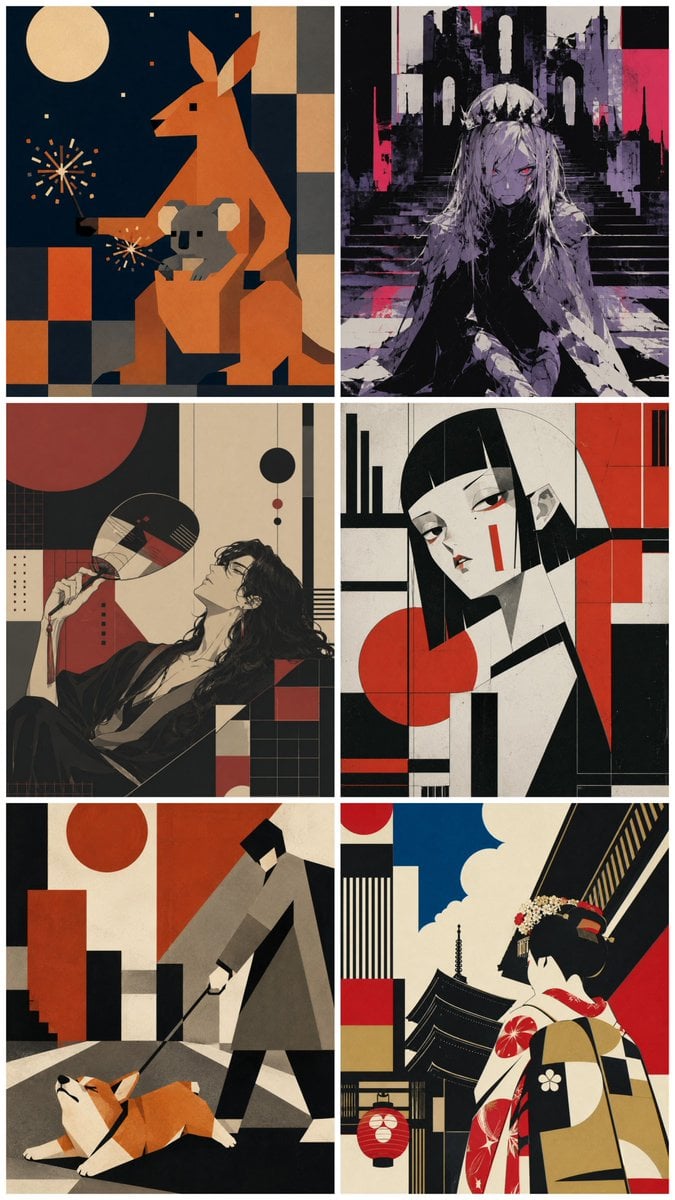
Six-Panel Retro Japanese Poster Collage
Credit Card Levitation
Sunday Afternoon, 1988
Two Tickets, One Night
If We Met in 1985

Found Photograph: Us, 1970
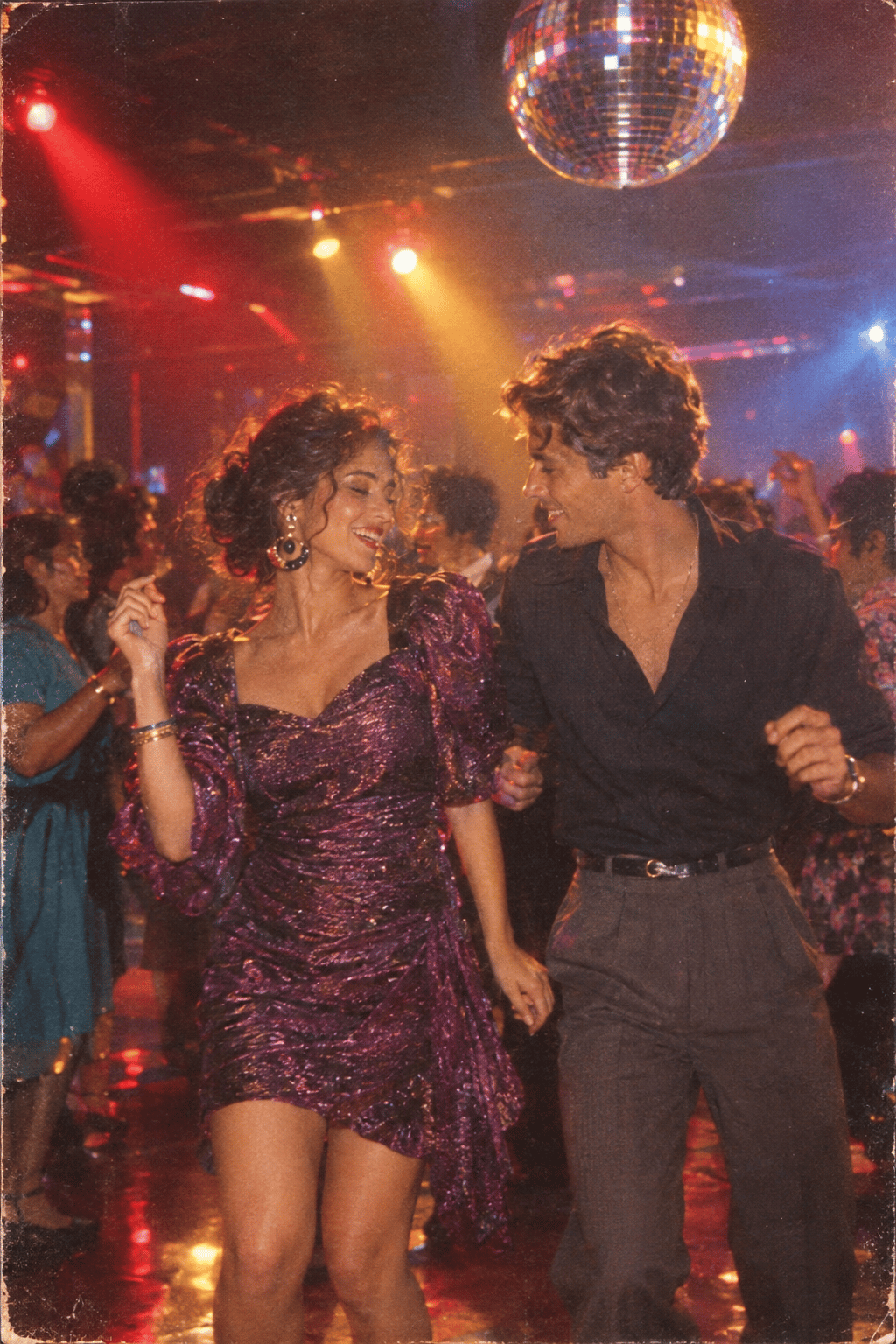
One Dance Before Midnight
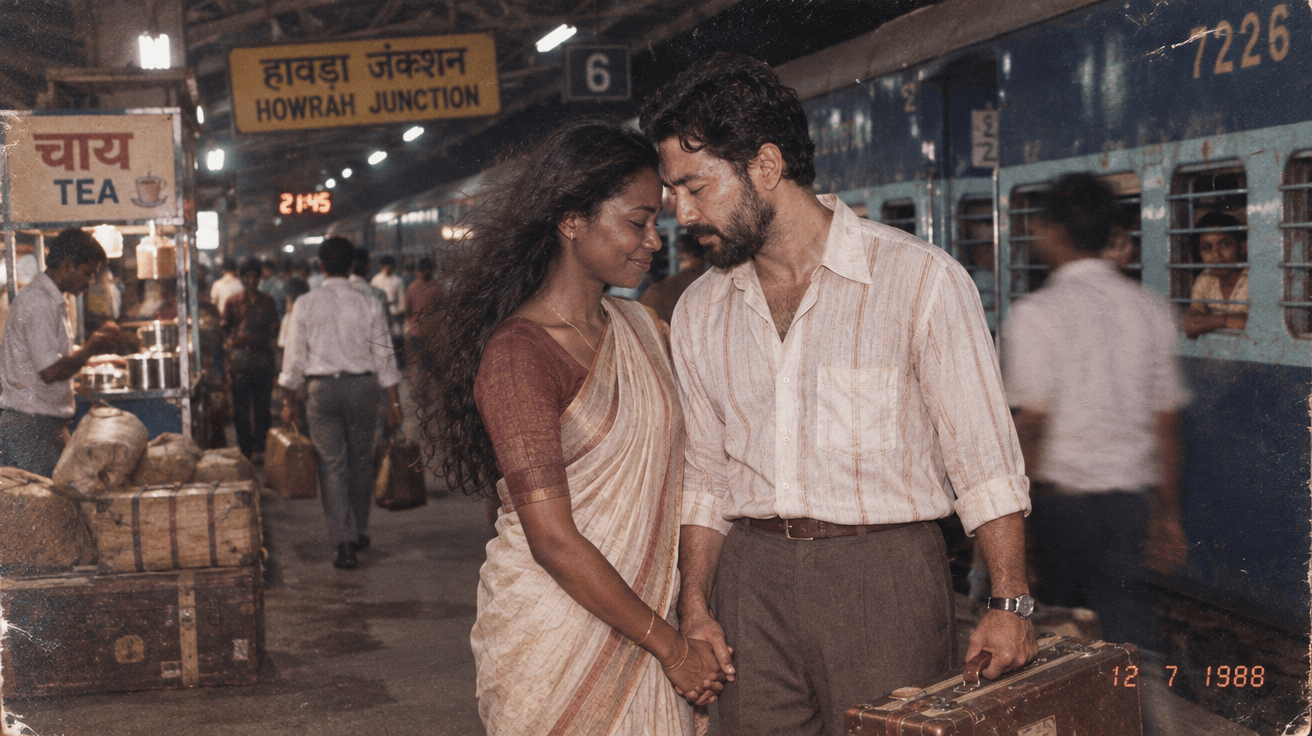
Before We said Goodbye
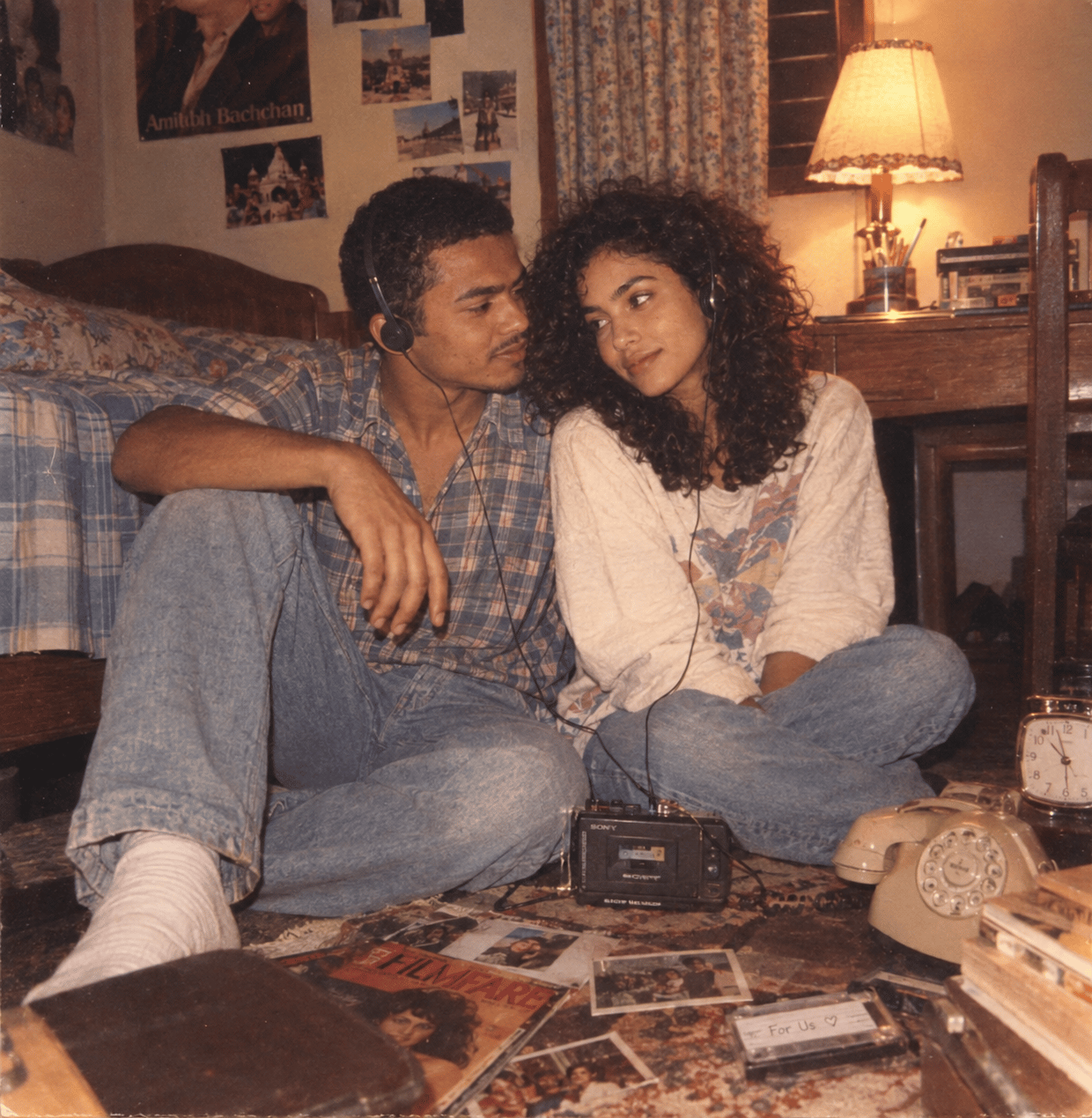
Our Song was on a Cassette
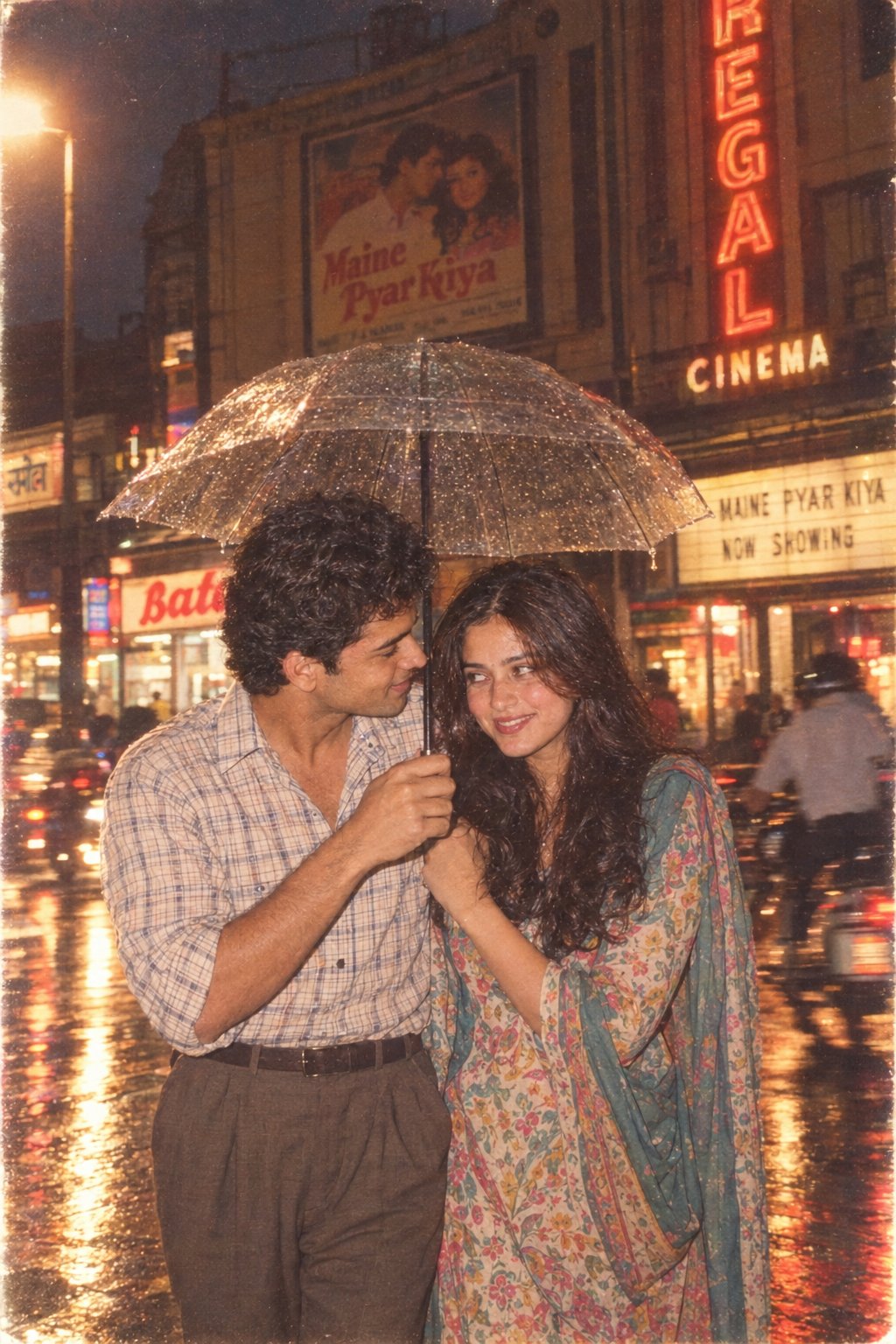
Meet Me When It Rains
The Date After College
Make it yours
Retro Japanese Release Poster Edit works as-is. These are the safest ways to change it without losing the look.
Change one field
Copy a single group, rewrite it, and generate again so you can see what that field is doing.
Keep the frame, change the subject
Hold the composition and light of Retro Japanese Release Poster Edit, then swap wardrobe, props or the person for a new take.
| If the result… | Why | Fix |
|---|---|---|
| The result drifts from the preview | Too many fields changed at once. | Reuse Retro Japanese Release Poster Edit as-is first, then change one group — subject, light, or setting. |
| The model over-stylizes the scene | The prose prompt leaves finish and camera underspecified. | Add one camera or lighting sentence and stay on GPT Image 2. |
More GPT Image 2 templates
Other prompts made for GPT Image 2.

Six VTuber Japanese Logo Sheet

Realistic Portrait of Woman and Deer

The Vista Modular Condo Poster

AI Model Routing Comparison Infographic

2.5D Anime Art Board

Isometric Productivity Desk Scene

New York Double Exposure Poster

Four-Panel AI Landscape Comparison

Japanese Tatami Lifestyle Magazine Cover

NESCAFÉ Coffee Map Poster
More image prompts
Fresh picks from across the catalog.
Neon Geometric Confetti Abstract
Ultra-Macro Cherry in Milk Splash
Make photos look bad with specified GPS coordinates
Commercial Storyboard Scene Generation
Steampunk Daily Fortune Cards

Desert Rebel Convoy Portrait
Realistic Izakaya Selfie with Intentional Imperfection

Alaskan Snowstorm Couple Prompt (Reference Based)

Fashionable Young Woman in Park Setting Prompt

Stunning Winter Photo Prompt for Gemini Nano Banana
Browse template categories
Retro Japanese Release Poster Edit questions
How do I use the Retro Japanese Release Poster Edit template?
Add your photo if the template asks for one, edit the prompt if you like — the template's model and format are already selected — and press Generate. Your version opens in PicX Studio.
Can I customize the Retro Japanese Release Poster Edit template?
Yes. You can change the subject, setting, lighting, mood, format, and available model controls before creating your image.
Is the Retro Japanese Release Poster Edit template free?
Opening and editing this template is free. Generating uses credits, shown on the Generate button when you are signed in.
Which AI model should I use?
Start with GPT Image 2, which is the model associated with this template. You can compare another compatible model for a different finish.
Looking for something else? Browse all templates.

Your photo, any look
Thousands of ready templates for every top image and video model, from one credit balance.