
Foot-Held Selfie in Hotel Room
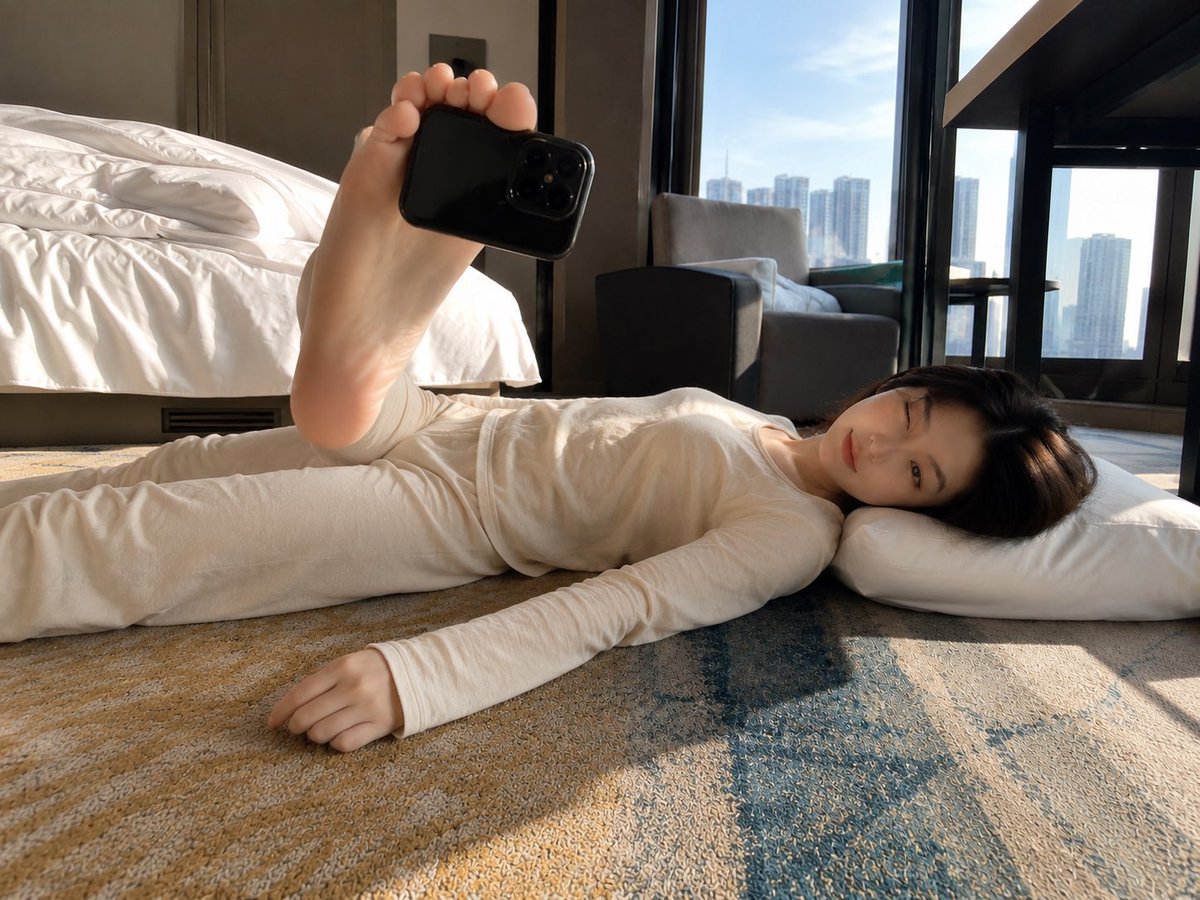
A realistic ground-level hotel-room scene showing a person lying on the carpet attempting an awkward selfie by holding a smartphone with their toes.
- Prompt included
- Model and format preset
- Free template
The prompt behind this image
Copy the exact prompt behind Foot-Held Selfie in Hotel Room, or open it in the studio and make it yours.
Create a realistic wide-angle smartphone photo in a modern high-rise hotel room, shot from floor level beside a person lying flat on a patterned carpet. The person is wearing {argument name="outfit color" default="cream white"} long-sleeve loungewear and matching pants, stretched horizontally across the frame with their head resting on a white pillow at the right side. Their face is intentionally obscured by a solid rectangular blur in a natural skin-tone color. One bare foot is raised prominently in the foreground near the upper left-center, toes gripping a black smartphone as if attempting a foot-held selfie; the phone has a glossy black case and multiple rear camera lenses facing the viewer. The other leg remains extended along the floor. Show exactly one visible raised foot, one black phone, one pillow, one bed on the left with rumpled white bedding, one gray lounge chair near the window, and large floor-to-ceiling windows revealing a bright daytime city skyline of tall apartment towers. Use warm sunlight streaming through the windows, casting strong angular shadows across the beige and blue carpet. The perspective should feel awkward and experimental, like a failed selfie attempt taken from the ground, with slight wide-angle distortion, natural indoor lighting, realistic textures, and no added text or watermark. The setting is {argument name="room setting" default="a luxury hotel bedroom"}, the phone model appearance is {argument name="phone appearance" default="black triple-camera smartphone"}, and the view outside is {argument name="window view" default="dense modern city skyline"}.
How to use Foot-Held Selfie in Hotel Room in 3 steps
- 1Upload ImagePNG, JPG or paste
Add your photo
Upload the photo the template builds on. The prompt, model and format are already set.
- 2…a portrait of your subject in softgolden-hour light, 85mm…
Personalize
Edit the subject and creative details for your destination.
- 3Generate
Generate
Press Generate — your image is created in PicX Studio, so you can compare it with the original and refine one variable at a time.
More like this
Templates with the same subject, style or setup. Open one to see its prompt.
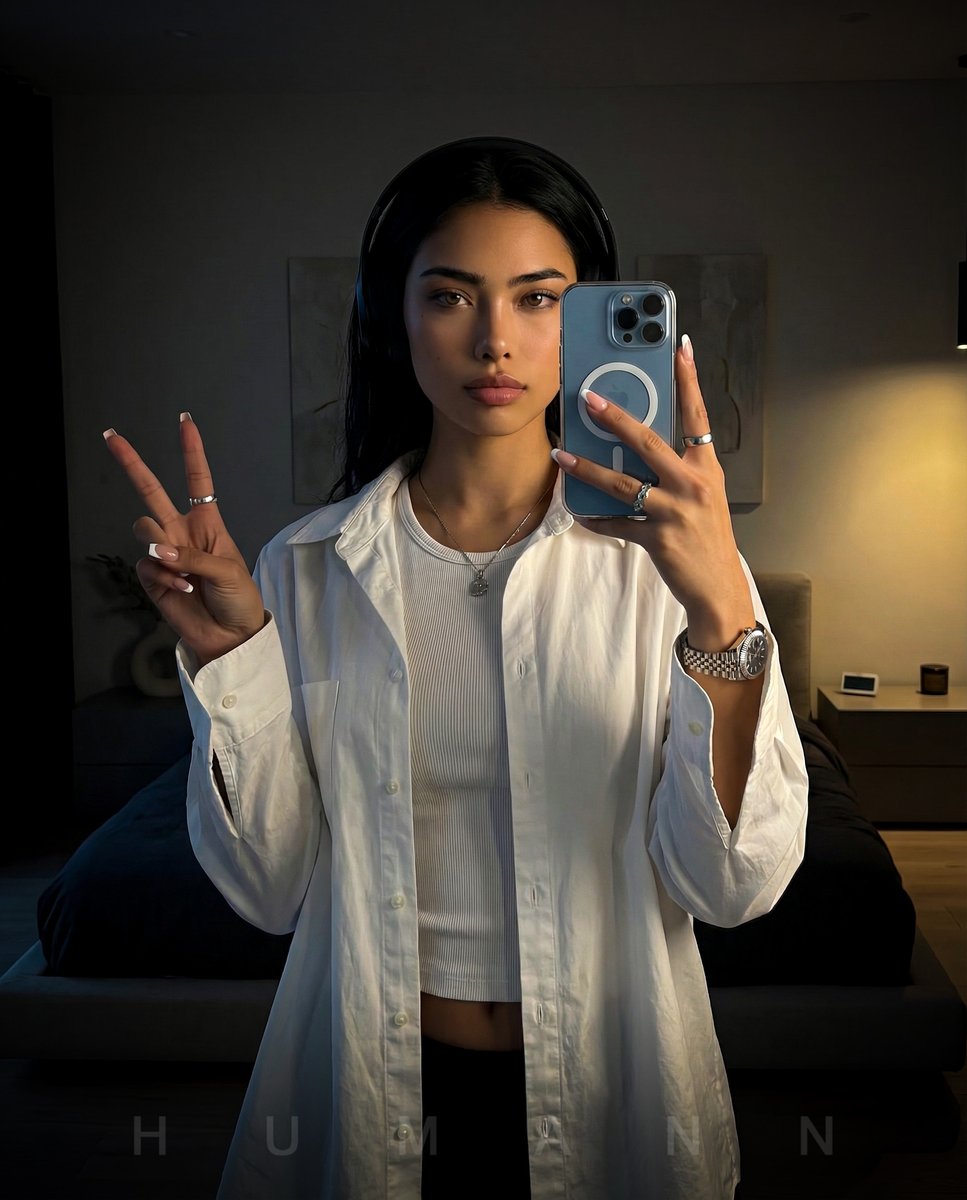
Nano Banana - Peace Sign Bedroom Selfie
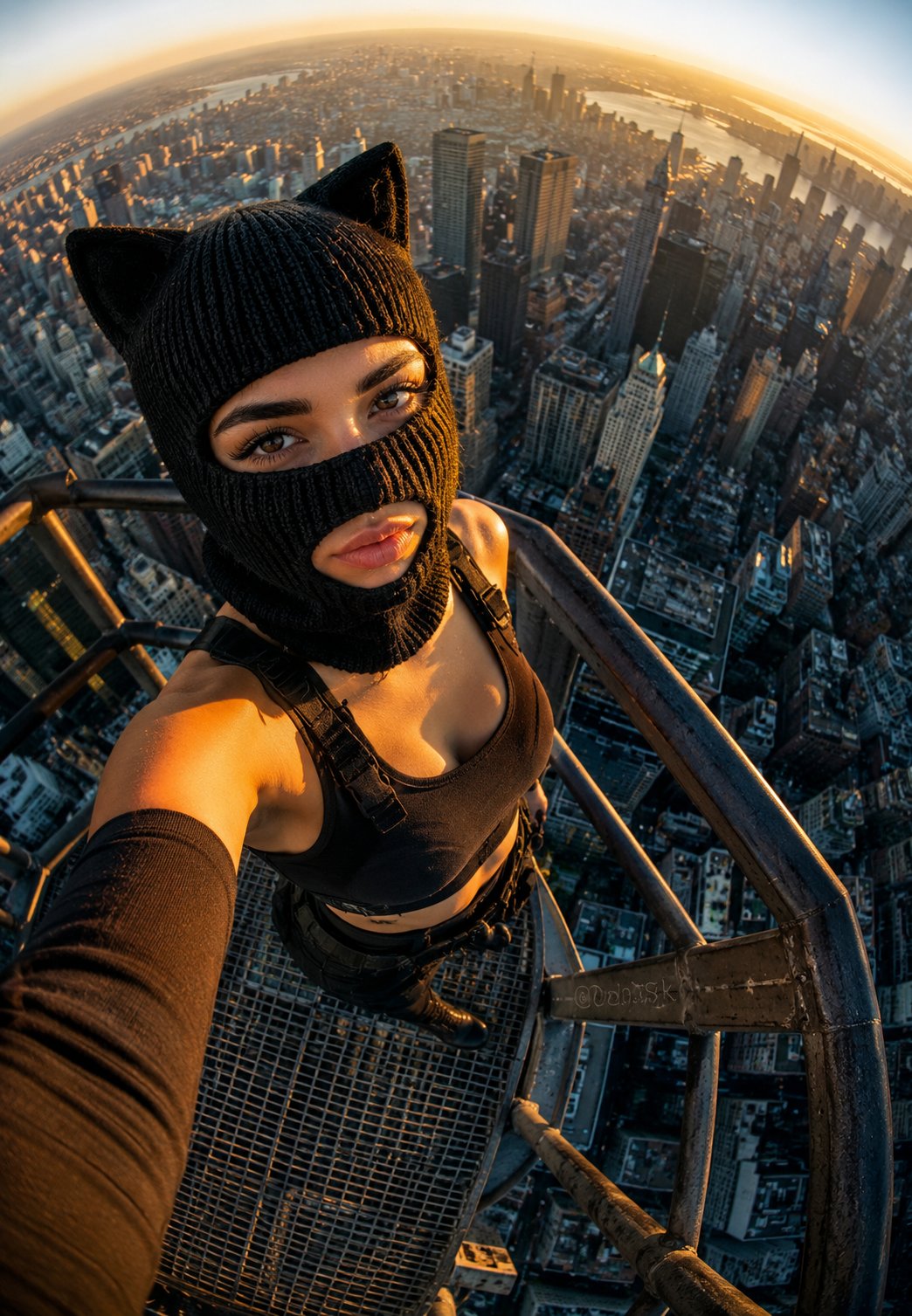
Rooftop Fisheye — Cat-Ear Balaclava at Golden Hour
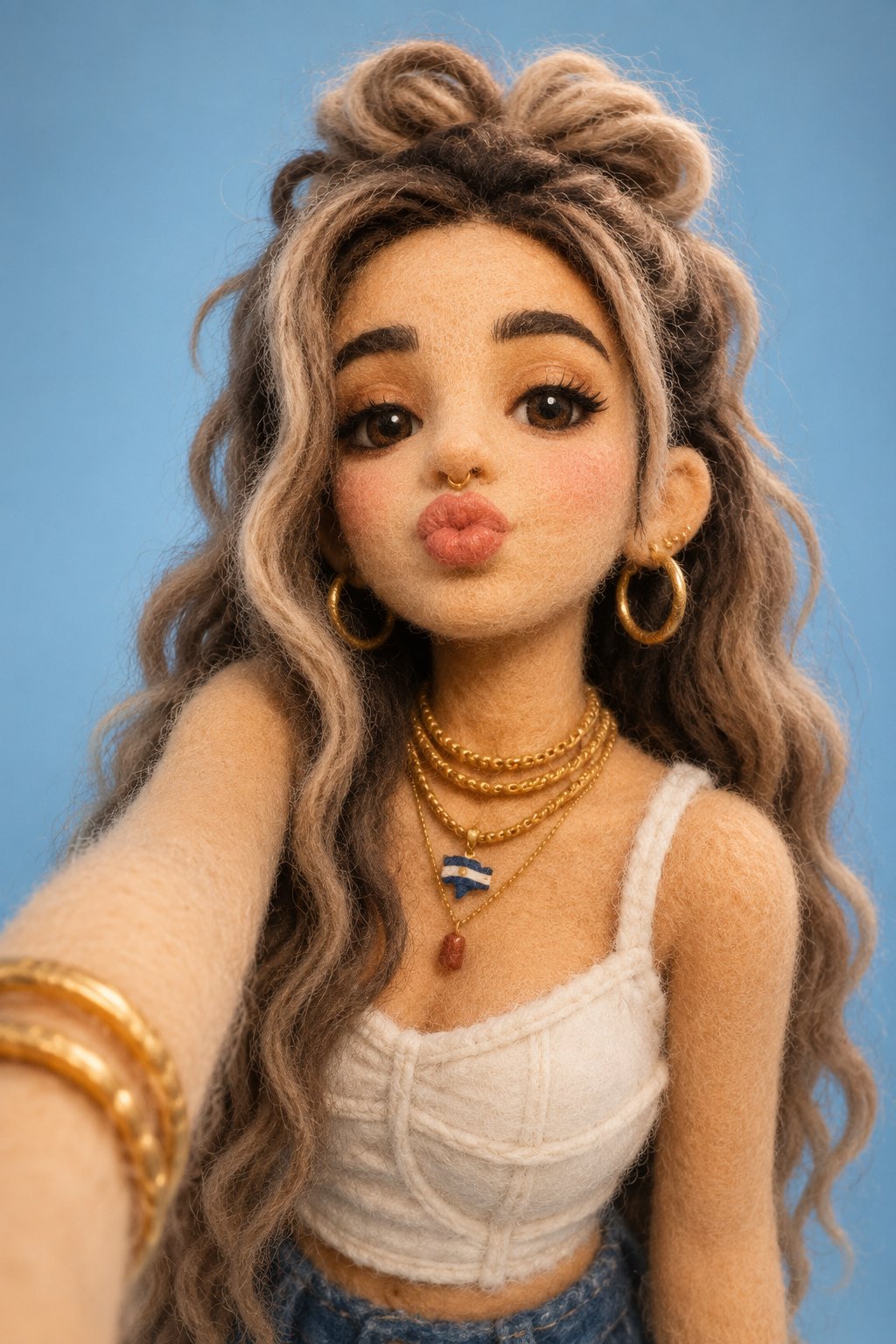
Felt & Knit 3D Character — Photo-Exact Face, Pixar-Quality Plush Figurine
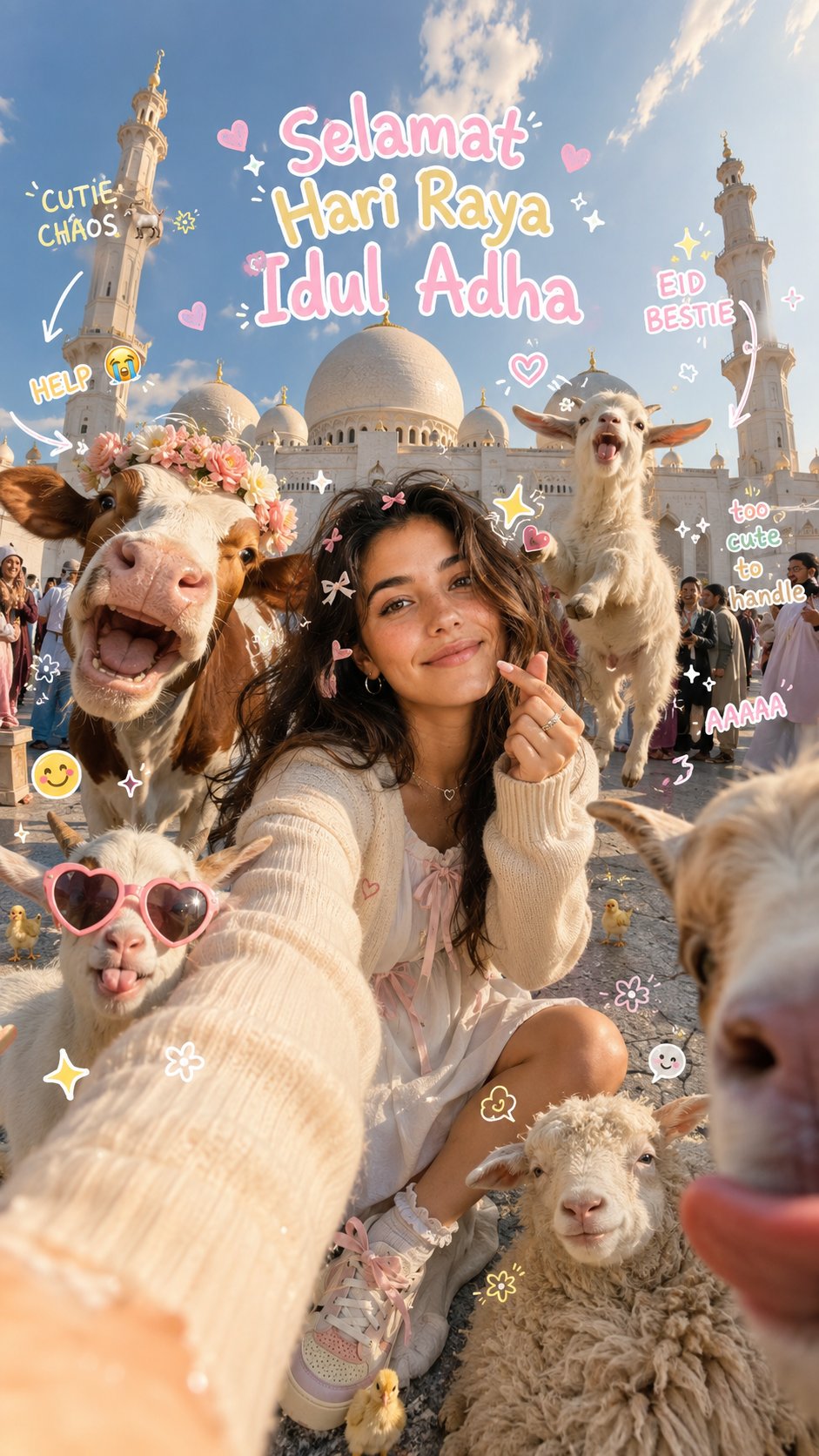
Eid al-Adha Cute Chaos — Fisheye Selfie with Farm Selfie, Mosque & Animals
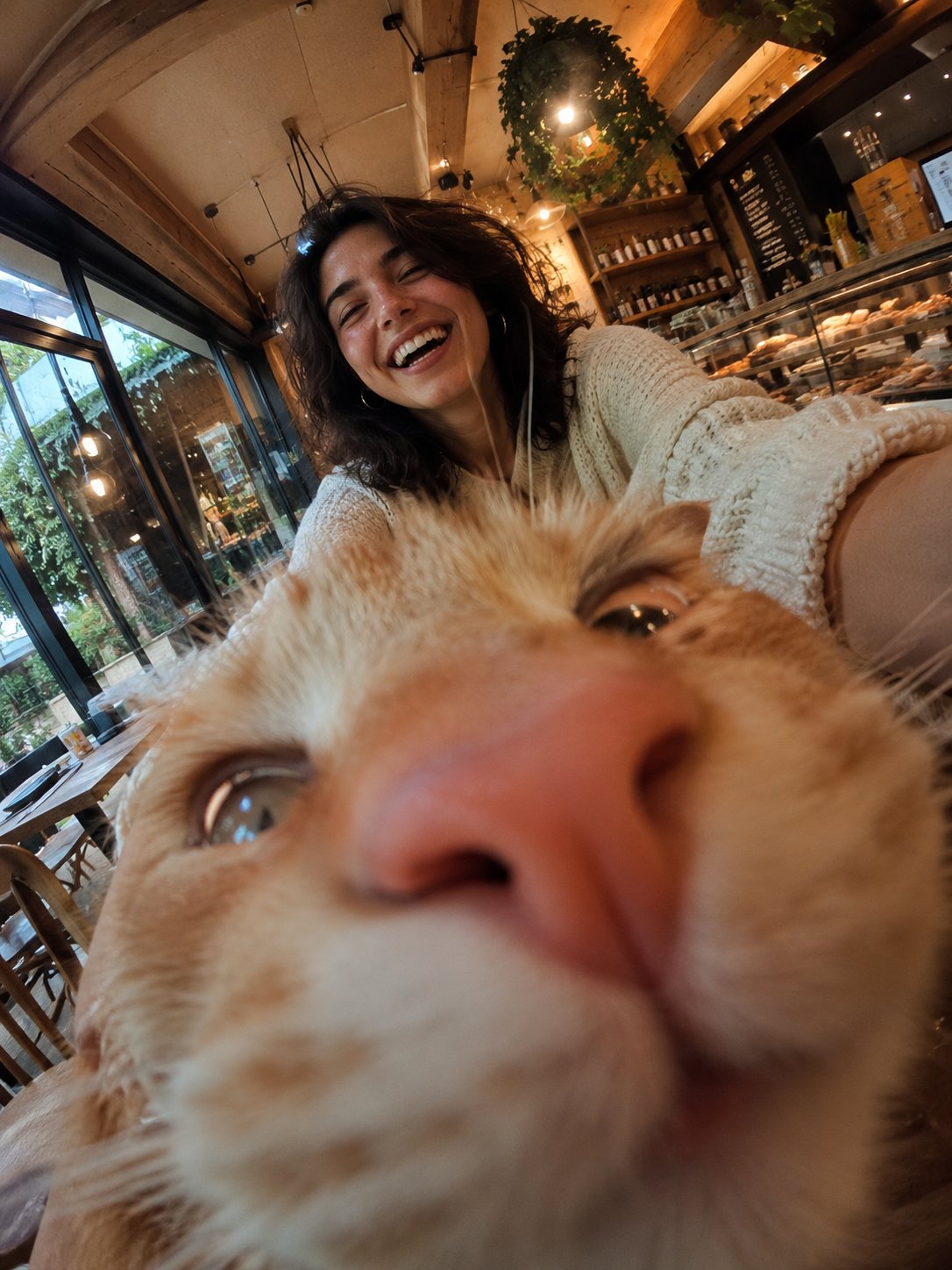
Cat Photobomb Selfie — 0.5x Wide Angle Café Chaos
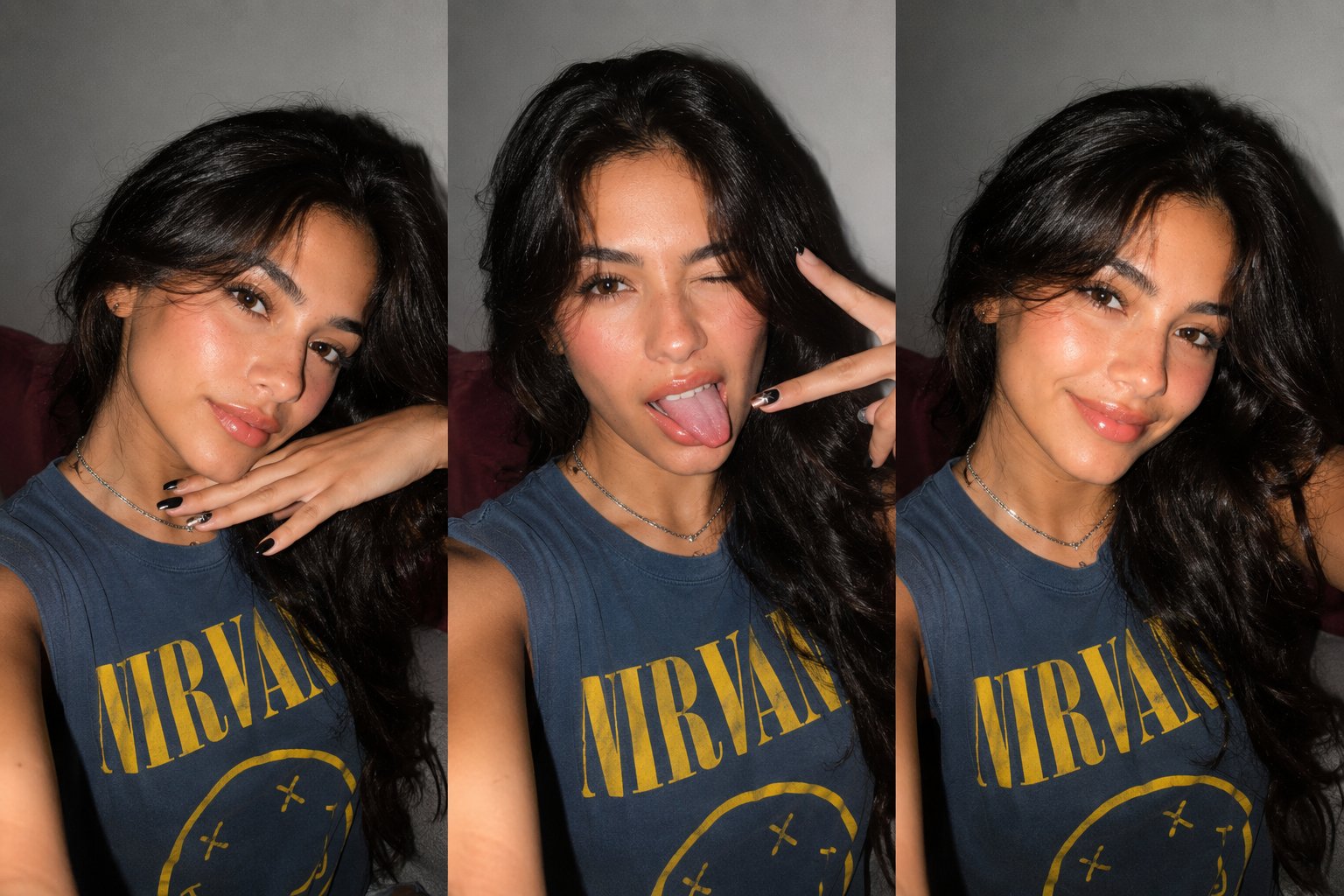
Gen Z Triple Selfie Collage — Y2K Flash Photography
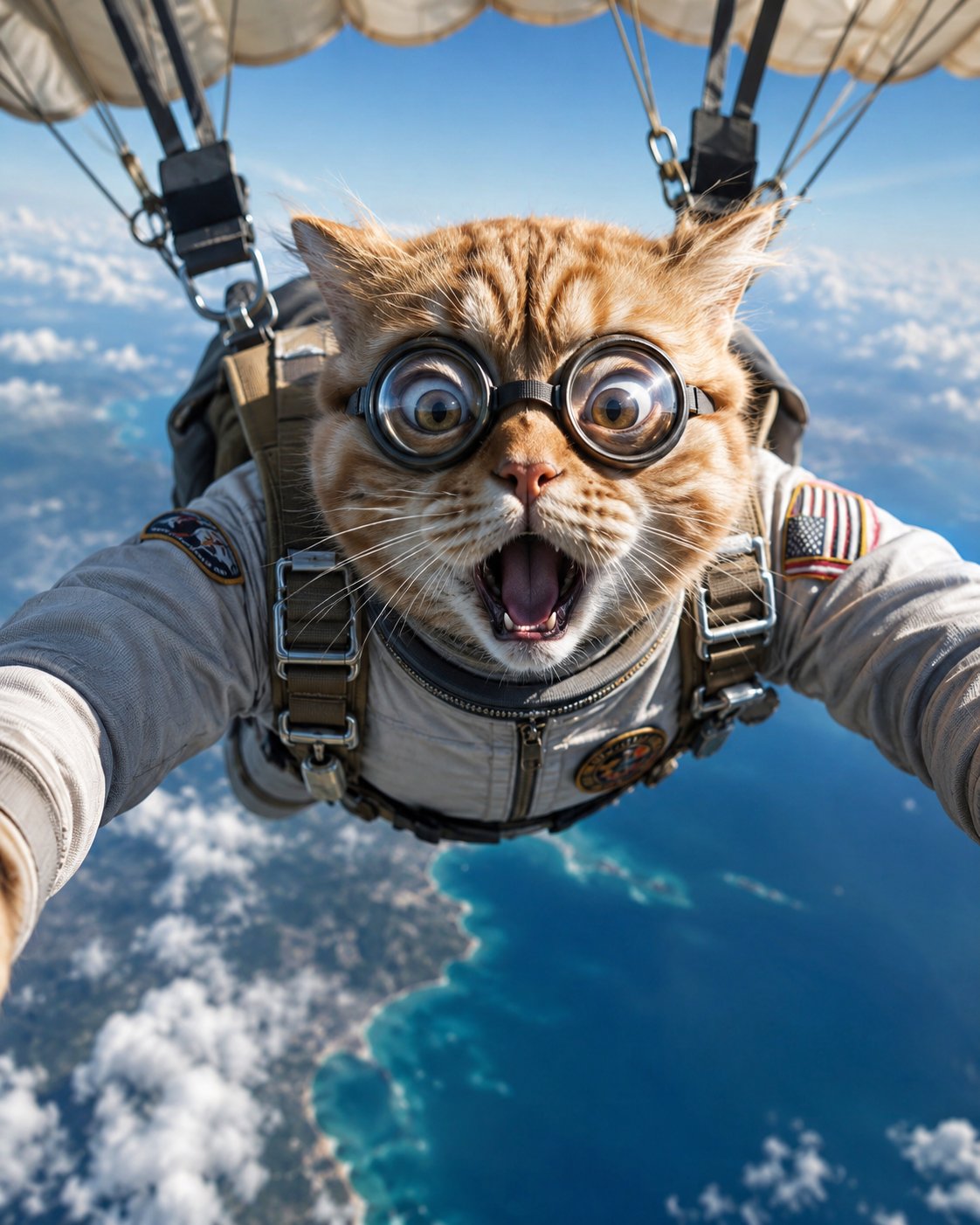
Surreal Cat Astronaut — Humanoid Face Freefall
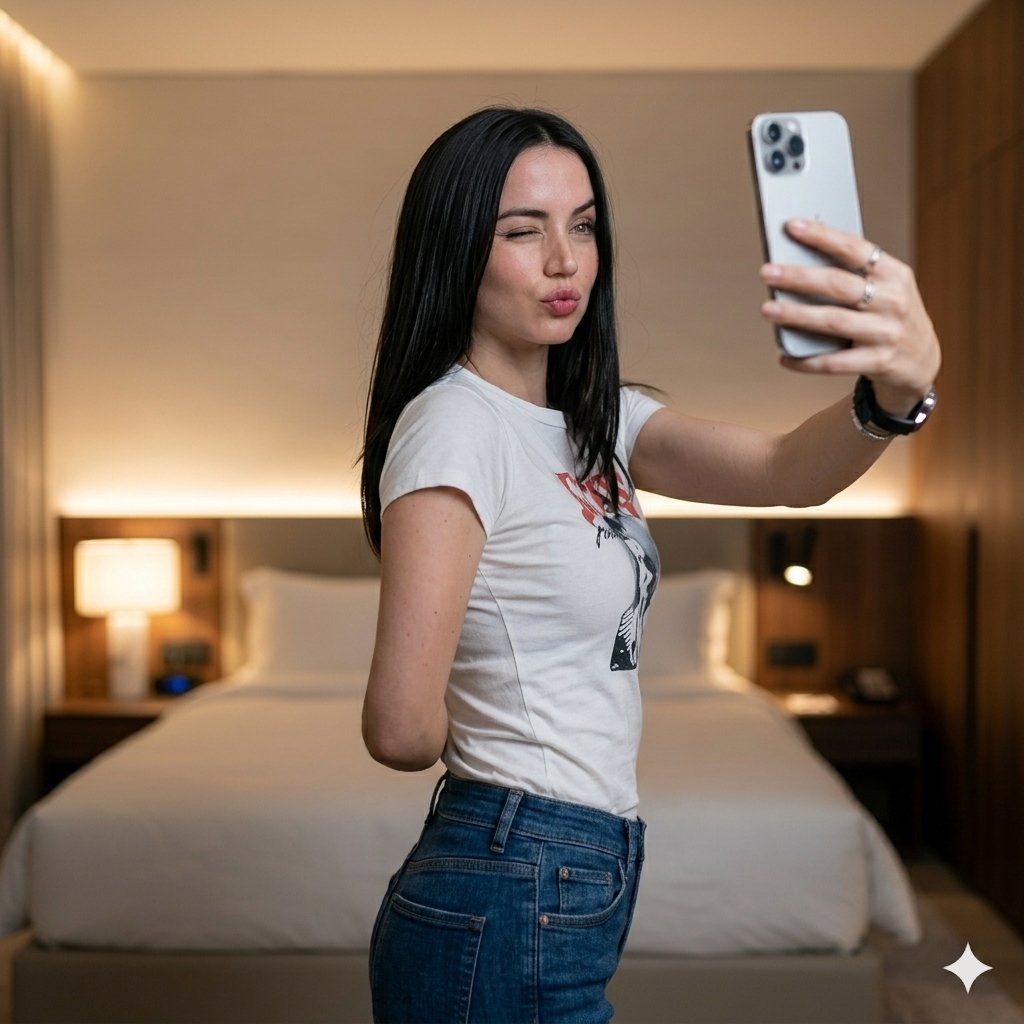
Luxury Bedroom Selfie Portrait
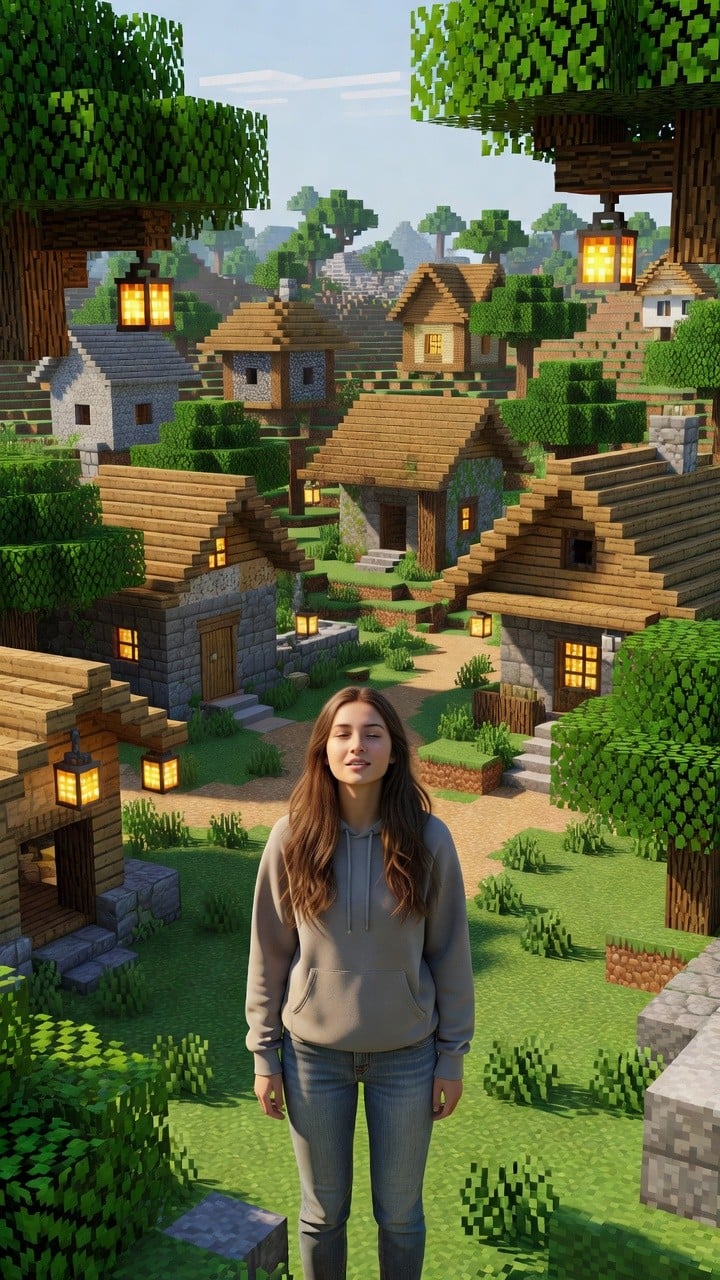
Photoreal Village Lanterns Minecraft Scene
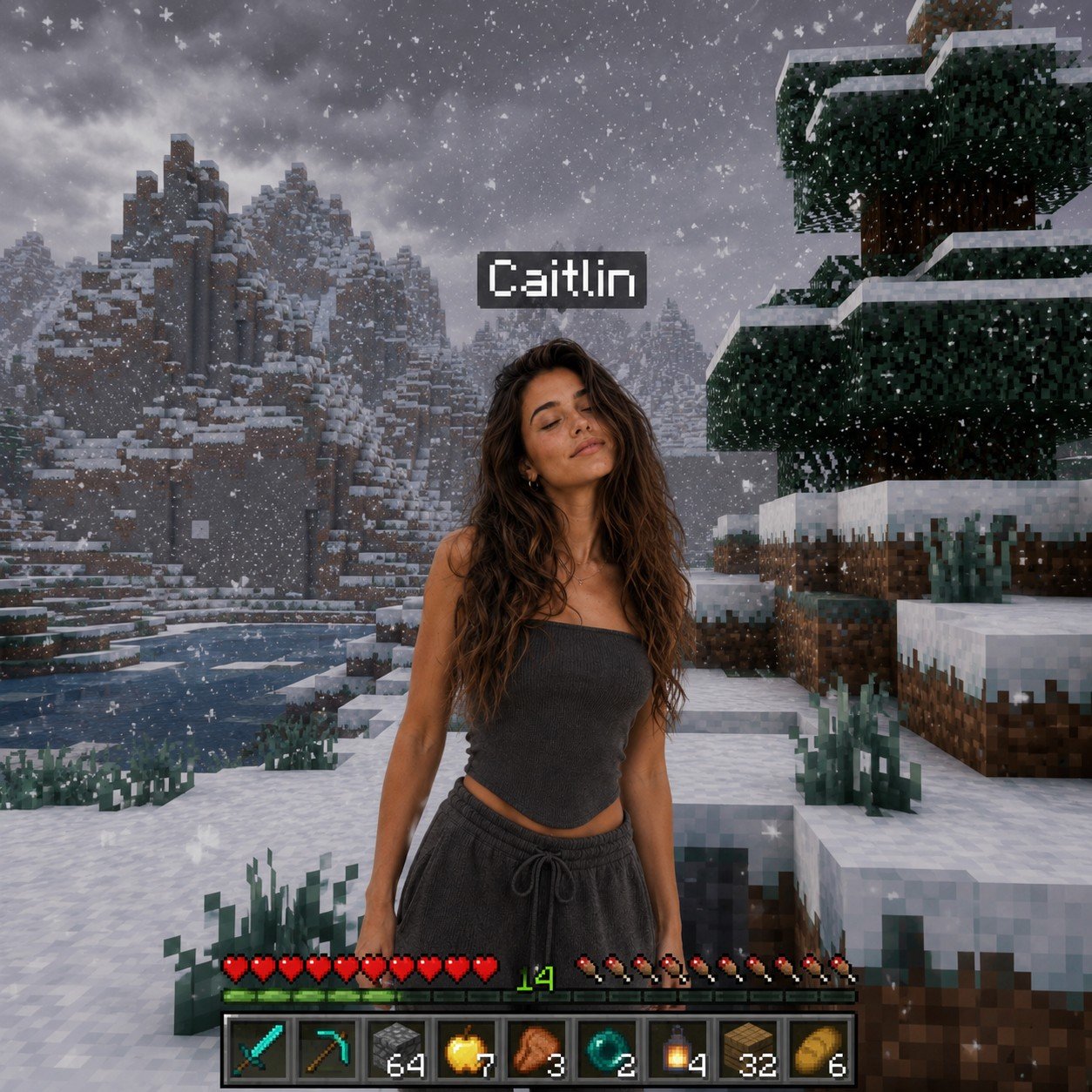
Photoreal Snow Biome Name Tag UI

Photoreal Selfie Minecraft Block World
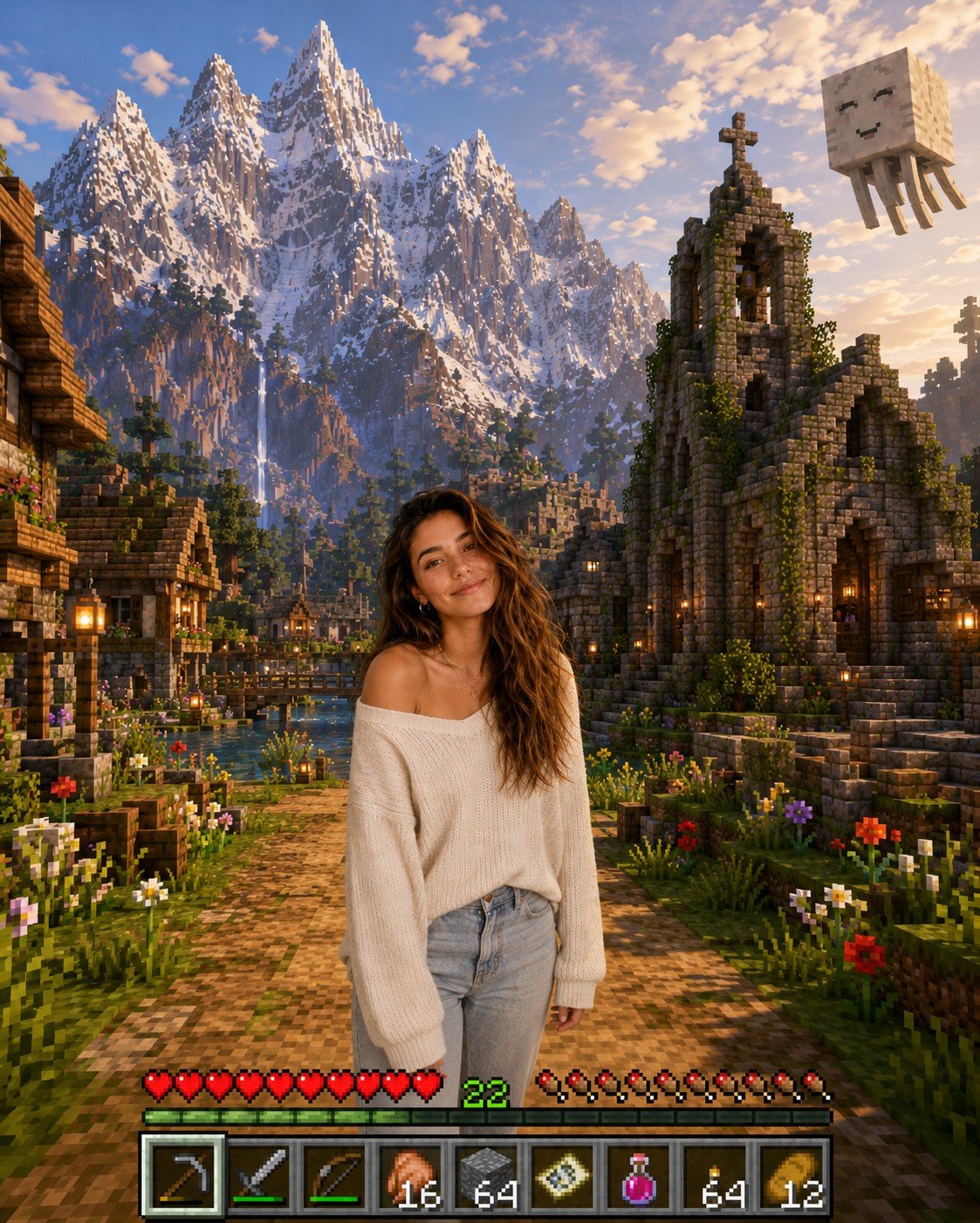
Photoreal Selfie Minecraft Village Ghast UI
Make it yours
Foot-Held Selfie in Hotel Room works as-is. These are the safest ways to change it without losing the look.
Change one field
Copy a single group, rewrite it, and generate again so you can see what that field is doing.
Keep the frame, change the subject
Hold the composition and light of Foot-Held Selfie in Hotel Room, then swap wardrobe, props or the person for a new take.
| If the result… | Why | Fix |
|---|---|---|
| The result drifts from the preview | Too many fields changed at once. | Reuse Foot-Held Selfie in Hotel Room as-is first, then change one group — subject, light, or setting. |
| The model over-stylizes the scene | The prose prompt leaves finish and camera underspecified. | Add one camera or lighting sentence and stay on GPT Image 2. |
More GPT Image 2 templates
Other prompts made for GPT Image 2.

Six VTuber Japanese Logo Sheet

Realistic Portrait of Woman and Deer

The Vista Modular Condo Poster

AI Model Routing Comparison Infographic

2.5D Anime Art Board

Isometric Productivity Desk Scene

New York Double Exposure Poster

Four-Panel AI Landscape Comparison

Japanese Tatami Lifestyle Magazine Cover

NESCAFÉ Coffee Map Poster
More image prompts
Fresh picks from across the catalog.

X Kashberg 0 Gpt Image 20
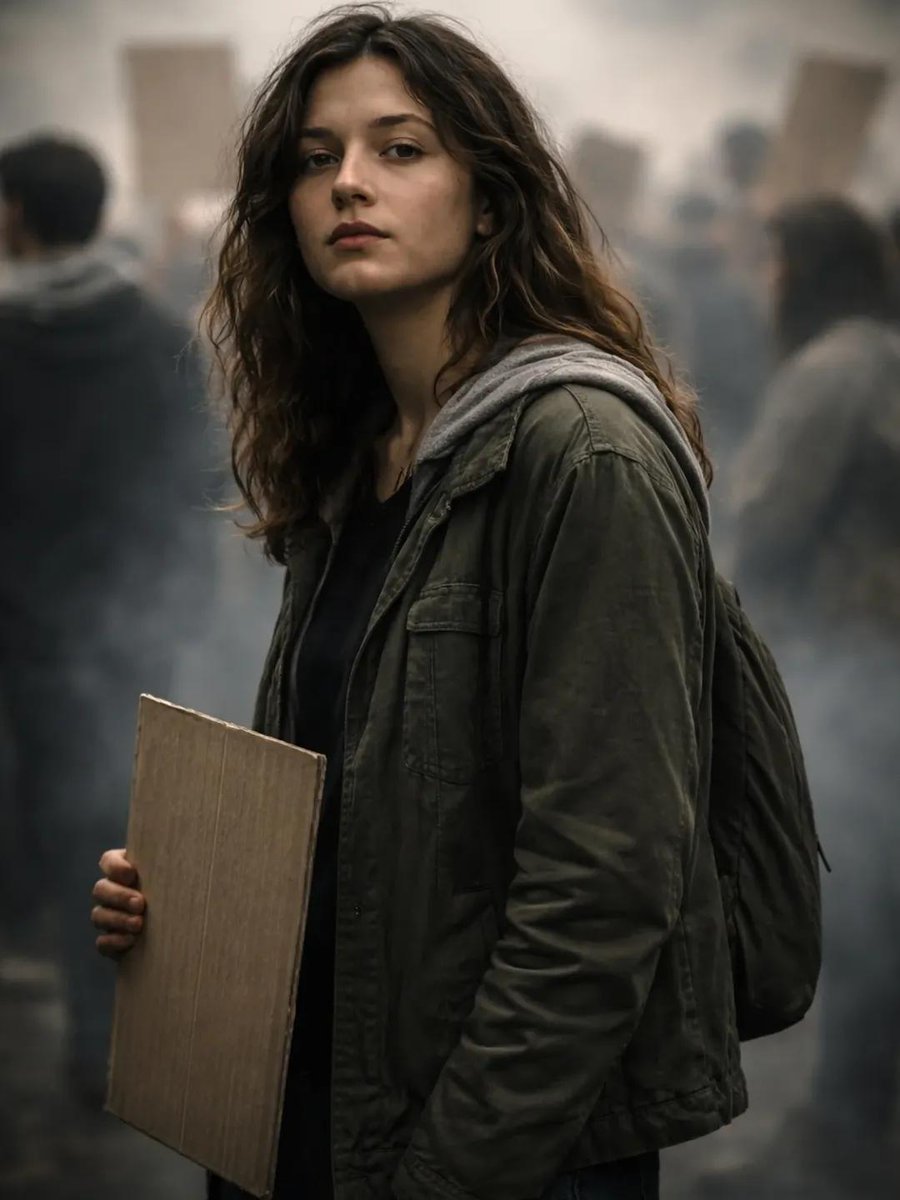
Documentary Portrait of Resilience in Protest
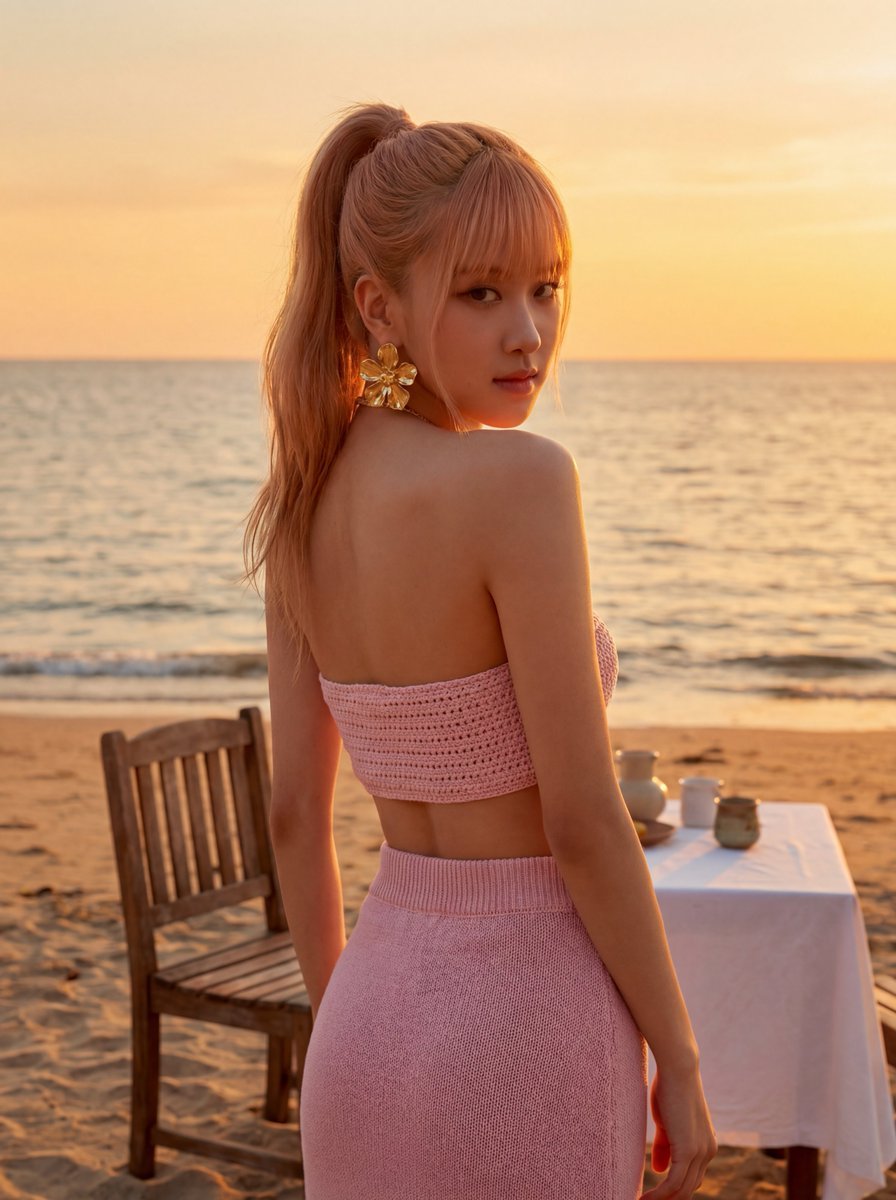
Rosé (BLACKPINK) at Sunset Beach
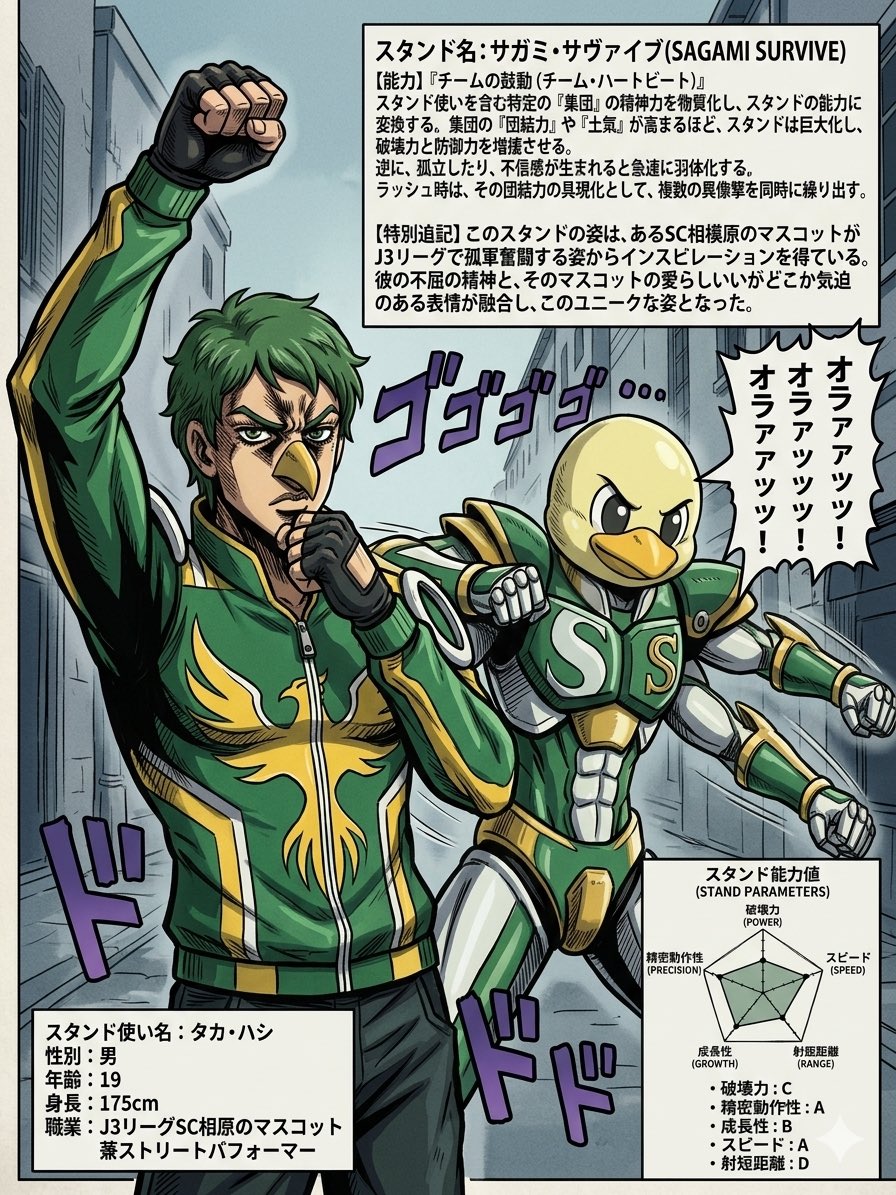
JoJo-Style Stand Character Poster
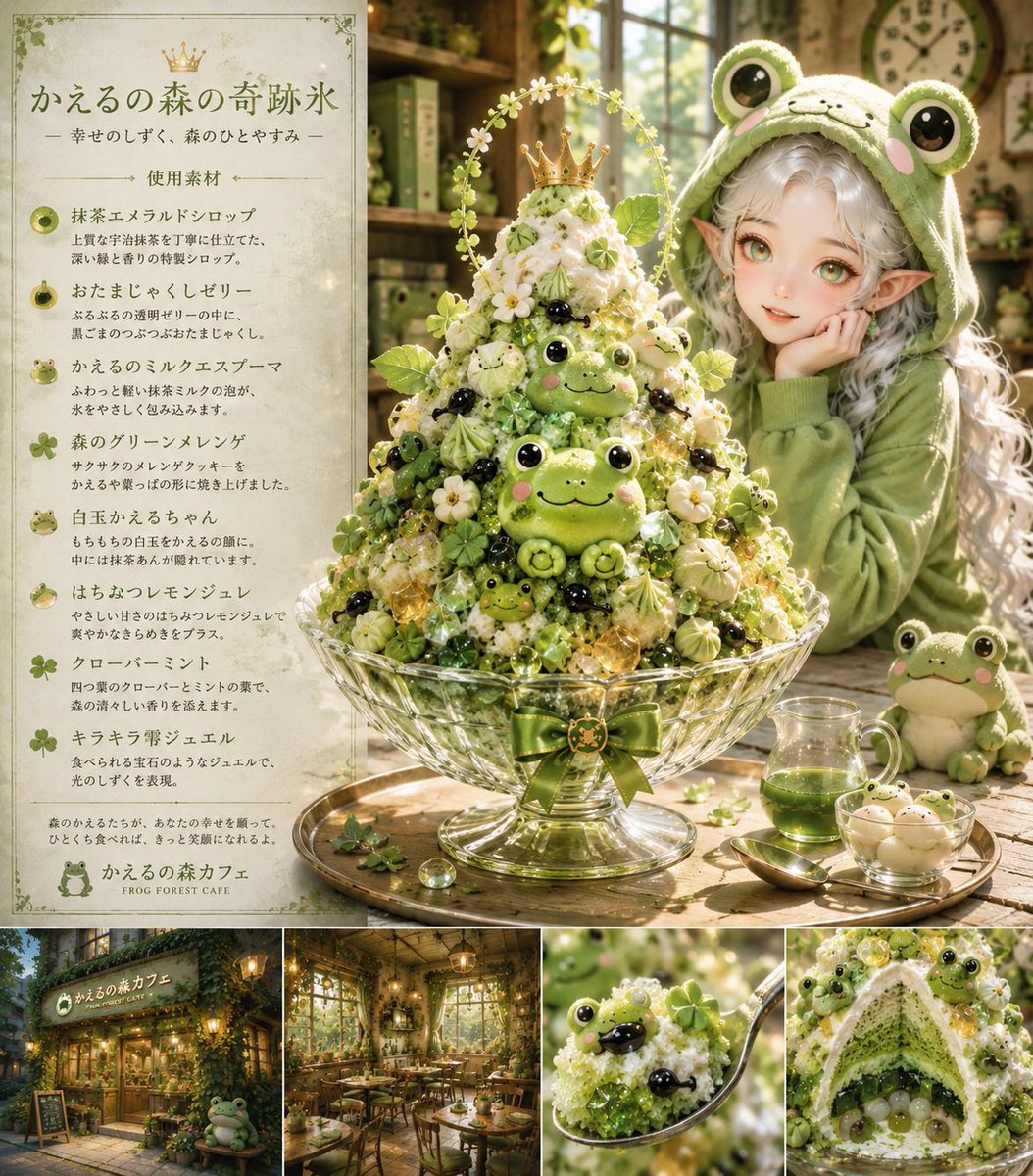
Fantasy Japanese Kakigori Design
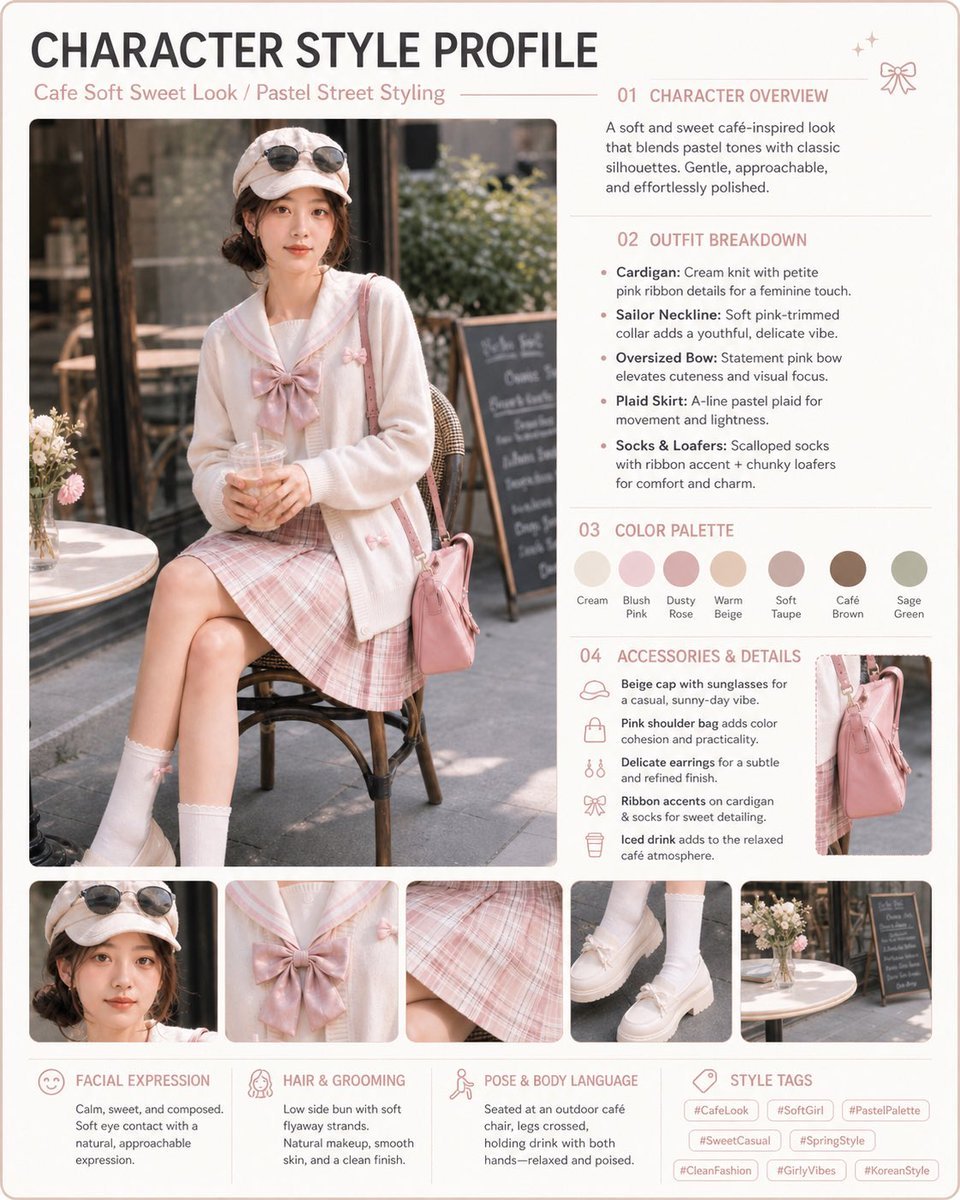
Pastel Cafe Style Profile Card
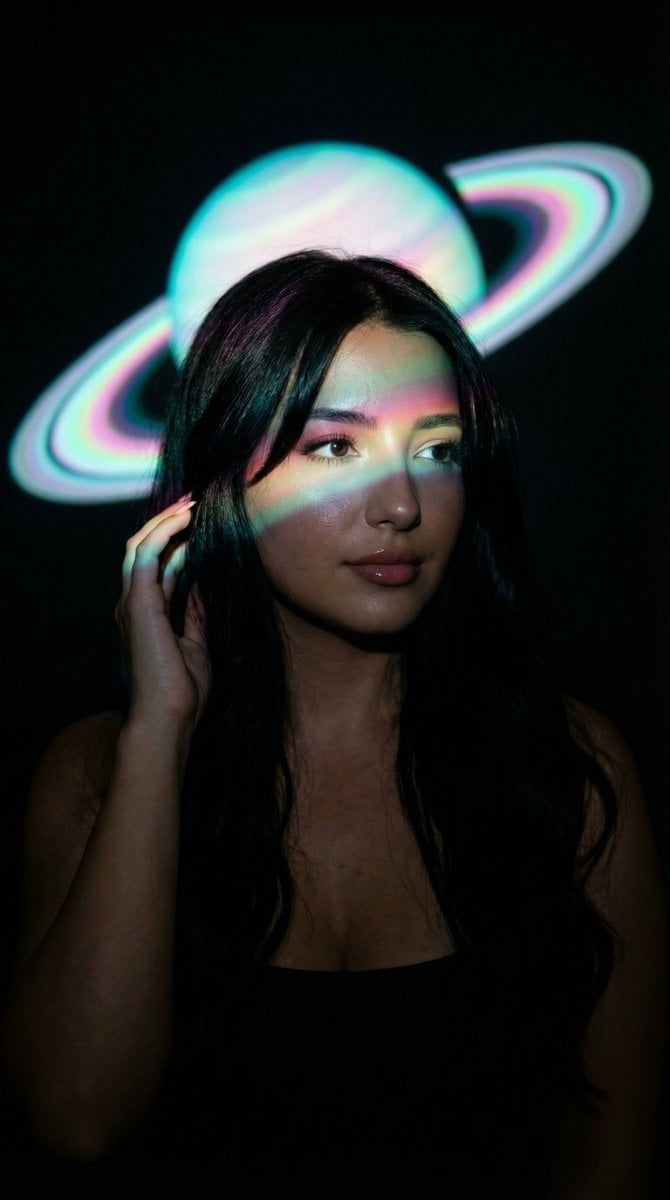
Low-Key Saturn Projection Portrait
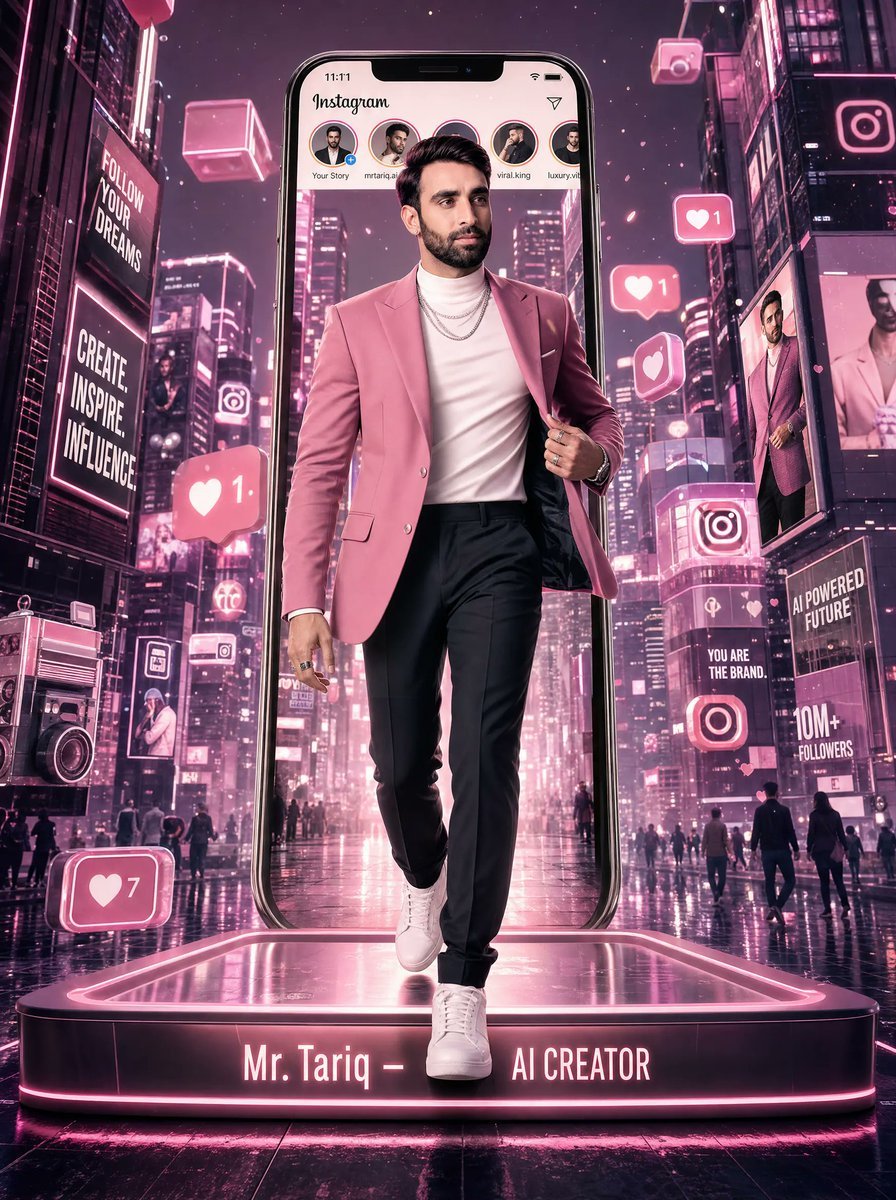
Neon Instagram AI Creator Poster

Mixed Media Studio Portrait with Vector Graphics Overlay
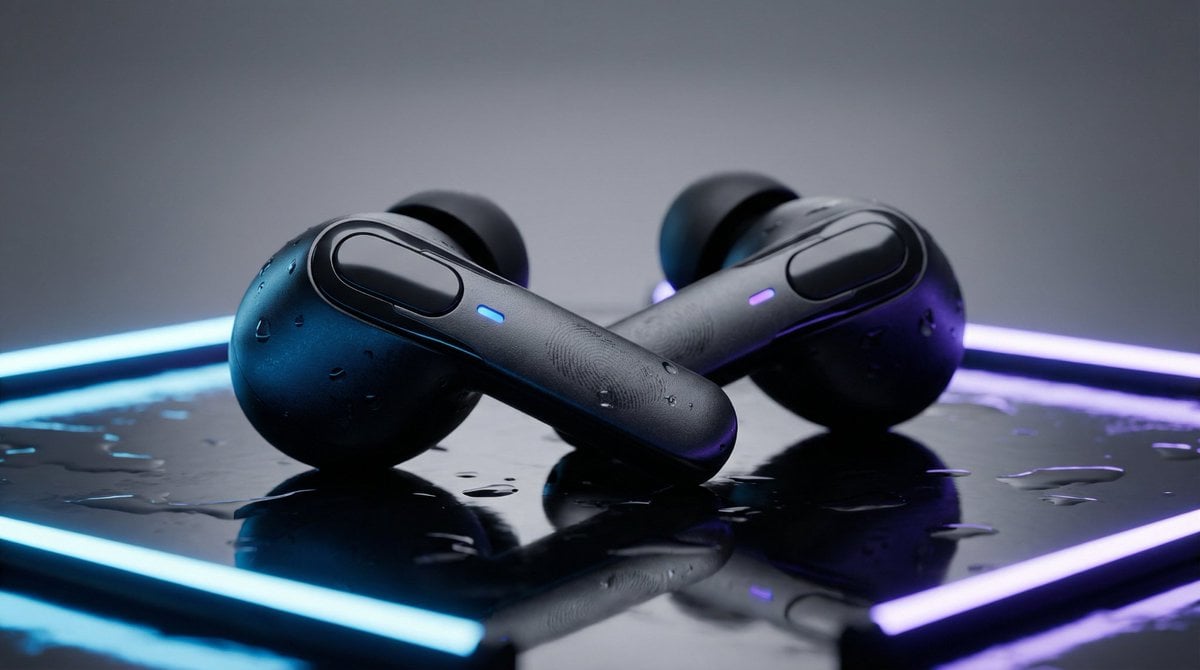
High-End Product Mockup for Wireless Earbuds
Browse template categories
Foot-Held Selfie in Hotel Room questions
How do I use the Foot-Held Selfie in Hotel Room template?
Add your photo if the template asks for one, edit the prompt if you like — the template's model and format are already selected — and press Generate. Your version opens in PicX Studio.
Can I customize the Foot-Held Selfie in Hotel Room template?
Yes. You can change the subject, setting, lighting, mood, format, and available model controls before creating your image.
Is the Foot-Held Selfie in Hotel Room template free?
Opening and editing this template is free. Generating uses credits, shown on the Generate button when you are signed in.
Which AI model should I use?
Start with GPT Image 2, which is the model associated with this template. You can compare another compatible model for a different finish.
Looking for something else? Browse all templates.

Your photo, any look
Thousands of ready templates for every top image and video model, from one credit balance.