
Parrot Paint-by-Numbers Worksheet
Generates a printable A4 paint-by-numbers coloring worksheet with a tropical parrot, monstera leaves, numbered regions, instructions, and a color legend.
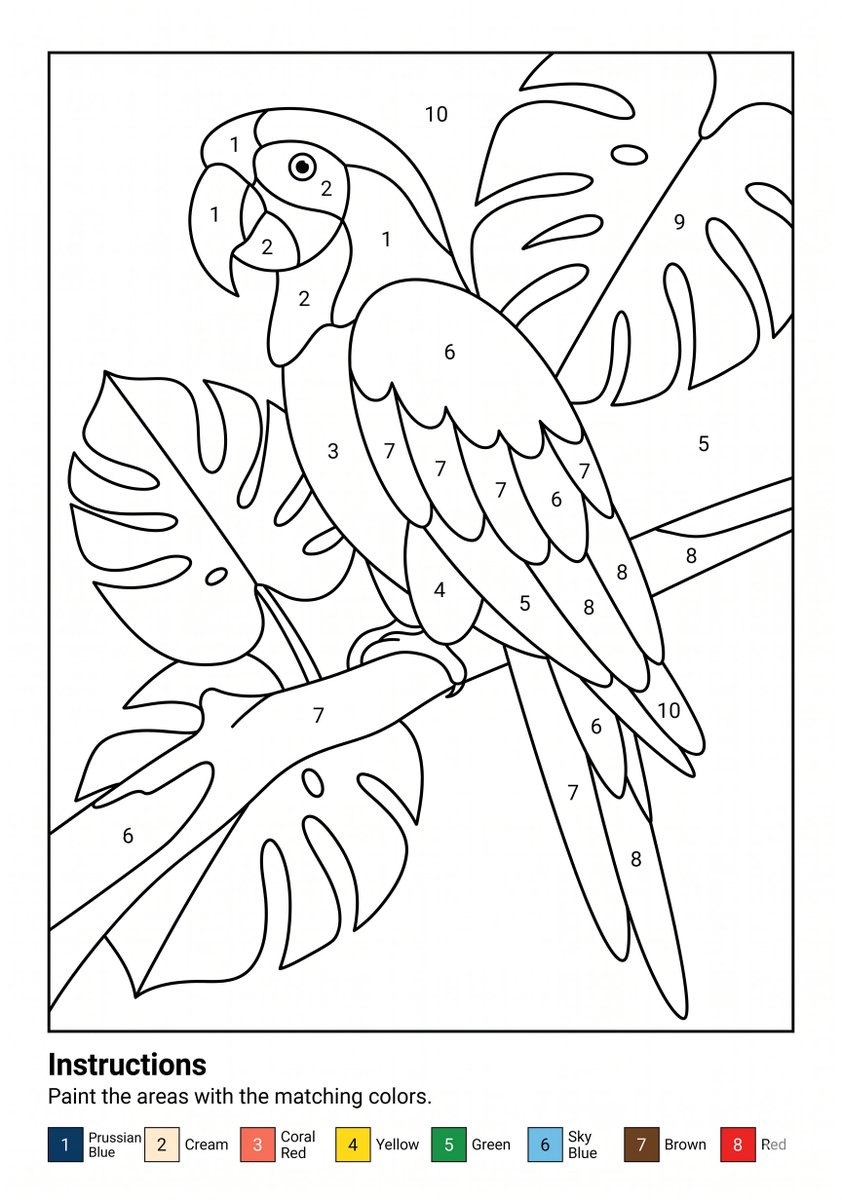
- Prompt included
- Model and format preset
- Free template
The prompt behind this image
Copy the exact prompt behind Parrot Paint-by-Numbers Worksheet, or open it in the studio and make it yours.
Goal: Create a printable paint-by-numbers worksheet featuring {argument name="subject" default="a tropical parrot perched among large monstera leaves"}. Canvas: A4 portrait page, clean white background, black-and-white line art, designed for printing at 300 DPI. Add a thin rectangular border around the main artwork, leaving a bottom instruction area. Main artwork: Inside the bordered frame, draw one large parrot in simple coloring-book style, facing left, perched diagonally on a branch. The parrot has a curved beak, round eye, layered wing feathers, long tail feathers, and visible feet gripping the branch. Surround it with large tropical monstera leaves in the background and foreground, with broad split-leaf shapes and simple vein lines. Use smooth, thick, consistent black outlines and no shading or grayscale fills. Numbered paint regions: Divide the illustration into many enclosed paint regions and place centered black numbers in the regions. Use exactly 10 numbered region labels across the artwork, numbered 1 through 10, with repeated numbers appearing in multiple areas. Make the labels small, clean, and readable, like a printable worksheet. Bottom instruction area: Below the artwork, add the bold heading "Instructions" aligned left, followed by the sentence "Paint the areas with the matching colors." Under the sentence, include a horizontal color legend with exactly 8 numbered color swatches: 1 Prussian Blue, 2 Cream, 3 Coral Red, 4 Yellow, 5 Green, 6 Sky Blue, 7 Brown, 8 Red. Each legend item should show a small colored square with the number inside or beside it, followed by the color name. Visual style: Minimal vector worksheet aesthetic, crisp black outlines, white fill areas, no texture, no shadows, no watermark, no extra decorative elements. The final image should look like a ready-to-print kids’ paint-by-numbers coloring page.
How to use Parrot Paint-by-Numbers Worksheet in 3 steps
- 1Upload ImagePNG, JPG or paste
Add your photo
Upload the photo the template builds on. The prompt, model and format are already set.
- 2…a portrait of your subject in softgolden-hour light, 85mm…
Personalize
Edit the subject and creative details for your destination.
- 3Generate
Generate
Press Generate — your image is created in PicX Studio, so you can compare it with the original and refine one variable at a time.
More like this
Templates with the same subject, style or setup. Open one to see its prompt.
Paint-by-Numbers Living Room Worksheet
Peacock Paint-by-Numbers Worksheet
Paint-by-Numbers Wave Worksheet
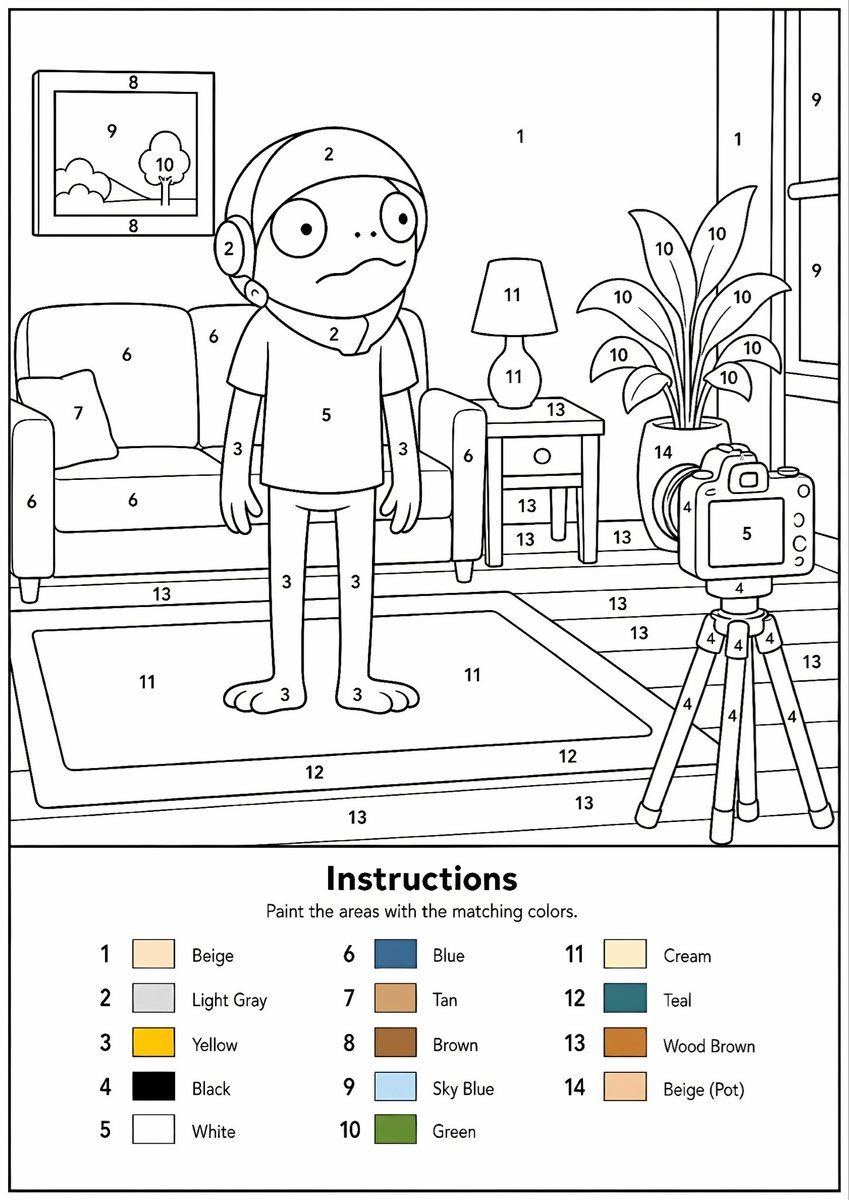
Printable Paint by Numbers Generator
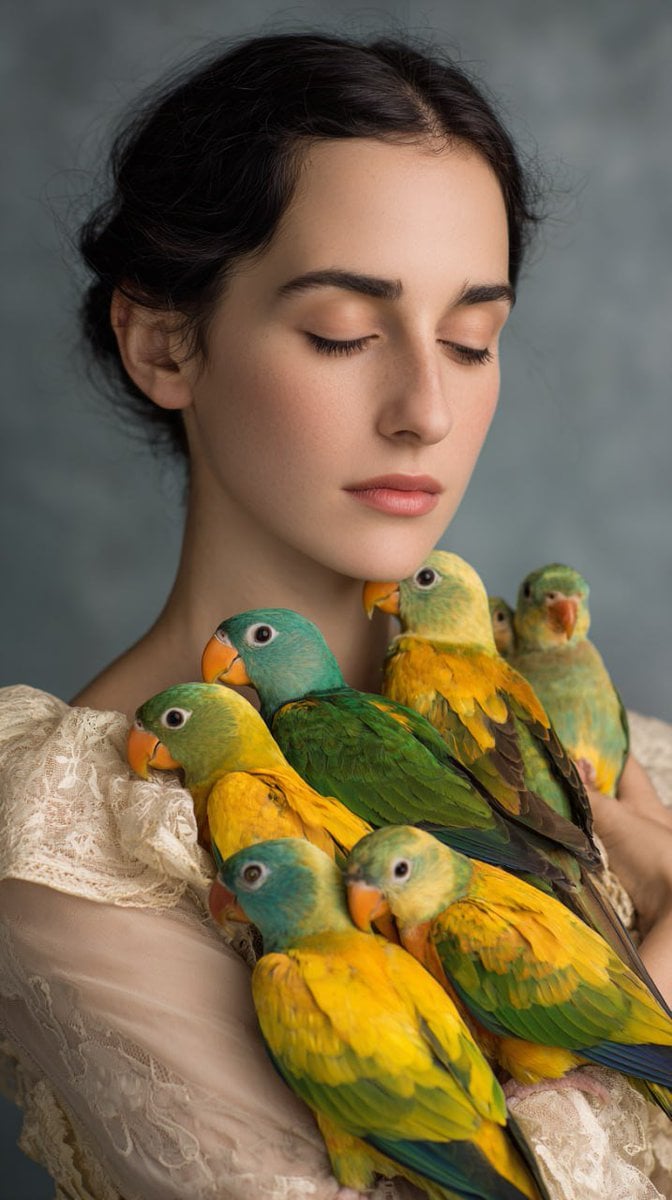
Woman with Teal and Yellow Parrots

Elegant Mirror Selfie with Parrot
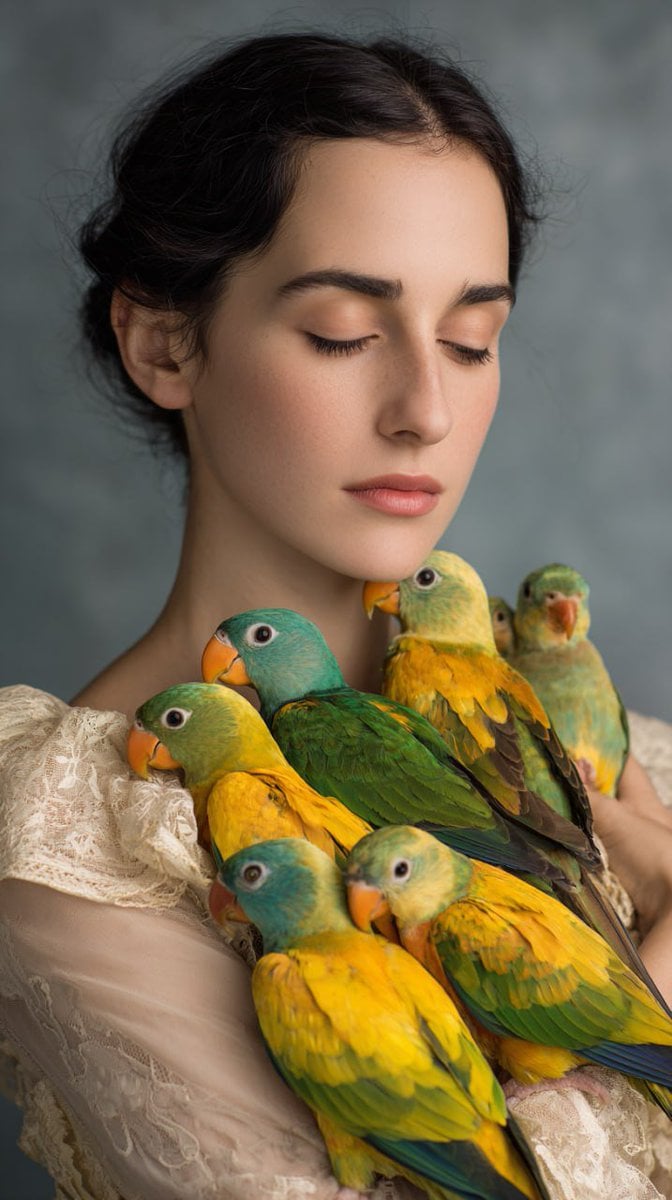
Studio Portrait with Parrots
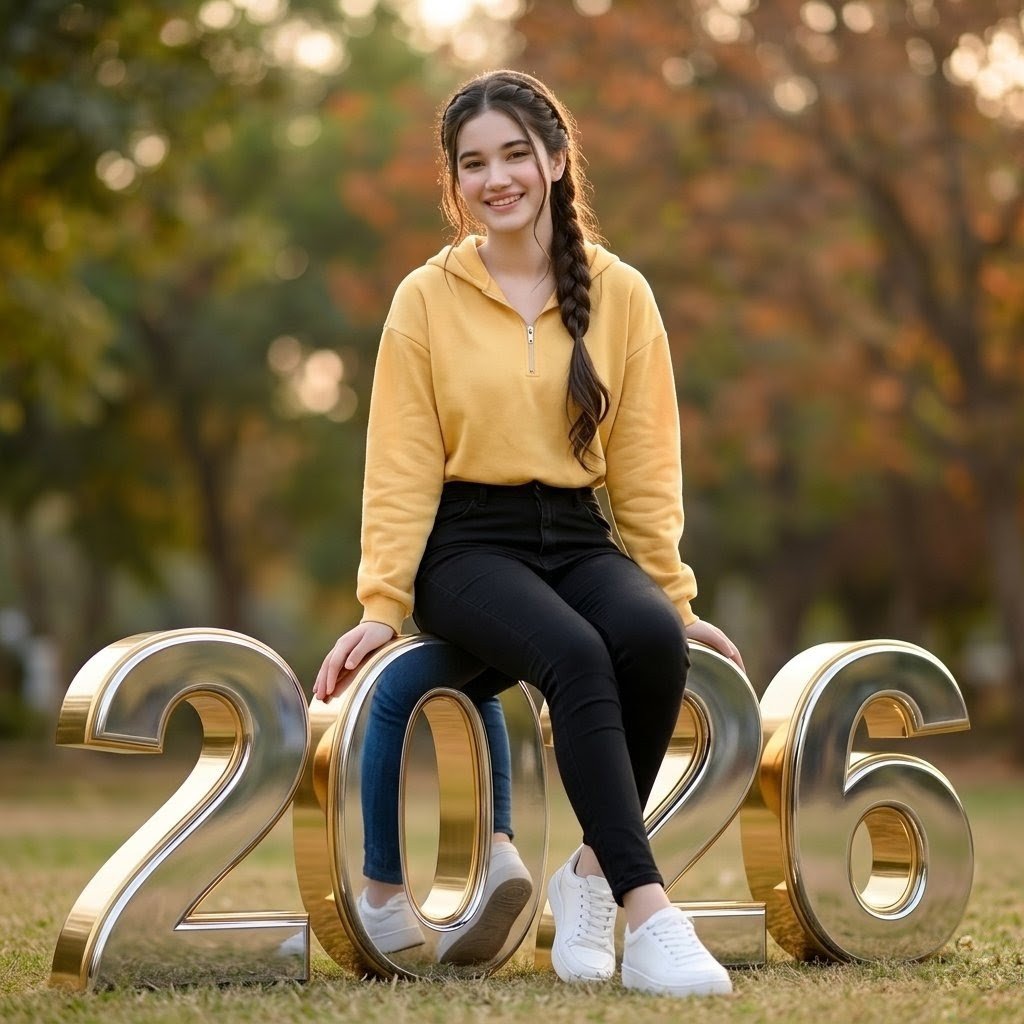
College Girl Sitting on 2026 Numbers
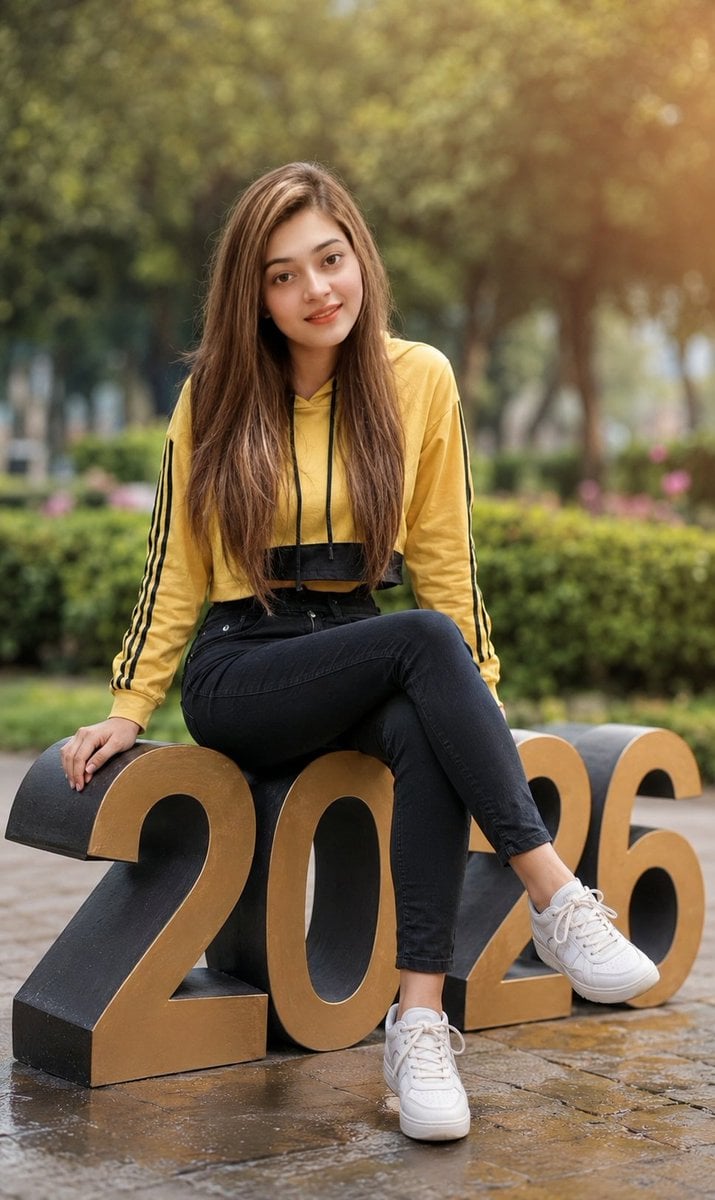
College Girl Sitting on 2026 Numbers
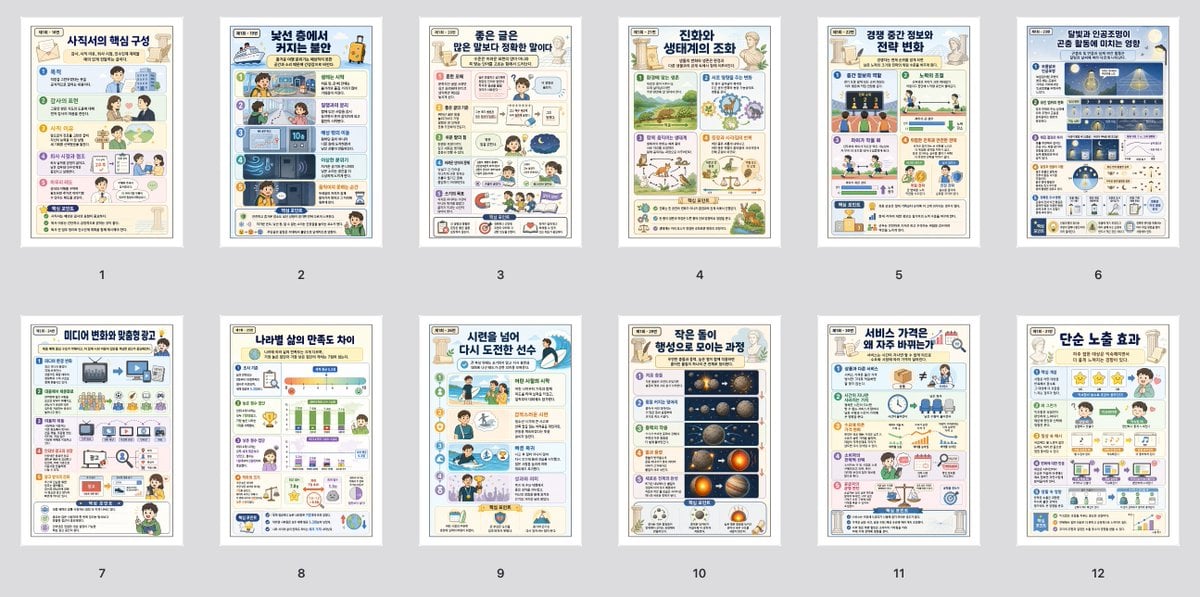
Korean Infographic Worksheet Batch
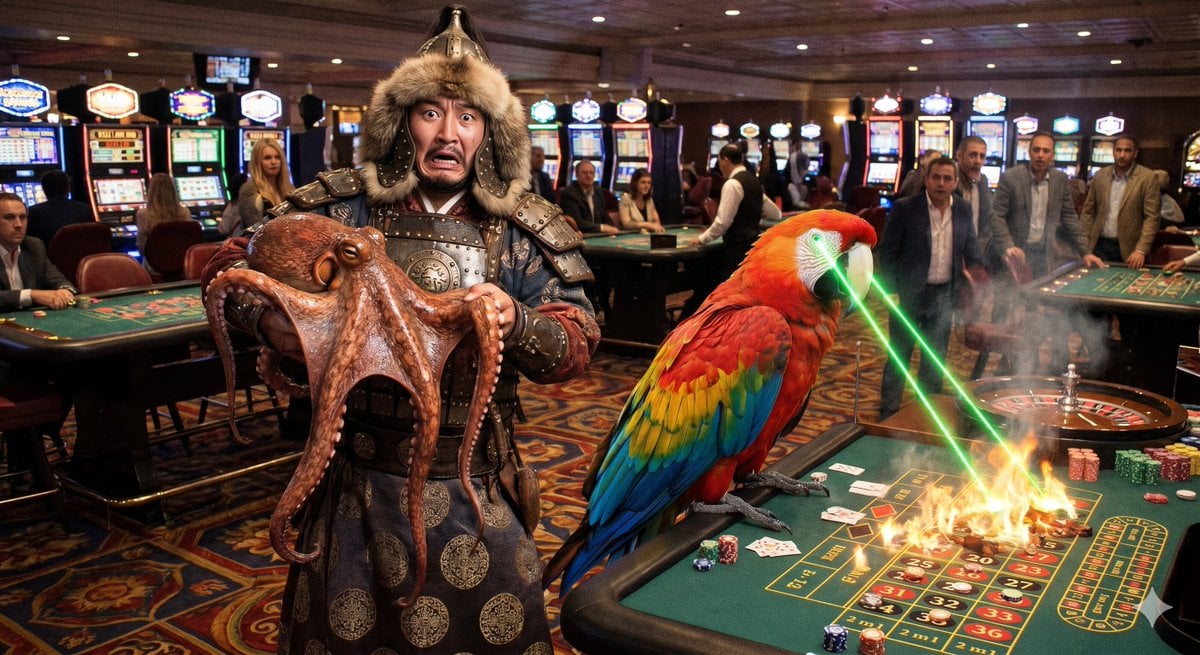
Surreal Casino vs Parrot Battle
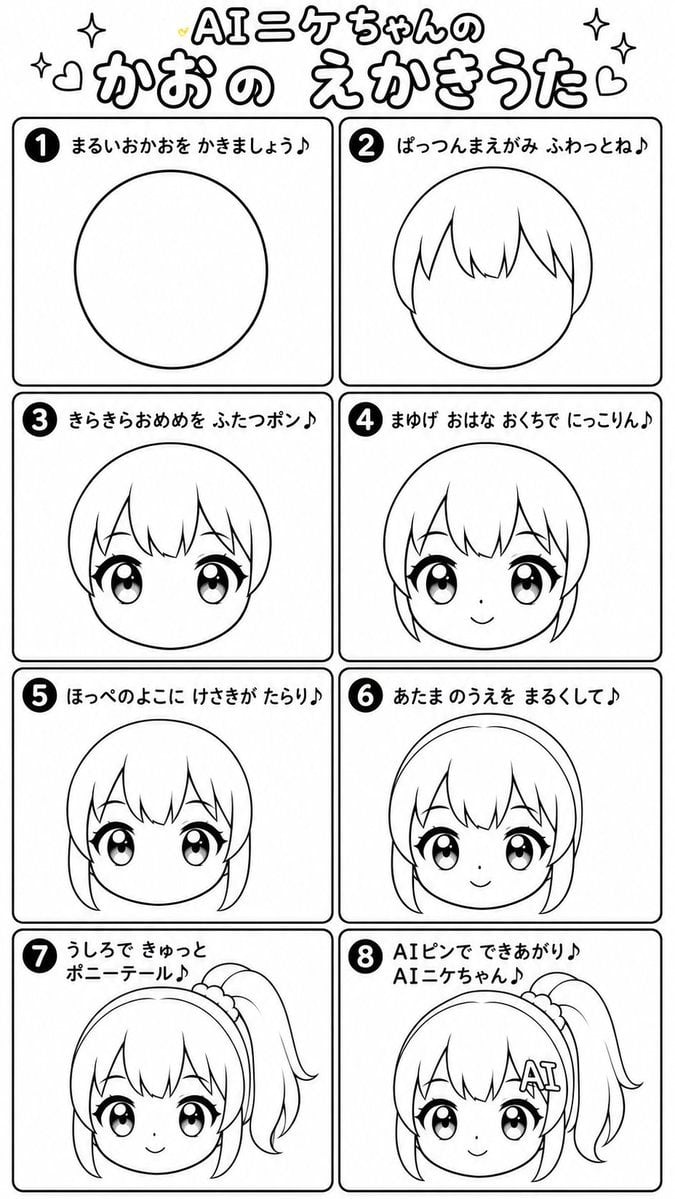
Japanese Chibi Drawing Song Worksheet
Make it yours
Parrot Paint-by-Numbers Worksheet works as-is. These are the safest ways to change it without losing the look.
Change one field
Copy a single group, rewrite it, and generate again so you can see what that field is doing.
Keep the frame, change the subject
Hold the composition and light of Parrot Paint-by-Numbers Worksheet, then swap wardrobe, props or the person for a new take.
| If the result… | Why | Fix |
|---|---|---|
| The result drifts from the preview | Too many fields changed at once. | Reuse Parrot Paint-by-Numbers Worksheet as-is first, then change one group — subject, light, or setting. |
| The model over-stylizes the scene | The prose prompt leaves finish and camera underspecified. | Add one camera or lighting sentence and stay on GPT Image 2. |
More GPT Image 2 templates
Other prompts made for GPT Image 2.

Six VTuber Japanese Logo Sheet

Realistic Portrait of Woman and Deer

The Vista Modular Condo Poster

AI Model Routing Comparison Infographic

2.5D Anime Art Board

Isometric Productivity Desk Scene

New York Double Exposure Poster

Four-Panel AI Landscape Comparison

Japanese Tatami Lifestyle Magazine Cover

NESCAFÉ Coffee Map Poster
More image prompts
Fresh picks from across the catalog.

Split-Screen Athleisure Ad
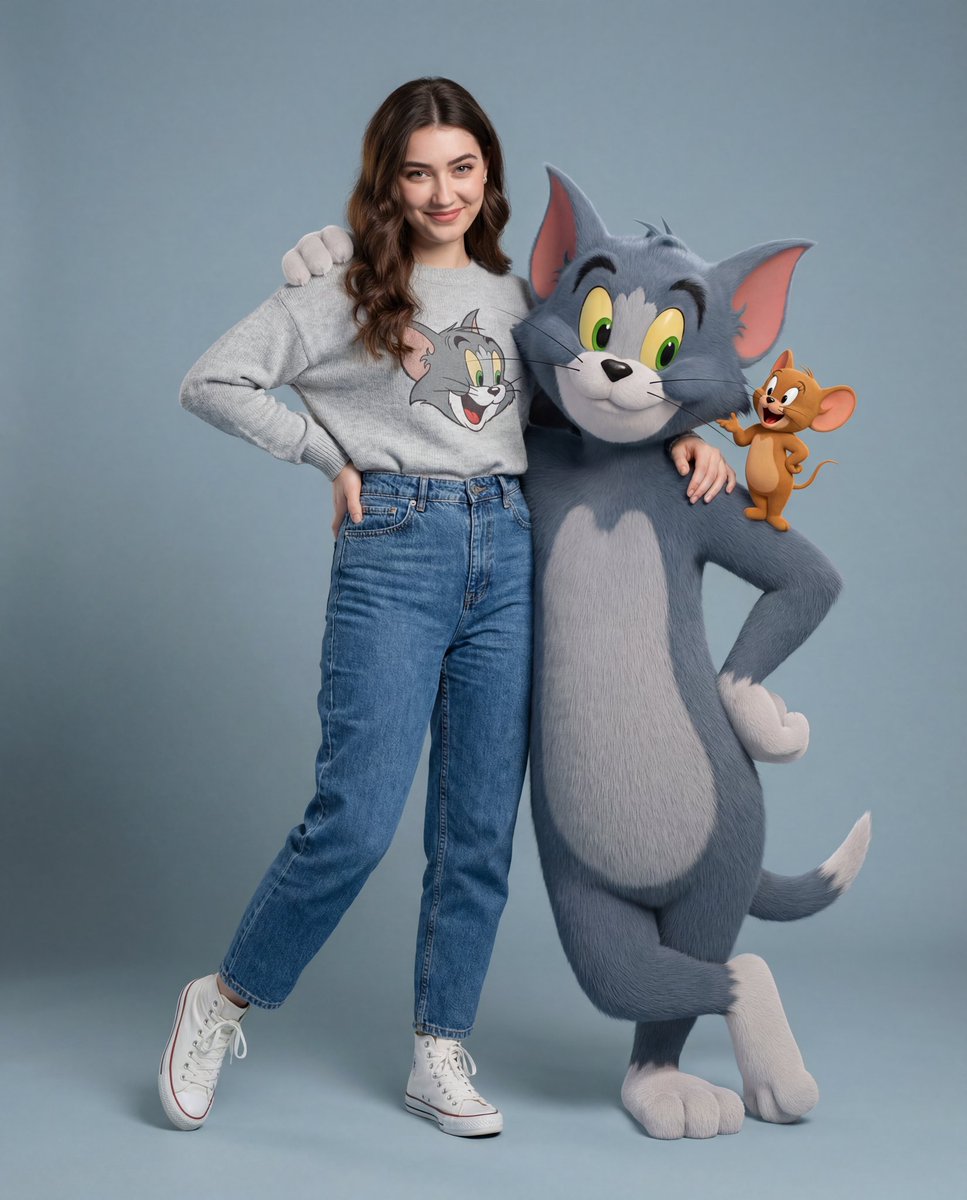
Hyper-realistic Tom & Jerry Fashion Shoot

Miniature Girl on Giant Football
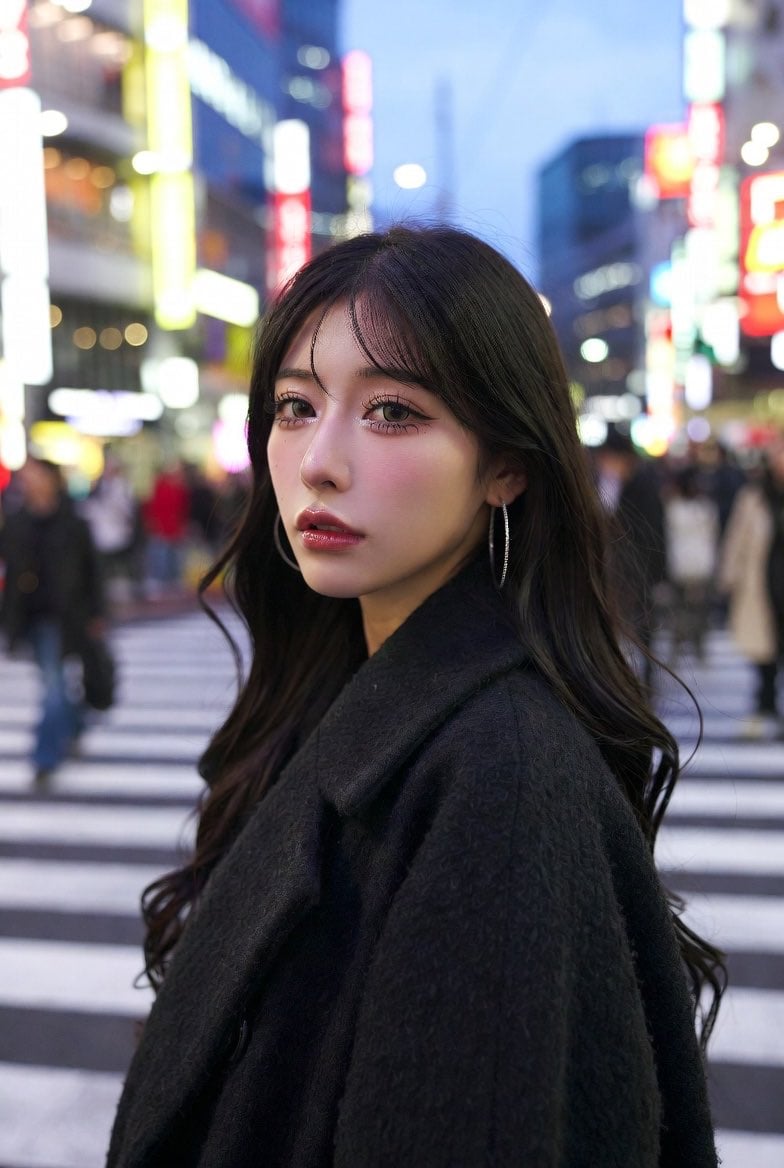
Neon City Portrait With Face Block
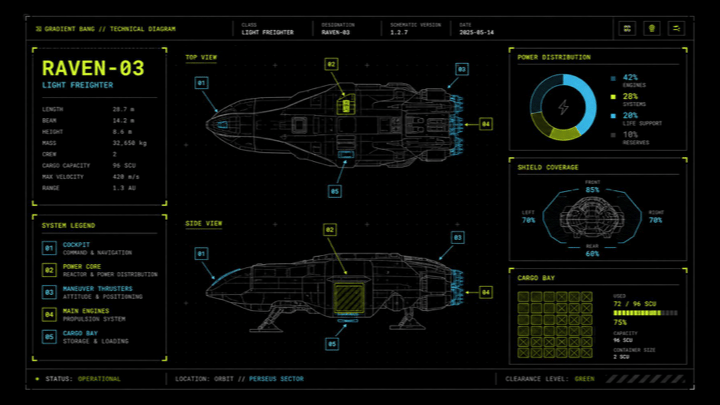
Sci-Fi Light Freighter Schematic HUD

Anime Fashion Lookbook Collage

One-Word Prompt for Instant Masterpiece
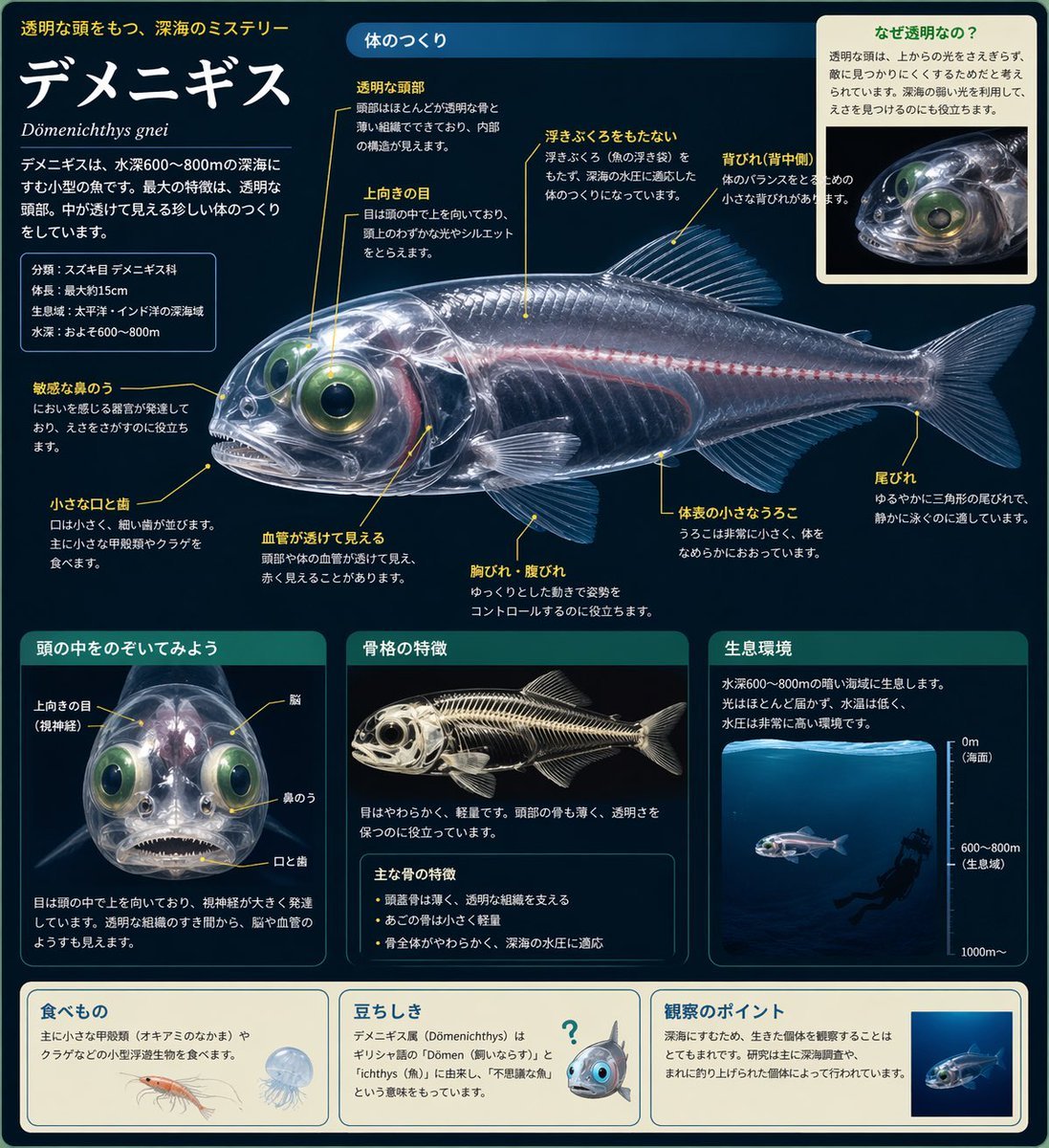
Biological Illustration Page

Japanese Ink Splatter Comic Illustration
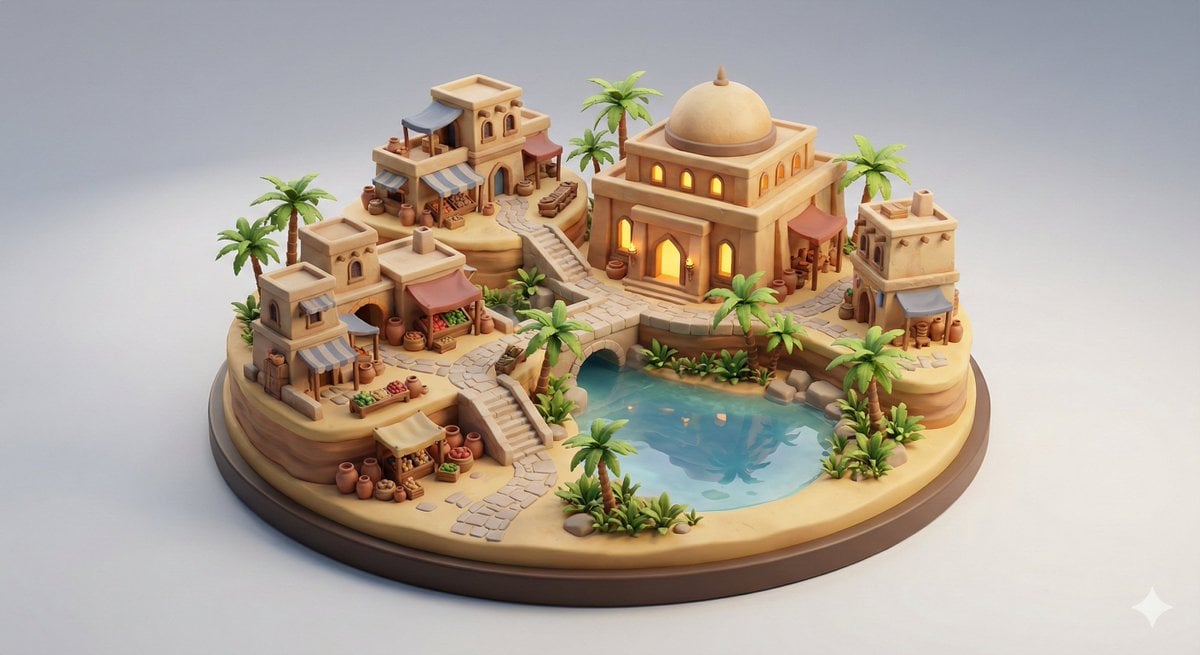
Collectible Miniature Diorama of a Developed Desert Oasis Settlement
Browse template categories
Parrot Paint-by-Numbers Worksheet questions
How do I use the Parrot Paint-by-Numbers Worksheet template?
Add your photo if the template asks for one, edit the prompt if you like — the template's model and format are already selected — and press Generate. Your version opens in PicX Studio.
Can I customize the Parrot Paint-by-Numbers Worksheet template?
Yes. You can change the subject, setting, lighting, mood, format, and available model controls before creating your image.
Is the Parrot Paint-by-Numbers Worksheet template free?
Opening and editing this template is free. Generating uses credits, shown on the Generate button when you are signed in.
Which AI model should I use?
Start with GPT Image 2, which is the model associated with this template. You can compare another compatible model for a different finish.
Looking for something else? Browse all templates.

Your photo, any look
Thousands of ready templates for every top image and video model, from one credit balance.