
Paint-by-Numbers Wave Worksheet
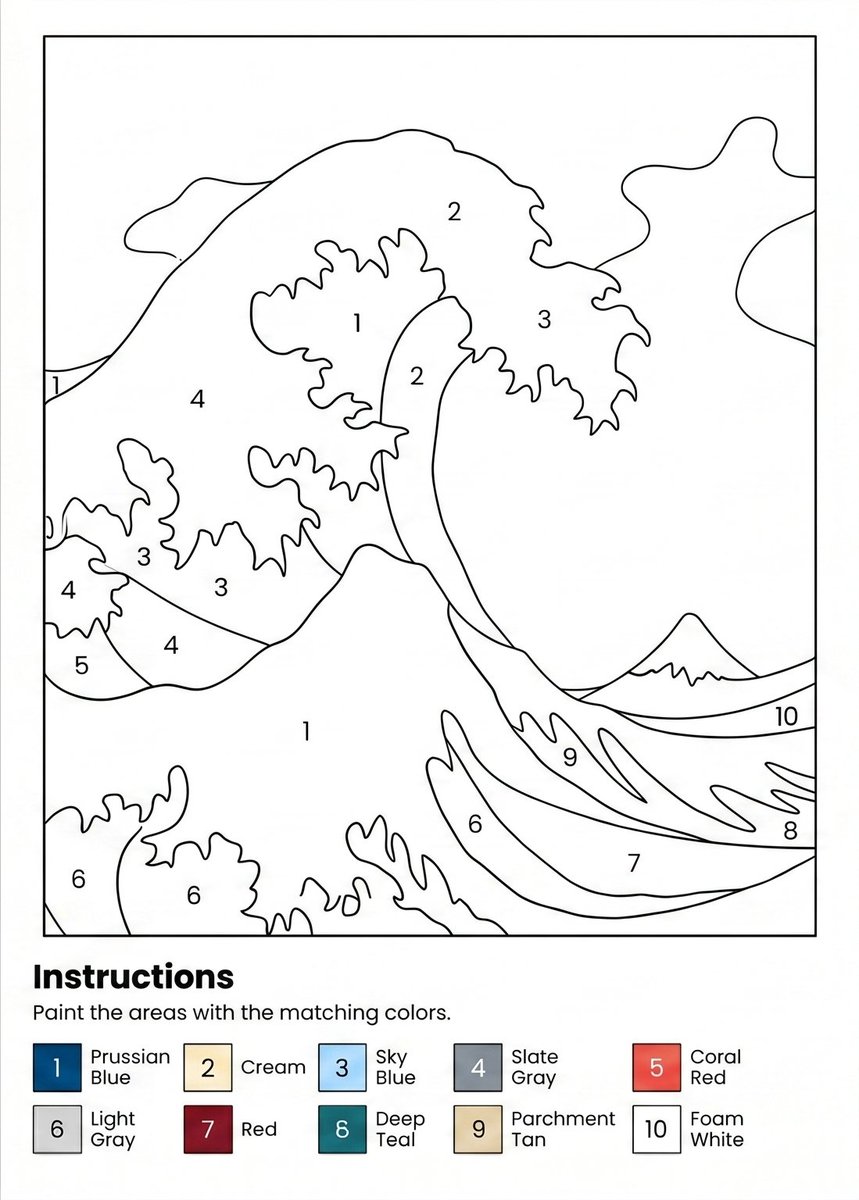
Generates a printable A4 paint-by-numbers worksheet with a numbered ocean wave illustration and a 10-color legend.
- Prompt included
- Model and format preset
- Free template
The prompt behind this image
Copy the exact prompt behind Paint-by-Numbers Wave Worksheet, or open it in the studio and make it yours.
Create a printable paint-by-numbers worksheet on an A4 portrait page at 300 DPI. Use a clean black-and-white line-art illustration inspired by a dramatic Japanese woodblock ocean wave, with large curling waves, foamy irregular edges, a small distant mountain on the right horizon, and abstract cloud or sky shapes in the background. Keep the drawing inside a thin rectangular border with wide white margins. Divide the illustration into clearly enclosed paint regions with smooth black outlines and place centered numeric labels inside each region. Use exactly 10 paint numbers throughout the artwork, with repeated region labels where appropriate: 1 for large wave foam/white areas, 2 for cream wave crest sections, 3 for sky blue splash regions, 4 for slate gray wave/background regions, 5 for coral red small wave region, 6 for light gray lower foam regions, 7 for red lower wave band, 8 for deep teal lower-right wave band, 9 for parchment tan wave band, and 10 for foam white horizon/sky band. At the bottom below the bordered artwork, add a bold heading reading {argument name="headline text" default="Instructions"}, followed by the sentence {argument name="instruction text" default="Paint the areas with the matching colors."}. Under the instructions, include a two-row color legend with exactly 10 numbered square swatches and labels: 1 Prussian Blue, 2 Cream, 3 Sky Blue, 4 Slate Gray, 5 Coral Red, 6 Light Gray, 7 Red, 8 Deep Teal, 9 Parchment Tan, 10 Foam White. Make the legend swatches small, aligned horizontally across the page, with black numbers inside each colored square and the color names beside them. Overall style should be minimal, crisp, printer-friendly, no shading inside the artwork, no extra decorations, no watermark, and all text in a simple sans-serif font.
How to use Paint-by-Numbers Wave Worksheet in 3 steps
- 1Upload ImagePNG, JPG or paste
Add your photo
Upload the photo the template builds on. The prompt, model and format are already set.
- 2…a portrait of your subject in softgolden-hour light, 85mm…
Personalize
Edit the subject and creative details for your destination.
- 3Generate
Generate
Press Generate — your image is created in PicX Studio, so you can compare it with the original and refine one variable at a time.
More like this
Templates with the same subject, style or setup. Open one to see its prompt.
Paint-by-Numbers Living Room Worksheet
Parrot Paint-by-Numbers Worksheet
Peacock Paint-by-Numbers Worksheet
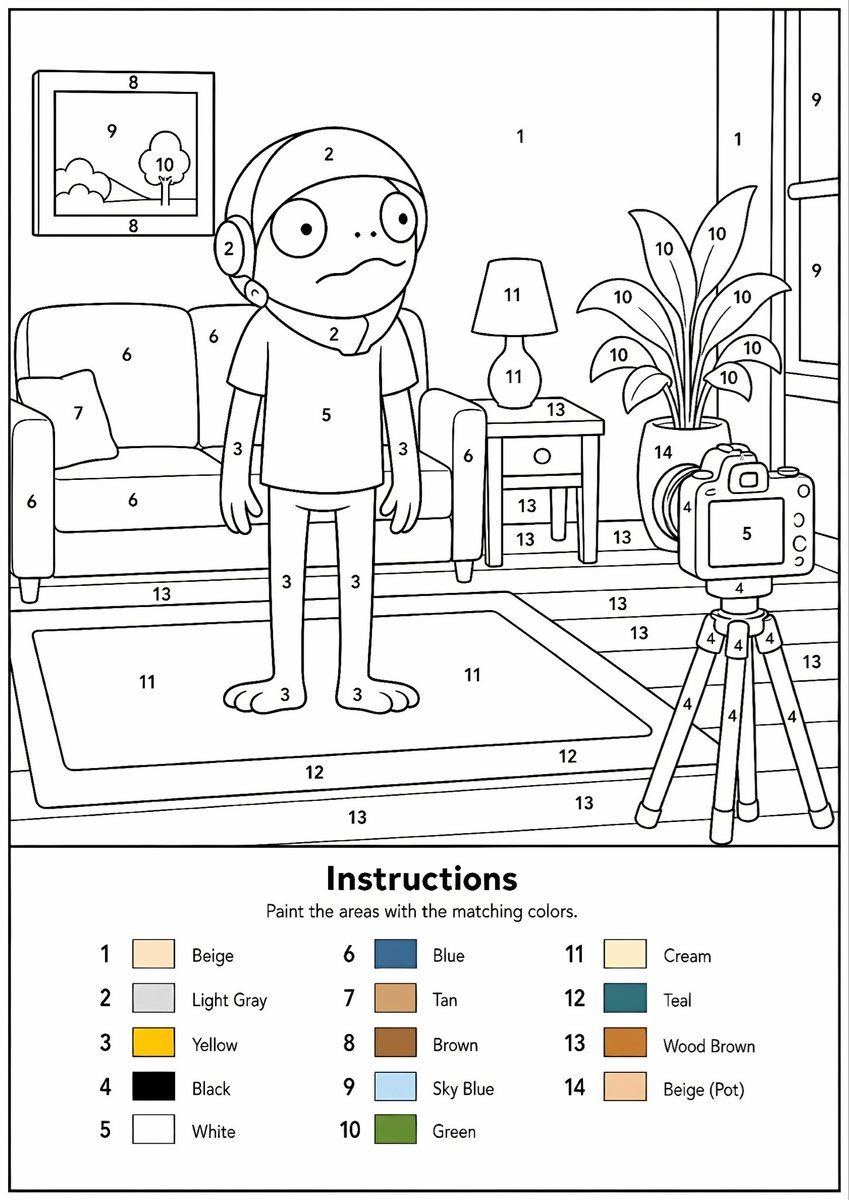
Printable Paint by Numbers Generator
Poetic Wave of Departure Portrait

Cinematic Ocean Wave Fashion Portrait
A French New Wave style minimalist lovers scene, black and white, 1950s
A small wave splashes lightly against the bottle base
College Girl Sitting on 2026 Numbers
City Heatwave Editorial Photography
College Girl Sitting on 2026 Numbers

Synthwave Retro-Futuristic Music Poster
Make it yours
Paint-by-Numbers Wave Worksheet works as-is. These are the safest ways to change it without losing the look.
Change one field
Copy a single group, rewrite it, and generate again so you can see what that field is doing.
Keep the frame, change the subject
Hold the composition and light of Paint-by-Numbers Wave Worksheet, then swap wardrobe, props or the person for a new take.
| If the result… | Why | Fix |
|---|---|---|
| The result drifts from the preview | Too many fields changed at once. | Reuse Paint-by-Numbers Wave Worksheet as-is first, then change one group — subject, light, or setting. |
| The model over-stylizes the scene | The prose prompt leaves finish and camera underspecified. | Add one camera or lighting sentence and stay on GPT Image 2. |
More GPT Image 2 templates
Other prompts made for GPT Image 2.

Six VTuber Japanese Logo Sheet

Realistic Portrait of Woman and Deer

The Vista Modular Condo Poster

AI Model Routing Comparison Infographic

2.5D Anime Art Board

Isometric Productivity Desk Scene

New York Double Exposure Poster

Four-Panel AI Landscape Comparison

Japanese Tatami Lifestyle Magazine Cover

NESCAFÉ Coffee Map Poster
More image prompts
Fresh picks from across the catalog.
Vogue Prompt for Nano Banana Pro
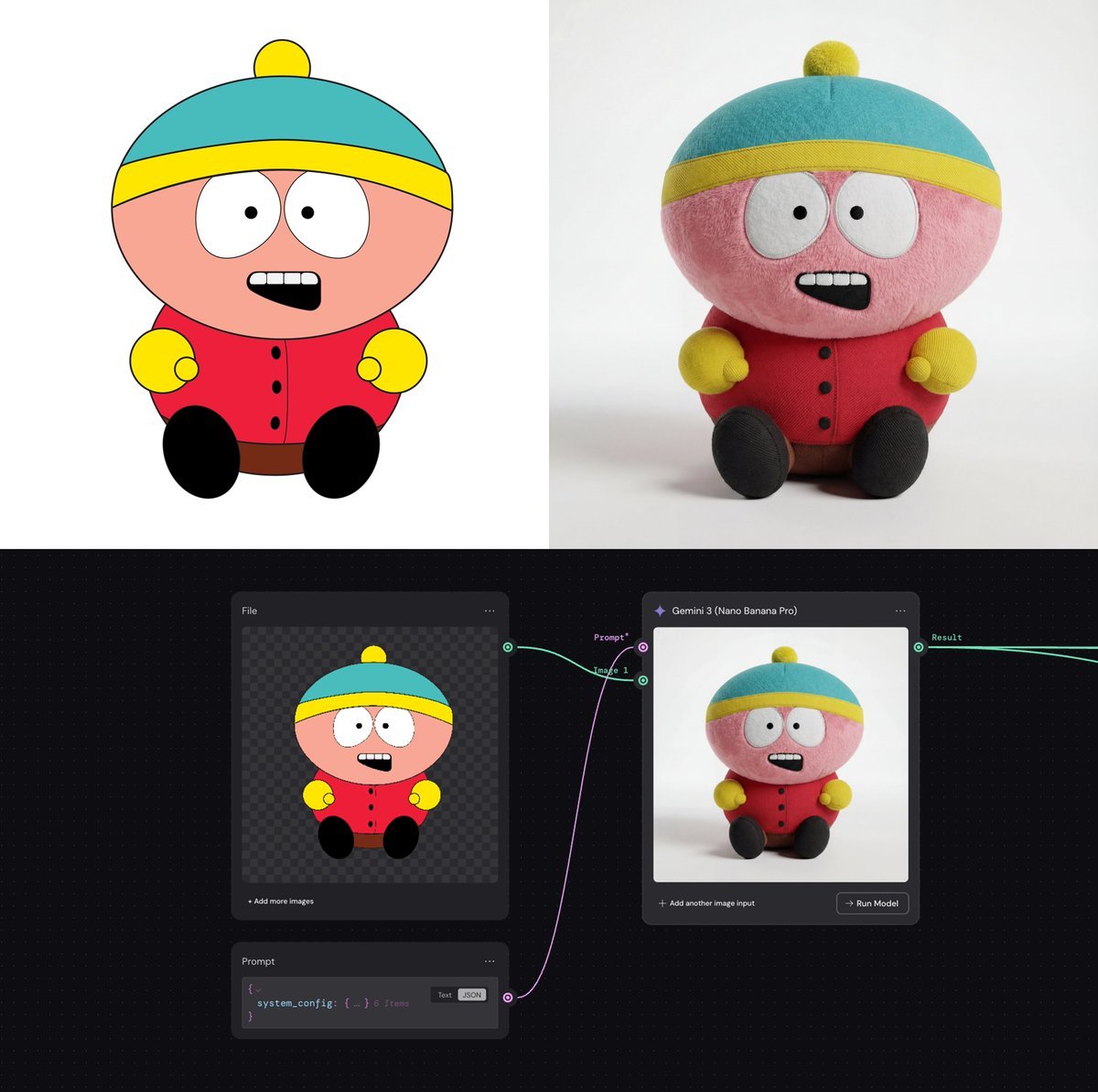
System Prompt for 2D to 3D Plush Conversion
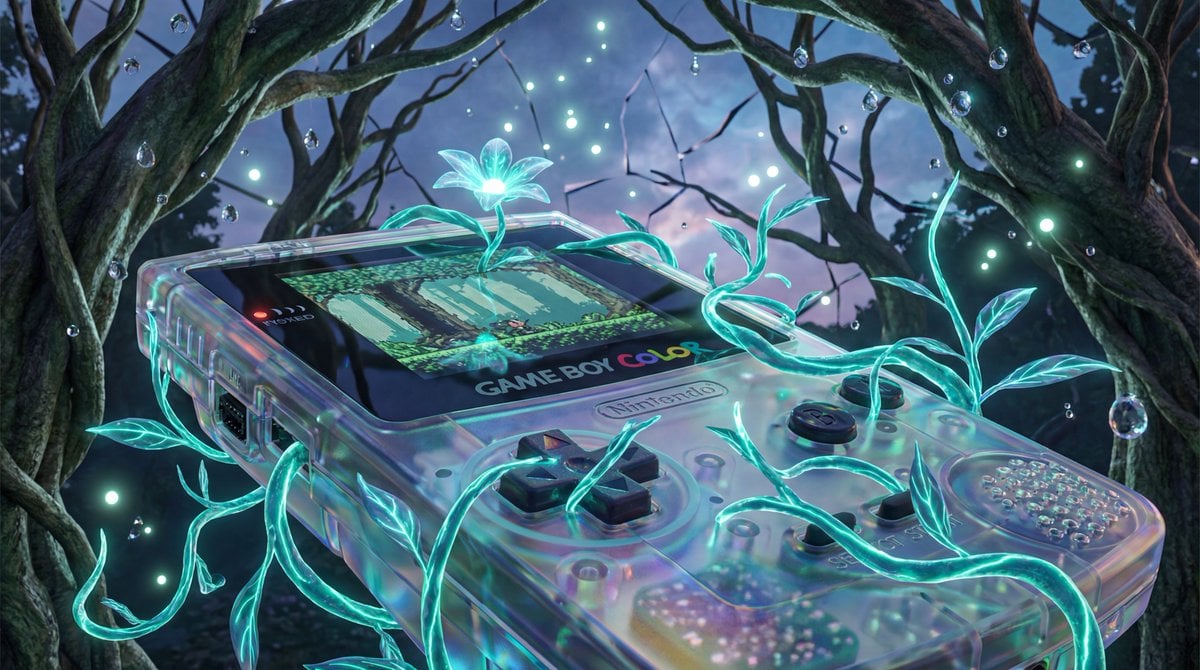
Surreal Bioluminescent Vine Fantasy
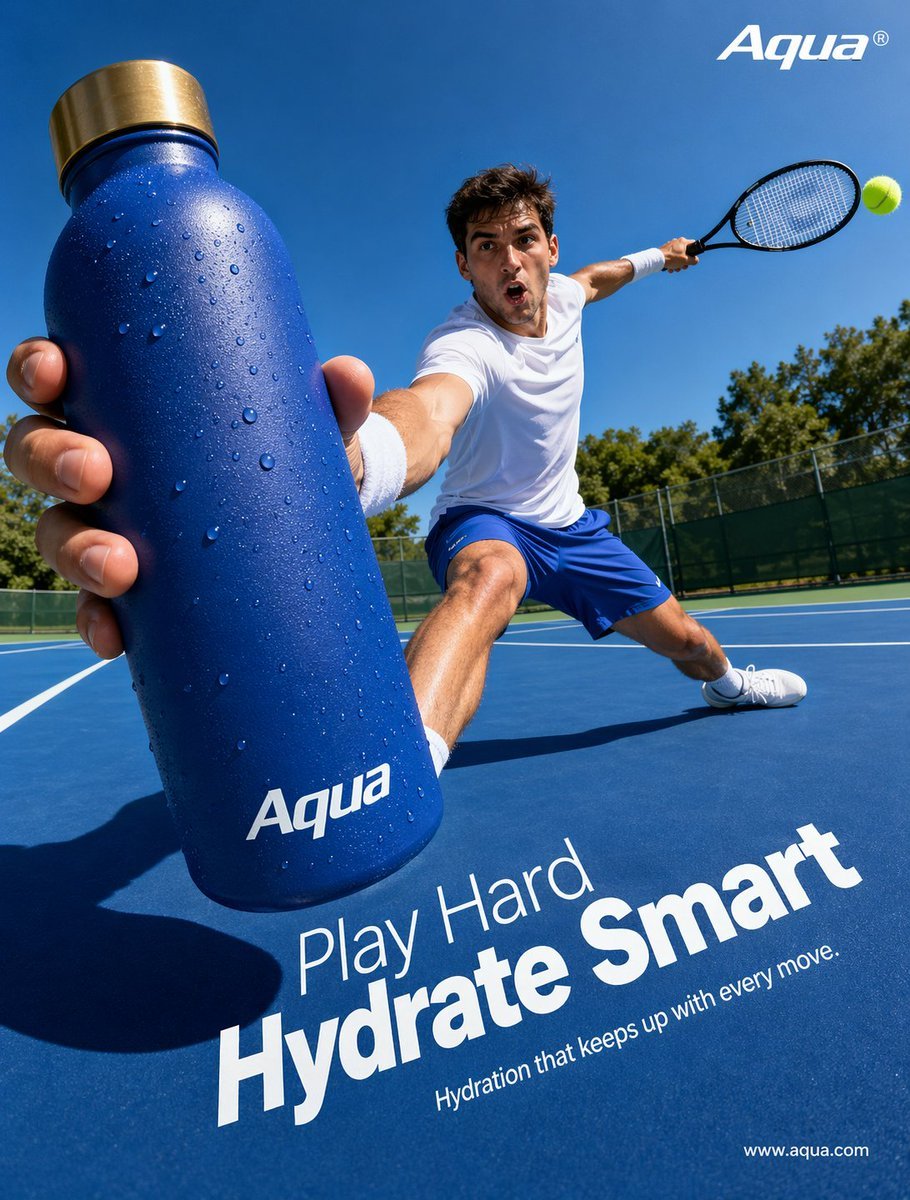
Tennis Hydration Ad Poster

Fantasy Capital Arrival Scene
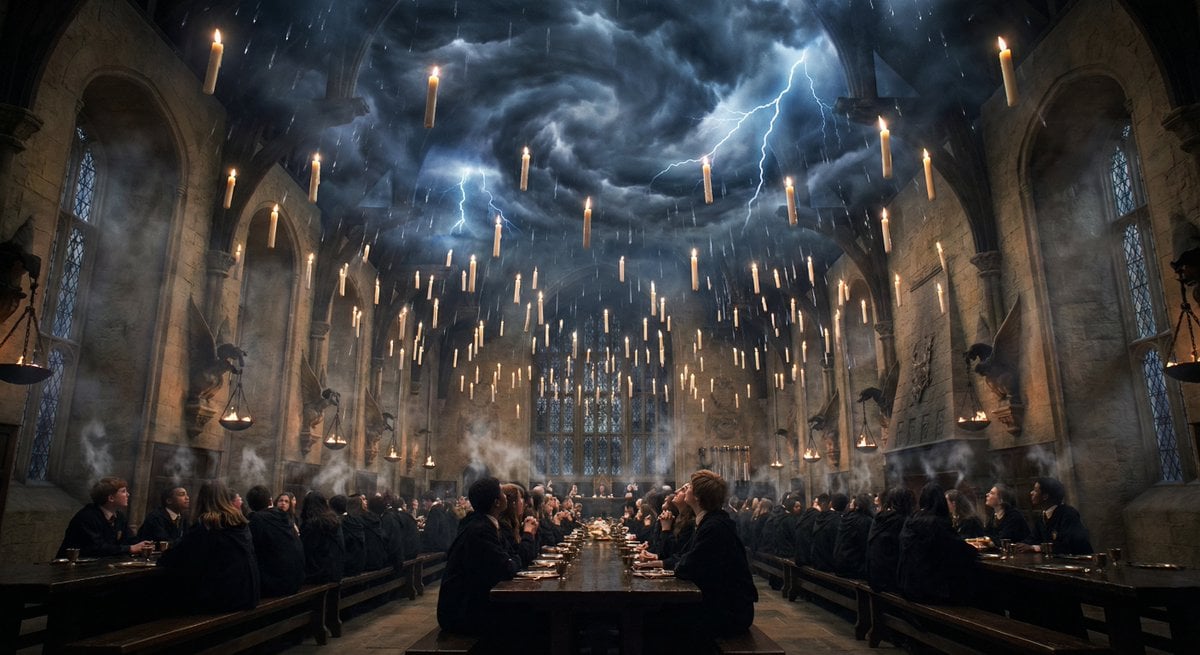
Hogwarts Great Hall during a thunderstorm

RPG Map to Anime Event Scene

Lara Croft with Fiery Bow in Heavy Downpour

Cool Chibi Demon Girl Poster
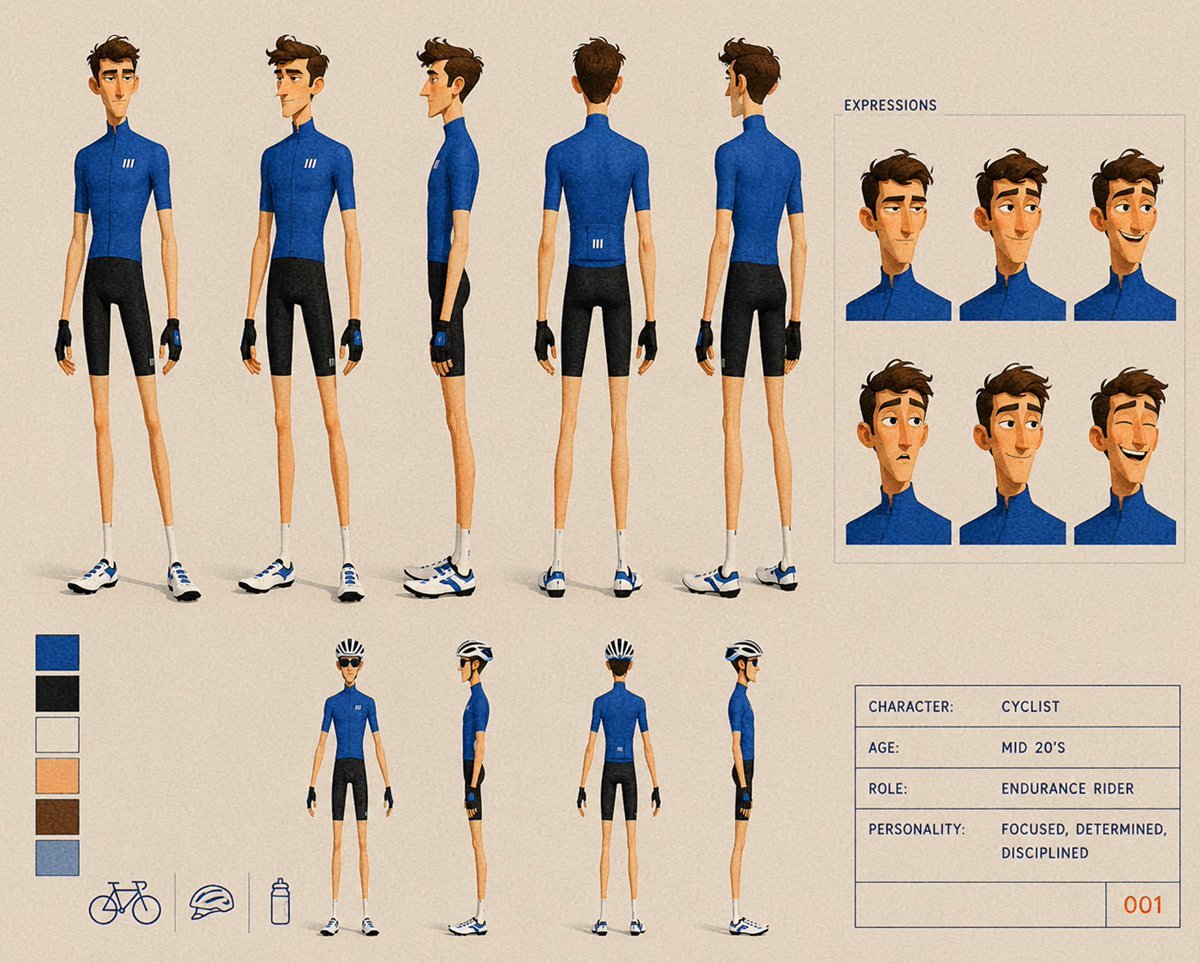
Cyclist Character Design Sheet
Browse template categories
Paint-by-Numbers Wave Worksheet questions
How do I use the Paint-by-Numbers Wave Worksheet template?
Add your photo if the template asks for one, edit the prompt if you like — the template's model and format are already selected — and press Generate. Your version opens in PicX Studio.
Can I customize the Paint-by-Numbers Wave Worksheet template?
Yes. You can change the subject, setting, lighting, mood, format, and available model controls before creating your image.
Is the Paint-by-Numbers Wave Worksheet template free?
Opening and editing this template is free. Generating uses credits, shown on the Generate button when you are signed in.
Which AI model should I use?
Start with GPT Image 2, which is the model associated with this template. You can compare another compatible model for a different finish.
Looking for something else? Browse all templates.

Your photo, any look
Thousands of ready templates for every top image and video model, from one credit balance.