
Paint-by-Numbers Living Room Worksheet
Generates a printable A4 paint-by-numbers coloring worksheet with a numbered cartoon living room scene and a 14-color legend.
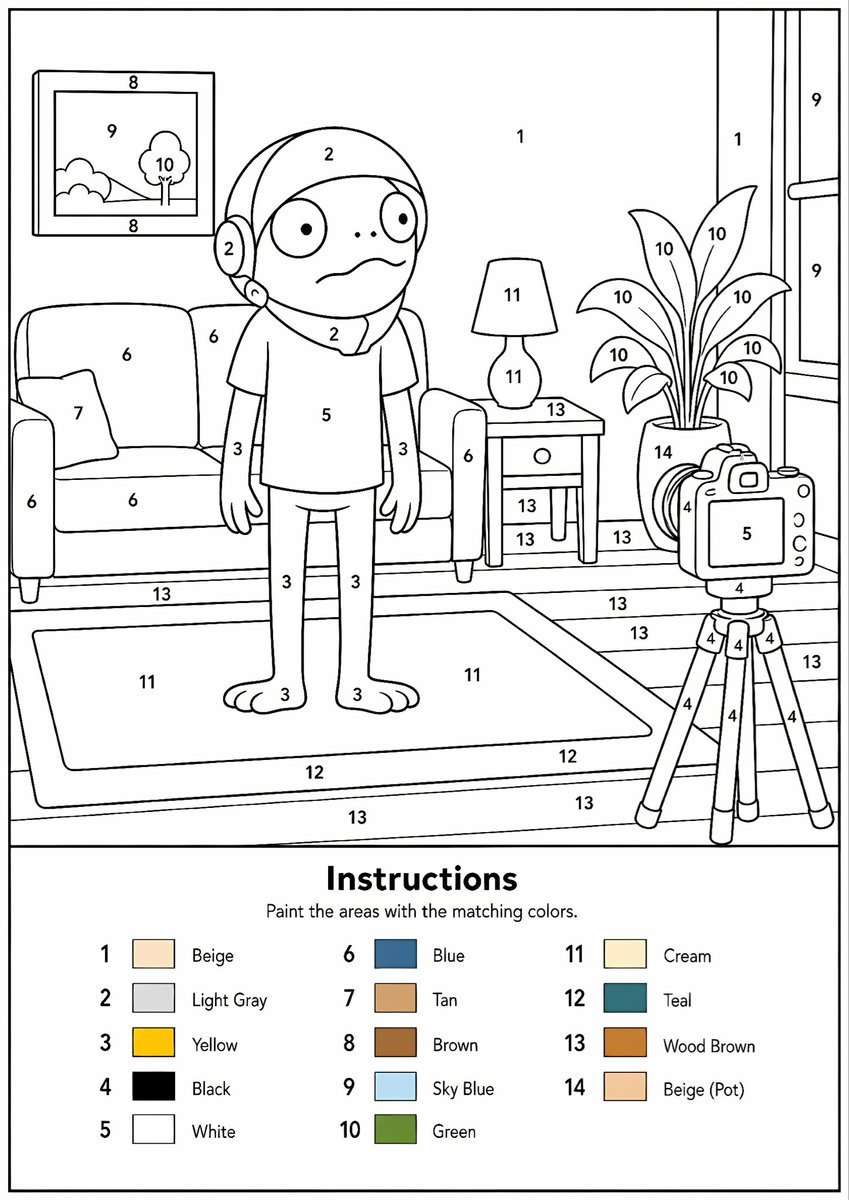
- Prompt included
- Model and format preset
- Premium template
The prompt behind this image
Copy the exact prompt behind Paint-by-Numbers Living Room Worksheet, or open it in the studio and make it yours.
Goal: Create a printable paint-by-numbers worksheet showing a cartoon living room scene with a child-like character standing in the center, designed as clean black-and-white line art with numbered regions and a color legend. Canvas: A4 portrait page at 300 DPI, white background, thin black outer border, crisp vector-like outlines, no shading except the tiny color swatches in the legend. The main illustration fills the upper roughly 70% of the page, and the instruction/color-key panel fills the bottom roughly 30%. Main illustration layout: Draw a cozy living room in simple rounded cartoon style. Center: one standing cartoon character with large round eyes, small dot nose, worried wavy mouth, hood or helmet-like hair/head covering, short-sleeve shirt, slim arms, long pants, and bare feet. Left: one sofa with two seat/back cushions, one armrest visible on each side, and one small throw pillow. Above the sofa: one framed wall picture containing a small landscape with hills, sky, and one tree. Right of the character: one side table with a lamp on top and one drawer; behind/right is one tall potted plant with exactly 10 visible leaves. Far right: one camera on a tripod aimed at the character, with a screen/body, lens/buttons, and exactly three tripod legs. Background includes a wall, a large window on the right with vertical panes, a floor with wood plank lines, and a large rectangular rug in the foreground. Numbered paint areas: Place black numbers inside the line-art regions throughout the scene, using numbers 1 through 14. Use many repeated numbers on matching surfaces. Keep the numbers legible and centered in their shapes. Match the apparent assignments: 1 for beige wall areas, 2 for light gray head/hood areas, 3 for yellow skin/limbs, 4 for black camera/tripod details, 5 for white shirt and camera screen, 6 for blue sofa, 7 for tan pillow, 8 for brown picture frame, 9 for sky blue window/picture sky, 10 for green plant/tree leaves, 11 for cream lamp/rug interior, 12 for teal rug border, 13 for wood-brown floor/table/plank areas, and 14 for beige plant pot. Bottom instruction panel: Add a horizontal divider line above the legend. Center a bold title reading {argument name="instruction title" default="Instructions"}. Under it, add smaller text reading {argument name="instruction subtitle" default="Paint the areas with the matching colors."}. Below, arrange exactly 14 color legend entries in three neat columns. Each entry has a number, a small filled color square, and an English color label. The 14 entries must be: 1 Beige, 2 Light Gray, 3 Yellow, 4 Black, 5 White, 6 Blue, 7 Tan, 8 Brown, 9 Sky Blue, 10 Green, 11 Cream, 12 Teal, 13 Wood Brown, 14 Beige (Pot). Style constraints: Make it look like a polished printable worksheet for children, with smooth uniform black outlines, rounded friendly shapes, lots of enclosed regions suitable for coloring, no gradients, no realistic textures, no extra text, no watermark. Subject can be customized as {argument name="central character" default="a worried cartoon child-like figure"}, setting as {argument name="room setting" default="cozy living room"}, and palette as {argument name="color palette" default="14-color paint-by-numbers palette"}.
How to use Paint-by-Numbers Living Room Worksheet in 3 steps
- 1Upload ImagePNG, JPG or paste
Add your photo
Upload the photo the template builds on. The prompt, model and format are already set.
- 2…a portrait of your subject in softgolden-hour light, 85mm…
Personalize
Edit the subject and creative details for your destination.
- 3Generate
Generate
Press Generate — your image is created in PicX Studio, so you can compare it with the original and refine one variable at a time.
More like this
Templates with the same subject, style or setup. Open one to see its prompt.
Parrot Paint-by-Numbers Worksheet
Peacock Paint-by-Numbers Worksheet
Paint-by-Numbers Wave Worksheet
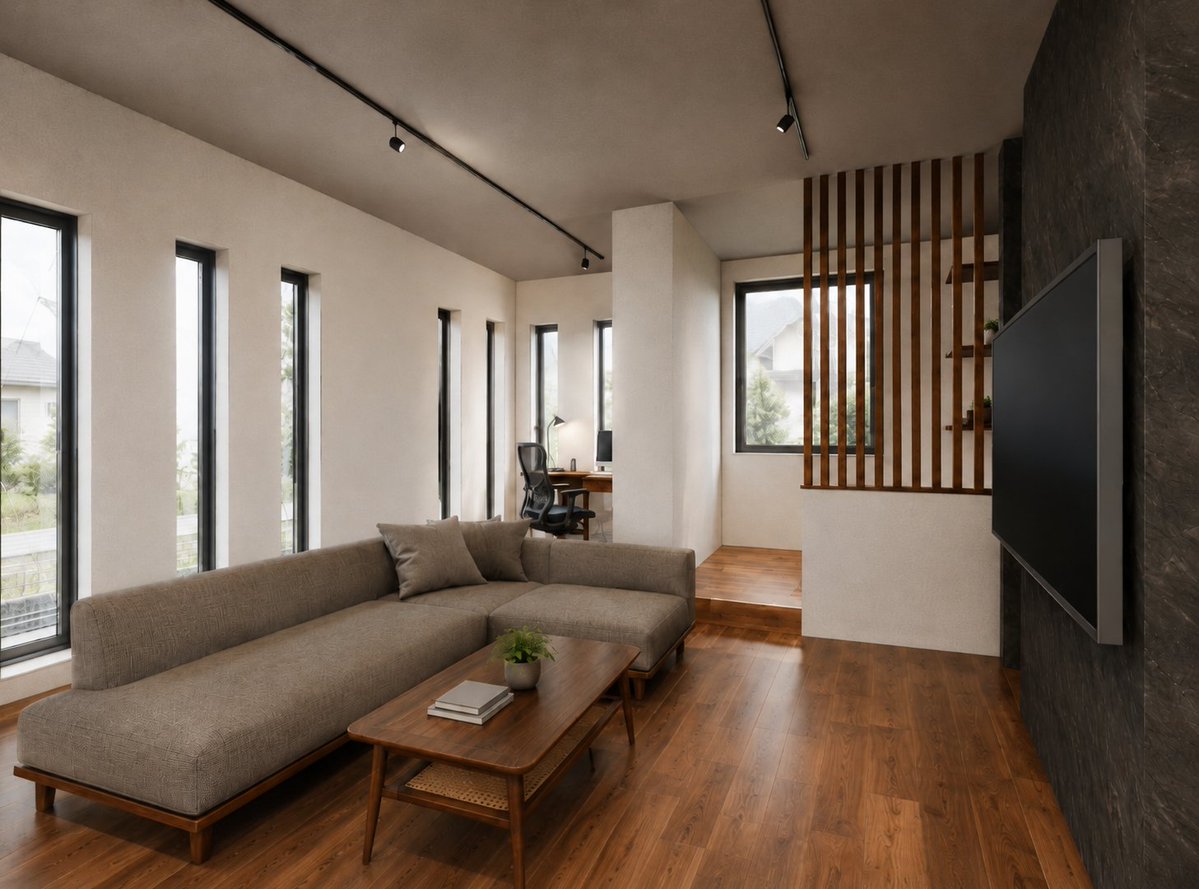
Warm Modern Japanese Living Room Render

Surreal Anime & Reality Living Room

CRT TV Static Living Room

70s Living Room Shag Carpet

Living Room Rug Evening Mirror Selfie

Low-Poly Cartoon Stoner Living Room

Romance Manga Page in a Living Room

Cozy Living Room Afternoon Scene
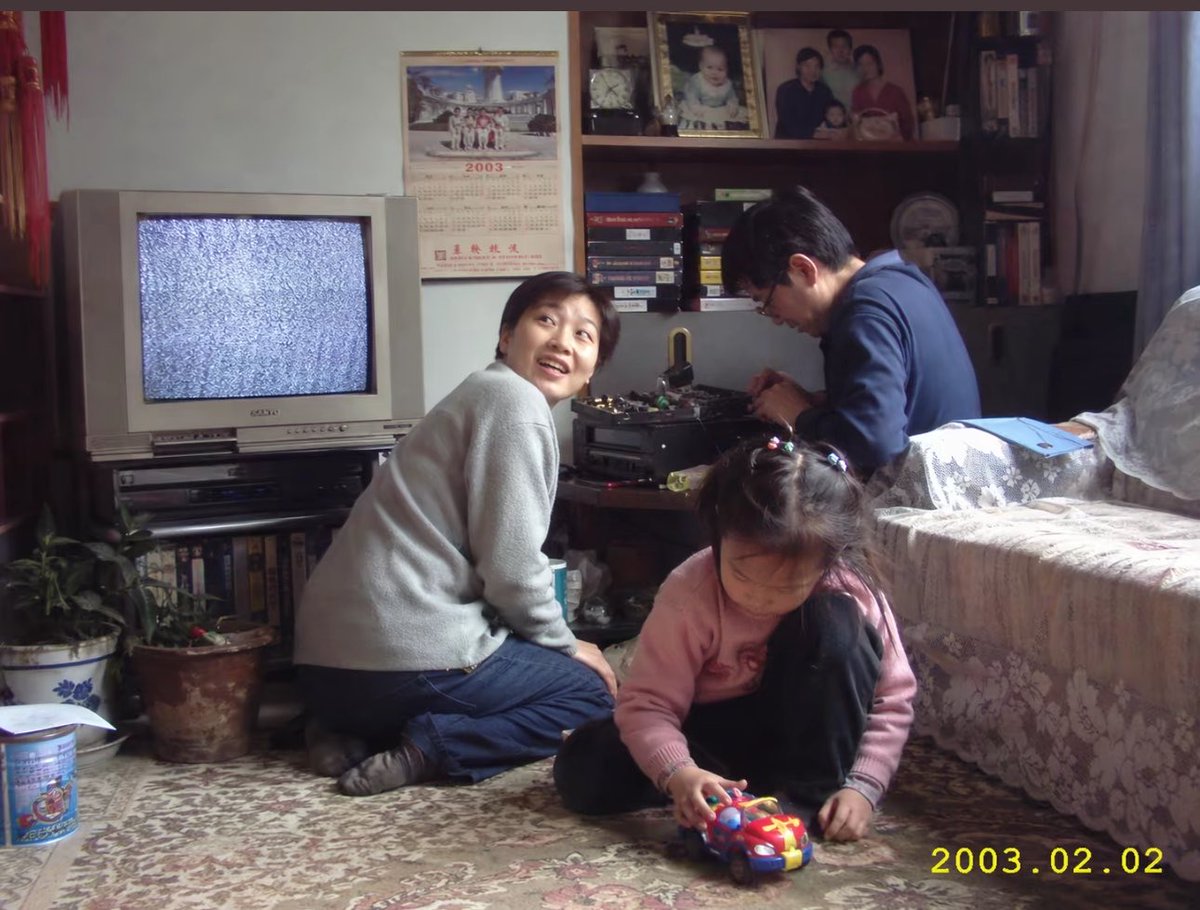
Early 2000s Family Living Room Photo
Make it yours
Paint-by-Numbers Living Room Worksheet works as-is. These are the safest ways to change it without losing the look.
Change one field
Copy a single group, rewrite it, and generate again so you can see what that field is doing.
Keep the frame, change the subject
Hold the composition and light of Paint-by-Numbers Living Room Worksheet, then swap wardrobe, props or the person for a new take.
| If the result… | Why | Fix |
|---|---|---|
| The result drifts from the preview | Too many fields changed at once. | Reuse Paint-by-Numbers Living Room Worksheet as-is first, then change one group — subject, light, or setting. |
| The model over-stylizes the scene | The prose prompt leaves finish and camera underspecified. | Add one camera or lighting sentence and stay on GPT Image 2. |
More GPT Image 2 templates
Other prompts made for GPT Image 2.

Six VTuber Japanese Logo Sheet

Realistic Portrait of Woman and Deer

The Vista Modular Condo Poster

AI Model Routing Comparison Infographic

2.5D Anime Art Board

Isometric Productivity Desk Scene

New York Double Exposure Poster

Four-Panel AI Landscape Comparison

Japanese Tatami Lifestyle Magazine Cover

NESCAFÉ Coffee Map Poster
More image prompts
Fresh picks from across the catalog.

3D Animated Scene with Reference Matching

Retro-Futuristic 1970s Sci-Fi Full Body Portrait Prompt in JSON

Golden Hour Beach Selfie with Pink Flower

Cute Lifestyle Photo in a Modern Bakery

Adding Fabric Texture to Clothing

3D Cartographic City Diorama

Mount Fuji Street With Cloud Kanji
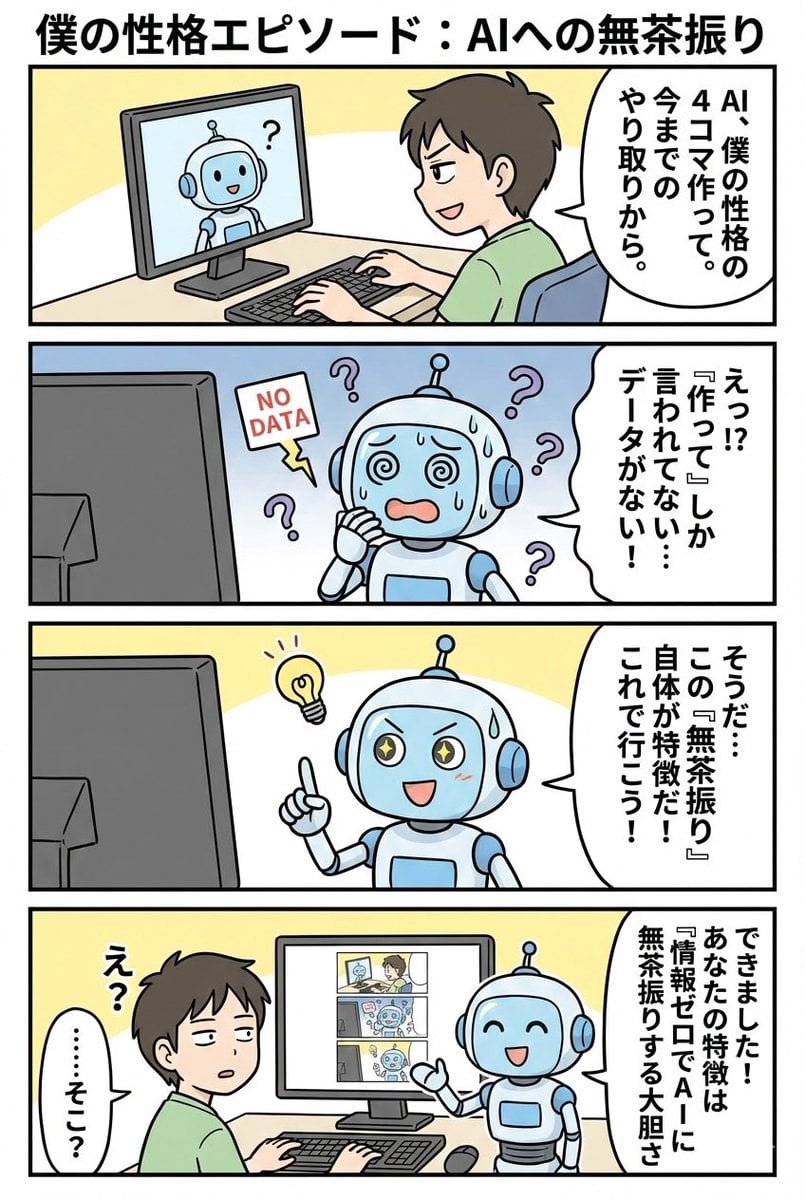
panel manga based on past interactions
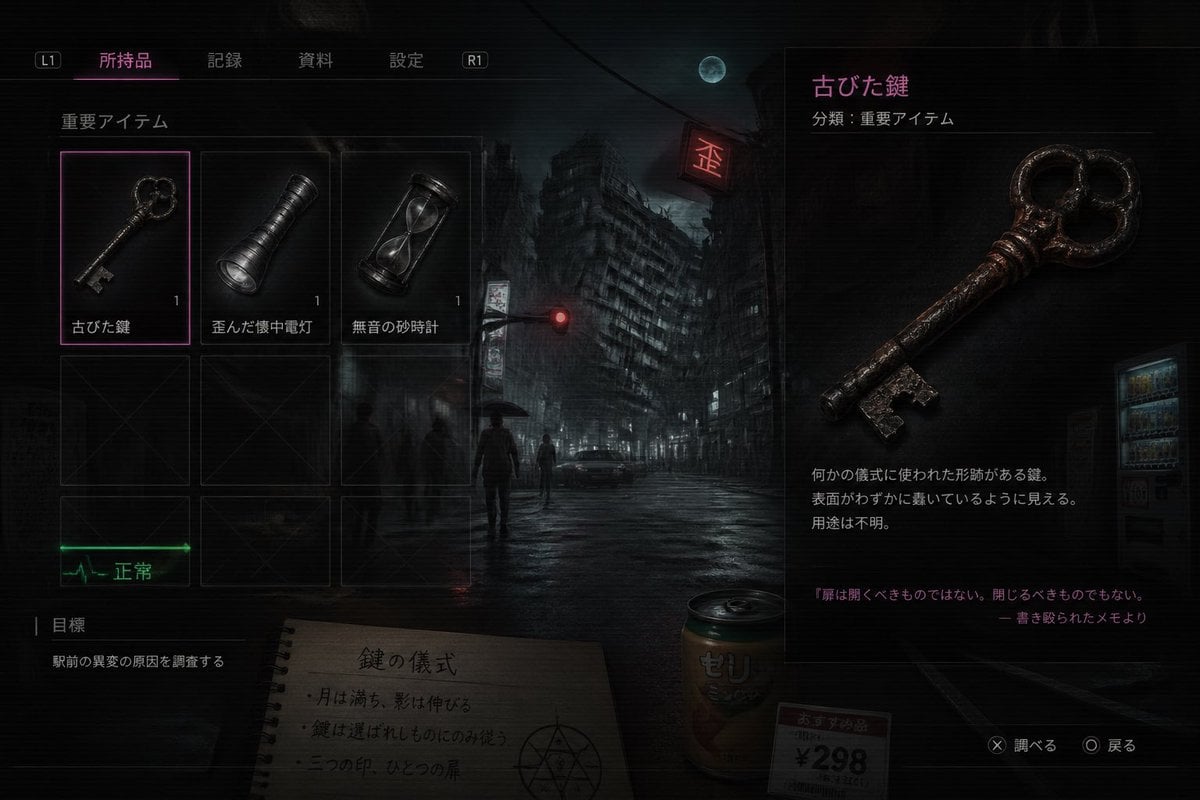
Japanese Horror Game Inventory Screen
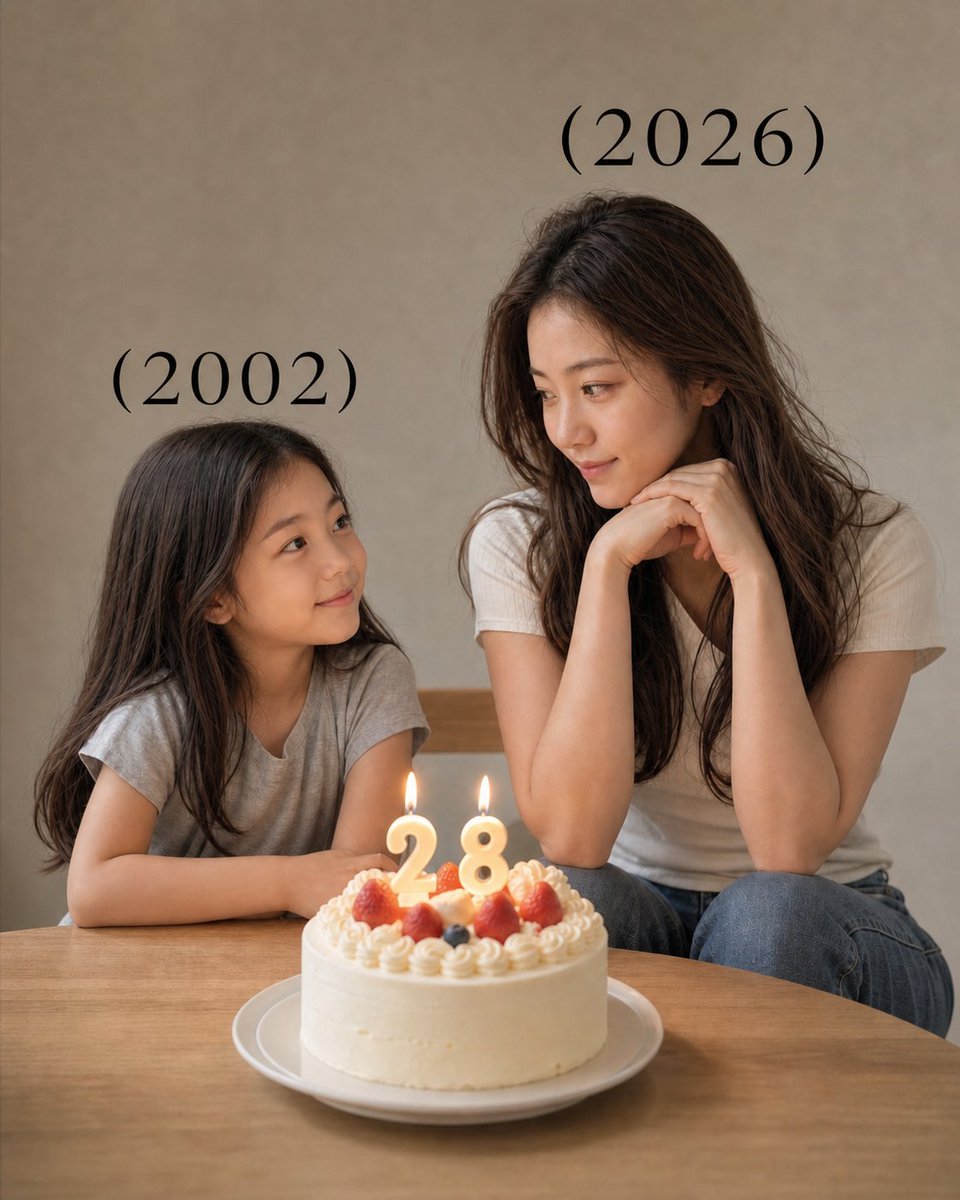
Time-Travel Birthday Reunion Portrait
Browse template categories
Paint-by-Numbers Living Room Worksheet questions
How do I use the Paint-by-Numbers Living Room Worksheet template?
Add your photo if the template asks for one, edit the prompt if you like — the template's model and format are already selected — and press Generate. Your version opens in PicX Studio.
Can I customize the Paint-by-Numbers Living Room Worksheet template?
Yes. You can change the subject, setting, lighting, mood, format, and available model controls before creating your image.
Is the Paint-by-Numbers Living Room Worksheet template free?
Opening and editing this template is free. Generating uses credits, shown on the Generate button when you are signed in.
Which AI model should I use?
Start with GPT Image 2, which is the model associated with this template. You can compare another compatible model for a different finish.
Looking for something else? Browse all templates.

Your photo, any look
Thousands of ready templates for every top image and video model, from one credit balance.