
Printable Paint by Numbers Generator
Converts any reference image into a professional black-and-white paint-by-numbers template with clear outlines, numbered regions, and a color legend.
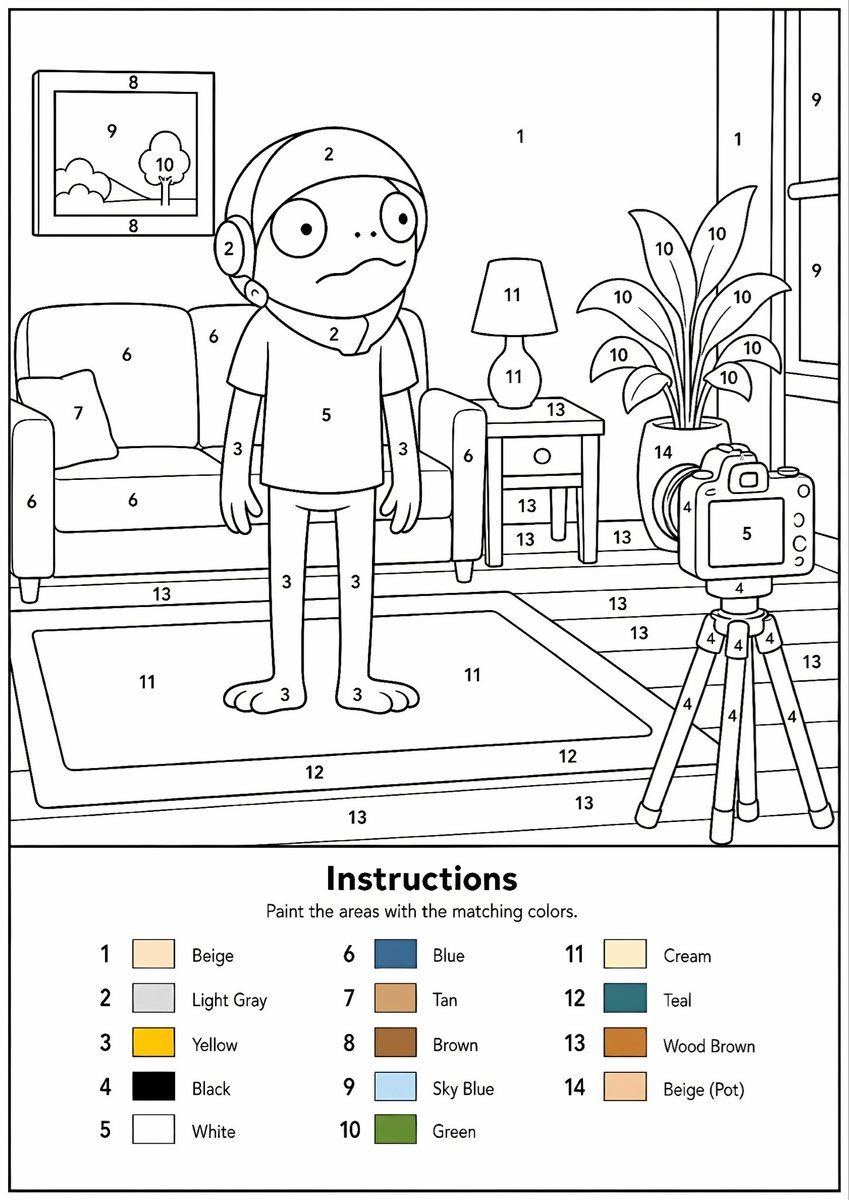
- Prompt included
- Model and format preset
- Free template
The prompt behind this image
Copy the exact prompt behind Printable Paint by Numbers Generator, or open it in the studio and make it yours.
Create a professional high-resolution paint-by-numbers template from the provided image as a single PNG only. Use an {argument name="canvas size" default="A4 portrait ratio canvas"} at 300 DPI with a pure white background. The main artwork must be a clean black-and-white line drawing containing only black outlines, black numbers, and white unfilled paintable areas. Do not create a PDF, document, mockup, multi-page layout, or colored version. Do not use color, gray, shading, texture, gradients, transparency, or pre-filled areas in the main artwork. Analyze the original image and choose the number of colors adaptively based on image complexity, from 1 to a maximum of {argument name="color count" default="14 colors"}. If the image has only 1–2 important colors, use only 1–2 colors; for simple images use 3–6 colors; for medium complexity use 7–10 colors; for complex, photographic, or highly detailed images use 11–14 colors. Do not force unnecessary colors. Assign each selected color one unique number and merge similar shades unless separation is essential for recognition. Convert the image into simplified, fully closed, easy-to-paint regions while preserving the recognizable composition, main objects, characters, text, logos, foreground, background, and key details. Every paintable white region must contain the correct black number, centered clearly inside the matching area, readable, upright, and not touching outlines. Large black or dark areas from the original must remain white paintable regions with the correct number, not filled black. Only tiny permanent black line details, such as mouth lines, nostrils, pupils, eyelashes, seams, or small decorative strokes, may remain unnumbered. At the bottom of the same PNG, add a neat legend section with the heading “Instructions”, the sentence “Paint the areas with the matching colors.”, and a list of every used number with a small color swatch and the English color name. Color swatches may appear only in the legend. Ensure the numbering exactly matches the legend, every paintable area is numbered, all regions are closed, and the final result is clean, professional, print-ready, and recognizable as the original image.
Reference images included
Printable Paint by Numbers Generator needs input media to work. They load alongside the prompt when you open it in the studio.
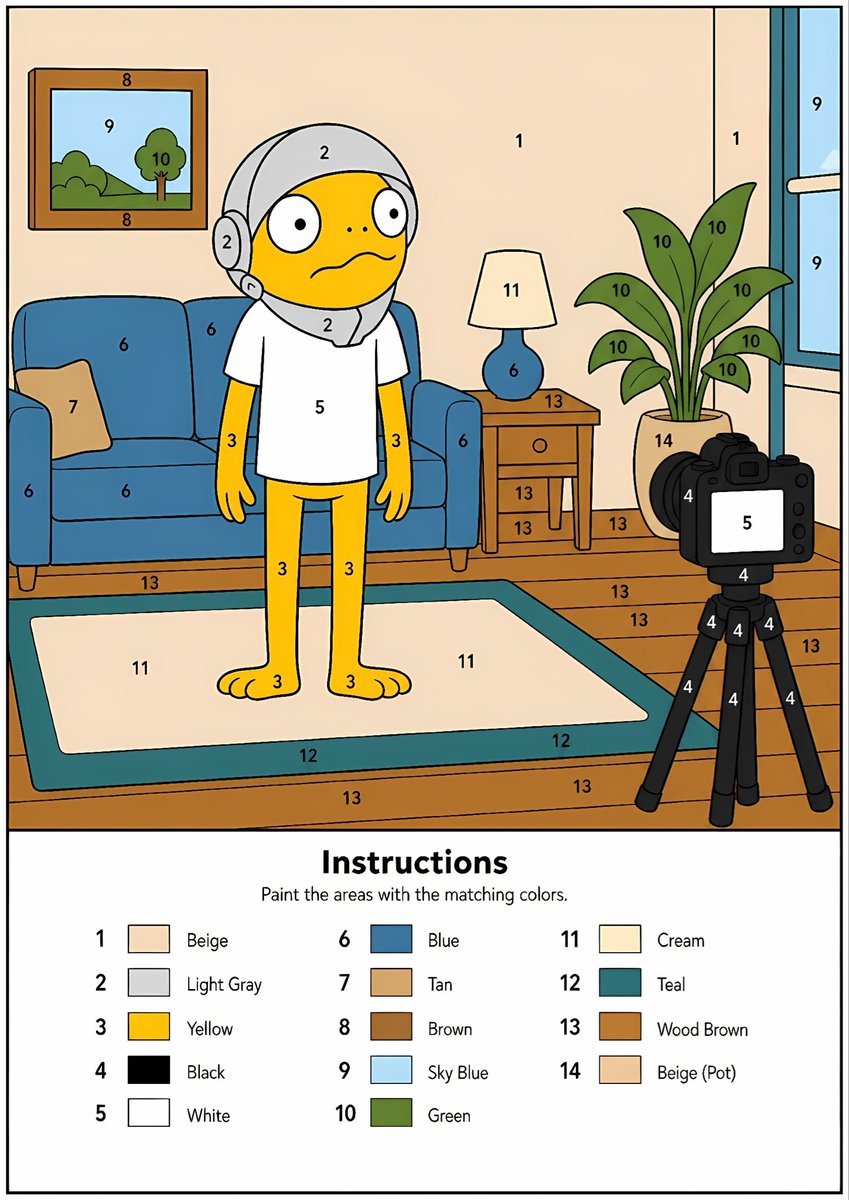
How to use Printable Paint by Numbers Generator in 3 steps
- 1Upload ImagePNG, JPG or paste
Add your photo
Upload the photo the template builds on. The prompt, model and format are already set.
- 2…a portrait of your subject in softgolden-hour light, 85mm…
Personalize
Edit the subject and creative details for your destination.
- 3Generate
Generate
Press Generate — your image is created in PicX Studio, so you can compare it with the original and refine one variable at a time.
More like this
Templates with the same subject, style or setup. Open one to see its prompt.
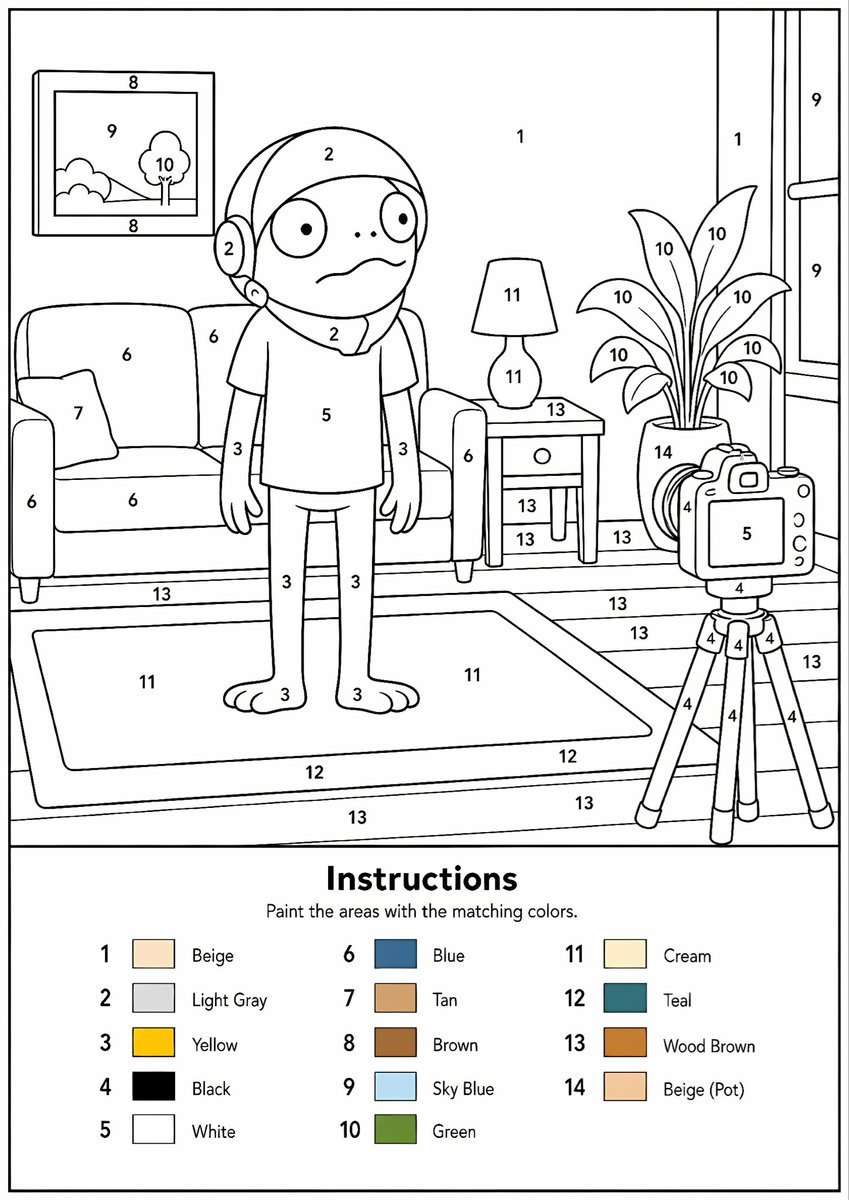
Paint-by-Numbers Living Room Worksheet
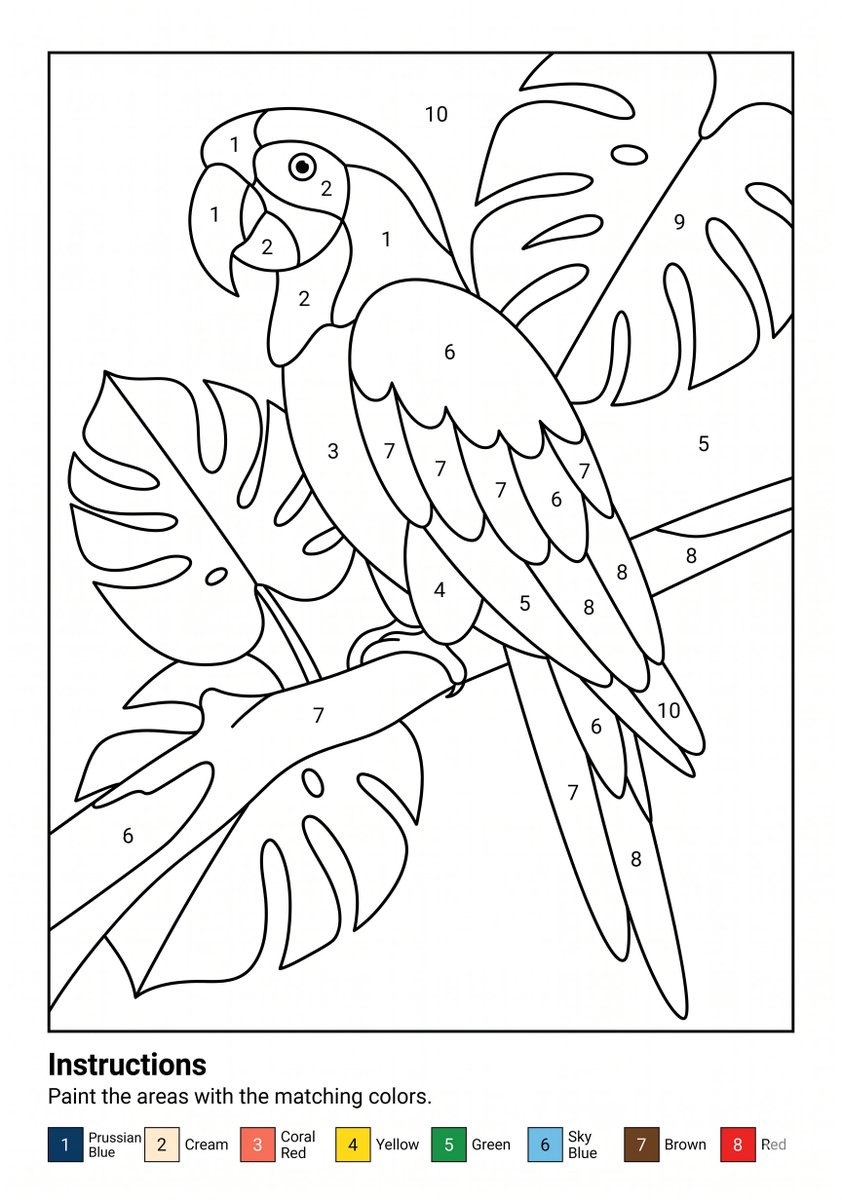
Parrot Paint-by-Numbers Worksheet
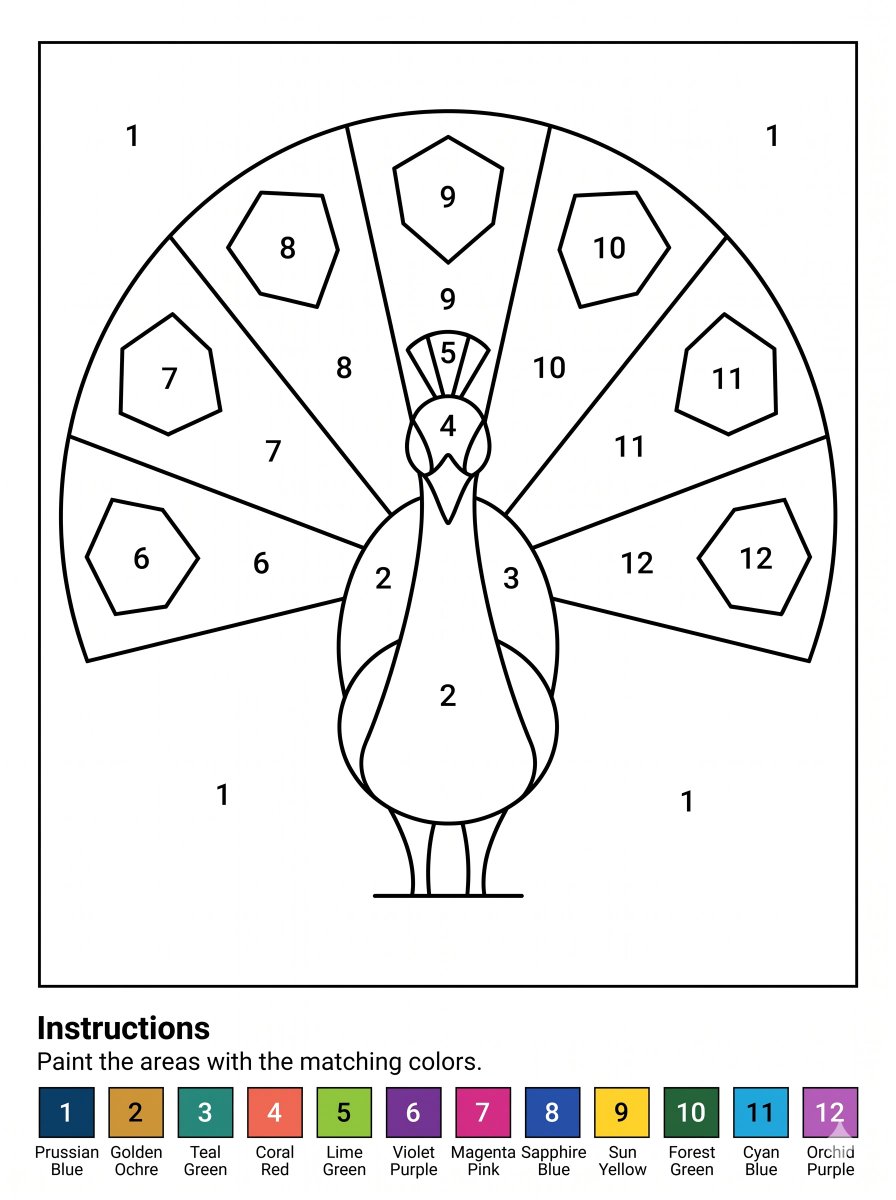
Peacock Paint-by-Numbers Worksheet
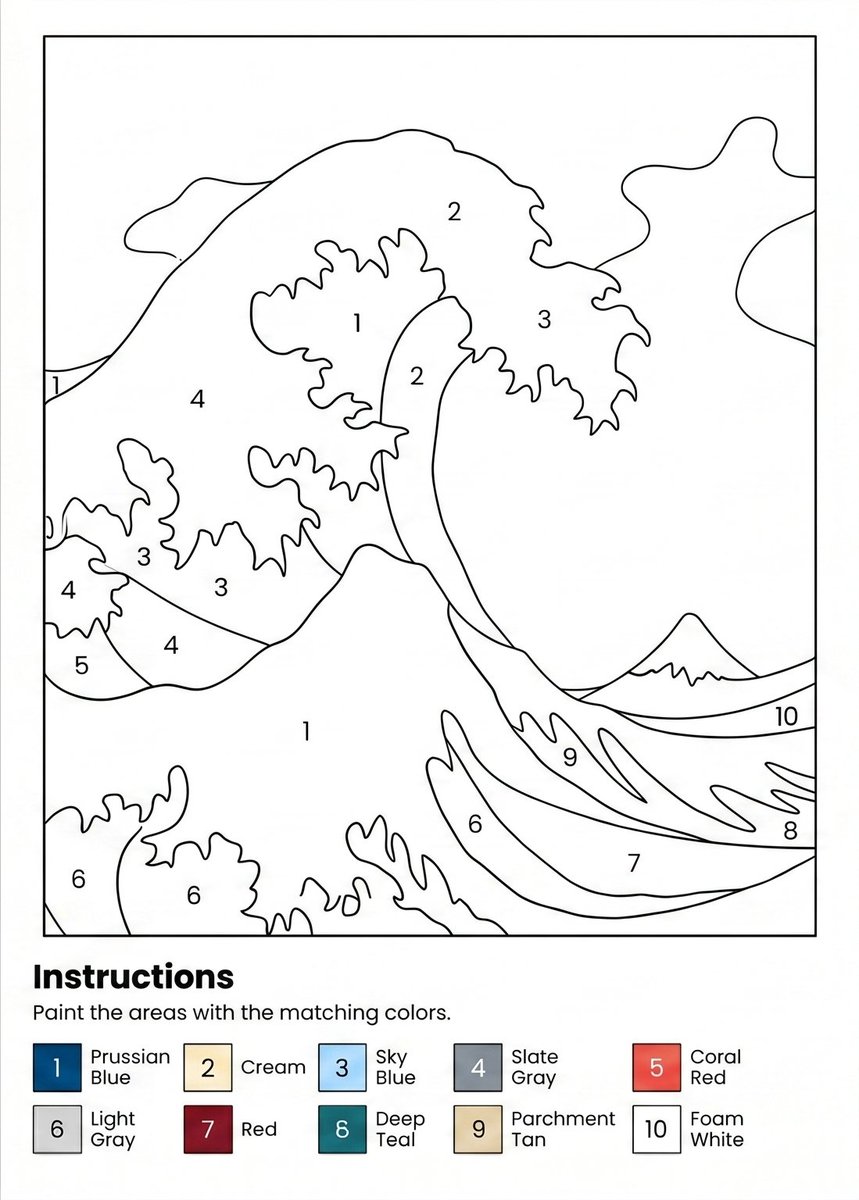
Paint-by-Numbers Wave Worksheet
College Girl Sitting on 2026 Numbers
College Girl Sitting on 2026 Numbers
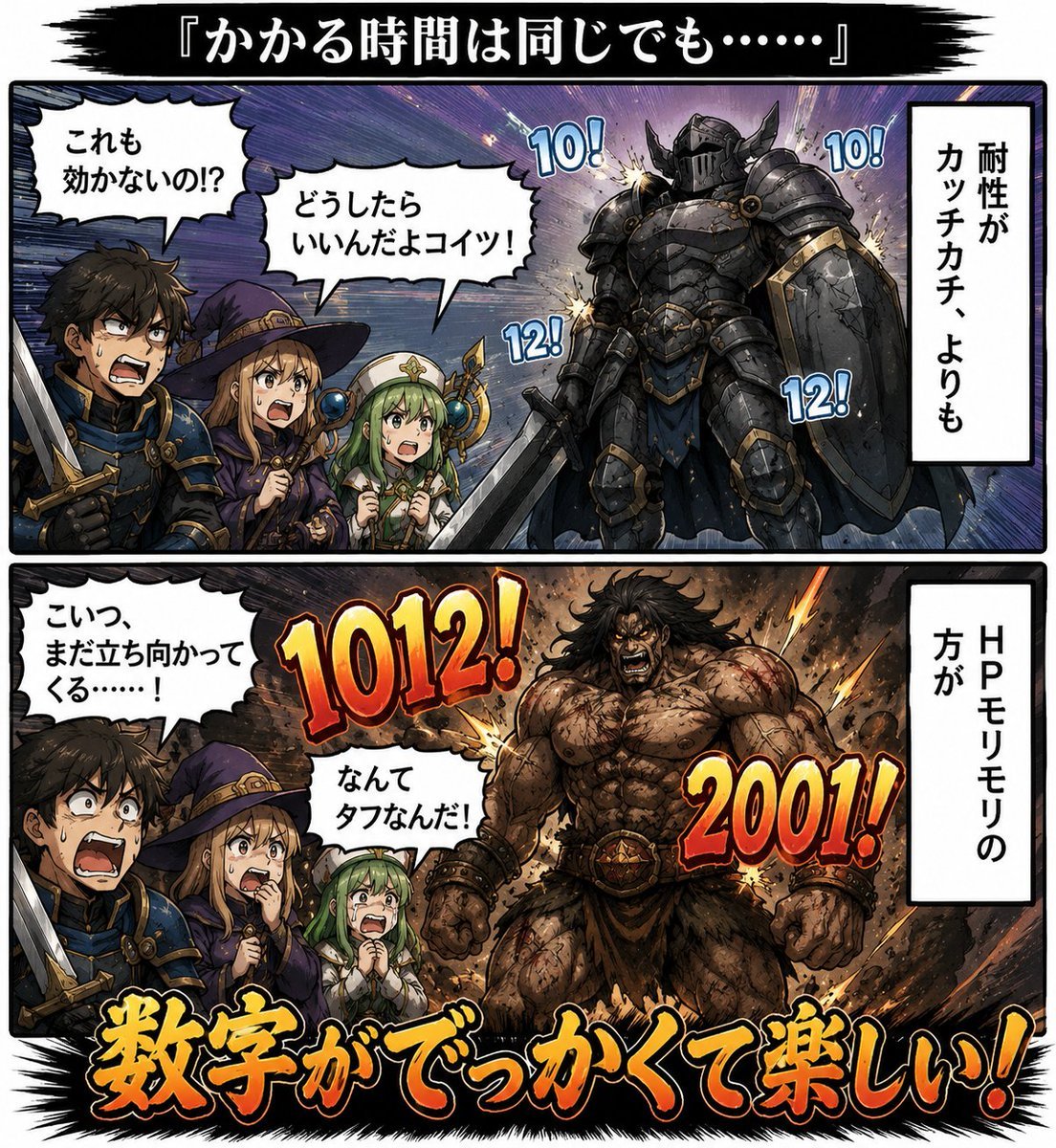
Two-Panel Fantasy Damage Numbers Manga
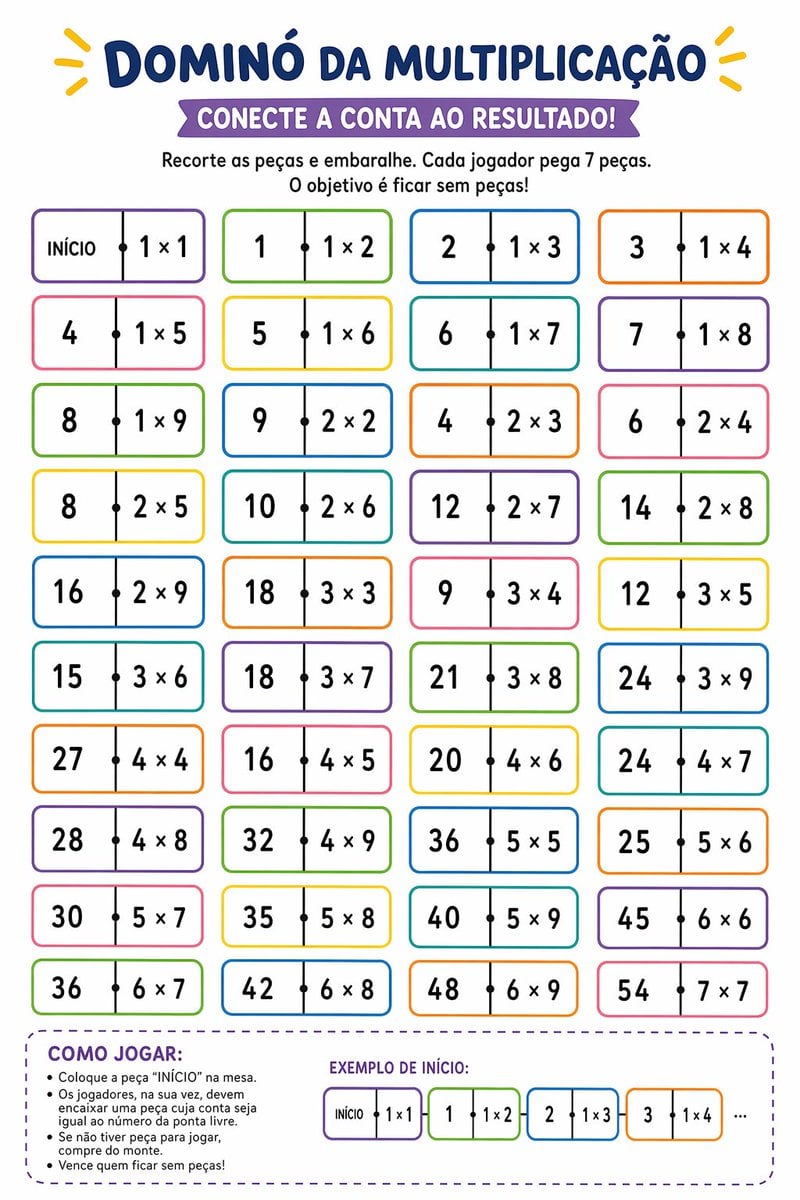
Printable Multiplication Domino Worksheet
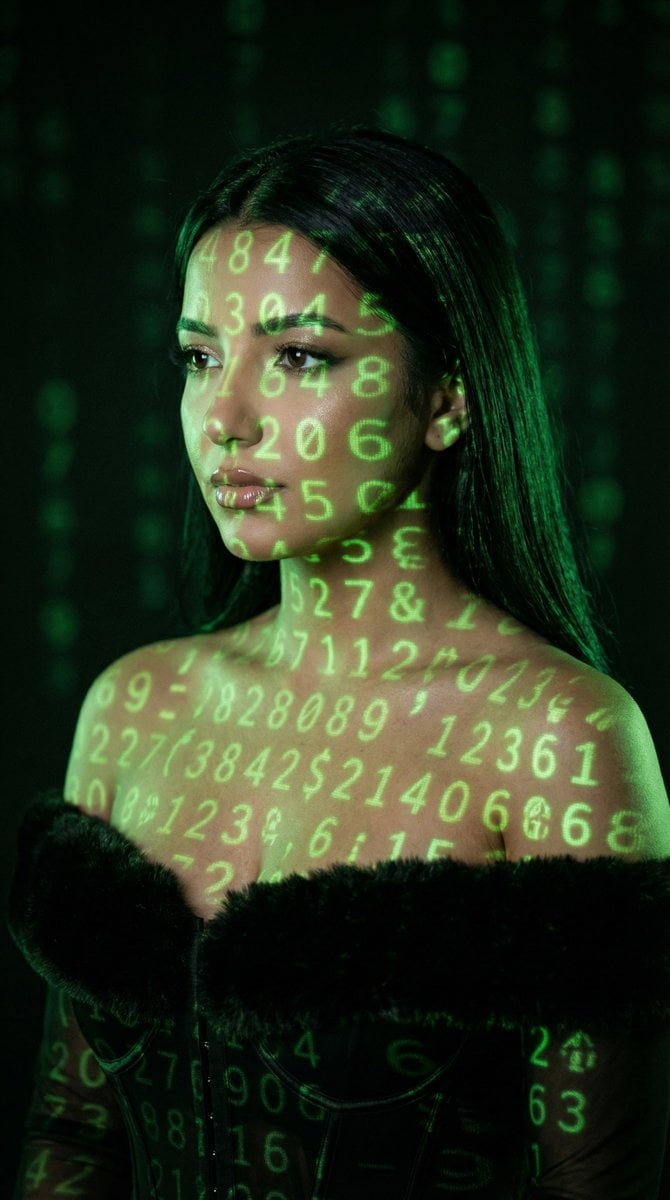
Cyber Projector Numbers Beauty Portrait Prompt (JSON format)
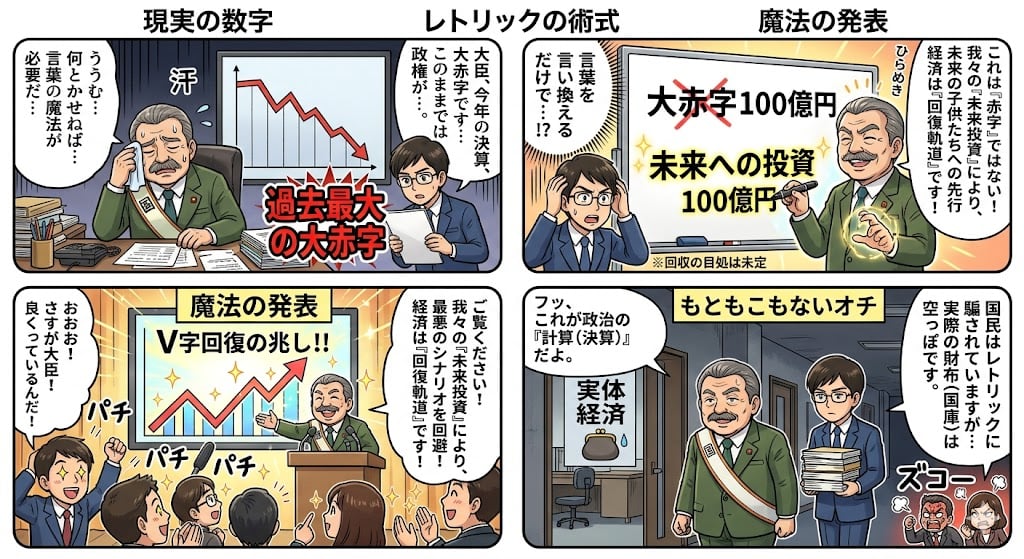
Four-Panel Manga: The Magic of Numbers
Impasto Oil Architectural Painting
Acrylic Hand-Painted Style Poster Design
Make it yours
Printable Paint by Numbers Generator works as-is. These are the safest ways to change it without losing the look.
Change one field
Copy a single group, rewrite it, and generate again so you can see what that field is doing.
Keep the frame, change the subject
Hold the composition and light of Printable Paint by Numbers Generator, then swap wardrobe, props or the person for a new take.
| If the result… | Why | Fix |
|---|---|---|
| The result drifts from the preview | Too many fields changed at once. | Reuse Printable Paint by Numbers Generator as-is first, then change one group — subject, light, or setting. |
| The model over-stylizes the scene | The prose prompt leaves finish and camera underspecified. | Add one camera or lighting sentence and stay on GPT Image 2. |
More GPT Image 2 templates
Other prompts made for GPT Image 2.

Six VTuber Japanese Logo Sheet

Realistic Portrait of Woman and Deer

The Vista Modular Condo Poster

AI Model Routing Comparison Infographic

2.5D Anime Art Board

Isometric Productivity Desk Scene

New York Double Exposure Poster

Four-Panel AI Landscape Comparison

Japanese Tatami Lifestyle Magazine Cover

NESCAFÉ Coffee Map Poster
More image prompts
Fresh picks from across the catalog.
Detailed Cityscape Pencil Sketch
Olive Satin Couture Editorial
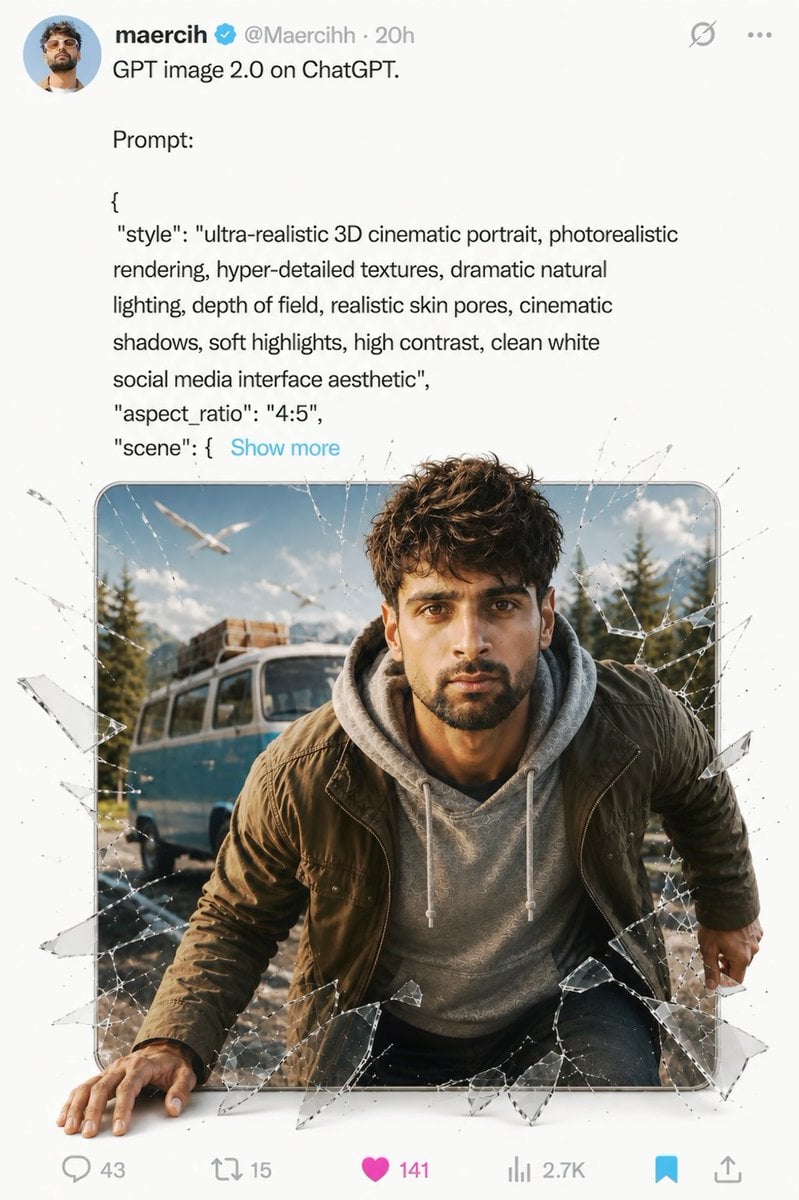
Social Media Glass Break Mockup

Hyper-Realistic Dark Green Cinematic Portrait (JSON)
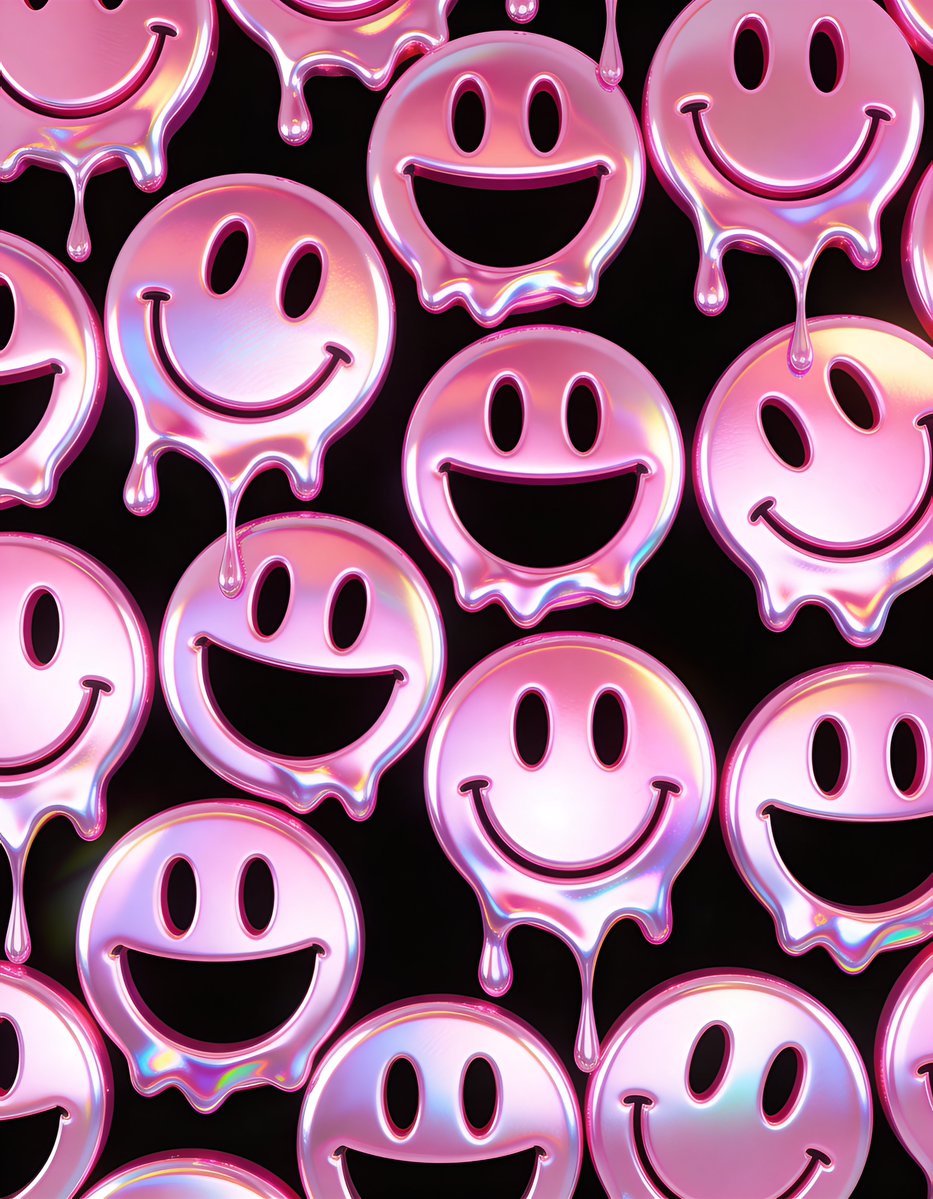
Melting Holographic Smiley Face Pattern Prompt
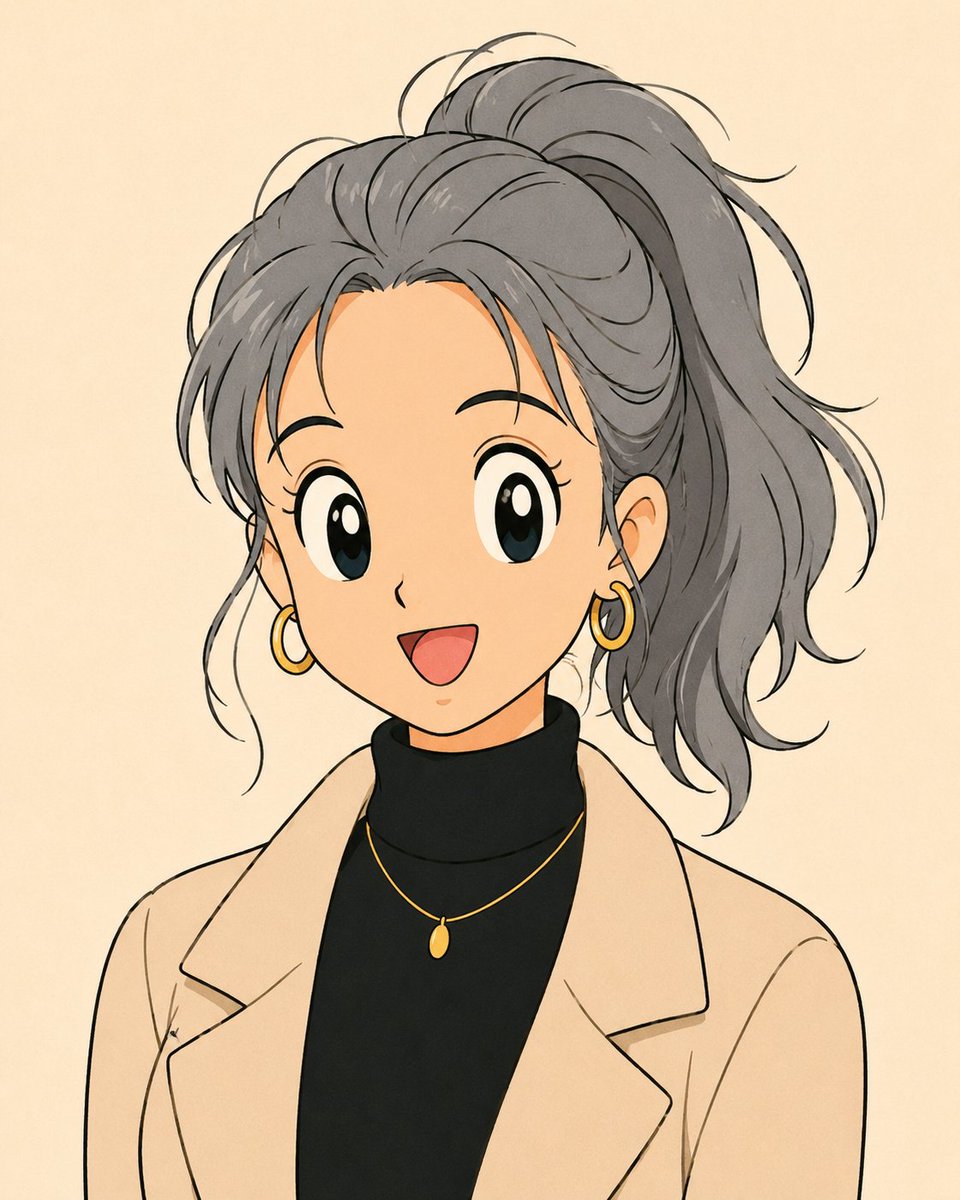
Anime Portrait with Censored Face
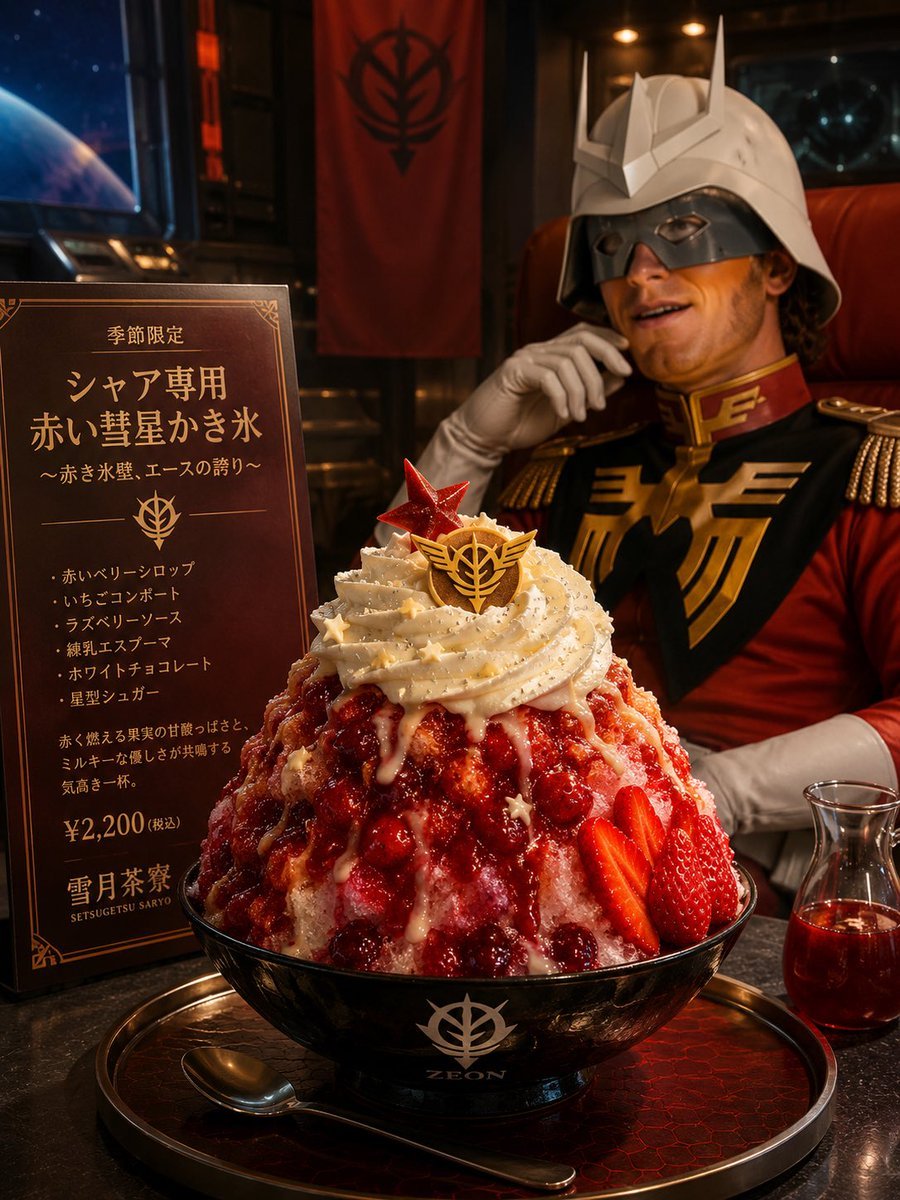
Char-Inspired Red Kakigori Café Photo
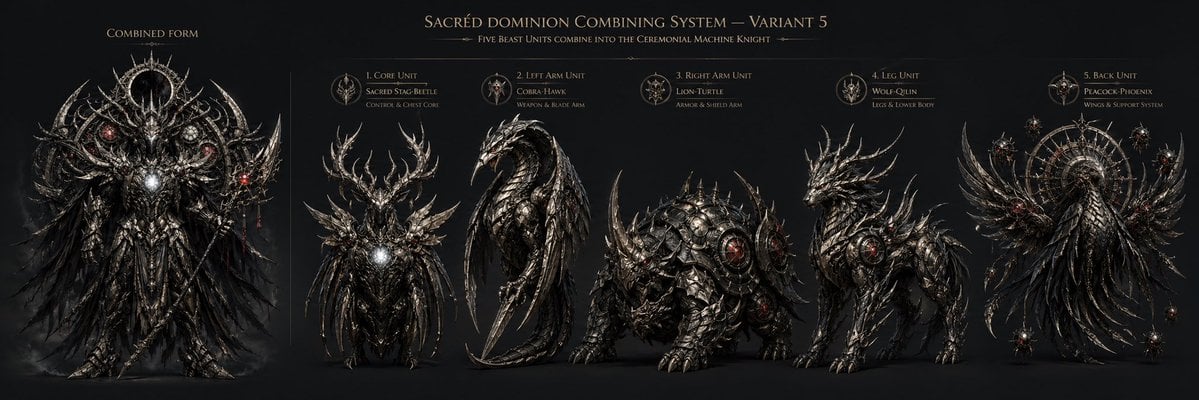
Gothic Five-Beast Combining Mecha Sheet
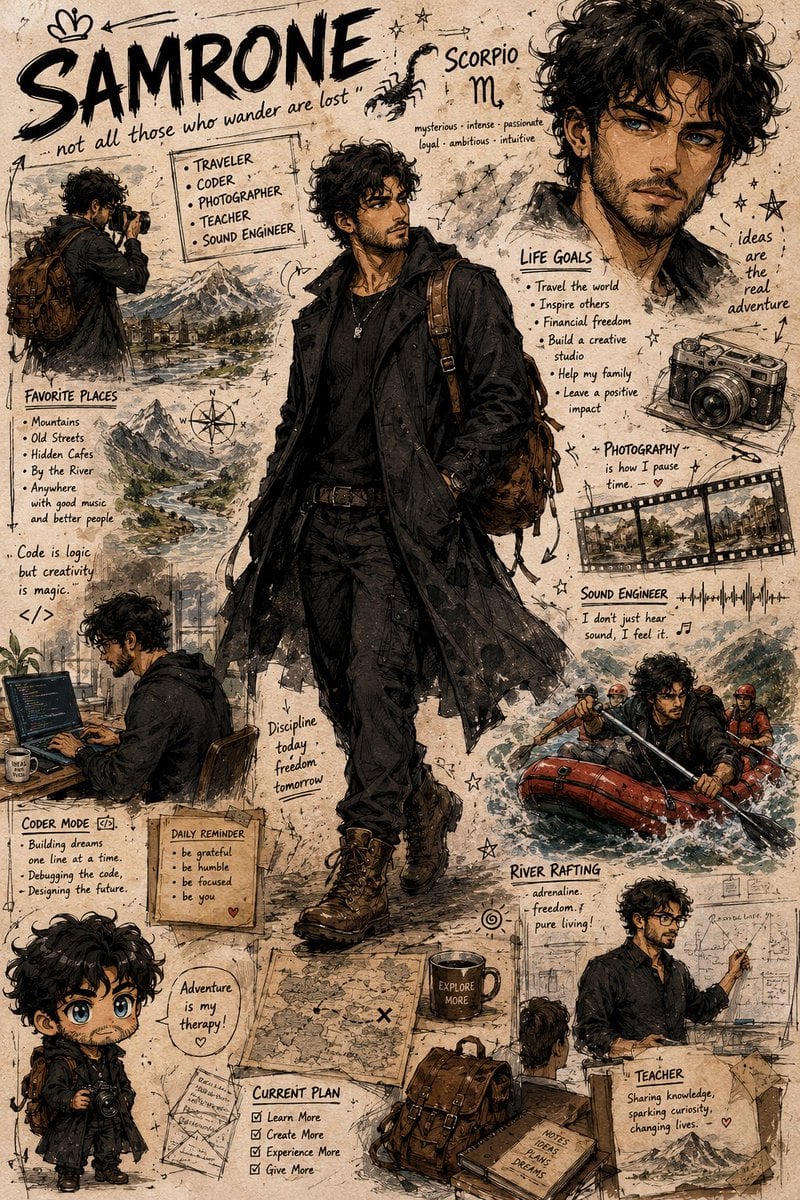
Illustrated Character Personality Board
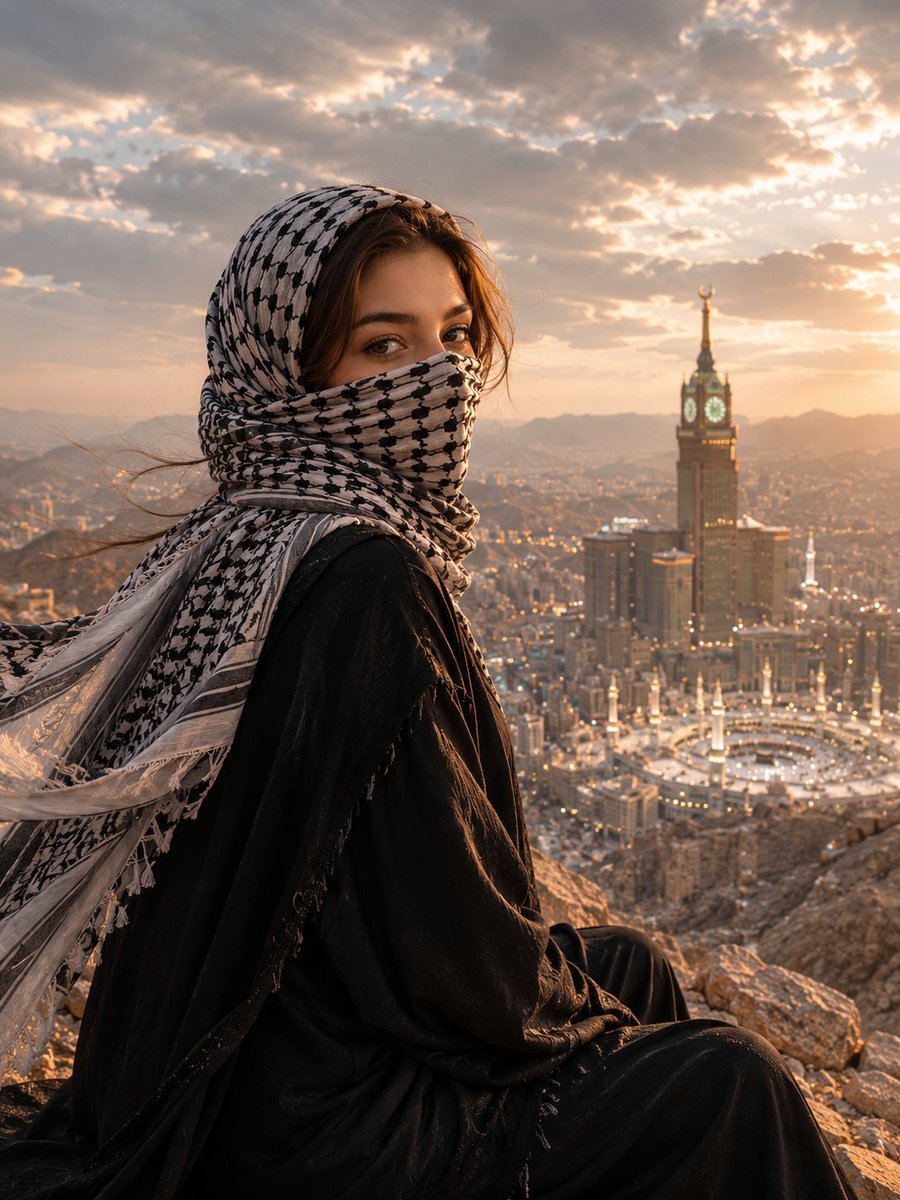
Muslim Woman Overlooking Mecca
Browse template categories
Printable Paint by Numbers Generator questions
How do I use the Printable Paint by Numbers Generator template?
Add your photo if the template asks for one, edit the prompt if you like — the template's model and format are already selected — and press Generate. Your version opens in PicX Studio.
Can I customize the Printable Paint by Numbers Generator template?
Yes. You can change the subject, setting, lighting, mood, format, and available model controls before creating your image.
Is the Printable Paint by Numbers Generator template free?
Opening and editing this template is free. Generating uses credits, shown on the Generate button when you are signed in.
Which AI model should I use?
Start with GPT Image 2, which is the model associated with this template. You can compare another compatible model for a different finish.
Looking for something else? Browse all templates.

Your photo, any look
Thousands of ready templates for every top image and video model, from one credit balance.