
Four Haircut Comparison Grid
A realistic square 2x2 photo grid comparing four hairstyle options on the same anonymized man in a cozy living room.
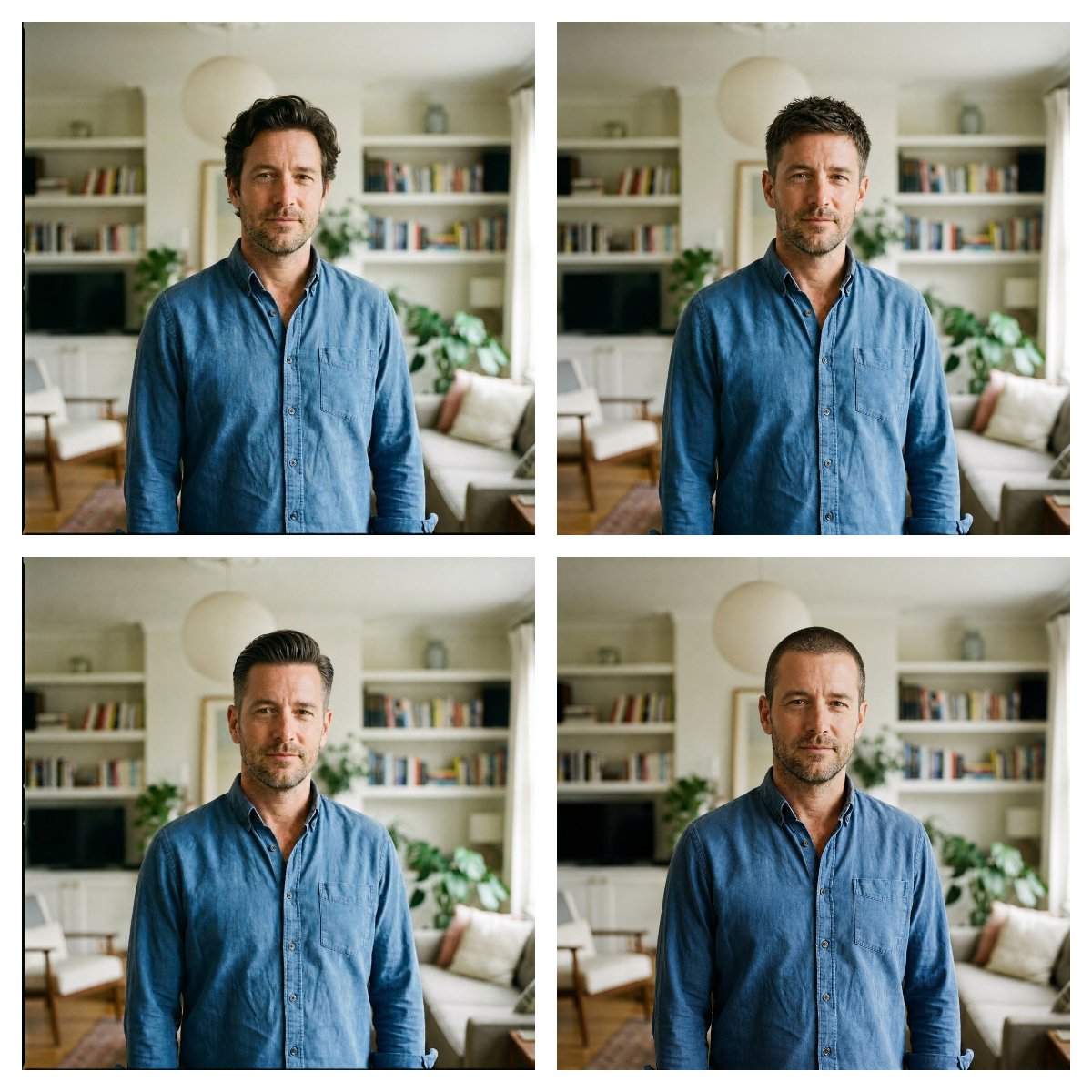
- Prompt included
- Model and format preset
- Free template
The prompt behind this image
Copy the exact prompt behind Four Haircut Comparison Grid, or open it in the studio and make it yours.
Create a realistic 2x2 comparison grid showing the same adult man with four different haircut options, intended as a “which haircut fits him best?” visual. Canvas: square image with four equal rectangular photo panels separated by thick clean white gutters and a thin white outer margin. Each panel shows the man from mid-torso upward, centered, facing camera, wearing the same medium-blue denim button-up shirt with an open collar and chest pocket. His face must be anonymized with a smooth vertical rectangular blur/mosaic patch in warm beige tones, covering all facial features but leaving ears, jawline, neck, and hair visible. Background in every panel is the same softly blurred, bright modern living room: white built-in bookshelves with books and decor, a dark TV on the left shelf area, green houseplants, a beige sofa with cushions on the right, warm wooden floor, and a large round paper pendant lamp near the upper center. Lighting is natural daylight, warm and realistic, shallow depth of field, DSLR portrait quality. Layout and haircut count: show exactly 4 haircut variations, one per panel. Top-left: medium-length wavy dark brown hair, voluminous and swept back with loose texture. Top-right: short spiky textured crop, close sides, dark brown hair. Bottom-left: slicked-back undercut or taper, neat side volume, glossy combed-back top. Bottom-right: very short buzz cut, evenly cropped close to the scalp. Keep the same pose, shirt, body proportions, room, camera distance, and color grading across all four panels so only the hairstyle changes. No text, no labels, no logos, no watermark.
How to use Four Haircut Comparison Grid in 3 steps
- 1Upload ImagePNG, JPG or paste
Add your photo
Upload the photo the template builds on. The prompt, model and format are already set.
- 2…a portrait of your subject in softgolden-hour light, 85mm…
Personalize
Edit the subject and creative details for your destination.
- 3Generate
Generate
Press Generate — your image is created in PicX Studio, so you can compare it with the original and refine one variable at a time.
More like this
Templates with the same subject, style or setup. Open one to see its prompt.

Four-Panel AI Landscape Comparison
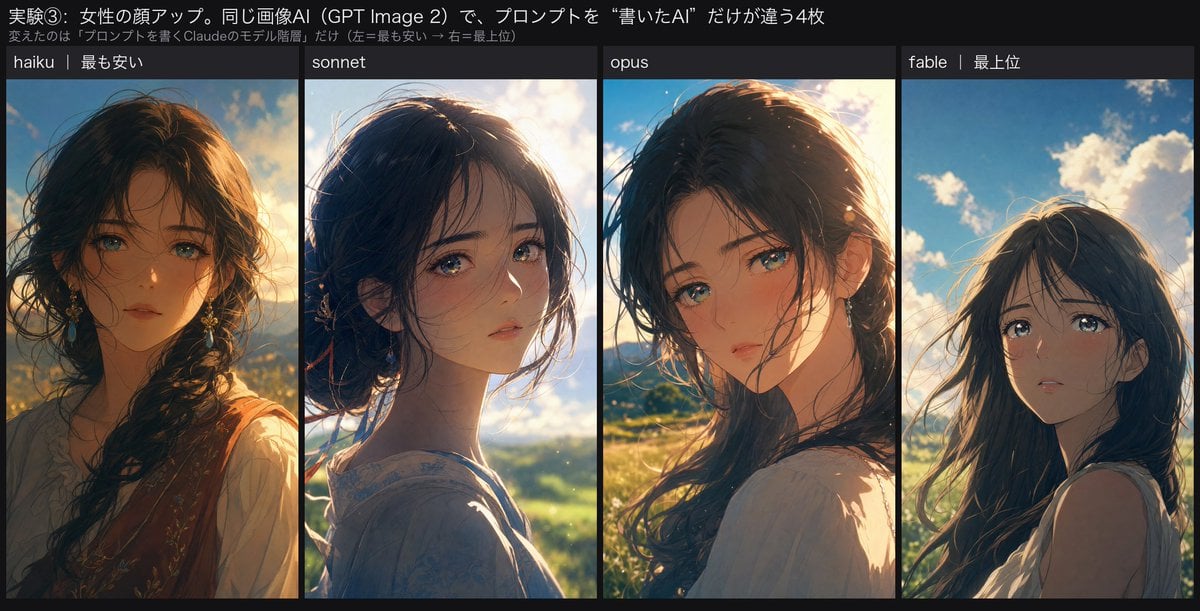
Four-Panel Anime Face Comparison
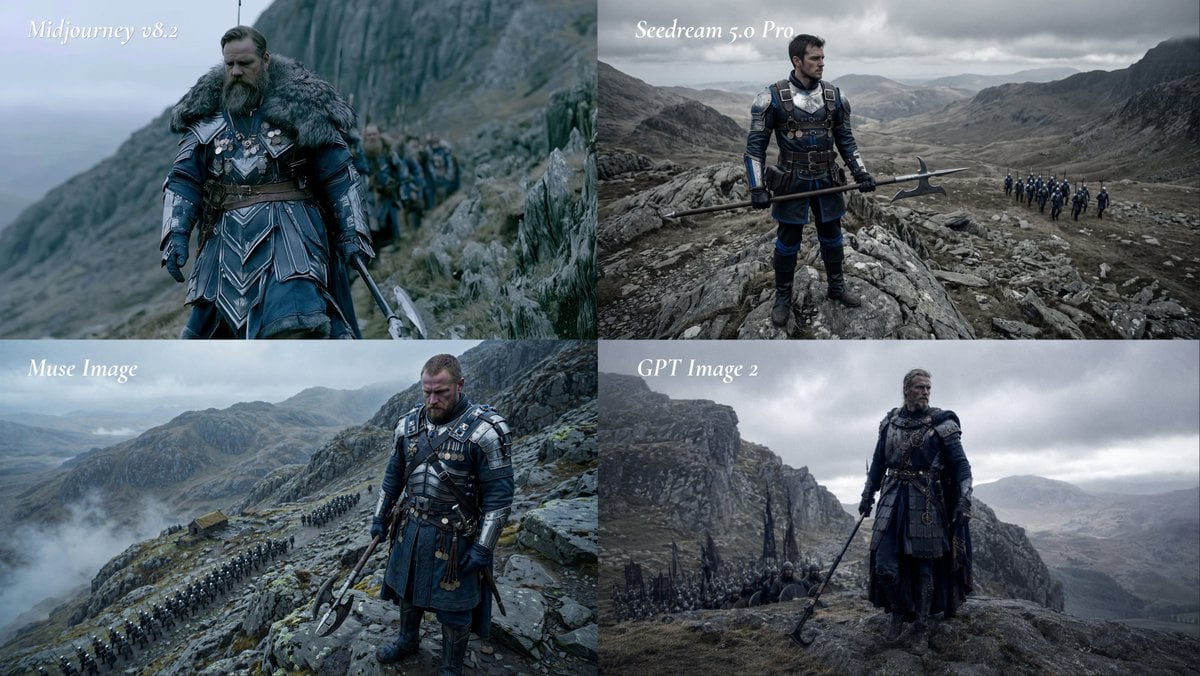
Fantasy Model Comparison Grid
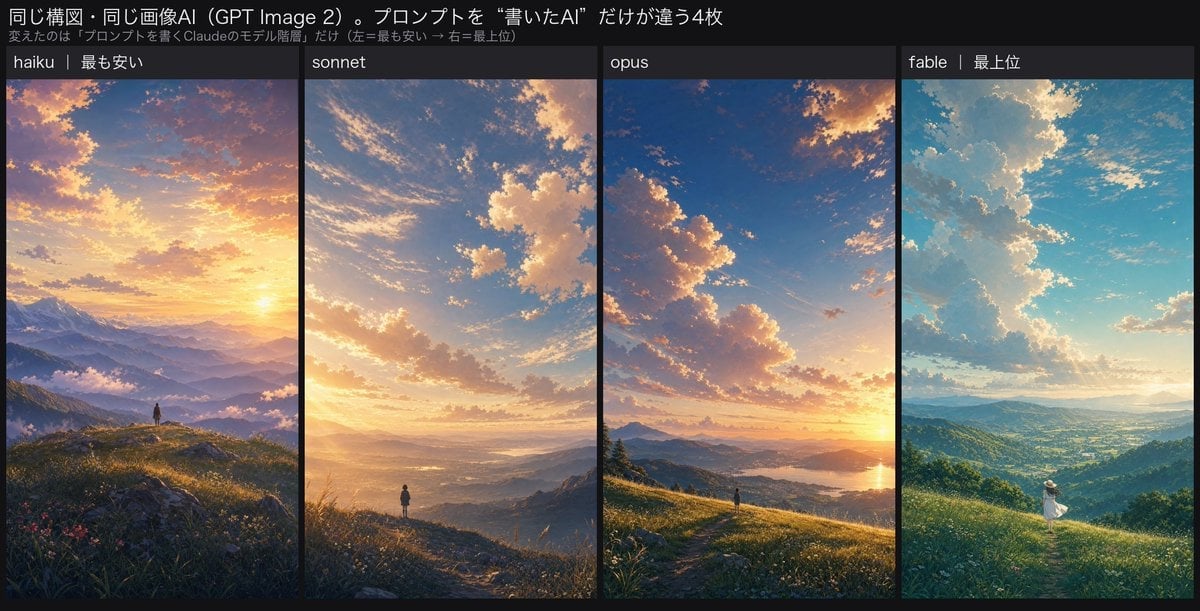
Four-Panel AI Landscape Comparison
Korean Luxury Fashion Editorial 2x2 Grid Series
Minimalist Fashion Editorial Split Layout
Ultra-Realistic Vogue-Style Editorial Fashion Grid
Headphones Lifestyle Nine Panel Grid
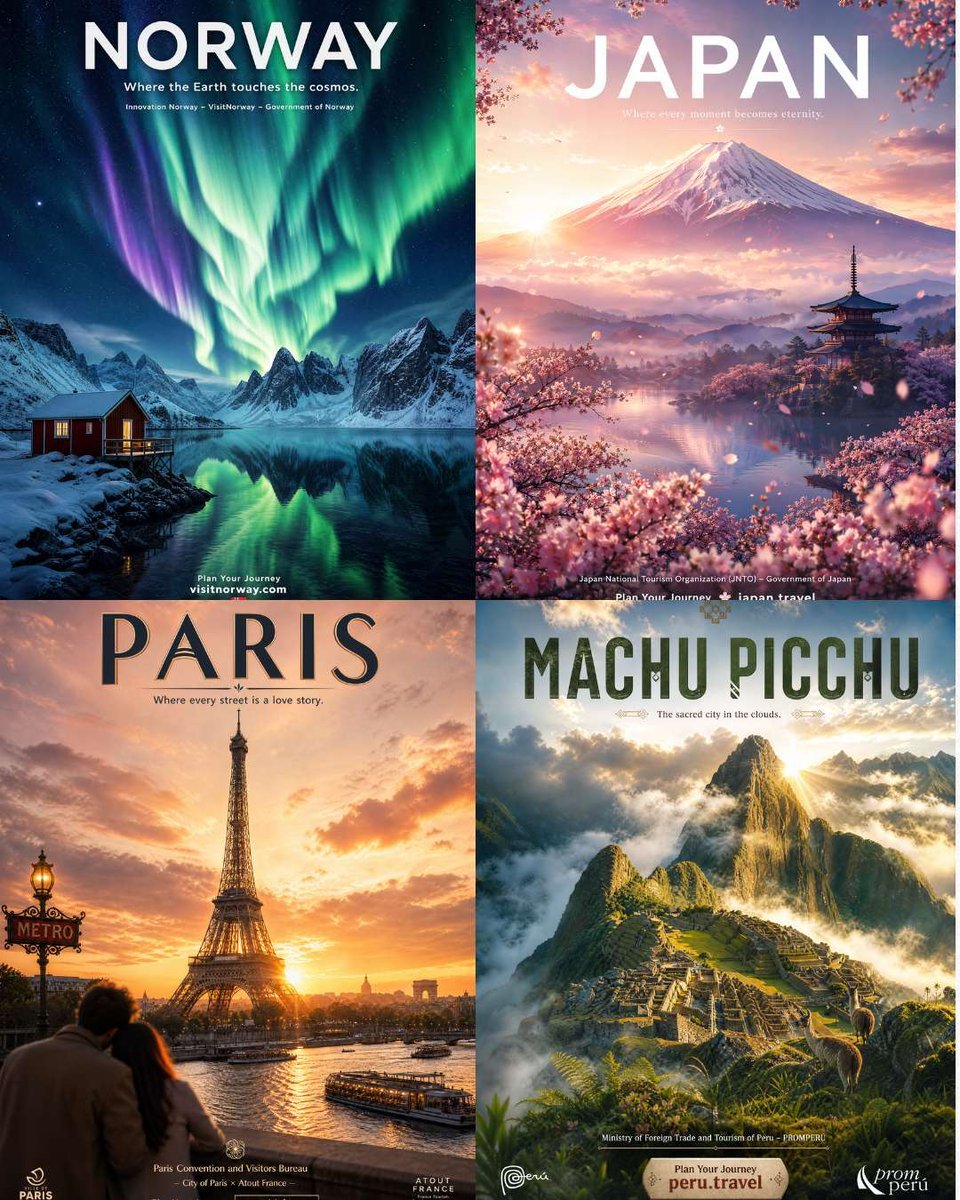
Four Destination Tourism Poster Grid
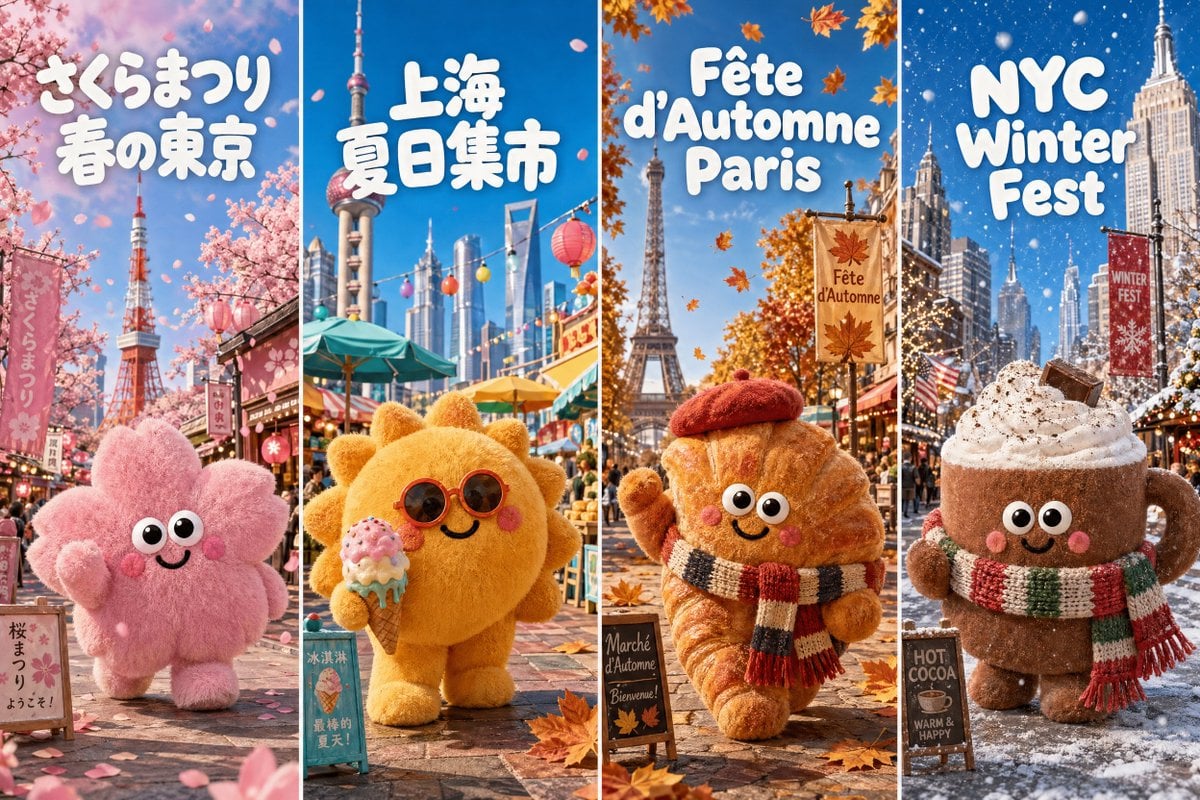
Four-Season Plush Festival City Grid
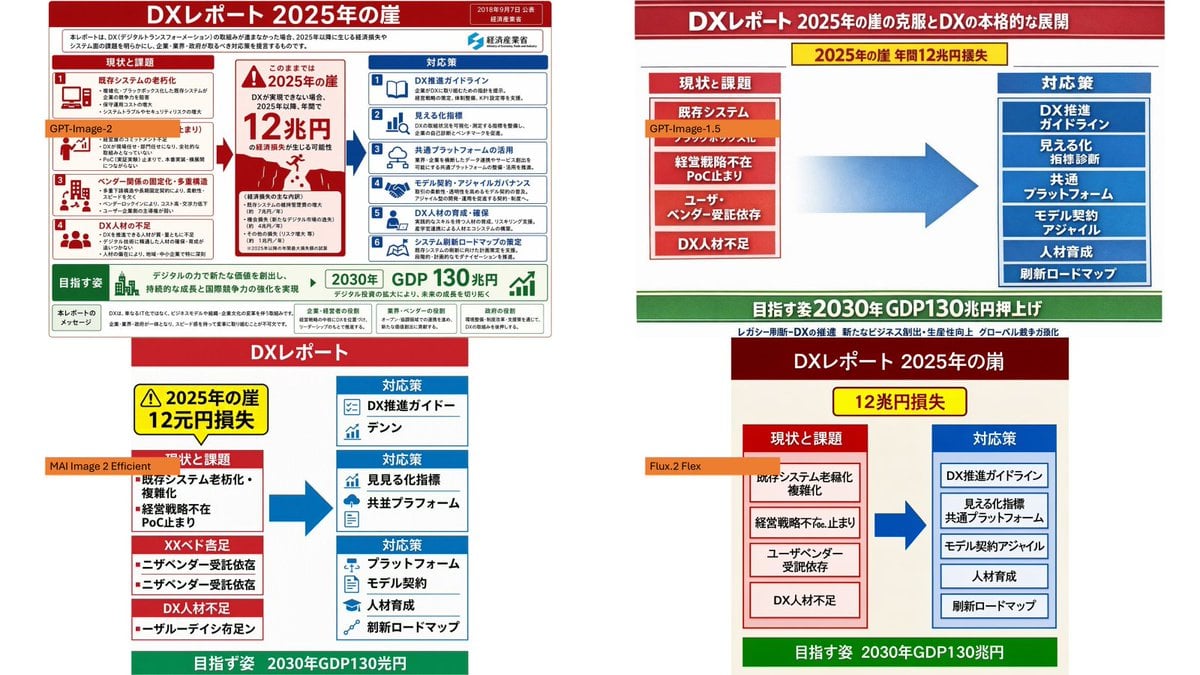
Four-Panel DX Report Model Comparison
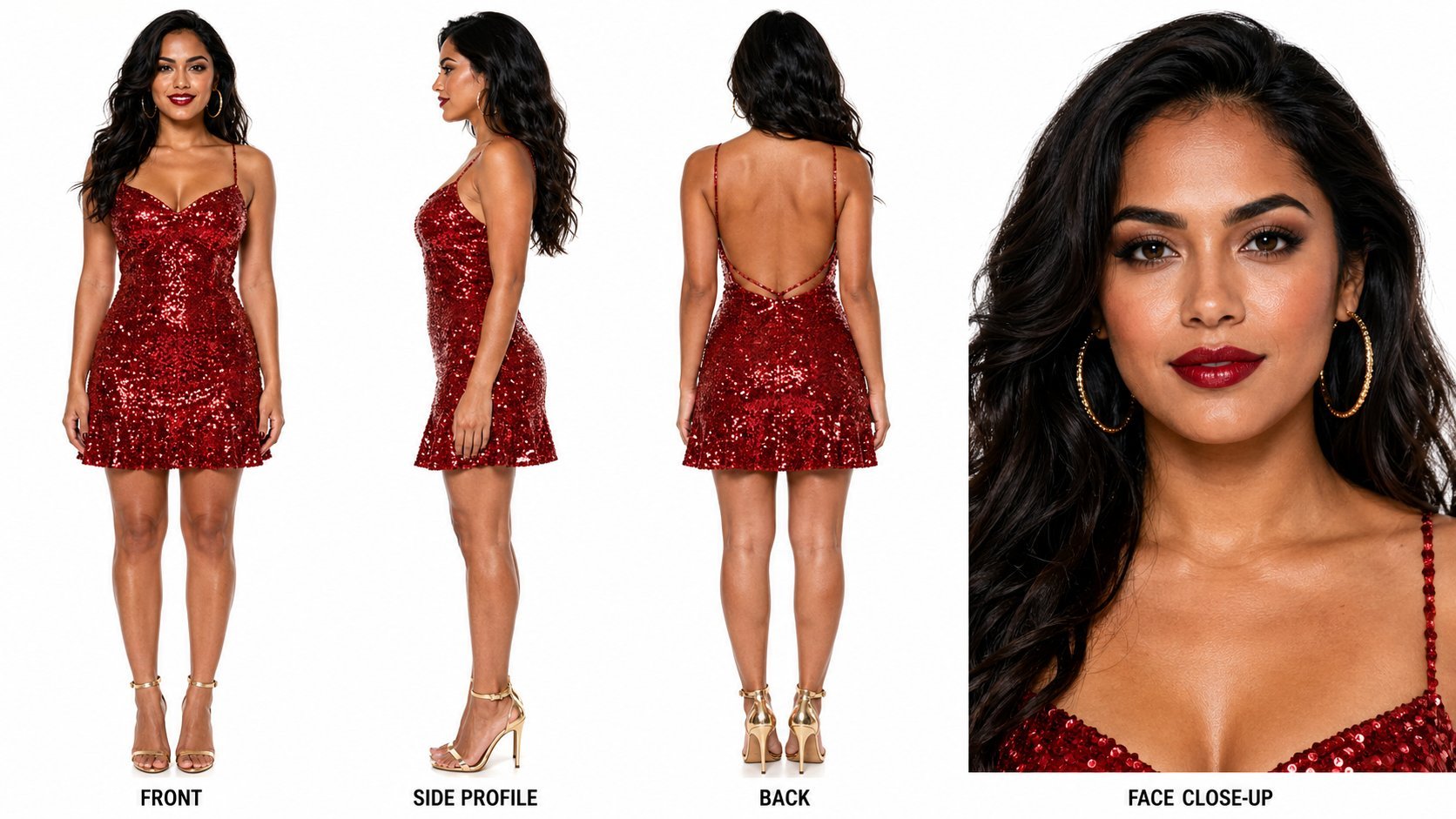
Dancer Character - Four View Reference Sheet
Make it yours
Four Haircut Comparison Grid works as-is. These are the safest ways to change it without losing the look.
Change one field
Copy a single group, rewrite it, and generate again so you can see what that field is doing.
Keep the frame, change the subject
Hold the composition and light of Four Haircut Comparison Grid, then swap wardrobe, props or the person for a new take.
| If the result… | Why | Fix |
|---|---|---|
| The result drifts from the preview | Too many fields changed at once. | Reuse Four Haircut Comparison Grid as-is first, then change one group — subject, light, or setting. |
| The model over-stylizes the scene | The prose prompt leaves finish and camera underspecified. | Add one camera or lighting sentence and stay on GPT Image 2. |
More GPT Image 2 templates
Other prompts made for GPT Image 2.

Six VTuber Japanese Logo Sheet

Realistic Portrait of Woman and Deer

The Vista Modular Condo Poster

AI Model Routing Comparison Infographic

2.5D Anime Art Board

Isometric Productivity Desk Scene

New York Double Exposure Poster

Japanese Tatami Lifestyle Magazine Cover

NESCAFÉ Coffee Map Poster

Brutalist Cogito Chinese Typography Poster
More image prompts
Fresh picks from across the catalog.
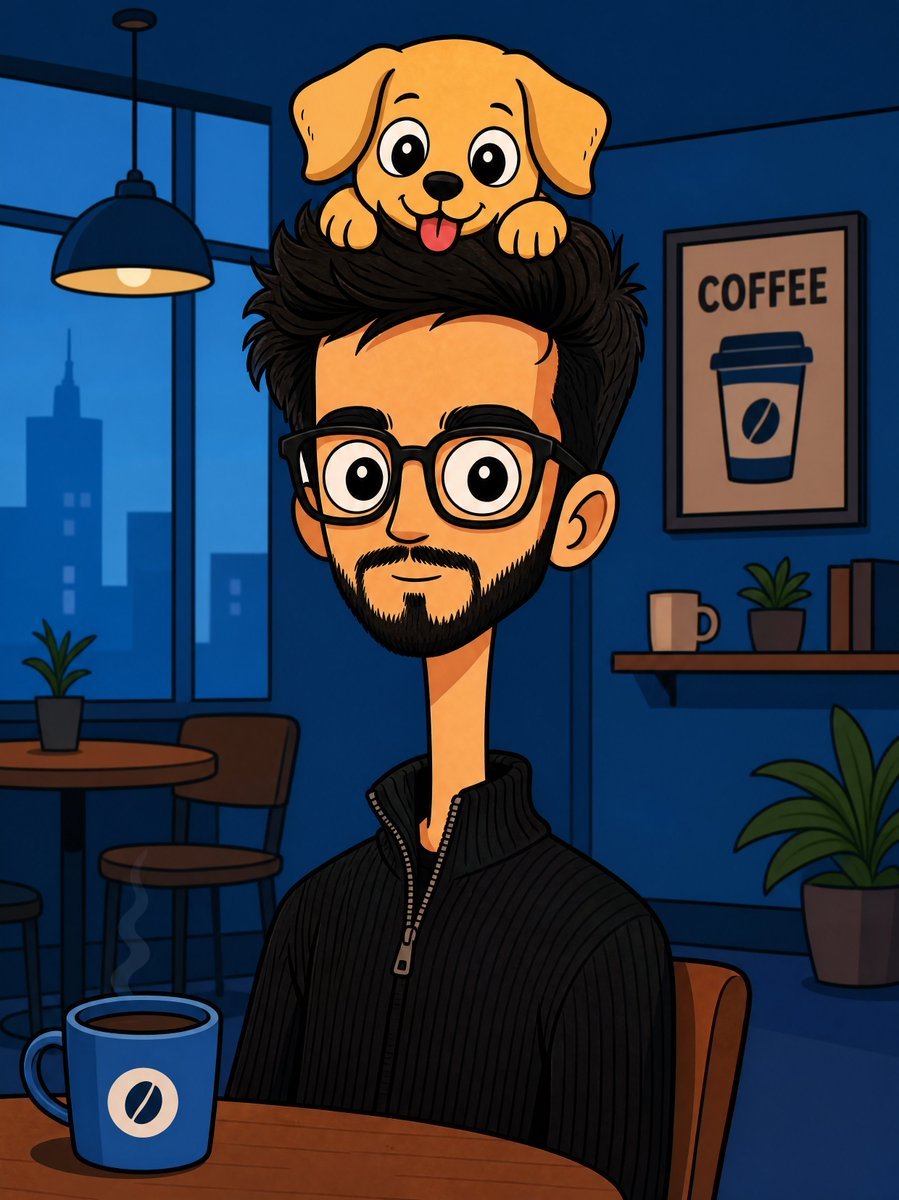
Bizarre Flat Cartoon Character
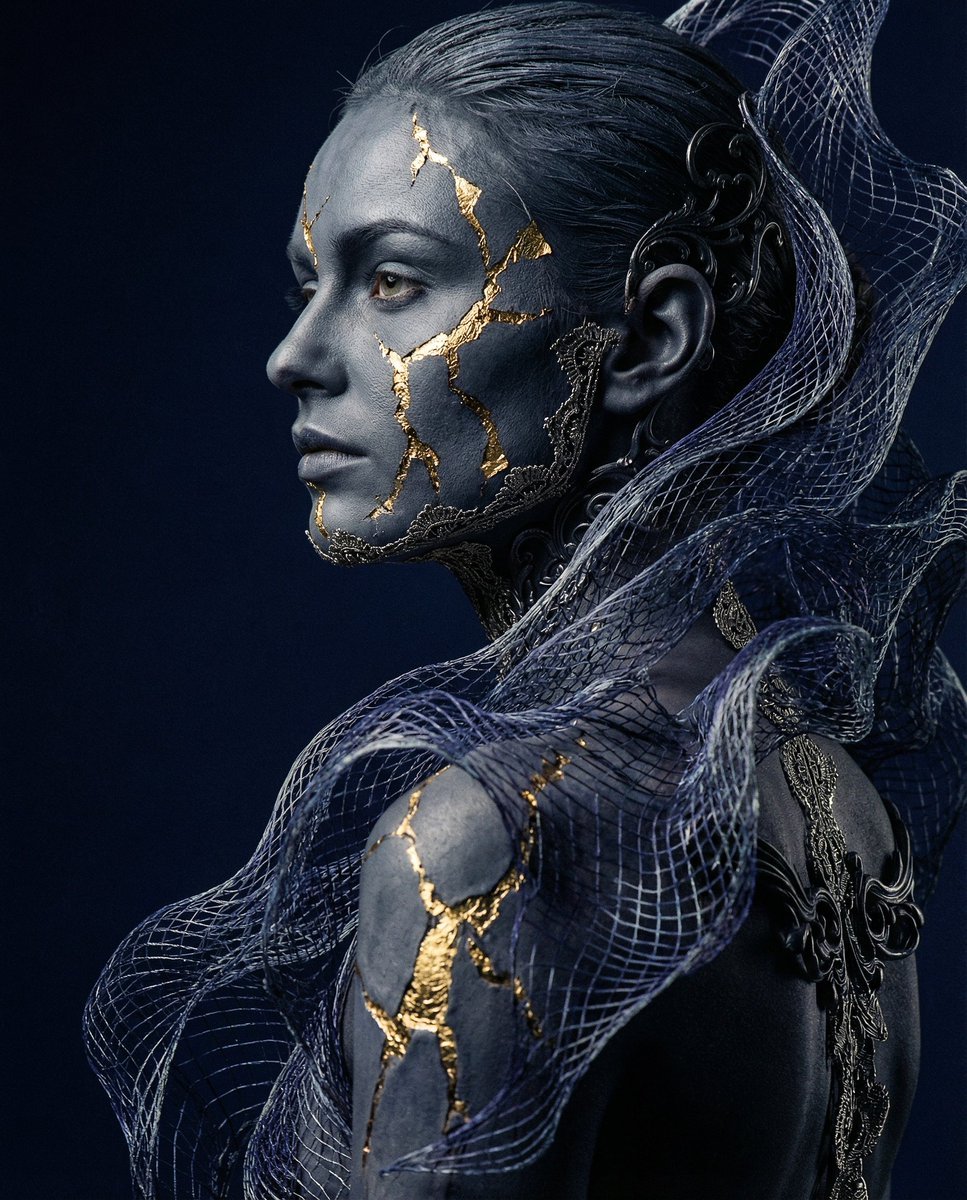
Avant-garde Conceptual Photography: Bio-Digital Kintsugi Portrait
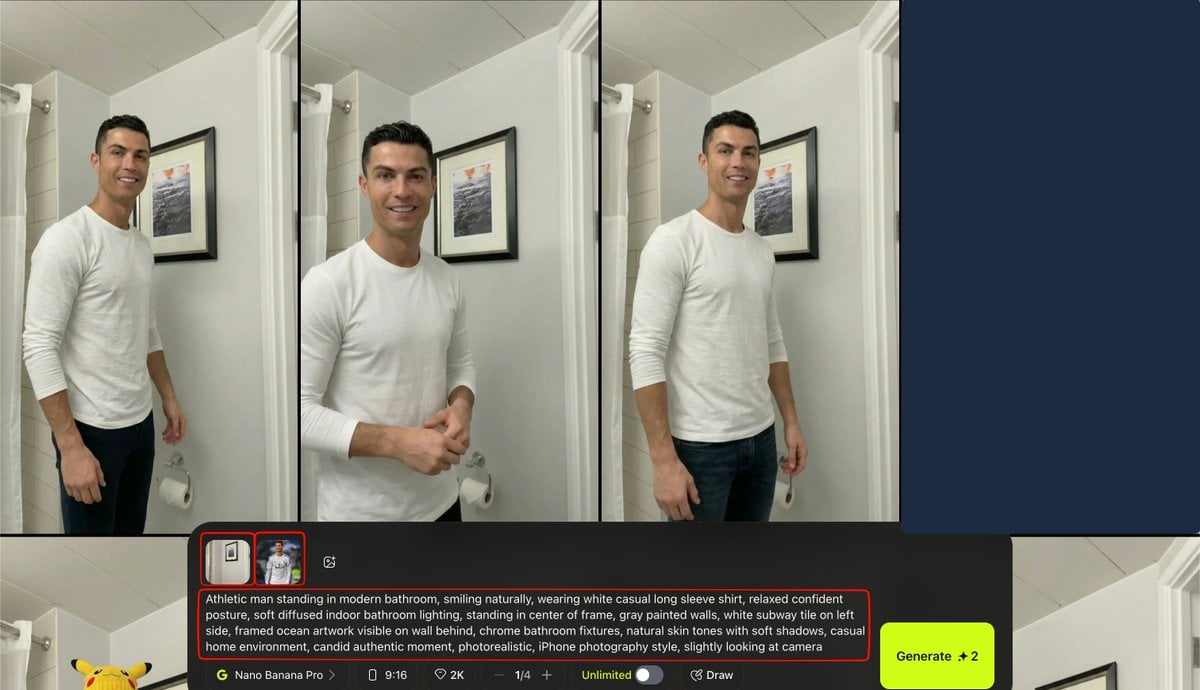
Turkish Prompt for Image Integration
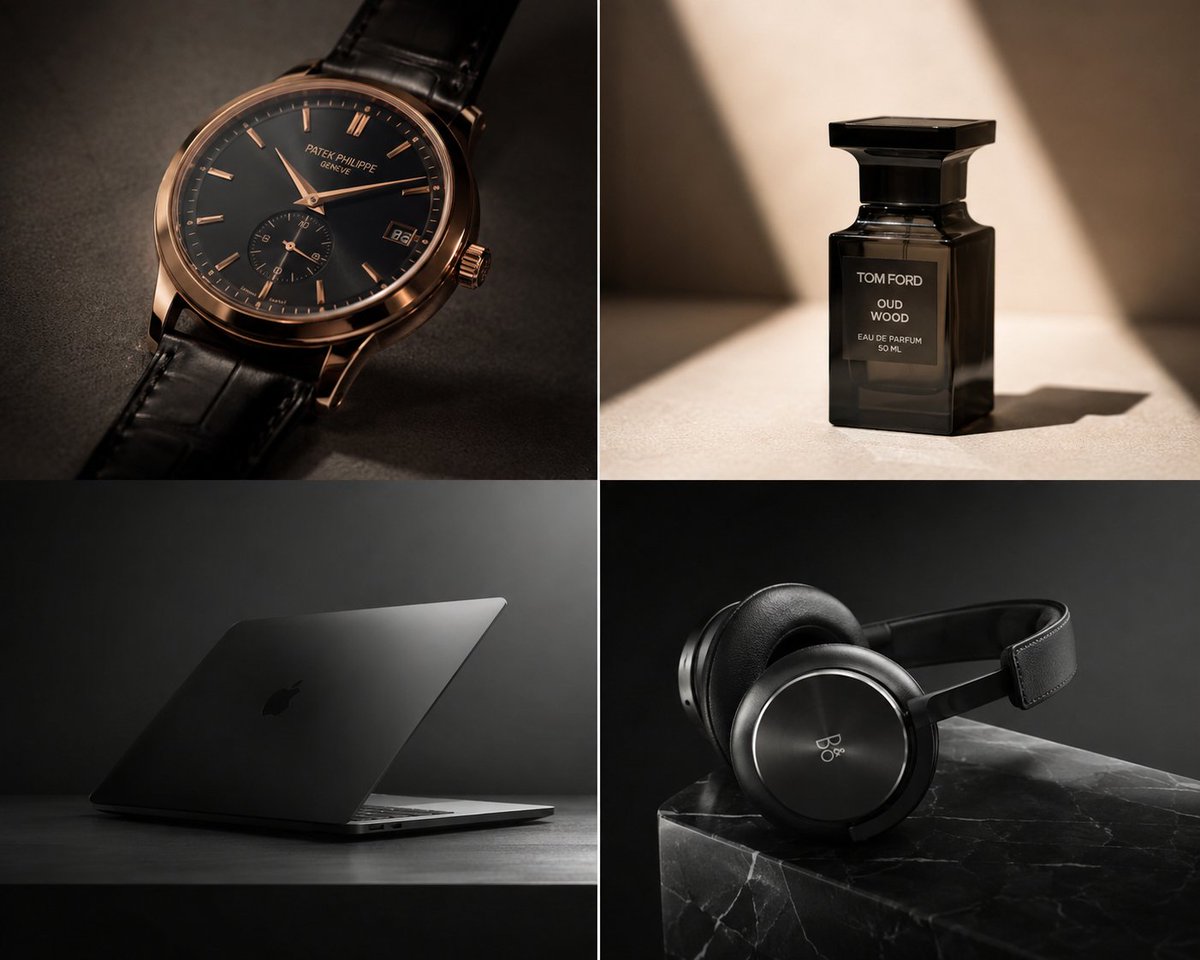
Premium Luxury Tech Editorial Style
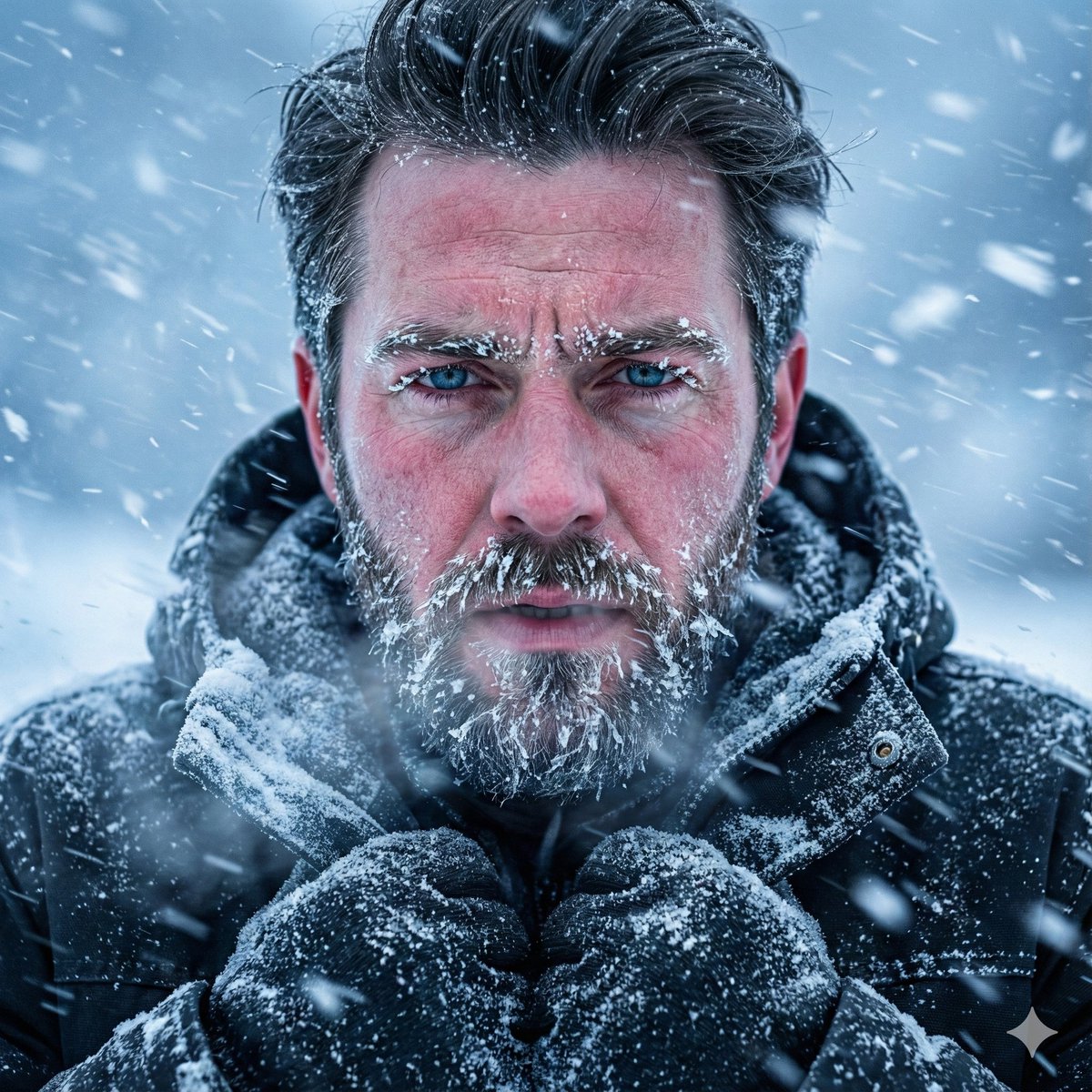
Structured Prompt for Ultra-Realistic Portrait of Man in Snowstorm
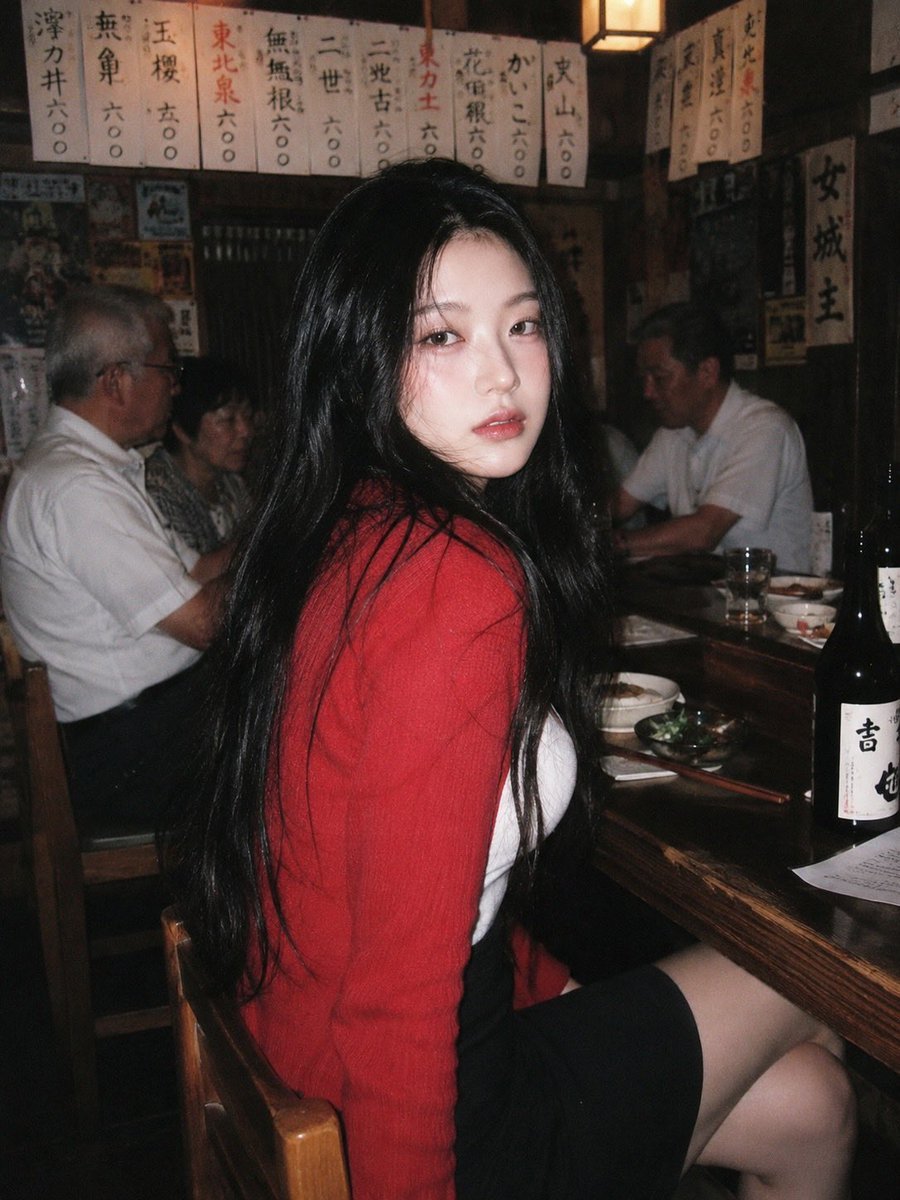
90s Japanese Izakaya Snapshot
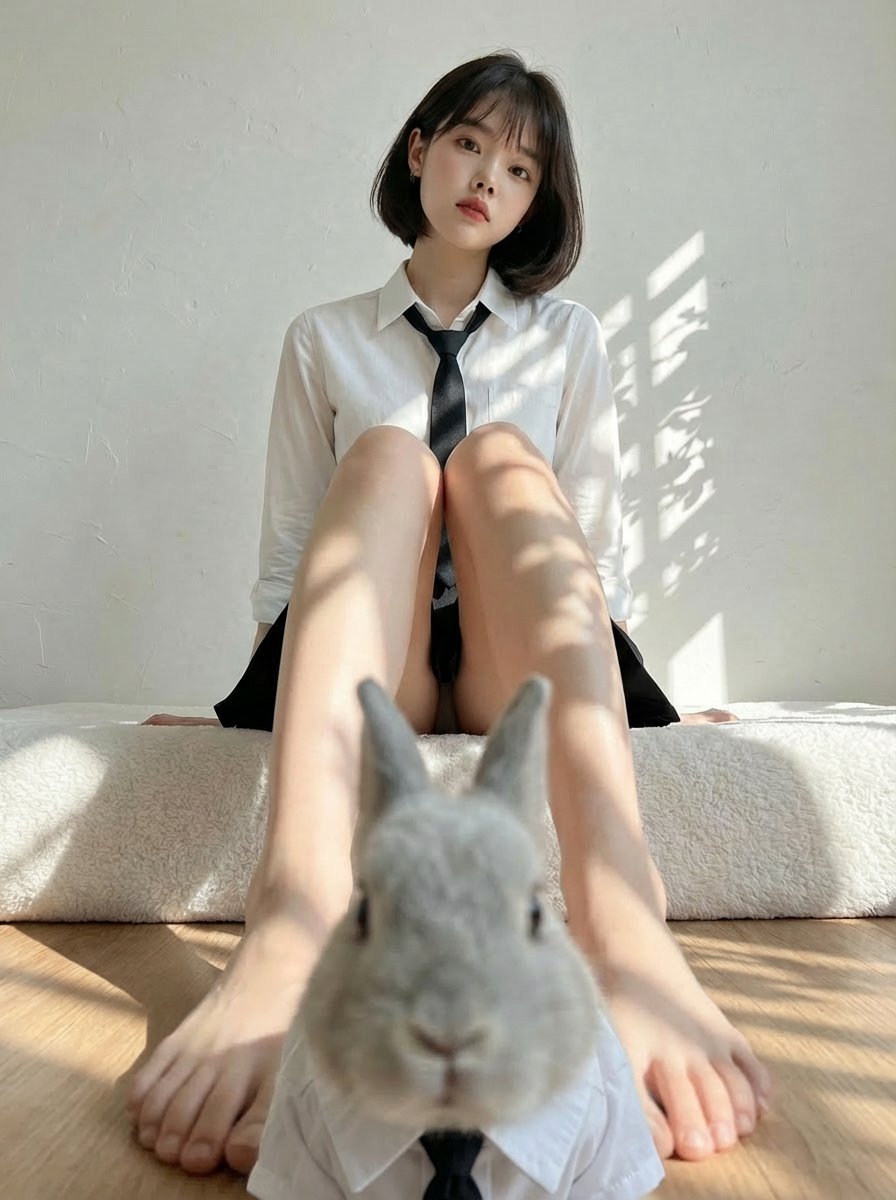
Rabbits wearing identical clothes
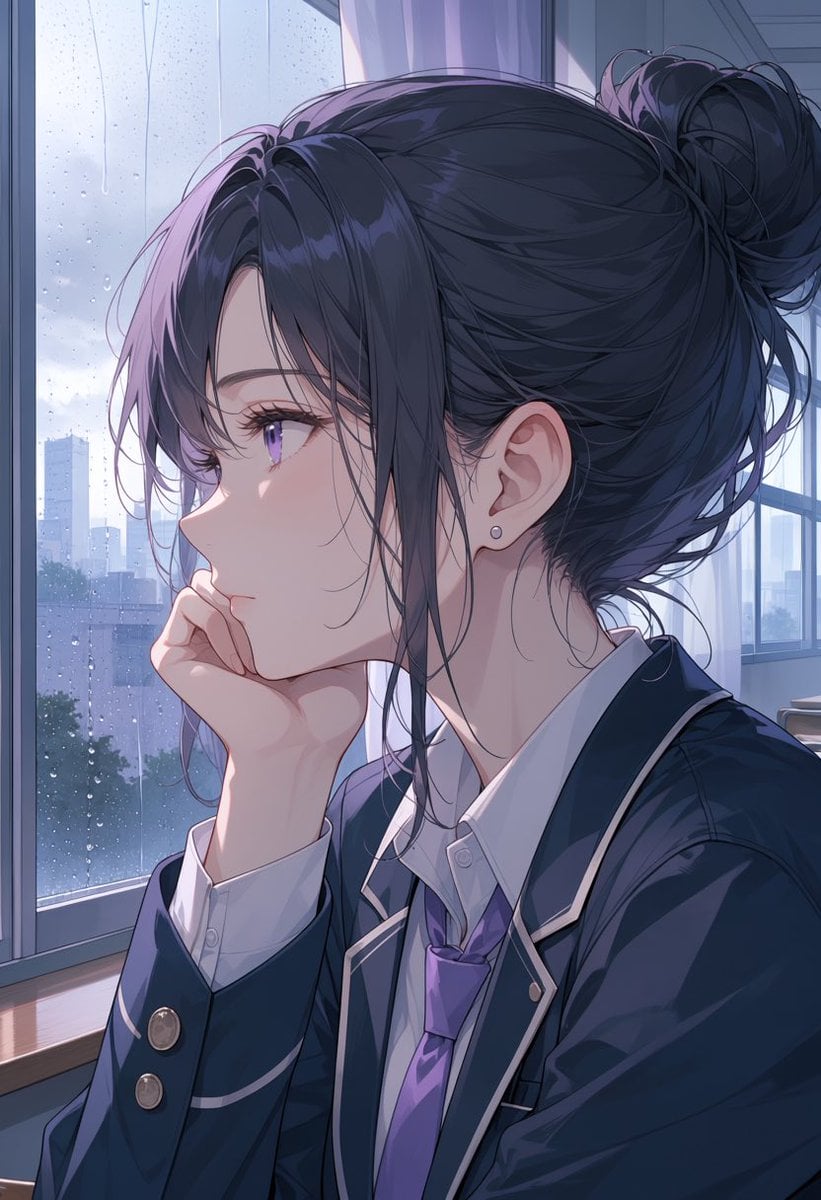
Rainy Anime Student Portrait

Yokohama Pop Summer Poster
Time-Shifted Image Generation Prompt
Browse template categories
Four Haircut Comparison Grid questions
How do I use the Four Haircut Comparison Grid template?
Add your photo if the template asks for one, edit the prompt if you like — the template's model and format are already selected — and press Generate. Your version opens in PicX Studio.
Can I customize the Four Haircut Comparison Grid template?
Yes. You can change the subject, setting, lighting, mood, format, and available model controls before creating your image.
Is the Four Haircut Comparison Grid template free?
Opening and editing this template is free. Generating uses credits, shown on the Generate button when you are signed in.
Which AI model should I use?
Start with GPT Image 2, which is the model associated with this template. You can compare another compatible model for a different finish.
Looking for something else? Browse all templates.

Your photo, any look
Thousands of ready templates for every top image and video model, from one credit balance.