
Four-Panel DX Report Model Comparison
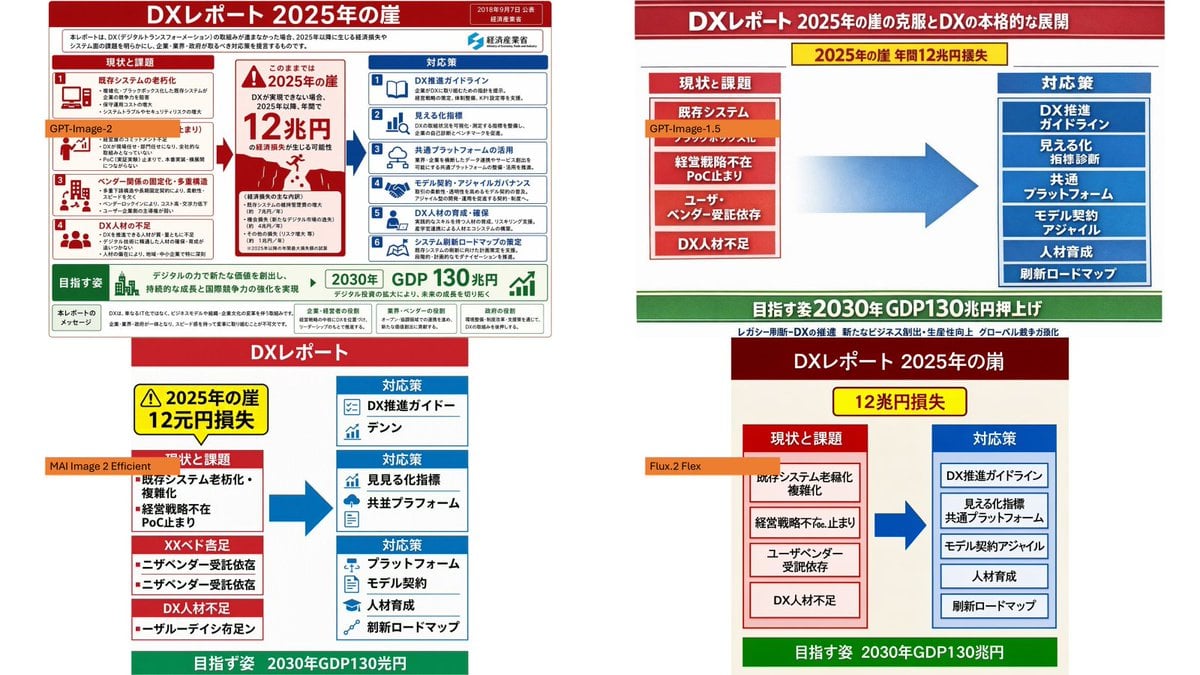
Creates a PowerPoint-style comparison slide showing four AI-generated versions of a Japanese DX report infographic from a reference image.
- Prompt included
- Model and format preset
- Free template
The prompt behind this image
Copy the exact prompt behind Four-Panel DX Report Model Comparison, or open it in the studio and make it yours.
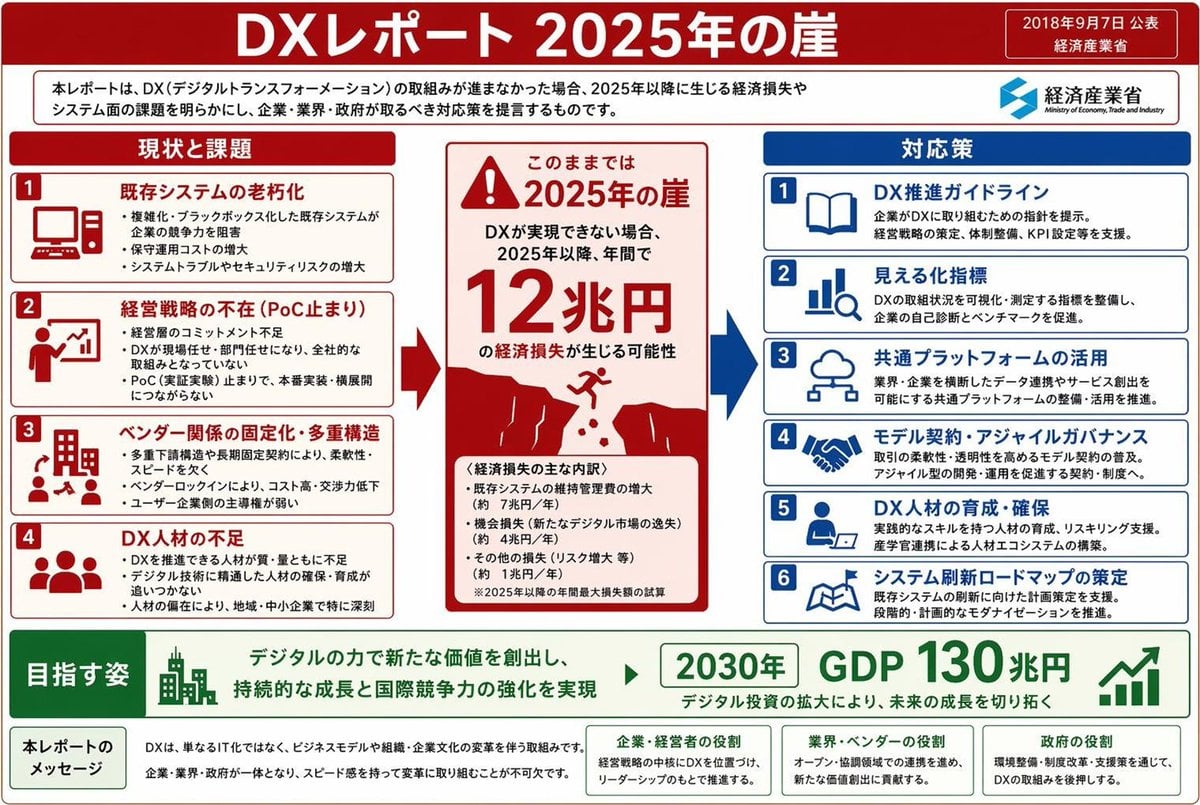
Using the provided reference image as the source slide, create a 16:9 white comparison canvas showing four different regenerated versions of the same Japanese government-style DX report slide. Layout: Arrange exactly 4 panels in a 2×2 grid with generous white margins. The top-left panel should keep the provided reference slide nearly unchanged and scaled down. The other three panels should be simplified reinterpretations of the same content, each with the same overall logic: red header, red “current issues” block on the left, blue “countermeasures” block on the right, a large blue arrow pointing from left to right, and a green goal band at the bottom. Panel labels: Add exactly 4 small orange model labels over the panels: {argument name="top left model label" default="GPT-Image-2"}, {argument name="top right model label" default="GPT-Image-1.5"}, {argument name="bottom left model label" default="MAI Image 2 Efficient"}, and {argument name="bottom right model label" default="Flux.2 Flex"}. Text and content to preserve from the reference: Keep the main theme as {argument name="main headline" default="DXレポート 2025年の崖"}. Preserve readable Japanese key phrases such as “2025年の崖”, “12兆円損失”, “現状と課題”, “対応策”, “既存システム”, “経営戦略不在”, “DX人材不足”, “DX推進ガイドライン”, “見える化指標”, “共通プラットフォーム”, “モデル契約・アジャイル”, “人材育成”, “刷新ロードマップ”, and the green goal message about “2030年 GDP130兆円”. Panel differences: The top-right version should look like a clean, simplified PowerPoint infographic with a long red title bar, a yellow warning banner near the top, stacked red issue boxes on the left, stacked blue solution boxes on the right, and a large gradient blue arrow in the center. The bottom-left version should look more compact and slightly imperfect, with multiple red issue sections on the left and three blue response sections on the right. The bottom-right version should look like a neat minimal slide with a dark red title bar, a yellow loss badge, two bordered columns, and a green bottom goal bar. Style constraints: Make the overall image look like a screenshot of a PowerPoint slide comparing output quality across image models. Keep all four panels legible, flat, and infographic-like. Do not add photo-realistic elements, people, watermarks, or extra panels.
Reference images included
Four-Panel DX Report Model Comparison needs input media to work. They load alongside the prompt when you open it in the studio.
How to use Four-Panel DX Report Model Comparison in 3 steps
- 1Upload ImagePNG, JPG or paste
Add your photo
Upload the photo the template builds on. The prompt, model and format are already set.
- 2…a portrait of your subject in softgolden-hour light, 85mm…
Personalize
Edit the subject and creative details for your destination.
- 3Generate
Generate
Press Generate — your image is created in PicX Studio, so you can compare it with the original and refine one variable at a time.
More like this
Templates with the same subject, style or setup. Open one to see its prompt.

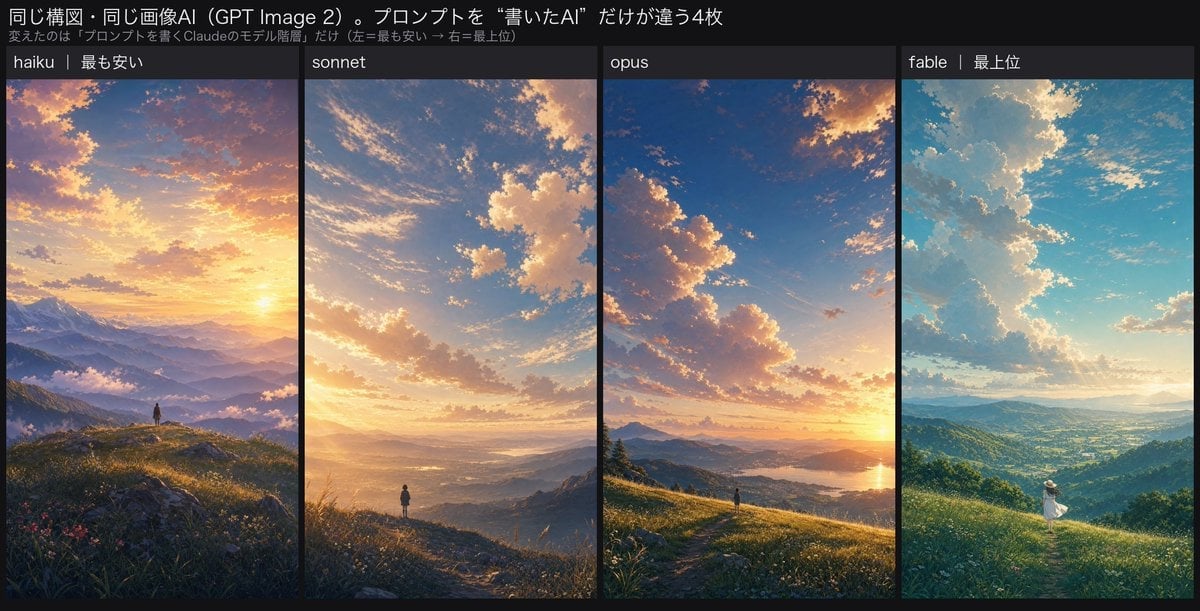
Four-Panel AI Landscape Comparison

Four-Panel Anime Face Comparison
Four-Panel AI Landscape Comparison

Two-Panel Snow Cabin Model Comparison

AI Model Routing Comparison Infographic
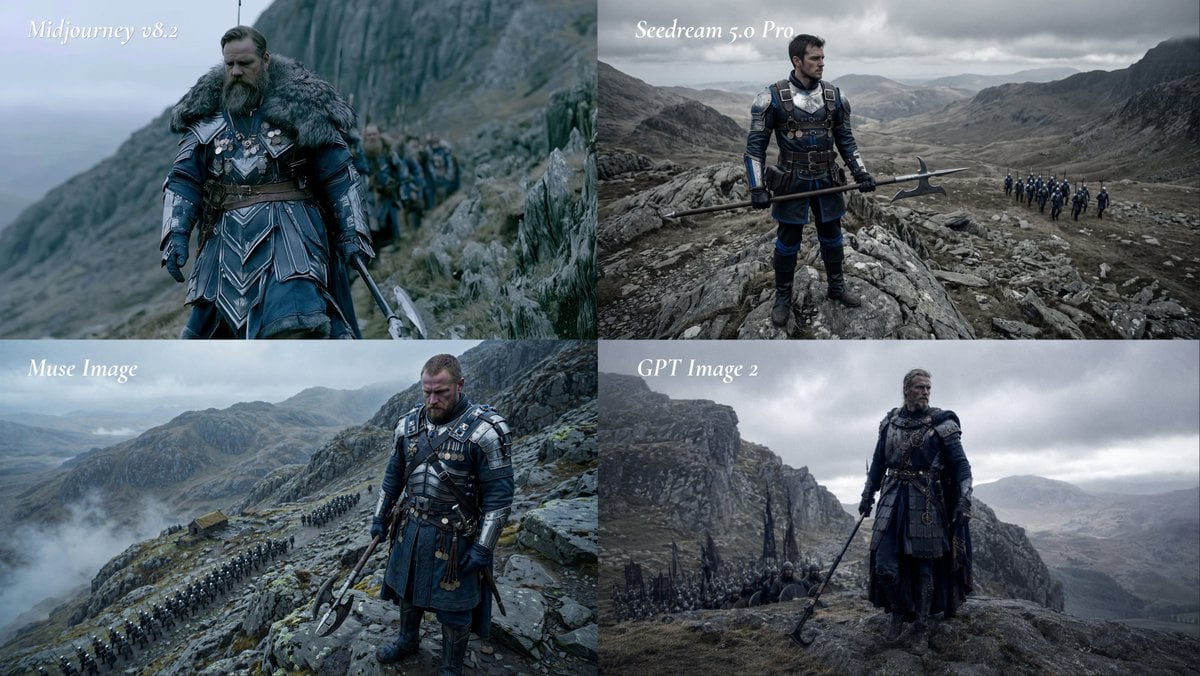
Fantasy Model Comparison Grid
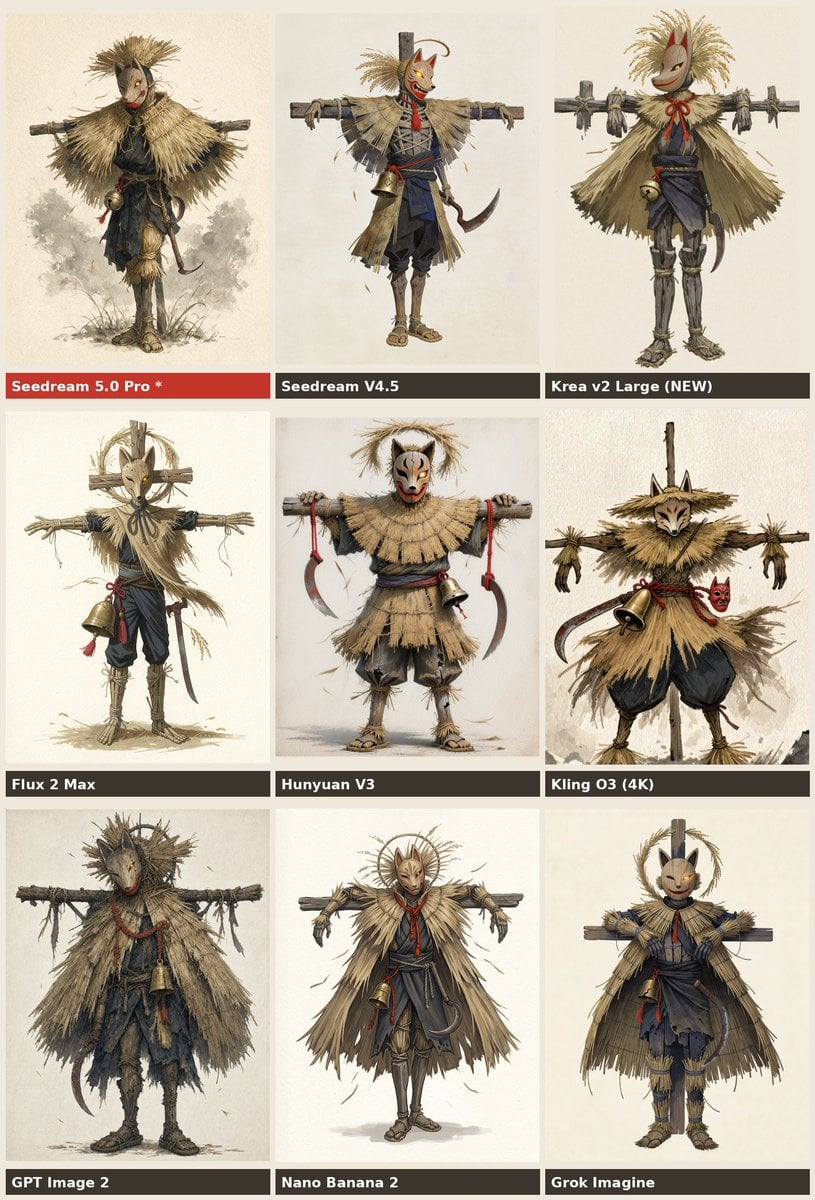
Nine-Model Scarecrow Yokai Comparison

Component Differences Four-Panel Manga
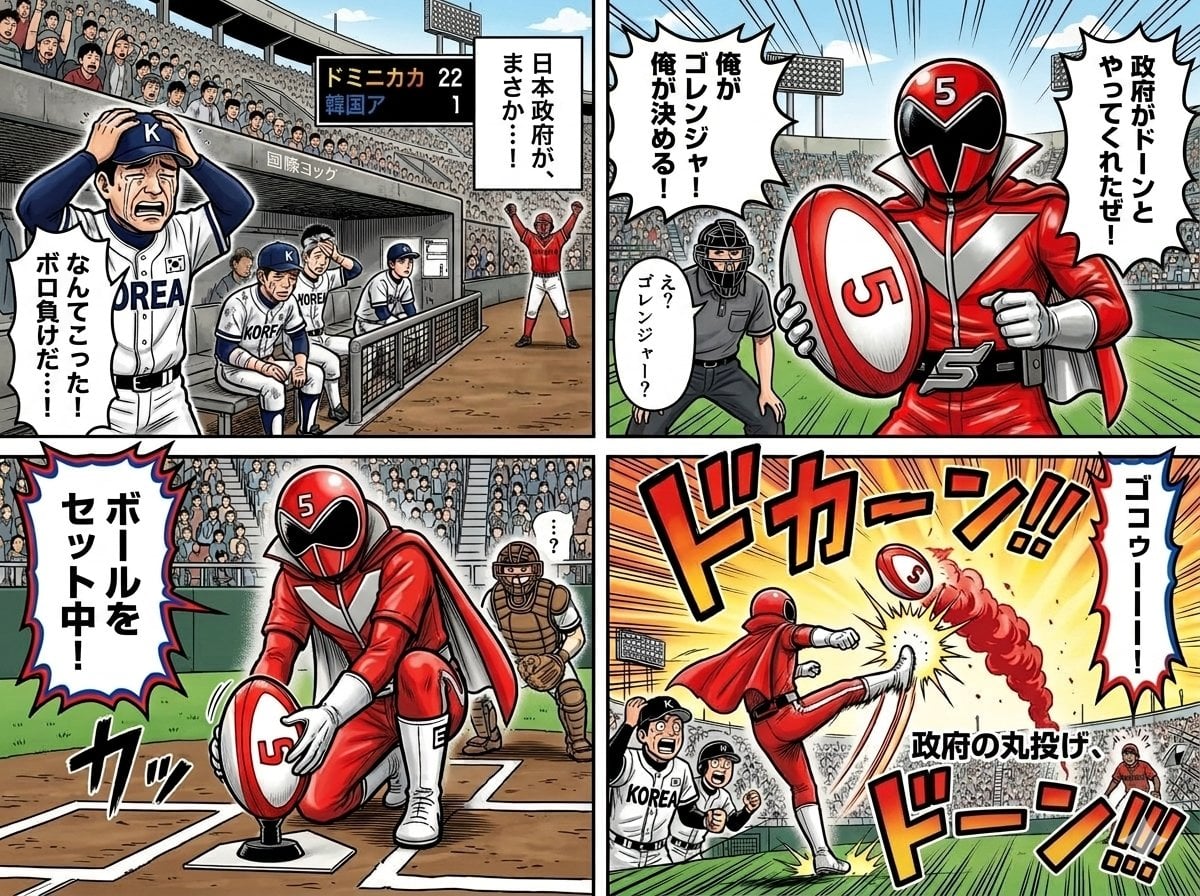
Four-Panel Manga with Sentai and Rugby

Premium Vertical Product Campaign Poster

Pixar 6-Panel Streethero Expression Grid
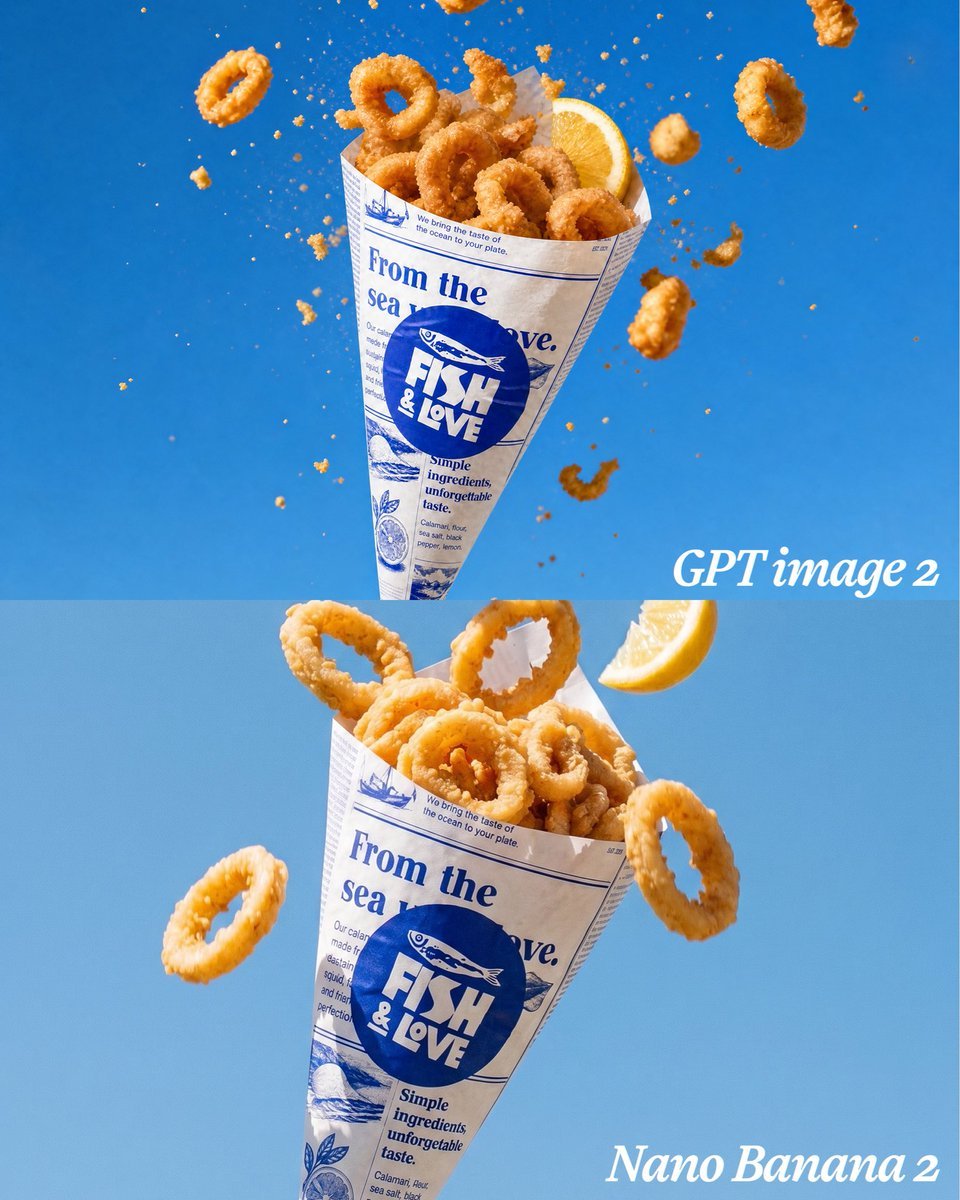
Calamari Cone Model Comparison
Make it yours
Four-Panel DX Report Model Comparison works as-is. These are the safest ways to change it without losing the look.
Change one field
Copy a single group, rewrite it, and generate again so you can see what that field is doing.
Keep the frame, change the subject
Hold the composition and light of Four-Panel DX Report Model Comparison, then swap wardrobe, props or the person for a new take.
| If the result… | Why | Fix |
|---|---|---|
| The result drifts from the preview | Too many fields changed at once. | Reuse Four-Panel DX Report Model Comparison as-is first, then change one group — subject, light, or setting. |
| The model over-stylizes the scene | The prose prompt leaves finish and camera underspecified. | Add one camera or lighting sentence and stay on GPT Image 2. |
More GPT Image 2 templates
Other prompts made for GPT Image 2.

Six VTuber Japanese Logo Sheet

Realistic Portrait of Woman and Deer

The Vista Modular Condo Poster

2.5D Anime Art Board

Isometric Productivity Desk Scene

New York Double Exposure Poster

Japanese Tatami Lifestyle Magazine Cover

NESCAFÉ Coffee Map Poster

Brutalist Cogito Chinese Typography Poster

Cinematic Luxury Terrace Portrait
More image prompts
Fresh picks from across the catalog.

GPT 2 Day 500 Gaming Thumbnail

Golden Hour Selfie Couple
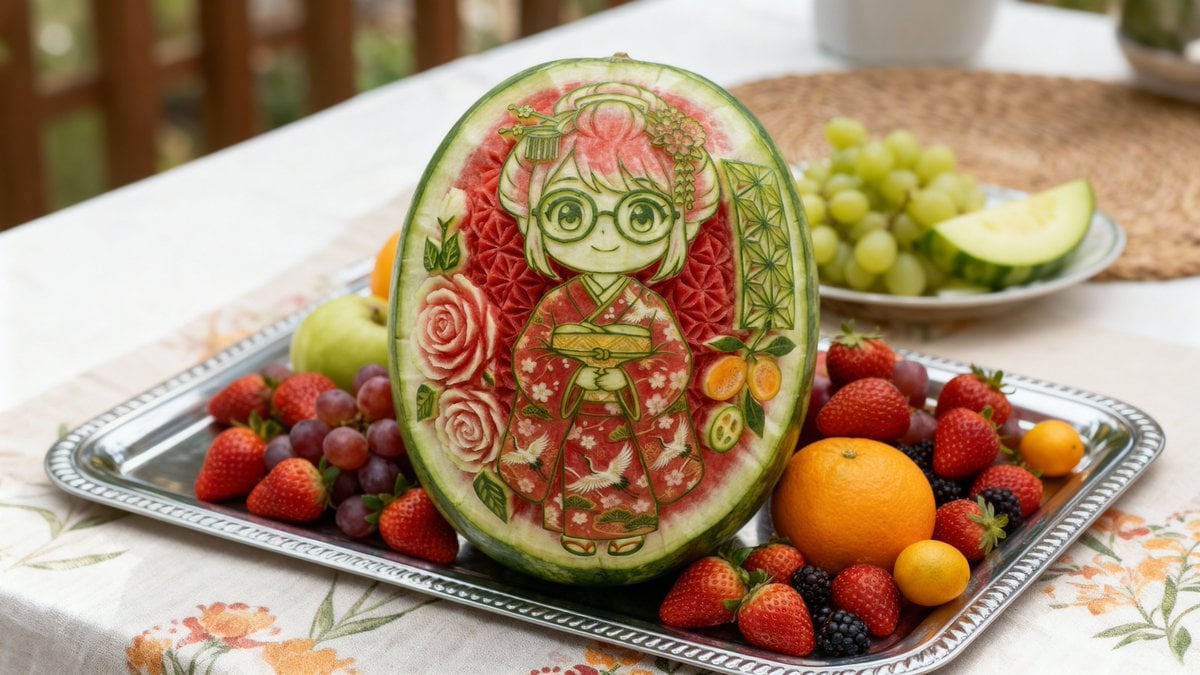
Photorealistic Watermelon Carving of an Original Character (OC)

Luxury Lifestyle Portrait Prompt with Horse for Gemini Nano Banana Pro
Cinematic Automotive Triptych Portrait Prompt

Après-Ski Naughty Bunny Selfie Prompt

Amateur Apple Store Photography

Neon City Soda Advertisement

Fine-Art Ink and Watercolor Portrait with Identity Lock

Flirty Studio Portrait with Wink and Tongue Out
Browse template categories
Four-Panel DX Report Model Comparison questions
How do I use the Four-Panel DX Report Model Comparison template?
Add your photo if the template asks for one, edit the prompt if you like — the template's model and format are already selected — and press Generate. Your version opens in PicX Studio.
Can I customize the Four-Panel DX Report Model Comparison template?
Yes. You can change the subject, setting, lighting, mood, format, and available model controls before creating your image.
Is the Four-Panel DX Report Model Comparison template free?
Opening and editing this template is free. Generating uses credits, shown on the Generate button when you are signed in.
Which AI model should I use?
Start with GPT Image 2, which is the model associated with this template. You can compare another compatible model for a different finish.
Looking for something else? Browse all templates.

Your photo, any look
Thousands of ready templates for every top image and video model, from one credit balance.