
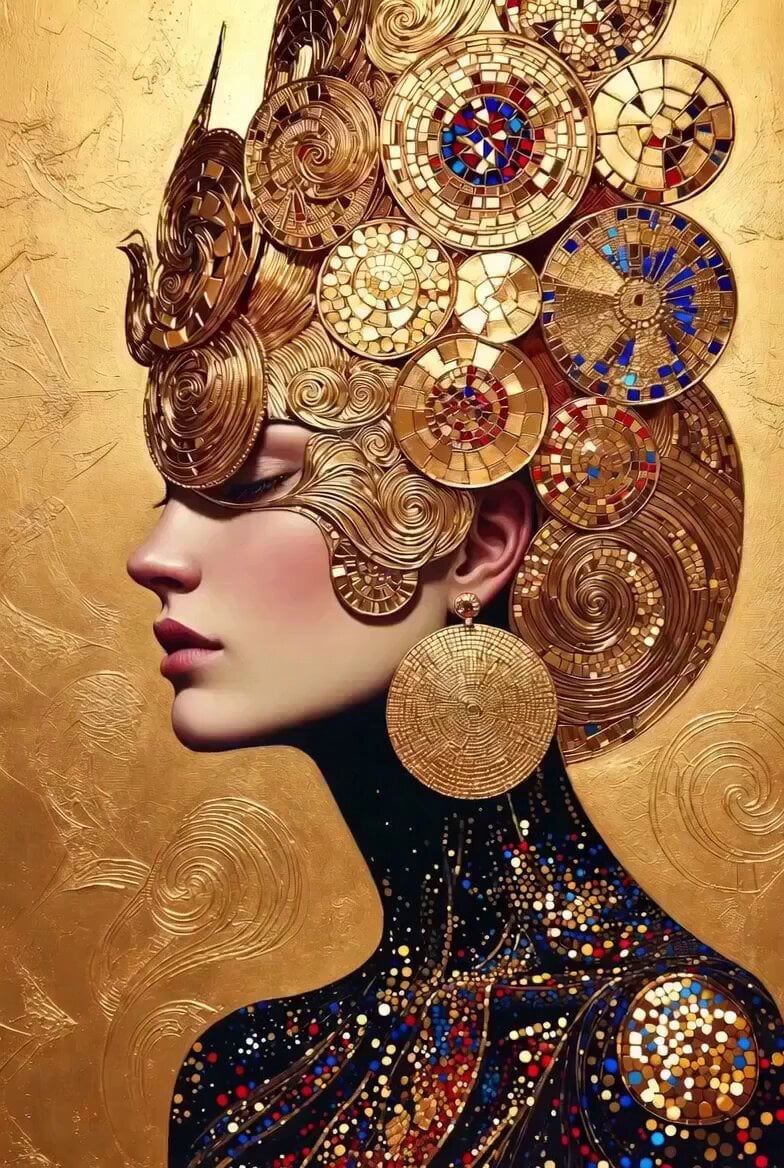
Golden Mosaic Eternal Portrait
A vibrant and detailed video prompt depicting a woman with a complex golden mosaic headdress.
- Prompt included
- Model and format preset
- Premium template
The prompt behind this video
Copy the exact prompt behind Golden Mosaic Eternal Portrait, or open it in the studio and make it yours.
A vibrant, richly detailed artwork of a woman in profile, looking left with her eyes closed, she is adorned with an elaborate golden crown or headdress that is a complex mosaic of golden spirals, discs, and abstract shapes, interspersed with hints of red and blue. a substantial, intricately patterned circular gold earring hangs from her ear. Her neck and shoulder area are depicted with a dark, almost black, base lavishly speckled with bright gold and other small, colorful glitter like elements. The background is a solid field of swirling, textured gold, creating a unified golden aesthetic.
How to use Golden Mosaic Eternal Portrait in 3 steps
- 1
Open
The prompt is already in the box next to the preview, with the template's model and format selected.
- 2…a portrait of your subject in softgolden-hour light, 85mm…
Personalize
Edit the subject and creative details for your destination.
- 3Generate
Generate
Press Generate — your video is created in PicX Studio, so you can compare it with the original and refine one variable at a time.
More like this
Templates with the same subject, style or setup. Open one to see its prompt.
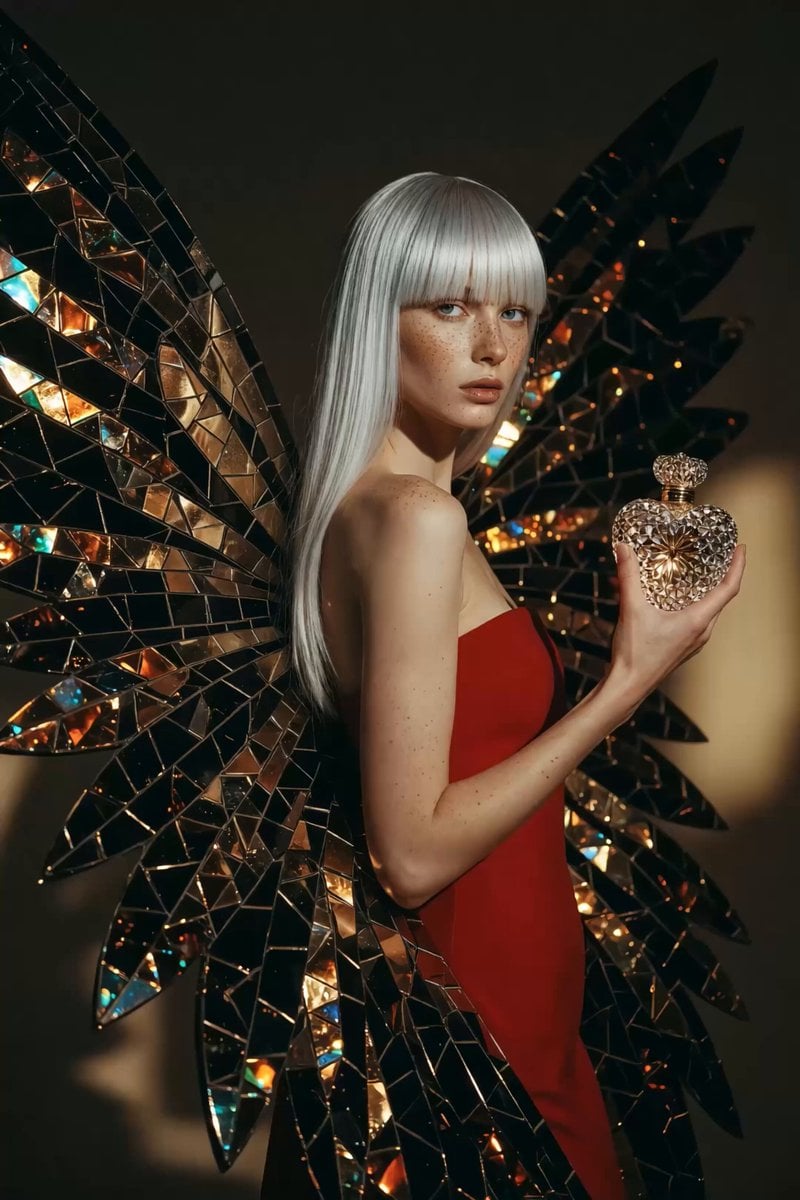
1960s Retro Fashion Portrait with Mosaic Wings
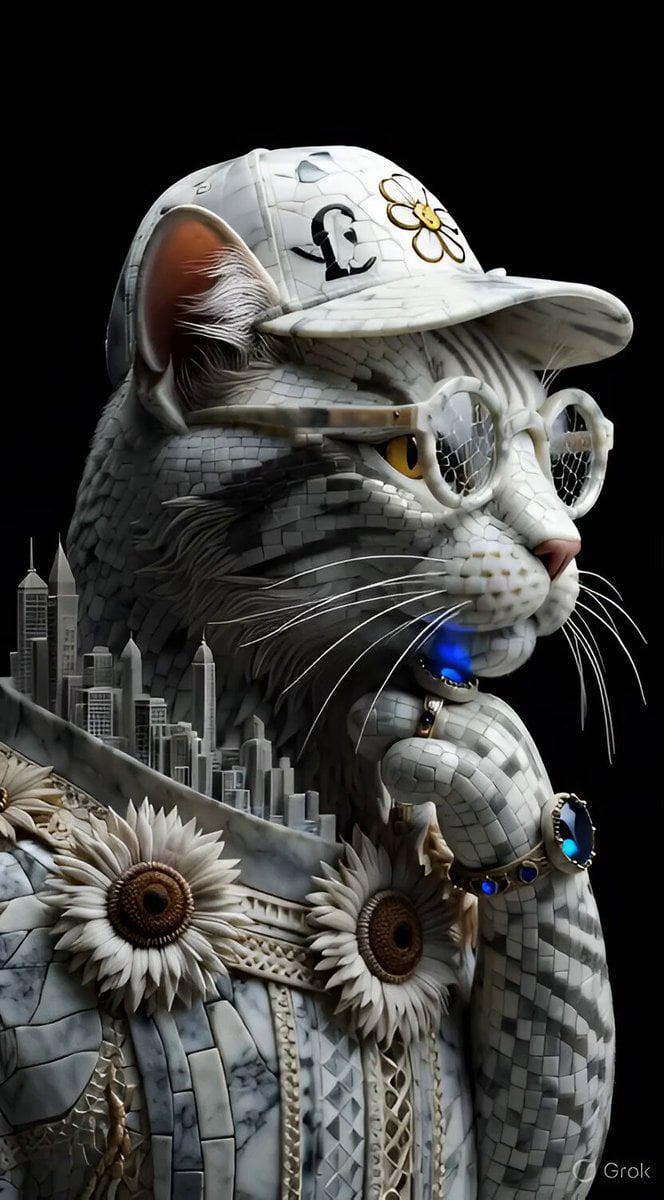
Marble Stone Mosaic Cat Portrait

Cinematic Portrait Study 3

Cinematic Portrait Study
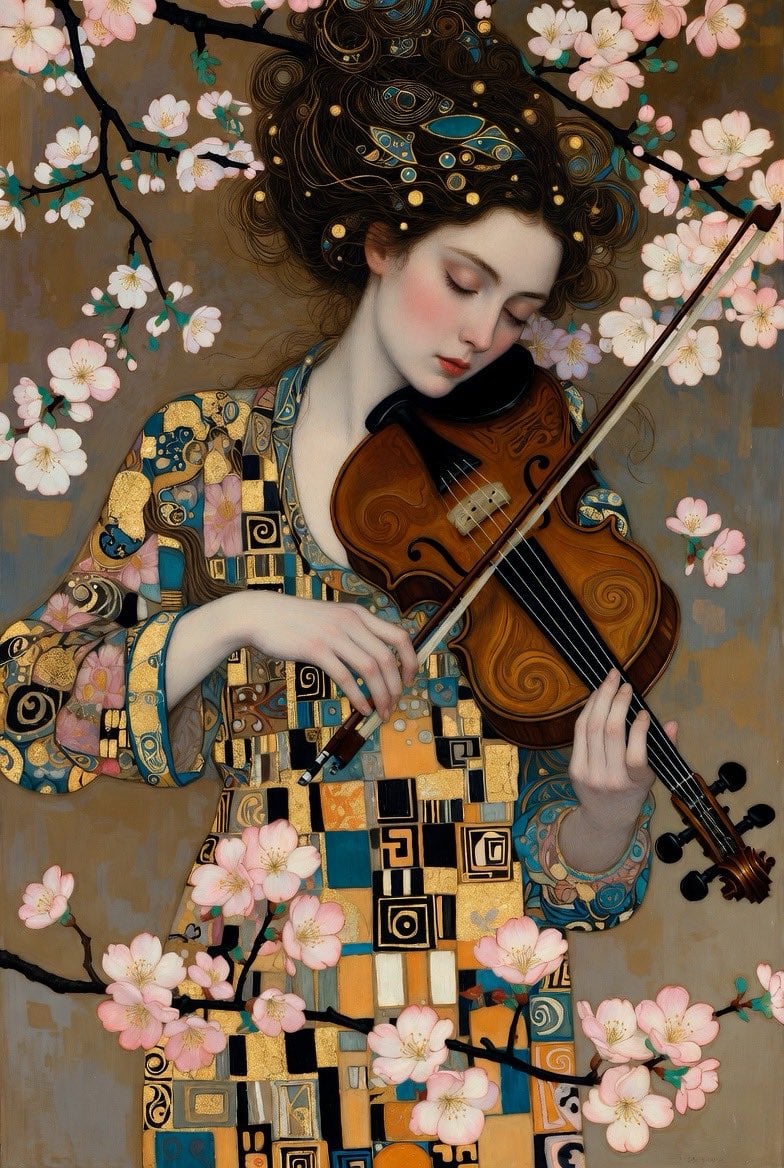
Highly Detailed Digital Painting of a Serene Woman Playing a Violin in Klimt's Golden Mosaic Style
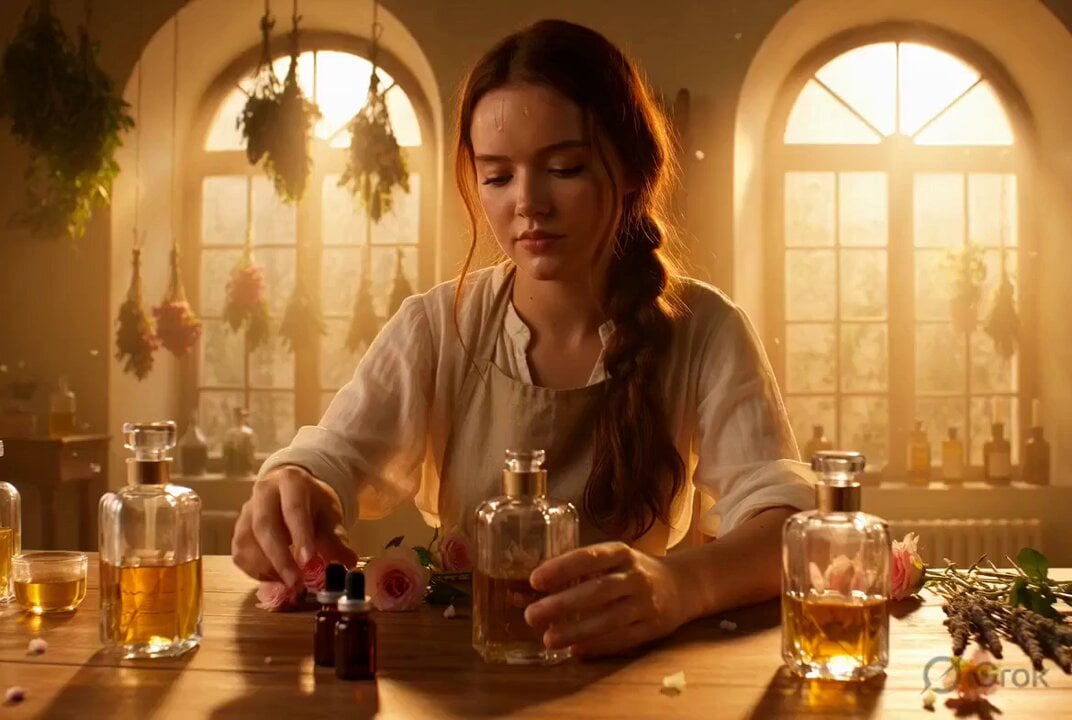
Golden Hour Woodturner Cinematic Portrait
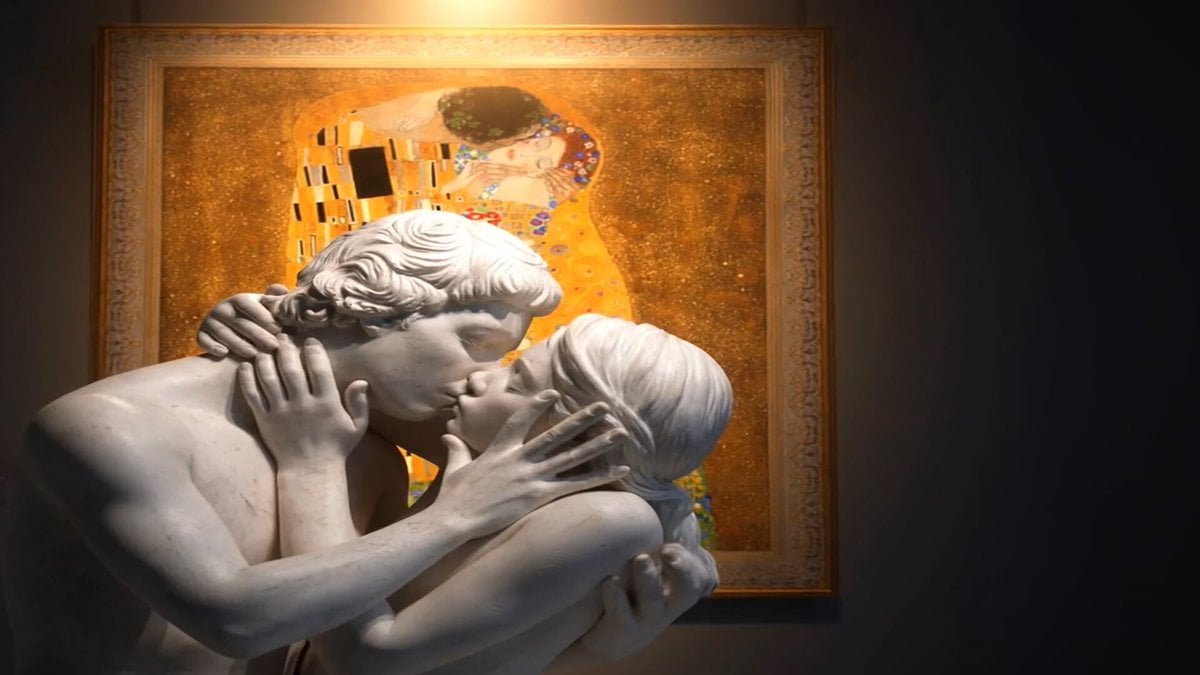
Marble Lovers Golden Kiss
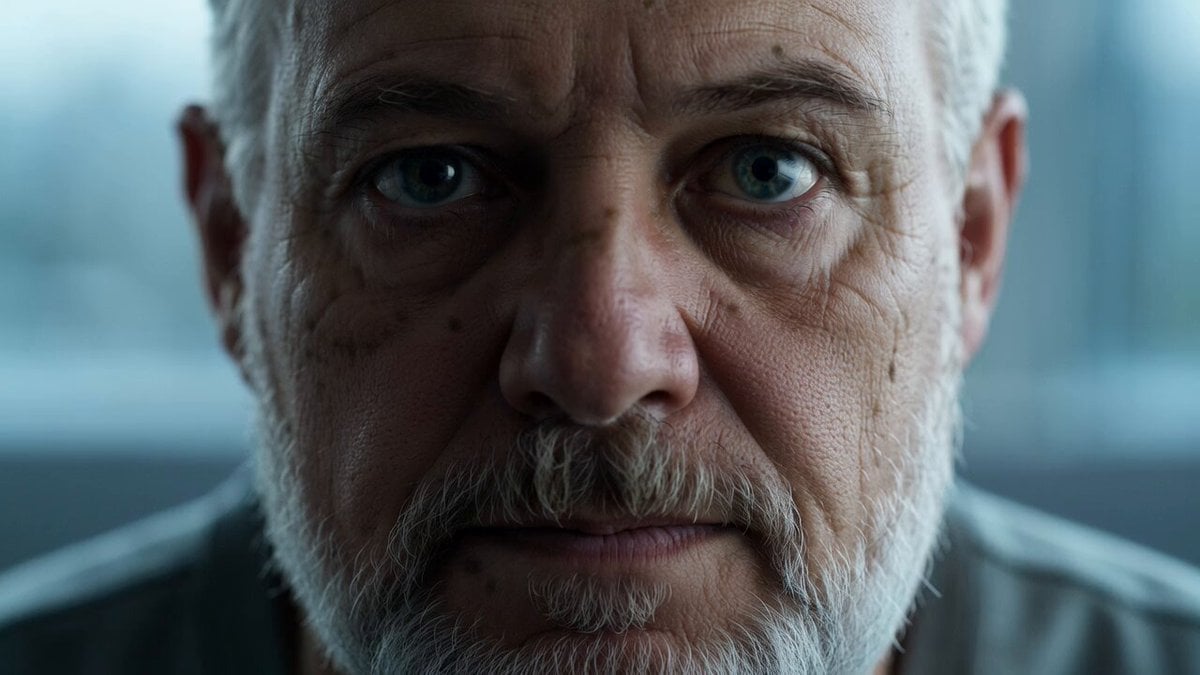
Reflective Elderly Man Documentary Portrait
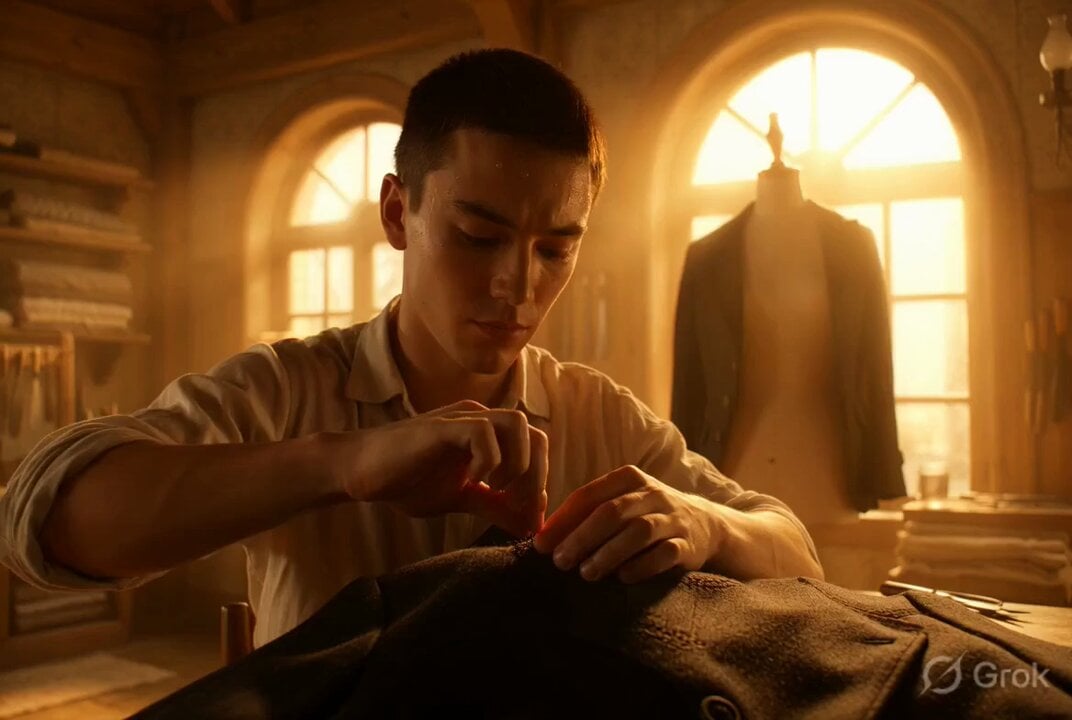
Photorealistic cinematic portrait of a young tailor
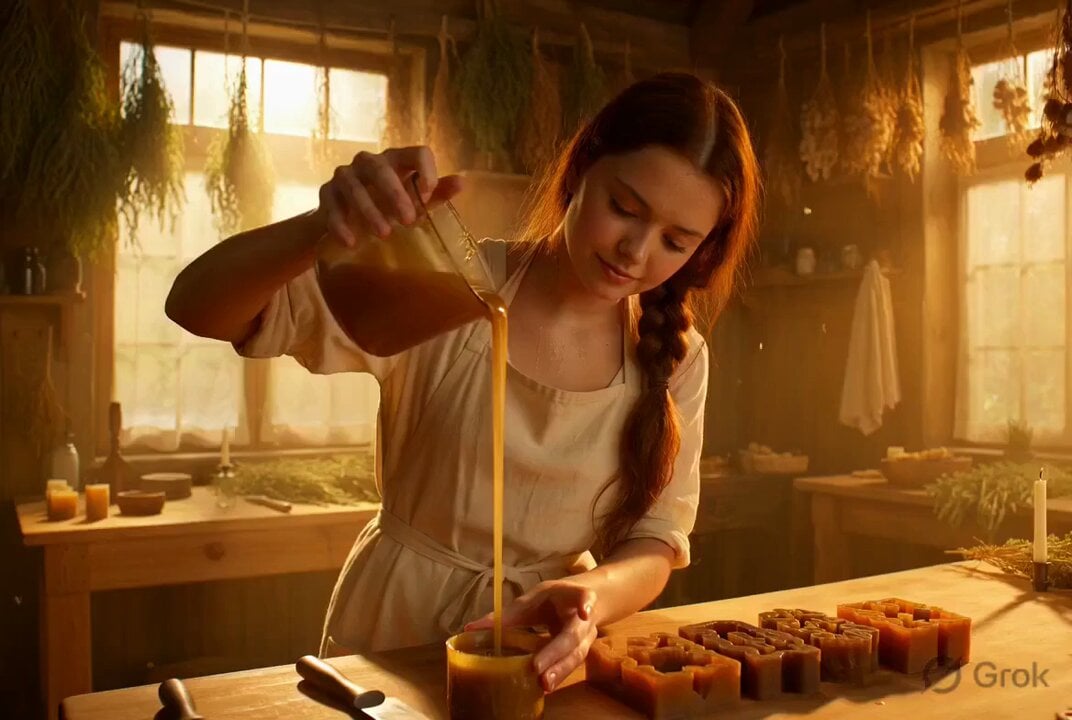
Photorealistic cinematic portrait of a gentle candle maker

Crows on a rock with Celtic runes and glass mosaic jug
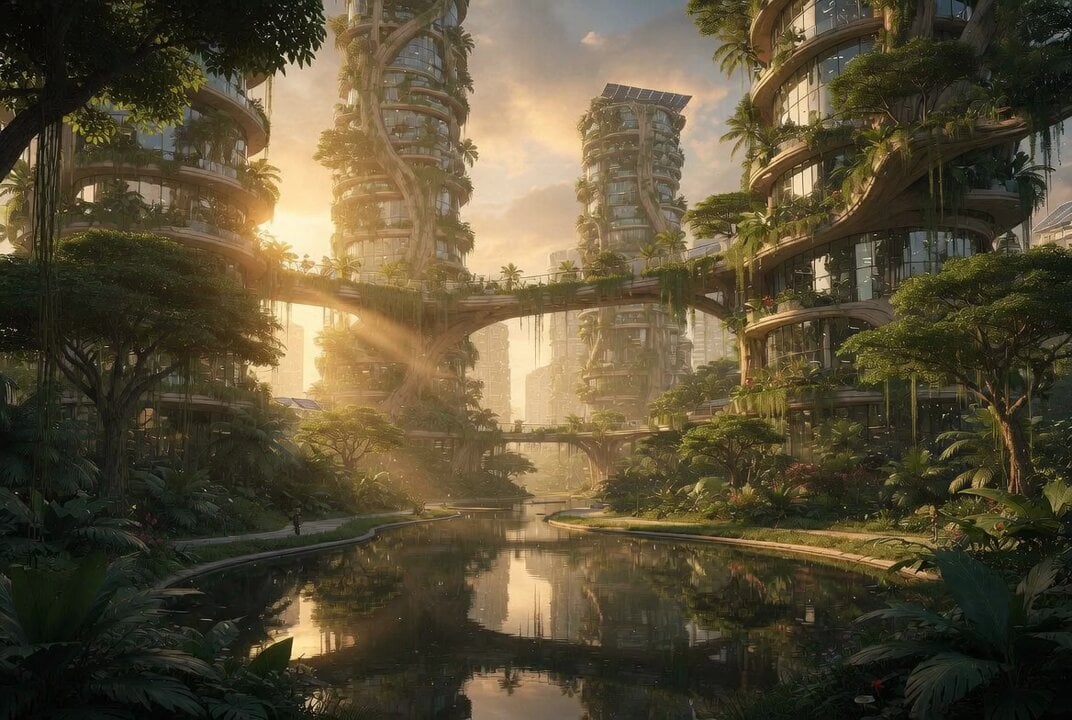
Cinematic Solarpunk Biophilic Megacity at Golden Hour
Make it yours
Golden Mosaic Eternal Portrait works as-is. These are the safest ways to change it without losing the look.
Change one field
Copy a single group, rewrite it, and generate again so you can see what that field is doing.
Keep the frame, change the subject
Hold the composition and light of Golden Mosaic Eternal Portrait, then swap wardrobe, props or the person for a new take.
| If the result… | Why | Fix |
|---|---|---|
| The result drifts from the preview | Too many fields changed at once. | Reuse Golden Mosaic Eternal Portrait as-is first, then change one group — subject, light, or setting. |
| The model over-stylizes the scene | The prose prompt leaves finish and camera underspecified. | Add one camera or lighting sentence and stay on Grok Imagine. |
More Grok Imagine templates
Other prompts made for Grok Imagine.
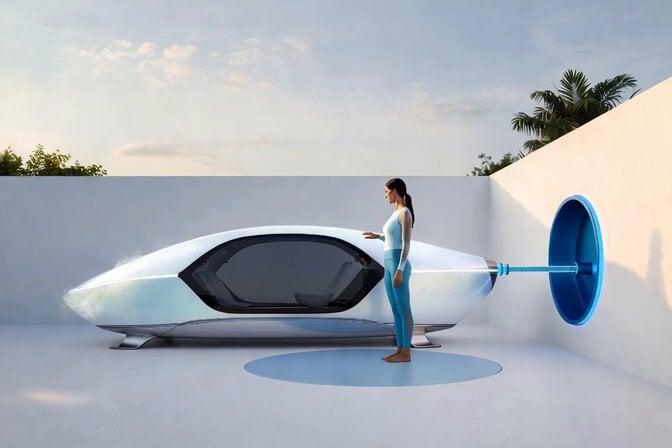
Voice Controlled Water Animation

Pterodactyl Transformation Journey
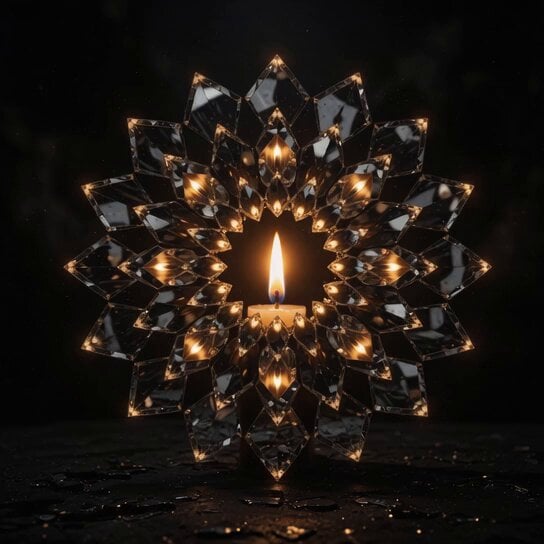
Candle Mandala Mirror Video
Psychedelic Purple Disc World Video
Mecha Runway Tap Dance Video Prompt
Quantum Inventor in Sonoran Desert
Emotional Angry Couple Drama

Train Zooming in Star Field Video Prompt
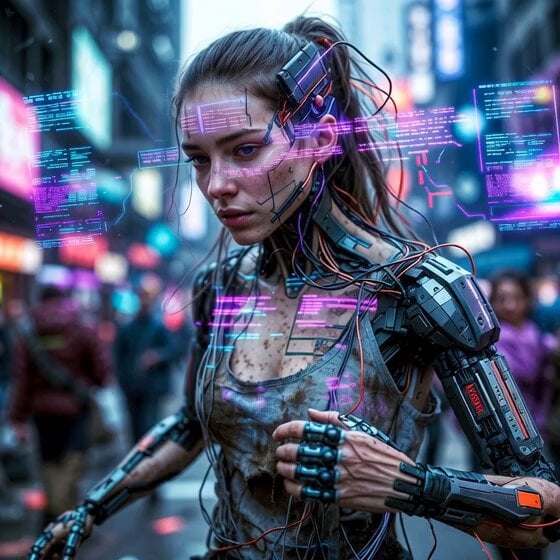
Cyberpunk Guerrilla Girl Video Generation

Detailed multi-part video prompt
More video prompts
Fresh picks from across the catalog.

T-Rex vs Military Cargo Plane Action Scene
Whale Breaching Through Rising Tide
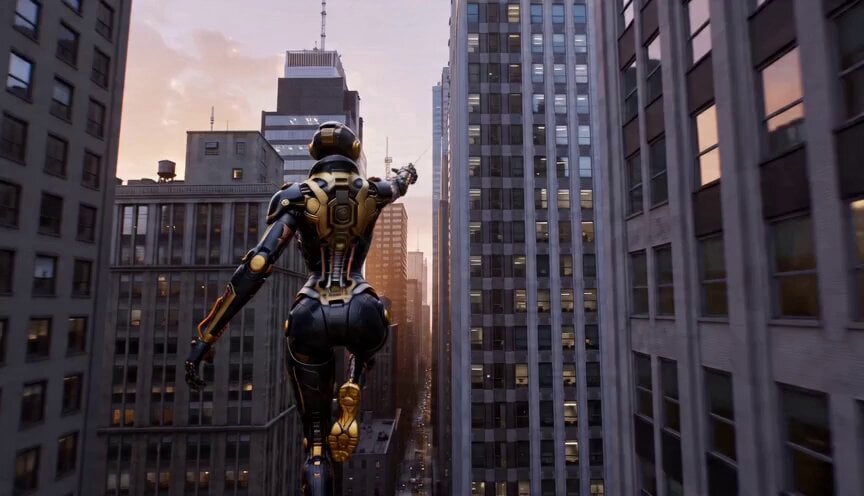
High-Speed Cinematic Action Scene with Web-Slinging
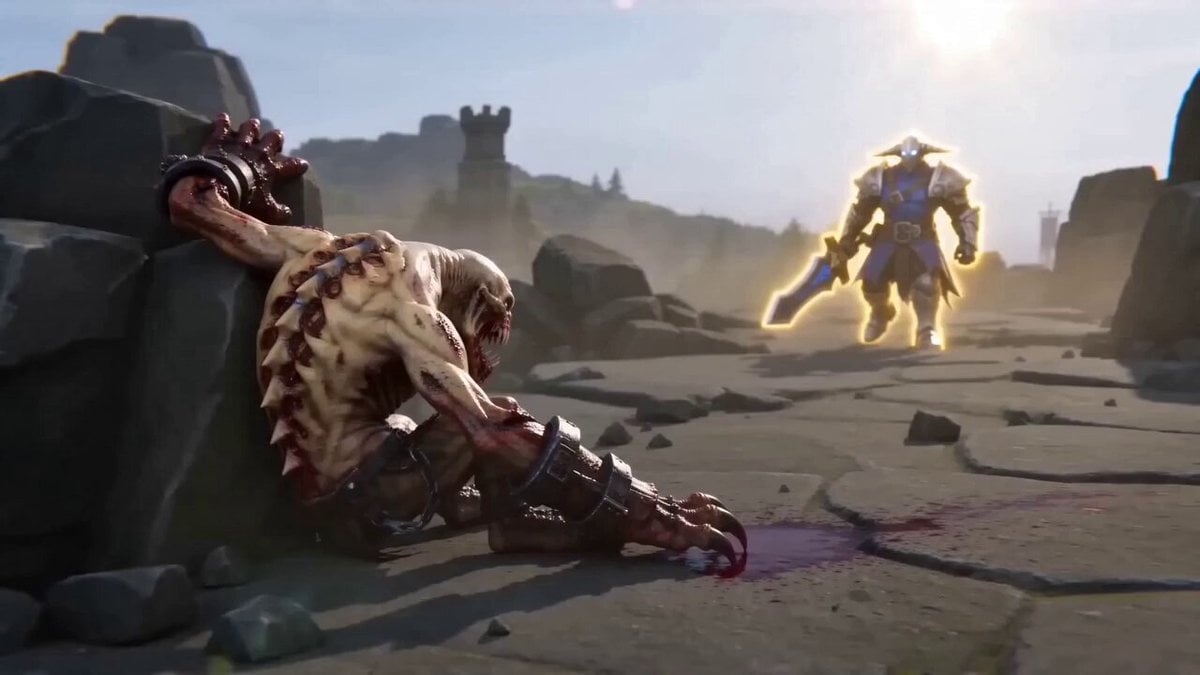
Lifestealer Rage Cinematic Scene
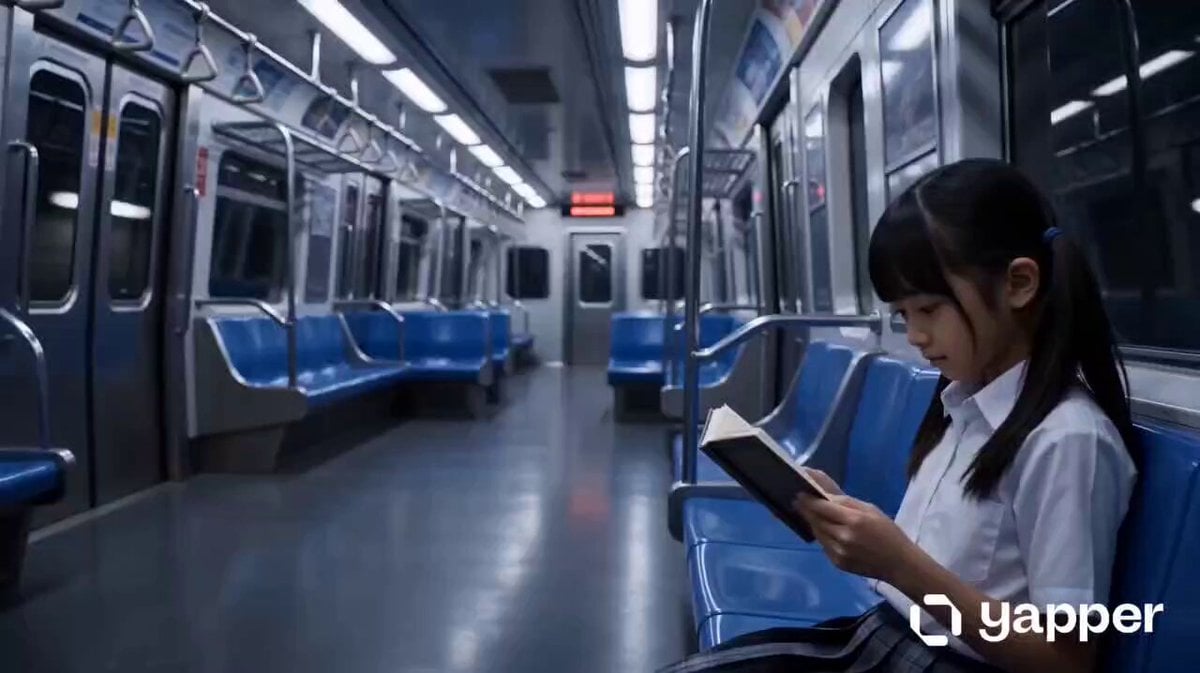
Cyber Transformation Subway Fight

Prompt: VIDEO RECONSTRUCTION METADATA - Duration:
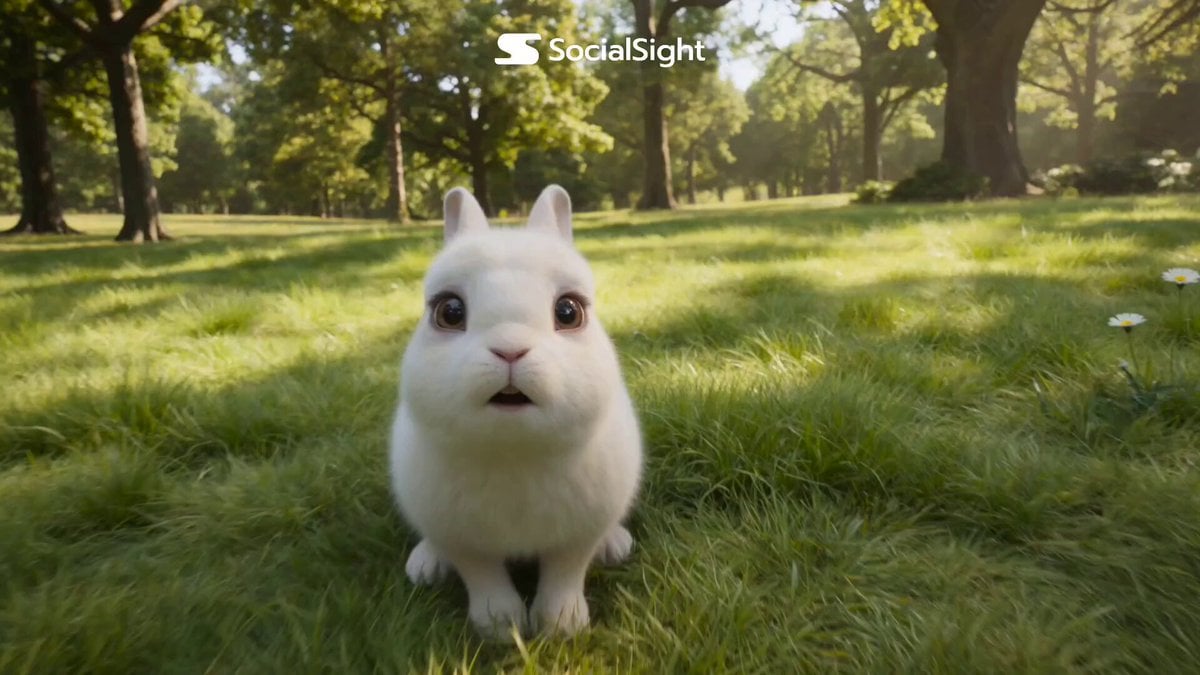
Found-Footage Talking Rabbits
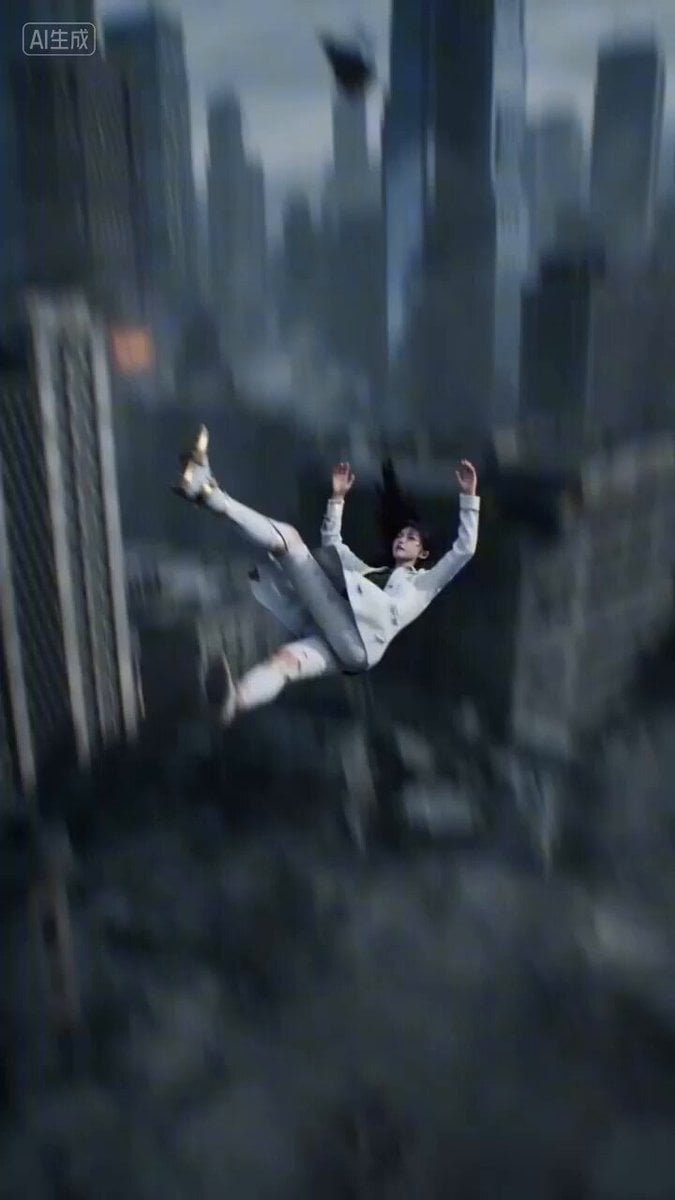
Sci-Fi Mecha Angel Transformation Video Prompt for Seedance 2.0

Irish Dance in a Glistening Field

Lunar Realm Portal Animation
Browse template categories
Golden Mosaic Eternal Portrait questions
How do I use the Golden Mosaic Eternal Portrait template?
Add your photo if the template asks for one, edit the prompt if you like — the template's model and format are already selected — and press Generate. Your version opens in PicX Studio.
Can I customize the Golden Mosaic Eternal Portrait template?
Yes. You can change the subject, setting, lighting, mood, format, and available model controls before creating your video.
Is the Golden Mosaic Eternal Portrait template free?
Opening and editing this template is free. Generating uses credits, shown on the Generate button when you are signed in.
Which AI model should I use?
Start with Grok Imagine, which is the model associated with this template. You can compare another compatible model for a different finish.
Looking for something else? Browse all templates.

Your photo, any look
Thousands of ready templates for every top image and video model, from one credit balance.