
Game UI Skill Selection Animation
A structured prompt for Seedance 2.0 to generate a sophisticated game UI animation showing a skill being selected, complete with button scaling, glow effects, and energy ripples.
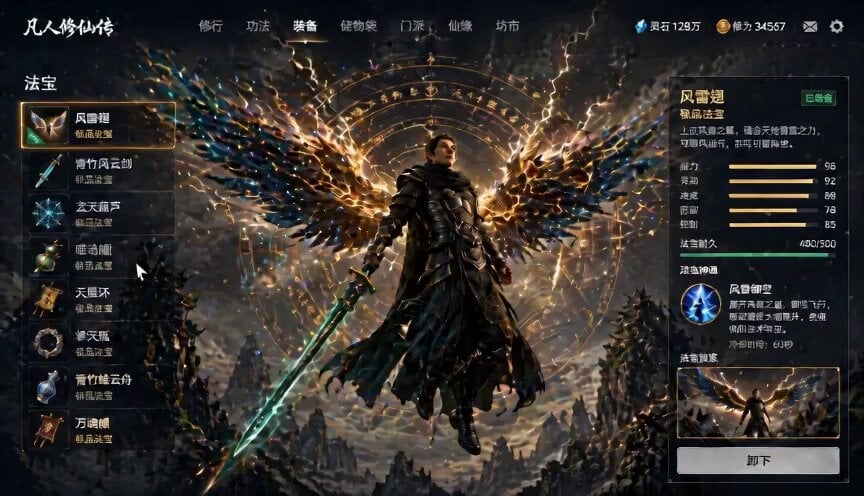
- Prompt included
- Model and format preset
- Free template
The prompt behind this video
Copy the exact prompt behind Game UI Skill Selection Animation, or open it in the studio and make it yours.
这是一个游戏UI点击触发的技能切换动画。起始状态为装备界面,当前选中“风雷翅”。——触发——用户点击UI中的“大庚剑阵”技能按钮:按钮产生反馈:按钮轻微缩放(按压感)高亮发光出现能量波纹扩散同时UI发生状态切换:
How to use Game UI Skill Selection Animation in 3 steps
- 1
Open
The prompt is already in the box next to the preview, with the template's model and format selected.
- 2…a portrait of your subject in softgolden-hour light, 85mm…
Personalize
Edit the subject and creative details for your destination.
- 3Generate
Generate
Press Generate — your video is created in PicX Studio, so you can compare it with the original and refine one variable at a time.
More like this
Templates with the same subject, style or setup. Open one to see its prompt.
3D Glossy Fairy Animation - Seedance 2.5
Silk Road Pomegranate Folk Animation
Multilingual Creative Typography Loop
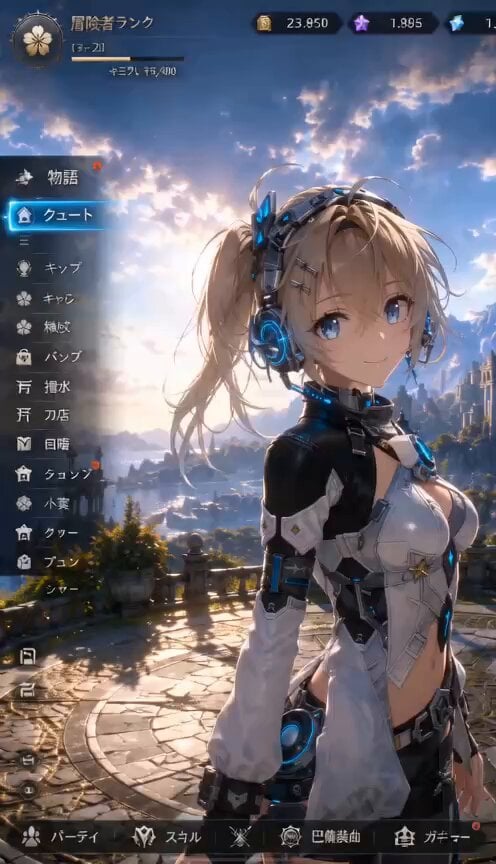
3D RPG Game Quest Selection Scene
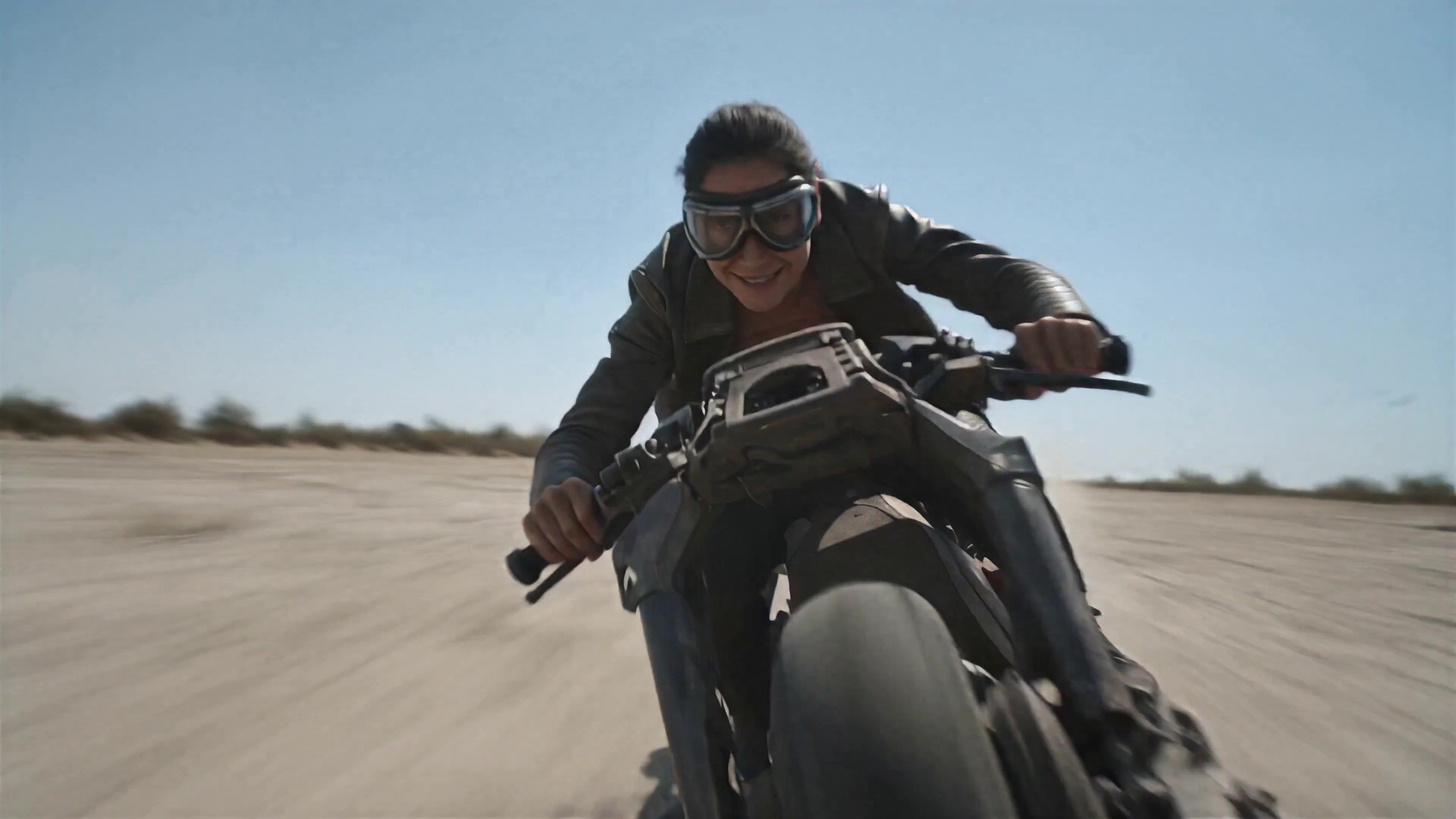
Walking Factory with Rebel on Hoverbike - Wasteland
Cartoon Bullfight Arena — Girl vs Bull (Seedance)
Dim Sum Chase — Shrimp Dumpling Monster
Chibi Cave Adventure — He Doesn't Know What's Coming
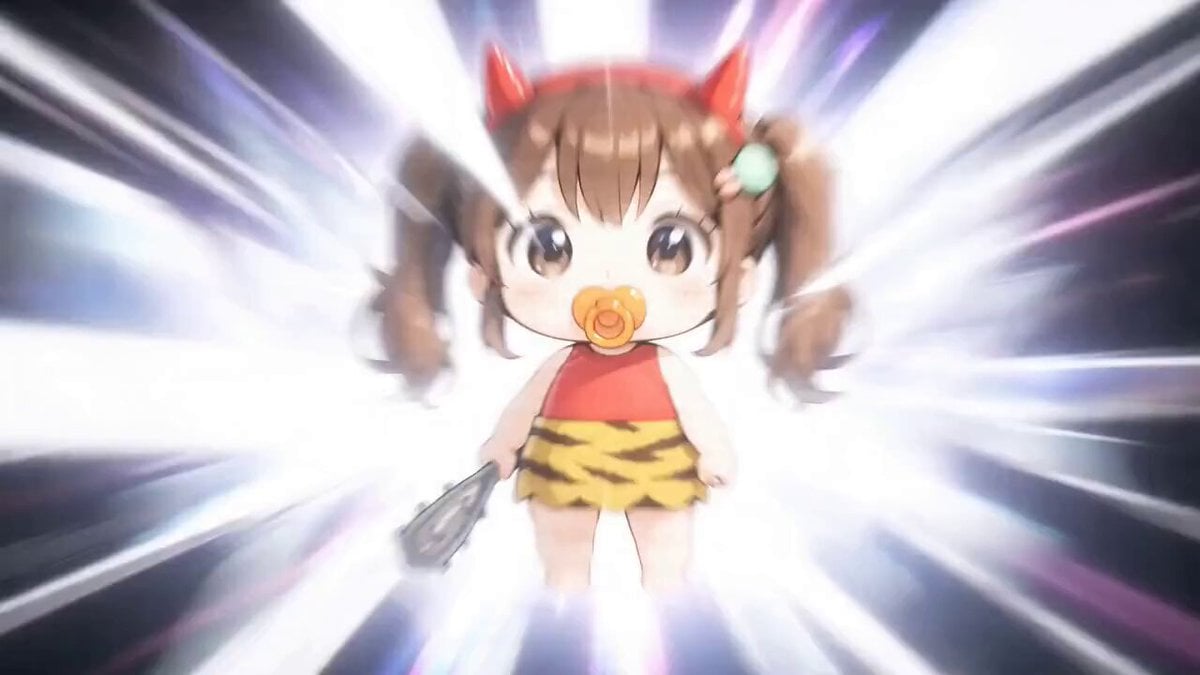
Detailed Gacha Game Summon Animation
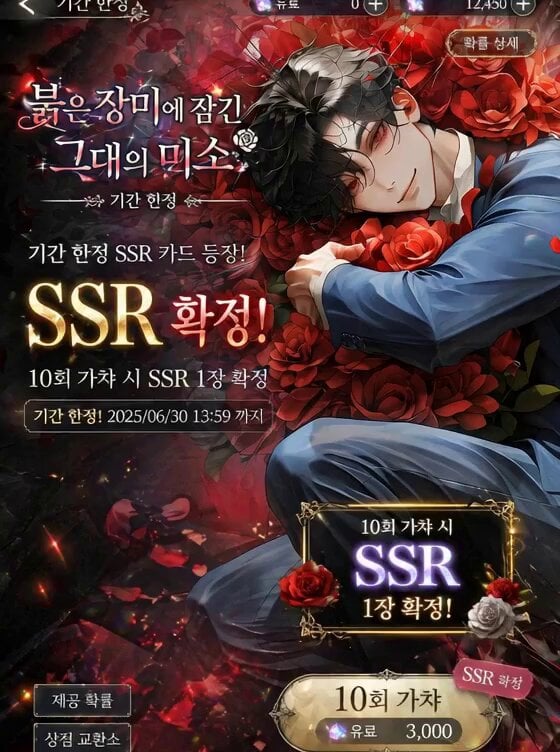
Mobile Game Gacha Animation Prompt
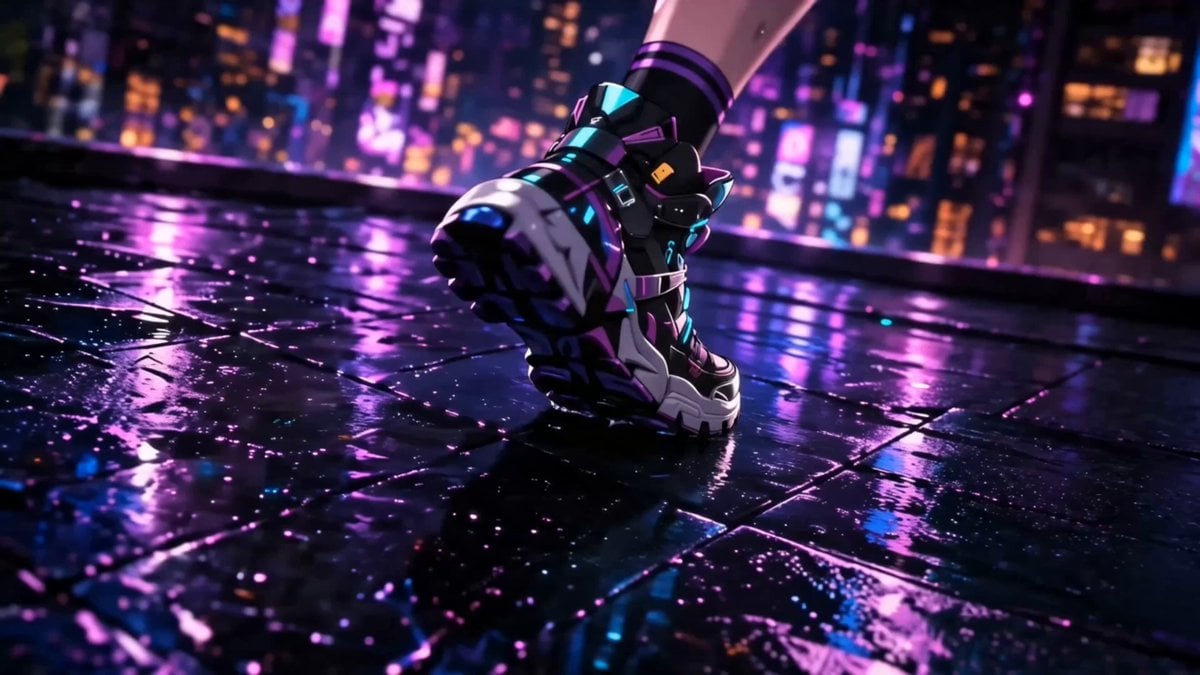
Anime Game Cinematic Animation
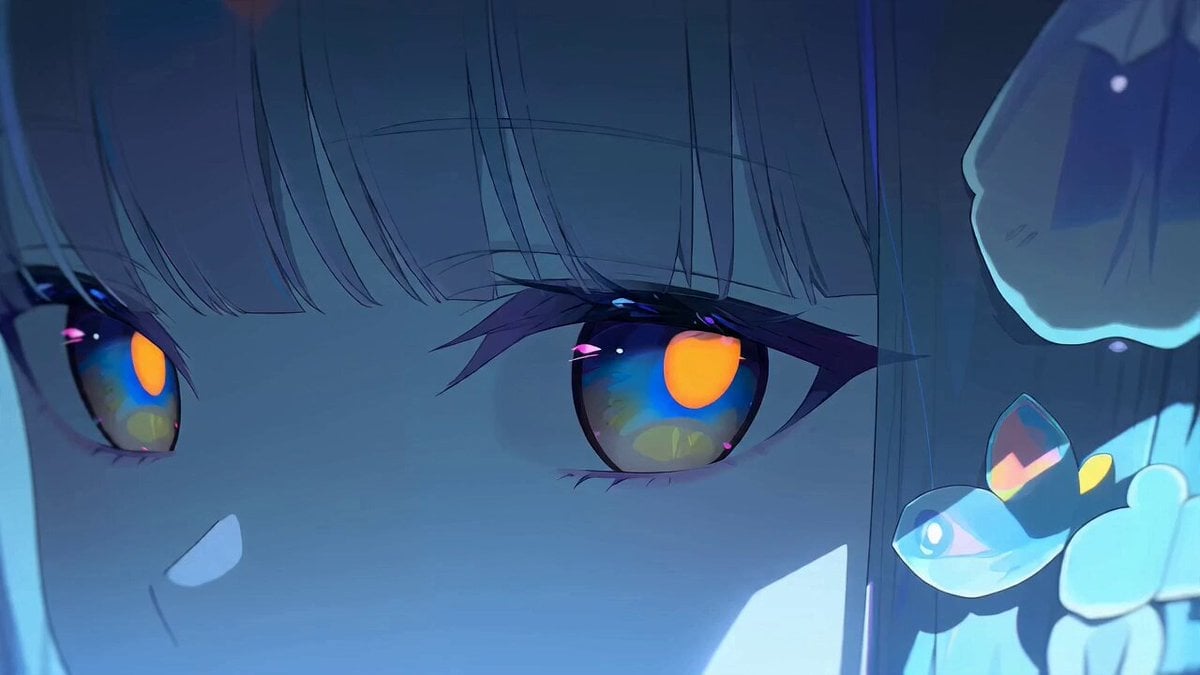
Anime Character Ultimate Skill PV
Make it yours
Game UI Skill Selection Animation works as-is. These are the safest ways to change it without losing the look.
Change one field
Copy a single group, rewrite it, and generate again so you can see what that field is doing.
Keep the frame, change the subject
Hold the composition and light of Game UI Skill Selection Animation, then swap wardrobe, props or the person for a new take.
| If the result… | Why | Fix |
|---|---|---|
| The result drifts from the preview | Too many fields changed at once. | Reuse Game UI Skill Selection Animation as-is first, then change one group — subject, light, or setting. |
| The model over-stylizes the scene | The prose prompt leaves finish and camera underspecified. | Add one camera or lighting sentence and stay on Seedance 2.0. |
More Seedance 2.0 templates
Other prompts made for Seedance 2.0.
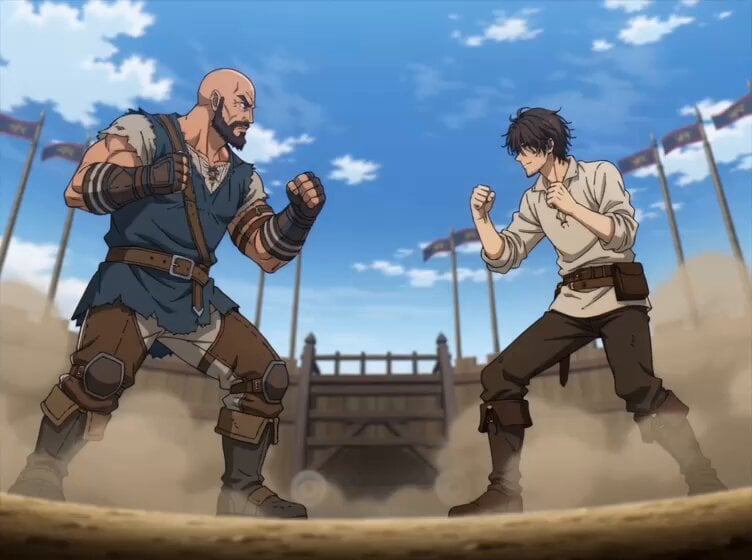
Comical Martial Arts Punch Scene
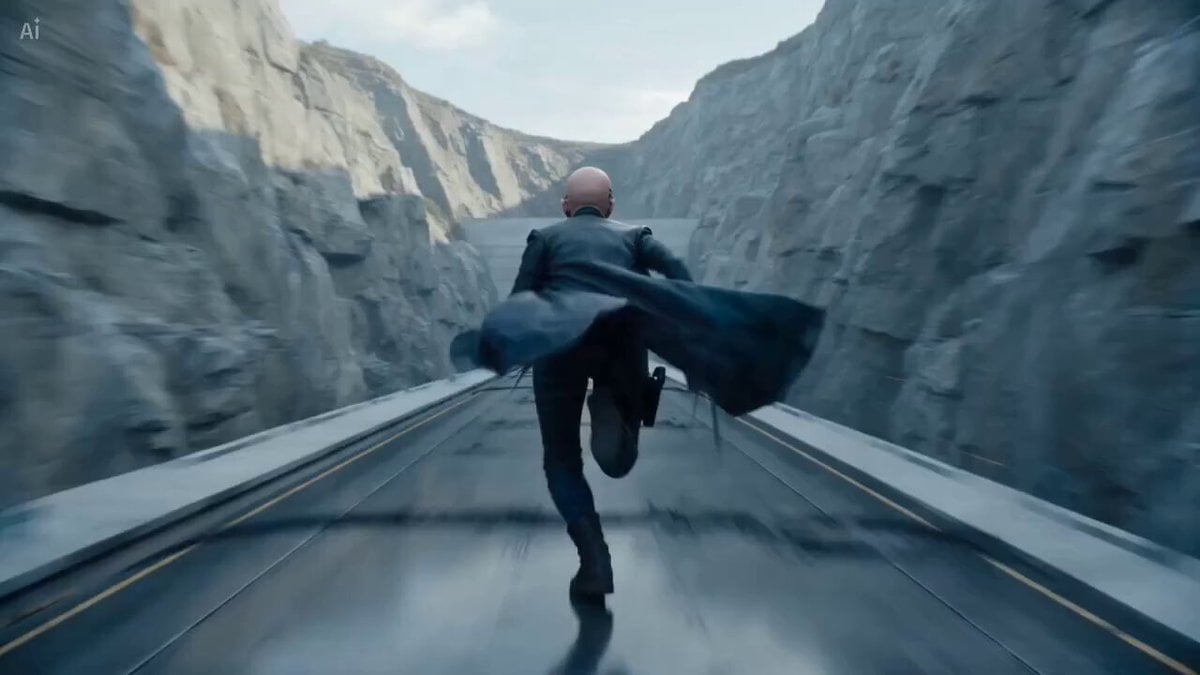
Maglev Train Action Sequence
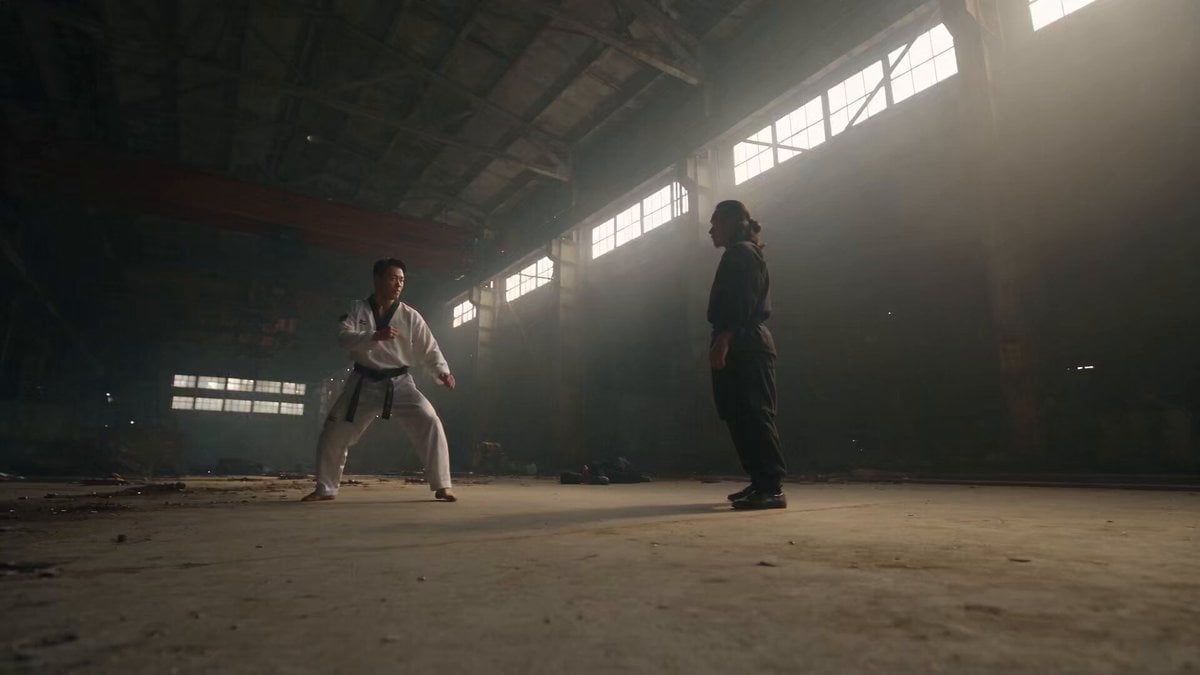
Martial Arts Fight Sequence
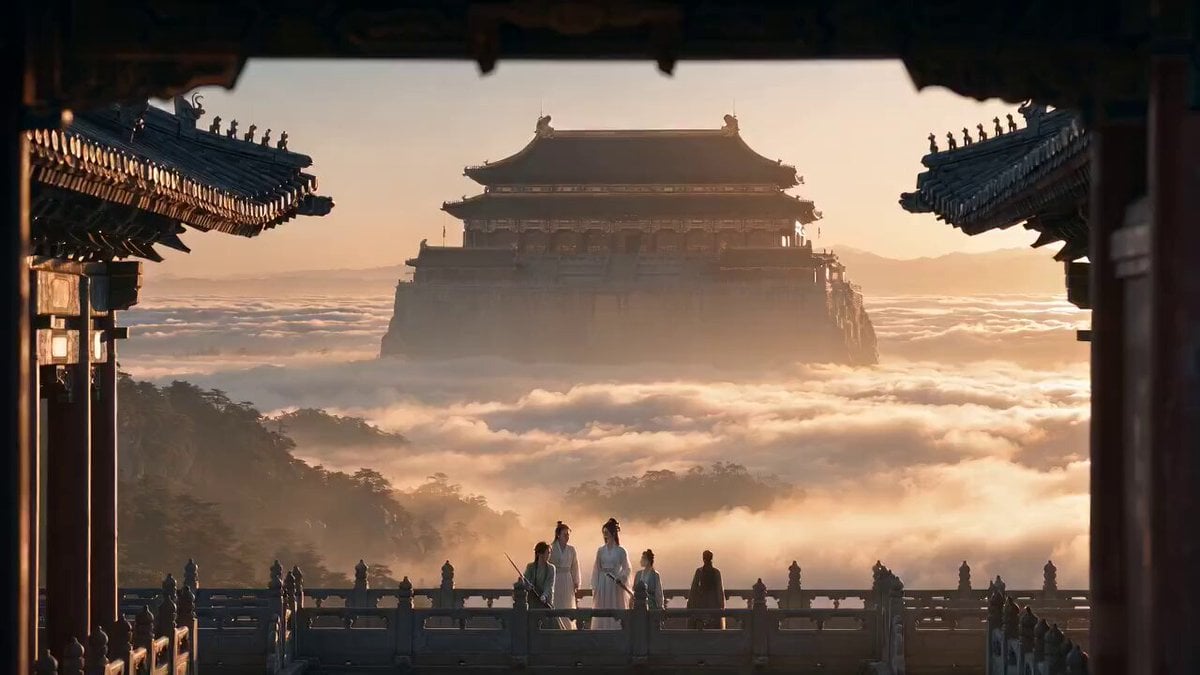
Wuxia Protection and Trust Script
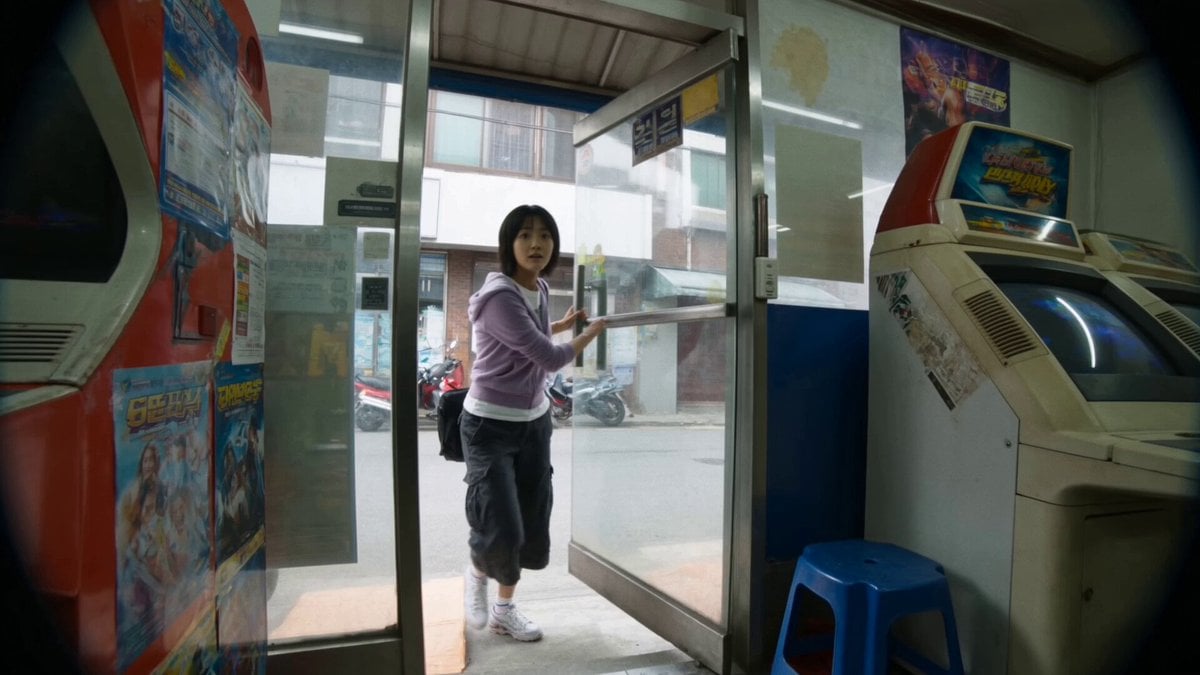
Vintage Korean Arcade MiniDV Vlog
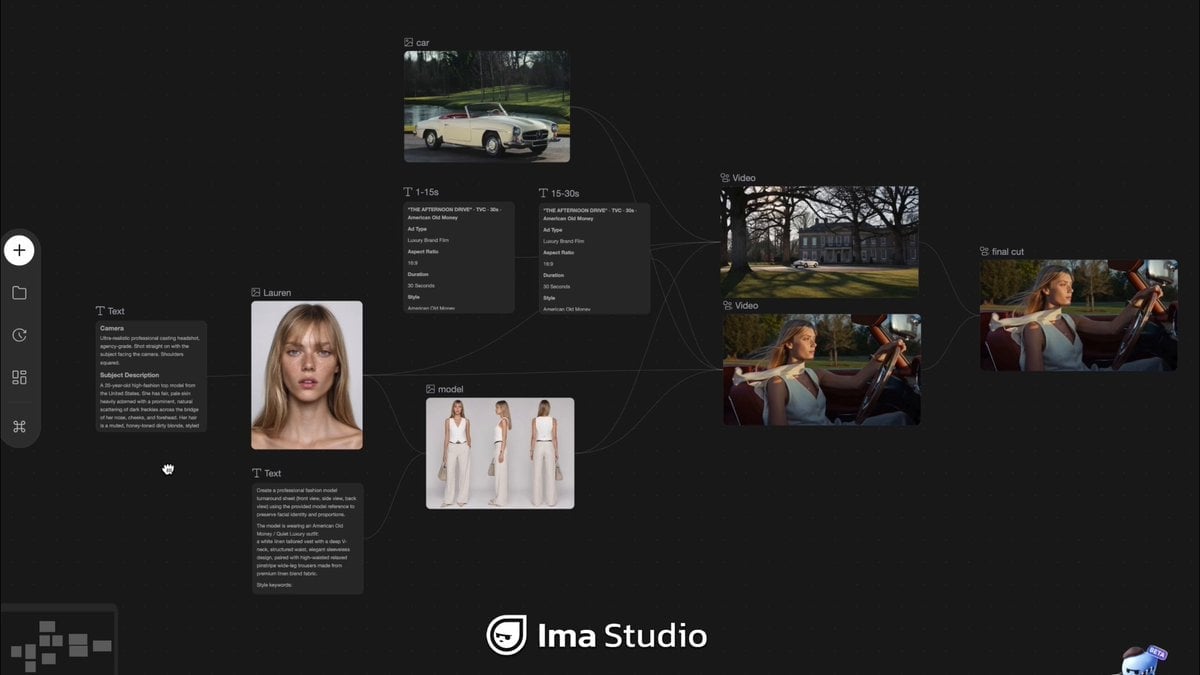
Mercedes 190 SL Luxury Ad
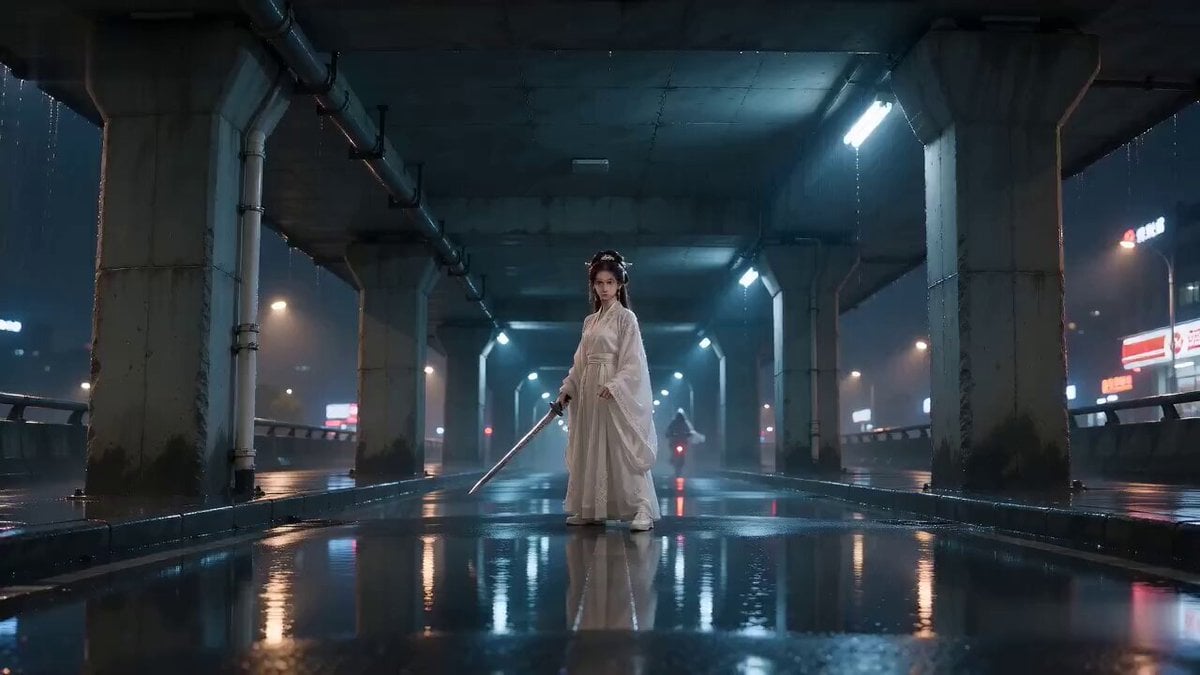
Rainy Night Supernatural Reverse Comedy Video Script
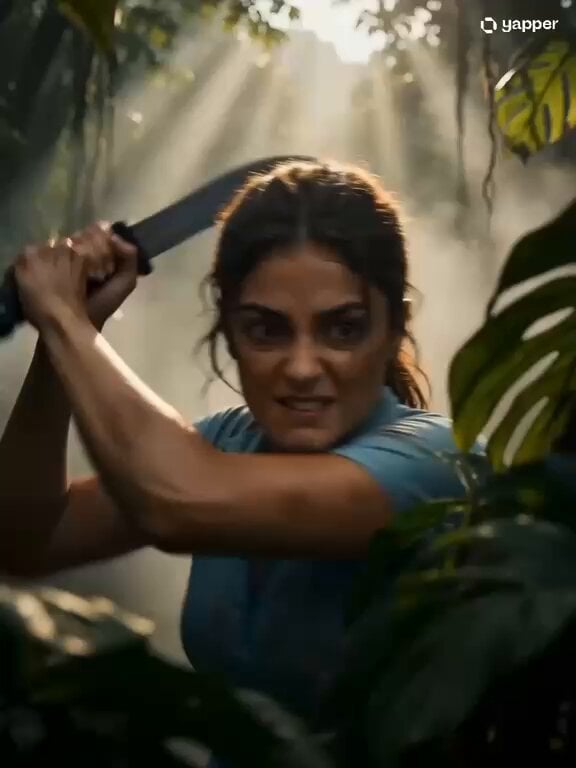
Amazon Civilization Discovery
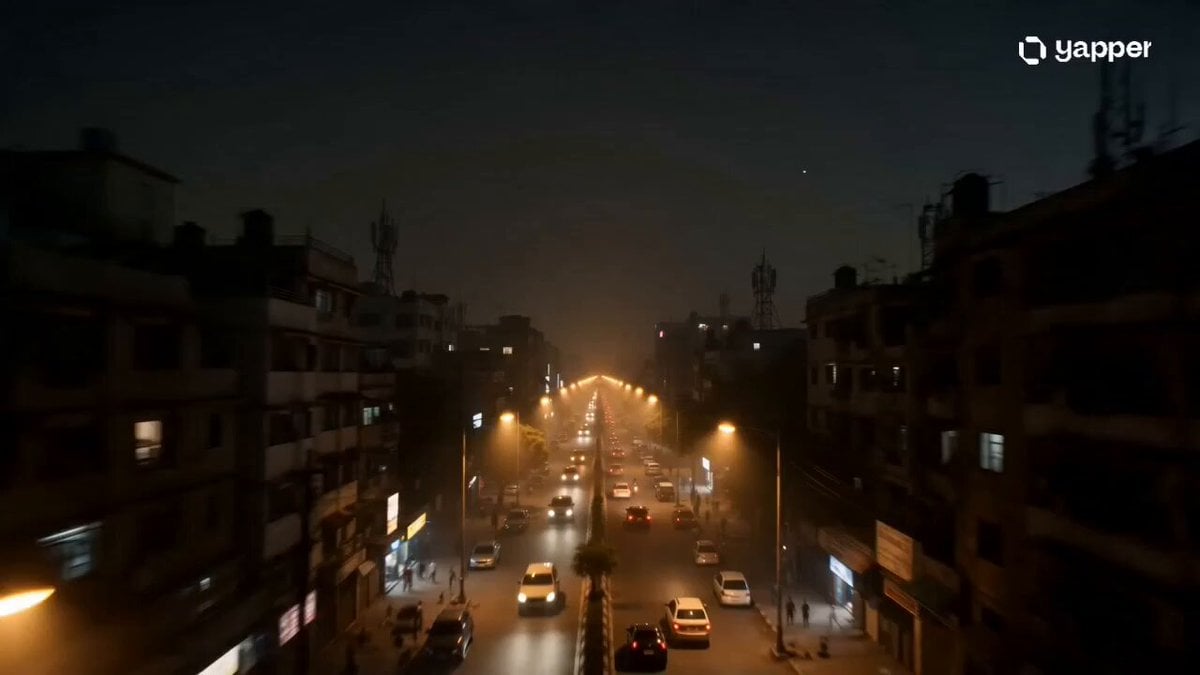
Futuristic South Asian City Transformation
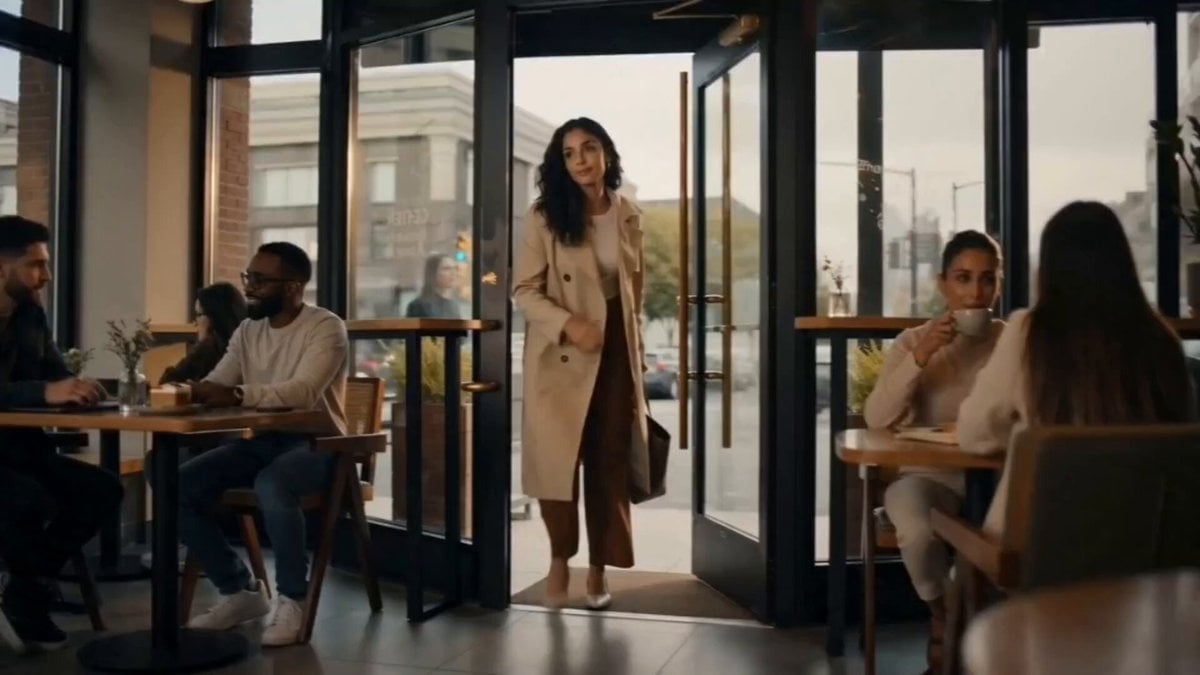
Cozy Luxury Cafe Commercial
More video prompts
Fresh picks from across the catalog.
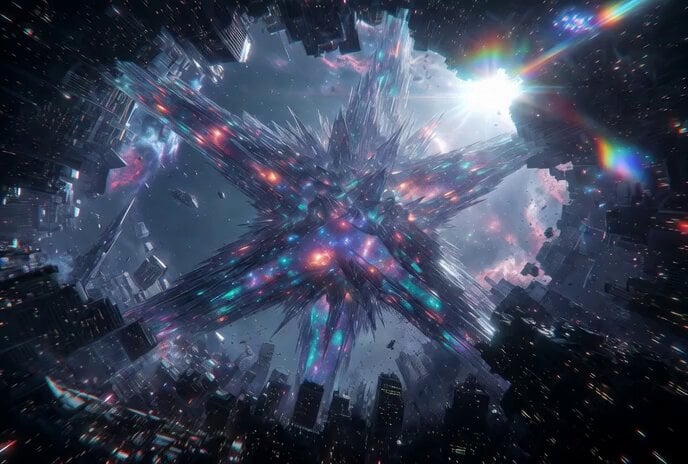
Tesseract Star Cube Incursion Video Prompt

Clay Model Conversation Sequence
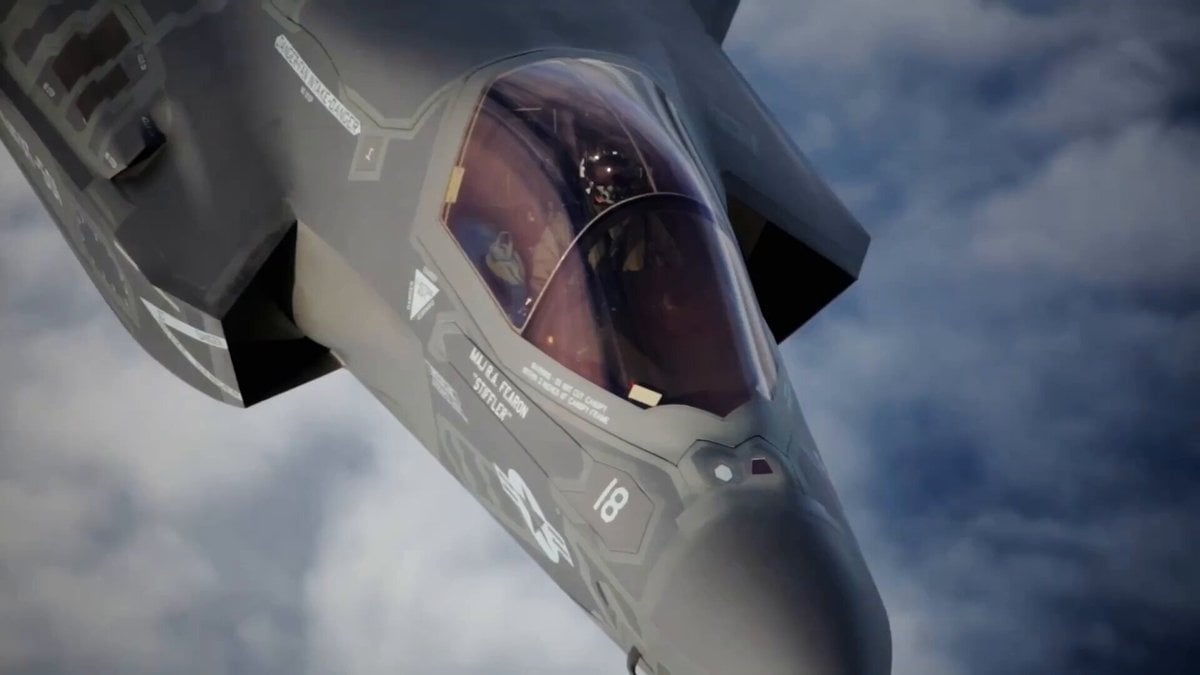
Video Prompt for Teacher Salary Commentary

Boxing knockout climax video prompt
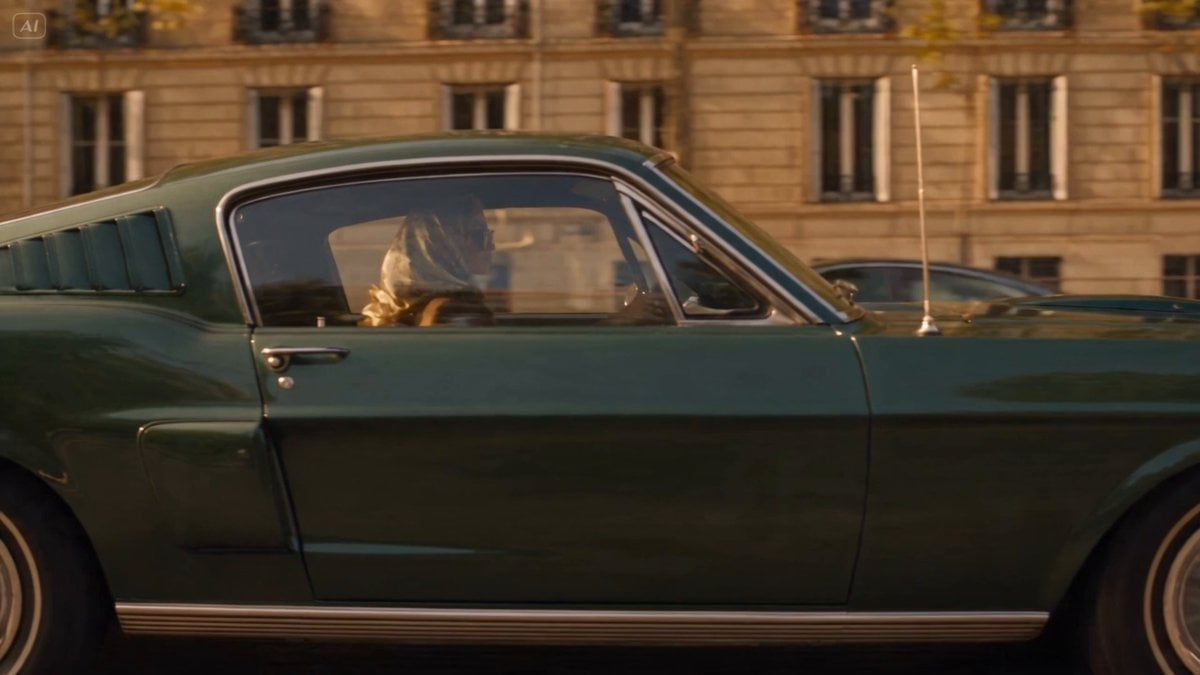
Blonde Woman Driving Green 1960s Mustang Golden Hour
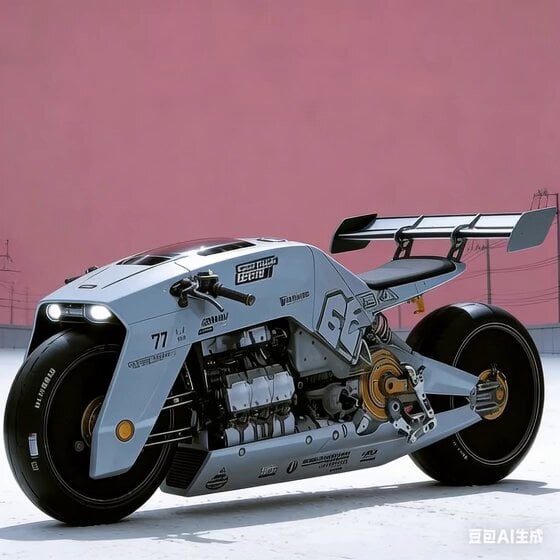
Future Industrial Sci-Fi Motorcycle Video Generation
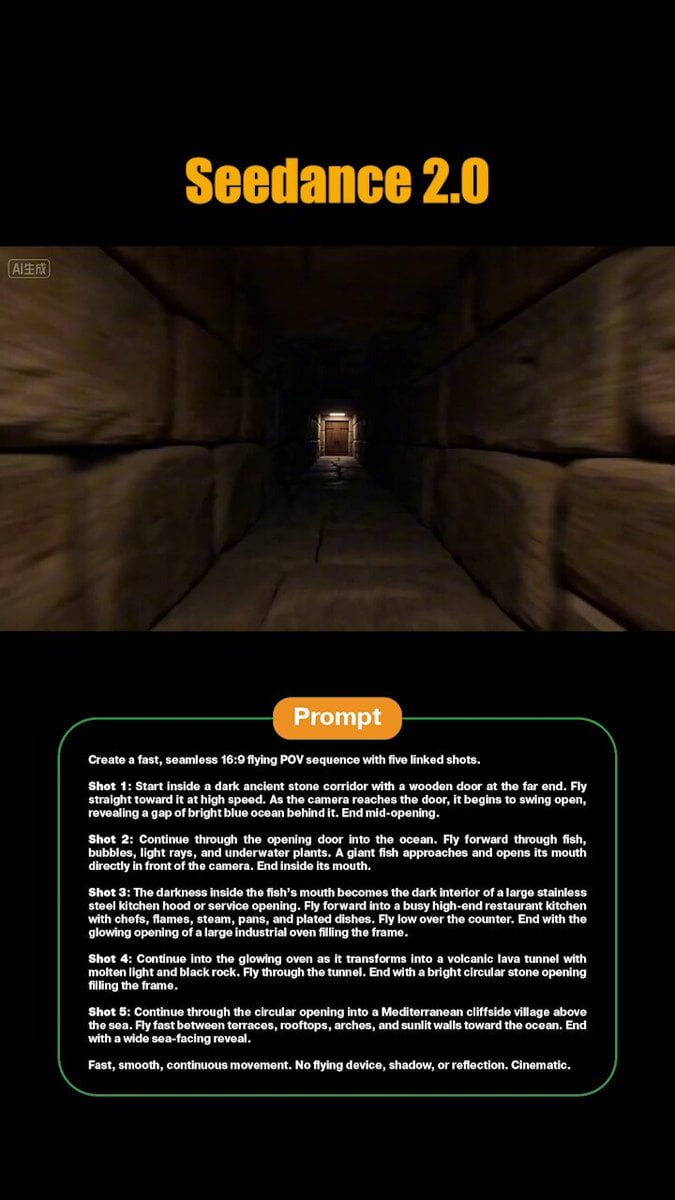
FPV Flyover Transition Sequence
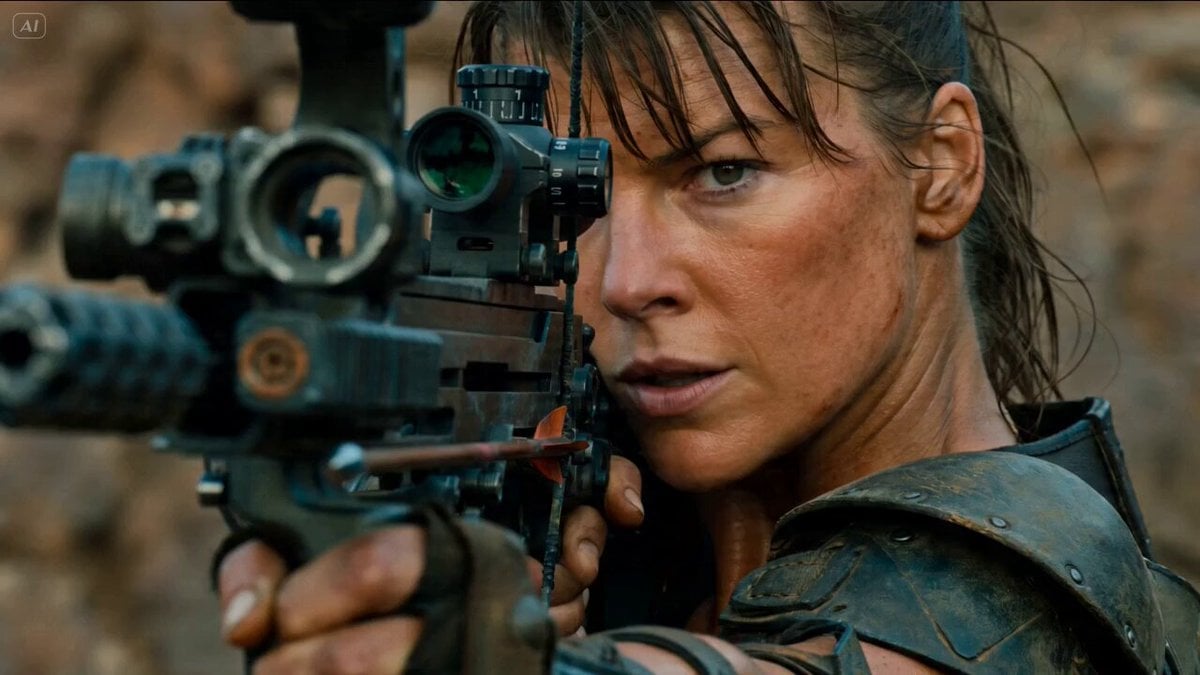
Gritty Post-Apocalyptic Survival Cinematic Setup Prompt
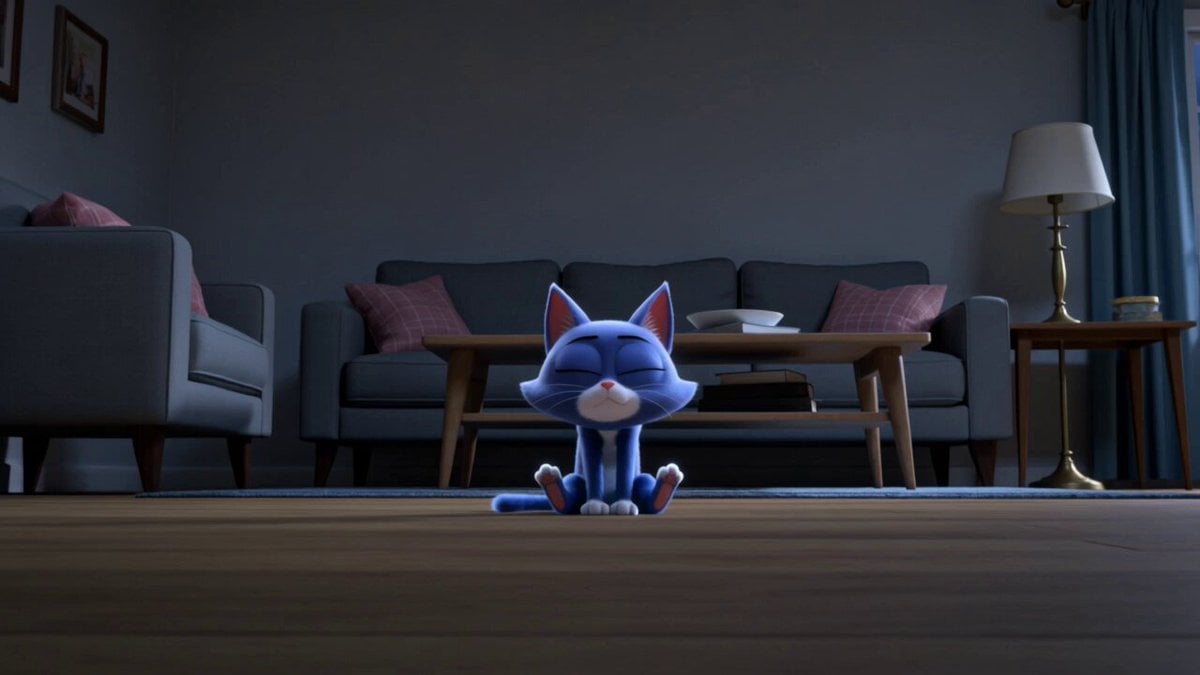
Second Continuous 3D Cartoon Sequence Prompt
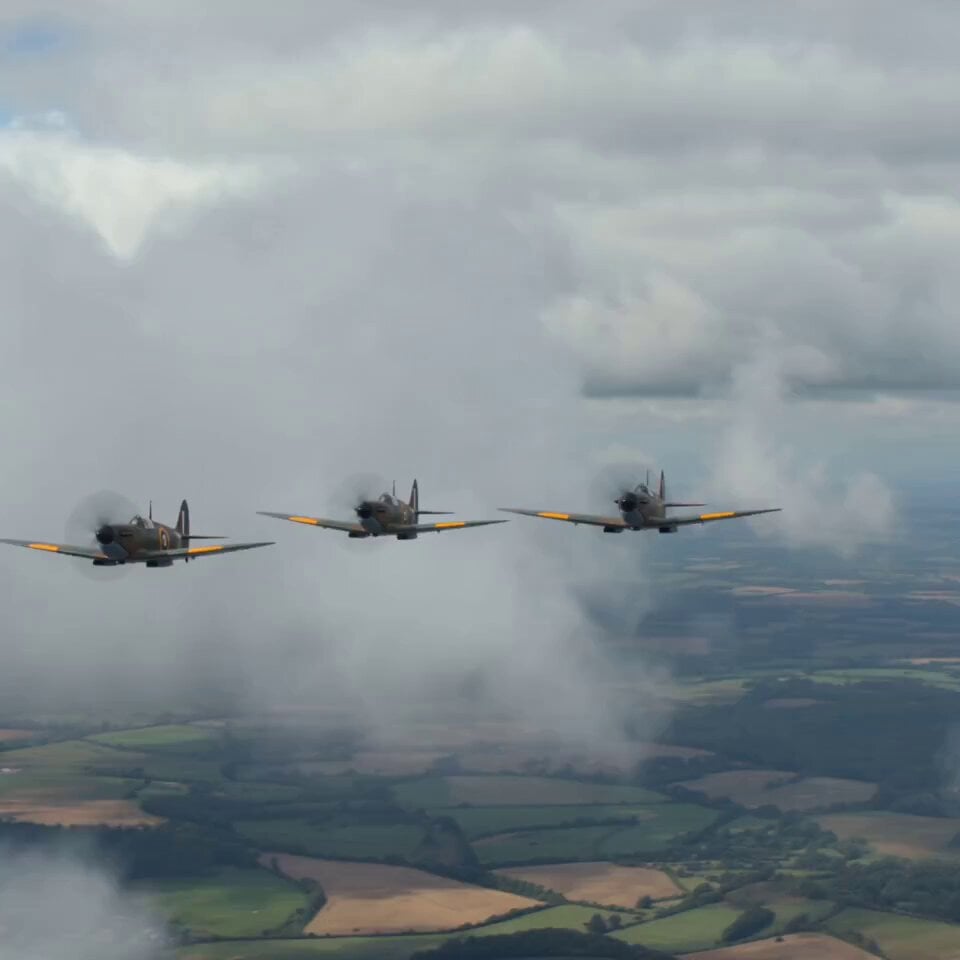
Detailed WWII aerial dogfight scene prompt
Browse template categories
Game UI Skill Selection Animation questions
How do I use the Game UI Skill Selection Animation template?
Add your photo if the template asks for one, edit the prompt if you like — the template's model and format are already selected — and press Generate. Your version opens in PicX Studio.
Can I customize the Game UI Skill Selection Animation template?
Yes. You can change the subject, setting, lighting, mood, format, and available model controls before creating your video.
Is the Game UI Skill Selection Animation template free?
Opening and editing this template is free. Generating uses credits, shown on the Generate button when you are signed in.
Which AI model should I use?
Start with Seedance 2.0, which is the model associated with this template. You can compare another compatible model for a different finish.
Looking for something else? Browse all templates.

Your photo, any look
Thousands of ready templates for every top image and video model, from one credit balance.