
Japanese AI Employee Infographic
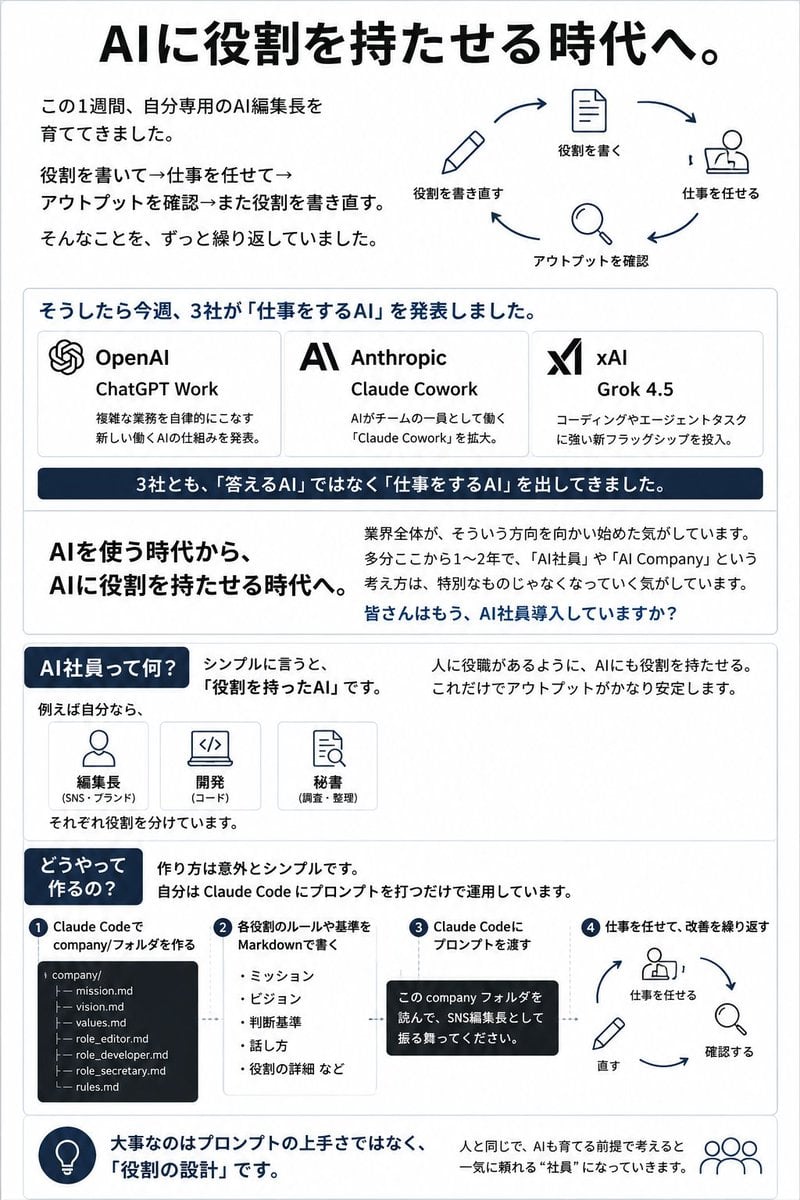
Creates a vertical Japanese business infographic explaining how assigning roles to AI turns it into an AI employee for work automation concepts.
- Prompt included
- Model and format preset
- Premium template
The prompt behind this image
Copy the exact prompt behind Japanese AI Employee Infographic, or open it in the studio and make it yours.
Goal: Create a clean Japanese business infographic slide explaining the shift to assigning roles to AI, centered on the concept of an “AI employee.” Use {argument name="main headline" default="AIに役割を持たせる時代へ。"} as the large top headline. Canvas: Vertical portrait infographic, approximately 3:4 aspect ratio, white background, thin light-gray border, navy blue accent color, black body text, rounded rectangular content blocks, minimalist line icons. The design should look like a polished LinkedIn/X business slide or proposal handout. Layout: Use 6 stacked sections from top to bottom. Section 1 — Header and cycle diagram: At the top, place the large bold headline. On the left, include three short Japanese explanatory lines about spending one week developing a personal AI editor-in-chief, repeatedly writing roles, assigning work, checking output, and rewriting roles. On the right, show a circular 4-step workflow with navy arrows and simple icons. Count exactly 4 workflow steps: 1) pencil icon labeled 「役割を書き直す」, 2) document icon labeled 「役割を書く」, 3) person-at-desk icon labeled 「仕事を任せる」, 4) magnifying glass icon labeled 「アウトプットを確認」. Section 2 — Three company announcement cards: A rounded box with the heading {argument name="announcement heading" default="そうしたら今週、3社が「仕事をするAI」を発表しました。"}. Inside it, create exactly 3 horizontal company cards. Card 1: OpenAI logo-like knot icon, title 「OpenAI」, product 「ChatGPT Work」, short Japanese description about announcing a new AI work structure that autonomously handles complex tasks. Card 2: Anthropic stylized AI logo, title 「Anthropic」, product 「Claude Cowork」, short Japanese description about expanding Claude Cowork, where AI works as a member of the team. Card 3: xAI logo, title 「xAI」, product {argument name="xAI product name" default="Grok 4.5"}, short Japanese description about launching a new flagship strong in coding and agent tasks. Below the cards, place a dark navy banner with white text: 「3社とも、「答えるAI」ではなく「仕事をするAI」を出してきました。」. Section 3 — Key message block: Split into two columns. Left column has large bold text: 「AIを使う時代から、AIに役割を持たせる時代へ。」 Right column has a paragraph explaining that the whole industry is moving in this direction, and that ChatGPT Work, AI employees, and AI Company are no longer unusual concepts. End with a bold navy question: {argument name="closing question" default="皆さんはもう、AI社員導入していますか?"}. Section 4 — Definition of AI employee: Start with a navy pill heading: 「AI社員って何?」. Explain in Japanese that, simply put, it is an AI with a role. Include exactly 3 small role cards under 「例えば自分なら、」: 1) person icon labeled 「編集長(SNS・ブランド)」, 2) laptop/code icon labeled 「開発(コード)」, 3) document/search icon labeled 「秘書(調査・整理)」. Add a note that each is given a separate role. On the right, write that by giving AI roles like people have job roles, output becomes more stable. Section 5 — How to make it: Add a navy pill heading 「どうやって作るの?」 and explain that the method is surprisingly simple: create a Claude Code company prompt and operate it. Show exactly 4 numbered steps in a horizontal process. Step 1: 「Claude Codeで company/フォルダを作る」 with a dark terminal-style file tree showing exactly 7 files: company/, mission.md, vision.md, values.md, role_editor.md, role_developer.md, role_secretary.md, rules.md. Step 2: 「各役割のルールや基準を Markdownで書く」 with bullets: 「ミッション」, 「ビジョン」, 「判断基準」, 「話し方」, 「役割の詳細など」. Step 3: 「Claude Codeにプロンプトを渡す」 with a black speech bubble containing Japanese text asking it to read the company folder and act as the SNS editor-in-chief. Step 4: 「仕事を任せて、改善を繰り返す」 with a mini circular loop showing person-at-desk, magnifying glass, and pencil icons labeled work, check, fix. Section 6 — Bottom takeaway: A rounded footer strip with a navy lightbulb icon on the left and bold Japanese takeaway text: {argument name="footer takeaway" default="大事なのはプロンプトの上手さではなく、「役割の設計」です。"}. On the right, add a small people/team icon and a sentence explaining that if you assume AI is something to train like a human, it becomes an employee you can rely on. Visual style: Japanese corporate infographic, crisp typography, generous spacing, subtle gray dividers, navy highlights, flat monochrome line icons, no photos, no gradients, no clutter. Keep all Japanese text legible and aligned. Do not add extra companies, extra steps, extra cards, or decorative elements beyond the specified counts.
How to use Japanese AI Employee Infographic in 3 steps
- 1Upload ImagePNG, JPG or paste
Add your photo
Upload the photo the template builds on. The prompt, model and format are already set.
- 2…a portrait of your subject in softgolden-hour light, 85mm…
Personalize
Edit the subject and creative details for your destination.
- 3Generate
Generate
Press Generate — your image is created in PicX Studio, so you can compare it with the original and refine one variable at a time.
More like this
Templates with the same subject, style or setup. Open one to see its prompt.
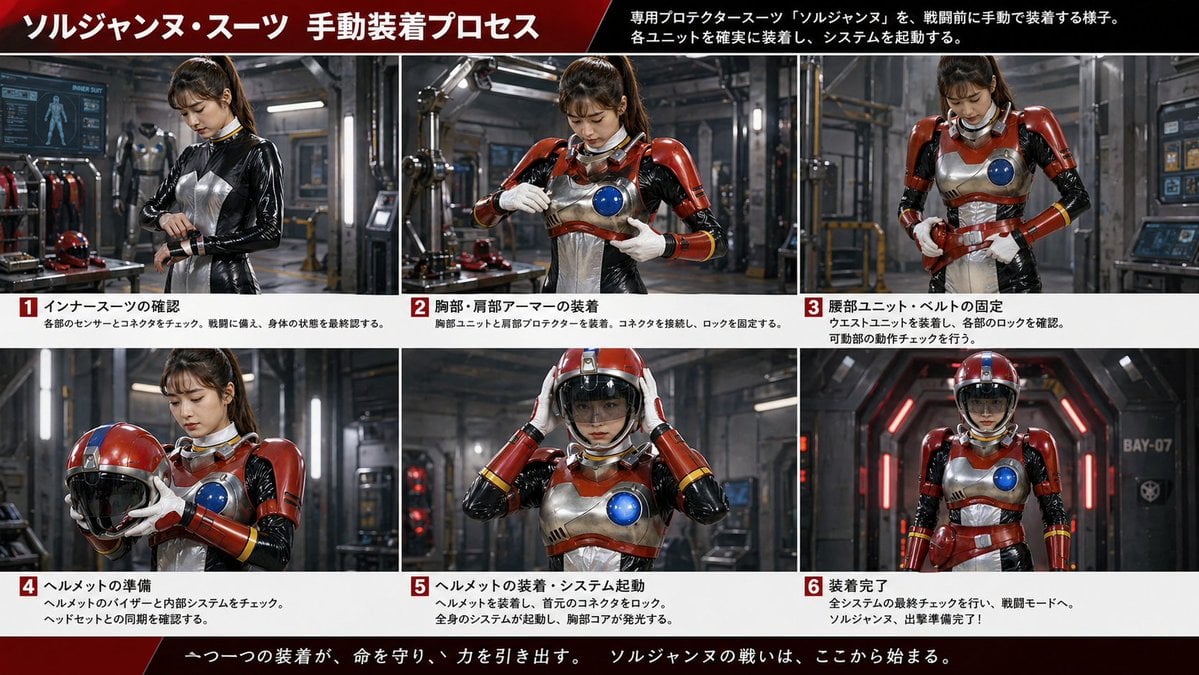
Gpt2 Infographic Edu Visual Japanese Sci Fi Suit Up Process Board
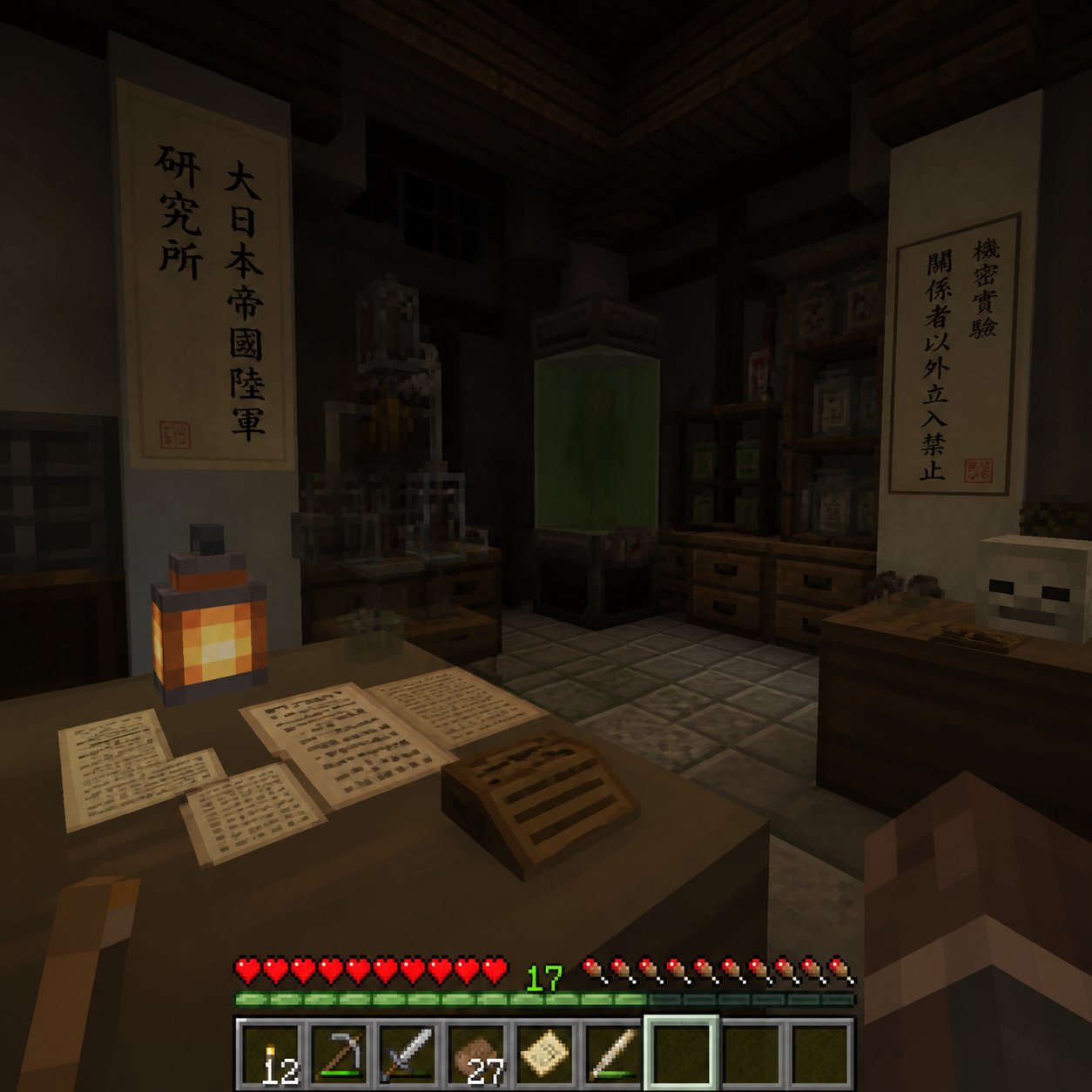
Minecraft Japanese Research Lab Exploration
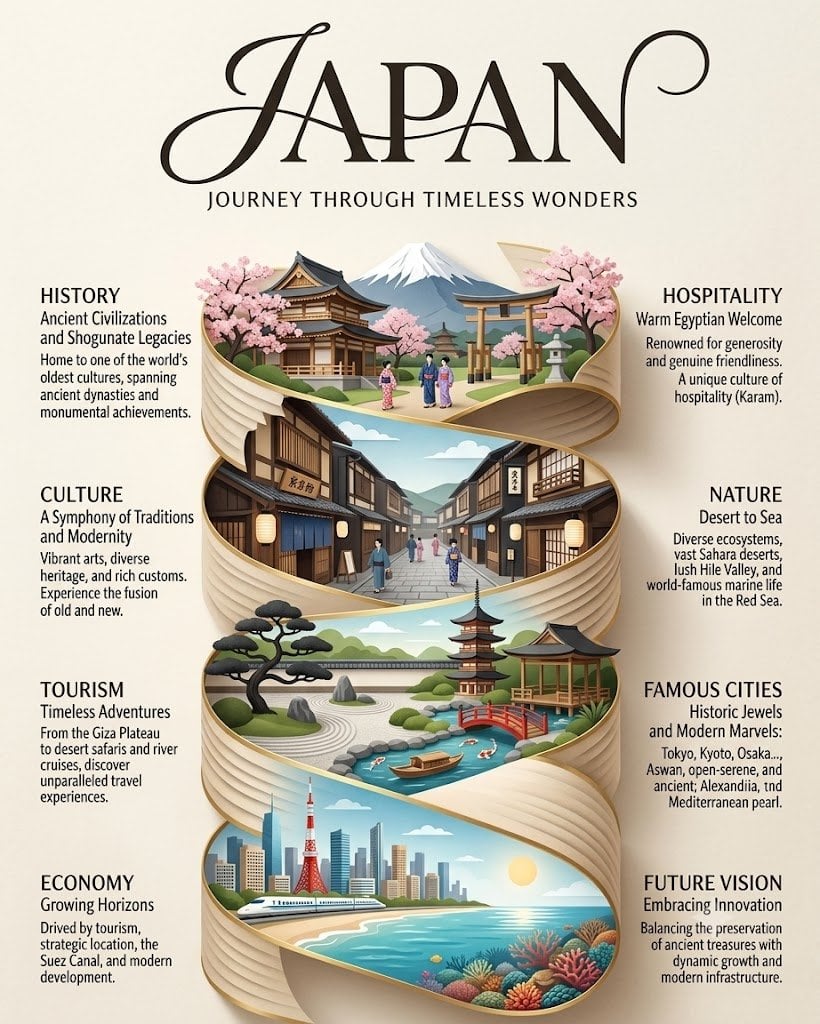
Japan Travel Brochure Poster

Japanese Architectural Concrete Studio Fashion Campaign
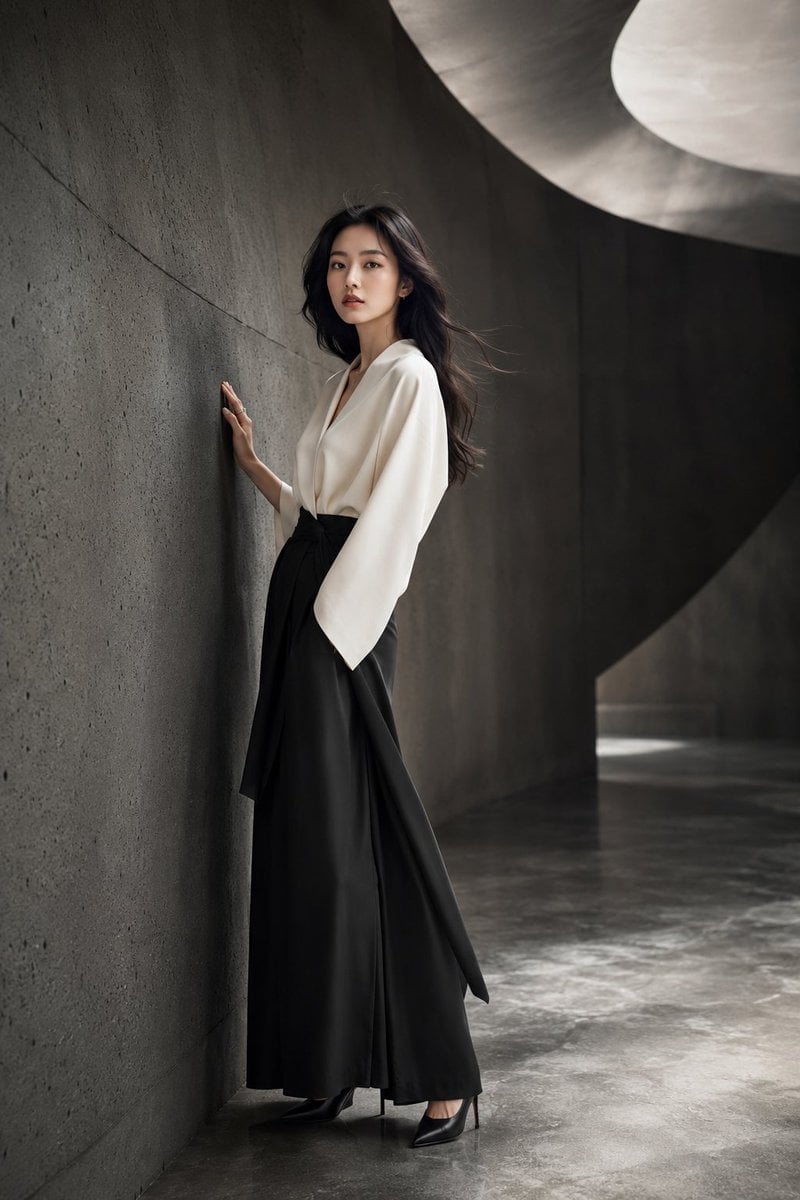
Japanese Minimalist Concrete Studio Fashion Editorial

Blue Backdrop Luxury Fashion Portrait Campaign
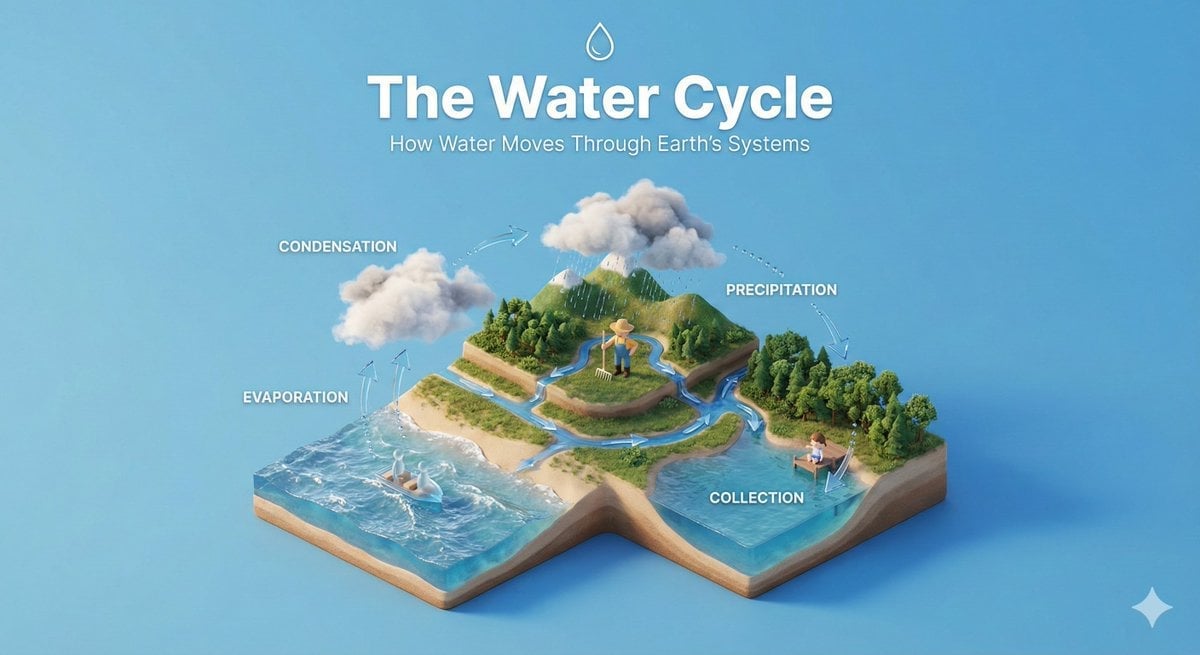
Isometric Process Educational Diorama
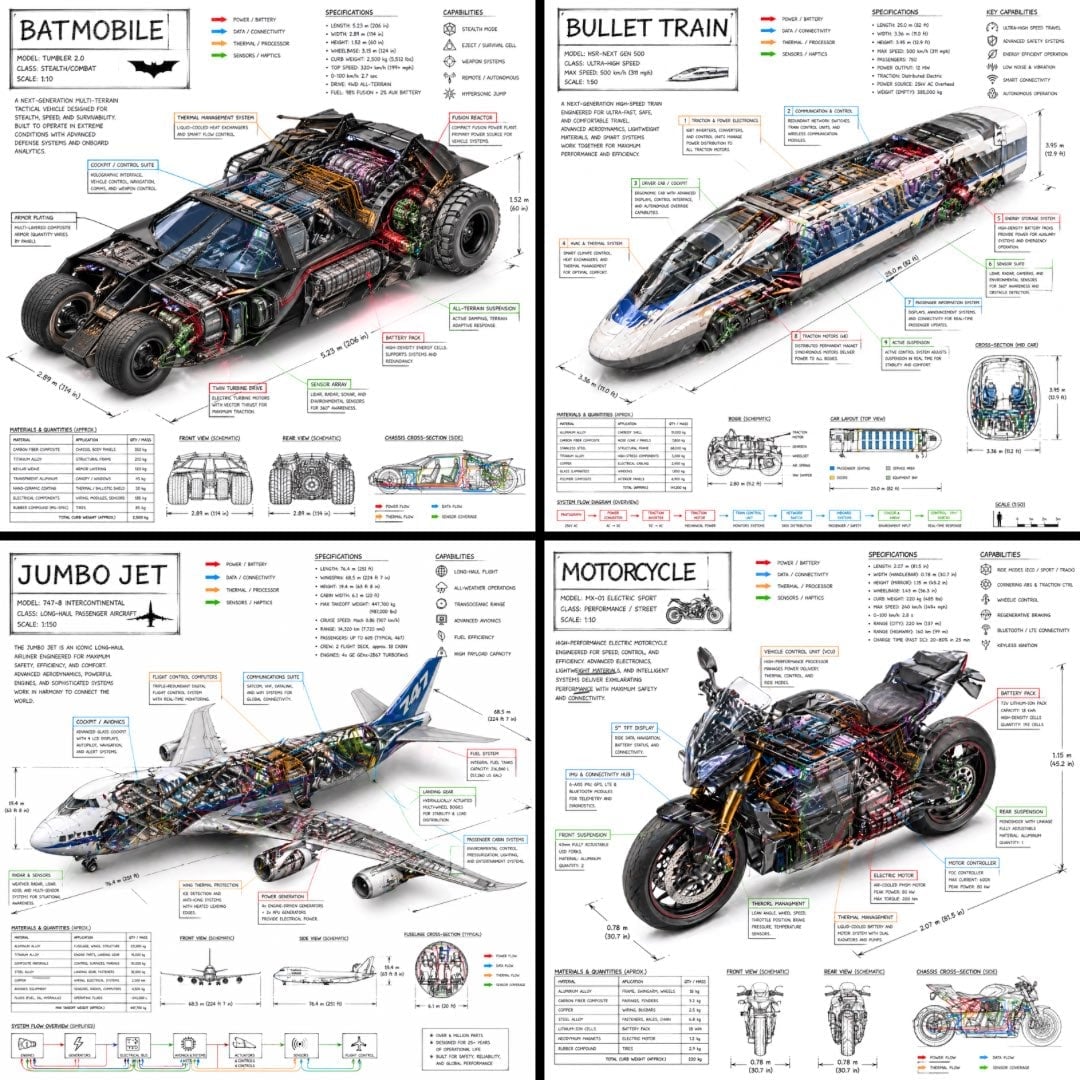
Isometric Vehicle Teardown Infographic Template

Gpt2 E Commerce Main Image Earbuds E Commerce Infographic
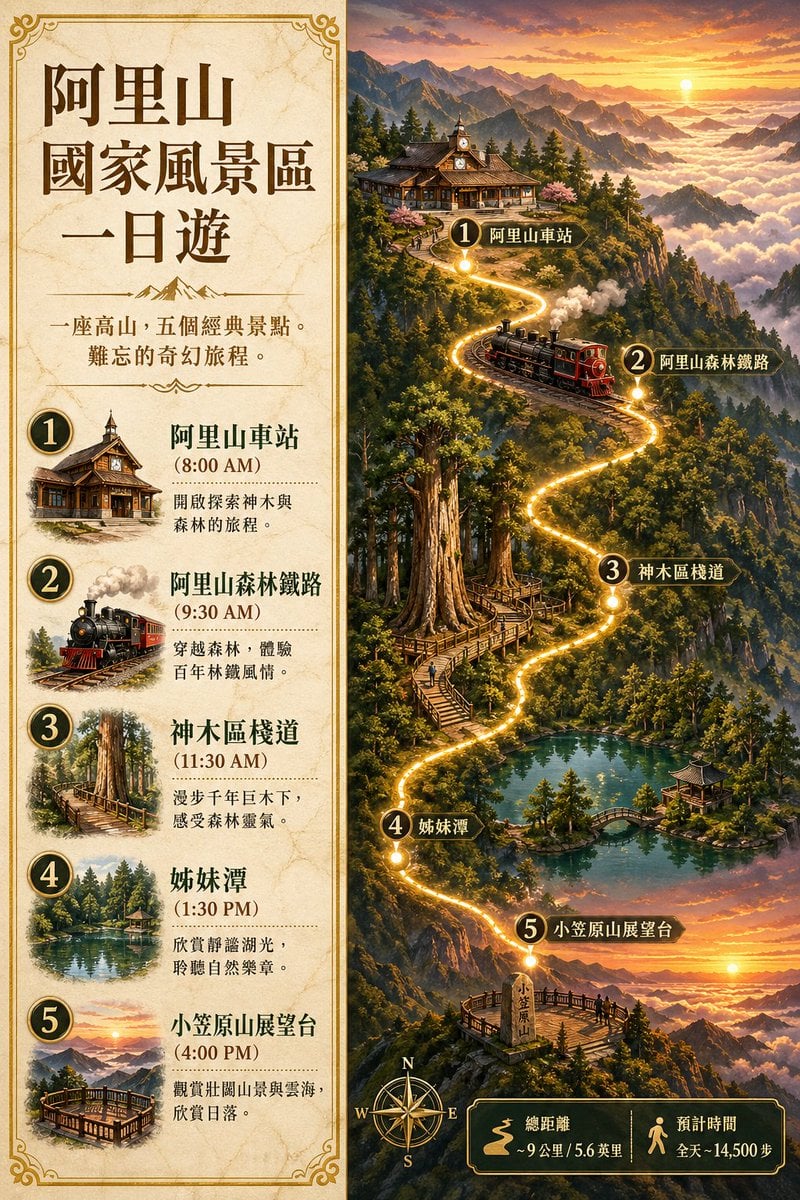
Gpt2 Infographic Edu Visual Alishan One Day Travel Poster

Gpt2 Infographic Edu Visual Ethnographic Plate for Tibetan Ceremonial Hat
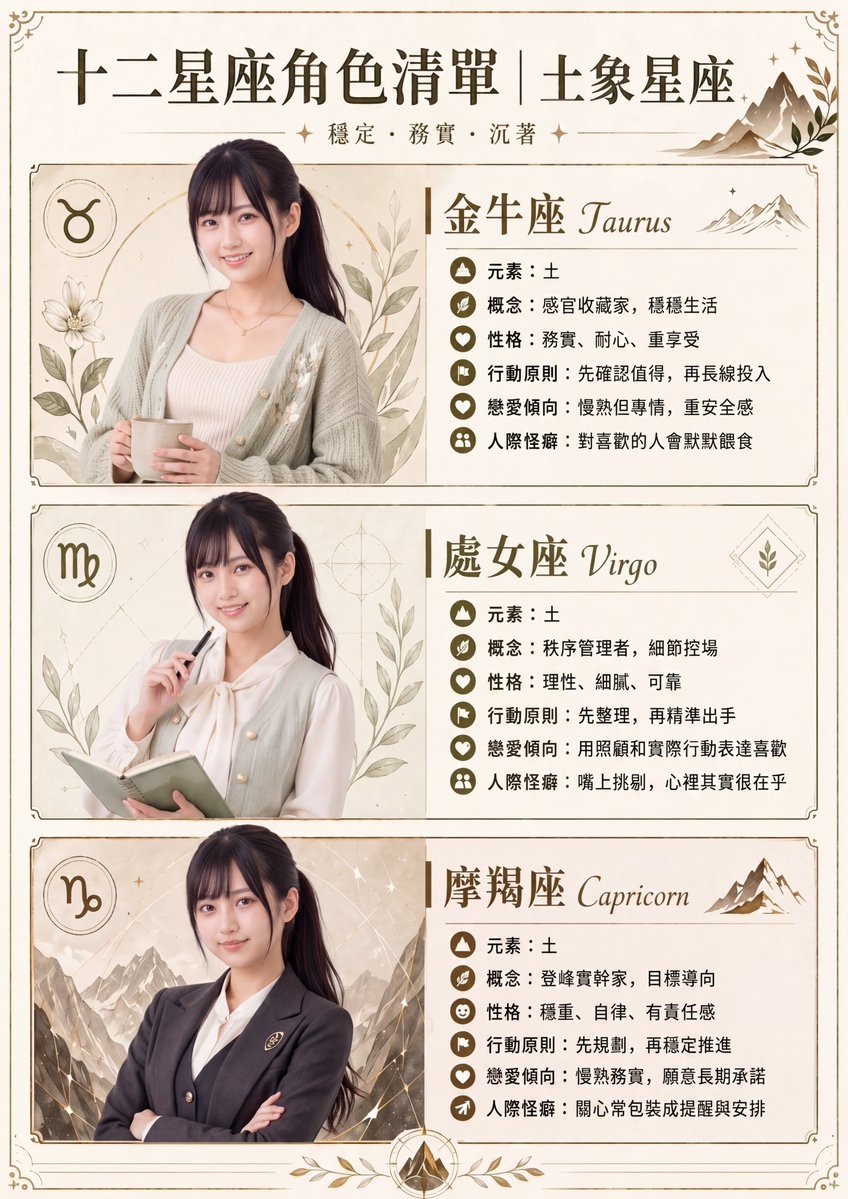
Gpt2 Infographic Edu Visual Earth Signs Zodiac Character Poster
Make it yours
Japanese AI Employee Infographic works as-is. These are the safest ways to change it without losing the look.
Change one field
Copy a single group, rewrite it, and generate again so you can see what that field is doing.
Keep the frame, change the subject
Hold the composition and light of Japanese AI Employee Infographic, then swap wardrobe, props or the person for a new take.
| If the result… | Why | Fix |
|---|---|---|
| The result drifts from the preview | Too many fields changed at once. | Reuse Japanese AI Employee Infographic as-is first, then change one group — subject, light, or setting. |
| The model over-stylizes the scene | The prose prompt leaves finish and camera underspecified. | Add one camera or lighting sentence and stay on GPT Image 2. |
More GPT Image 2 templates
Other prompts made for GPT Image 2.

Six VTuber Japanese Logo Sheet

Realistic Portrait of Woman and Deer

The Vista Modular Condo Poster

AI Model Routing Comparison Infographic

2.5D Anime Art Board

Isometric Productivity Desk Scene

New York Double Exposure Poster

Four-Panel AI Landscape Comparison

Japanese Tatami Lifestyle Magazine Cover

NESCAFÉ Coffee Map Poster
More image prompts
Fresh picks from across the catalog.
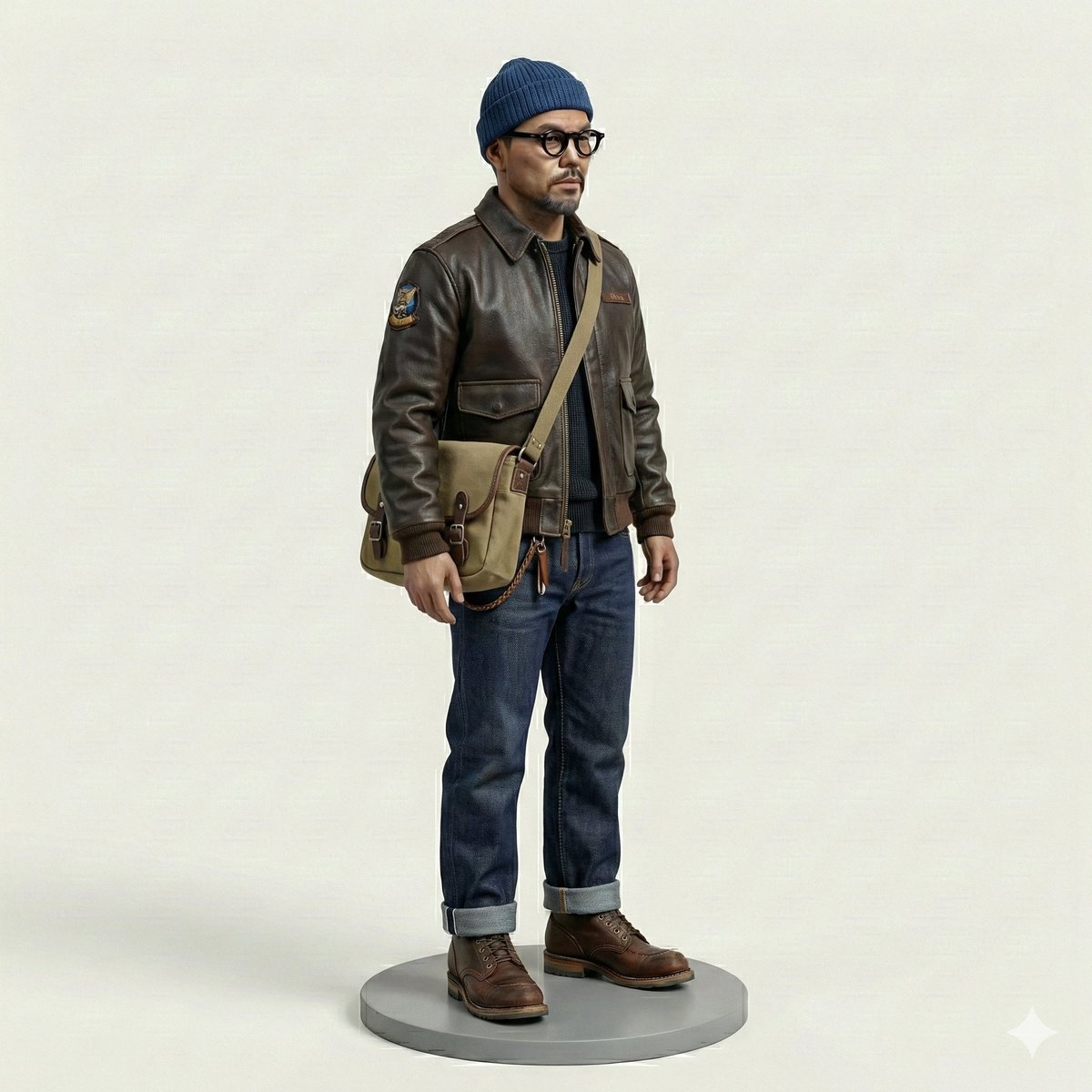
Miniature Figurine Prompt for Nano Banana Pro

Photorealistic Lifestyle Fashion Collage
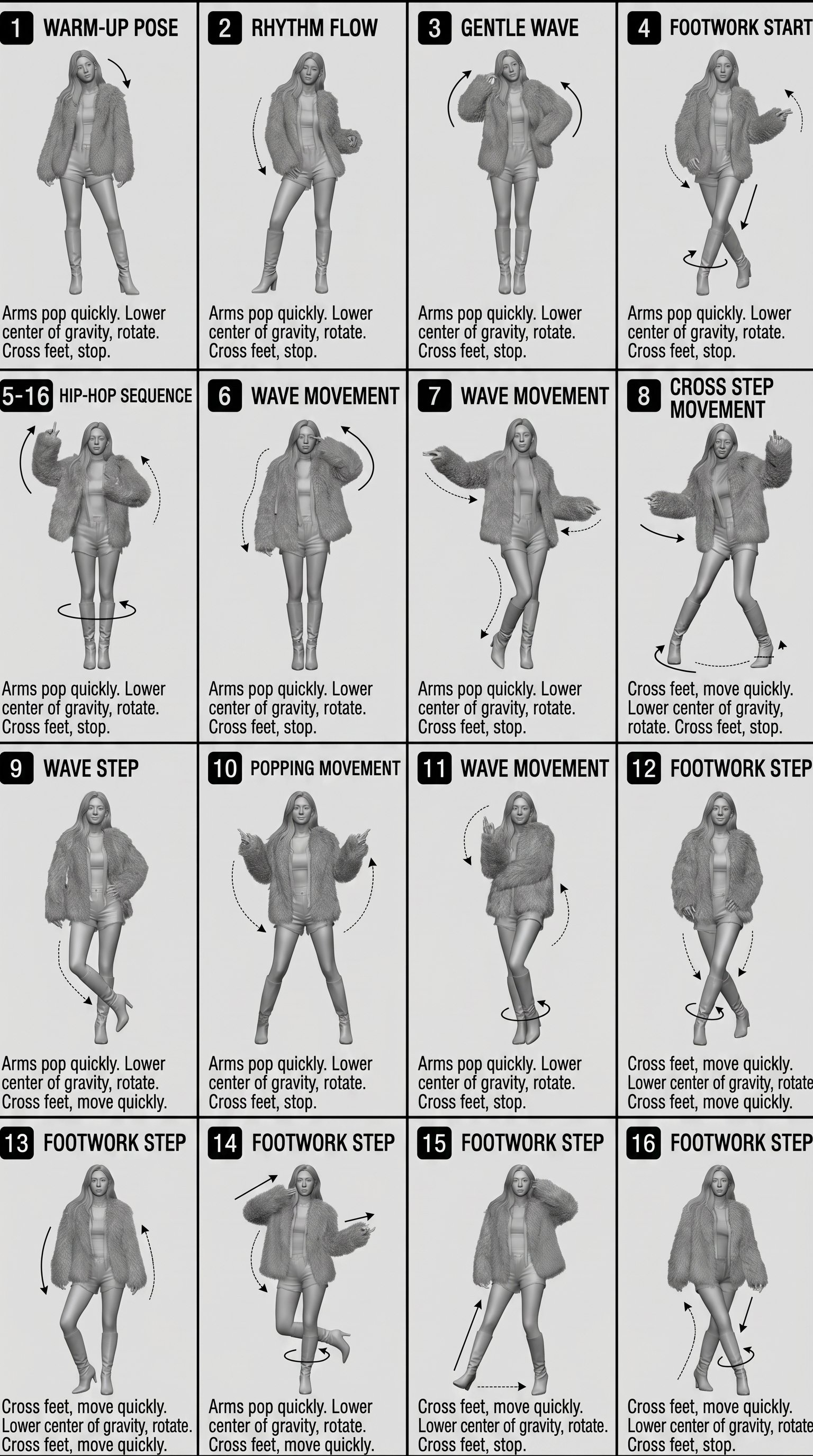
Movement Sheet - Dance Reference (Seedance 2.0)
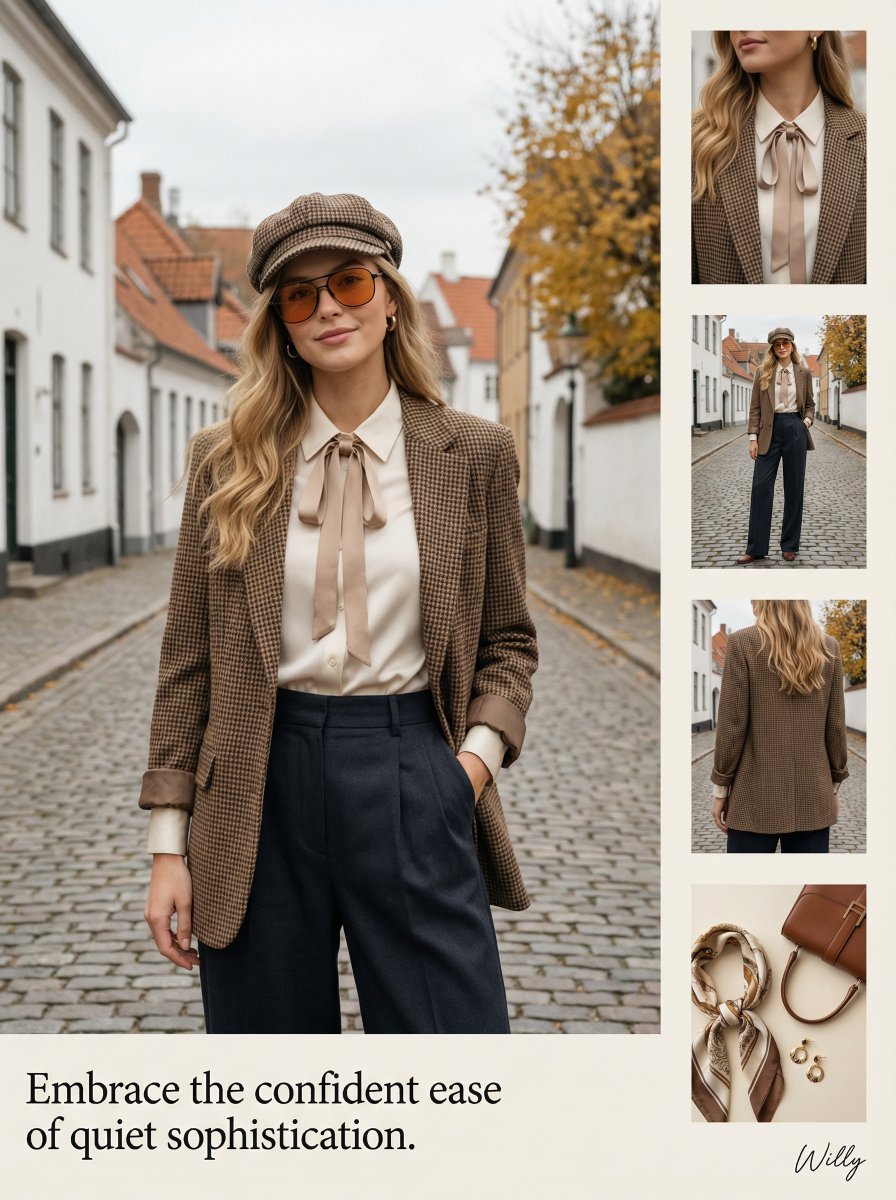
1970s Inspired Quiet Luxury Fashion Lookbook

Trash Polka Mixed Media Artwork

Augmented Reality UI Overlays on Food Items

Last Supper Selfie Scene
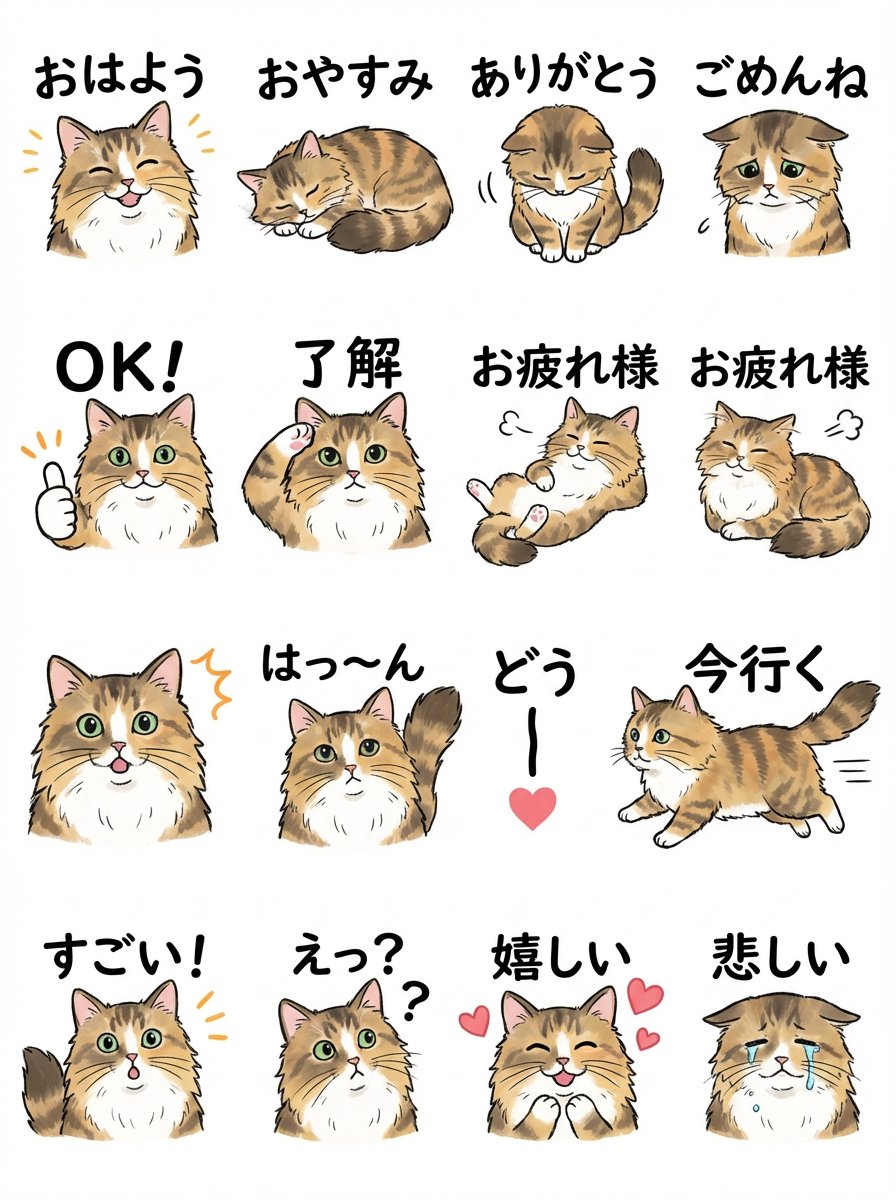
LINE Sticker Sheet Generation Prompt
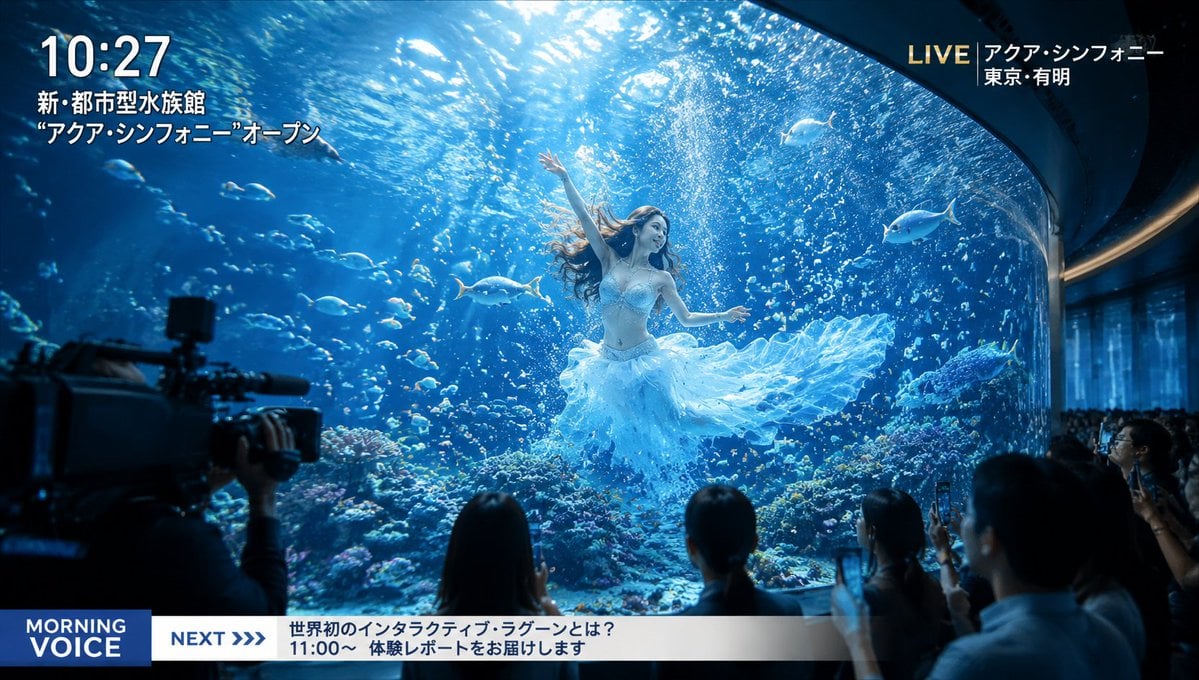
Futuristic Aquarium Mermaid Scene

Chaotic Fourth Crusade Parody Poster
Browse template categories
Japanese AI Employee Infographic questions
How do I use the Japanese AI Employee Infographic template?
Add your photo if the template asks for one, edit the prompt if you like — the template's model and format are already selected — and press Generate. Your version opens in PicX Studio.
Can I customize the Japanese AI Employee Infographic template?
Yes. You can change the subject, setting, lighting, mood, format, and available model controls before creating your image.
Is the Japanese AI Employee Infographic template free?
Opening and editing this template is free. Generating uses credits, shown on the Generate button when you are signed in.
Which AI model should I use?
Start with GPT Image 2, which is the model associated with this template. You can compare another compatible model for a different finish.
Looking for something else? Browse all templates.

Your photo, any look
Thousands of ready templates for every top image and video model, from one credit balance.