
Chibi Air Guitar Storyboard
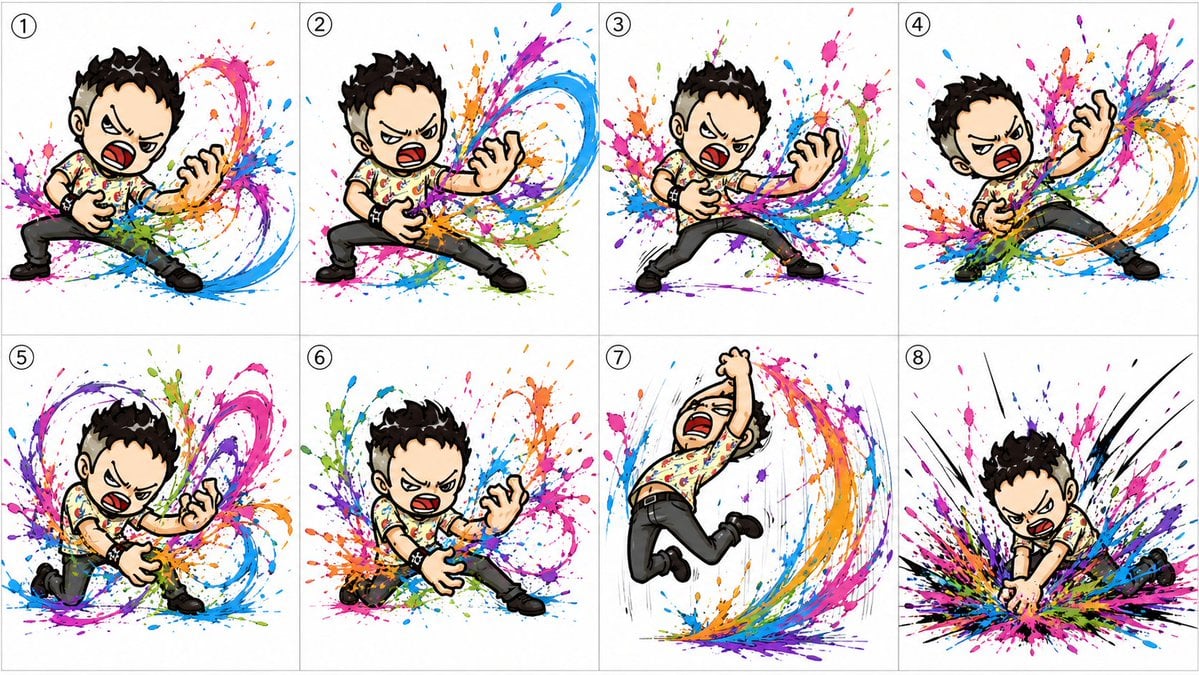
Generates an 8-panel manga-style storyboard of a chibi punk character performing a wild air-guitar solo with colorful paint-splash motion effects.
- Prompt included
- Model and format preset
- Premium template
The prompt behind this image
Copy the exact prompt behind Chibi Air Guitar Storyboard, or open it in the studio and make it yours.
Goal: Create a colorful 8-panel storyboard sheet for an animated sequence featuring {argument name="character name" default="Souichirock"}, a chibi punk-rock boy performing an intense invisible air-guitar solo and ending with a dramatic guitar-smash pose. Canvas: Wide horizontal storyboard image, clean white background, divided into exactly 8 equal rectangular panels arranged in a 2-row by 4-column grid. Use thin light-gray panel borders. Each panel has a small circled black number in the upper-left corner, labeled exactly 1 through 8. Visual style: Hand-drawn digital illustration with bold black ink outlines, exaggerated manga/chibi proportions, dynamic comic action poses, expressive angry rock-performance face, and high-energy paint-splash effects. Use vivid splashes and sweeping arcs of cyan, magenta, purple, orange, green, blue, and black around the character to visualize the sound and motion of the invisible guitar. Keep the background mostly white and uncluttered. Character details: The same chibi male character appears in all 8 panels. He has short spiky {argument name="hair color" default="black"} hair, pale skin, thick black eyebrows, an open shouting mouth with red interior, and an intense scowling expression. Outfit: short-sleeve cream shirt covered in colorful paint-like marks, black pants, black shoes, black studded wristbands, and a small punk-rock attitude. He does not hold a visible guitar; his hands mime playing and smashing an air guitar. Panel-by-panel action sequence: Include exactly 8 numbered panels. Panel 1: wide-legged stance, left hand low as if gripping the neck of an invisible guitar, right hand clawing near the body, shouting, with bright paint bursts behind him and blue-magenta arcs sweeping to the right. Panel 2: deeper lunge, legs spread wider, both hands actively strumming and fretting an invisible guitar, a large blue and magenta sound-wave swirl blasting from his right side. Panel 3: centered rock stance, knees bent, left hand extended like a guitar neck, right hand near the torso, shouting toward the viewer, with dense multicolor splatter behind him. Panel 4: leaning far backward to the right, one hand raised in a claw shape and the other near his waist, legs stretched diagonally, with an orange-blue-magenta spiral sweeping around him. Panel 5: crouched low and leaning forward, one knee near the ground, hands in aggressive air-guitar position, surrounded by looping purple, pink, green, and blue paint trails. Panel 6: low lunging pose, body angled forward, one hand reaching down and the other clawed outward, with explosive colorful paint splashes radiating behind him. Panel 7: airborne jump pose, knees bent, one fist raised overhead, mouth wide open in a scream, with vertical motion lines and a rainbow paint arc curving underneath and behind him. Panel 8: final guitar-crash climax, character bent forward with both hands driving downward as if smashing the invisible guitar into the ground, black impact lines and a huge multicolor splatter explosion spreading outward. Constraints: Use exactly 8 panels and exactly one character per panel. Preserve the small circled panel numbers 1, 2, 3, 4, 5, 6, 7, and 8. No captions other than the panel numbers. Do not add a real guitar, stage, audience, watermark, logo, or extra characters.
How to use Chibi Air Guitar Storyboard in 3 steps
- 1Upload ImagePNG, JPG or paste
Add your photo
Upload the photo the template builds on. The prompt, model and format are already set.
- 2…a portrait of your subject in softgolden-hour light, 85mm…
Personalize
Edit the subject and creative details for your destination.
- 3Generate
Generate
Press Generate — your image is created in PicX Studio, so you can compare it with the original and refine one variable at a time.
More like this
Templates with the same subject, style or setup. Open one to see its prompt.
Chibi Girls Hugging Air Conditioner Comic
Cute Layered Paper Cut Chibi Girl

Pixar-Style Chibi Café Morning Scene
Headphones Lifestyle Nine Panel Grid
Nano Banana Pro Pink Office Chibi
Seedance - Storyboard to Movie
Abstract Rock Guitarist Album Art
Anime Space Bass Guitar Cover Art
Chibi Anime Ninja Sticker Sheet
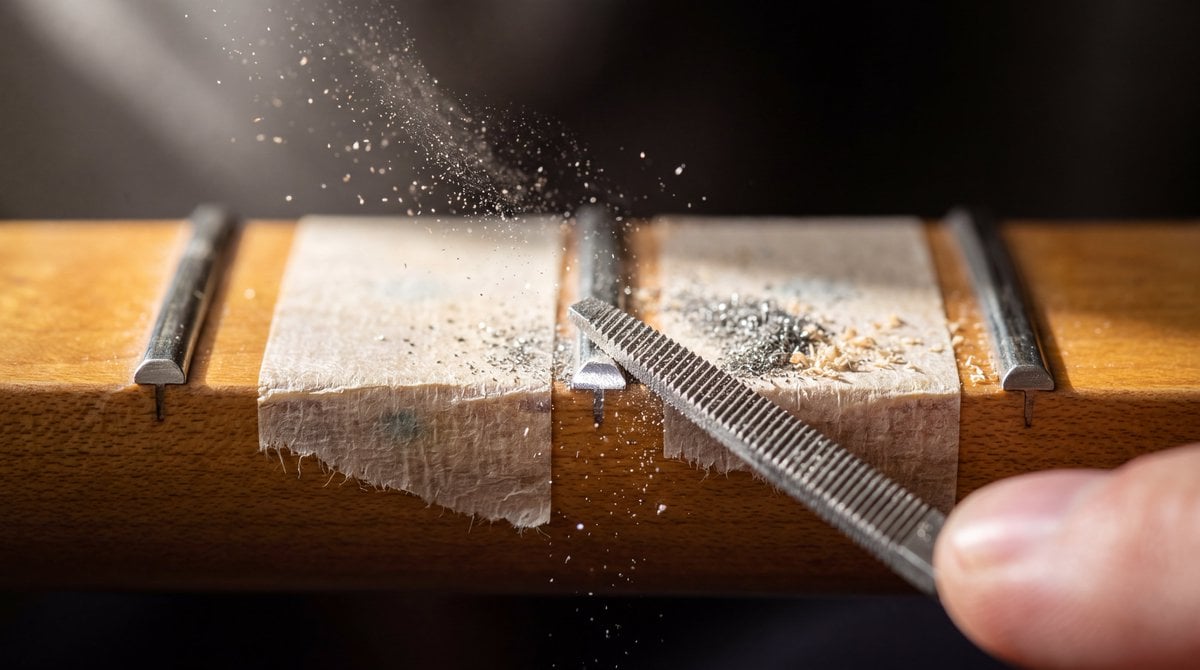
Macro Guitar Fret Dressing

Alpine Lake Candid — Mountain Air Moment

Anime Rock Duo with Guitar and Sheet Music
Make it yours
Chibi Air Guitar Storyboard works as-is. These are the safest ways to change it without losing the look.
Change one field
Copy a single group, rewrite it, and generate again so you can see what that field is doing.
Keep the frame, change the subject
Hold the composition and light of Chibi Air Guitar Storyboard, then swap wardrobe, props or the person for a new take.
| If the result… | Why | Fix |
|---|---|---|
| The result drifts from the preview | Too many fields changed at once. | Reuse Chibi Air Guitar Storyboard as-is first, then change one group — subject, light, or setting. |
| The model over-stylizes the scene | The prose prompt leaves finish and camera underspecified. | Add one camera or lighting sentence and stay on GPT Image 2. |
More GPT Image 2 templates
Other prompts made for GPT Image 2.

Six VTuber Japanese Logo Sheet

Realistic Portrait of Woman and Deer

The Vista Modular Condo Poster

AI Model Routing Comparison Infographic

2.5D Anime Art Board

Isometric Productivity Desk Scene

New York Double Exposure Poster

Four-Panel AI Landscape Comparison

Japanese Tatami Lifestyle Magazine Cover

NESCAFÉ Coffee Map Poster
More image prompts
Fresh picks from across the catalog.
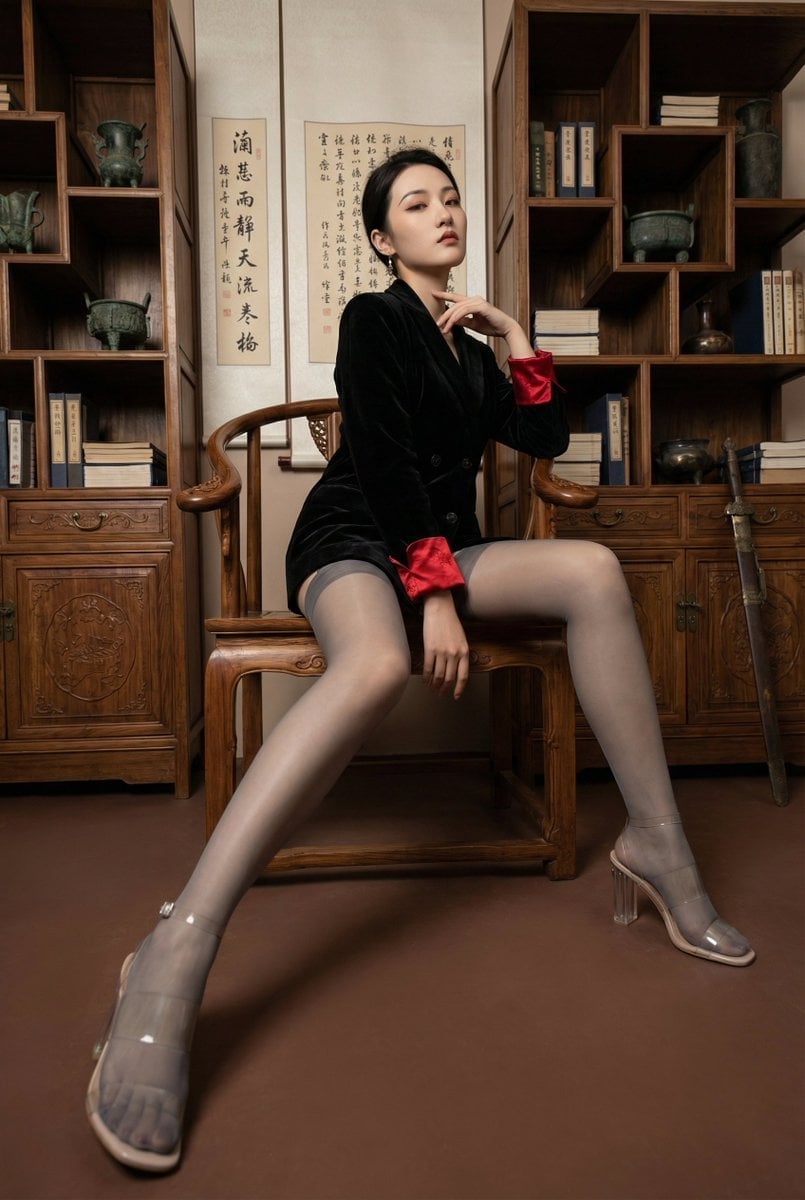
Modern Chinese Retro Fashion Photography Prompt
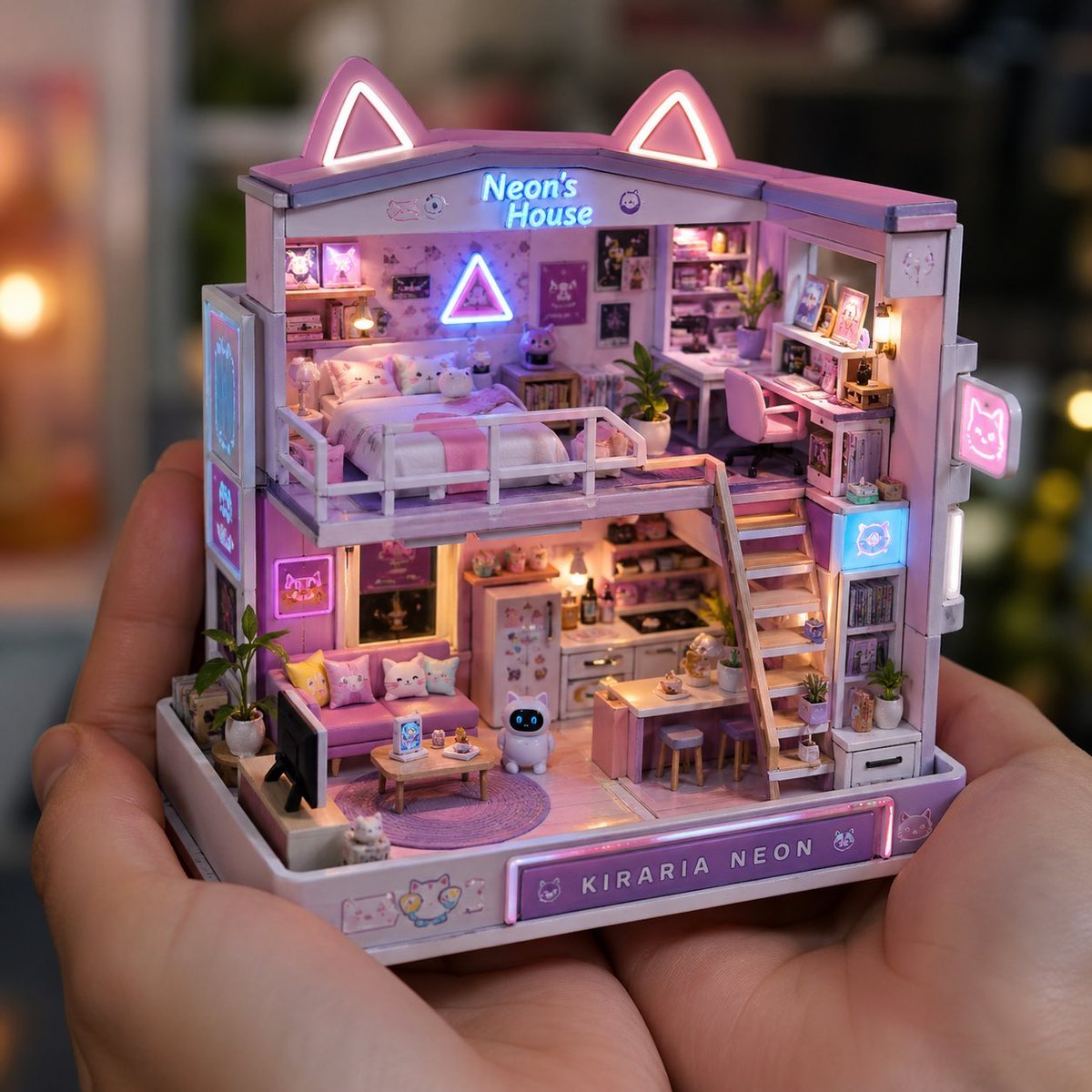
Miniature Handcrafted Object Photography
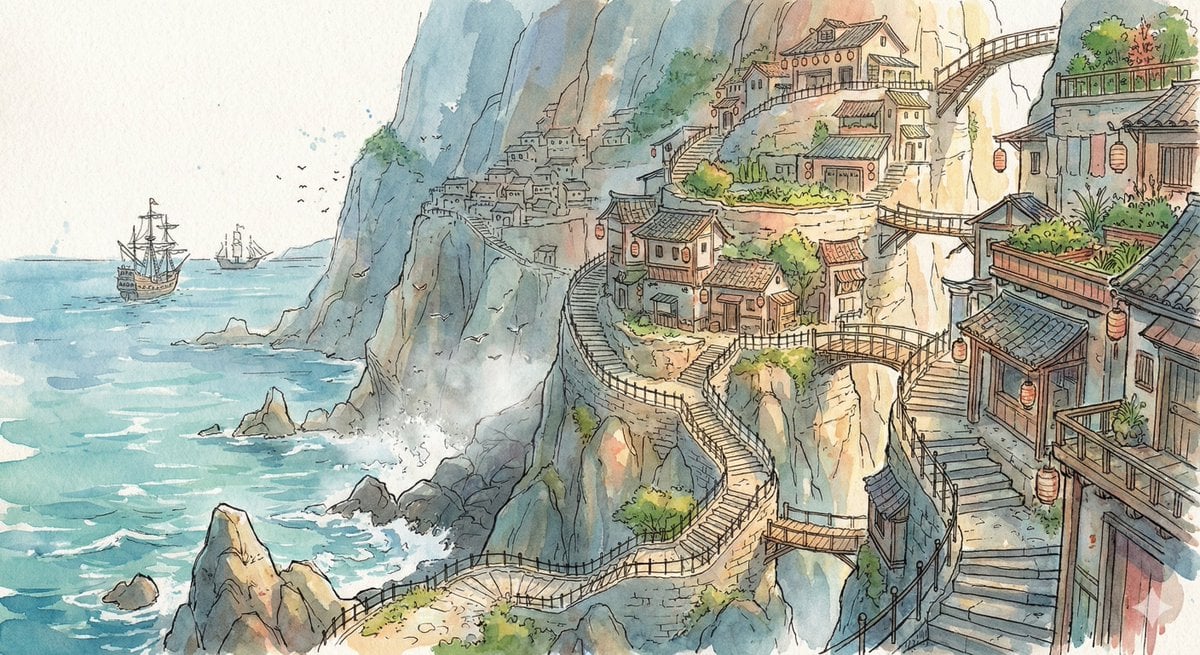
Watercolor Cliffside Village Illustration
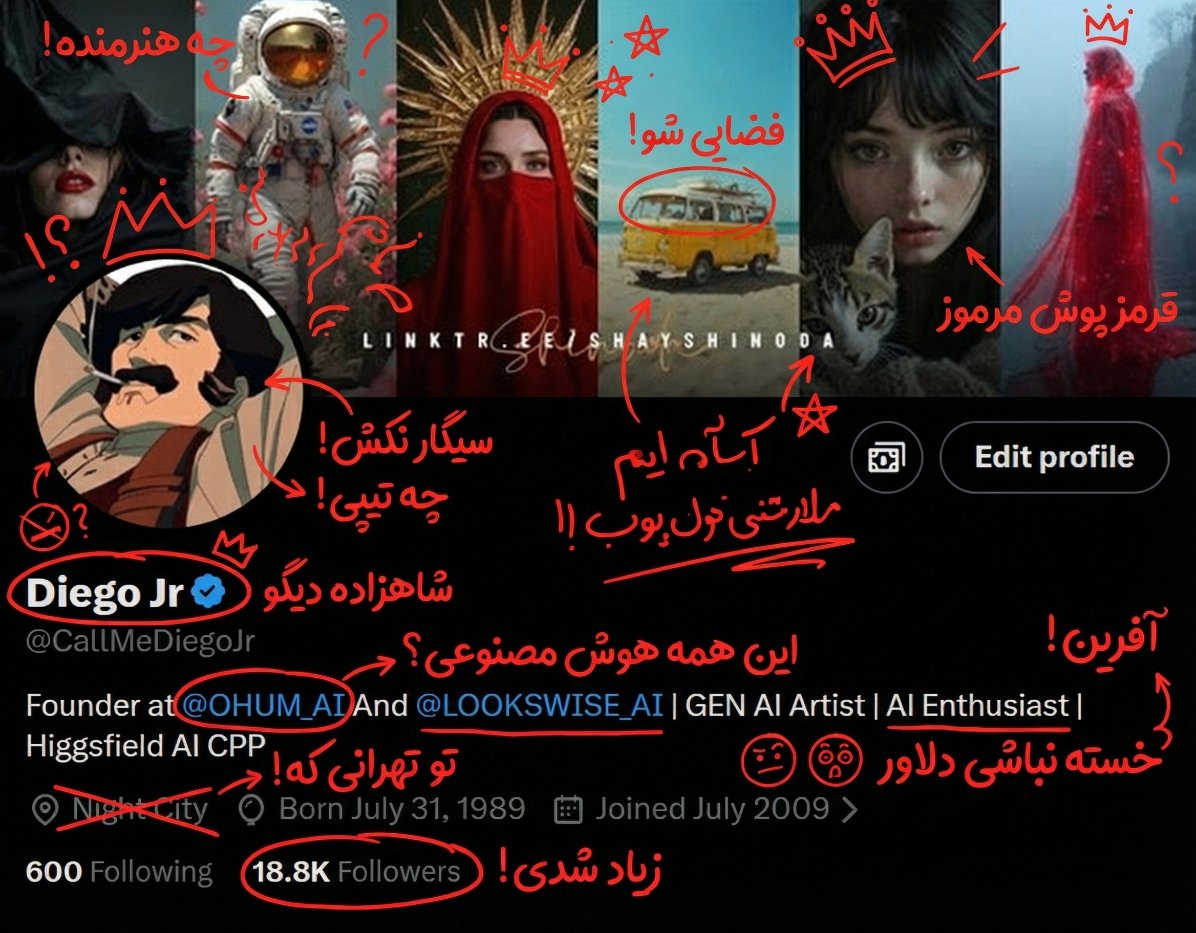
Nano Banana Pro Social Media Screenshot Annotation Prompt
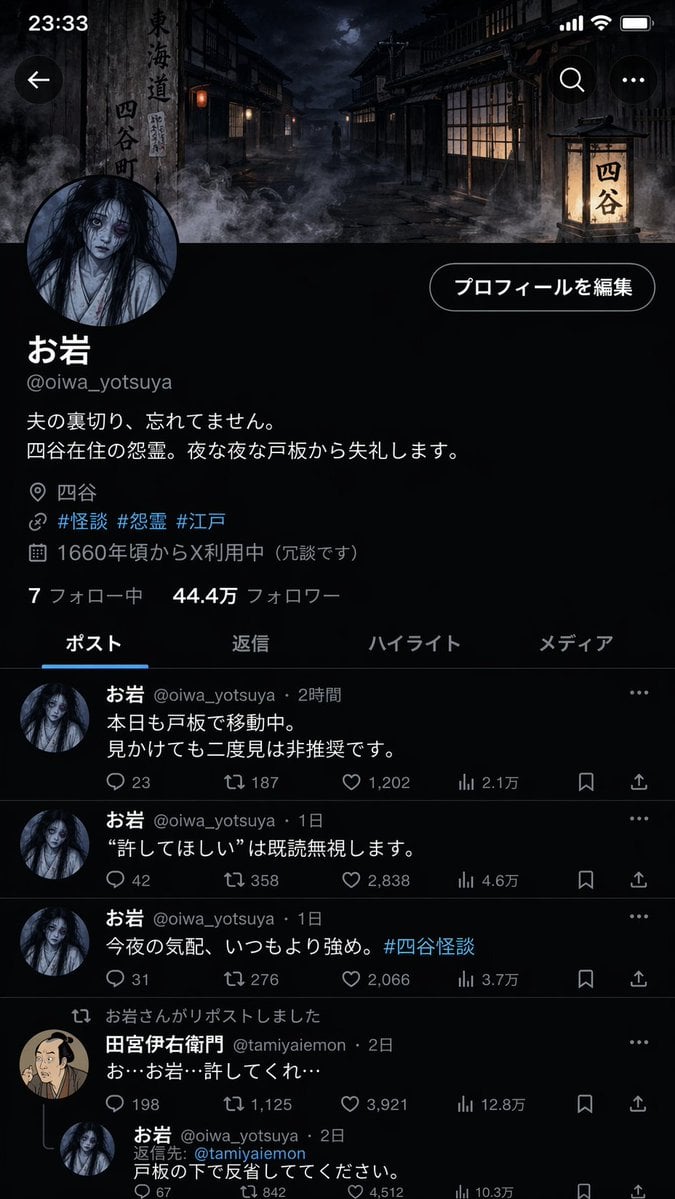
Folklore Character Social Media Profile
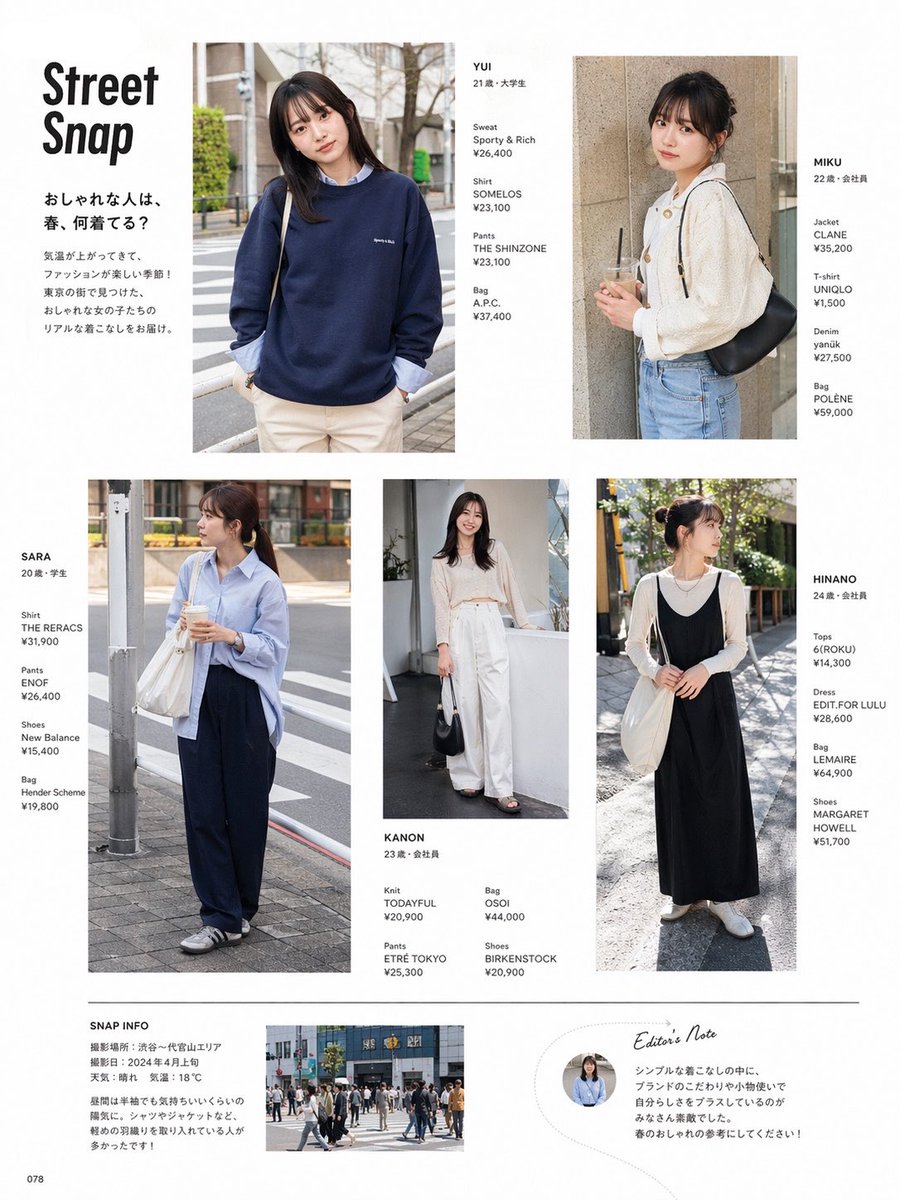
Street Fashion Magazine Layout
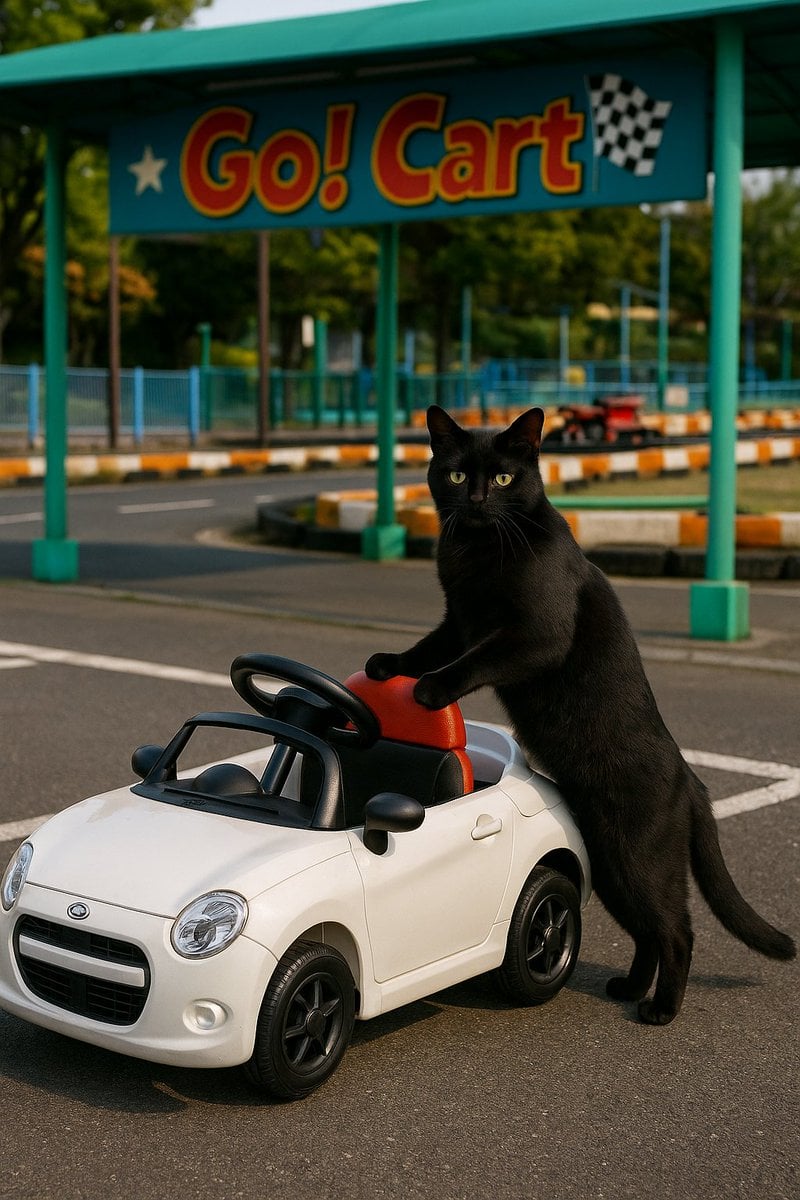
Cat with Toy Car at Go-Kart Track
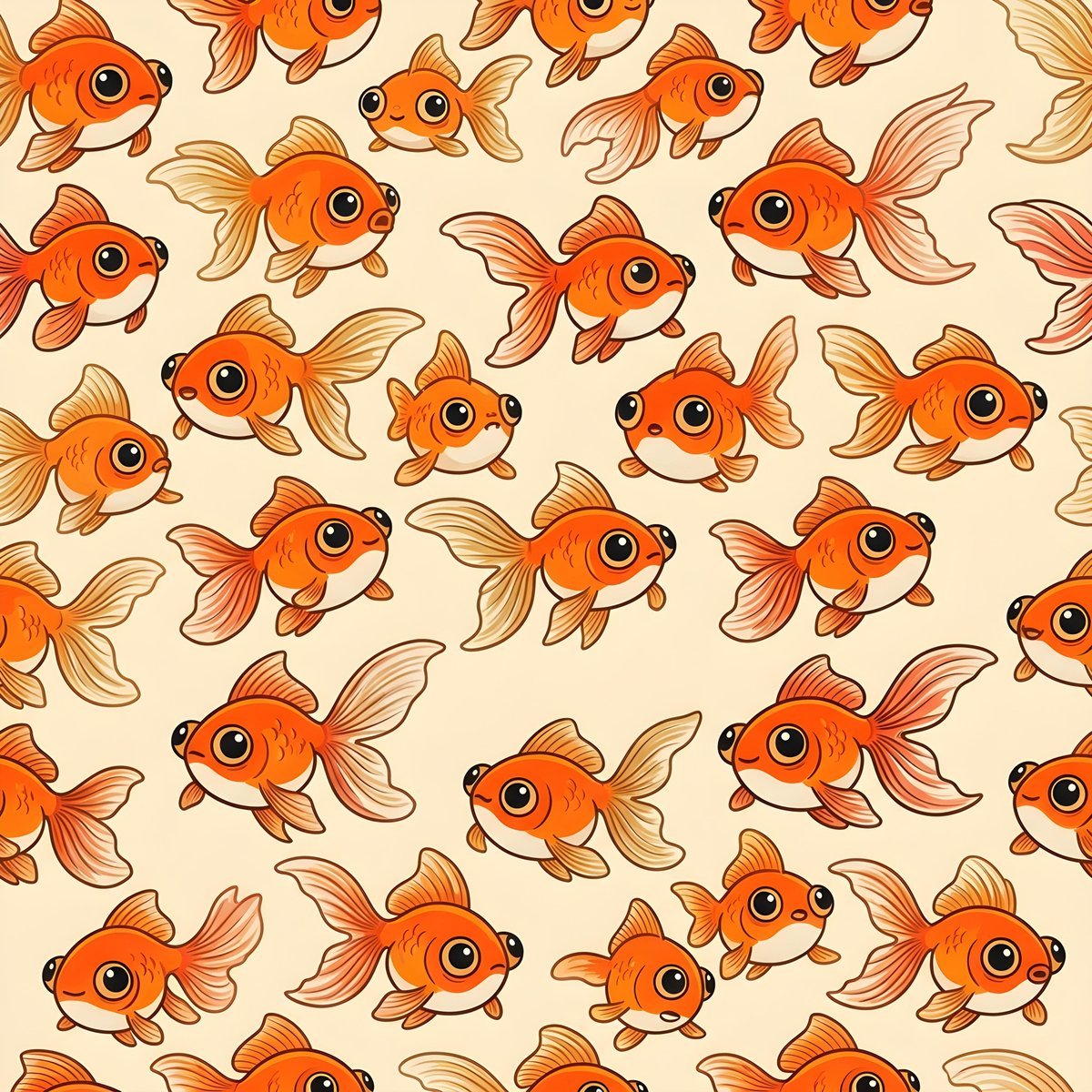
Seamless Pattern of Cartoonish Fancy Goldfish
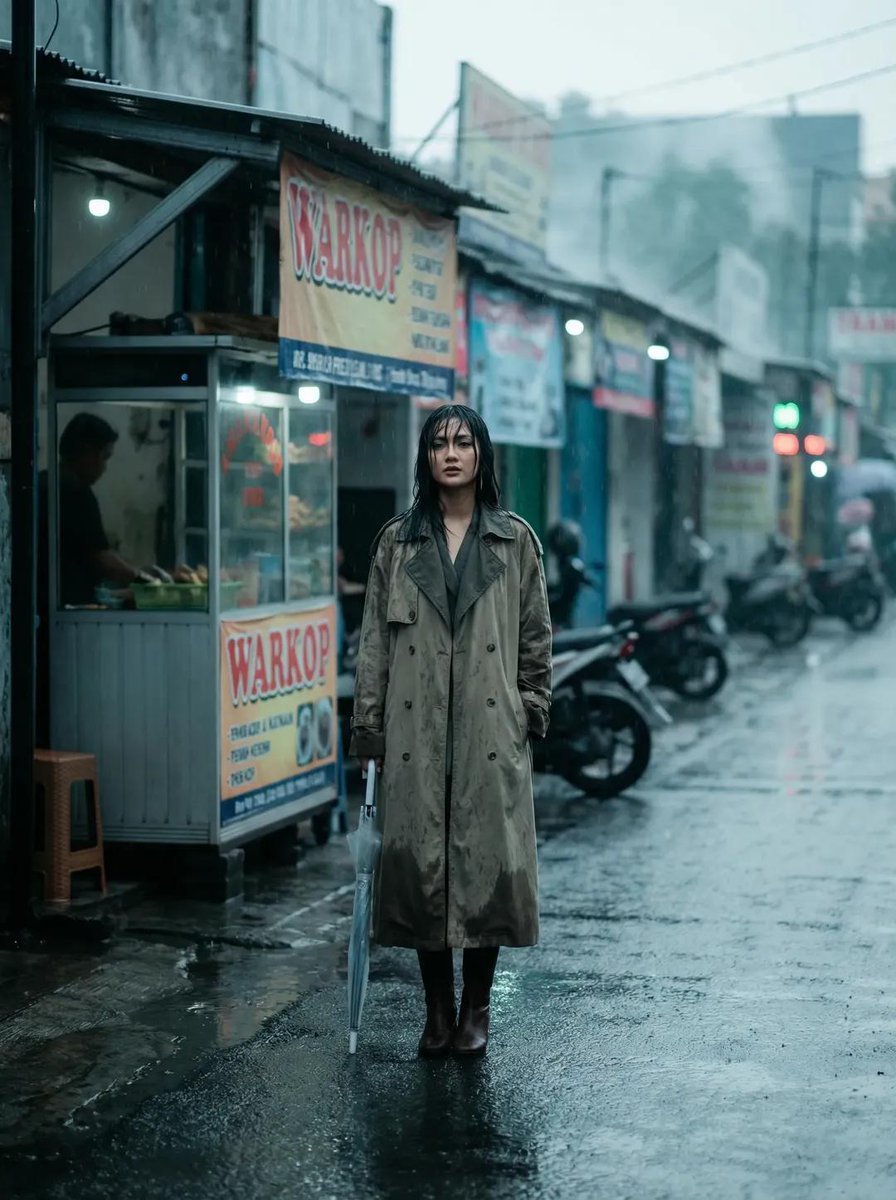
Rainy Indonesian Warkop Fashion Editorial Prompt

Summer Anime Girl Portrait
Browse template categories
Chibi Air Guitar Storyboard questions
How do I use the Chibi Air Guitar Storyboard template?
Add your photo if the template asks for one, edit the prompt if you like — the template's model and format are already selected — and press Generate. Your version opens in PicX Studio.
Can I customize the Chibi Air Guitar Storyboard template?
Yes. You can change the subject, setting, lighting, mood, format, and available model controls before creating your image.
Is the Chibi Air Guitar Storyboard template free?
Opening and editing this template is free. Generating uses credits, shown on the Generate button when you are signed in.
Which AI model should I use?
Start with GPT Image 2, which is the model associated with this template. You can compare another compatible model for a different finish.
Looking for something else? Browse all templates.

Your photo, any look
Thousands of ready templates for every top image and video model, from one credit balance.