
Whiteboard Skill-Building Workflow
A hand-drawn whiteboard explainer showing how messy tool overload becomes reusable skills through scenario analysis and optimization.
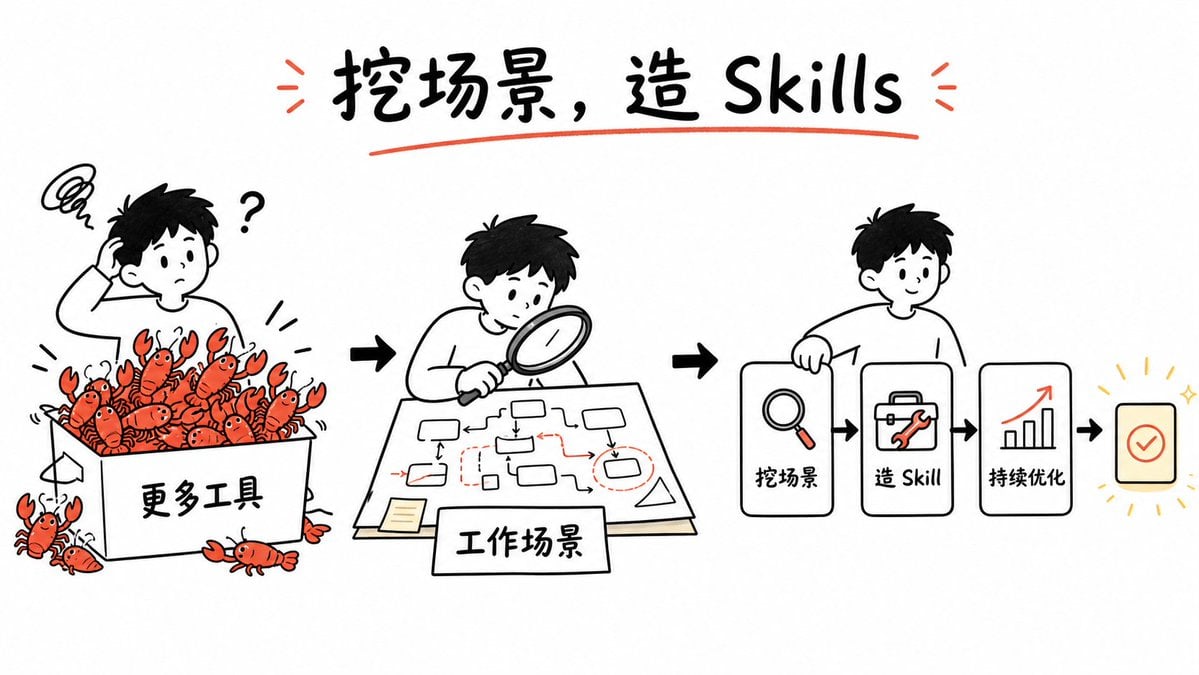
- Prompt included
- Model and format preset
- Premium template
The prompt behind this image
Copy the exact prompt behind Whiteboard Skill-Building Workflow, or open it in the studio and make it yours.
Goal: Create a clean whiteboard hand-drawn explainer illustration about turning messy tool overload into reusable GPT image skills. Use a playful black marker sketch style with selective red-orange accents and a few yellow highlights. Canvas: Wide 16:9 horizontal canvas, white background, generous margins, centered composition. Hand-drawn black outlines, slightly imperfect marker strokes, minimal shading, no photorealism. Title: At the top center, write the large handwritten headline {argument name="headline text" default="挖场景,造 Skills"}. Use bold black brush lettering, underline it with one red-orange curved stroke, and add two small red-orange emphasis marks on each side of the title. Layout: Arrange the story as a left-to-right workflow with three main illustrated scenes connected by bold black arrows. Scene 1 on the left shows confusion and too many tools; scene 2 in the center shows analyzing the work scenario; scene 3 on the right shows a simplified skill-building pipeline. Scene 1: Draw a confused young person with short black hair scratching their head, a question mark beside them, and a scribbly frustration cloud above. They stand behind a large open box labeled {argument name="tool box label" default="更多工具"}. The box is overflowing with exactly 18 small red-orange cartoon crawfish/lobsters as a metaphor for too many tools: 15 visible inside or on the rim of the box and 3 outside near the bottom/left edges. Each crawfish has simple black eyes, claws, and segmented bodies. Add small motion lines around the box. Scene 2: Draw the same young person leaning over a table with a magnifying glass, studying a paper workflow map. The paper contains a hand-drawn process diagram with exactly 10 small rounded rectangles/nodes, thin black connector arrows, and a few red dashed boxes and red arrows marking important points. Add a small sticky note on the lower left of the paper. In front of the table, place a rectangular label card reading {argument name="scenario label" default="工作场景"}. Scene 3: Draw the same young person smiling and holding or leaning on the first card of a pipeline. The pipeline contains exactly 4 visible cards/icons arranged horizontally: card 1 with a magnifying glass icon and label {argument name="step one label" default="挖场景"}; card 2 with a toolbox/wrench icon and label {argument name="step two label" default="造 Skill"}; card 3 with an upward bar chart and red rising arrow icon labeled {argument name="step three label" default="持续优化"}; card 4 is a small rounded square success card with a red-orange checkmark, surrounded by short yellow radiating lines and sparkle marks. Connect the cards with bold black arrows. Visual style: Simple black-and-white whiteboard illustration, friendly Notion-like doodle proportions, rounded characters, thick marker outlines, sparse red-orange accent color on crawfish, arrows, tools, underlines, and chart arrow. Keep the background empty and uncluttered. Constraints: Preserve the left-to-right narrative and the exact counts of the three main scenes, 18 crawfish/lobsters, 10 workflow nodes, and 4 pipeline cards. Do not add extra panels, logos, watermarks, or dense explanatory text.
How to use Whiteboard Skill-Building Workflow in 3 steps
- 1Upload ImagePNG, JPG or paste
Add your photo
Upload the photo the template builds on. The prompt, model and format are already set.
- 2…a portrait of your subject in softgolden-hour light, 85mm…
Personalize
Edit the subject and creative details for your destination.
- 3Generate
Generate
Press Generate — your image is created in PicX Studio, so you can compare it with the original and refine one variable at a time.
More like this
Templates with the same subject, style or setup. Open one to see its prompt.
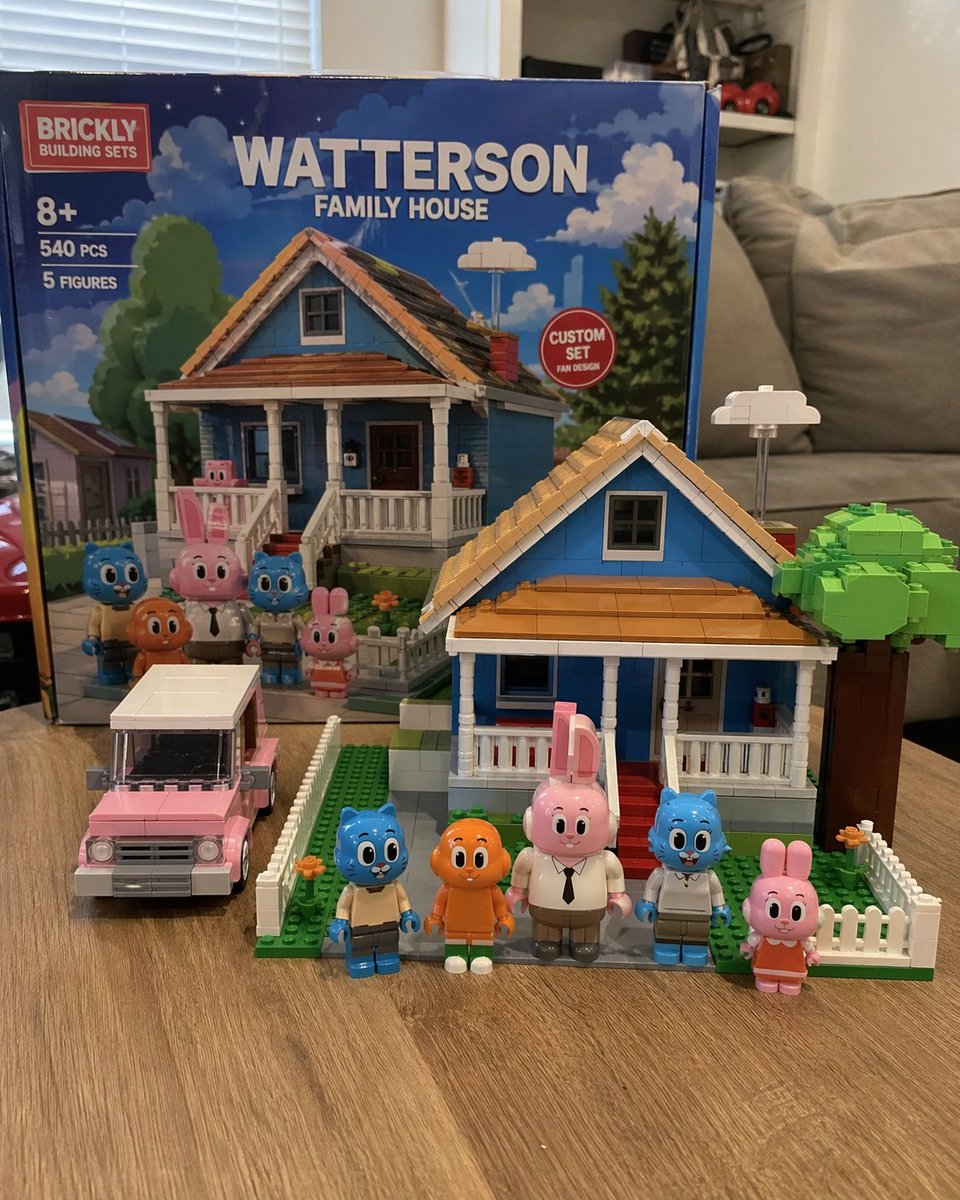
Custom Building Block Set Photography
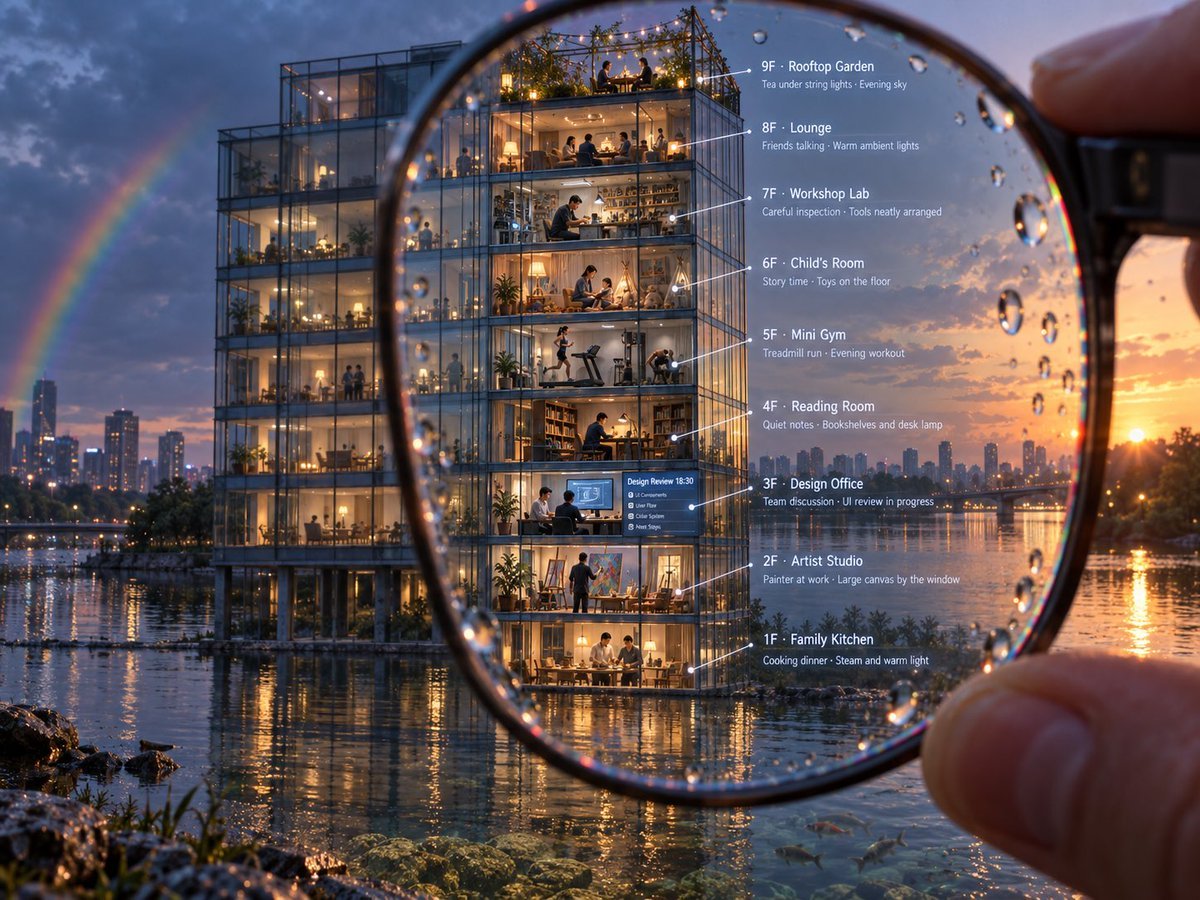
Magnified Glass Building Cutaway
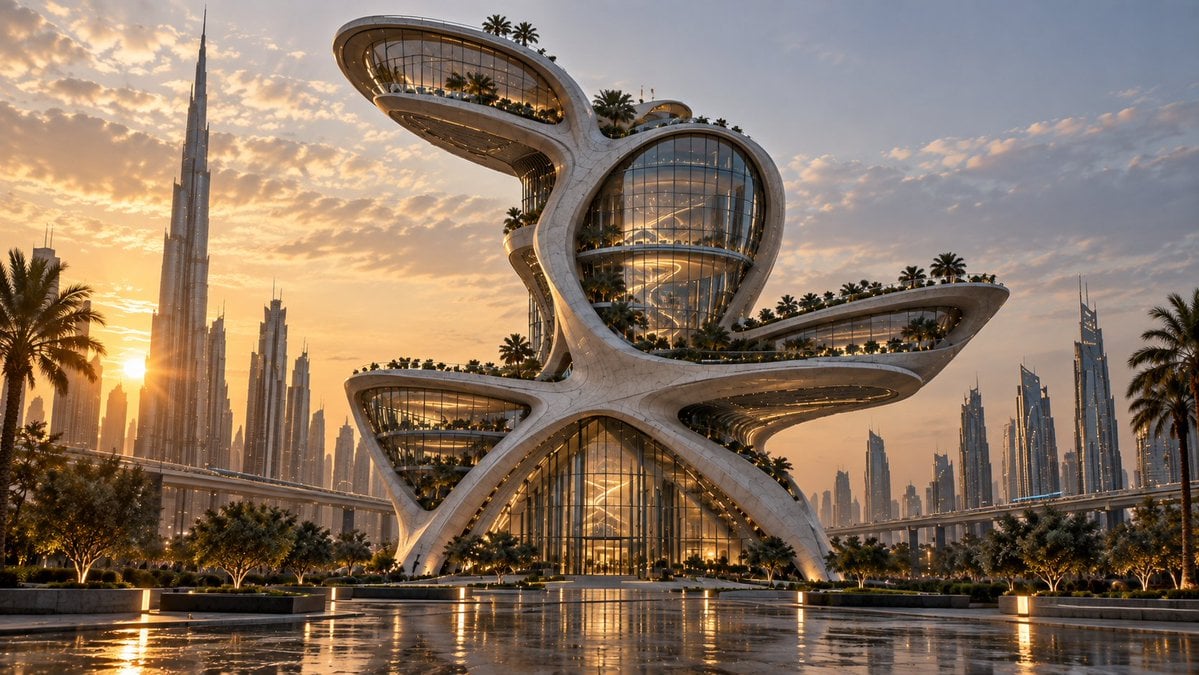
Futuristic Building Transformation
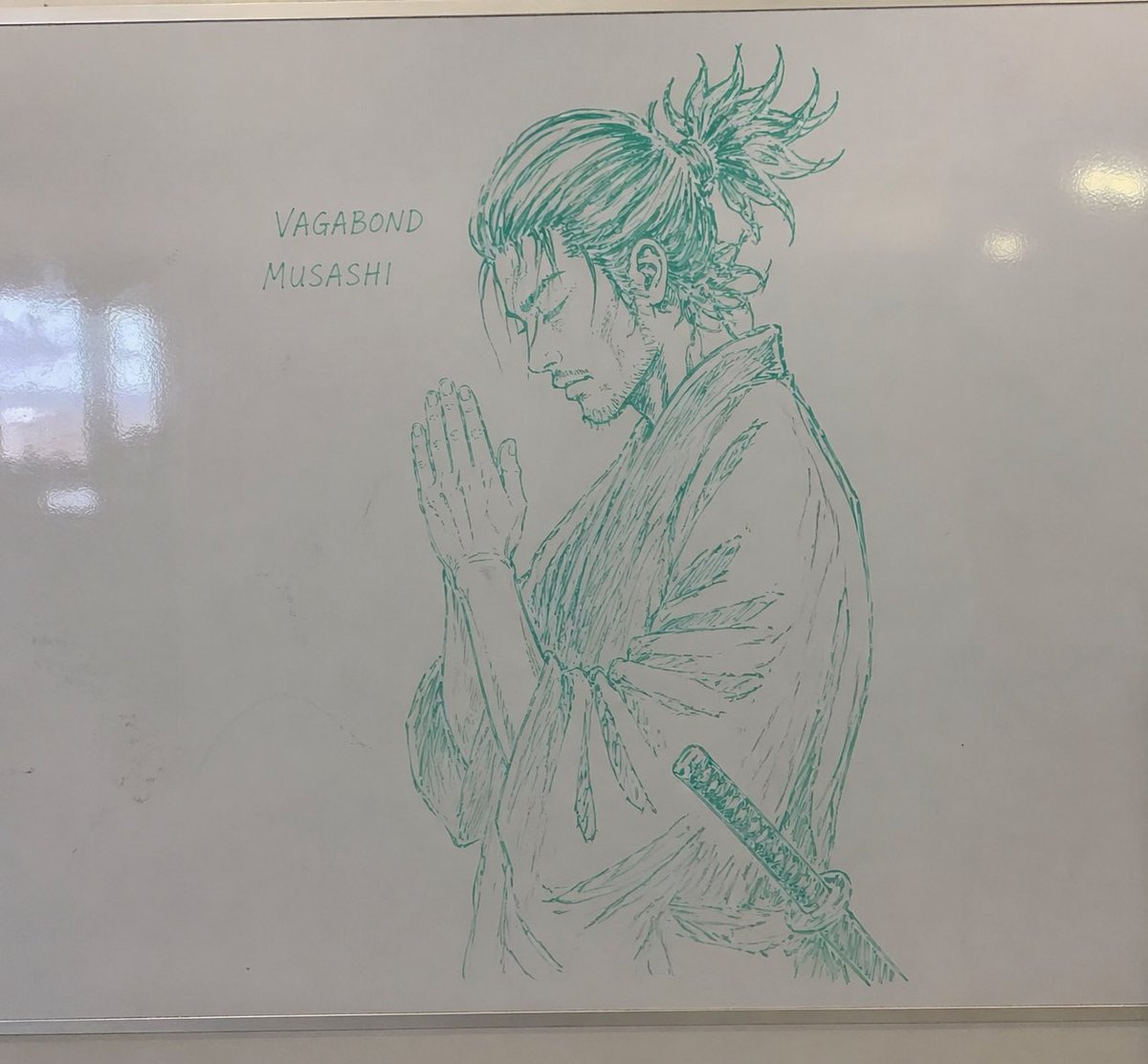
Whiteboard Marker Anime Sketch

Woman Presenting GitHub Skill Repository
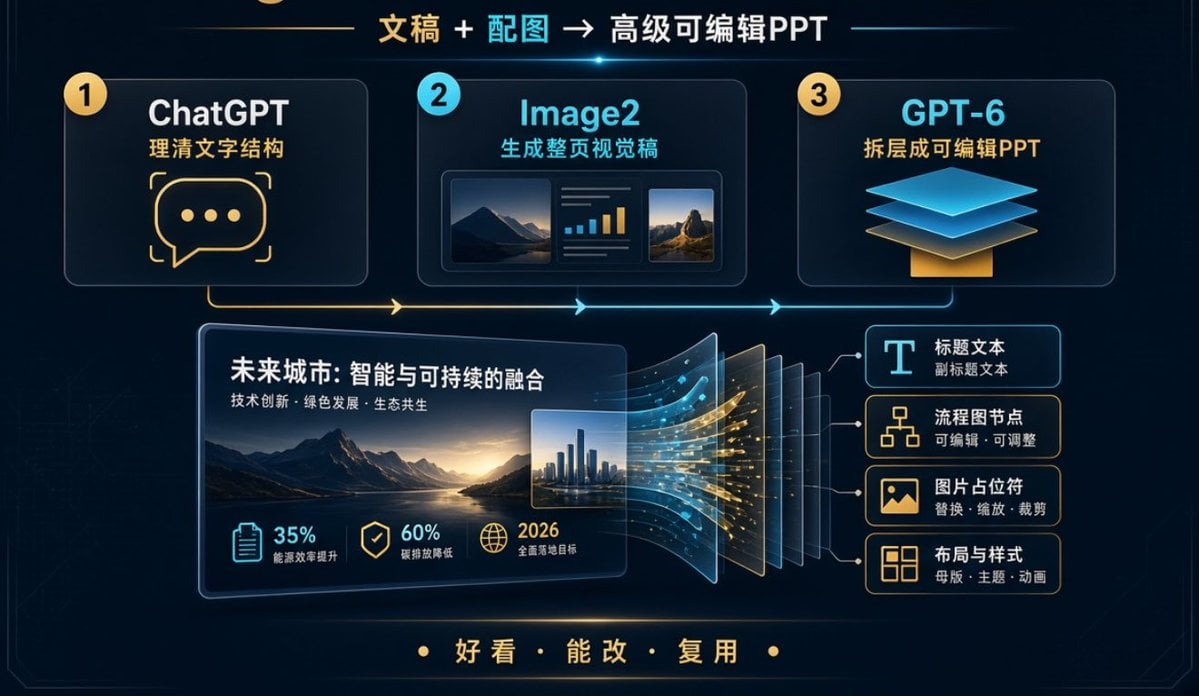
Editable PPT Workflow Infographic
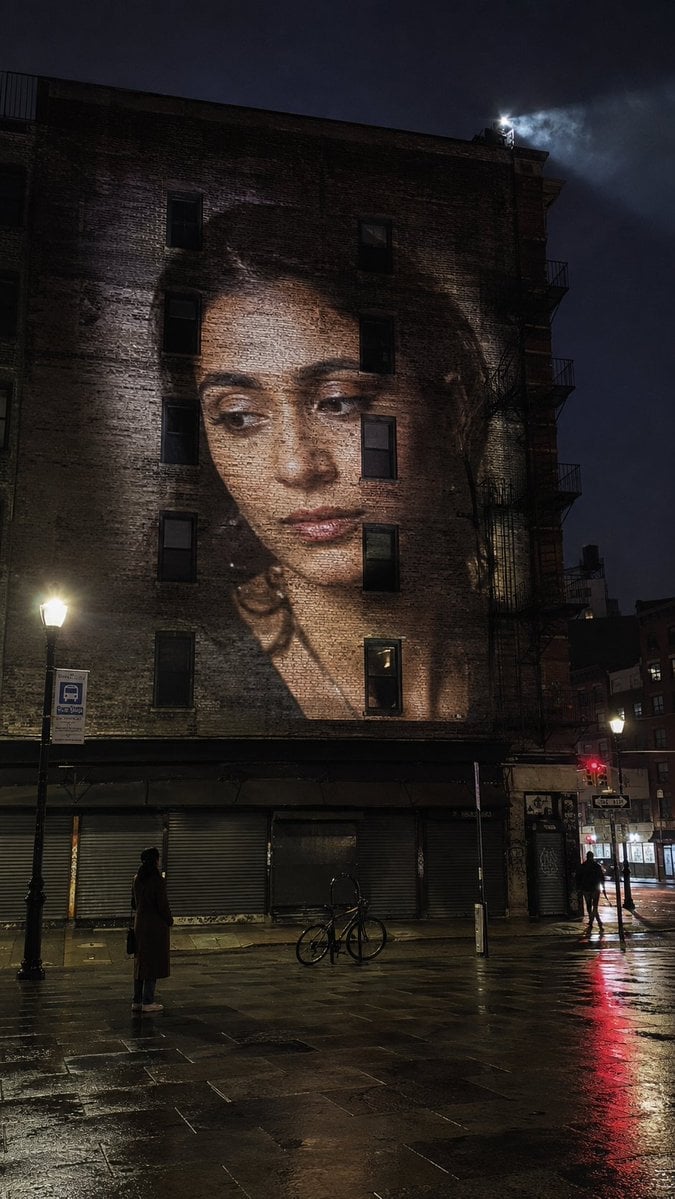
Building Projection Night Portrait
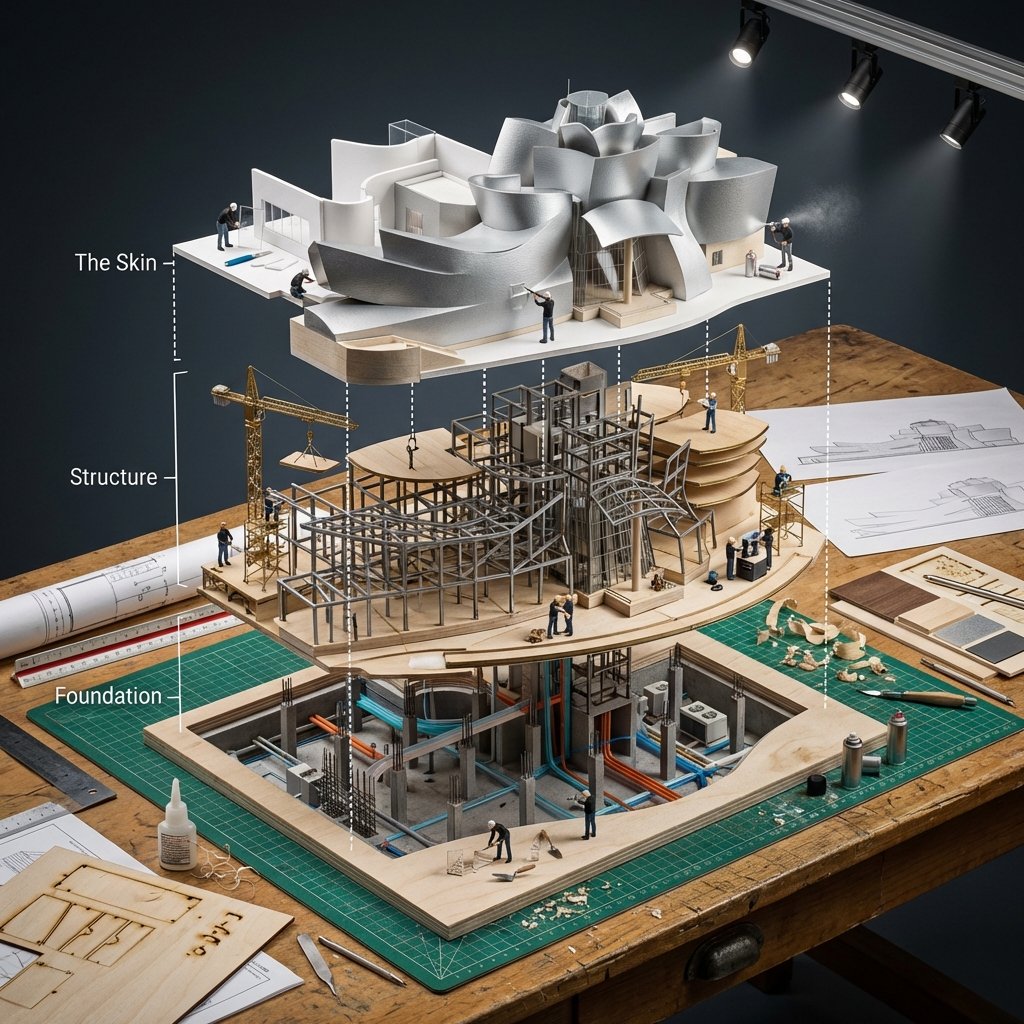
Building Exploded View Architectural Diorama
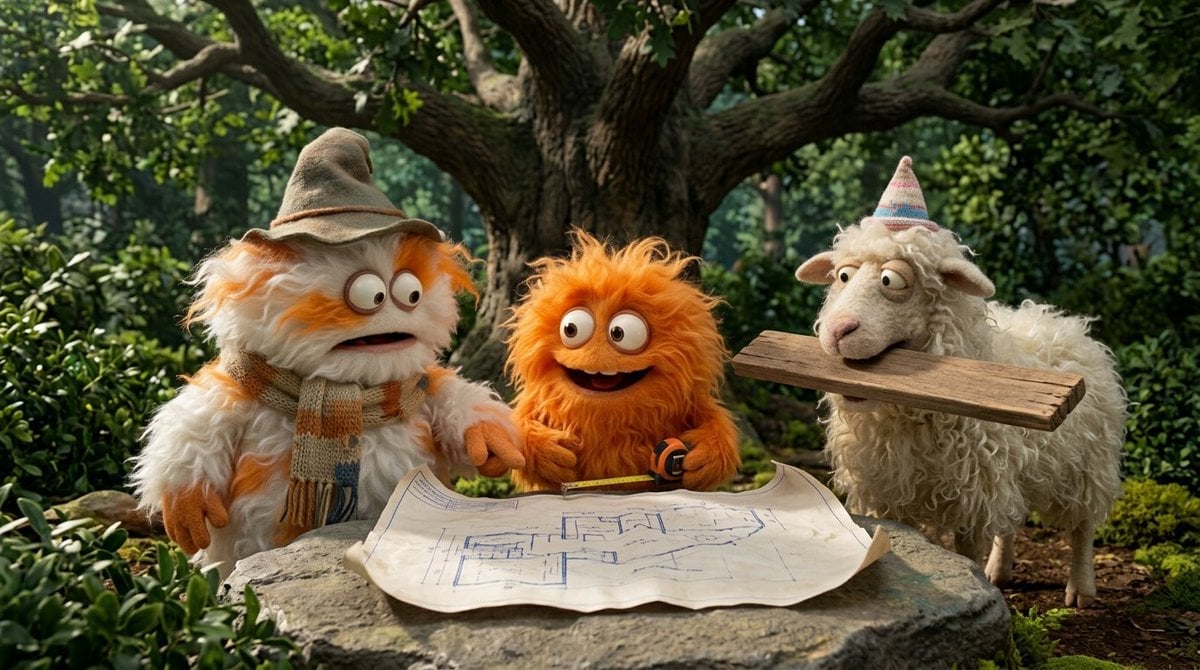
Funny 4-part story featuring 3 fluffy creatures building a treehouse
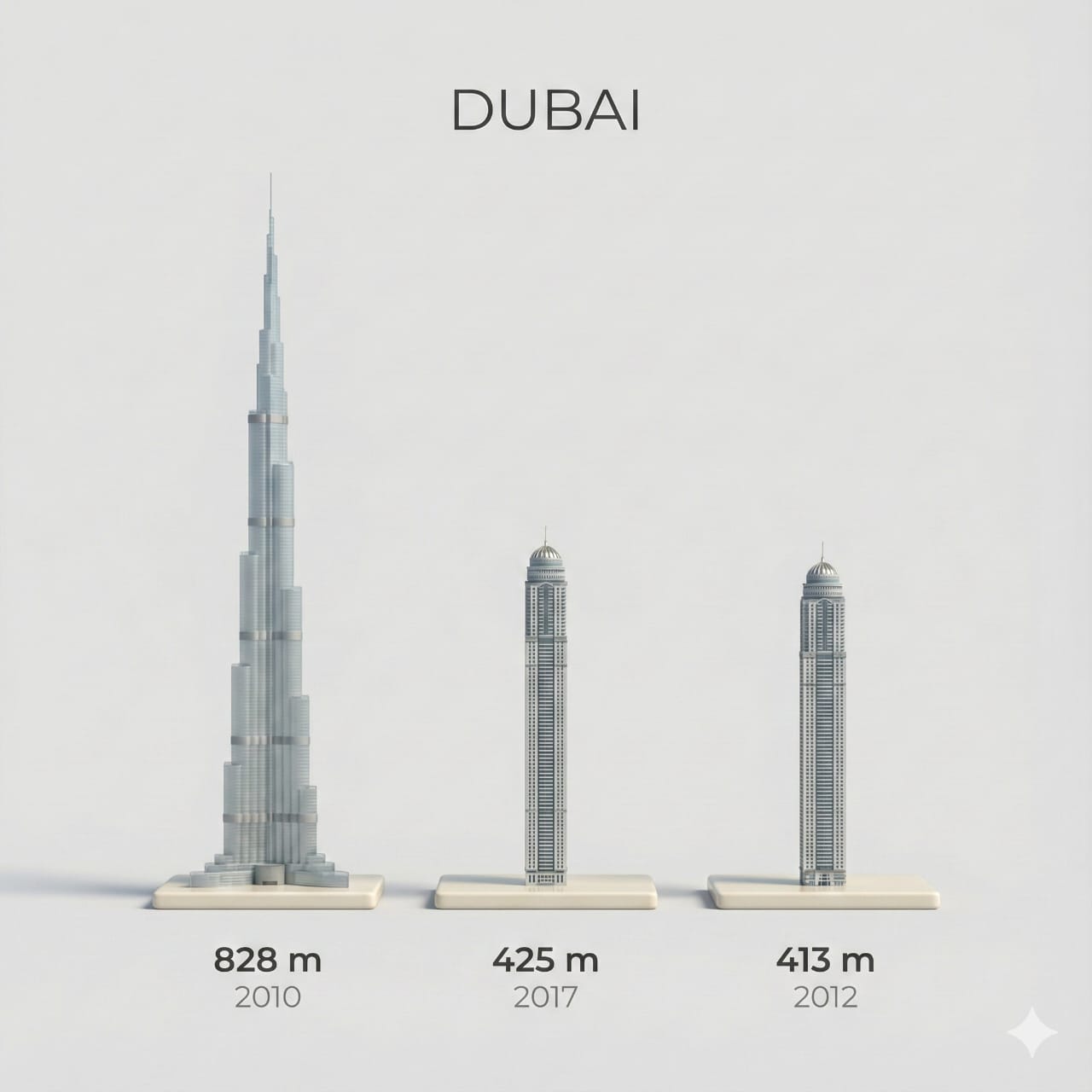
Clear, side miniature 3D cartoon view of tallest buildings
Vivid blue walls, stairs, and buildings with white accents, hanging

Consistent Social Media Cover Agent Skill
Make it yours
Whiteboard Skill-Building Workflow works as-is. These are the safest ways to change it without losing the look.
Change one field
Copy a single group, rewrite it, and generate again so you can see what that field is doing.
Keep the frame, change the subject
Hold the composition and light of Whiteboard Skill-Building Workflow, then swap wardrobe, props or the person for a new take.
| If the result… | Why | Fix |
|---|---|---|
| The result drifts from the preview | Too many fields changed at once. | Reuse Whiteboard Skill-Building Workflow as-is first, then change one group — subject, light, or setting. |
| The model over-stylizes the scene | The prose prompt leaves finish and camera underspecified. | Add one camera or lighting sentence and stay on GPT Image 2. |
More GPT Image 2 templates
Other prompts made for GPT Image 2.

Six VTuber Japanese Logo Sheet

Realistic Portrait of Woman and Deer

The Vista Modular Condo Poster

AI Model Routing Comparison Infographic

2.5D Anime Art Board

Isometric Productivity Desk Scene

New York Double Exposure Poster

Four-Panel AI Landscape Comparison

Japanese Tatami Lifestyle Magazine Cover

NESCAFÉ Coffee Map Poster
More image prompts
Fresh picks from across the catalog.
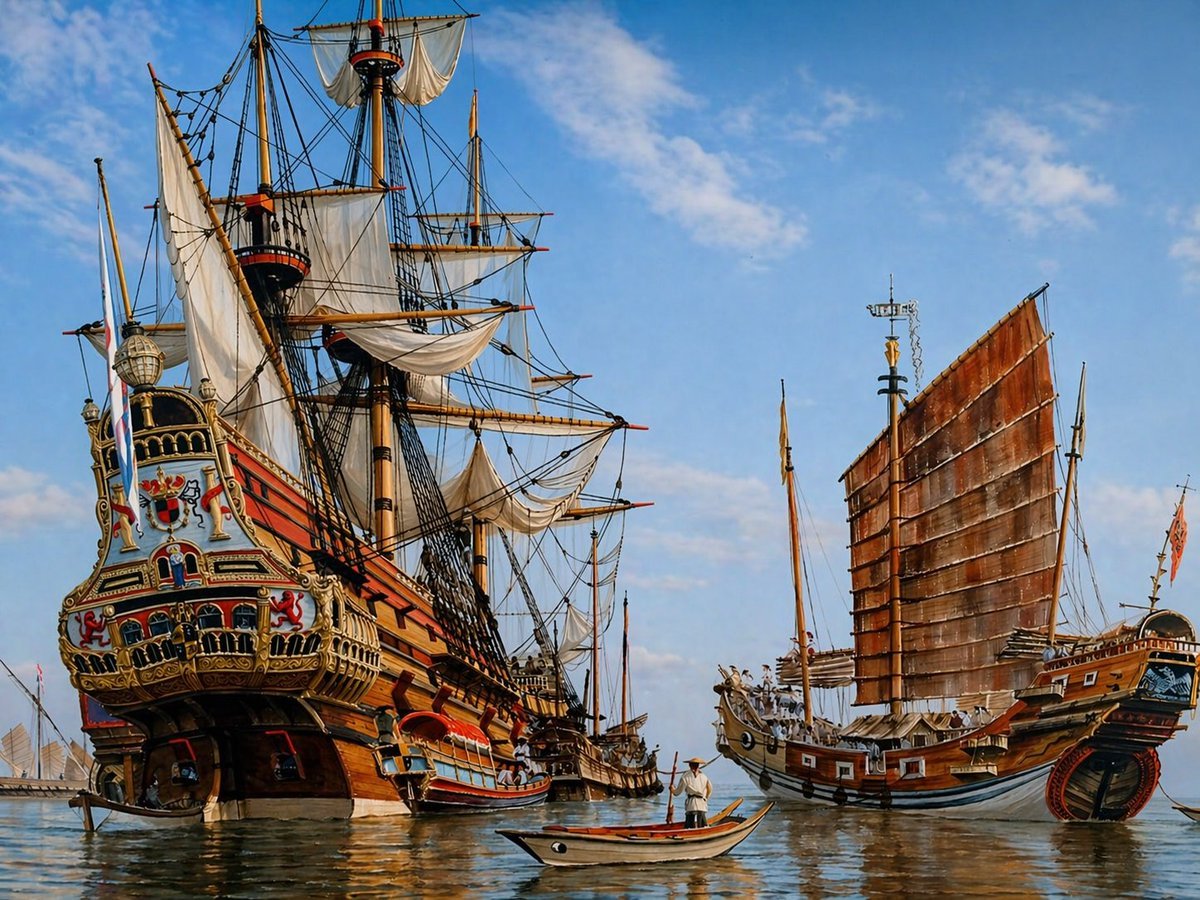
Historic Galleon and Chinese Junk
Colorful New Year's Illustration Prompt
Ultra-Photorealistic Group Portrait: New Year's Eve Party
Cheesy Quesadilla Japanese Food Ad
Cyber Manga Hamster Writing Request
Convert image into YouTube thumbnail with OMW text
10 Hairstyles Photo Collage Prompt
Dramatic Low-Key Portrait with Glowing Gemstones

Food Delivery App UI Prompt
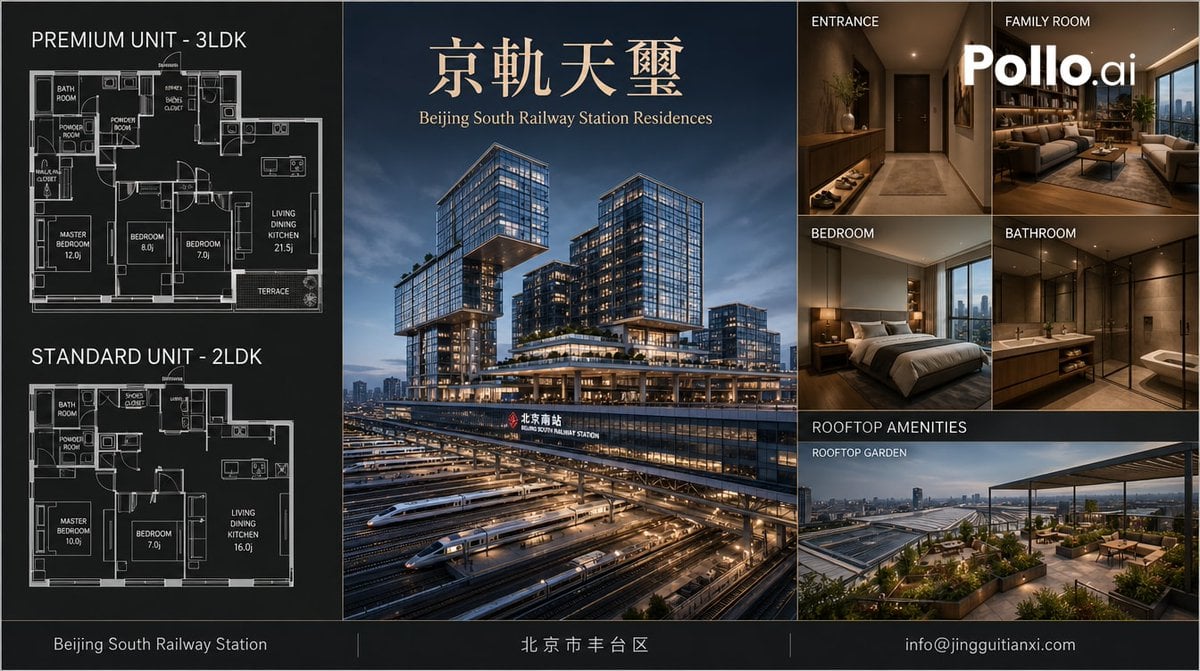
Luxury Beijing Apartment Brochure
Browse template categories
Whiteboard Skill-Building Workflow questions
How do I use the Whiteboard Skill-Building Workflow template?
Add your photo if the template asks for one, edit the prompt if you like — the template's model and format are already selected — and press Generate. Your version opens in PicX Studio.
Can I customize the Whiteboard Skill-Building Workflow template?
Yes. You can change the subject, setting, lighting, mood, format, and available model controls before creating your image.
Is the Whiteboard Skill-Building Workflow template free?
Opening and editing this template is free. Generating uses credits, shown on the Generate button when you are signed in.
Which AI model should I use?
Start with GPT Image 2, which is the model associated with this template. You can compare another compatible model for a different finish.
Looking for something else? Browse all templates.

Your photo, any look
Thousands of ready templates for every top image and video model, from one credit balance.