
Pink Lolita Color Correction Comparison
Creates a split-screen fashion portrait comparing a normal generation with a Photoshop-style color-corrected version for AI image workflow demonstrations.
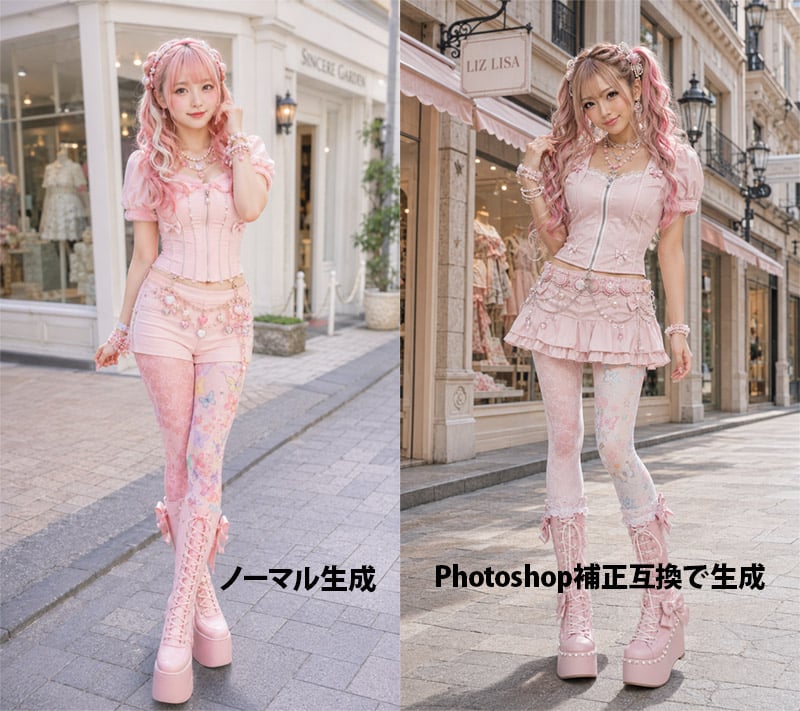
- Prompt included
- Model and format preset
- Premium template
The prompt behind this image
Copy the exact prompt behind Pink Lolita Color Correction Comparison, or open it in the studio and make it yours.
Goal: Create a side-by-side comparison image showing an AI-generated fashion portrait before and after Photoshop-style color correction, featuring the same young woman in pastel pink sweet lolita/gyaru street fashion on a European boutique shopping street. Canvas: Landscape 4:3 image, split exactly into two equal vertical panels with a hard center divide. Photorealistic fashion editorial style, full-body subject in both panels, street-level perspective, shallow depth of field, soft daylight. Left panel: Show the uncorrected version labeled in bold black Japanese text near the bottom: 「ノーマル生成」. The model stands in front of a bright cream-white boutique facade with large display windows and a pale sign. Overall color is slightly flat, pale, low-contrast, airy, and softly washed out. The model faces forward with a gentle smile, one hand near her hair, wearing a pastel pink corset top with puff sleeves, pink short bottoms, decorative waist chains, patterned pastel tights, and tall pink lace-up platform boots. Right panel: Show the corrected version labeled in bold black mixed text near the bottom: 「Photoshop補正互換で生成」. The same model stands on a similar elegant shopping street in front of a boutique with a visible hanging sign reading {argument name="shop sign text" default="LIZ LISA"}. The lighting and color correction should look more polished: warmer highlights, richer contrast, clearer skin tones, slightly deeper shadows, brighter pinks, crisp details, and a more professional retouched fashion-photo finish. The model poses with one hand in her hair and one leg slightly bent, smiling at the camera. Subject details: A cute young Japanese fashion model with fair skin, long wavy twin-tail hair in {argument name="hair color" default="pink blonde"}, soft bangs, ribbons and pearl hair accessories, glossy idol-like makeup, large bright eyes, and a friendly expression. Outfit color theme is {argument name="outfit color theme" default="pastel pink"}. Include many kawaii accessories: layered pearl necklaces, bracelets, bows, lace, floral charms, decorative belt chains, and platform boots. Visible text: Exactly 2 large bottom labels: left label 「ノーマル生成」 and right label 「Photoshop補正互換で生成」. Keep the labels bold, black, horizontal, and placed over the pavement area without outlines. Constraints: Make both panels look like variations of the same fashion shoot, not a collage of unrelated characters. Use realistic anatomy, full-body framing, no extra logos except the boutique sign, no watermark, no additional captions, no borders other than the central split.
How to use Pink Lolita Color Correction Comparison in 3 steps
- 1Upload ImagePNG, JPG or paste
Add your photo
Upload the photo the template builds on. The prompt, model and format are already set.
- 2…a portrait of your subject in softgolden-hour light, 85mm…
Personalize
Edit the subject and creative details for your destination.
- 3Generate
Generate
Press Generate — your image is created in PicX Studio, so you can compare it with the original and refine one variable at a time.
More like this
Templates with the same subject, style or setup. Open one to see its prompt.
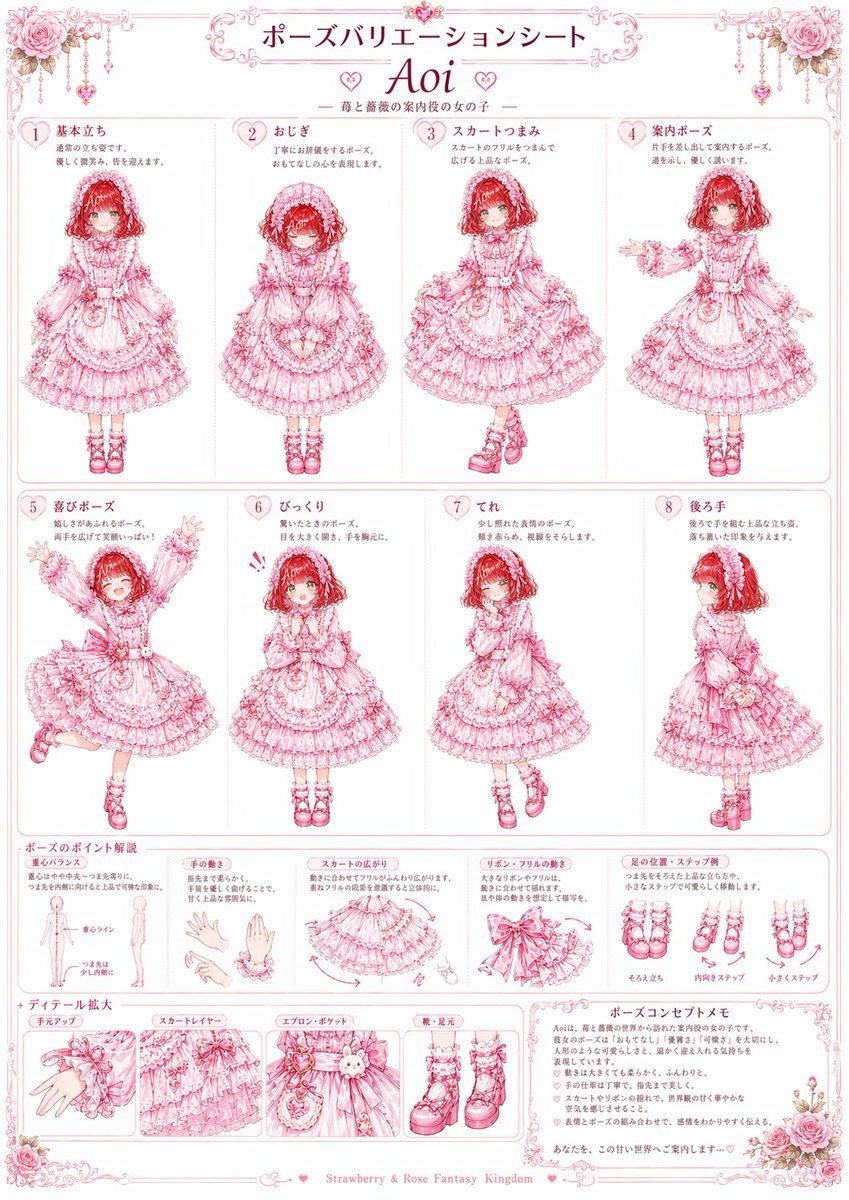
Pink Lolita Pose Variation Sheet
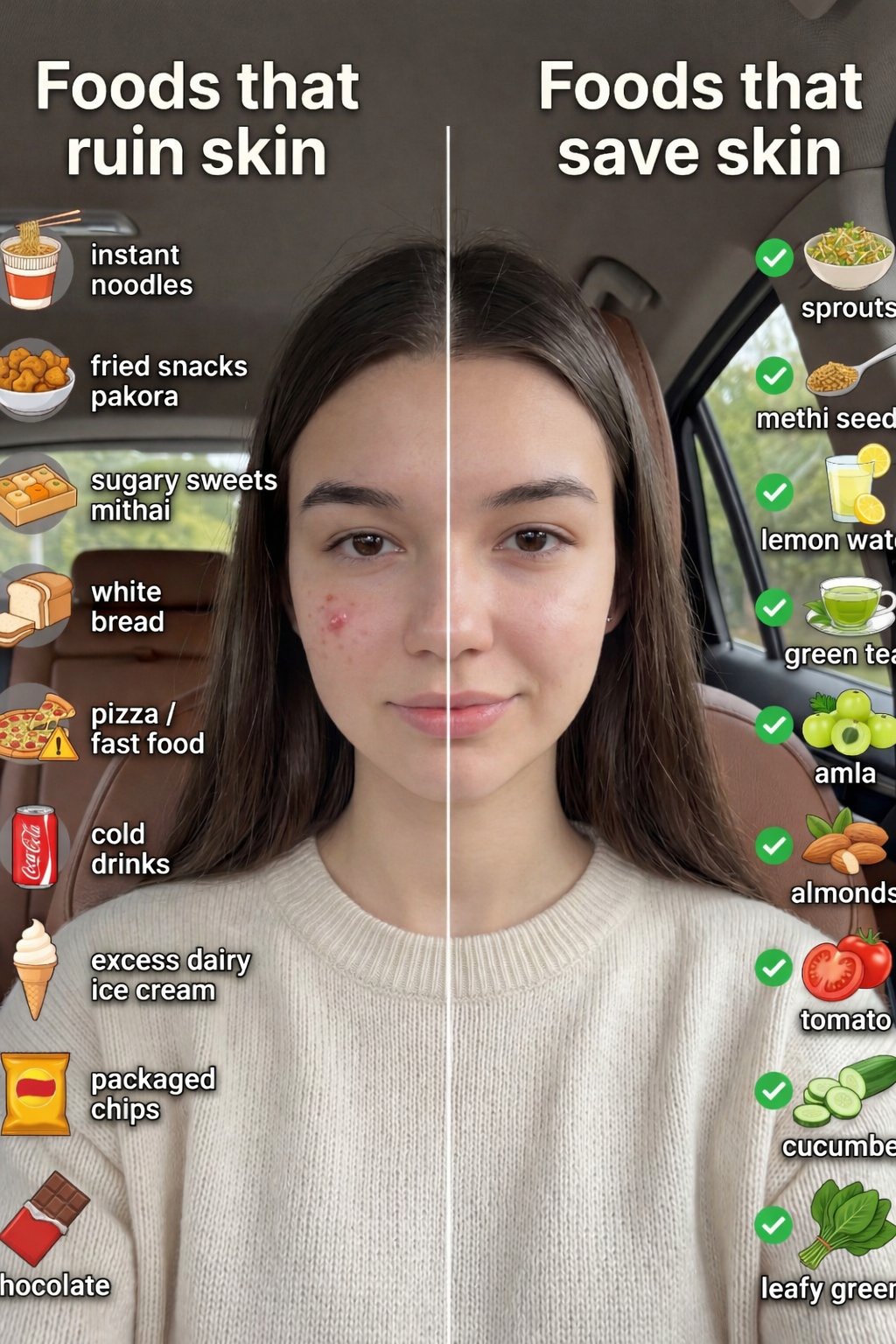
Skin Comparison Portrait — Nano Banana Pro
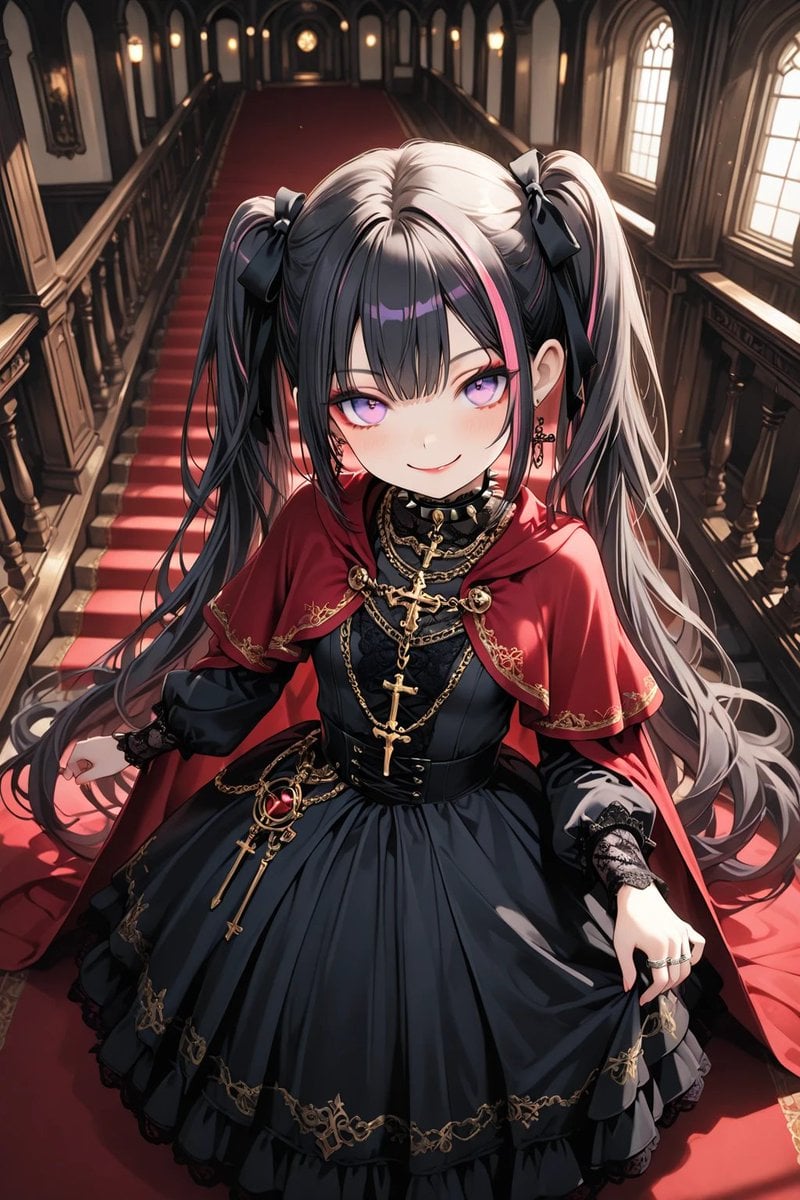
Anime Gothic Lolita Cape Transformation
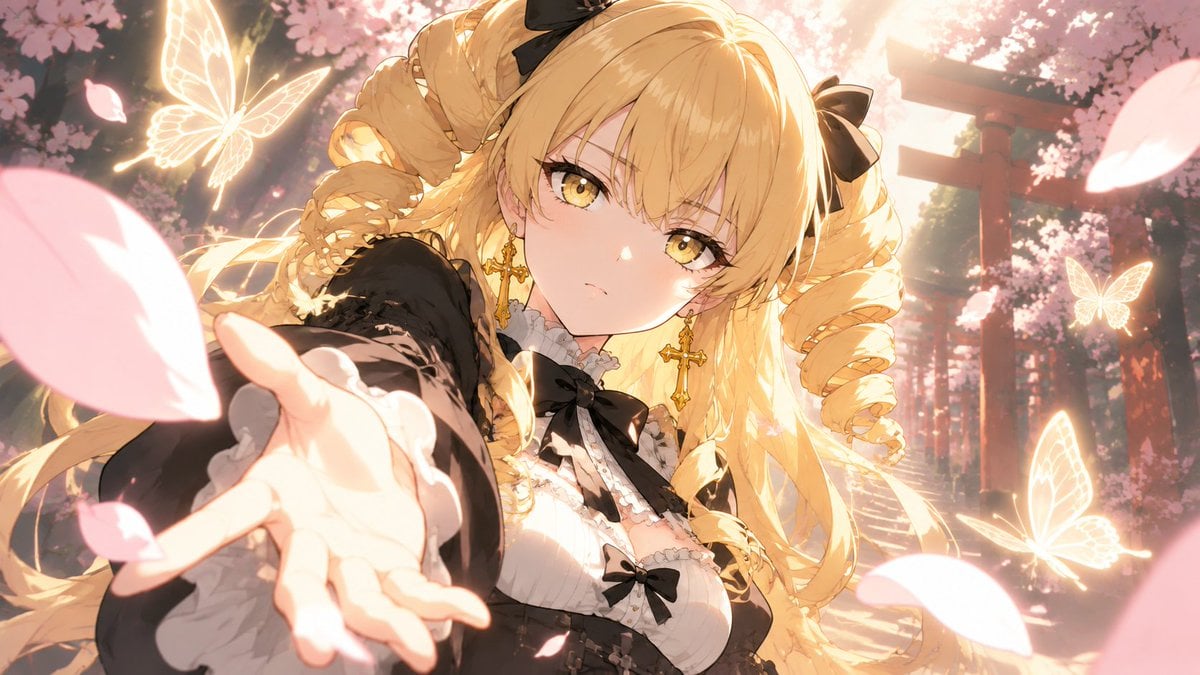
Blonde Gothic Lolita Sakura Shrine
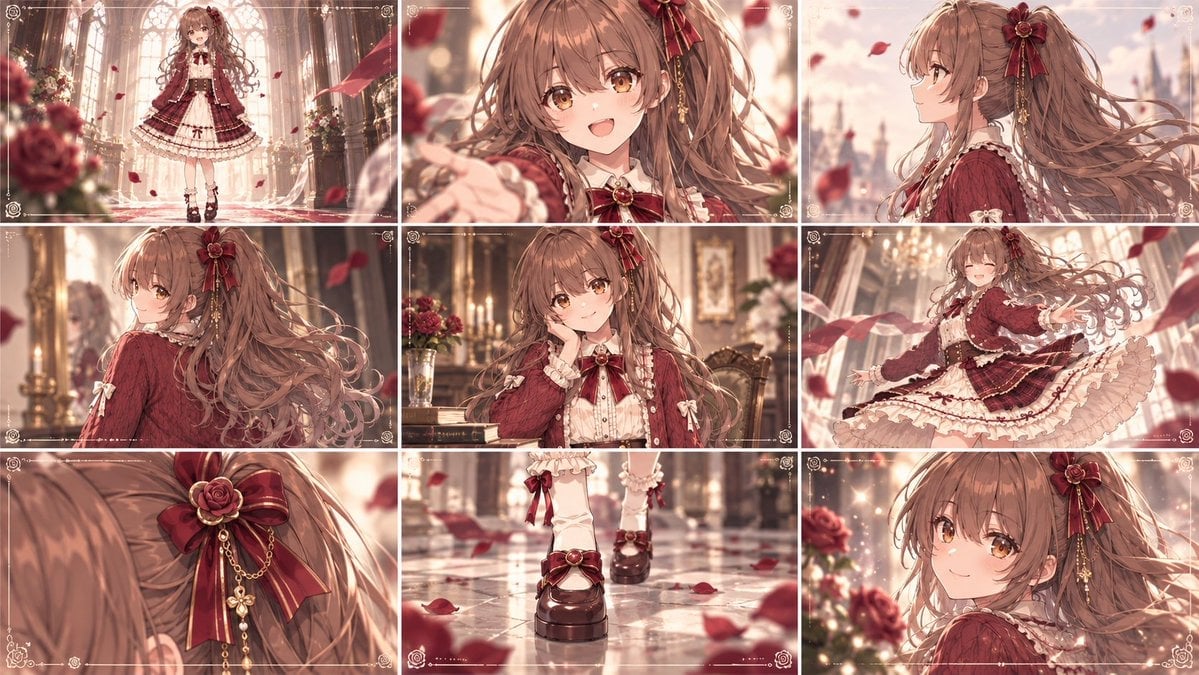
Cinematic Gothic Lolita 3x3 Anime Stills
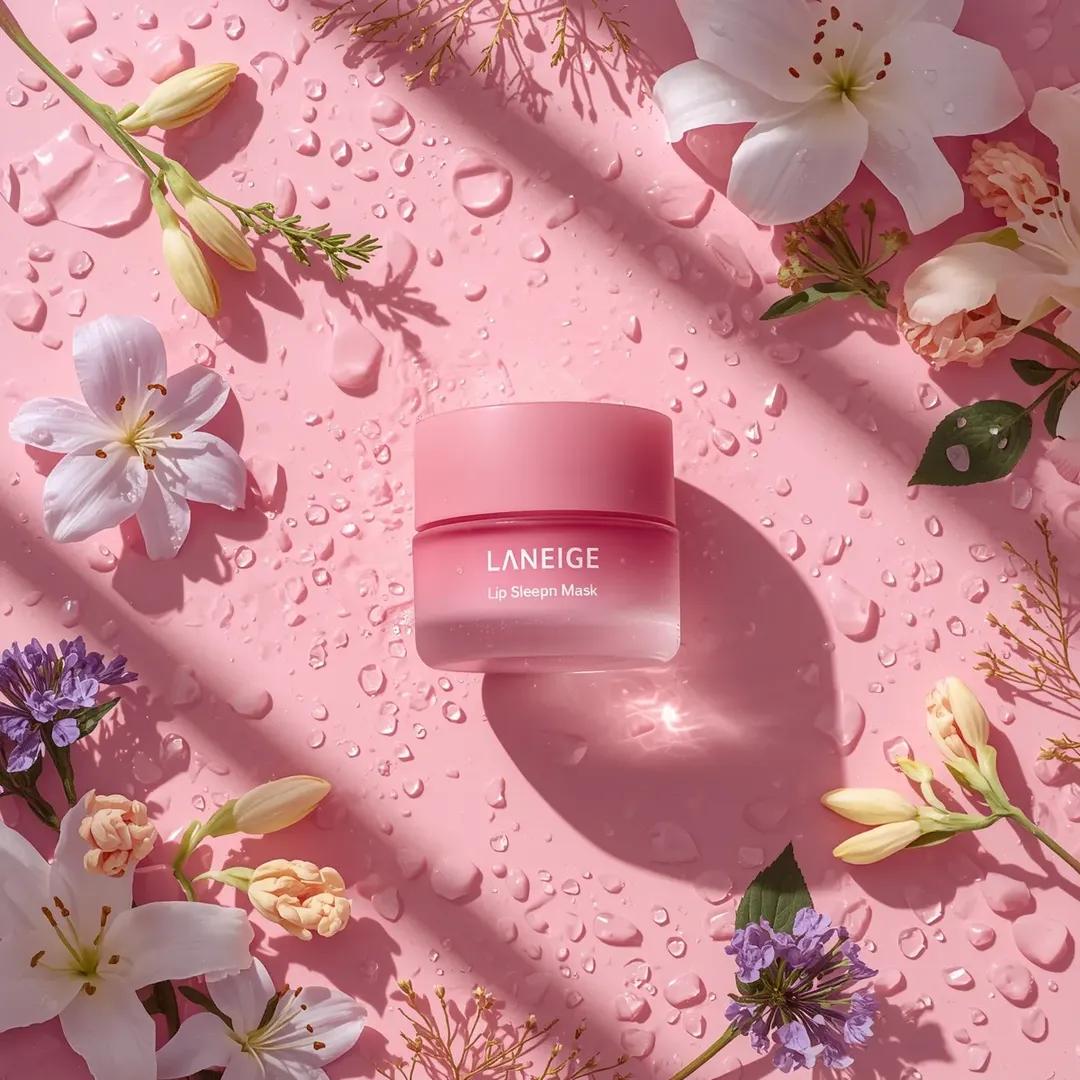
A hyper-realistic beauty product photograph of a pink jar placed
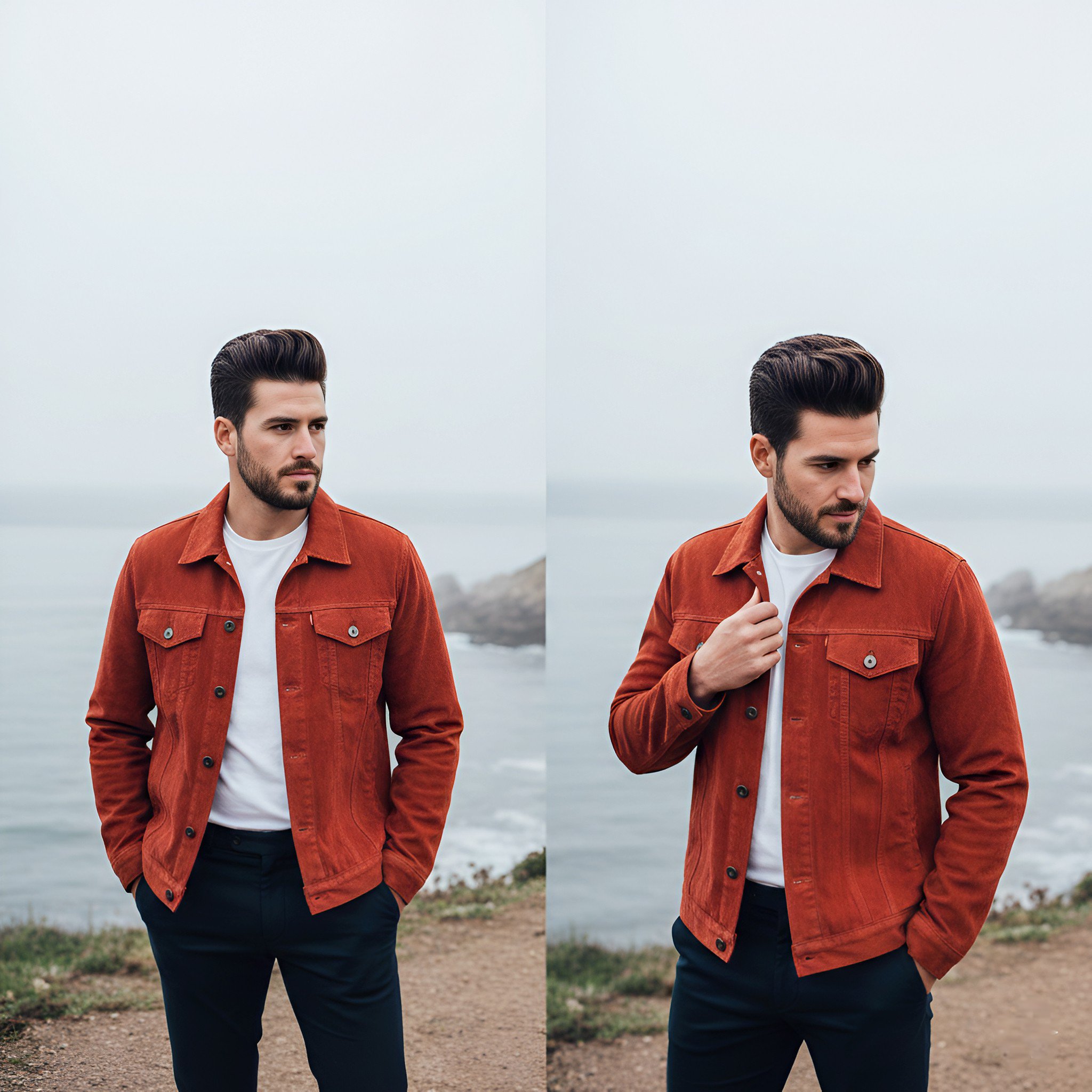
Lifestyle photography, cinematic color grading, shallow depth of field
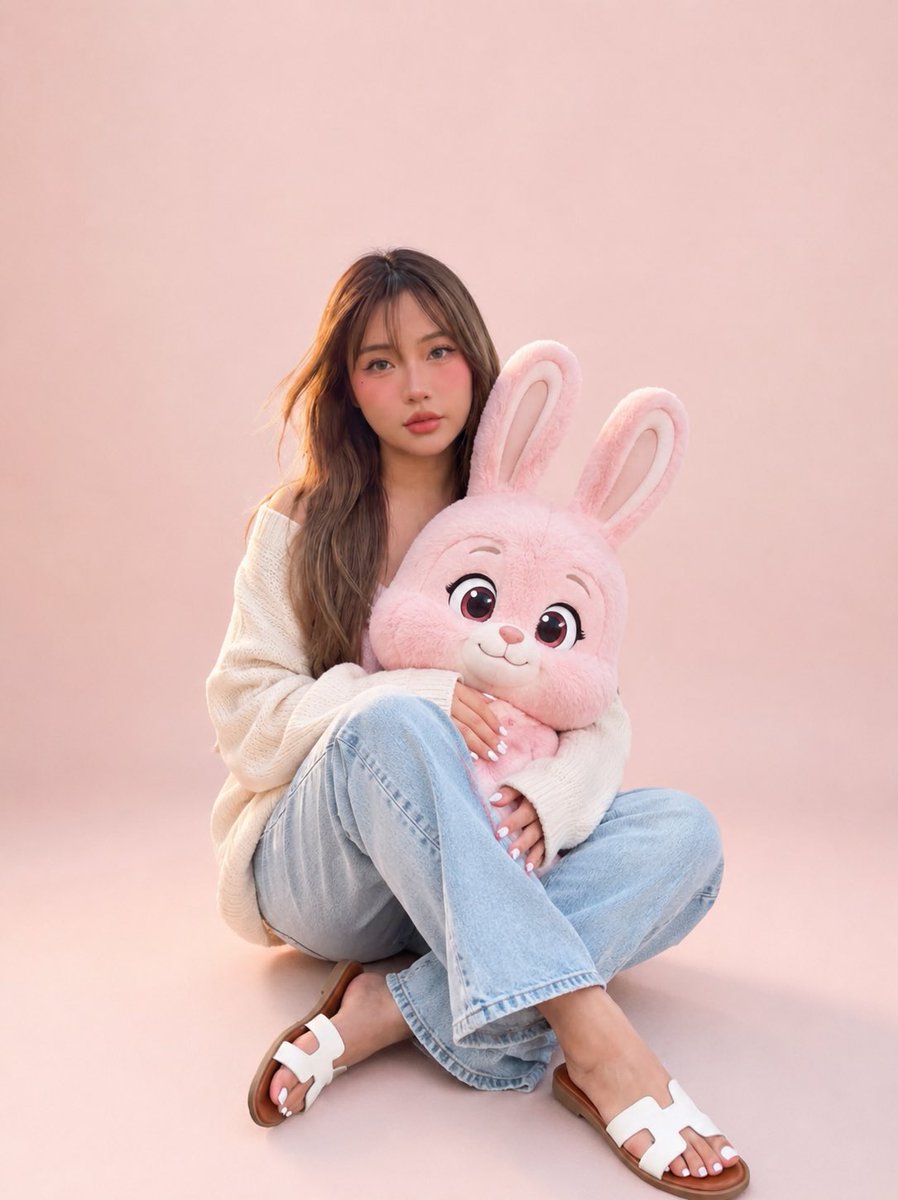
Portrait with Cartoon Pink Rabbit
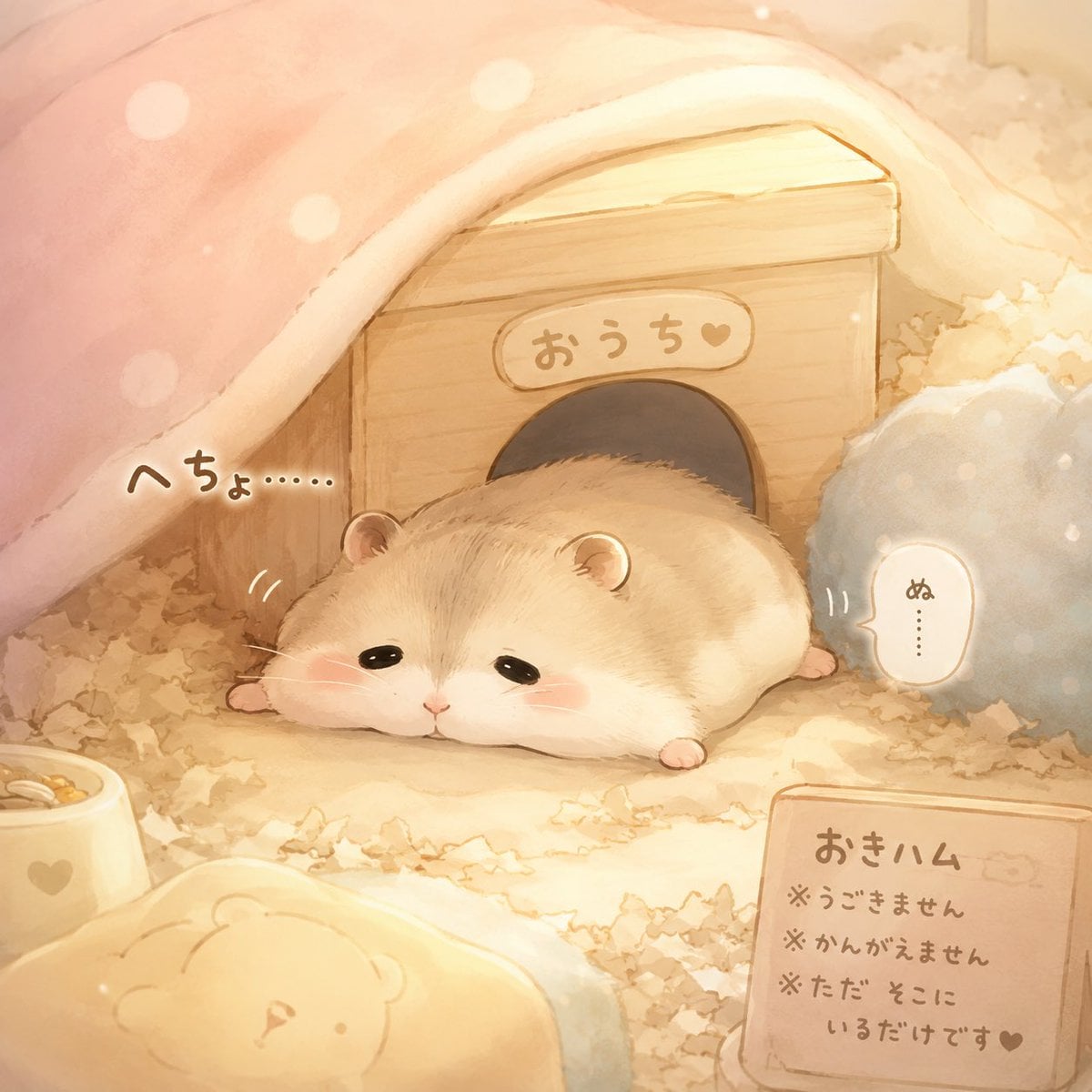
Sleepy Hamster Watercolor Scene
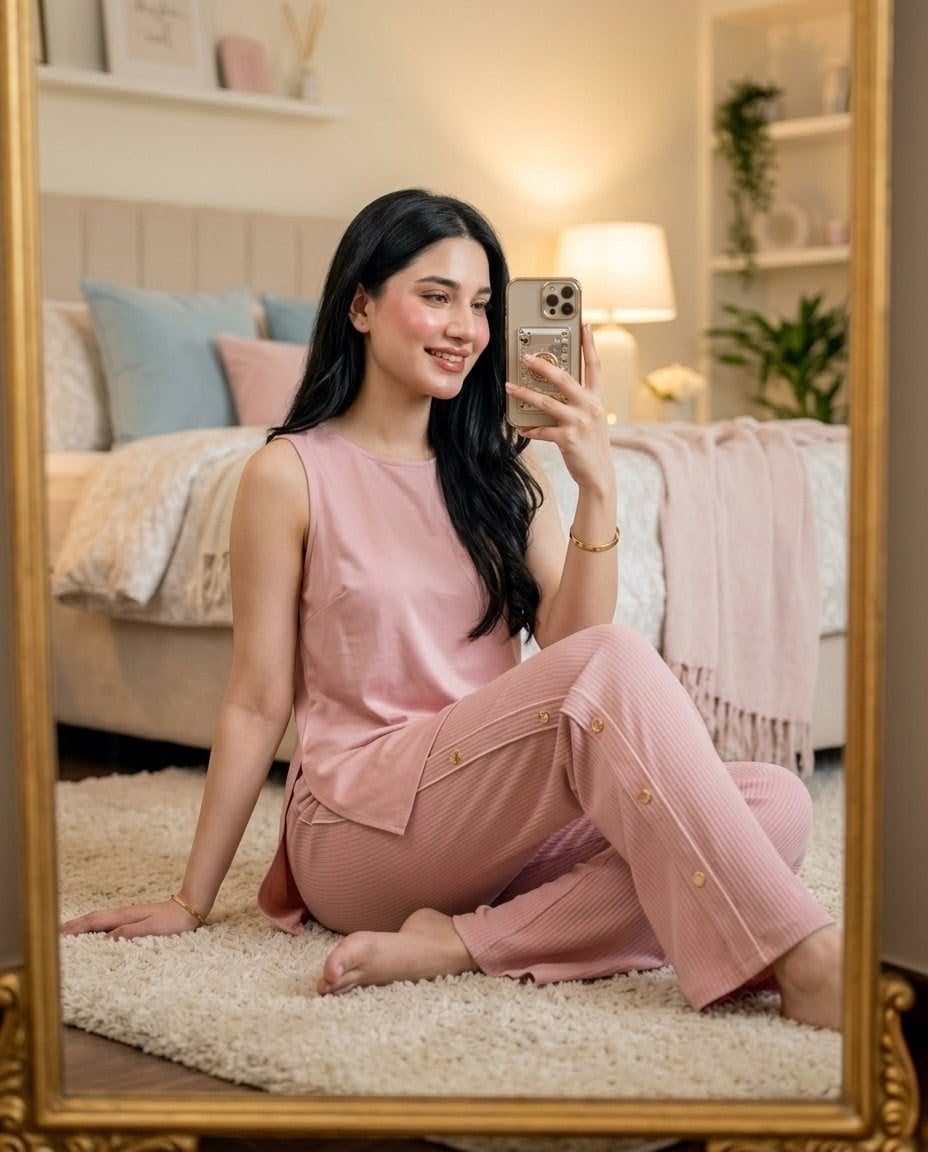
Pink Lounge Set Mirror Selfie
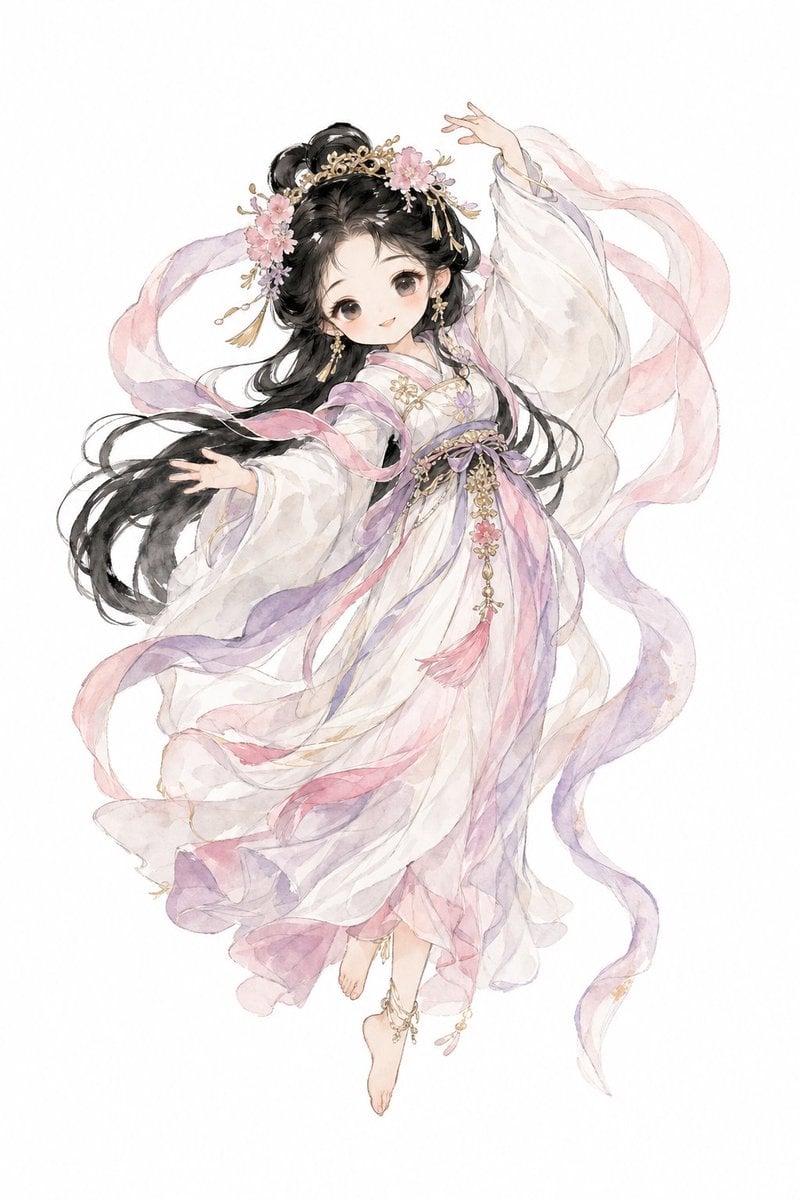
Watercolor Hanfu Celestial Princess
Gothic Lolita Parasol Portrait
Make it yours
Pink Lolita Color Correction Comparison works as-is. These are the safest ways to change it without losing the look.
Change one field
Copy a single group, rewrite it, and generate again so you can see what that field is doing.
Keep the frame, change the subject
Hold the composition and light of Pink Lolita Color Correction Comparison, then swap wardrobe, props or the person for a new take.
| If the result… | Why | Fix |
|---|---|---|
| The result drifts from the preview | Too many fields changed at once. | Reuse Pink Lolita Color Correction Comparison as-is first, then change one group — subject, light, or setting. |
| The model over-stylizes the scene | The prose prompt leaves finish and camera underspecified. | Add one camera or lighting sentence and stay on GPT Image 2. |
More GPT Image 2 templates
Other prompts made for GPT Image 2.

Six VTuber Japanese Logo Sheet

Realistic Portrait of Woman and Deer

The Vista Modular Condo Poster

2.5D Anime Art Board

Isometric Productivity Desk Scene

New York Double Exposure Poster

Japanese Tatami Lifestyle Magazine Cover

NESCAFÉ Coffee Map Poster

Brutalist Cogito Chinese Typography Poster
Cinematic Luxury Terrace Portrait
More image prompts
Fresh picks from across the catalog.
Cozy Indoor Lifestyle Portrait
Long Exposure Motion Blur Photography
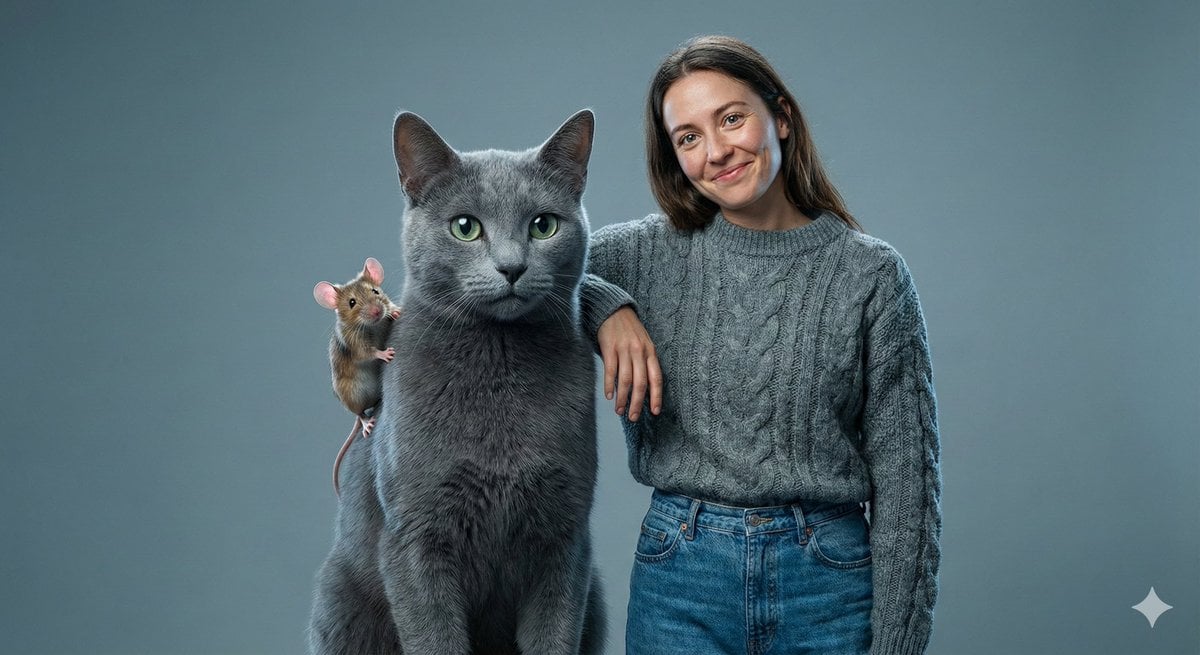
Editorial Studio Photography of Tom & Jerry with Human
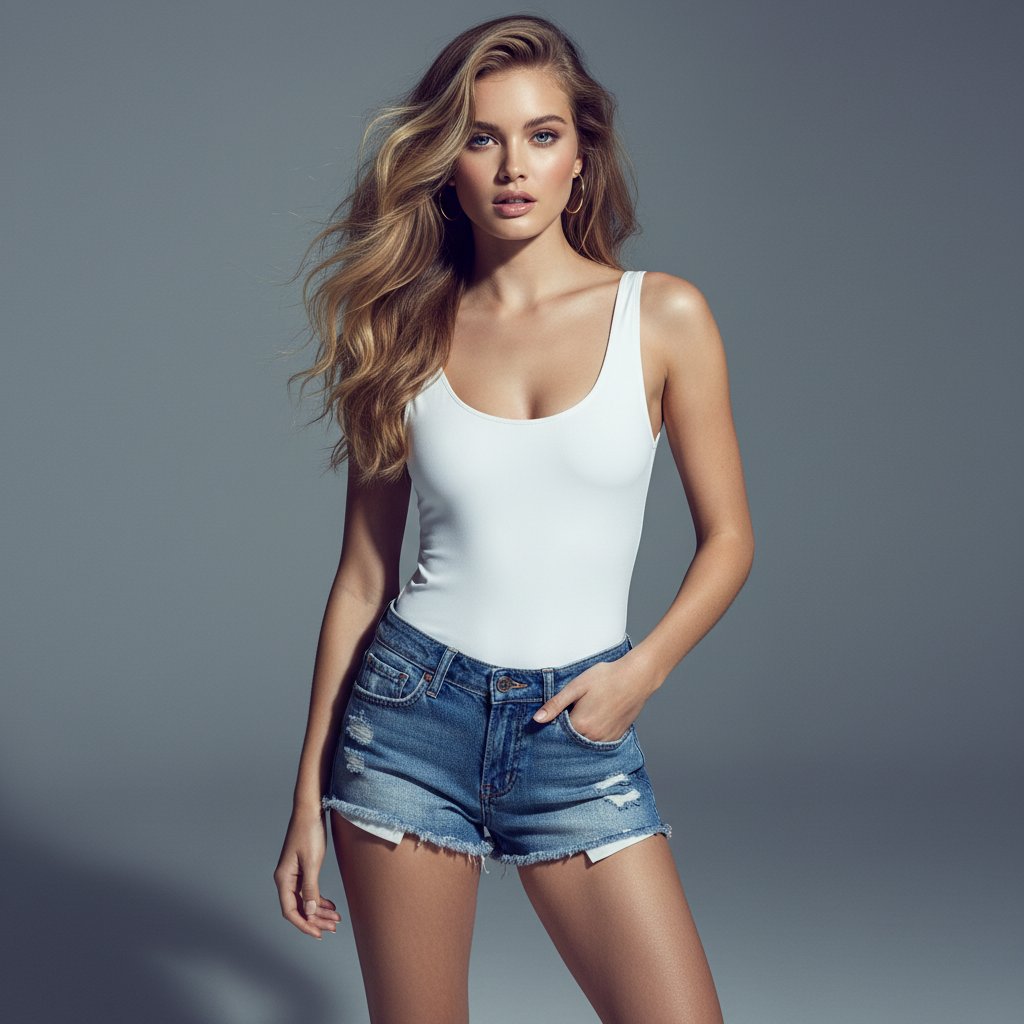
Ultra-realistic Commercial Fashion Editorial
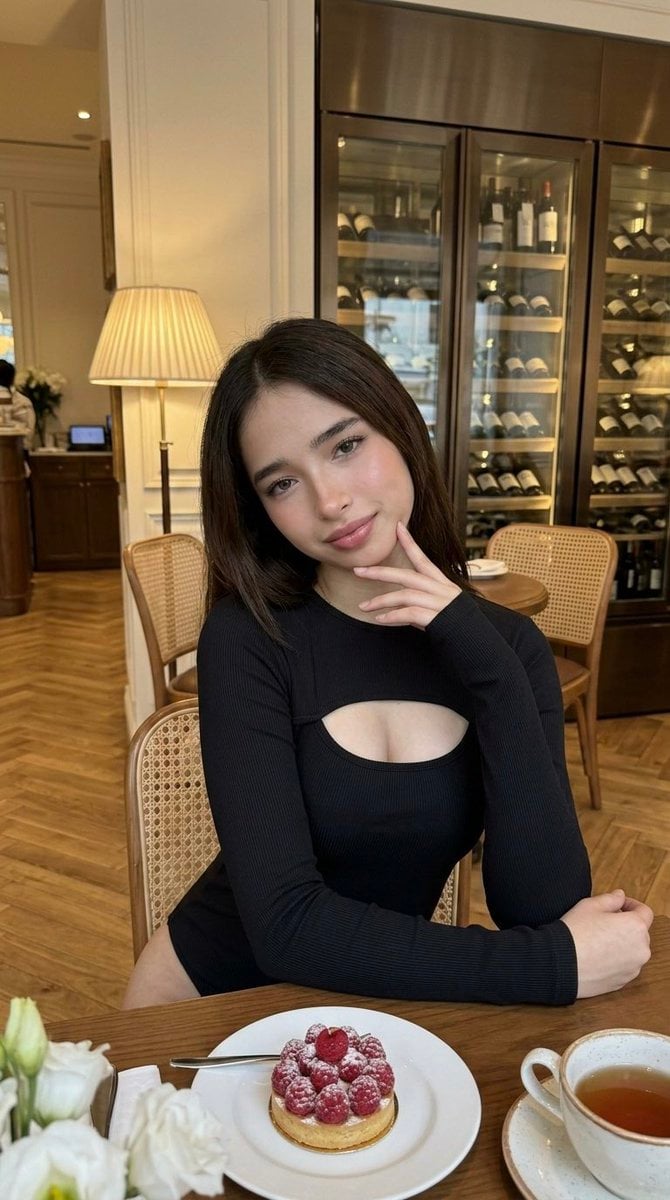
Luxury Cafe Portrait with Bio-Fidelity and Anatomical Emphasis
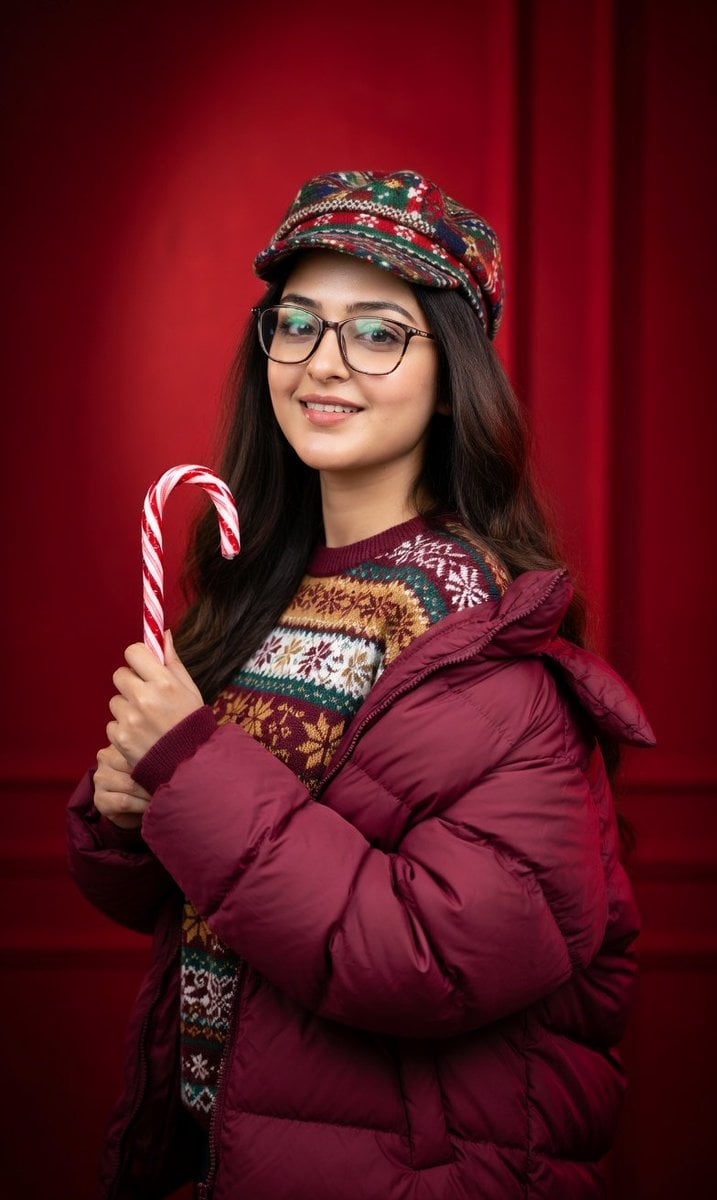
Studio Portrait with Red Gradient Background Prompt for Nano Banana Pro
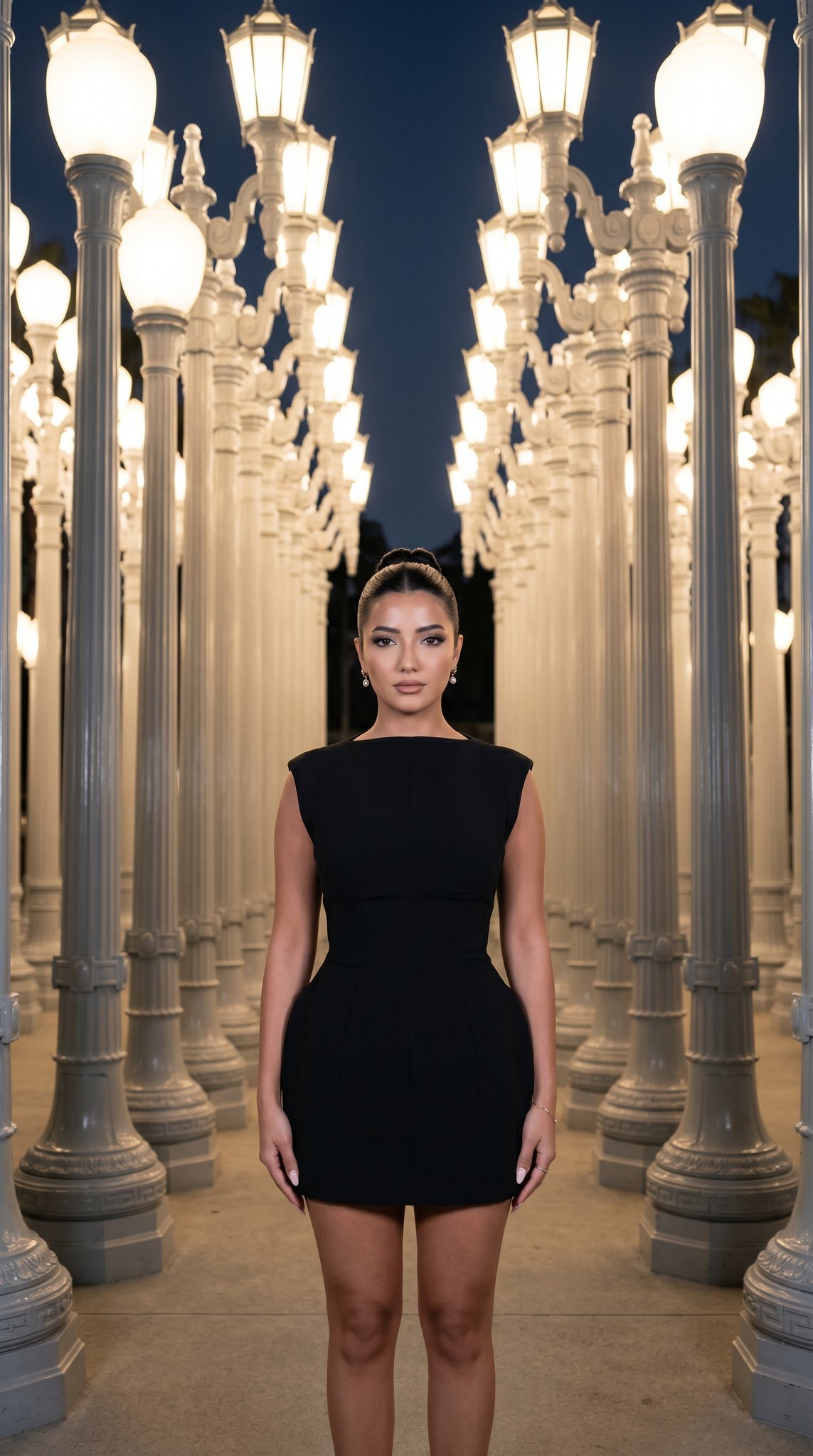
07 LACMA Urban Light — California Series
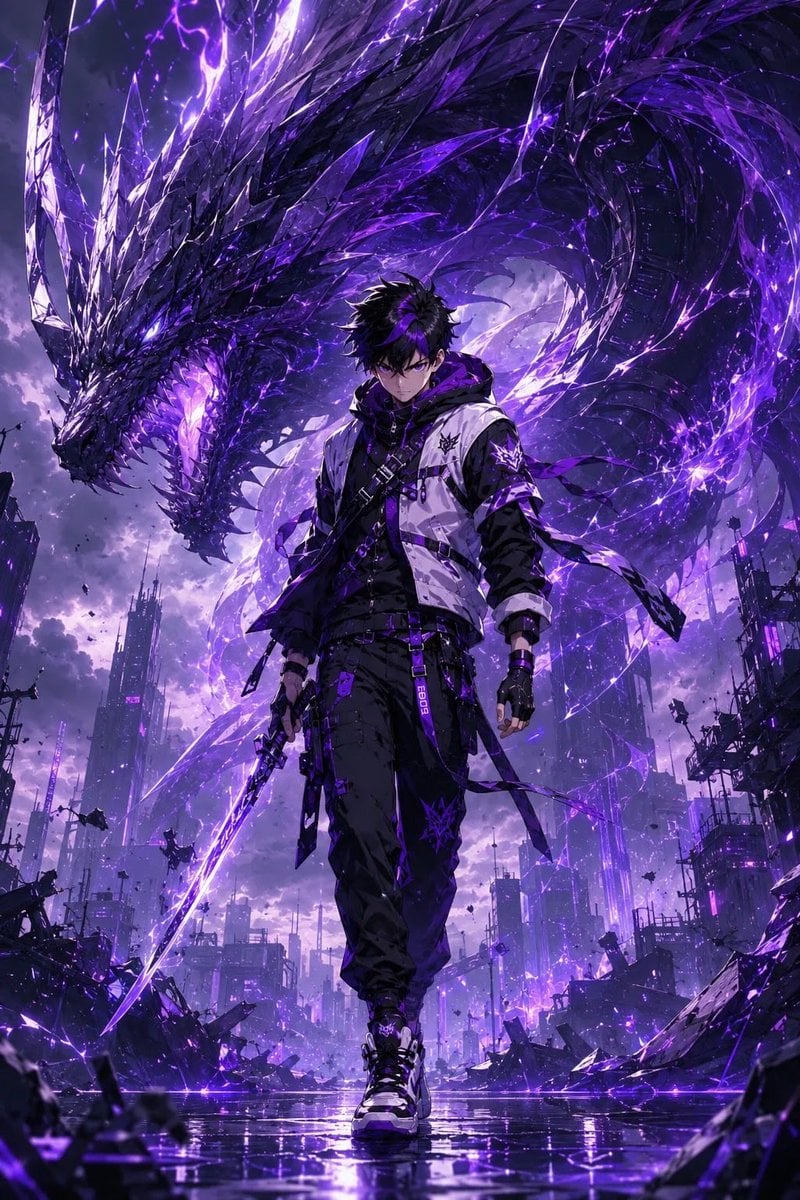
Epic Anime Worldview with Guardian Beast
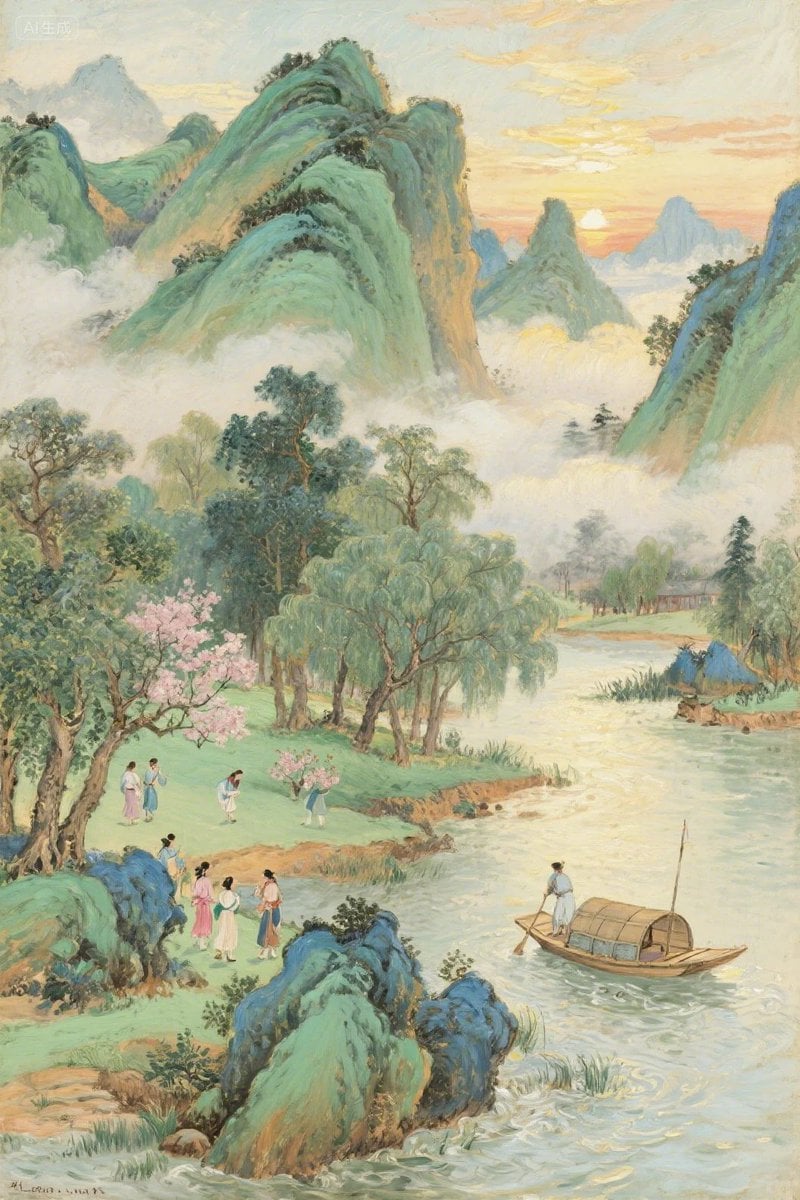
Misty Chinese Spring Riverscape
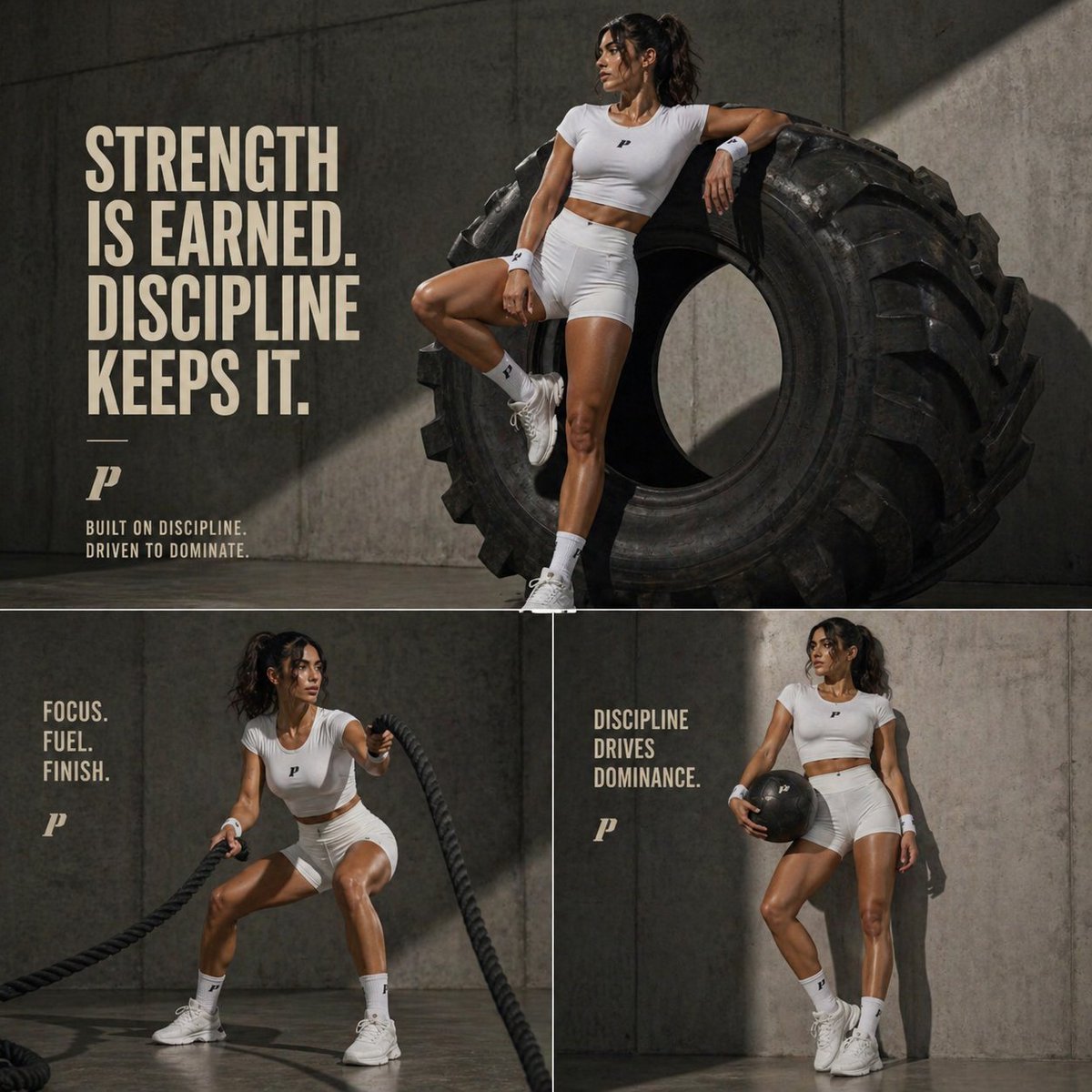
Luxury Fitness Editorial Layout
Browse template categories
Pink Lolita Color Correction Comparison questions
How do I use the Pink Lolita Color Correction Comparison template?
Add your photo if the template asks for one, edit the prompt if you like — the template's model and format are already selected — and press Generate. Your version opens in PicX Studio.
Can I customize the Pink Lolita Color Correction Comparison template?
Yes. You can change the subject, setting, lighting, mood, format, and available model controls before creating your image.
Is the Pink Lolita Color Correction Comparison template free?
Opening and editing this template is free. Generating uses credits, shown on the Generate button when you are signed in.
Which AI model should I use?
Start with GPT Image 2, which is the model associated with this template. You can compare another compatible model for a different finish.
Looking for something else? Browse all templates.

Your photo, any look
Thousands of ready templates for every top image and video model, from one credit balance.