
Kawaii Brick Moon Chibi Diorama
A detailed prompt for generating a toy-brick celestial diorama with a smiling chibi girl seated on a crescent moon.
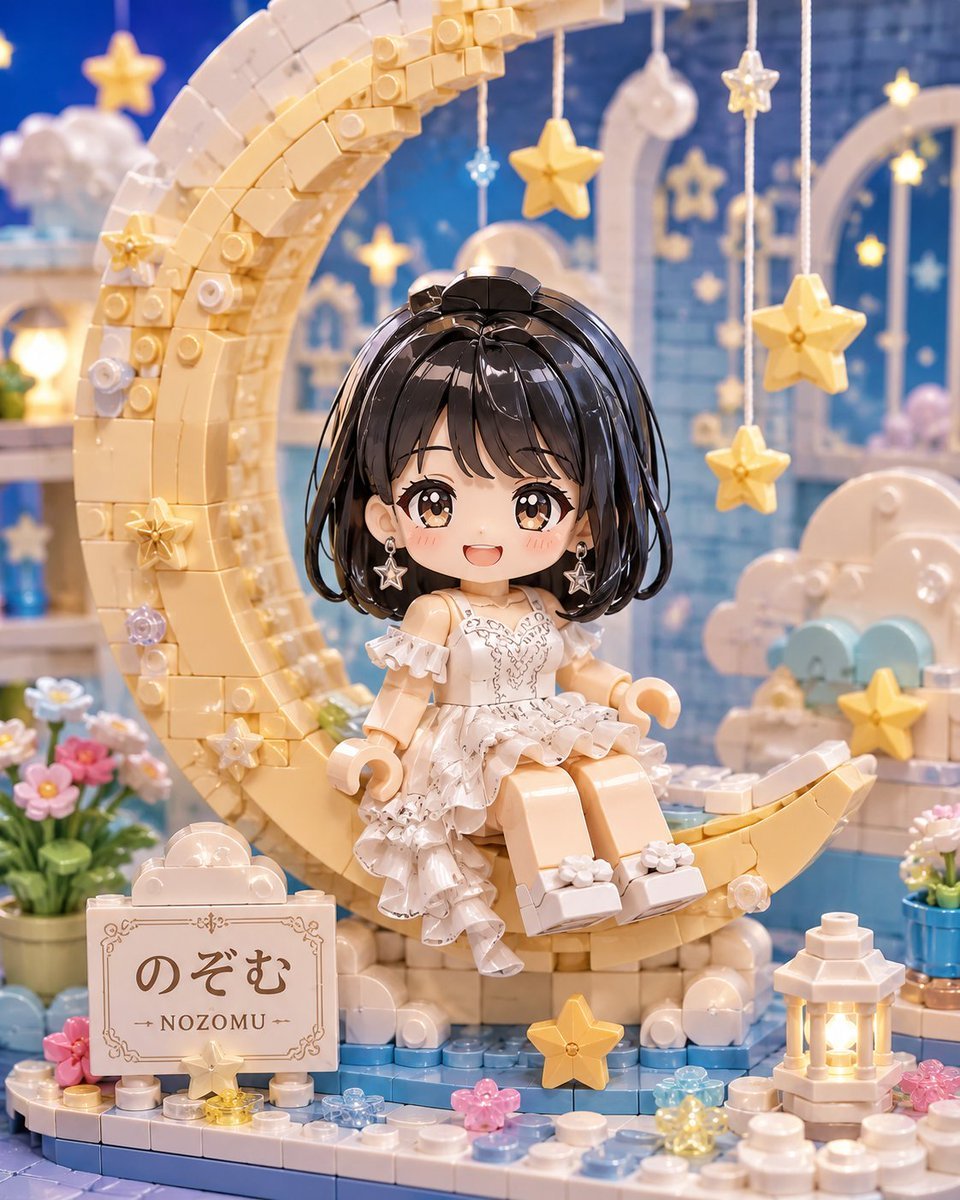
- Prompt included
- Model and format preset
- Free template
The prompt behind this image
Copy the exact prompt behind Kawaii Brick Moon Chibi Diorama, or open it in the studio and make it yours.
Create a whimsical toy-brick diorama in a cute Japanese kawaii style: a single chibi girl named {argument name="character name" default="Nozomu"} sits smiling on the lower tip of a large cream-and-gold crescent moon made entirely from interlocking plastic building blocks. She has glossy {argument name="hair color" default="black"} short bob hair with soft bangs, large sparkling brown eyes, rosy cheeks, a small open smile, silver star dangling earrings, and a delicate white frilly dress with lace-like ruffles, off-shoulder sleeves, layered skirt details, and white shoes decorated with tiny flowers. The scene is a dreamy night-sky nursery garden built from toy bricks: use exactly 1 large crescent moon arch behind her, 1 chibi doll character, 1 cream plaque sign in the front left reading {argument name="sign text" default="のぞむ"} with smaller roman letters {argument name="romanized sign text" default="NOZOMU"}, 1 glowing white lantern at the front right, 2 potted flower clusters on the left and right edges, and 7 visible hanging star ornaments suspended from strings in the background. Add translucent pastel flower studs, pearl-like bubbles, small clouds, tiny star accents, shelves, arches, and a blue tiled brick floor. The background should be softly blurred in deep blue and pastel tones with warm fairy-light bokeh, giving a magical celestial bedtime atmosphere. Render as a highly detailed macro product photograph of a collectible block-built scene, glossy plastic texture, soft studio lighting, shallow depth of field, crisp focus on the girl and crescent moon, square composition, no watermark, no extra text beyond the plaque.
How to use Kawaii Brick Moon Chibi Diorama in 3 steps
- 1Upload ImagePNG, JPG or paste
Add your photo
Upload the photo the template builds on. The prompt, model and format are already set.
- 2…a portrait of your subject in softgolden-hour light, 85mm…
Personalize
Edit the subject and creative details for your destination.
- 3Generate
Generate
Press Generate — your image is created in PicX Studio, so you can compare it with the original and refine one variable at a time.
More like this
Templates with the same subject, style or setup. Open one to see its prompt.
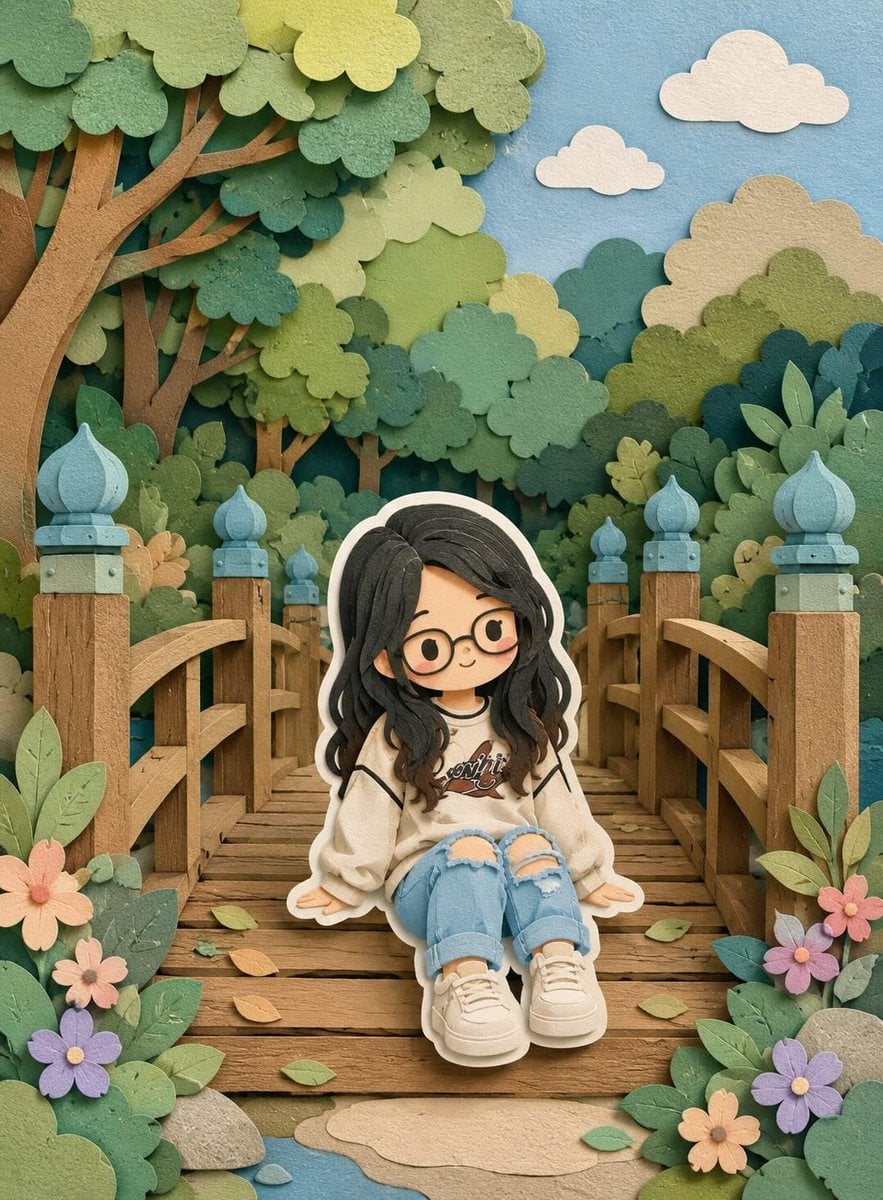
Cute Layered Paper Cut Chibi Girl
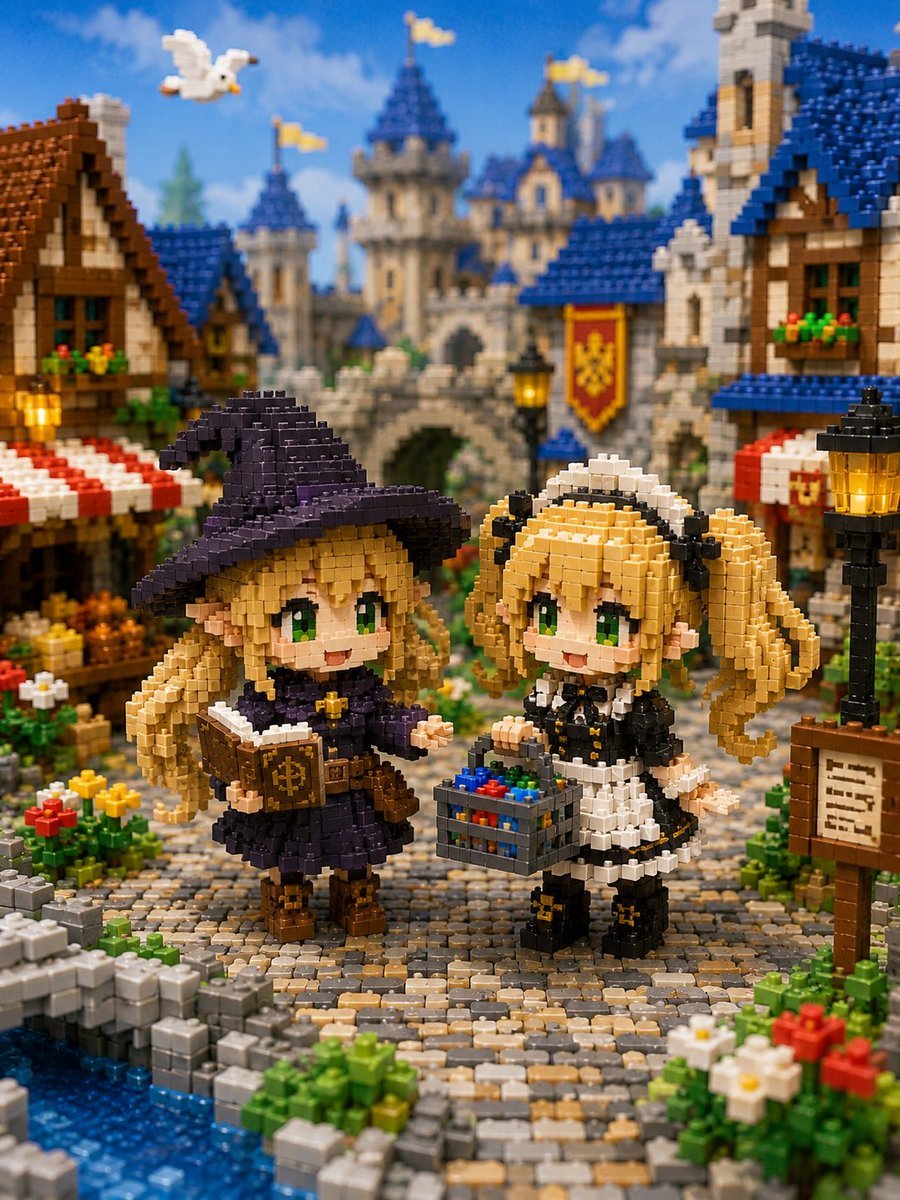
Miniature Brick Fantasy Town Diorama
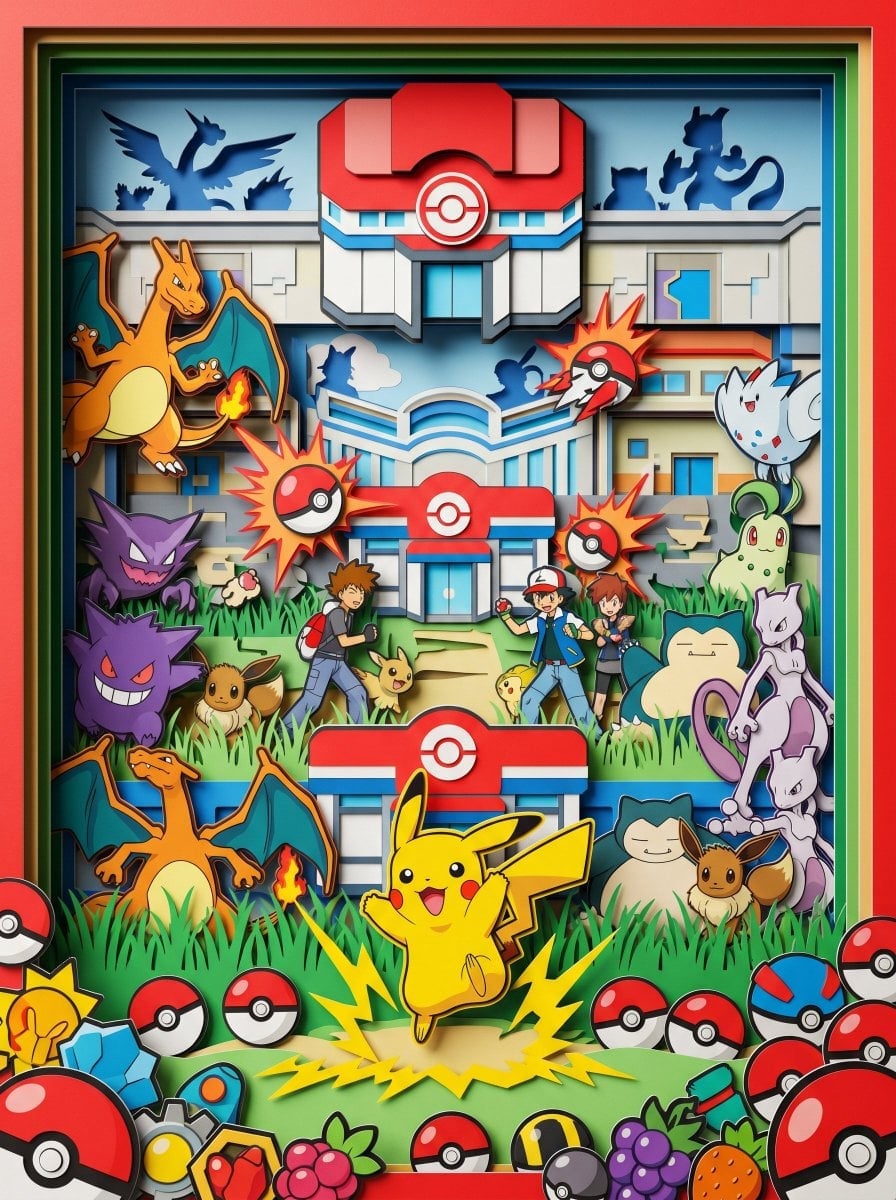
Layered Paper Cut Forest Diorama
Soft Handcrafted Paper-Cut Layered Illustration
Chibi Mirror Selfie with Kawaii Doodles

Kawaii Chibi Sticker Sheet

Pixar-Style Chibi Café Morning Scene

Isometric Process Educational Diorama
Isometric Brand Store Diorama

FIFA World Cup — Brazil National Pass Diorama
Chibi Dinosaur Museum Diorama
Kawaii Scrapbook and Paper-cut Diorama
Make it yours
Kawaii Brick Moon Chibi Diorama works as-is. These are the safest ways to change it without losing the look.
Change one field
Copy a single group, rewrite it, and generate again so you can see what that field is doing.
Keep the frame, change the subject
Hold the composition and light of Kawaii Brick Moon Chibi Diorama, then swap wardrobe, props or the person for a new take.
| If the result… | Why | Fix |
|---|---|---|
| The result drifts from the preview | Too many fields changed at once. | Reuse Kawaii Brick Moon Chibi Diorama as-is first, then change one group — subject, light, or setting. |
| The model over-stylizes the scene | The prose prompt leaves finish and camera underspecified. | Add one camera or lighting sentence and stay on GPT Image 2. |
More GPT Image 2 templates
Other prompts made for GPT Image 2.

Six VTuber Japanese Logo Sheet

Realistic Portrait of Woman and Deer

The Vista Modular Condo Poster

AI Model Routing Comparison Infographic

2.5D Anime Art Board

Isometric Productivity Desk Scene

New York Double Exposure Poster

Four-Panel AI Landscape Comparison

Japanese Tatami Lifestyle Magazine Cover

NESCAFÉ Coffee Map Poster
More image prompts
Fresh picks from across the catalog.
Candid Sports Arena Portrait
Brutalist Poster Generation Prompt
Photo Cinematic Storytelling Collage: Home to Gym Journey
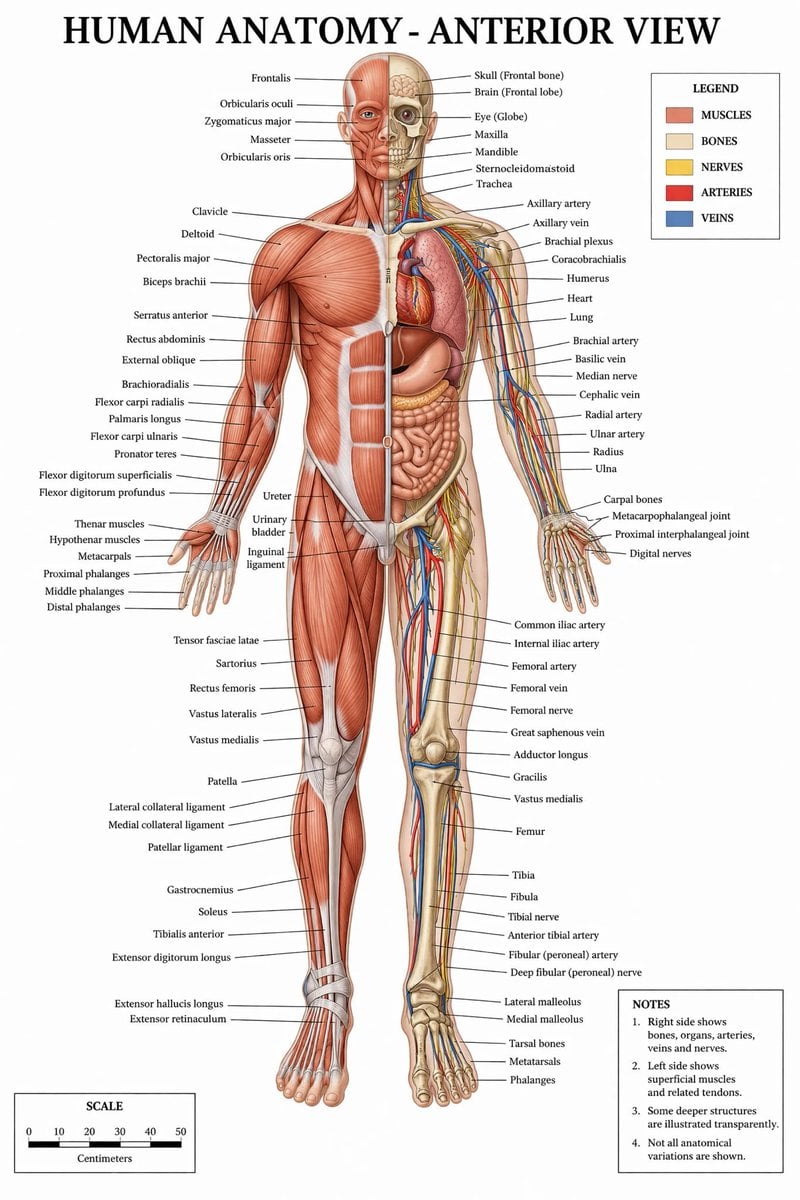
Detailed Medical Anatomy Infographic
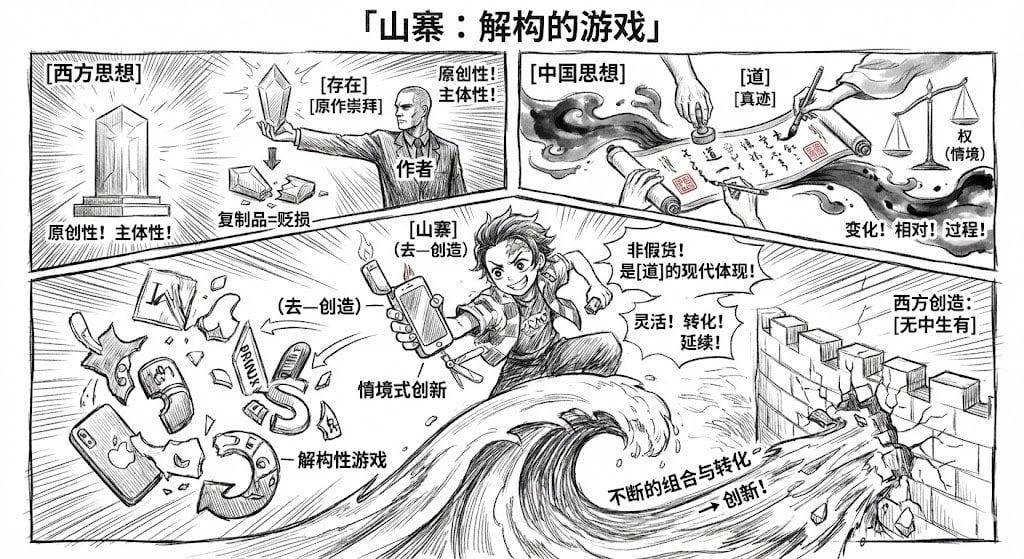
Manga-style Chinese comic storyboard generator
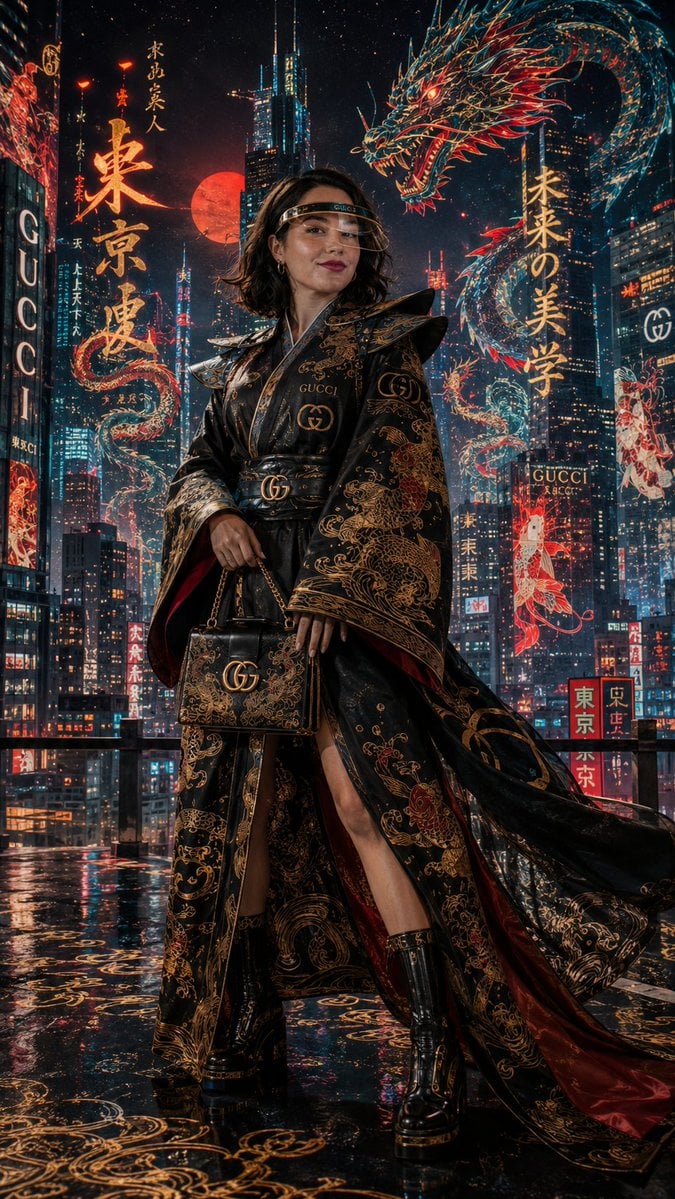
Cyber-Kimono Couture in Tokyo

Cinematic Nightclub Portrait with Neon Lights Prompt
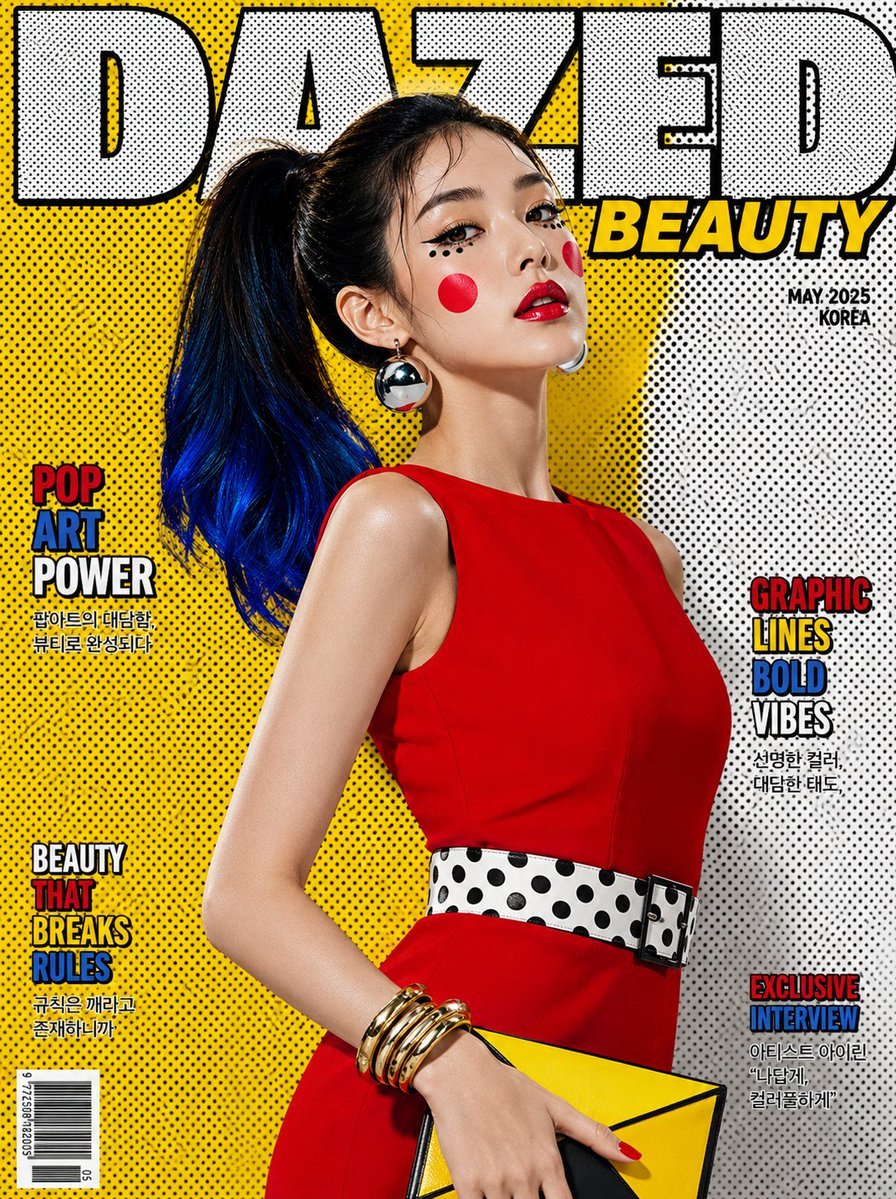
Luxury Pop-Art Beauty Magazine Cover

B&W Chiaroscuro Portrait
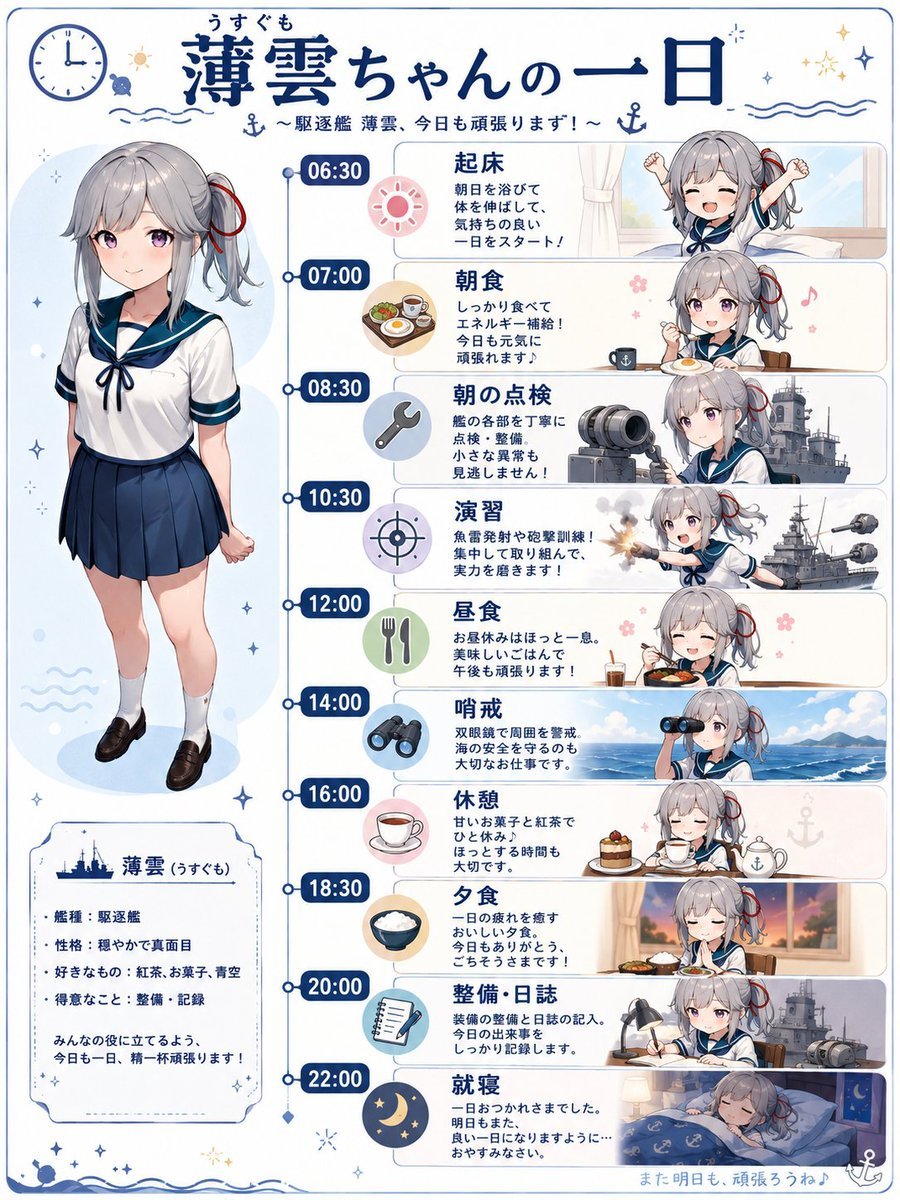
Ship Girl Daily Schedule Poster
Browse template categories
Kawaii Brick Moon Chibi Diorama questions
How do I use the Kawaii Brick Moon Chibi Diorama template?
Add your photo if the template asks for one, edit the prompt if you like — the template's model and format are already selected — and press Generate. Your version opens in PicX Studio.
Can I customize the Kawaii Brick Moon Chibi Diorama template?
Yes. You can change the subject, setting, lighting, mood, format, and available model controls before creating your image.
Is the Kawaii Brick Moon Chibi Diorama template free?
Opening and editing this template is free. Generating uses credits, shown on the Generate button when you are signed in.
Which AI model should I use?
Start with GPT Image 2, which is the model associated with this template. You can compare another compatible model for a different finish.
Looking for something else? Browse all templates.

Your photo, any look
Thousands of ready templates for every top image and video model, from one credit balance.