How do I use the Blue Paisley Anime Gun Portrait template?
Choose the primary action to open PicX Studio with the available template settings. Review the model and format, personalize the creative direction, and generate when ready.
A cinematic dark anime close-up of an elegant girl with glowing blue paisley eyes aiming an ornate blue-patterned handgun at the viewer.
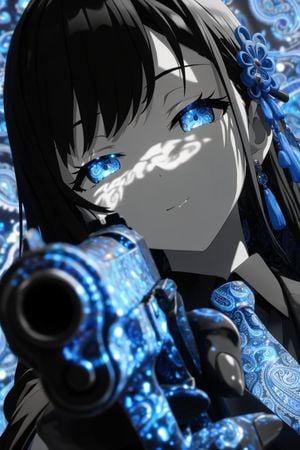
Create a dramatic vertical anime close-up portrait of {argument name="character name" default="an elegant young woman"} in a high-contrast monochrome-and-electric-blue palette. She has long glossy {argument name="hair color" default="black"} hair with heavy bangs, pale gray skin rendered almost like black-and-white ink, calm half-lidded expression, and luminous {argument name="eye style" default="bright blue paisley-pattern irises"} that glow with intricate swirling ornamental detail. Her face fills the upper center of the frame at a tilted angle, with sharp eyelashes, a faint subtle smile, and white lace-like shadow patterns cast across her eyes and cheek. Add ornate blue floral hair ornaments on the right side of her head, dangling beads and tassels, plus a matching blue paisley necktie or scarf. In the extreme foreground, place a large handgun pointed directly toward the viewer, barrel dominating the lower left foreground with strong depth-of-field blur; the weapon surface is covered in glowing electric-blue paisley filigree and sparkling reflections. Use a richly patterned background of blue circular paisley motifs and bokeh lights, soft but detailed. Style should be premium dark anime illustration, cinematic lighting, glossy highlights, shallow depth of field, intense perspective, intricate decorative texture, selective color with only vivid cyan and royal blue accents against grayscale, no text, no watermark.
Choose the primary action to open PicX Studio with the available template settings. Review the model and format, personalize the creative direction, and generate when ready.
Yes. You can change the subject, setting, lighting, mood, format, and available model controls before creating your image.
This template is free to open and customize. Generation usage is shown in PicX Studio before you create.
Start with GPT Image 2, which is the model associated with this template. You can compare another compatible model for a different finish.
Follow a topic to a crawlable collection of related PicX Studio templates.