How do I use the Identity Preserving 3D Character Style Transfer template?
Edit the prompt in the box under the preview — the template's model and format are already selected — and press Generate. Your version appears right on this page.
Curated from MeiGen gallery (ID: 2020837883549298730) by TechieSA.

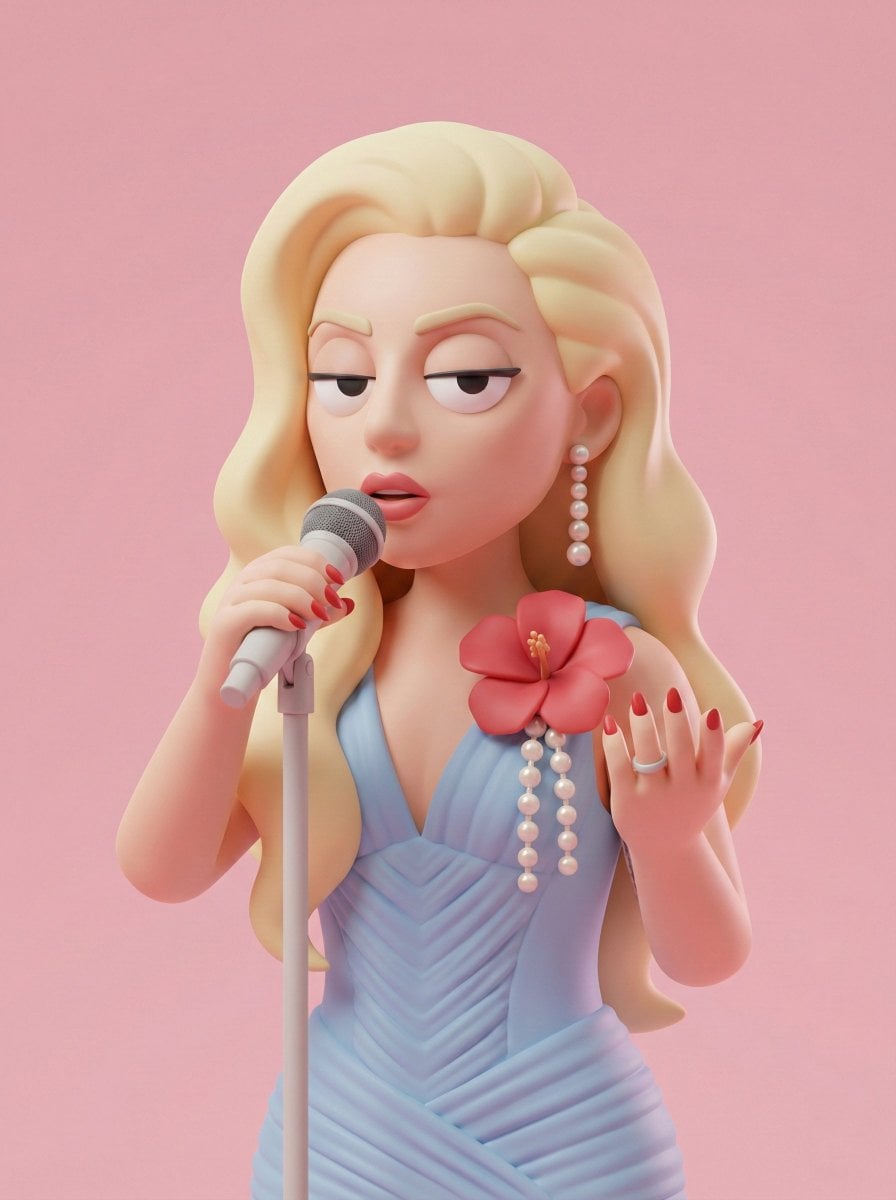
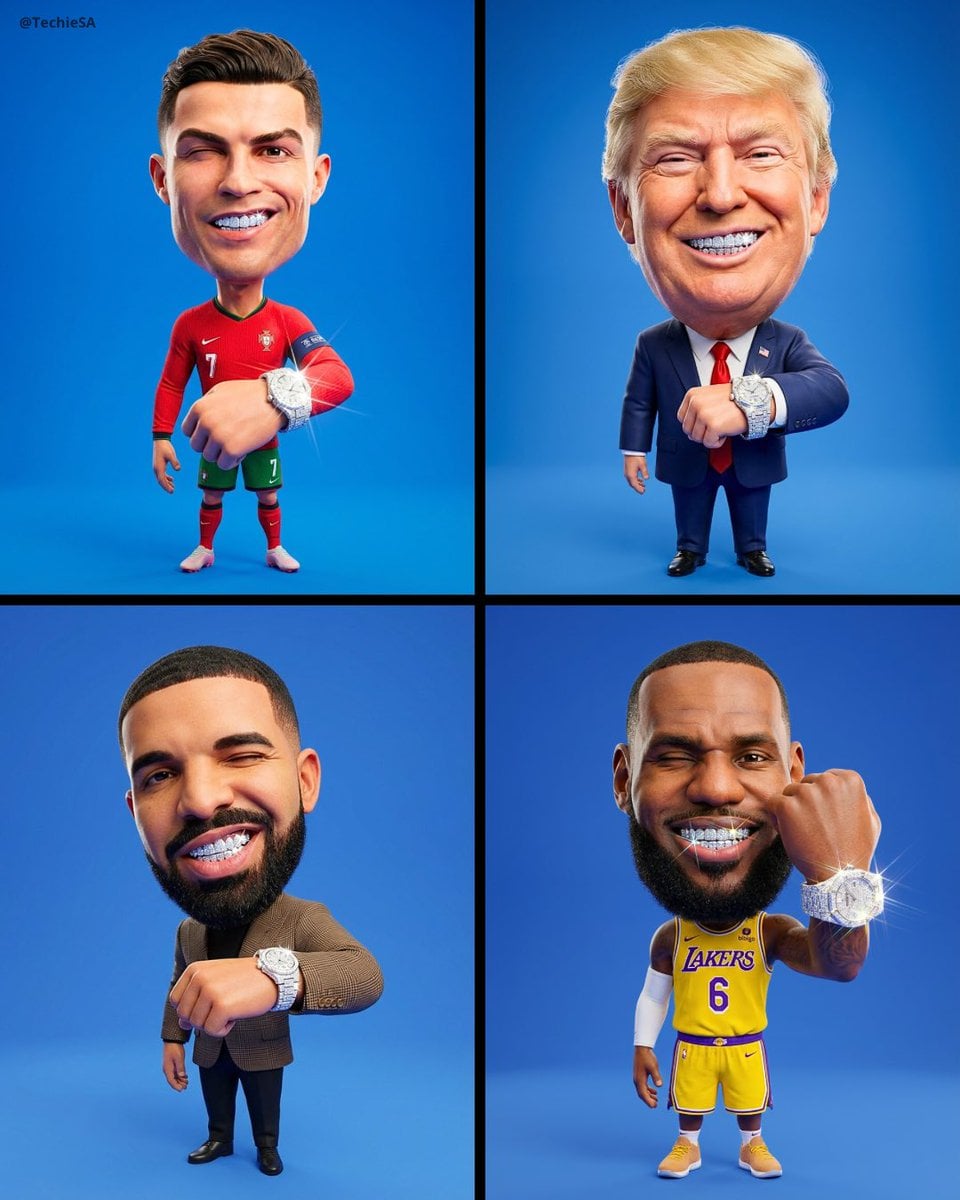
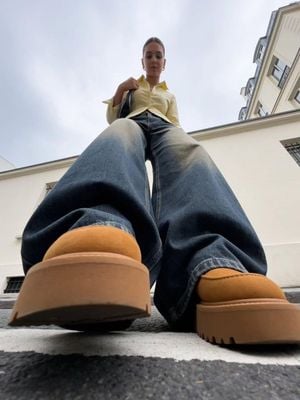
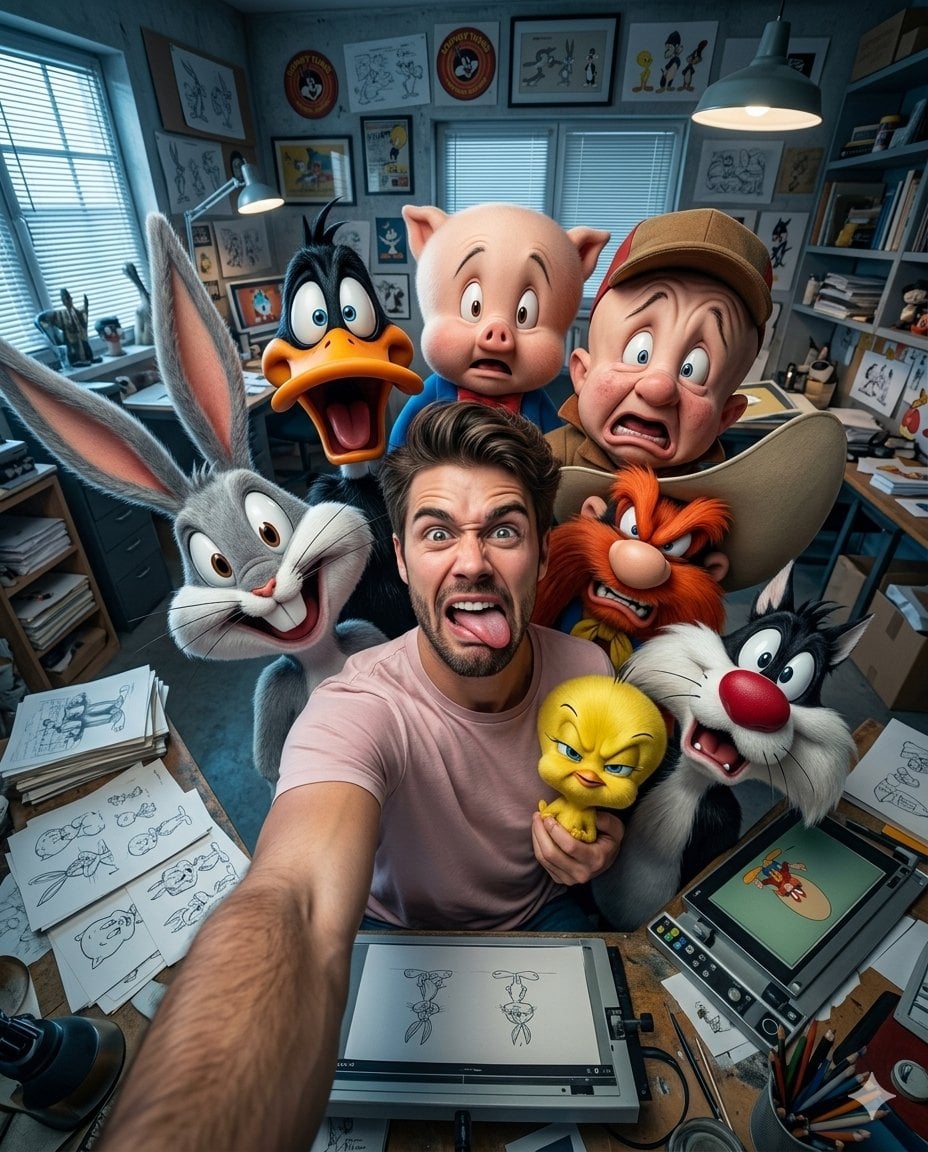
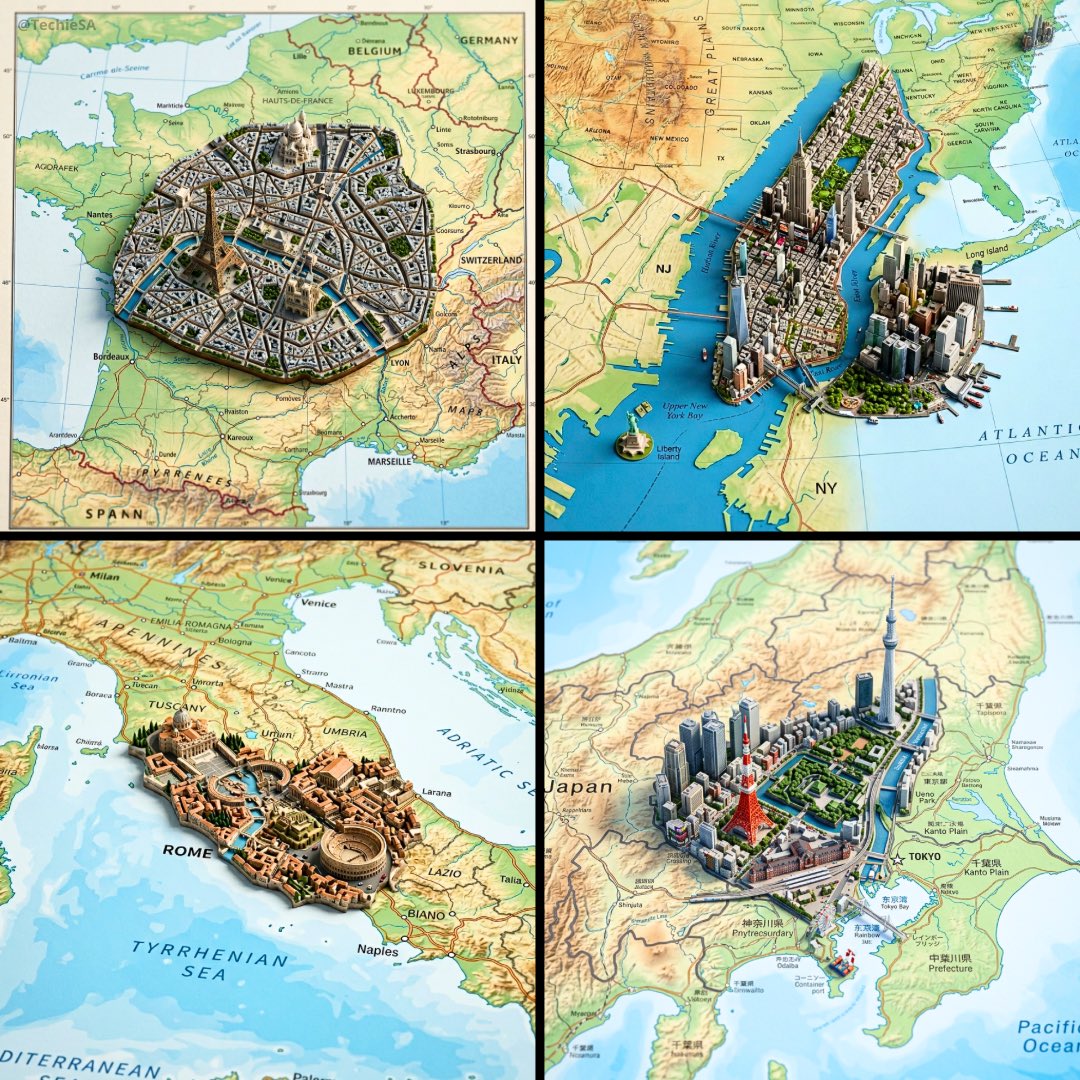
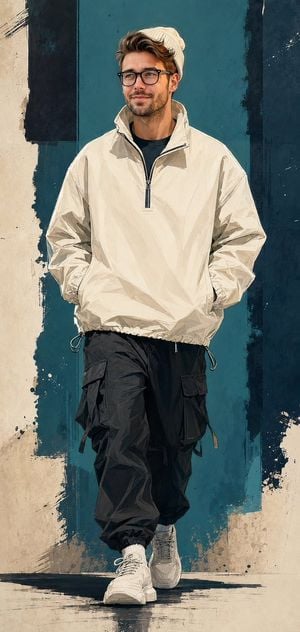
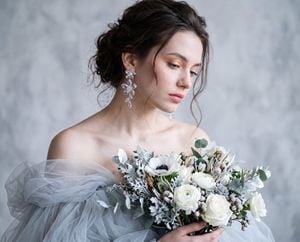
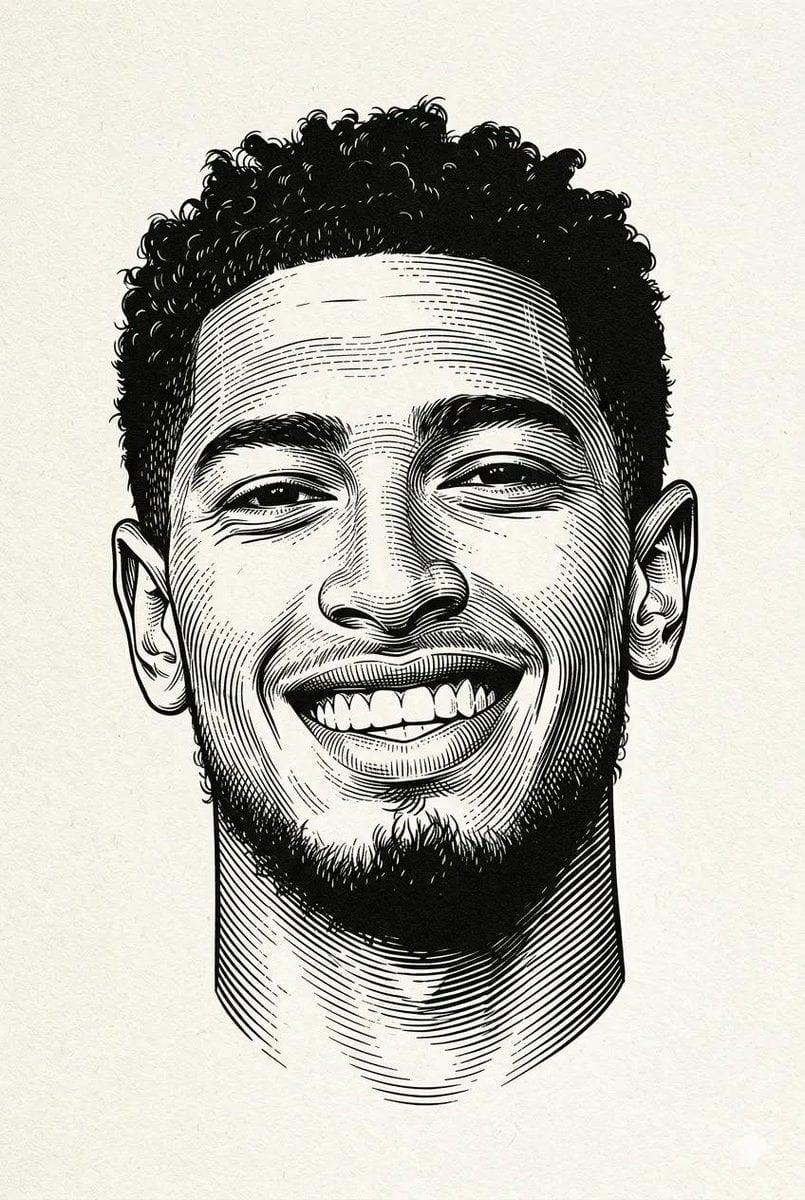
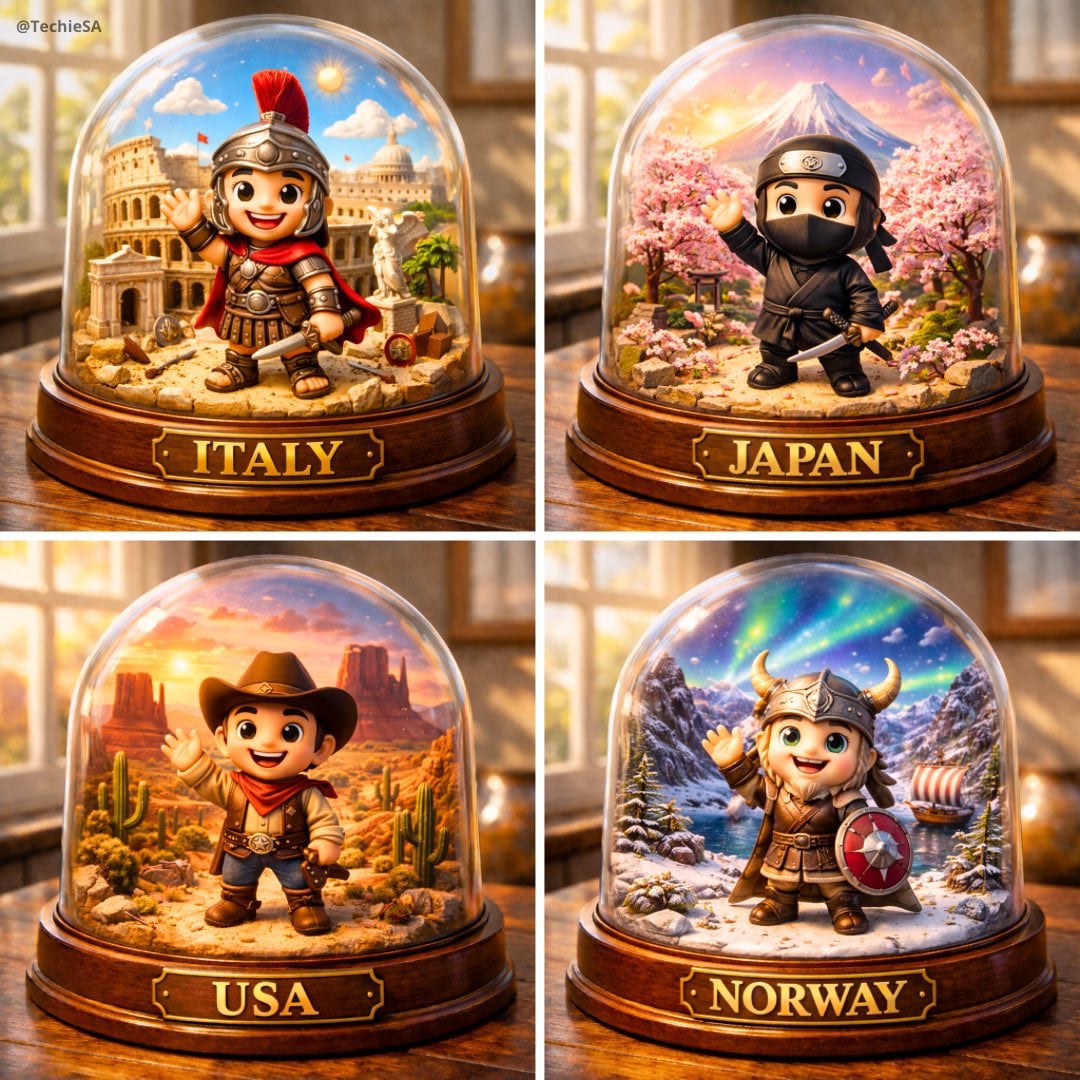
Use a user-uploaded image as the source and convert the person into a stylized 3D character while preserving identity, facial structure, pose, hairstyle, clothing, and overall composition exactly as shown in the photo. The result should clearly resemble the real person. The visual style is a stylized 3D character with a soft minimal cartoon 3D aesthetic, inspired by Pixar-like visuals but more minimal, toy-figure renders, and clean product-style character design. The balance should favor stylization over realism without changing the person's real-world appearance. Skin should appear as smooth matte plastic with a soft, uniform texture and gentle subsurface scattering. Facial features should remain faithful to the original image while being simplified in form. The expression should stay neutral and natural to the source photo. Lighting should be clean and controlled, similar to a studio softbox setup, with very soft shadows, low contrast, and subtle highlights. The background should be a solid [BACKGROUND COLOR] with no gradient. The camera should feel front-facing with a medium close-up framing, similar to a 50mm lens, with no distortion. Output quality should be high resolution with clean edges, no noise, strong style consistency, and a clearly non-photorealistic finish.
Use a user-uploaded image as the source and convert the person into a stylized 3D character while preserving identity, facial structure, pose, hairstyle, clothing, and overall composition exactly as shown in the photo. The result should clearly resemble the real person. The visual style is a stylized 3D character with a soft minimal cartoon 3D aesthetic, inspired by Pixar-like visuals but more minimal, toy-figure renders, and clean product-style character design. The balance should favor stylization over realism without changing the person's real-world appearance. Skin should appear as smooth matte plastic with a soft, uniform texture and gentle subsurface scattering. Facial features should remain faithful to the original image while being simplified in form. The expression should stay neutral and natural to the source photo. Lighting should be clean and controlled, similar to a studio softbox setup, with very soft shadows, low contrast, and subtle highlights. The background should be a solid [BACKGROUND COLOR] with no gradient. The camera should feel front-facing with a medium close-up framing, similar to a 50mm lens, with no distortion. Output quality should be high resolution with clean edges, no noise, strong style consistency, and a clearly non-photorealistic finish.
Edit the prompt in the box under the preview — the template's model and format are already selected — and press Generate. Your version appears right on this page.
Yes. You can change the subject, setting, lighting, mood, format, and available model controls before creating your image.
Opening and editing this template is free. Generating uses credits, shown on the Generate button when you are signed in.
Choose a compatible model in PicX Studio based on the style, speed, and output controls your project needs.
Follow a topic to a crawlable collection of related PicX Studio templates.