
Three-Panel AI Billboard Comparison
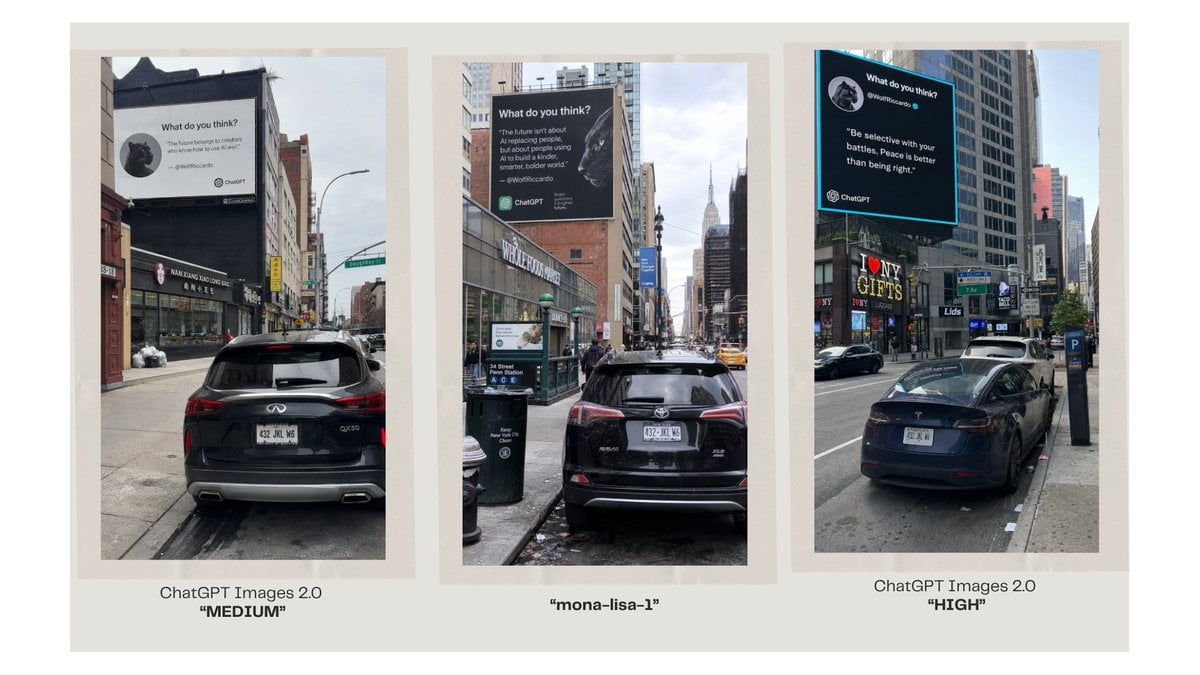
A wide comparison slide showing three photorealistic NYC billboard street scenes labeled as different image model outputs.
- Prompt included
- Model and format preset
- Free template
The prompt behind this image
Copy the exact prompt behind Three-Panel AI Billboard Comparison, or open it in the studio and make it yours.
Goal: Create a clean comparison graphic showing three AI-generated urban billboard photos side by side, as if comparing image model outputs. Canvas: Wide 16:9 presentation slide with a warm off-white background and generous margins. Place three tall vertical photo panels evenly spaced across the canvas, each framed by a pale beige mat/border. Under each panel, add a centered caption. Layout: Exactly 3 vertical street-photo panels in one row. Panel 1 on the left, Panel 2 in the center, Panel 3 on the right. Each panel shows a realistic New York City street scene with parked cars in the foreground, tall buildings, sidewalks, traffic signs, and a large square billboard mounted high on a building. Use slightly different street angles and lighting in each panel, like three separate model outputs of the same concept. Panel details: Left panel: a rear view of a black SUV parked on a city street, looking toward storefronts and buildings; a large white billboard above the street reads like a social-media quote card with a small circular animal avatar, the heading “What do you think?”, a short quote, and small ChatGPT branding. Center panel: a black SUV parked on a narrow Manhattan street with the Empire State Building visible in the distance; a large dark billboard with white text, a circular animal avatar, and ChatGPT branding. Right panel: a black sedan parked along a busier avenue with storefront signs such as “I ♥ NY GIFTS”; a large black billboard with a bright cyan border, white quote text, a circular animal avatar, and ChatGPT branding. Caption text: Use exactly 3 captions beneath the panels. Left caption: “ChatGPT Images 2.0” on the first line and “MEDIUM” in bold quotation marks on the second line. Center caption: “mona-lisa-1” in bold quotation marks. Right caption: “ChatGPT Images 2.0” on the first line and “HIGH” in bold quotation marks on the second line. Customizable text slots: The comparison labels should read {argument name="left model label" default="ChatGPT Images 2.0"}, {argument name="center model label" default="mona-lisa-1"}, and {argument name="right model label" default="ChatGPT Images 2.0"}. The left quality tag should be {argument name="left quality tag" default="MEDIUM"} and the right quality tag should be {argument name="right quality tag" default="HIGH"}. Visual style: Photorealistic smartphone street photography inside each panel, but arranged as a polished social-media comparison slide. Keep the overall slide minimal, with no decorative graphics beyond the three framed images and their captions. The billboard text inside the photos may be small and partially imperfect, but it should clearly resemble AI quote-card advertising with ChatGPT logos.
How to use Three-Panel AI Billboard Comparison in 3 steps
- 1Upload ImagePNG, JPG or paste
Add your photo
Upload the photo the template builds on. The prompt, model and format are already set.
- 2…a portrait of your subject in softgolden-hour light, 85mm…
Personalize
Edit the subject and creative details for your destination.
- 3Generate
Generate
Press Generate — your image is created in PicX Studio, so you can compare it with the original and refine one variable at a time.
More like this
Templates with the same subject, style or setup. Open one to see its prompt.
Three-Panel Night Window Comparison

Three Character Asset Comparison Board

Four-Panel AI Landscape Comparison

Four-Panel Anime Face Comparison
Four-Panel AI Landscape Comparison
Pixar 6-Panel Streethero Expression Grid
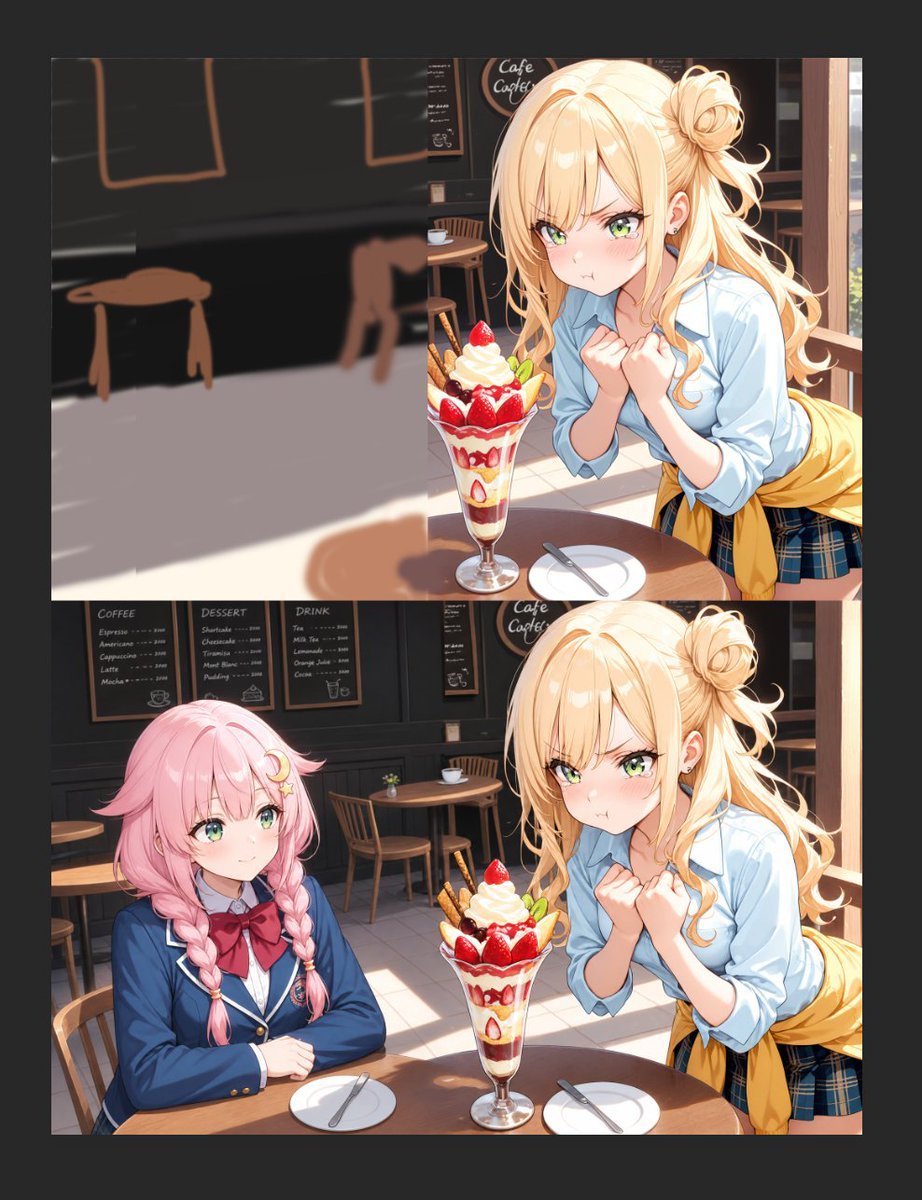
Anime Cafe Two-Panel Comparison
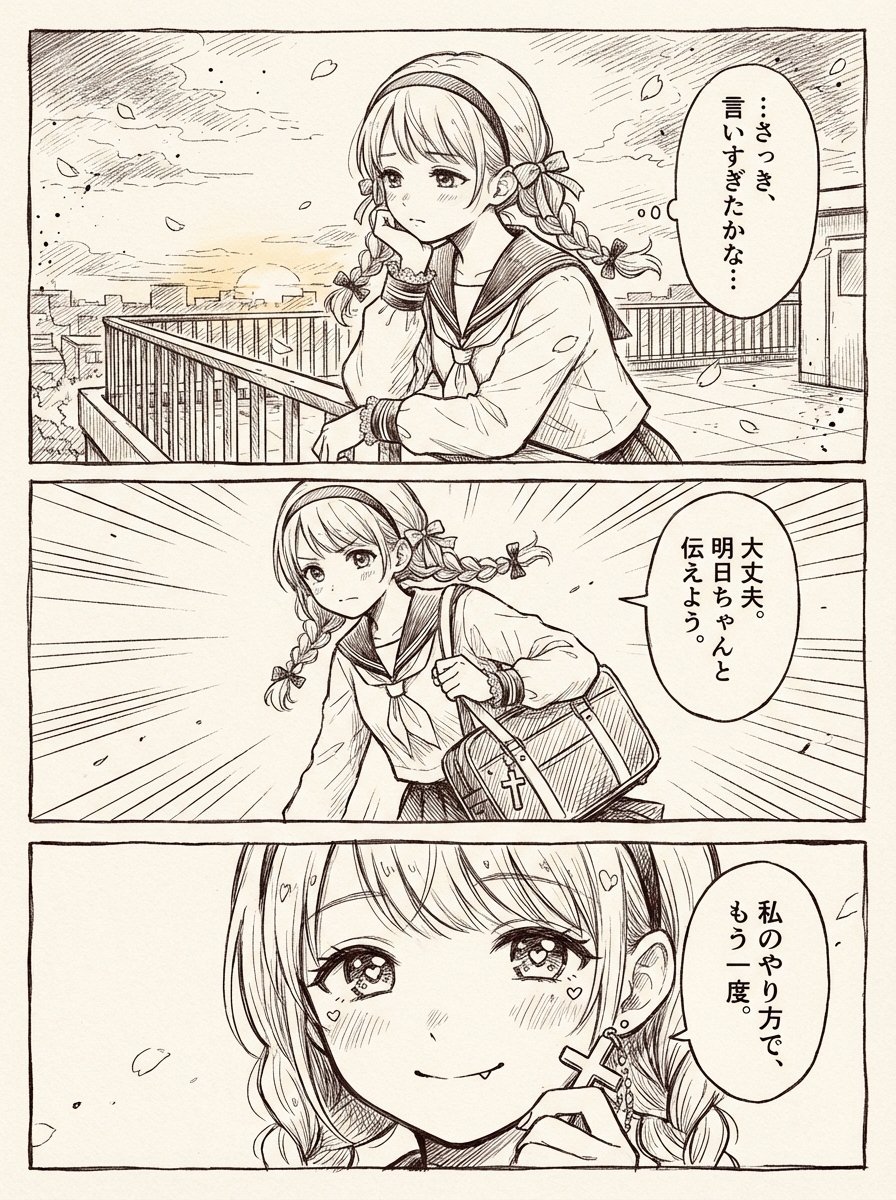
Three-Panel Shoujo Rooftop Manga

Two-Panel Snow Cabin Model Comparison
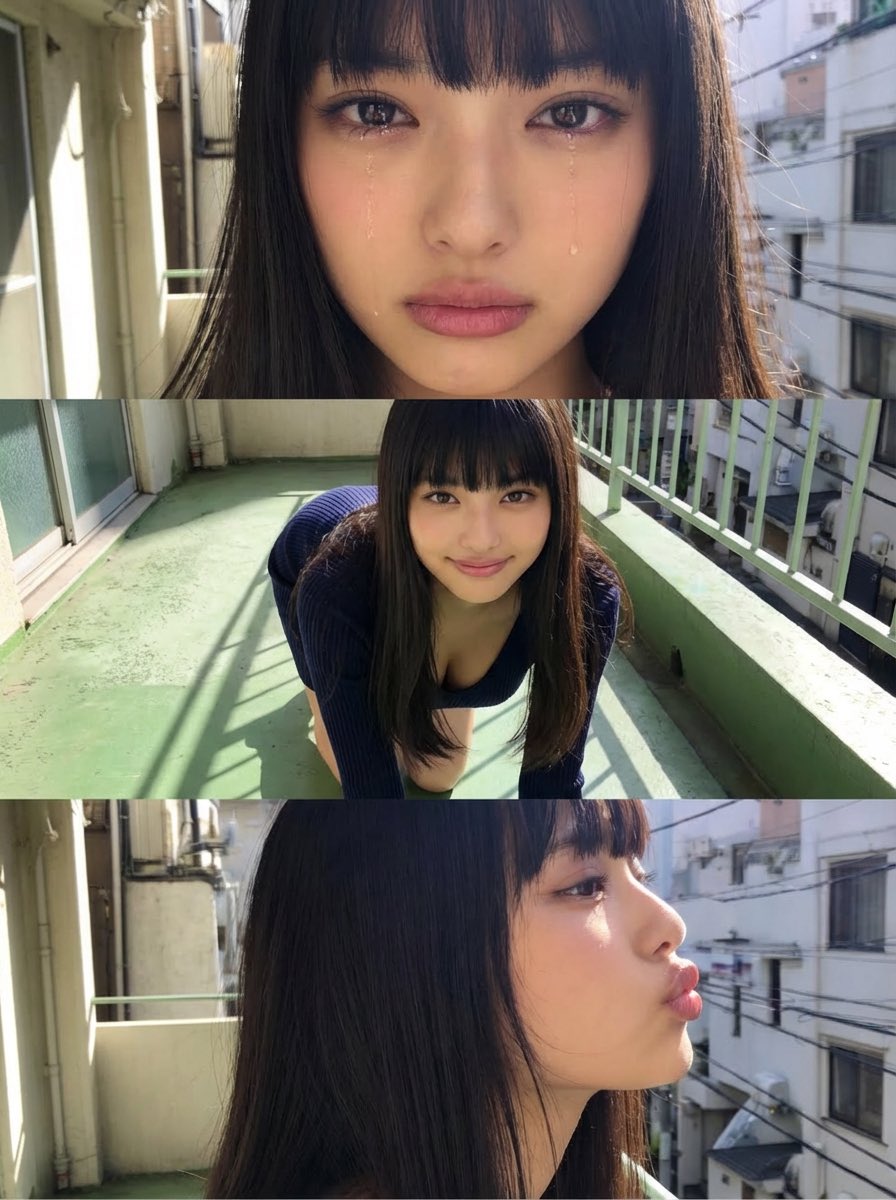
Horizontal three-panel emotional portrait from one image
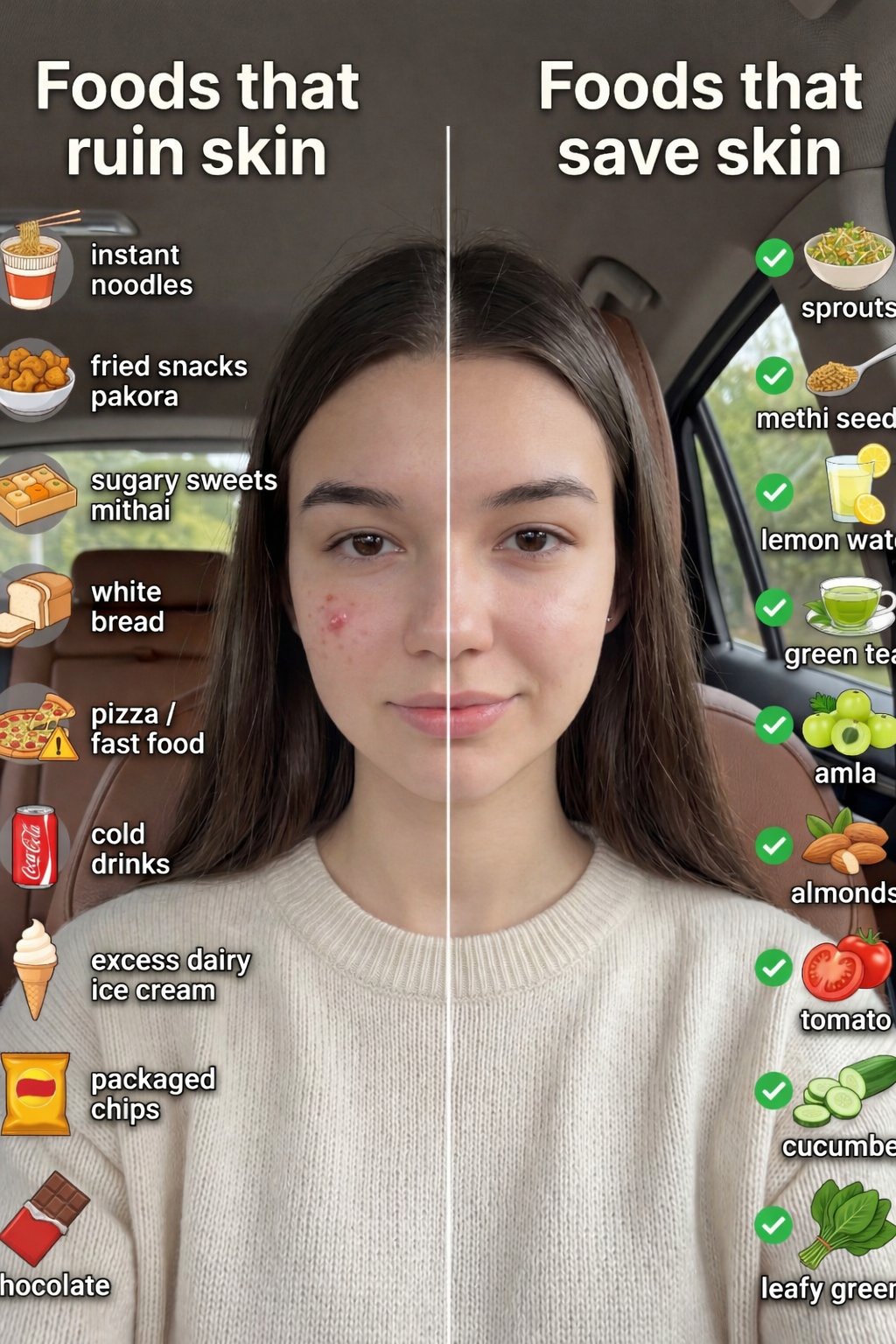
Skin Comparison Portrait — Nano Banana Pro
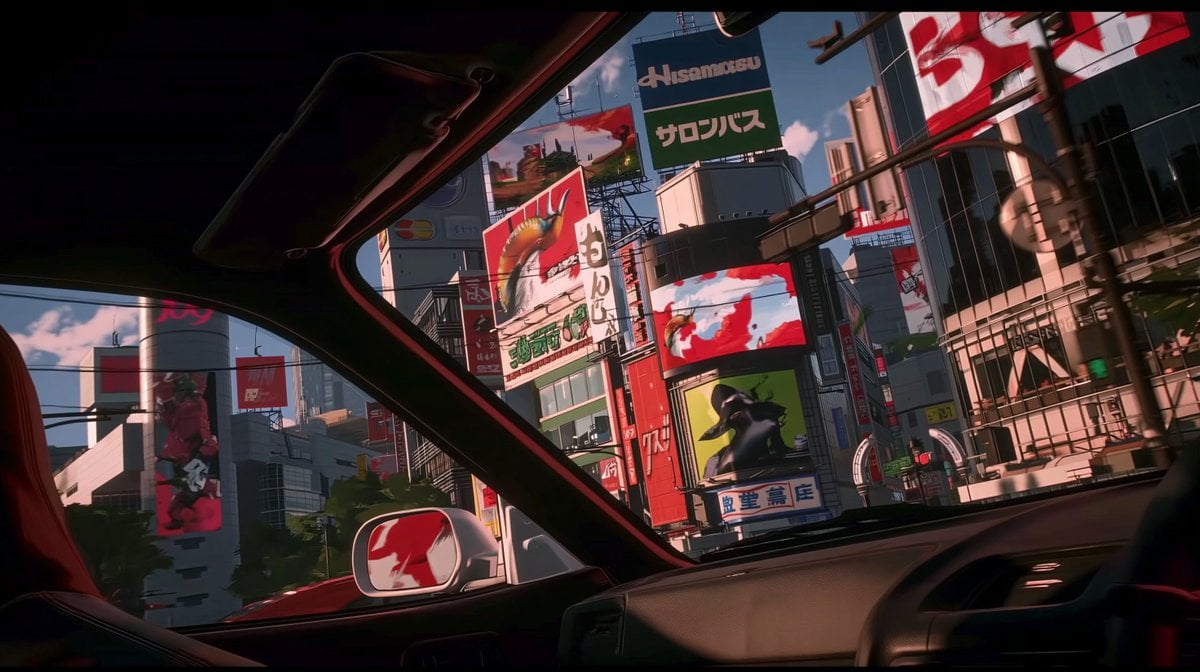
Anime Car View of Tokyo Billboards
Make it yours
Three-Panel AI Billboard Comparison works as-is. These are the safest ways to change it without losing the look.
Change one field
Copy a single group, rewrite it, and generate again so you can see what that field is doing.
Keep the frame, change the subject
Hold the composition and light of Three-Panel AI Billboard Comparison, then swap wardrobe, props or the person for a new take.
| If the result… | Why | Fix |
|---|---|---|
| The result drifts from the preview | Too many fields changed at once. | Reuse Three-Panel AI Billboard Comparison as-is first, then change one group — subject, light, or setting. |
| The model over-stylizes the scene | The prose prompt leaves finish and camera underspecified. | Add one camera or lighting sentence and stay on GPT Image 2. |
More GPT Image 2 templates
Other prompts made for GPT Image 2.

Six VTuber Japanese Logo Sheet

Realistic Portrait of Woman and Deer

The Vista Modular Condo Poster

2.5D Anime Art Board

Isometric Productivity Desk Scene

New York Double Exposure Poster

Japanese Tatami Lifestyle Magazine Cover

NESCAFÉ Coffee Map Poster

Brutalist Cogito Chinese Typography Poster
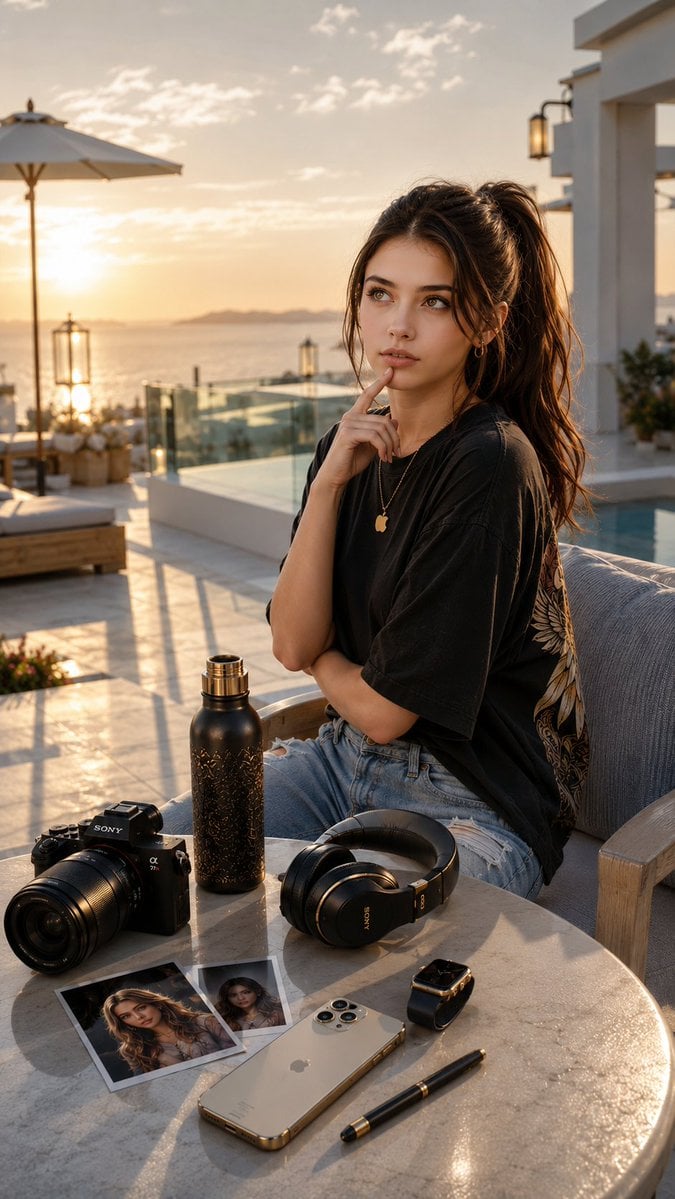
Cinematic Luxury Terrace Portrait
More image prompts
Fresh picks from across the catalog.
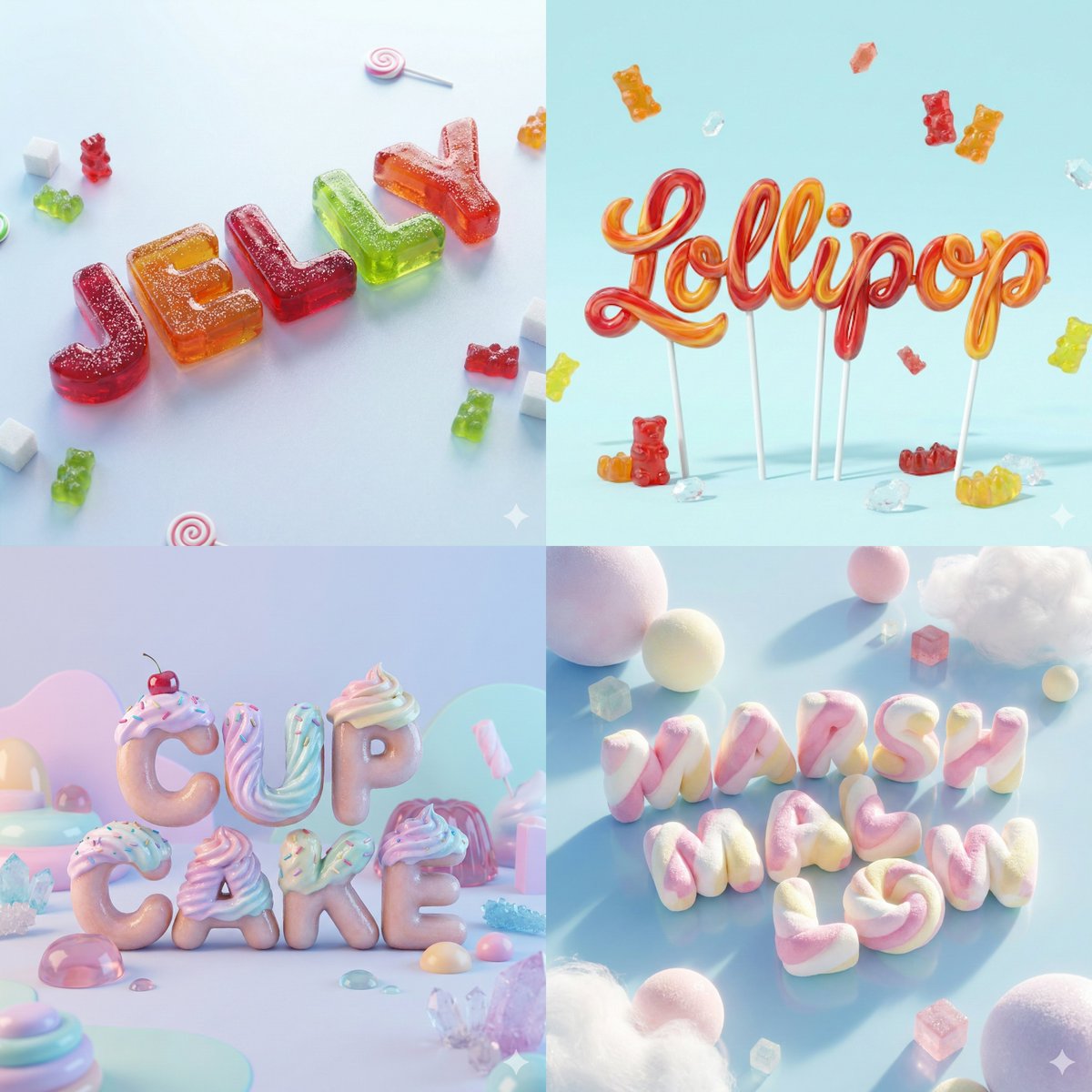
3D Render of Edible Letters Candy
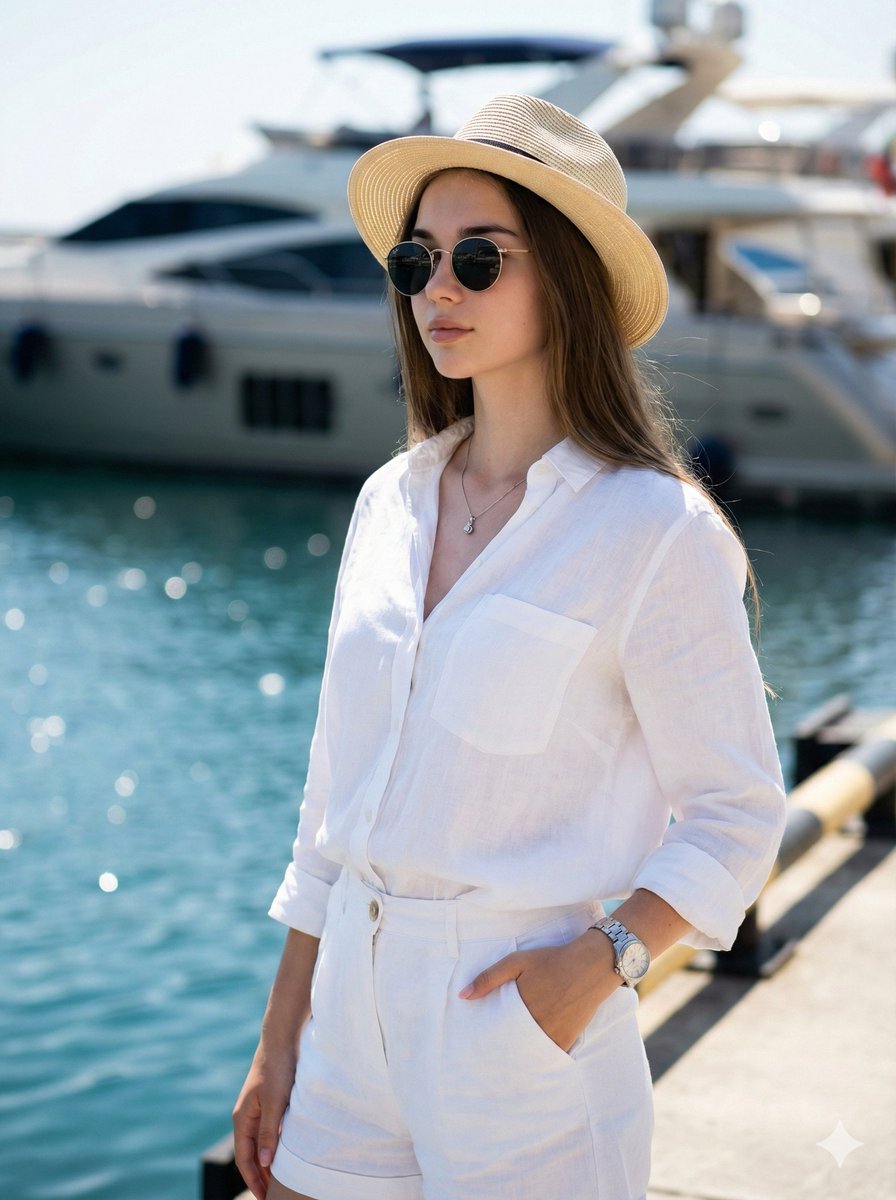
High-Fashion Marina Editorial Prompt with Strict Identity Lock
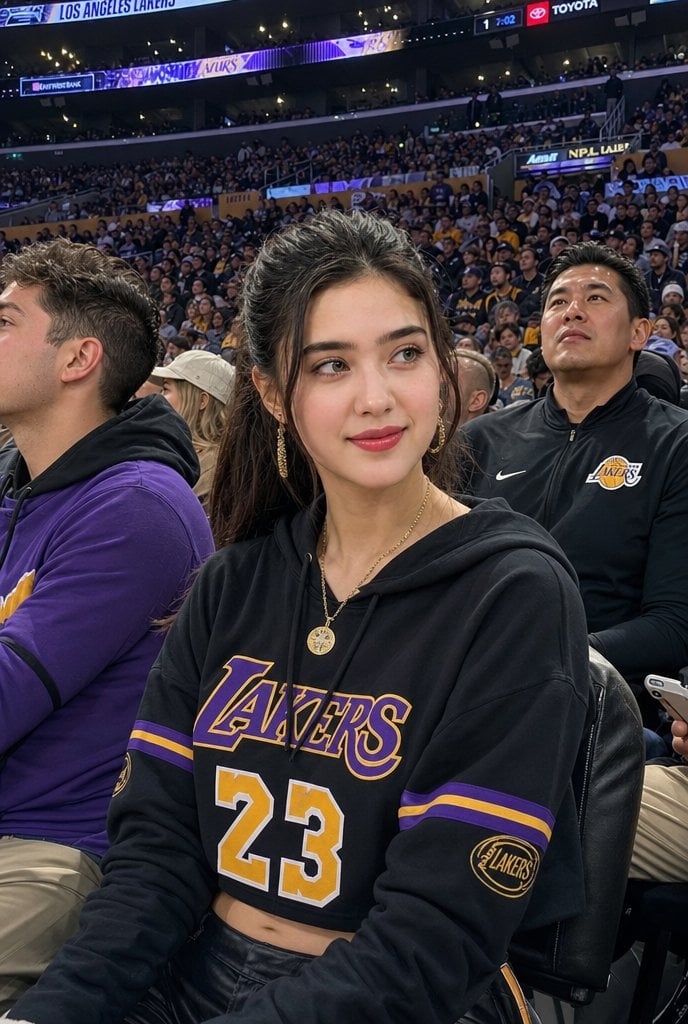
Lakers Arena Candid Portrait
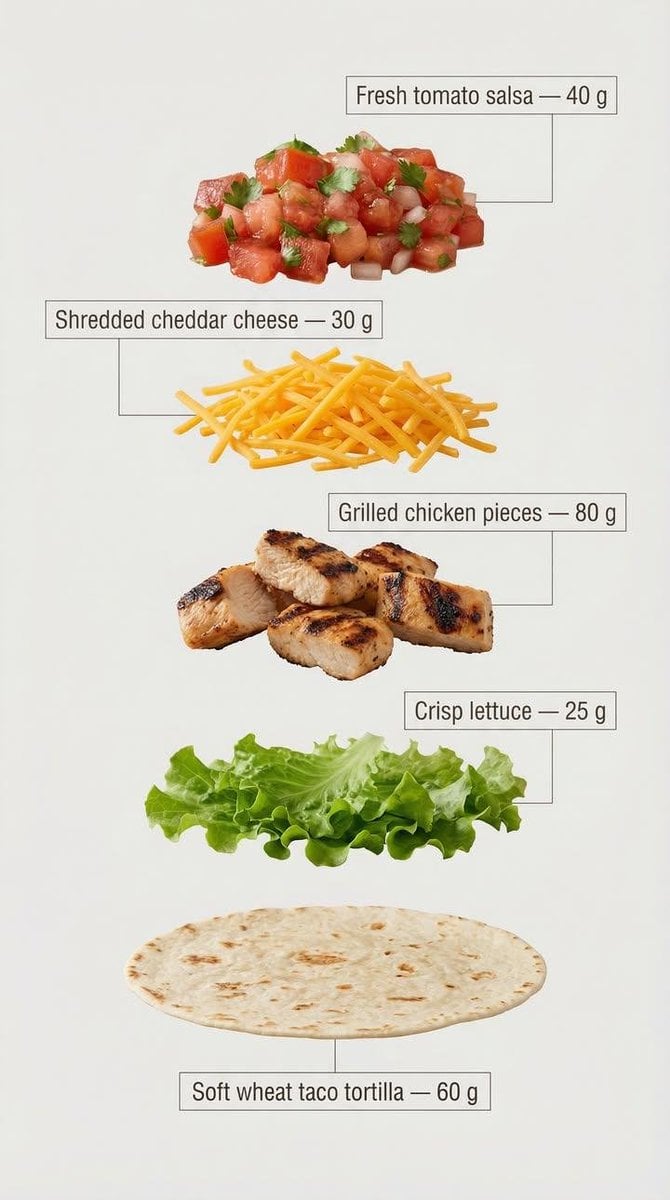
Exploded View Tacos Infographic for Marketing

Mixed-Reality Hot Chocolate Pour Prompt (Image-to-Image)
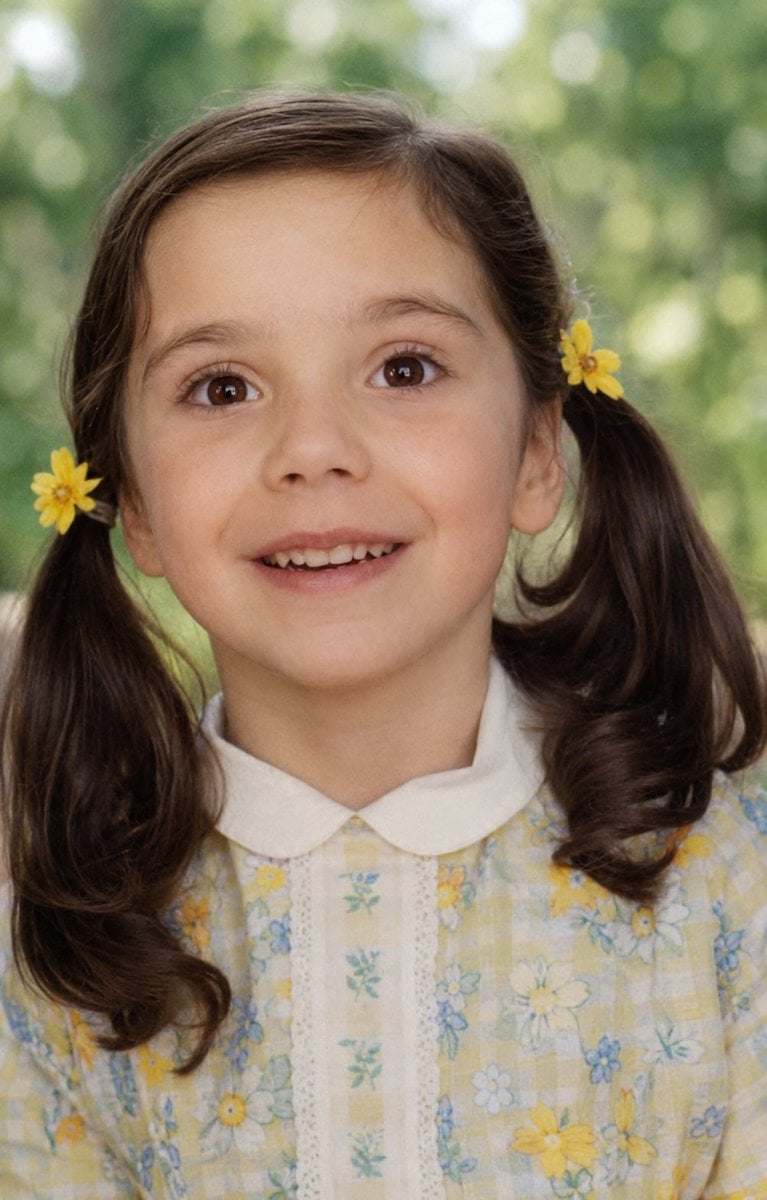
Old Photo Restoration
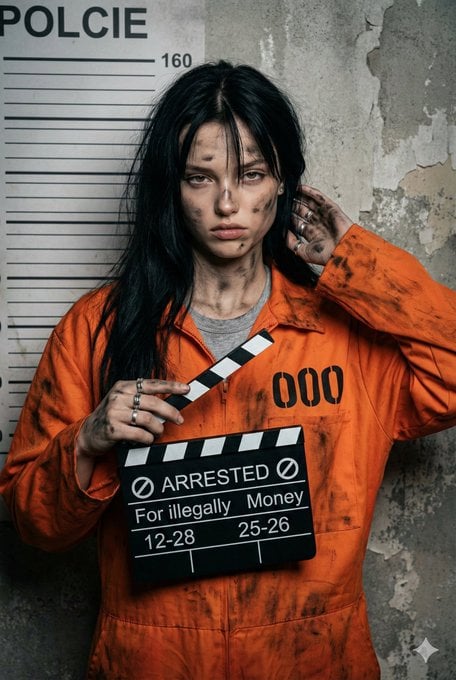
Mugshot Portrait with Custom Slate Text Prompt
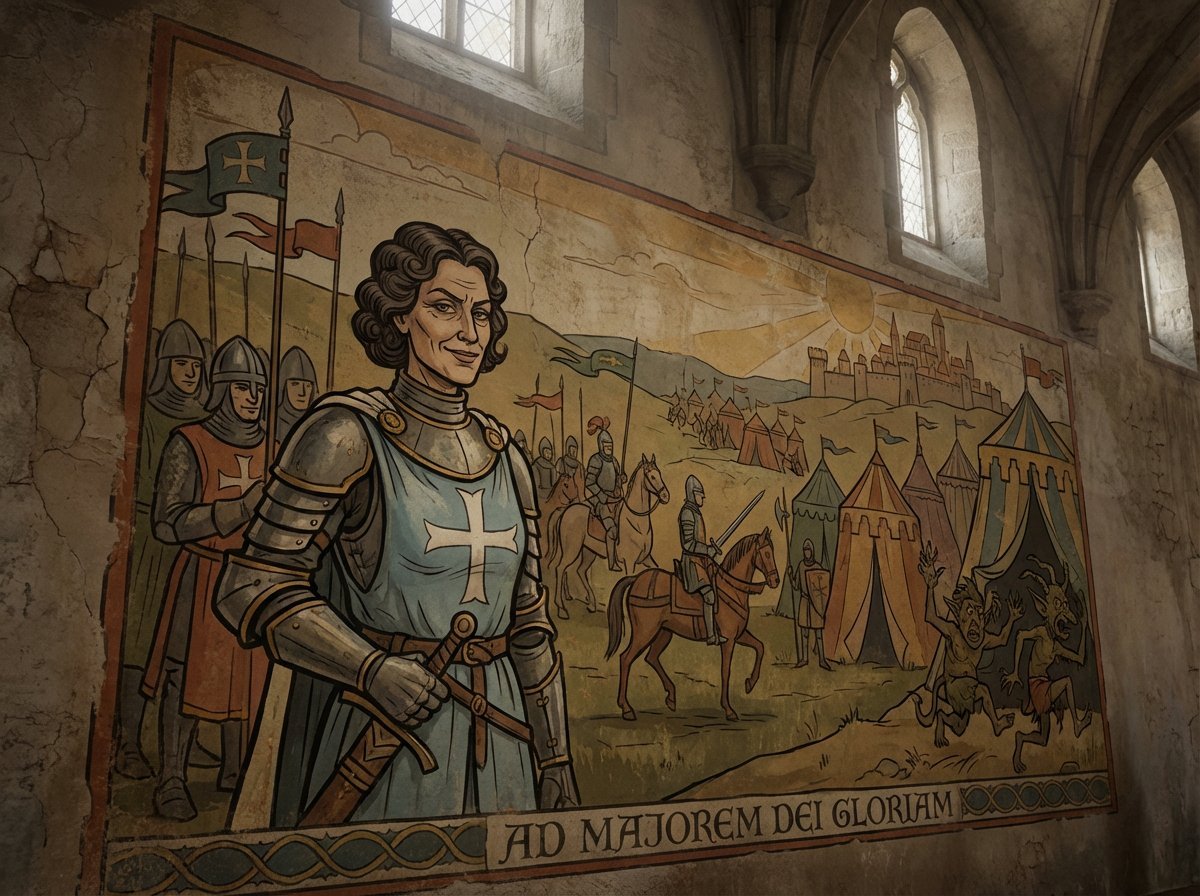
Crusader propaganda fresco painting
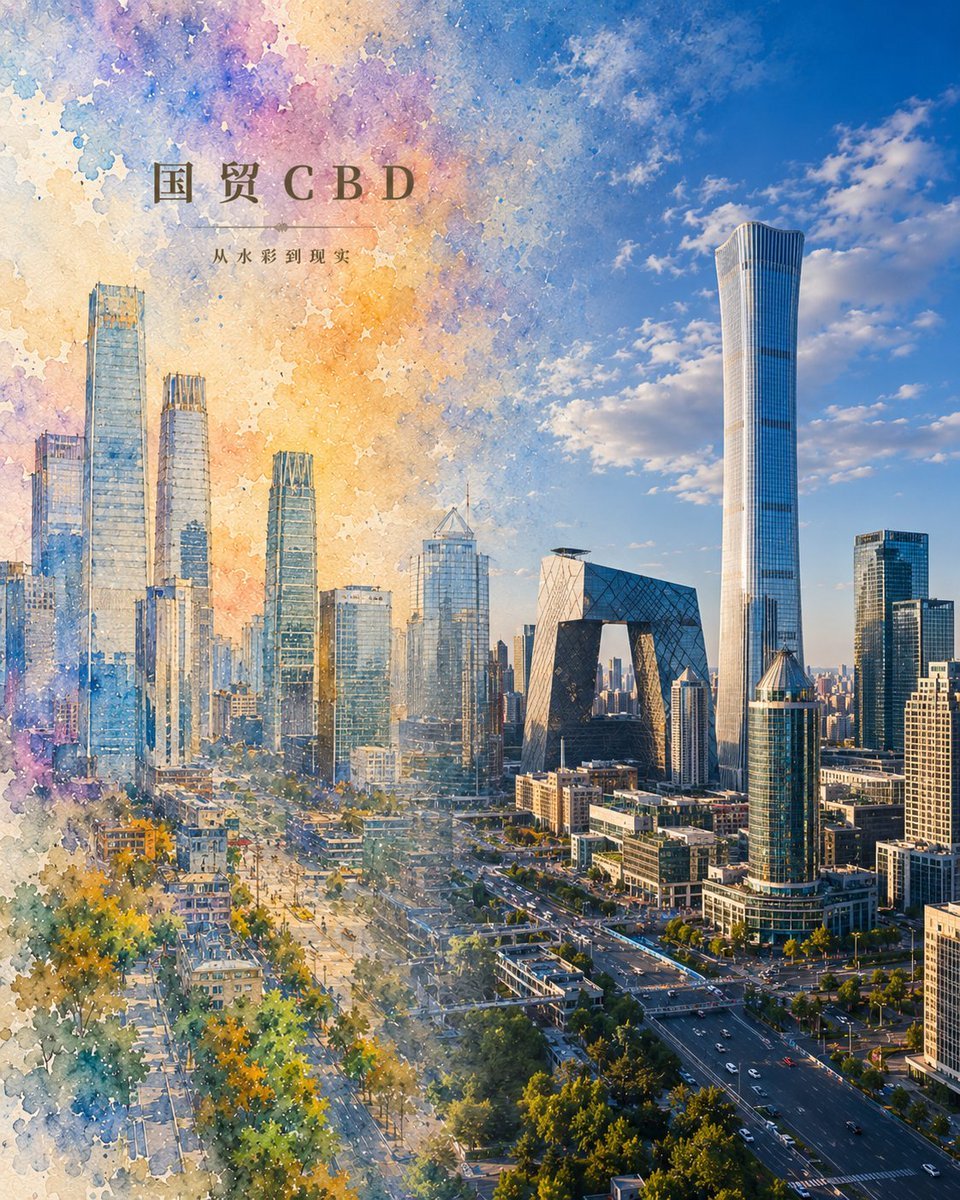
Watercolor to Reality Beijing CBD Poster

Chibi Character New Year's Card Design Prompt (2026)
Browse template categories
Three-Panel AI Billboard Comparison questions
How do I use the Three-Panel AI Billboard Comparison template?
Add your photo if the template asks for one, edit the prompt if you like — the template's model and format are already selected — and press Generate. Your version opens in PicX Studio.
Can I customize the Three-Panel AI Billboard Comparison template?
Yes. You can change the subject, setting, lighting, mood, format, and available model controls before creating your image.
Is the Three-Panel AI Billboard Comparison template free?
Opening and editing this template is free. Generating uses credits, shown on the Generate button when you are signed in.
Which AI model should I use?
Start with GPT Image 2, which is the model associated with this template. You can compare another compatible model for a different finish.
Looking for something else? Browse all templates.

Your photo, any look
Thousands of ready templates for every top image and video model, from one credit balance.