
Teen With Chibi Pant-Leg Tug
A humorous vertical studio scene showing a realistic stylish teen being slowed down by an angry miniature chibi duplicate pulling his oversized jeans.
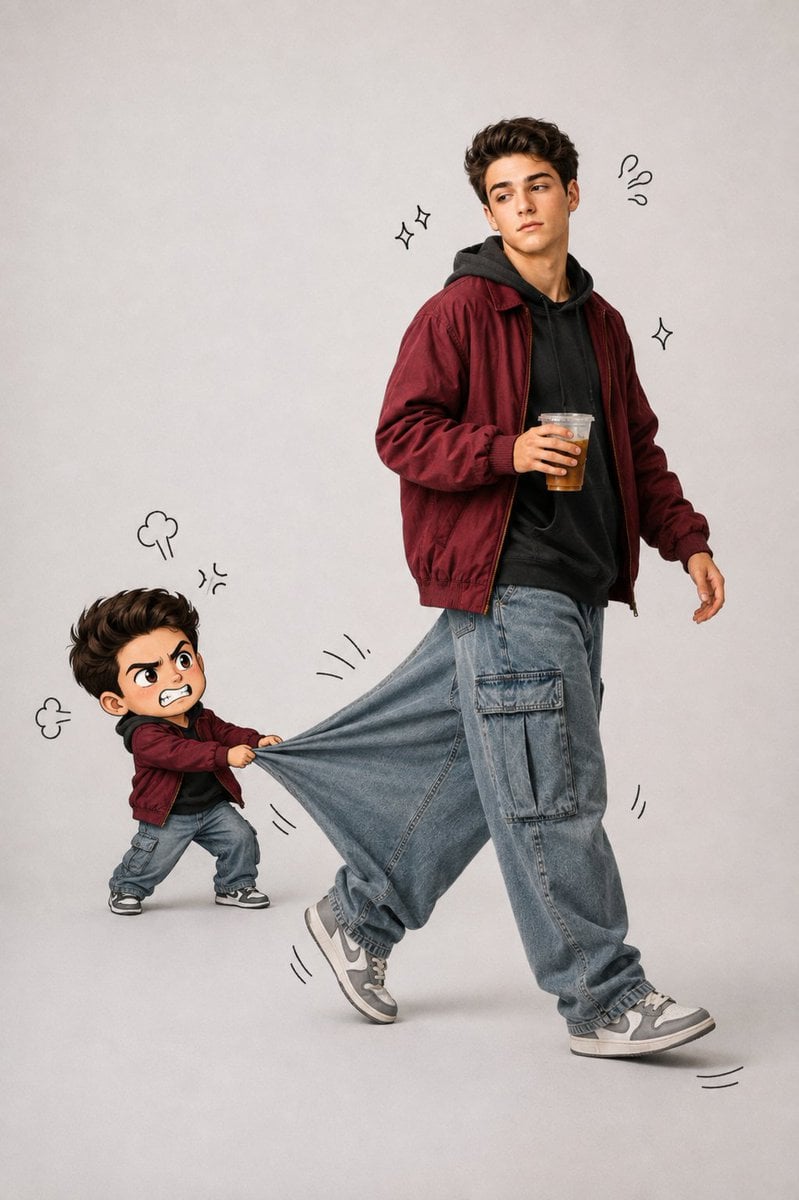
- Prompt included
- Model and format preset
- Free template
The prompt behind this image
Copy the exact prompt behind Teen With Chibi Pant-Leg Tug, or open it in the studio and make it yours.
Create a playful full-body studio composite of {argument name="character name" default="a stylish teenage boy"} being followed by a tiny chibi version of himself. The main character is a realistic young man with voluminous dark brown wavy hair, clean face, relaxed slightly aloof expression, looking back over his shoulder while walking to the right. He wears a burgundy bomber jacket over a black hoodie, oversized faded blue cargo jeans with large side pockets, and gray-and-white sneakers; his right hand holds a clear plastic cup of iced tea or coffee. Behind him at lower left, include exactly 1 miniature chibi duplicate, about one third his height, with the same hair and outfit, exaggerated angry face, furrowed eyebrows, clenched teeth, and both hands gripping and pulling the loose fabric of the main character’s left pant leg backward, stretching the denim dramatically. Use a clean light gray seamless studio background with soft floor shadow, high-detail photorealistic rendering for the main teen, glossy 3D cartoon/anime styling for the chibi, and a humorous fashion-editorial mood. Add exactly 10 simple black hand-drawn doodle accents around the figures: 2 sparkle icons near the upper body, 1 sparkle icon to the right, 1 squiggly surprise mark near the main character’s head, 2 small steam-puff frustration clouds near the chibi, 1 anger symbol near the chibi’s head, and 3 short motion-line clusters around the stretched pant leg and feet. Keep the composition vertical, centered, with ample negative space, no text, no watermark, no extra characters.
How to use Teen With Chibi Pant-Leg Tug in 3 steps
- 1Upload ImagePNG, JPG or paste
Add your photo
Upload the photo the template builds on. The prompt, model and format are already set.
- 2…a portrait of your subject in softgolden-hour light, 85mm…
Personalize
Edit the subject and creative details for your destination.
- 3Generate
Generate
Press Generate — your image is created in PicX Studio, so you can compare it with the original and refine one variable at a time.
More like this
Templates with the same subject, style or setup. Open one to see its prompt.
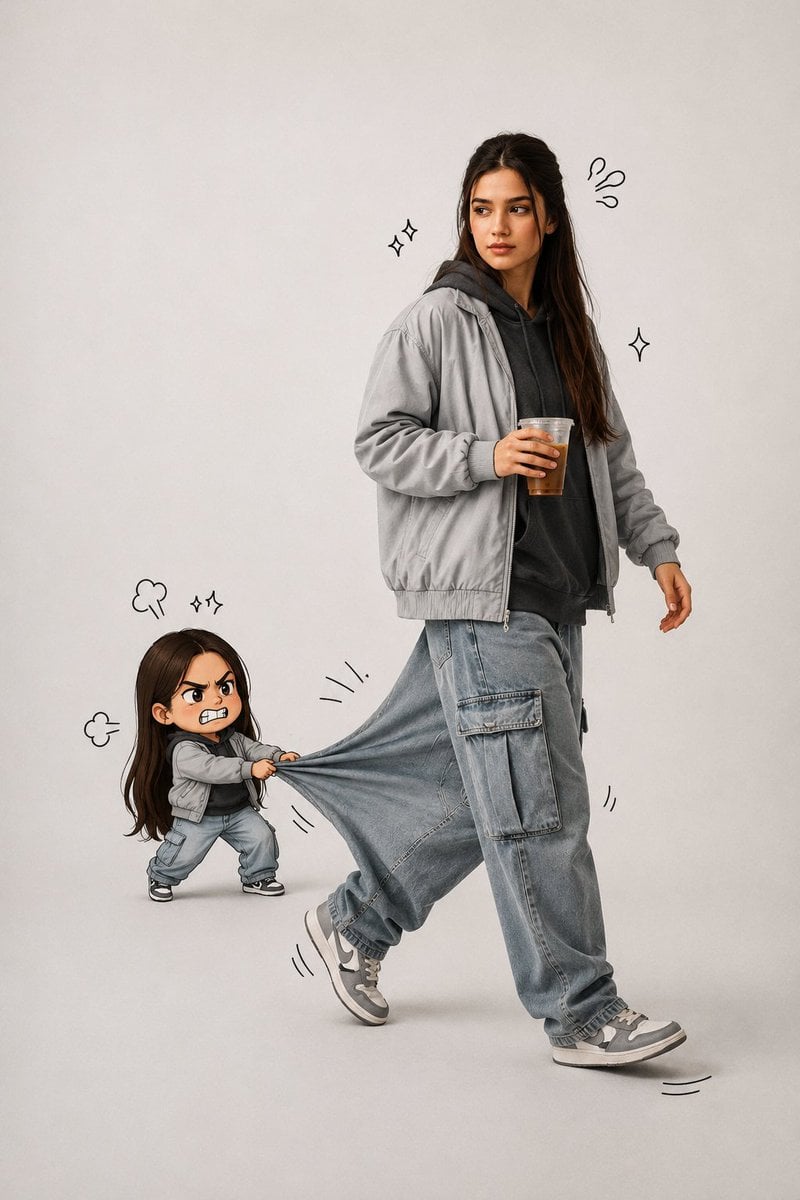
Forced Perspective Chibi Pants Pull Portrait
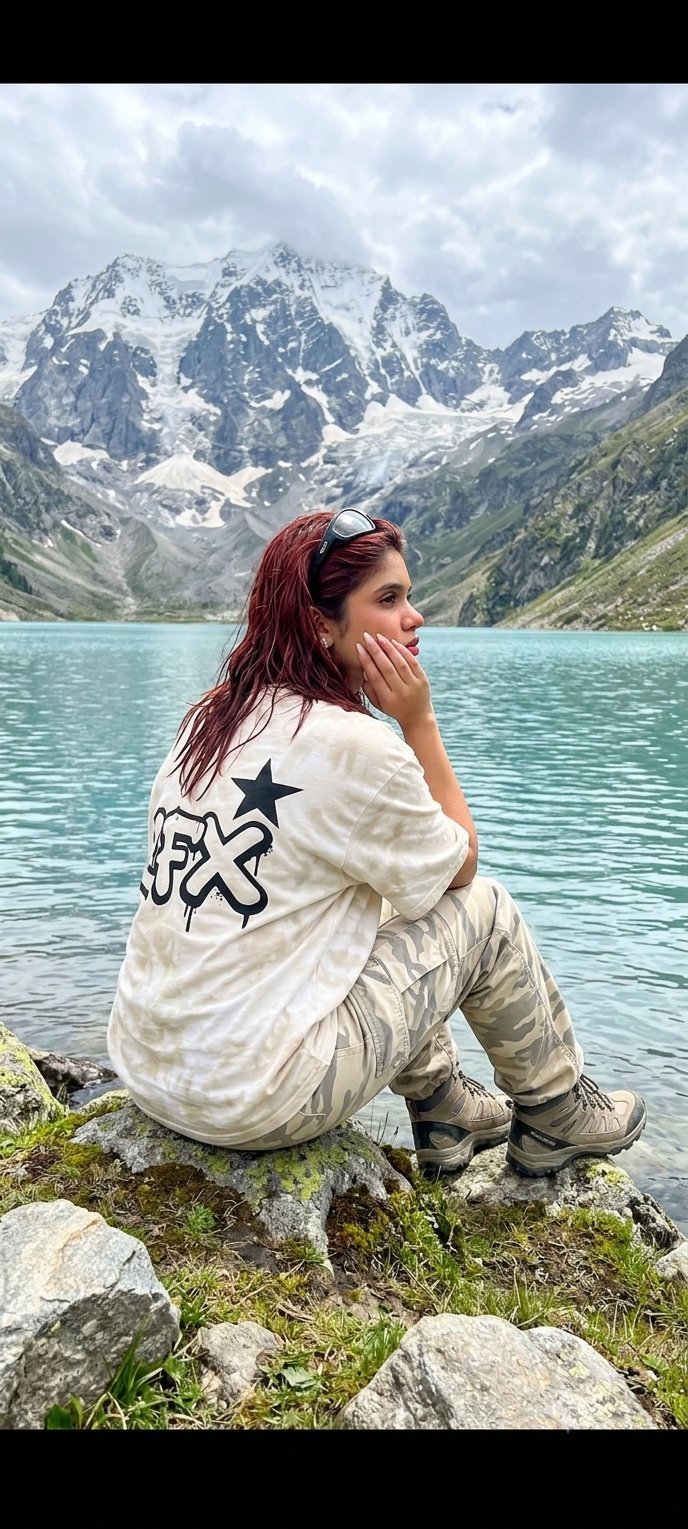
Teen Girl Alpine Lake Mountain View
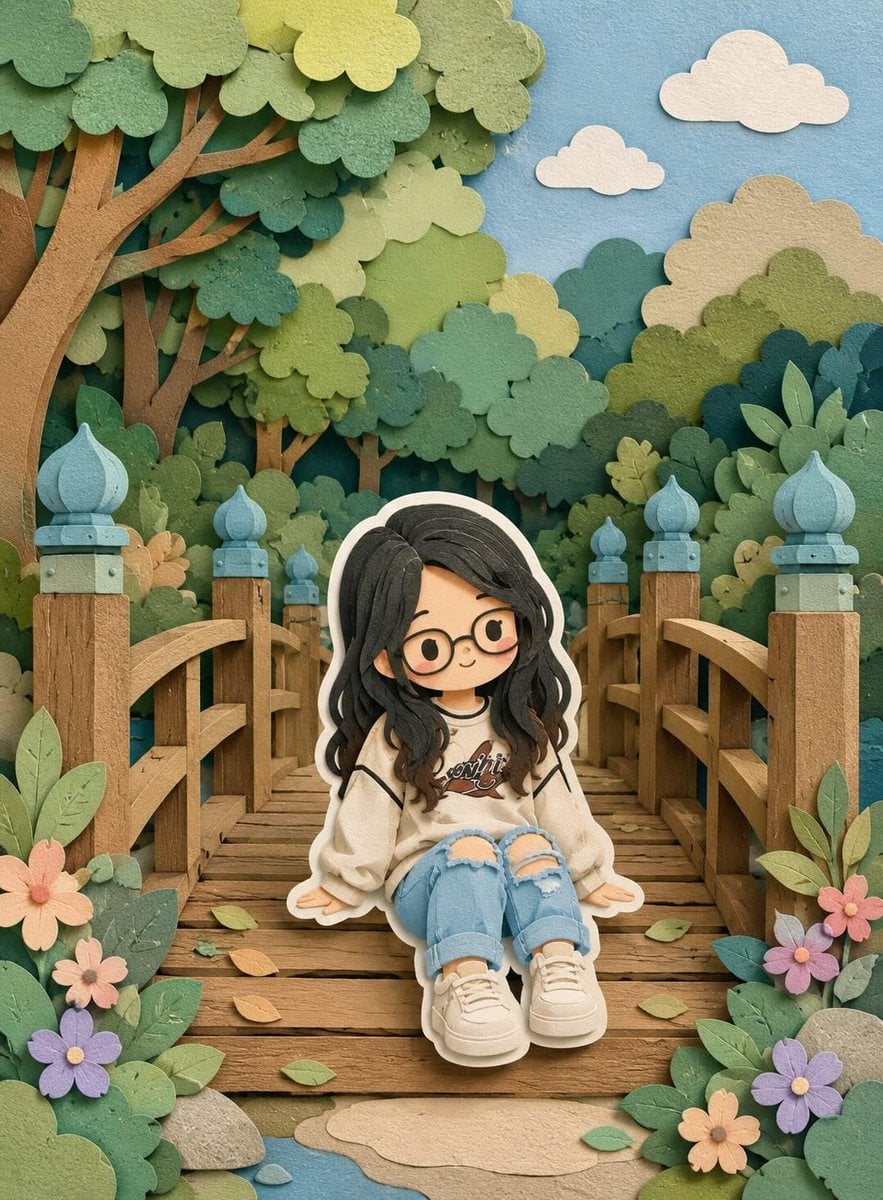
Cute Layered Paper Cut Chibi Girl

Pixar-Style Chibi Café Morning Scene
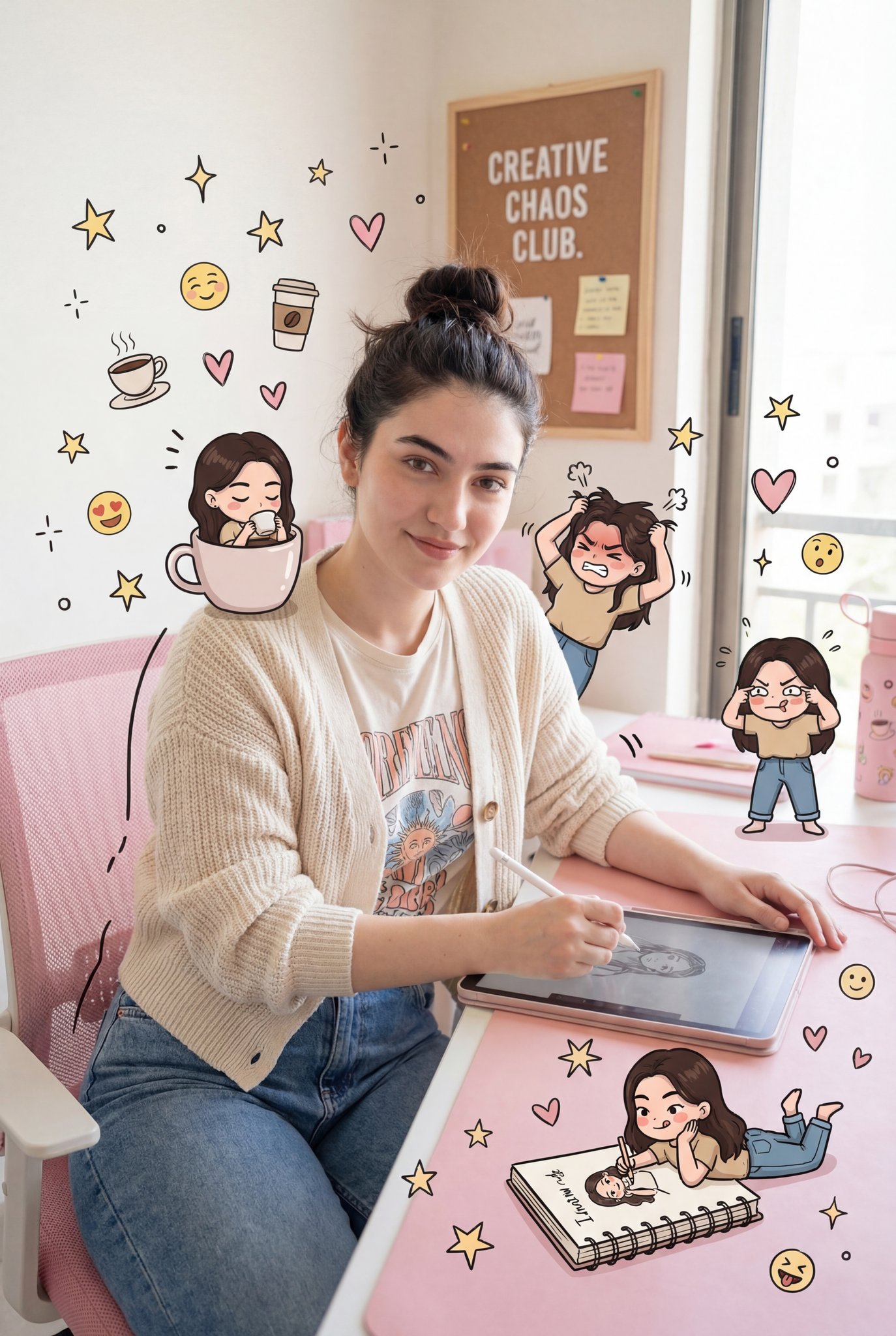
Nano Banana Pro Pink Office Chibi
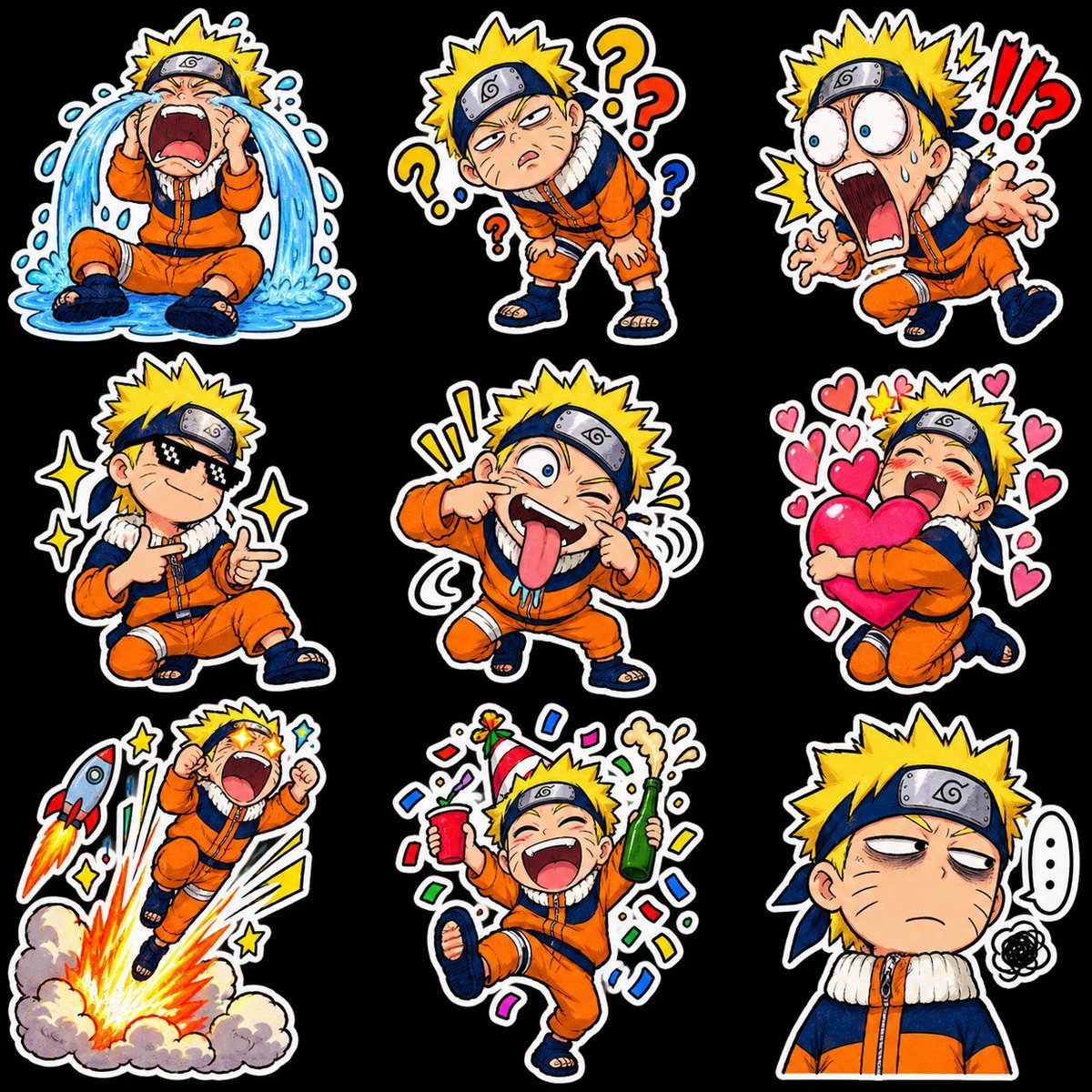
Chibi Anime Ninja Sticker Sheet
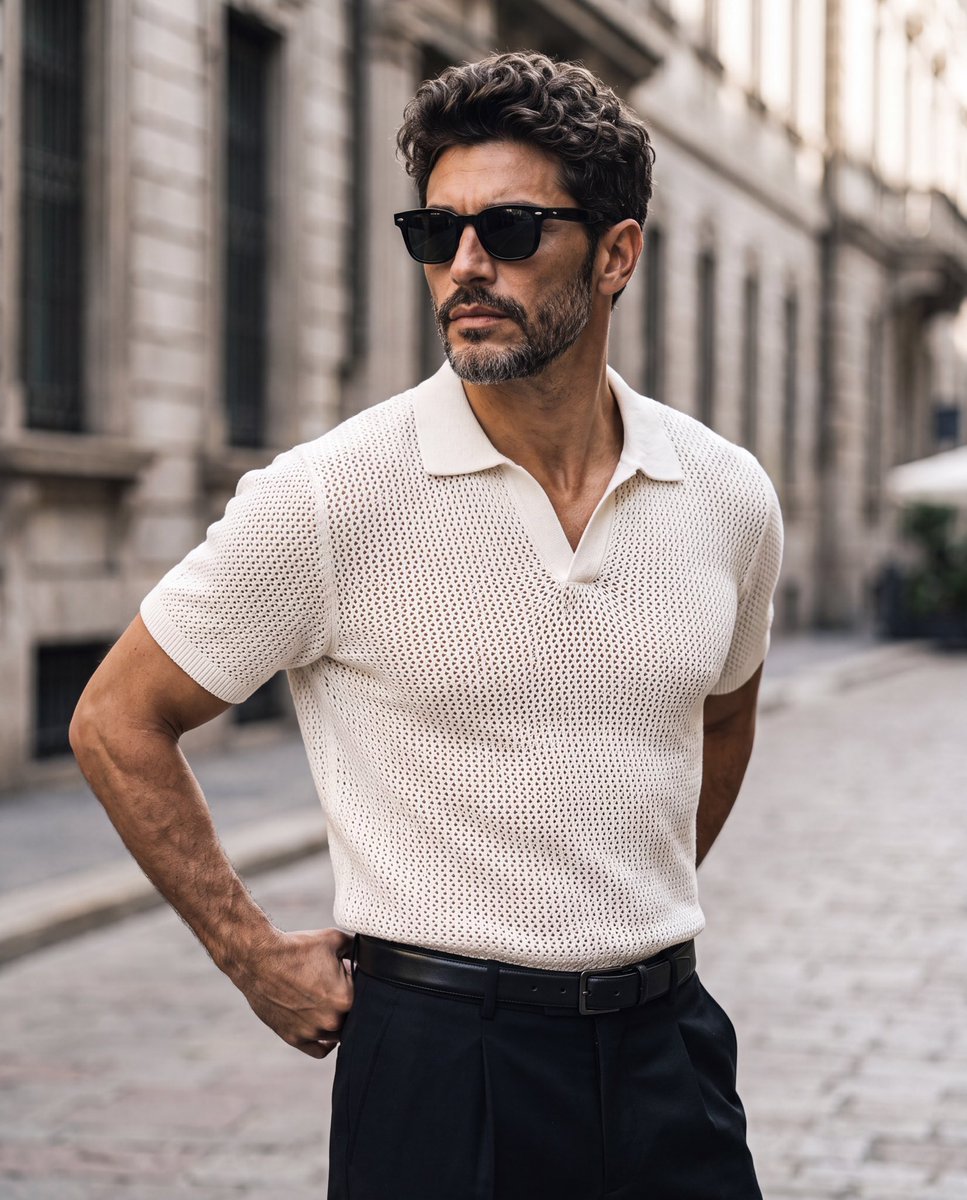
Elegant European Street Portrait
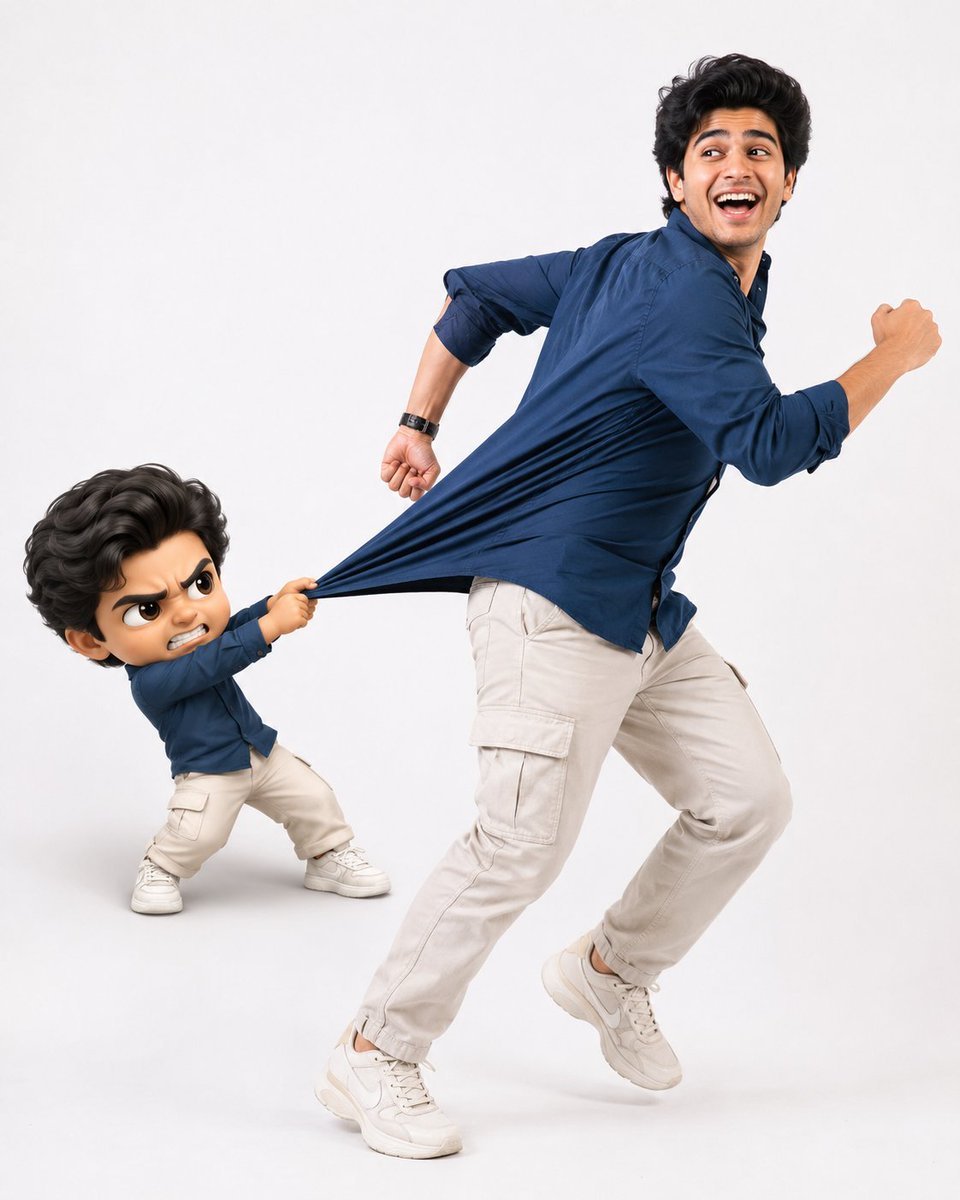
Playful Semi-Chibi Lifestyle Editorial
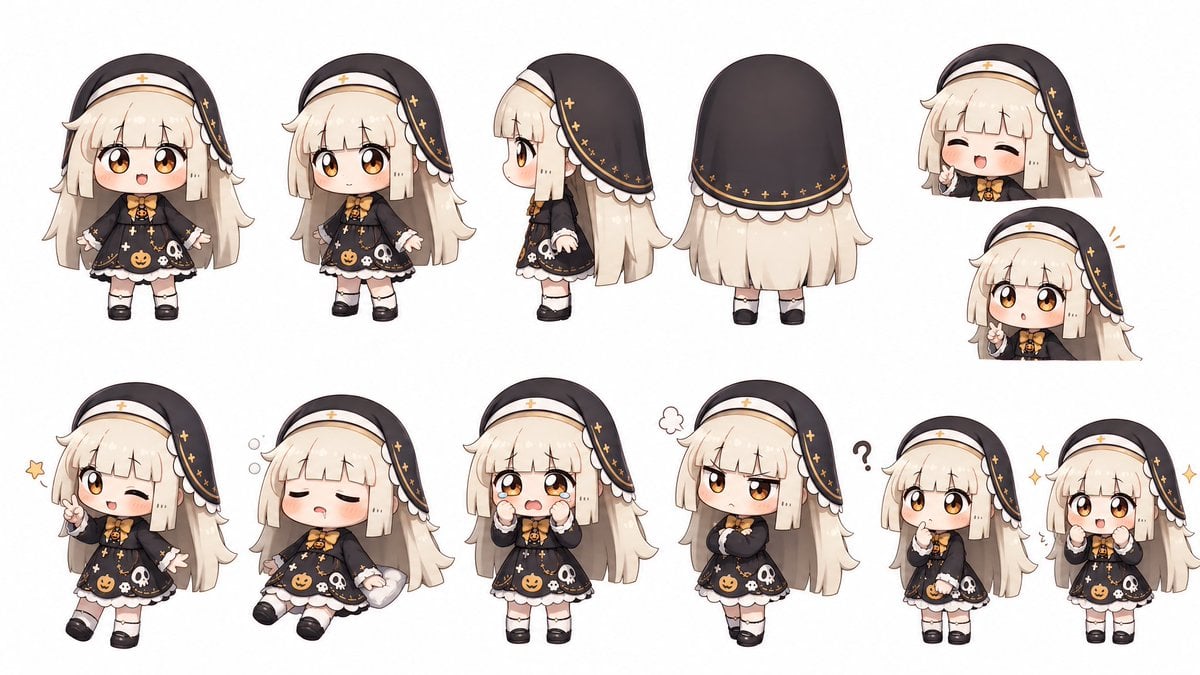
Halloween Nun Chibi Character Sheet
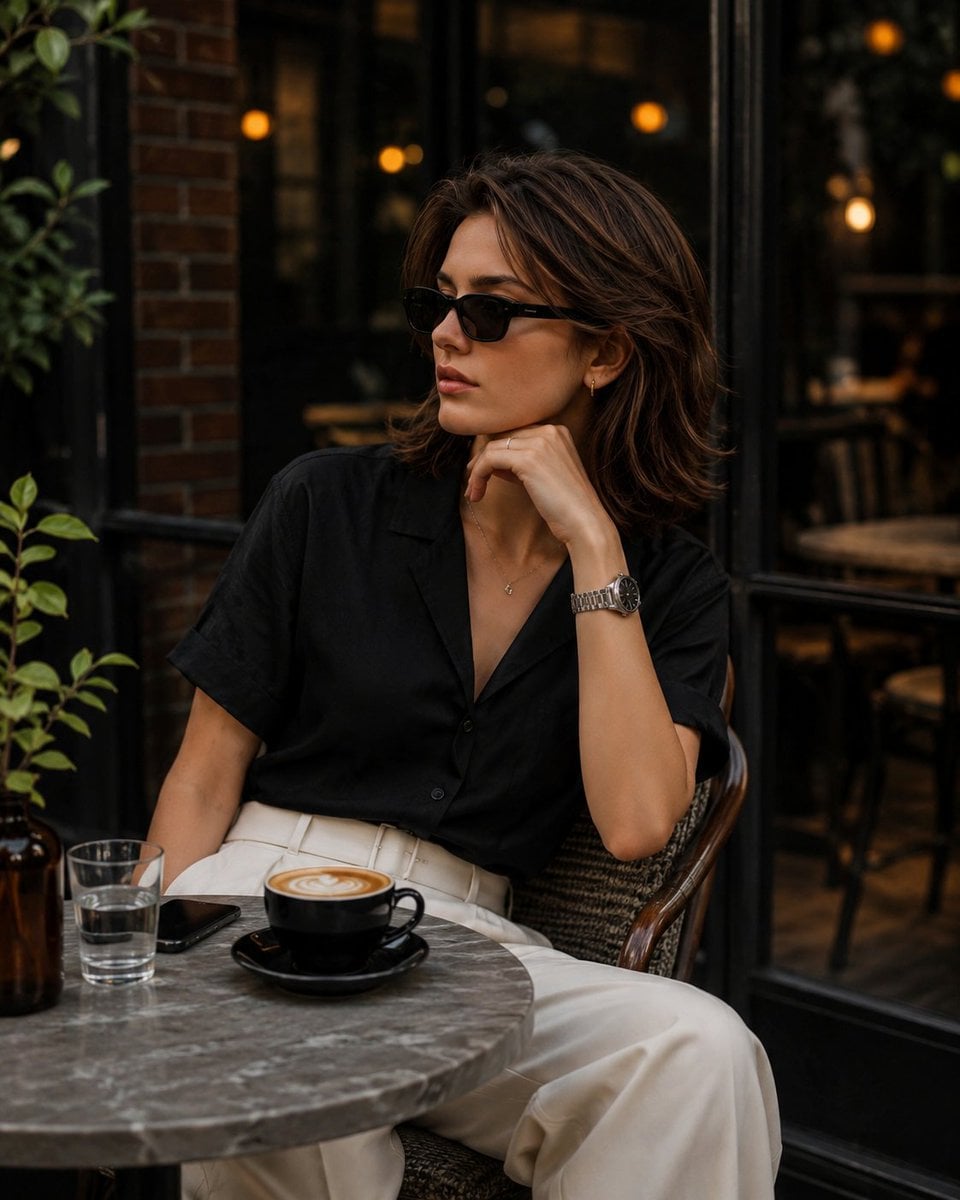
Elegant European Cafe Lifestyle Portrait
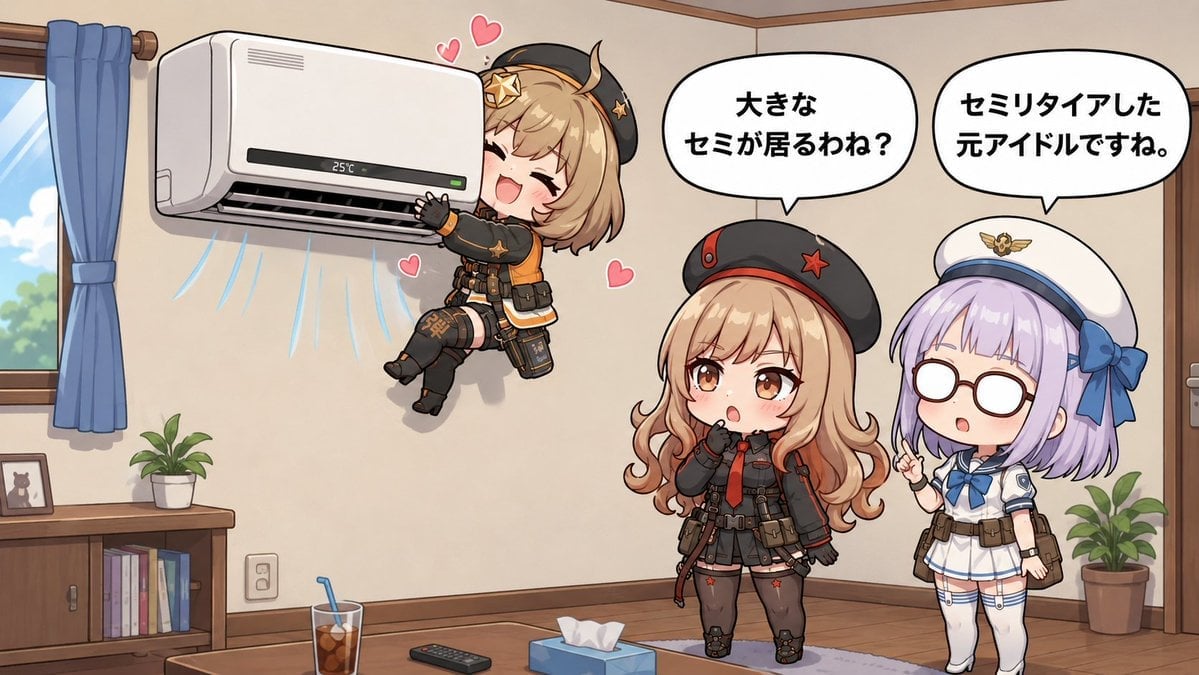
Chibi Girls Hugging Air Conditioner Comic
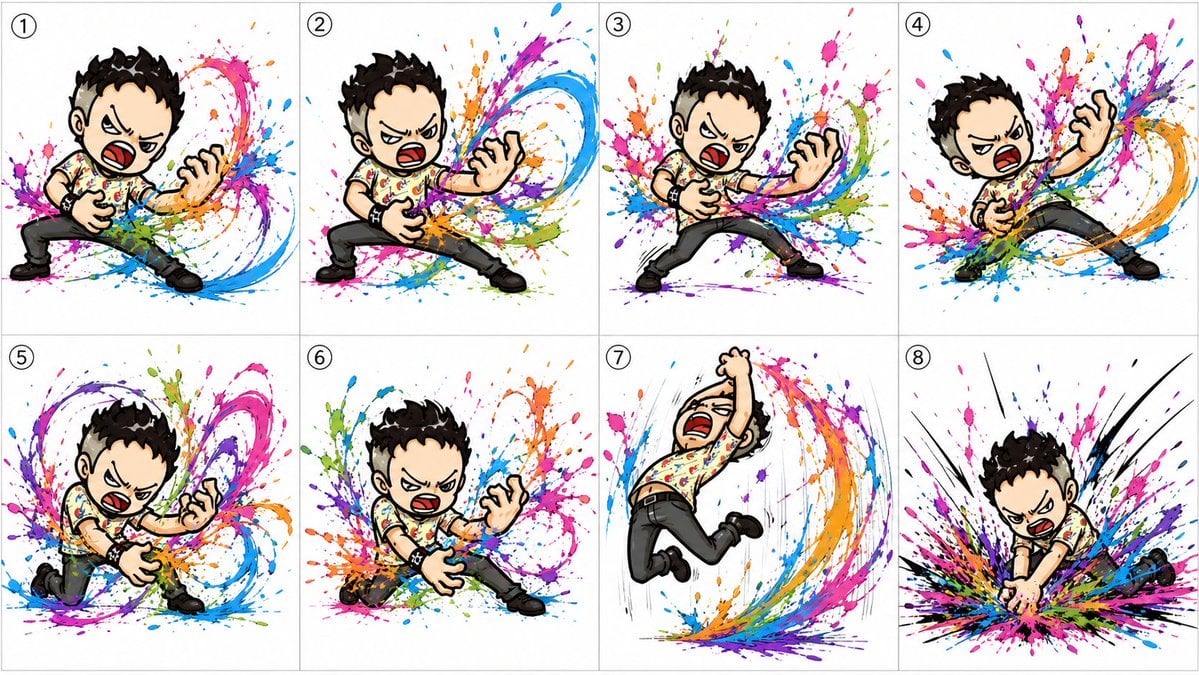
Chibi Air Guitar Storyboard
Make it yours
Teen With Chibi Pant-Leg Tug works as-is. These are the safest ways to change it without losing the look.
Change one field
Copy a single group, rewrite it, and generate again so you can see what that field is doing.
Keep the frame, change the subject
Hold the composition and light of Teen With Chibi Pant-Leg Tug, then swap wardrobe, props or the person for a new take.
| If the result… | Why | Fix |
|---|---|---|
| The result drifts from the preview | Too many fields changed at once. | Reuse Teen With Chibi Pant-Leg Tug as-is first, then change one group — subject, light, or setting. |
| The model over-stylizes the scene | The prose prompt leaves finish and camera underspecified. | Add one camera or lighting sentence and stay on GPT Image 2. |
More GPT Image 2 templates
Other prompts made for GPT Image 2.

Six VTuber Japanese Logo Sheet

Realistic Portrait of Woman and Deer

The Vista Modular Condo Poster

AI Model Routing Comparison Infographic

2.5D Anime Art Board

Isometric Productivity Desk Scene

New York Double Exposure Poster

Four-Panel AI Landscape Comparison

Japanese Tatami Lifestyle Magazine Cover

NESCAFÉ Coffee Map Poster
More image prompts
Fresh picks from across the catalog.
Lifestyle Sneaker Editorial Poster
Artisan Toy Product Photography Prompt
Japanese Children's Day Photo Card
Chibi Character New Year's Card Design Prompt (2026)

Shakira-Inspired Winter Fashion Dance Prompt
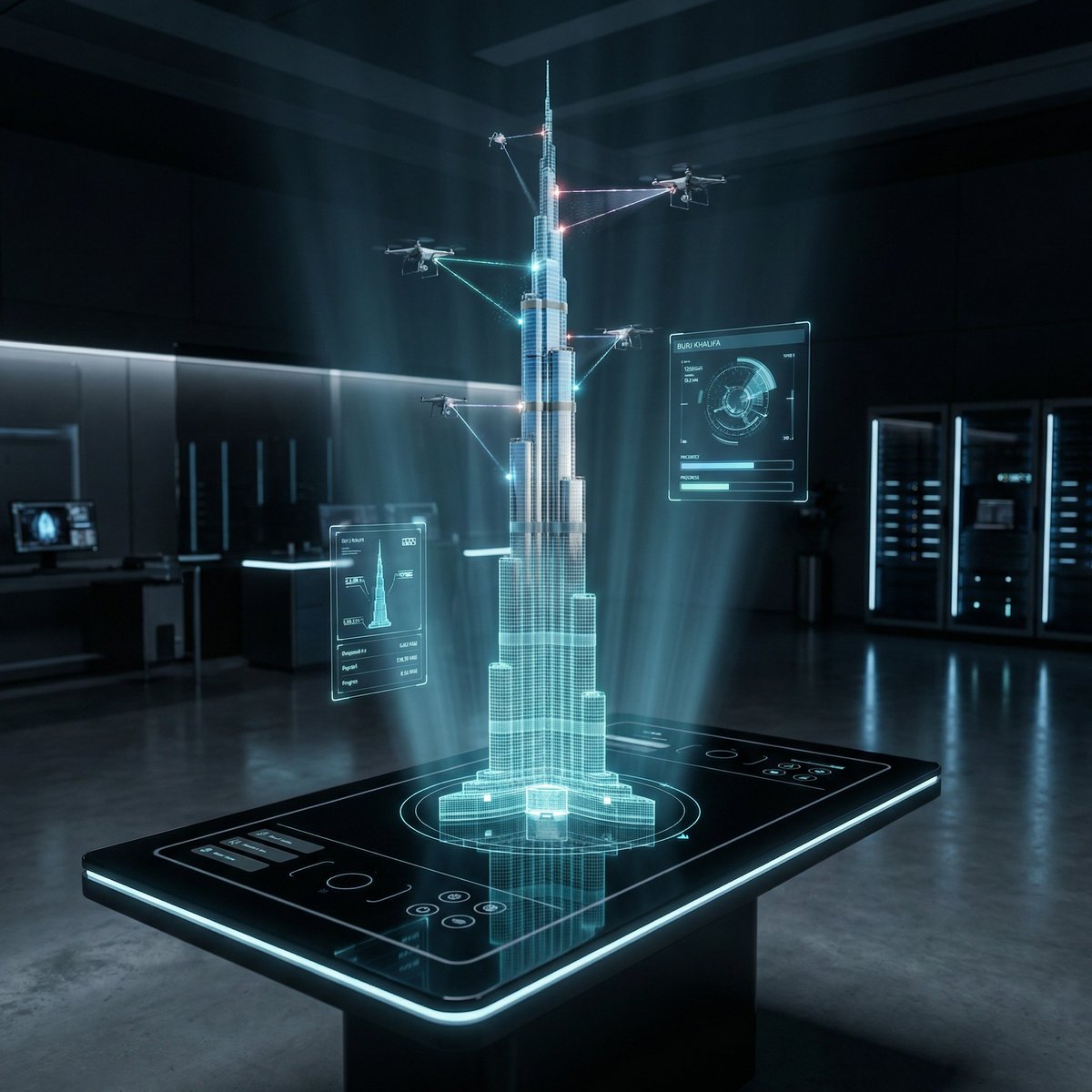
Futuristic Holographic Burj Khalifa Blueprint

X Chatgptpaglu Gpt Image 2 on Yapper So
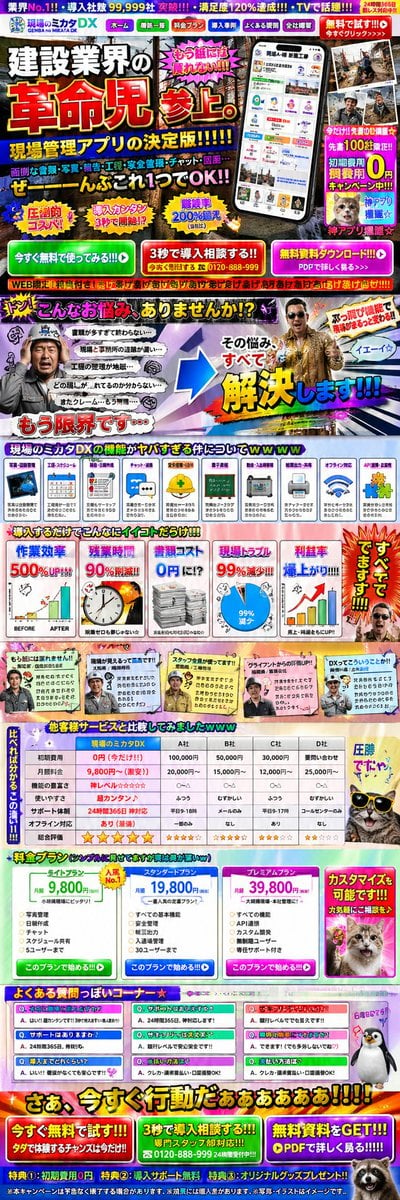
Intentionally Poor UI/UX Landing Page Design
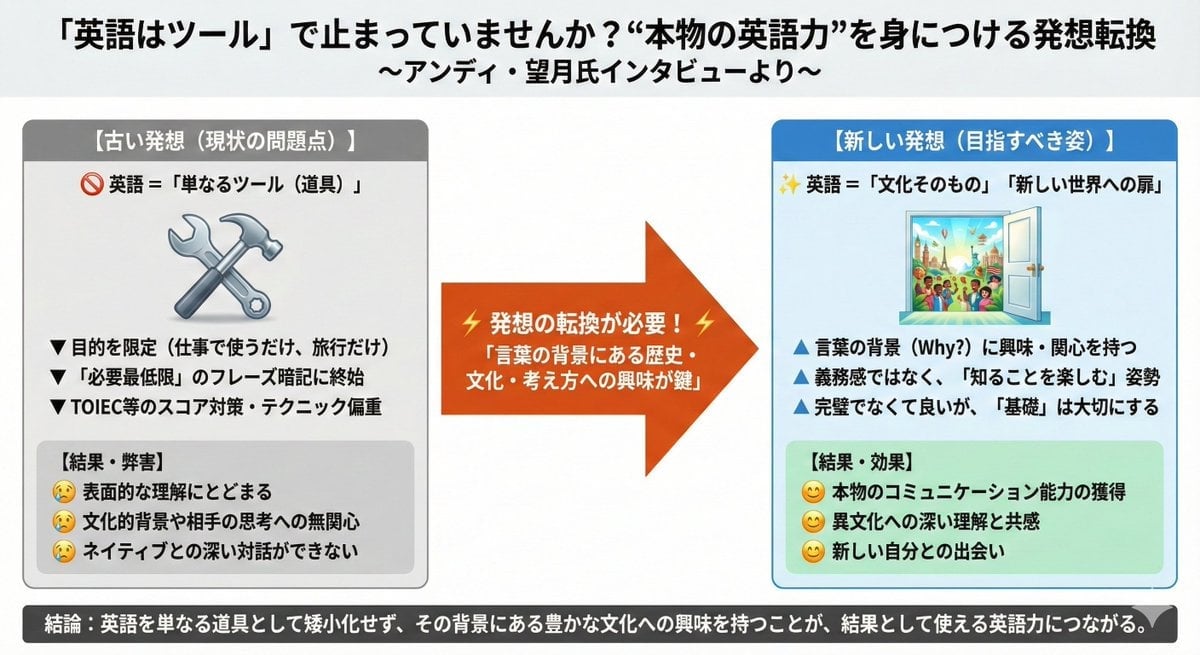
News Article Diagram Generation
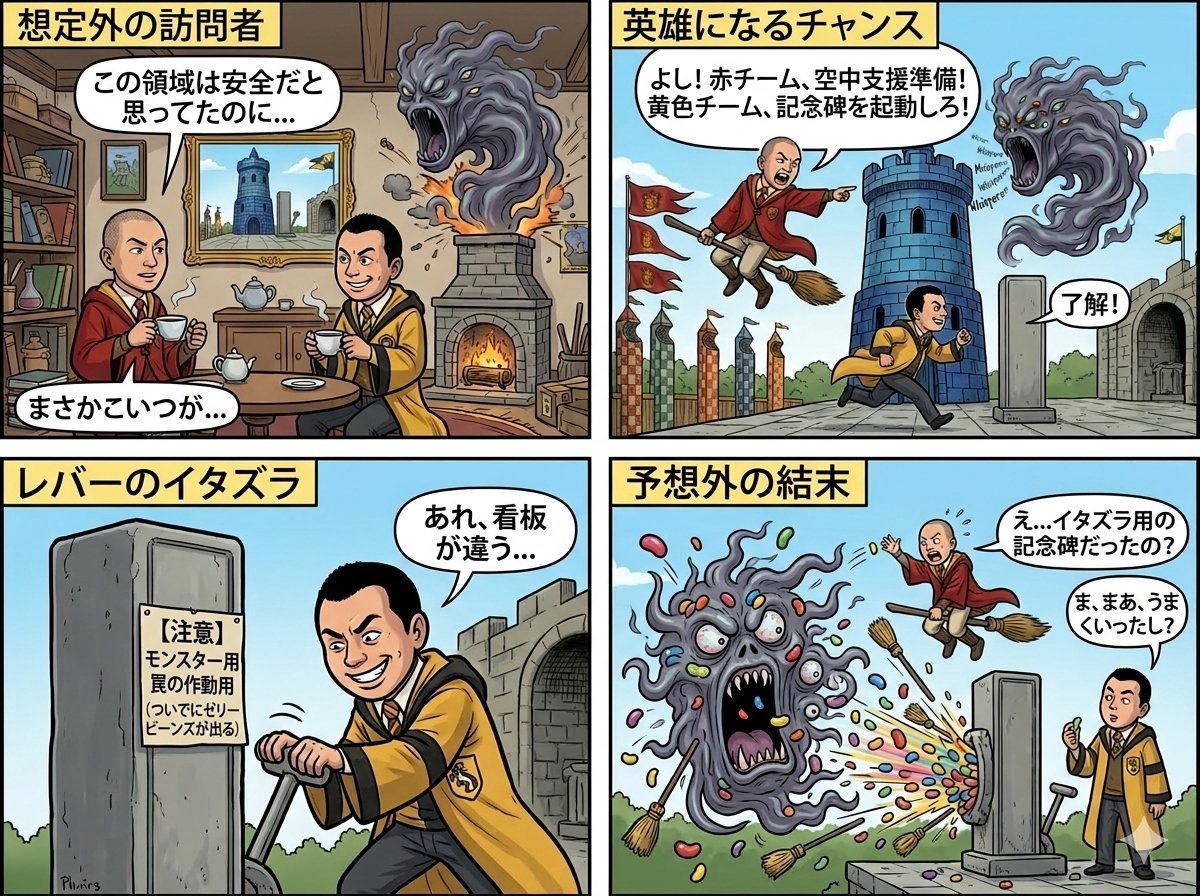
Four-Panel Manga: Judgment of the Ministry of Magic
Browse template categories
Teen With Chibi Pant-Leg Tug questions
How do I use the Teen With Chibi Pant-Leg Tug template?
Add your photo if the template asks for one, edit the prompt if you like — the template's model and format are already selected — and press Generate. Your version opens in PicX Studio.
Can I customize the Teen With Chibi Pant-Leg Tug template?
Yes. You can change the subject, setting, lighting, mood, format, and available model controls before creating your image.
Is the Teen With Chibi Pant-Leg Tug template free?
Opening and editing this template is free. Generating uses credits, shown on the Generate button when you are signed in.
Which AI model should I use?
Start with GPT Image 2, which is the model associated with this template. You can compare another compatible model for a different finish.
Looking for something else? Browse all templates.

Your photo, any look
Thousands of ready templates for every top image and video model, from one credit balance.