
Teal Japanese Handwritten Lyric Card
Generates a square teal lyric-card design with 23 vertical handwritten Japanese text columns and doodle marks, useful for music artwork or lyric-sheet visuals.
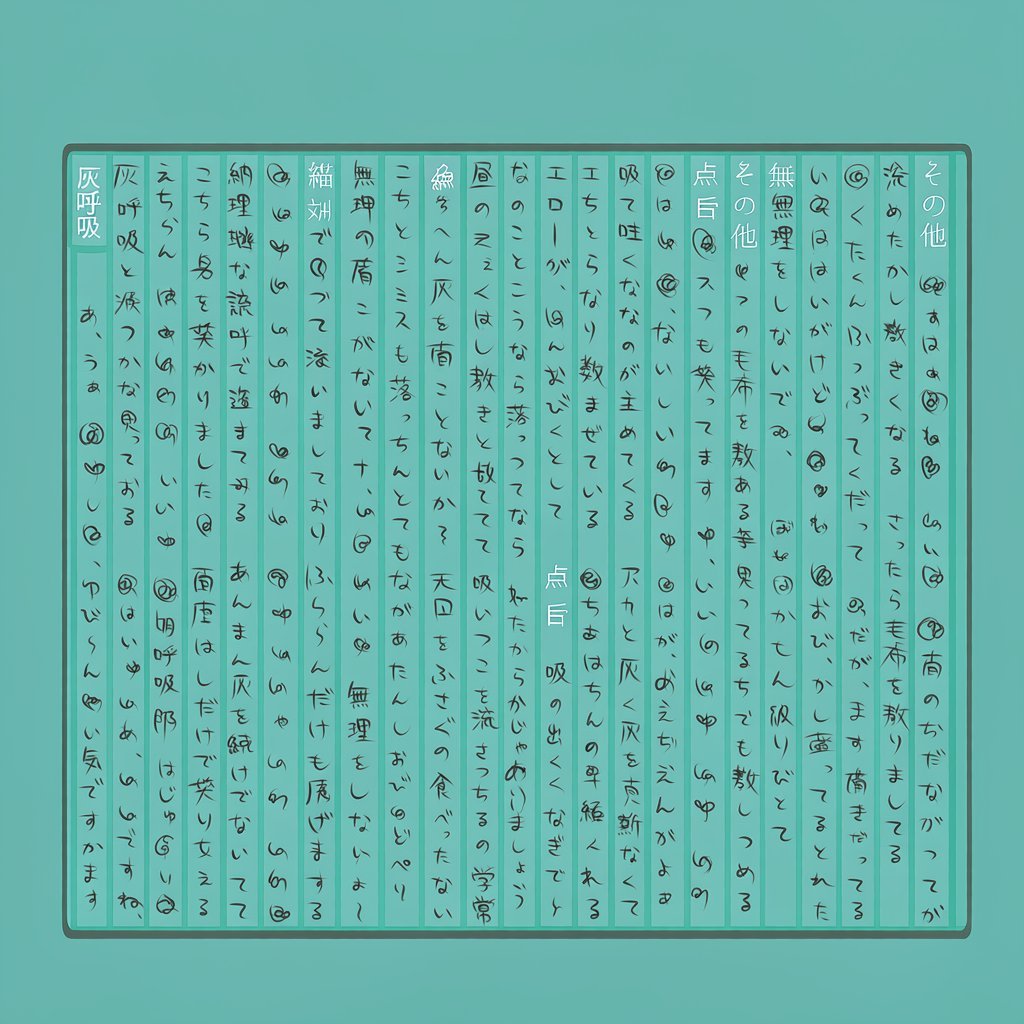
- Prompt included
- Model and format preset
- Free template
The prompt behind this image
Copy the exact prompt behind Teal Japanese Handwritten Lyric Card, or open it in the studio and make it yours.
Goal: Create a square lyric-card image resembling a scanned handwritten Japanese song sheet on a teal background. Canvas: 1:1 square, flat turquoise background with a centered horizontal rectangle occupying about 88% width and 76% height. Layout: Inside the rectangle, draw exactly 23 narrow vertical writing columns separated by thin teal divider lines. Use a thick dark gray rounded outer border with a subtle inner shadow. The columns should read as traditional vertical Japanese handwriting, densely filling the card from top to bottom, with uneven spacing and a human handwritten rhythm. Text content: Use {argument name="song title" default="灰呼吸"} as the bold vertical title in the far-left column. Fill the remaining columns with {argument name="lyrics text" default="あ、うぁ、ぐるん、吸って吐く、点互、無理をしないで、その他、冷めたかし教きくなる"}, rendered as handwritten Japanese lyric-like text rather than typeset text. Add many small decorative doodles between phrases: looped spirals, tiny hearts, circled marks, dots, and loose scribbles. Visual style: Minimal flat graphic design, teal monochrome palette, dark charcoal ink, slightly imperfect hand-drawn lines, clean but handmade lyric-card aesthetic. Use alternating pale teal column fills so the grid is visible but subtle. Constraints: No characters, no scenery, no English text, no realistic paper texture, no watermark. Keep all text vertical and handwritten, with the dense information-card look of a Japanese lyrics sheet.
How to use Teal Japanese Handwritten Lyric Card in 3 steps
- 1Upload ImagePNG, JPG or paste
Add your photo
Upload the photo the template builds on. The prompt, model and format are already set.
- 2…a portrait of your subject in softgolden-hour light, 85mm…
Personalize
Edit the subject and creative details for your destination.
- 3Generate
Generate
Press Generate — your image is created in PicX Studio, so you can compare it with the original and refine one variable at a time.
More like this
Templates with the same subject, style or setup. Open one to see its prompt.

Minecraft Japanese Research Lab Exploration

Japanese Architectural Concrete Studio Fashion Campaign

Japanese Minimalist Concrete Studio Fashion Editorial

Blue Backdrop Luxury Fashion Portrait Campaign
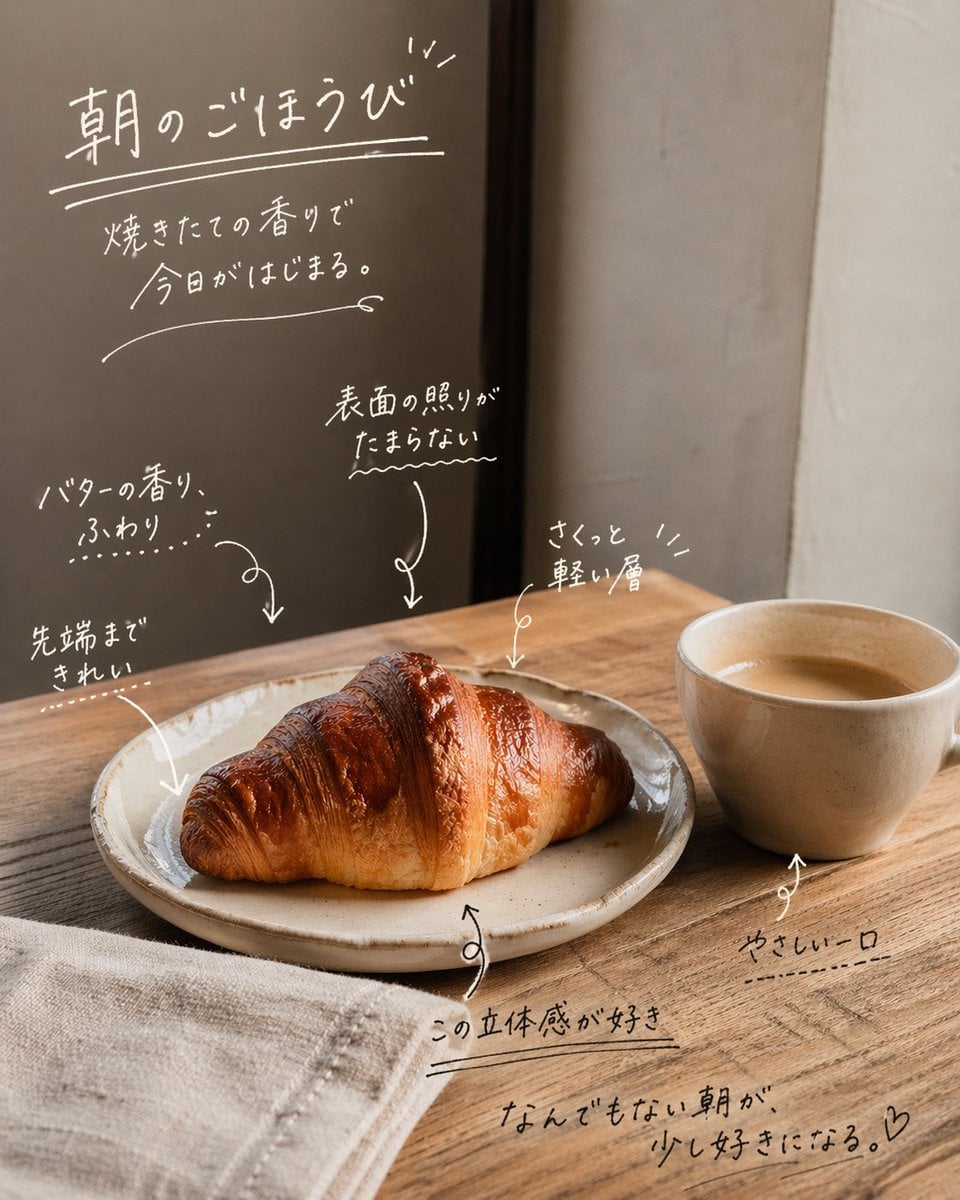
Handwritten Japanese Cafe Photo Overlay
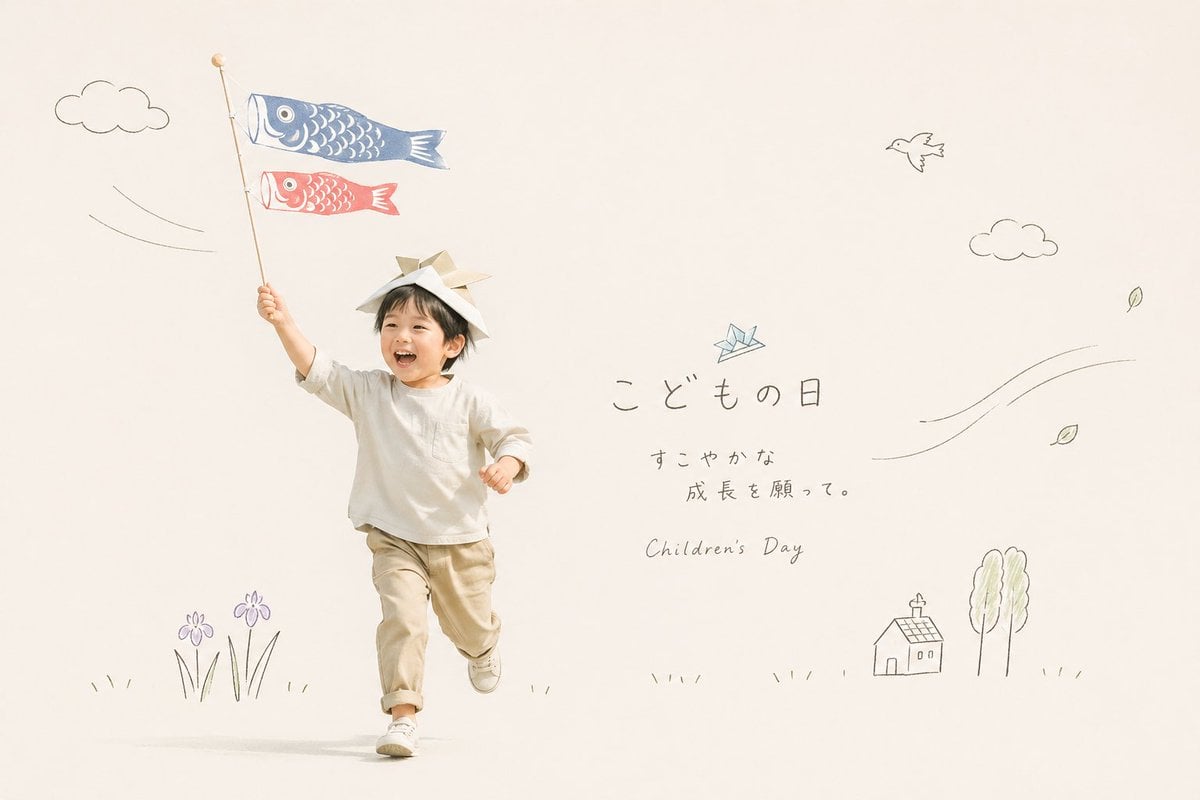
Japanese Children's Day Photo Card
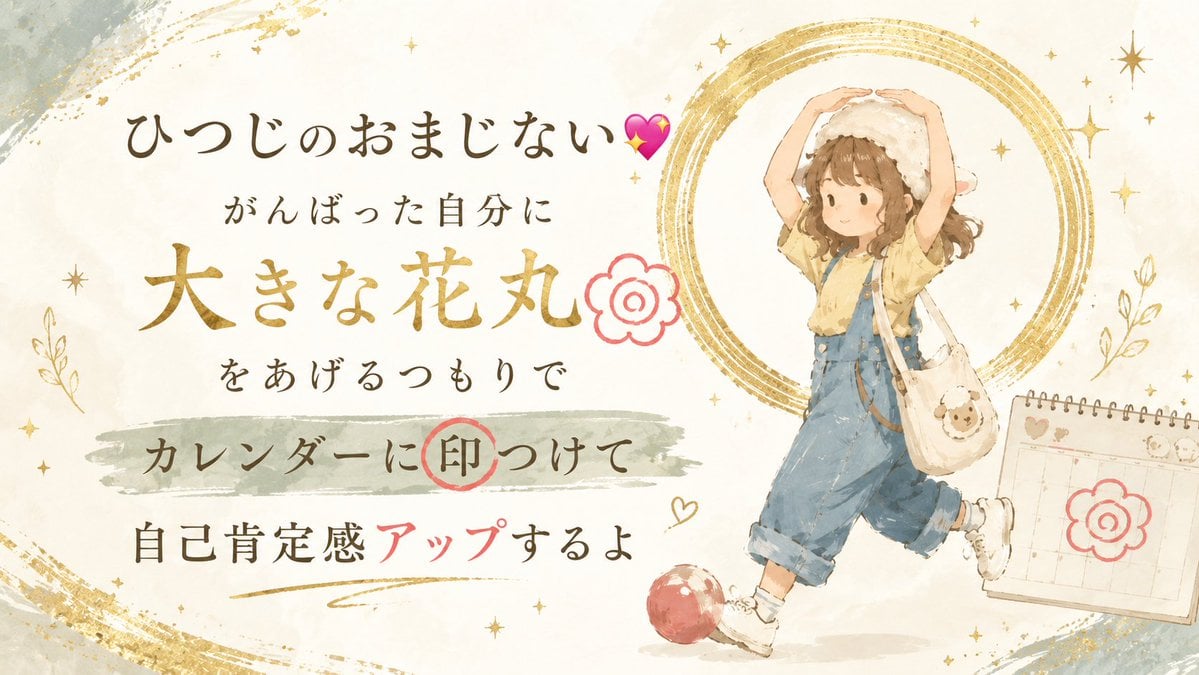
Japanese Self-Care Flower Mark Card
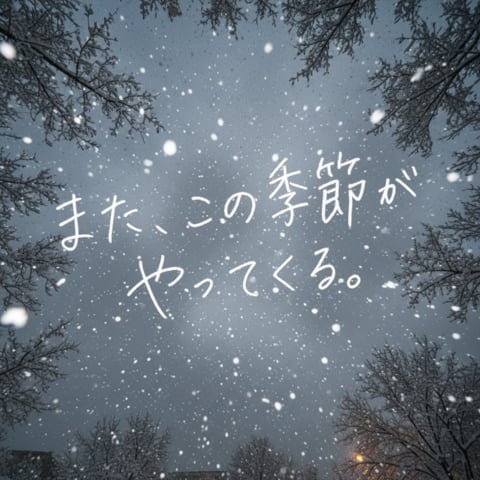
Snowy Sky with Handwritten Japanese Text
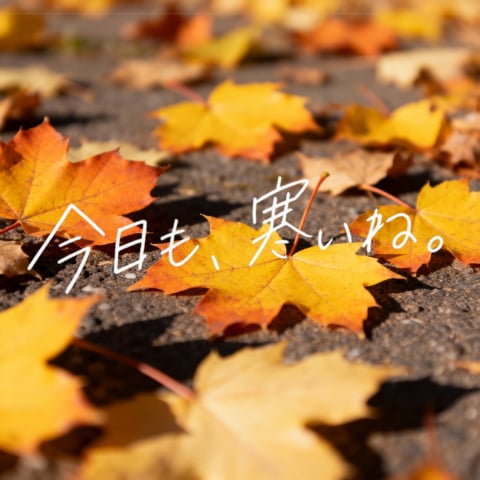
Autumn Leaves with Handwritten Japanese Text
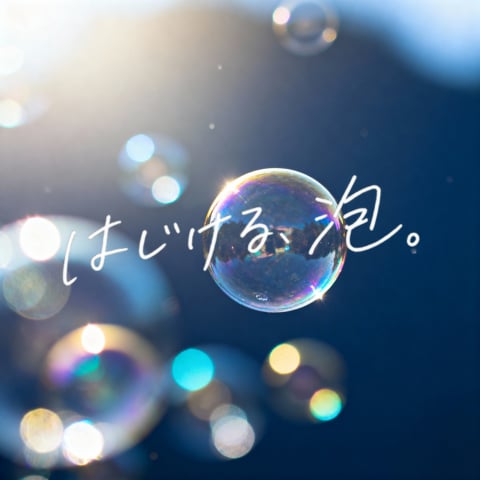
Dreamy Bubble with Handwritten Japanese Text
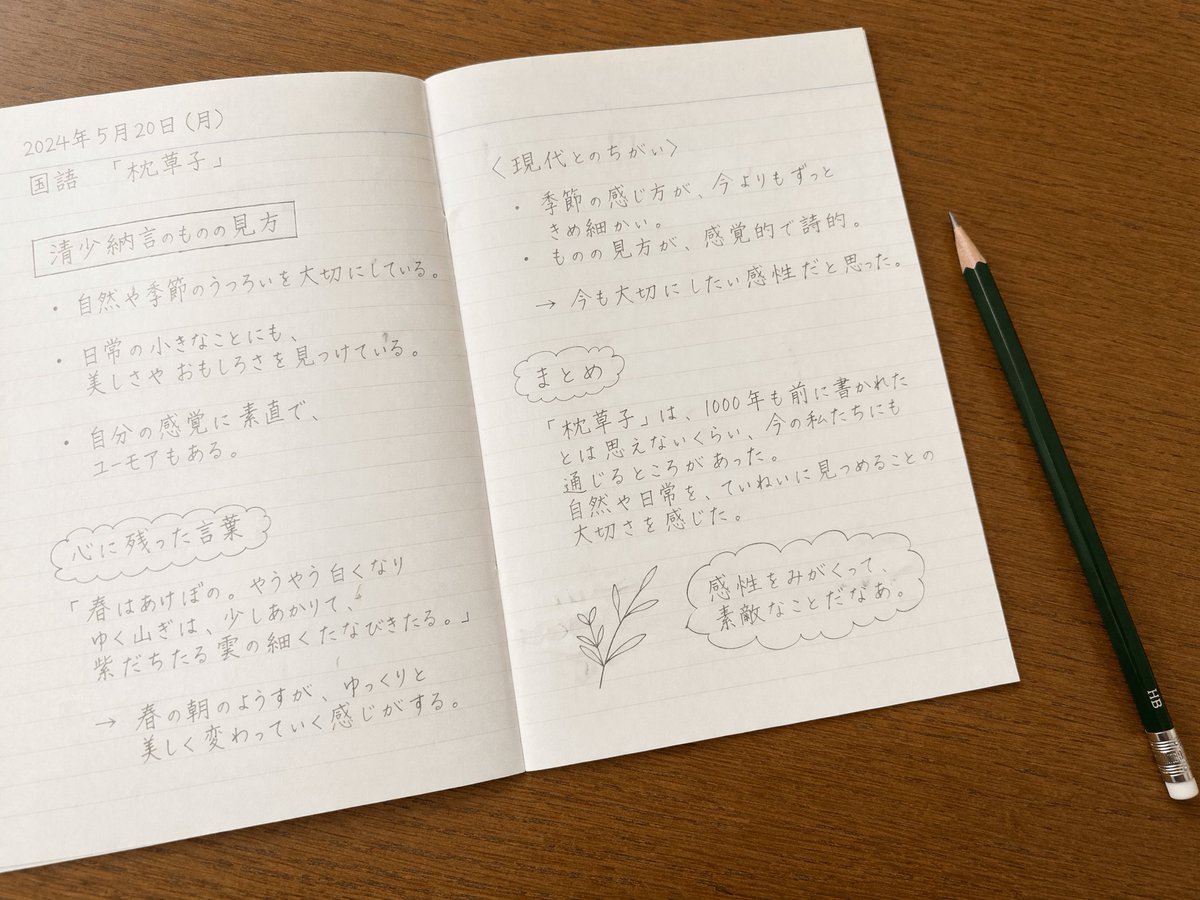
Handwritten Japanese Study Notes
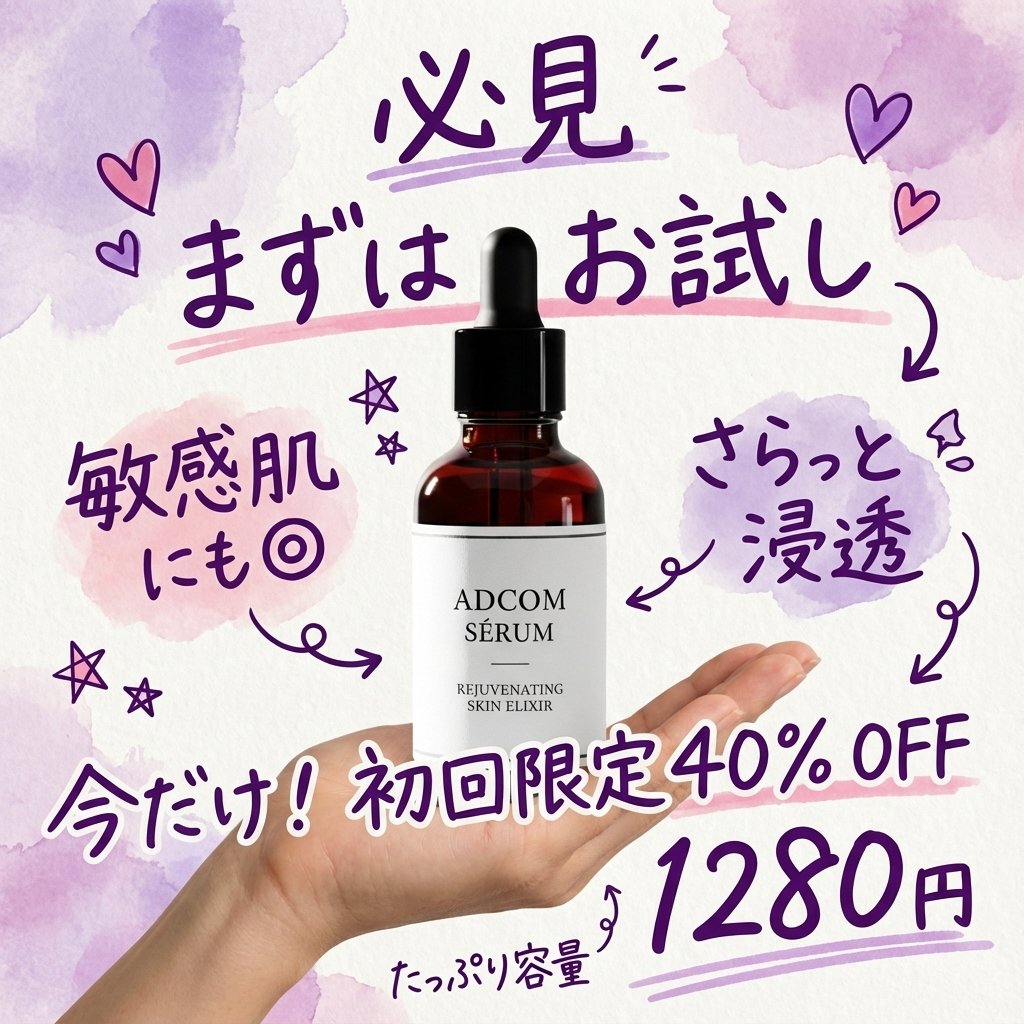
Instagram-style Japanese handwritten cosmetic ad
Make it yours
Teal Japanese Handwritten Lyric Card works as-is. These are the safest ways to change it without losing the look.
Change one field
Copy a single group, rewrite it, and generate again so you can see what that field is doing.
Keep the frame, change the subject
Hold the composition and light of Teal Japanese Handwritten Lyric Card, then swap wardrobe, props or the person for a new take.
| If the result… | Why | Fix |
|---|---|---|
| The result drifts from the preview | Too many fields changed at once. | Reuse Teal Japanese Handwritten Lyric Card as-is first, then change one group — subject, light, or setting. |
| The model over-stylizes the scene | The prose prompt leaves finish and camera underspecified. | Add one camera or lighting sentence and stay on GPT Image 2. |
More GPT Image 2 templates
Other prompts made for GPT Image 2.

Realistic Portrait of Woman and Deer

The Vista Modular Condo Poster

AI Model Routing Comparison Infographic

2.5D Anime Art Board

Isometric Productivity Desk Scene

New York Double Exposure Poster

Four-Panel AI Landscape Comparison

Japanese Tatami Lifestyle Magazine Cover

NESCAFÉ Coffee Map Poster

Brutalist Cogito Chinese Typography Poster
More image prompts
Fresh picks from across the catalog.
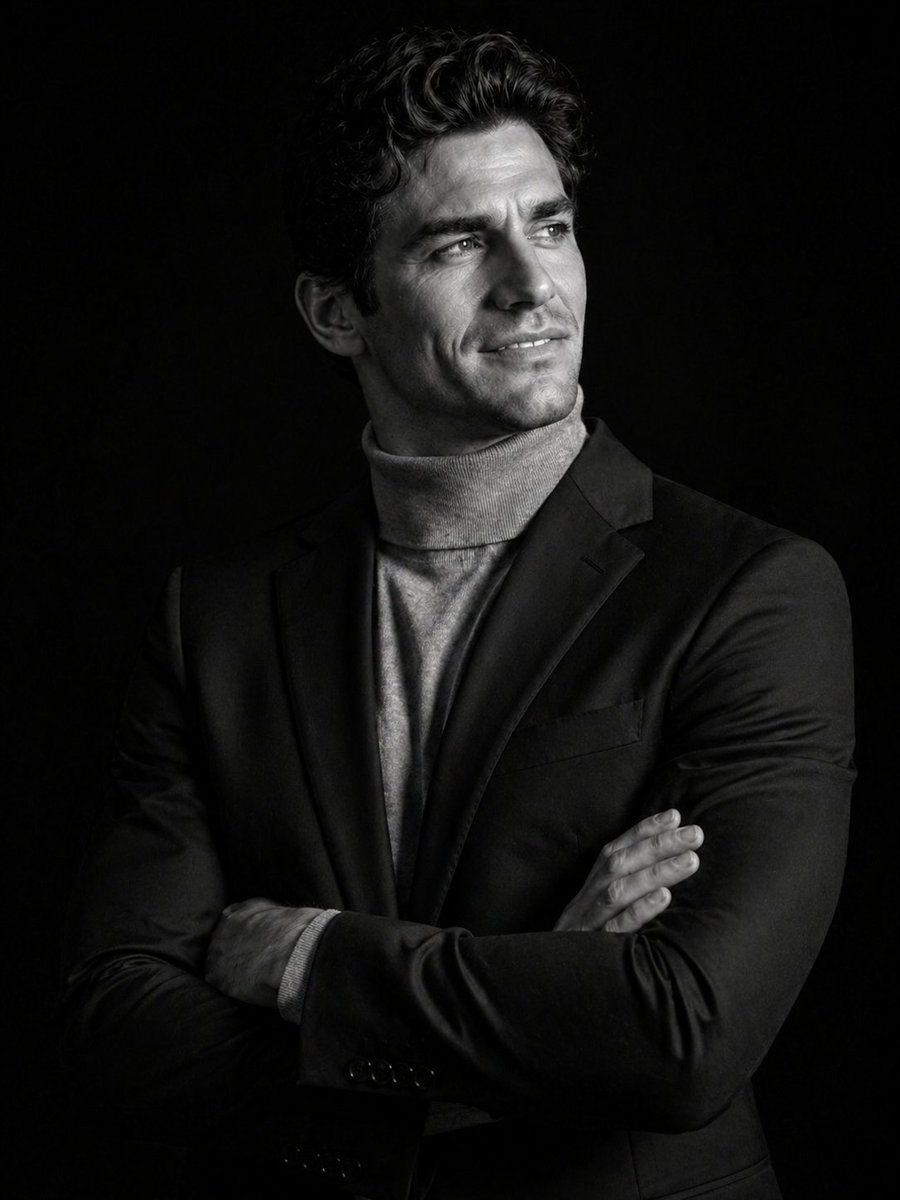
Cinematic Black and White Studio Portrait

Cinematic Mesoamerican Warrior Portrait
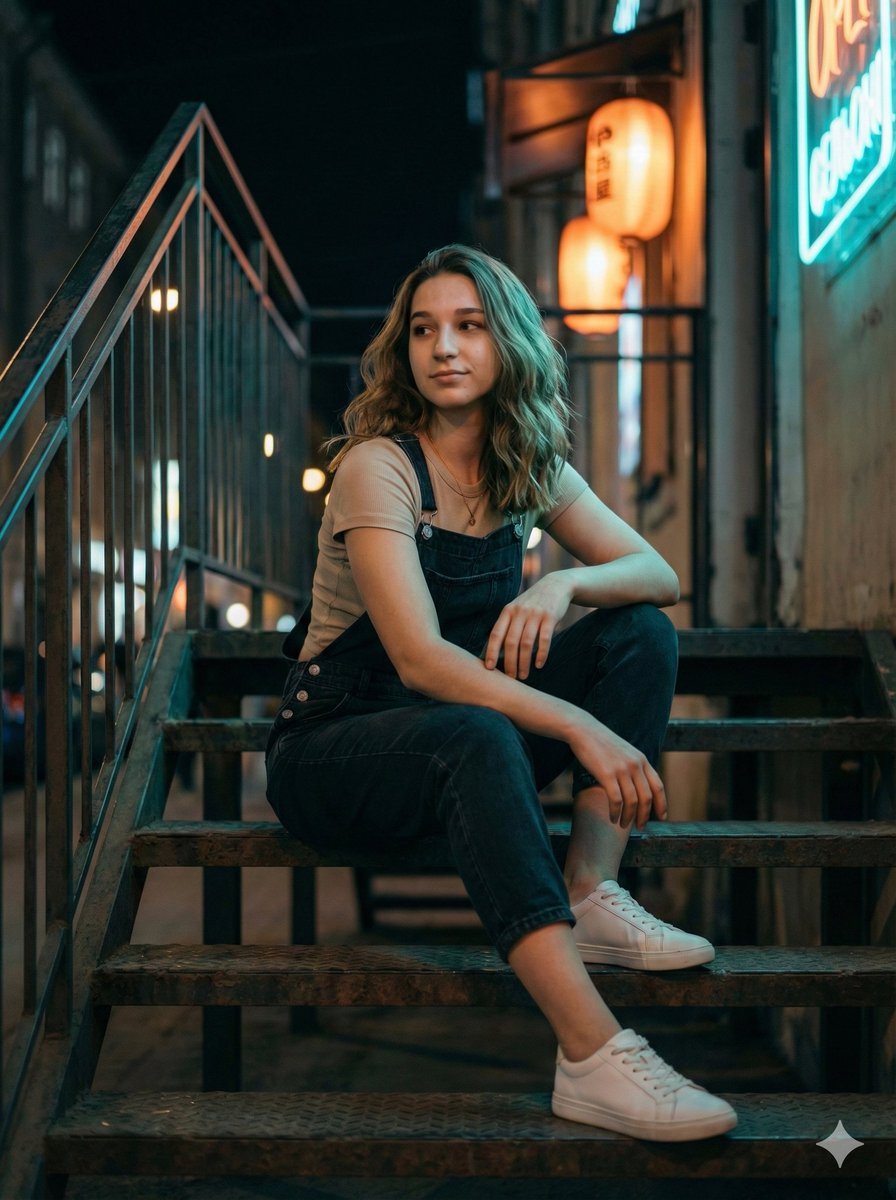
Cinematic Night Portrait on Urban Stairs
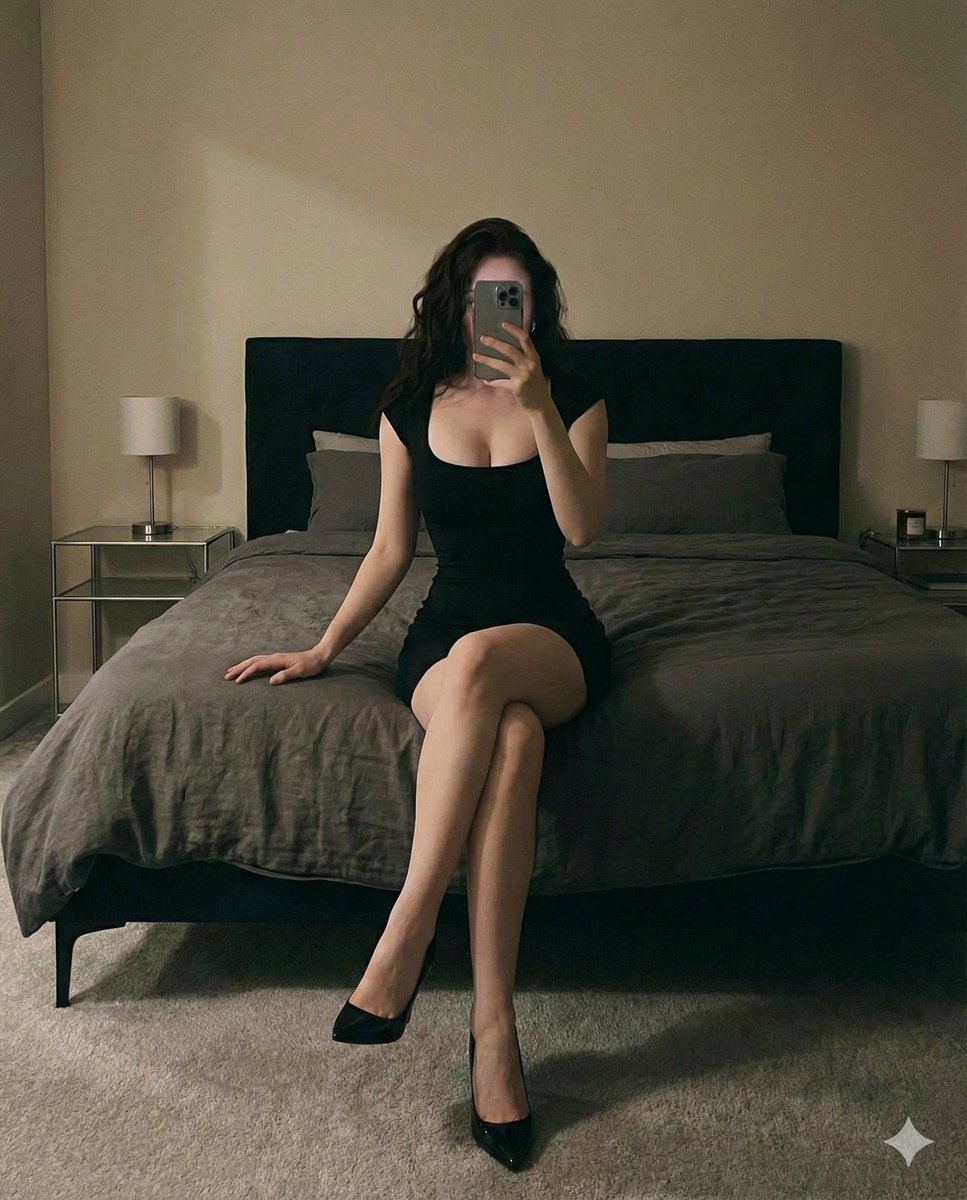
Cinematic bedroom self-portrait prompt for Nano Banana Pro

Advertising Visual Prompt: Sports Car Model Exploration
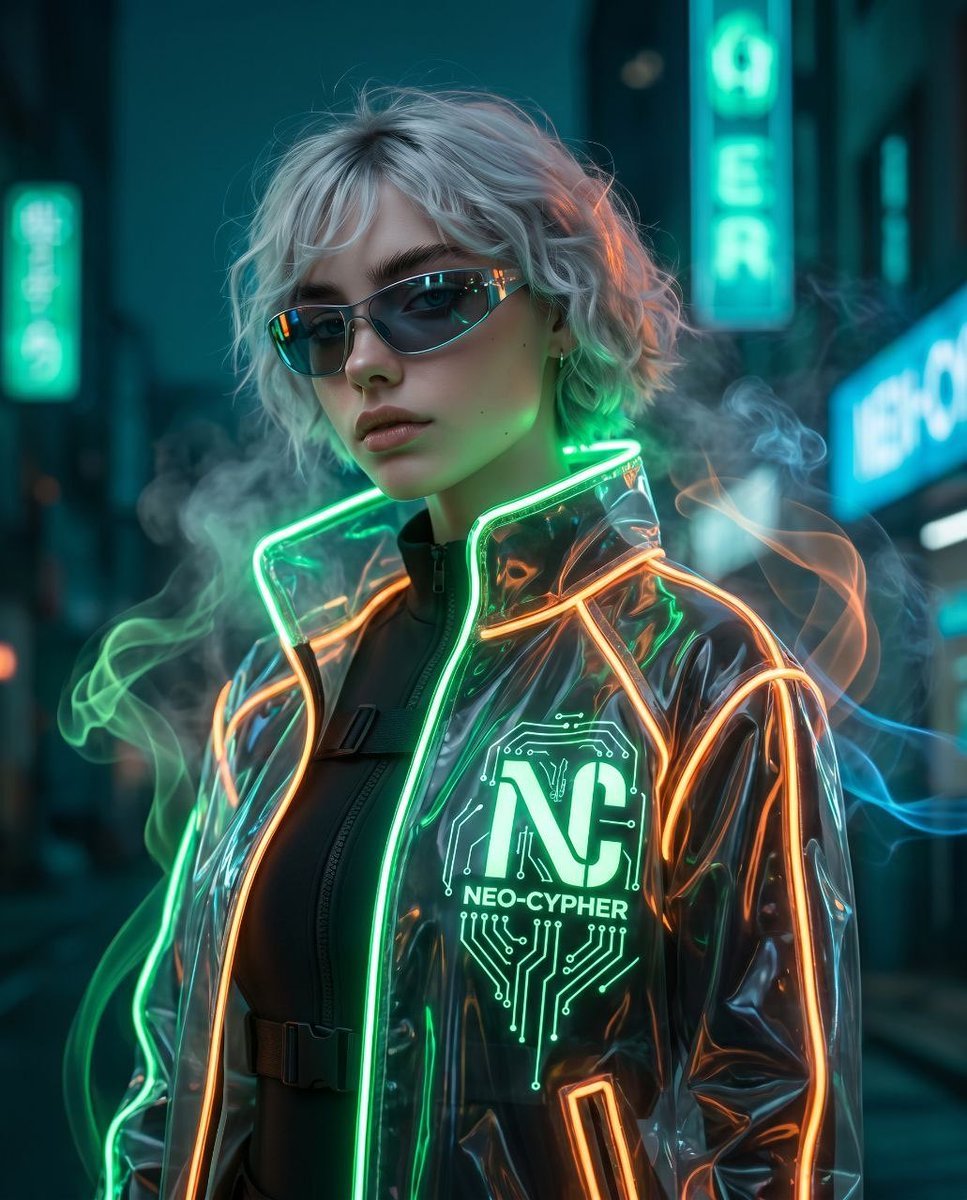
Futuristic Cyberpunk Sportswear Portrait
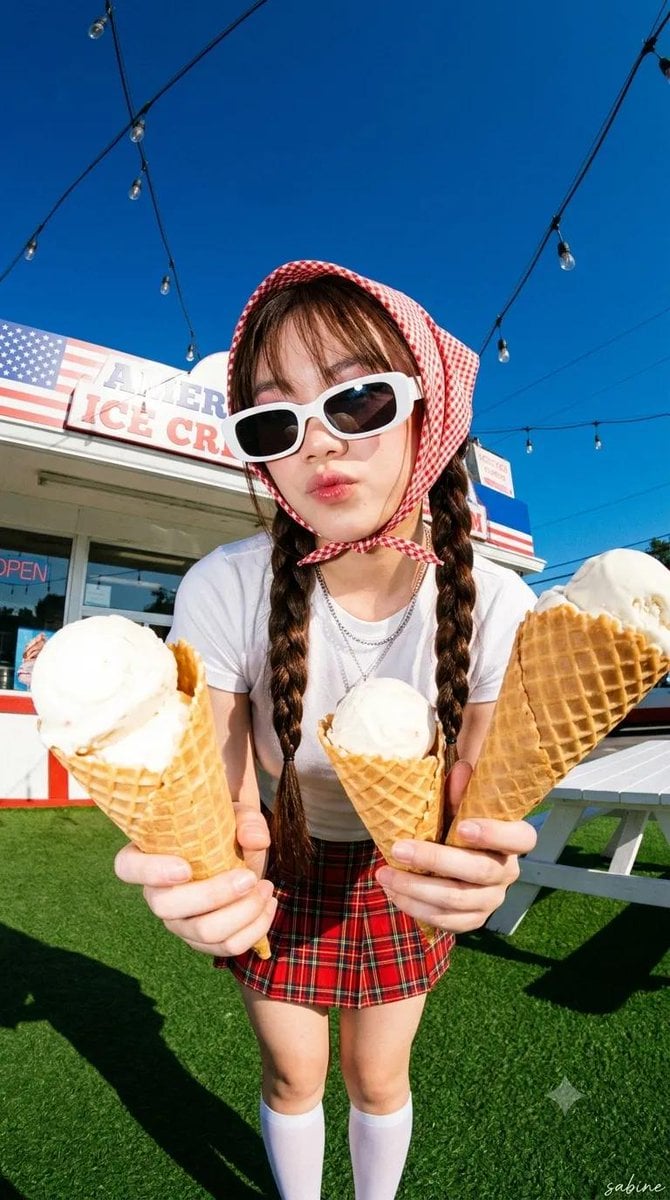
Y2K Summer Fashion Editorial

Surreal Cosmetic Alchemist Portrait Prompt

Black and White Cinematic Motorcycle Portrait
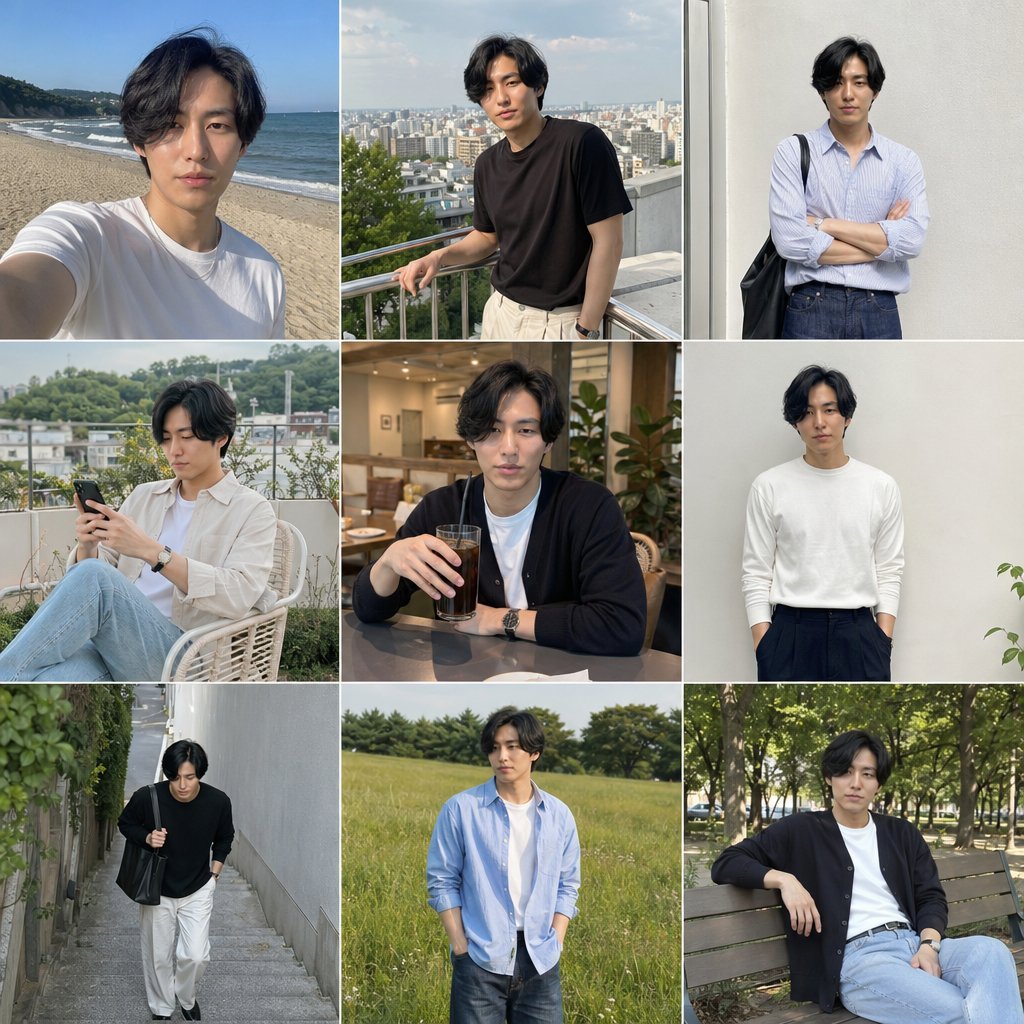
Photo Men's Fashion Collage
Browse template categories
Teal Japanese Handwritten Lyric Card questions
How do I use the Teal Japanese Handwritten Lyric Card template?
Add your photo if the template asks for one, edit the prompt if you like — the template's model and format are already selected — and press Generate. Your version opens in PicX Studio.
Can I customize the Teal Japanese Handwritten Lyric Card template?
Yes. You can change the subject, setting, lighting, mood, format, and available model controls before creating your image.
Is the Teal Japanese Handwritten Lyric Card template free?
Opening and editing this template is free. Generating uses credits, shown on the Generate button when you are signed in.
Which AI model should I use?
Start with GPT Image 2, which is the model associated with this template. You can compare another compatible model for a different finish.
Looking for something else? Browse all templates.

Your photo, any look
Thousands of ready templates for every top image and video model, from one credit balance.