How do I use the Autumn Leaves with Handwritten Japanese Text template?
Choose the primary action to open PicX Studio with the available template settings. Review the model and format, personalize the creative direction, and generate when ready.
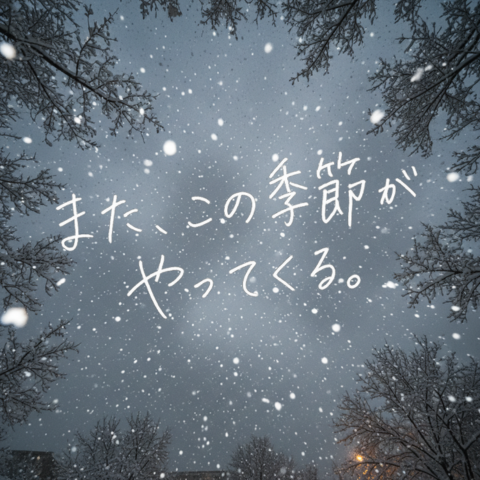
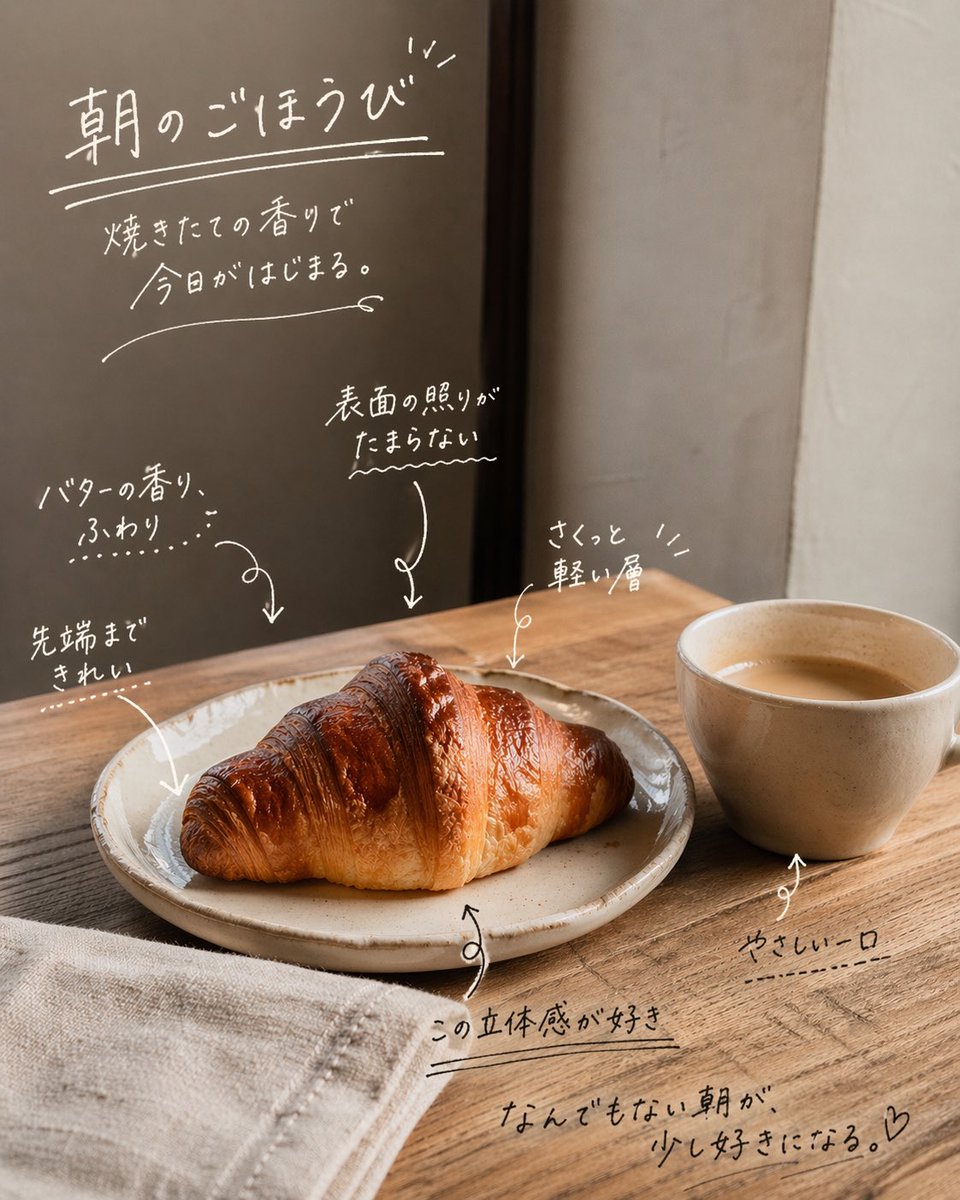
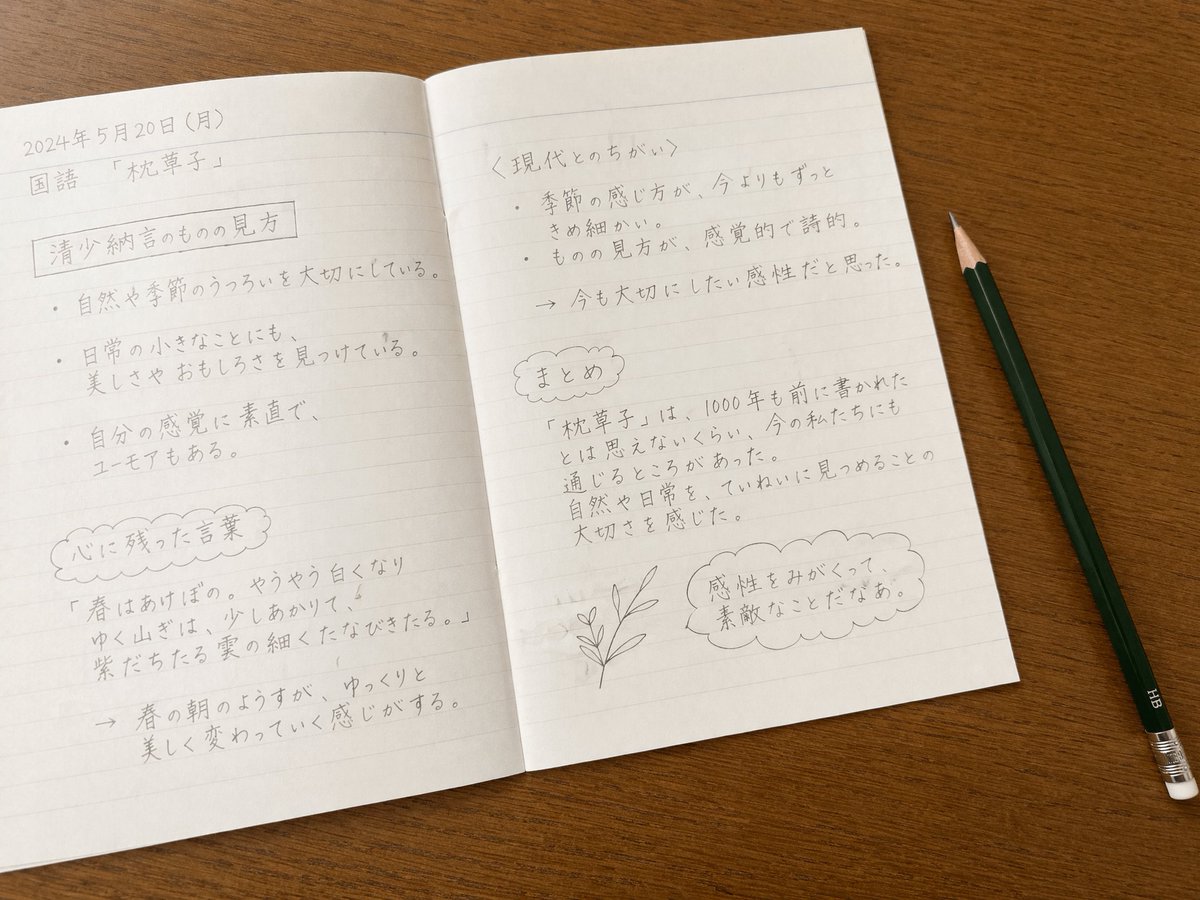
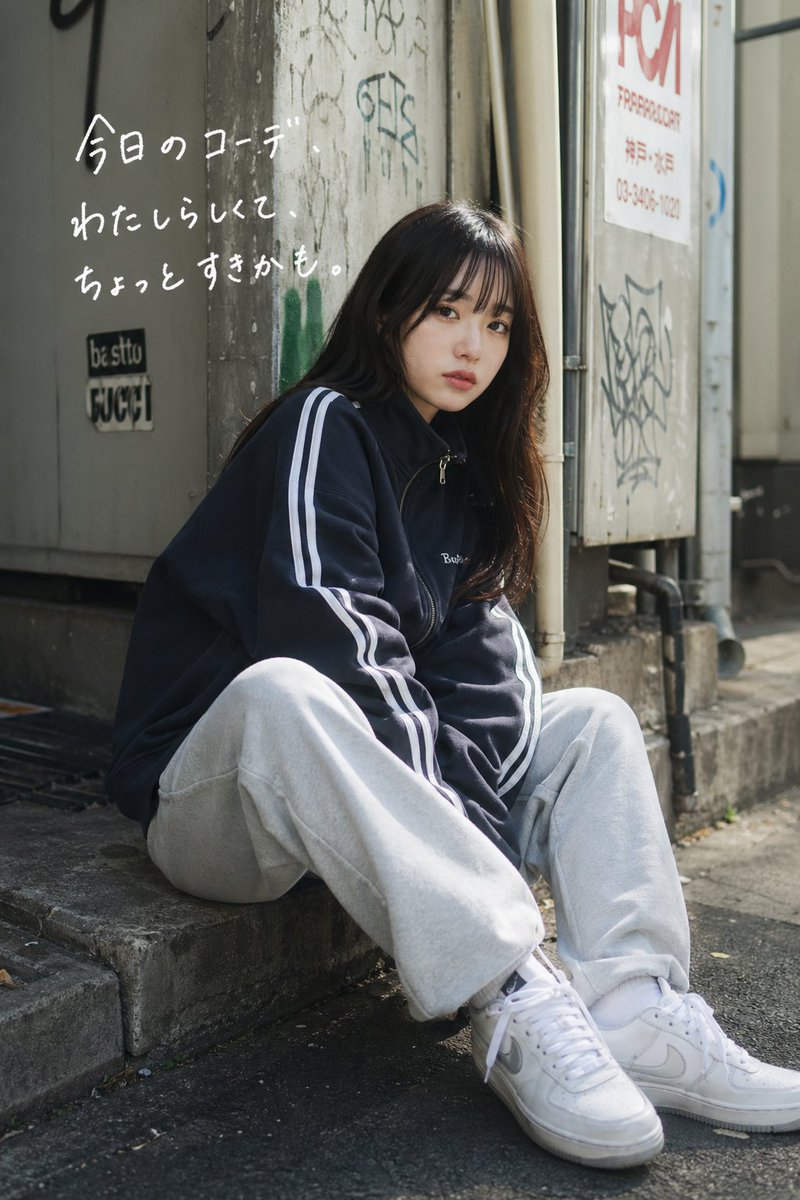
This prompt generates a cozy autumn close-up photo of fallen maple leaves on pavement with expressive white handwritten Japanese text, ideal for seasonal quote posts or poetic social media visuals. Change the subject, setting, or lighting one variable at a time.

Choose the primary action to open PicX Studio with the available template settings. Review the model and format, personalize the creative direction, and generate when ready.
Yes. You can change the subject, setting, lighting, mood, format, and available model controls before creating your image.
This is a premium template. An entitled PicX Studio plan unlocks its protected prompt; the preview and guide remain public.
Start with GPT Image 2, which is the model associated with this template. You can compare another compatible model for a different finish.
© 2026 PicX Studio. All rights reserved.

Follow a topic to a crawlable collection of related PicX Studio templates.
43,474 public templates available. Verified via the PicX Studio public templates API; refreshed hourly.













![Minimalist Flat Vector Travel Poster — Premium minimalist flat-vector travel poster for {argument name="city name" default="[CITY_NAME]"}, 3:4 vertical format.](https://cms-assets.youmind.com/media/1787917359711_3ug846_HQX205cbMAA6F6S-300x400.jpg)




























![Object as Shelter: Naturalistic Storytelling — A massive {argument name="everyday object" default="[EVERYDAY OBJECT]"} casually used as temporary shelter by tin](https://pbs.twimg.com/media/G9OWuRMaUAAELQY.jpg)





![Premium Recipe Poster Template — Create a premium food preparation poster for [ {argument name="dish name" default="DISH NAME"} ], with a beautiful hero dish, w](https://cms-assets.youmind.com/media/1777193308183_px9fgg_HGuK_N8aUAANsXt.jpg)
