
Japanese Optical Illusion Museum UI
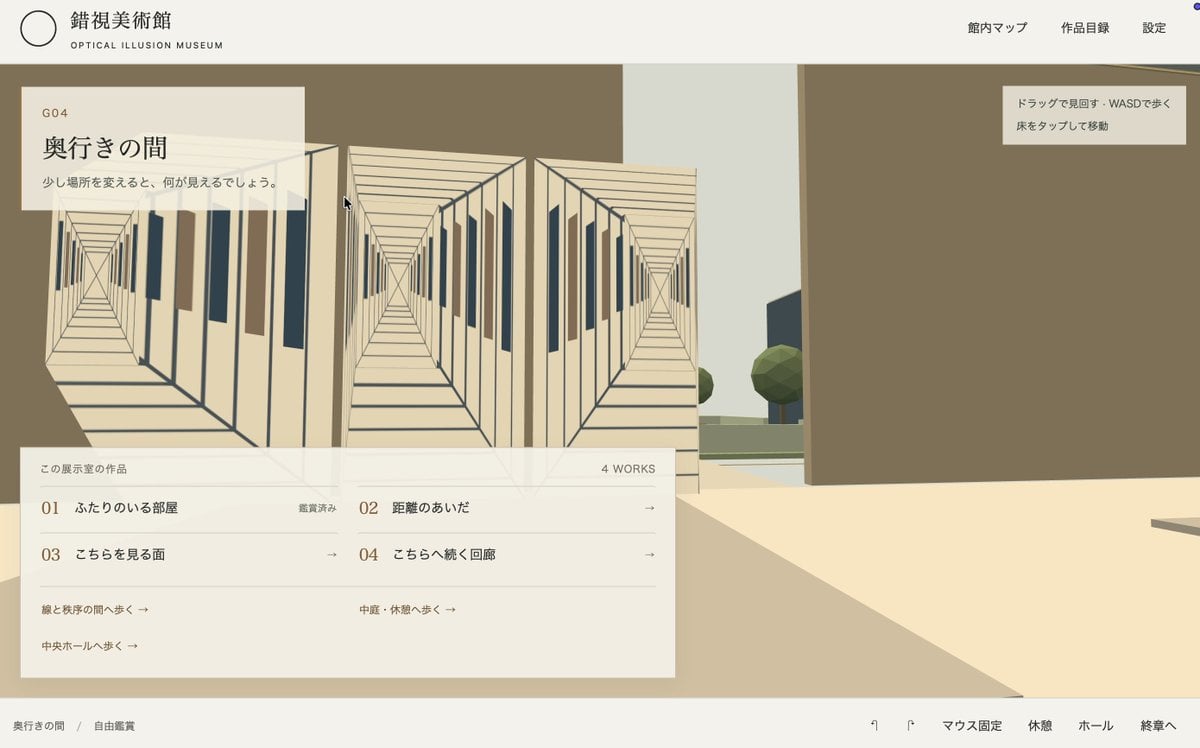
A wide minimalist Japanese web UI mockup for navigating a low-poly 3D optical illusion museum exhibit.
- Prompt included
- Model and format preset
- Free template
The prompt behind this image
Copy the exact prompt behind Japanese Optical Illusion Museum UI, or open it in the studio and make it yours.
Goal: Create a clean Japanese web UI mockup for an interactive 3D optical illusion museum called {argument name="museum name" default="錯視美術館"}, shown as an in-browser gallery navigation screen rather than a realistic photo. Canvas: Wide 16:9 screenshot-style composition, about 1200×720, with a pale off-white top navigation bar and a thin off-white bottom status bar. Use muted beige, taupe, cream, charcoal, and dusty blue-gray colors, with lots of negative space and a minimalist programmer-made museum aesthetic. Layout: The scene is split between a flat UI overlay and a simple low-poly 3D environment. At the top left, place a thin outlined circle logo, the Japanese museum name, and the small English subtitle “OPTICAL ILLUSION MUSEUM.” At the top right, place exactly three navigation links: “館内マップ”, “作品目録”, and “設定”. In the center/left foreground, show a large translucent information card over a 3D museum corridor. At the upper right of the scene, add a small instruction tooltip. Along the bottom, include breadcrumb/status text on the left and exactly five control labels on the right. 3D environment: Depict a stylized first-person museum courtyard/interior with massive blocky taupe walls, a cream floor, an open vertical slit revealing pale sky, and a few low-poly green trees outside. The main artwork is an impossible-perspective corridor installation made from three adjacent rectangular tunnel drawings: left, center, and right. Each tunnel uses repeated cream frames, dark blue-gray outline beams, converging perspective lines, and alternating vertical rectangular panels in beige, brown, and blue-gray, creating a depth illusion. The center tunnel is most prominent, with the left and right tunnels angled slightly. Include a tiny black mouse cursor near the upper-left side of the corridor artwork. Main card text: In the upper-left translucent panel, show the room code “G04”, the title {argument name="exhibit title" default="奥行きの間"}, and the description {argument name="exhibit description" default="少し場所を変えると、何が見えるでしょう。"}. Below, create a larger semi-transparent catalog panel titled “この展示室の作品” with “4 WORKS” aligned right. List exactly four works in two columns and two rows: “01 ふたりのいる部屋” with the status “鑑賞済み”, “02 距離のあいだ” with a right arrow, “03 こちらを見る面” with a right arrow, and “04 こちらへ続く回廊” with a right arrow. Beneath the list, include exactly three route links: “線と狭窄の間へ歩く →”, “中庭・休憩へ歩く →”, and “中央ホールへ歩く →”. Instruction tooltip and footer: The small top-right tooltip should say exactly two lines: {argument name="movement instruction" default="ドラッグで見回す・WASDで歩く"} and “床をタップして移動”. Bottom-left breadcrumb should read “奥行きの間 / 自由鑑賞”. Bottom-right controls should include small icon-like marks followed by exactly five labels: “マウス固定”, “休憩”, “ホール”, and “終章へ” plus the preceding small key/icon indicators. Visual style: Minimalist Japanese museum website, crisp vector typography, subtle translucency, fine divider lines, soft shadows, orthographic/low-poly 3D graphics, restrained color palette, no photorealism, no people, no extra popups, no watermark.
How to use Japanese Optical Illusion Museum UI in 3 steps
- 1Upload ImagePNG, JPG or paste
Add your photo
Upload the photo the template builds on. The prompt, model and format are already set.
- 2…a portrait of your subject in softgolden-hour light, 85mm…
Personalize
Edit the subject and creative details for your destination.
- 3Generate
Generate
Press Generate — your image is created in PicX Studio, so you can compare it with the original and refine one variable at a time.
More like this
Templates with the same subject, style or setup. Open one to see its prompt.

Minecraft Japanese Research Lab Exploration

Graphic Portrait with Optical Illusion Background

Japanese Architectural Concrete Studio Fashion Campaign

Japanese Minimalist Concrete Studio Fashion Editorial

Blue Backdrop Luxury Fashion Portrait Campaign
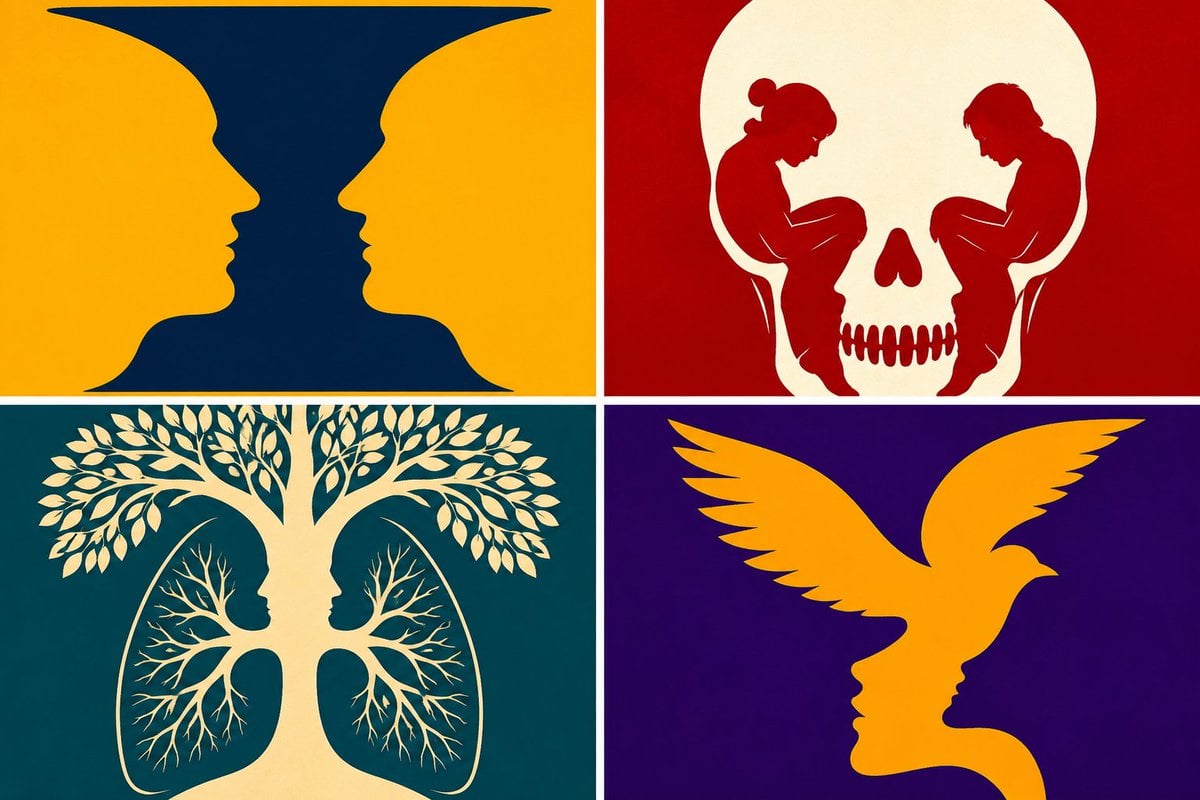
Parametric Optical Illusion Poster
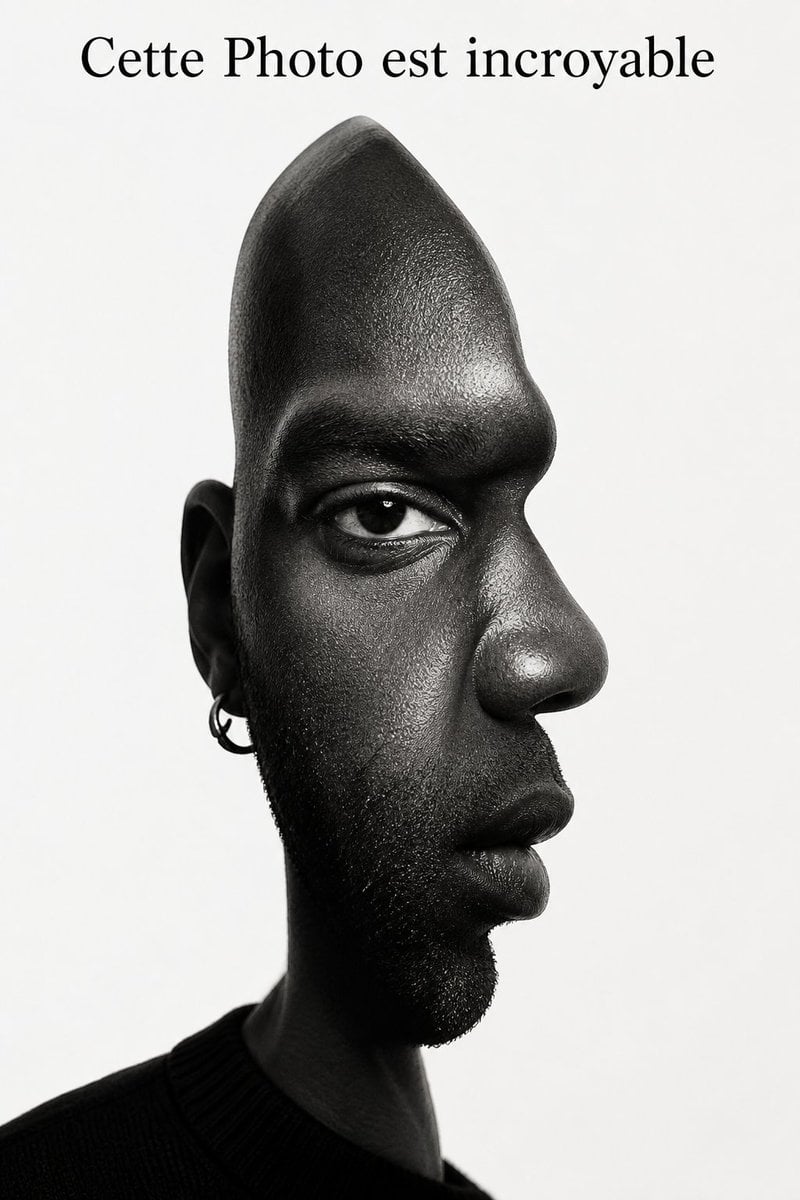
Surreal Optical Illusion Portrait
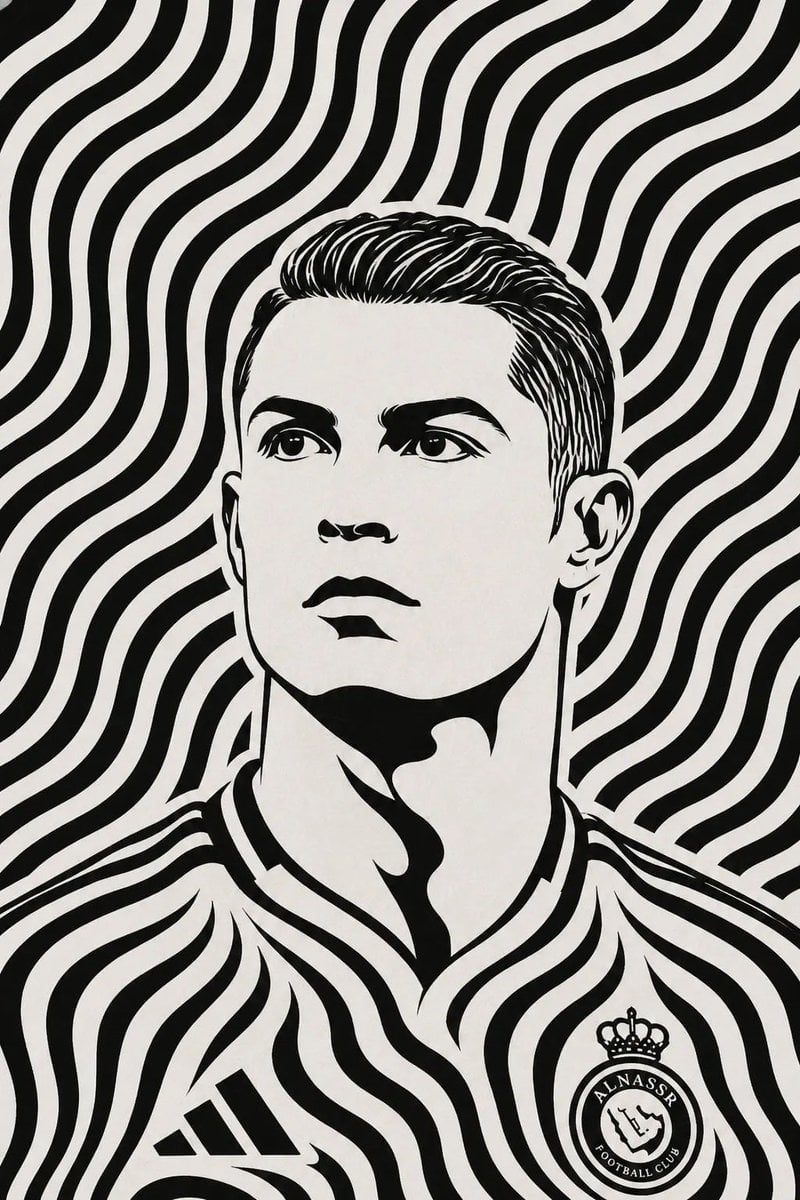
Black and White Optical Illusion Portrait

Hidden Word Optical Illusion Prompt
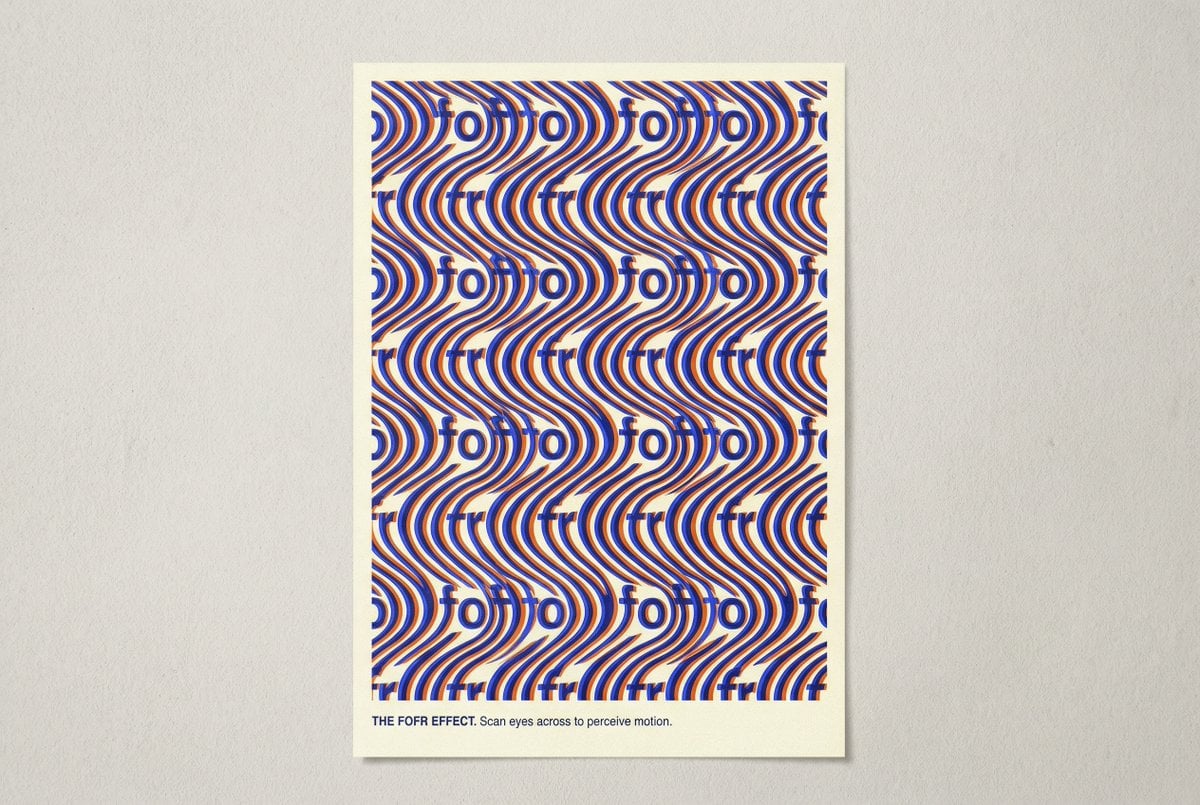
Novel Optical Illusion Generation
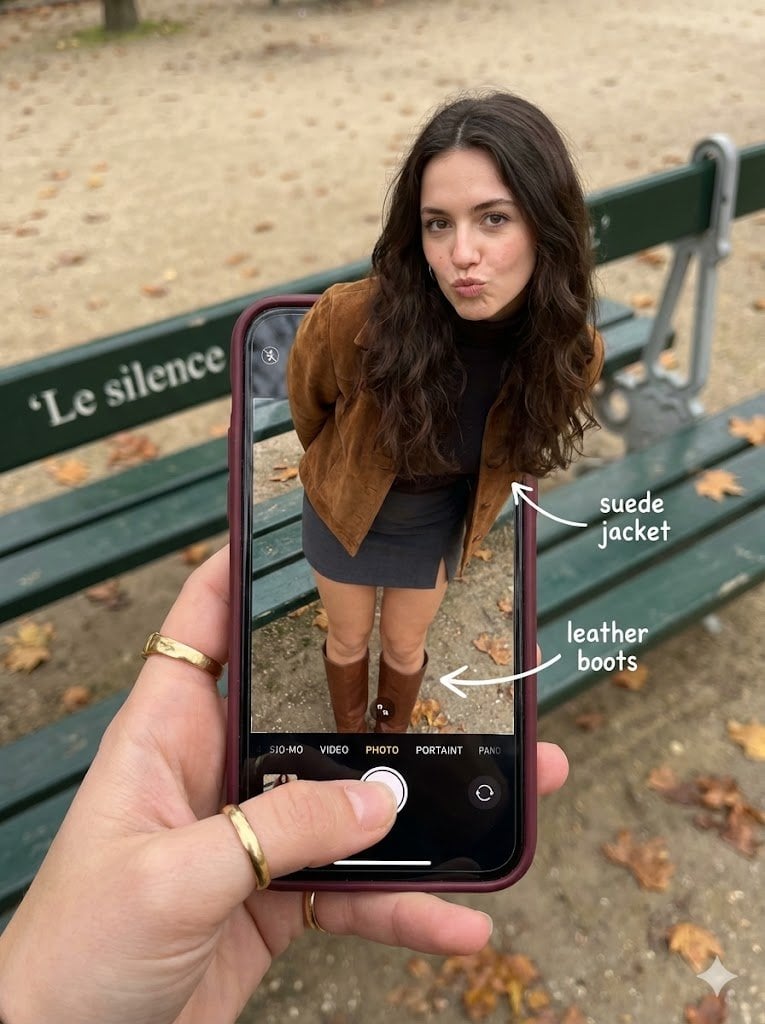
Hyper-Realistic Optical Illusion: Woman Emerging from Smartphone Screen
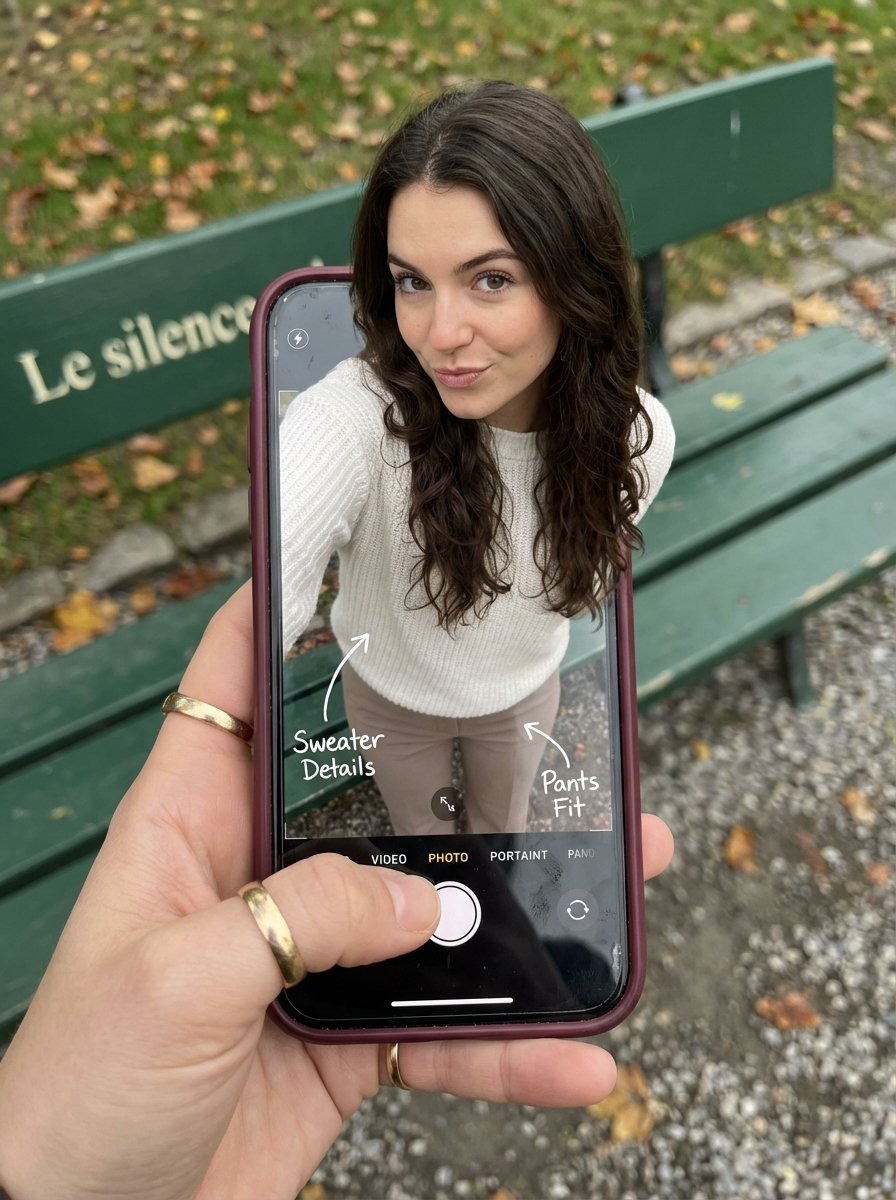
Optical Illusion: Stepping Out of a Smartphone Screen
Make it yours
Japanese Optical Illusion Museum UI works as-is. These are the safest ways to change it without losing the look.
Change one field
Copy a single group, rewrite it, and generate again so you can see what that field is doing.
Keep the frame, change the subject
Hold the composition and light of Japanese Optical Illusion Museum UI, then swap wardrobe, props or the person for a new take.
| If the result… | Why | Fix |
|---|---|---|
| The result drifts from the preview | Too many fields changed at once. | Reuse Japanese Optical Illusion Museum UI as-is first, then change one group — subject, light, or setting. |
| The model over-stylizes the scene | The prose prompt leaves finish and camera underspecified. | Add one camera or lighting sentence and stay on GPT Image 2. |
More GPT Image 2 templates
Other prompts made for GPT Image 2.

Six VTuber Japanese Logo Sheet

Realistic Portrait of Woman and Deer

The Vista Modular Condo Poster

AI Model Routing Comparison Infographic

2.5D Anime Art Board

Isometric Productivity Desk Scene

New York Double Exposure Poster

Four-Panel AI Landscape Comparison

Japanese Tatami Lifestyle Magazine Cover

NESCAFÉ Coffee Map Poster
More image prompts
Fresh picks from across the catalog.
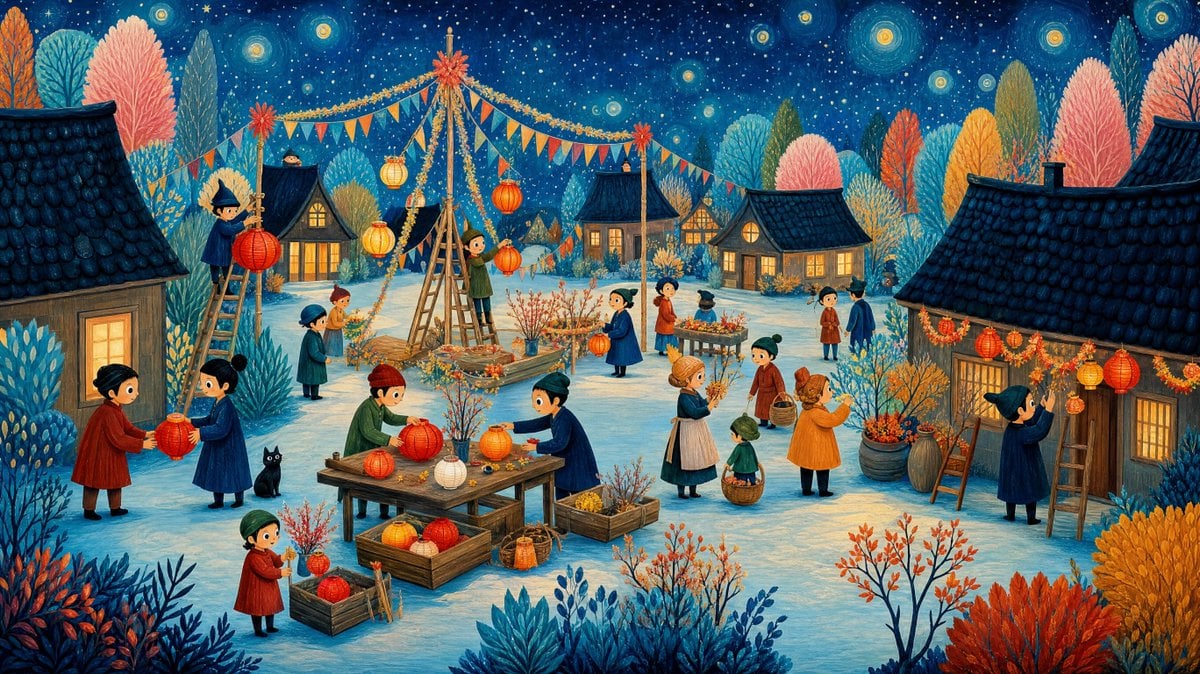
Whimsical Winter Lantern Festival

Professional Business Portrait Generation Prompt

Y!mobile Ad Poster Generation Prompt
High-End Fashion Lookbook Collage

Low-Angle Anime Hoodie Girl
Kana Anime Character Reference Sheet
Winter Full Hourglass Portrait with Puffer Jacket Prompt
Dark Fantasy Crimson Samurai Warlord

High-Fashion Magic Carpet Editorial Shot
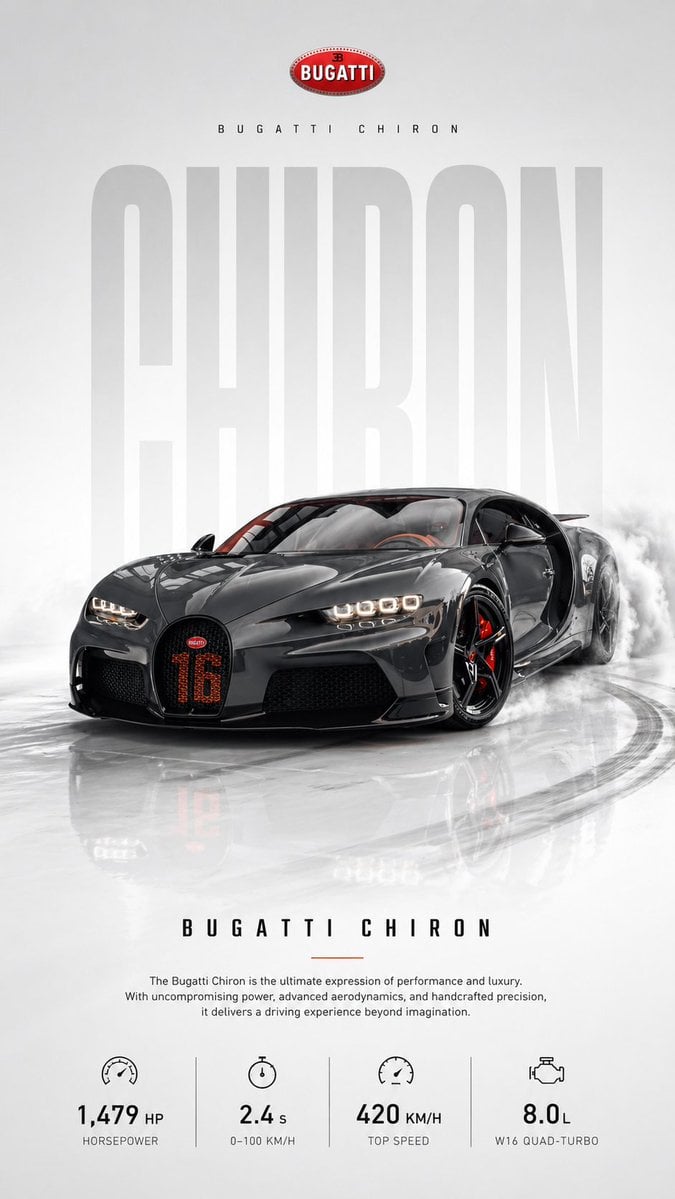
Automotive poster transformation prompt
Browse template categories
Japanese Optical Illusion Museum UI questions
How do I use the Japanese Optical Illusion Museum UI template?
Add your photo if the template asks for one, edit the prompt if you like — the template's model and format are already selected — and press Generate. Your version opens in PicX Studio.
Can I customize the Japanese Optical Illusion Museum UI template?
Yes. You can change the subject, setting, lighting, mood, format, and available model controls before creating your image.
Is the Japanese Optical Illusion Museum UI template free?
Opening and editing this template is free. Generating uses credits, shown on the Generate button when you are signed in.
Which AI model should I use?
Start with GPT Image 2, which is the model associated with this template. You can compare another compatible model for a different finish.
Looking for something else? Browse all templates.

Your photo, any look
Thousands of ready templates for every top image and video model, from one credit balance.