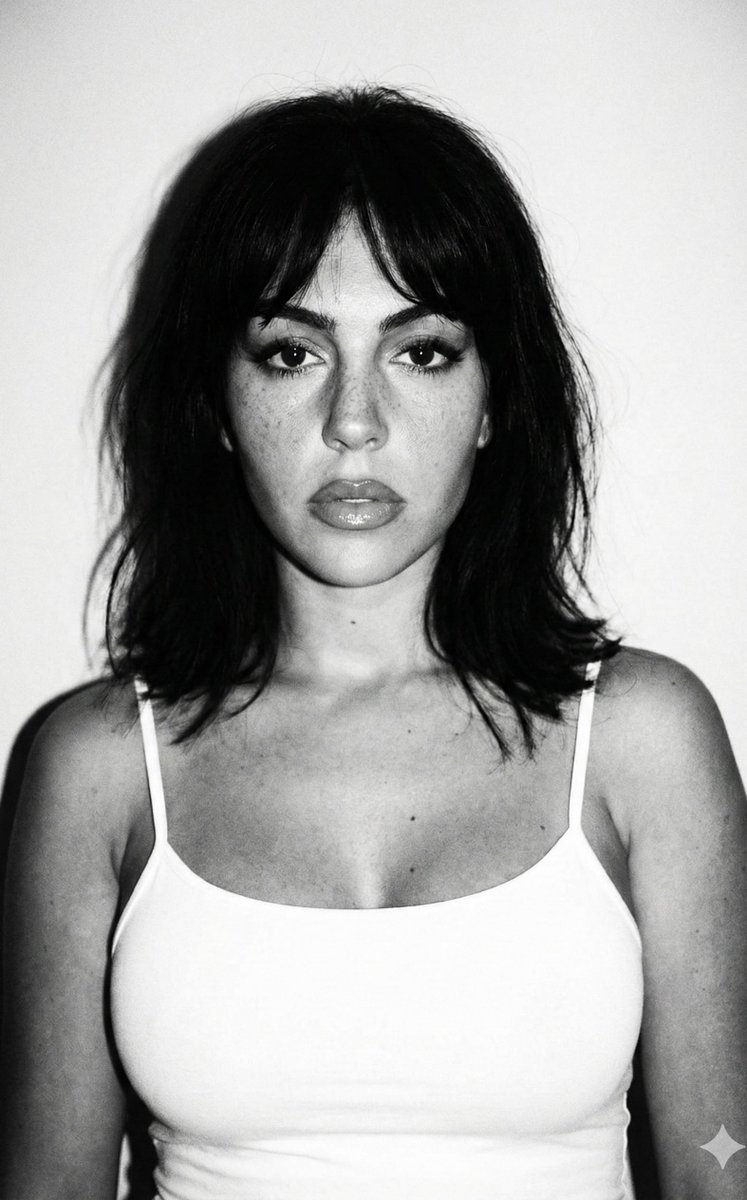
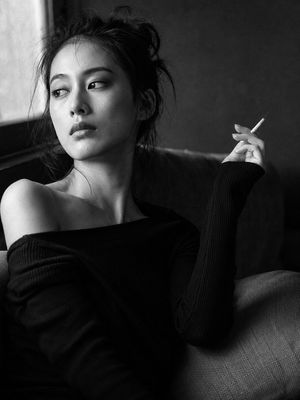
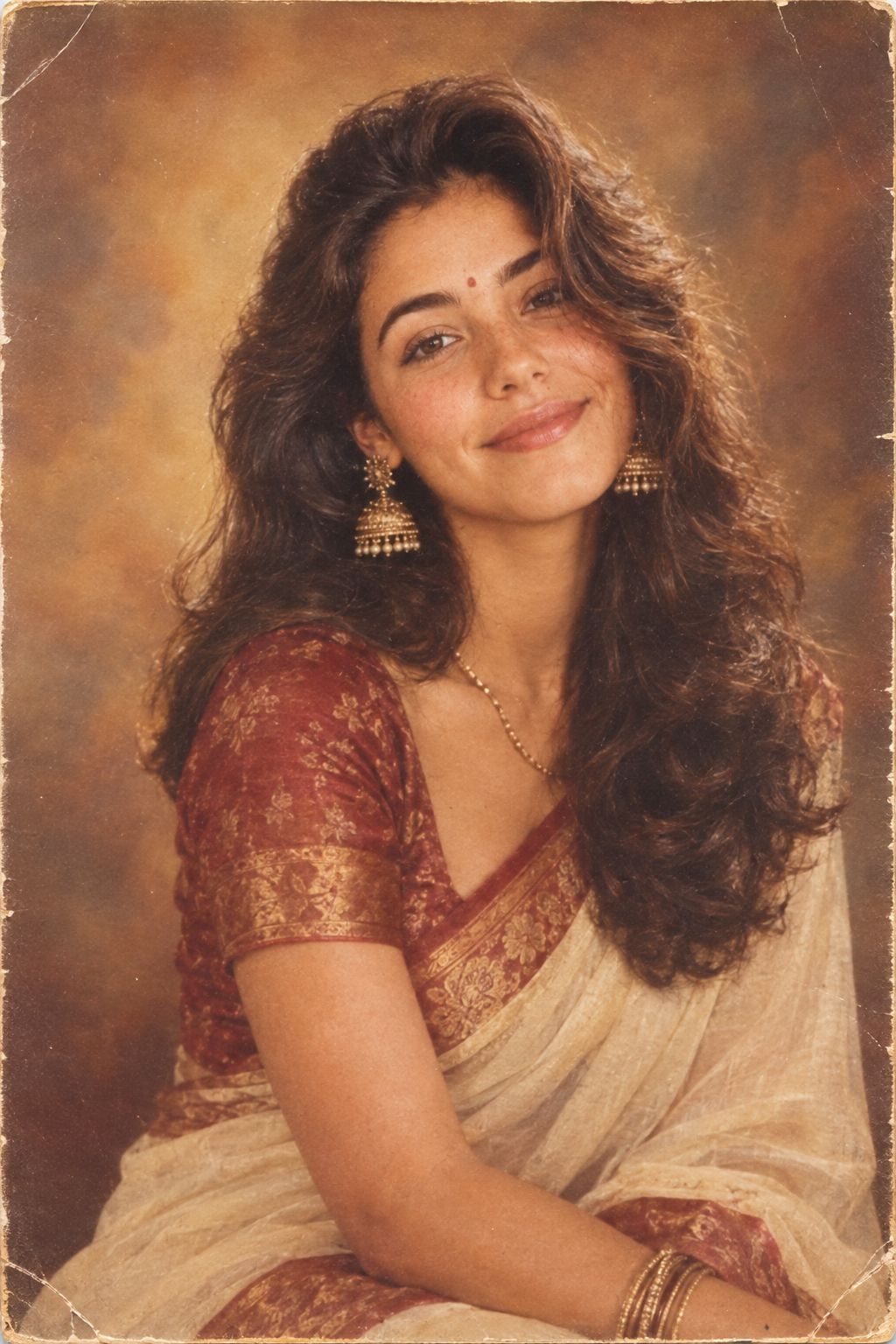
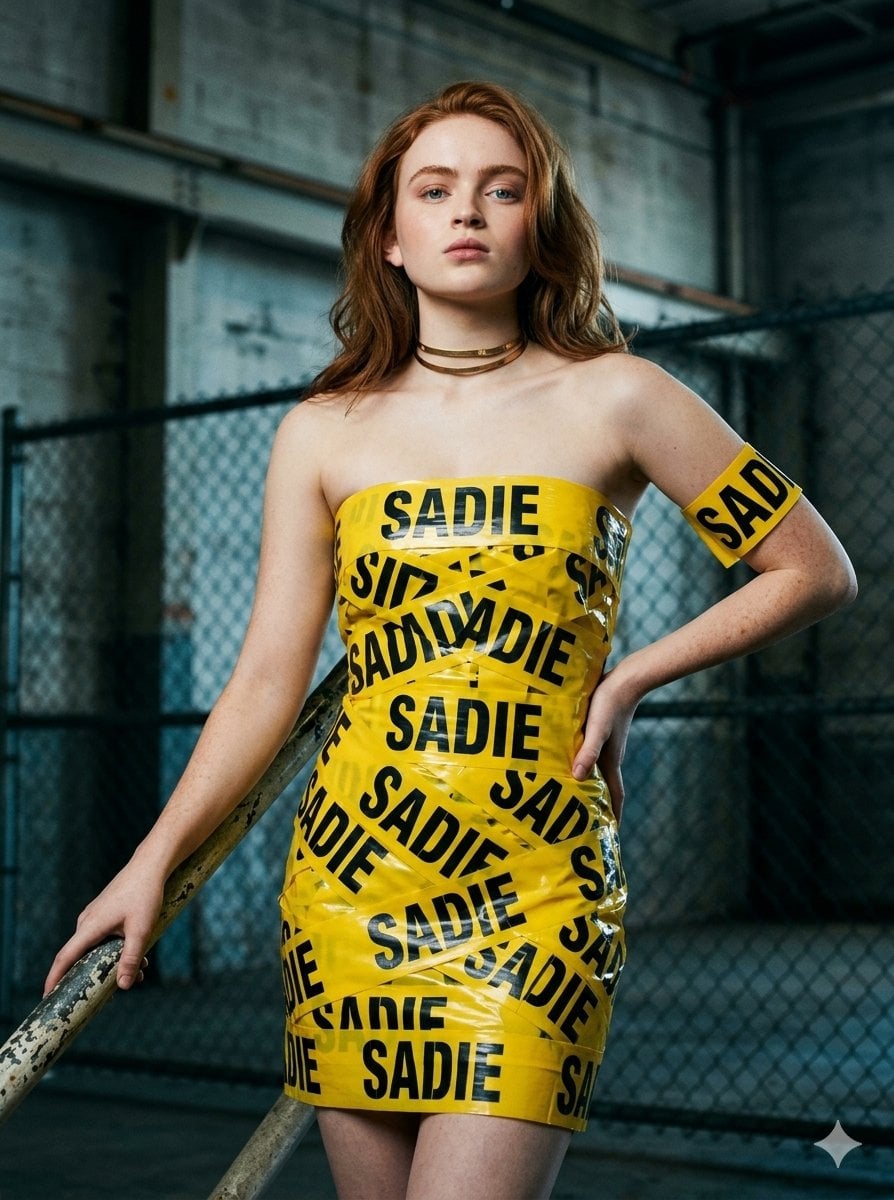
How do I use the Black and White Fashion Portrait template?
Choose the primary action to open PicX Studio with the available template settings. Review the model and format, personalize the creative direction, and generate when ready.
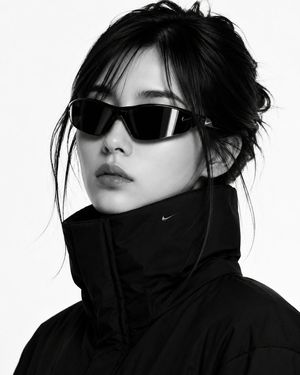
A monochrome ink-style fashion portrait of a confident young woman in sunglasses and a hoodie, ideal for editorial or avatar-style artwork.
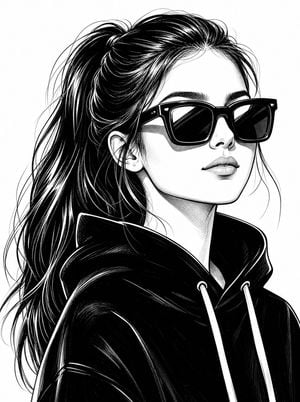
Create a high-contrast black-and-white fashion illustration of {argument name="character description" default="a young woman with long dark hair in a high ponytail"} in a sophisticated hand-drawn ink-art style. Show a close-up portrait from the chest and shoulders upward, with the subject turned slightly toward the right in a confident three-quarter view, chin gently lifted, calm lips, defined eyebrows, and a poised editorial expression. She wears oversized glossy black square sunglasses with thick frames and reflective white highlights, plus {argument name="outfit" default="a black oversized hoodie with a raised collar and two white drawstrings"}. Render the hair as a dramatic flowing ponytail sweeping behind her head to the left, using dense black ink, fine loose flyaway strands, sharp white highlights, and layered brush lines. Use crisp monochrome linework, deep black fills, delicate cross-hatching on the neck and shadows, subtle contour shading on the face, and clean negative space. Keep the background pure white with no text, no color, no accessories beyond small ear piercings, and no watermark. The composition should feel like a luxury streetwear fashion sketch, polished, elegant, and bold, with strong contrast between the black clothing, dark hair, sunglasses, and the bright white face and background.
Choose the primary action to open PicX Studio with the available template settings. Review the model and format, personalize the creative direction, and generate when ready.
Yes. You can change the subject, setting, lighting, mood, format, and available model controls before creating your image.
This template is free to open and customize. Generation usage is shown in PicX Studio before you create.
Start with GPT Image 2, which is the model associated with this template. You can compare another compatible model for a different finish.
Follow a topic to a crawlable collection of related PicX Studio templates.