How do I use the Editorial Fashion Campaign Photography template?
Choose the primary action to open PicX Studio with the available template settings. Review the model and format, personalize the creative direction, and generate when ready.
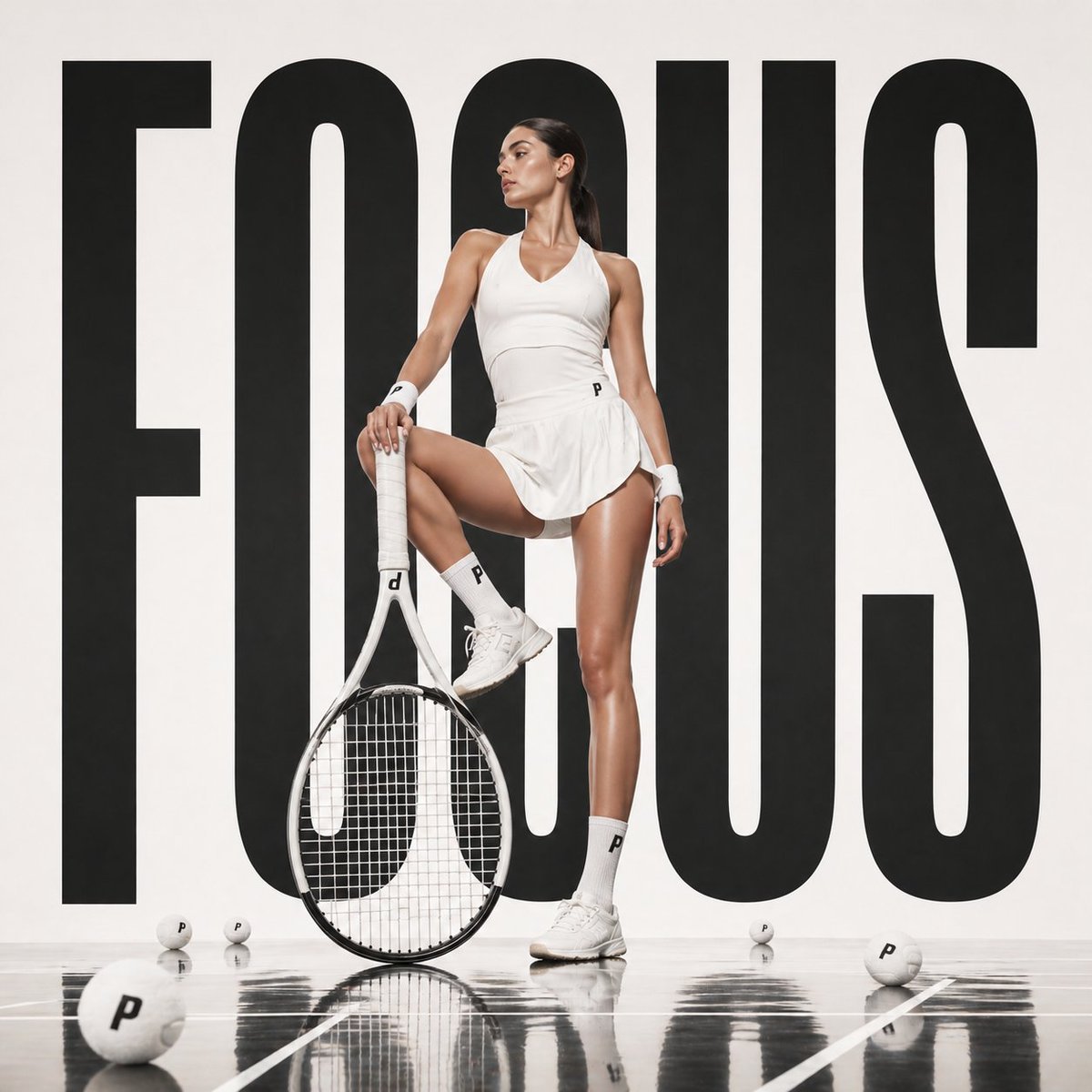
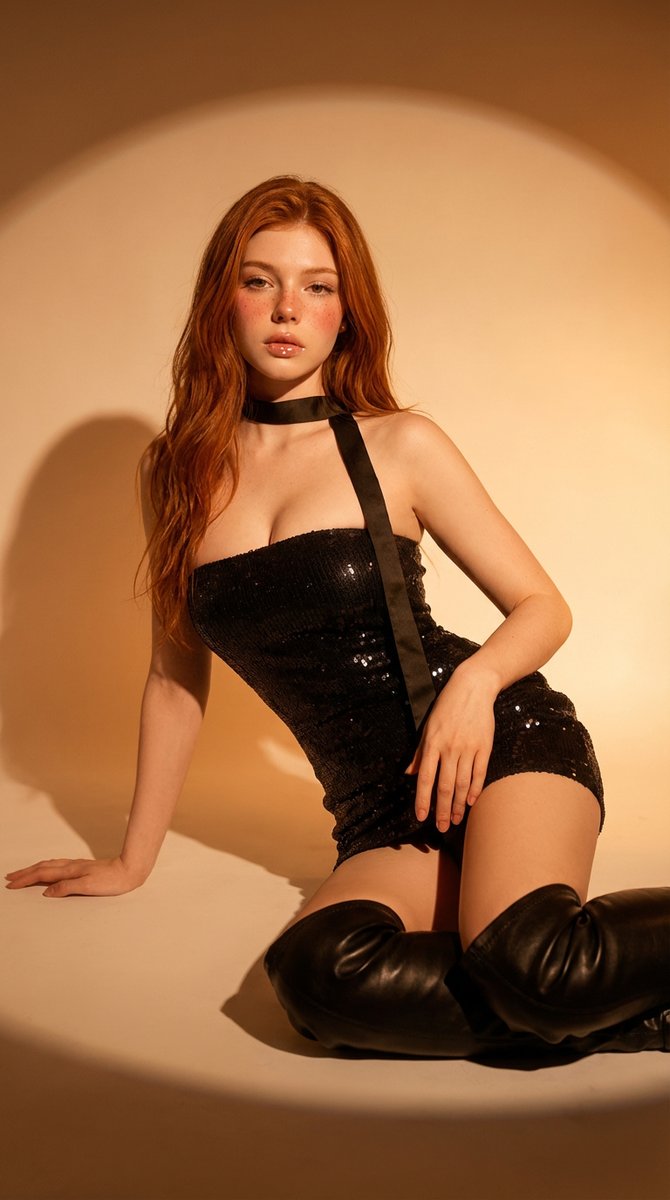
A high-end fashion editorial prompt featuring bold color blocking, geometric shadows, and realistic fabric textures, maintaining character consistency.
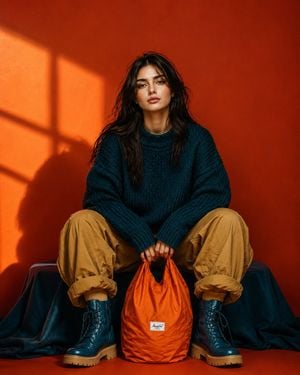
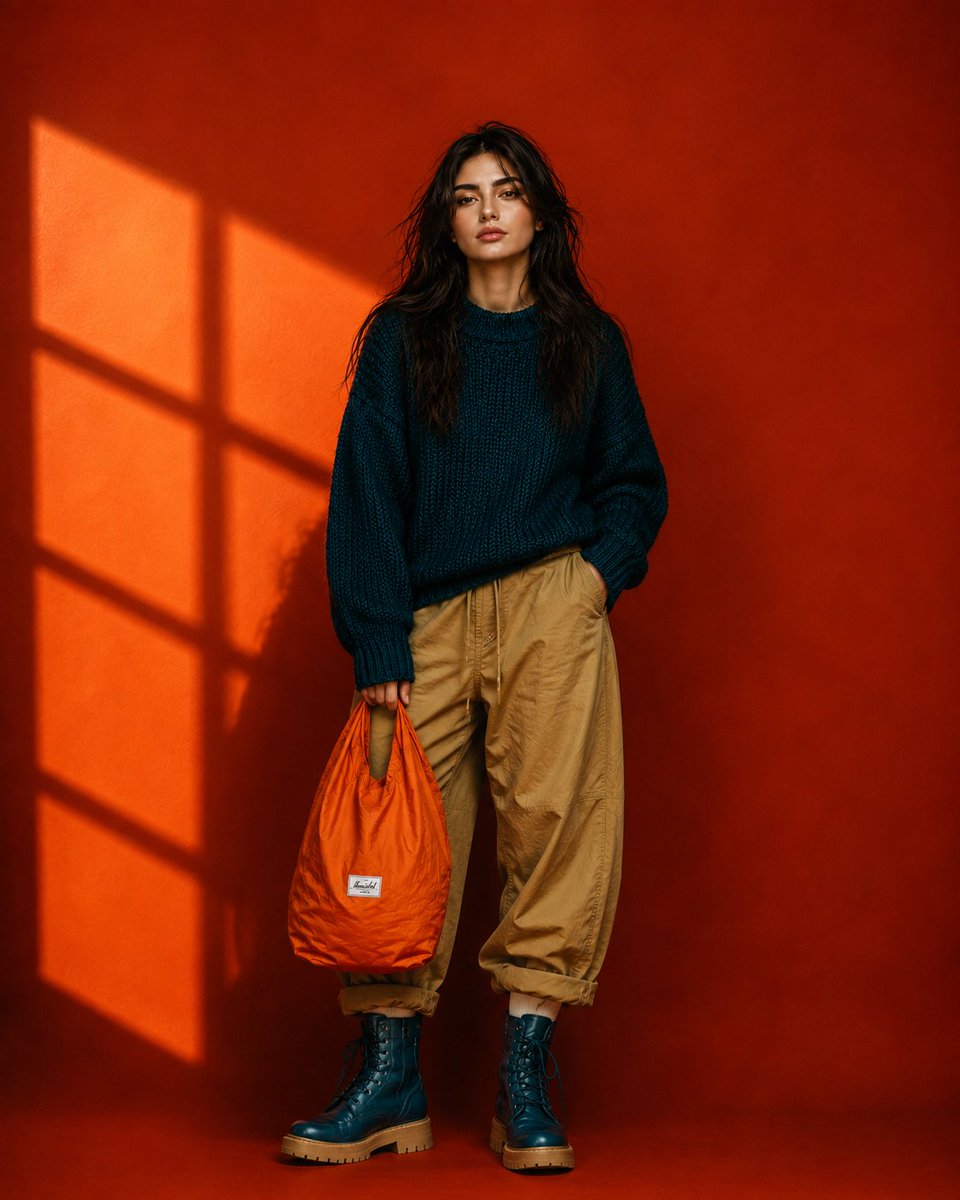
Ultra-realistic {argument name="shot type" default="full-body editorial fashion portrait"} of a beautiful young woman sitting low in a relaxed wide-leg pose, knees raised and slightly apart, both hands naturally holding the handles of a bright orange nylon tote bag positioned between her feet. Keep her facial identity and facial proportions exactly consistent with the reference image, long slightly messy dark-brown hair, natural skin texture, minimal makeup, calm confident expression, no glasses. She wears an {argument name="outfit" default="oversized chunky deep-teal knitted sweater, loose camel/tan cargo pants, and chunky dark-teal combat boots"}. Bold {argument name="background" default="burnt-orange studio background"} with dramatic golden sunlight creating geometric window shadows across the wall. Strong teal, orange and camel color blocking, rich saturated colors, stylish but not overly glamorous. Centered symmetrical composition, slightly low camera angle, full body completely visible, relaxed editorial posture, realistic fabric textures, subtle imperfections, cinematic directional lighting, crisp details, premium contemporary fashion campaign photography, natural proportions, photorealistic, 9:16 vertical.
Editorial Fashion Campaign Photography needs input media to work. Open it in the studio and these load alongside the prompt — pick whichever ones your chosen model can take.
Choose the primary action to open PicX Studio with the available template settings. Review the model and format, personalize the creative direction, and generate when ready.
Yes. You can change the subject, setting, lighting, mood, format, and available model controls before creating your image.
This template is free to open and customize. Generation usage is shown in PicX Studio before you create.
Start with GPT Image 2, which is the model associated with this template. You can compare another compatible model for a different finish.
Follow a topic to a crawlable collection of related PicX Studio templates.