
Six-Panel AI Jewelry Portrait Comparison
Generates a social-media-style comparison grid of six macro editorial ear-and-cross-earring portraits labeled by AI model.
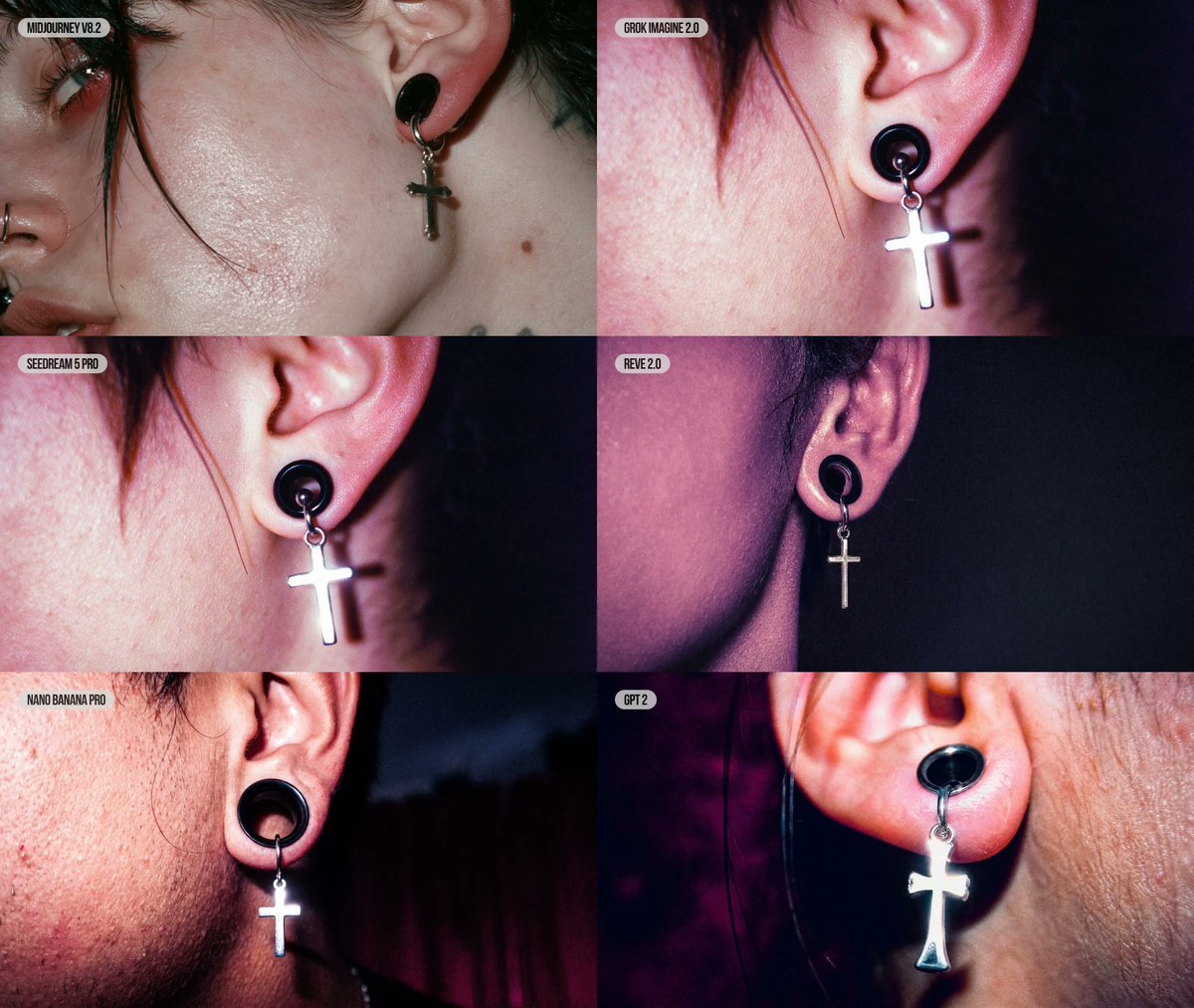
- Prompt included
- Model and format preset
- Free template
The prompt behind this image
Copy the exact prompt behind Six-Panel AI Jewelry Portrait Comparison, or open it in the studio and make it yours.
Goal: Create a 2-column by 3-row editorial comparison grid of six AI image model outputs, each showing the same close-up jewelry photography subject: a cropped side portrait of a punk/goth person’s ear wearing a black plug-style earring with a dangling silver cross charm. Canvas: Landscape collage, approximately 1200×1000 px, no outer border, six equal rectangular panels touching edge-to-edge in a 2×3 grid. Layout: Use exactly 6 panels with small rounded white label pills near the top-left of each panel. Panel labels, in reading order, must be: 1) MIDJOURNEY V8.2, 2) GROK IMAGINE 2.0, 3) SEEDREAM 5 PRO, 4) REVE 2.0, 5) NANO BANANA PRO, 6) GPT 2. Keep the labels compact, uppercase, black condensed sans-serif text on off-white rounded rectangles. Subject details: Every panel is an extreme close-up editorial portrait crop focused on {argument name="jewelry subject" default="a black circular plug earring with a dangling silver cross charm"}. Show only part of the face and ear: cheek texture, ear cartilage, stray dark hair strands, and sometimes a partial eye, nose ring, lips, neck, or jawline at the edge of the crop. The person has {argument name="skin texture" default="realistic pale skin with visible pores, redness, shine, blemishes, and uneven texture"} and dark messy hair. The cross charm should be metallic, reflective, and slightly different in shape and scale across panels, as if generated by different models. Panel variations: Top-left panel is the widest facial crop, showing the left side of the face with a partial eye, nose ring, lips, cheek, ear, and small silver cross; top-right is a tight ear crop with strong pink-red flash lighting and a bright cross; middle-left is similar to top-right but closer, with the cross blown out by flash; middle-right is a darker purple-toned side-of-head crop with the ear and smaller cross against a near-black background; bottom-left is a gritty flash photo with pronounced facial stubble/pores, black plug, and bright silver cross against a dark red-black background; bottom-right is an extreme macro of the earlobe with a black oval plug and large glowing silver cross, warm skin tones and magenta shadows. Visual style: {argument name="photo style" default="raw editorial macro jewelry photography, harsh on-camera flash, high contrast, glossy skin highlights, shallow depth of field, gritty realism"}. Use a dark club-like background with black, burgundy, and purple tones. Make the collage feel like a side-by-side model comparison posted on social media, with each panel having subtly different realism, anatomy, lighting, and jewelry rendering. Constraints: Do not add any title outside the six panels. Use exactly the six label pills listed above and no extra captions. Keep the jewelry as the visual focus in every panel. Avoid clean studio beauty retouching; preserve pores, redness, flash glare, and imperfect skin detail.
How to use Six-Panel AI Jewelry Portrait Comparison in 3 steps
- 1Upload ImagePNG, JPG or paste
Add your photo
Upload the photo the template builds on. The prompt, model and format are already set.
- 2…a portrait of your subject in softgolden-hour light, 85mm…
Personalize
Edit the subject and creative details for your destination.
- 3Generate
Generate
Press Generate — your image is created in PicX Studio, so you can compare it with the original and refine one variable at a time.
More like this
Templates with the same subject, style or setup. Open one to see its prompt.

Found Photograph: Us, 1970

80s Couple Studio Portrait
80s Bollywood Star
80s Golden Hour Cinema
Me in 1985
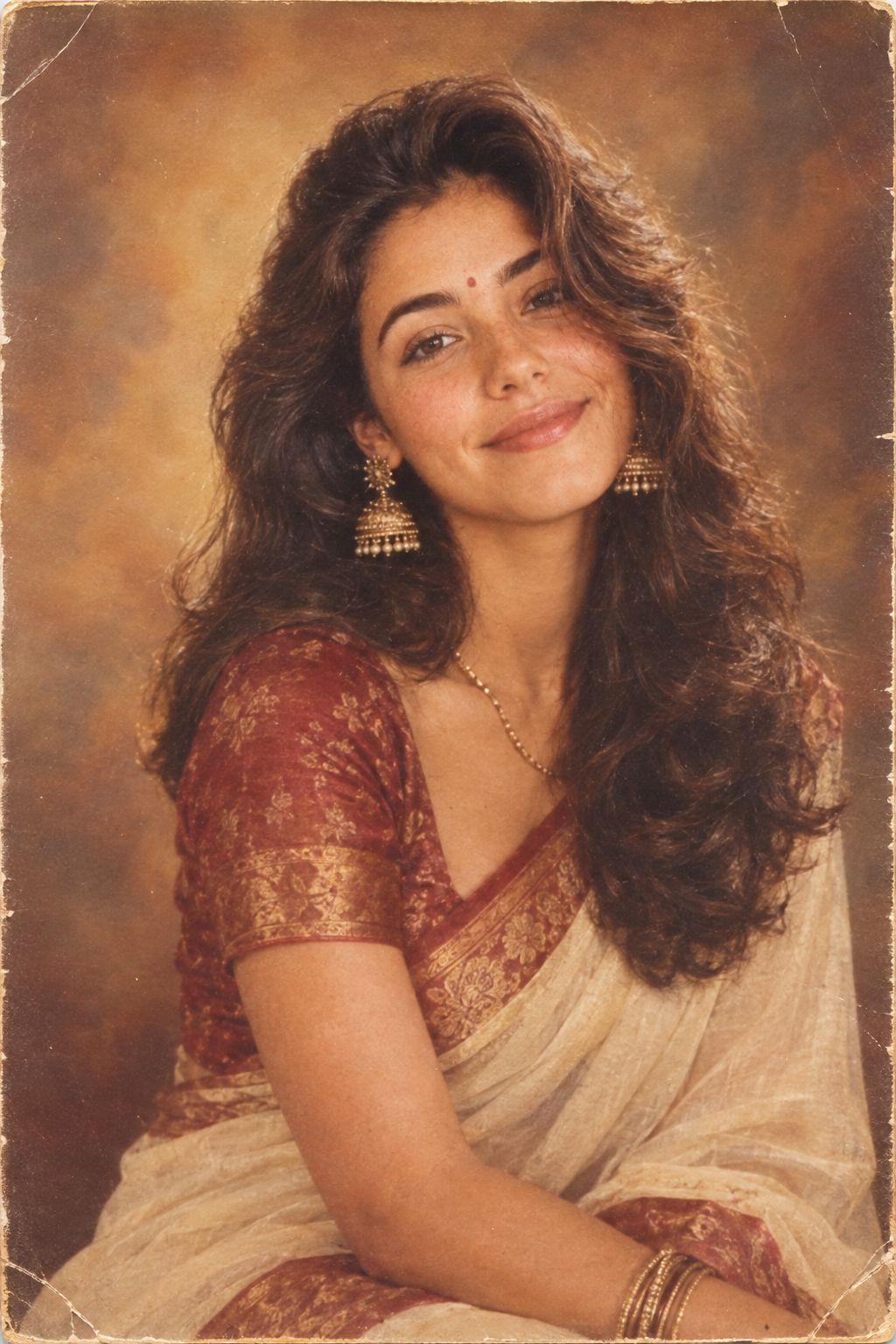
1985 Studio Portrait
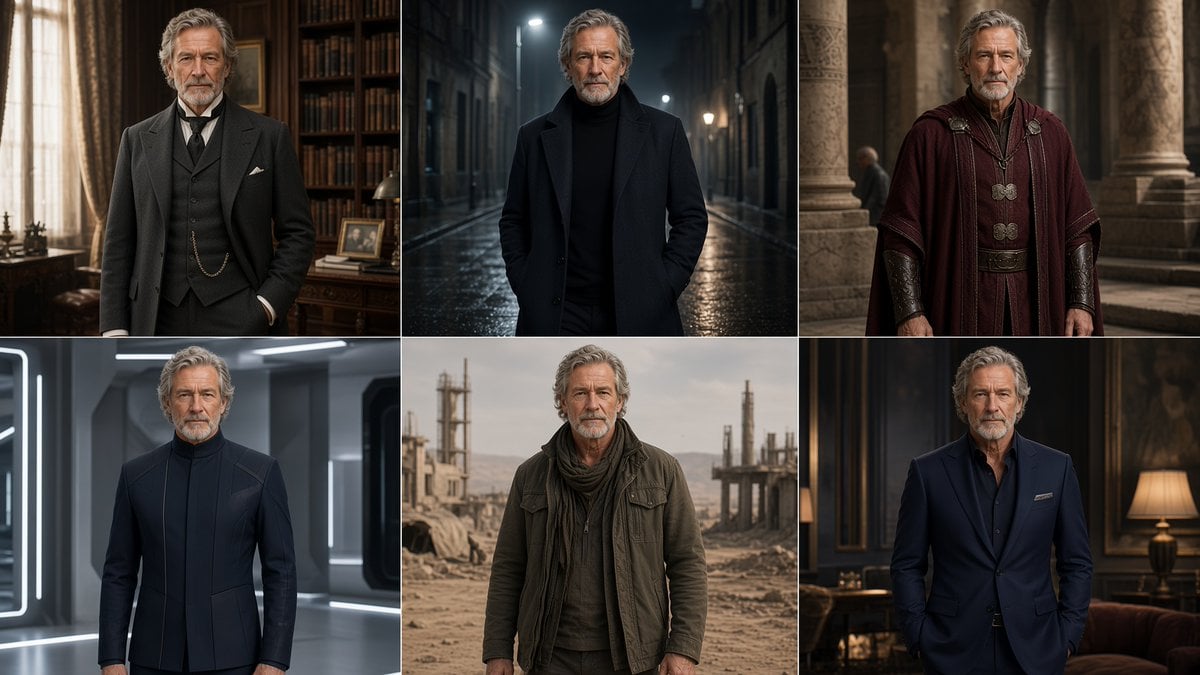
Six-Panel Cinematic Character Variations

Hyper-Realistic Minecraft POV Portrait

Cozy Six-Panel Bedtime Stages Collage

Four-Panel AI Landscape Comparison
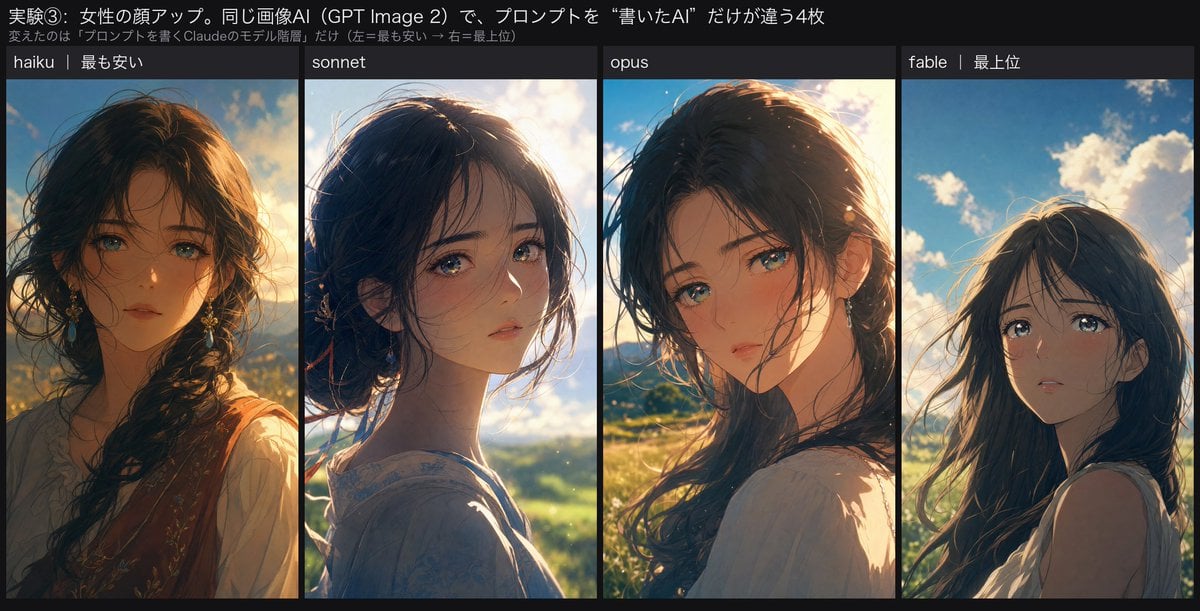
Four-Panel Anime Face Comparison
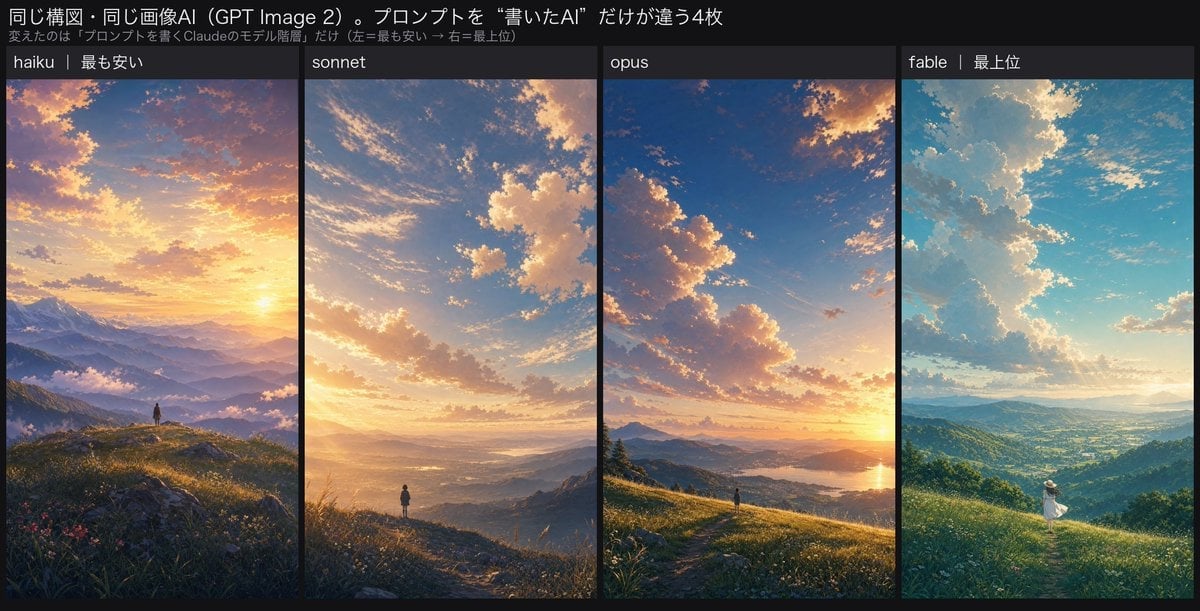
Four-Panel AI Landscape Comparison
Make it yours
Six-Panel AI Jewelry Portrait Comparison works as-is. These are the safest ways to change it without losing the look.
Change one field
Copy a single group, rewrite it, and generate again so you can see what that field is doing.
Keep the frame, change the subject
Hold the composition and light of Six-Panel AI Jewelry Portrait Comparison, then swap wardrobe, props or the person for a new take.
| If the result… | Why | Fix |
|---|---|---|
| The result drifts from the preview | Too many fields changed at once. | Reuse Six-Panel AI Jewelry Portrait Comparison as-is first, then change one group — subject, light, or setting. |
| The model over-stylizes the scene | The prose prompt leaves finish and camera underspecified. | Add one camera or lighting sentence and stay on GPT Image 2. |
More GPT Image 2 templates
Other prompts made for GPT Image 2.

Six VTuber Japanese Logo Sheet

Realistic Portrait of Woman and Deer

The Vista Modular Condo Poster

AI Model Routing Comparison Infographic

2.5D Anime Art Board

Isometric Productivity Desk Scene

New York Double Exposure Poster

Japanese Tatami Lifestyle Magazine Cover

NESCAFÉ Coffee Map Poster

Brutalist Cogito Chinese Typography Poster
More image prompts
Fresh picks from across the catalog.
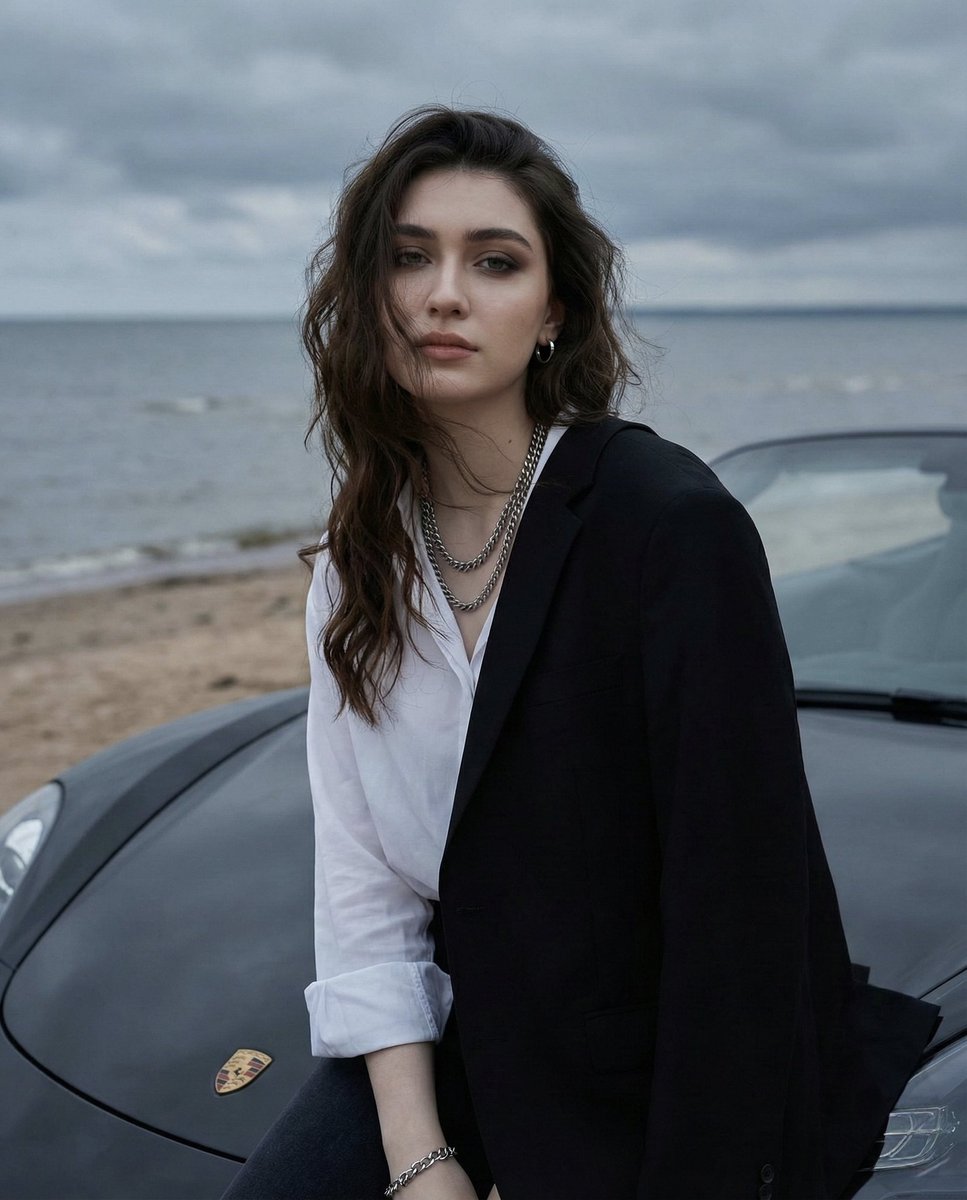
Overcast Seaside Car Hood Portrait with Identity Lock Prompt
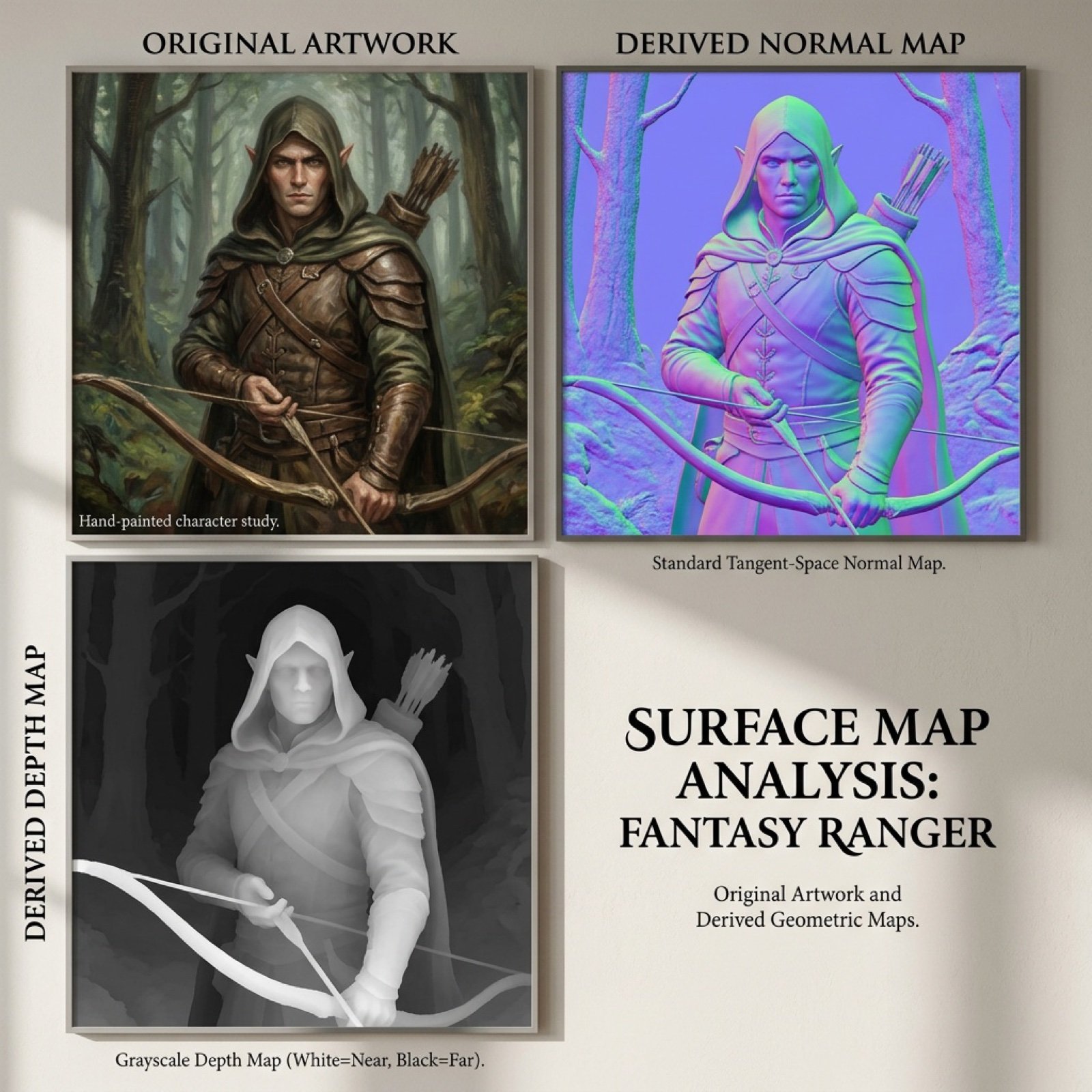
Normal and depth map generation prompts for Nano Banana Pro

untitled
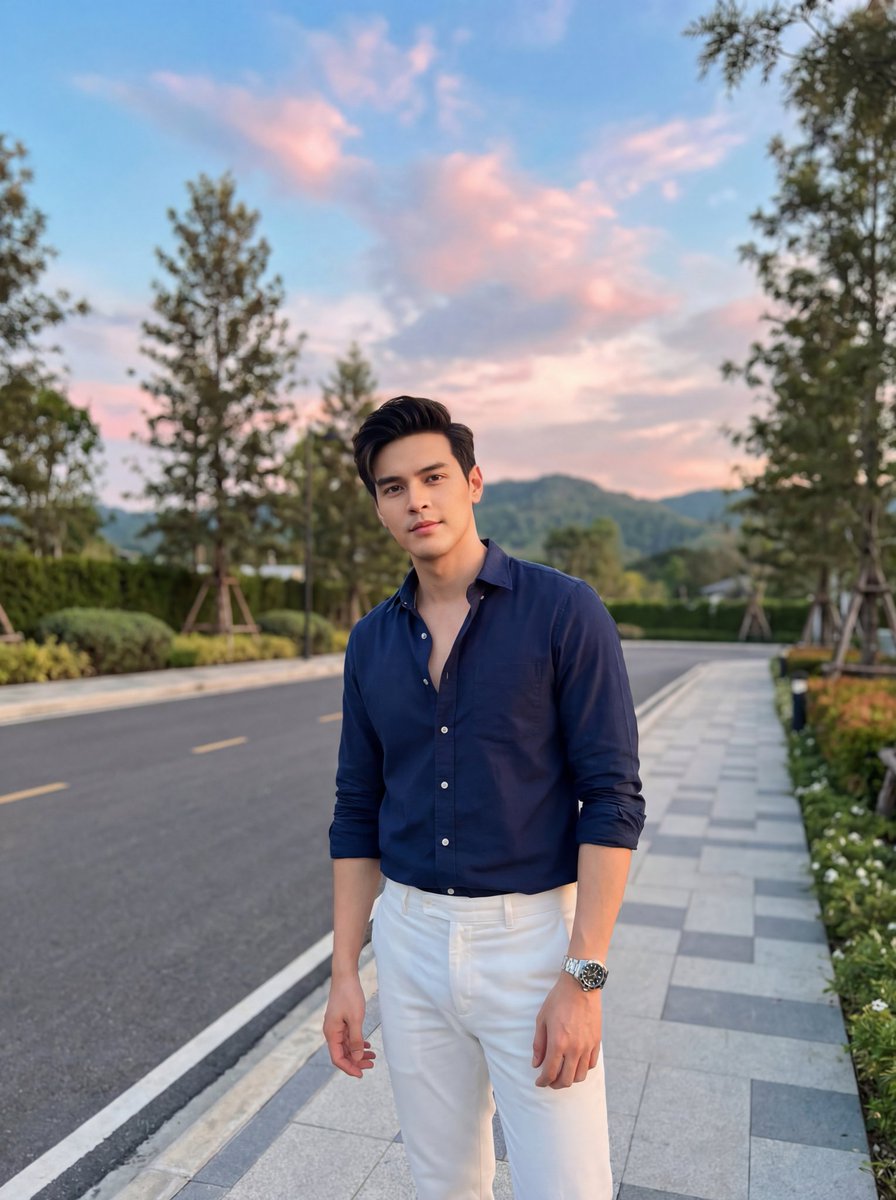
Stylish Man on Sidewalk at Sunset
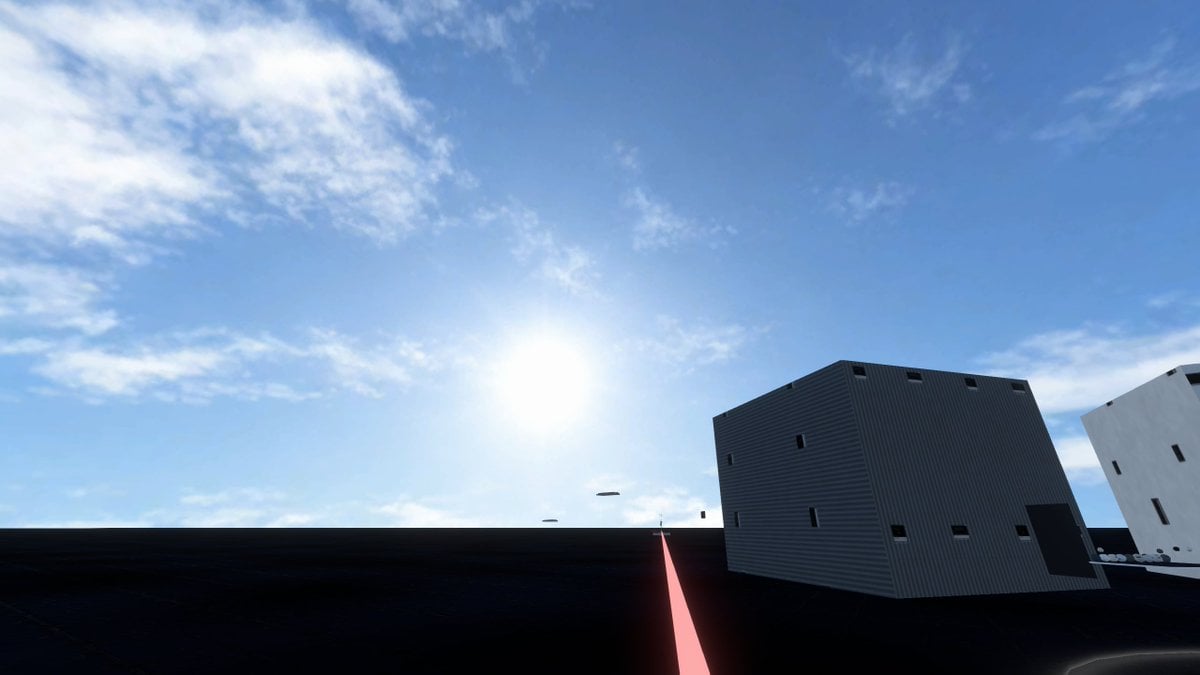
Minimal Game Engine Skybox Scene
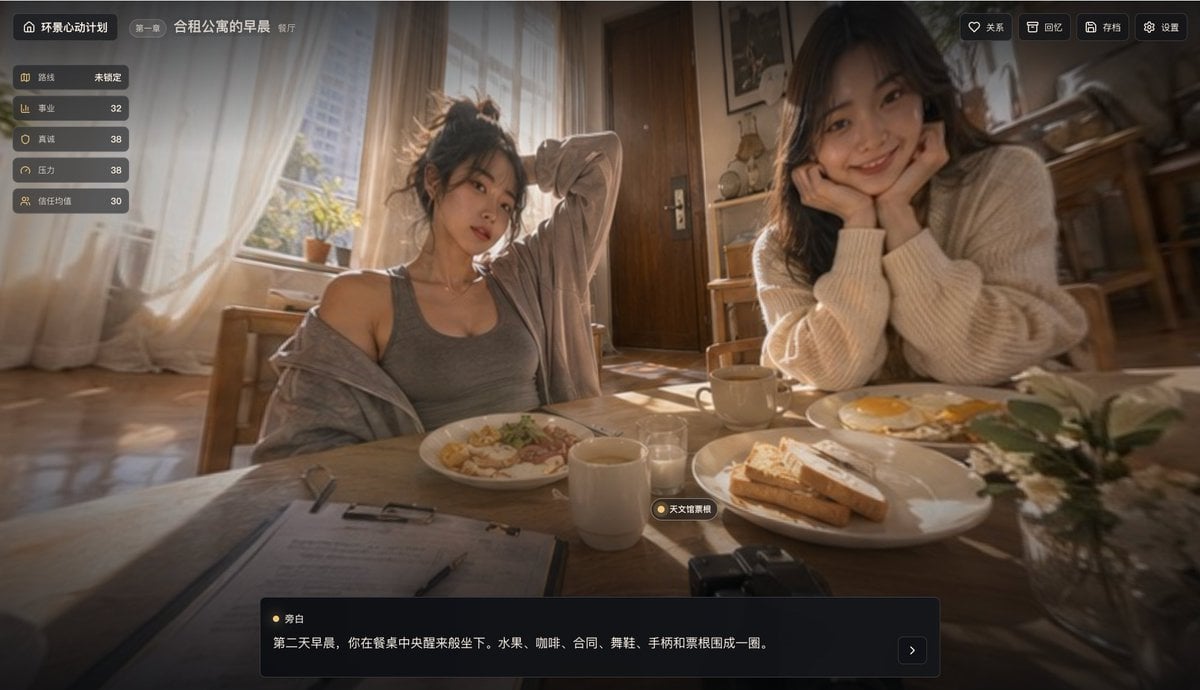
Cinematic Breakfast Dating Sim UI
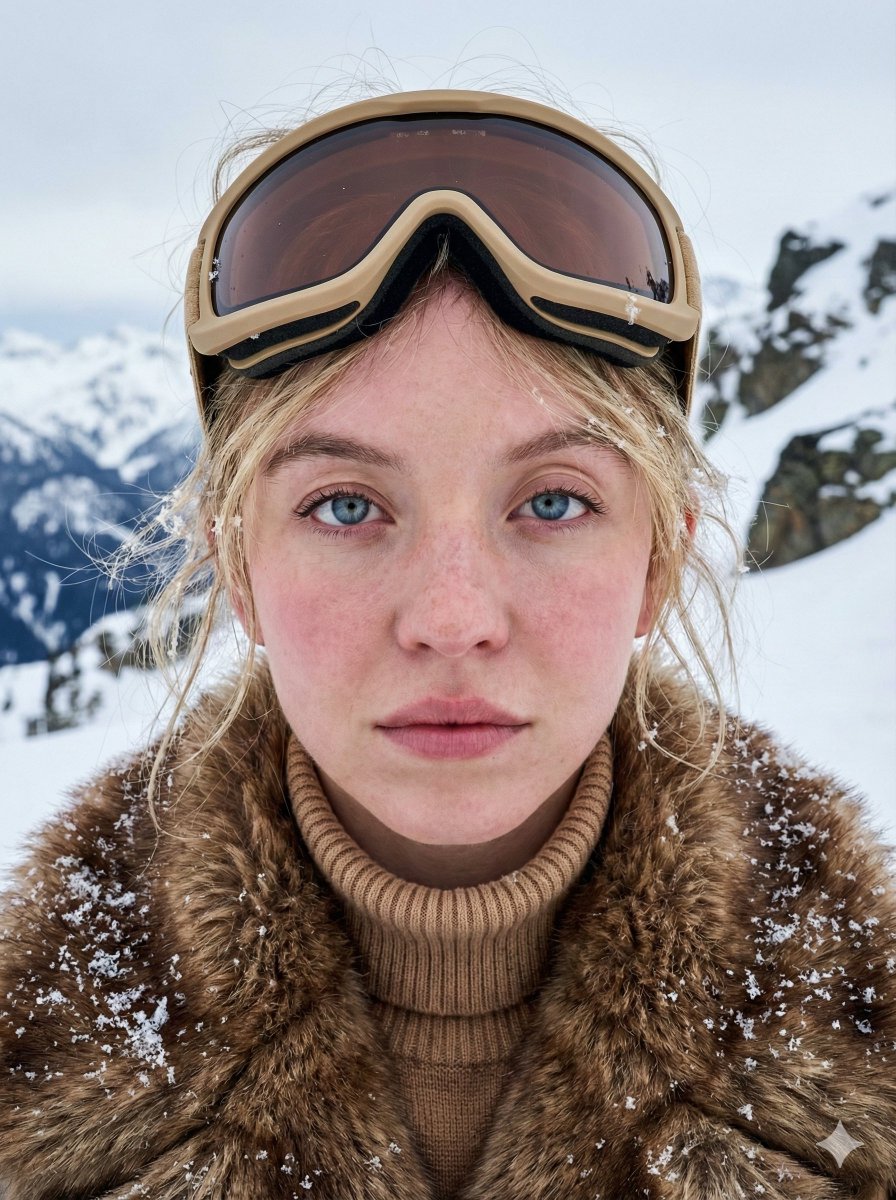
Structured JSON Prompt for Arctic Cinematic Portrait
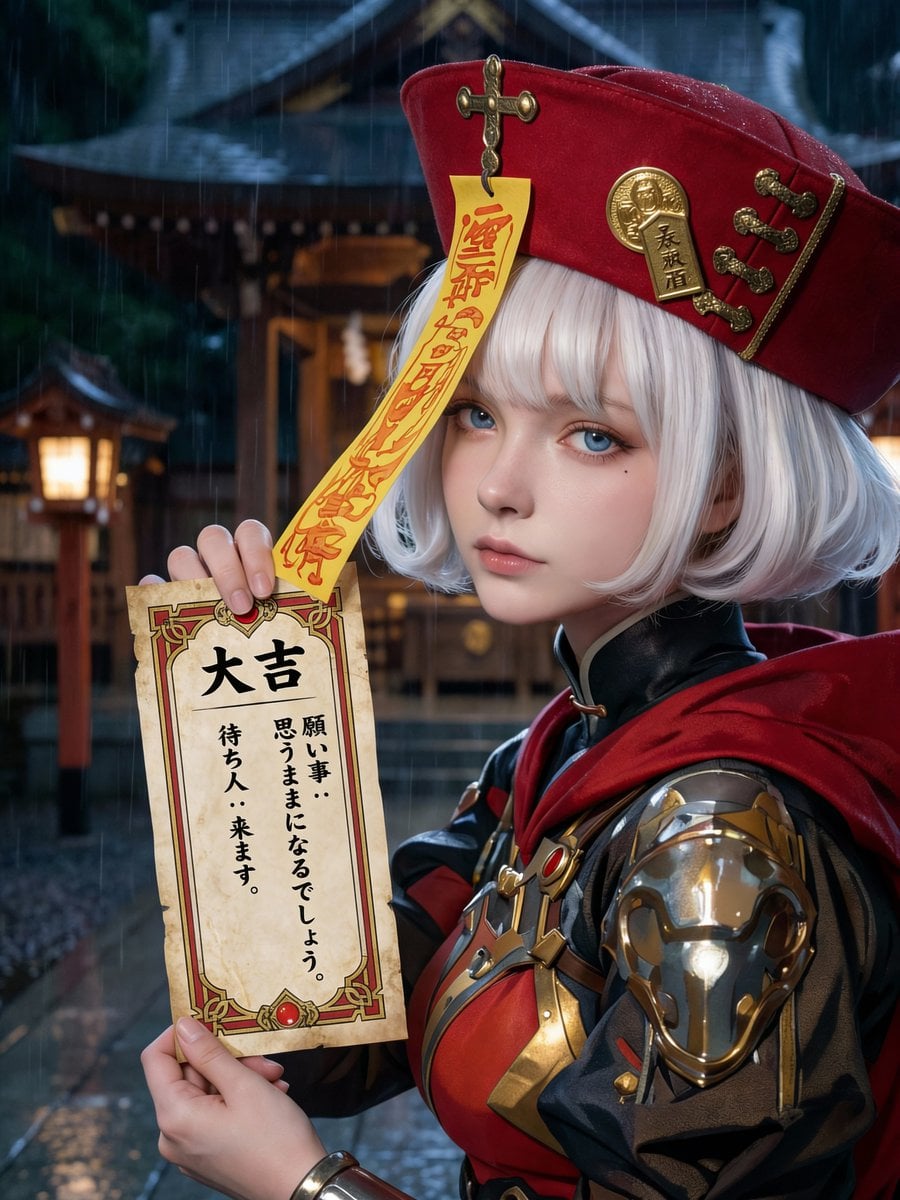
Photorealistic Omikuji (Fortune Slip) Design
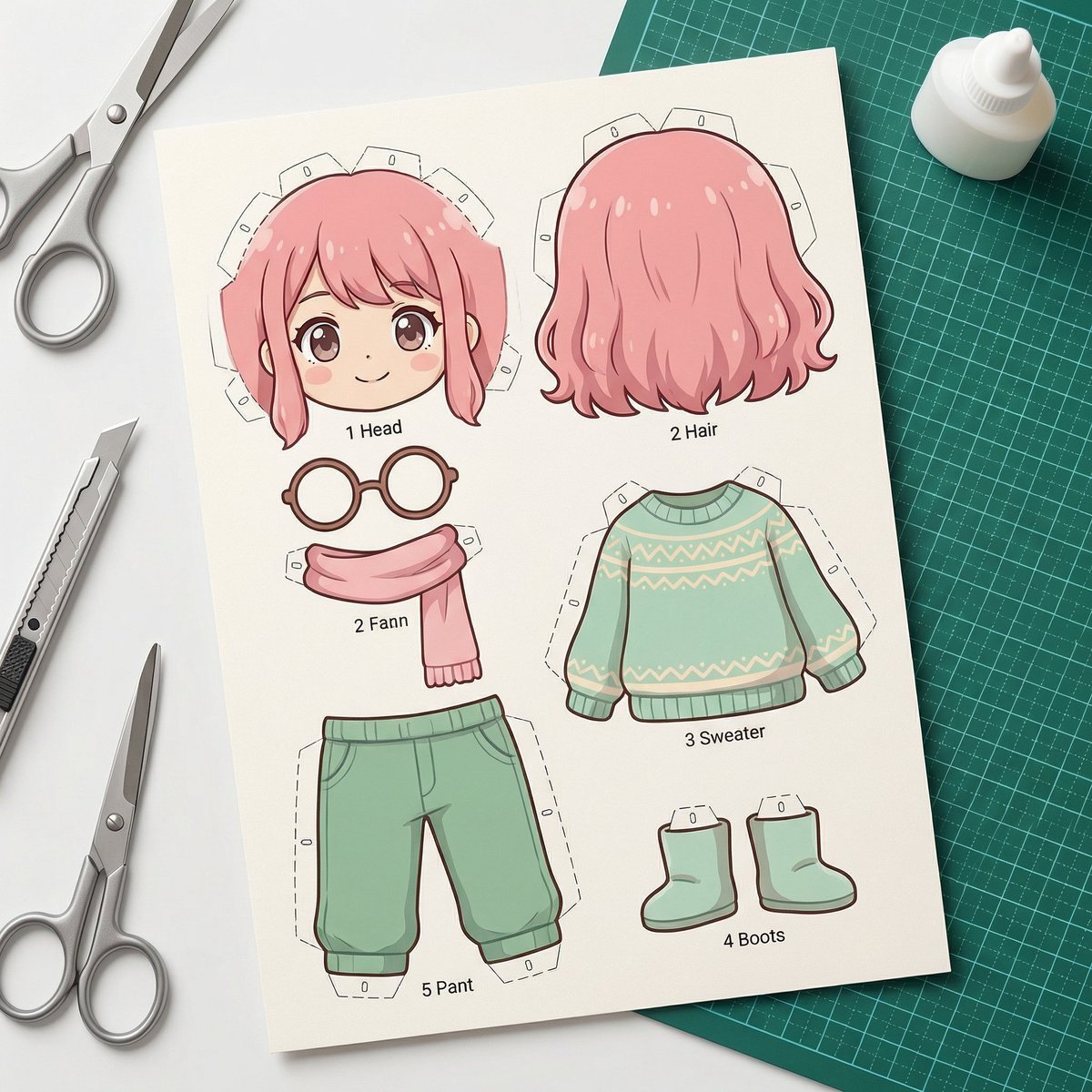
Image-to-SD Papercraft Conversion Prompt
Mythological Action Game Screenshot
Browse template categories
Six-Panel AI Jewelry Portrait Comparison questions
How do I use the Six-Panel AI Jewelry Portrait Comparison template?
Add your photo if the template asks for one, edit the prompt if you like — the template's model and format are already selected — and press Generate. Your version opens in PicX Studio.
Can I customize the Six-Panel AI Jewelry Portrait Comparison template?
Yes. You can change the subject, setting, lighting, mood, format, and available model controls before creating your image.
Is the Six-Panel AI Jewelry Portrait Comparison template free?
Opening and editing this template is free. Generating uses credits, shown on the Generate button when you are signed in.
Which AI model should I use?
Start with GPT Image 2, which is the model associated with this template. You can compare another compatible model for a different finish.
Looking for something else? Browse all templates.

Your photo, any look
Thousands of ready templates for every top image and video model, from one credit balance.