
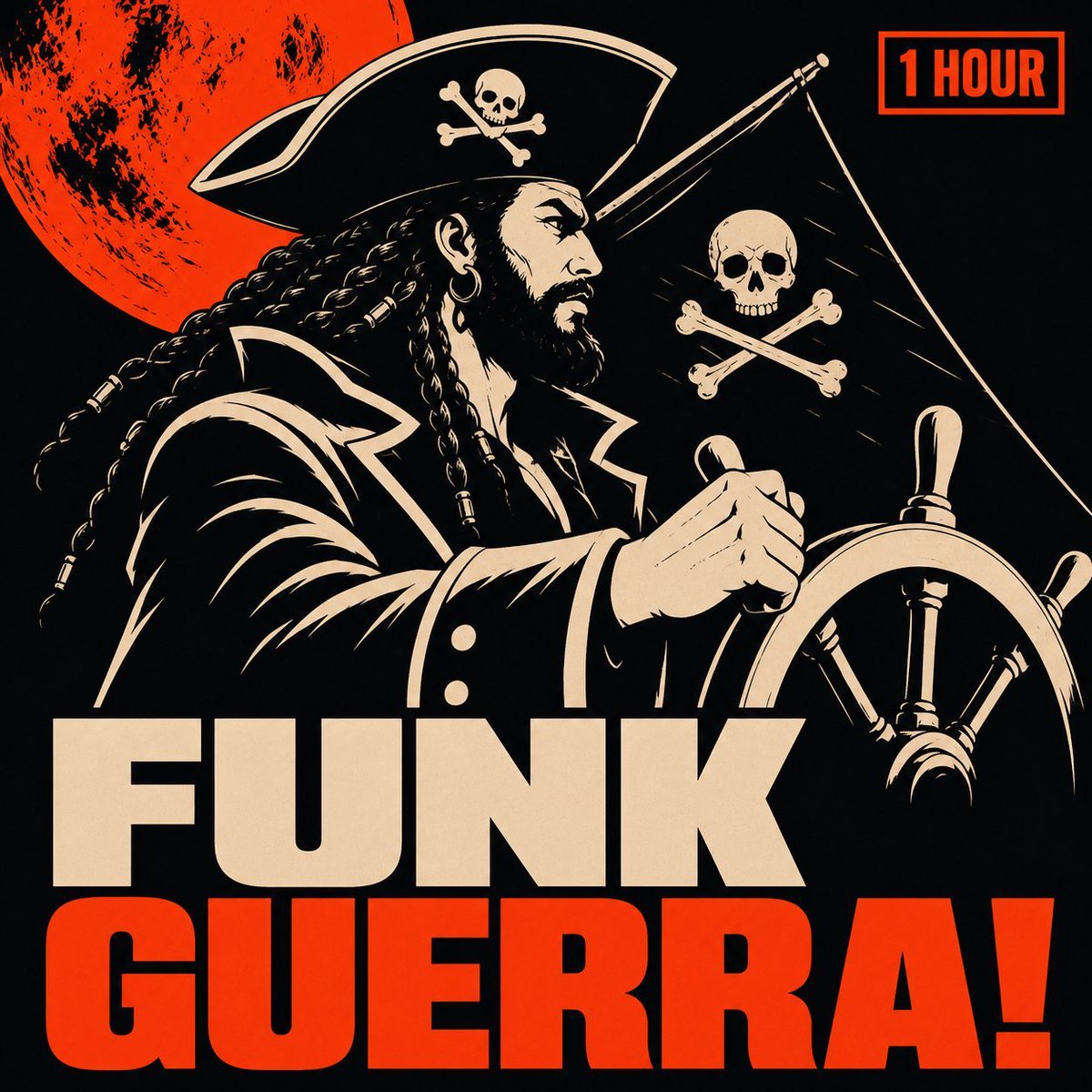
Pirate Funk Playlist Cover
A square retro album-cover prompt for generating a gritty pirate-themed funk playlist artwork with bold typography.
- Prompt included
- Model and format preset
- Free template
The prompt behind this image
Copy the exact prompt behind Pirate Funk Playlist Cover, or open it in the studio and make it yours.
Create a square Spotify playlist cover in a bold vintage screen-printed poster style for a pirate funk mix. Use a near-black background with a limited palette of distressed cream and vivid red-orange. The main subject is a stern pirate captain shown from the waist up in left-facing side profile, positioned in the upper and middle area, with a full black beard, long braided hair with small beads, a hoop earring, a large tricorn hat bearing a skull-and-crossbones emblem, and a high-collared coat with thick cream outlines. His right hand grips a large wooden ship wheel on the right foreground. Behind him, include exactly 2 pirate symbols: one skull-and-crossbones emblem on his hat and one larger skull-and-crossbones on a dark sail flag to the right. Add a huge distressed red-orange moon in the upper left, partially cropped by the canvas edge. Add thin rigging lines and sail shapes in the background. In the top-right corner, place a red-orange outlined rectangular badge containing the text {argument name="duration label" default="1 HOUR"} in bold condensed uppercase red-orange letters. The bottom half is dominated by enormous stacked block typography: first line {argument name="top title word" default="FUNK"} in cream, second line {argument name="bottom title word" default="GUERRA!"} in red-orange, both in heavy uppercase sans-serif with tight spacing, filling almost the full width. Make the composition high-contrast, gritty, slightly weathered, like a retro punk/funk album cover or playlist thumbnail, with clean vector-like ink shapes, rough speckled texture, sharp dramatic lighting, and no extra text or logos.
How to use Pirate Funk Playlist Cover in 3 steps
- 1Upload ImagePNG, JPG or paste
Add your photo
Upload the photo the template builds on. The prompt, model and format are already set.
- 2…a portrait of your subject in softgolden-hour light, 85mm…
Personalize
Edit the subject and creative details for your destination.
- 3Generate
Generate
Press Generate — your image is created in PicX Studio, so you can compare it with the original and refine one variable at a time.
More like this
Templates with the same subject, style or setup. Open one to see its prompt.
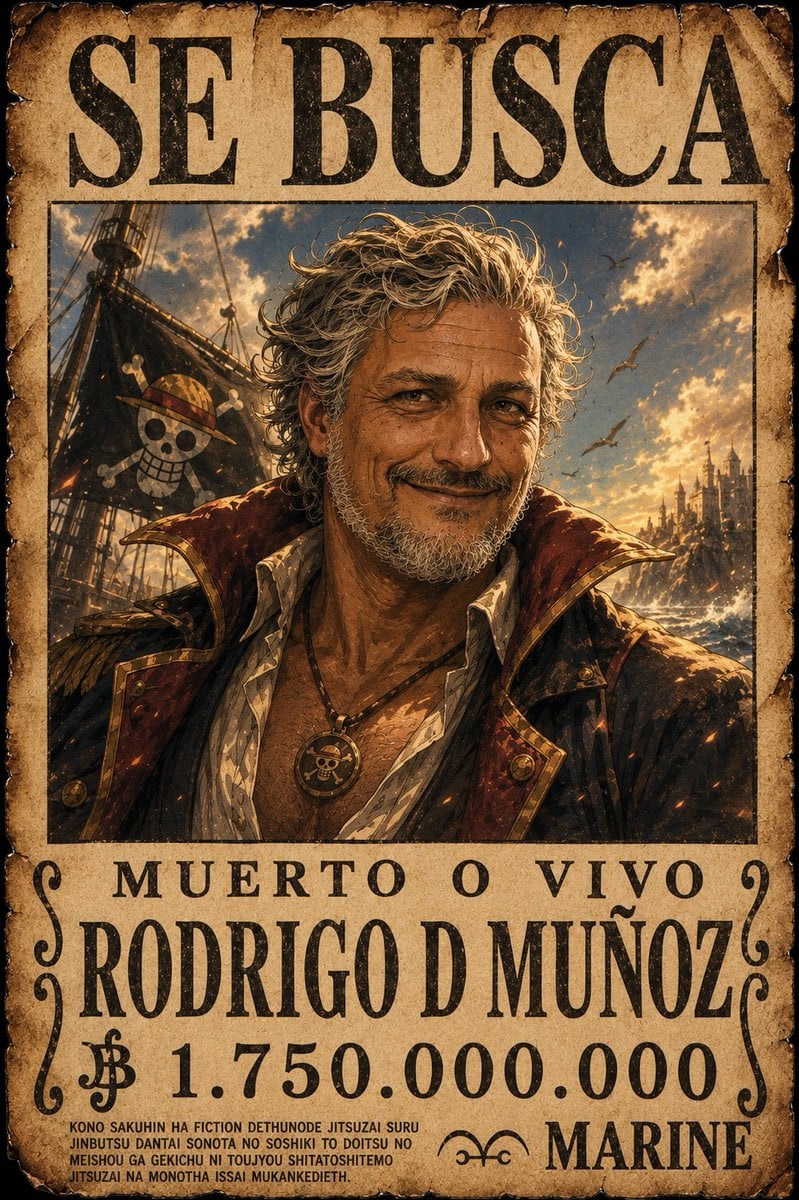
One Piece Pirate Wanted Poster
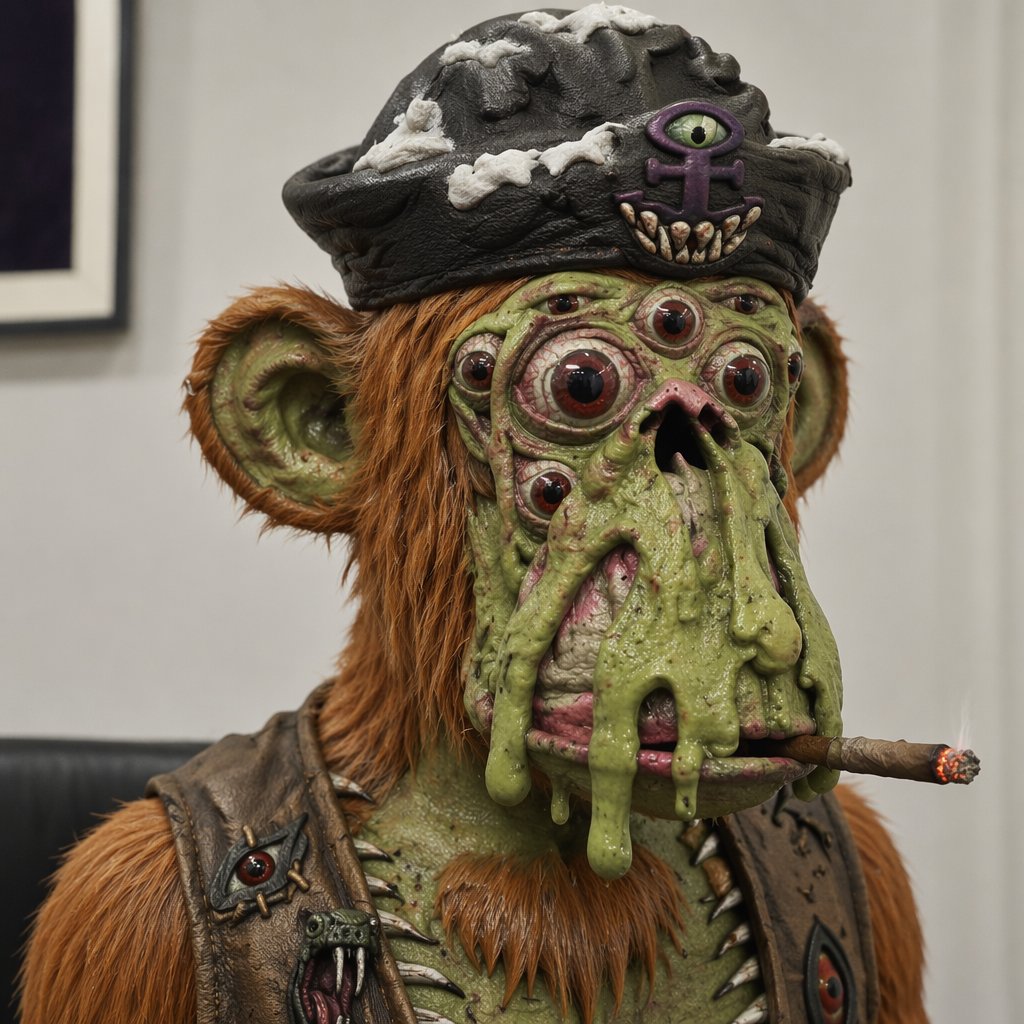
Mutant Ape Pirate Portrait
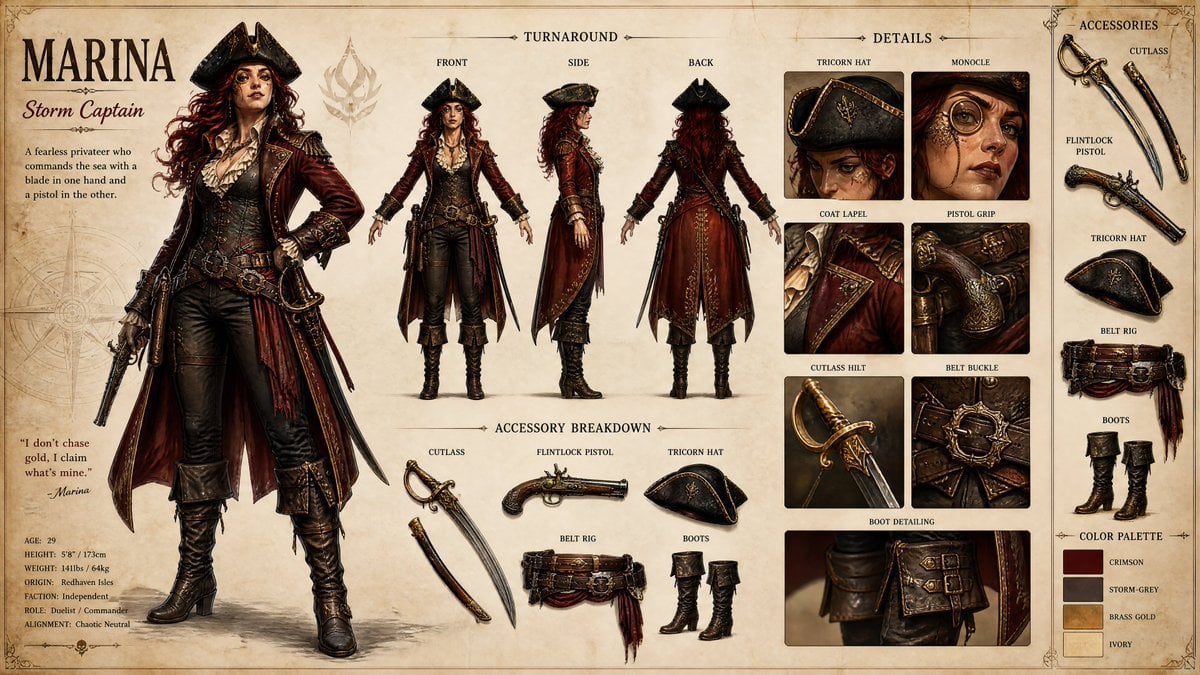
Pirate RPG Character Design Sheet
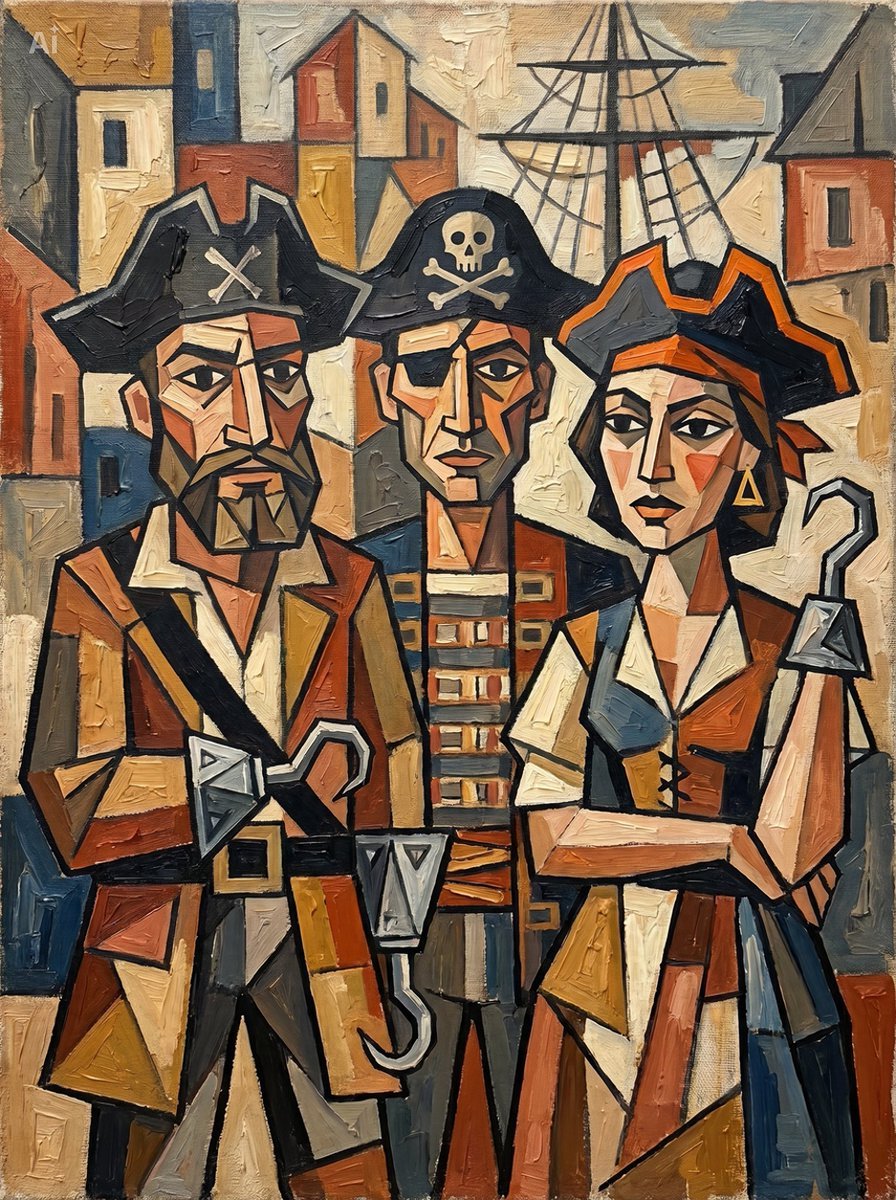
Cubist Pirate Oil Painting
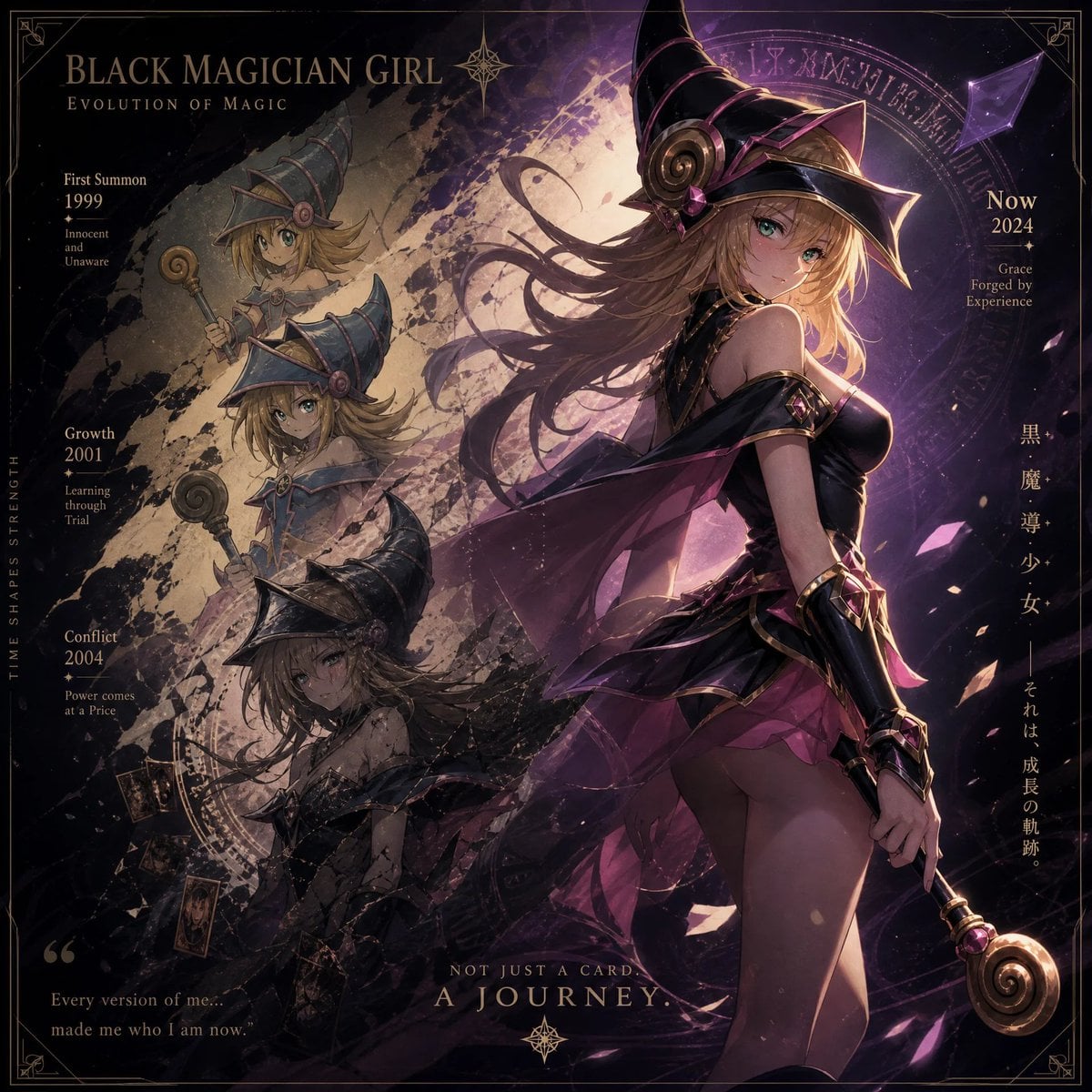
Anime Pirate Ship Stage
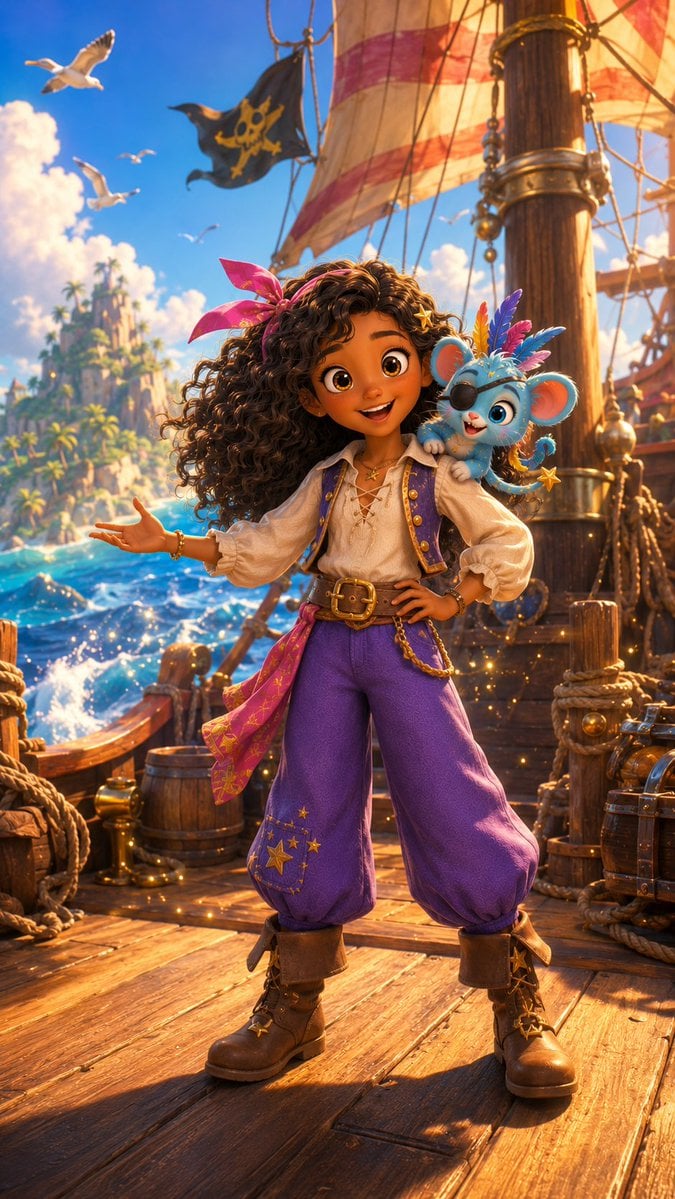
Whimsical Pirate Girl on Ship Deck
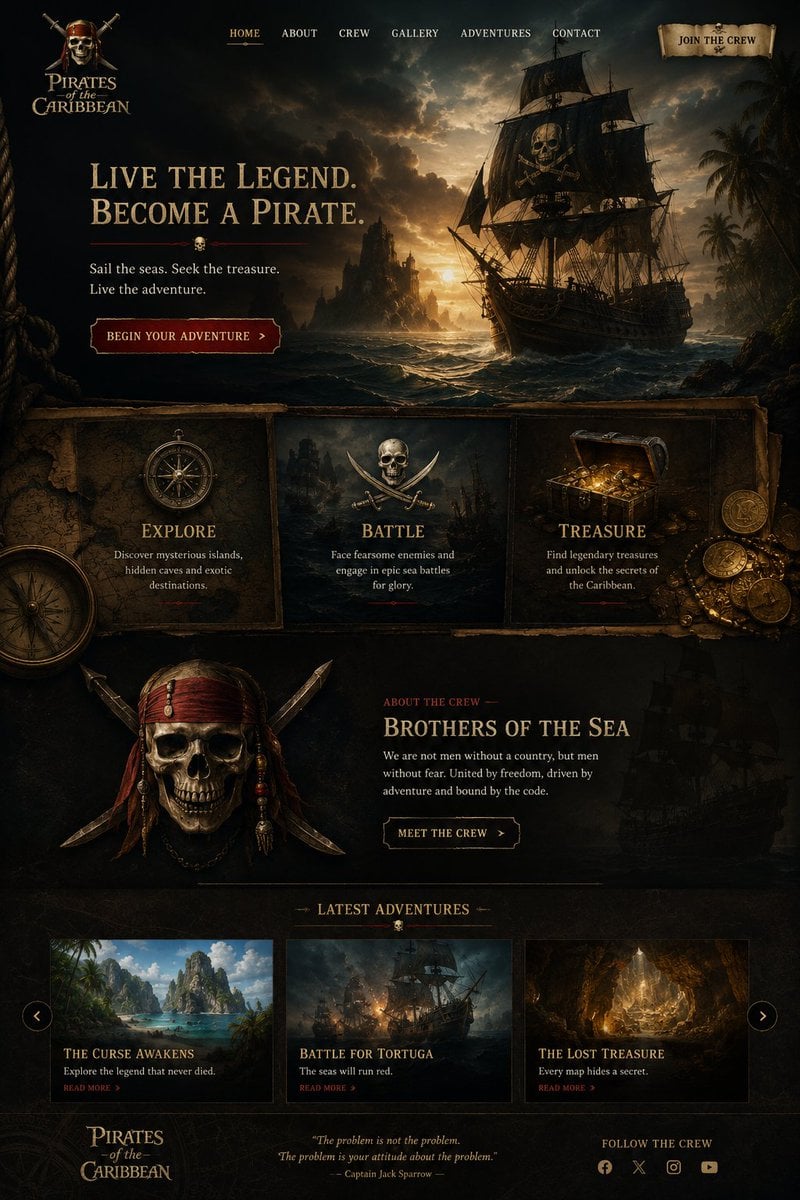
Cinematic Pirate Website Landing Page
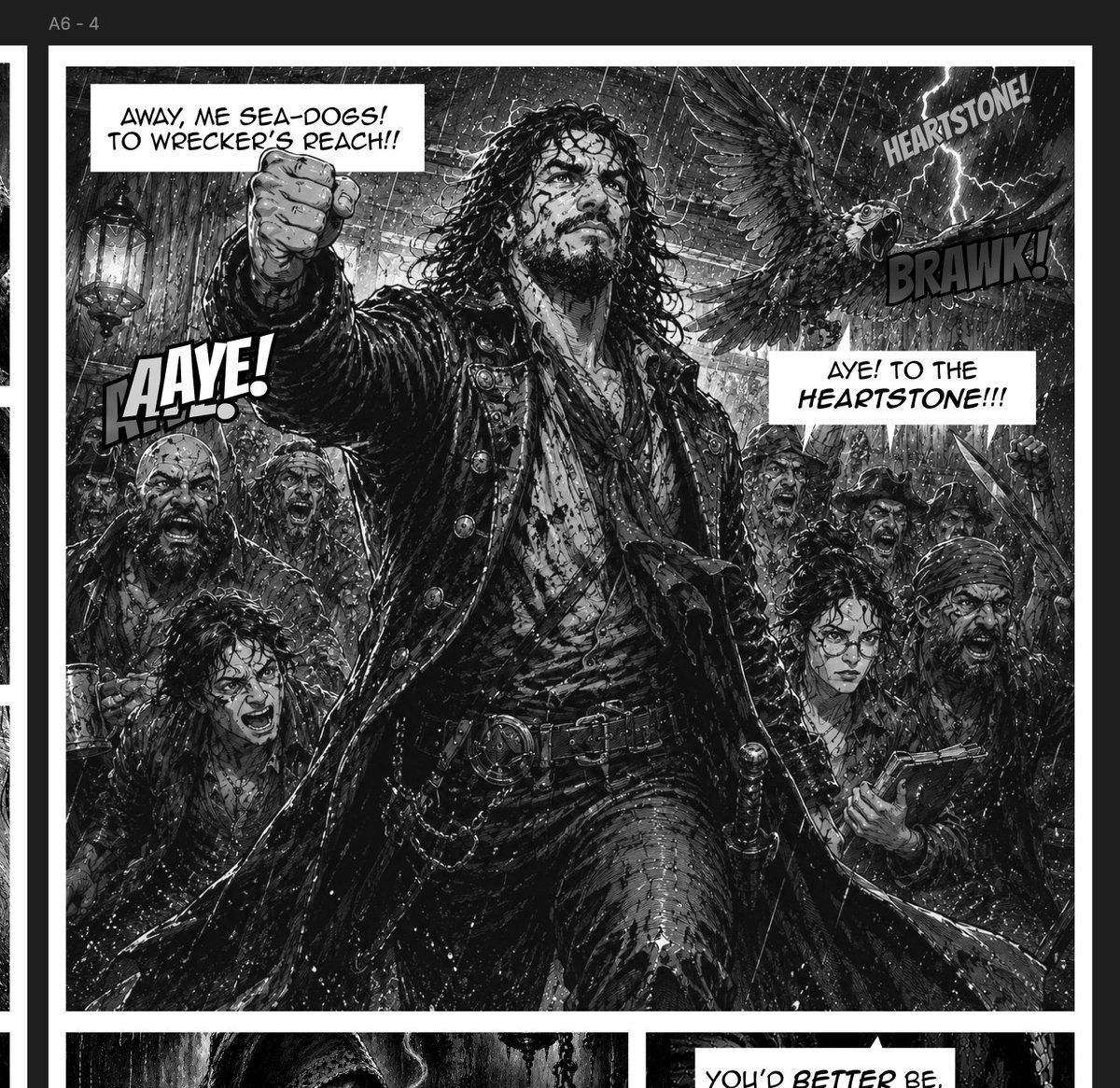
Stormy Pirate Comic Storyboard
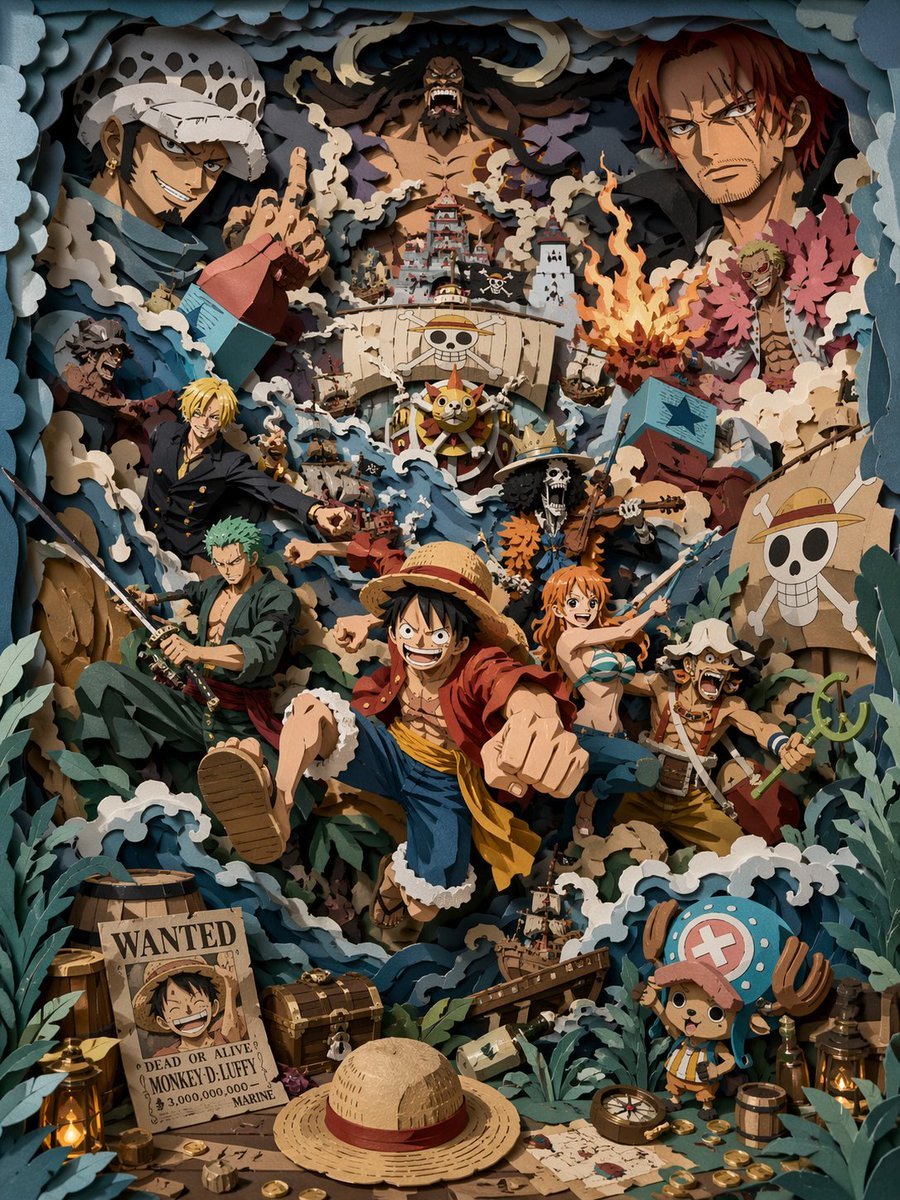
3D Papercut Pirate Scene
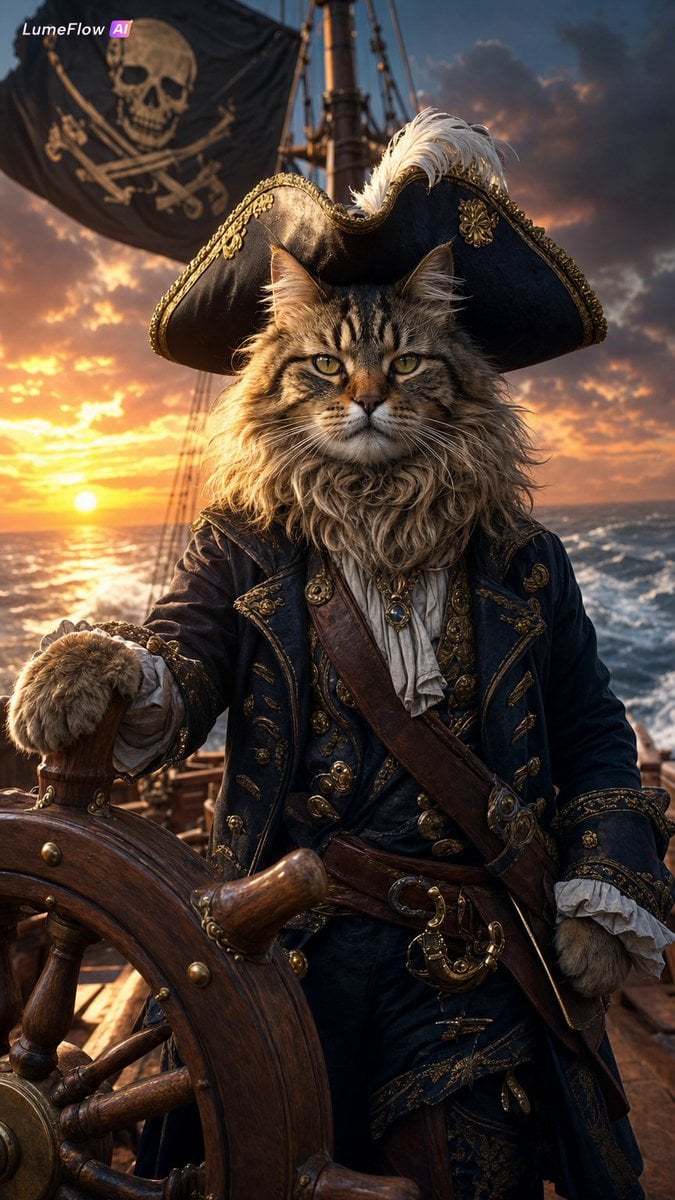
Fluffy Pirate Cat Captain Portrait
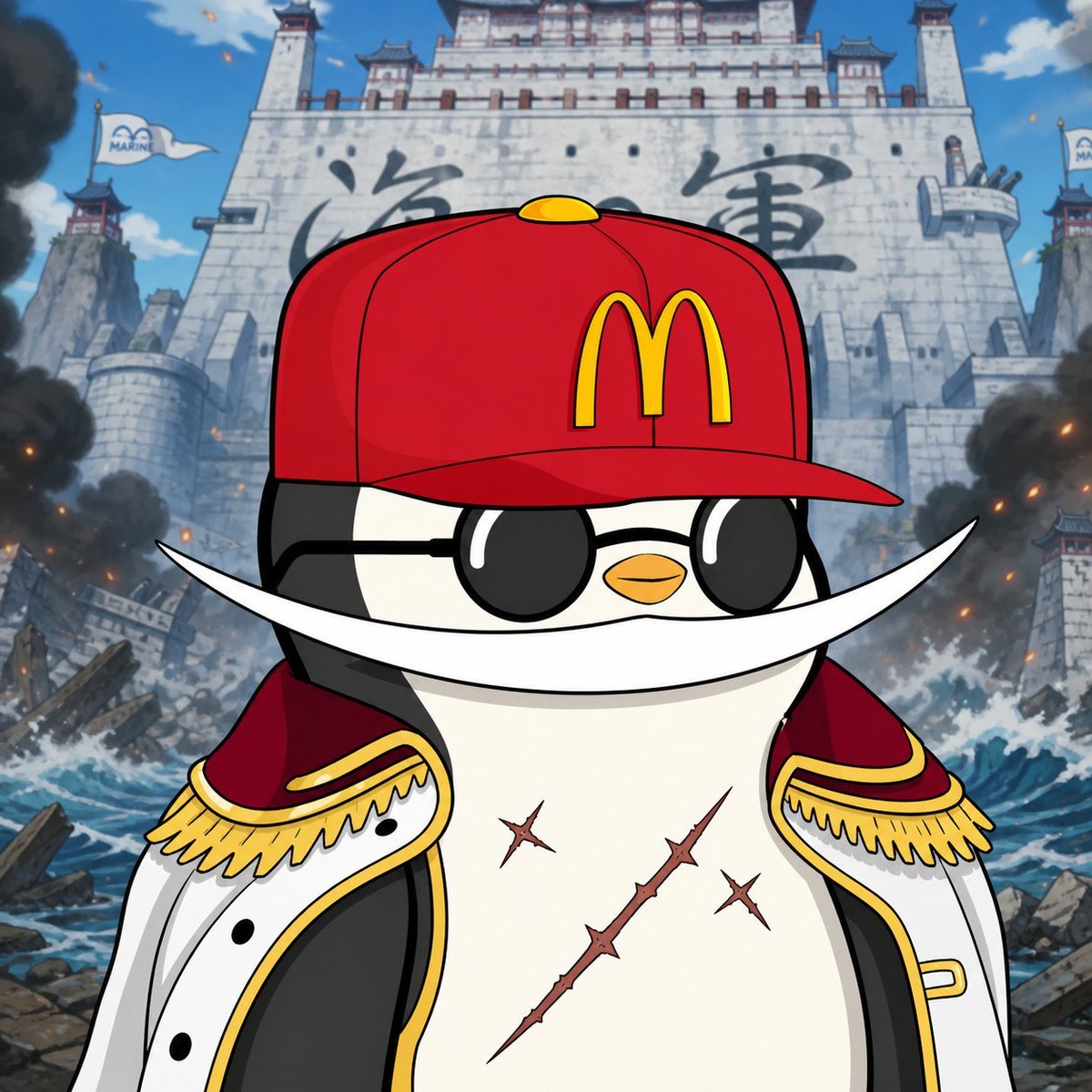
Penguin Pirate Admiral Parody
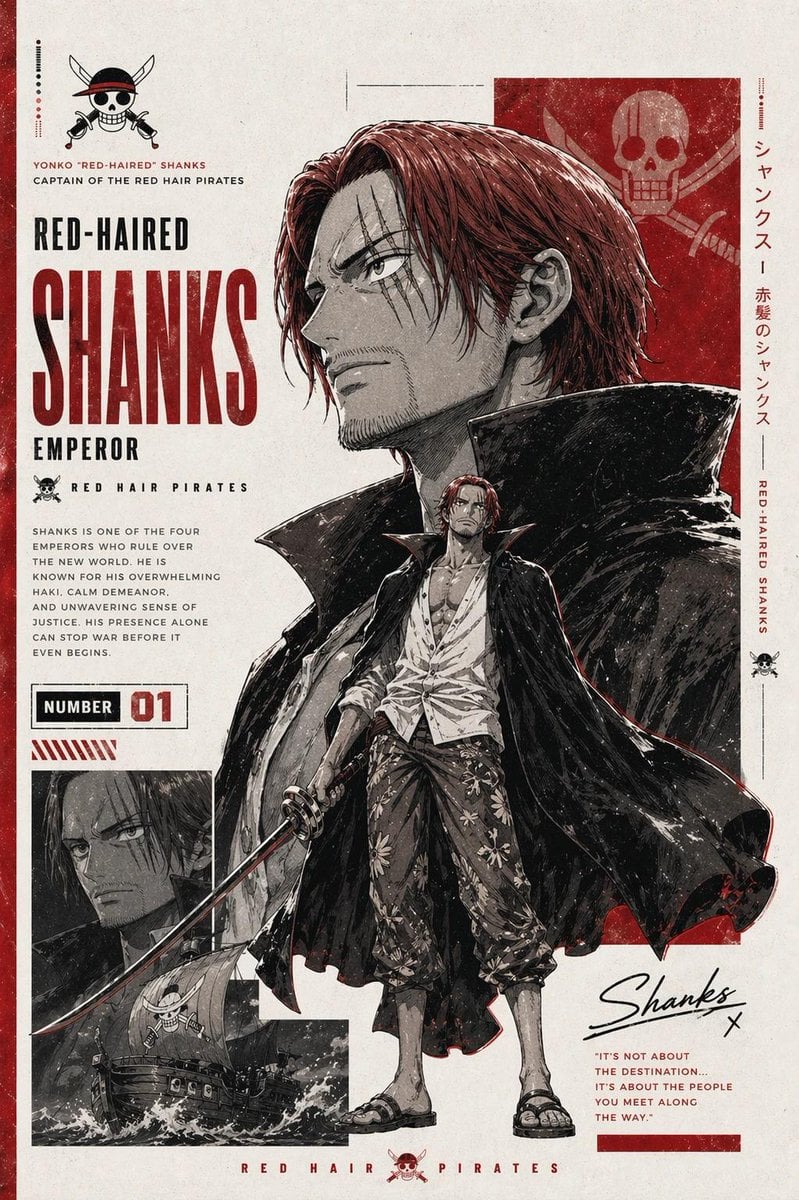
Epic Anime Pirate Poster Design
Make it yours
Pirate Funk Playlist Cover works as-is. These are the safest ways to change it without losing the look.
Change one field
Copy a single group, rewrite it, and generate again so you can see what that field is doing.
Keep the frame, change the subject
Hold the composition and light of Pirate Funk Playlist Cover, then swap wardrobe, props or the person for a new take.
| If the result… | Why | Fix |
|---|---|---|
| The result drifts from the preview | Too many fields changed at once. | Reuse Pirate Funk Playlist Cover as-is first, then change one group — subject, light, or setting. |
| The model over-stylizes the scene | The prose prompt leaves finish and camera underspecified. | Add one camera or lighting sentence and stay on GPT Image 2. |
More GPT Image 2 templates
Other prompts made for GPT Image 2.

Six VTuber Japanese Logo Sheet

Realistic Portrait of Woman and Deer

The Vista Modular Condo Poster

AI Model Routing Comparison Infographic

2.5D Anime Art Board

Isometric Productivity Desk Scene

New York Double Exposure Poster

Four-Panel AI Landscape Comparison

NESCAFÉ Coffee Map Poster

Brutalist Cogito Chinese Typography Poster
More image prompts
Fresh picks from across the catalog.
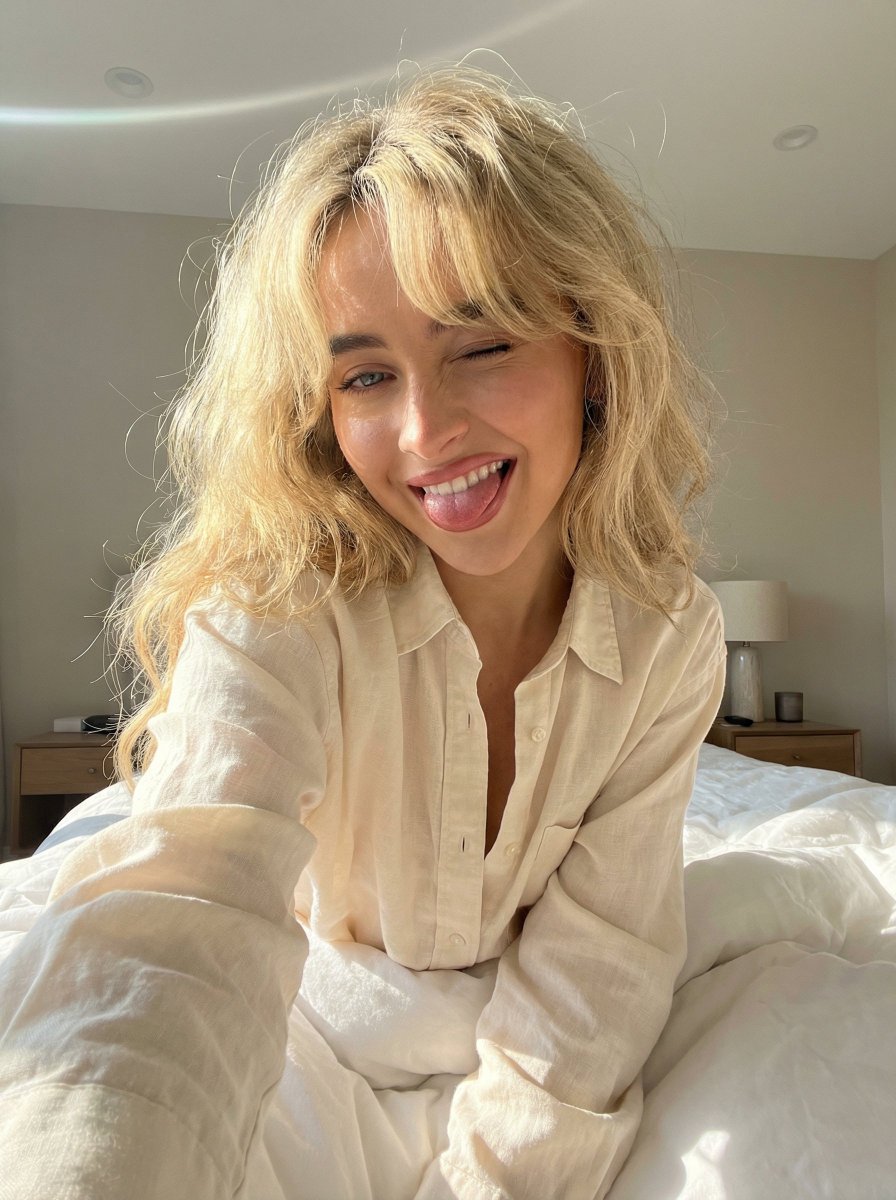
Playful 8K Selfie of Young Woman Winking
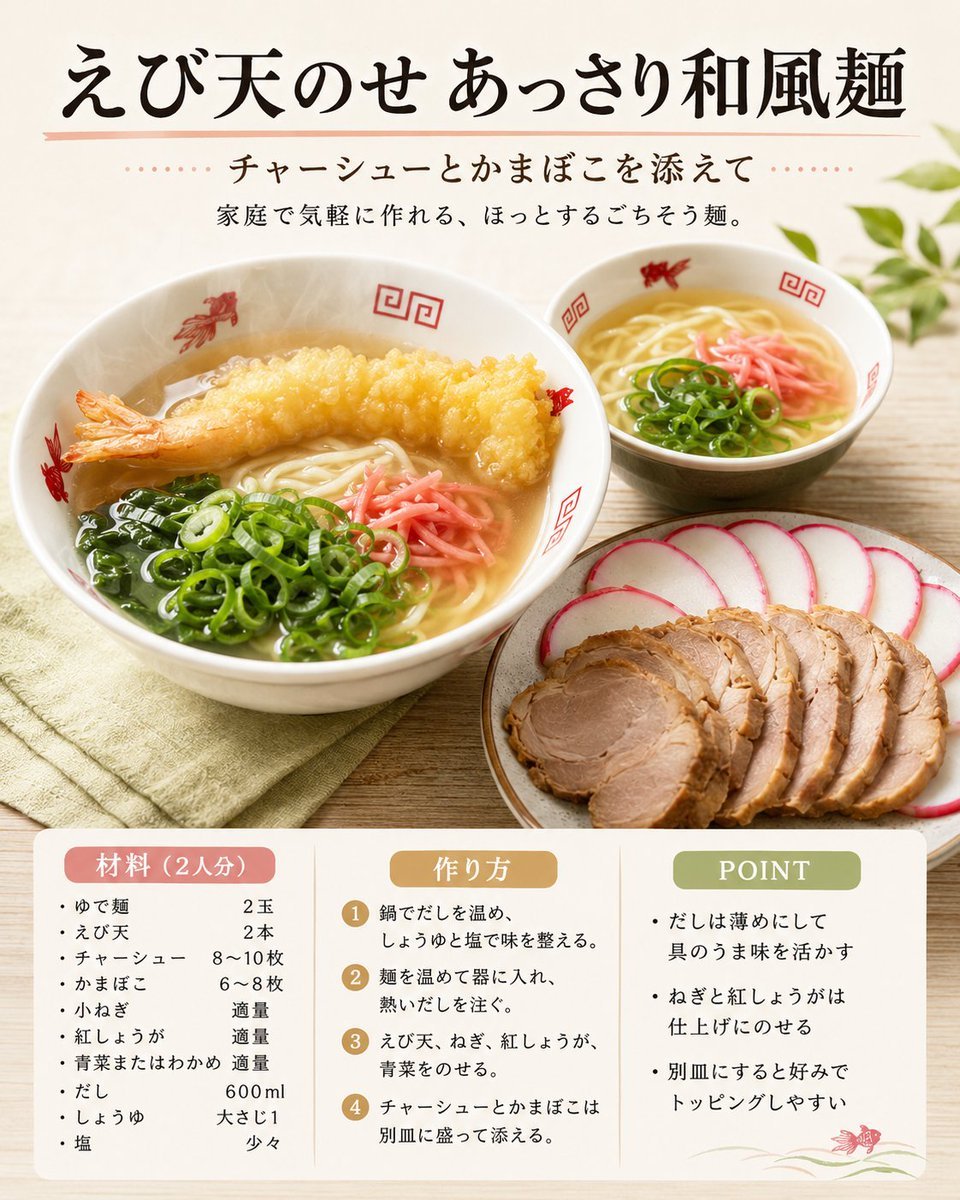
Japanese Tempura Noodle Recipe Card
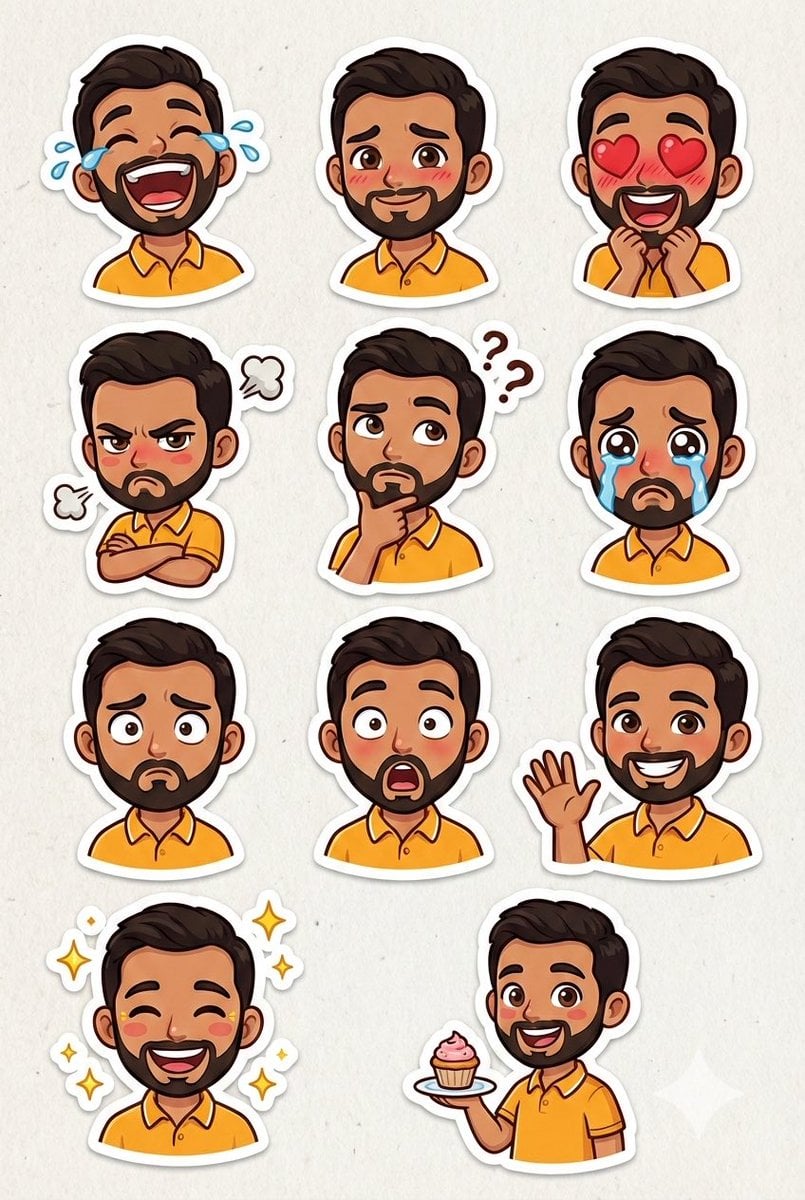
Pixar Sticker Sheet Generation Prompt
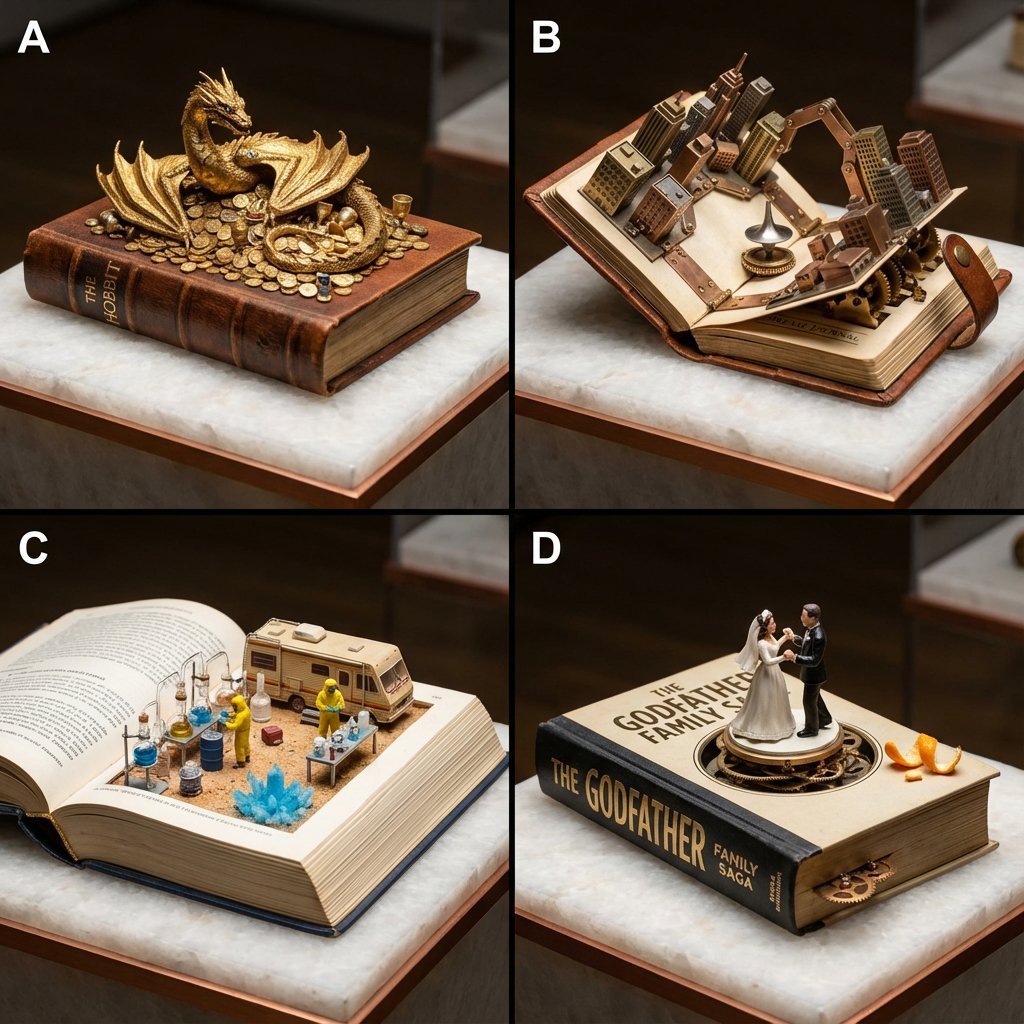
Book-Themed Diorama Grid Prompt
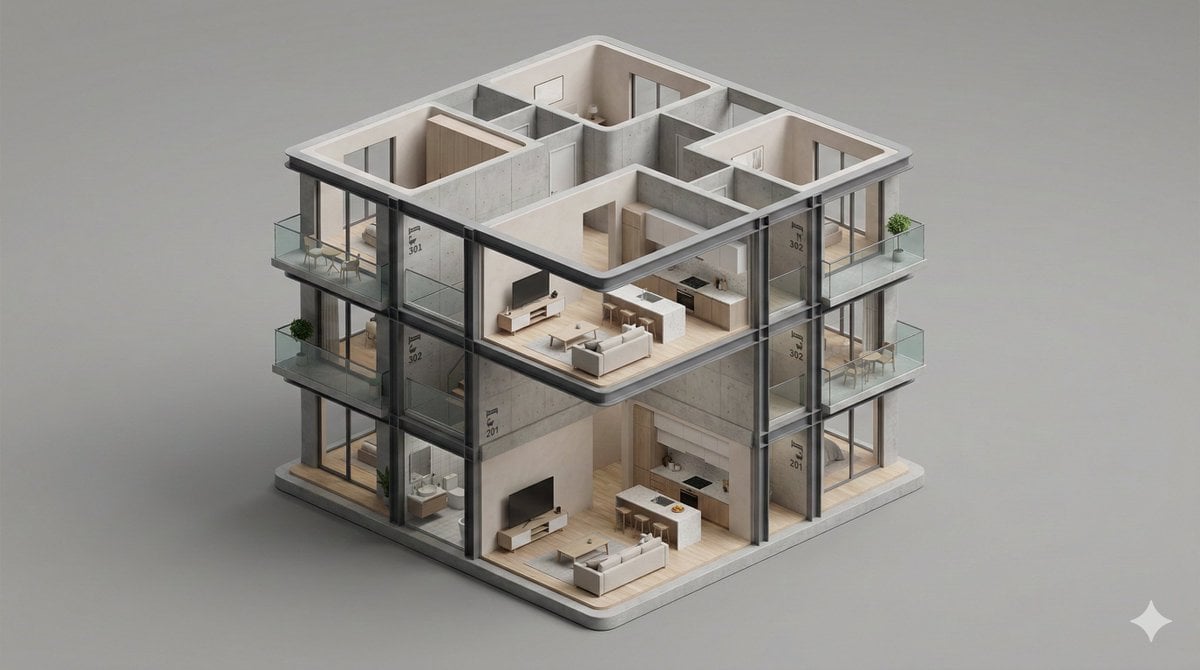
Minimalist 3D Isometric Architectural Diorama
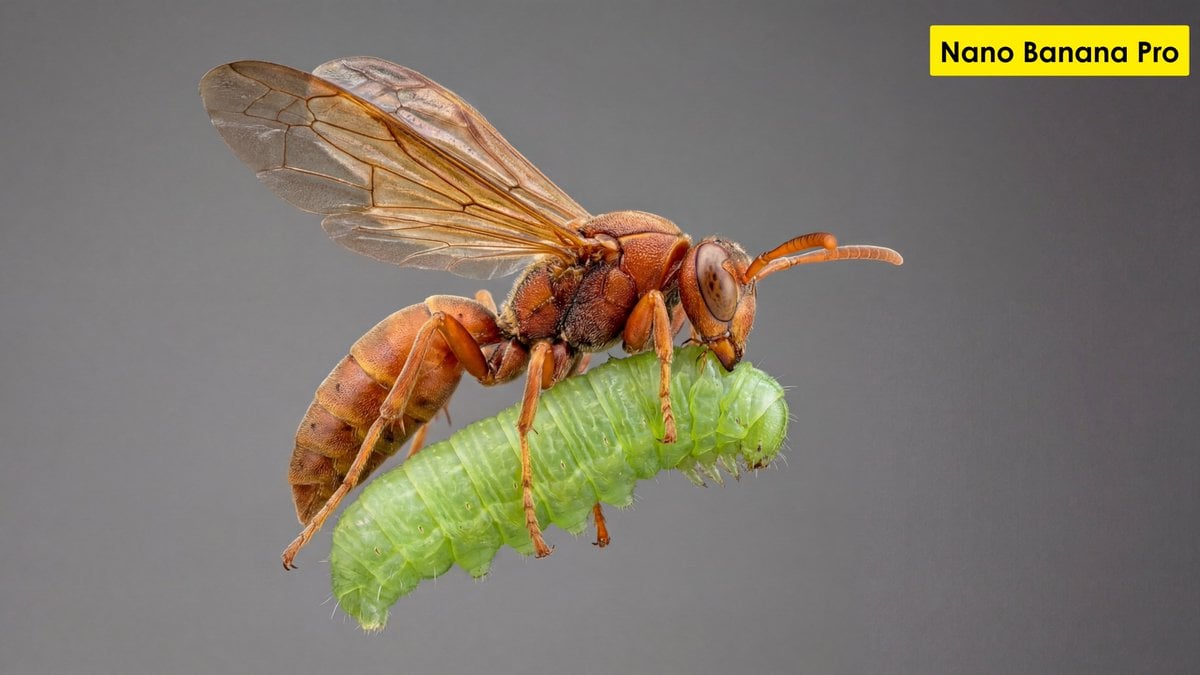
Scientific Ultra-Macro Insect Capture Prompt
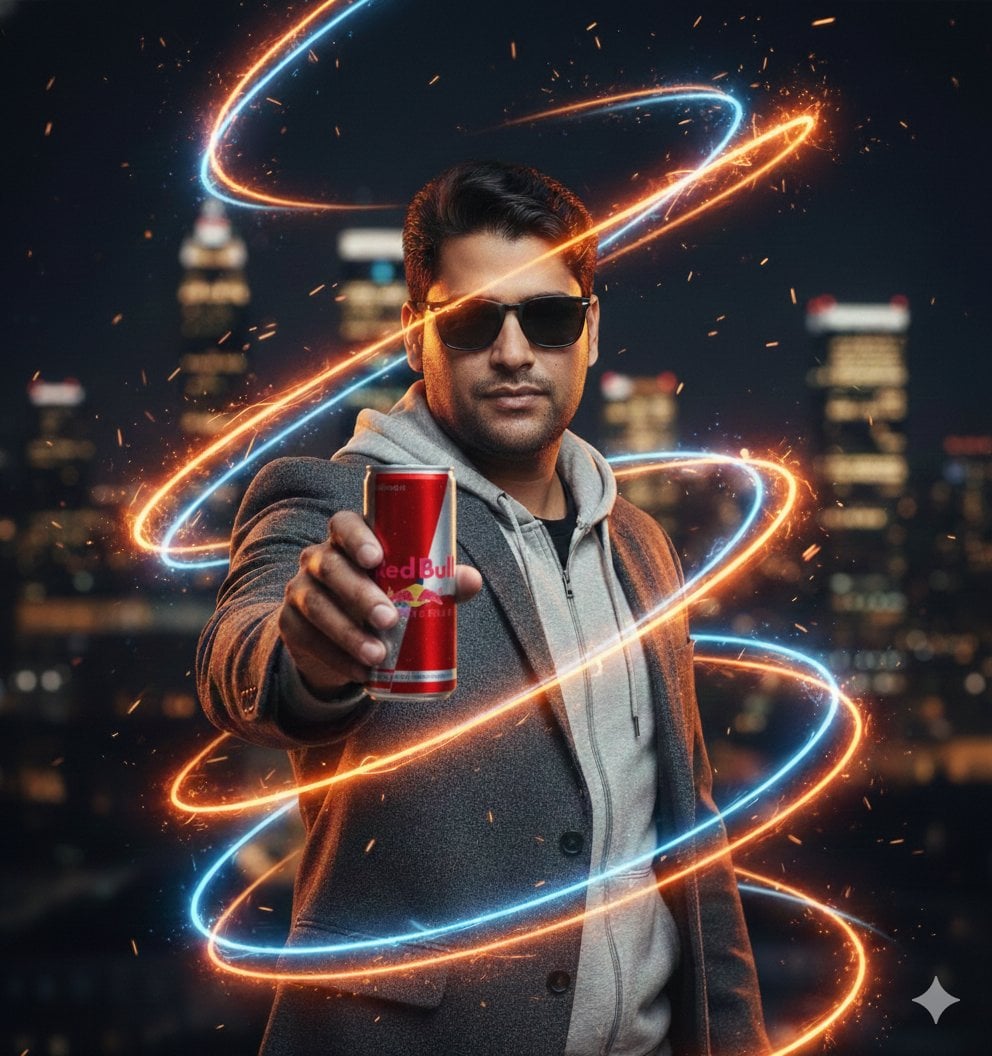
Commercial Energy Drink Photography Prompt with Neon Effects
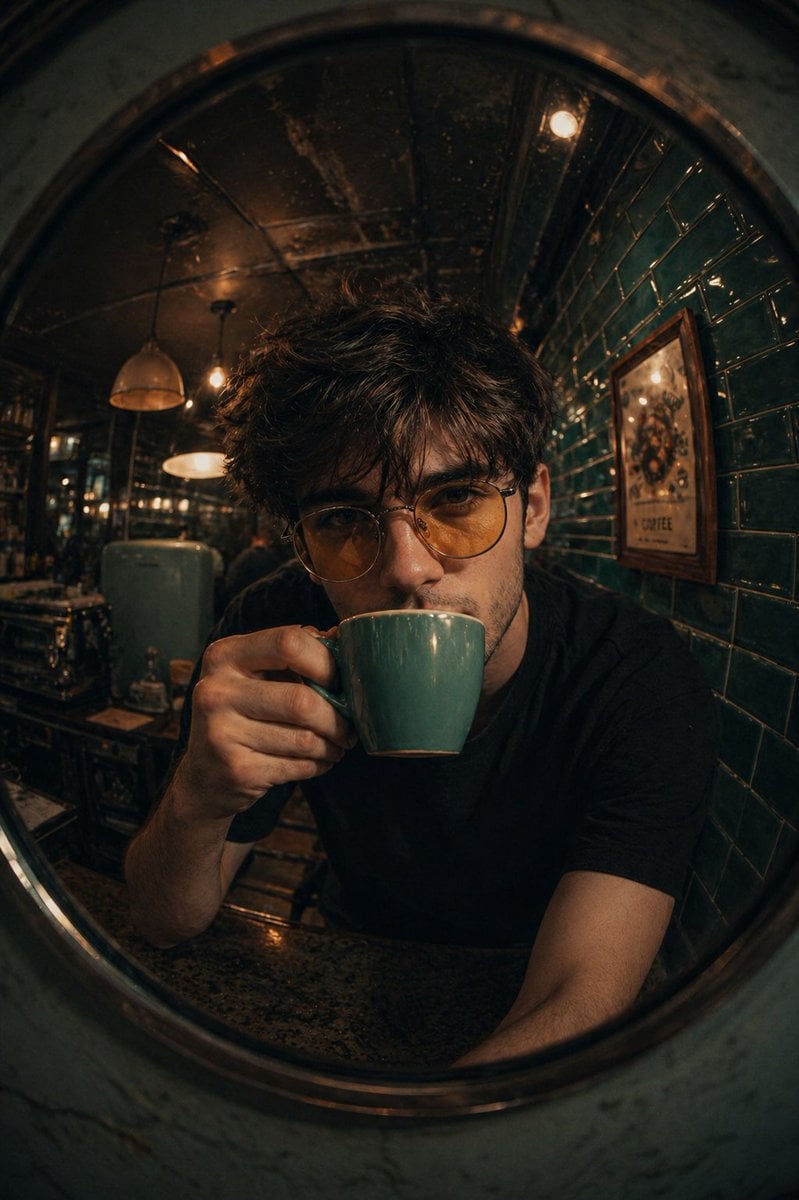
Retro Café Fish-eye Lens Portrait
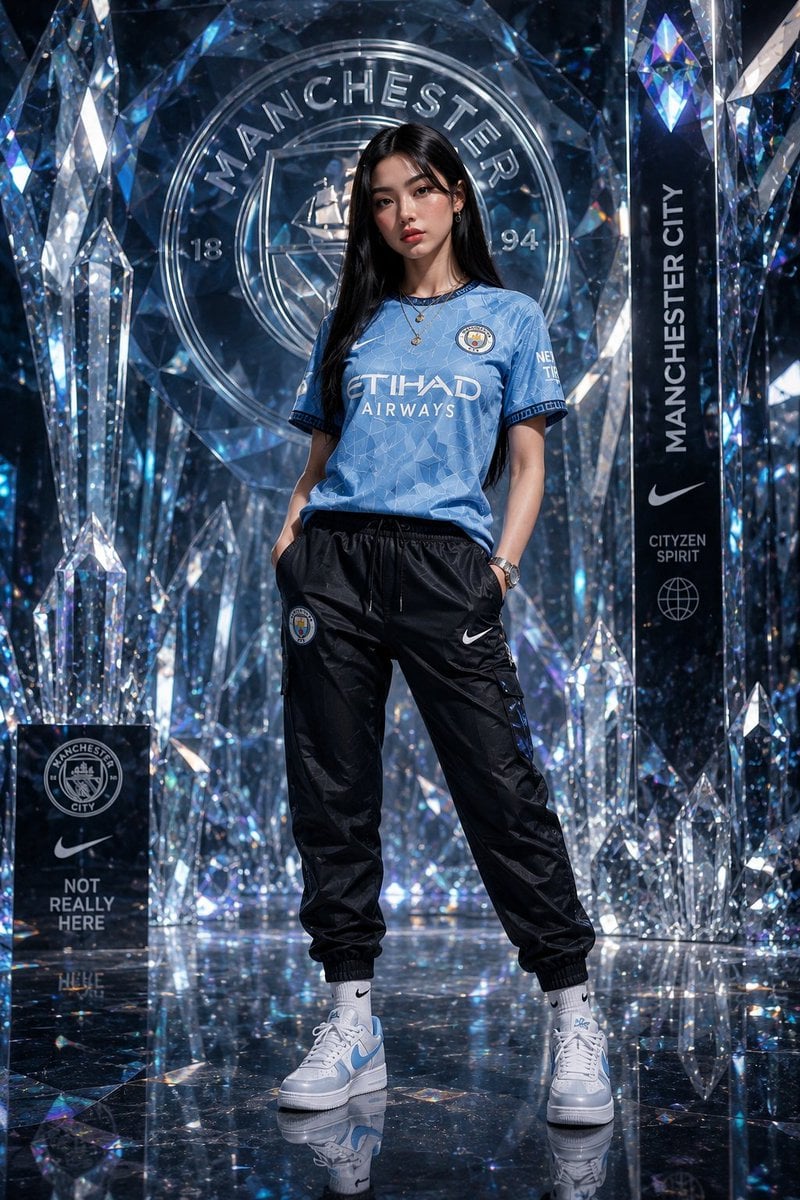
Futuristic Sportswear Fashion in Crystal Palace
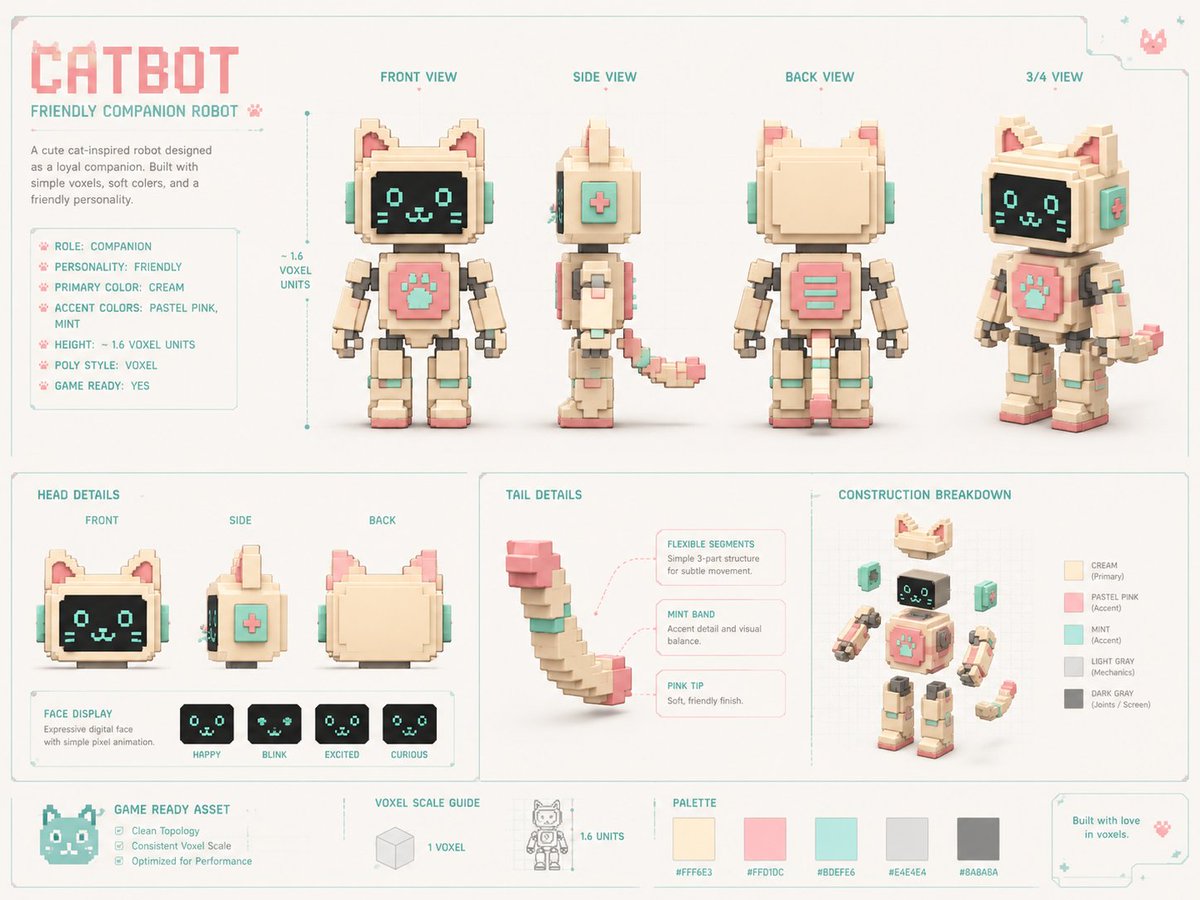
Voxel Cat Robot Concept Sheet
Browse template categories
Pirate Funk Playlist Cover questions
How do I use the Pirate Funk Playlist Cover template?
Add your photo if the template asks for one, edit the prompt if you like — the template's model and format are already selected — and press Generate. Your version opens in PicX Studio.
Can I customize the Pirate Funk Playlist Cover template?
Yes. You can change the subject, setting, lighting, mood, format, and available model controls before creating your image.
Is the Pirate Funk Playlist Cover template free?
Opening and editing this template is free. Generating uses credits, shown on the Generate button when you are signed in.
Which AI model should I use?
Start with GPT Image 2, which is the model associated with this template. You can compare another compatible model for a different finish.
Looking for something else? Browse all templates.

Your photo, any look
Thousands of ready templates for every top image and video model, from one credit balance.