
Friendly ChatGPT Robot Introduction
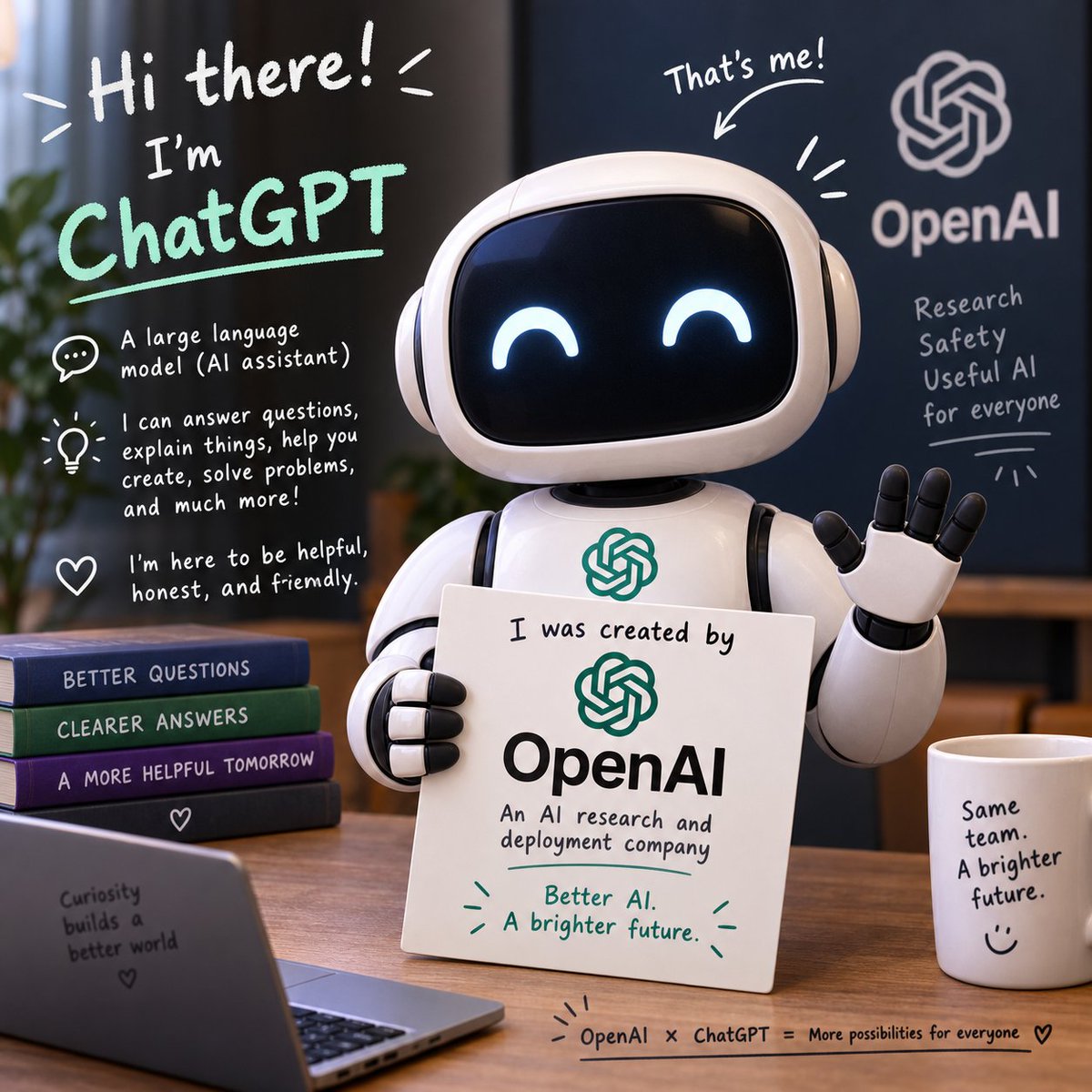
A warm 3D promotional scene of a cute ChatGPT robot mascot explaining OpenAI and its helpful AI assistant role.
- Prompt included
- Model and format preset
- Free template
The prompt behind this image
Copy the exact prompt behind Friendly ChatGPT Robot Introduction, or open it in the studio and make it yours.
Goal: Create a friendly educational promotional image introducing {argument name="character name" default="ChatGPT"} as a cute AI robot assistant created by {argument name="company name" default="OpenAI"}. Canvas: Square 1:1 image, warm realistic 3D render with soft depth of field, cozy office desk setting, dark blurred background, natural window light from the left, polished wood tabletop. Main subject: A glossy white rounded robot mascot sits centered slightly right, with a black glass face screen showing two glowing cyan happy closed-eye arcs. The robot has rounded over-ear side panels, segmented white arms with black joints, a small teal OpenAI knot logo on its chest, and a raised right hand waving with five black-tipped fingers. Its left hand holds a white placard in front of its body. Placard text and design: The placard shows handwritten-style text at top, “I was created by”, a large teal OpenAI knot logo, bold black “OpenAI”, smaller text “An AI research and deployment company”, and teal slogan “Better AI. A brighter future.” Add small teal decorative rays near the slogan. Left chalkboard-style overlay: On the left side of the image, add hand-drawn white and mint typography and doodles. Text reads: “Hi there!” at the top with little emphasis marks; below it “I’m” in white and “ChatGPT” in large mint green letters with an underline. Include exactly 3 informational bullet blocks with icons: 1) speech bubble icon with “A large language model (AI assistant)”, 2) lightbulb icon with “I can answer questions, explain things, help you create, solve problems, and much more!”, 3) heart icon with “I’m here to be helpful, honest, and friendly.” Right background branding: On a dark blue wall panel behind the robot, place the OpenAI knot logo and the word “OpenAI” in pale gray. Under it, add four stacked handwritten words/phrases: “Research”, “Safety”, “Useful AI”, “for everyone”, with a small underline and doodle rays. Above the robot head, add handwritten text “That’s me!” with an arrow pointing to the robot. Desk objects: Include exactly 4 stacked books on the left, each with readable spine text: 1) “BETTER QUESTIONS” on a blue book, 2) “CLEARER ANSWERS” on a green book, 3) “A MORE HELPFUL TOMORROW” on a purple book, 4) a dark bottom book with a small heart symbol. Place an open laptop in the lower left foreground with text on the back reading “Curiosity builds a better world” and a small heart. On the right, place a white coffee mug with text reading “Same team. A brighter future.” plus a smiley face. Bottom caption: Along the bottom edge of the desk, add a thin handwritten line with small doodle rays and text: “OpenAI × ChatGPT = More possibilities for everyone” followed by a small heart. Visual style: Charming product-announcement illustration, high-quality 3D mascot, realistic reflections, rounded shapes, handwritten whiteboard annotations, mint green accent color, optimistic and approachable tone. Keep all typography legible, playful, and hand-lettered except the bold OpenAI logo text. Avoid extra logos, watermarks, or additional characters.
How to use Friendly ChatGPT Robot Introduction in 3 steps
- 1Upload ImagePNG, JPG or paste
Add your photo
Upload the photo the template builds on. The prompt, model and format are already set.
- 2…a portrait of your subject in softgolden-hour light, 85mm…
Personalize
Edit the subject and creative details for your destination.
- 3Generate
Generate
Press Generate — your image is created in PicX Studio, so you can compare it with the original and refine one variable at a time.
More like this
Templates with the same subject, style or setup. Open one to see its prompt.
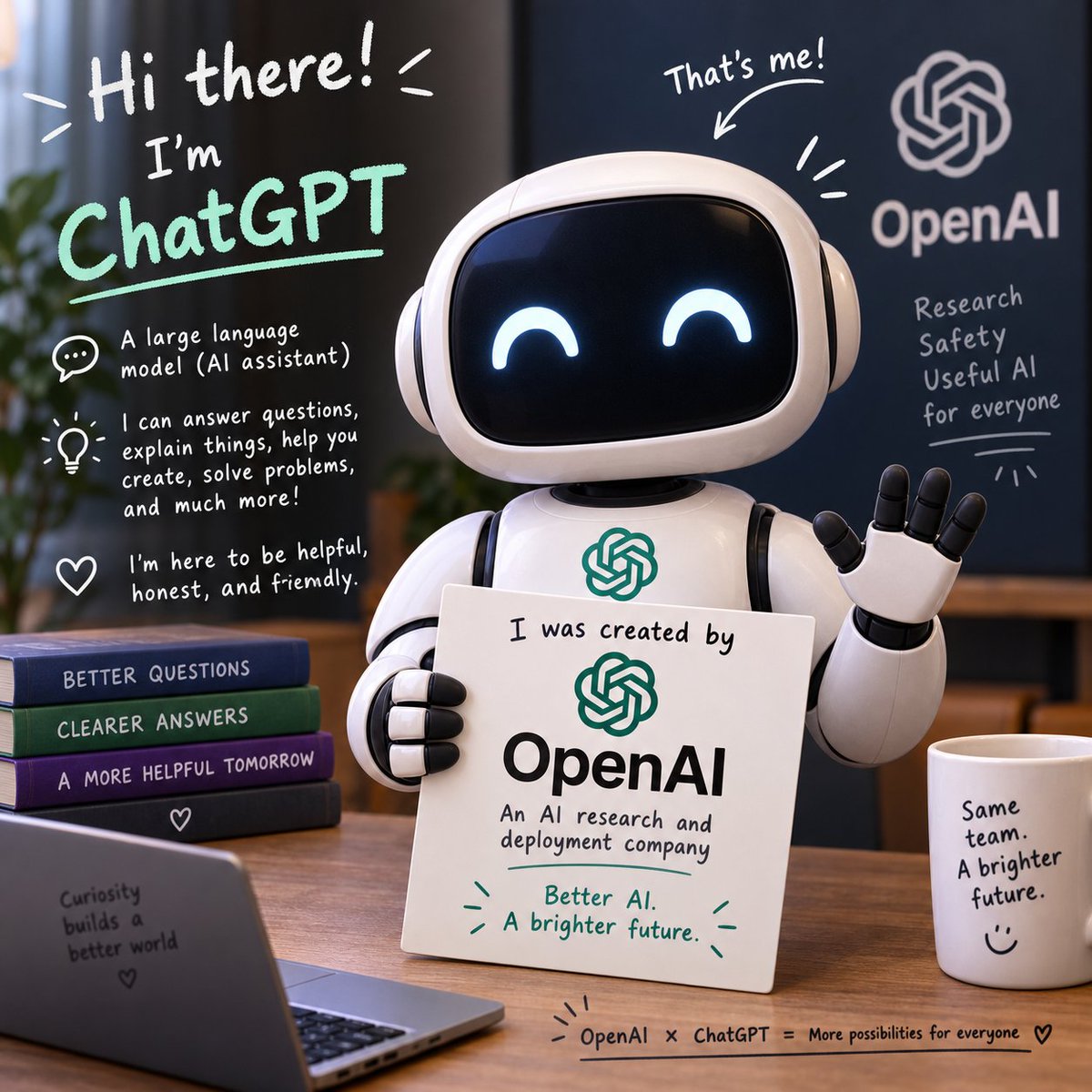
Friendly ChatGPT Robot Introduction
ChatGPT Robot Introduction Poster
Friendly ChatGPT Robot Office Scene
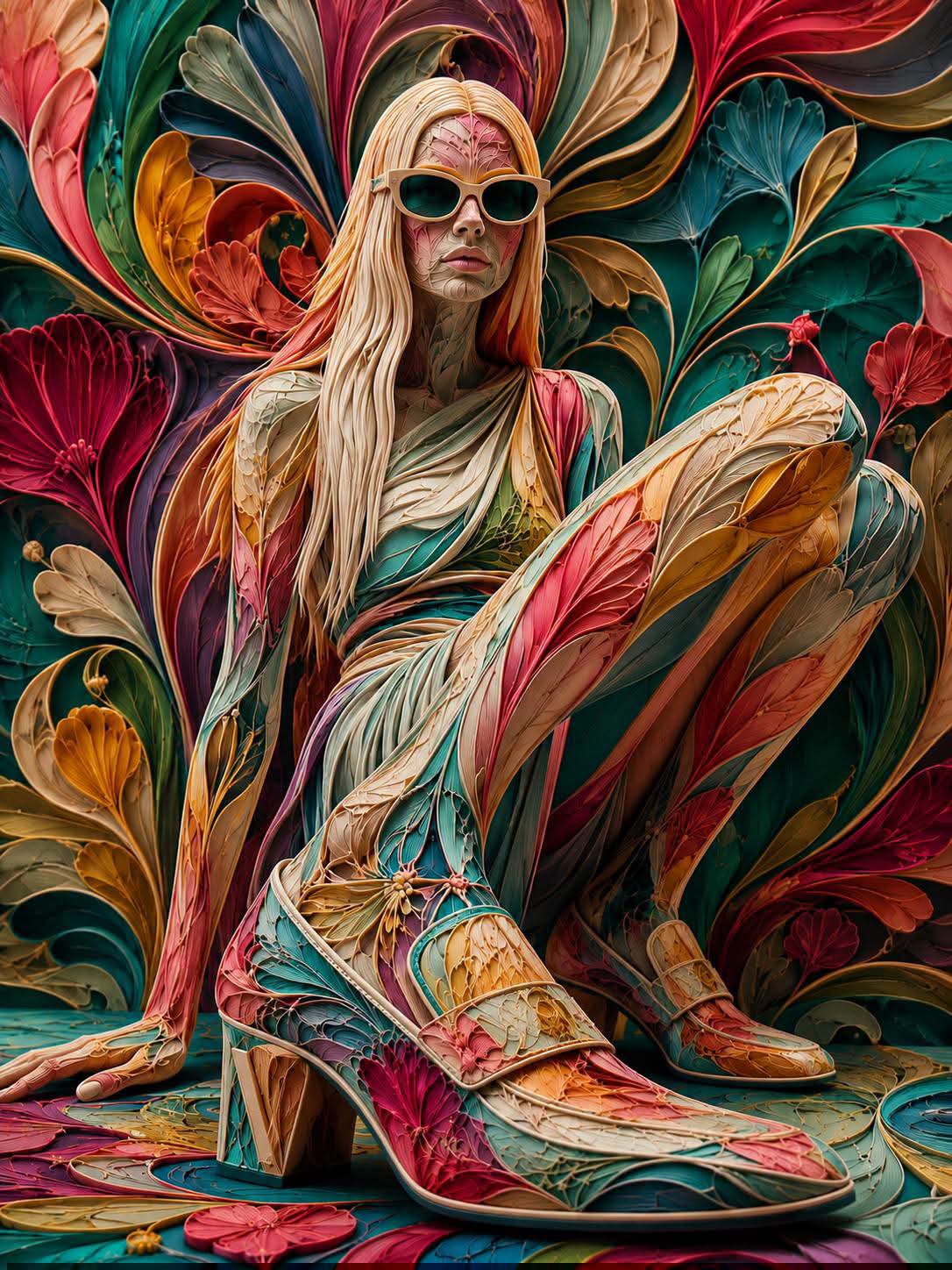
Floraverse Botanical Fusion
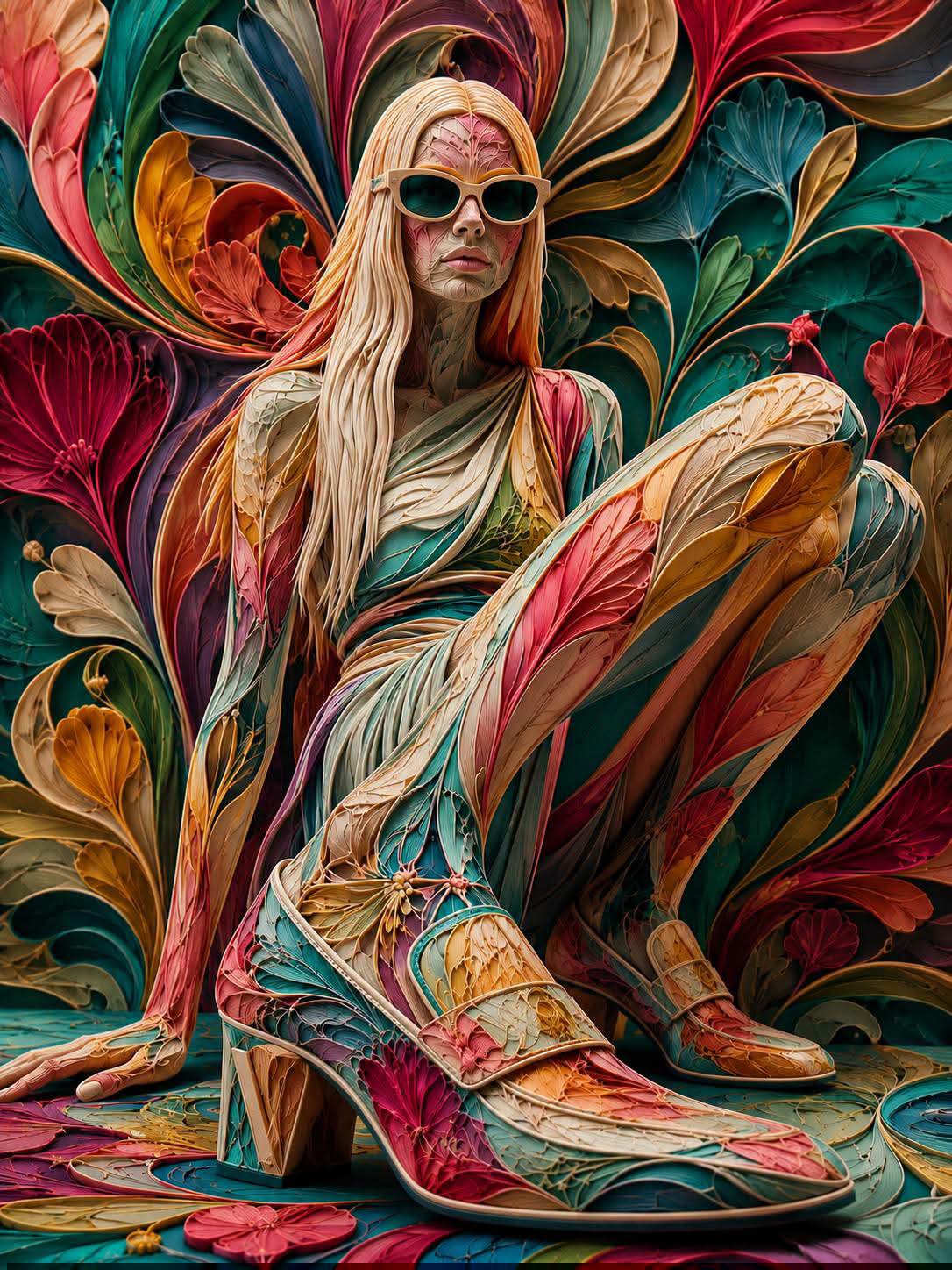
FLORAVERSE BOTANICAL FUSION
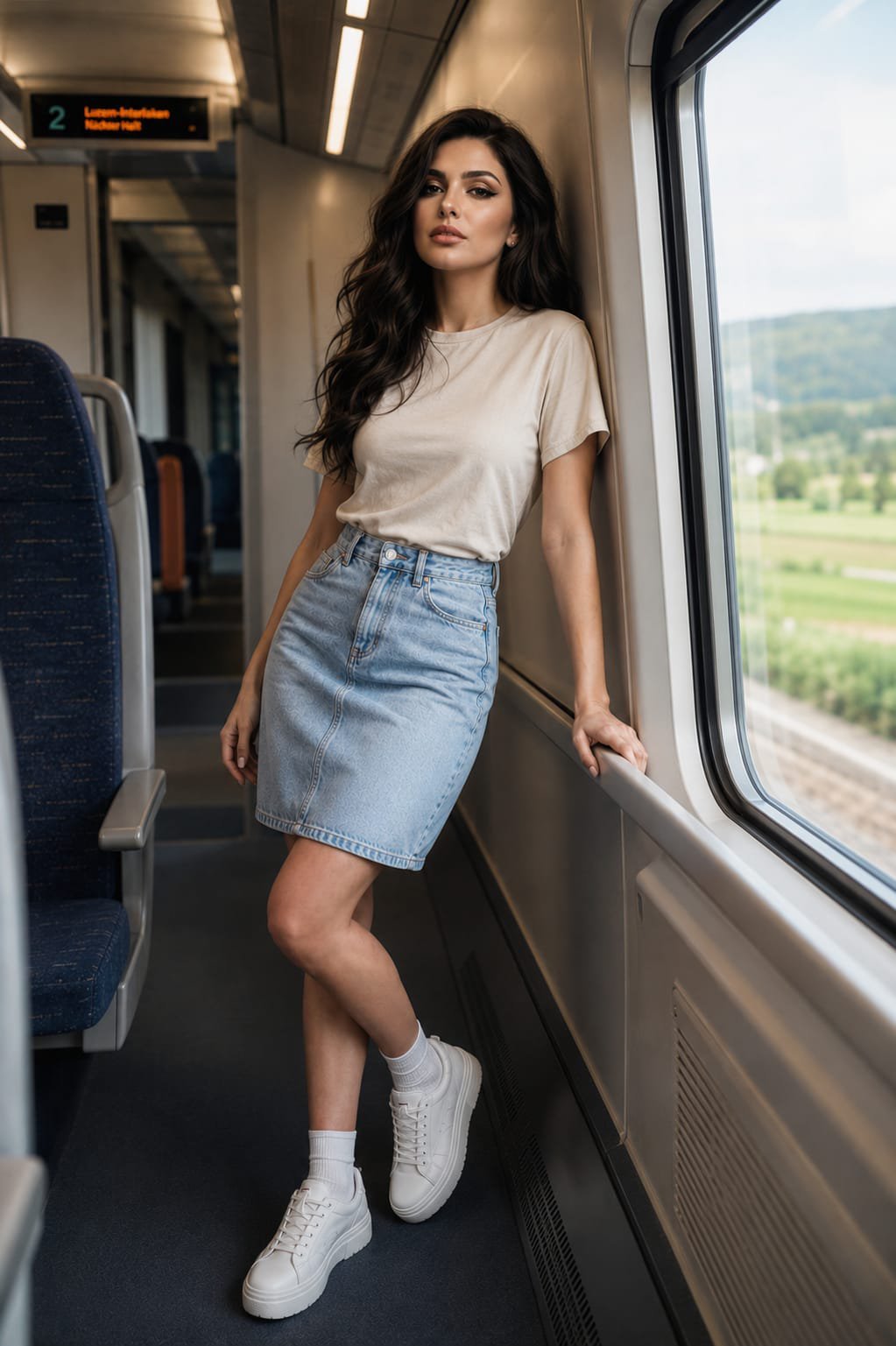
Face-Locked Train Window Lifestyle Portrait
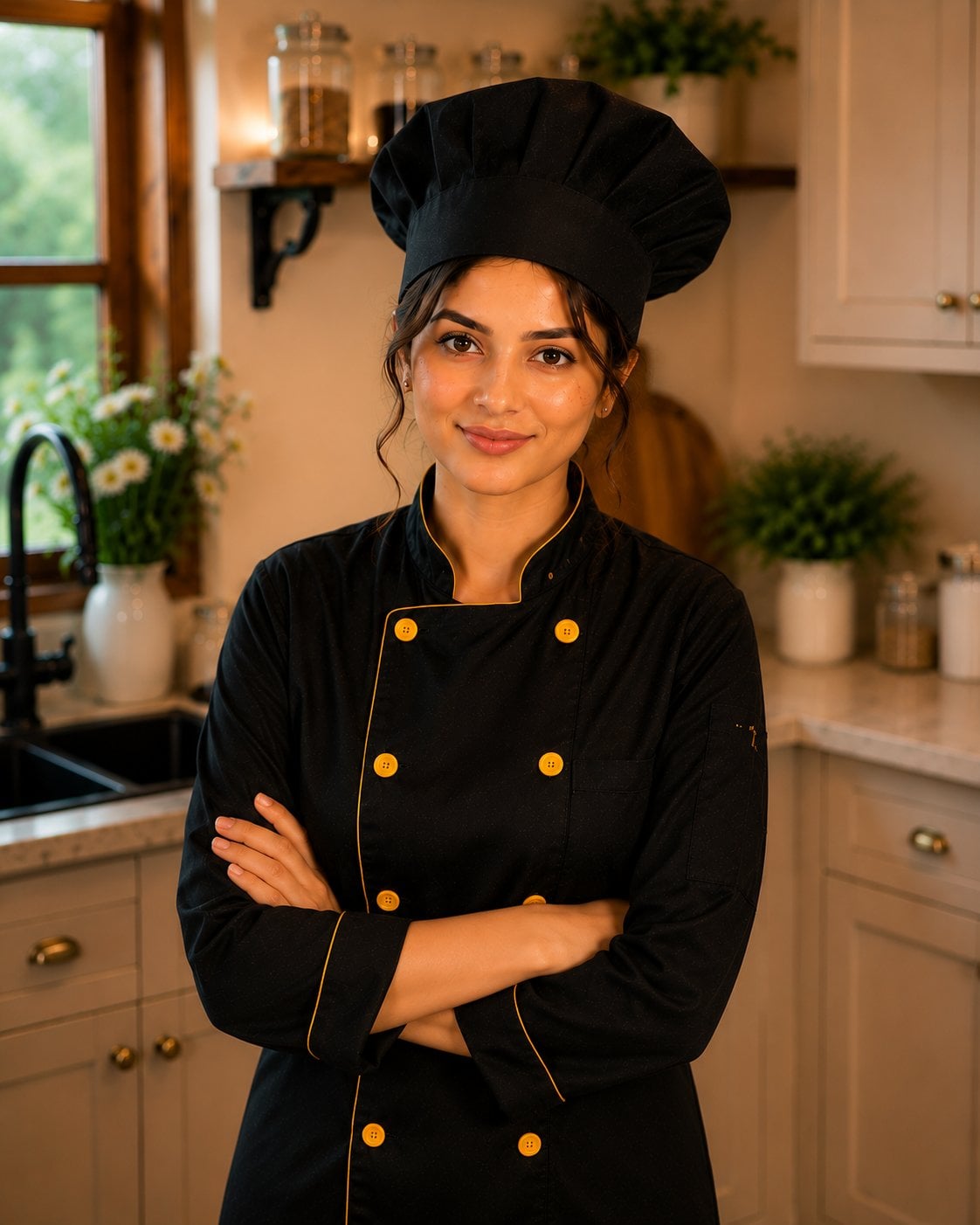
Female Chef Chicken Biryani Luxury Kitchen
Leather Jacket Cream Trousers Fashion Sketch
Golden Hour Fedora Bar Doorway Street Style
Luxury Toothpaste Commercial Storyboard
Unfinished Sketch Comes Alive Portrait
Surreal Minimalist Dark Collage Poster II
Make it yours
Friendly ChatGPT Robot Introduction works as-is. These are the safest ways to change it without losing the look.
Change one field
Copy a single group, rewrite it, and generate again so you can see what that field is doing.
Keep the frame, change the subject
Hold the composition and light of Friendly ChatGPT Robot Introduction, then swap wardrobe, props or the person for a new take.
| If the result… | Why | Fix |
|---|---|---|
| The result drifts from the preview | Too many fields changed at once. | Reuse Friendly ChatGPT Robot Introduction as-is first, then change one group — subject, light, or setting. |
| The model over-stylizes the scene | The prose prompt leaves finish and camera underspecified. | Add one camera or lighting sentence and stay on GPT Image 2. |
More GPT Image 2 templates
Other prompts made for GPT Image 2.

Six VTuber Japanese Logo Sheet

Realistic Portrait of Woman and Deer

The Vista Modular Condo Poster

AI Model Routing Comparison Infographic

2.5D Anime Art Board

Isometric Productivity Desk Scene

New York Double Exposure Poster

Four-Panel AI Landscape Comparison

Japanese Tatami Lifestyle Magazine Cover

NESCAFÉ Coffee Map Poster
More image prompts
Fresh picks from across the catalog.
Product Rendered as Blown Sugar Prompt
Anime Shrine Street Portrait
Douyin Live Stream Interface
Nano Banana Pro Pink Office Chibi
Soft Focus High-Angle Selfie Prompt
Ink painting lone boat prompt for Nano Banana Pro
Richard Avedon Style Motion Blur Portrait
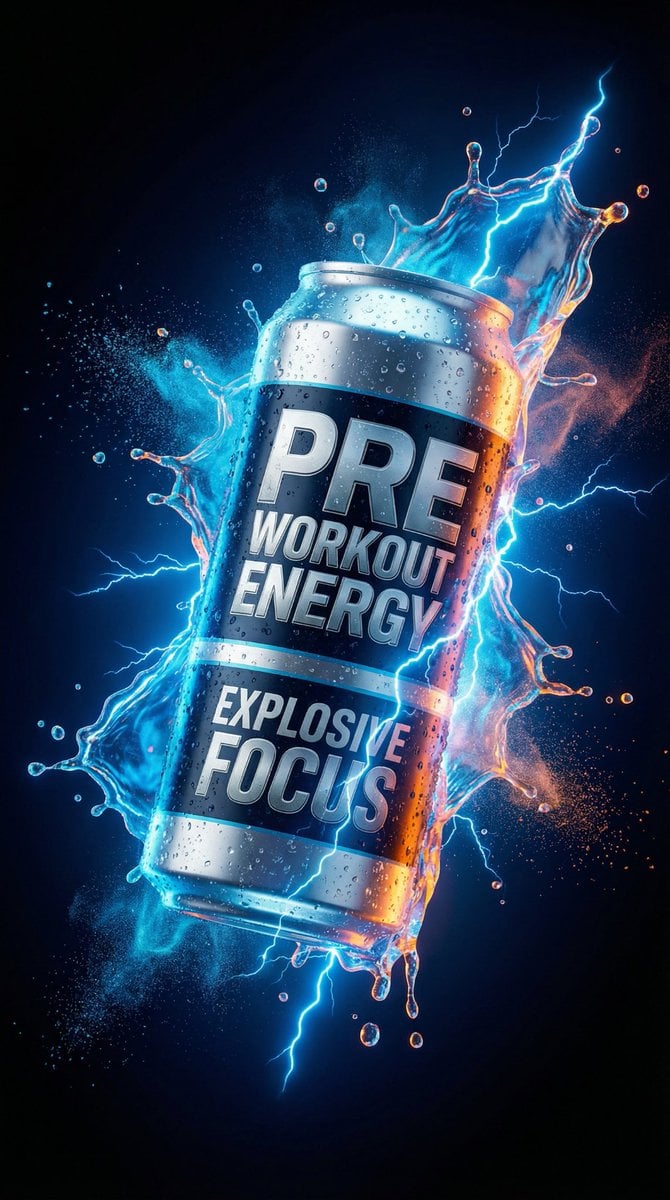
Energy Drink Product Explosion Commercial Prompt Template
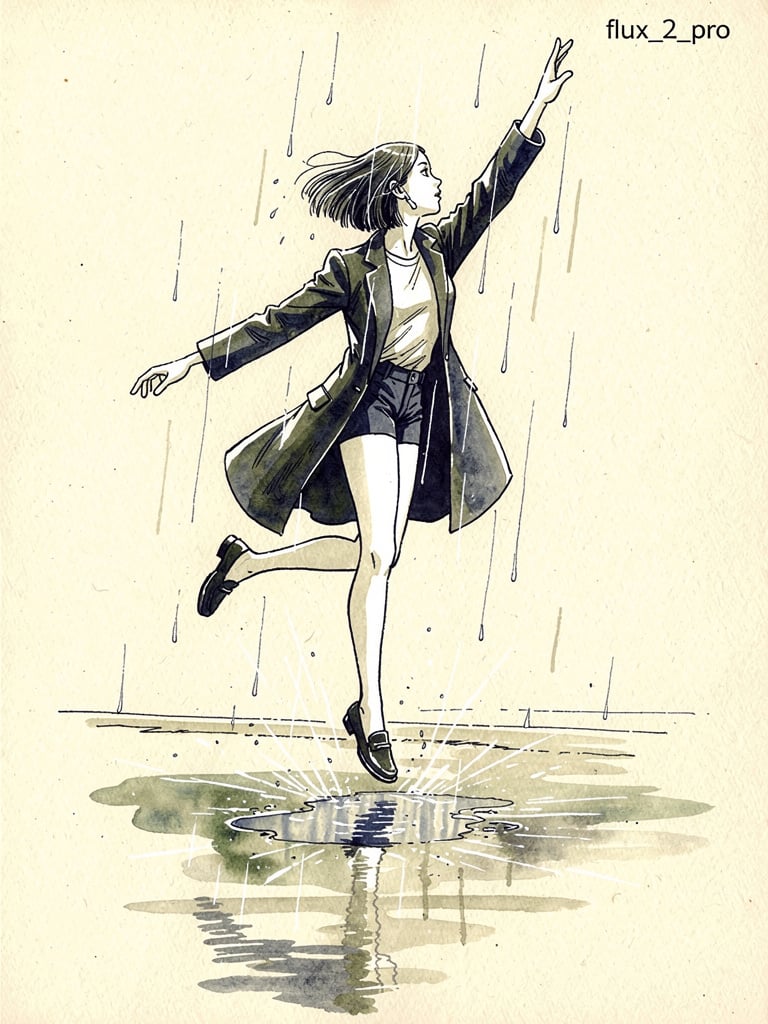
Ink pen style illustration of a woman jumping in the rain
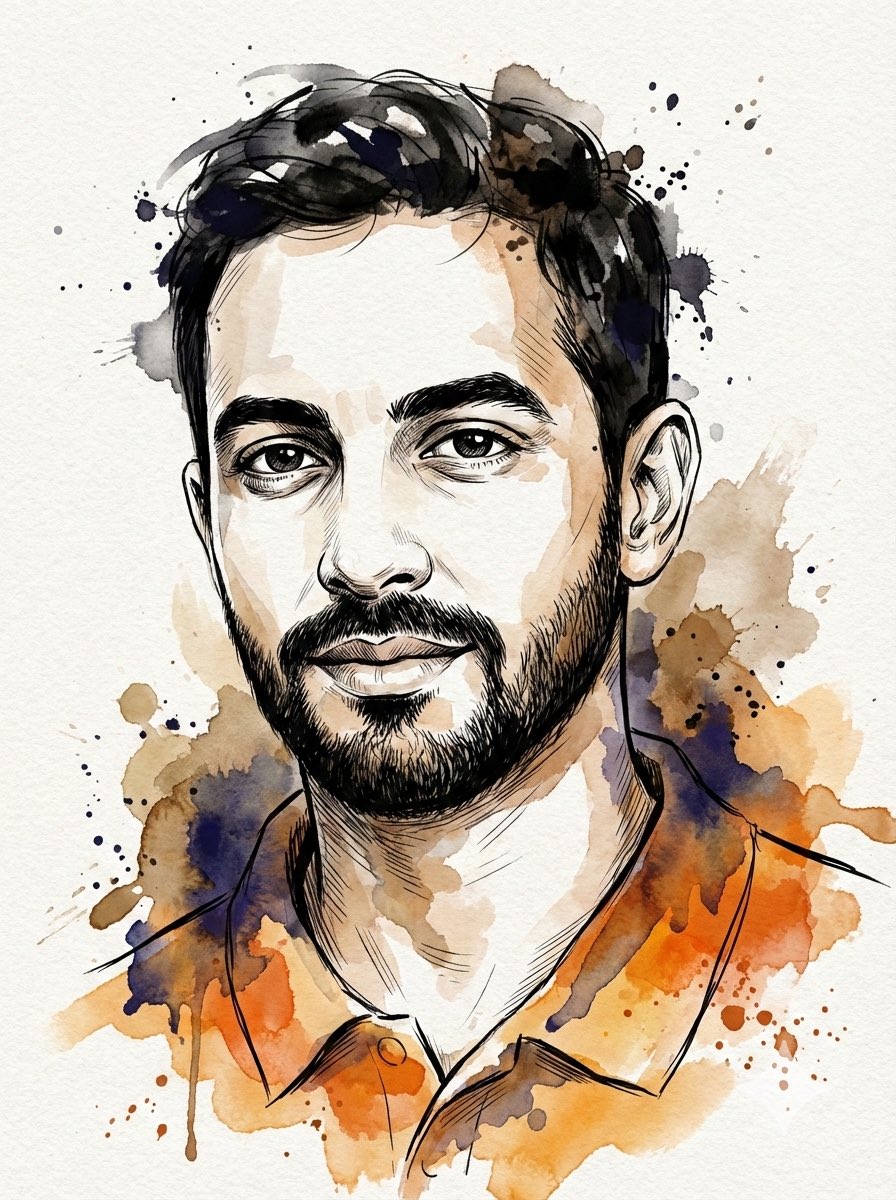
Digital Splashes-and-Ink Portrait from Photo
Browse template categories
Friendly ChatGPT Robot Introduction questions
How do I use the Friendly ChatGPT Robot Introduction template?
Add your photo if the template asks for one, edit the prompt if you like — the template's model and format are already selected — and press Generate. Your version opens in PicX Studio.
Can I customize the Friendly ChatGPT Robot Introduction template?
Yes. You can change the subject, setting, lighting, mood, format, and available model controls before creating your image.
Is the Friendly ChatGPT Robot Introduction template free?
Opening and editing this template is free. Generating uses credits, shown on the Generate button when you are signed in.
Which AI model should I use?
Start with GPT Image 2, which is the model associated with this template. You can compare another compatible model for a different finish.
Looking for something else? Browse all templates.

Your photo, any look
Thousands of ready templates for every top image and video model, from one credit balance.