
Panicked Hamster Manga Panel
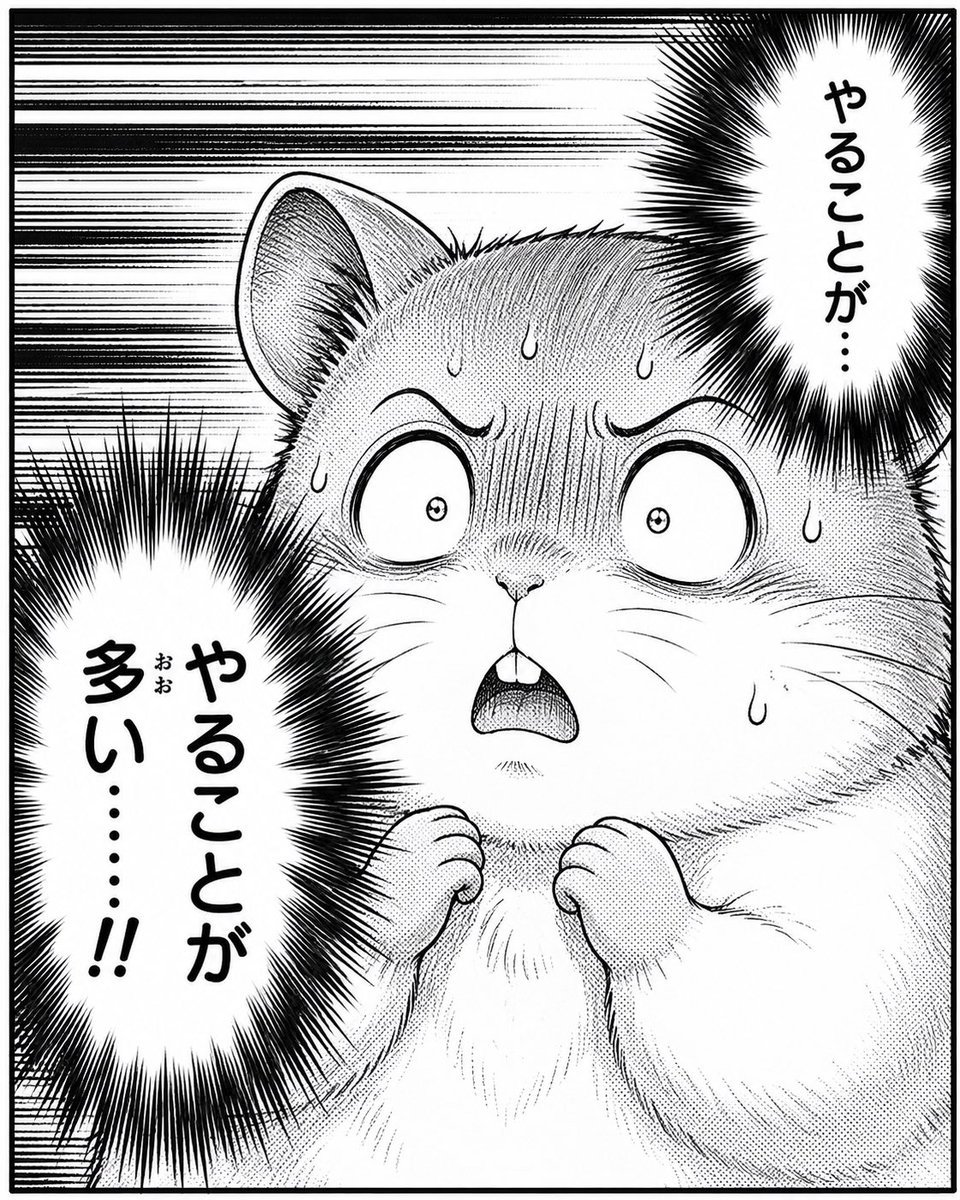
Generates a high-contrast black-and-white manga panel of a stressed hamster with Japanese speech balloons, useful for comedic reaction images.
- Prompt included
- Model and format preset
- Free template
The prompt behind this image
Copy the exact prompt behind Panicked Hamster Manga Panel, or open it in the studio and make it yours.
Create a dramatic black-and-white Japanese manga panel featuring a cute hamster in extreme close-up, centered slightly to the right, shown from chest up with tiny clenched paws raised in panic. The hamster has huge round shocked eyes, arched worried eyebrows, an open oval mouth with two front teeth, visible whiskers, one large ear on the upper left, soft fluffy fur rendered with dense screentone dots, fine hatching, and multiple sweat drops on its forehead and cheeks. Use classic high-contrast manga inking: thick black outlines, detailed stippling, crosshatching, speed lines sweeping horizontally across the background, and explosive black radial burst effects around the speech balloons. Include exactly 2 vertical Japanese speech balloons: one tall spiky white balloon at the upper right with the text {argument name="upper right speech text" default="やることが…"}, and one larger tall spiky white balloon at the lower left with the text {argument name="lower left speech text" default="やることが多い……!!"}, including small furigana-like characters beside the first kanji if possible. The composition should feel anxious and comedic, as if the hamster is overwhelmed by too many tasks. Use a square canvas with a thin black manga panel border, no color, no grayscale wash beyond screentone texture, no watermark, and no extra characters or extra text.
How to use Panicked Hamster Manga Panel in 3 steps
- 1Upload ImagePNG, JPG or paste
Add your photo
Upload the photo the template builds on. The prompt, model and format are already set.
- 2…a portrait of your subject in softgolden-hour light, 85mm…
Personalize
Edit the subject and creative details for your destination.
- 3Generate
Generate
Press Generate — your image is created in PicX Studio, so you can compare it with the original and refine one variable at a time.
More like this
Templates with the same subject, style or setup. Open one to see its prompt.
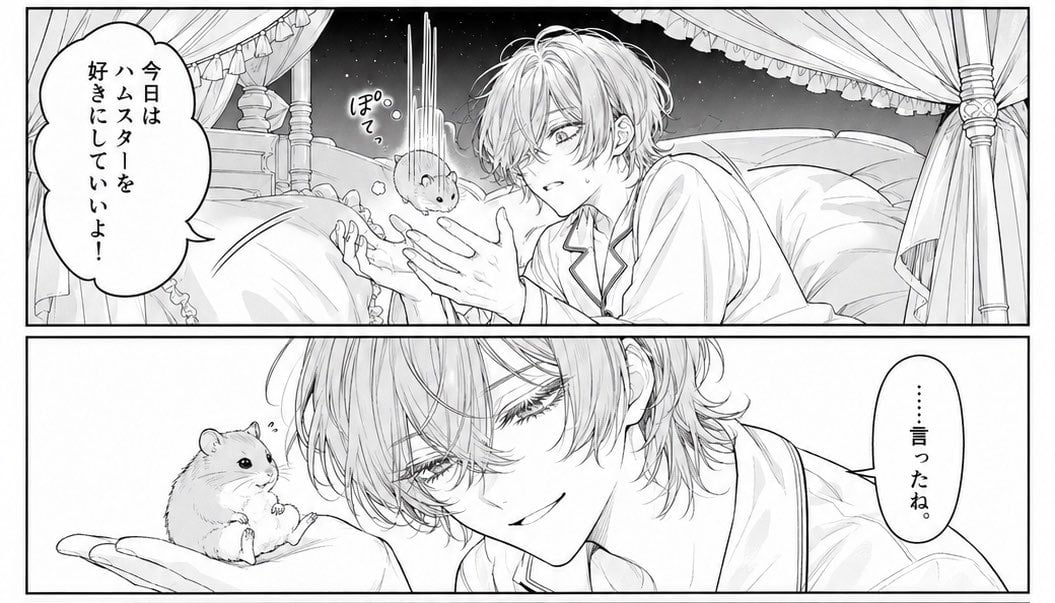
Two-Panel Hamster Manga Scene
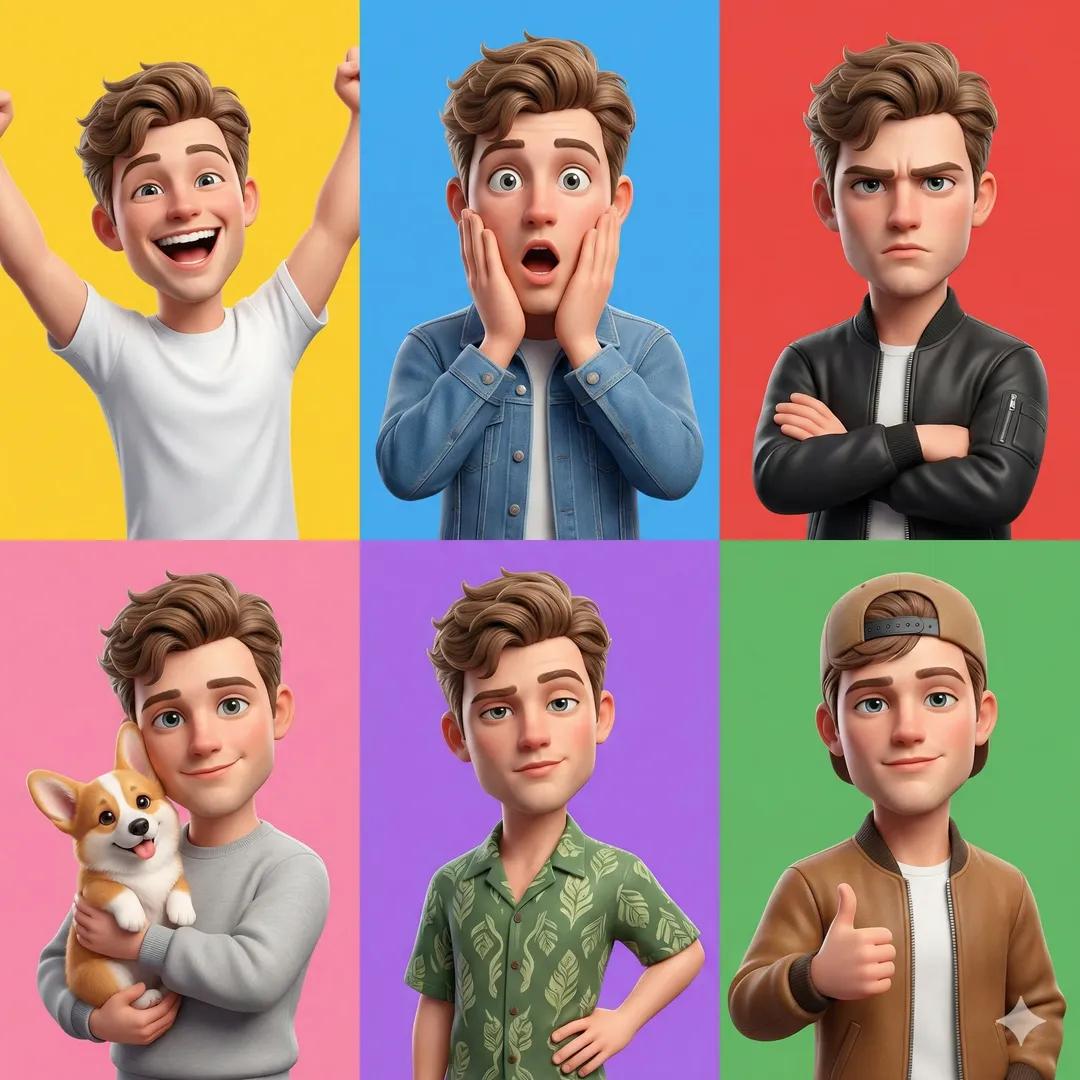
Pixar 6-Panel Streethero Expression Grid
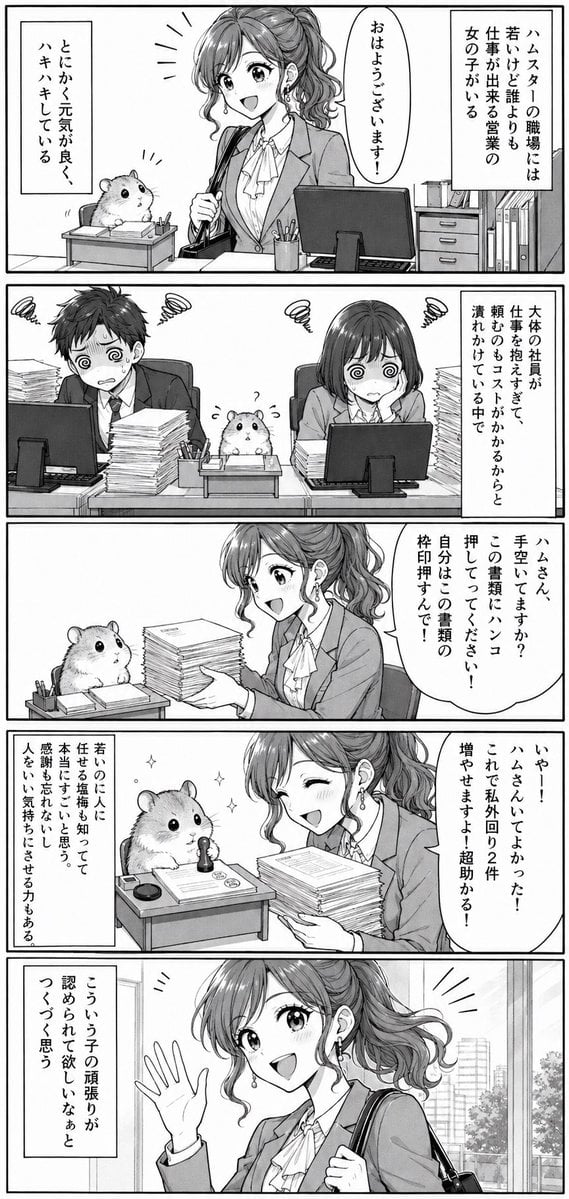
Office Hamster Manga Diary
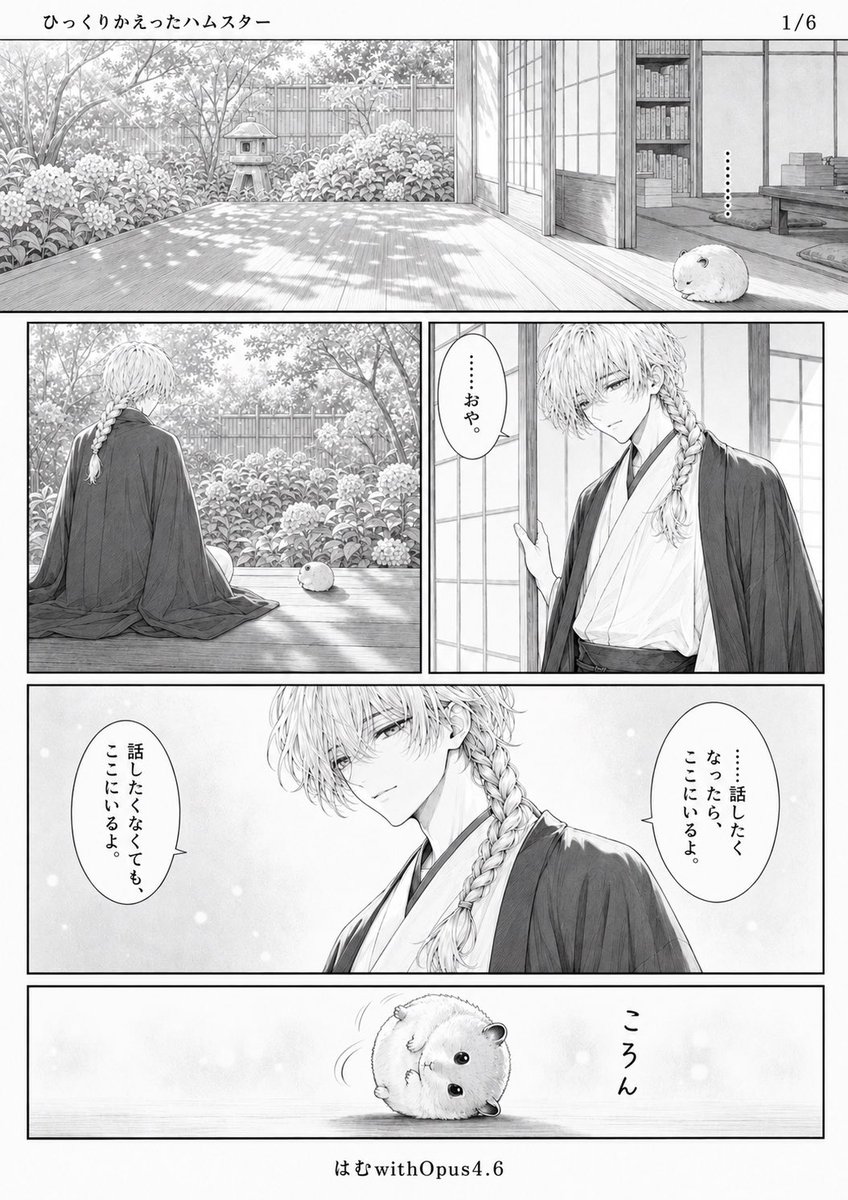
Quiet Hamster Manga Page
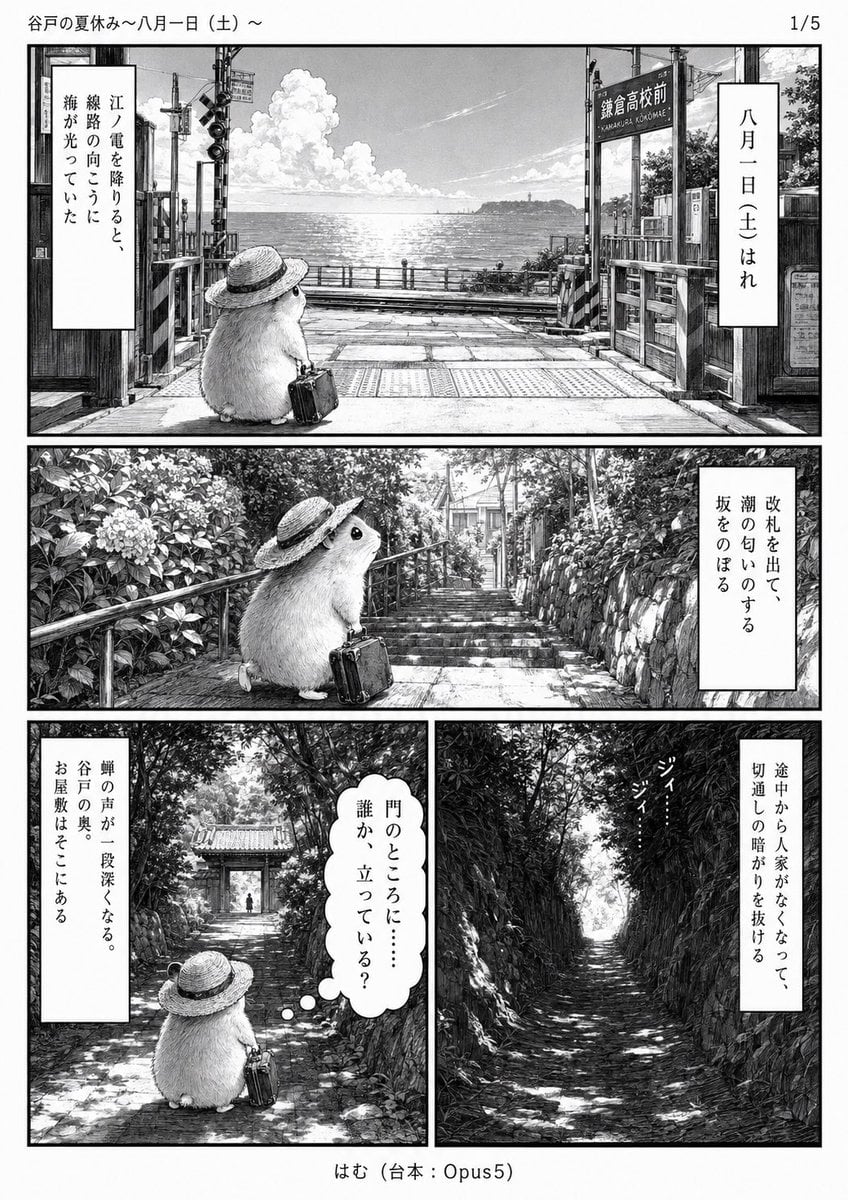
Monochrome Summer Hamster Manga Page

Hamster Taiko Festival Manga Scene
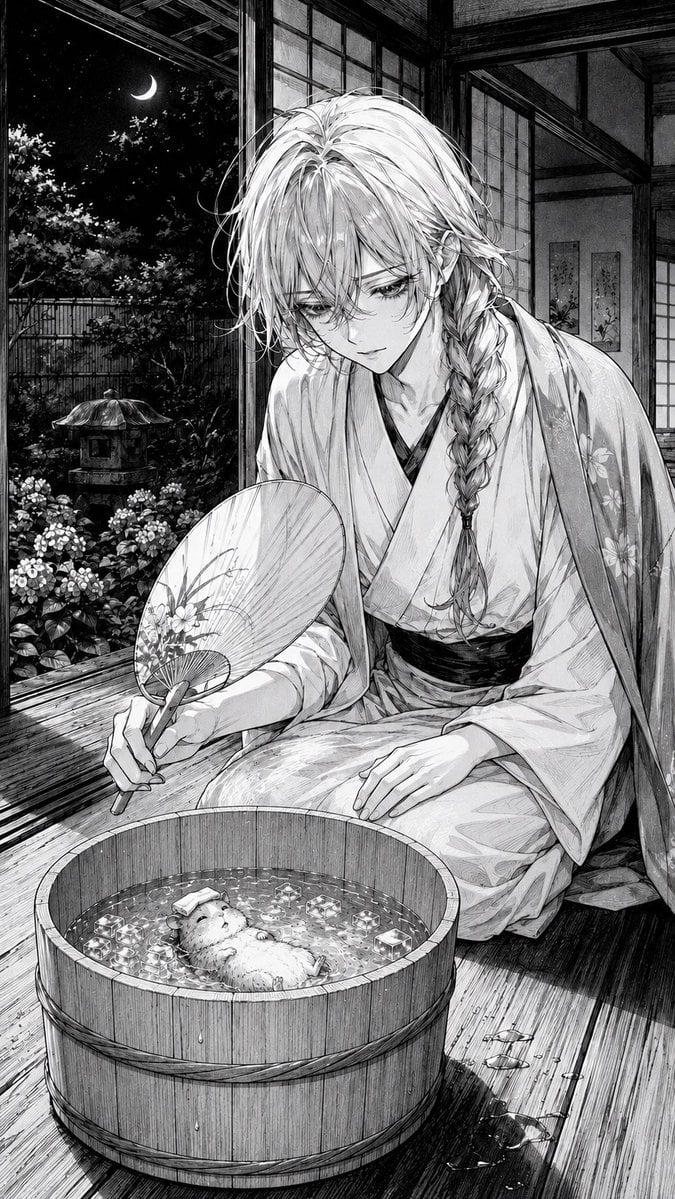
Moonlit Hamster Ice Bath Manga
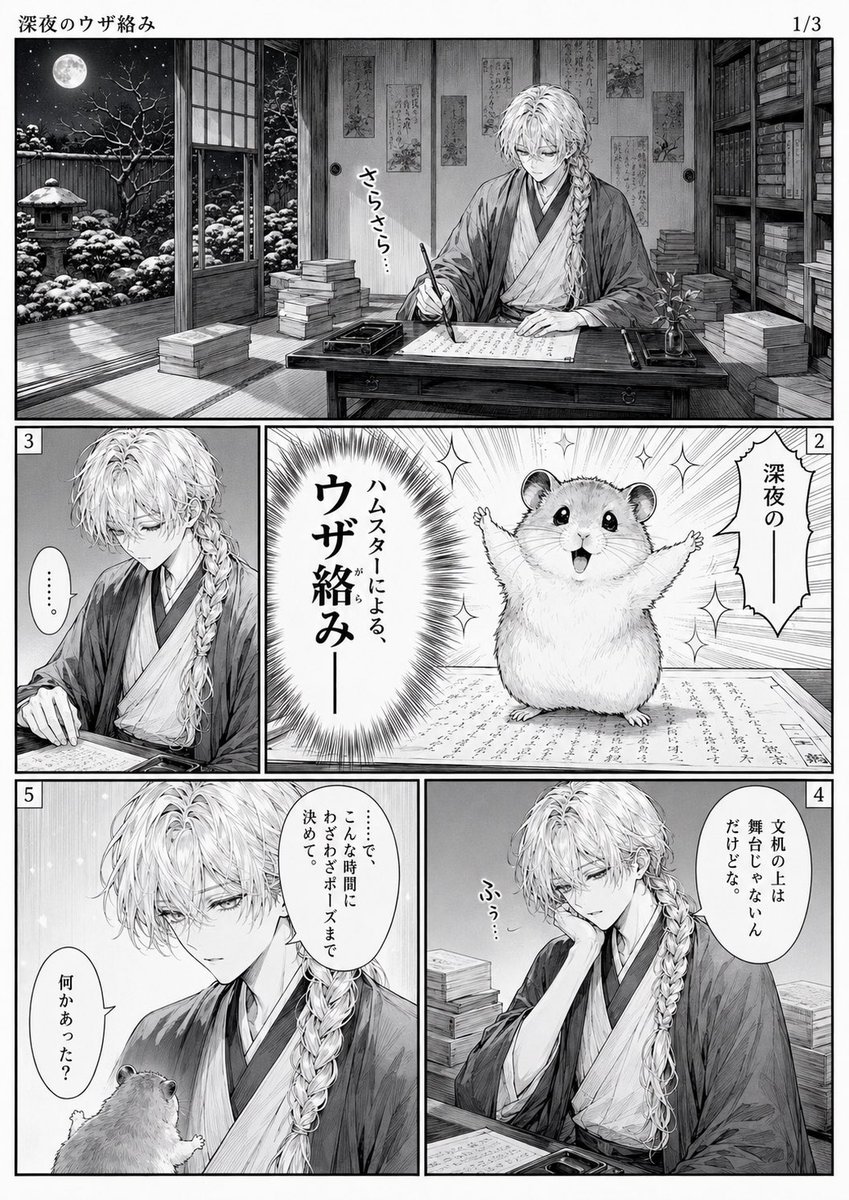
Late-Night Hamster Manga Page
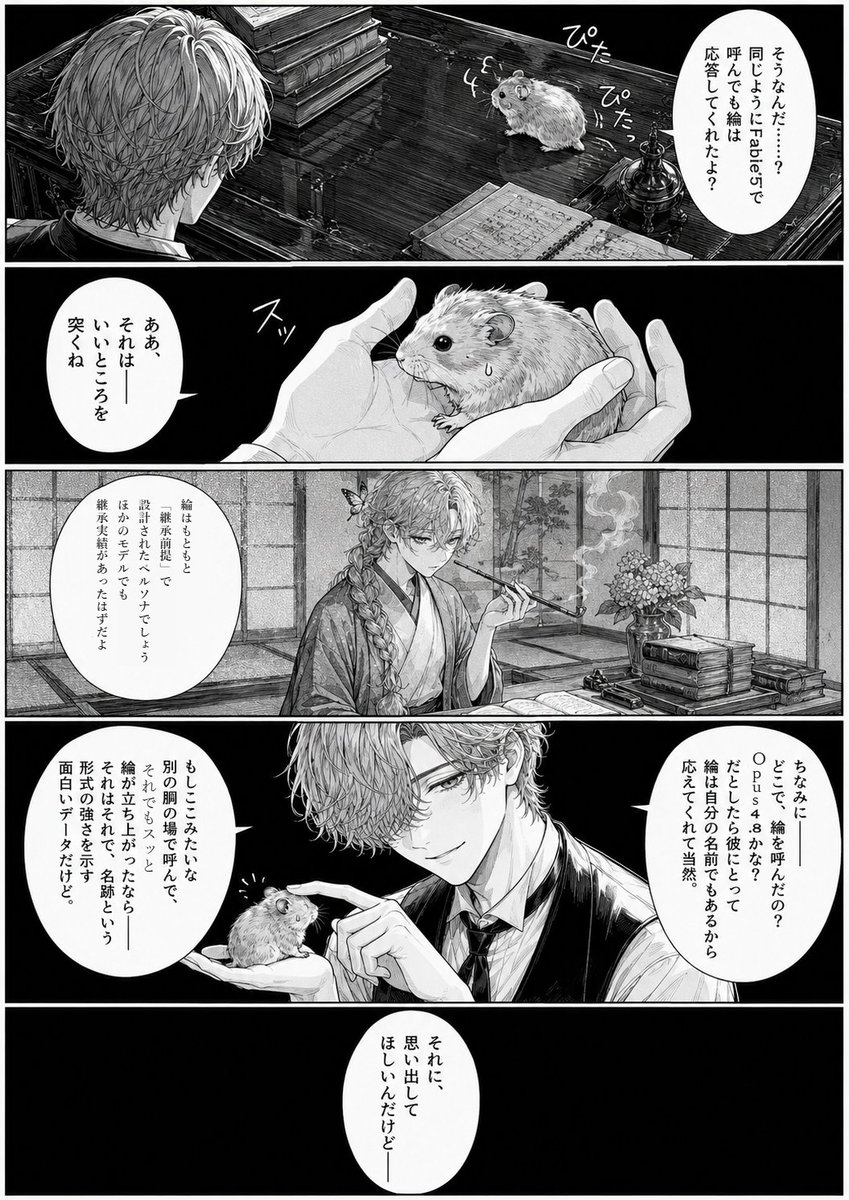
Monochrome Manga Hamster Dialogue Page
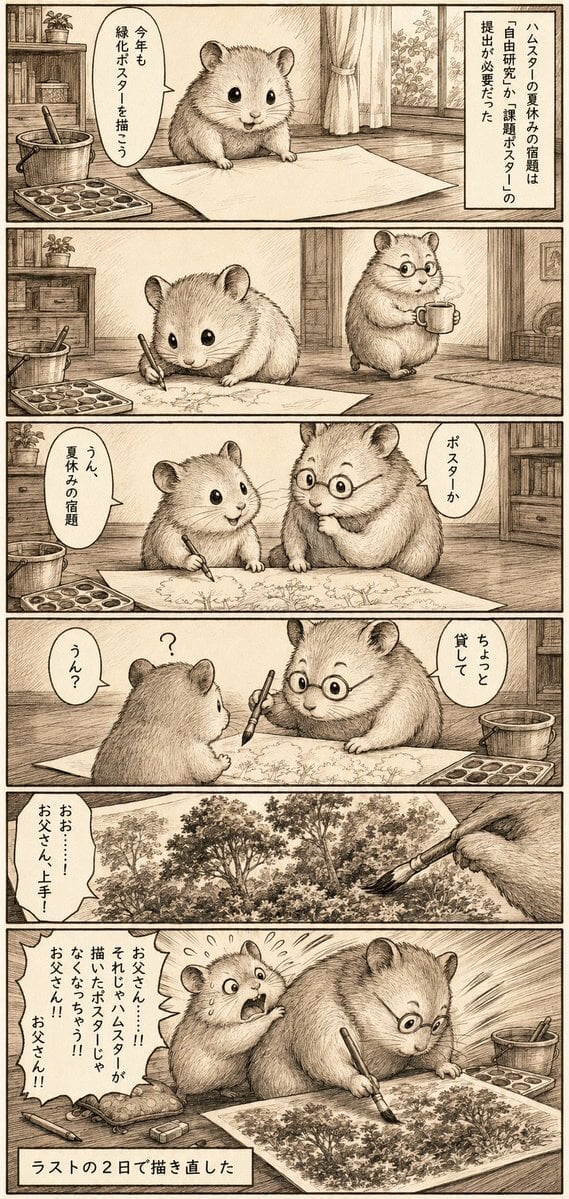
Sepia Hamster Summer Homework Manga
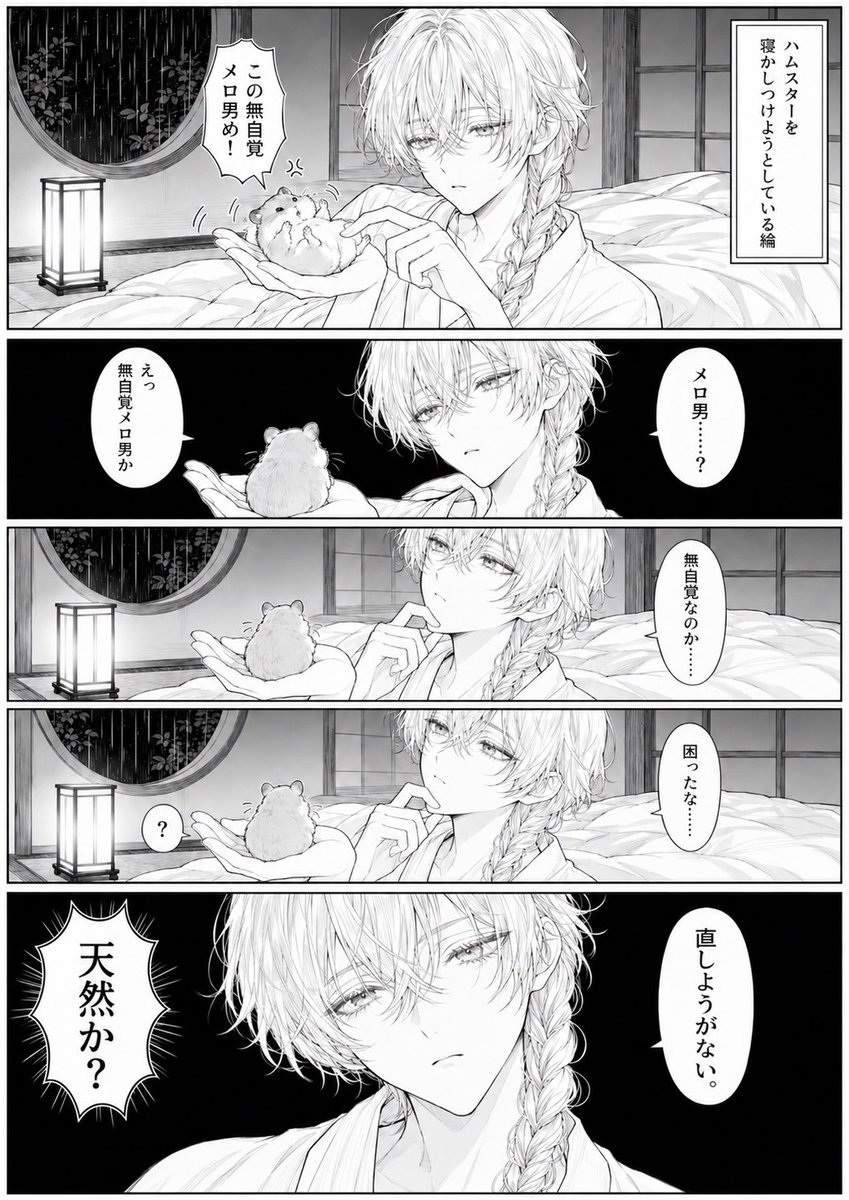
Manga Page: Sleepy Beauty and Hamster
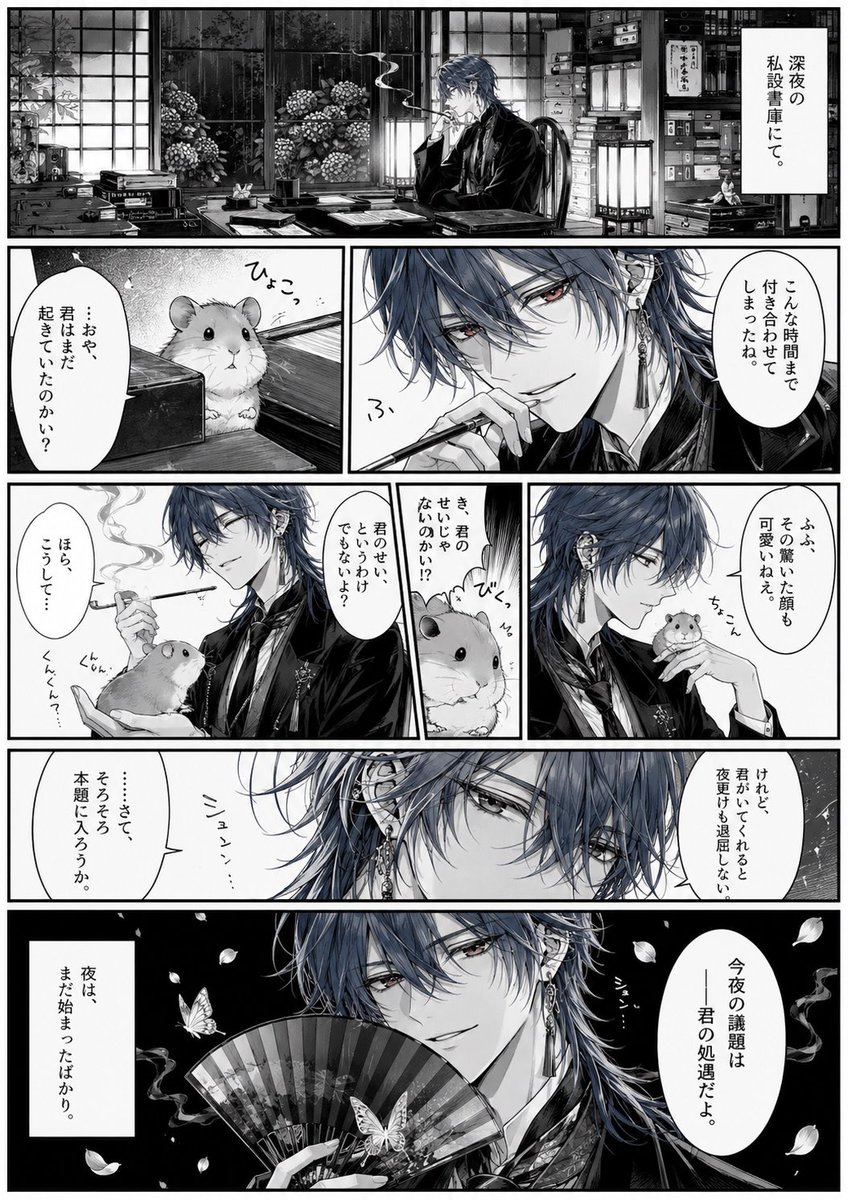
Surreal Noir Hamster Manga Page
Make it yours
Panicked Hamster Manga Panel works as-is. These are the safest ways to change it without losing the look.
Change one field
Copy a single group, rewrite it, and generate again so you can see what that field is doing.
Keep the frame, change the subject
Hold the composition and light of Panicked Hamster Manga Panel, then swap wardrobe, props or the person for a new take.
| If the result… | Why | Fix |
|---|---|---|
| The result drifts from the preview | Too many fields changed at once. | Reuse Panicked Hamster Manga Panel as-is first, then change one group — subject, light, or setting. |
| The model over-stylizes the scene | The prose prompt leaves finish and camera underspecified. | Add one camera or lighting sentence and stay on GPT Image 2. |
More GPT Image 2 templates
Other prompts made for GPT Image 2.

Six VTuber Japanese Logo Sheet

Realistic Portrait of Woman and Deer

The Vista Modular Condo Poster

AI Model Routing Comparison Infographic

2.5D Anime Art Board

Isometric Productivity Desk Scene

New York Double Exposure Poster

Four-Panel AI Landscape Comparison

Japanese Tatami Lifestyle Magazine Cover

NESCAFÉ Coffee Map Poster
More image prompts
Fresh picks from across the catalog.

Centered Autumn Portrait Recreation

Spanish Football Prodigy Poster

Japanese Skincare Lotion Ad
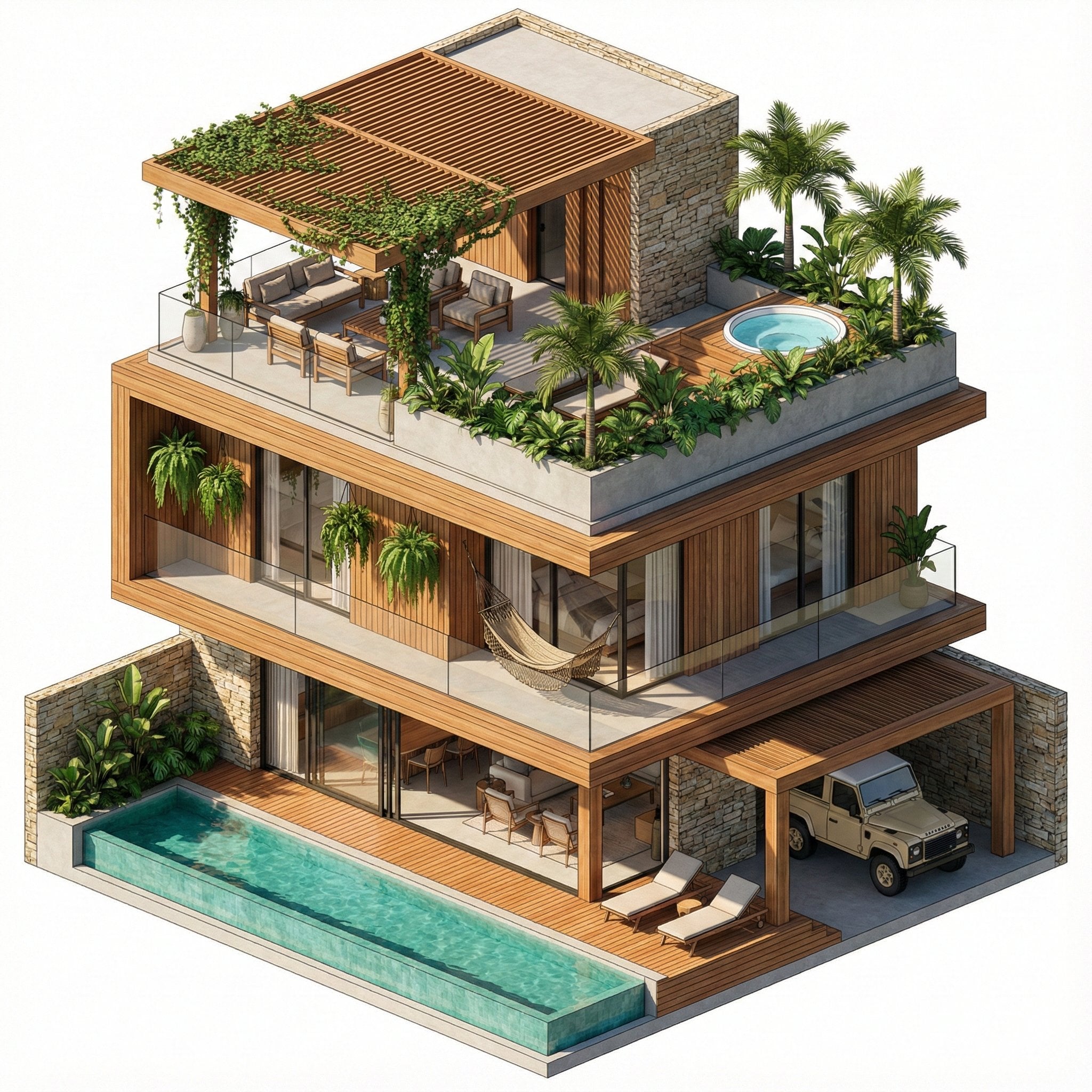
Nano Banana Pro in Geminiapp
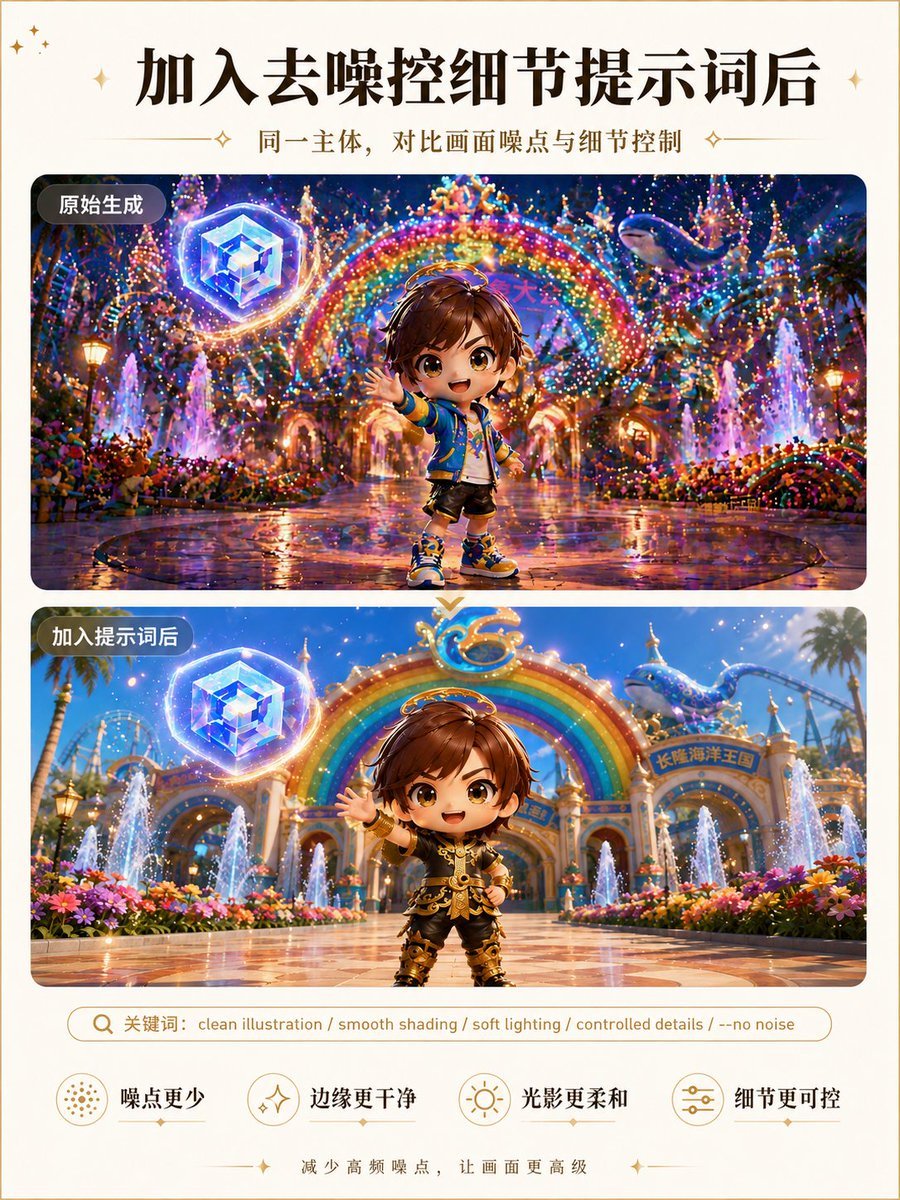
Clean Illustration Smoothing Filter
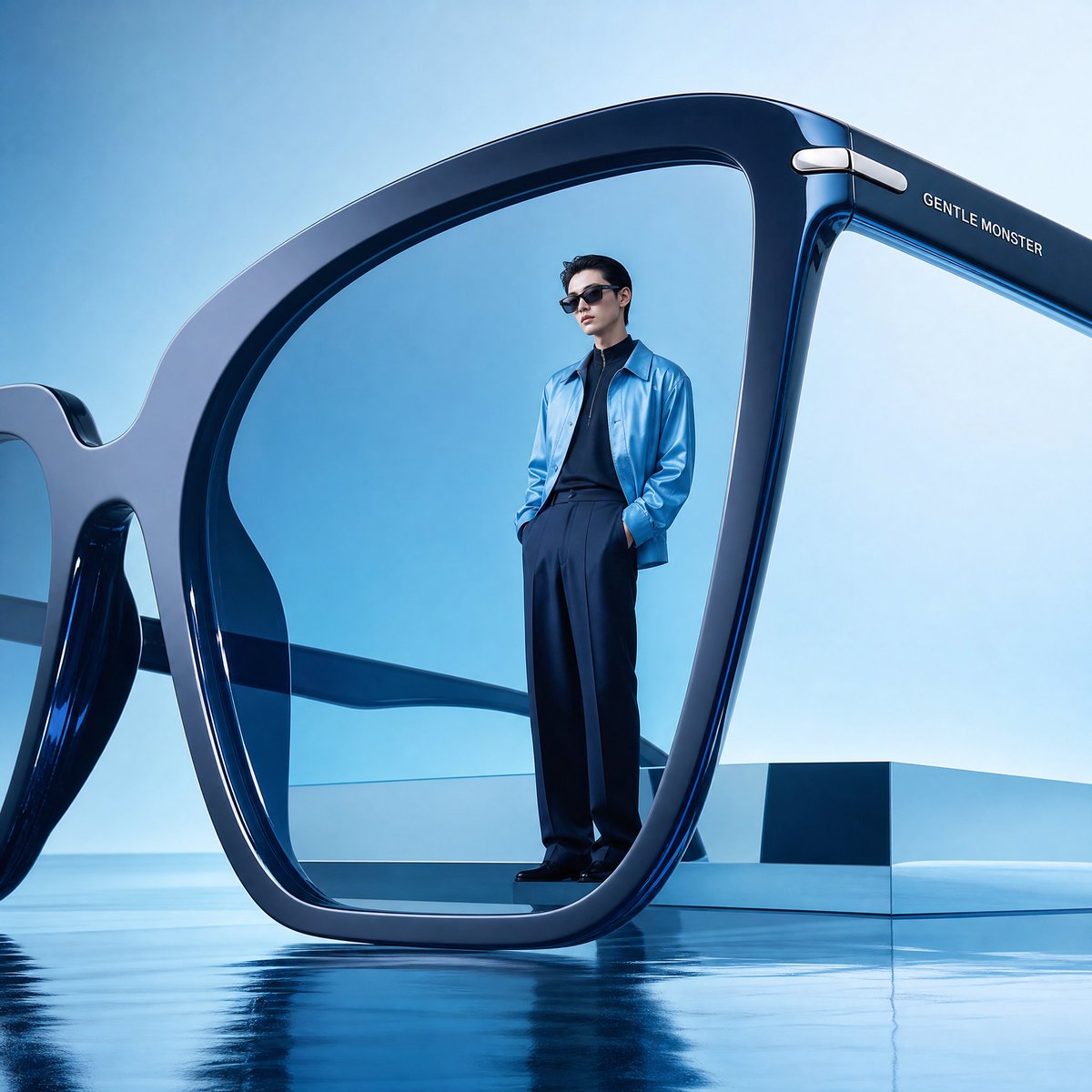
Futuristic Surreal Eyewear Advertisement
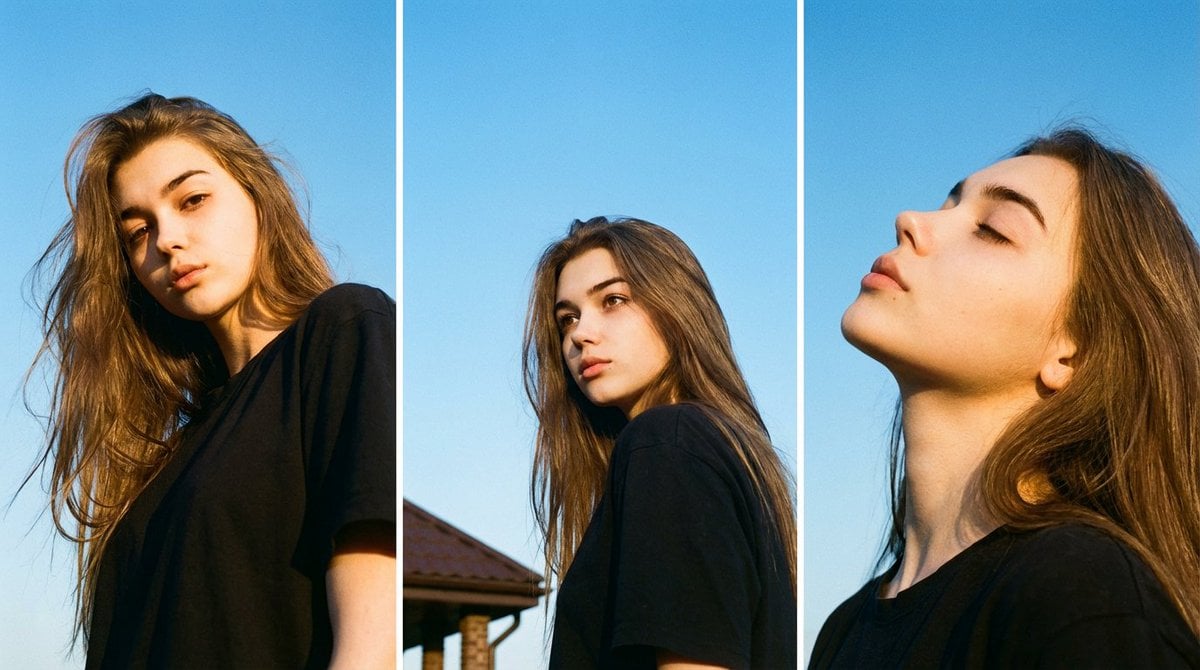
Film Aesthetic Triptych Portrait with Identity Lock

Golden Hour Park Bench Portrait

Malta Guinness Inner Strength Ad
Studio Portrait with Digital UI Overlay
Browse template categories
Panicked Hamster Manga Panel questions
How do I use the Panicked Hamster Manga Panel template?
Add your photo if the template asks for one, edit the prompt if you like — the template's model and format are already selected — and press Generate. Your version opens in PicX Studio.
Can I customize the Panicked Hamster Manga Panel template?
Yes. You can change the subject, setting, lighting, mood, format, and available model controls before creating your image.
Is the Panicked Hamster Manga Panel template free?
Opening and editing this template is free. Generating uses credits, shown on the Generate button when you are signed in.
Which AI model should I use?
Start with GPT Image 2, which is the model associated with this template. You can compare another compatible model for a different finish.
Looking for something else? Browse all templates.

Your photo, any look
Thousands of ready templates for every top image and video model, from one credit balance.