
Transparent Background Comparison Grid
Creates a six-panel studio comparison showing two full-body cutout models on checkerboard, white, and black backgrounds for demonstrating transparent image generation.
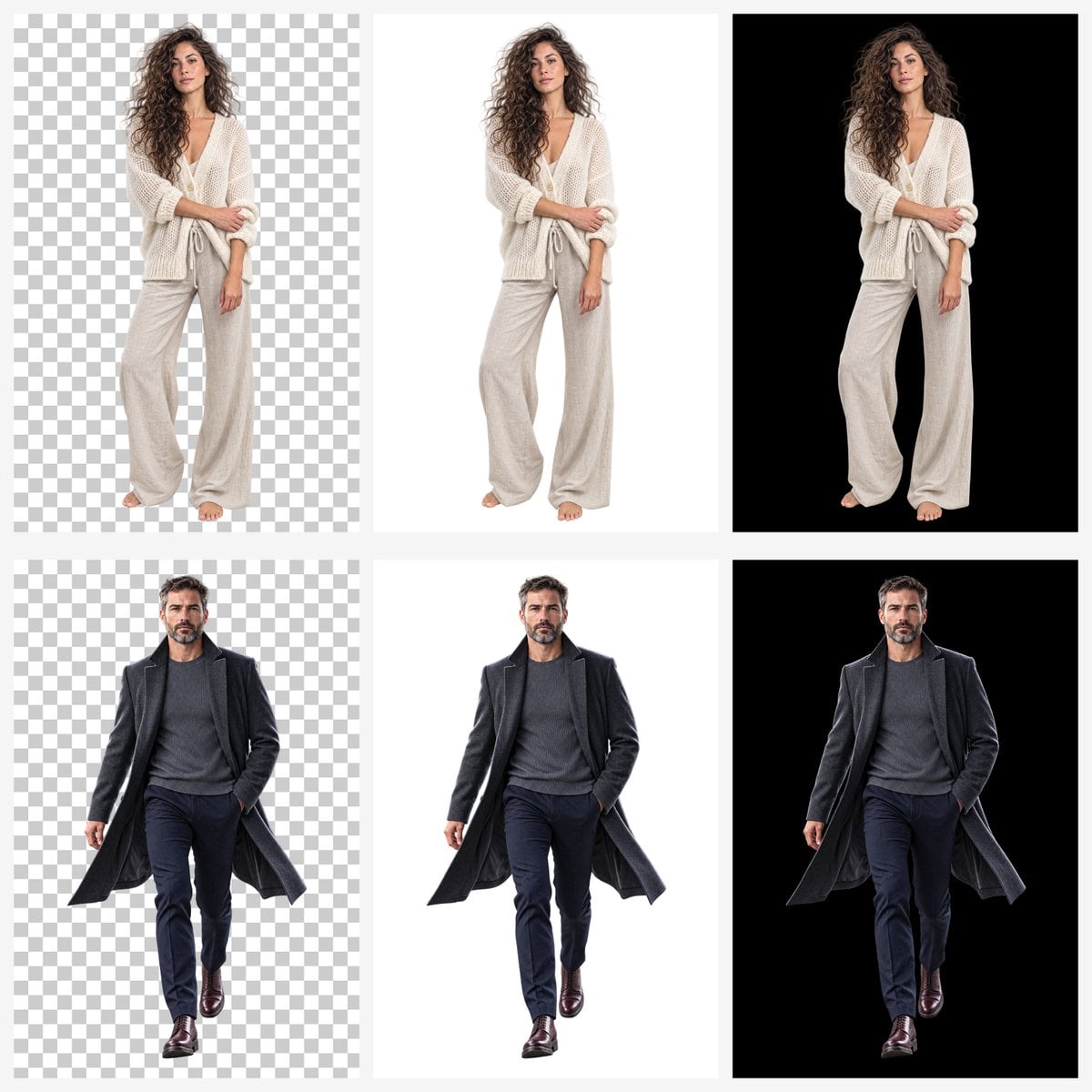
- Prompt included
- Model and format preset
- Free template
The prompt behind this image
Copy the exact prompt behind Transparent Background Comparison Grid, or open it in the studio and make it yours.
Goal: Create a clean comparison grid demonstrating background handling for cutout portrait images generated by {argument name="image model" default="GPT Image 2"}. Canvas: Square 1:1 canvas, approximately 1200 x 1200 px, with a very light gray page background and narrow gutters between panels. Layout: Use exactly 6 rectangular panels arranged in a 2-row by 3-column grid. Each panel contains one full-body studio cutout subject centered vertically and horizontally with ample margin. The three columns compare background types: left column shows a gray-and-white checkerboard transparency pattern, middle column shows a plain white background, right column shows a solid black background. No captions, no logos, no text. Subjects: Use exactly 2 human models. Top row: a {argument name="female model description" default="young woman with long voluminous curly brown hair, neutral expression, barefoot, wearing a loose cream chunky-knit cardigan over a light camisole and wide beige lounge pants"}. She stands front-facing in a relaxed fashion pose, one arm folded across her body and the other hanging down, soft studio lighting, realistic photographic detail. Bottom row: a {argument name="male model description" default="middle-aged man with short dark hair and salt-and-pepper beard, serious expression, walking toward camera, wearing a long dark charcoal overcoat, gray knit sweater, navy trousers, and polished dark brown dress shoes"}. He appears mid-stride with one hand in his trouser pocket and the coat slightly flaring outward. Panel details: Count of repeated elements is exactly 6 panels: 1) woman on checkerboard transparent-style background, 2) woman on white background, 3) woman on black background, 4) man on checkerboard transparent-style background, 5) man on white background, 6) man on black background. Keep the same subject pose, scale, lighting, and crop consistent across each row so only the background changes. Visual style: Hyperrealistic studio product-demo photography, crisp full-body cutouts, clean edges around hair and clothing, neutral soft shadows only if subtle, high contrast on black backgrounds, bright clean white backgrounds, and a standard transparency checkerboard pattern made of evenly sized alternating light gray and white squares. Constraints: Do not include any visible text, labels, watermark, interface chrome, decorative icons, or extra objects. Maintain realistic proportions, full bodies visible from head to feet, centered composition, and consistent spacing between all grid cells.
How to use Transparent Background Comparison Grid in 3 steps
- 1Upload ImagePNG, JPG or paste
Add your photo
Upload the photo the template builds on. The prompt, model and format are already set.
- 2…a portrait of your subject in softgolden-hour light, 85mm…
Personalize
Edit the subject and creative details for your destination.
- 3Generate
Generate
Press Generate — your image is created in PicX Studio, so you can compare it with the original and refine one variable at a time.
More like this
Templates with the same subject, style or setup. Open one to see its prompt.

Transparent background soccer player
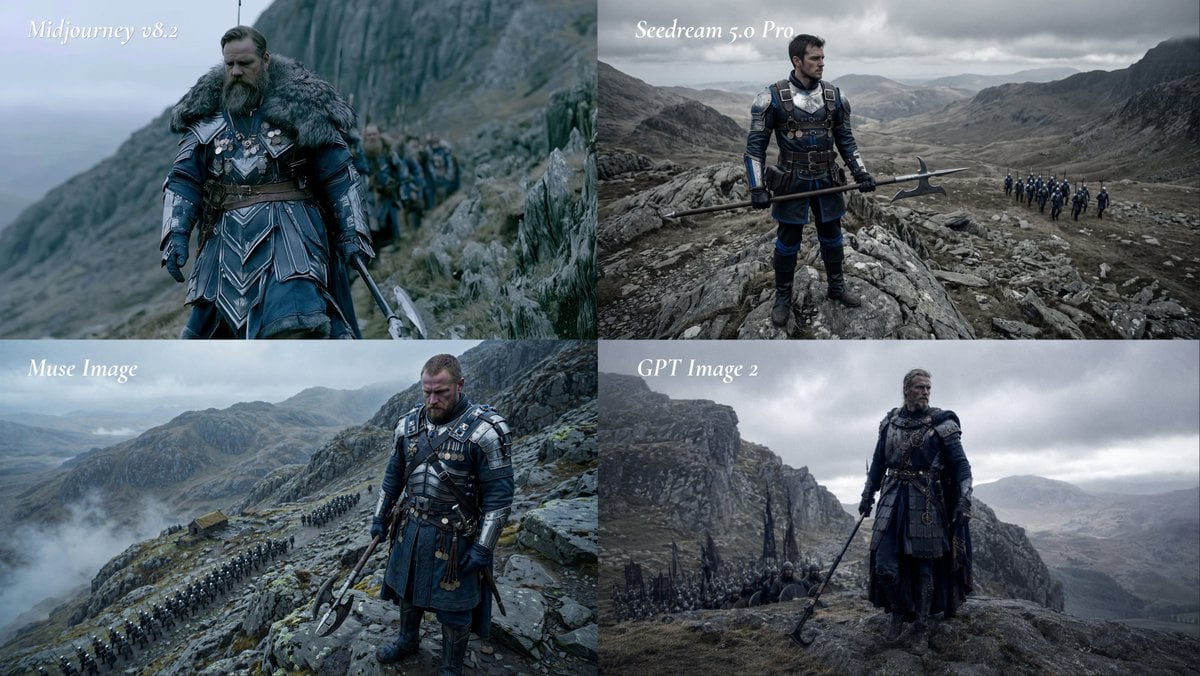
Fantasy Model Comparison Grid
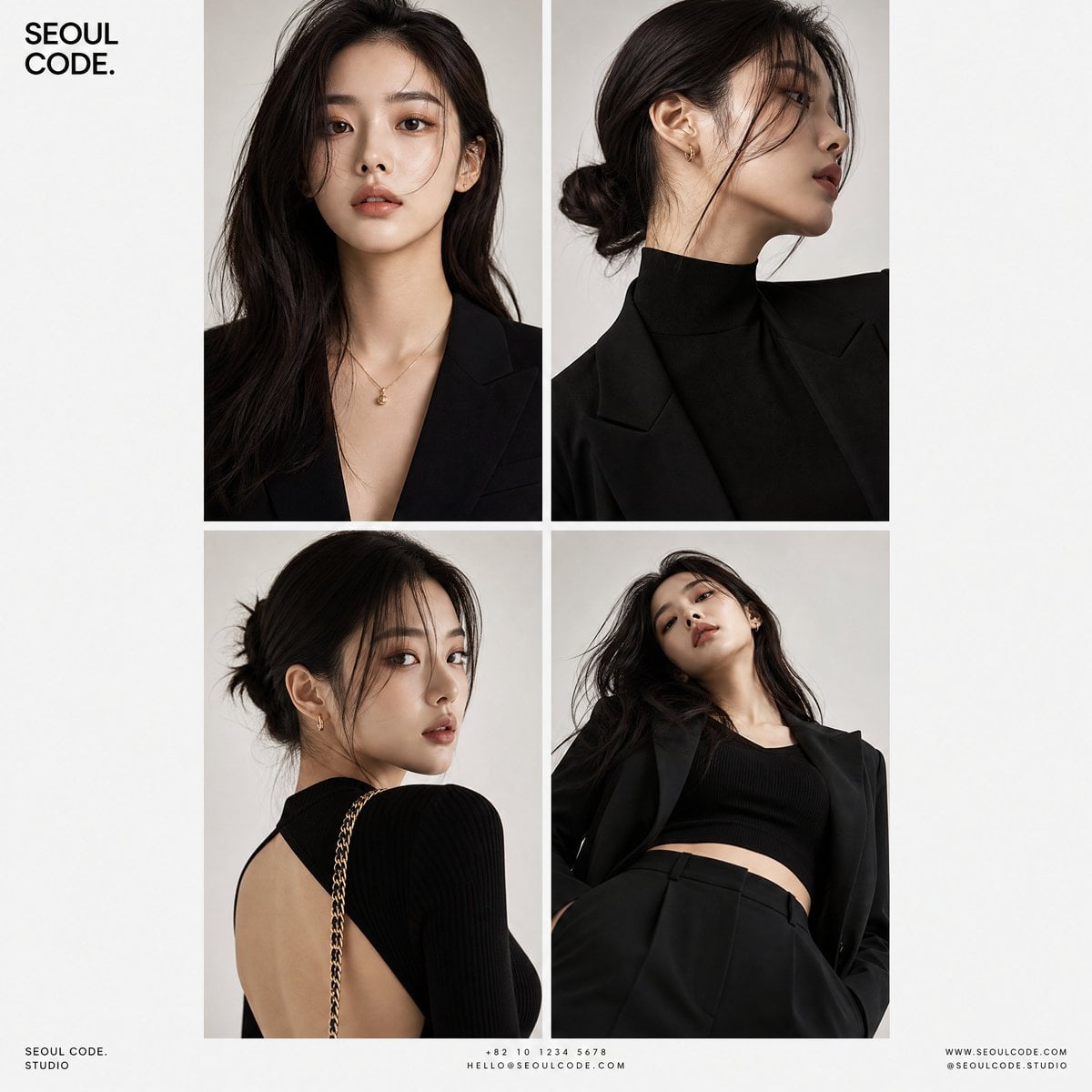
Korean Luxury Fashion Editorial 2x2 Grid Series
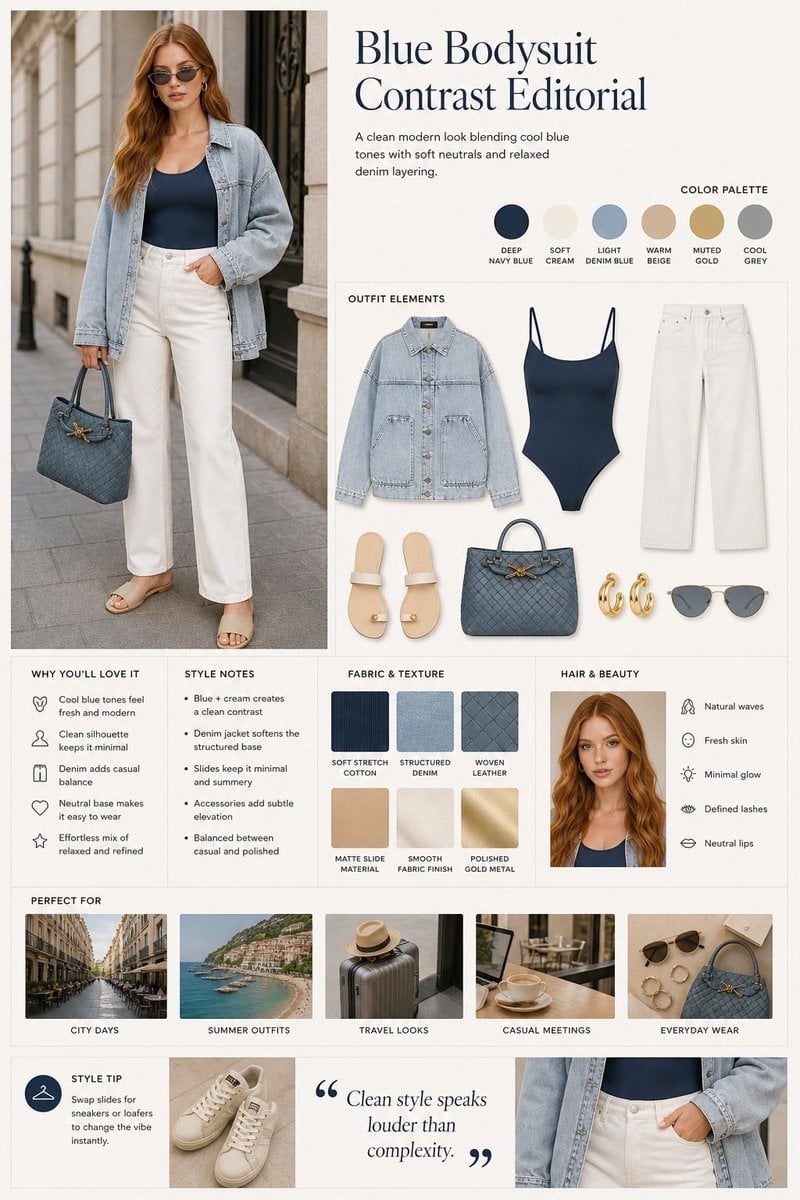
Minimalist Fashion Editorial Split Layout
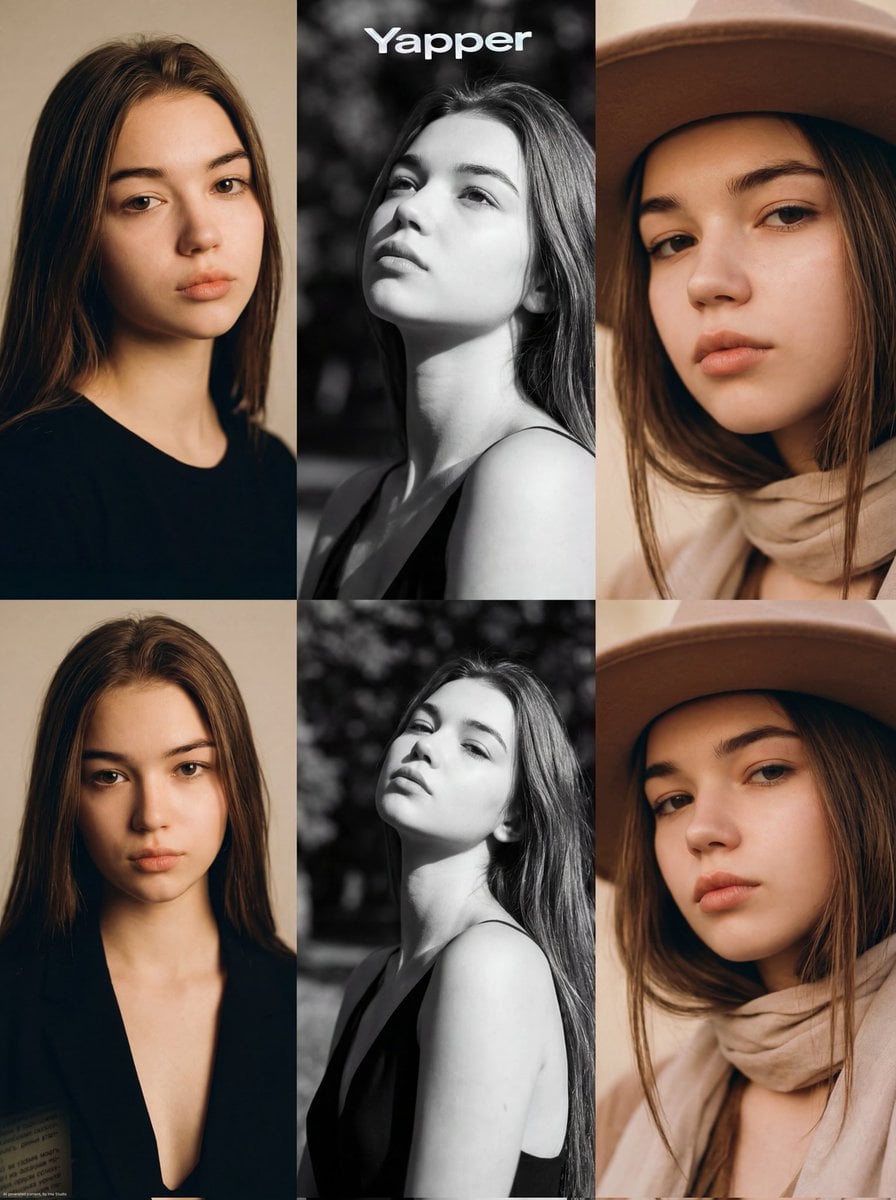
Ultra-Realistic Vogue-Style Editorial Fashion Grid
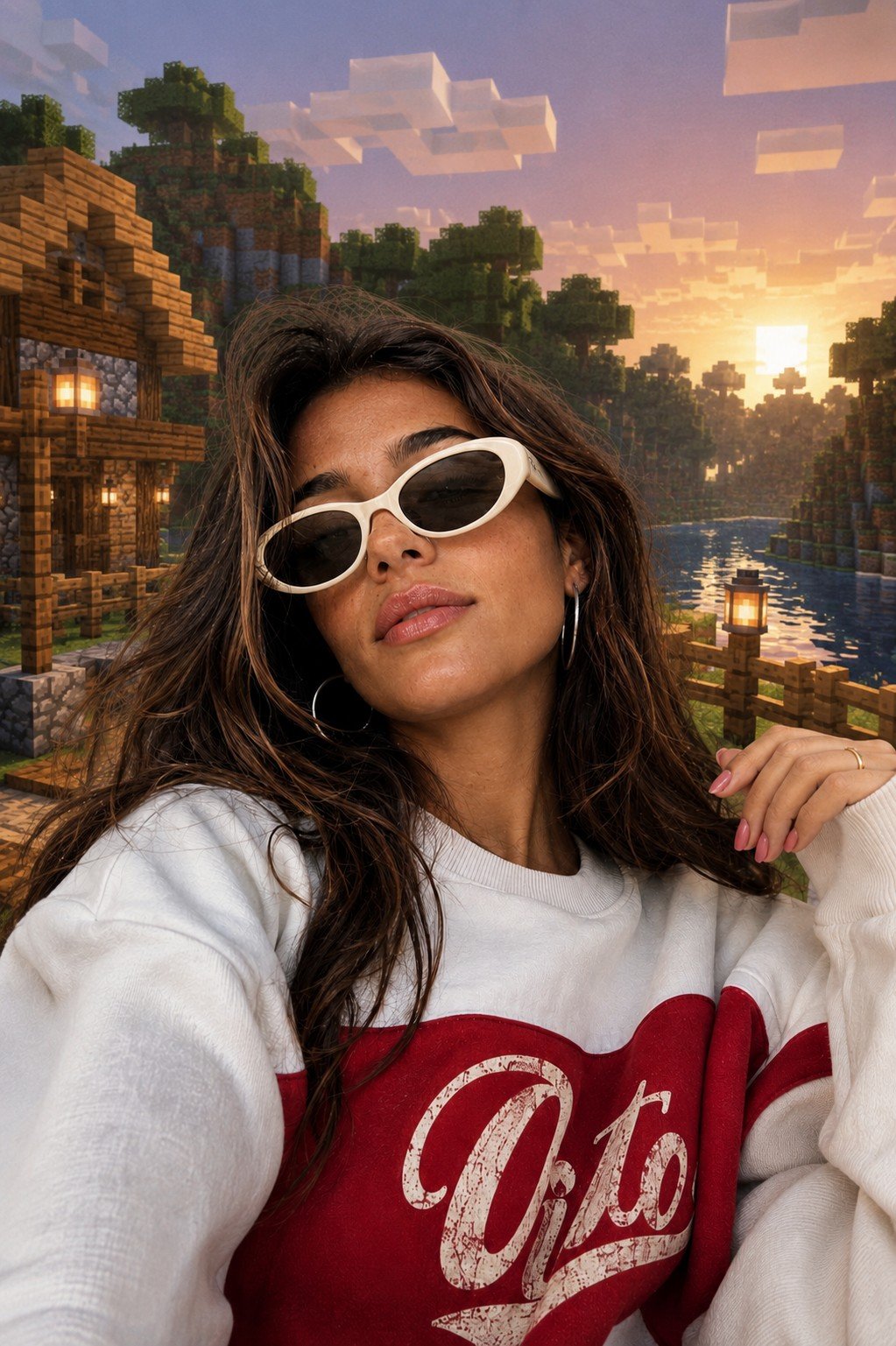
Photoreal Selfie Minecraft Block World
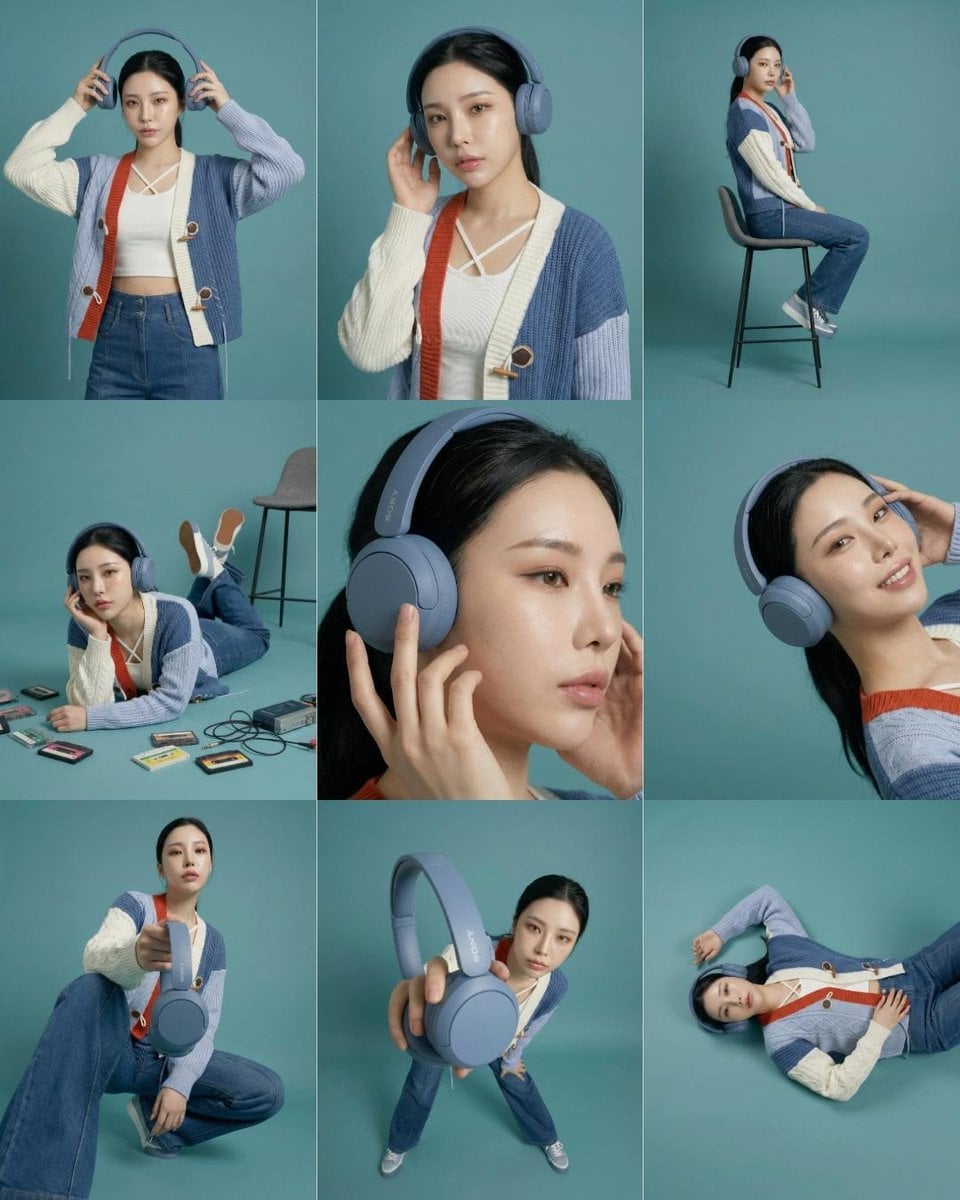
Headphones Lifestyle Nine Panel Grid
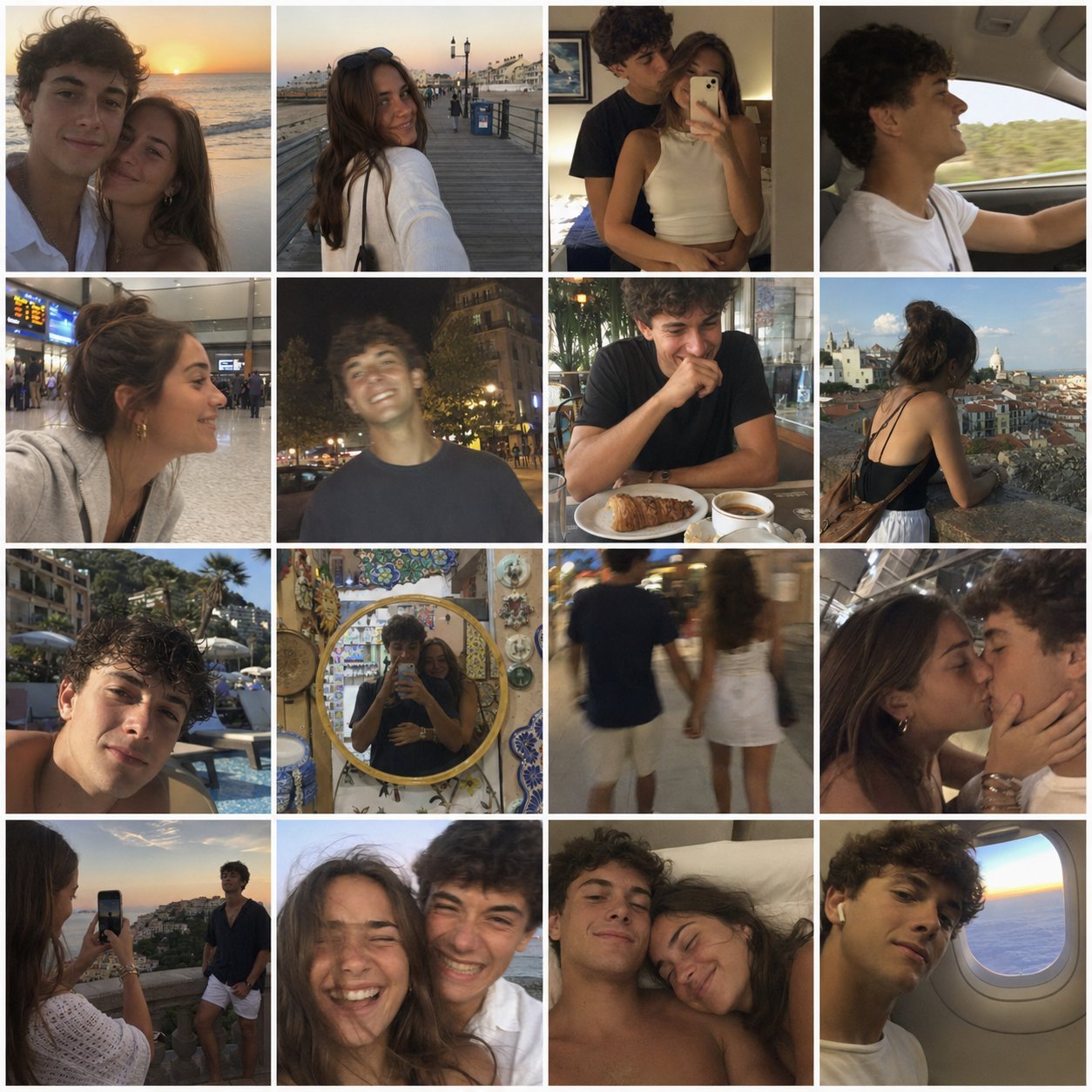
4x4 Grid - Candid Nostalgic Vacation Selfies
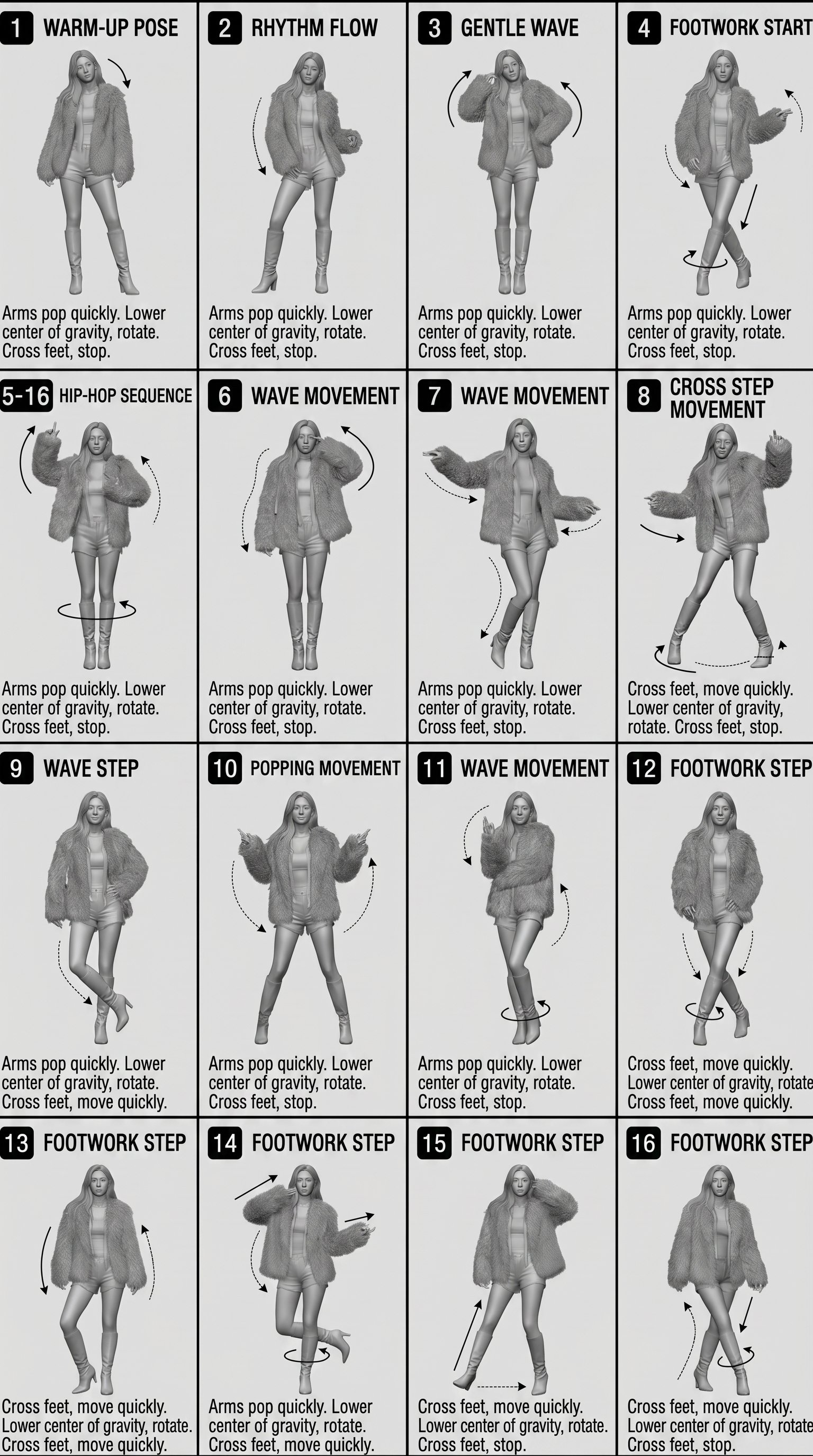
Movement Sheet - Dance Reference (Seedance 2.0)
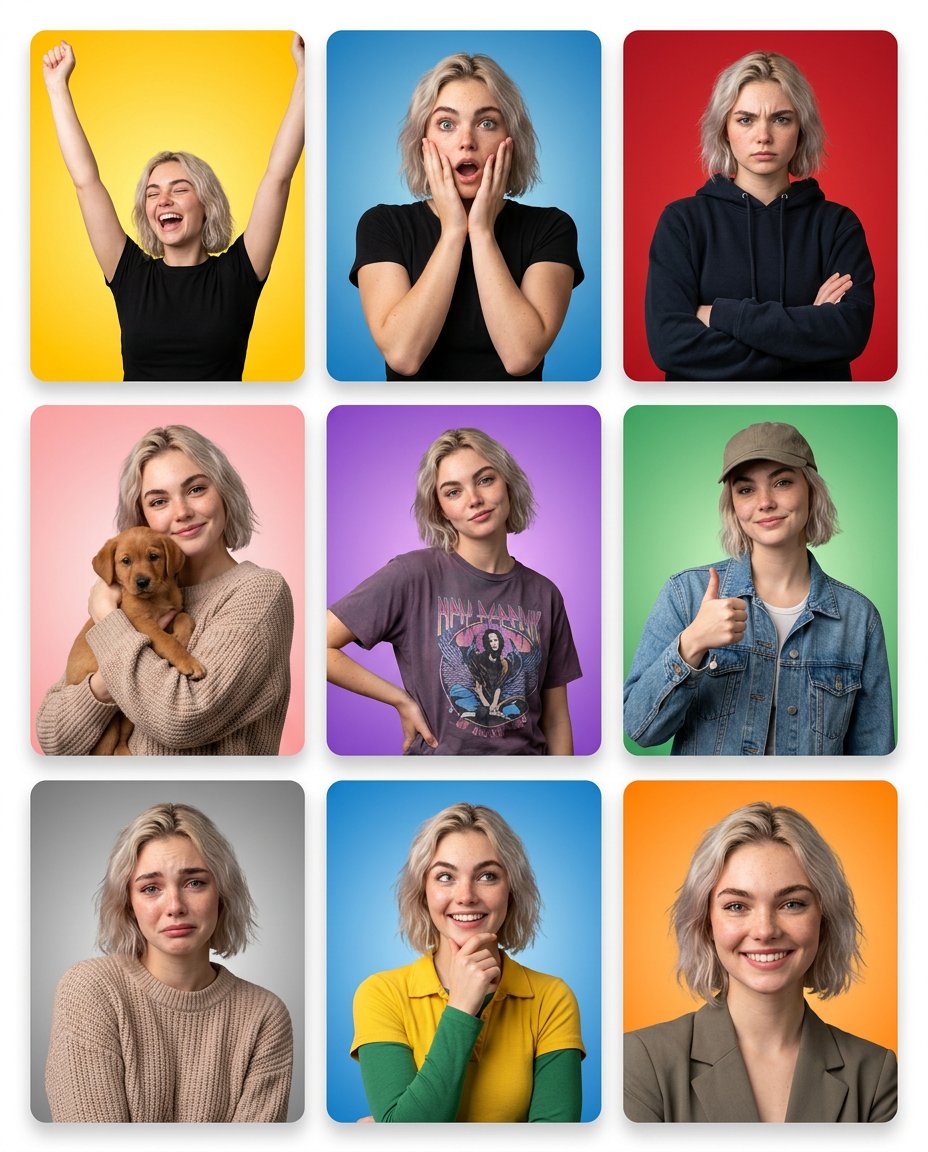
Emotion Grid with Gradient Backgrounds
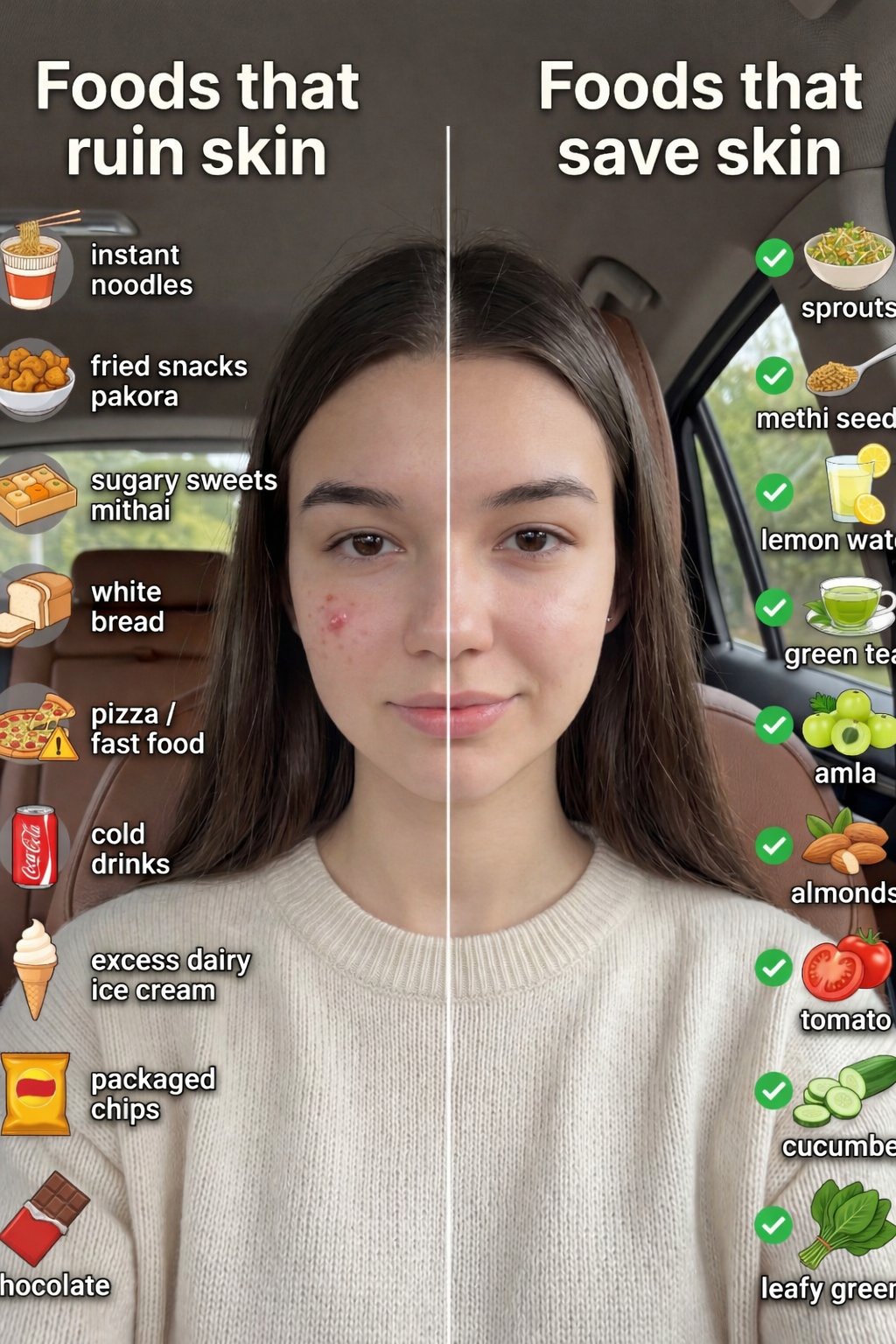
Skin Comparison Portrait — Nano Banana Pro
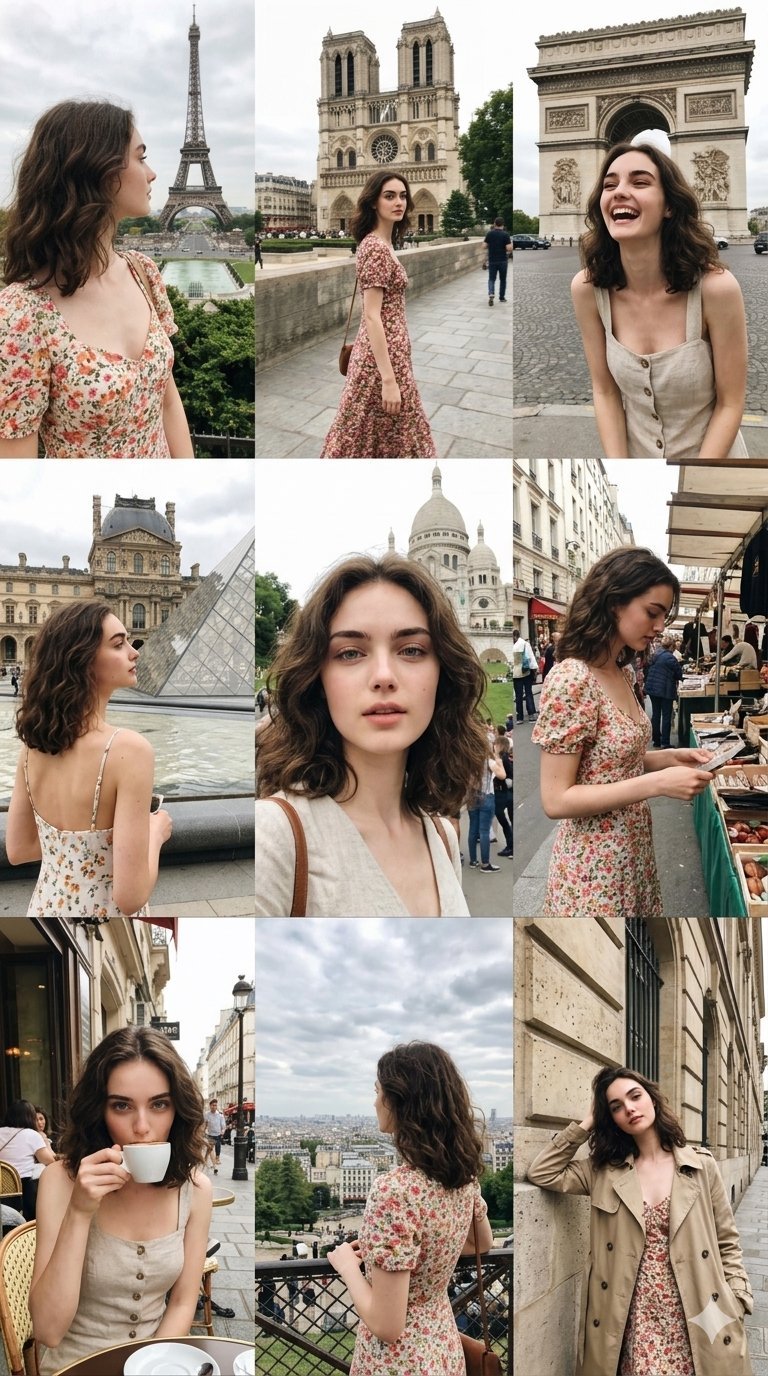
Paris Travel Collage Grid - Face Reference
Make it yours
Transparent Background Comparison Grid works as-is. These are the safest ways to change it without losing the look.
Change one field
Copy a single group, rewrite it, and generate again so you can see what that field is doing.
Keep the frame, change the subject
Hold the composition and light of Transparent Background Comparison Grid, then swap wardrobe, props or the person for a new take.
| If the result… | Why | Fix |
|---|---|---|
| The result drifts from the preview | Too many fields changed at once. | Reuse Transparent Background Comparison Grid as-is first, then change one group — subject, light, or setting. |
| The model over-stylizes the scene | The prose prompt leaves finish and camera underspecified. | Add one camera or lighting sentence and stay on GPT Image 2. |
More GPT Image 2 templates
Other prompts made for GPT Image 2.

Six VTuber Japanese Logo Sheet

Realistic Portrait of Woman and Deer

The Vista Modular Condo Poster

AI Model Routing Comparison Infographic

2.5D Anime Art Board

Isometric Productivity Desk Scene

New York Double Exposure Poster

Four-Panel AI Landscape Comparison

Japanese Tatami Lifestyle Magazine Cover

NESCAFÉ Coffee Map Poster
More image prompts
Fresh picks from across the catalog.

Retro Pop Travel Family Poster
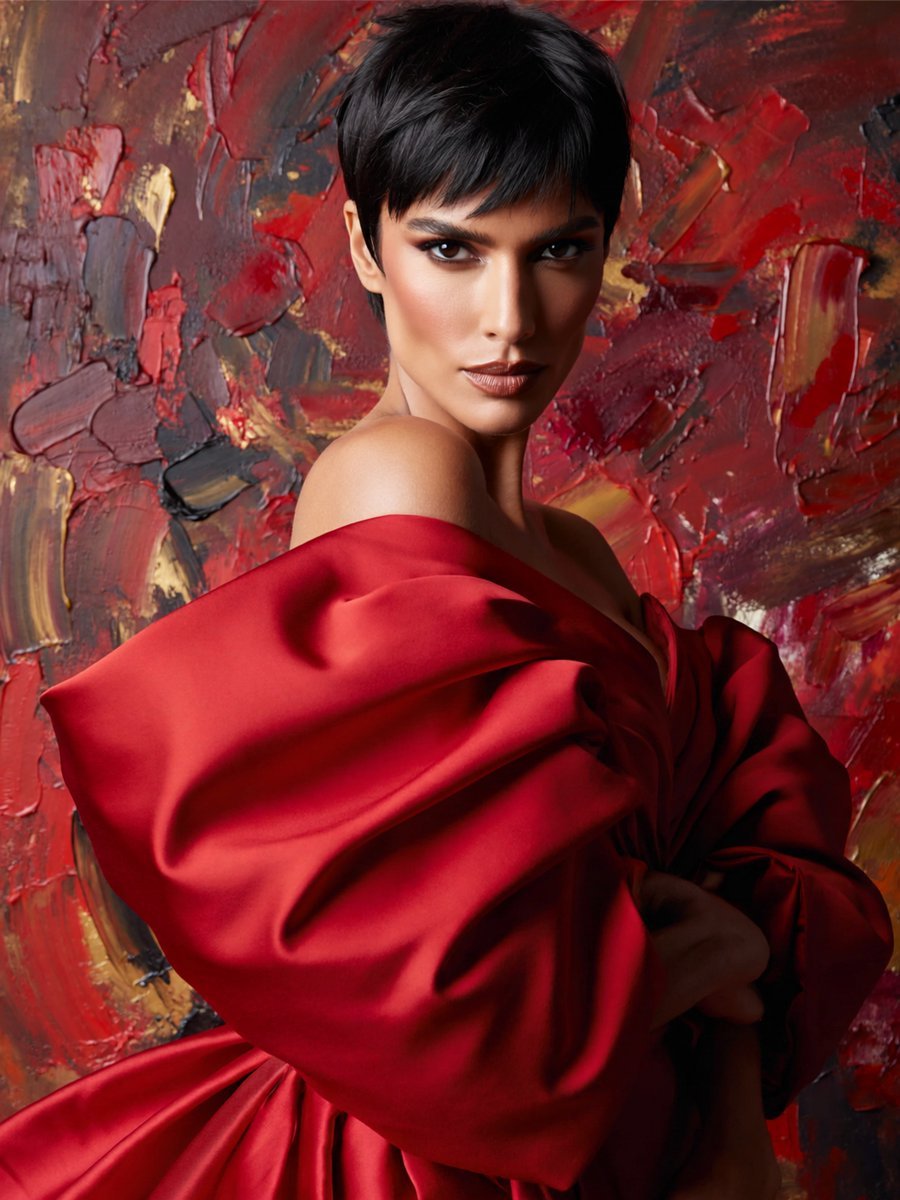
Anonymous Red Couture Portrait

OpenAI CEO Announcement Mockup
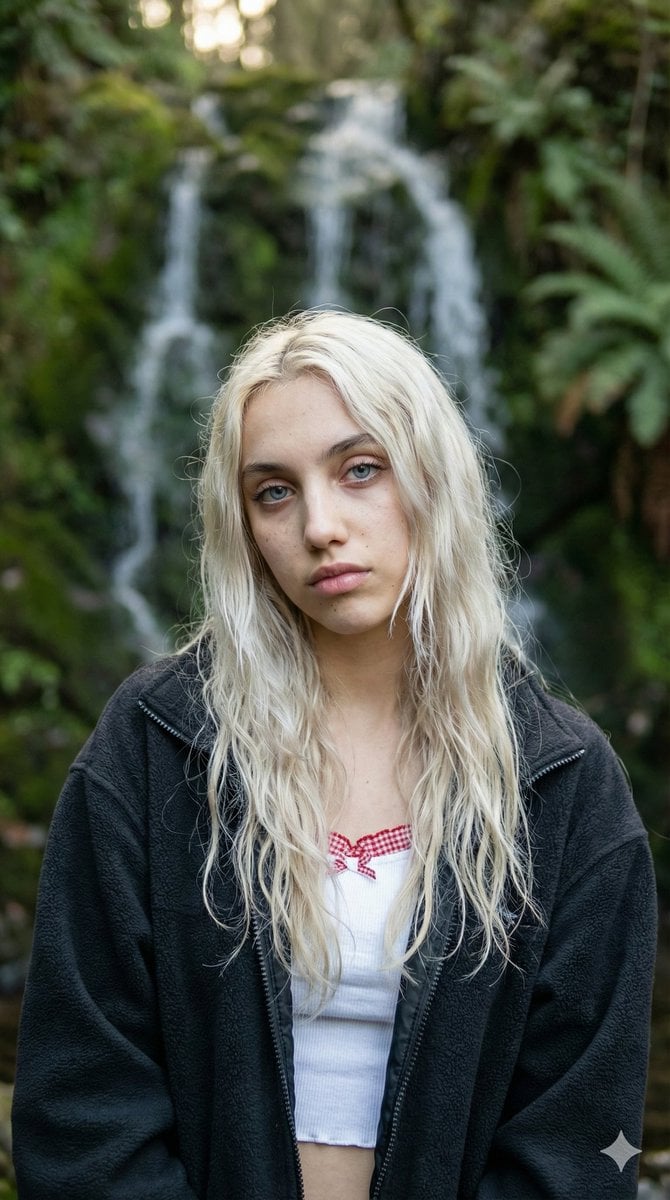
Ethereal Waterfall Selfie Portrait with Natural Imperfections

Vibrant Fusion Street Food Scene
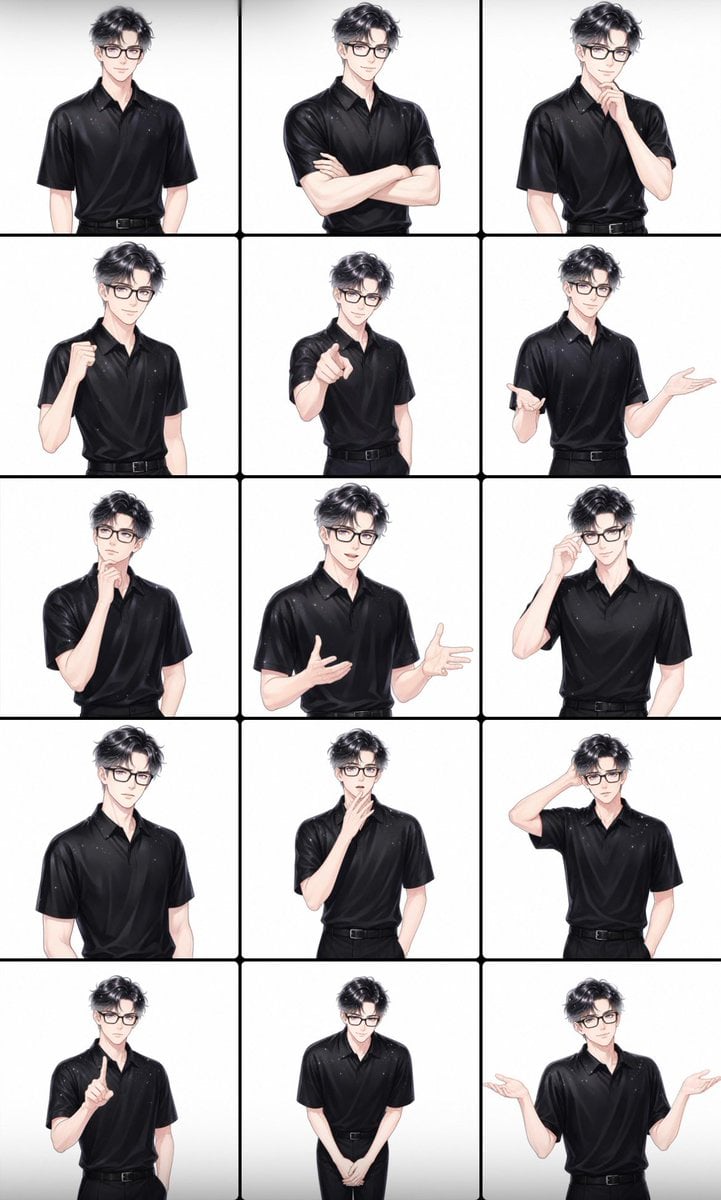
Male Presenter Avatar Pose Sheet
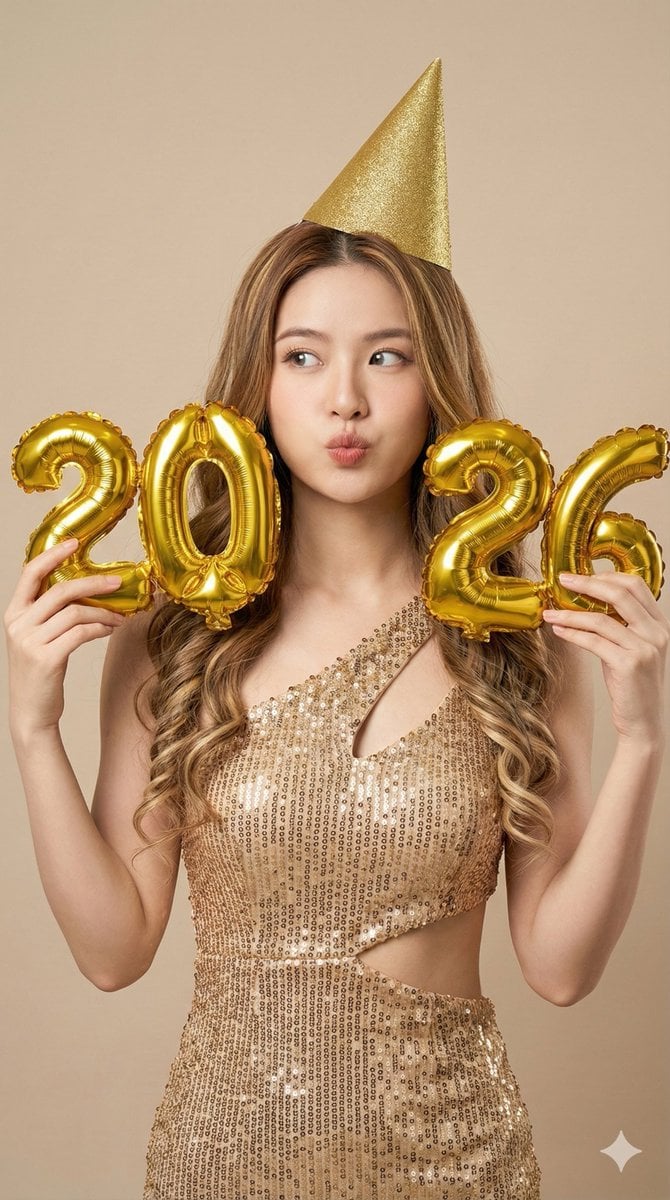
High-Resolution Photorealistic Studio Fashion Portrait for New Year 2026

Generating a Guardian Angel with Nano Banana Pro
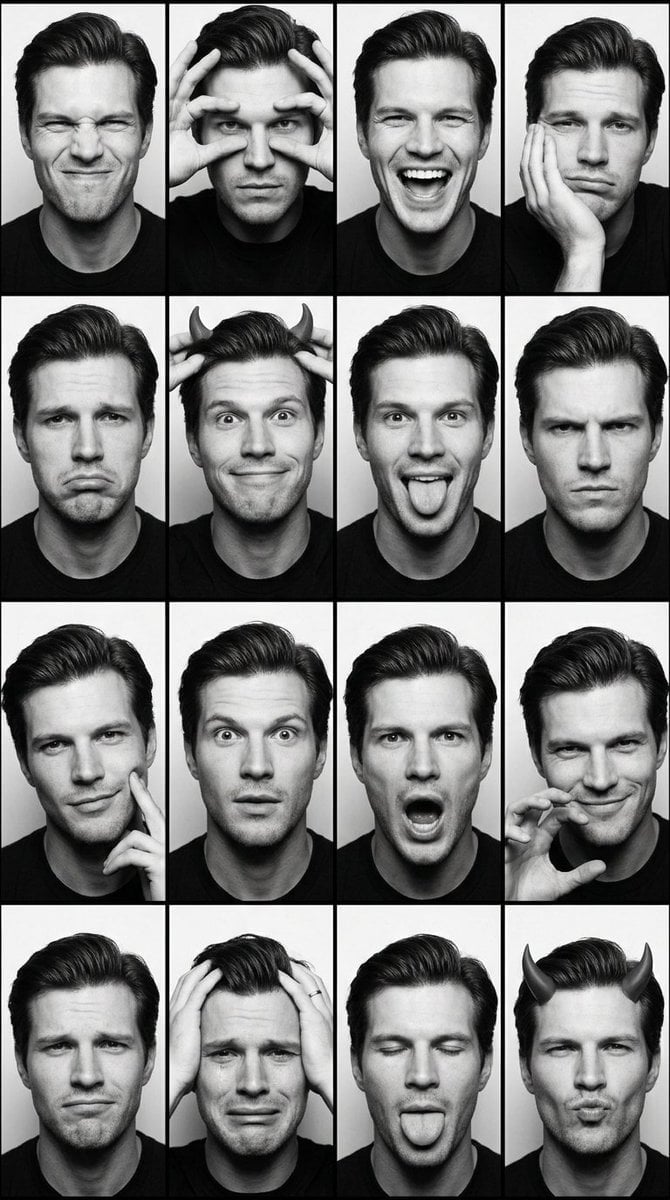
Black and White Photobooth Expression Grid
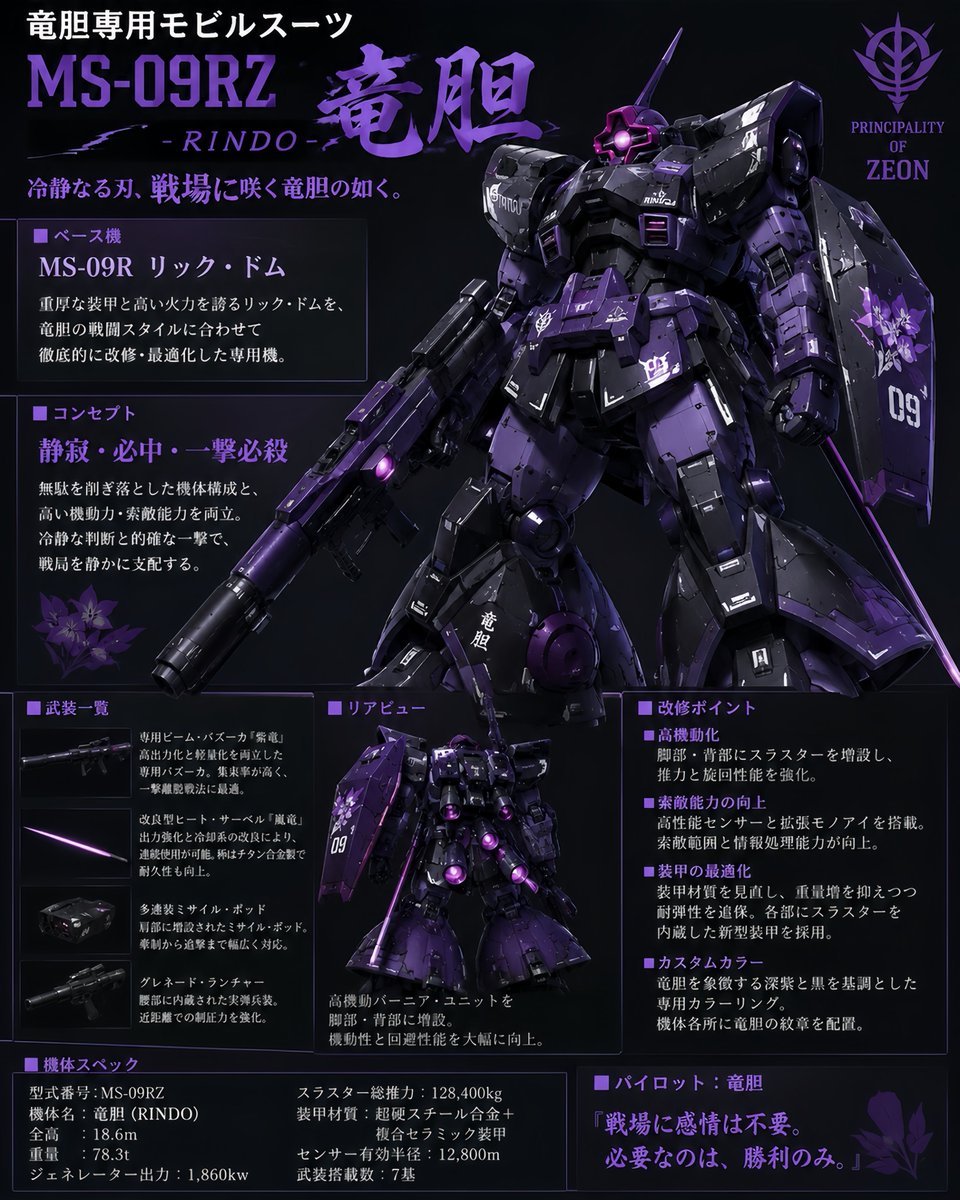
Custom Zeon Mobile Suit Overhaul
Browse template categories
Transparent Background Comparison Grid questions
How do I use the Transparent Background Comparison Grid template?
Add your photo if the template asks for one, edit the prompt if you like — the template's model and format are already selected — and press Generate. Your version opens in PicX Studio.
Can I customize the Transparent Background Comparison Grid template?
Yes. You can change the subject, setting, lighting, mood, format, and available model controls before creating your image.
Is the Transparent Background Comparison Grid template free?
Opening and editing this template is free. Generating uses credits, shown on the Generate button when you are signed in.
Which AI model should I use?
Start with GPT Image 2, which is the model associated with this template. You can compare another compatible model for a different finish.
Looking for something else? Browse all templates.

Your photo, any look
Thousands of ready templates for every top image and video model, from one credit balance.