
Three-Panel GPT Image Model Comparison
Creates a social media comparison graphic with three labeled photorealistic sports portraits showing water splash realism across image models.
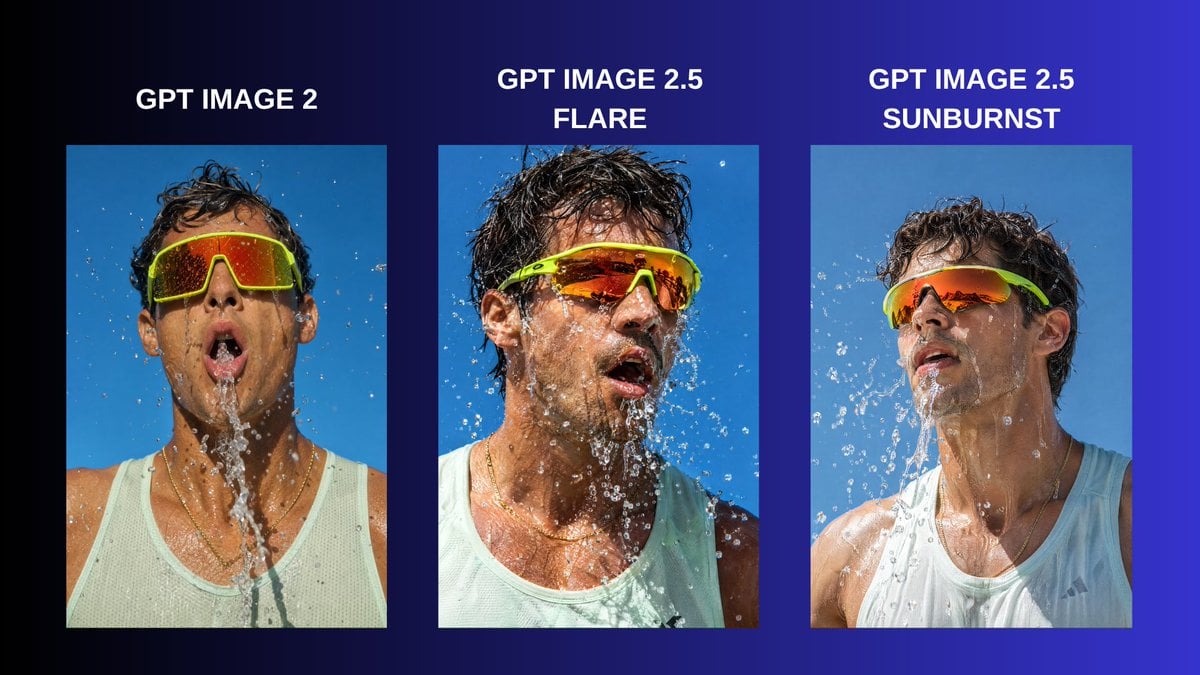
- Prompt included
- Model and format preset
- Free template
The prompt behind this image
Copy the exact prompt behind Three-Panel GPT Image Model Comparison, or open it in the studio and make it yours.
Goal: Create a horizontal social media comparison graphic showing the same photorealistic action portrait rendered by three AI image models, emphasizing improved realism, water detail, lighting, and skin texture. Canvas: 16:9 landscape layout, approximately 1200×675 px, with a dark navy-to-electric-blue gradient background that is nearly black on the far left and vivid cobalt blue on the far right. Layout: Place exactly 3 vertical portrait image panels in a row with even spacing and generous margins. Each panel is a rectangular photo with no border, aligned along the same baseline. Above each panel, add a bold white uppercase label centered over the image. Text content: Use exactly 3 labels: left label “{argument name="left model label" default="GPT IMAGE 2"}”, center label “{argument name="center model label" default="GPT IMAGE 2.5 FLARE"}” split across two lines, and right label “{argument name="right model label" default="GPT IMAGE 2.5 SUNBURST"}” split across two lines. Use a clean bold sans-serif font, all caps, white, with strong legibility. Subject in all 3 panels: A close-up outdoor sports portrait of the same athletic adult man with tan wet skin, messy dark wet hair, neon lime wraparound sport sunglasses with orange mirrored lenses, and a pale mint-white sleeveless athletic tank top. He is being splashed with water against a clear bright blue sky. Show droplets, streams, wet fabric, wet hair, highlights on skin, and reflective eyewear. The expression is open-mouthed and breathless, like mid-workout or after splashing water on his face. Panel details: Left panel: frontal portrait, more static and less refined, water streaming straight down from his mouth and chin, sunglasses large and centered, shoulders visible. Center panel: more energetic and dynamic, head turned slightly to viewer’s right, dense suspended water droplets around face, stronger contrast, sharper texture, more dramatic wet hair and skin. Right panel: cleaner and more controlled realism, head turned slightly upward and to viewer’s left, smooth natural lighting, water splashing diagonally across the chest and face, refined reflections and skin detail. Visual style: Photorealistic editorial comparison, high-resolution sports photography, bright daylight, crisp water interaction, realistic wet skin texture, high shutter speed droplets, saturated blue sky, vivid neon eyewear. Constraints: Include exactly 3 labeled image panels and no additional logos, captions, icons, arrows, or watermarks. Keep the background outside the panels as a simple gradient. The three panels should clearly depict the same core prompt but with subtly different realism and composition.
How to use Three-Panel GPT Image Model Comparison in 3 steps
- 1Upload ImagePNG, JPG or paste
Add your photo
Upload the photo the template builds on. The prompt, model and format are already set.
- 2…a portrait of your subject in softgolden-hour light, 85mm…
Personalize
Edit the subject and creative details for your destination.
- 3Generate
Generate
Press Generate — your image is created in PicX Studio, so you can compare it with the original and refine one variable at a time.
More like this
Templates with the same subject, style or setup. Open one to see its prompt.
Three-Panel AI Billboard Comparison

Two-Panel Snow Cabin Model Comparison
Three-Panel Night Window Comparison

Three Character Asset Comparison Board

AI Model Routing Comparison Infographic

Four-Panel AI Landscape Comparison
Four-Panel Anime Face Comparison
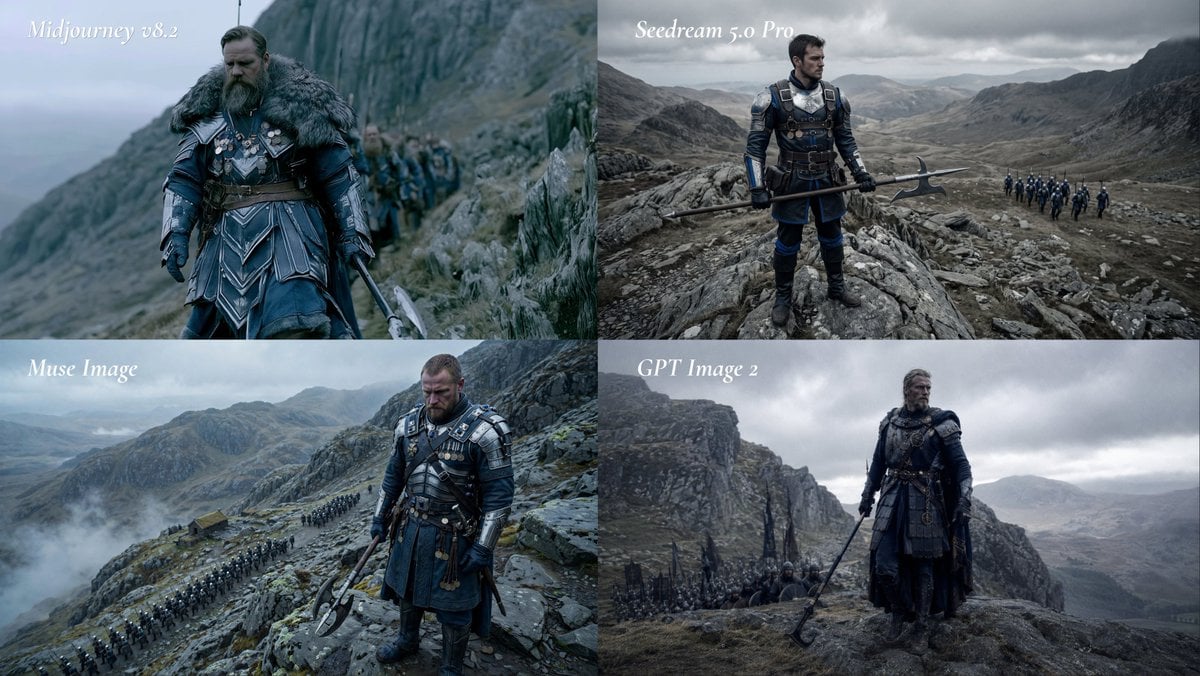
Fantasy Model Comparison Grid
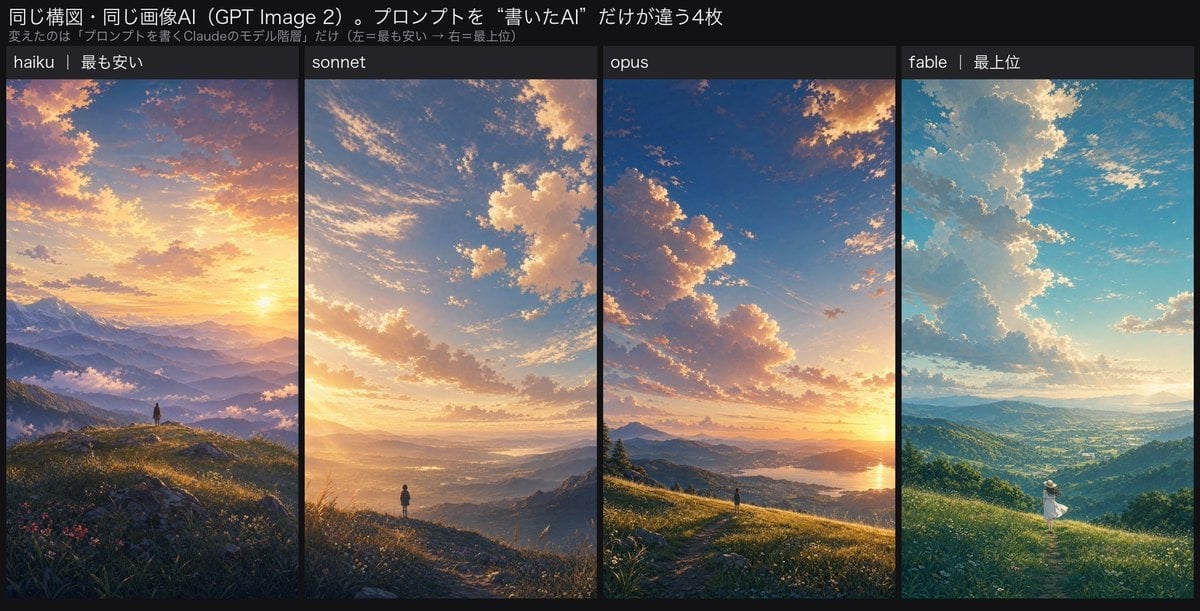
Four-Panel AI Landscape Comparison
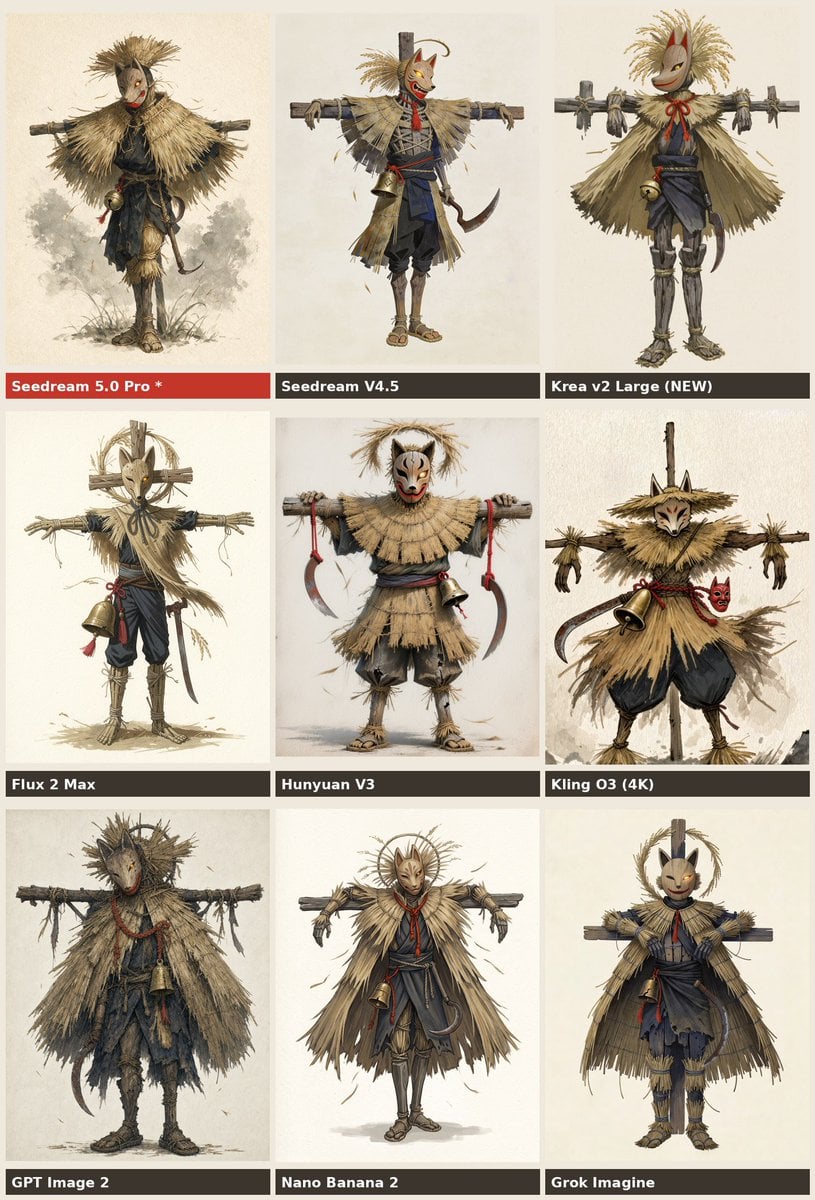
Nine-Model Scarecrow Yokai Comparison
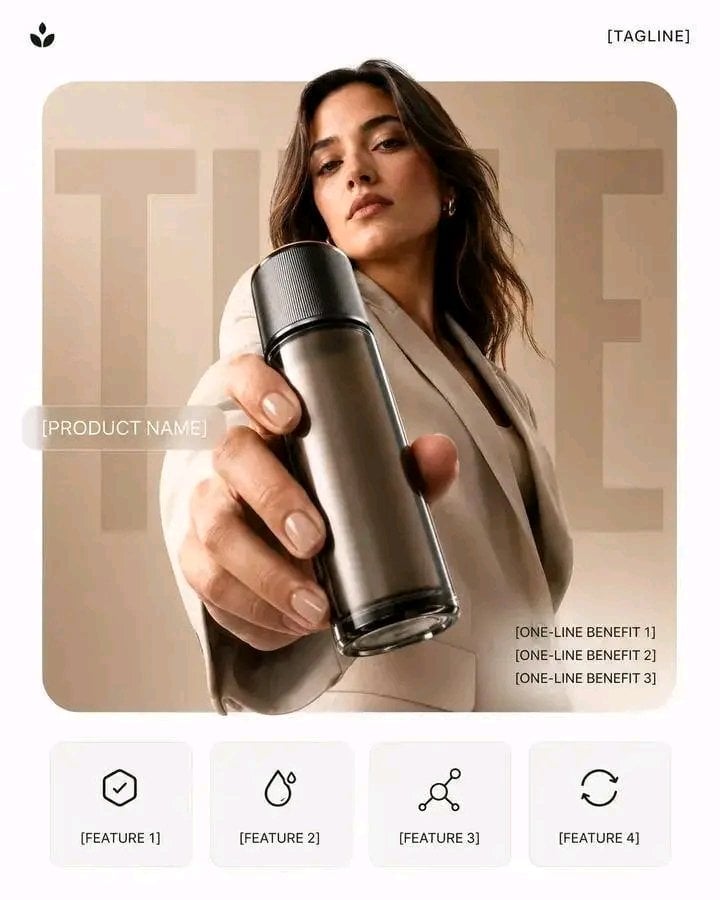
Premium Vertical Product Campaign Poster
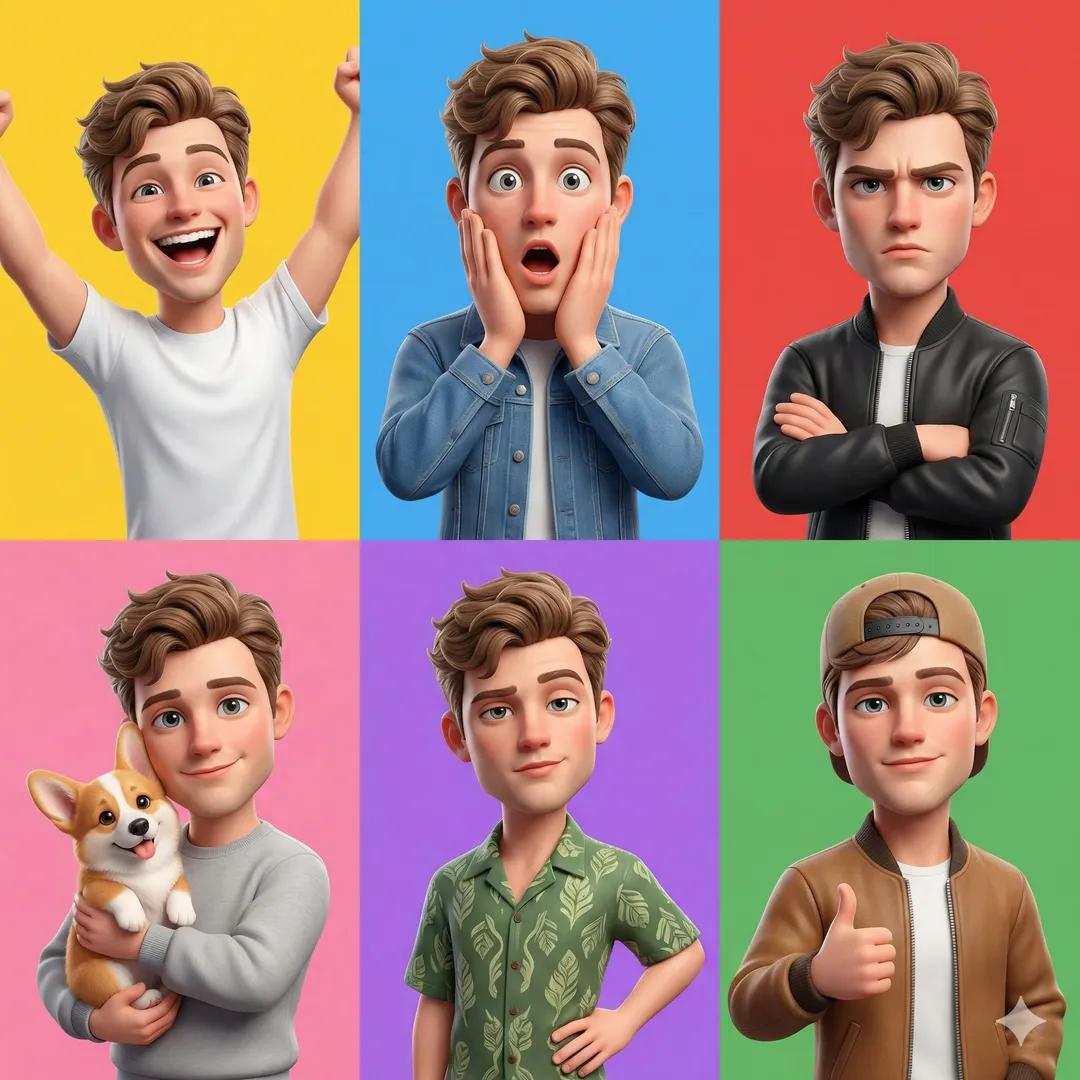
Pixar 6-Panel Streethero Expression Grid
Make it yours
Three-Panel GPT Image Model Comparison works as-is. These are the safest ways to change it without losing the look.
Change one field
Copy a single group, rewrite it, and generate again so you can see what that field is doing.
Keep the frame, change the subject
Hold the composition and light of Three-Panel GPT Image Model Comparison, then swap wardrobe, props or the person for a new take.
| If the result… | Why | Fix |
|---|---|---|
| The result drifts from the preview | Too many fields changed at once. | Reuse Three-Panel GPT Image Model Comparison as-is first, then change one group — subject, light, or setting. |
| The model over-stylizes the scene | The prose prompt leaves finish and camera underspecified. | Add one camera or lighting sentence and stay on GPT Image 2. |
More GPT Image 2 templates
Other prompts made for GPT Image 2.

Six VTuber Japanese Logo Sheet

Realistic Portrait of Woman and Deer

The Vista Modular Condo Poster

2.5D Anime Art Board

Isometric Productivity Desk Scene

New York Double Exposure Poster

Japanese Tatami Lifestyle Magazine Cover

NESCAFÉ Coffee Map Poster
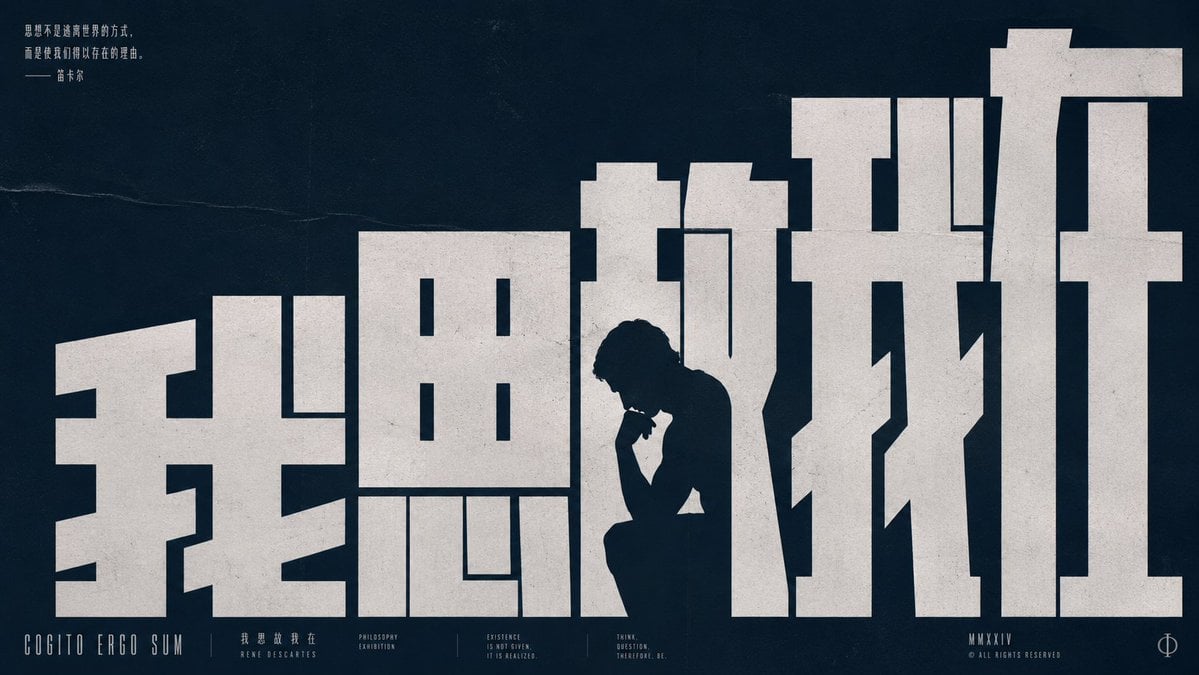
Brutalist Cogito Chinese Typography Poster
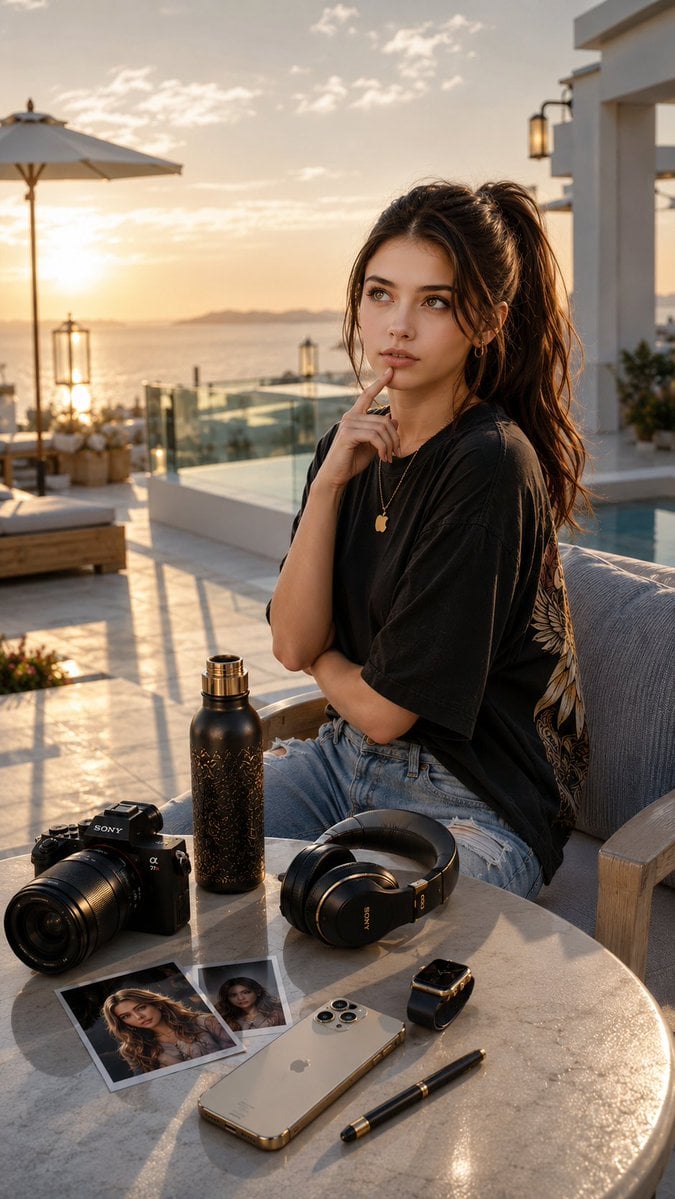
Cinematic Luxury Terrace Portrait
More image prompts
Fresh picks from across the catalog.
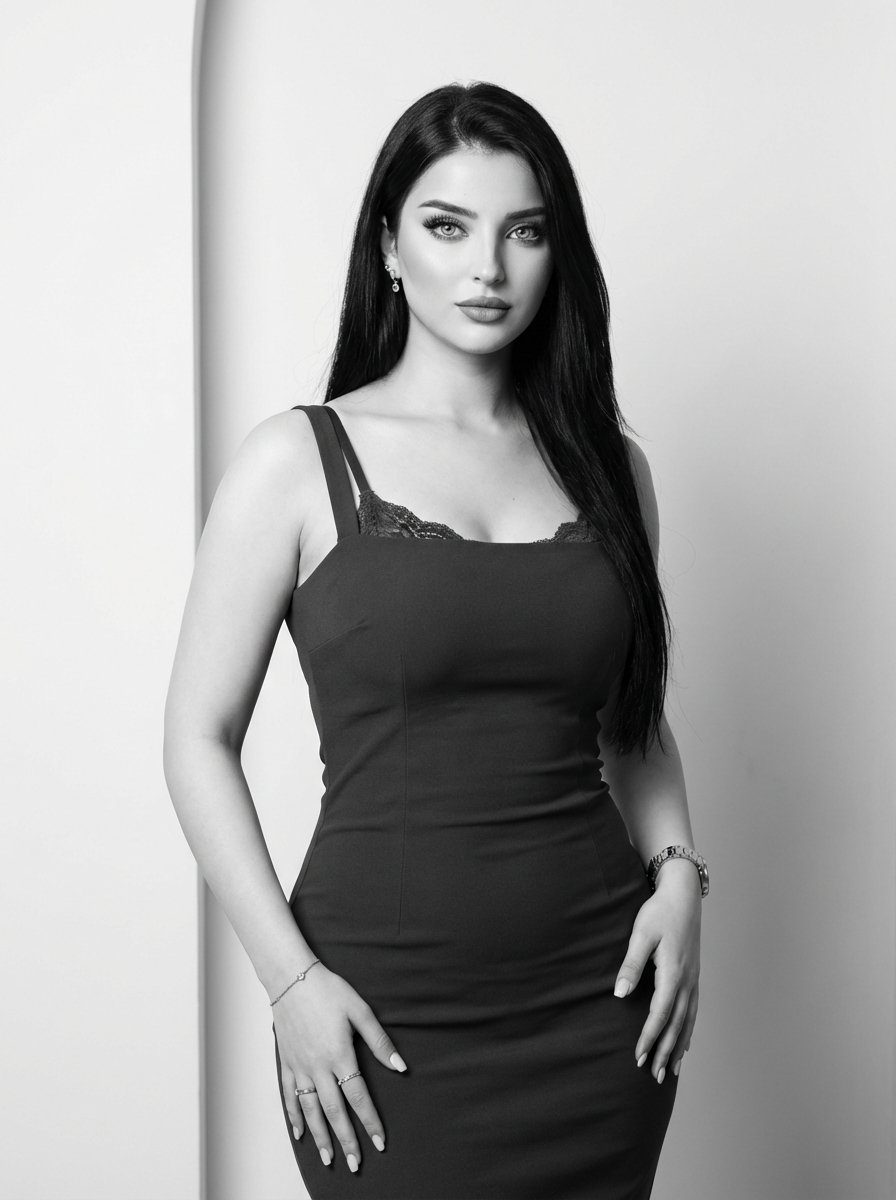
Classic Monochrome Portrait Style
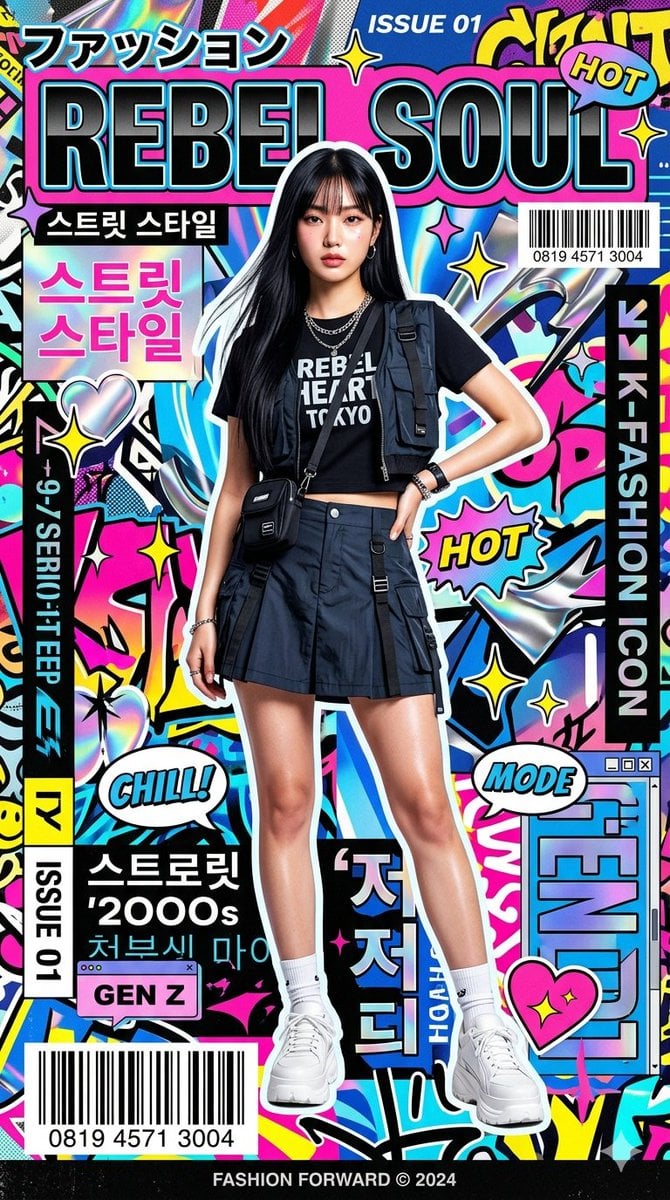
K-Fashion Pop-Art Editorial Poster
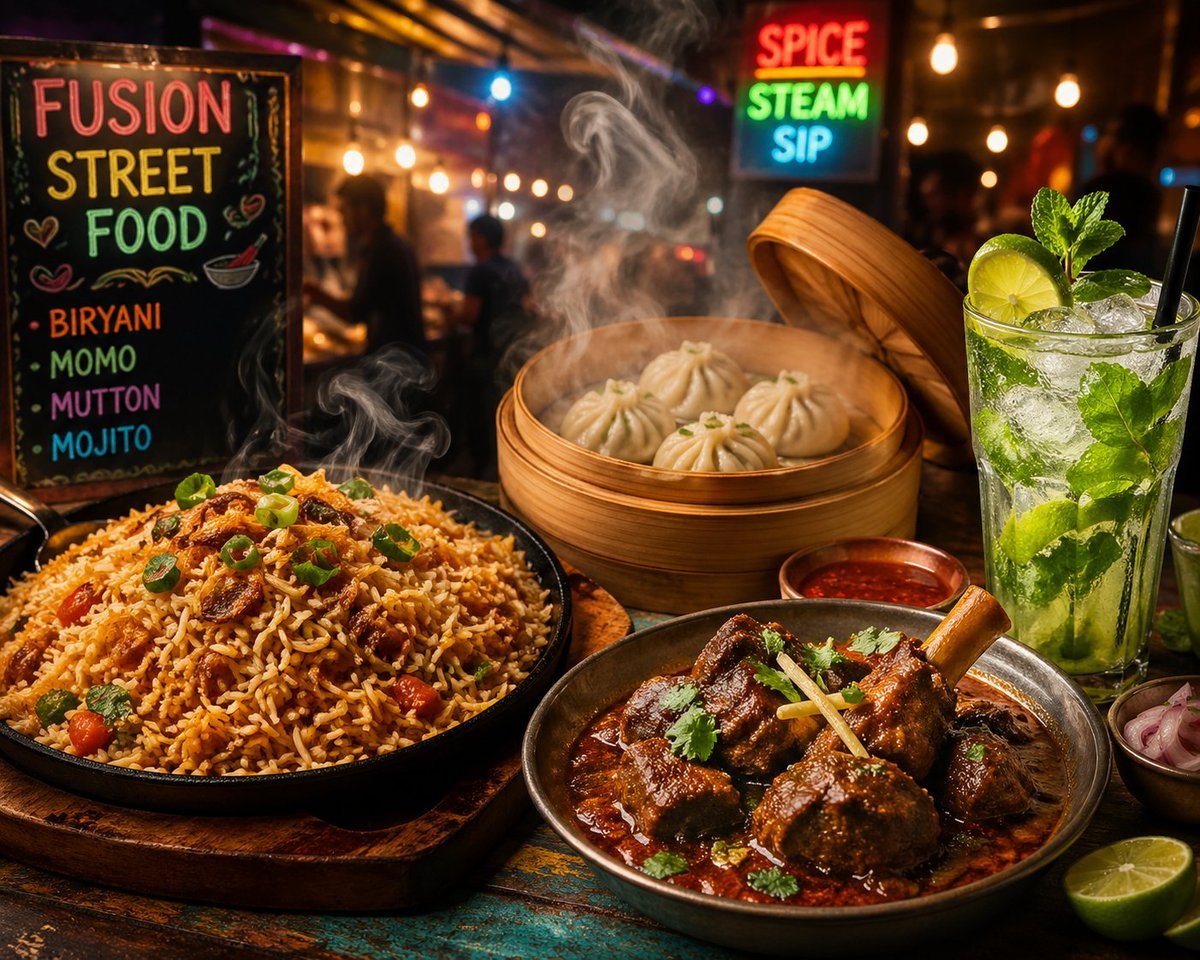
Vibrant Fusion Street Food Scene
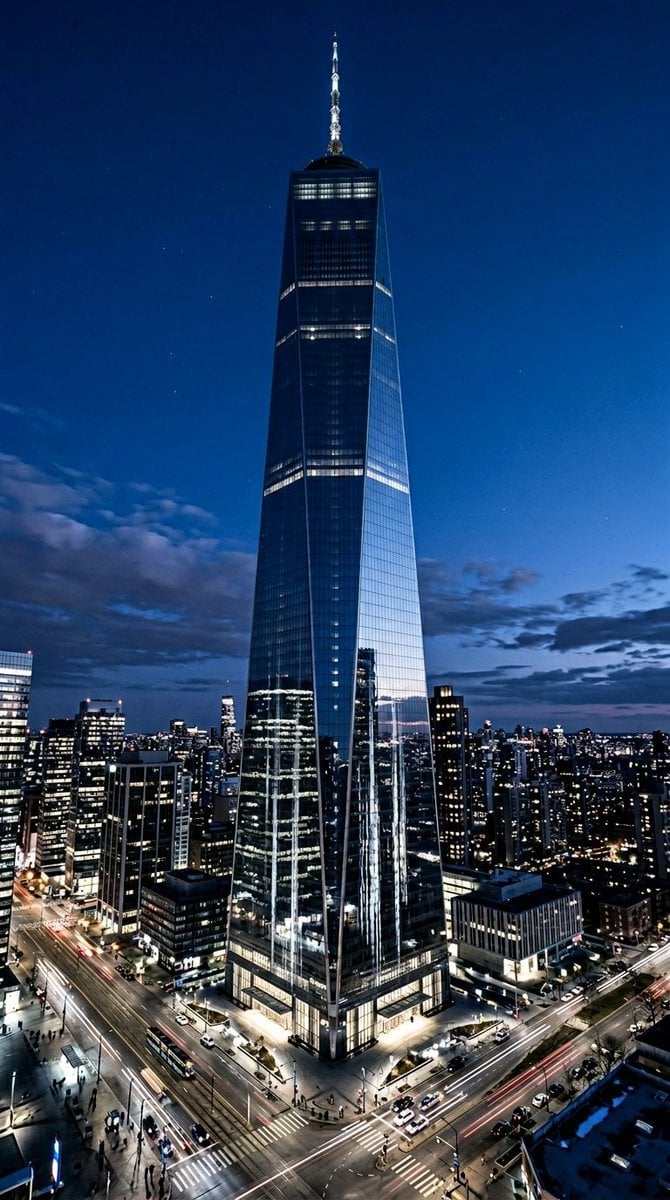
Futuristic Skyscraper Image Prompt (Nano Banana 2)
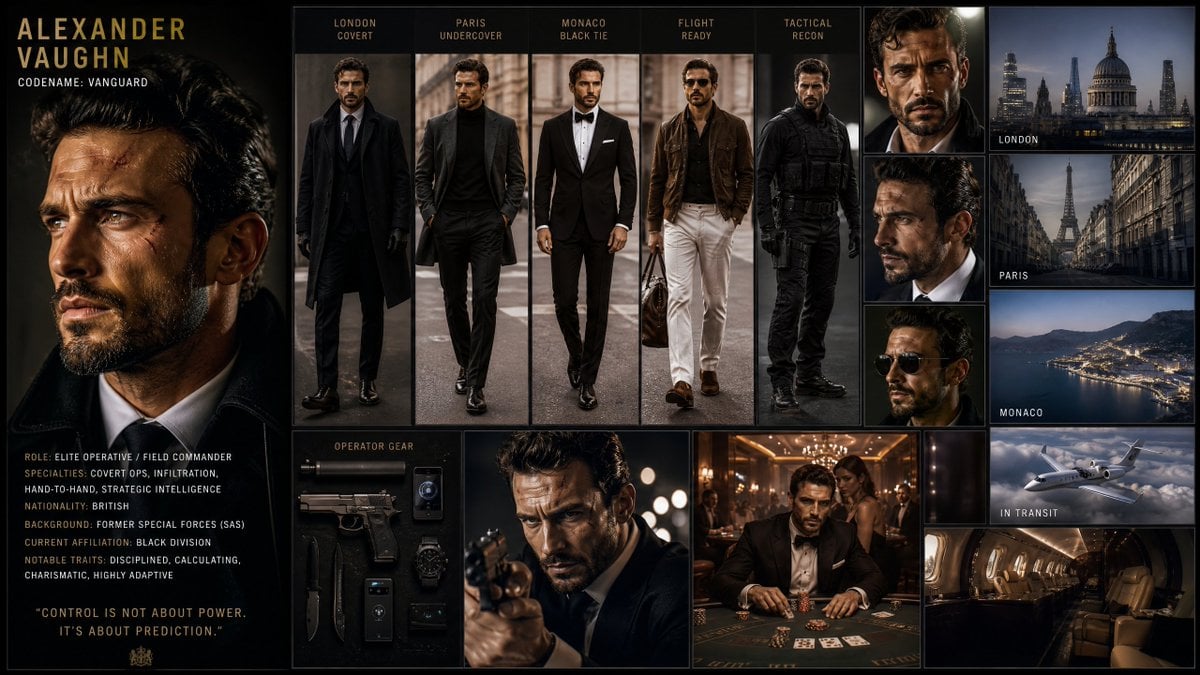
Hollywood Spy-Thriller Character Board
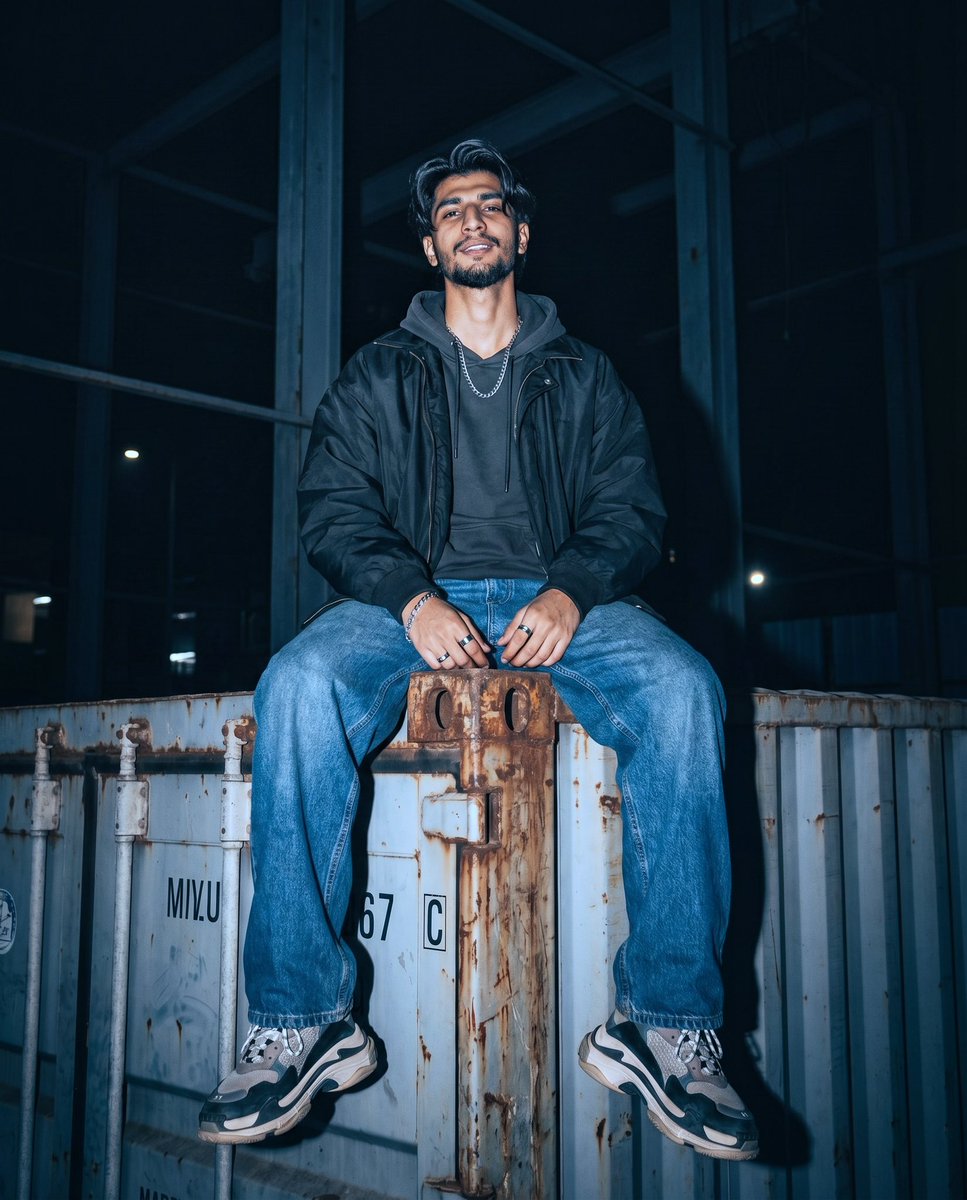
Industrial Streetwear Editorial
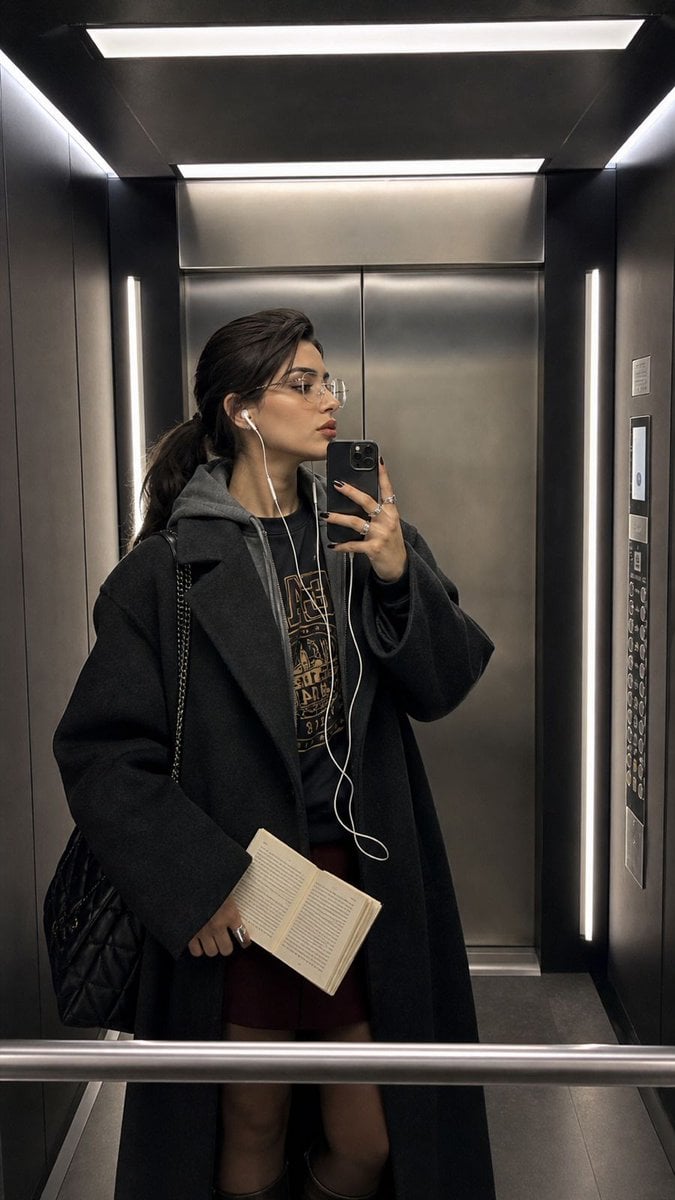
Modern Elevator Mirror Selfie
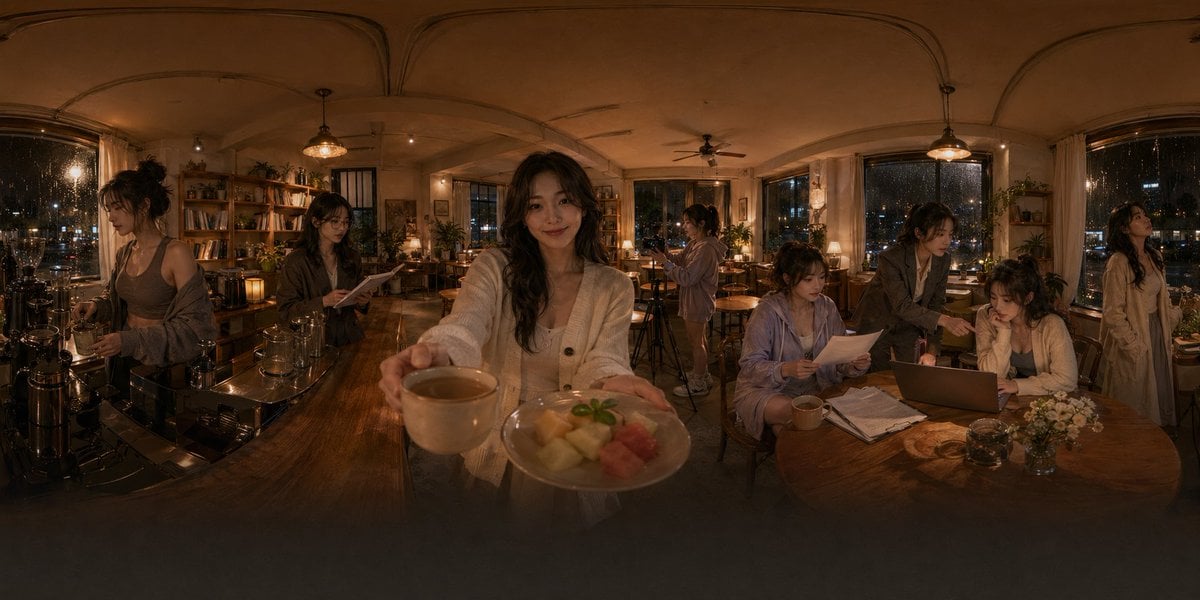
Rainy Night Café 360 Panorama

Game Crossover Promotional Poster
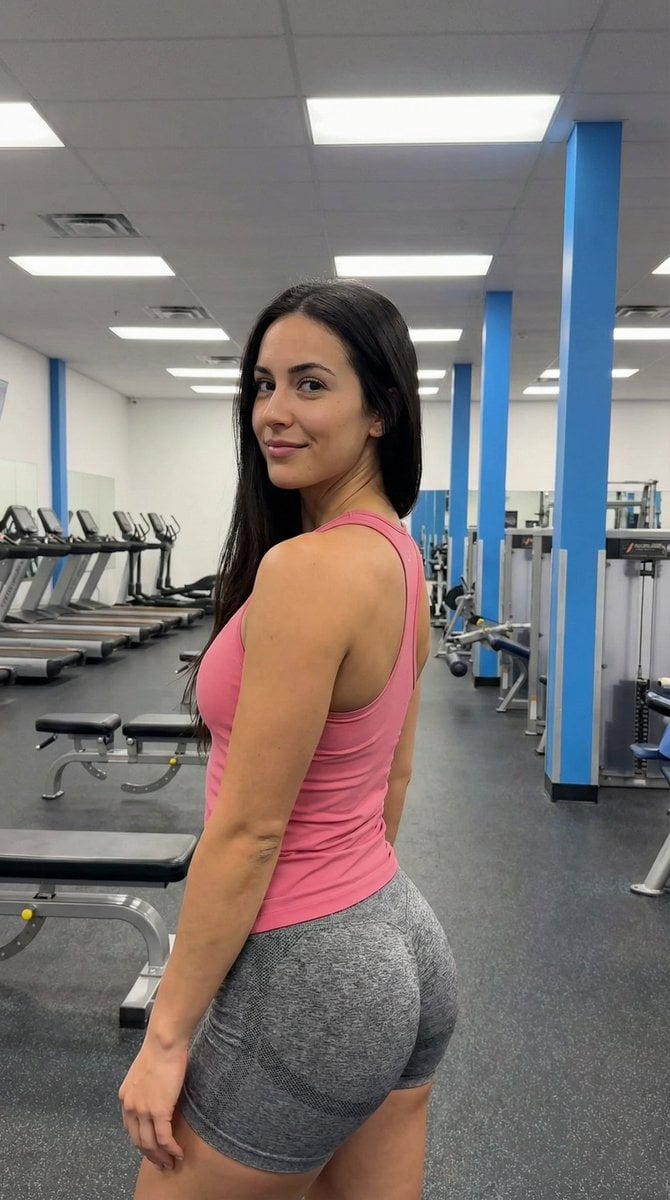
Gym Pose Portrait with Reference Image Adherence
Browse template categories
Three-Panel GPT Image Model Comparison questions
How do I use the Three-Panel GPT Image Model Comparison template?
Add your photo if the template asks for one, edit the prompt if you like — the template's model and format are already selected — and press Generate. Your version opens in PicX Studio.
Can I customize the Three-Panel GPT Image Model Comparison template?
Yes. You can change the subject, setting, lighting, mood, format, and available model controls before creating your image.
Is the Three-Panel GPT Image Model Comparison template free?
Opening and editing this template is free. Generating uses credits, shown on the Generate button when you are signed in.
Which AI model should I use?
Start with GPT Image 2, which is the model associated with this template. You can compare another compatible model for a different finish.
Looking for something else? Browse all templates.

Your photo, any look
Thousands of ready templates for every top image and video model, from one credit balance.