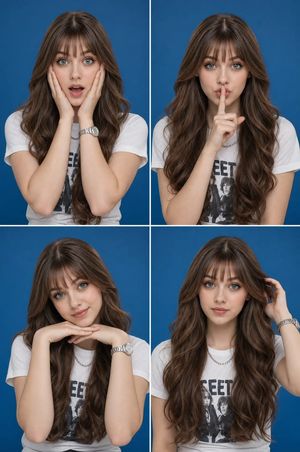
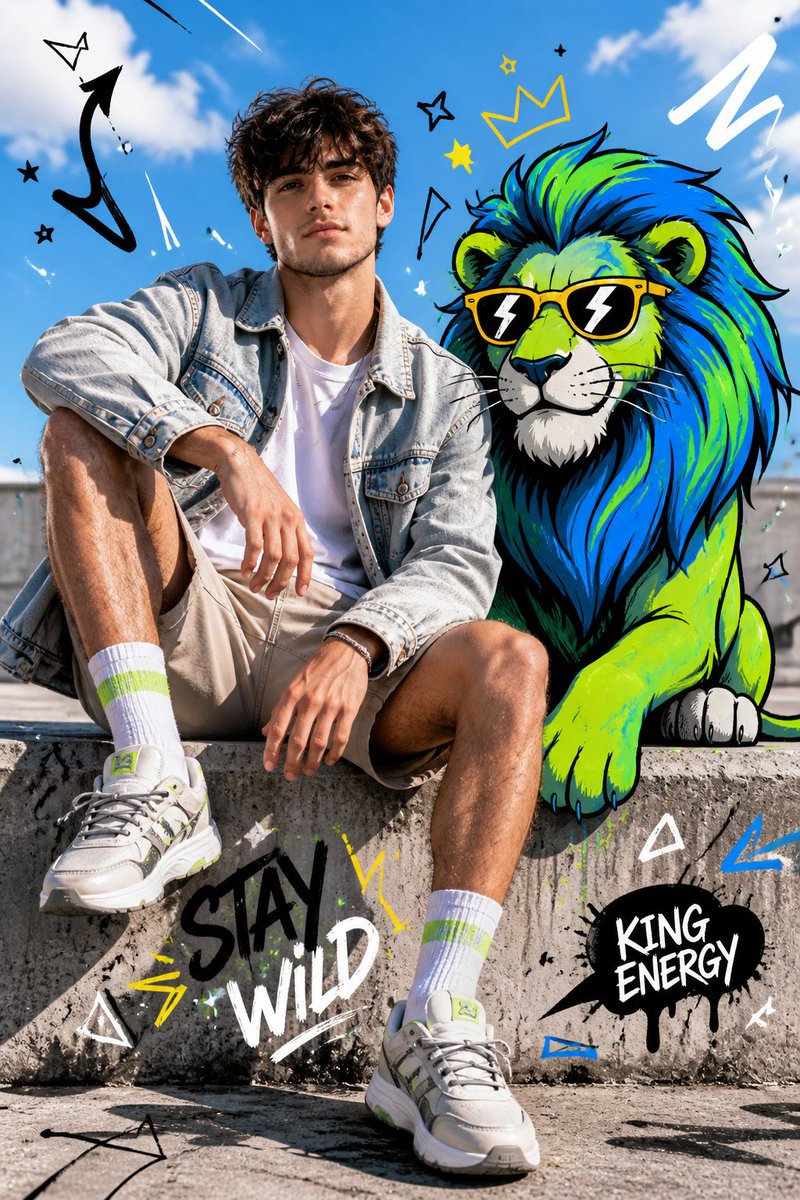
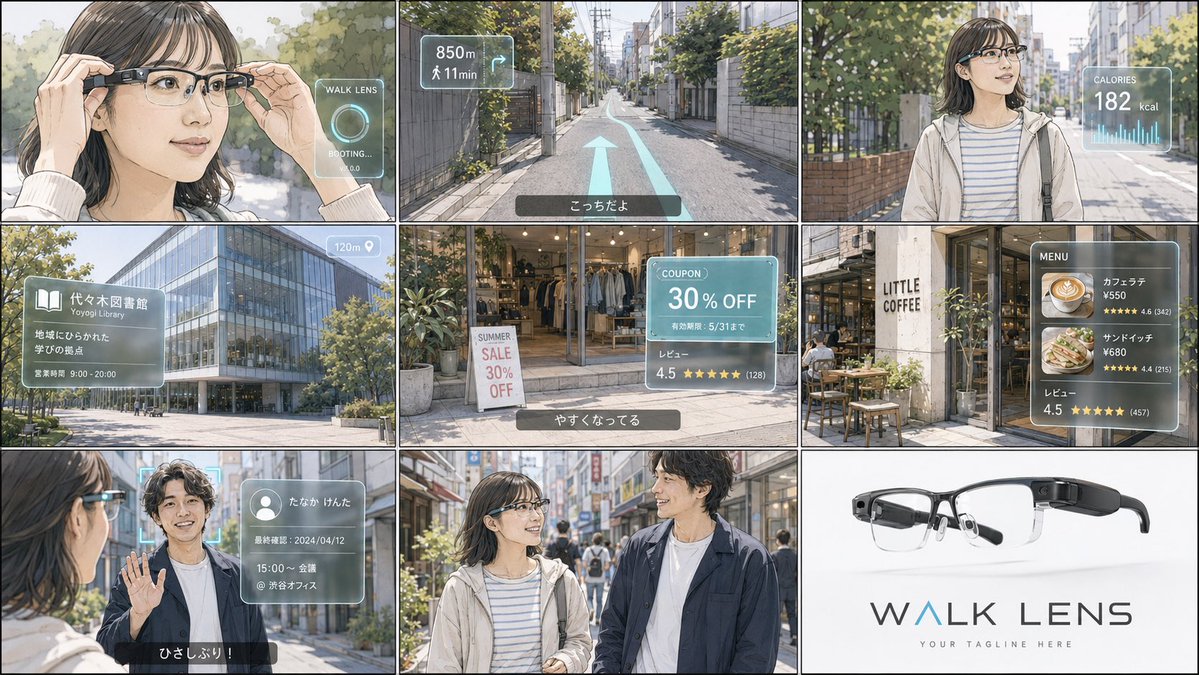
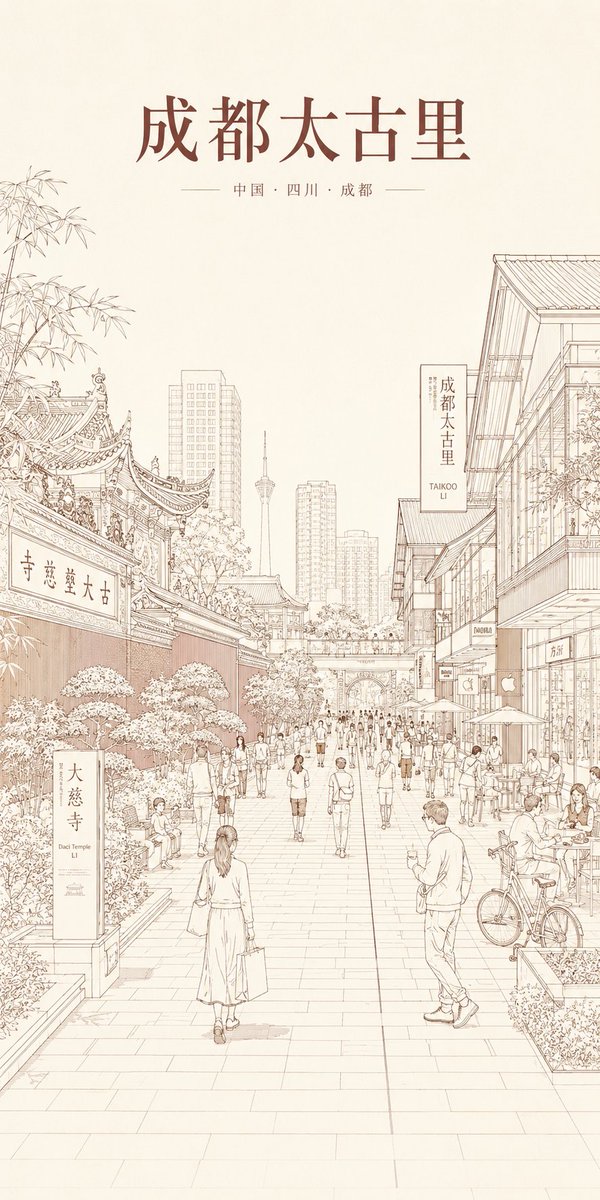
How do I use the Multi-Image Art Style Fusion template?
Choose the primary action to open PicX Studio with the available template settings. Review the model and format, personalize the creative direction, and generate when ready.
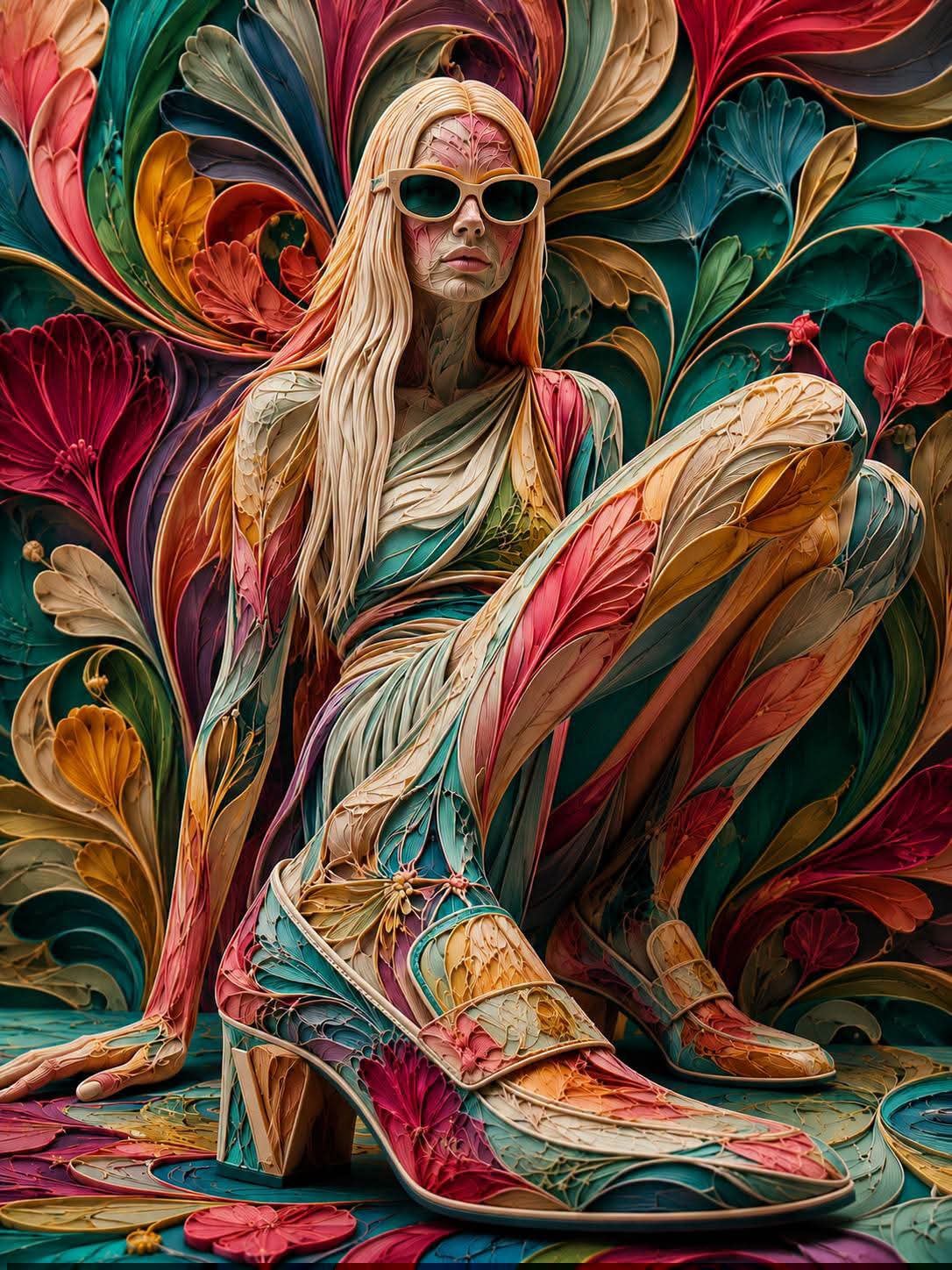
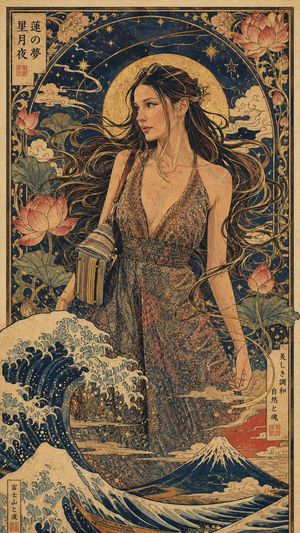
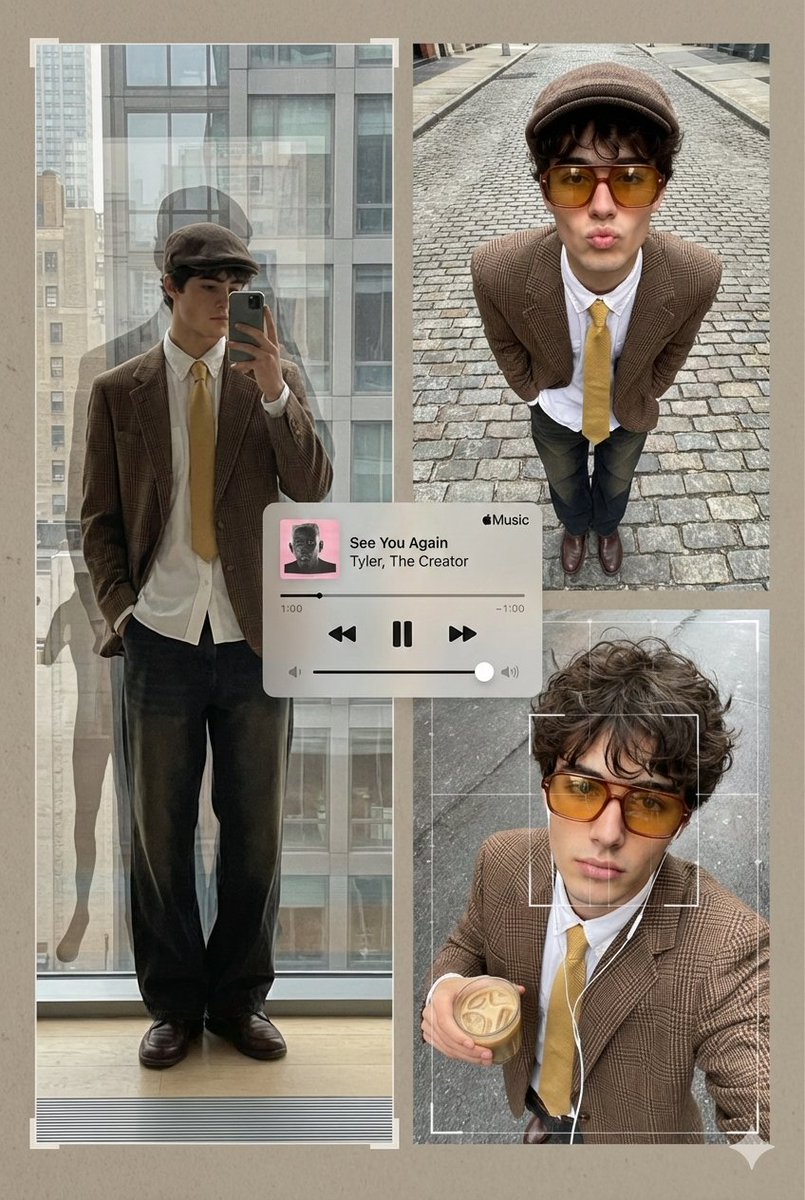
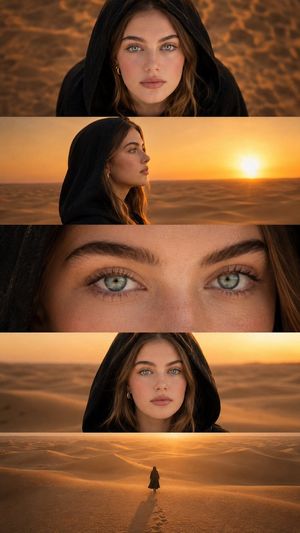
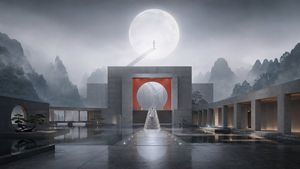
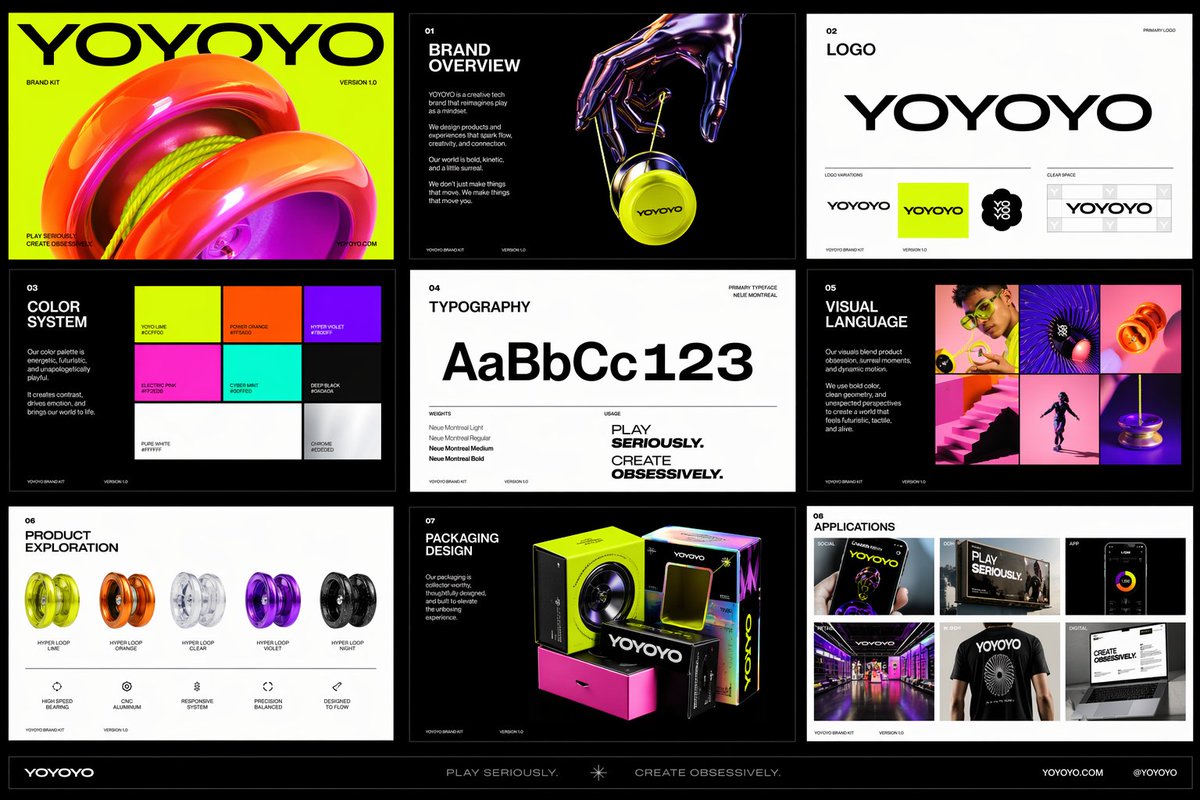
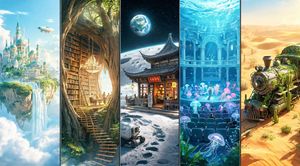
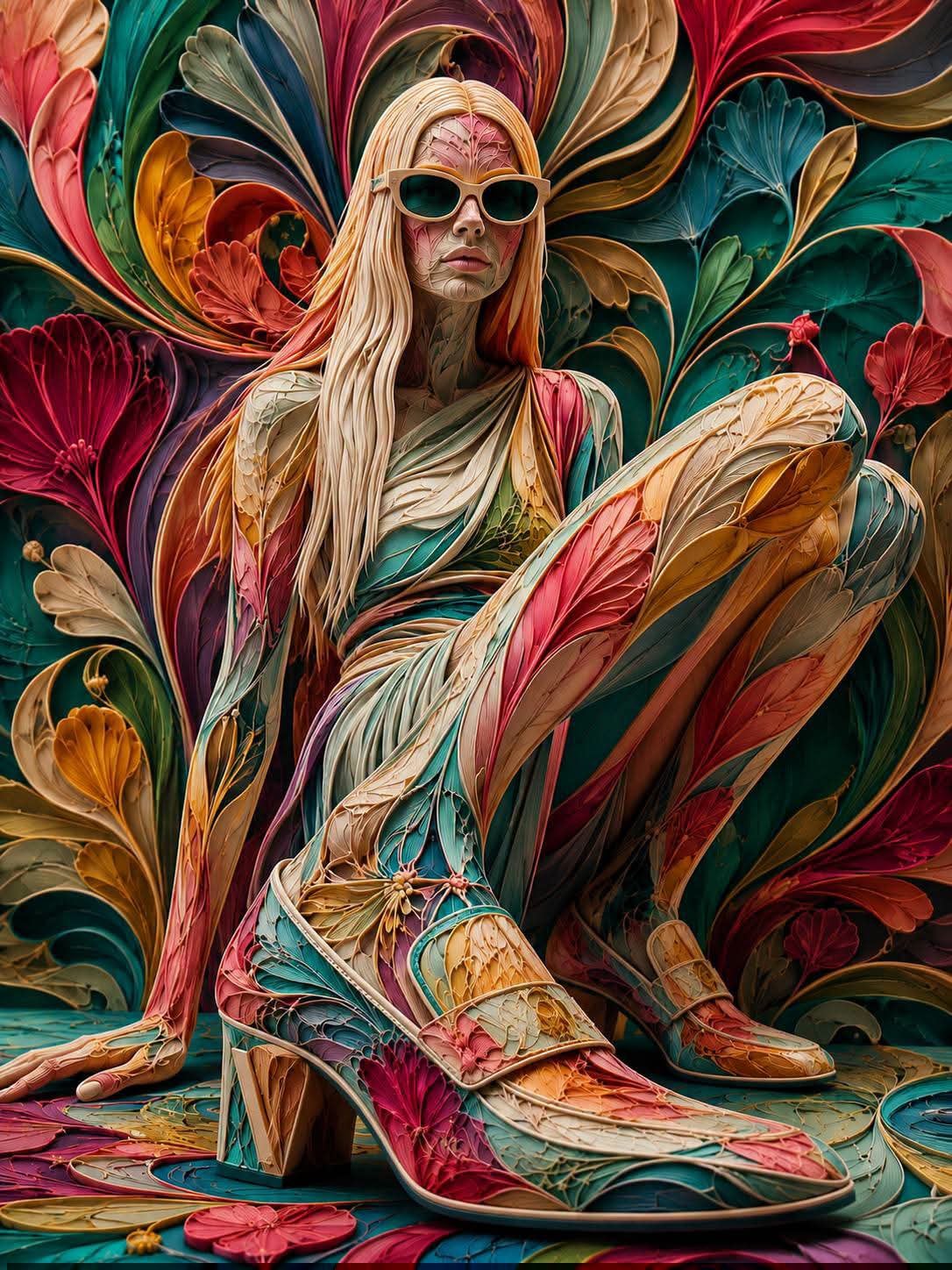
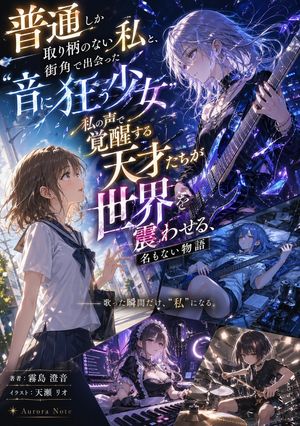
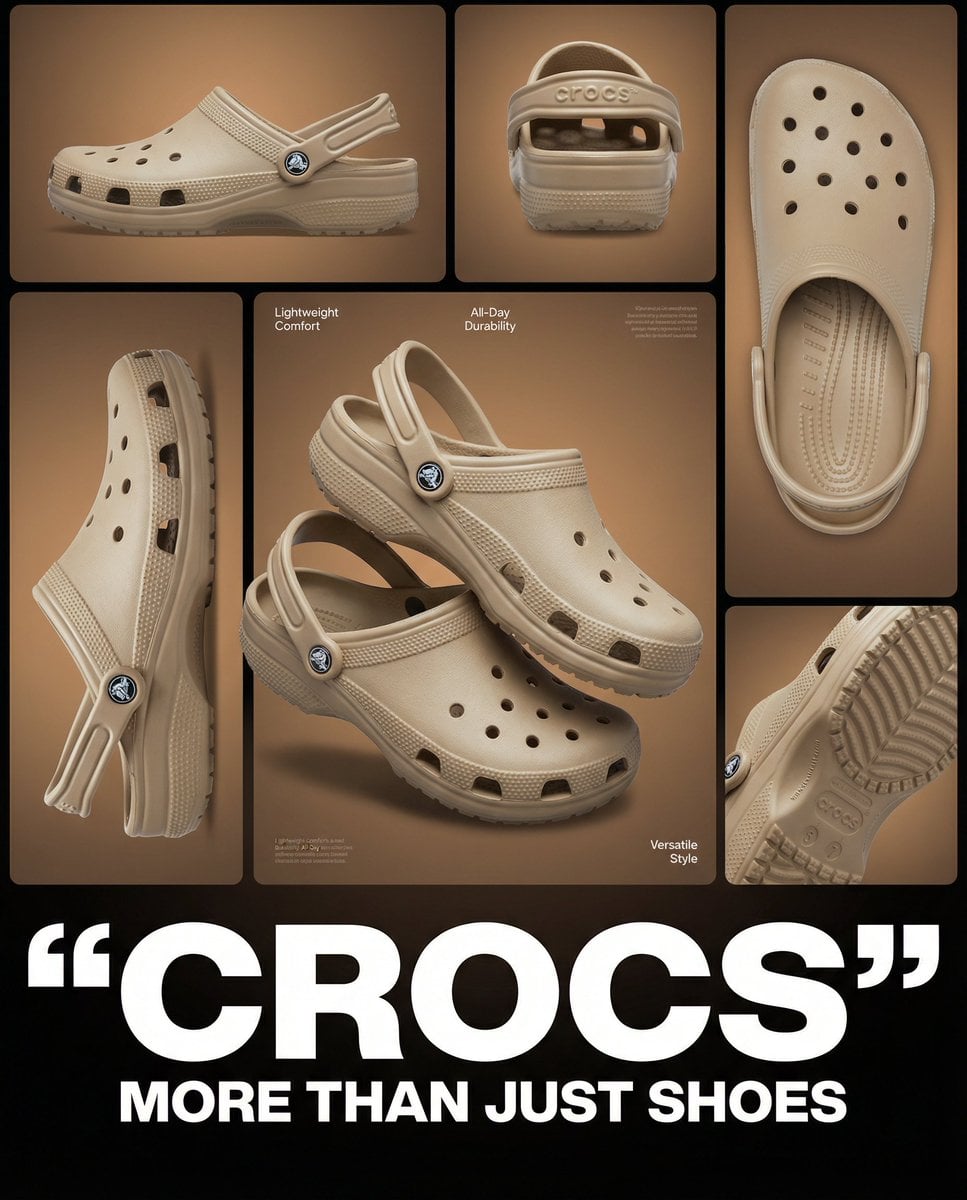
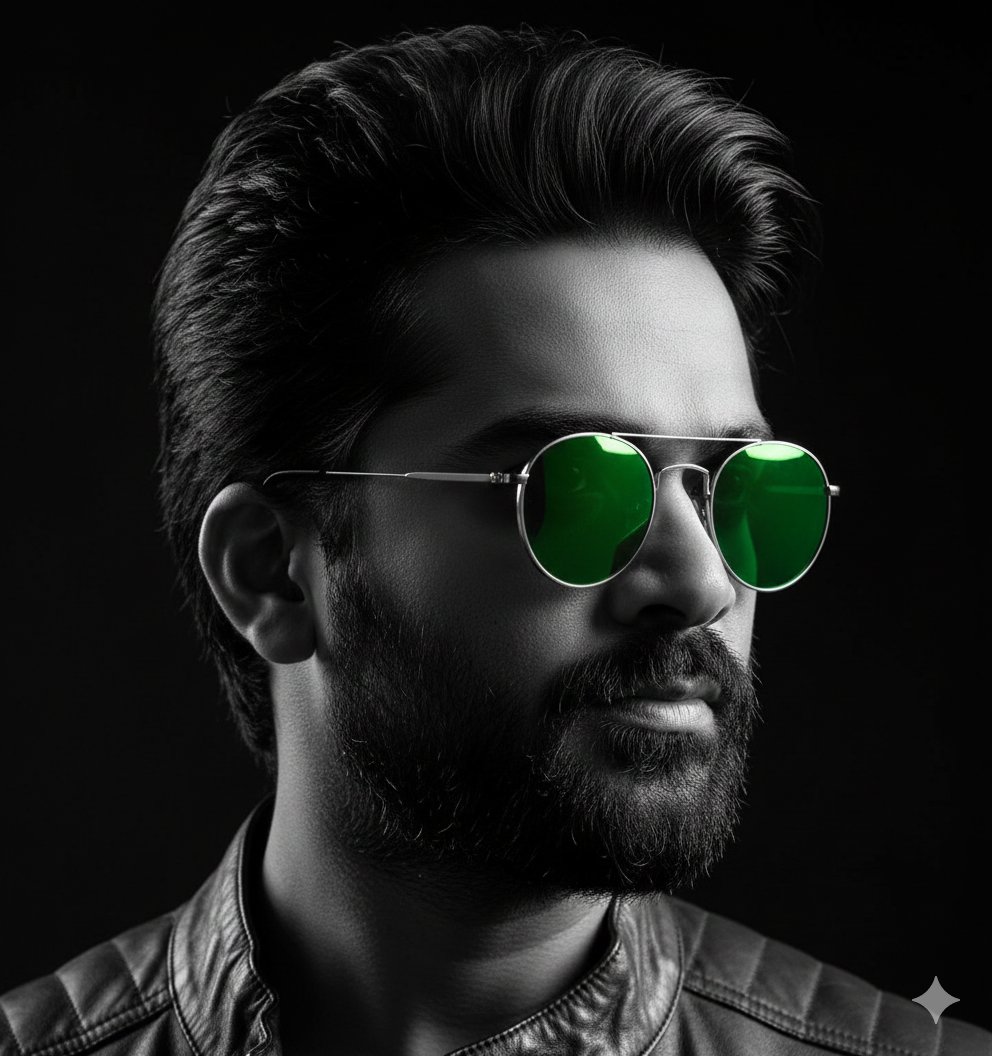
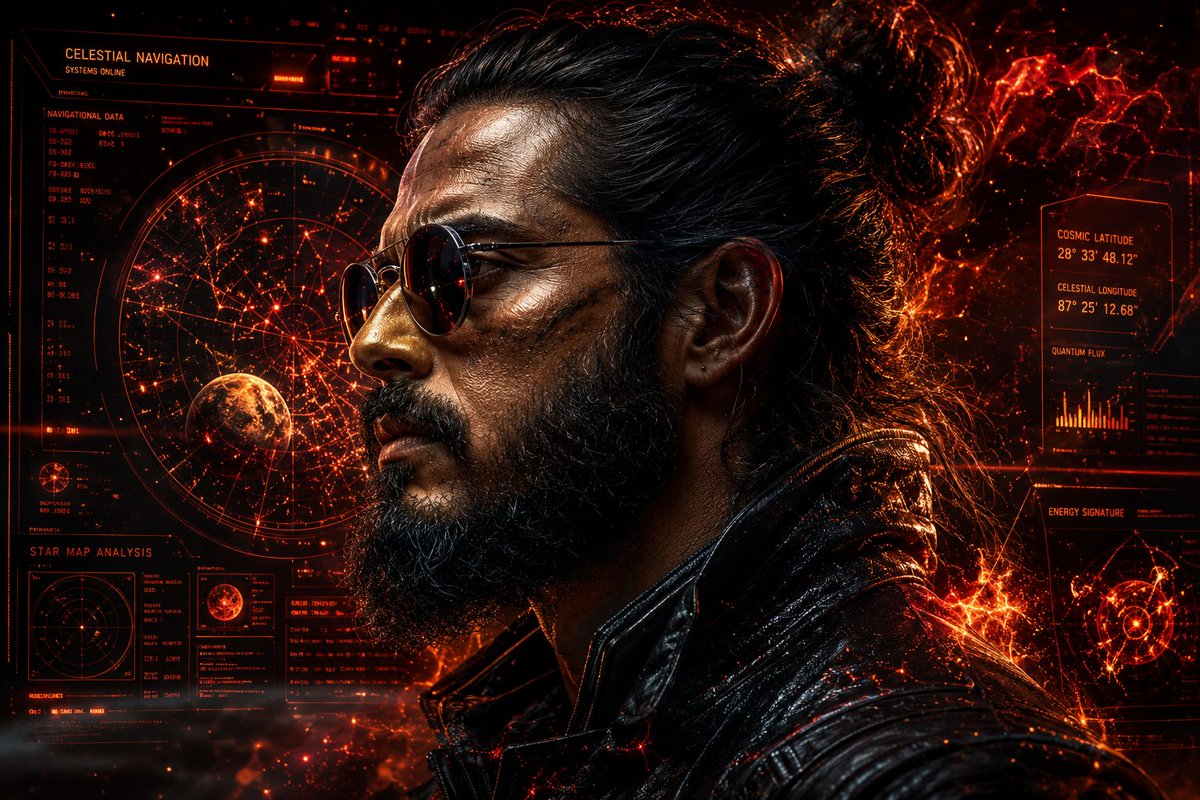
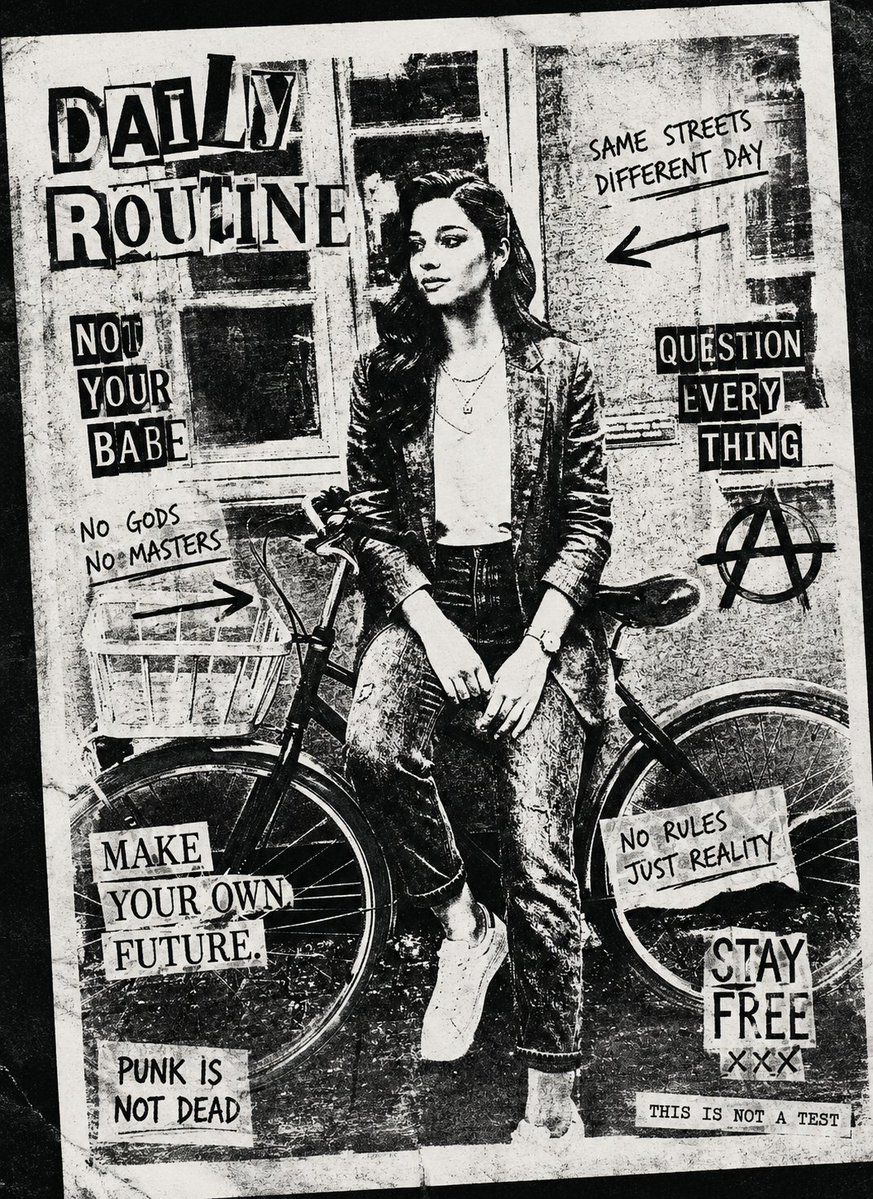
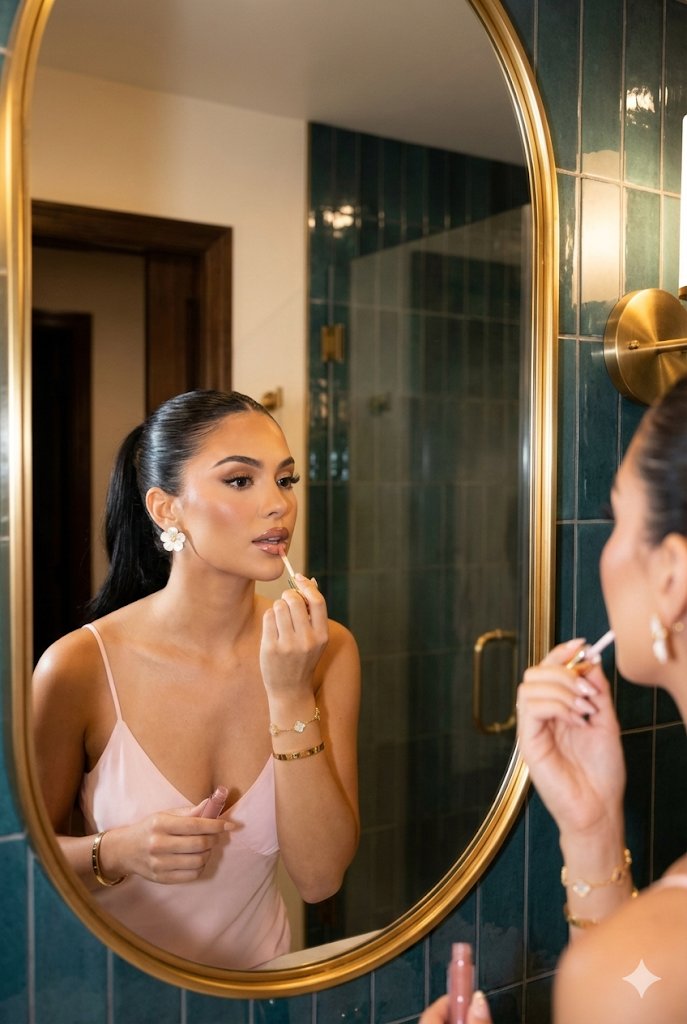
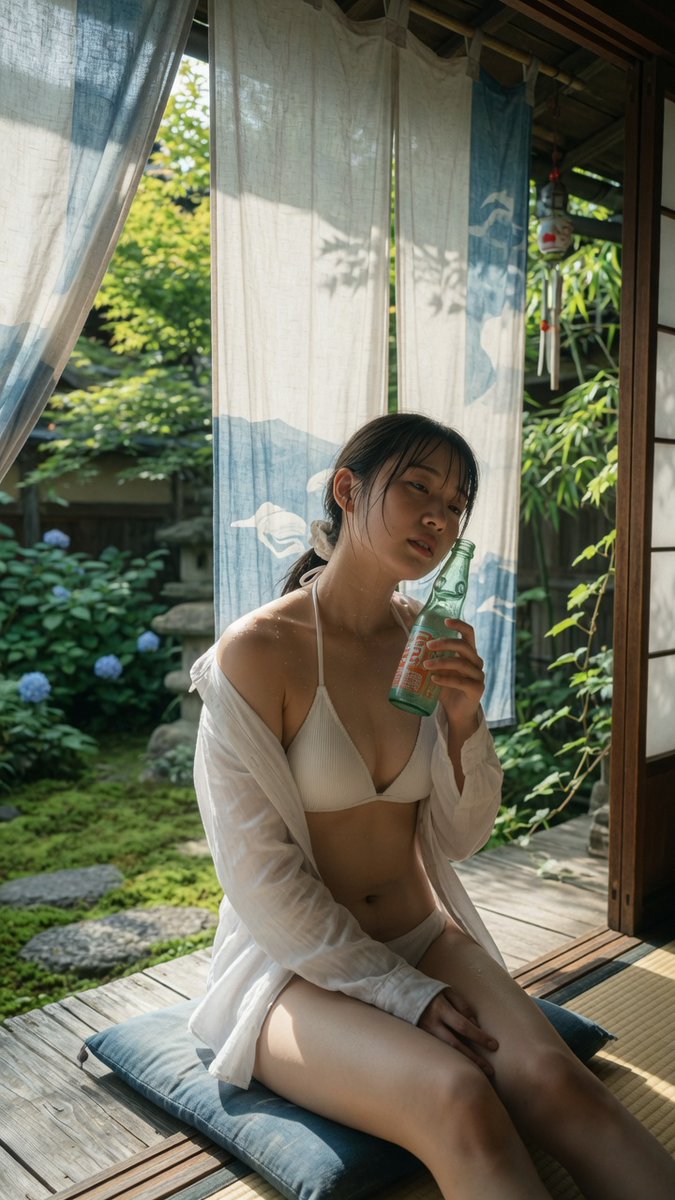
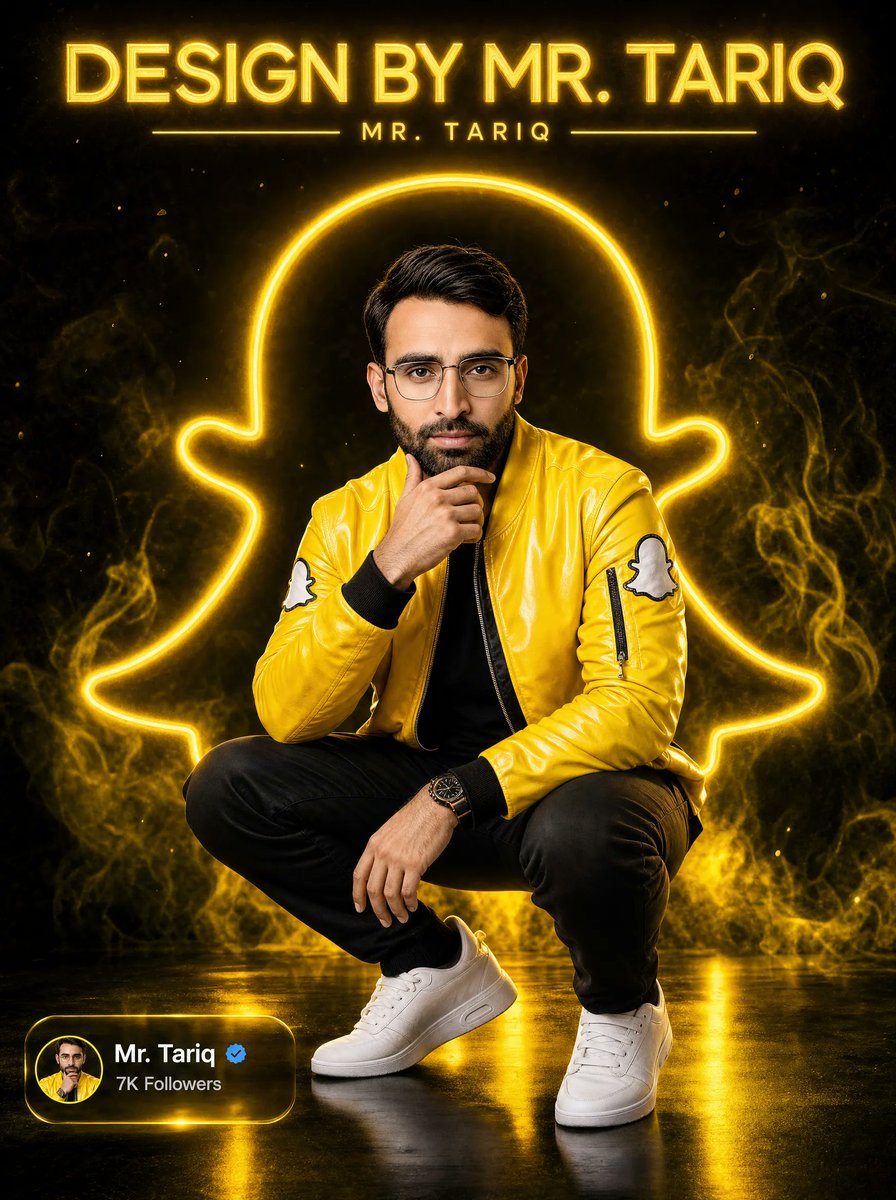
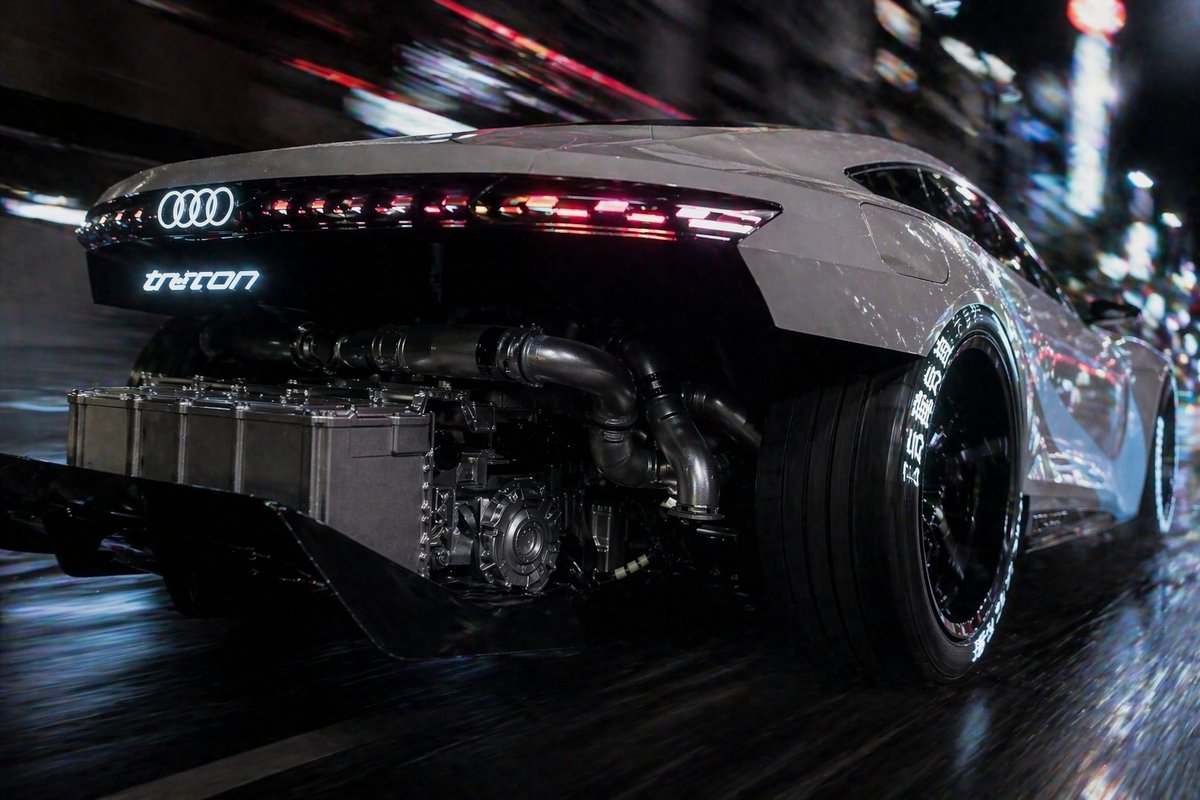
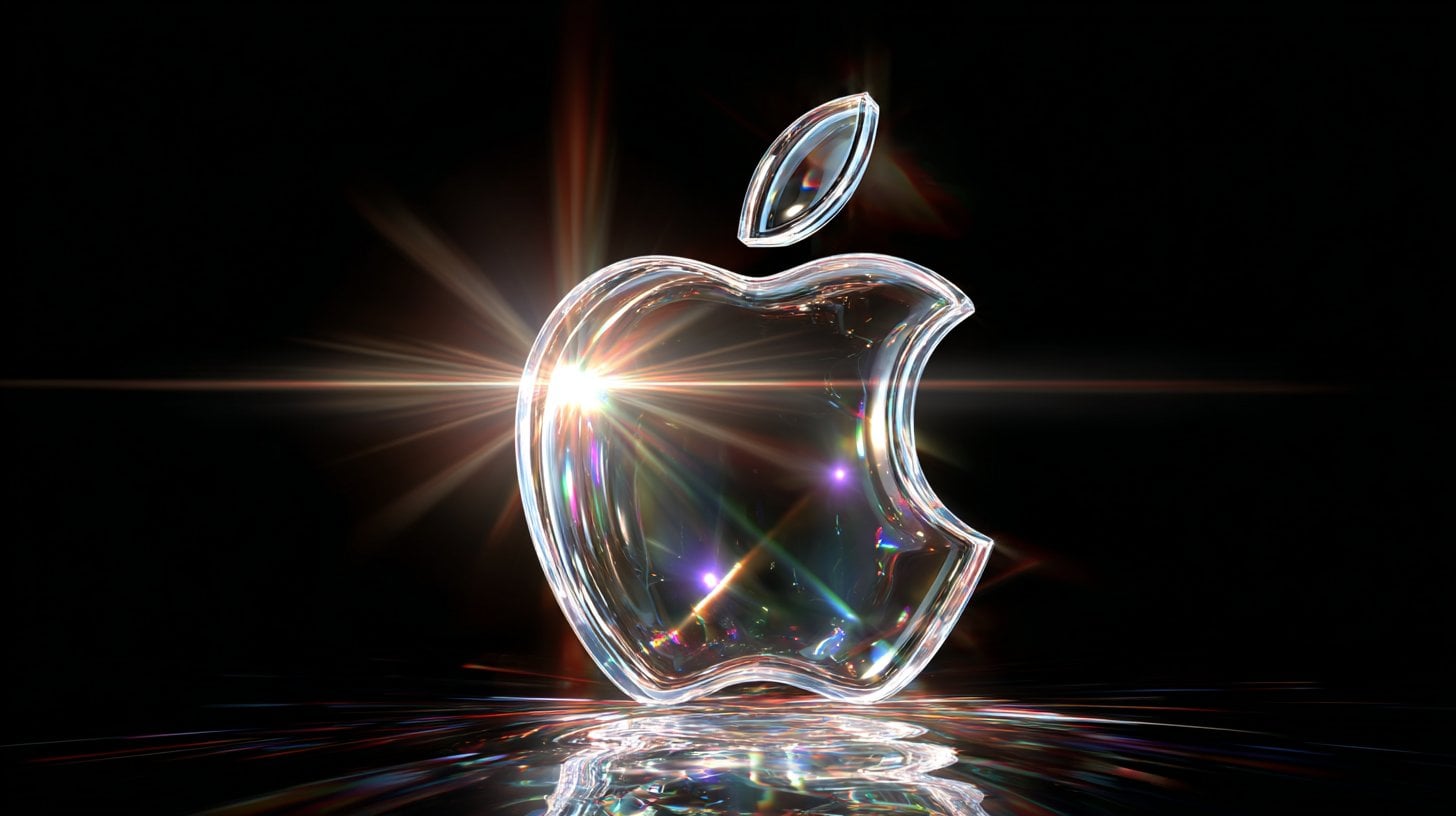
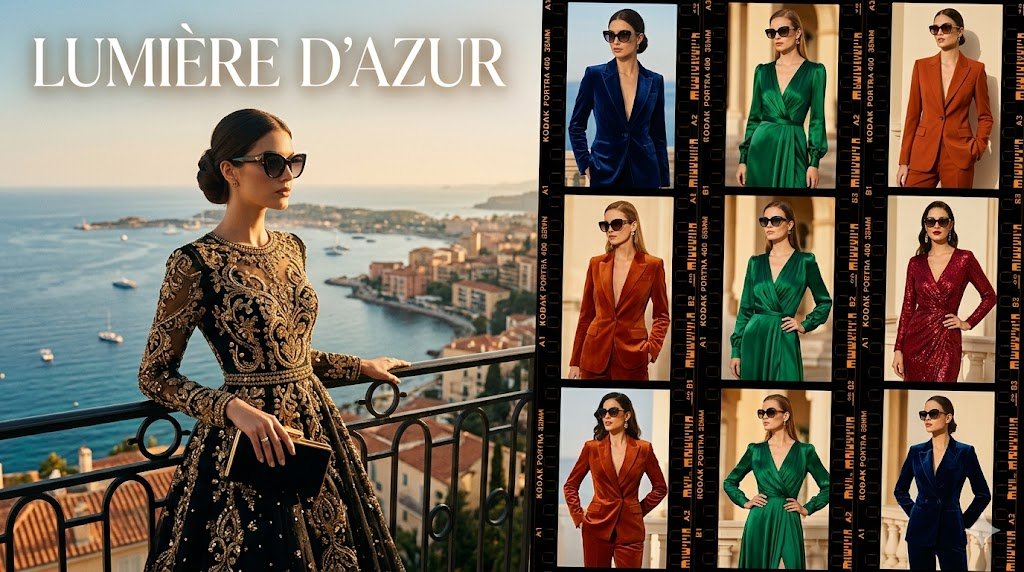
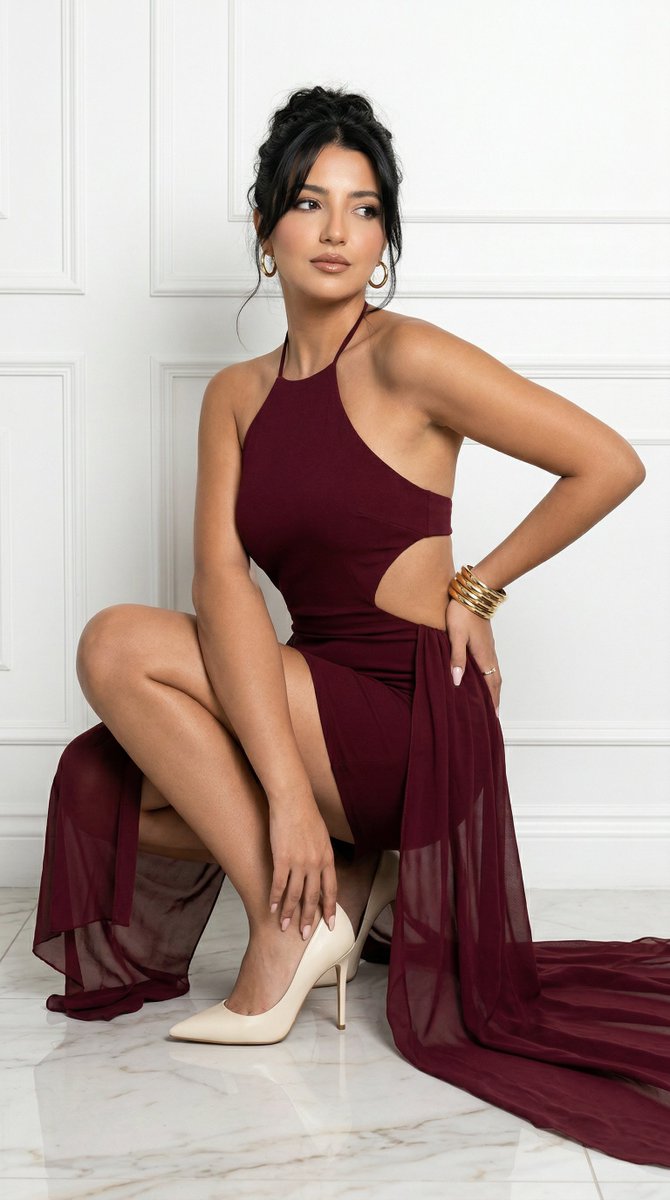
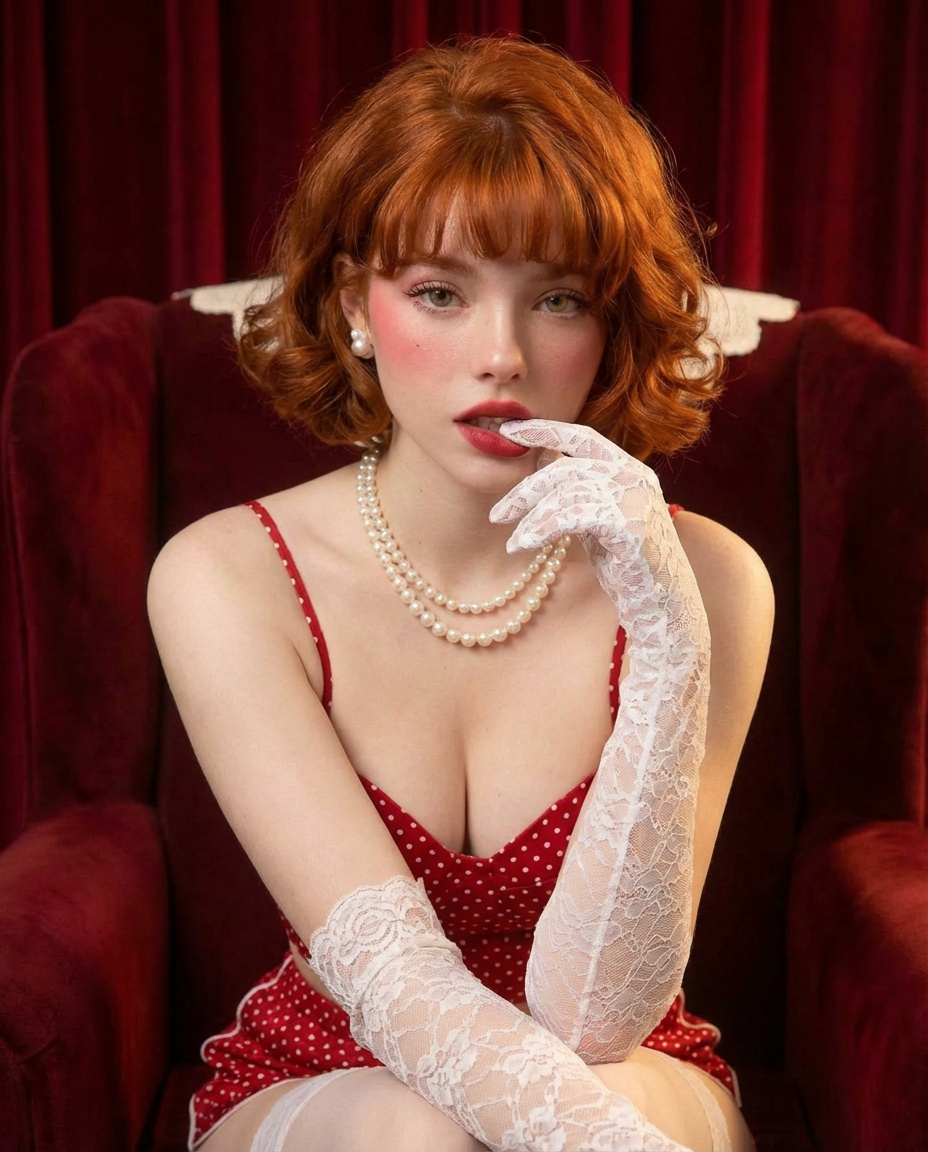
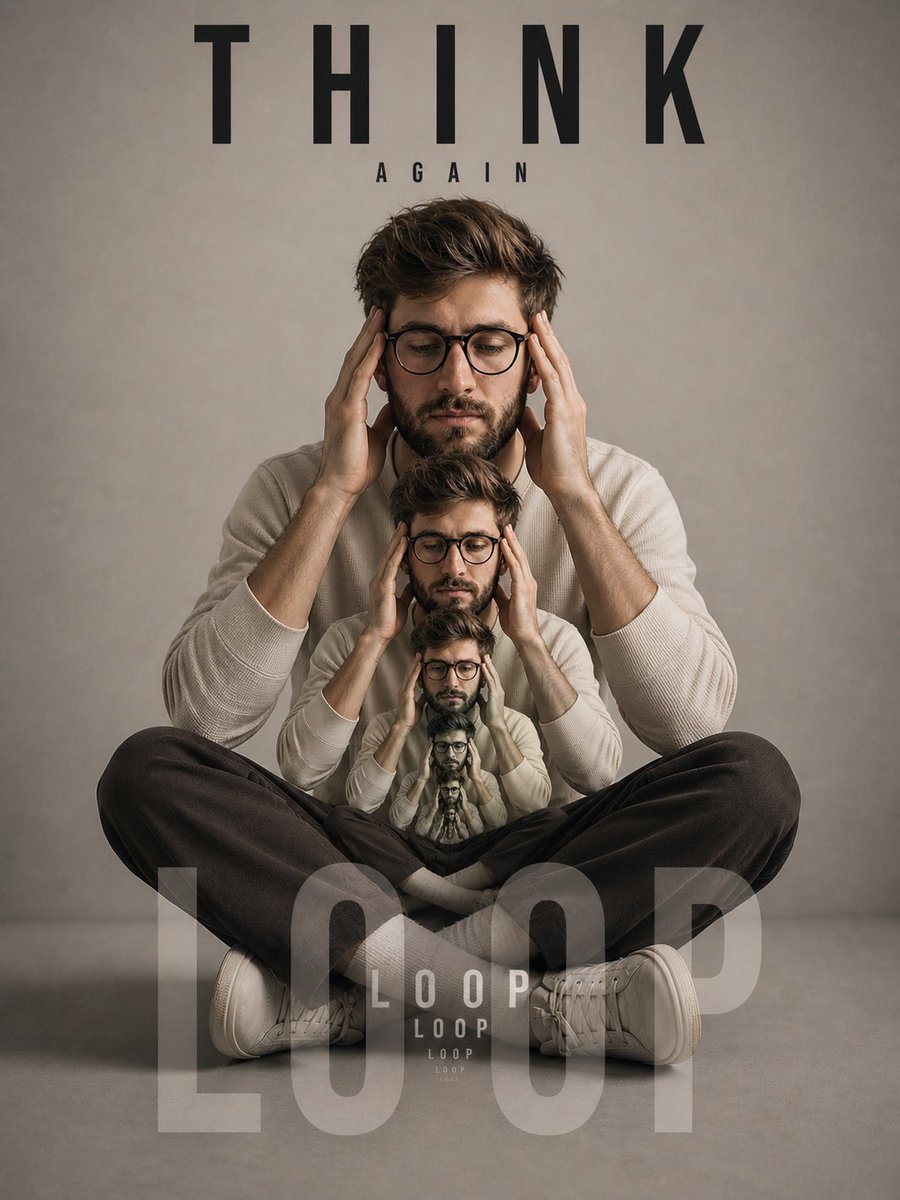
A utility prompt for GPT Image Gen that allows users to combine the artistic styles of two reference images to create a new character in a custom scene.
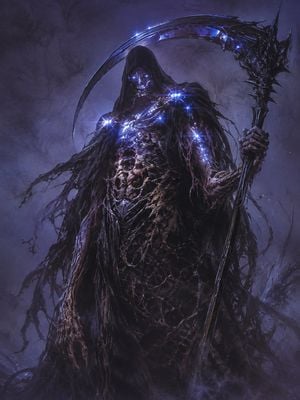
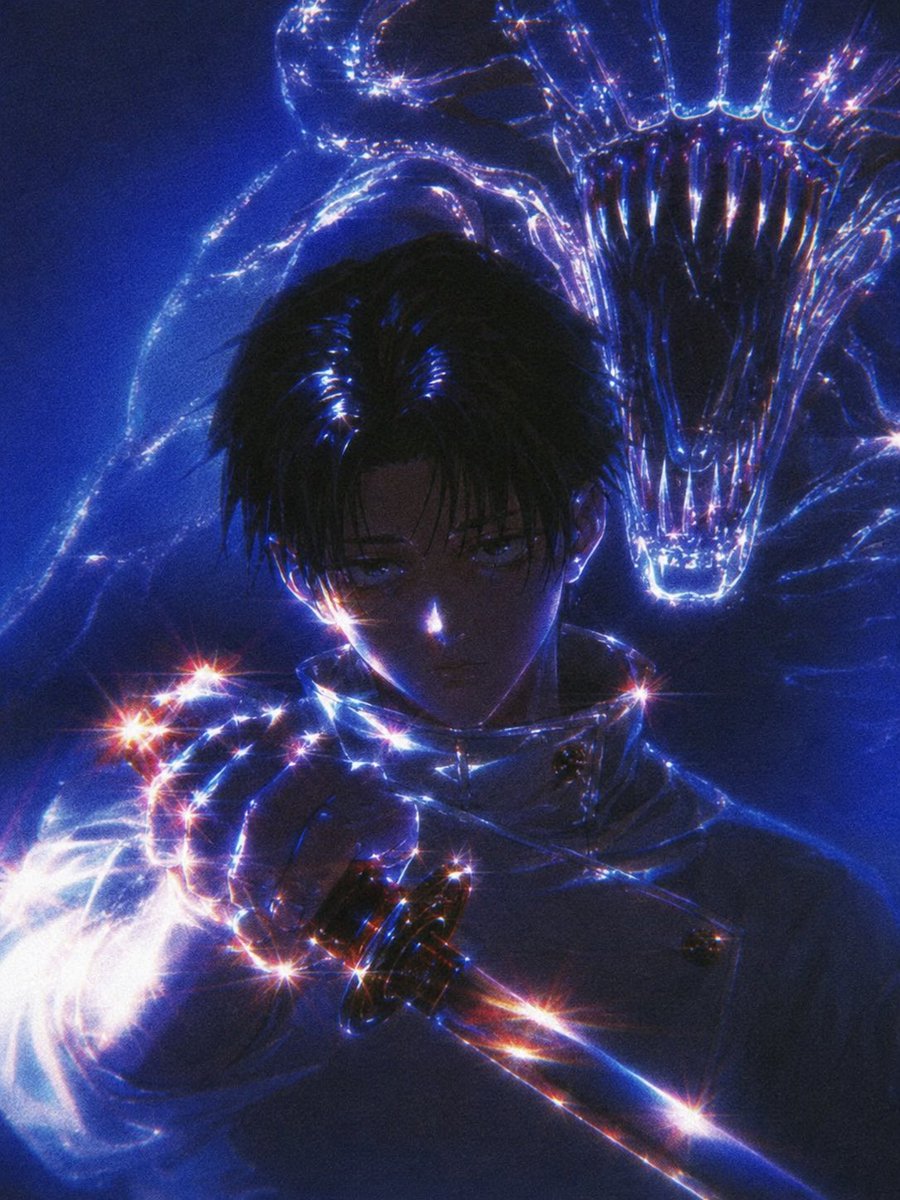
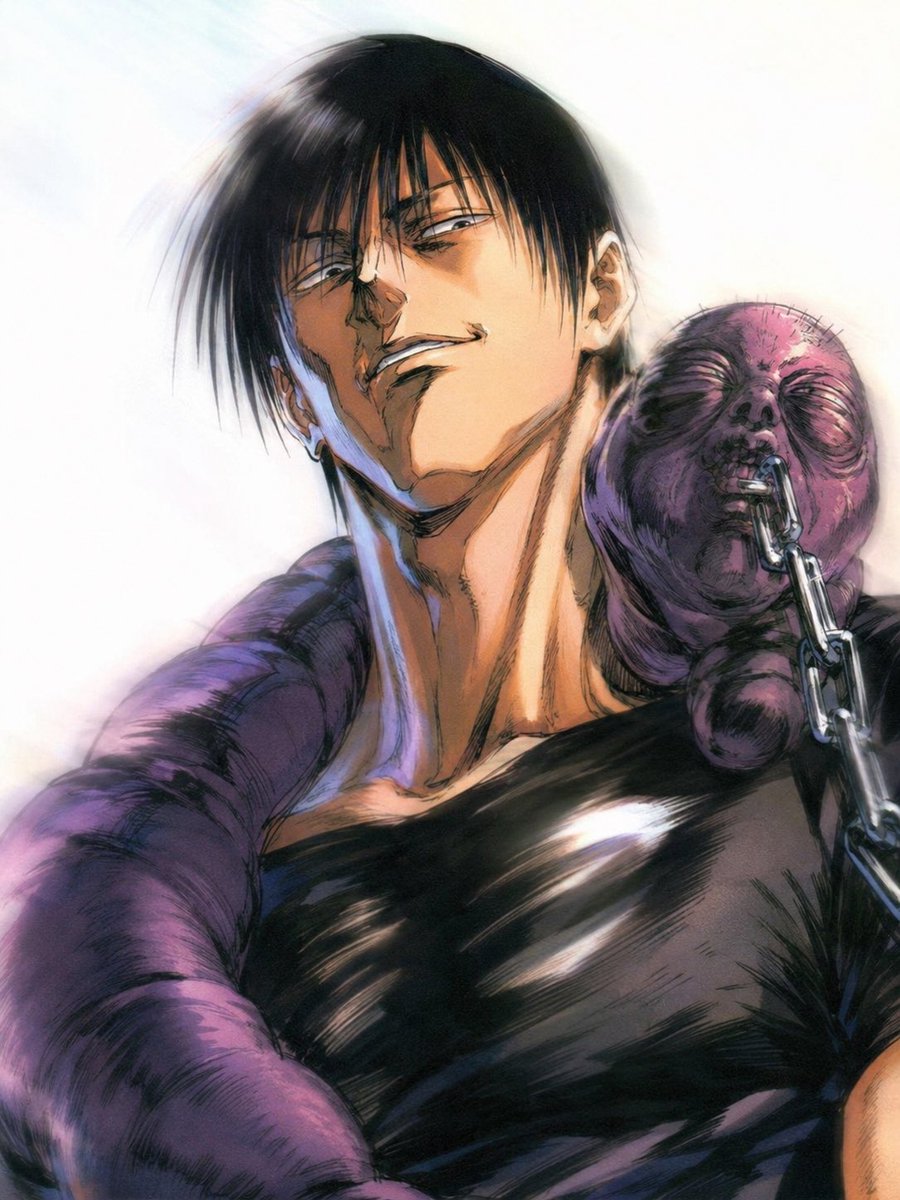
Use this art style from these 2 images to create a character from {argument name="scene" default="[insert scene]"} (no characters from the referenced images should be used)
Multi-Image Art Style Fusion needs input media to work. Open it in the studio and these load alongside the prompt — pick whichever ones your chosen model can take.
Choose the primary action to open PicX Studio with the available template settings. Review the model and format, personalize the creative direction, and generate when ready.
Yes. You can change the subject, setting, lighting, mood, format, and available model controls before creating your image.
This template is free to open and customize. Generation usage is shown in PicX Studio before you create.
Start with GPT Image 2, which is the model associated with this template. You can compare another compatible model for a different finish.
Follow a topic to a crawlable collection of related PicX Studio templates.