
Chinese Warrior Transparent Asset Chat
A dark chat-interface mockup showing a transparent-background Chinese warrior sword-dance asset with glowing blade effects.
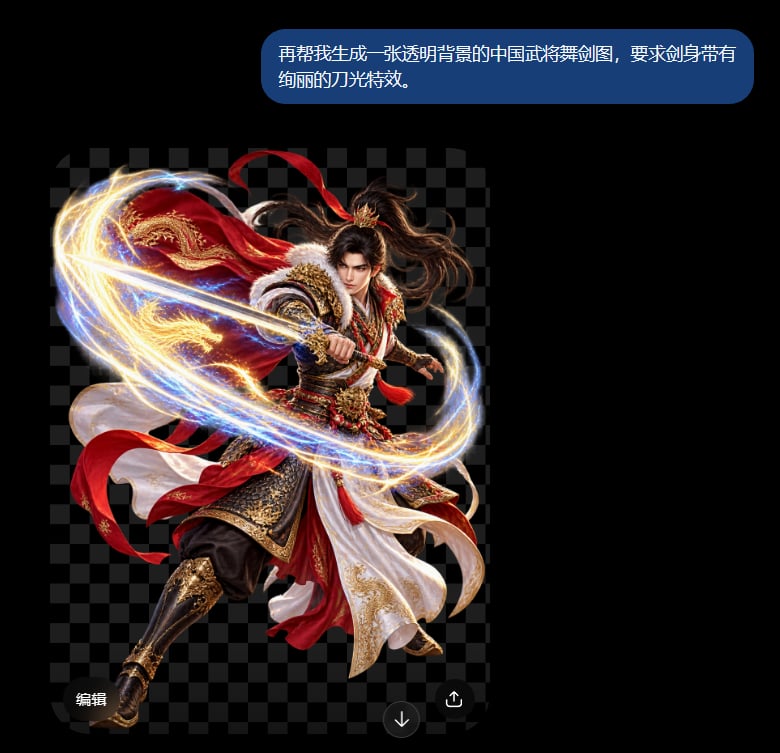
- Prompt included
- Model and format preset
- Free template
The prompt behind this image
Copy the exact prompt behind Chinese Warrior Transparent Asset Chat, or open it in the studio and make it yours.
Create a dark-mode chat screenshot featuring a generated transparent-background asset preview. Canvas: square 768×768 with a pure black app background. At the upper right, place one rounded blue chat bubble containing the exact Chinese text {argument name="chat message" default="再帮我生成一张透明背景的中国武将舞剑图,要求剑身带有绚丽的刀光特效。"} in white sans-serif type, split across two lines, with generous padding and pill-shaped corners. Below it, show a large image-preview panel with a dark gray checkerboard transparency grid. Center the panel on a dramatic Chinese warrior sword-dance cutout: a young male ancient Chinese general with long flowing black hair, intense expression, ornate red, white, black, and gold armor and robes, red ribbons and cape sweeping through the air, embroidered gold details, fur-trimmed shoulder armor, and one extended leg in a dynamic midair lunge. He holds a sword angled diagonally forward from left to right, surrounded by vivid glowing blade-light effects: one large elliptical swirl wrapping around the character, composed of golden sparks, blue-white energy trails, and bright motion streaks. Make the warrior look like a high-detail fantasy game character render with sharp metallic and fabric textures, rim lighting, and no visible background except the checkerboard grid. Add exactly three small UI controls over the bottom of the preview: a rounded dark label at bottom left reading 「编辑」, a circular dark download icon button near the lower center-right, and a circular dark share/upload icon button at the bottom right. Visual style: realistic cinematic fantasy character art inside a modern mobile chat interface, high contrast, polished GPT-style image generation result. Constraints: keep the checkerboard transparency pattern visible behind the character, do not add extra messages, watermarks, or additional UI panels.
How to use Chinese Warrior Transparent Asset Chat in 3 steps
- 1Upload ImagePNG, JPG or paste
Add your photo
Upload the photo the template builds on. The prompt, model and format are already set.
- 2…a portrait of your subject in softgolden-hour light, 85mm…
Personalize
Edit the subject and creative details for your destination.
- 3Generate
Generate
Press Generate — your image is created in PicX Studio, so you can compare it with the original and refine one variable at a time.
More like this
Templates with the same subject, style or setup. Open one to see its prompt.
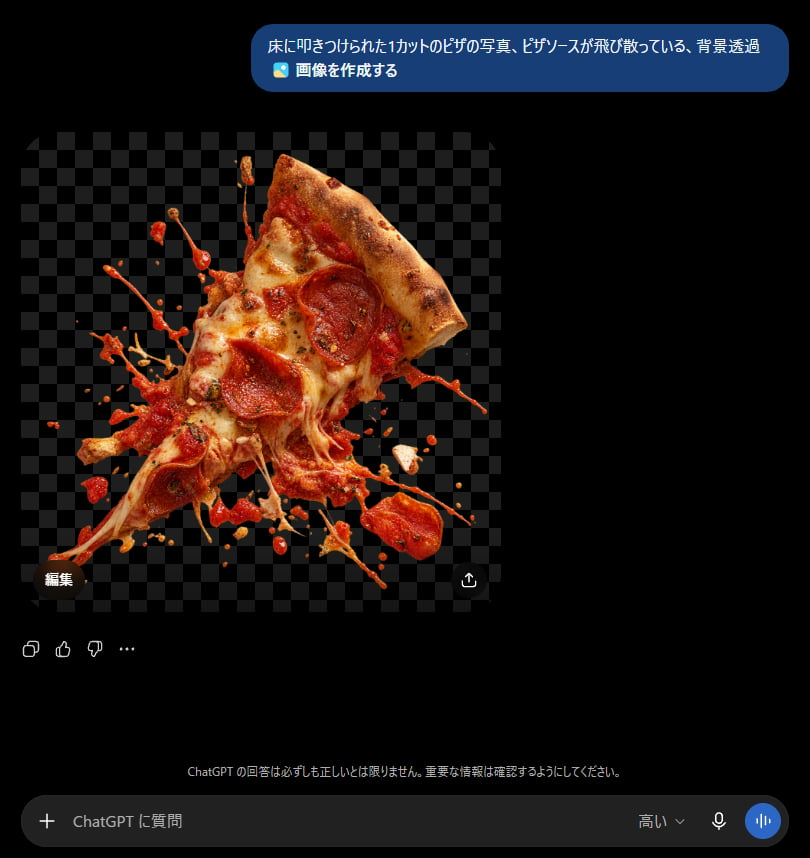
ChatGPT Transparent Pizza Result
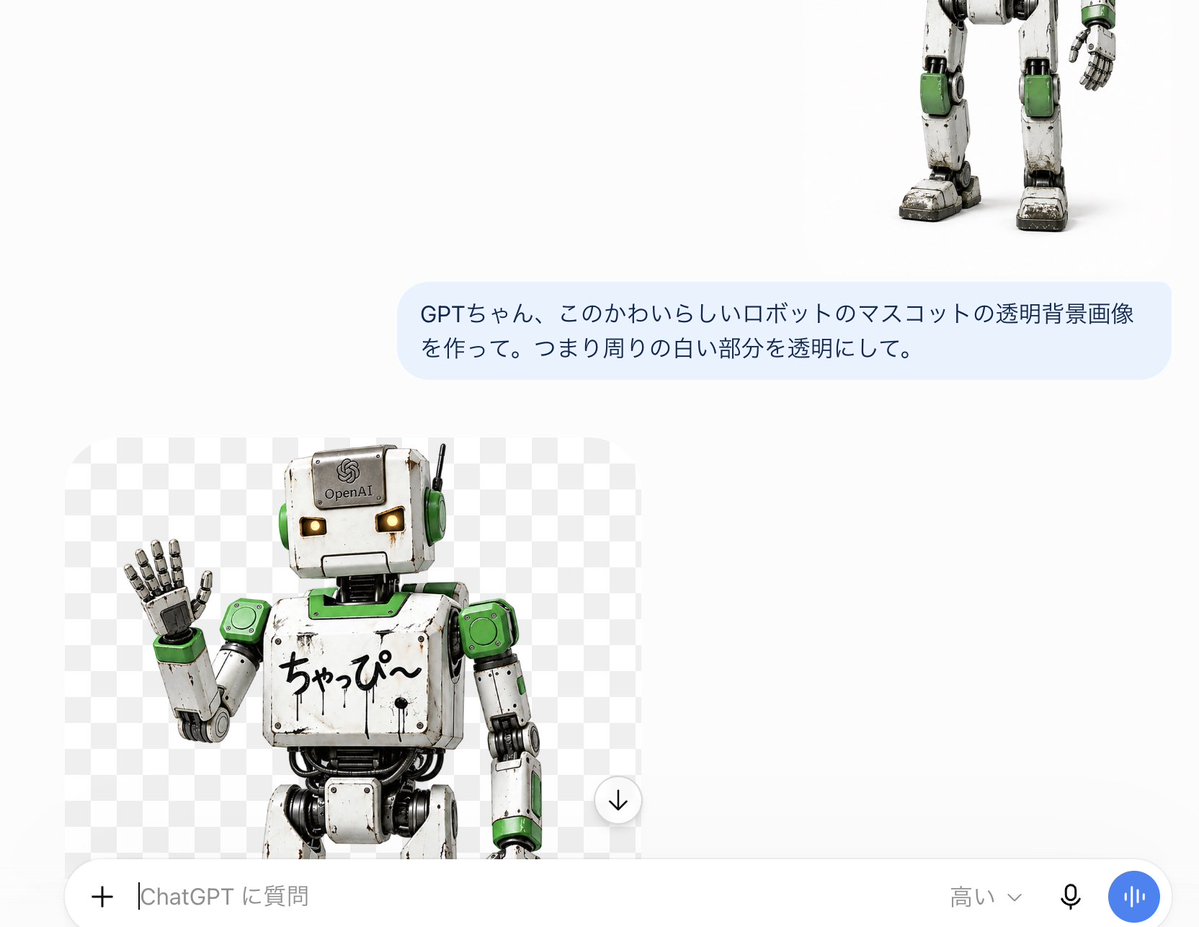
ChatGPT Transparent Robot UI Screenshot
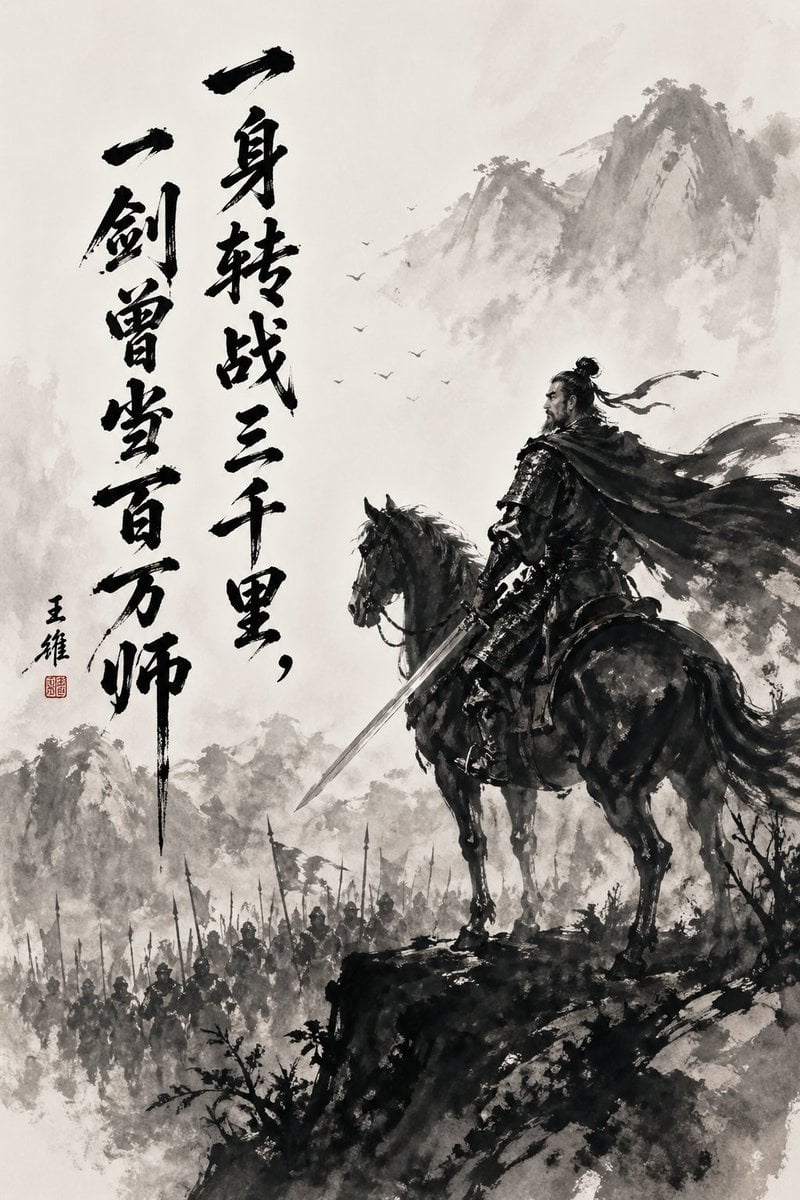
Chinese Ink Warrior on Horseback
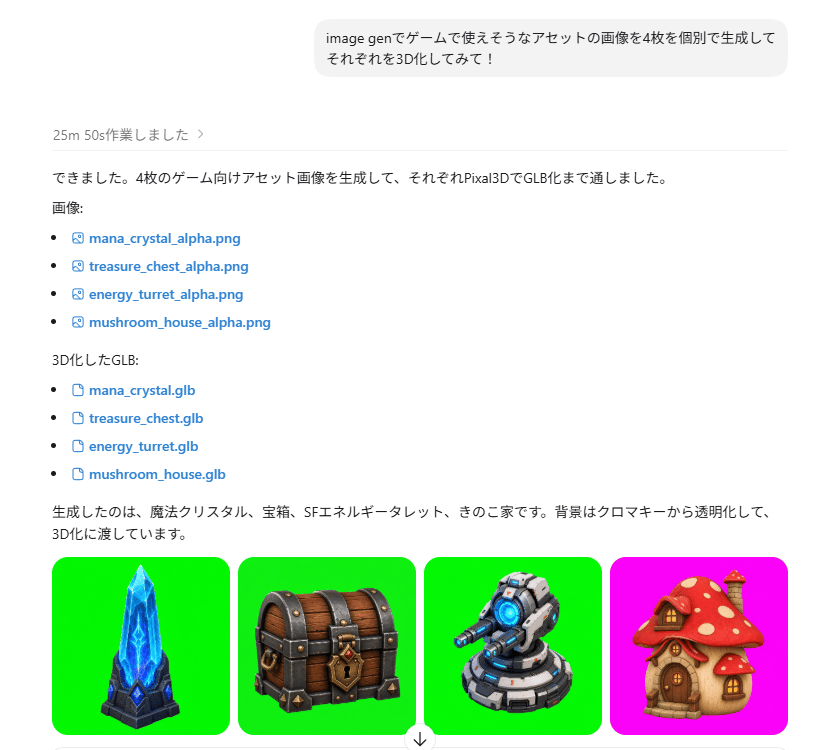
ChatGPT Game Asset Generation Screenshot
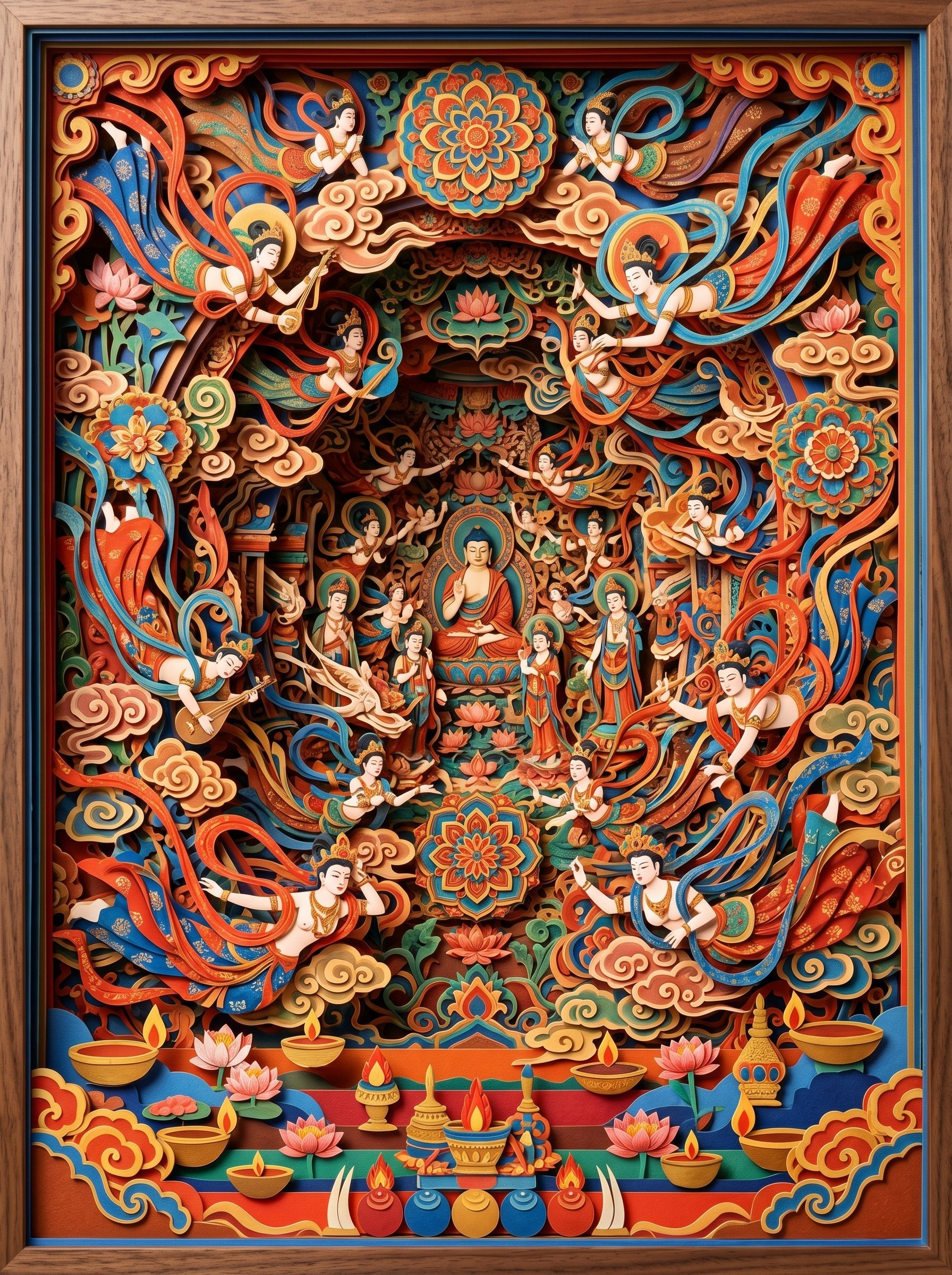
敦煌纸雕飞天 — 3D Layered Paper Cutout
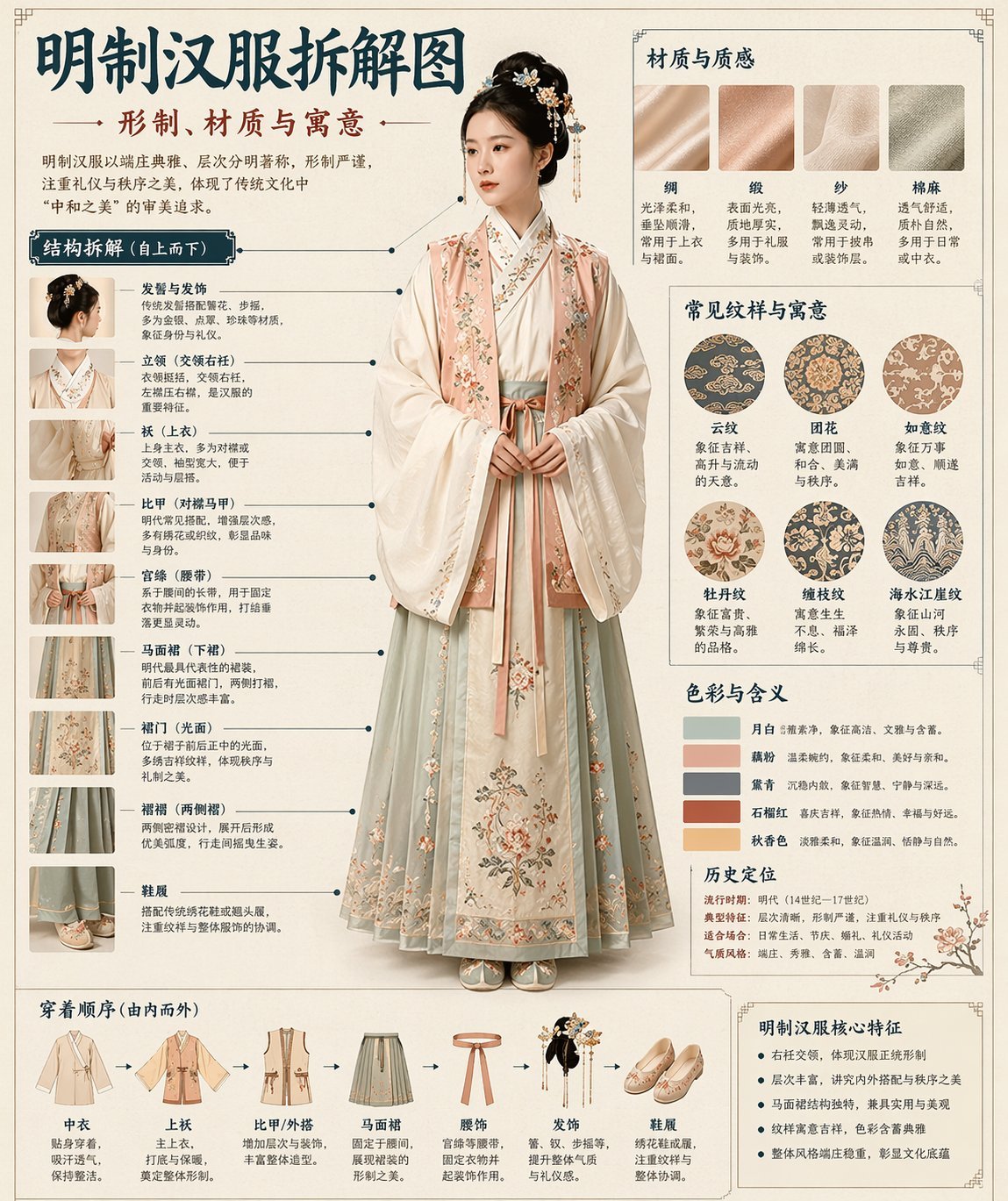
博物馆图鉴式汉服拆解图 — GPT-image-2
Transparent Bear Character Cutout
Glossy Potted Plant Asset
Transparent Earbuds on Stone Pedestal
Transparent Jellyfish Princess
Transparent Sky Jacket Fashion
Wet Transparent Earbud Macro
Make it yours
Chinese Warrior Transparent Asset Chat works as-is. These are the safest ways to change it without losing the look.
Change one field
Copy a single group, rewrite it, and generate again so you can see what that field is doing.
Keep the frame, change the subject
Hold the composition and light of Chinese Warrior Transparent Asset Chat, then swap wardrobe, props or the person for a new take.
| If the result… | Why | Fix |
|---|---|---|
| The result drifts from the preview | Too many fields changed at once. | Reuse Chinese Warrior Transparent Asset Chat as-is first, then change one group — subject, light, or setting. |
| The model over-stylizes the scene | The prose prompt leaves finish and camera underspecified. | Add one camera or lighting sentence and stay on GPT Image 2. |
More GPT Image 2 templates
Other prompts made for GPT Image 2.

Six VTuber Japanese Logo Sheet

Realistic Portrait of Woman and Deer

The Vista Modular Condo Poster

AI Model Routing Comparison Infographic

2.5D Anime Art Board

Isometric Productivity Desk Scene

New York Double Exposure Poster

Four-Panel AI Landscape Comparison

Japanese Tatami Lifestyle Magazine Cover

NESCAFÉ Coffee Map Poster
More image prompts
Fresh picks from across the catalog.
Outfit Style Edit: Santa-Inspired Dress
Nostalgic Film Photo of Boy by Coca-Cola Vending Machine
Fisheye Snow Streetwear Portrait
Kawaii Mochi 3D Toy Character
Translucent Airy Japanese Idol Photoshoot
Transparent Gummy Character Encapsulation
FIFA World Cup Poster Design
Futuristic Sportswear Fashion in Crystal Palace
19th Century Paris in Chinese Ink Style
Luxury Perfume Advertisement in Desert Setting
Browse template categories
Chinese Warrior Transparent Asset Chat questions
How do I use the Chinese Warrior Transparent Asset Chat template?
Add your photo if the template asks for one, edit the prompt if you like — the template's model and format are already selected — and press Generate. Your version opens in PicX Studio.
Can I customize the Chinese Warrior Transparent Asset Chat template?
Yes. You can change the subject, setting, lighting, mood, format, and available model controls before creating your image.
Is the Chinese Warrior Transparent Asset Chat template free?
Opening and editing this template is free. Generating uses credits, shown on the Generate button when you are signed in.
Which AI model should I use?
Start with GPT Image 2, which is the model associated with this template. You can compare another compatible model for a different finish.
Looking for something else? Browse all templates.

Your photo, any look
Thousands of ready templates for every top image and video model, from one credit balance.