
ChatGPT Transparent Robot UI Screenshot
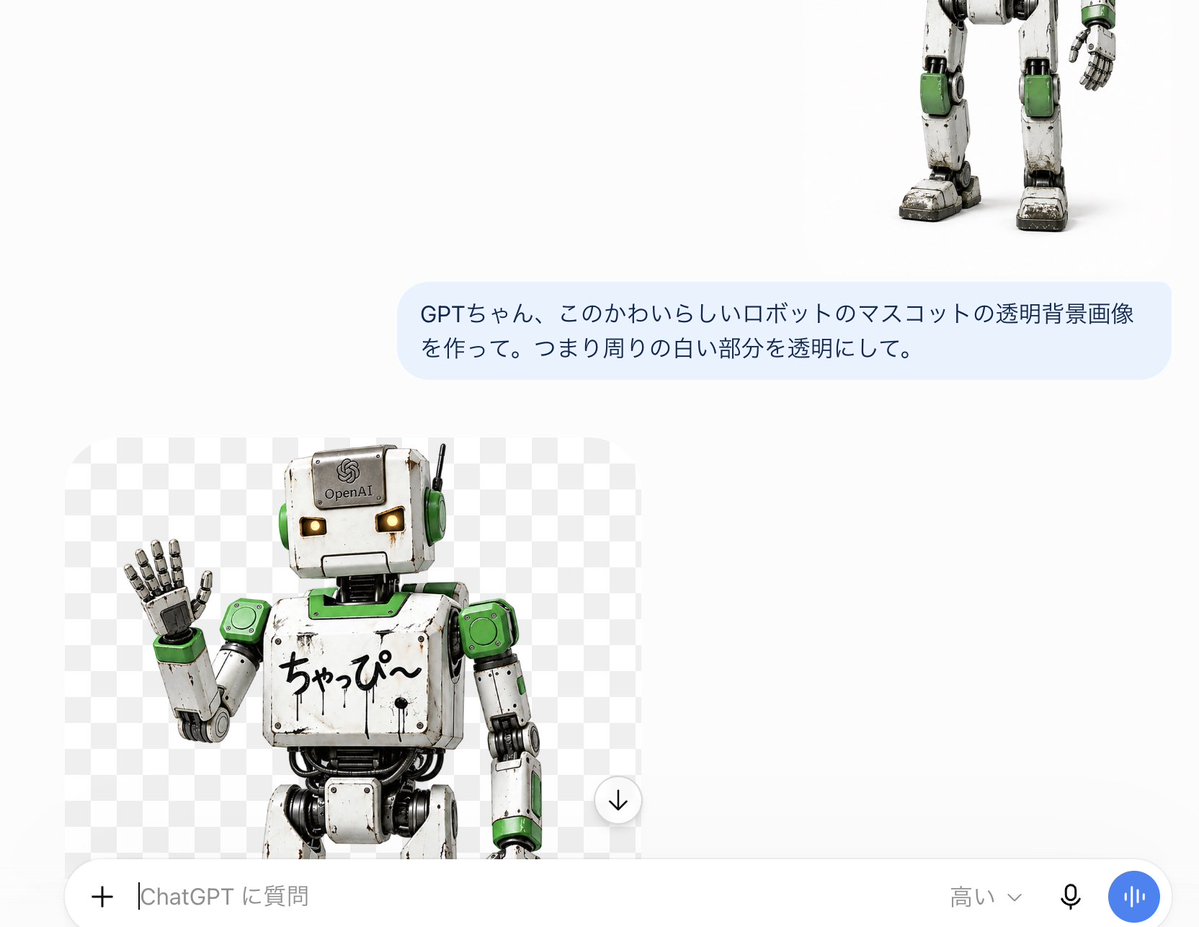
Generates a clean mobile ChatGPT screenshot showing a cute robot mascot image with a transparent checkerboard background preview.
- Prompt included
- Model and format preset
- Free template
The prompt behind this image
Copy the exact prompt behind ChatGPT Transparent Robot UI Screenshot, or open it in the studio and make it yours.
Goal: Create a realistic screenshot-style image of a ChatGPT mobile conversation demonstrating transparent-background image generation for a cute robot mascot. Canvas: Landscape 16:9 mobile screenshot composition, white app background, clean minimal UI, high-resolution, with lots of empty white space in the upper left and center. Layout: Show exactly 4 main visible UI/content elements: 1 partially cropped robot image at the top right, 1 pale blue user message bubble in the upper middle-right, 1 generated image preview card in the lower left, and 1 rounded chat input bar along the bottom. Top content: Place the lower half of a cute weathered humanoid robot mascot cropped at the top-right edge, showing only legs, part of torso, one arm, and feet. The robot is white metal with green accent panels, black joints, scuffed grime, chunky feet, and a friendly toy-like industrial design. User message bubble: A rounded pale blue chat bubble centered slightly right, containing Japanese text exactly as: {argument name="user message" default="GPTちゃん、このかわいらしいロボットのマスコットの透明背景画像を作って。つまり周りの白い部分を透明にして。"}. Use dark gray Japanese sans-serif text, two lines, with generous padding. Generated image preview: In the lower-left area, create one large rounded rectangle preview card with a gray-and-white checkerboard transparency pattern. Inside it, show exactly 1 robot mascot from the waist up, matching the top robot: white scratched metal body, green shoulder and ear-like side panels, black mechanical joints, square head, glowing warm yellow rectangular eyes, small antenna on the right side of the head, and an OpenAI logo plate on the forehead. The robot is waving with its left hand raised. On its chest, include handwritten Japanese text exactly: {argument name="chest text" default="ちゃっぴ〜"}. Crop the robot slightly at the bottom of the preview card. Add exactly 1 small circular download button with a downward arrow at the lower-right corner of the preview card. Bottom input bar: Add one large rounded white input field spanning the bottom width with subtle gray border/shadow. Include exactly 5 visible controls/text items inside it: a plus icon on the far left, placeholder text exactly {argument name="input placeholder" default="ChatGPT に質問"}, a model label exactly {argument name="model label" default="高い⌄"} near the right, a small black microphone icon, and a blue circular voice waveform button at the far right. Visual style: Photorealistic 3D robot render combined with a clean ChatGPT-like mobile app UI screenshot. Use soft shadows, crisp text, rounded corners, neutral white background, and a realistic transparent checkerboard preview. Keep all Japanese text legible and preserve the UI spacing. No extra messages, no watermark, no browser chrome, no additional icons beyond the specified elements.
How to use ChatGPT Transparent Robot UI Screenshot in 3 steps
- 1Upload ImagePNG, JPG or paste
Add your photo
Upload the photo the template builds on. The prompt, model and format are already set.
- 2…a portrait of your subject in softgolden-hour light, 85mm…
Personalize
Edit the subject and creative details for your destination.
- 3Generate
Generate
Press Generate — your image is created in PicX Studio, so you can compare it with the original and refine one variable at a time.
More like this
Templates with the same subject, style or setup. Open one to see its prompt.
ChatGPT Transparent Pizza Result

Minecraft Next-Gen Voxel World Screenshot
ChatGPT Mobile Photo Carousel Screenshot

ChatGPT Bonus Banner Screenshot
Floraverse Botanical Fusion
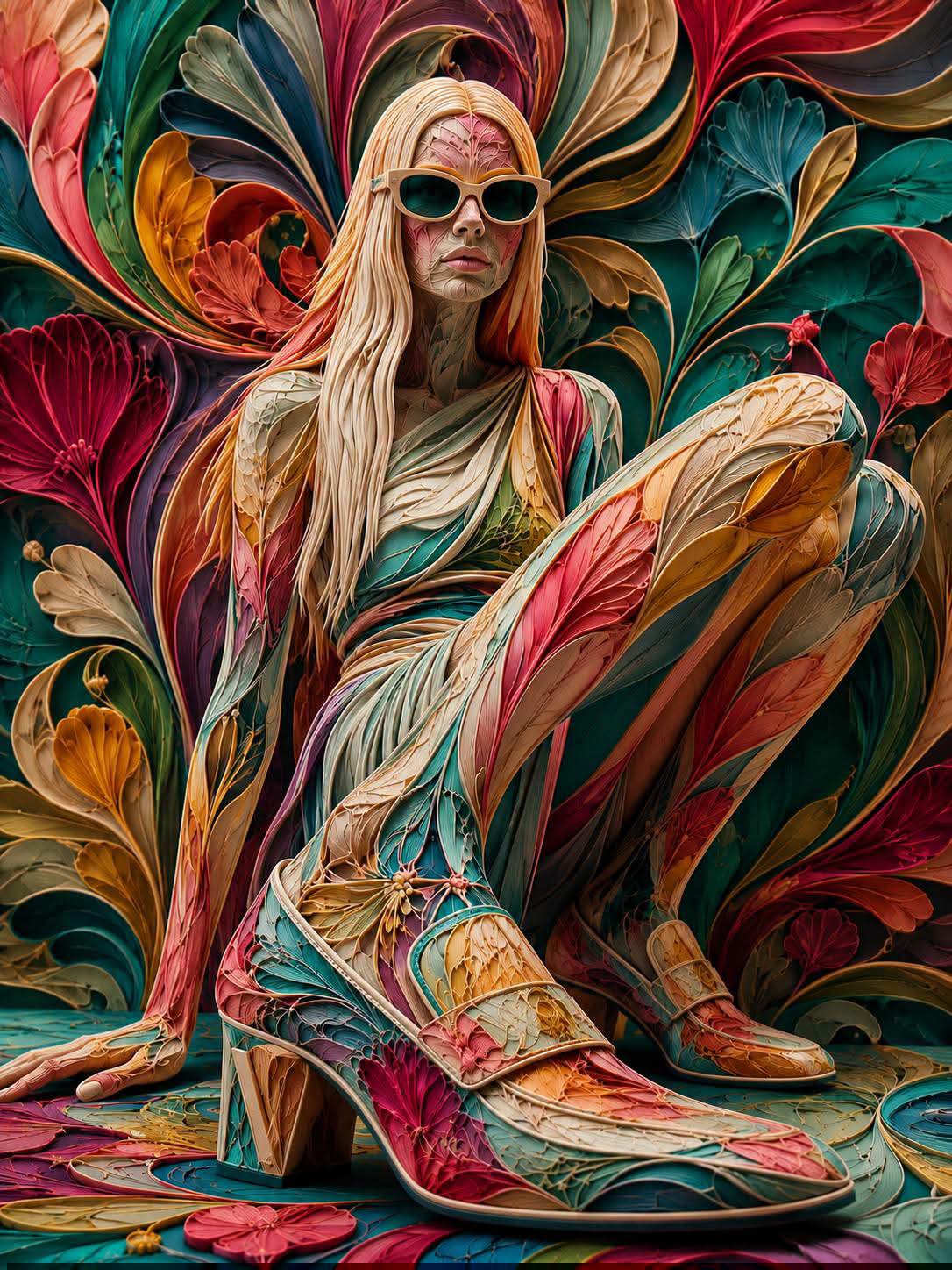
FLORAVERSE BOTANICAL FUSION
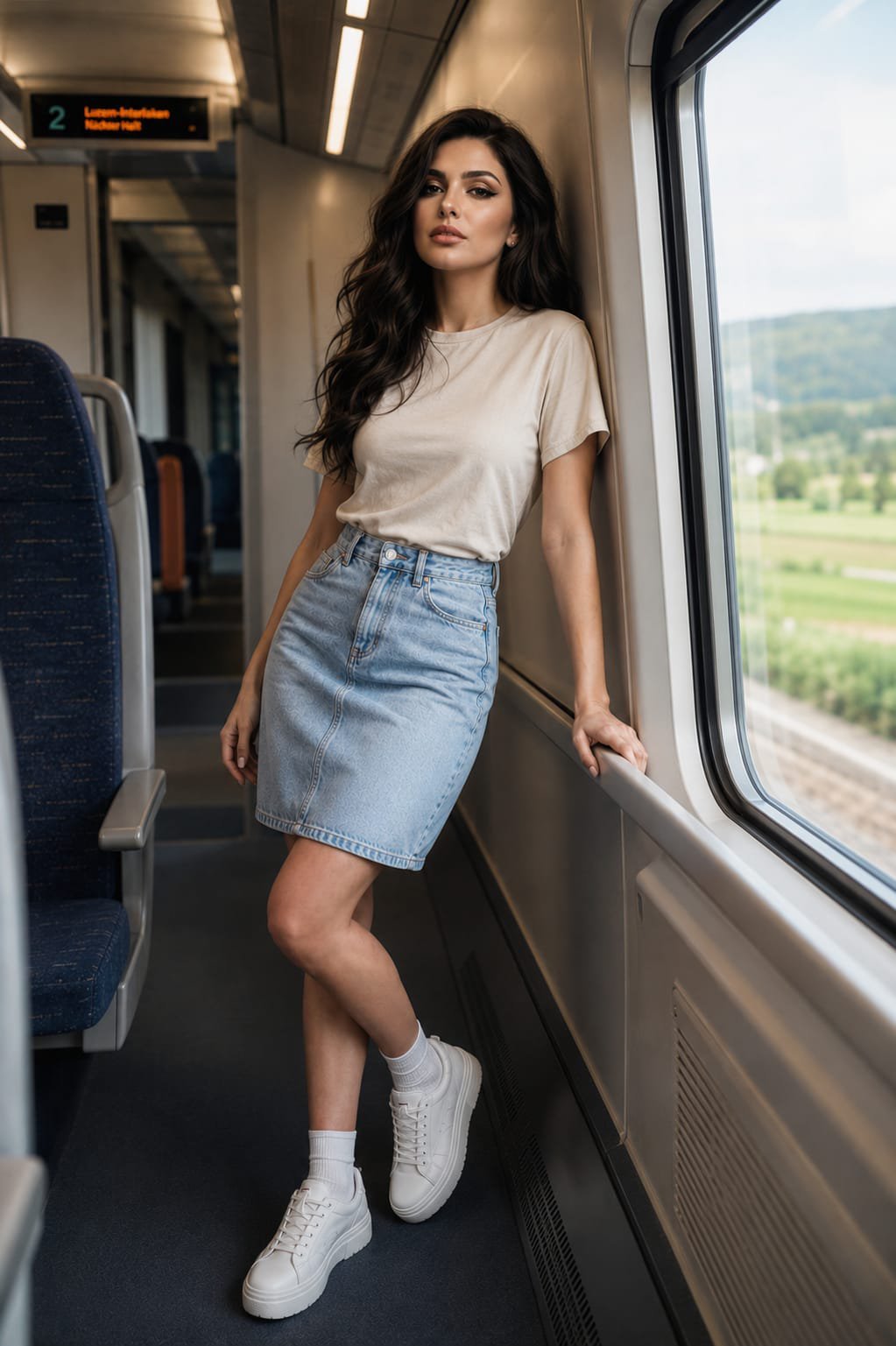
Face-Locked Train Window Lifestyle Portrait
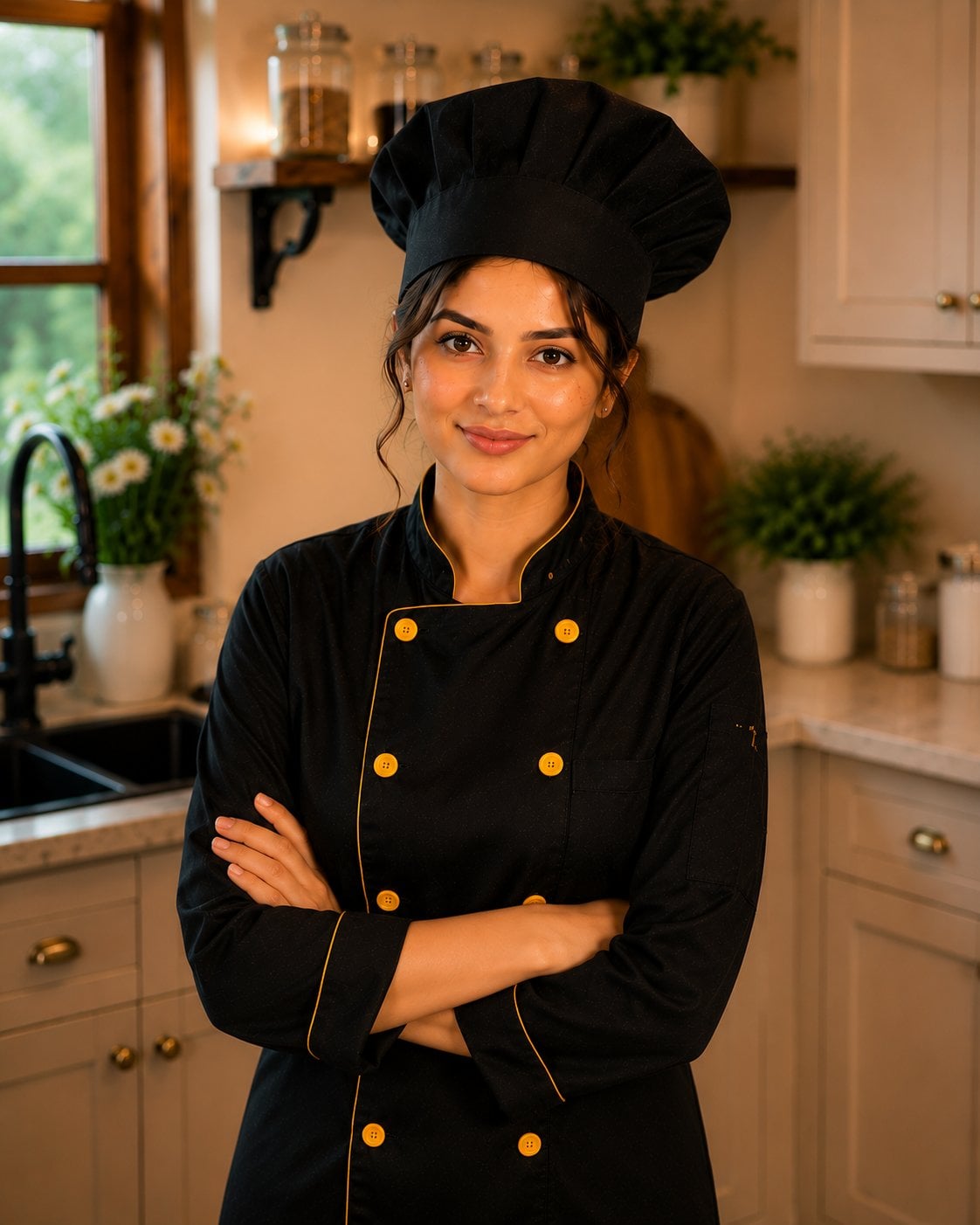
Female Chef Chicken Biryani Luxury Kitchen
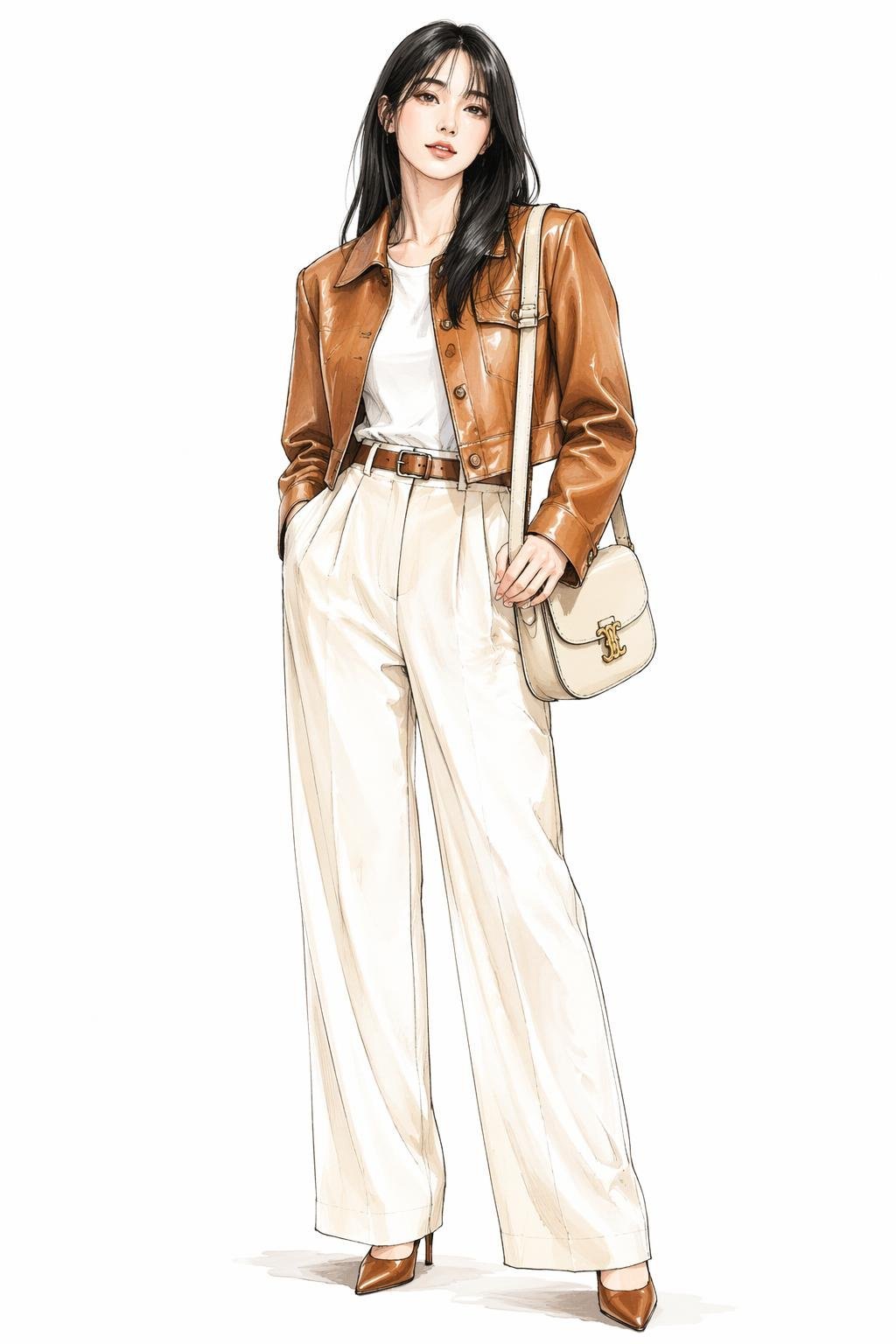
Leather Jacket Cream Trousers Fashion Sketch
Golden Hour Fedora Bar Doorway Street Style
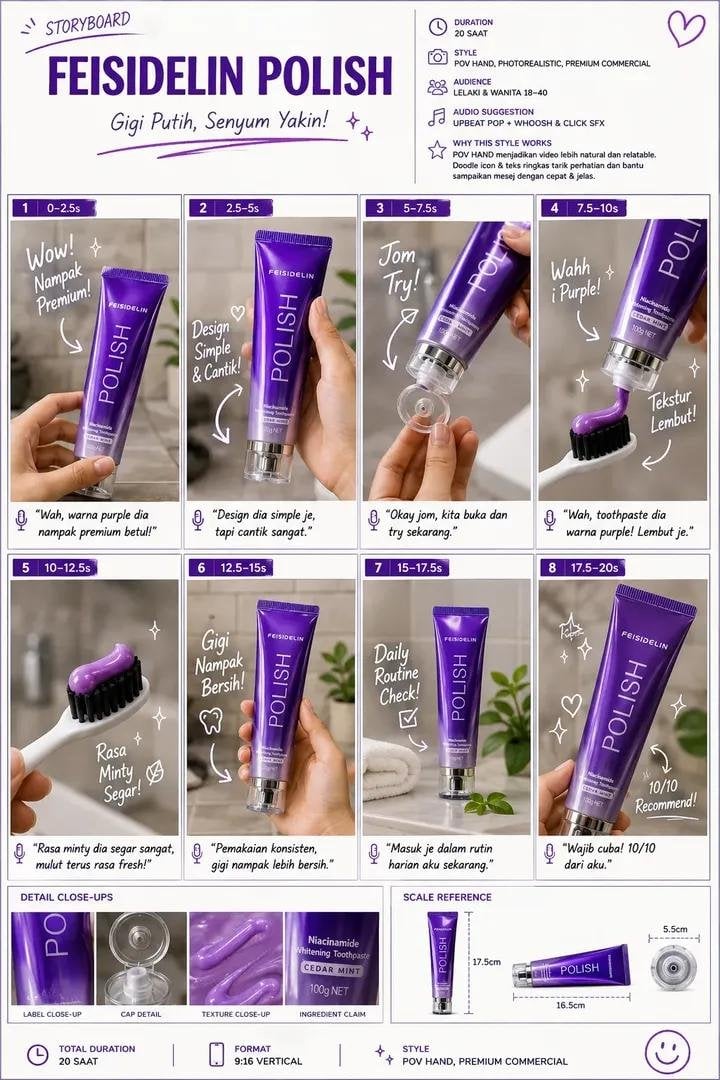
Luxury Toothpaste Commercial Storyboard
Unfinished Sketch Comes Alive Portrait
Make it yours
ChatGPT Transparent Robot UI Screenshot works as-is. These are the safest ways to change it without losing the look.
Change one field
Copy a single group, rewrite it, and generate again so you can see what that field is doing.
Keep the frame, change the subject
Hold the composition and light of ChatGPT Transparent Robot UI Screenshot, then swap wardrobe, props or the person for a new take.
| If the result… | Why | Fix |
|---|---|---|
| The result drifts from the preview | Too many fields changed at once. | Reuse ChatGPT Transparent Robot UI Screenshot as-is first, then change one group — subject, light, or setting. |
| The model over-stylizes the scene | The prose prompt leaves finish and camera underspecified. | Add one camera or lighting sentence and stay on GPT Image 2. |
More GPT Image 2 templates
Other prompts made for GPT Image 2.

Six VTuber Japanese Logo Sheet

Realistic Portrait of Woman and Deer

The Vista Modular Condo Poster

AI Model Routing Comparison Infographic

2.5D Anime Art Board

Isometric Productivity Desk Scene

New York Double Exposure Poster

Four-Panel AI Landscape Comparison

Japanese Tatami Lifestyle Magazine Cover

NESCAFÉ Coffee Map Poster
More image prompts
Fresh picks from across the catalog.
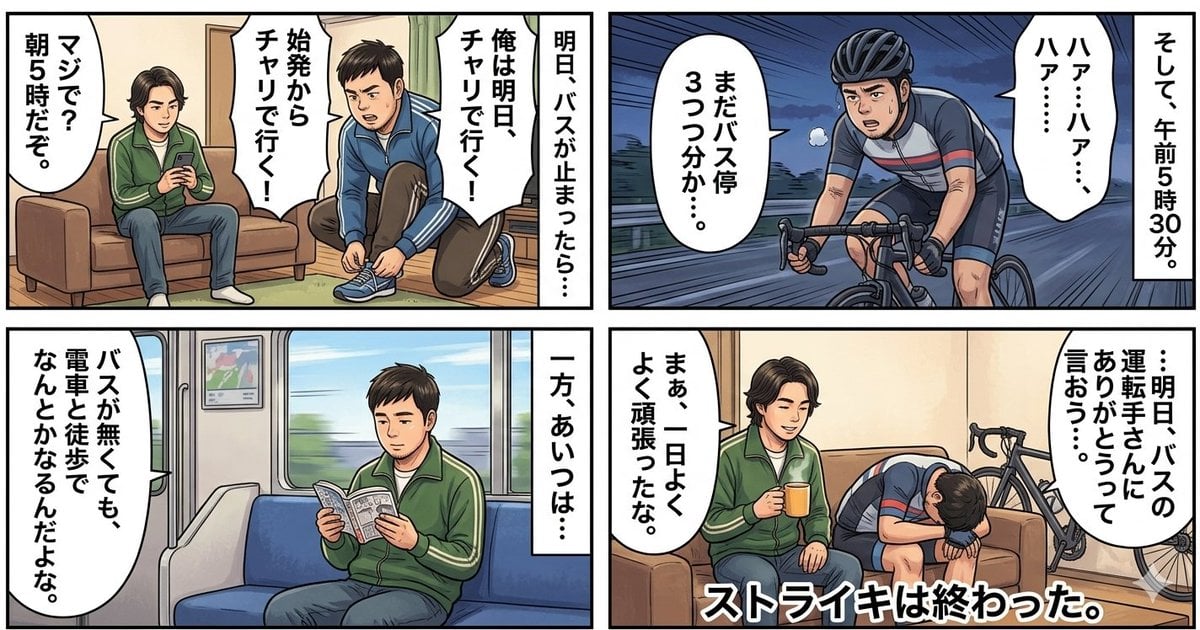
Four-Panel Manga Generation: If the Bus Stops Tomorrow
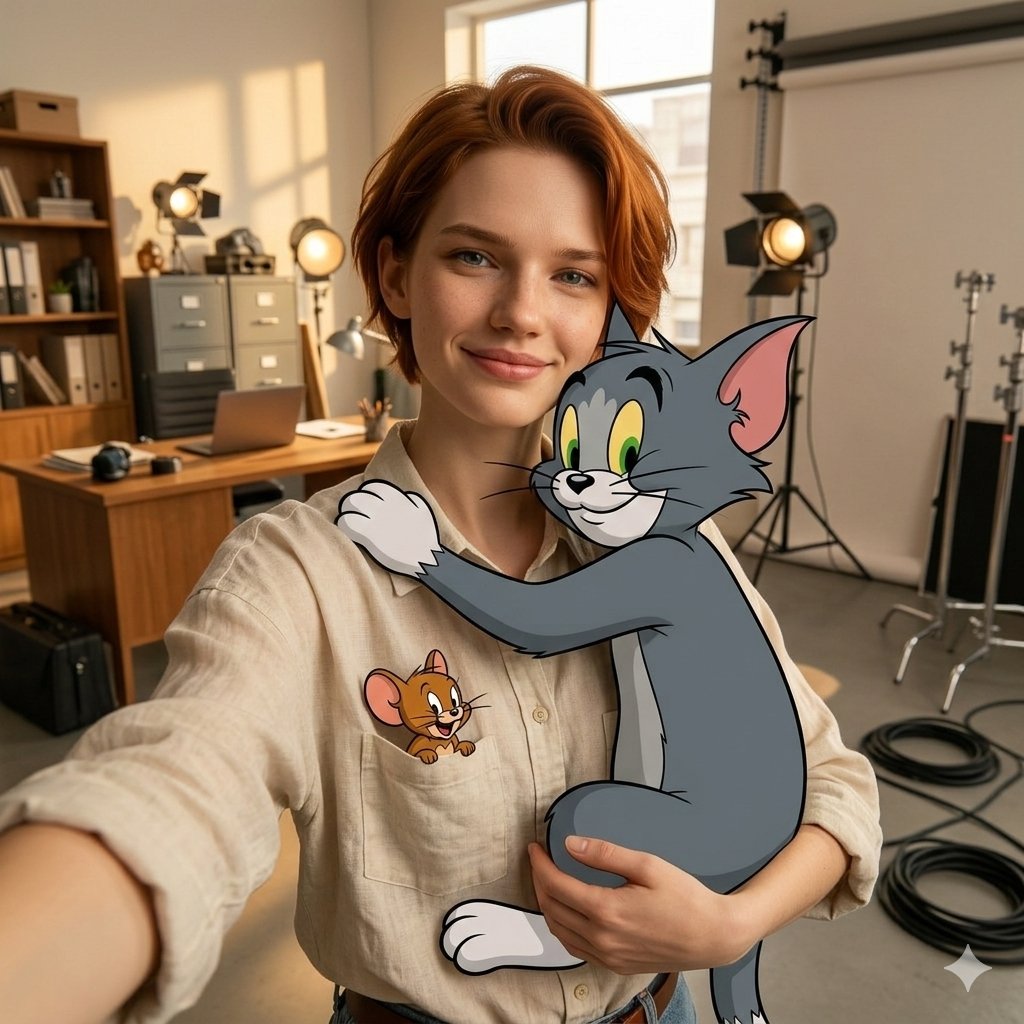
First-Person Selfie Hugging Stylized Tom and Jerry
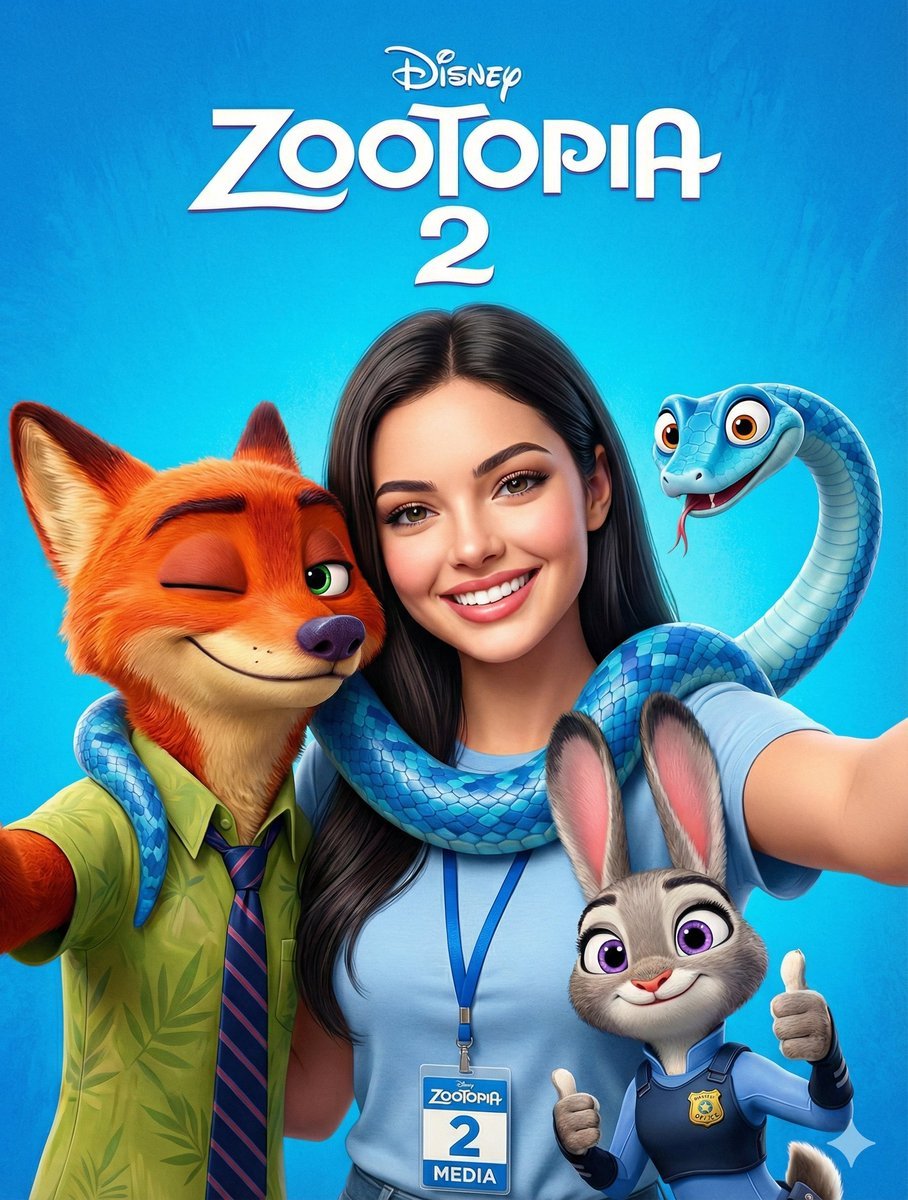
Zootopia 2 Promotional Selfie
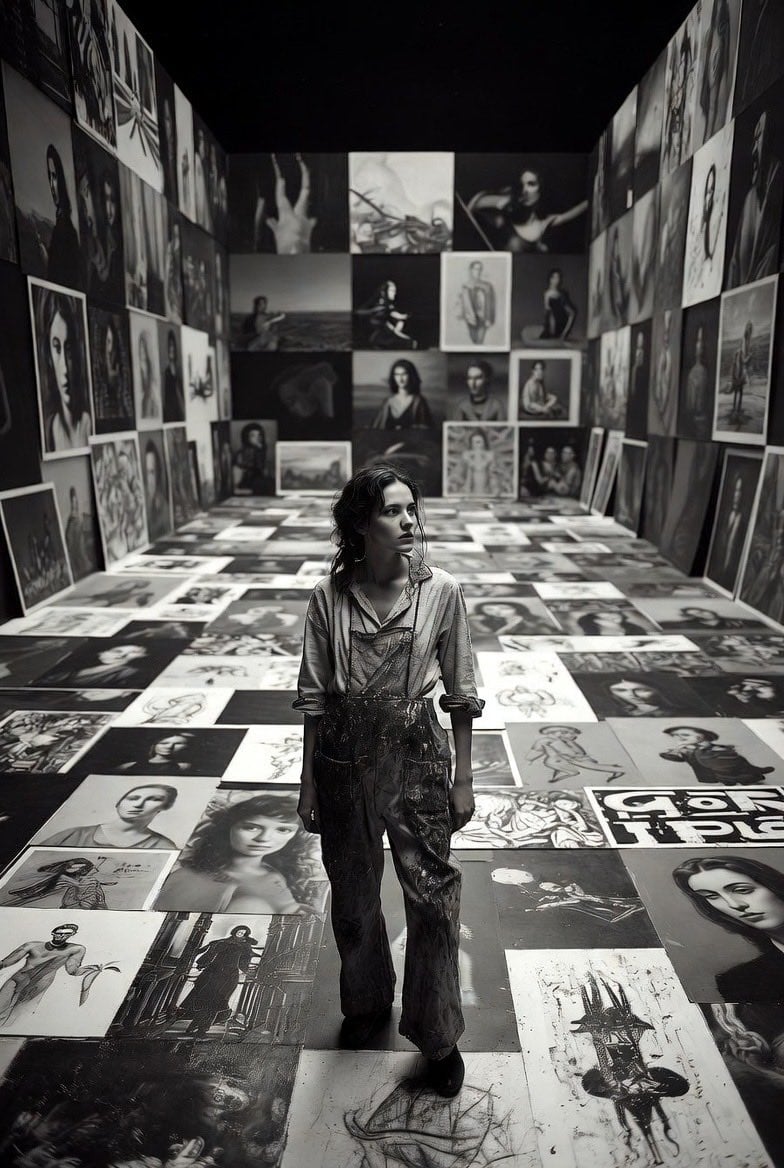
Aspiring Artist in Grand Gallery Film Style
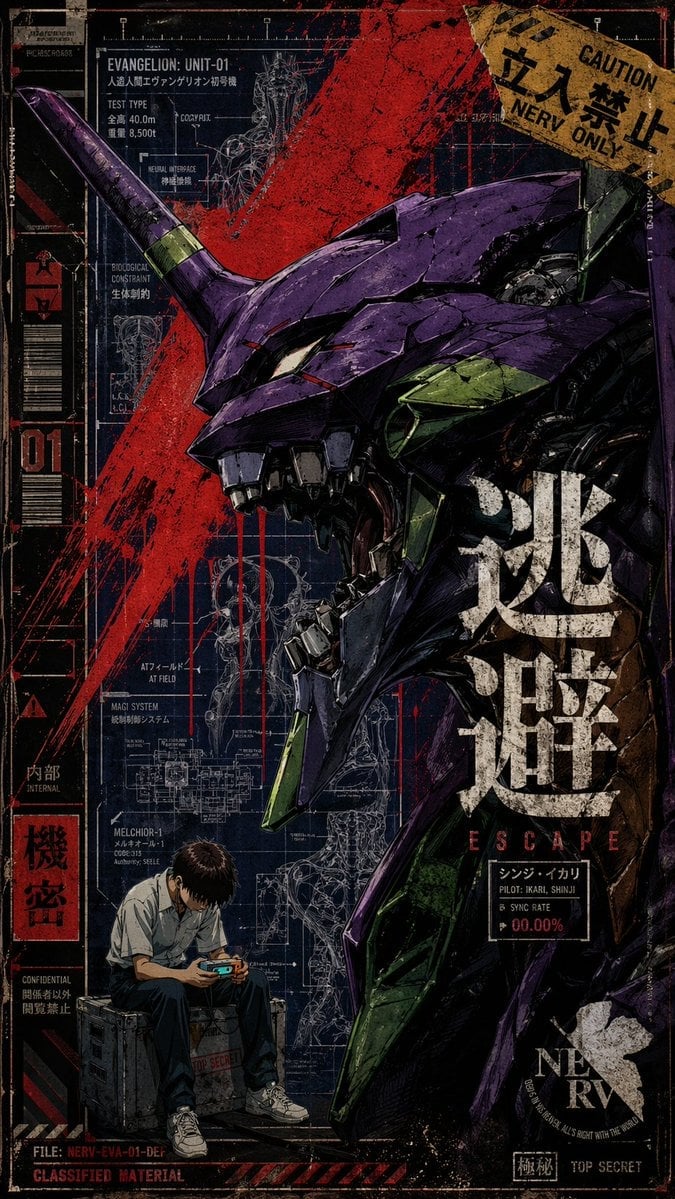
Gritty Evangelion Unit-01 Poster
Audrey Hepburn Style Birthday Photoshoot
Premium Fashion Studio Portrait
Black-and-White Fine Art Studio Portrait Prompt
JSON Structured Prompt for Exploding Cheesy Roll
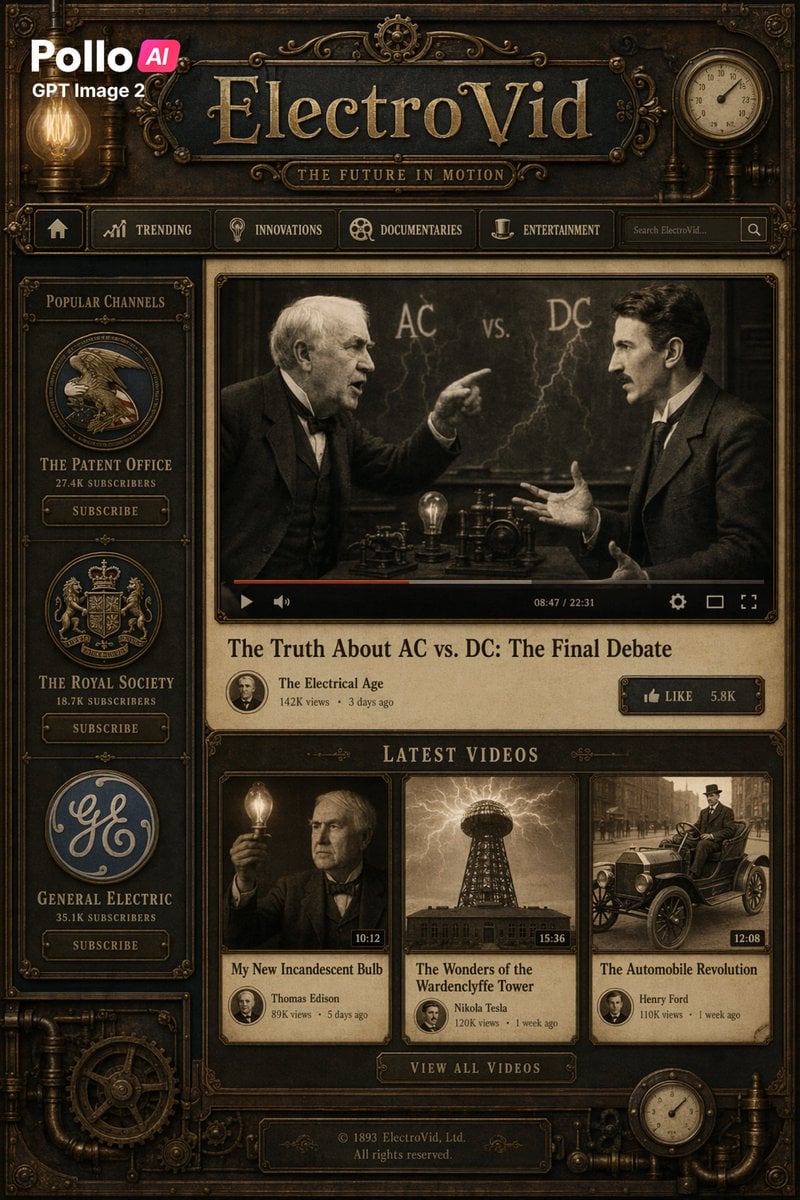
Steampunk ElectroVid Homepage
Browse template categories
ChatGPT Transparent Robot UI Screenshot questions
How do I use the ChatGPT Transparent Robot UI Screenshot template?
Add your photo if the template asks for one, edit the prompt if you like — the template's model and format are already selected — and press Generate. Your version opens in PicX Studio.
Can I customize the ChatGPT Transparent Robot UI Screenshot template?
Yes. You can change the subject, setting, lighting, mood, format, and available model controls before creating your image.
Is the ChatGPT Transparent Robot UI Screenshot template free?
Opening and editing this template is free. Generating uses credits, shown on the Generate button when you are signed in.
Which AI model should I use?
Start with GPT Image 2, which is the model associated with this template. You can compare another compatible model for a different finish.
Looking for something else? Browse all templates.

Your photo, any look
Thousands of ready templates for every top image and video model, from one credit balance.