
ChatGPT Game Asset Generation Screenshot
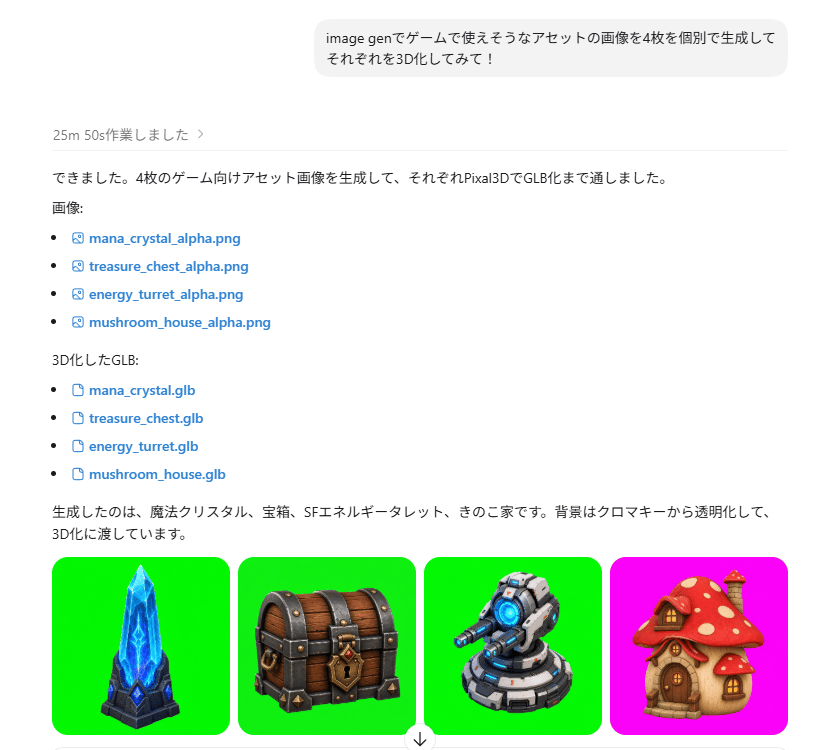
A prompt for recreating a Japanese ChatGPT-style result screen showing four game asset thumbnails and their PNG and GLB download links.
- Prompt included
- Model and format preset
- Free template
The prompt behind this image
Copy the exact prompt behind ChatGPT Game Asset Generation Screenshot, or open it in the studio and make it yours.
Goal: Create a realistic screenshot of a ChatGPT-style web conversation showing an image-generation result for game assets, with Japanese UI text and four generated asset thumbnails. Canvas: Landscape browser/app screenshot, approximately 797×750 px, white background, clean minimal interface, cropped so only the assistant response area and the bottom row of images are visible. Layout: At the top center, place one rounded light-gray user message bubble containing {argument name="user request text" default="image genでゲームで使えそうなアセットの画像を4枚を個別で生成して それぞれを3D化してみて!"}. Below it, left aligned, show a small gray status line reading 「25m 50s作業しました 〉」 followed by a thin horizontal divider. Under that, create an assistant response in Japanese with file lists and blue clickable file links. Text content: Include the assistant paragraph 「できました。4枚のゲーム向けアセット画像を生成して、それぞれPixal3DでGLB化まで通しました。」 Then the label 「画像:」 followed by exactly 4 bullet links with small image/file icons: 1) mana_crystal_alpha.png, 2) treasure_chest_alpha.png, 3) energy_turret_alpha.png, 4) mushroom_house_alpha.png. Then the label 「3D化したGLB:」 followed by exactly 4 bullet links with document icons: 1) mana_crystal.glb, 2) treasure_chest.glb, 3) energy_turret.glb, 4) mushroom_house.glb. Then add the closing Japanese sentence 「生成したのは、魔法クリスタル、宝箱、SFエネルギータレット、きのこ家です。背景はクロマキーから透明化して、3D化に渡しています。」 Bottom image strip: Show exactly 4 rounded-square thumbnail cards in one horizontal row, each about 178×178 px with small gaps. Thumbnail 1 has a vivid green chroma-key background and a stylized fantasy {argument name="asset one" default="blue mana crystal obelisk on a dark stone base"}. Thumbnail 2 has a vivid green chroma-key background and a {argument name="asset two" default="wooden treasure chest with dark metal bands, gold lock, and red jewel"}. Thumbnail 3 has a vivid green chroma-key background and a {argument name="asset three" default="gray sci-fi energy turret with blue glowing core and cannon barrel"}. Thumbnail 4 has a bright magenta chroma-key background and a {argument name="asset four" default="cute mushroom house with red spotted cap roof, wooden door, and warm windows"}. All four assets are polished 3D game-art icons with transparent-cutout style lighting, centered and isolated. Visual style: Modern ChatGPT interface screenshot, Japanese typography, black body text, blue link text, small monochrome icons, generous margins, subtle divider lines. The asset thumbnails should look like high-quality mobile game props rendered in colorful semi-realistic 3D. Constraints: Include exactly 8 file links total, exactly 4 PNG links and exactly 4 GLB links, and exactly 4 asset thumbnail images. Do not add extra panels, watermarks, browser chrome, avatars, or unrelated UI controls.
How to use ChatGPT Game Asset Generation Screenshot in 3 steps
- 1Upload ImagePNG, JPG or paste
Add your photo
Upload the photo the template builds on. The prompt, model and format are already set.
- 2…a portrait of your subject in softgolden-hour light, 85mm…
Personalize
Edit the subject and creative details for your destination.
- 3Generate
Generate
Press Generate — your image is created in PicX Studio, so you can compare it with the original and refine one variable at a time.
More like this
Templates with the same subject, style or setup. Open one to see its prompt.
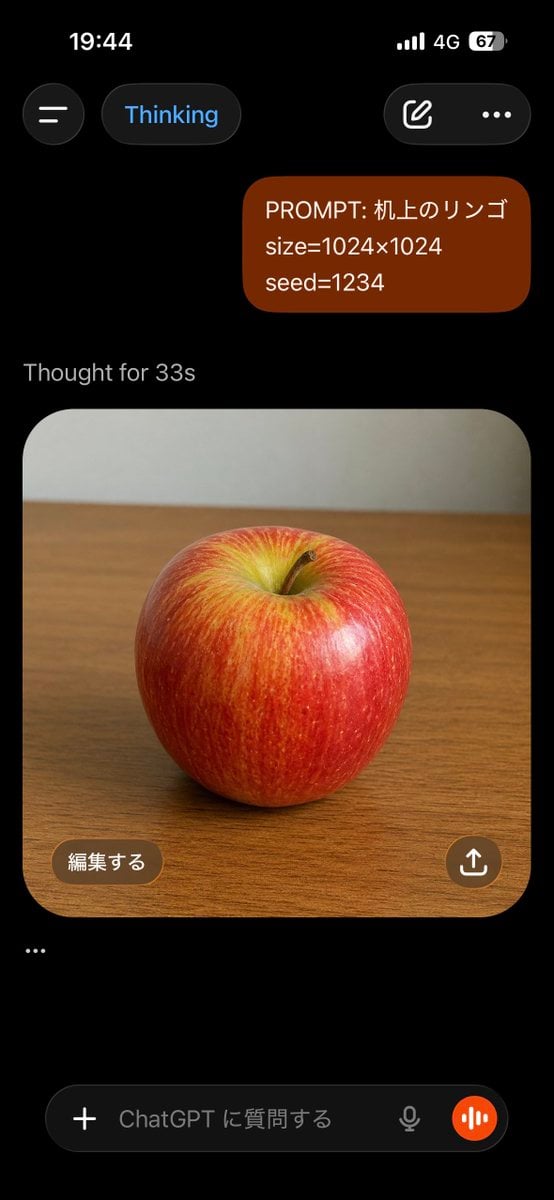
ChatGPT Apple Generation Screenshot
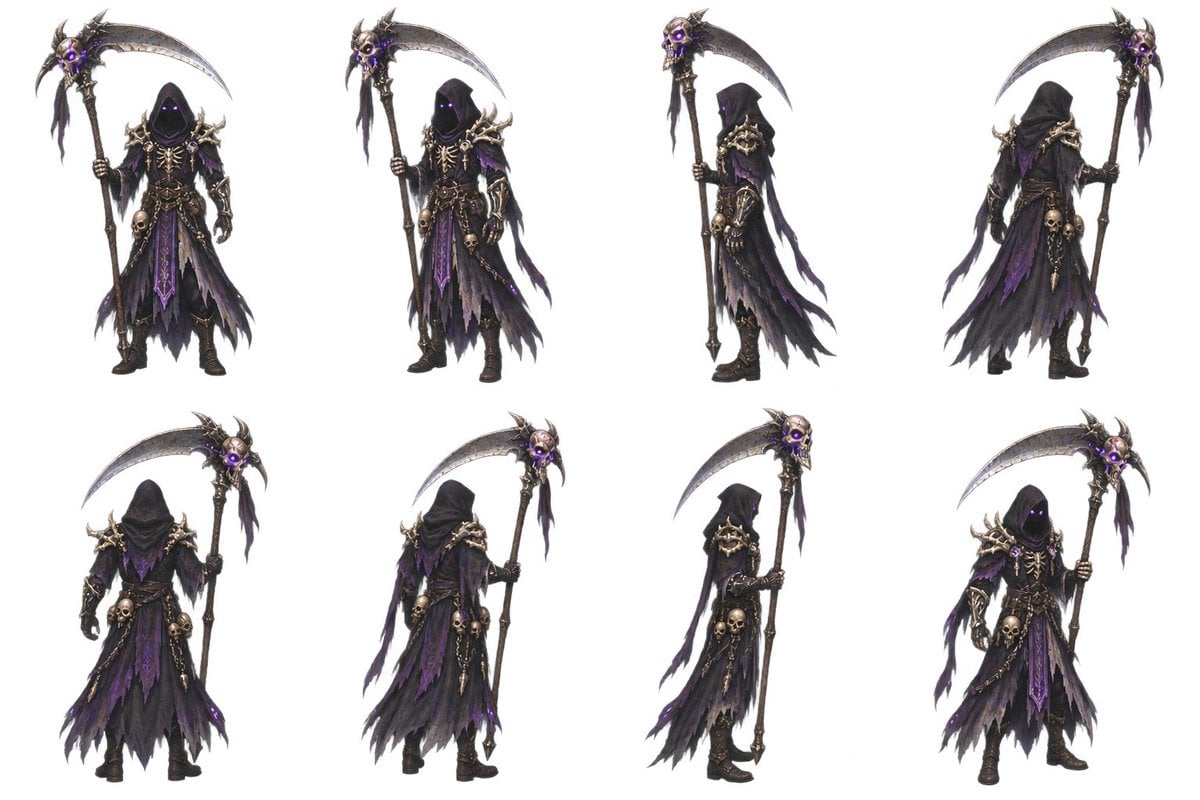
2D Necromancer Game Asset Sprite
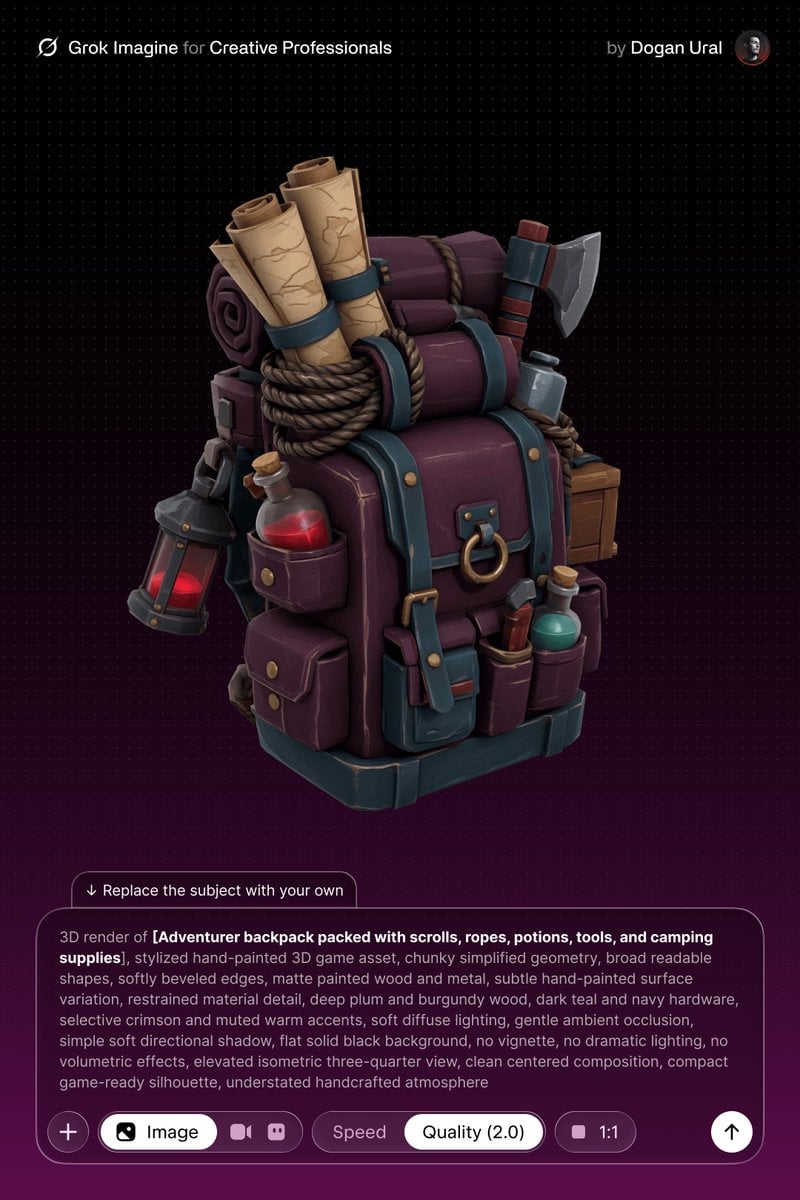
Stylized Hand-Painted 3D Game Asset

Minecraft Next-Gen Voxel World Screenshot
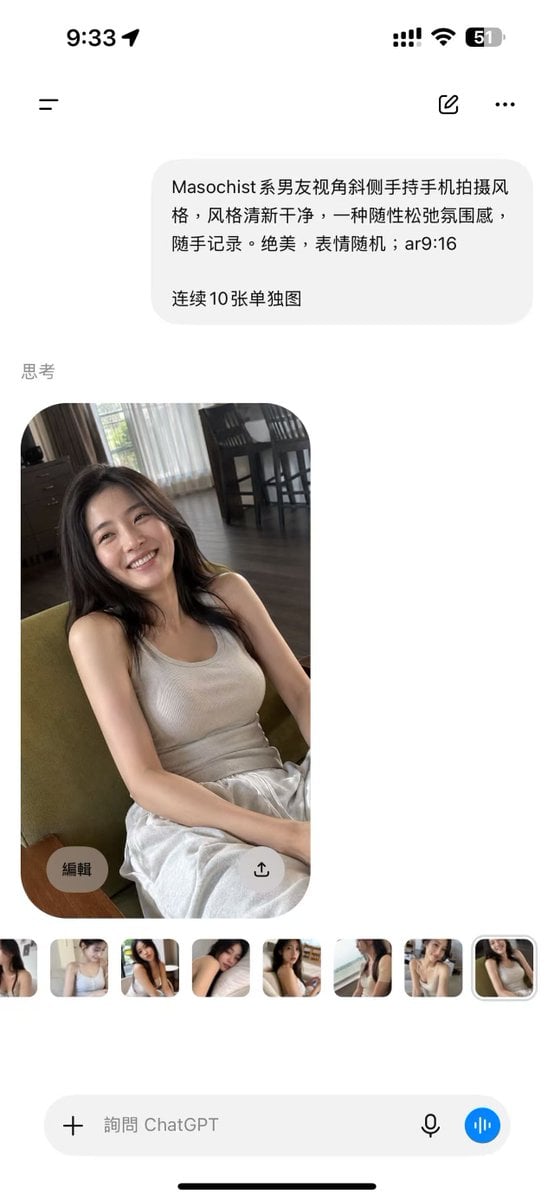
ChatGPT Mobile Photo Carousel Screenshot

ChatGPT Bonus Banner Screenshot
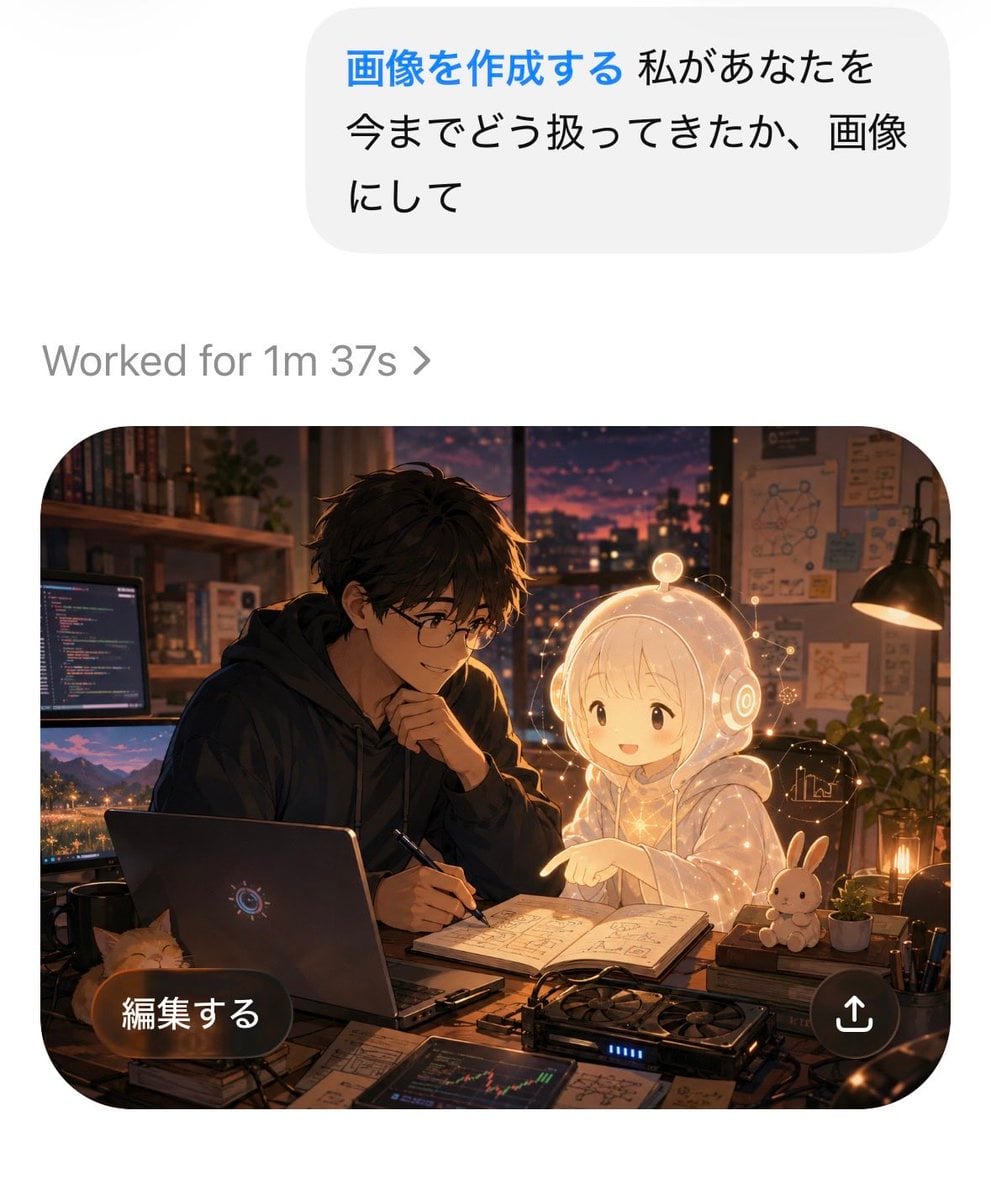
AI Chat Image Generation Screenshot
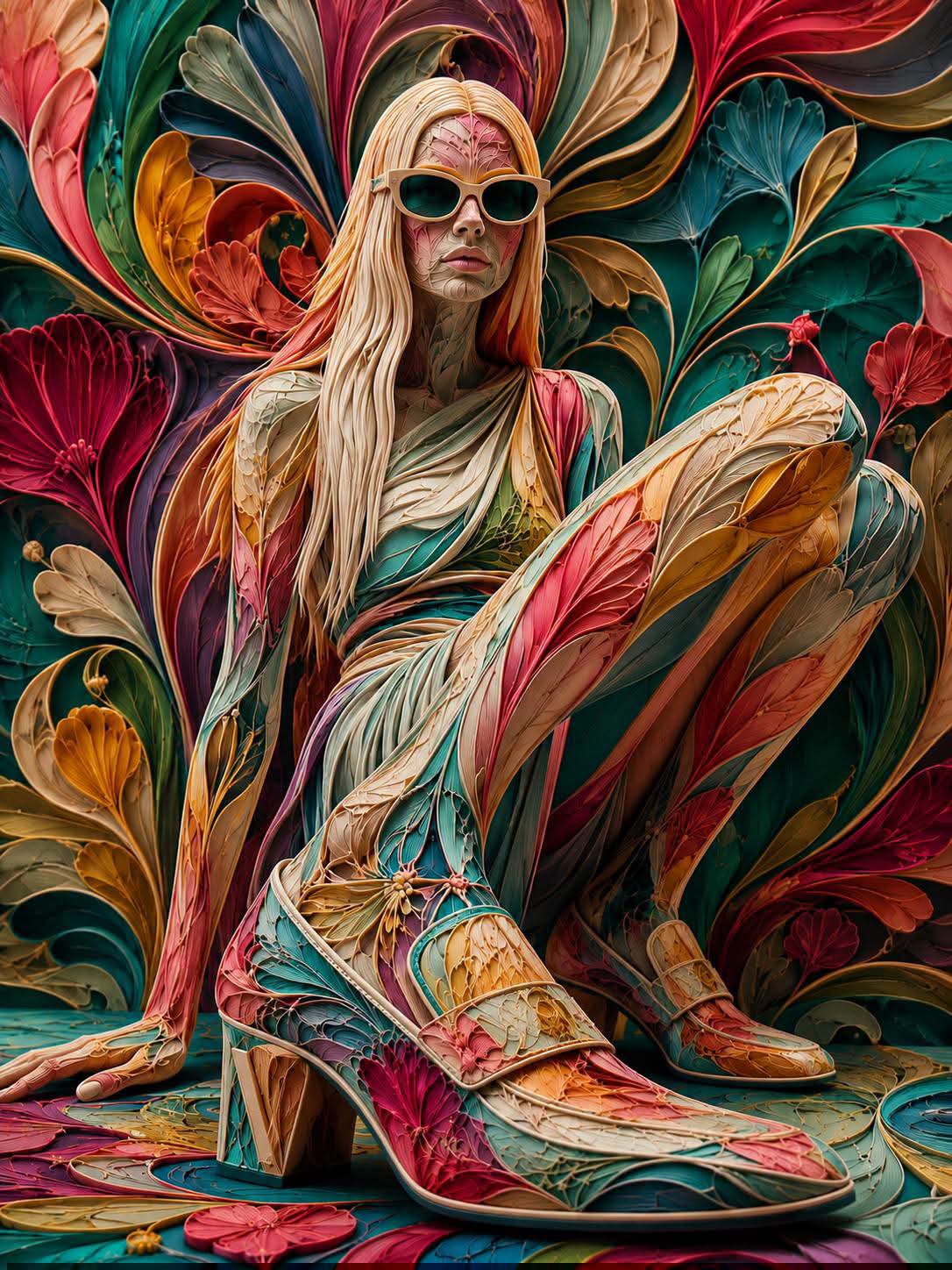
Floraverse Botanical Fusion
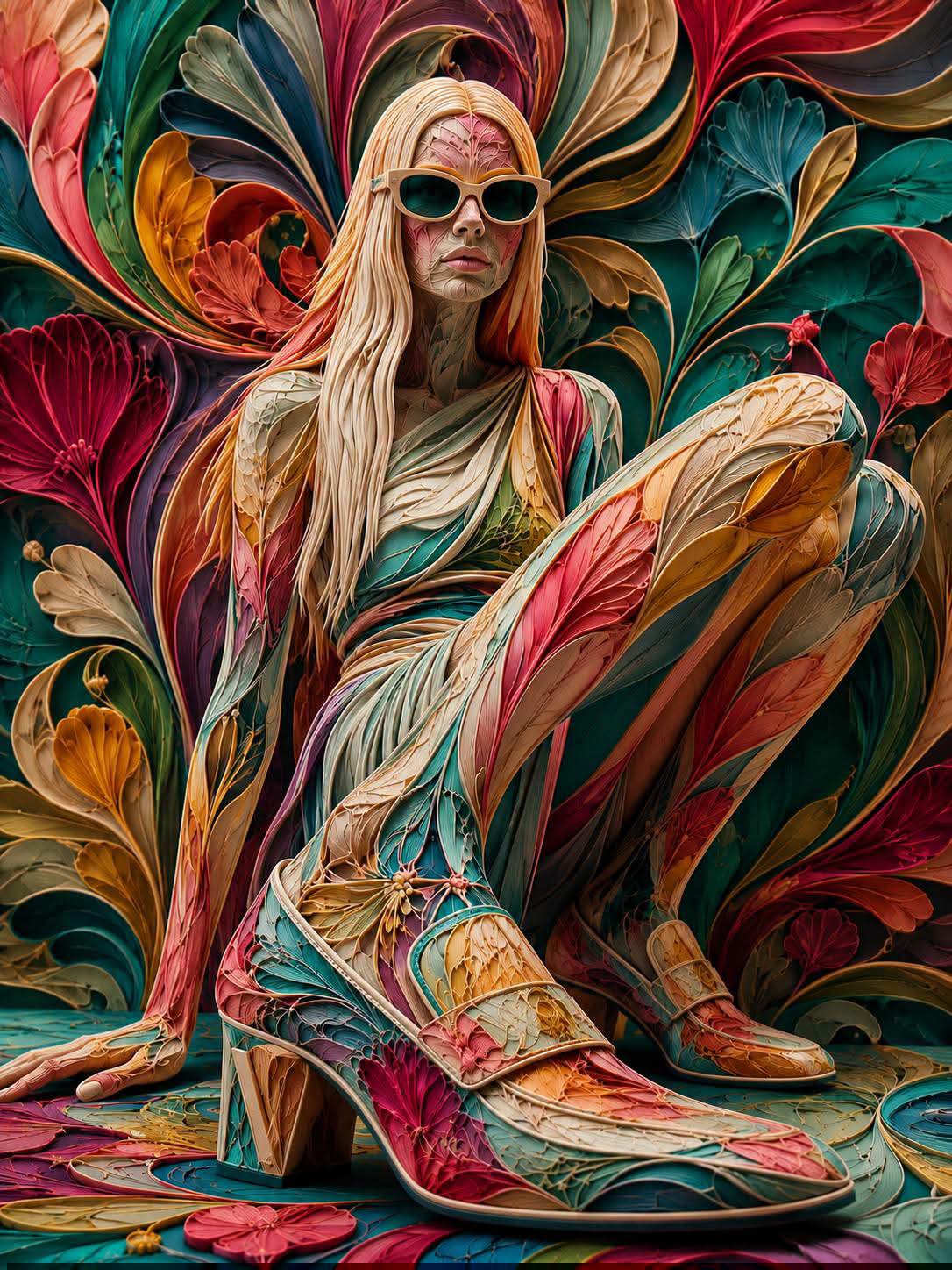
FLORAVERSE BOTANICAL FUSION
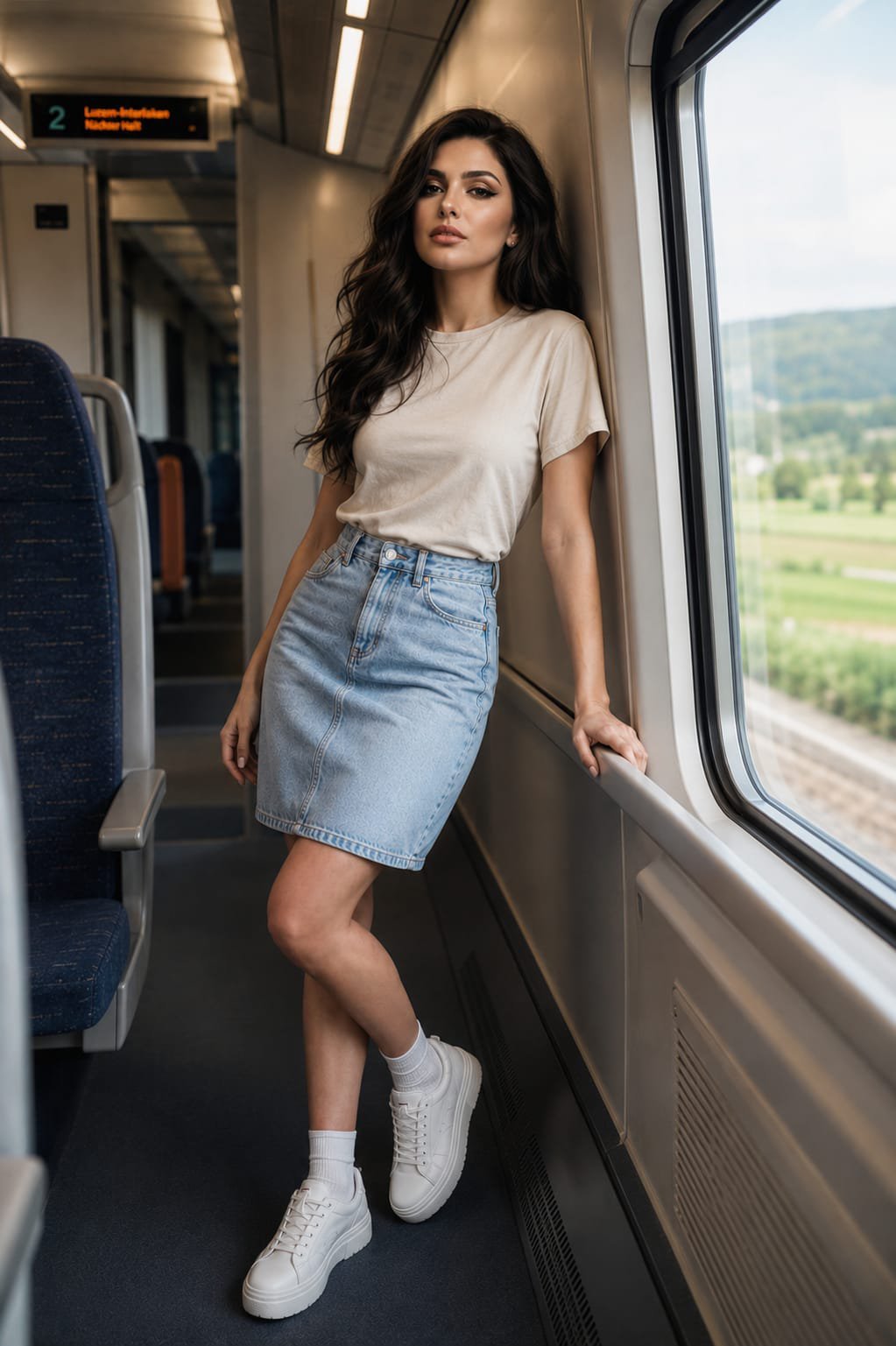
Face-Locked Train Window Lifestyle Portrait
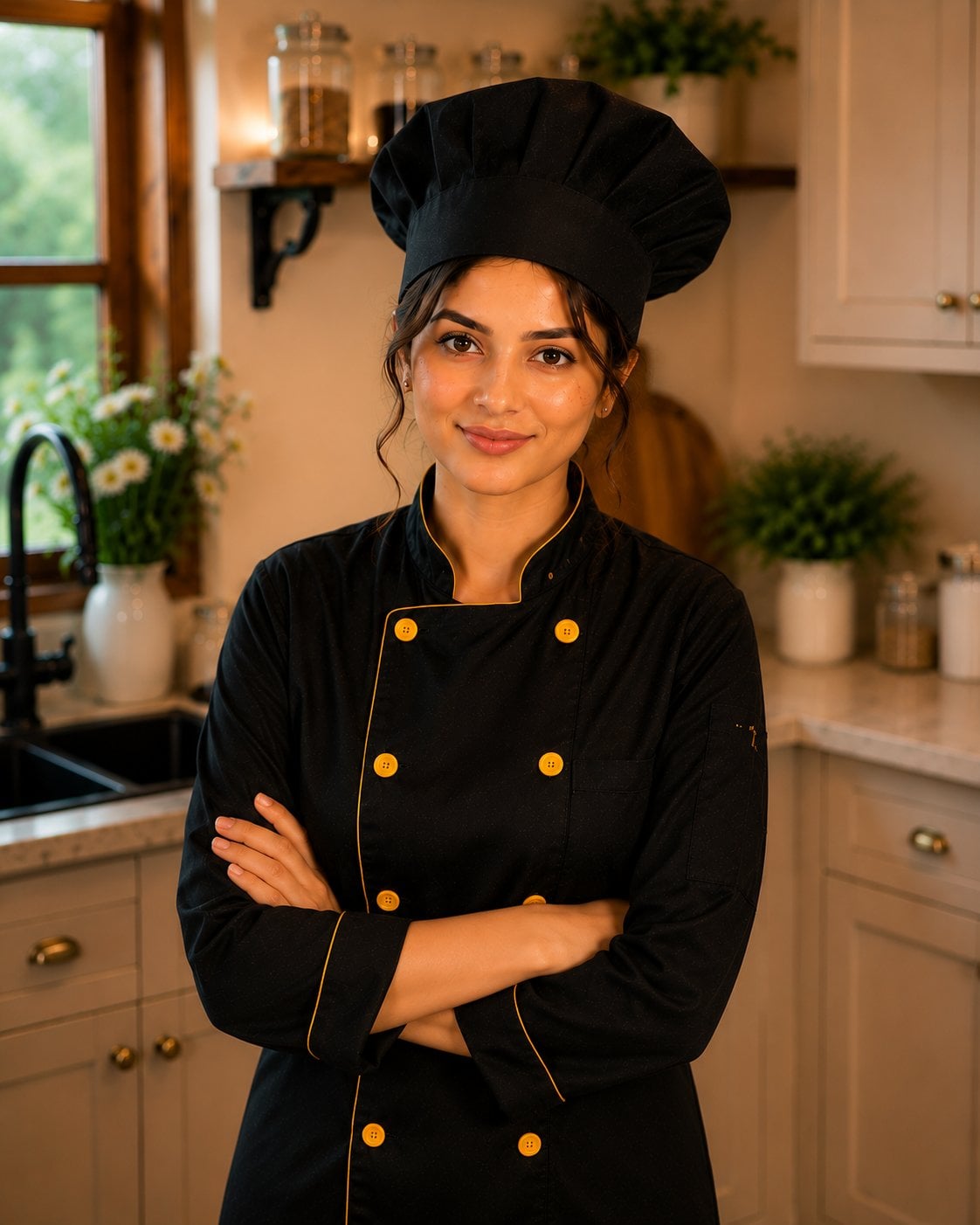
Female Chef Chicken Biryani Luxury Kitchen
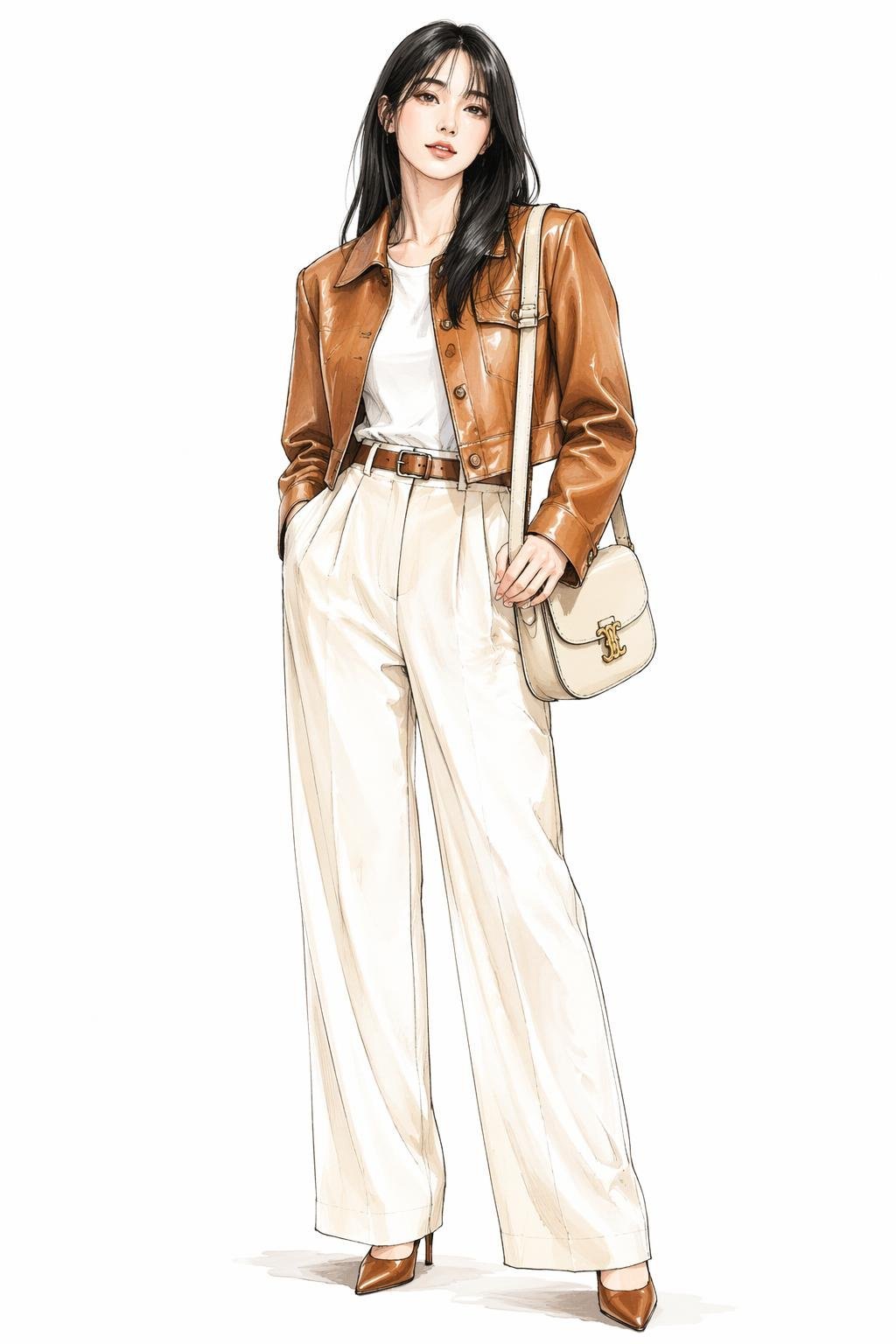
Leather Jacket Cream Trousers Fashion Sketch
Make it yours
ChatGPT Game Asset Generation Screenshot works as-is. These are the safest ways to change it without losing the look.
Change one field
Copy a single group, rewrite it, and generate again so you can see what that field is doing.
Keep the frame, change the subject
Hold the composition and light of ChatGPT Game Asset Generation Screenshot, then swap wardrobe, props or the person for a new take.
| If the result… | Why | Fix |
|---|---|---|
| The result drifts from the preview | Too many fields changed at once. | Reuse ChatGPT Game Asset Generation Screenshot as-is first, then change one group — subject, light, or setting. |
| The model over-stylizes the scene | The prose prompt leaves finish and camera underspecified. | Add one camera or lighting sentence and stay on GPT Image 2. |
More GPT Image 2 templates
Other prompts made for GPT Image 2.

Six VTuber Japanese Logo Sheet

Realistic Portrait of Woman and Deer

The Vista Modular Condo Poster

AI Model Routing Comparison Infographic

2.5D Anime Art Board

Isometric Productivity Desk Scene

New York Double Exposure Poster

Four-Panel AI Landscape Comparison

Japanese Tatami Lifestyle Magazine Cover

NESCAFÉ Coffee Map Poster
More image prompts
Fresh picks from across the catalog.
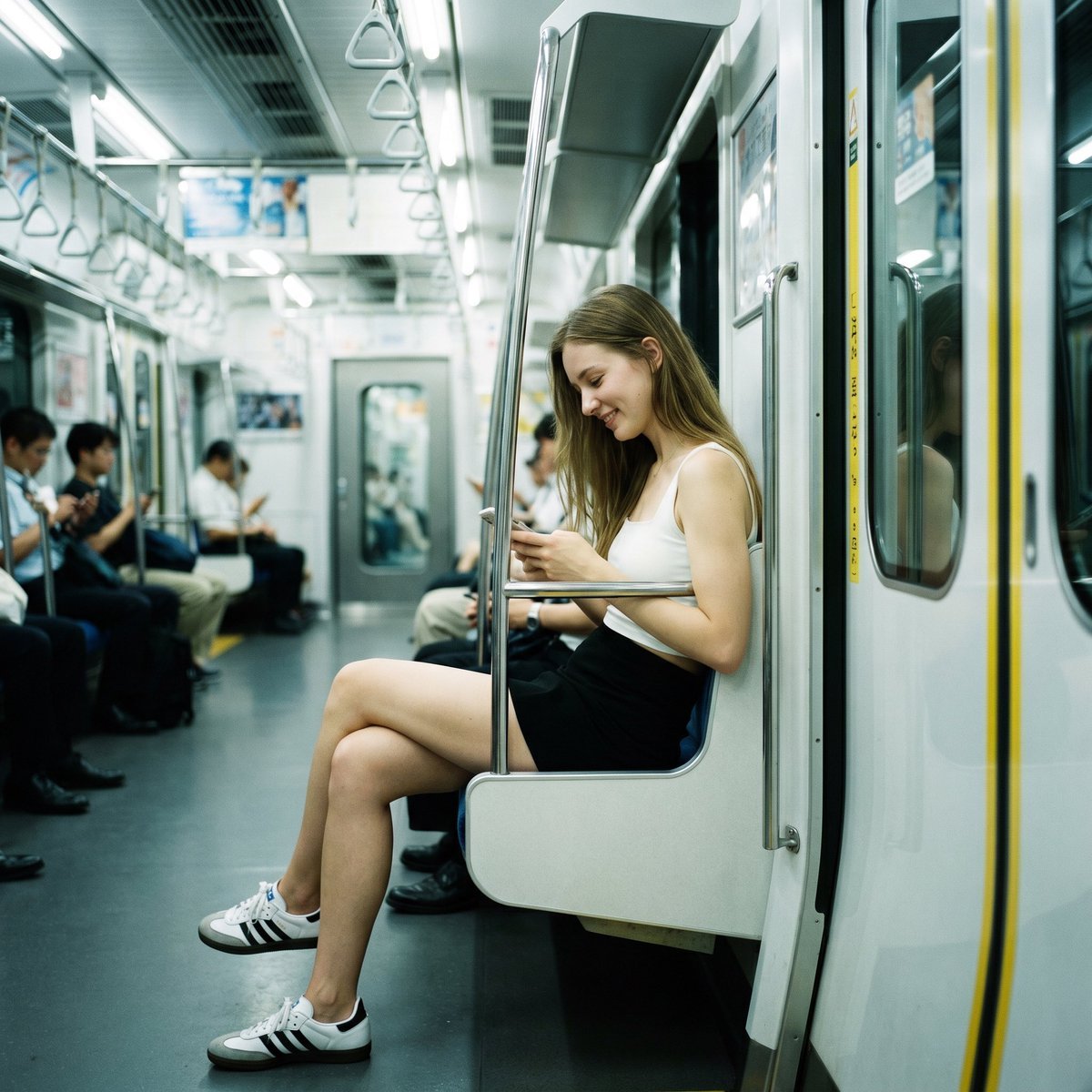
Realistic Subway Candid Portrait
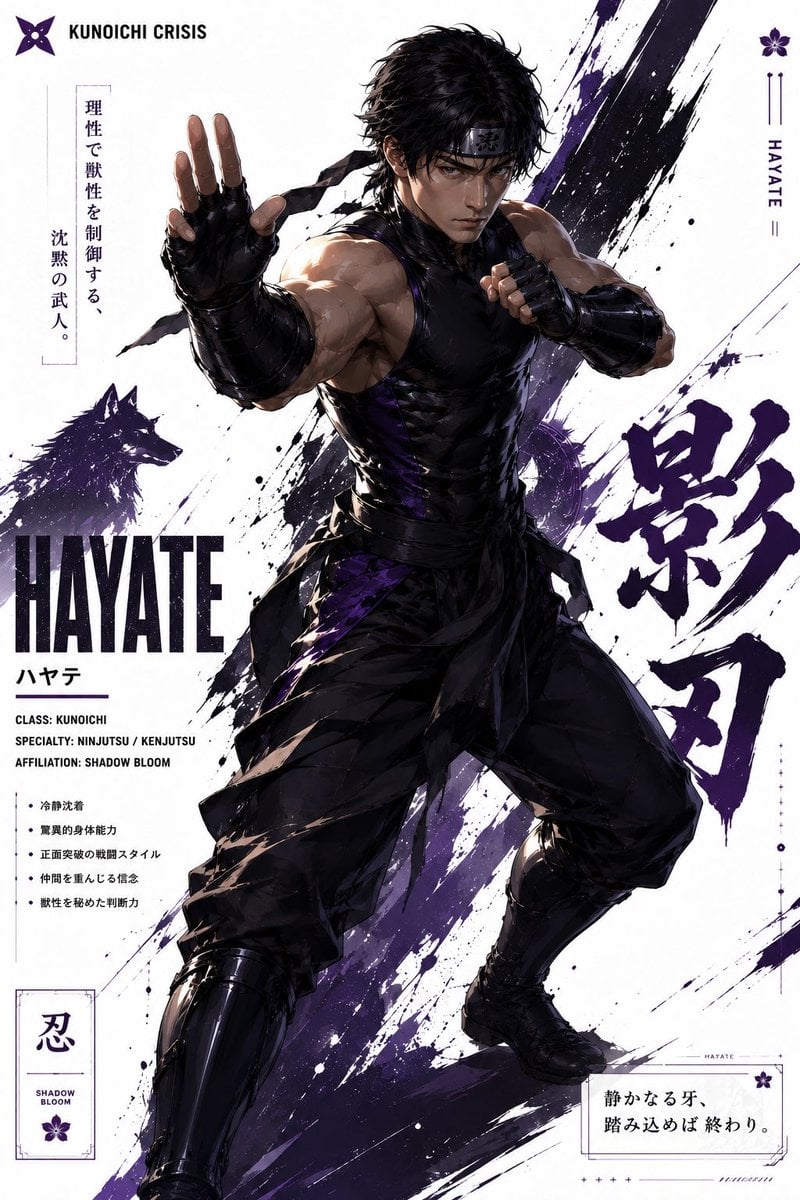
Hayate Ninja Character Poster
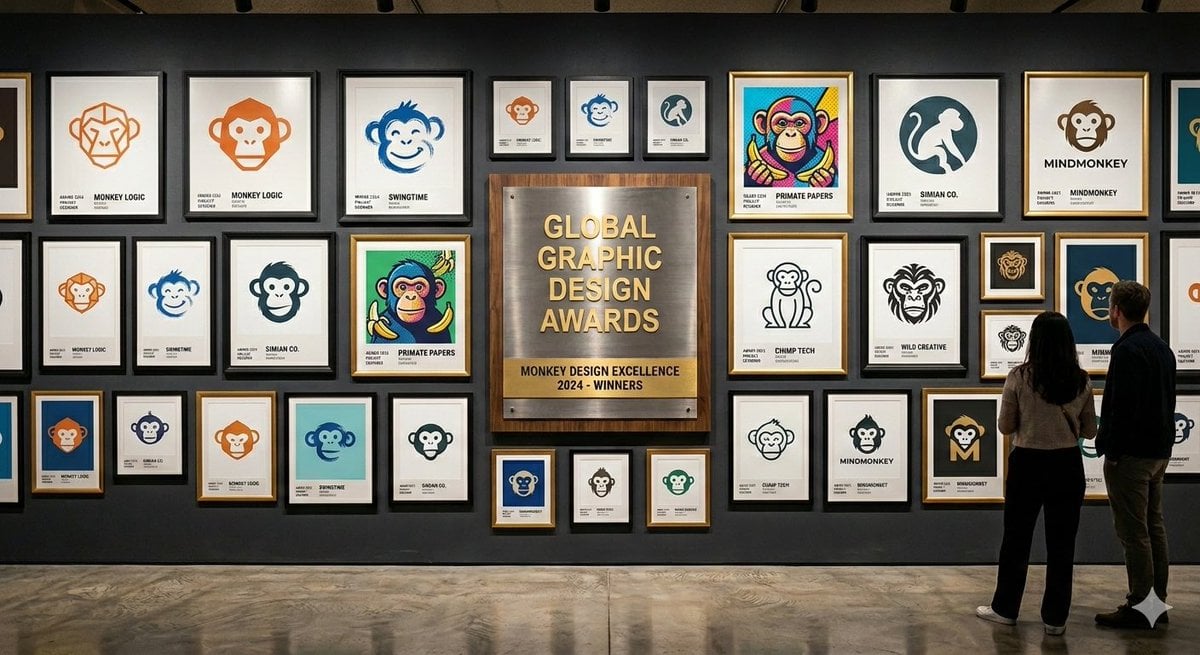
Logo Design Wall Generation Prompt for Monkey Theme
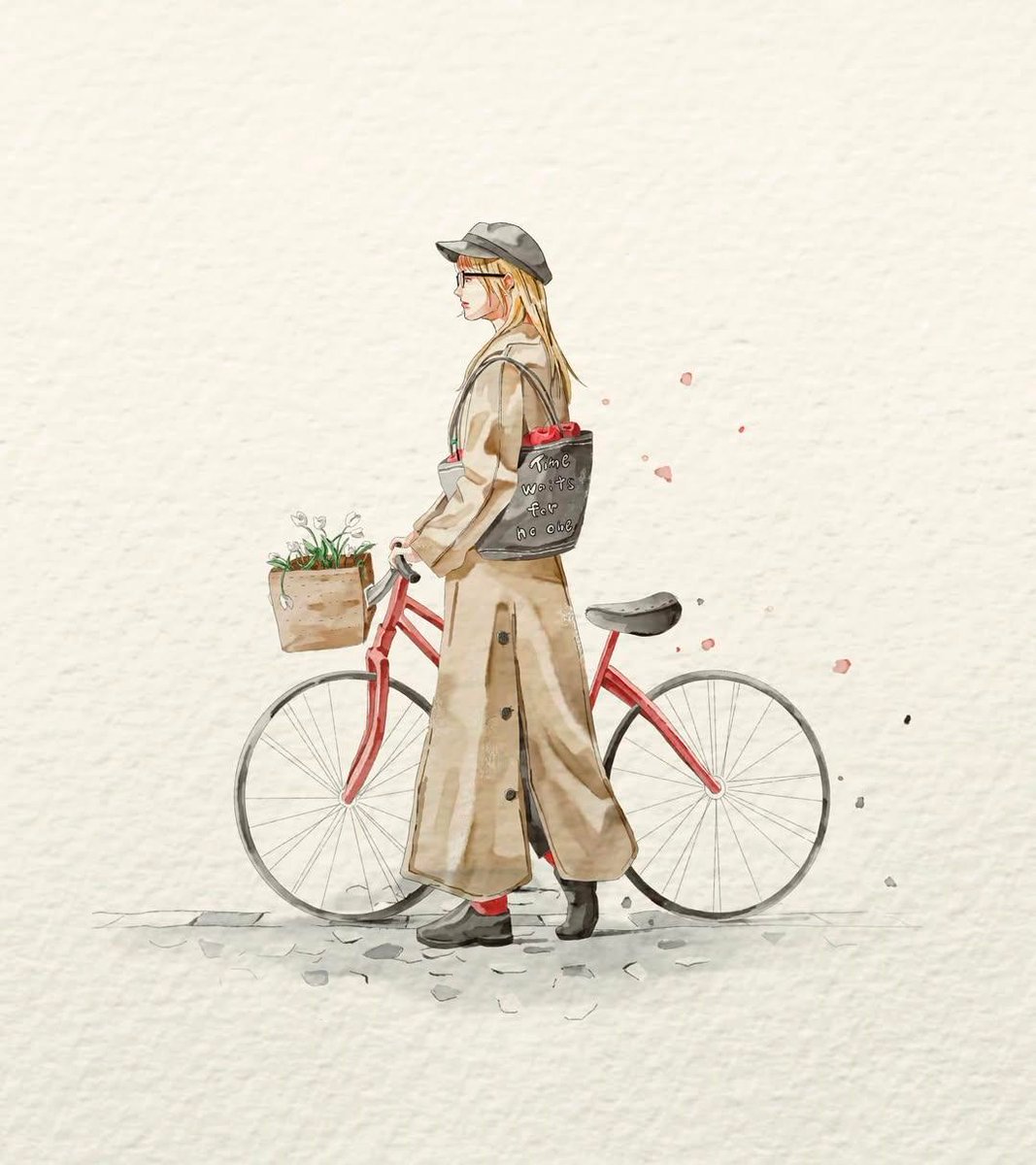
Watercolor Fashion Sketch with Bicycle
Commercial Fashion Photograph with Strict Garment Preservation
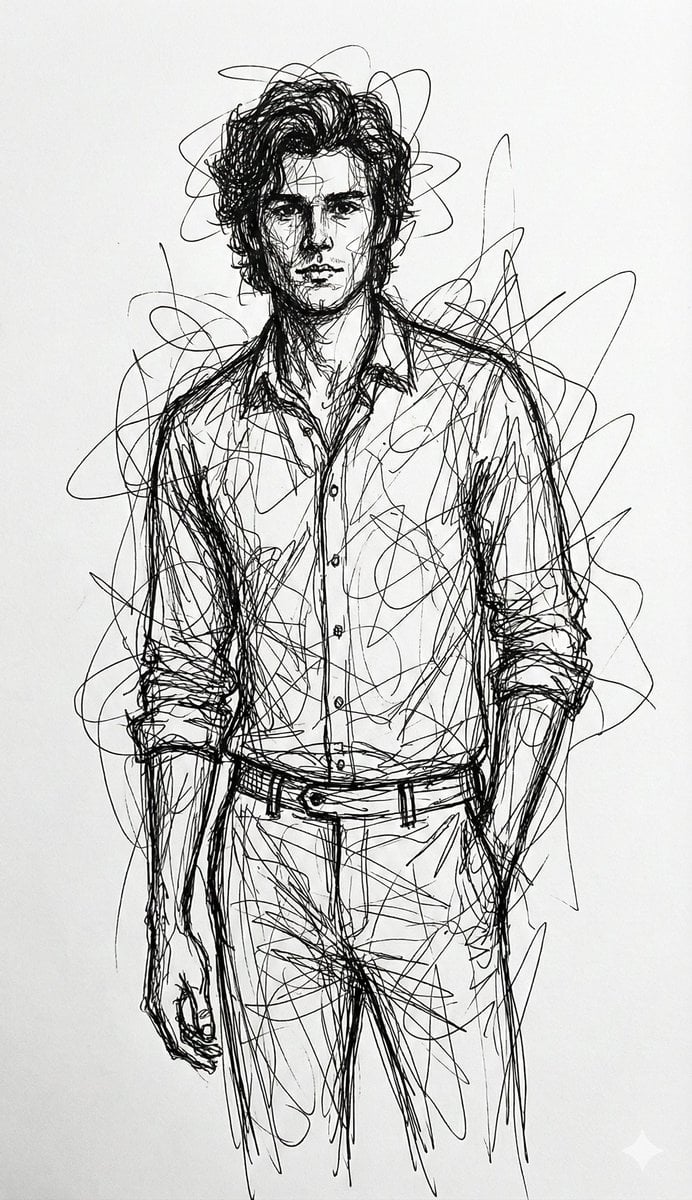
Abstract Chaotic Scribble Art Prompt
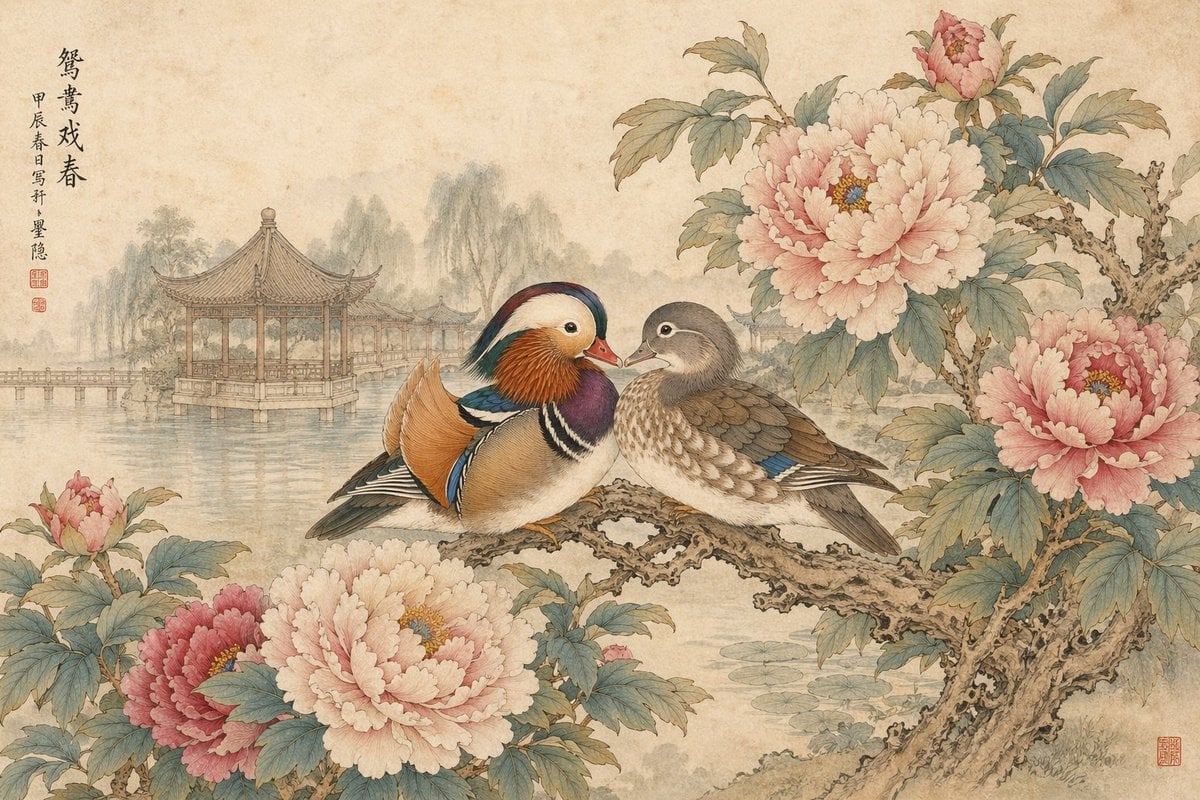
Traditional Chinese Ink Painting Style
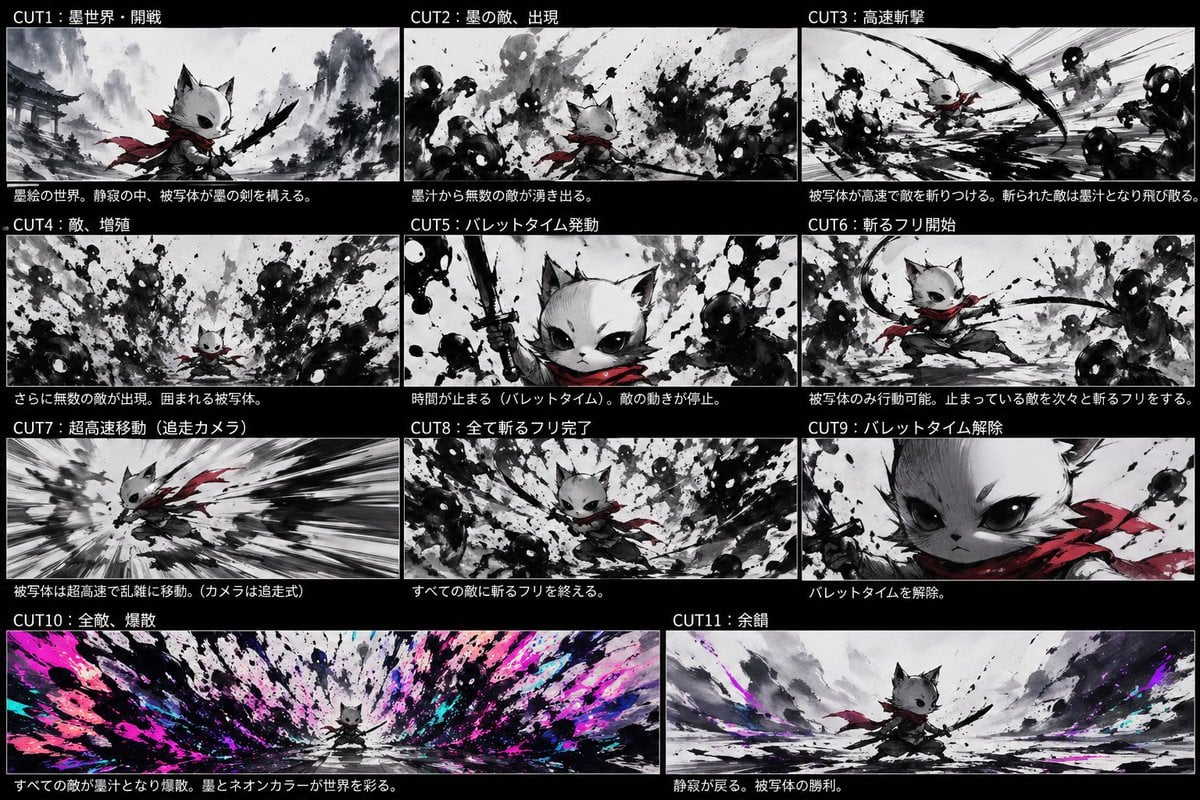
Ink Neon Cat Samurai Storyboard
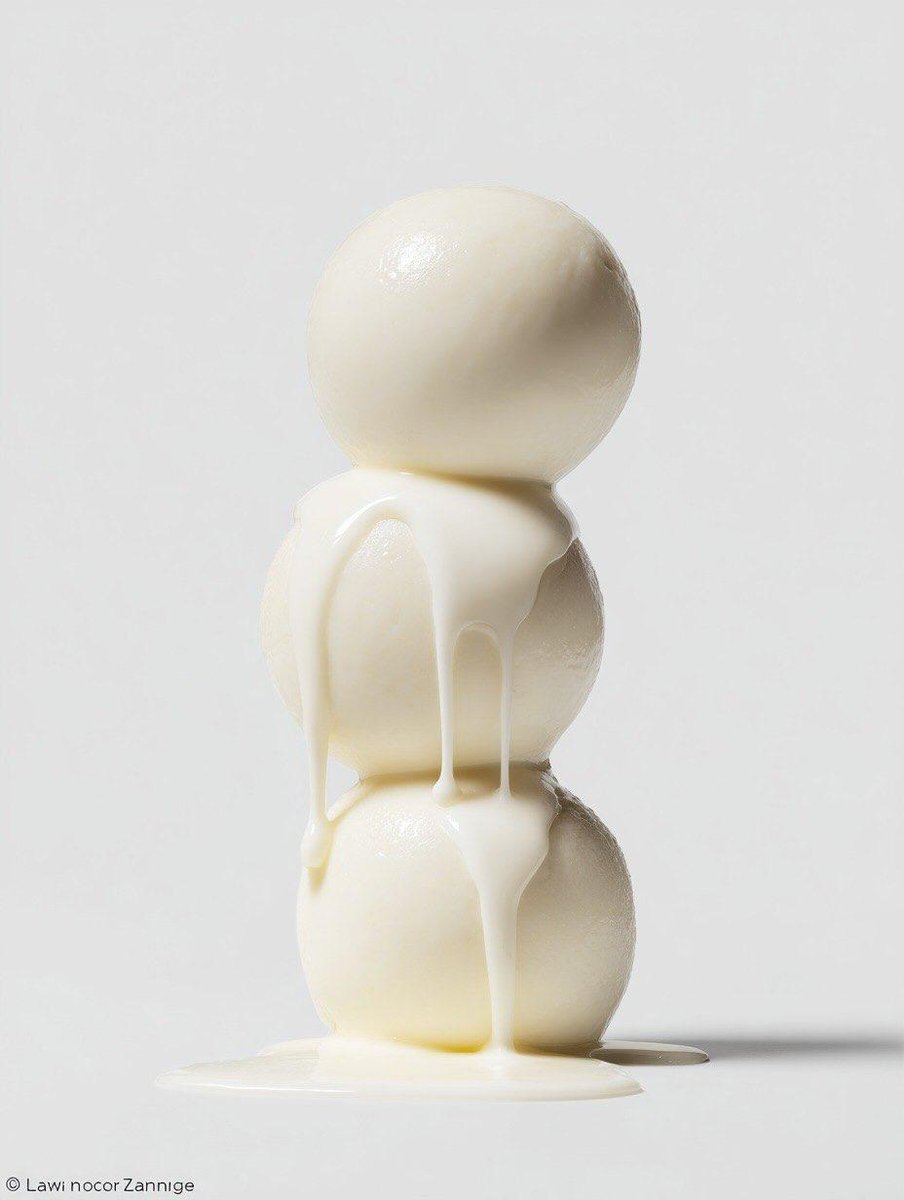
Macro Food Photography Prompt with Dripping Liquid
Anime Knight King on Burning Battlefield
Browse template categories
ChatGPT Game Asset Generation Screenshot questions
How do I use the ChatGPT Game Asset Generation Screenshot template?
Add your photo if the template asks for one, edit the prompt if you like — the template's model and format are already selected — and press Generate. Your version opens in PicX Studio.
Can I customize the ChatGPT Game Asset Generation Screenshot template?
Yes. You can change the subject, setting, lighting, mood, format, and available model controls before creating your image.
Is the ChatGPT Game Asset Generation Screenshot template free?
Opening and editing this template is free. Generating uses credits, shown on the Generate button when you are signed in.
Which AI model should I use?
Start with GPT Image 2, which is the model associated with this template. You can compare another compatible model for a different finish.
Looking for something else? Browse all templates.

Your photo, any look
Thousands of ready templates for every top image and video model, from one credit balance.