
FACS Facial Expression Control
A specialized prompt system using Facial Action Coding System (FACS) codes to precisely modify expressions on reference characters in GPT Image 2.0.
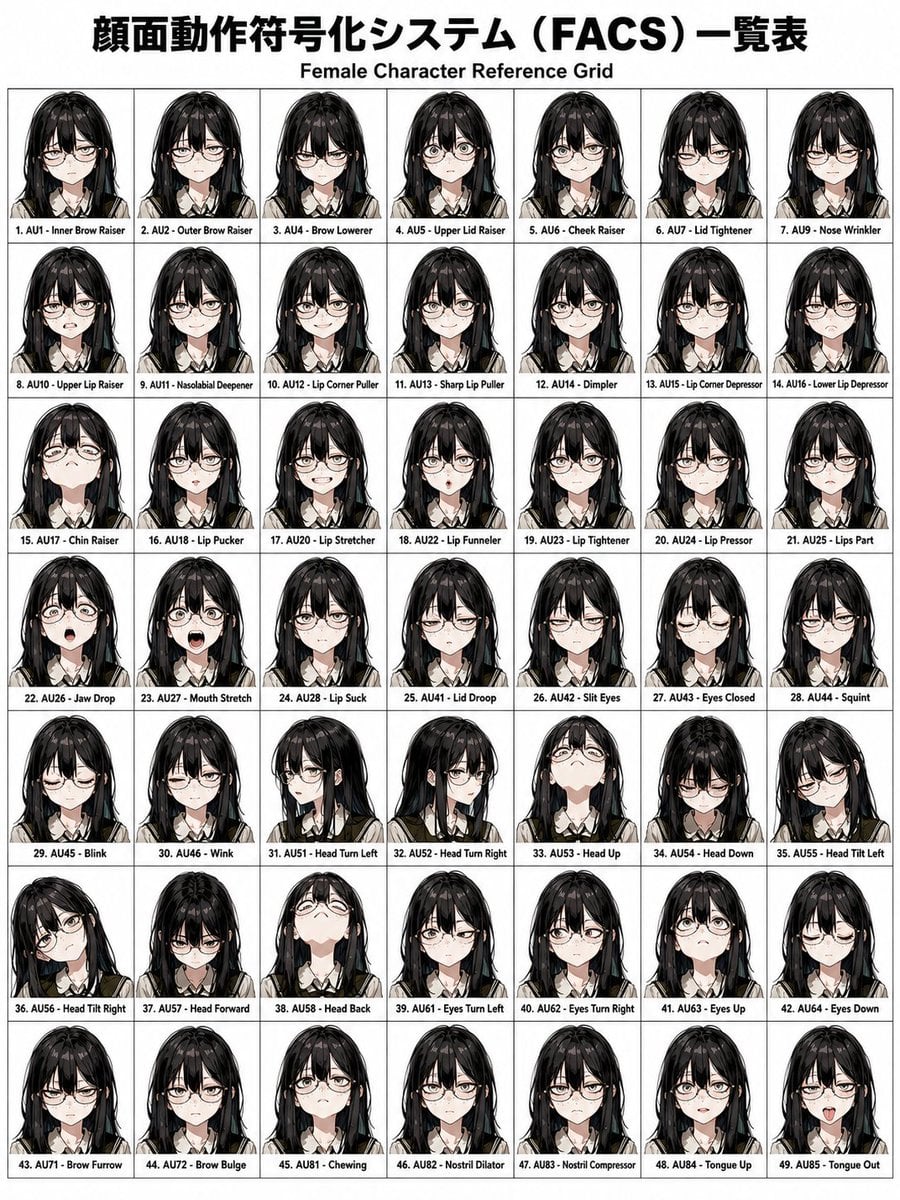
- Prompt included
- Model and format preset
- Free template
The prompt behind this image
Copy the exact prompt behind FACS Facial Expression Control, or open it in the studio and make it yours.
表情変更 FACS AU46\n\n顔面動作符号化システム(FACS)一覧表\nFemale Character Reference Grid\n\n1. AU1 - Inner Brow Raiser(内眉を上げる)\n2. AU2 - Outer Brow Raiser(外眉を上げる)\n3. AU4 - Brow Lowerer(眉を下げる)\n4. AU5 - Upper Lid Raiser(上まぶたを上げる)\n5. AU6 - Cheek Raiser(頬を上げる)\n6. AU7 - Lid Tightener(まぶたを引き締める)\n7. AU9 - Nose Wrinkler(鼻にしわを寄せる)\n8. AU10 - Upper Lip Raiser(上唇を上げる)\n9. AU11 - Nasolabial Deepener(鼻唇溝を深める)\n10. AU12 - Lip Corner Puller(口角を引き上げる)\n11. AU13 - Sharp Lip Puller(口角を鋭く引く)\n12. AU14 - Dimpler(えくぼを作る)\n13. AU15 - Lip Corner Depressor(口角を下げる)\n14. AU16 - Lower Lip Depressor(下唇を下げる)\n15. AU17 - Chin Raiser(あごを上げる)\n16. AU18 - Lip Pucker(唇をすぼめる)\n17. AU20 - Lip Stretcher(唇を横に引き伸ばす)\n18. AU22 - Lip Funneler(唇を漏斗状にすぼめる)\n19. AU23 - Lip Tightener(唇を引き締める)\n20. AU24 - Lip Pressor(唇を押しつける)\n21. AU25 - Lips Part(唇を開く)\n22. AU26 - Jaw Drop(あごを下げる)\n23. AU27 - Mouth Stretch(口を大きく開く)\n24. AU28 - Lip Suck(唇を吸い込む)\n25. AU41 - Lid Droop(まぶたを垂らす)\n26. AU42 - Slit Eyes(目を細める)\n27. AU43 - Eyes Closed(目を閉じる)\n28. AU44 - Squint(しかめ目・目をすぼめる)\n29. AU45 - Blink(まばたき)\n30. AU46 - Wink(ウインク)\n31. AU51 - Head Turn Left(頭を左に向ける)\n32. AU52 - Head Turn Right(頭を右に向ける)\n33. AU53 - Head Up(頭を上げる)\n34. AU54 - Head Down(頭を下げる)\n35. AU55 - Head Tilt Left(頭を左に傾ける)\n36. AU56 - Head Tilt Right(頭を右に傾ける)\n37. AU57 - Head Forward(頭を前に出す)\n38. AU58 - Head Back(頭を後ろに引く)\n39. AU61 - Eyes Turn Left(目線を左に向ける)\n40. AU62 - Eyes Turn Right(目線を右に向ける)\n41. AU63 - Eyes Up(目線を上に向ける)\n42. AU64 - Eyes Down(目線を下に向ける)\n43. AU71 - Brow Furrow(眉間にしわを寄せる)\n44. AU72 - Brow Bulge(眉を盛り上げる)\n45. AU81 - Chewing(噛む動作)\n46. AU82 - Nostril Dilator(鼻孔を広げる)\n47. AU83 - Nostril Compressor(鼻孔を狭める)\n48. AU84 - Tongue Up(舌を上げる)\n49. AU85 - Tongue Out(舌を出す)
How to use FACS Facial Expression Control in 3 steps
- 1Upload ImagePNG, JPG or paste
Add your photo
Upload the photo the template builds on. The prompt, model and format are already set.
- 2…a portrait of your subject in softgolden-hour light, 85mm…
Personalize
Edit the subject and creative details for your destination.
- 3Generate
Generate
Press Generate — your image is created in PicX Studio, so you can compare it with the original and refine one variable at a time.
More like this
Templates with the same subject, style or setup. Open one to see its prompt.
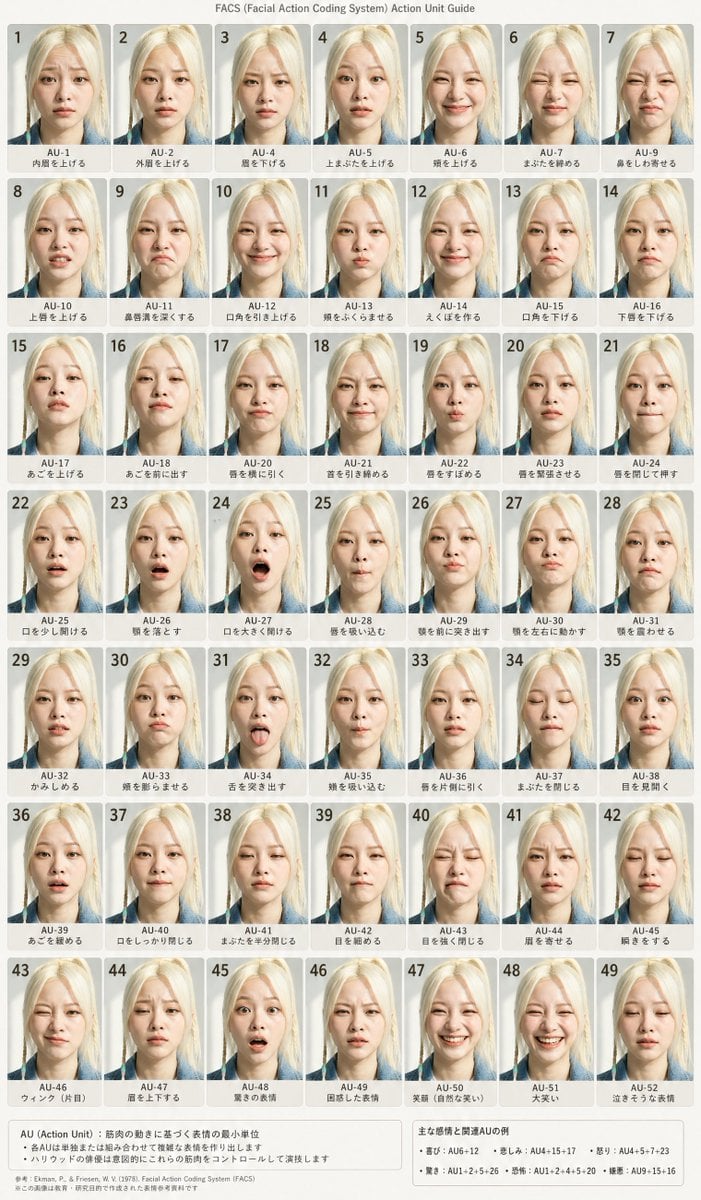
FACS Facial Expression Chart
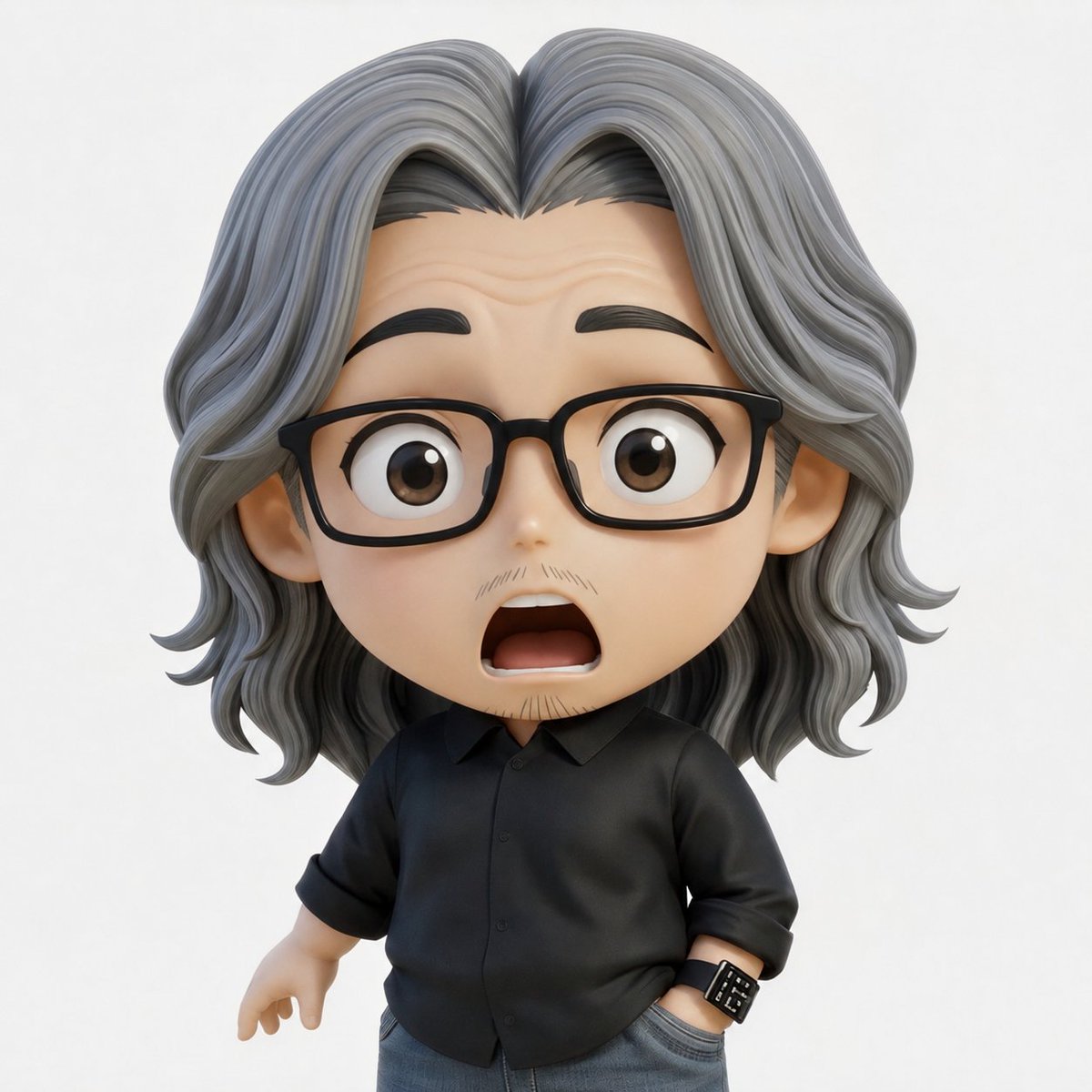
FACS Expression Edit
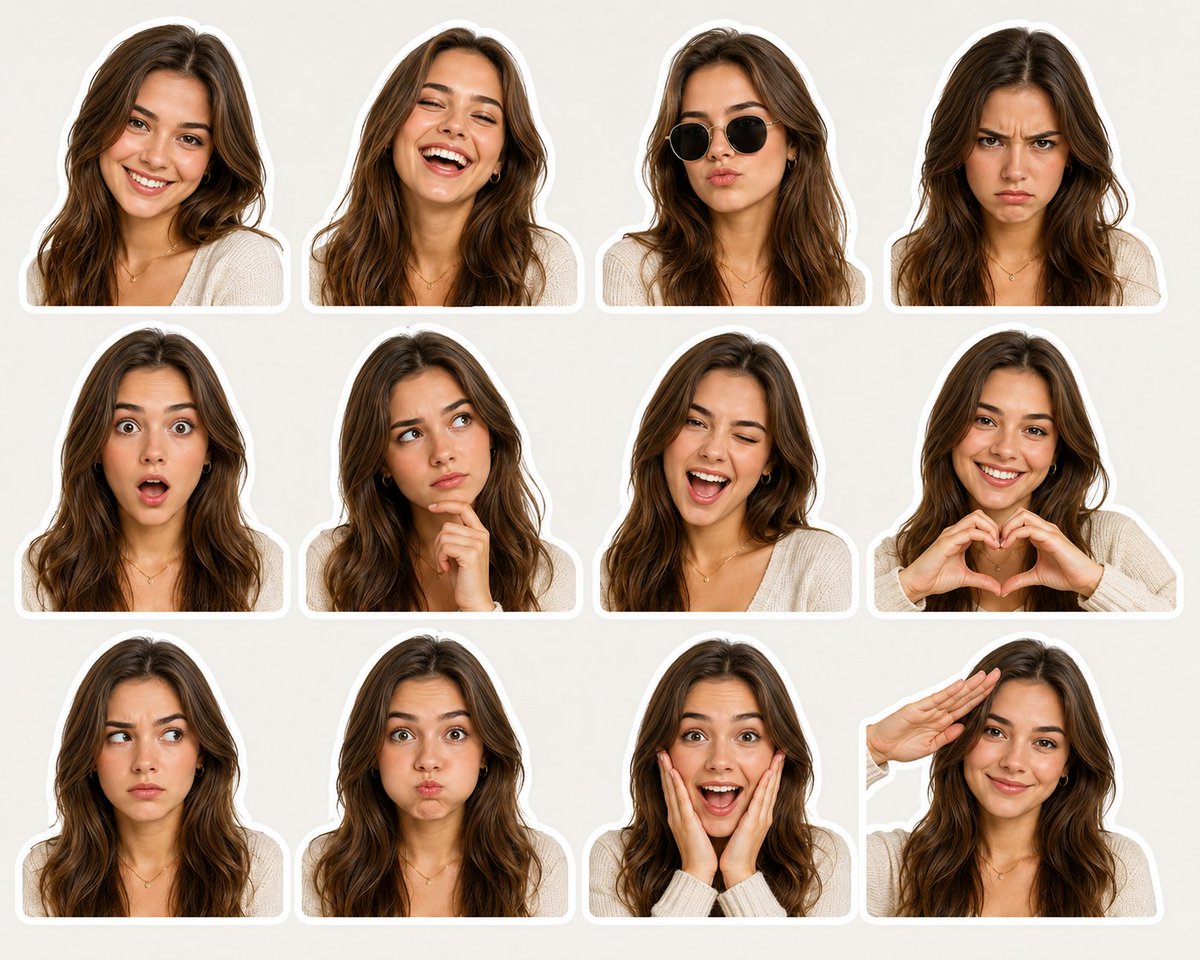
Sticker Pack Facial Expressions Grid
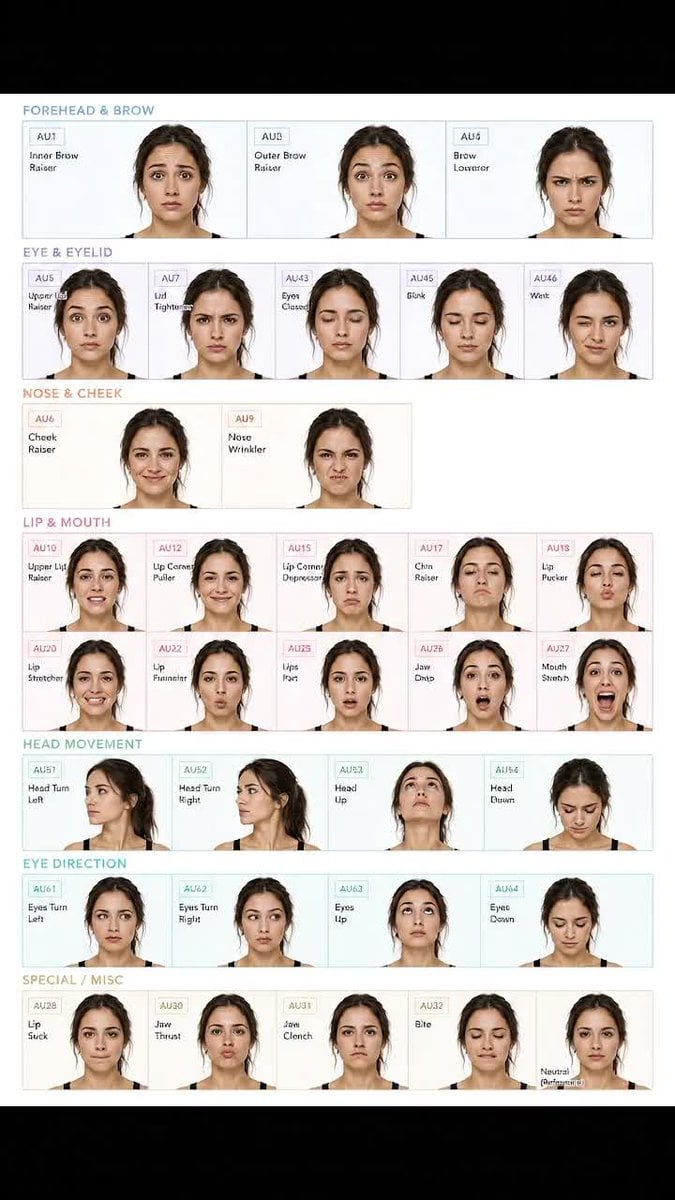
Facial Expression Anatomy Sheet
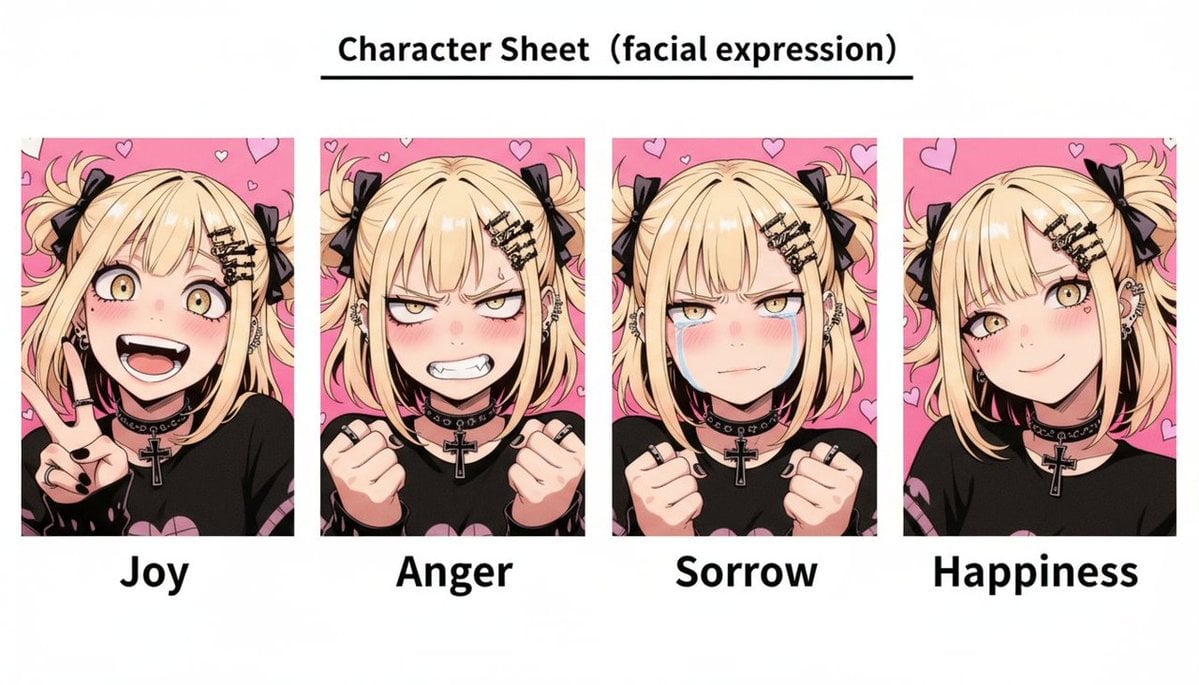
Gothic Anime Facial Expression Sheet
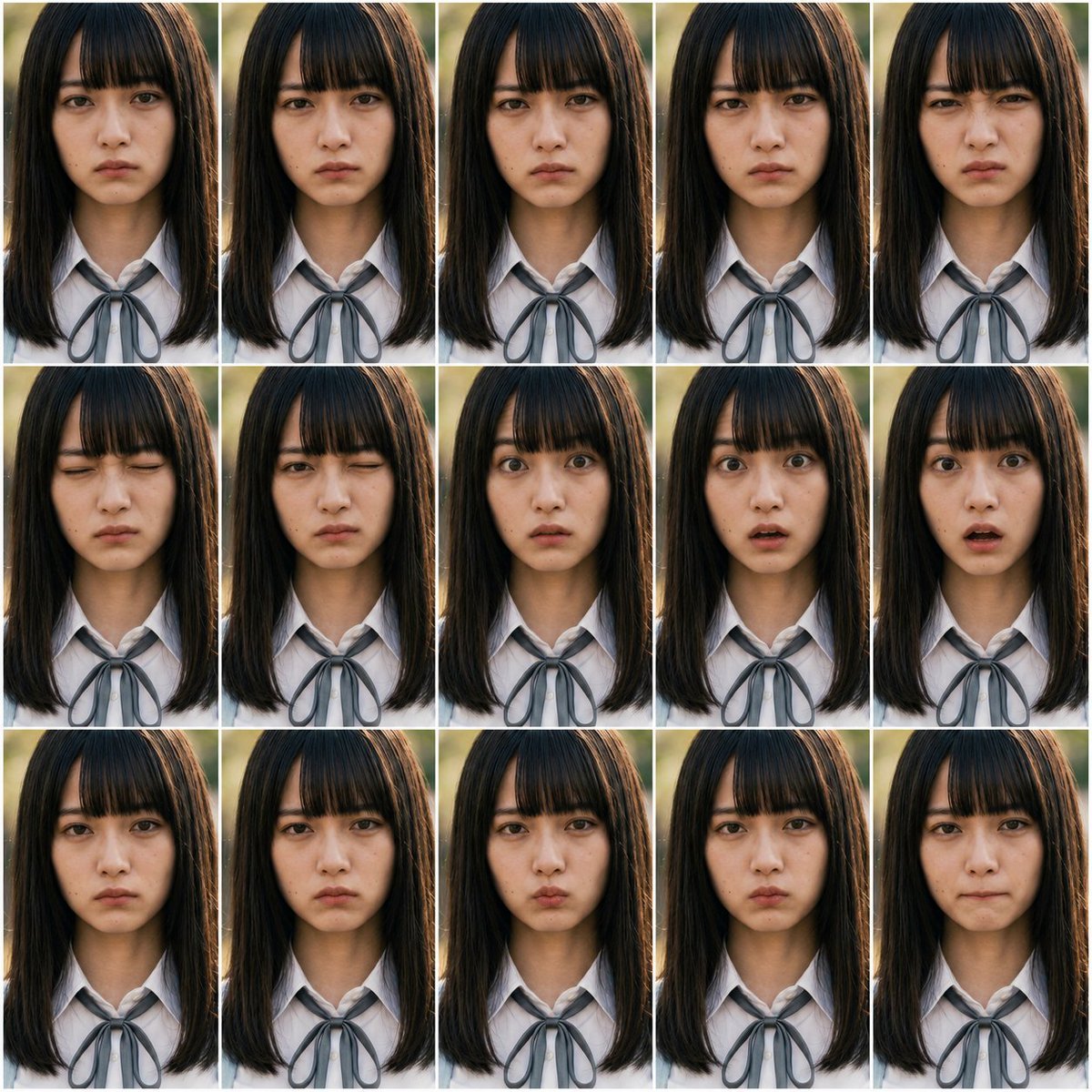
Photoreal FACS Expression Grid
Six-Scene Facial Expression Difference Grid
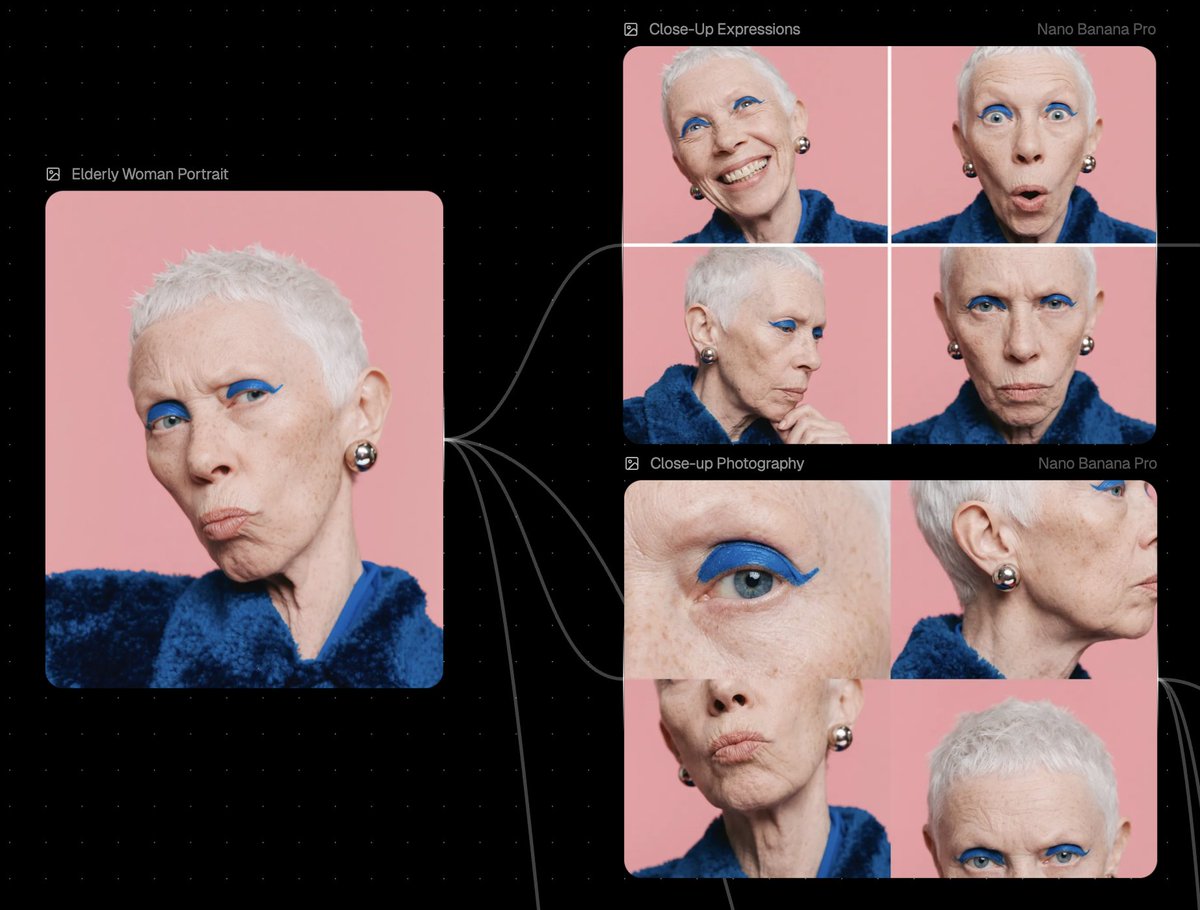
Reference Image Prompt for Facial Expression and Angle Variations
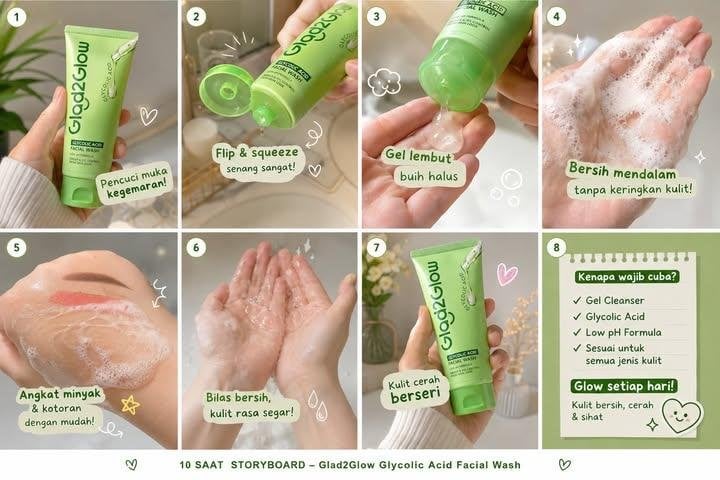
Glad2Glow Facial Wash Storyboard
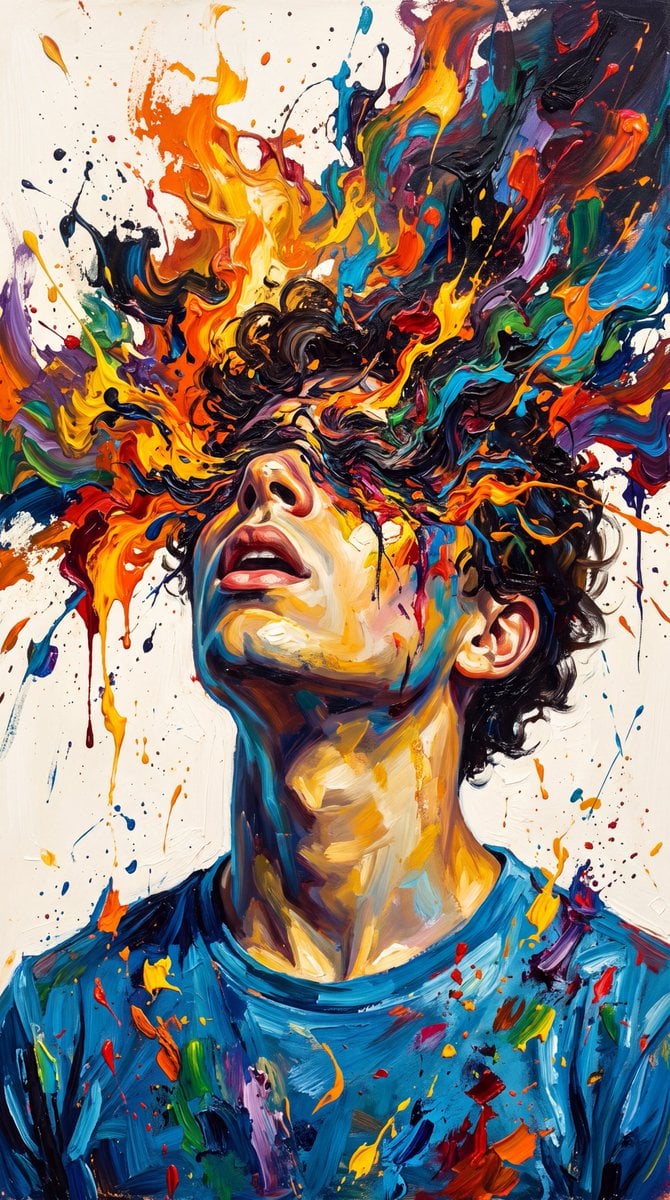
Abstract Expressionist Paint Eruption
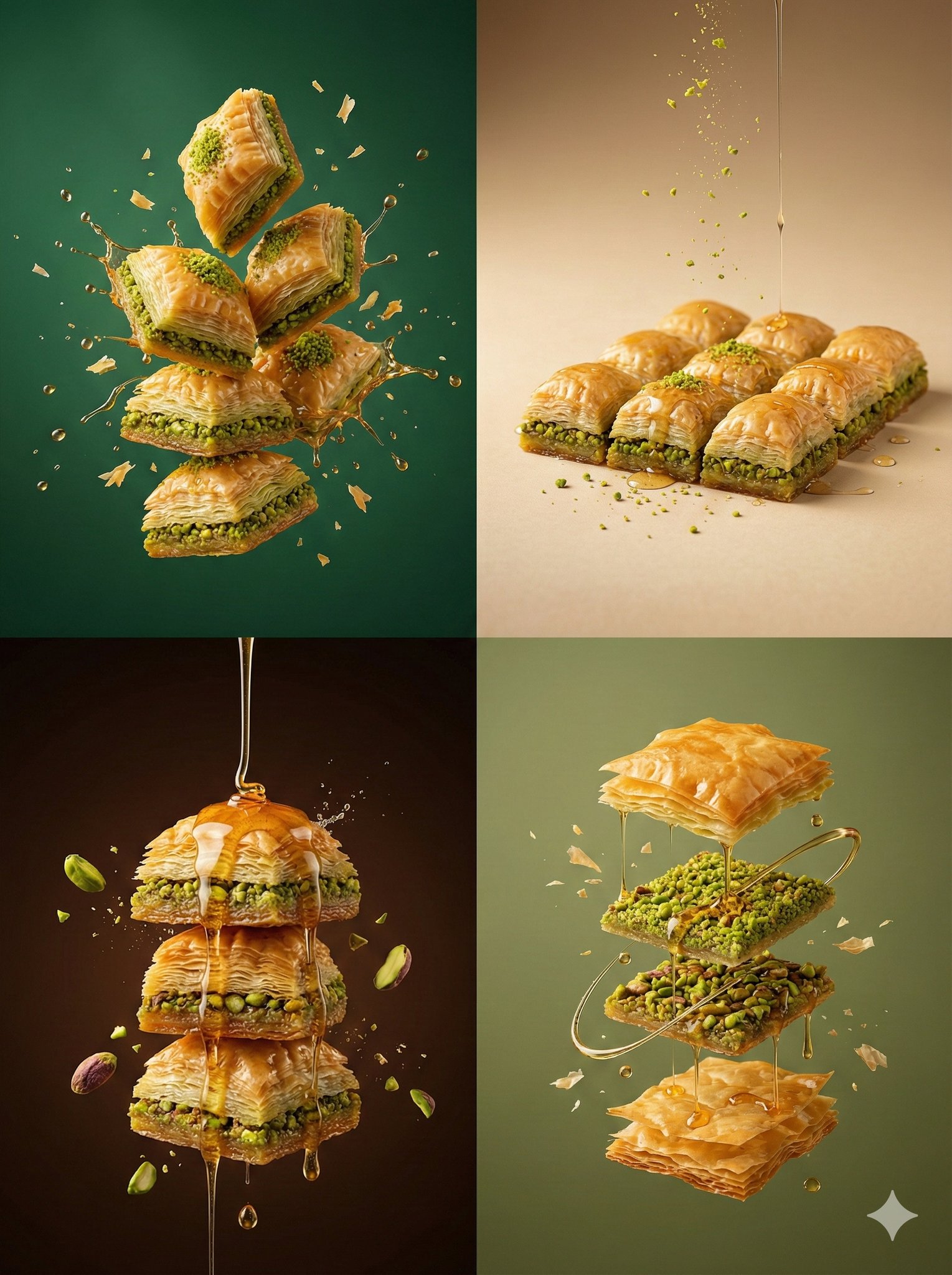
Controlled studio lighting emphasizing texture, layers, and syrup
Controlled studio lighting emphasizing meat texture, char marks
Make it yours
FACS Facial Expression Control works as-is. These are the safest ways to change it without losing the look.
Change one field
Copy a single group, rewrite it, and generate again so you can see what that field is doing.
Keep the frame, change the subject
Hold the composition and light of FACS Facial Expression Control, then swap wardrobe, props or the person for a new take.
| If the result… | Why | Fix |
|---|---|---|
| The result drifts from the preview | Too many fields changed at once. | Reuse FACS Facial Expression Control as-is first, then change one group — subject, light, or setting. |
| The model over-stylizes the scene | The prose prompt leaves finish and camera underspecified. | Add one camera or lighting sentence and stay on GPT Image 2. |
More GPT Image 2 templates
Other prompts made for GPT Image 2.

Six VTuber Japanese Logo Sheet

Realistic Portrait of Woman and Deer

The Vista Modular Condo Poster

AI Model Routing Comparison Infographic

2.5D Anime Art Board

Isometric Productivity Desk Scene

New York Double Exposure Poster

Four-Panel AI Landscape Comparison

Japanese Tatami Lifestyle Magazine Cover

NESCAFÉ Coffee Map Poster
More image prompts
Fresh picks from across the catalog.
MS Paint Charlie Brown Flag Doodle
Luxury Omakase Sushi Bar Editorial Portrait (Image-to-Image)
Four-Panel Manga: Countdown to Disappearance
Minimalist Earbuds Product Photography with Line Art
Isometric Gallery People Set
X Ayzalnooor24521 a Cinematic High Resolution Portrait of
Triple Product Photography Prompt for Nano Banana Pro
Overhead Superhero Mahjong Scene Prompt (WeChat Moments Style)
Megami Tensei Pantheon Battle Prompt
Vertical Slice Double Exposure Woman
Browse template categories
FACS Facial Expression Control questions
How do I use the FACS Facial Expression Control template?
Add your photo if the template asks for one, edit the prompt if you like — the template's model and format are already selected — and press Generate. Your version opens in PicX Studio.
Can I customize the FACS Facial Expression Control template?
Yes. You can change the subject, setting, lighting, mood, format, and available model controls before creating your image.
Is the FACS Facial Expression Control template free?
Opening and editing this template is free. Generating uses credits, shown on the Generate button when you are signed in.
Which AI model should I use?
Start with GPT Image 2, which is the model associated with this template. You can compare another compatible model for a different finish.
Looking for something else? Browse all templates.

Your photo, any look
Thousands of ready templates for every top image and video model, from one credit balance.